
Pages can be added or removed at any time to help structure your content exactly how you want it.
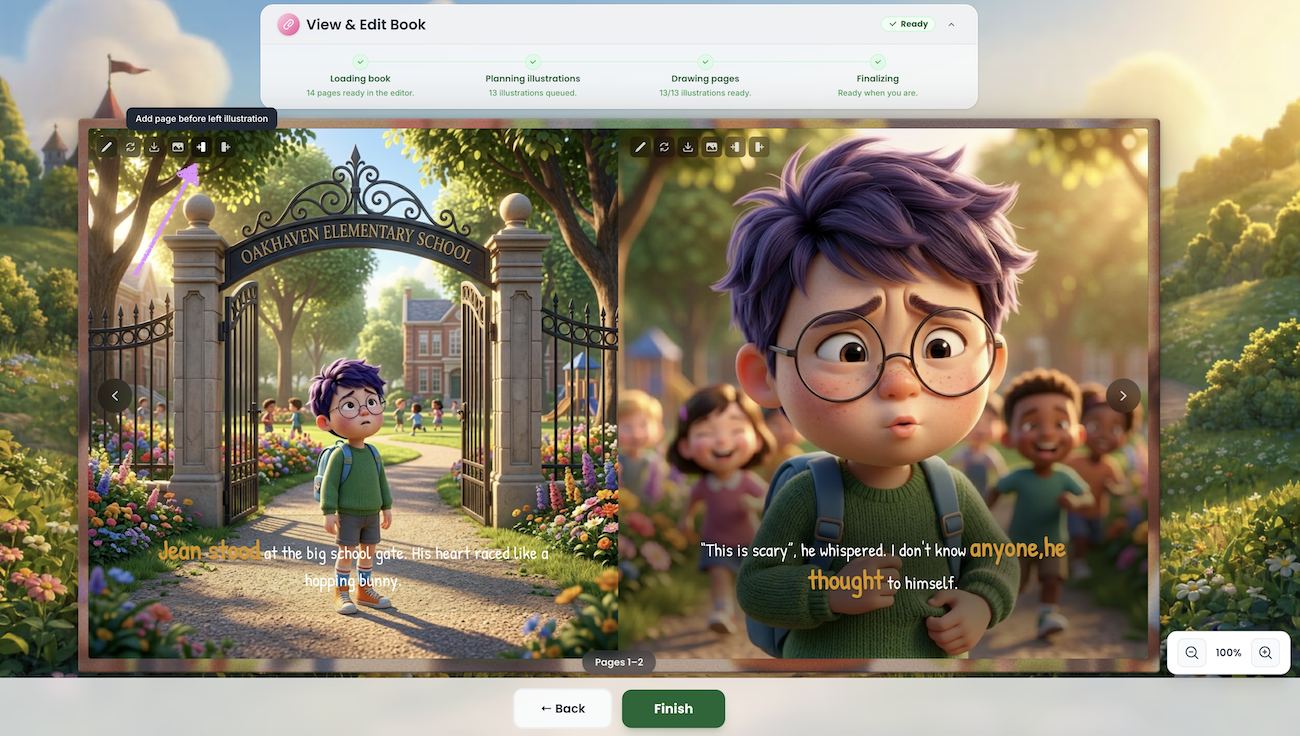
In the editor, at the top of the page you will have the option to "Add page before left illustration."
Or "Add page after left illustration."
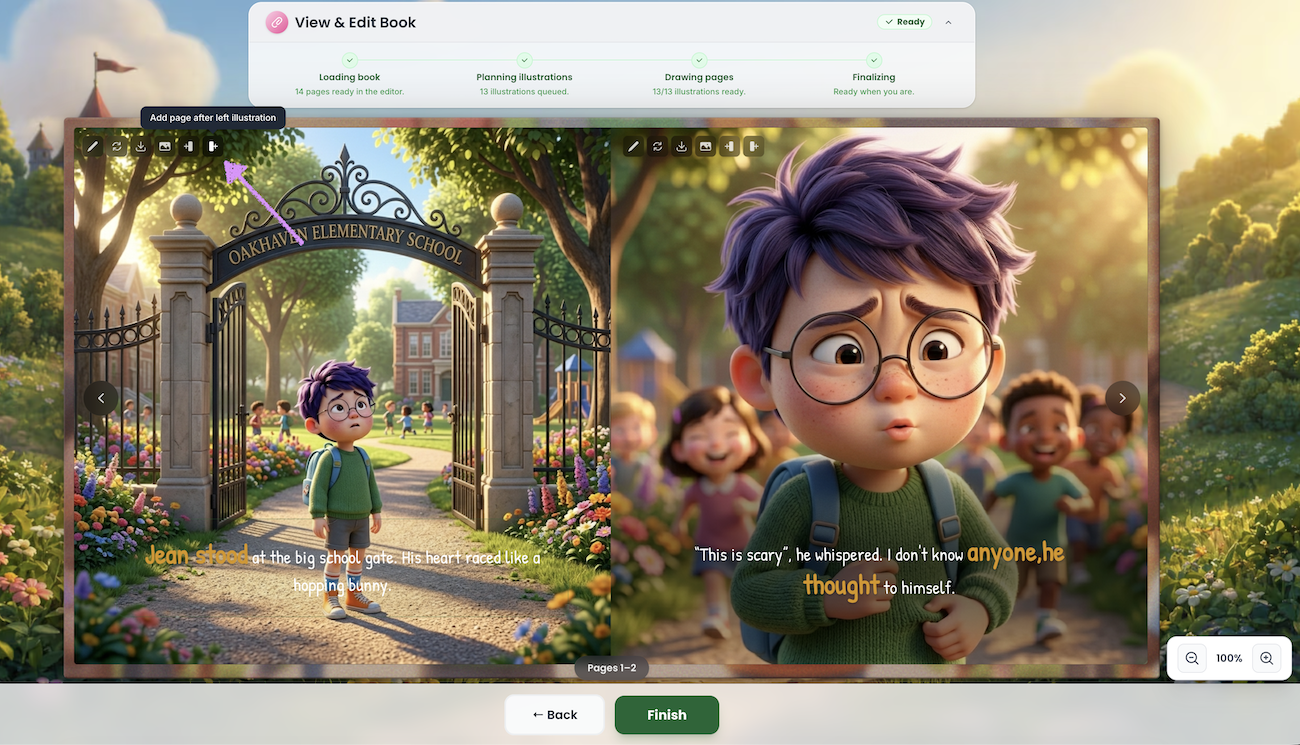
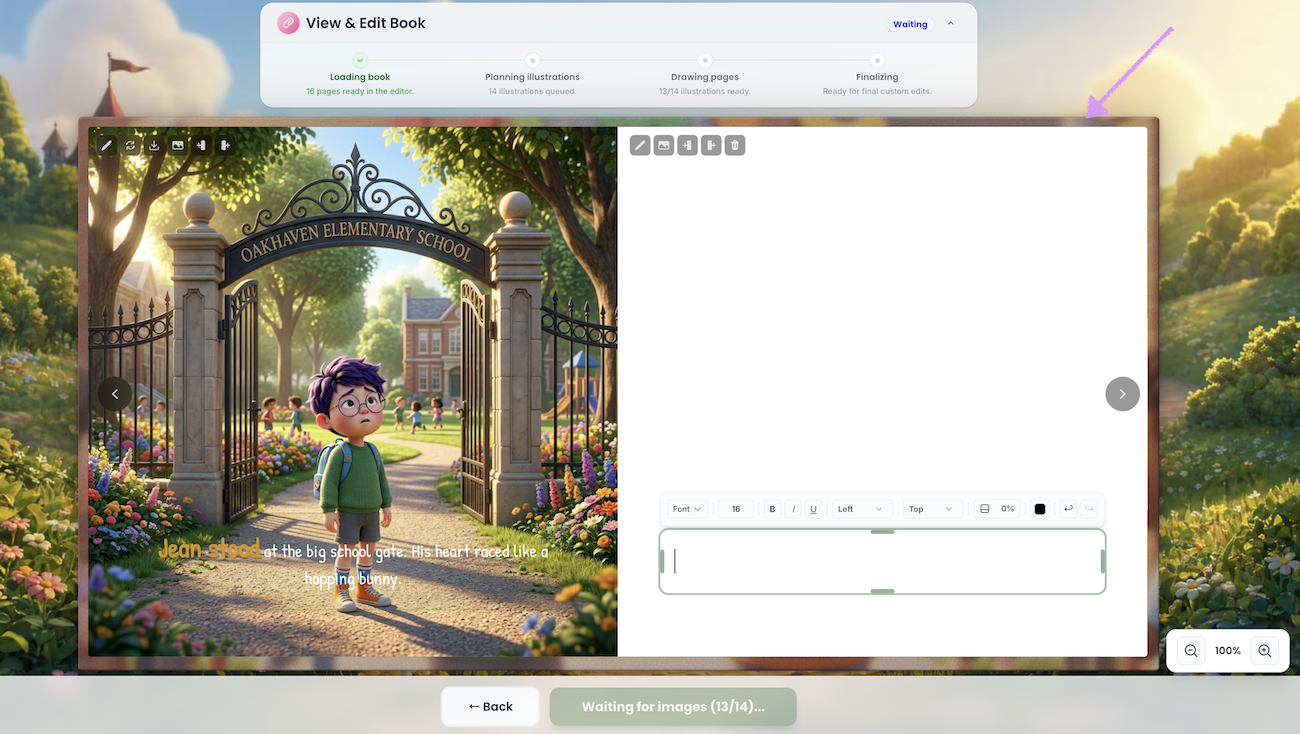
⚠️ The number of pages you can add depends on your plan. This page count includes all pages in your book, including story pages and any blank pages. Free users can create up to 15 pages per book. One-Time (single purchase) and Pro users can create up to 30 pages, while Pro subscribers can create up to 50 pages.The blank page will be added based on your selection.
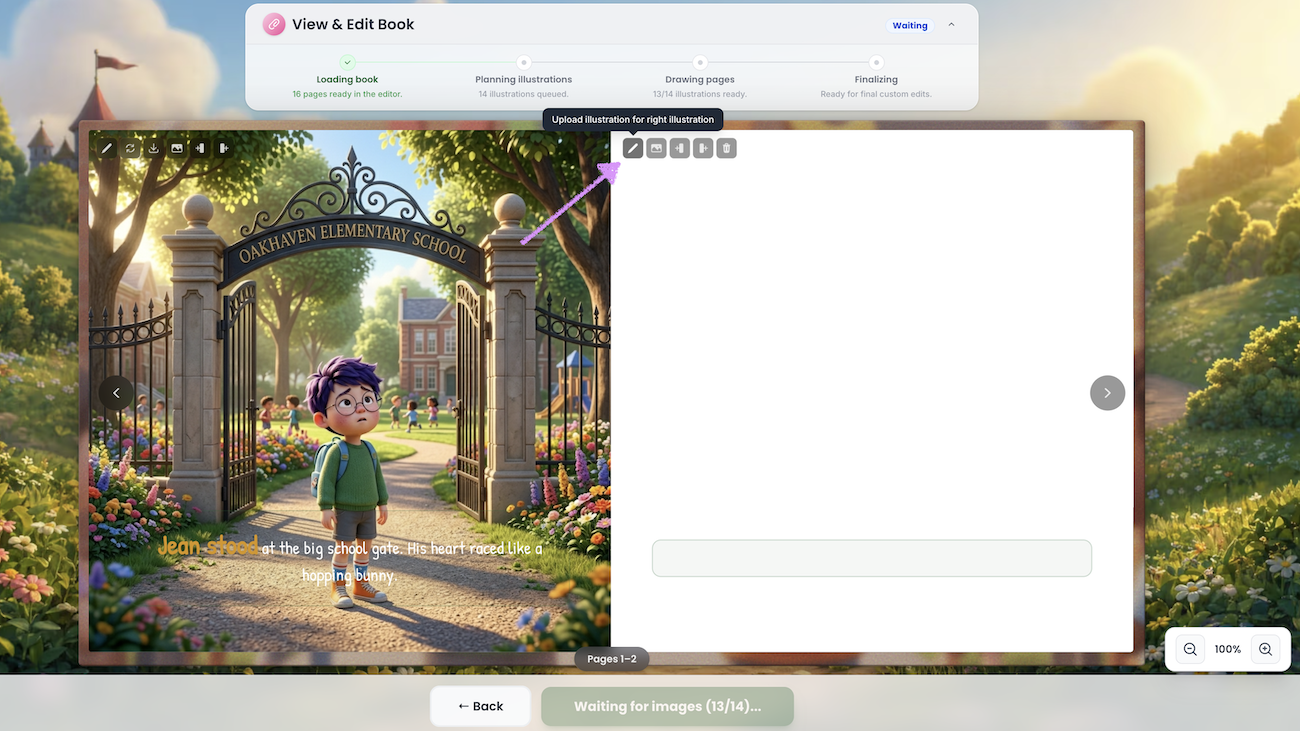
Use the "Upload illustration for right illustration" to add a full page image.
Use "Add Image to Right Illustration" to insert a movable and resizable image onto the page. For more details, see our guide on adding images here.
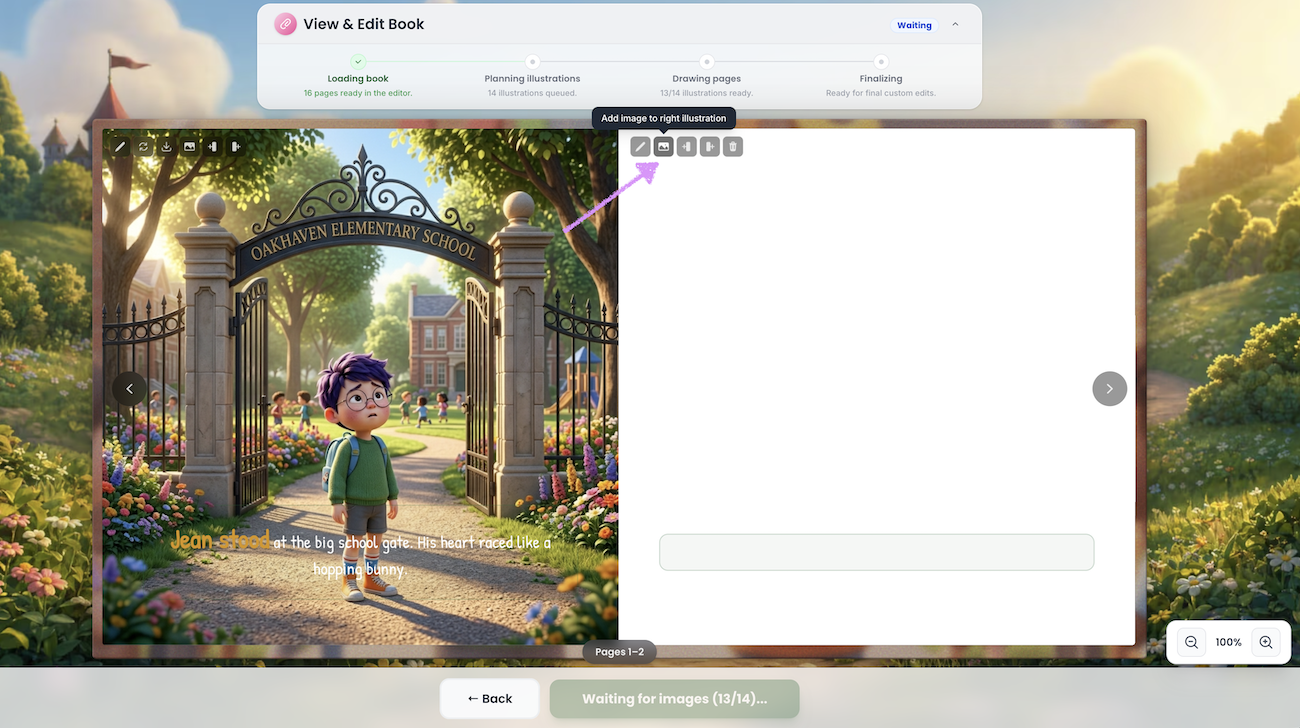
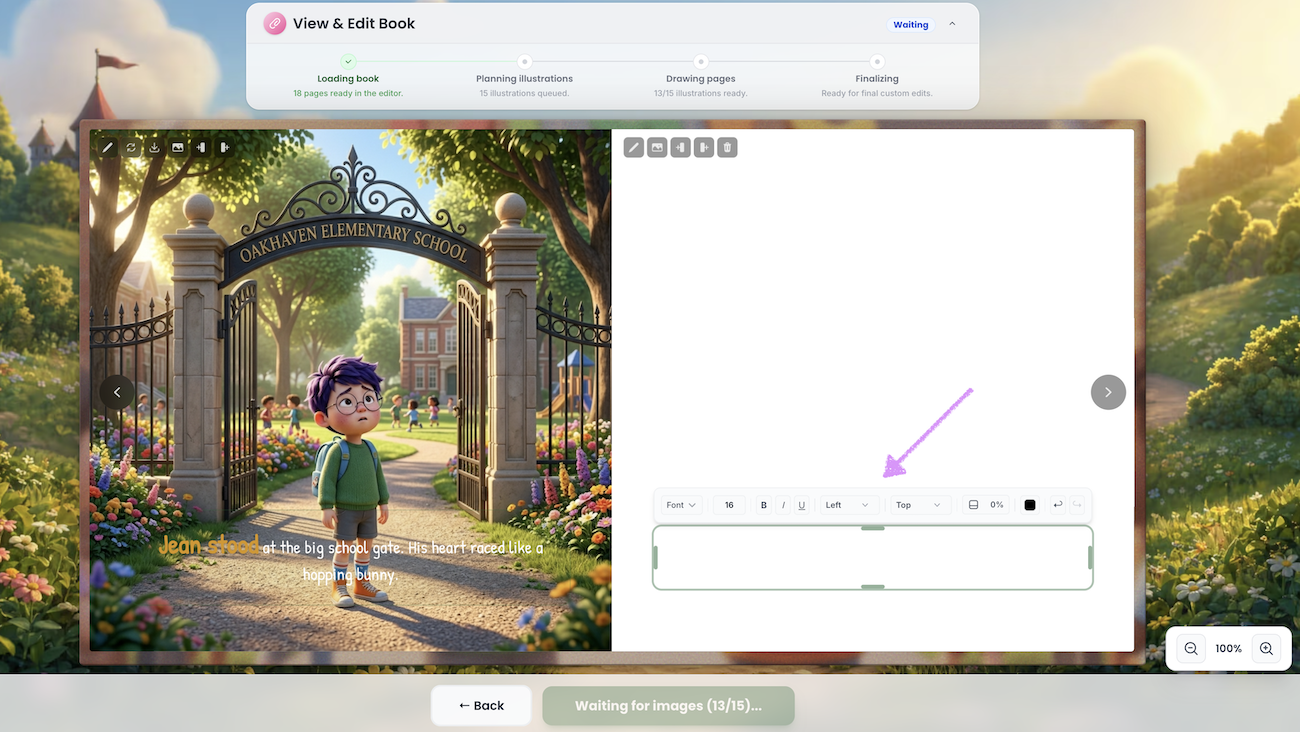
Each blank page includes a text block that can be customized as needed. Common uses include dedication pages, copyright pages, and acknowledgments.
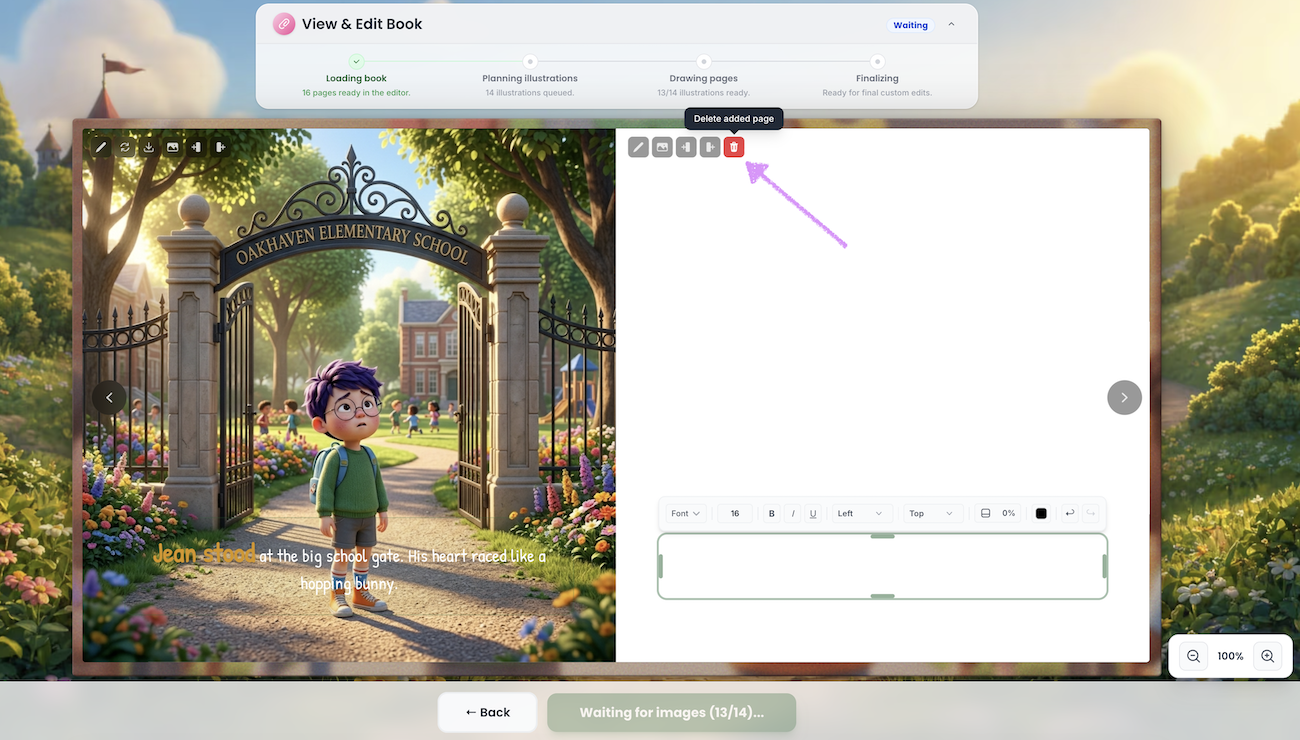
If you'd like to remove the page click on "Delete added page."
Was this article helpful?
That’s Great!
Thank you for your feedback
Sorry! We couldn't be helpful
Thank you for your feedback
Feedback sent
We appreciate your effort and will try to fix the article
