
Page images help bring your story to life, and sometimes you may want to save a generated image or add one of your own on top of the existing page image. In the editor, you can easily download current page images and upload custom images to better match your vision for the book.
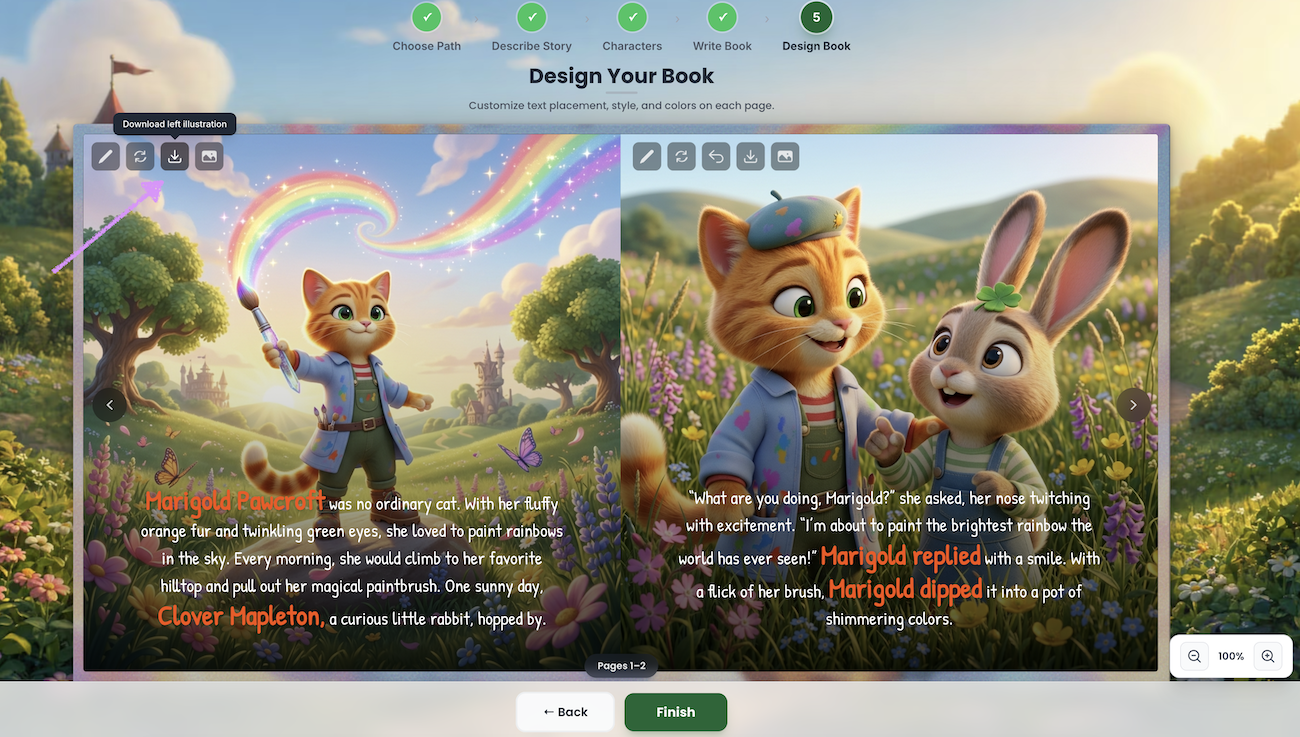
To download the page image click on the "Download left/right illustration" icon and select the location on your device that you'd like to save it to.
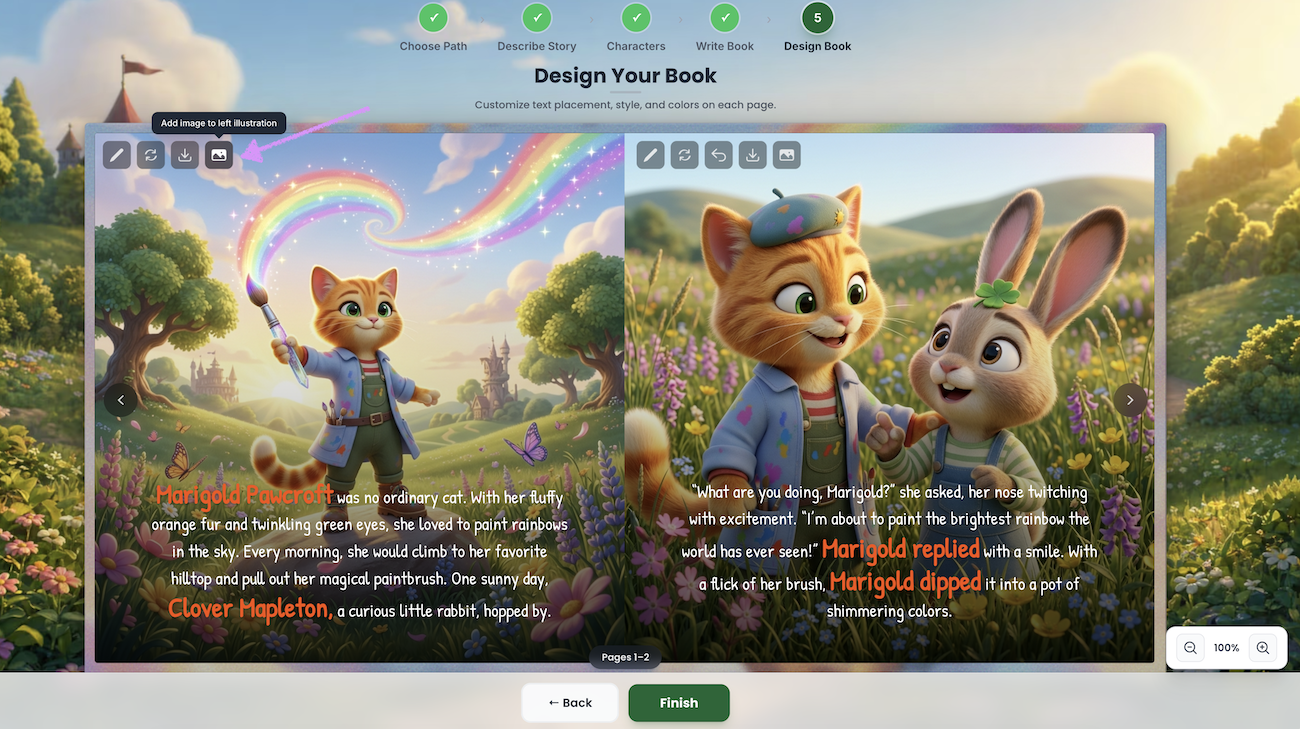
You'll also have the option to "Add image to left/right illustration." This option allows you to import/upload an image from your device onto the page.
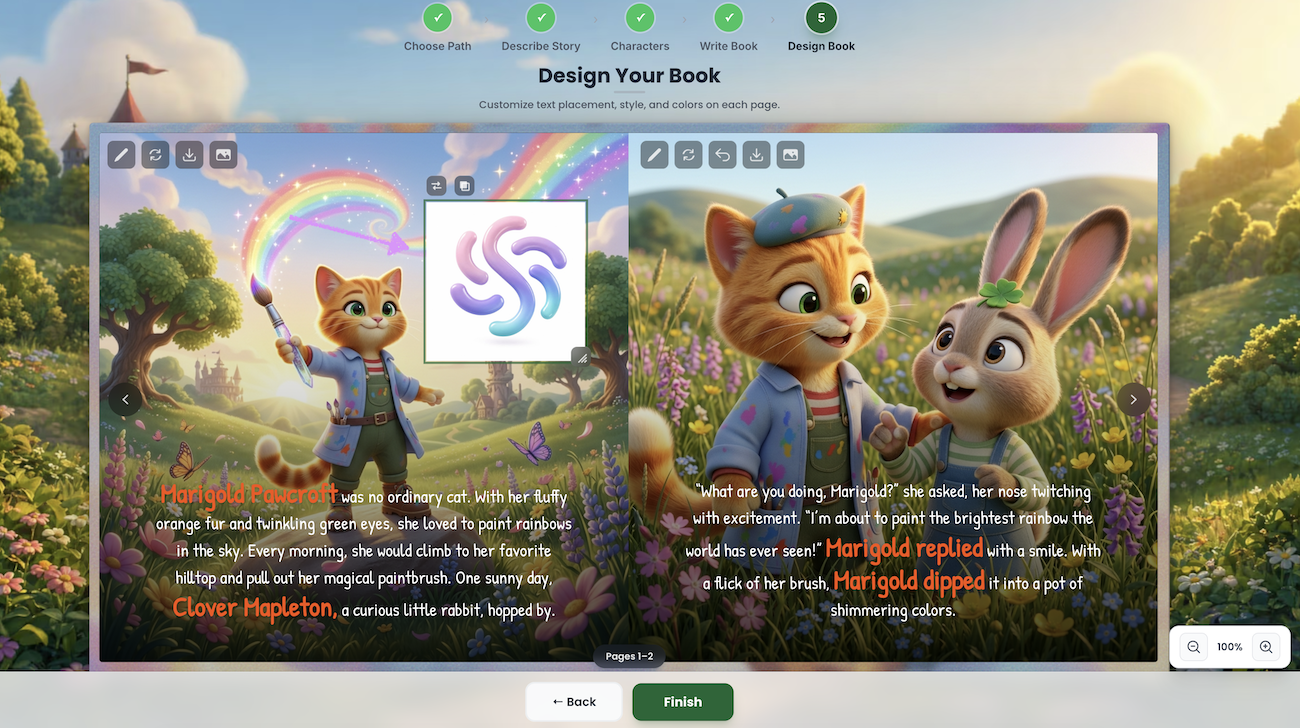
Click and drag the image to place it on the page as needed.
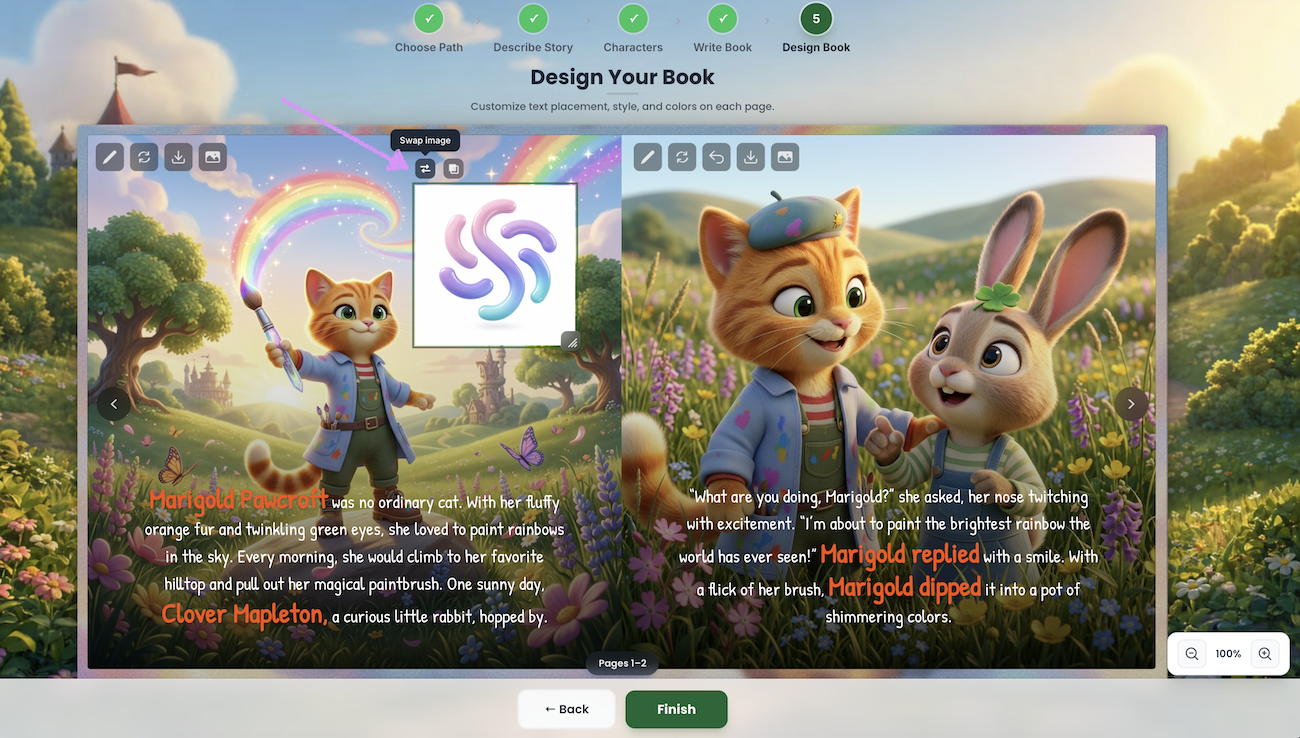
Want to use a different image? Click on the "Swap image" option.
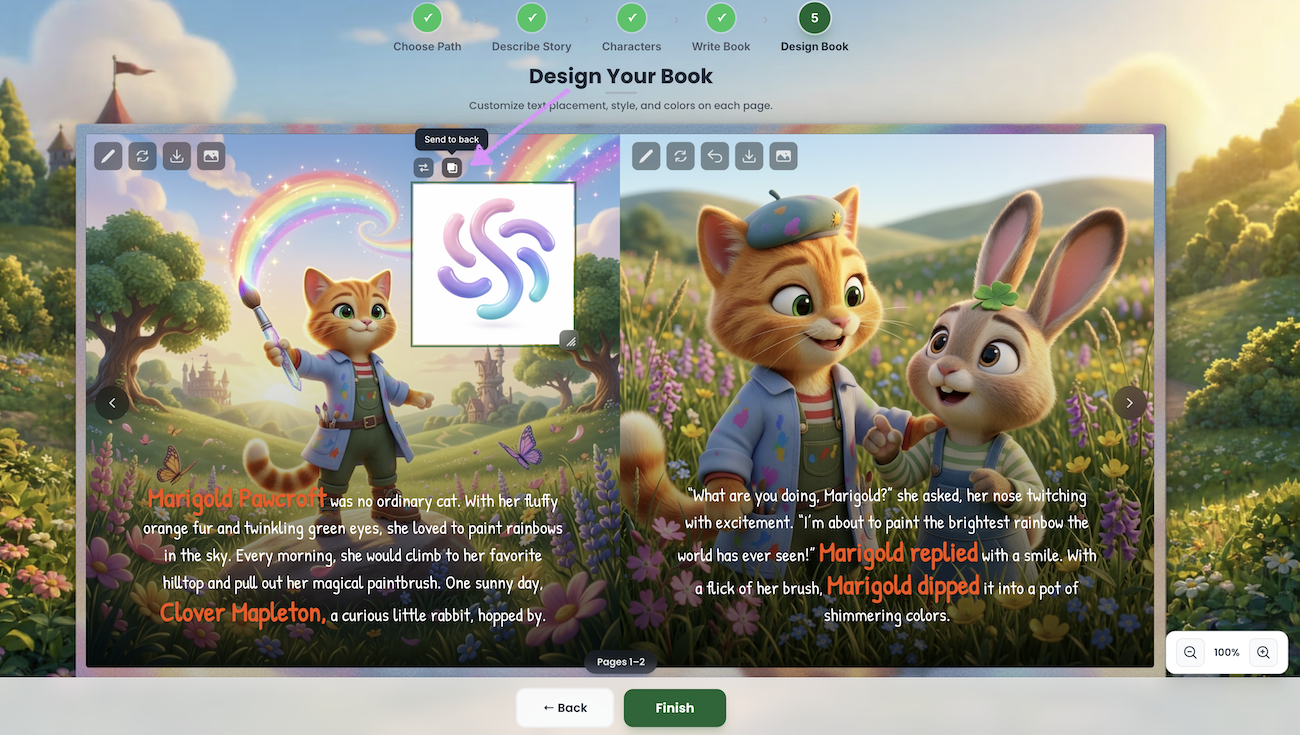
You’ll also have the option to adjust the image layering based on where you’d like the image to appear on the page:
- Send to Front — Places the image above other page elements, making it appear in the foreground.
- Send to Back — Moves the image behind other page elements, making it appear in the background.
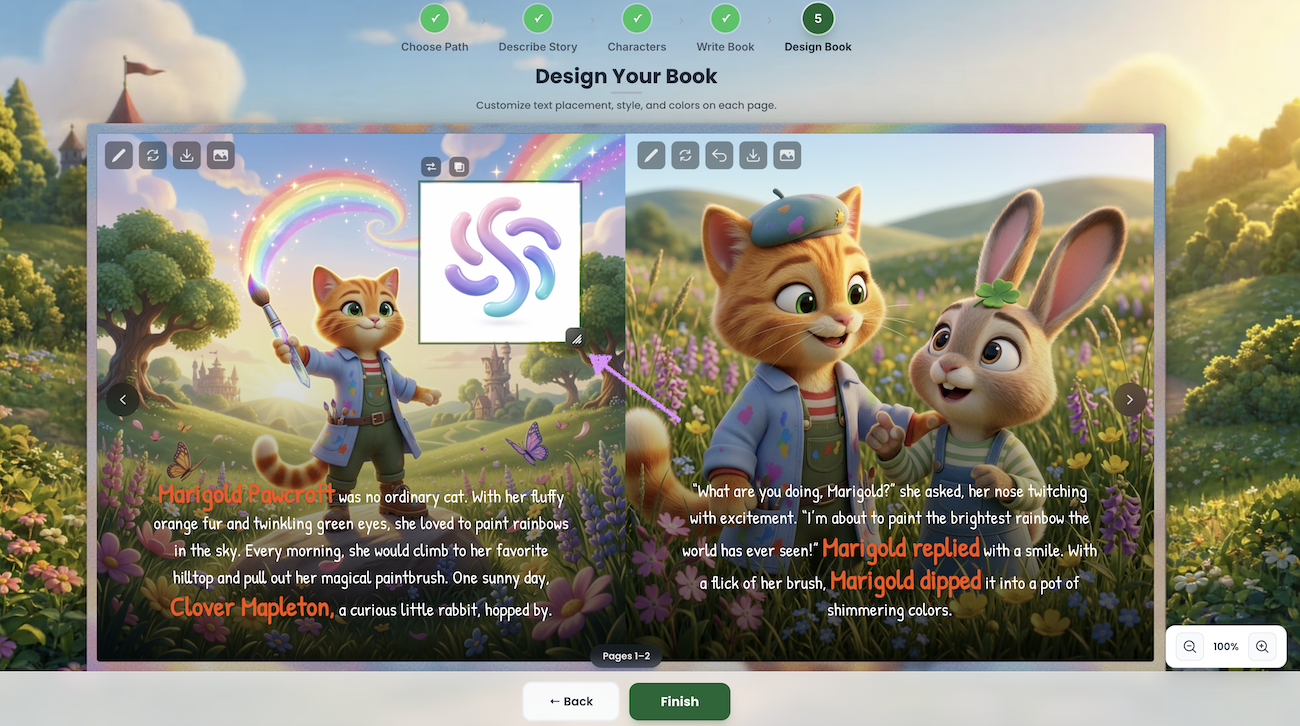
Click the resize tool in the bottom-right corner of the uploaded image to adjust its size. To remove the uploaded image from the page, select it and press the "delete" key on your keyboard.
Head over to our guide here to learn more about working with your book's back cover page.
Was this article helpful?
That’s Great!
Thank you for your feedback
Sorry! We couldn't be helpful
Thank you for your feedback
Feedback sent
We appreciate your effort and will try to fix the article
