
Blank pages give you complete freedom to design your book exactly how you want. Instead of being limited to preset layouts, you can add your own images, text, and design elements to create fully custom pages. If you prefer more structure, you can still use our template pages to save time and maintain consistency.
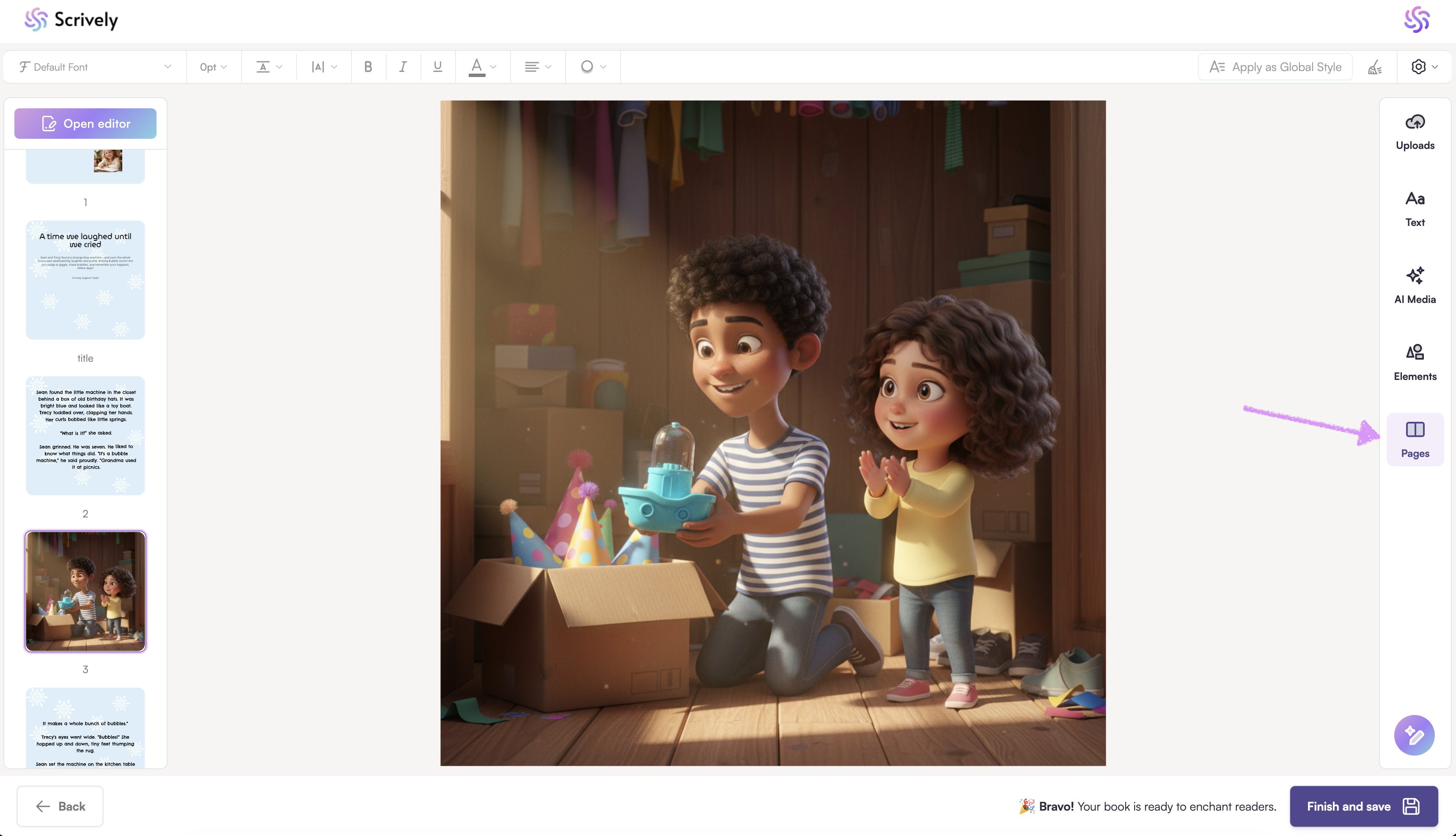
In the Designer (book layout view), open the "Pages" tool from the panel on the right side.
Choose the page style you'd like to add.
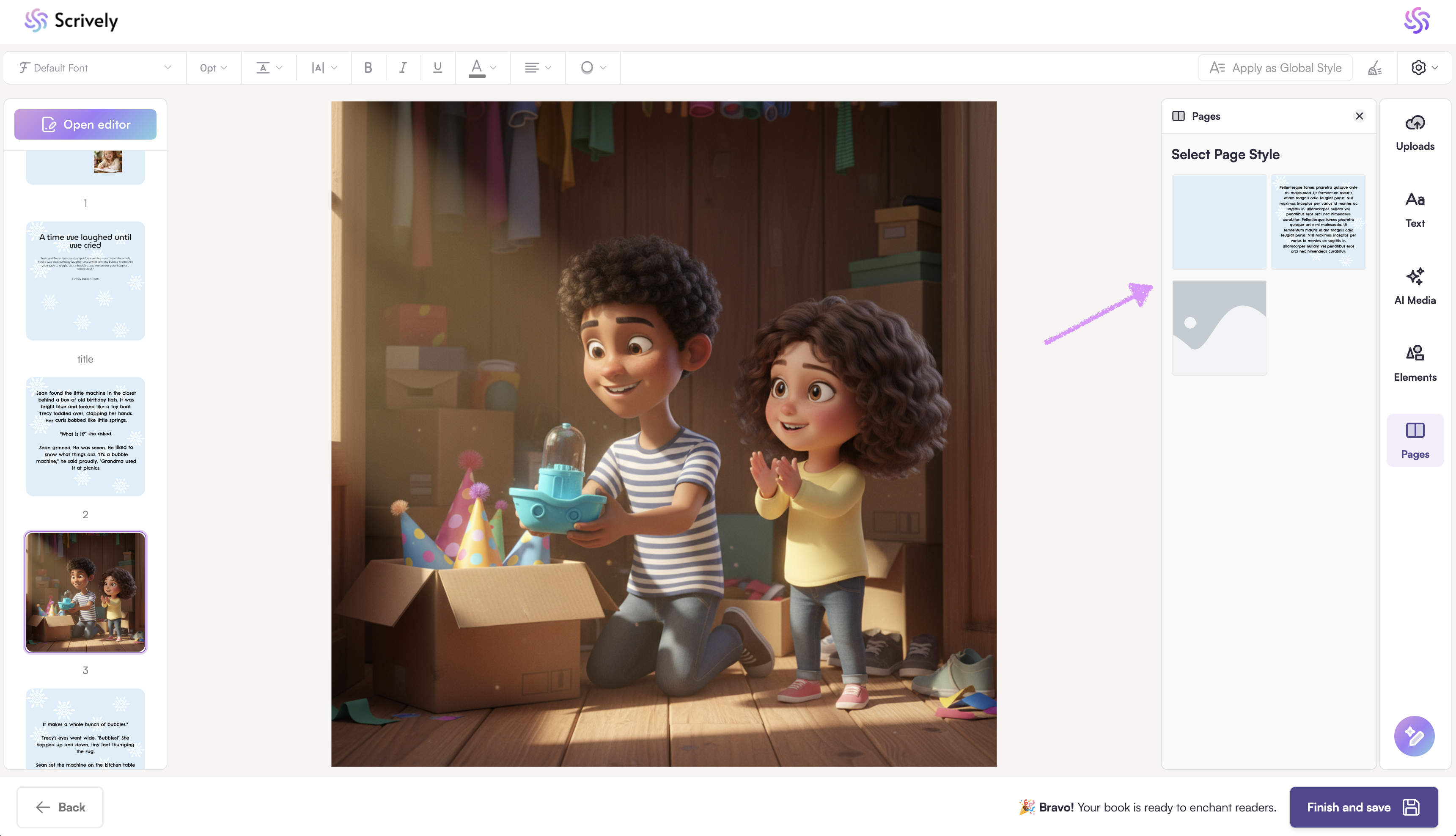
In this example, we'll add a blank page.
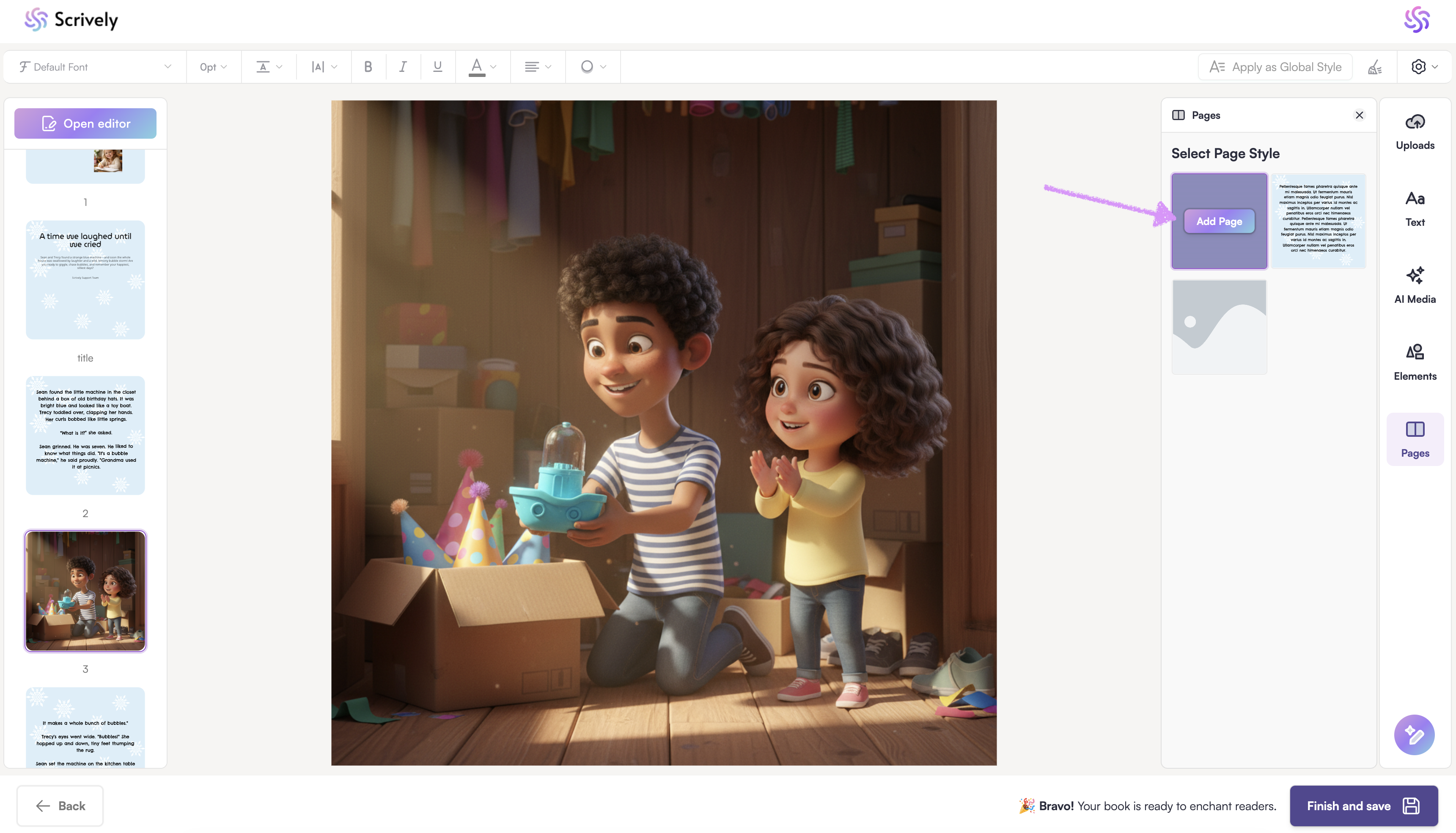
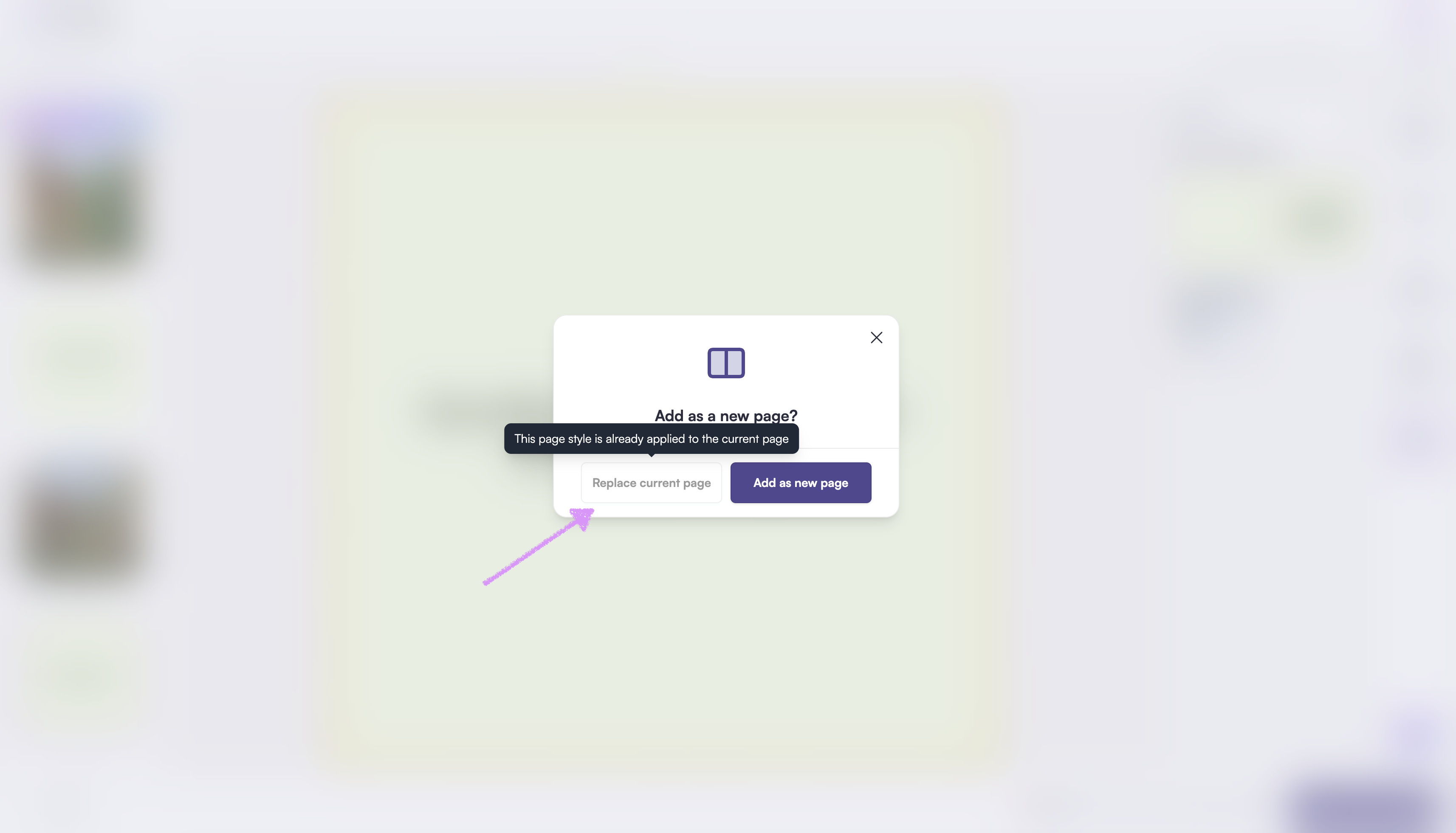
You’ll have two options when adding a page: replace the current page or add it as a new page. If you choose to replace, the current page design will be removed and updated with the new layout. If you add it as a new page, your existing content will stay the same and the new page will appear below it. This is a great option if you want to try new layouts or continue building your book while keeping what you’ve already created. In this example, we’ll add it as a new page.
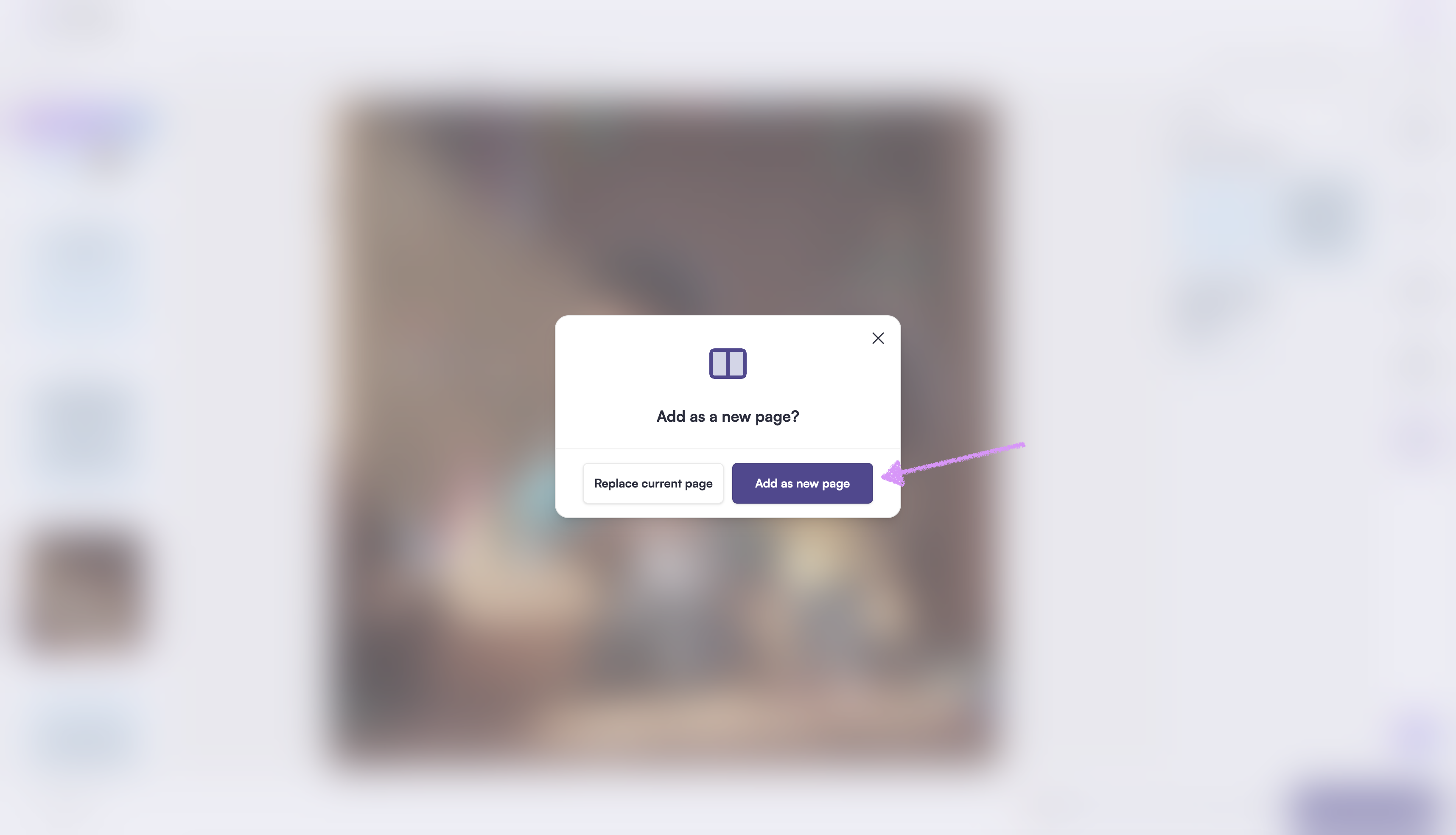
Note: If a page style is already applied to the page you're on you won't be able to replace the current page.
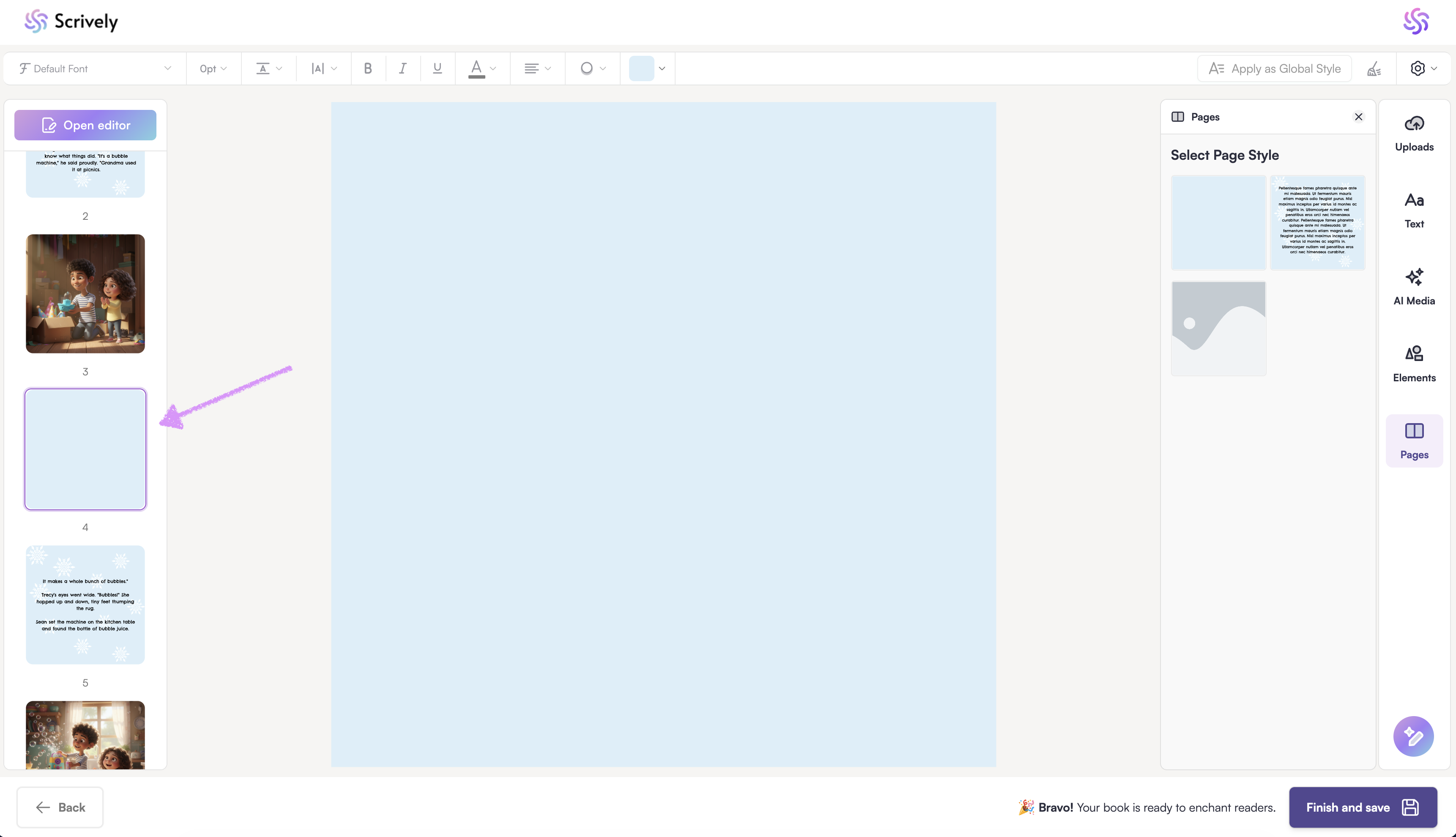
The new page will be added directly below the page you’re currently viewing, so you can continue building your layout in the exact order you want. This gives you full creative control over the structure of your book, making it easy to organize your content, add images, text, or design elements, and create a smooth flow from one page to the next.
Was this article helpful?
That’s Great!
Thank you for your feedback
Sorry! We couldn't be helpful
Thank you for your feedback
Feedback sent
We appreciate your effort and will try to fix the article
