
Previewing books in the Scrively Library makes it easy to explore templates before you start creating.
From the Dashboard, click on “Explore Our Story Library.”
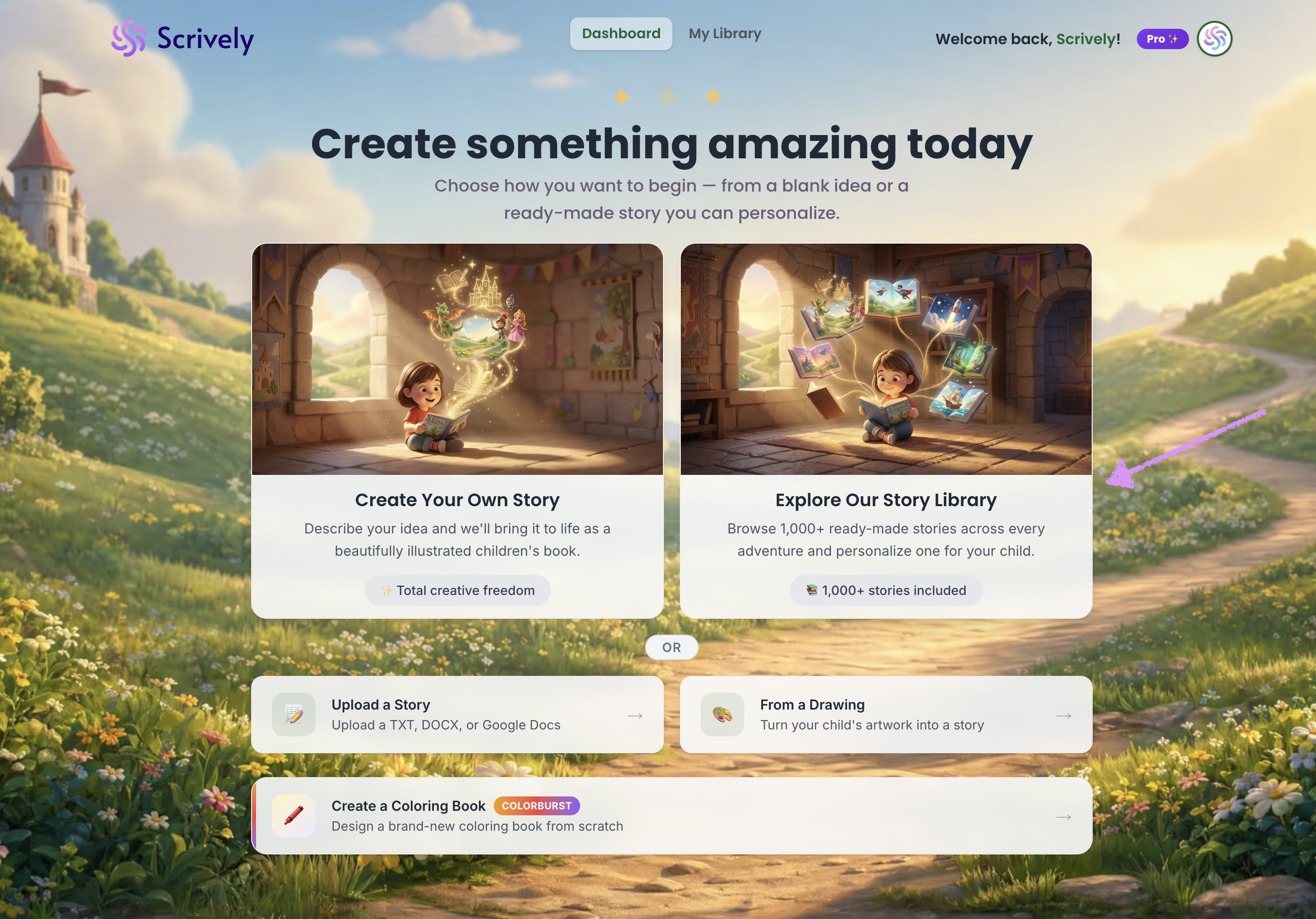
Alternatively, from your avatar click on "Scrively Library."
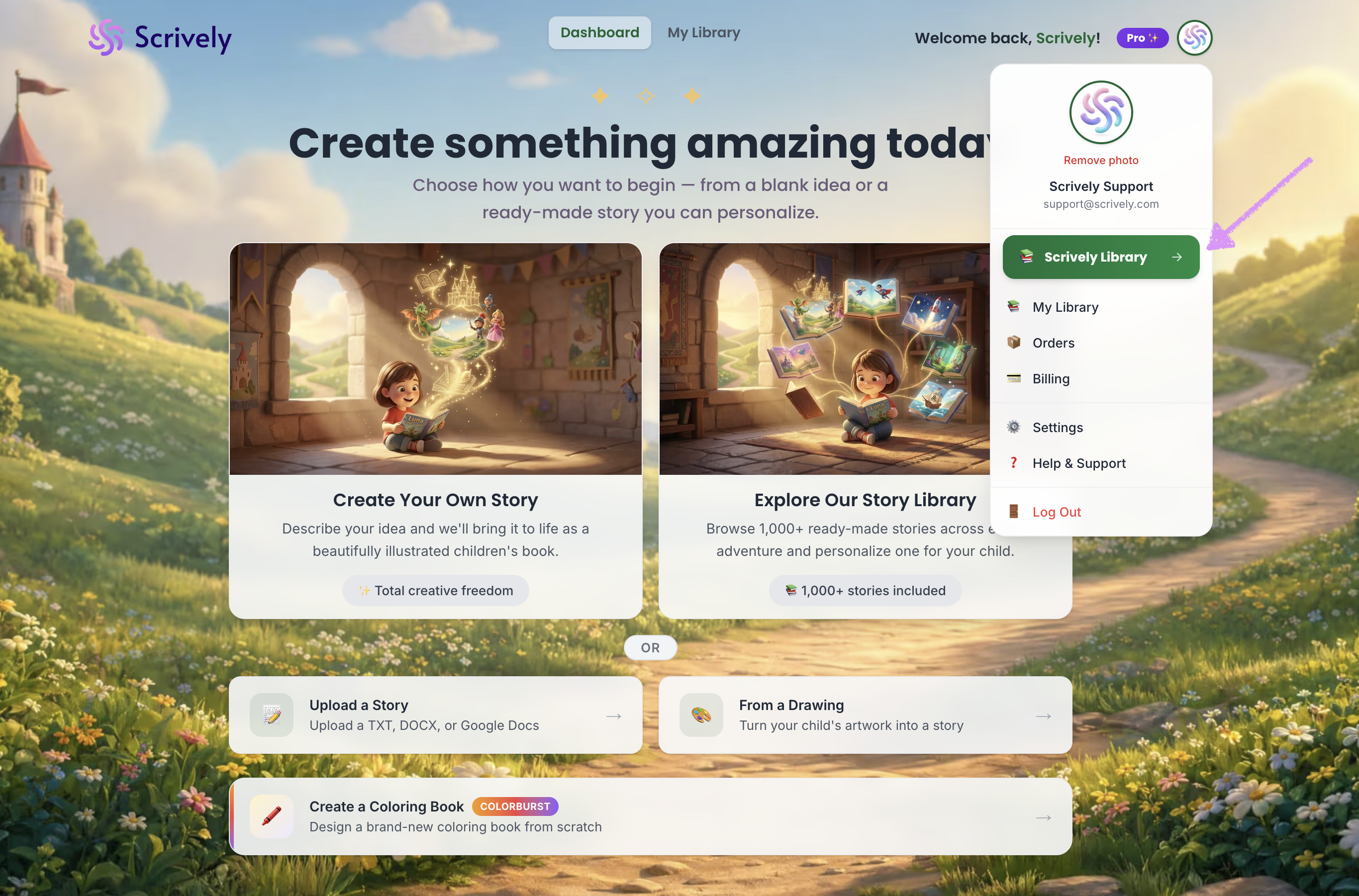
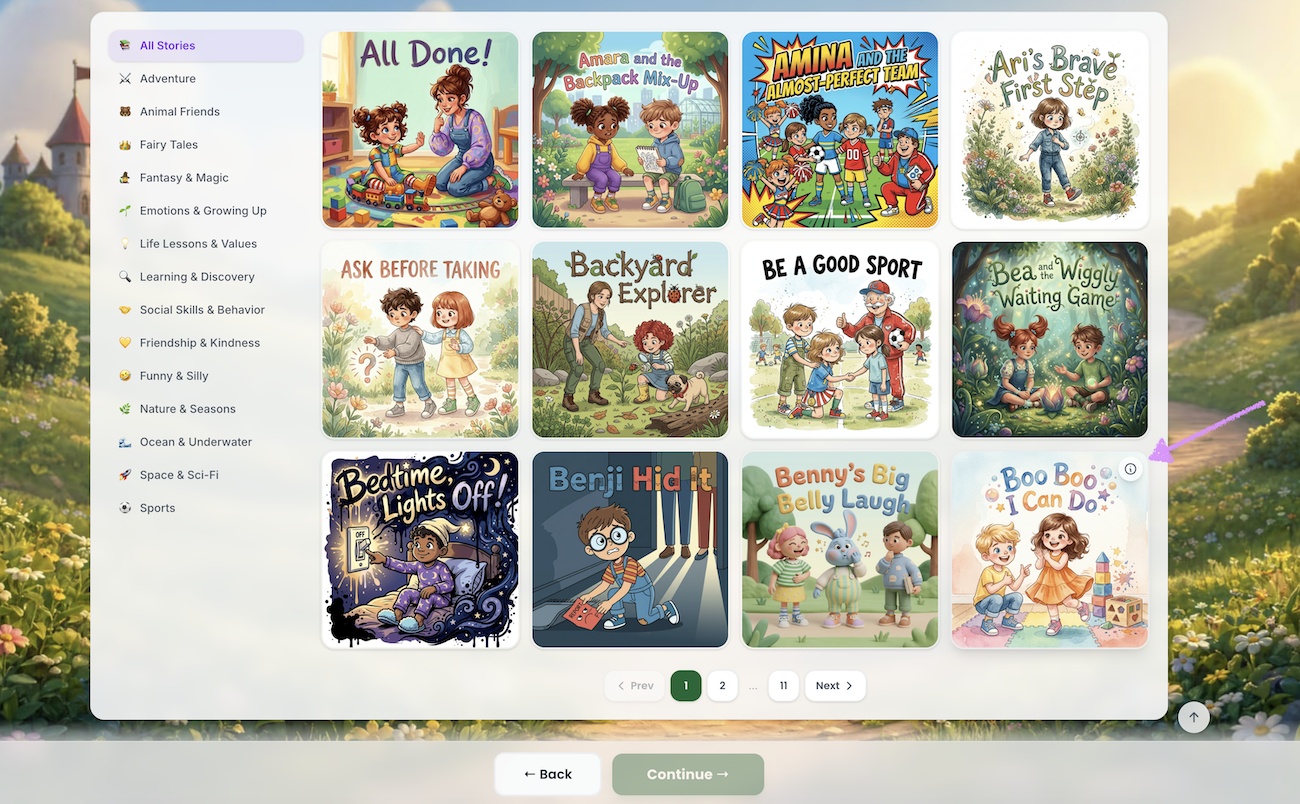
You’ll arrive at the Scrively Library, where you can browse hundreds of templates to kickstart your project. To preview a book, hover over your chosen title and click the information icon.
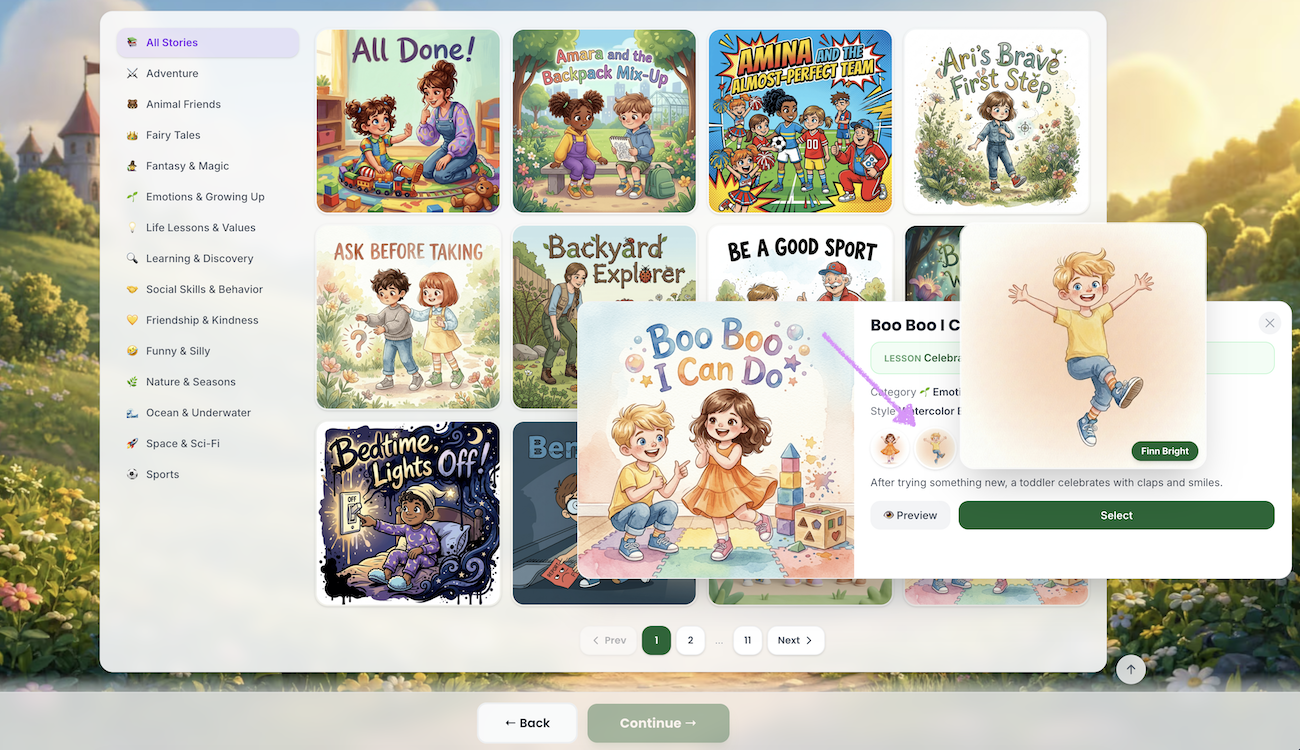
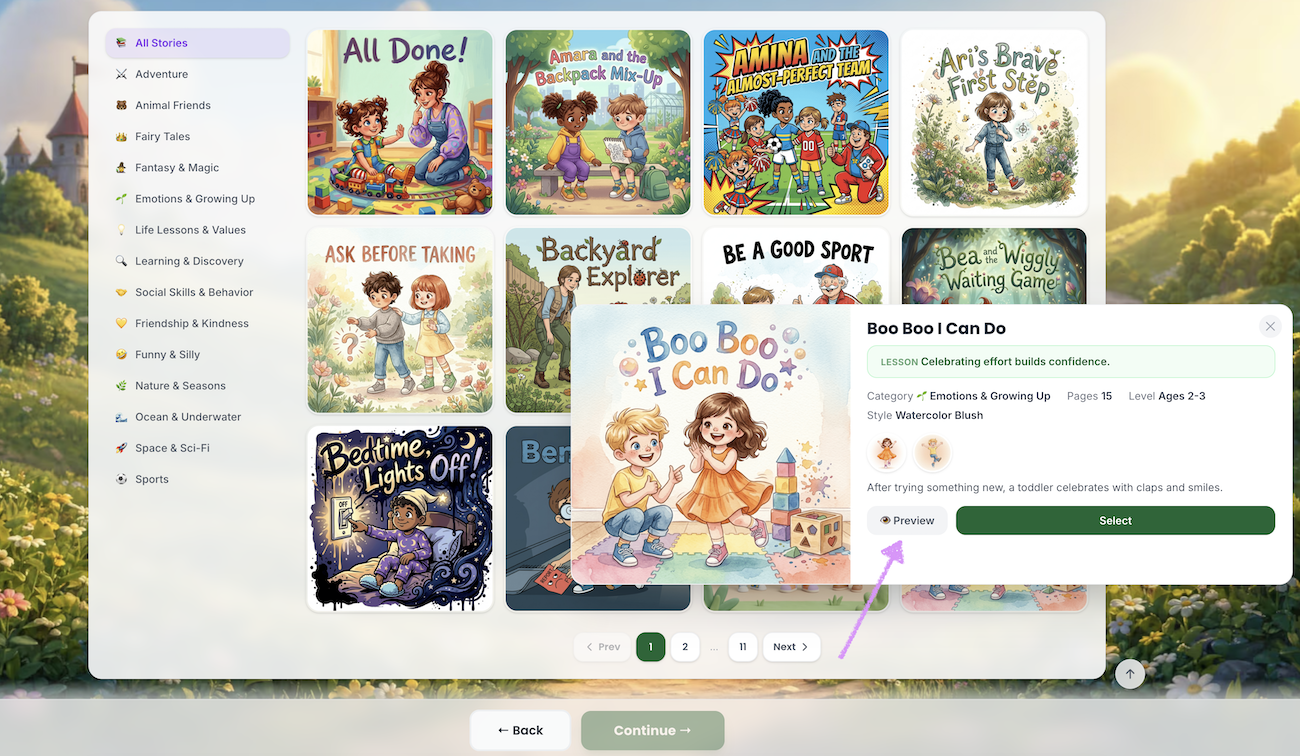
This will open the modal which lets you view key details about the book, including the title, lesson, category, page count, age range, art style, and a short description of the story.
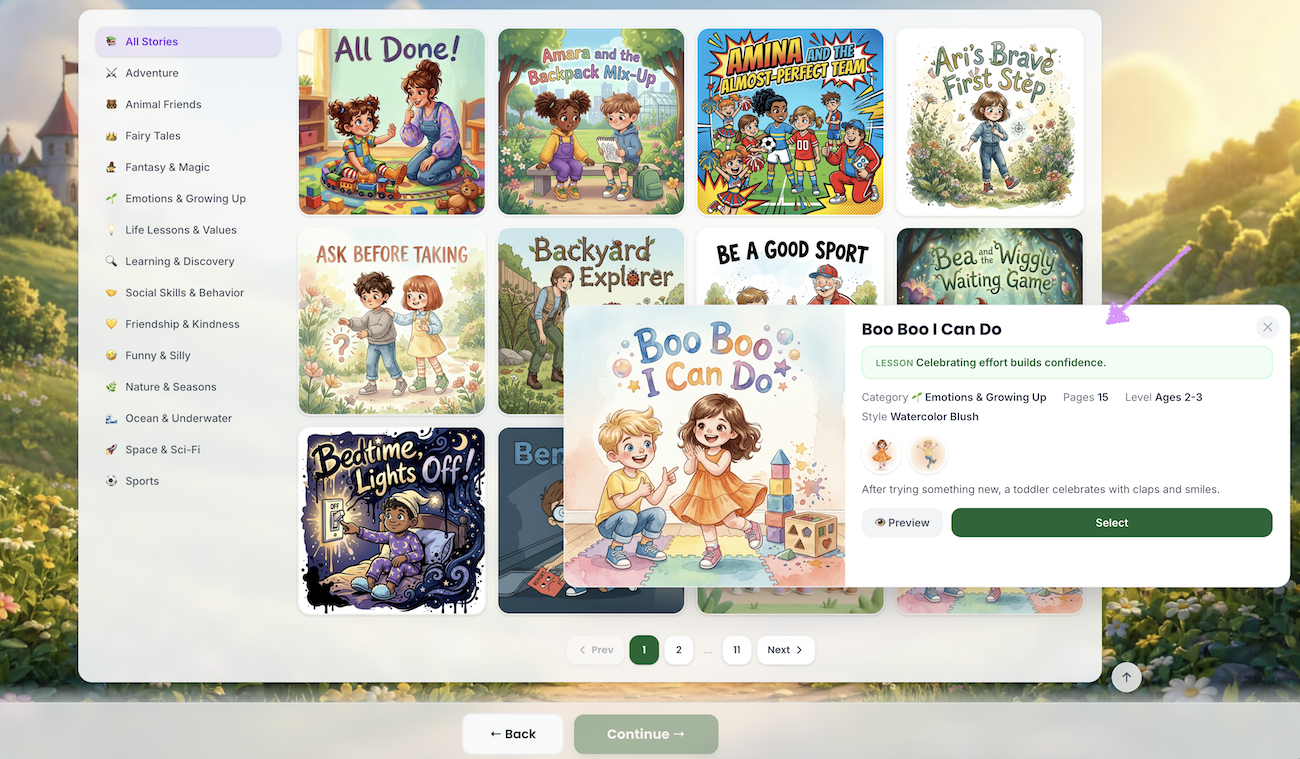
Hover over each character’s avatar to see how they look. You can use the characters as they are or replace them with your own to better fit your story.
Click on "Preview."
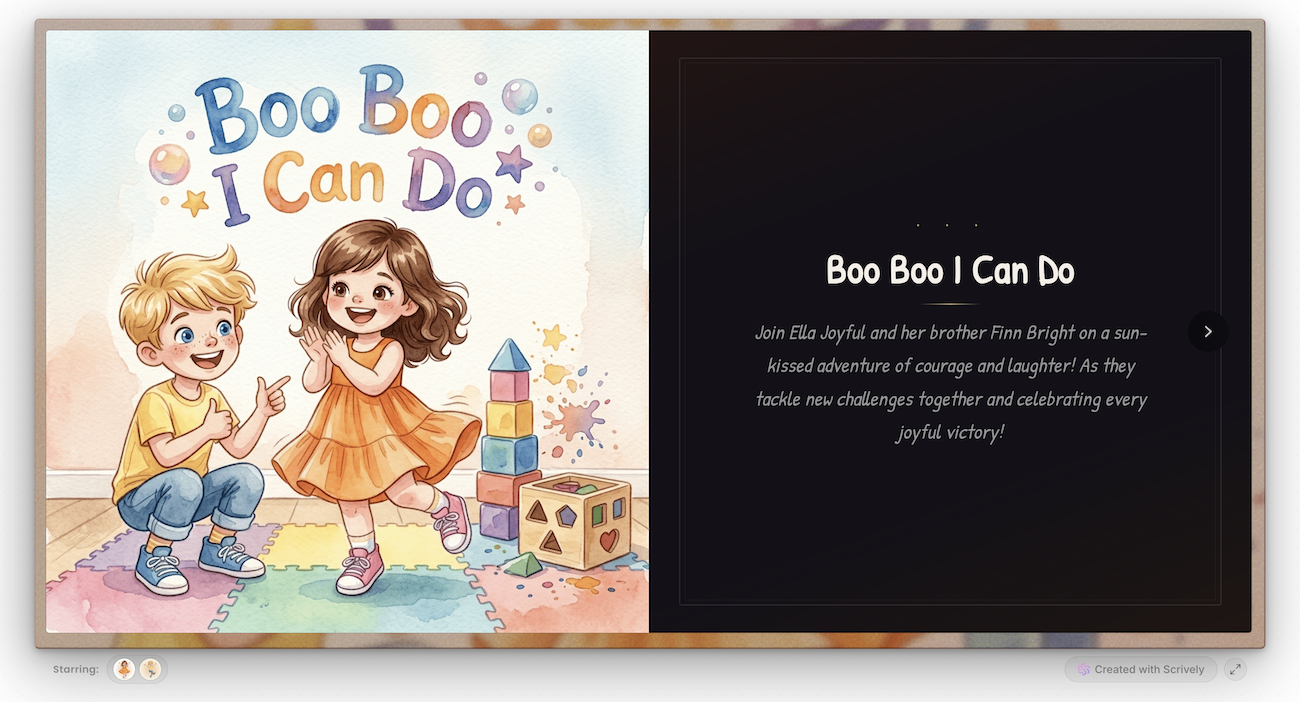
The book will open in another browser.
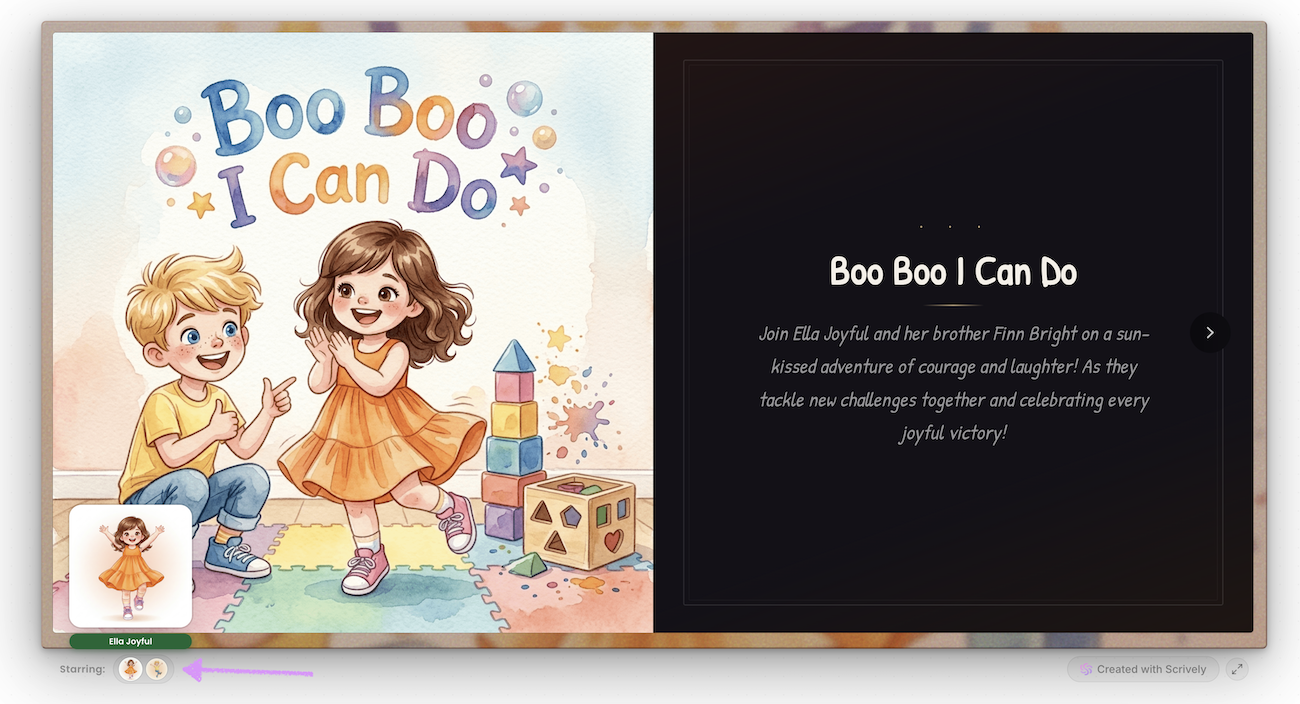
At the bottom left hover over each character’s avatar to see how they look.
Use the left and right navigation arrows to move through the pages.
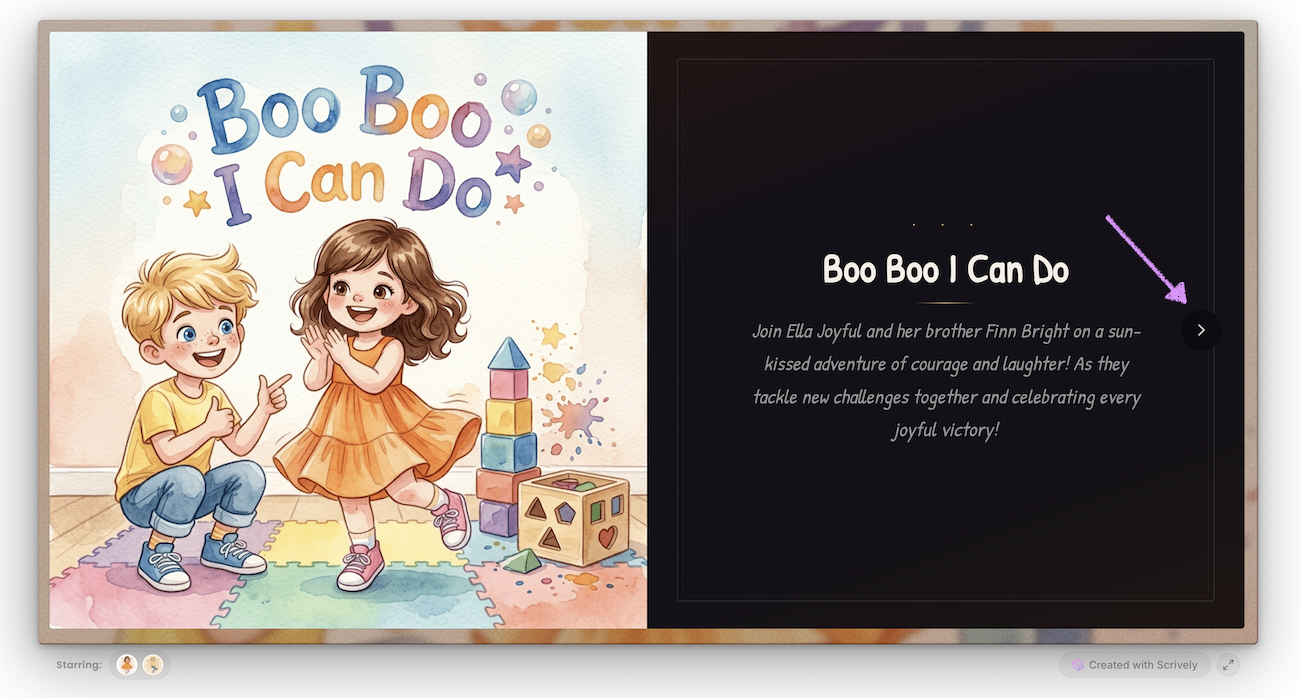
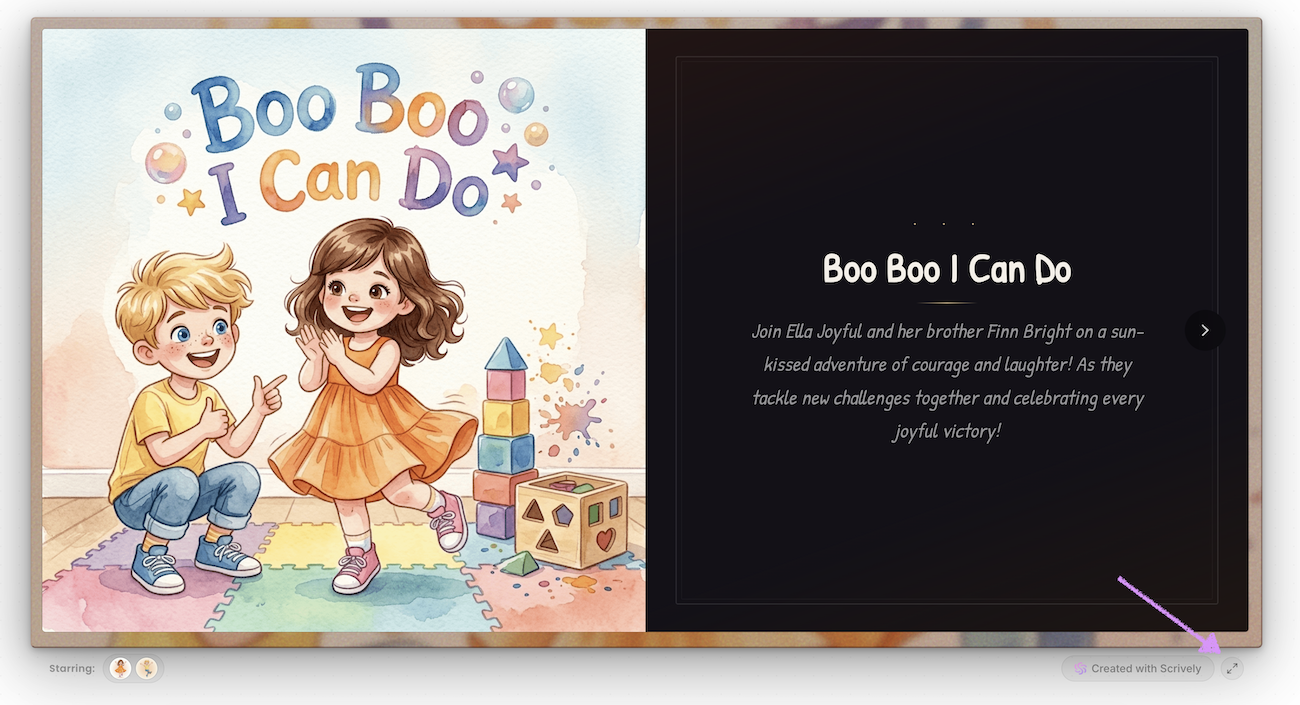
Want to view the book in full screen? Click the enlarge button in the bottom-right corner.
Head over to our guide here to learn more about selecting and using a book template.
Was this article helpful?
That’s Great!
Thank you for your feedback
Sorry! We couldn't be helpful
Thank you for your feedback
Feedback sent
We appreciate your effort and will try to fix the article
