
With hundreds of templates to choose from, the Scrively Library template filters make it easy to quickly find the perfect option for your project. Filters help narrow down results by age group, page count, and art style so you can browse templates that best match your needs.
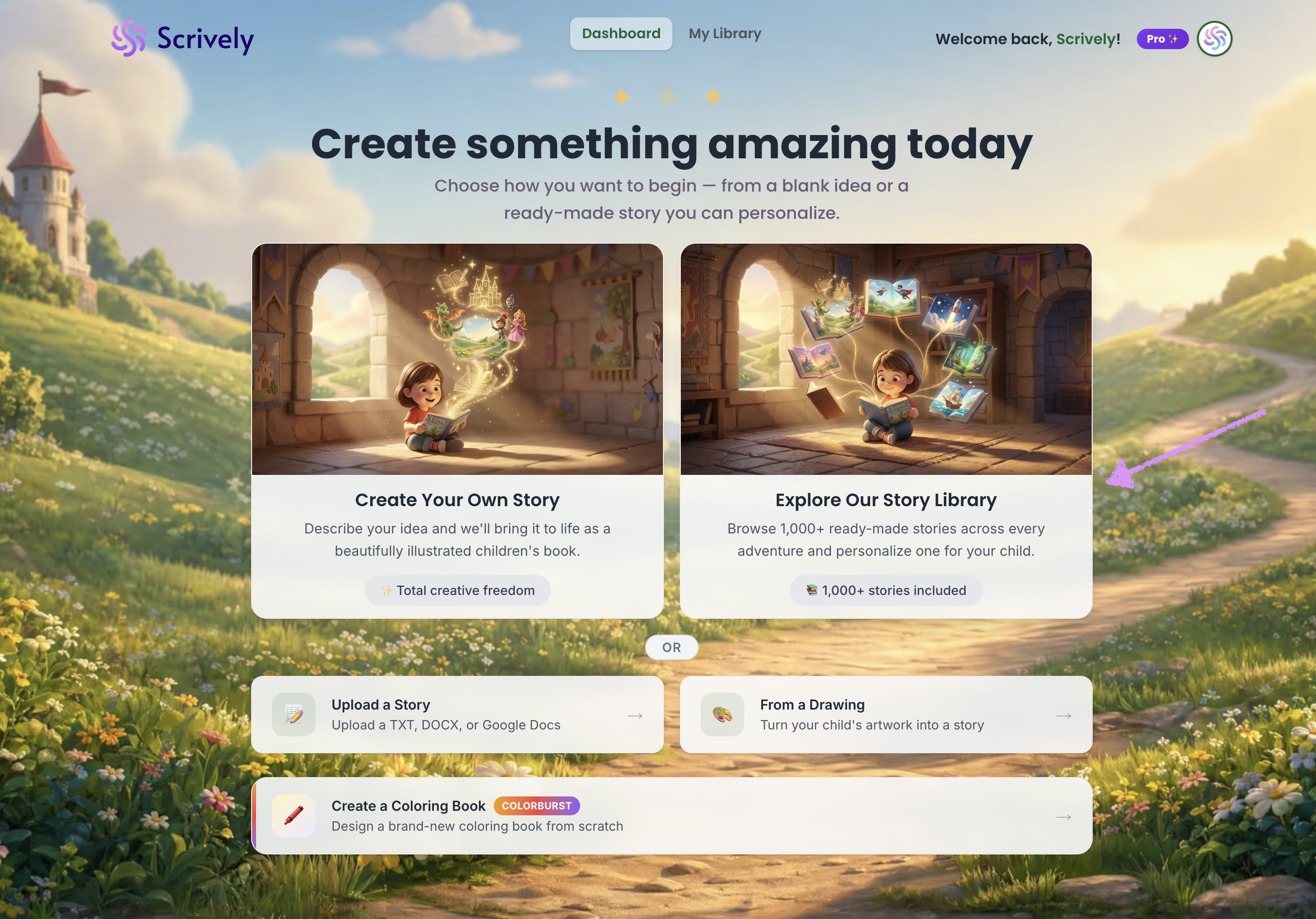
From the Dashboard, click on “Explore Our Story Library.”
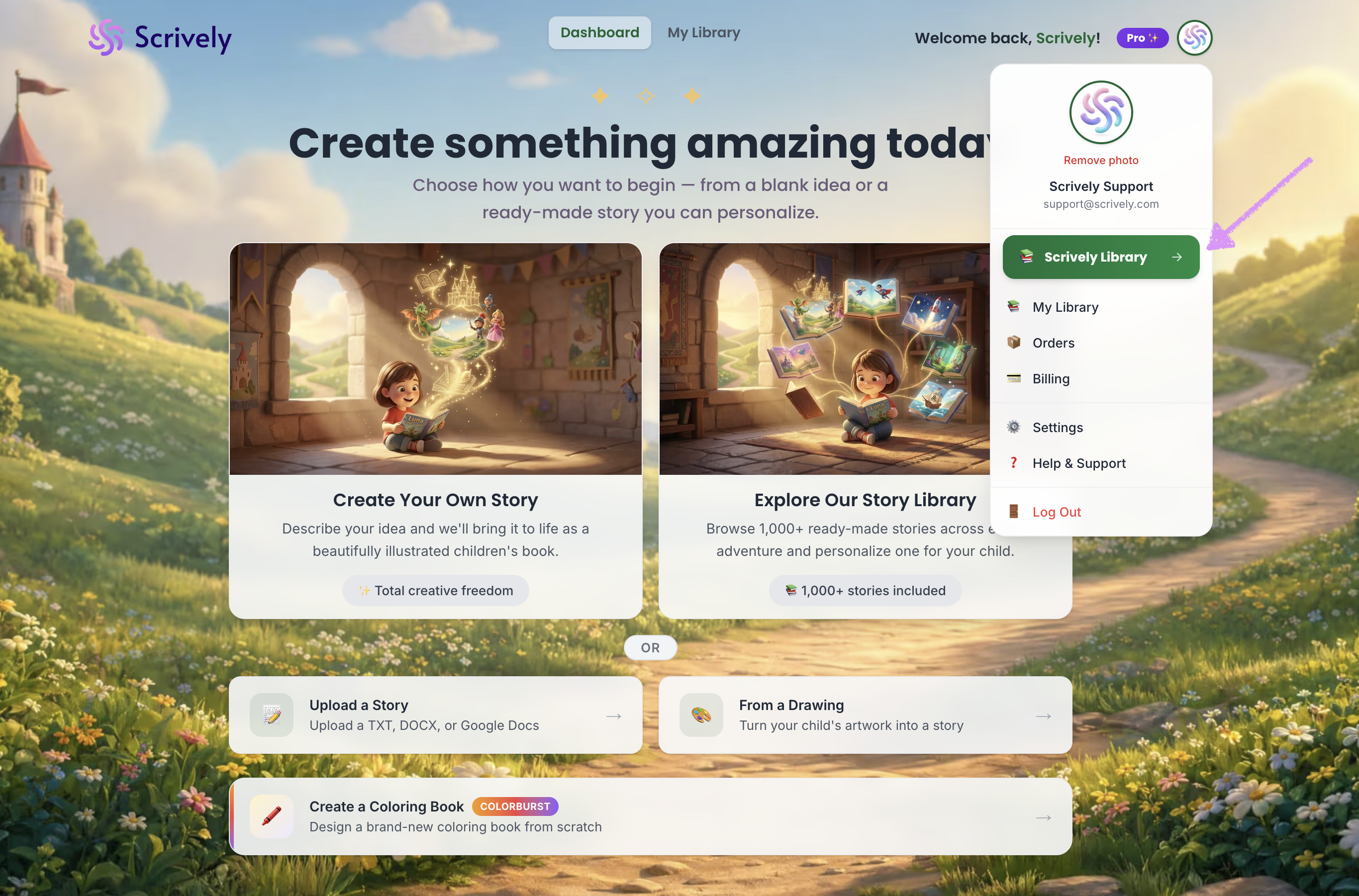
Alternatively, from your avatar click on "Scrively Library."
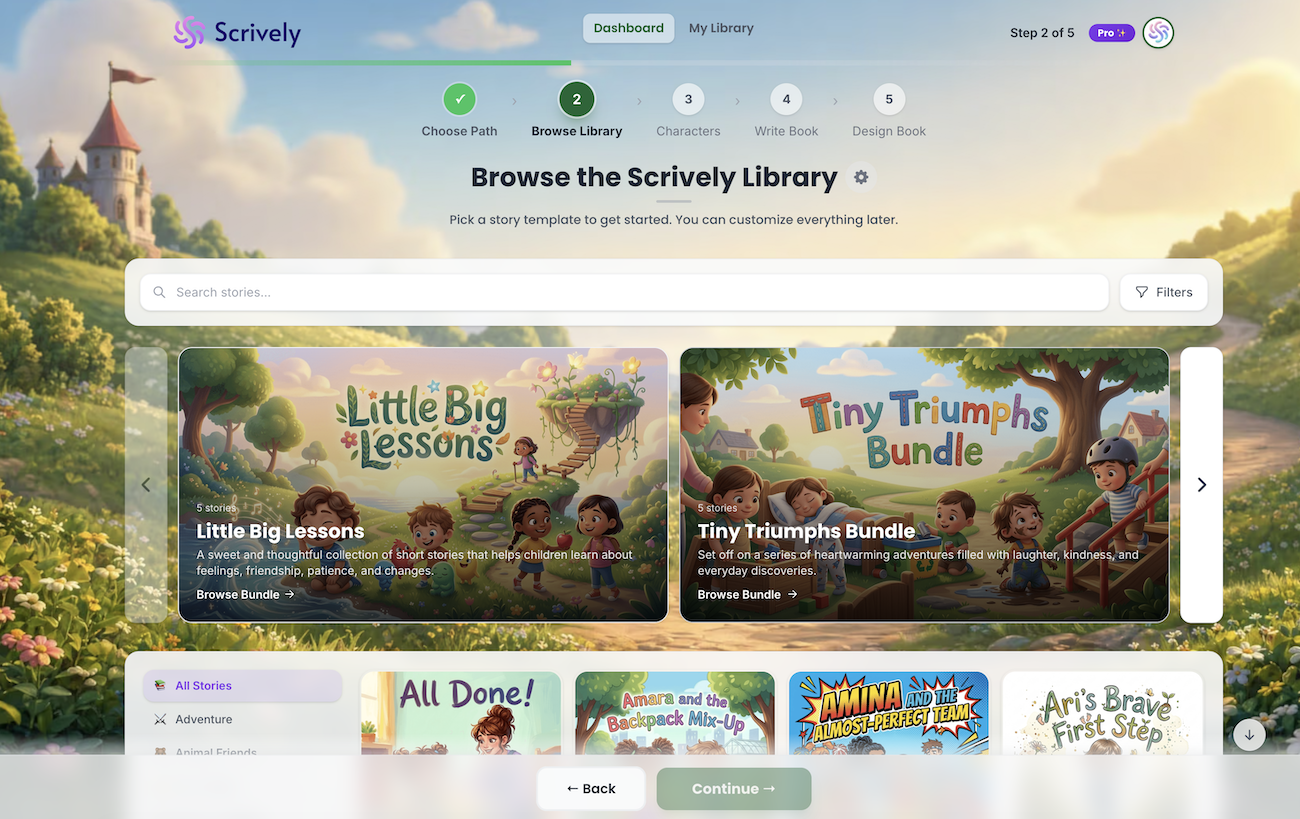
You’ll arrive at the Scrively Library where you can choose from hundreds of templates to help you get started with your project.
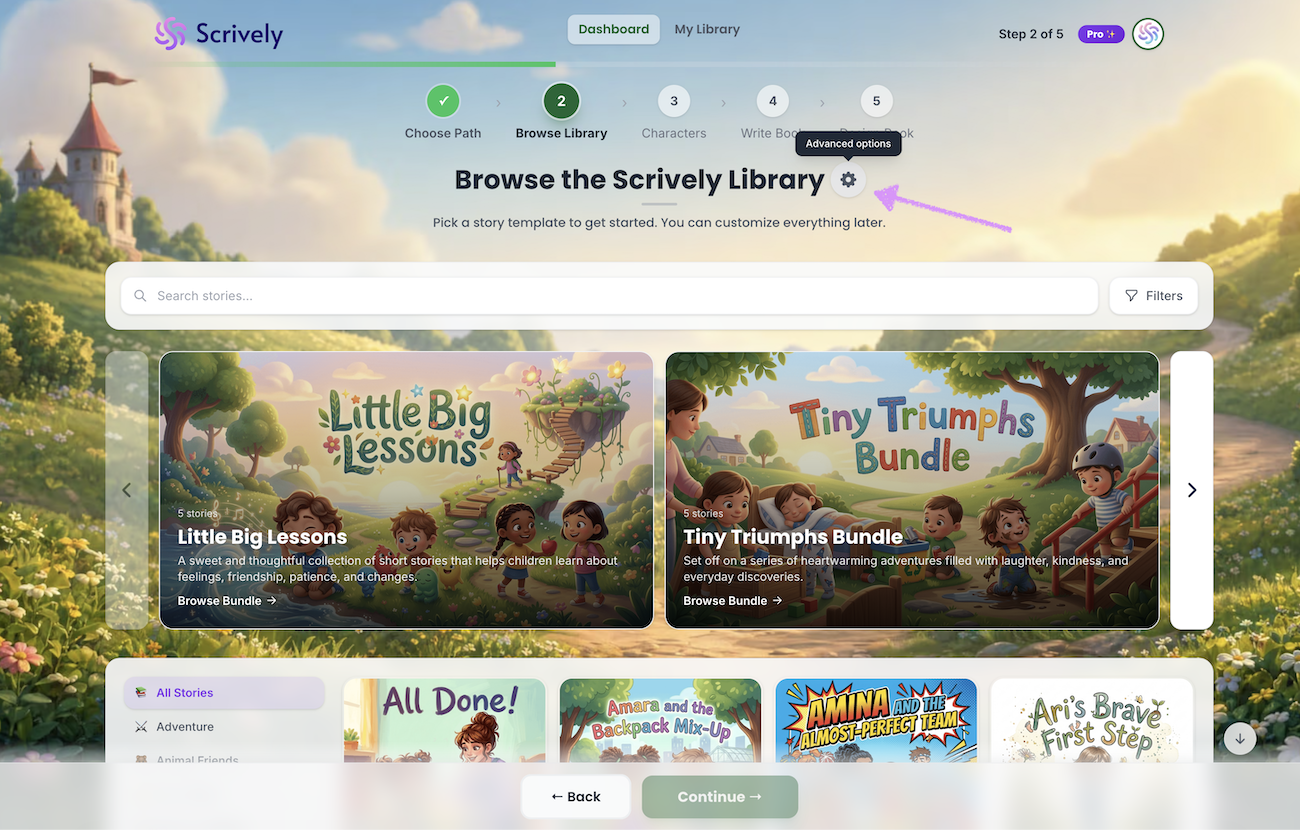
At the top, you’ll have the option to configure your “Advanced Options,” which we explain in more detail in our guide here.
Use the search field to locate specific templates.
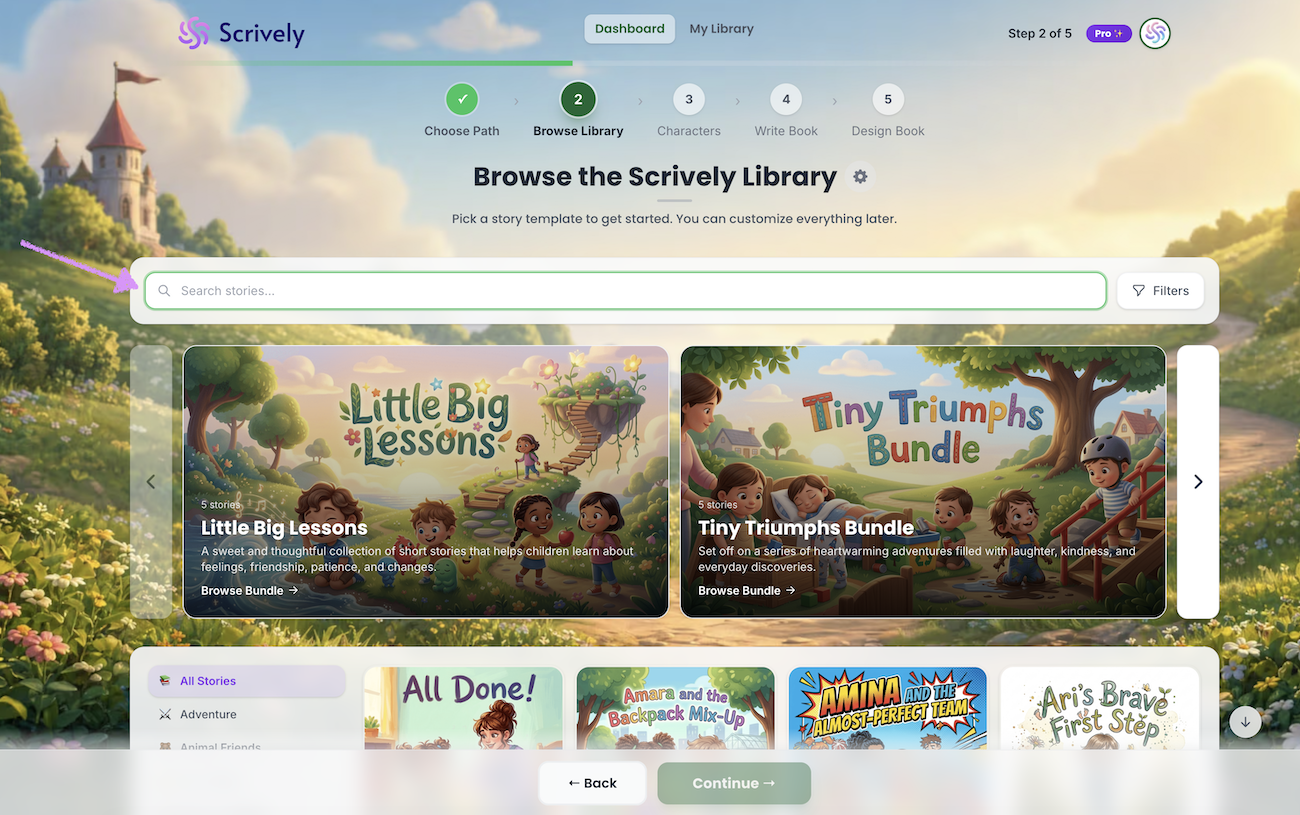
In this example, we’ll search for the word “yard” to display all book templates related to that term.
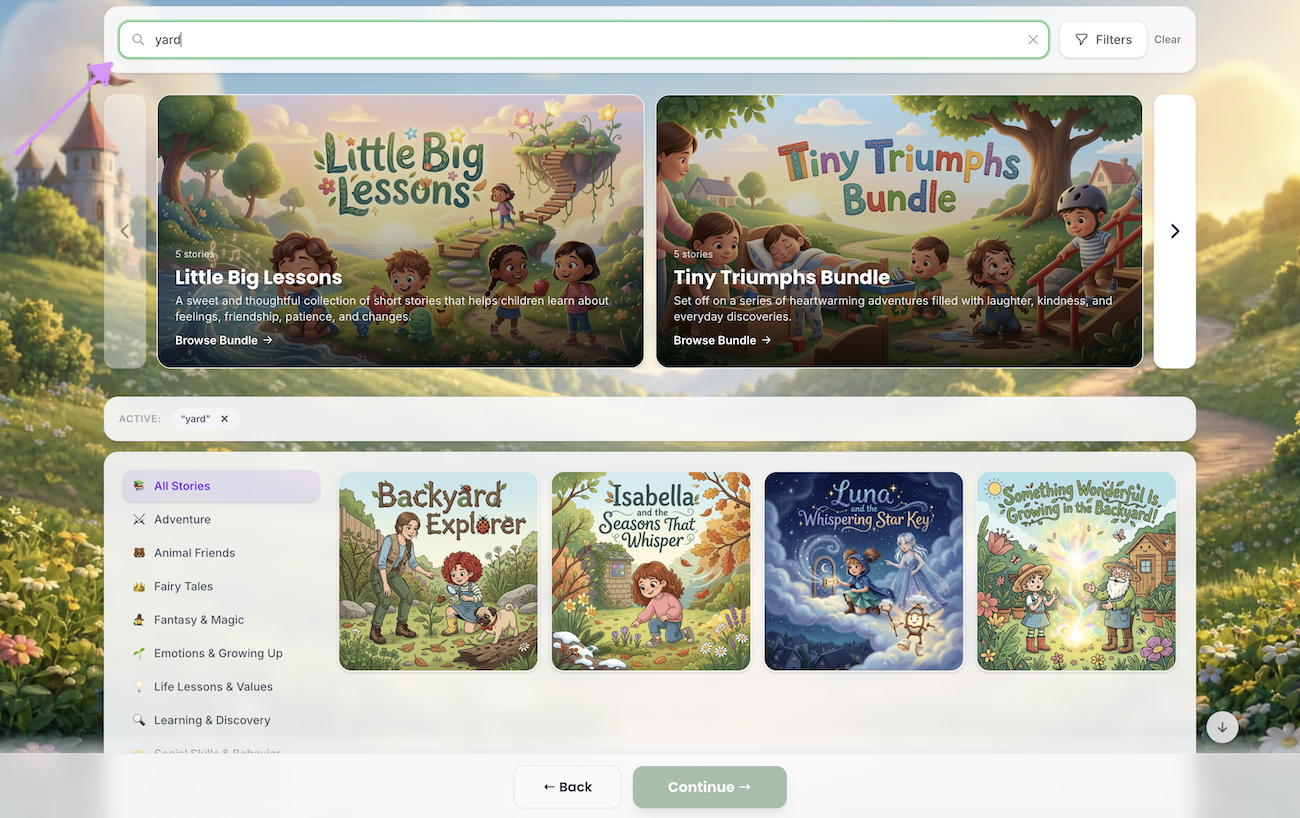
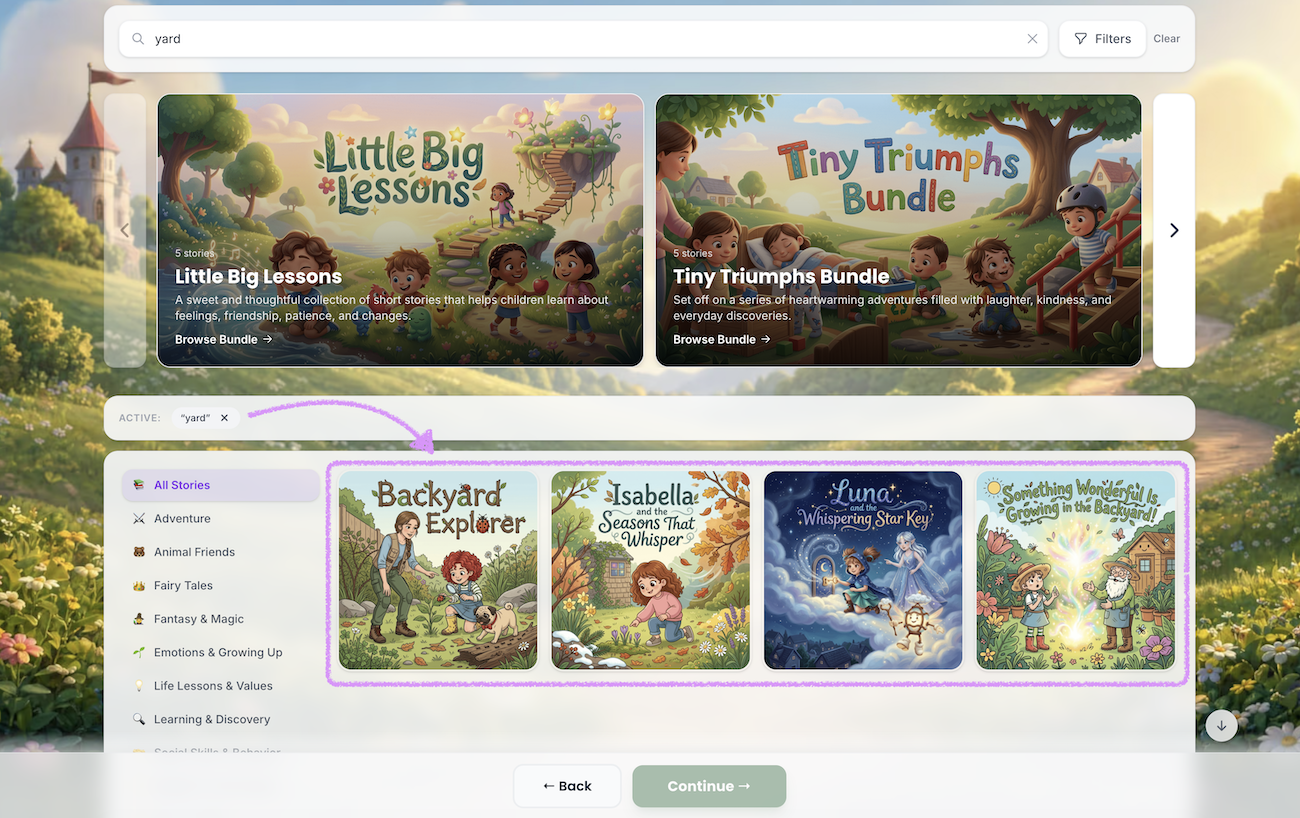
The word "yard" will be listed in the "Active" state and display all relevant book templates.
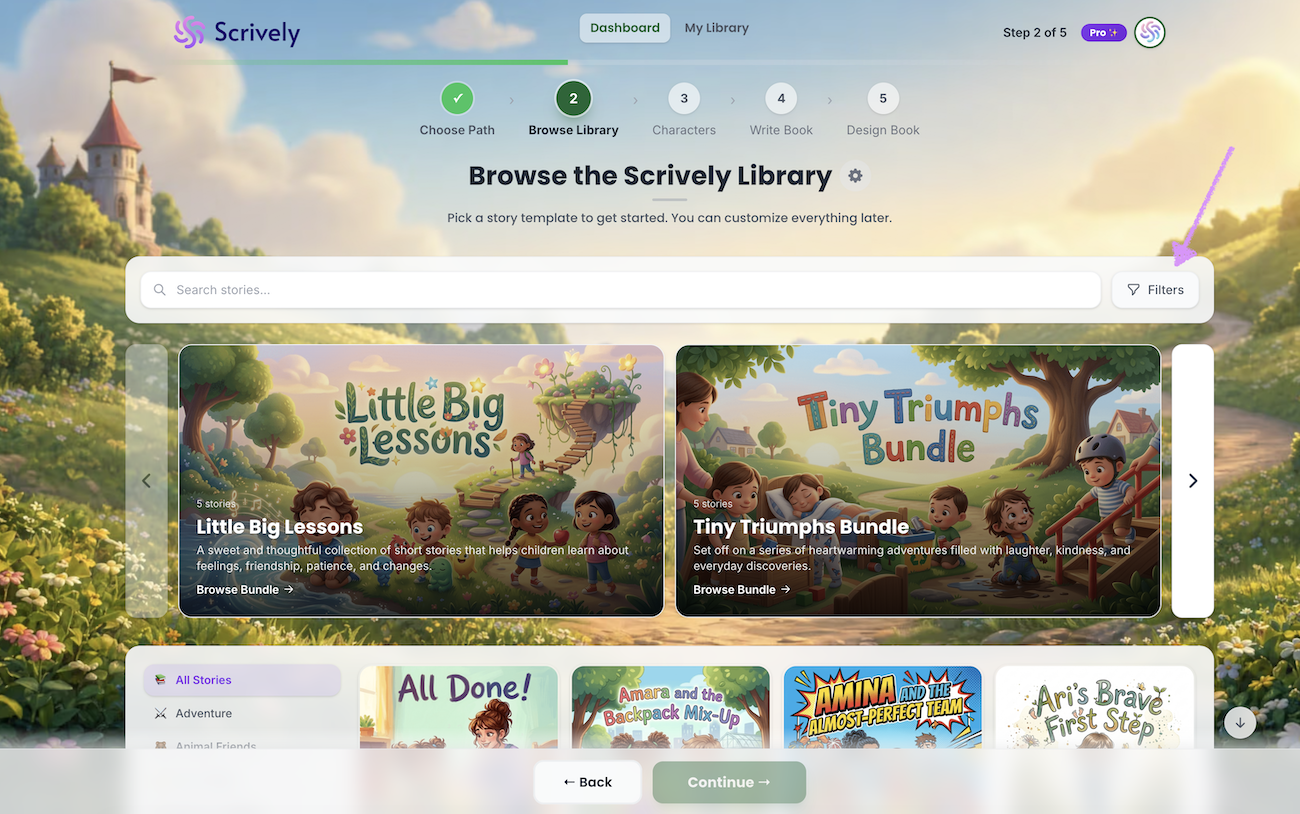
You can also click on "Filters" on the far right of the search field.
Click on the "Sort By" dropdown.
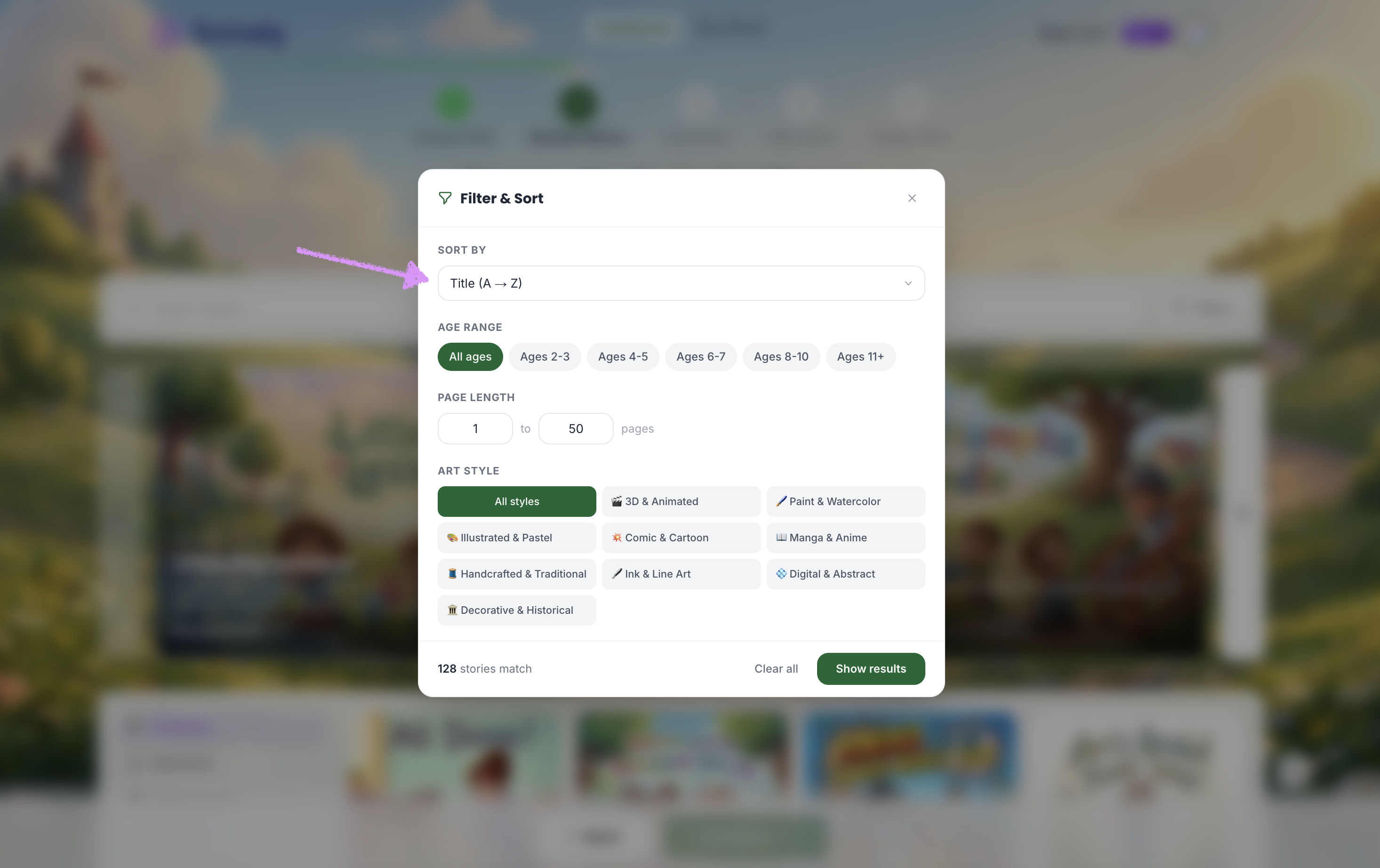
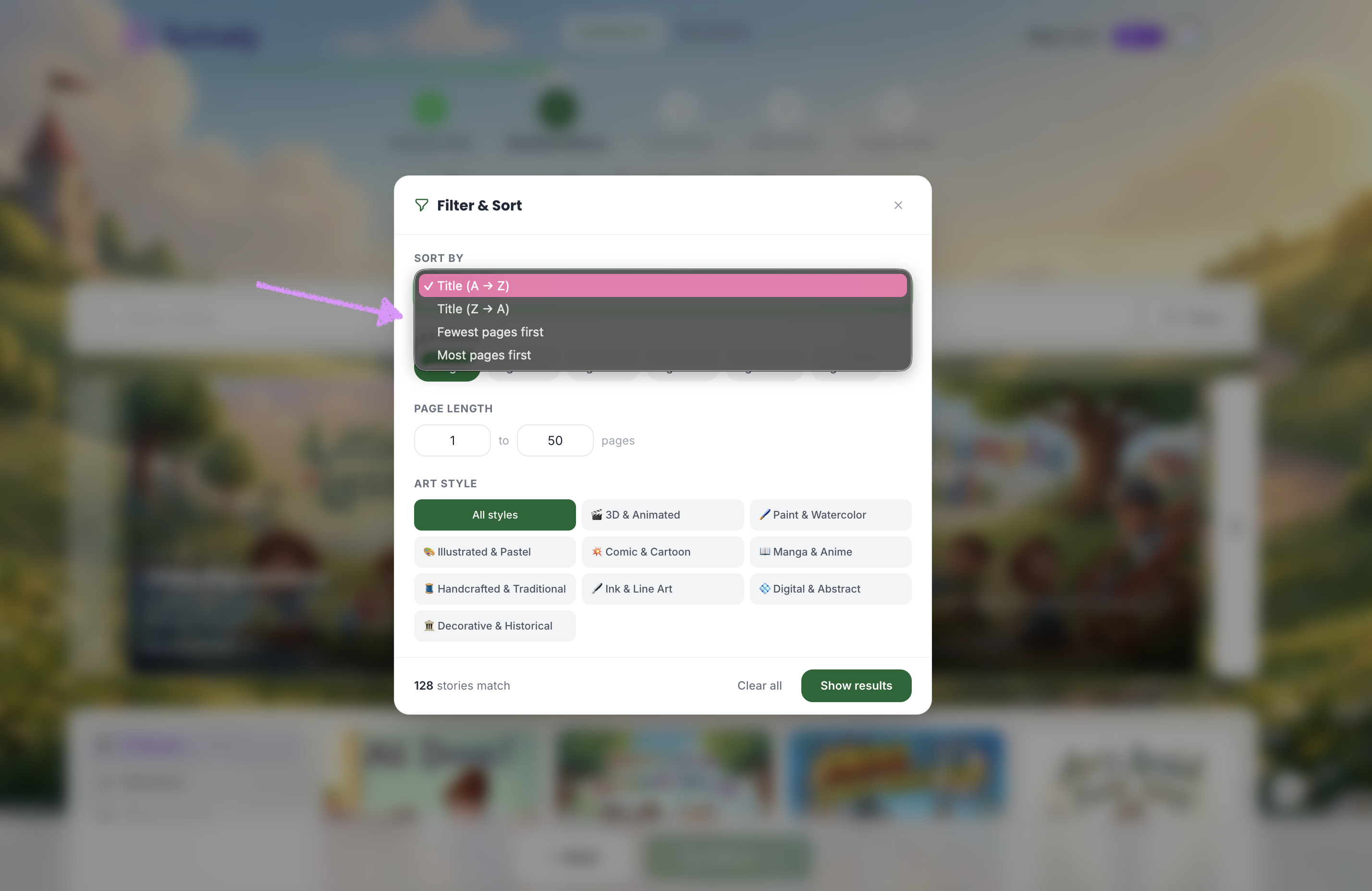
Sort by title (A–Z or Z–A), or by page count (fewest to most or most to fewest).
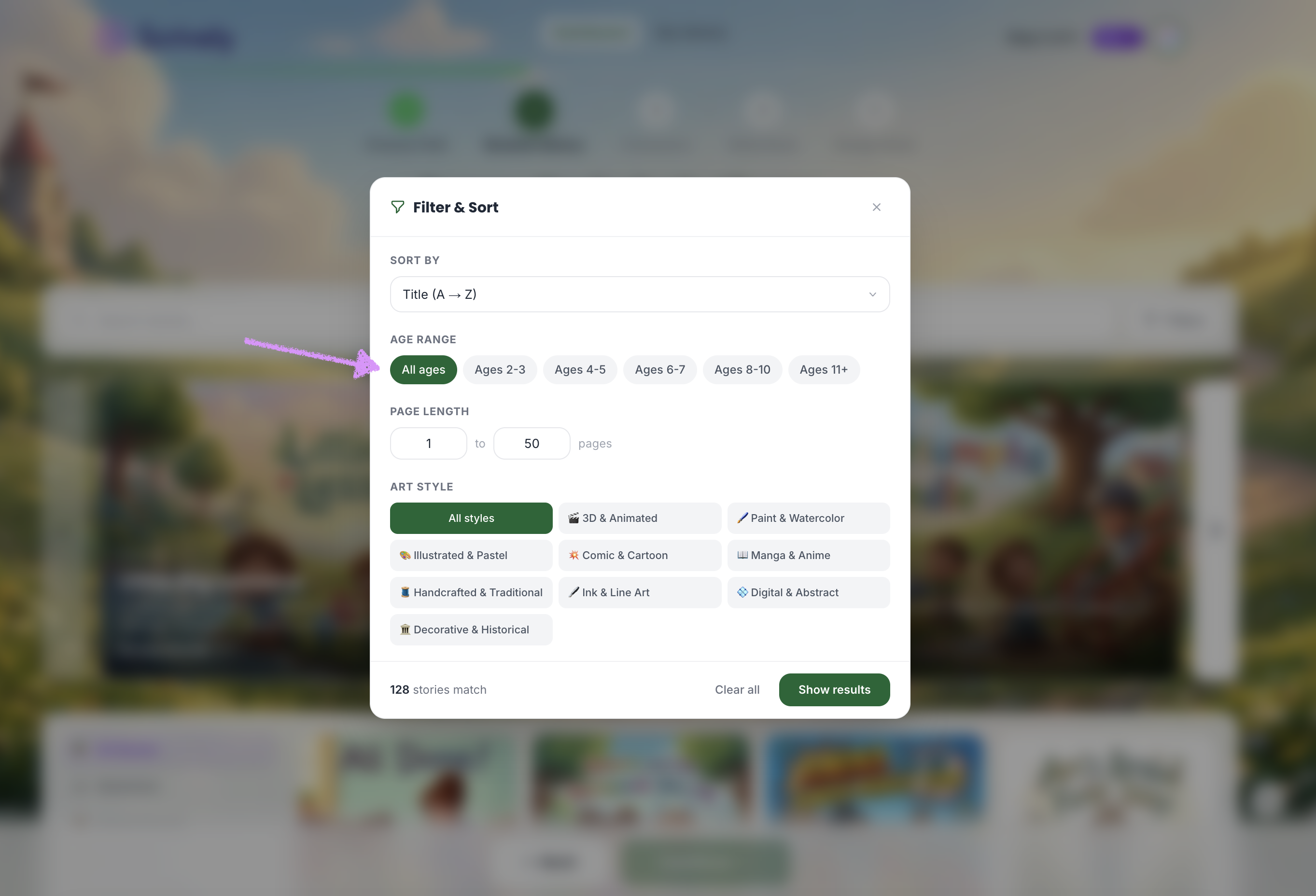
Select an "Age Range."
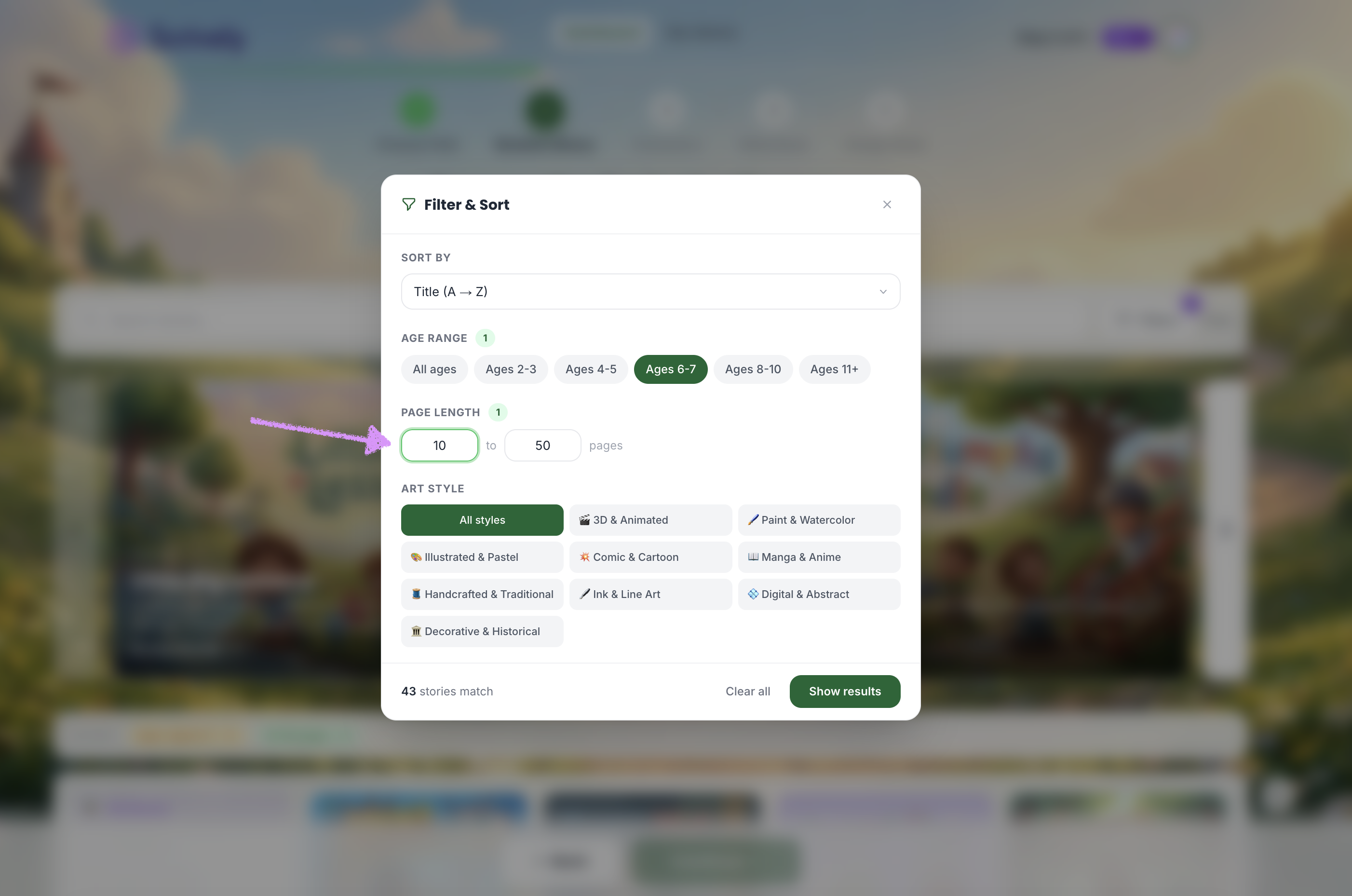
Choose your "Page Length."
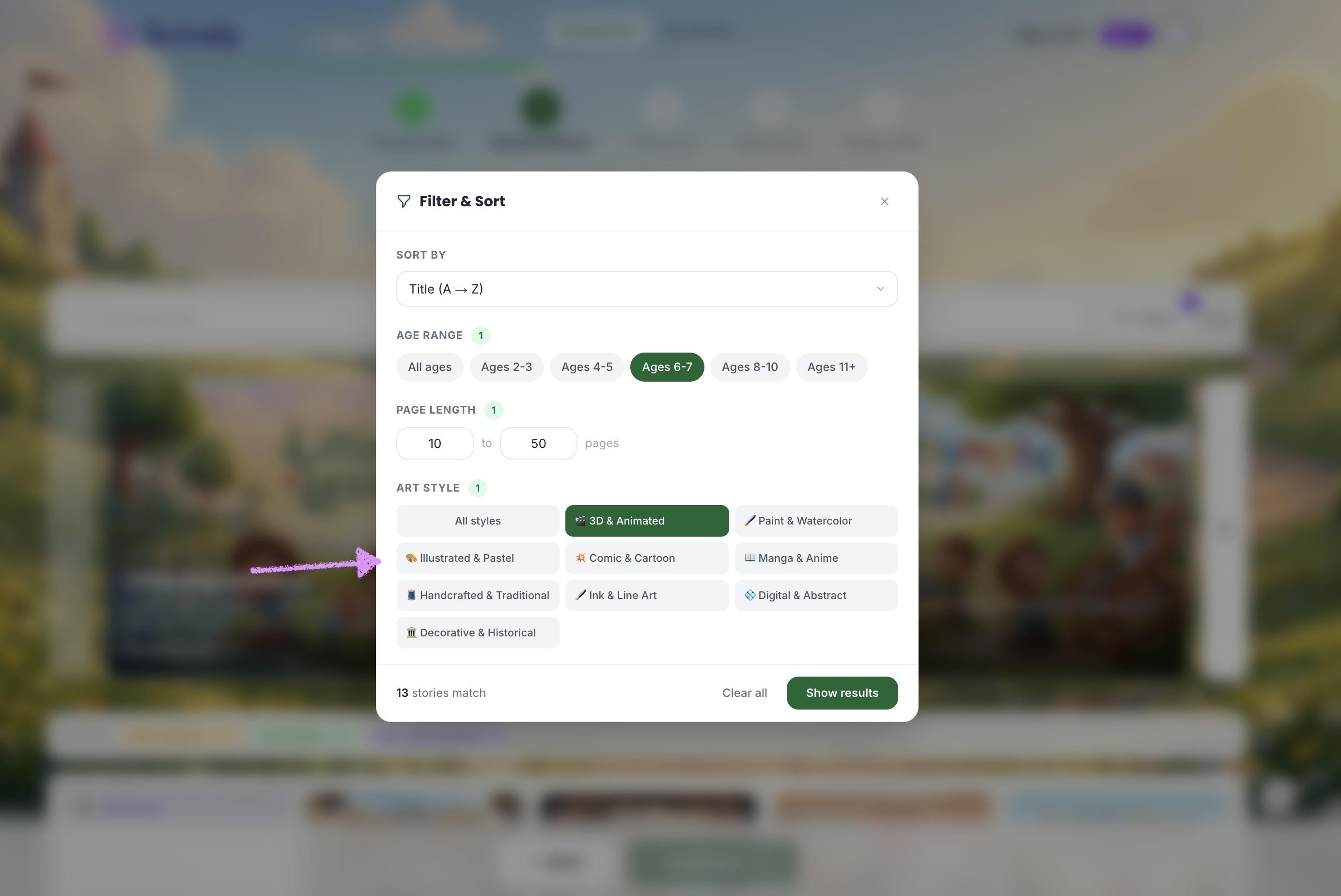
Choose your "Art Style" or view "All styles."
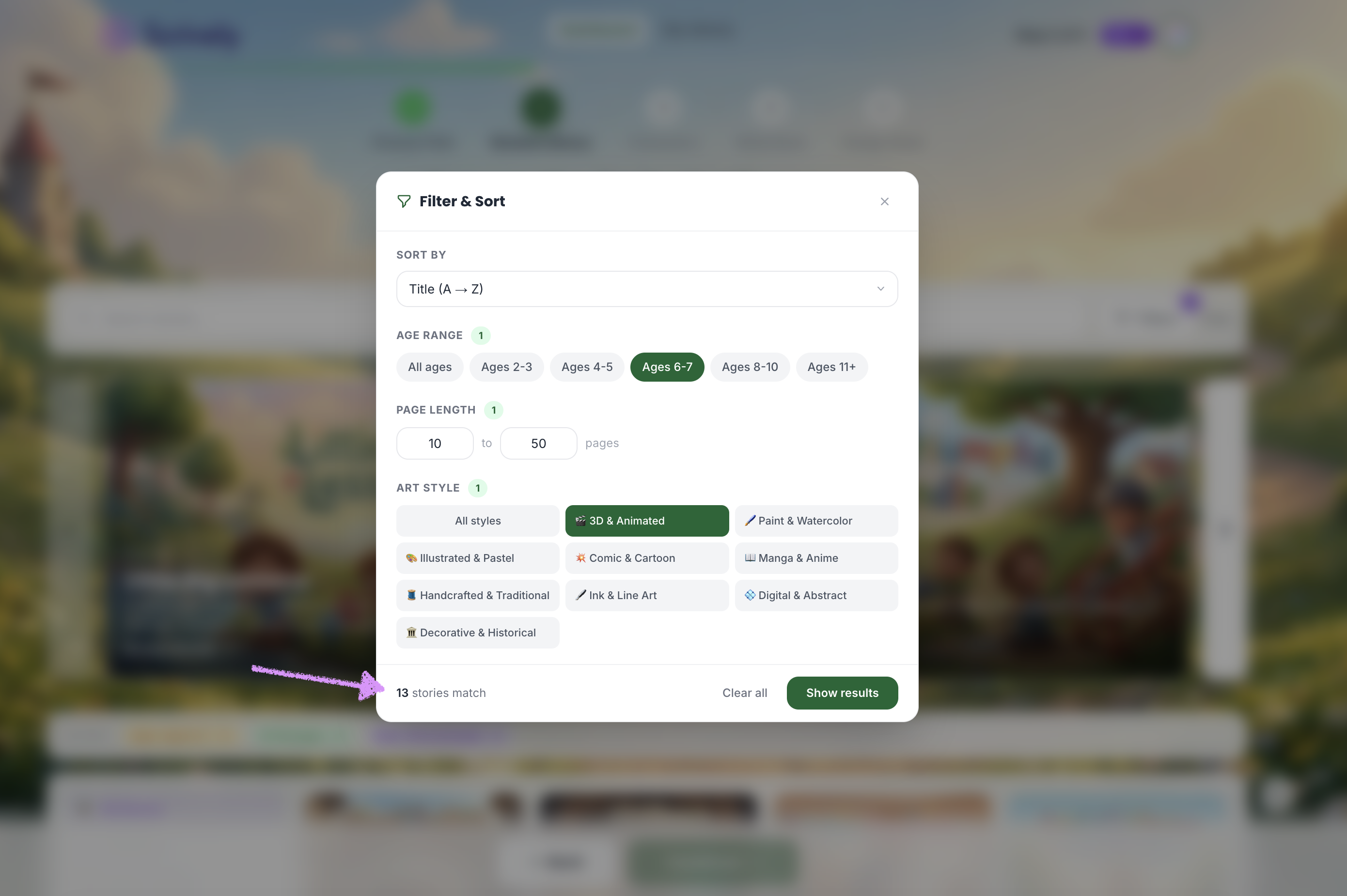
At the bottom left, you’ll see a count of how many books match your selections.
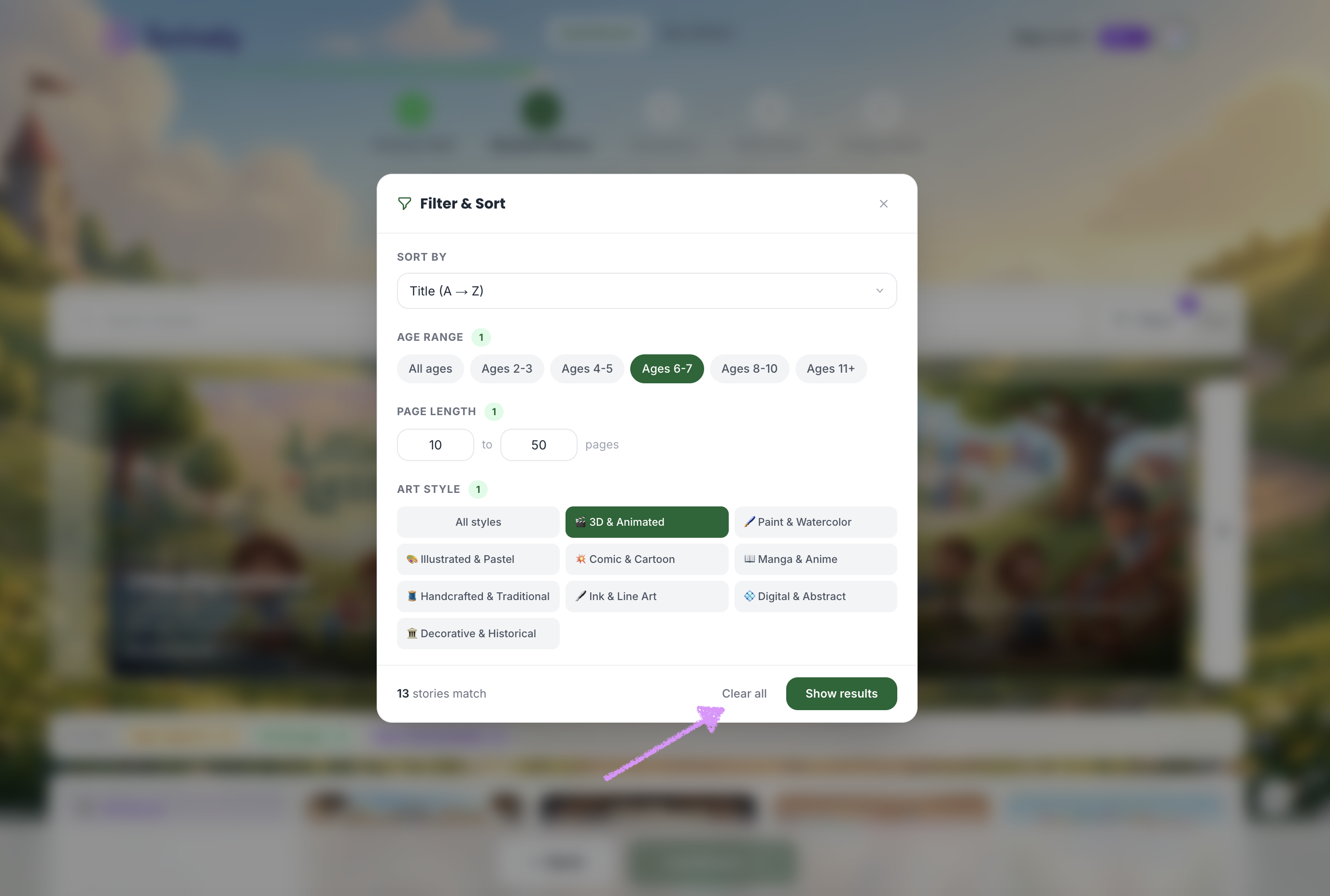
Want to start over? Click on "Clear all."
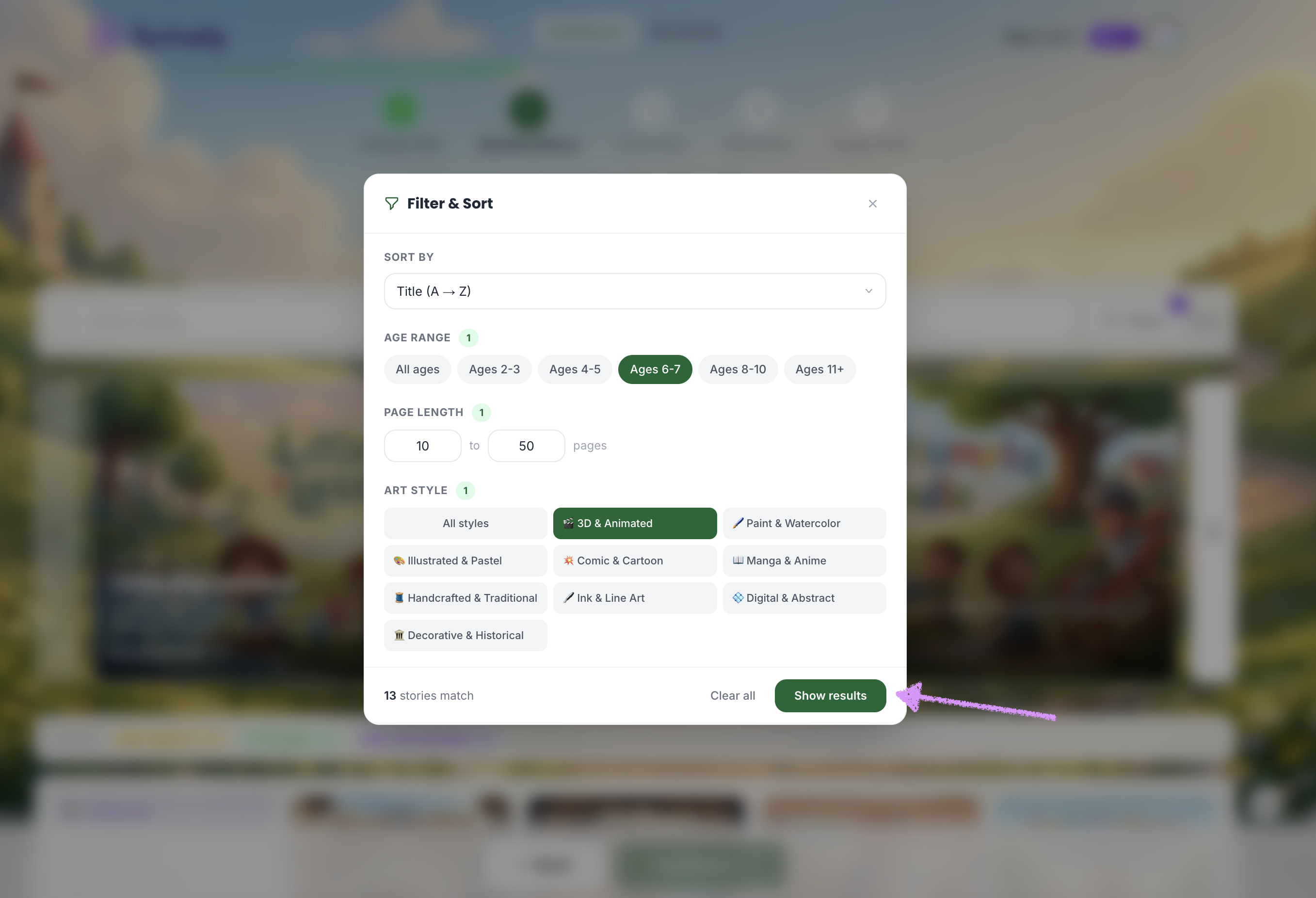
Click on "Show results."
The search filters will be listed in the "Active" state and display all relevant book templates.
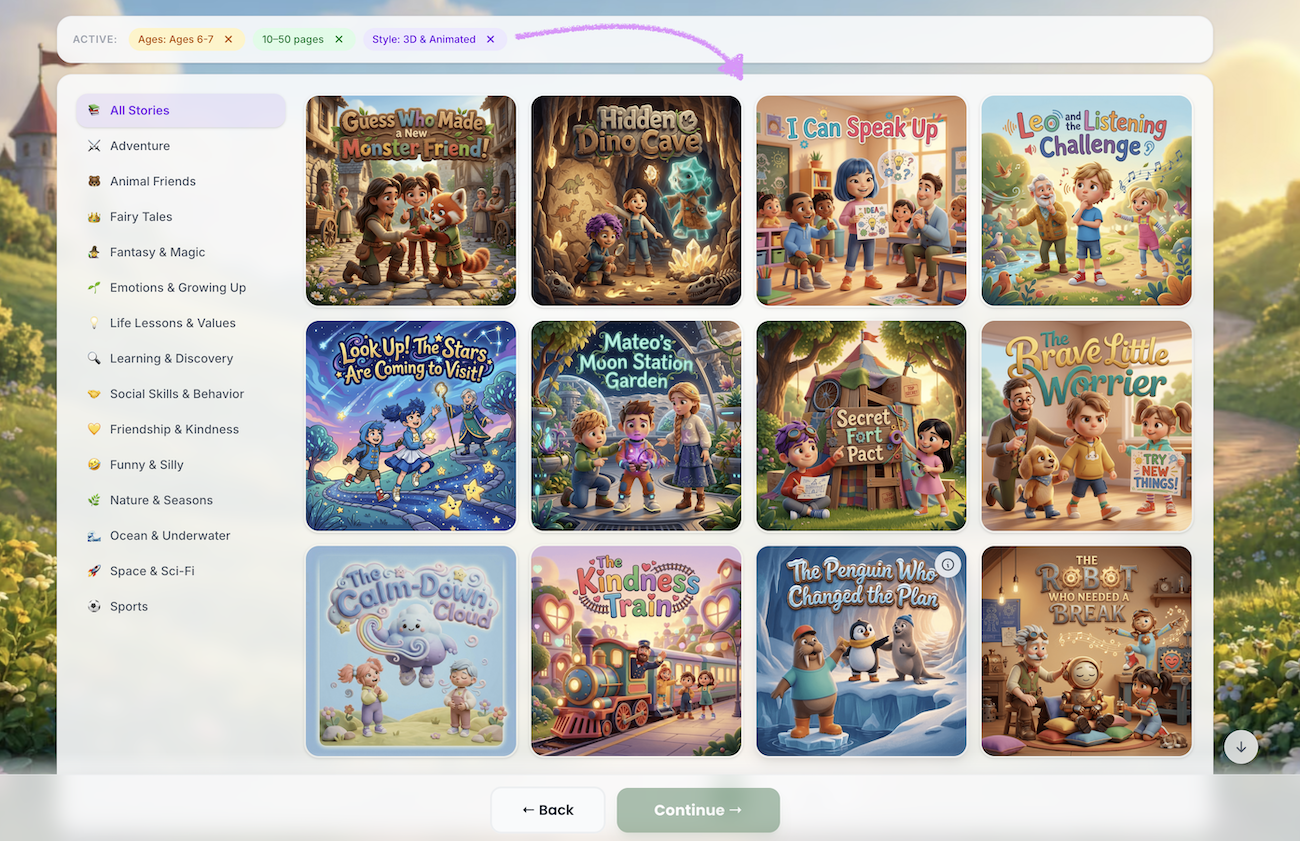
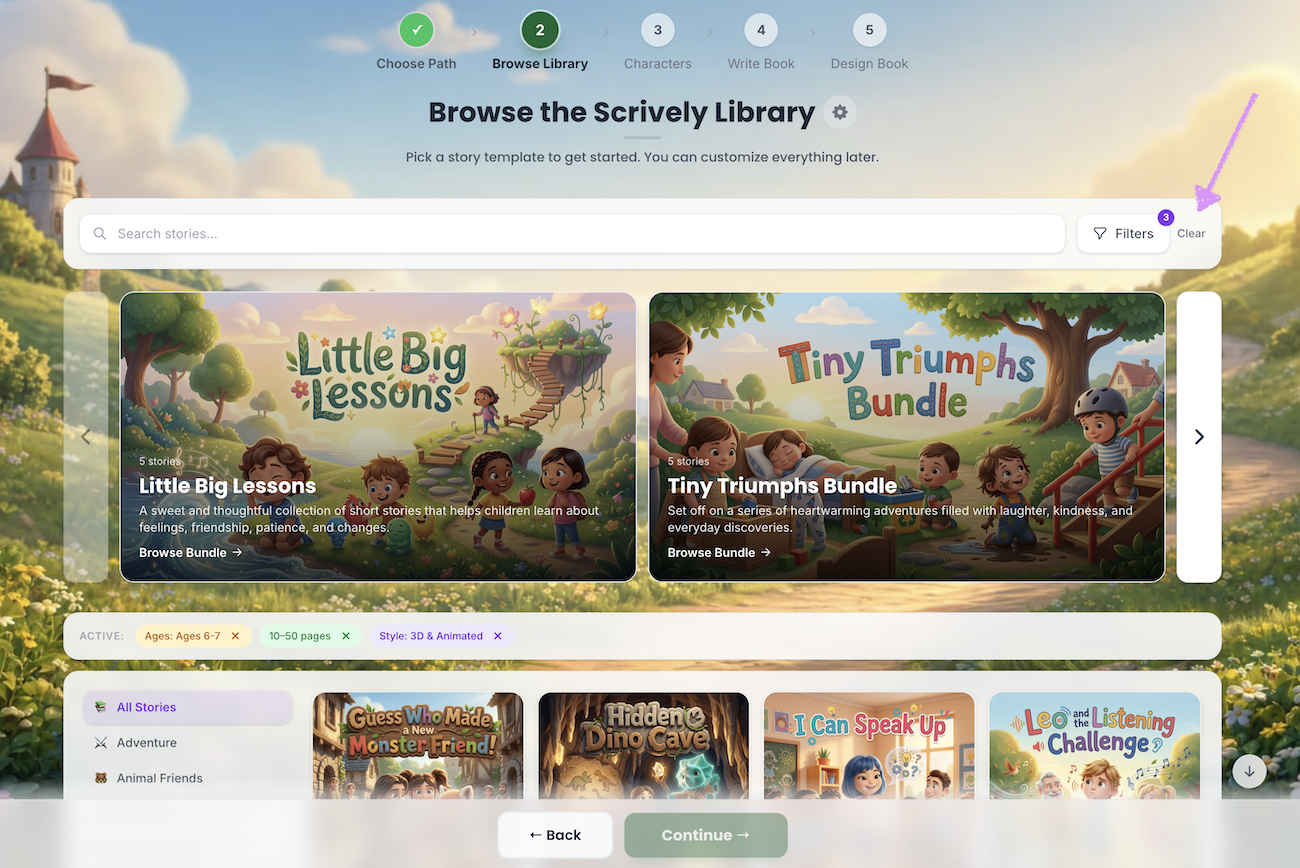
Don't want to use the filters? Click on "Clear."
Was this article helpful?
That’s Great!
Thank you for your feedback
Sorry! We couldn't be helpful
Thank you for your feedback
Feedback sent
We appreciate your effort and will try to fix the article
