Previewing your library webpage lets you experience exactly what your readers will see. It’s a great way to ensure your stories and presentation look just right before sharing.
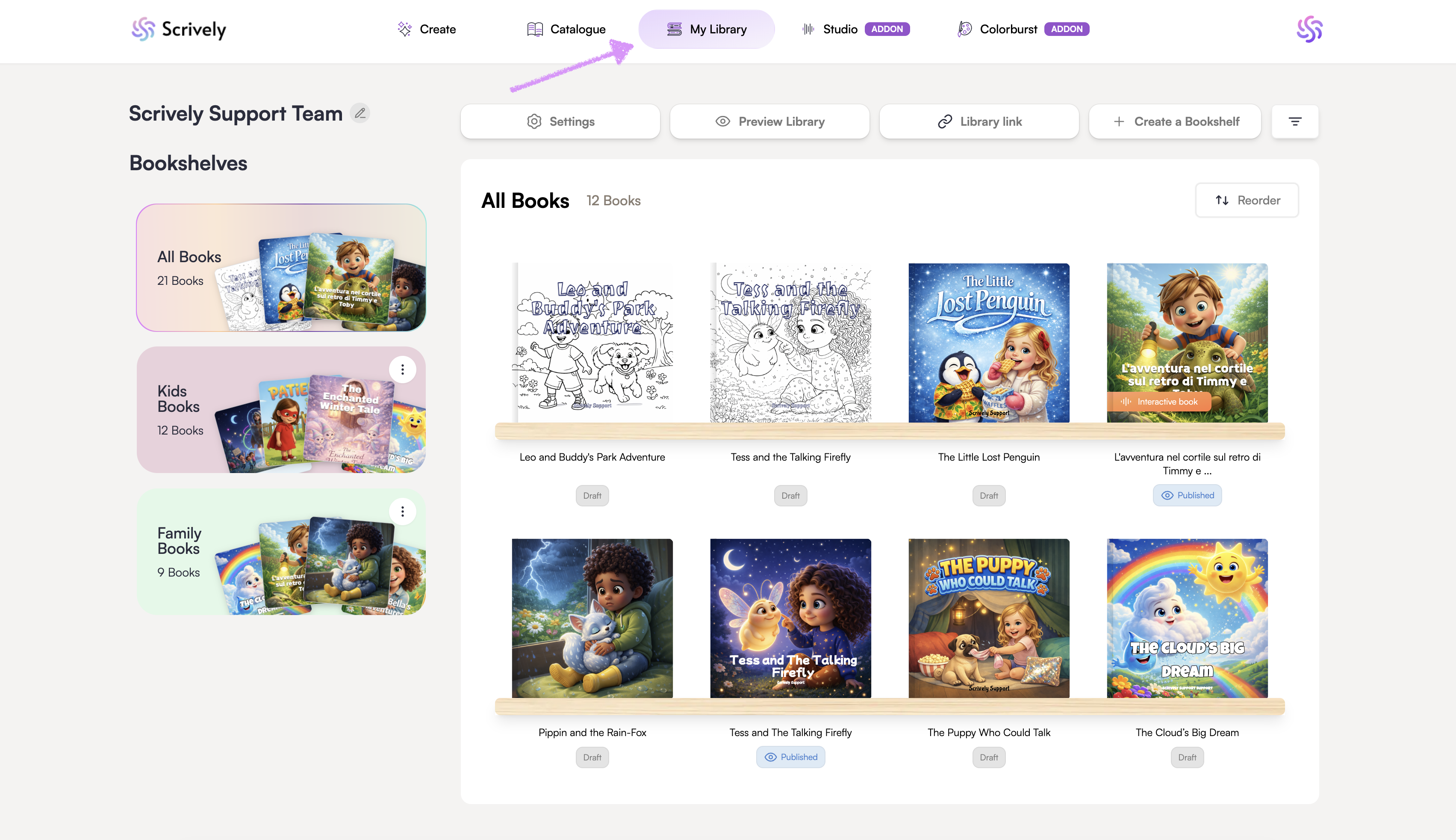
Head over to the "My Library" tab.
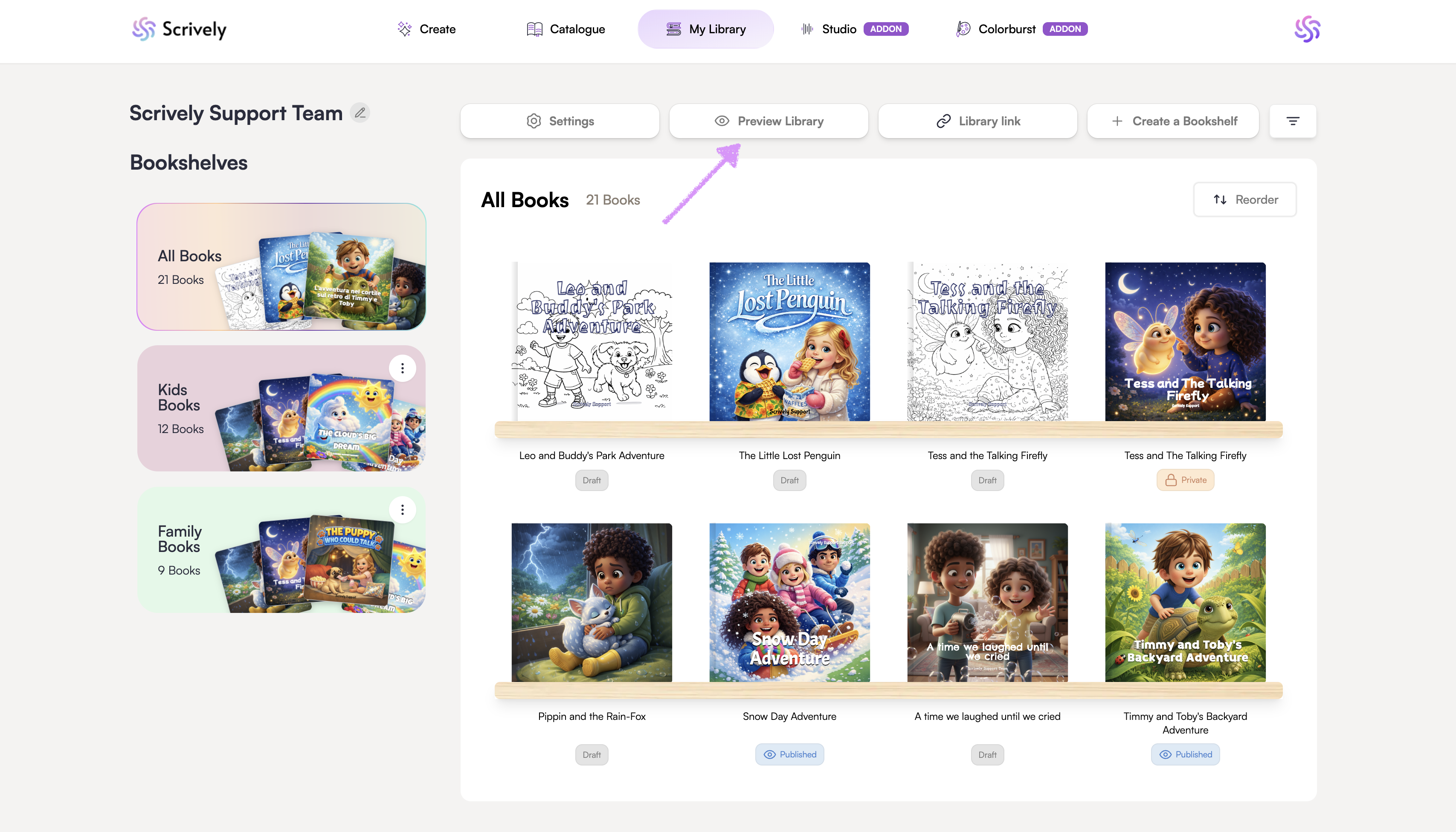
Click on "Preview Library."
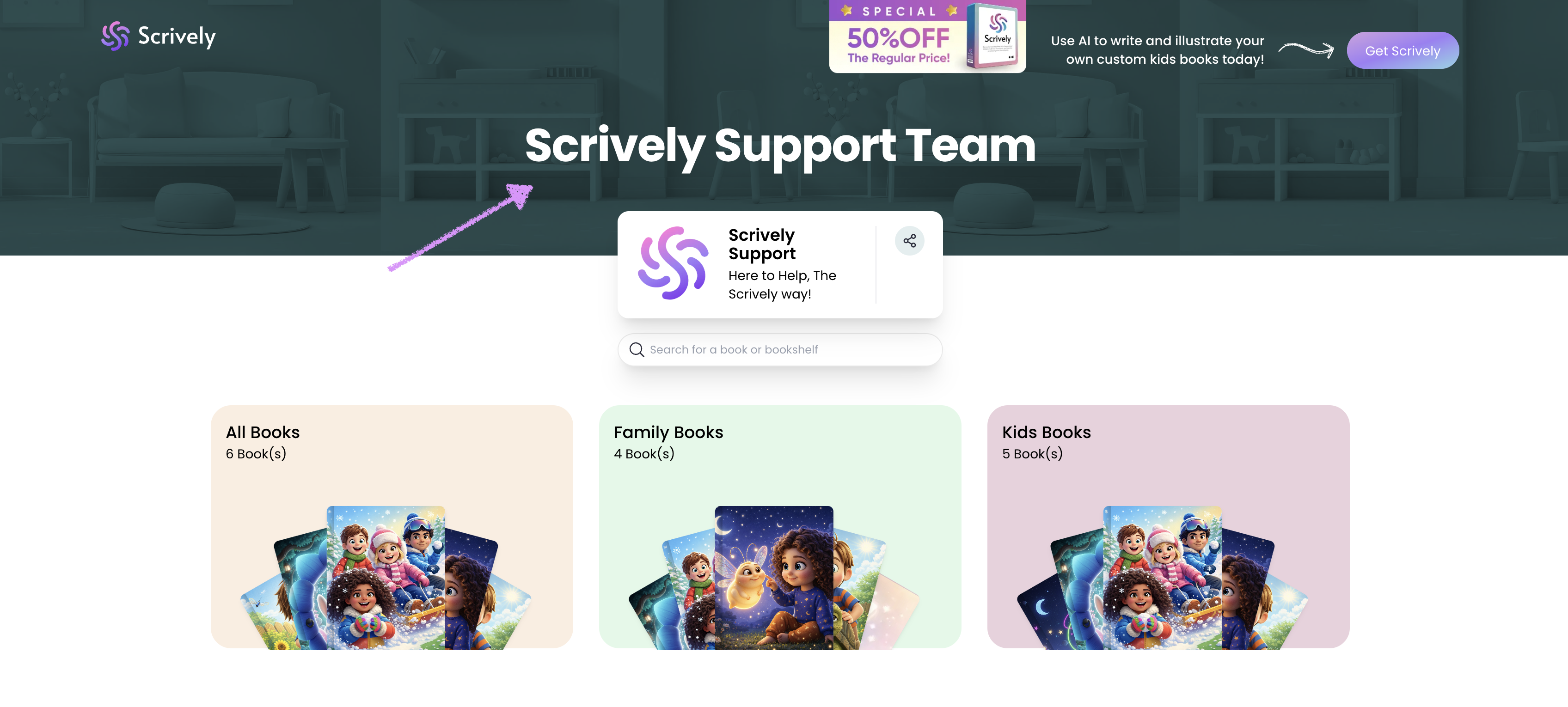
You’ll be automatically redirected to your library's webpage in your web browser. The name of your library will appear at the top of the page.
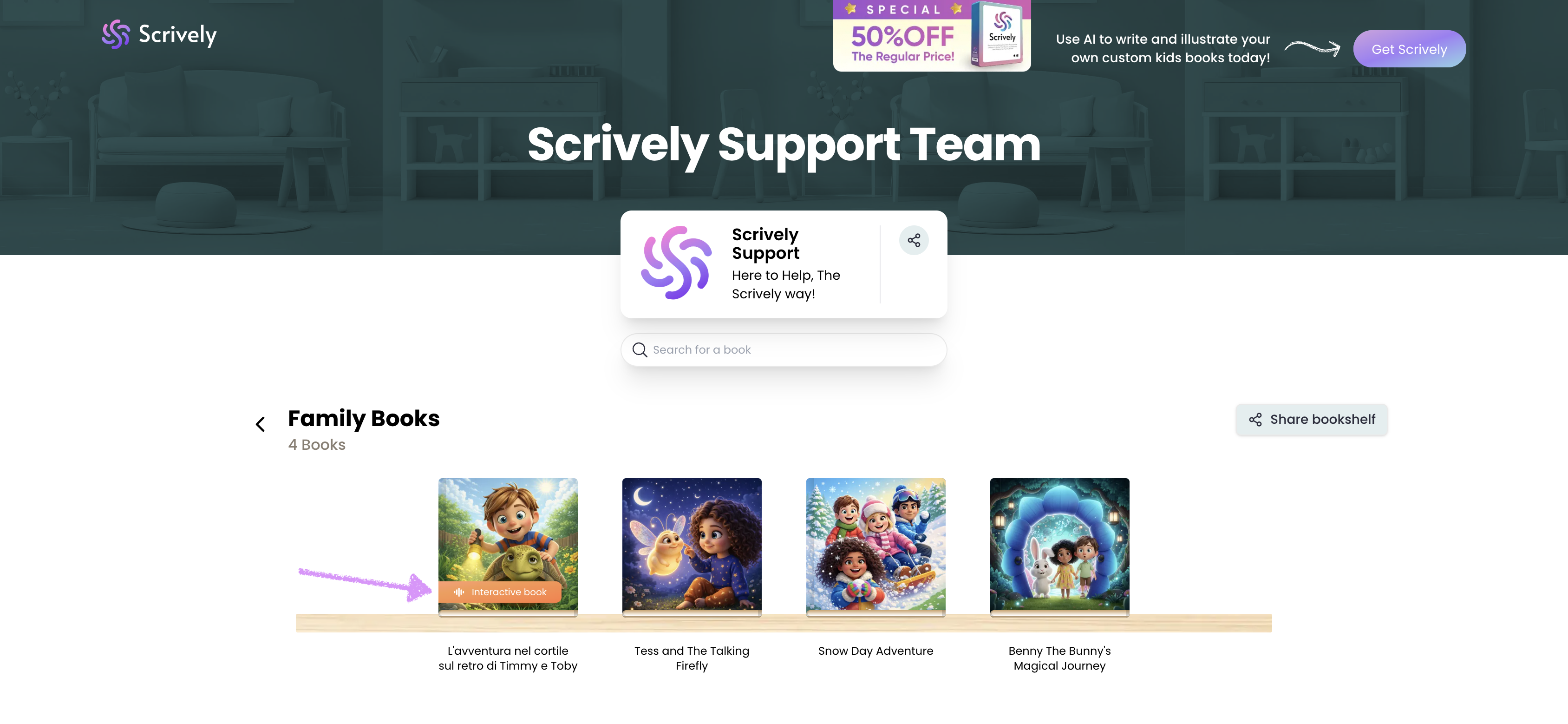
Directly below the library's name, you’ll find the author’s image, name and description.
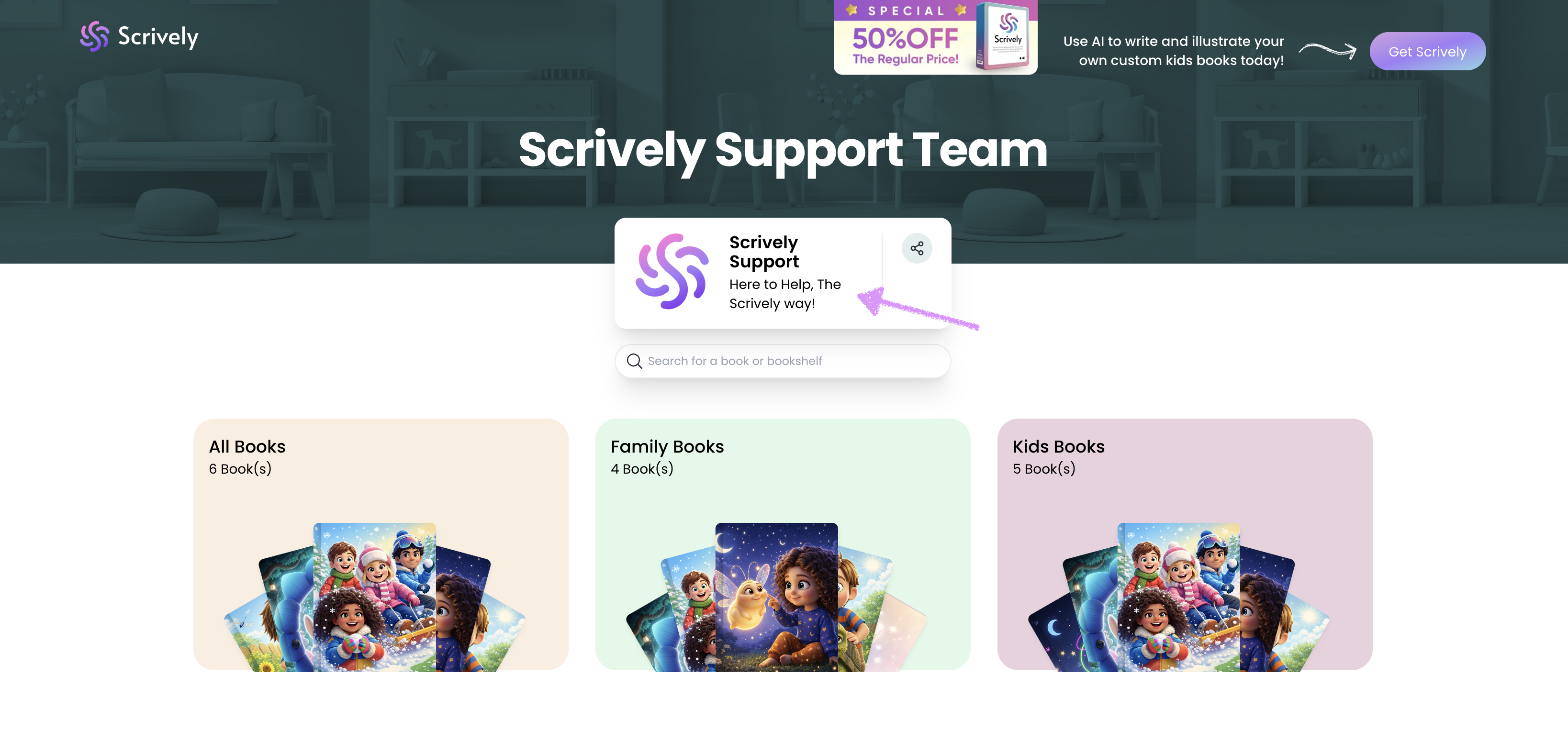
To the right of the author’s description is an option to share a direct link to your library.
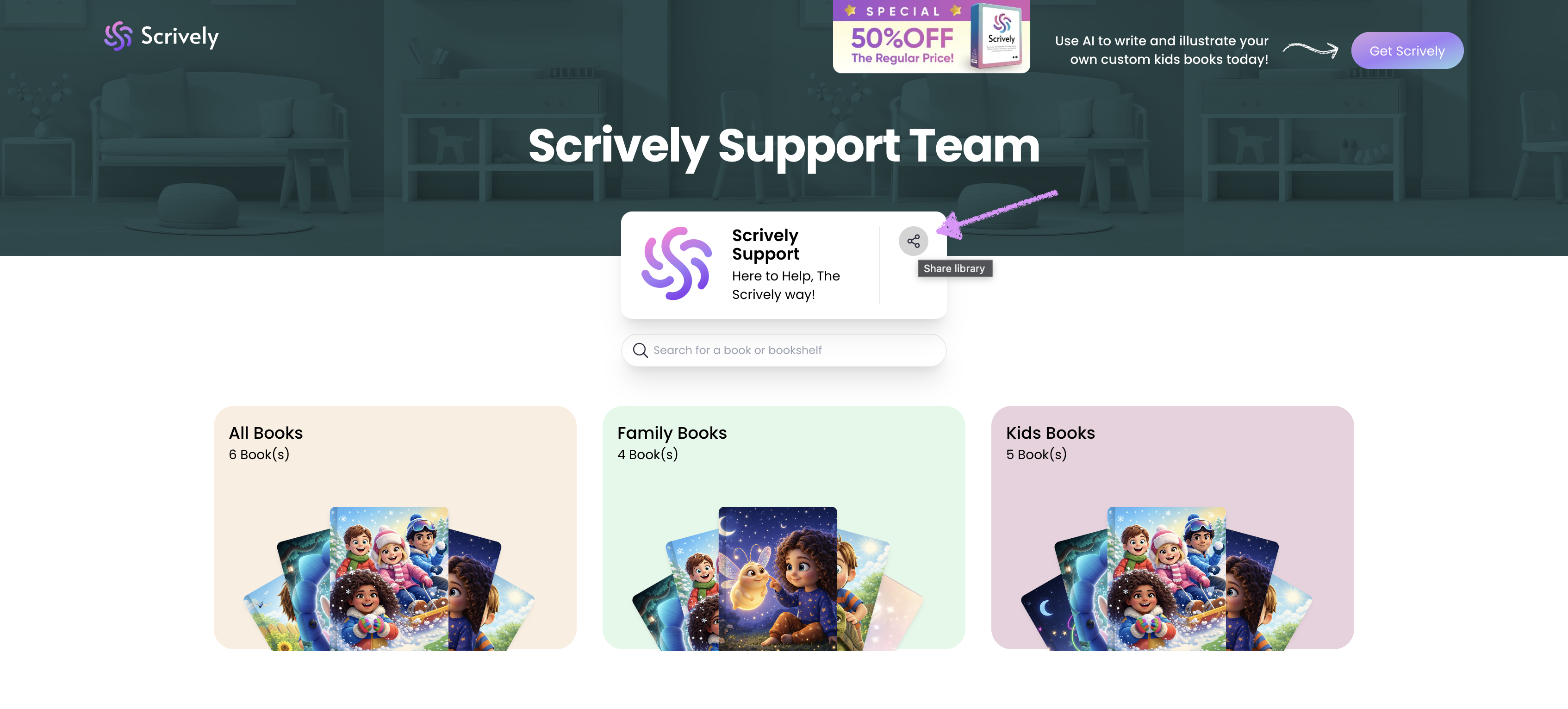
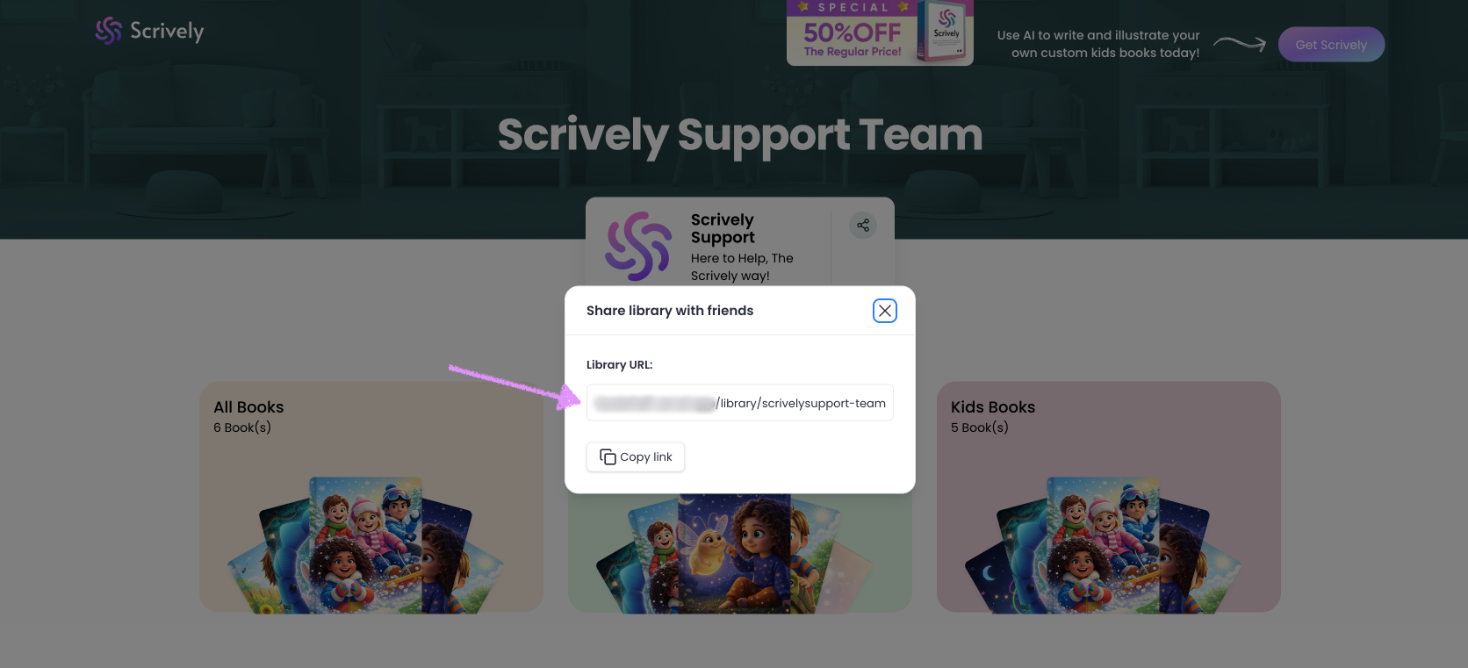
Clicking the share option opens a modal containing a link to your library that you can easily copy and share with others.
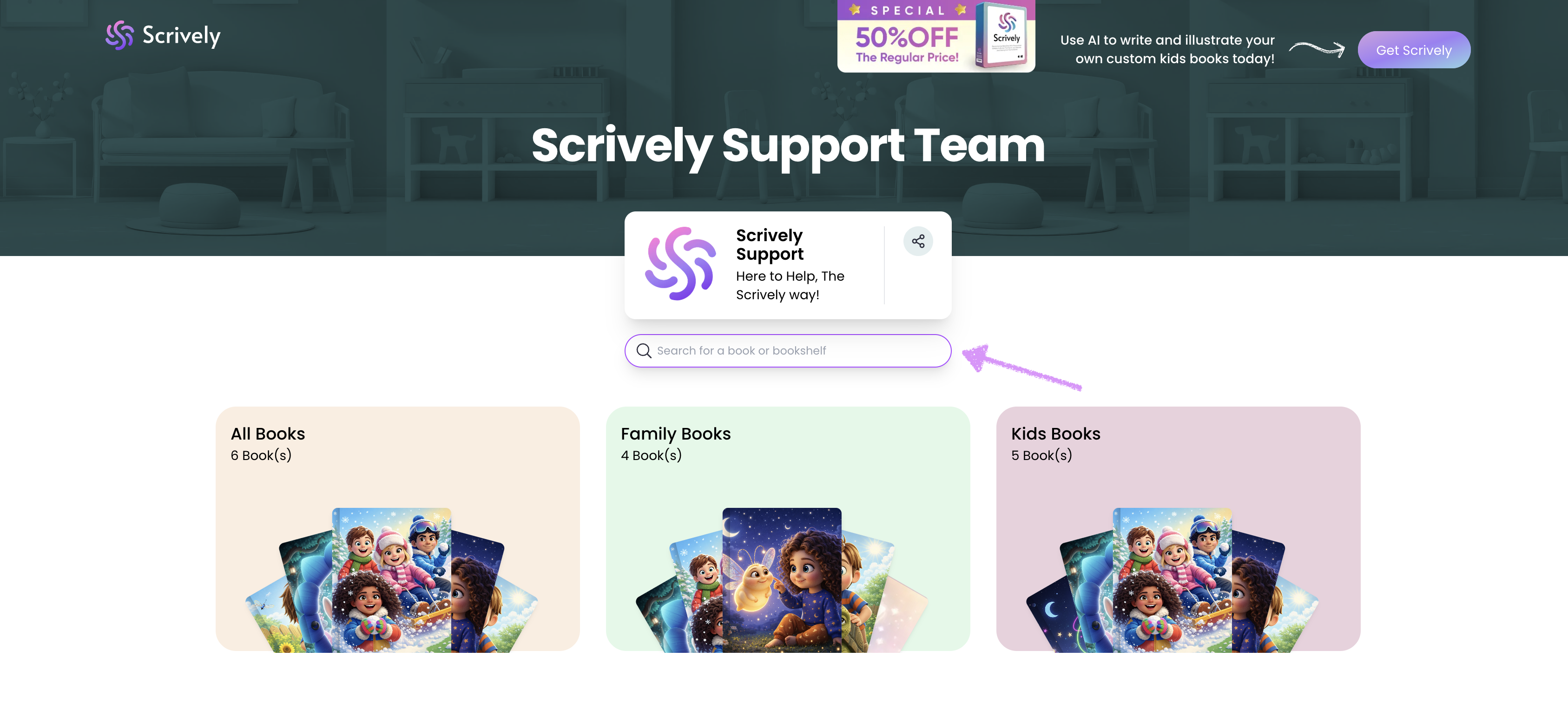
Readers can also use the search feature to find specific books on your library.
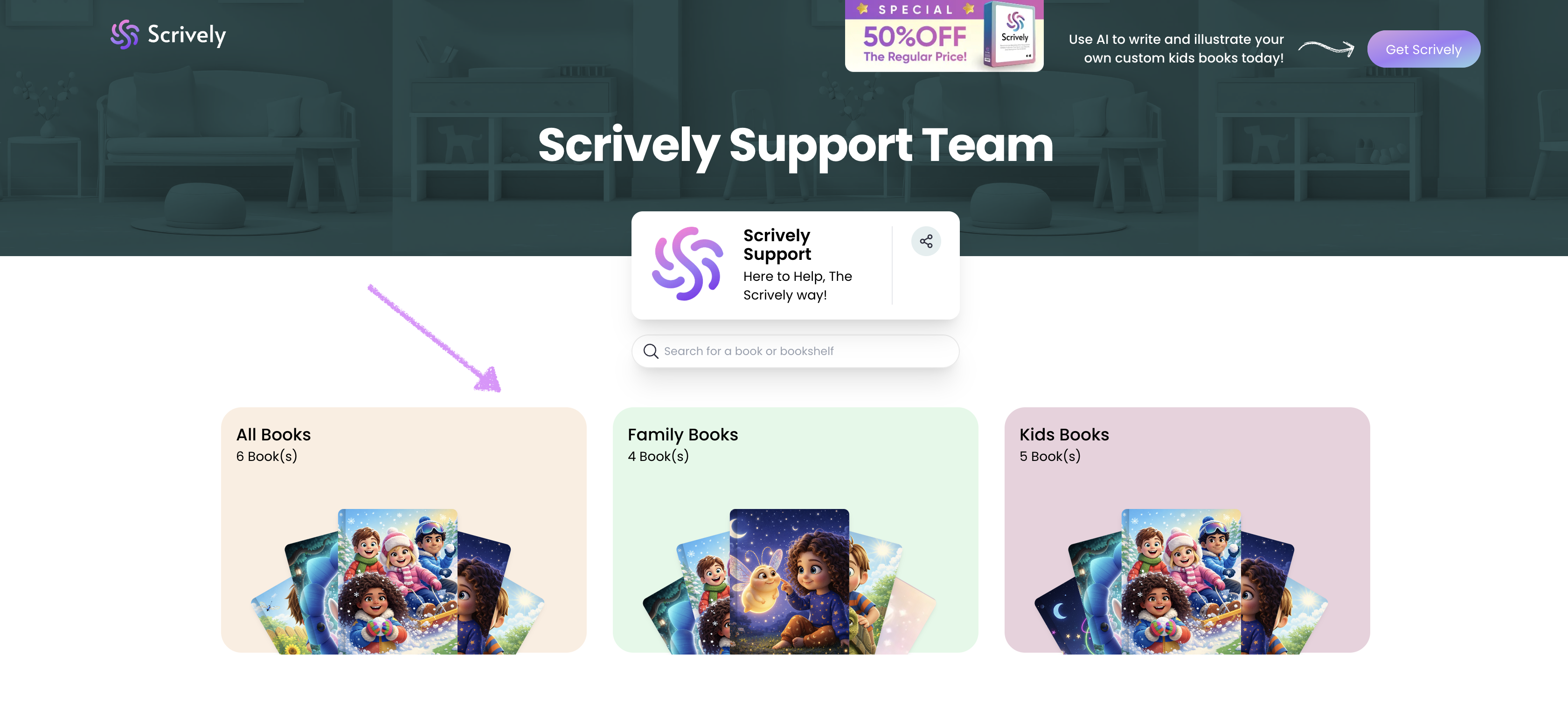
Readers can click into each bookshelf within the library to browse the list of associated books.
If a book includes voiceover, background music, or interactive elements created in Scrively Studio, it will display the label “Interactive Book.”
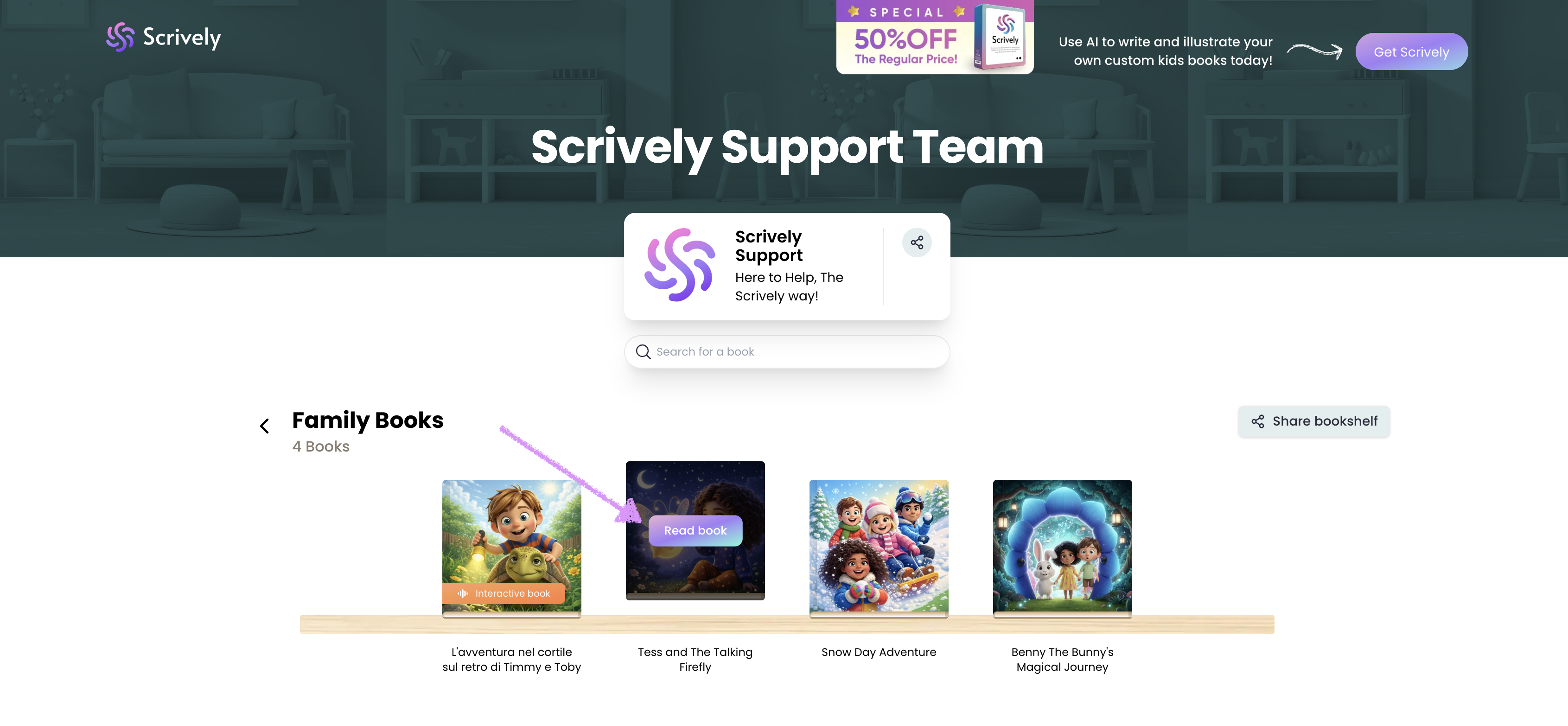
When readers hover over a book, the option to “Read book” will appear.
Was this article helpful?
That’s Great!
Thank you for your feedback
Sorry! We couldn't be helpful
Thank you for your feedback
Feedback sent
We appreciate your effort and will try to fix the article
