Your "Bookshelves" are your library within Scrively, where you can easily access, manage, and continue working on all of your books. Whether you’re editing a recent draft, reviewing a completed title, or preparing for print, this section gives you a streamlined view of everything you’ve created.
Head over to the "My Library" tab.
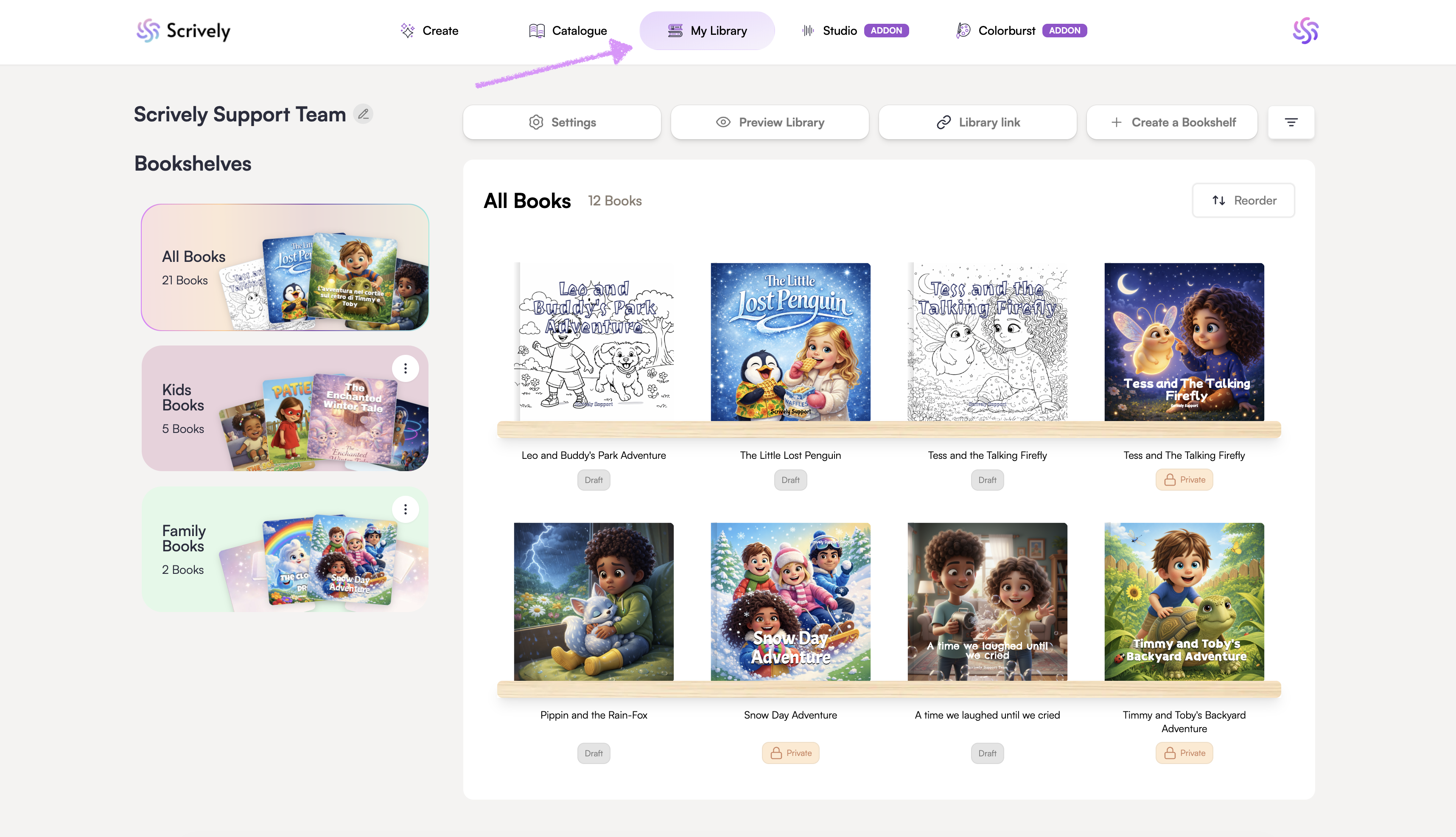
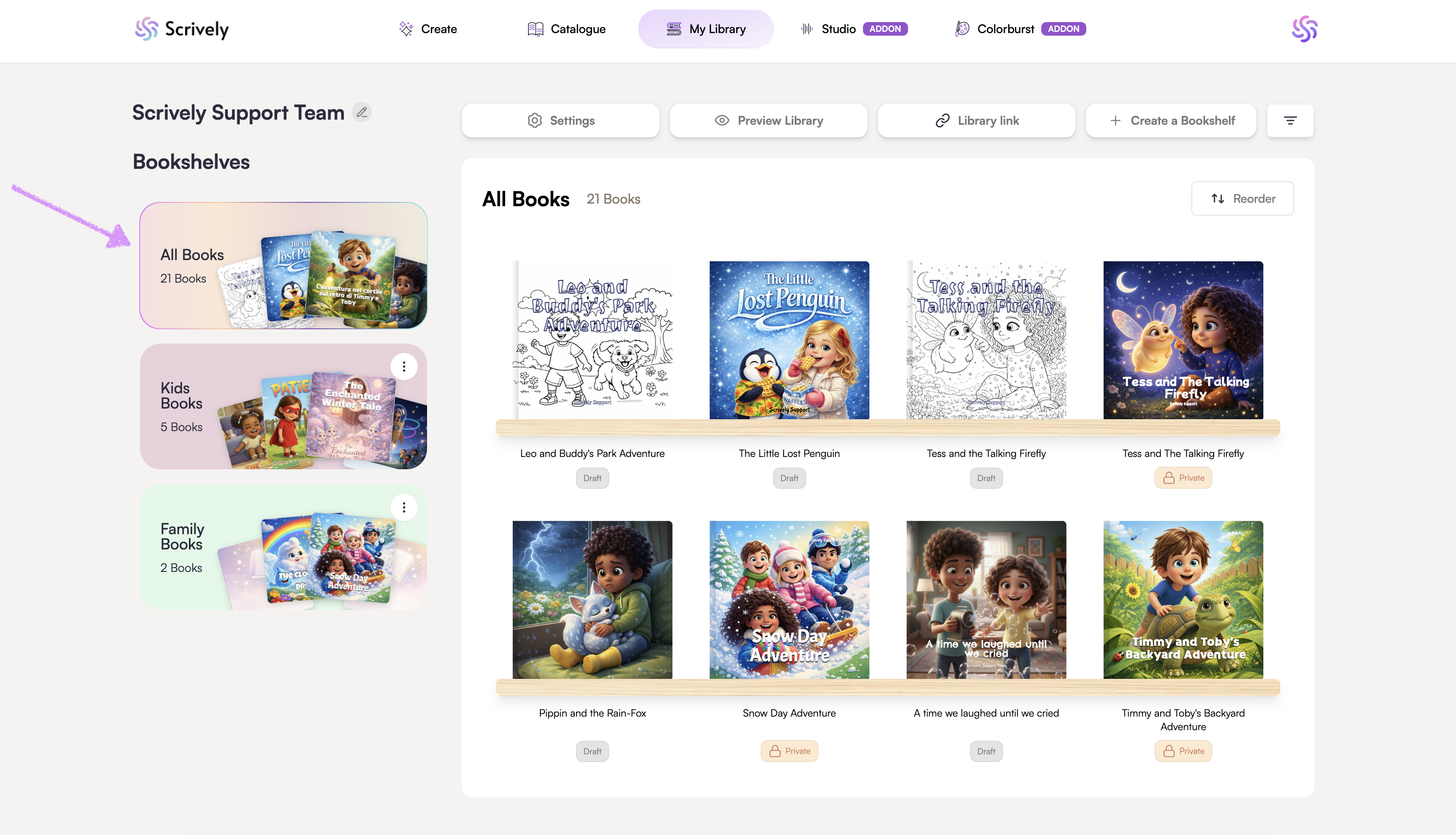
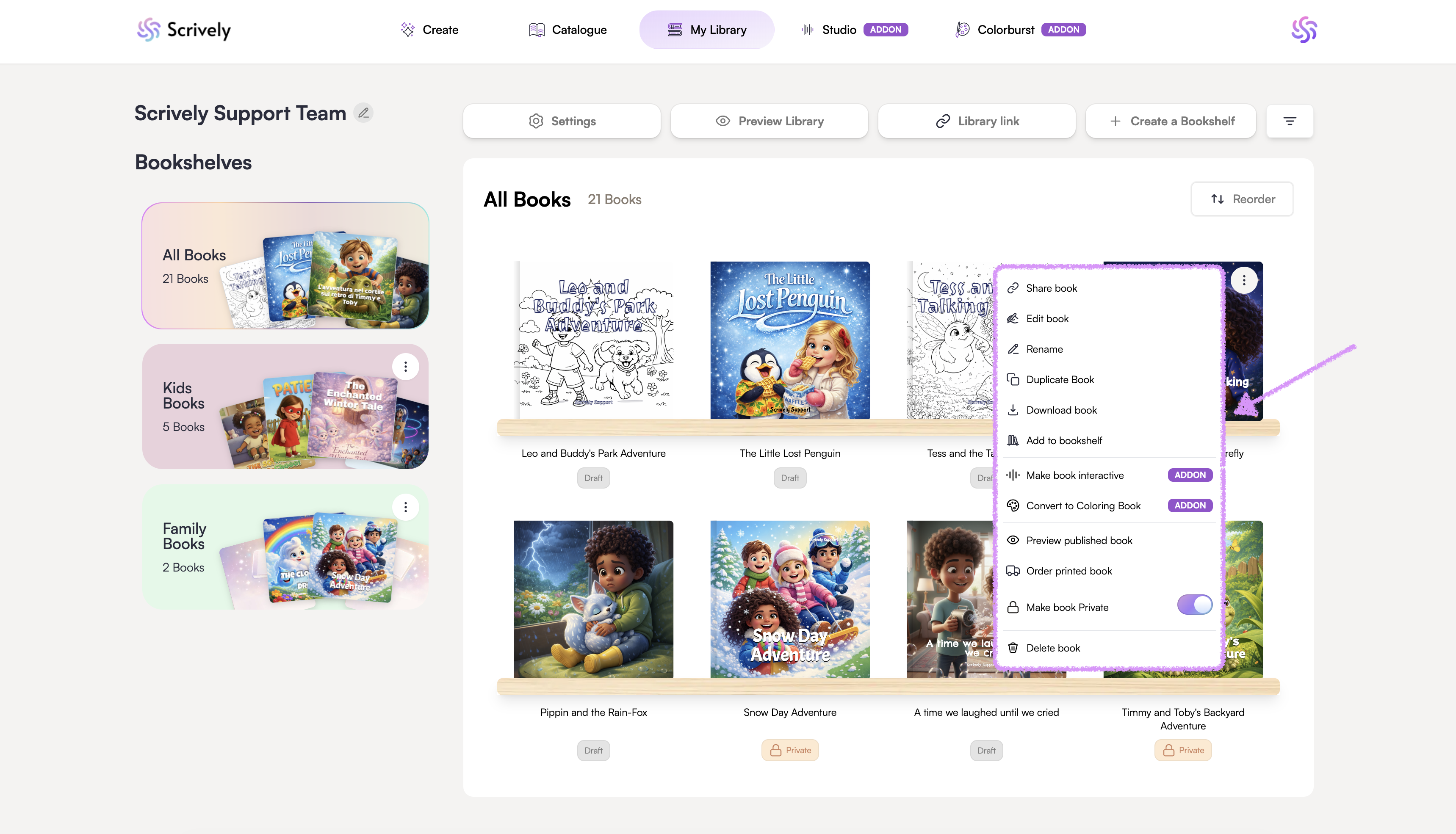
On the left side, you’ll see all bookshelves, starting with "All Books." This default bookshelf gives you access to your entire book collection.
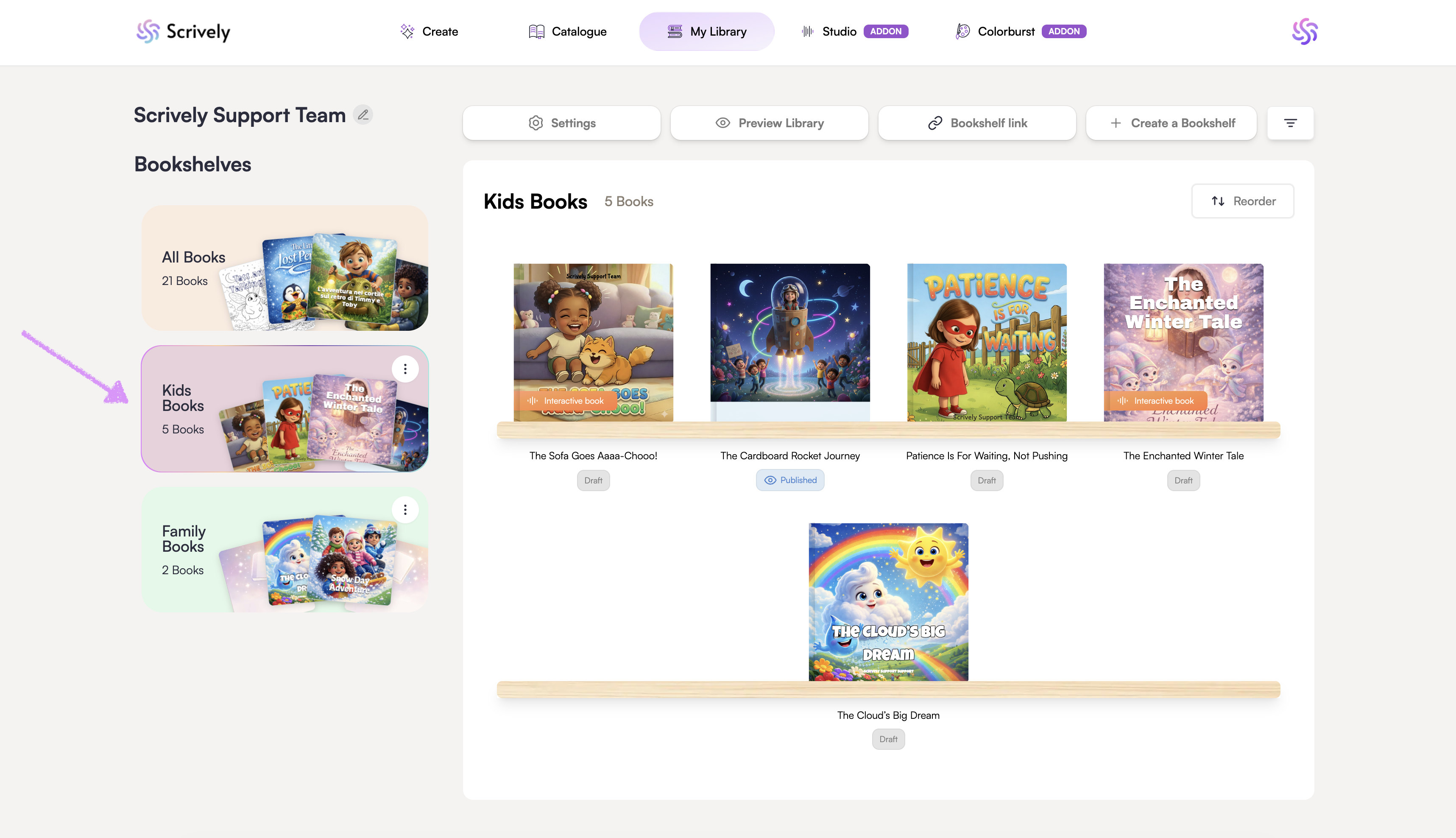
Below "All Books", you’ll find each individual bookshelf you’ve created.
Hover over a book to reveal the ellipsis with additional options.
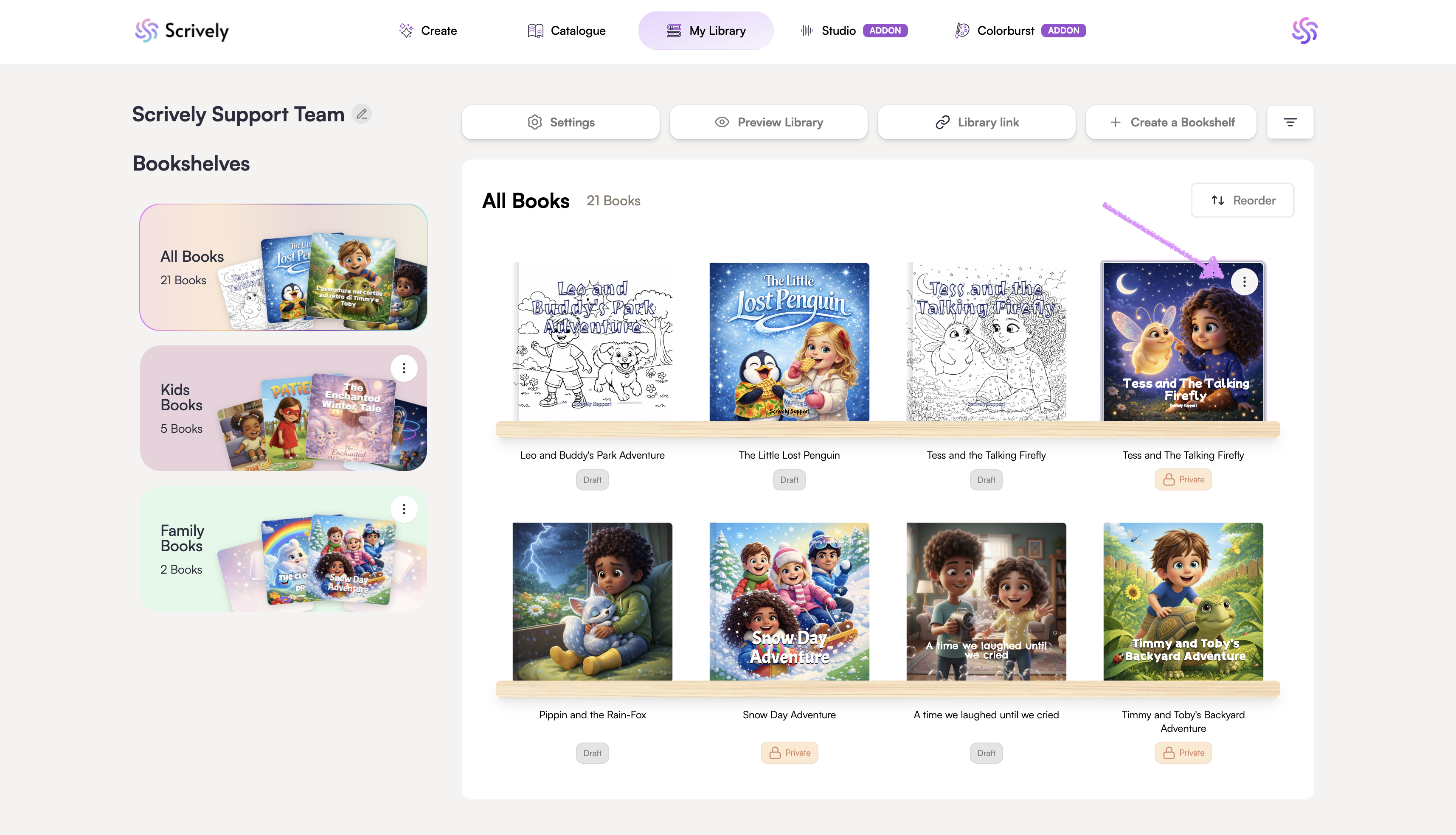
The book's menu option lets you share, edit, rename or duplicate your book, download as a PDF or EPUB, download the book's cover pages and audio, add to bookshelf, open in Studio (add-on), convert to a coloring book in ColorBurst (add-on), preview the published book on your shareable bookshelf, order printed copies, set your book to private, or delete it.
Was this article helpful?
That’s Great!
Thank you for your feedback
Sorry! We couldn't be helpful
Thank you for your feedback
Feedback sent
We appreciate your effort and will try to fix the article
