
The Character Library makes it easy to create, organize, and reuse characters across all of your books. With everything stored in one centralized place, you can quickly browse your saved characters, maintain consistency throughout your stories, and bring new ideas to life faster while creating books.
Head over to the "My Library" tab.
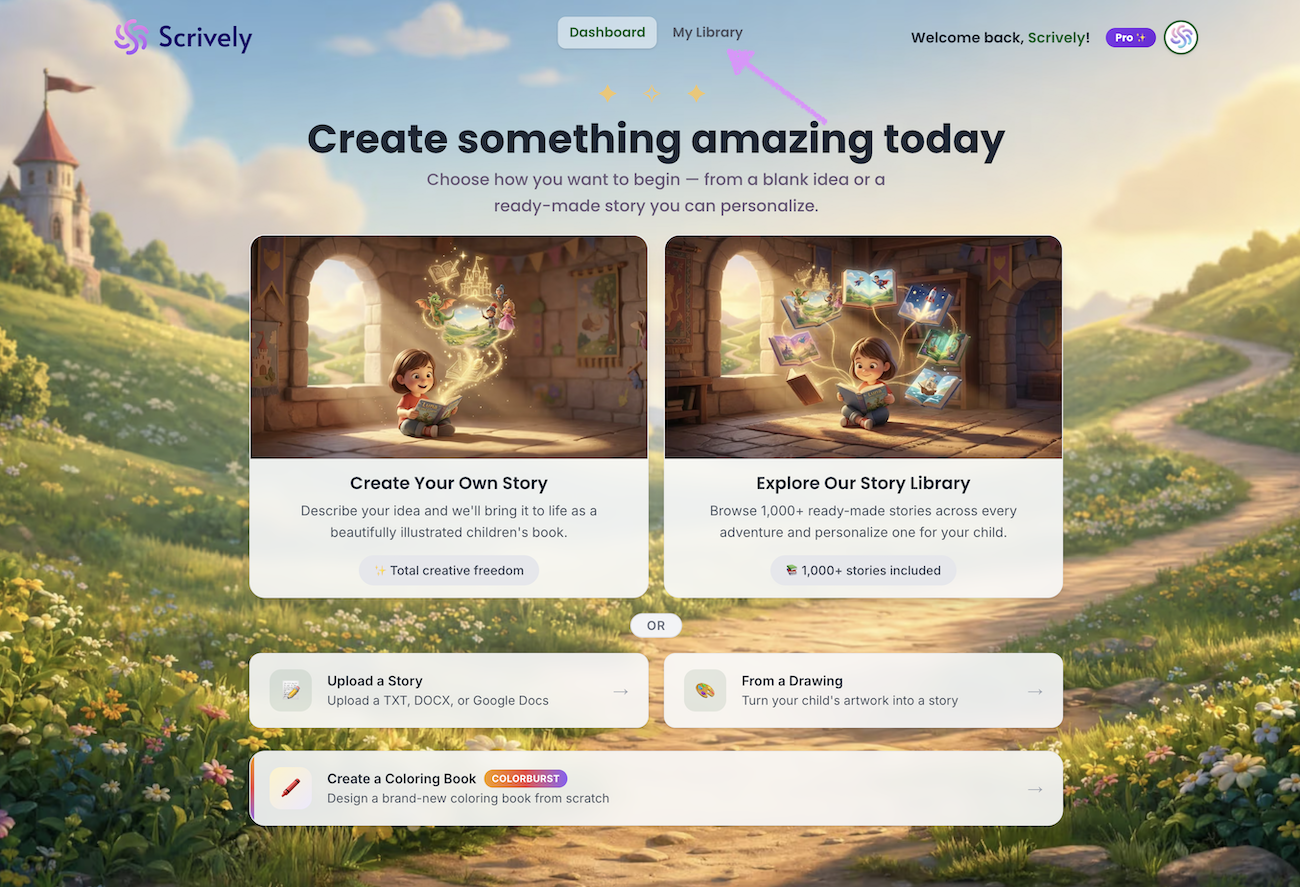
Click on "My Characters."
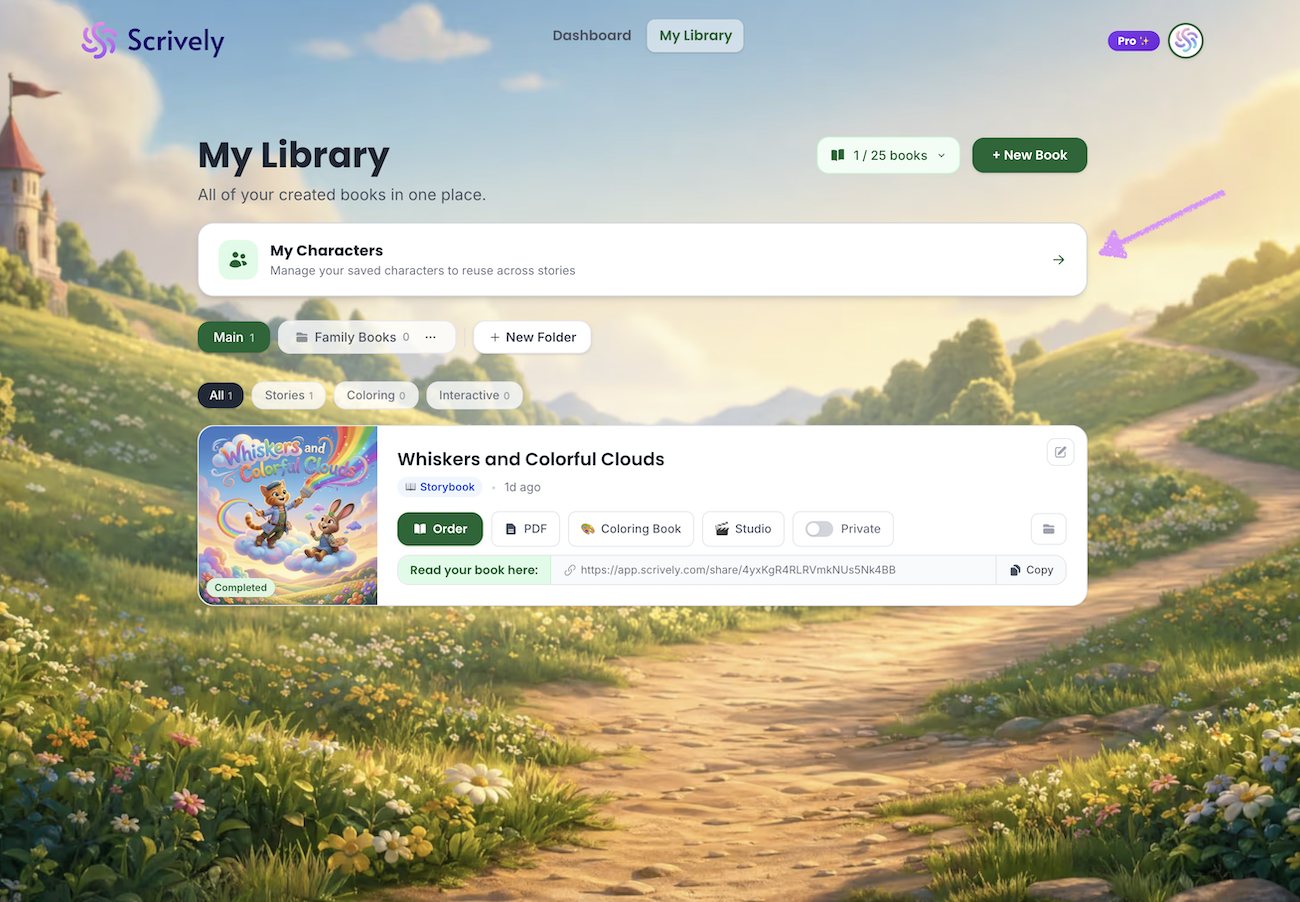
Click on "+ Add a Character."
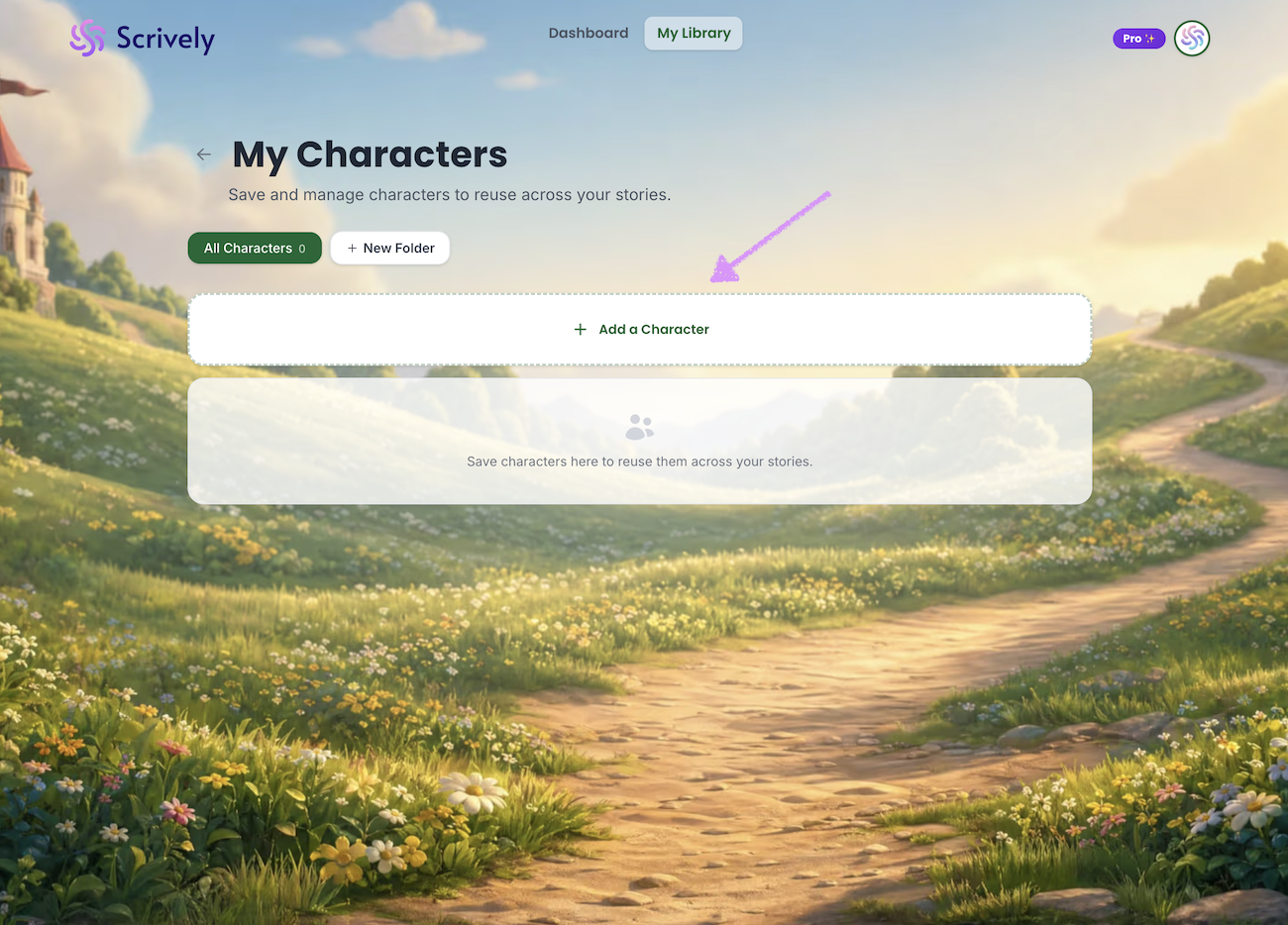
Add your character's name.
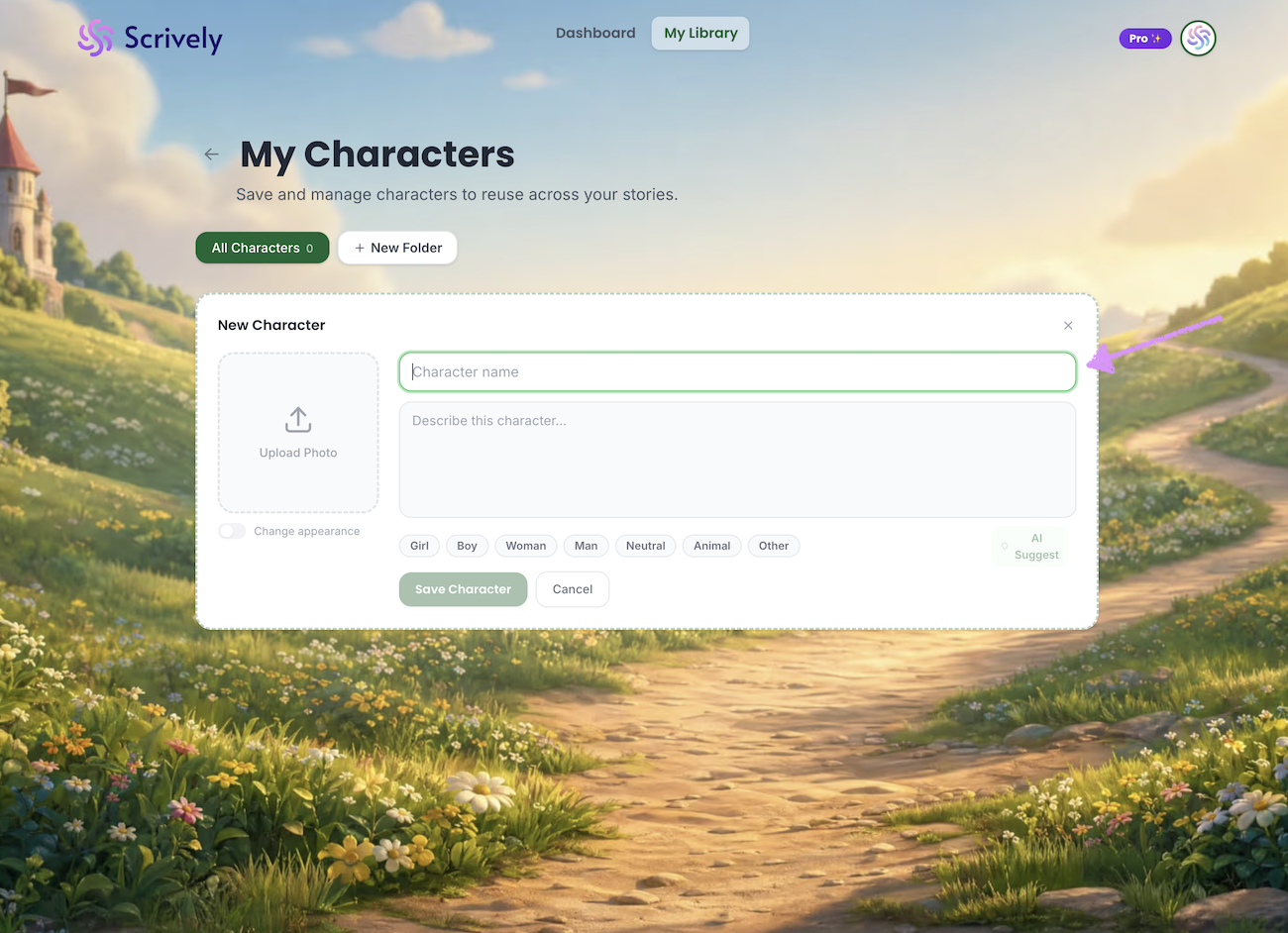
A character type will be automatically set based on the provided name which can be adjusted.
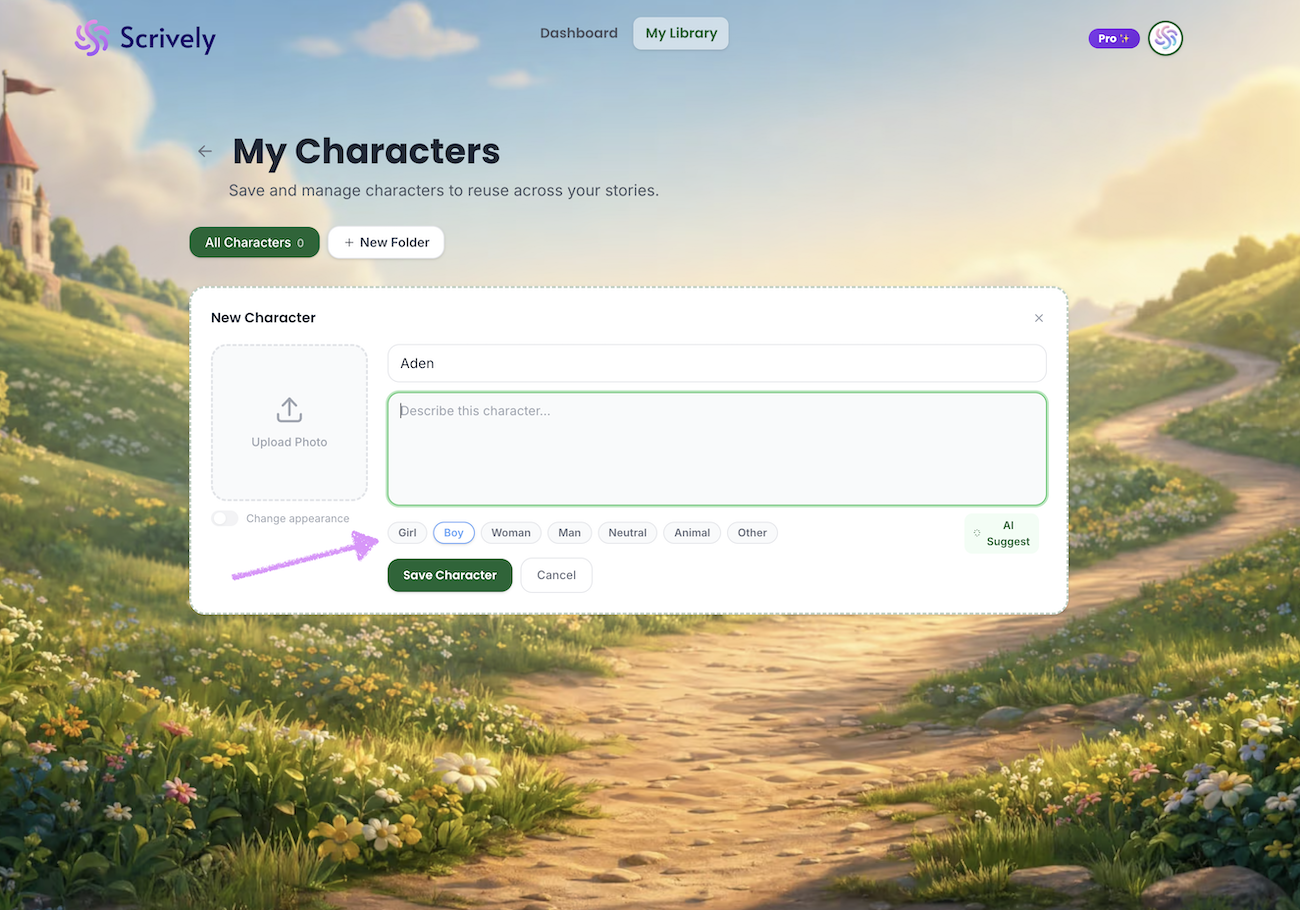
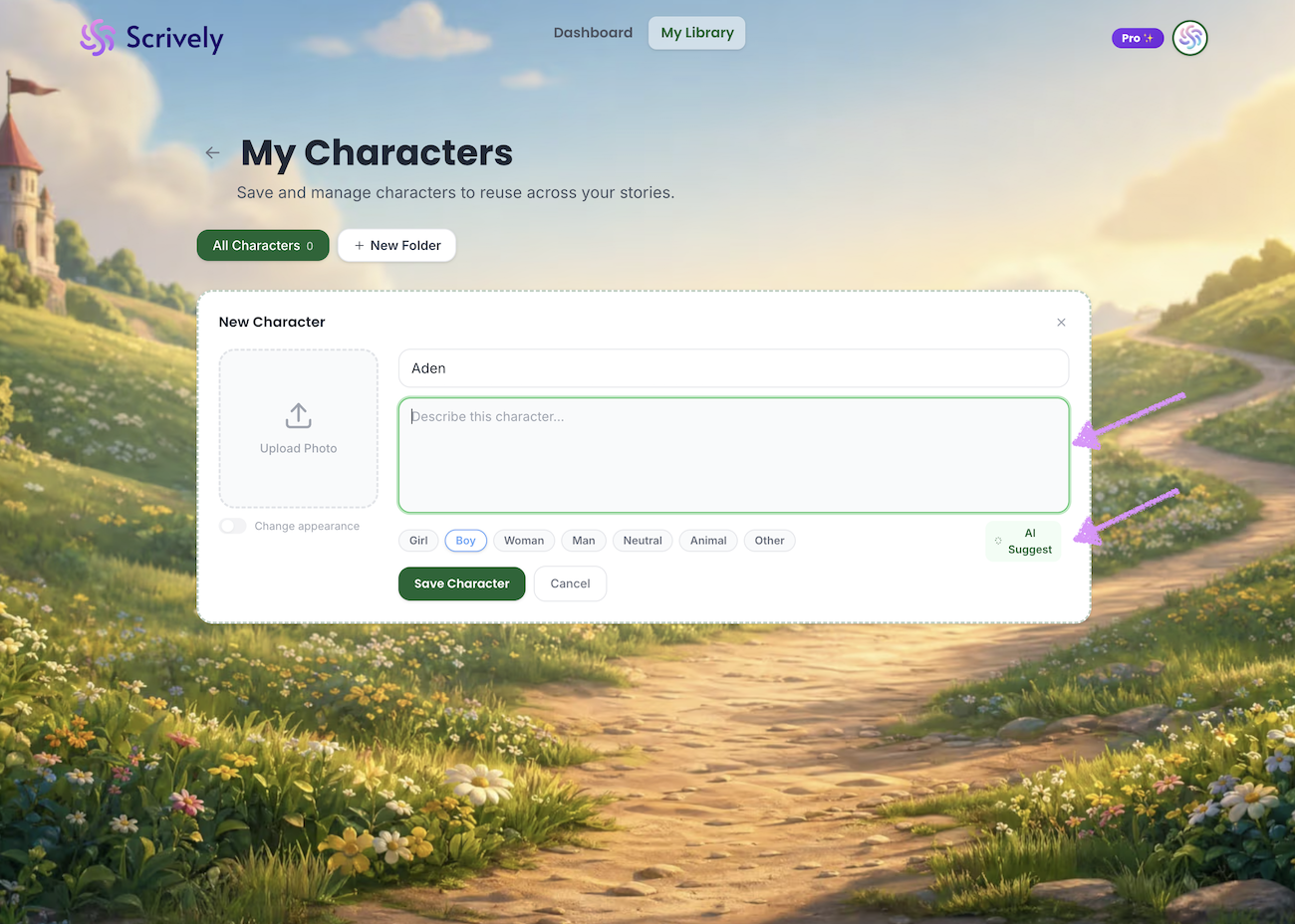
You can either manually enter a character description or click “AI Suggest” to let Scrively generate one for you.
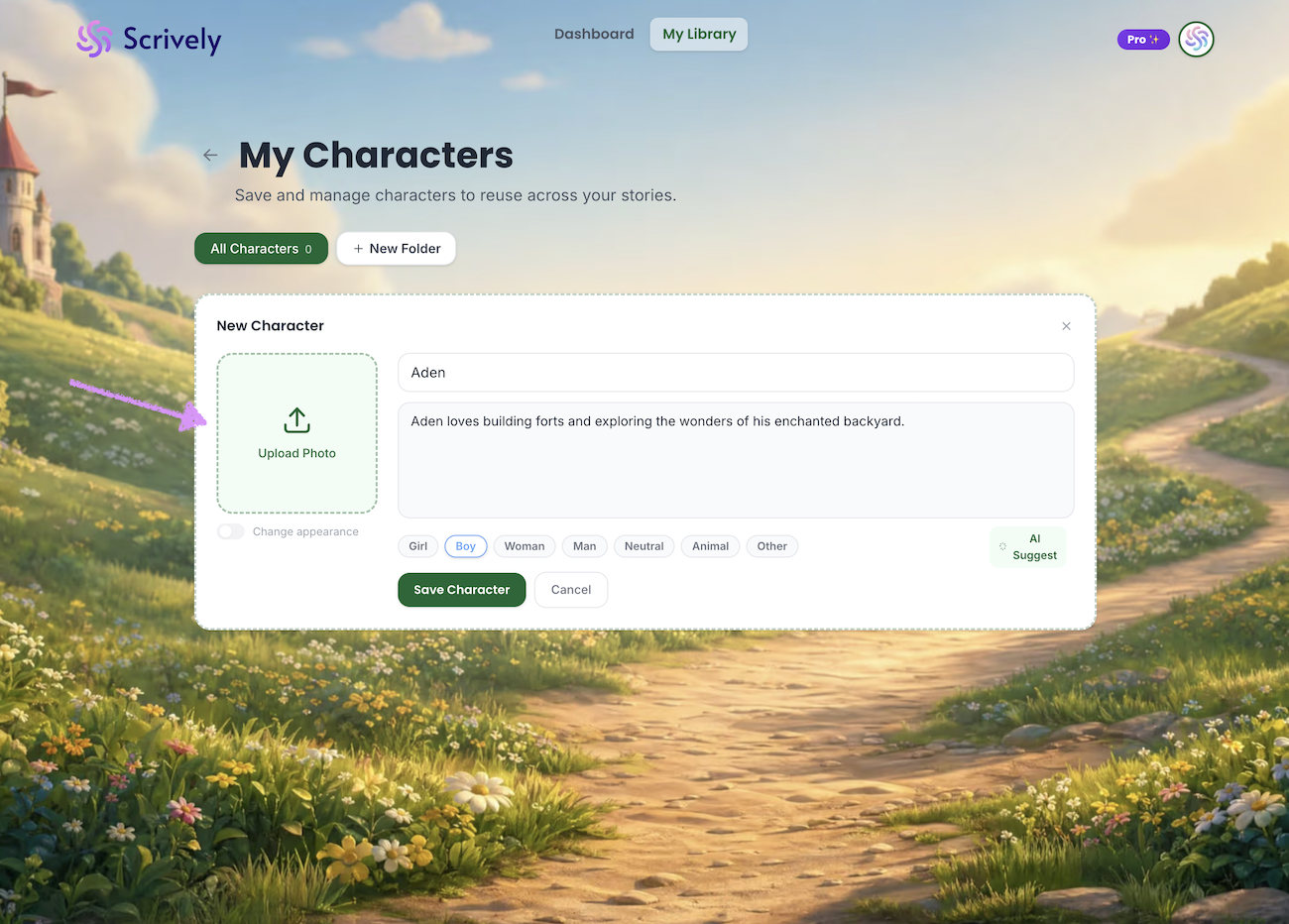
Upload the character's photo.
Use the crop image tool to determine what part of the image to focus on.
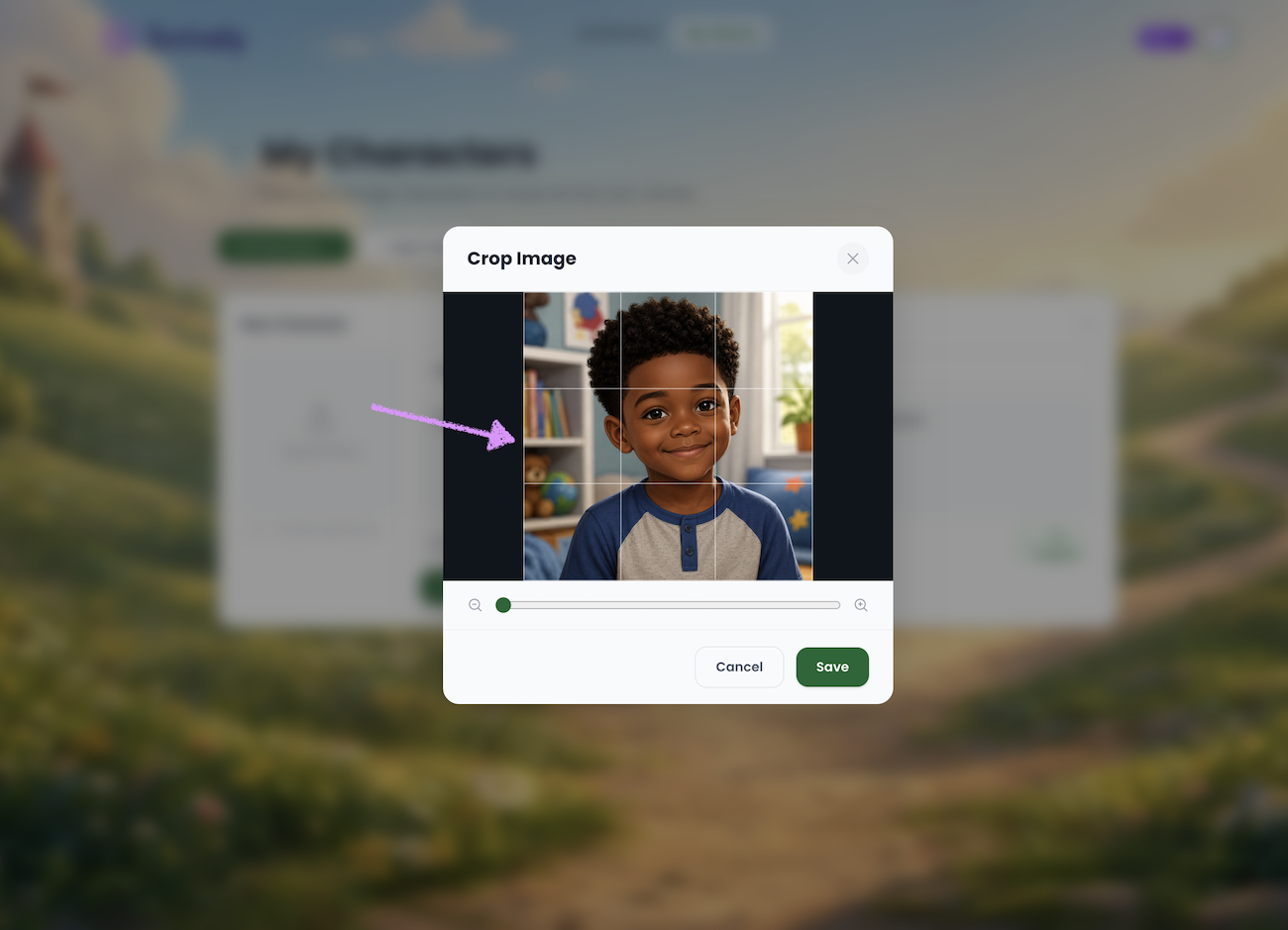
If needed zoom in/out of the image.
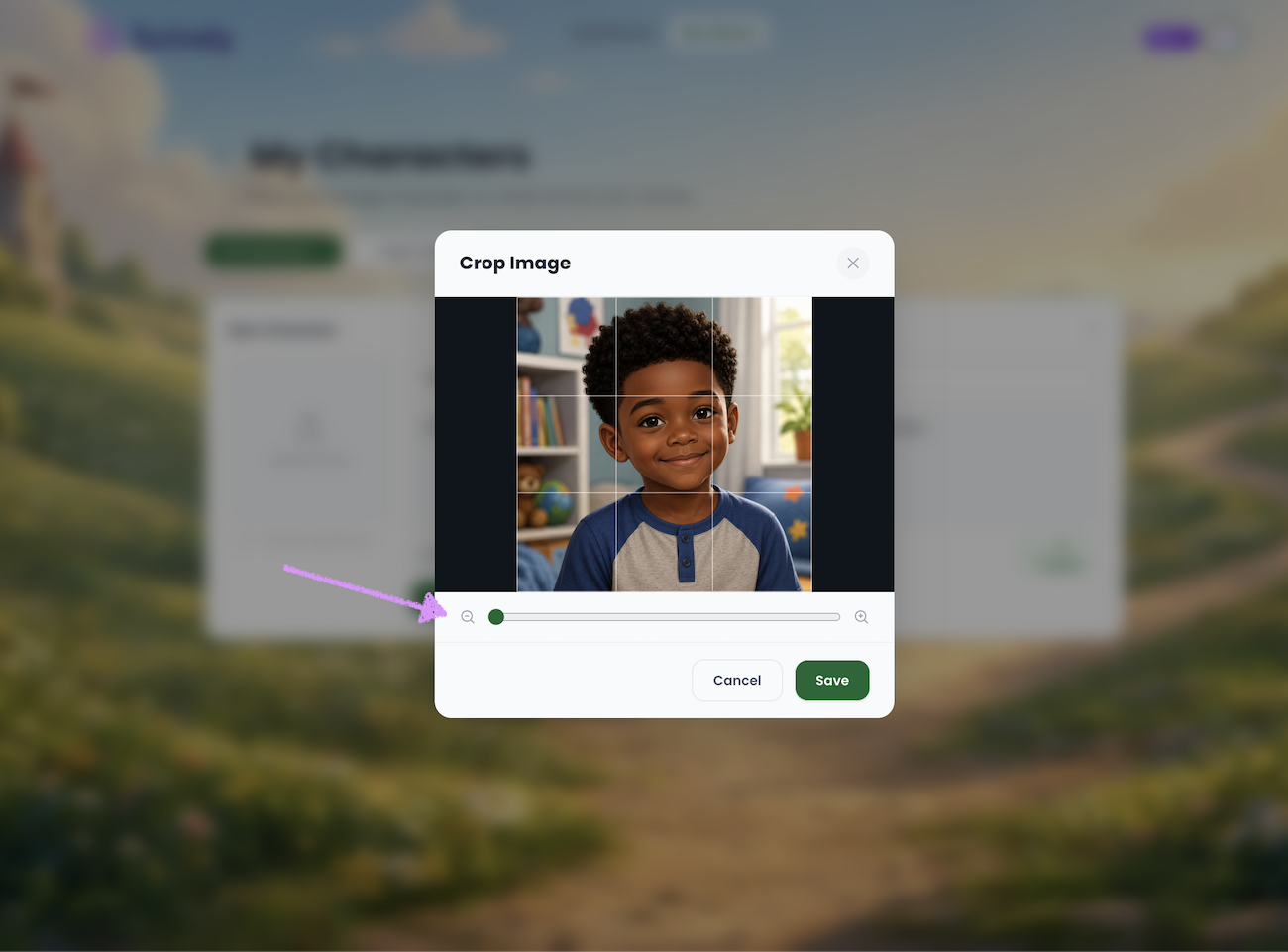
When you're ready click on "Save."
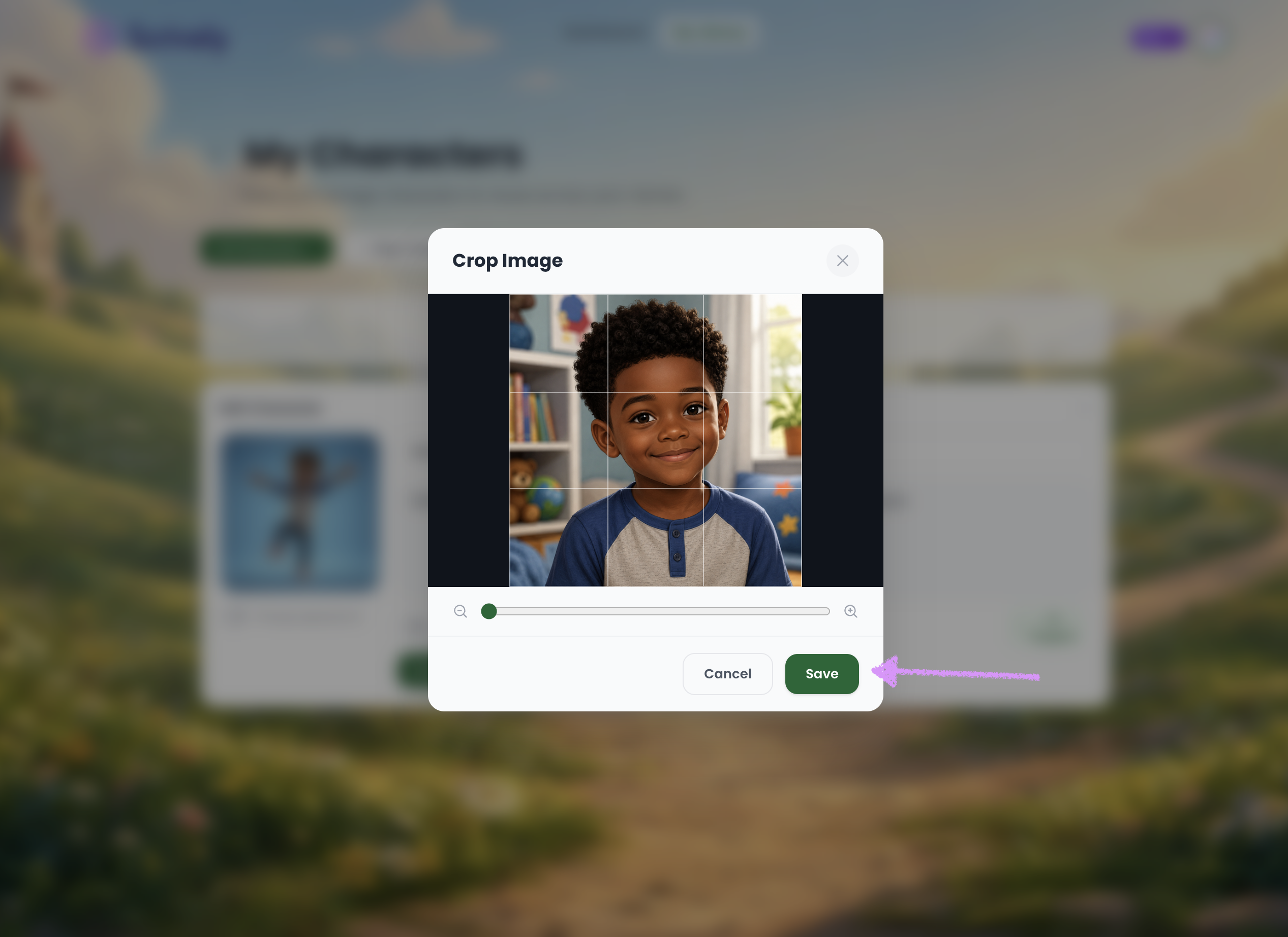
Select who's in the image to help us tailor your experience.
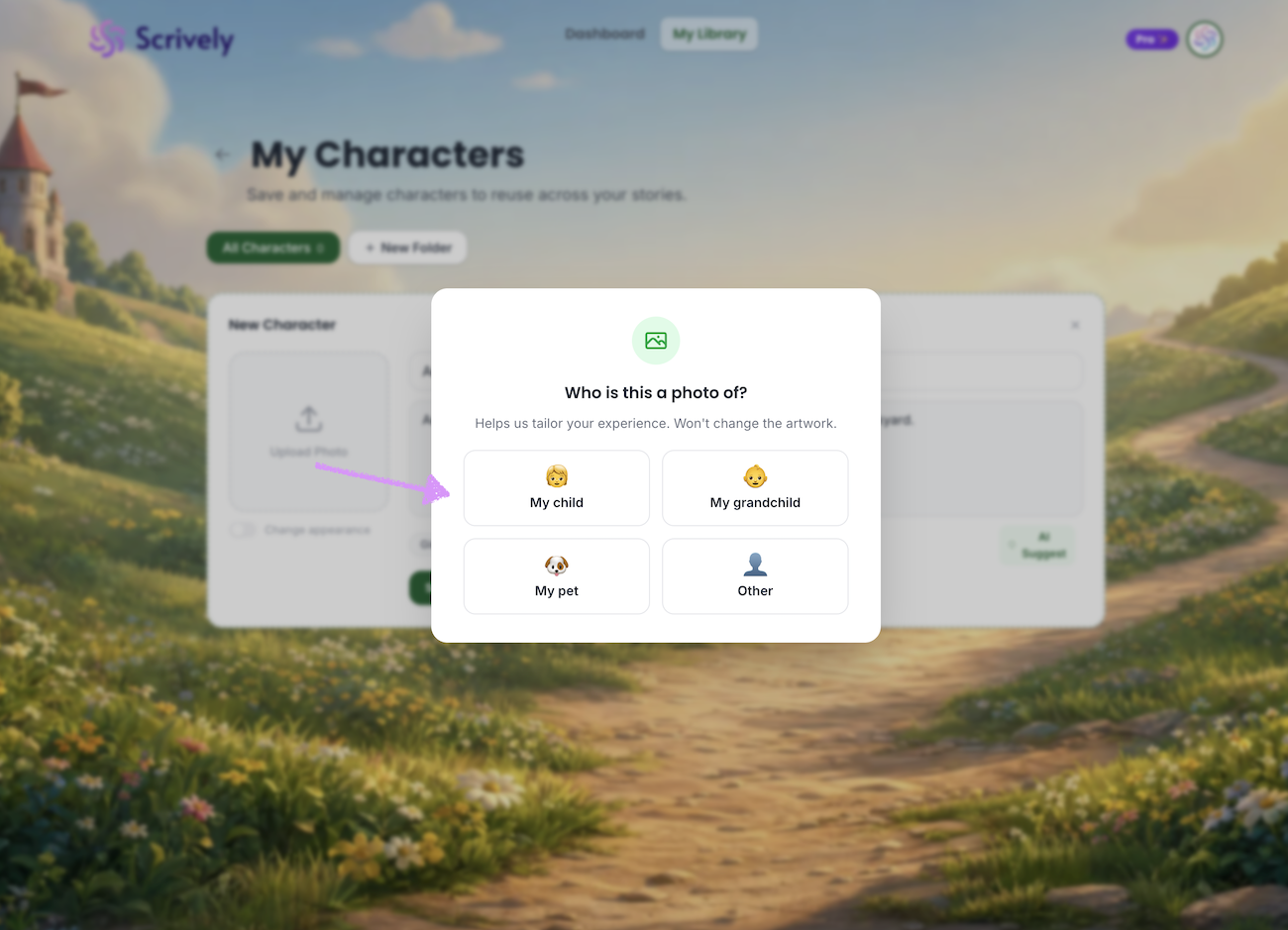
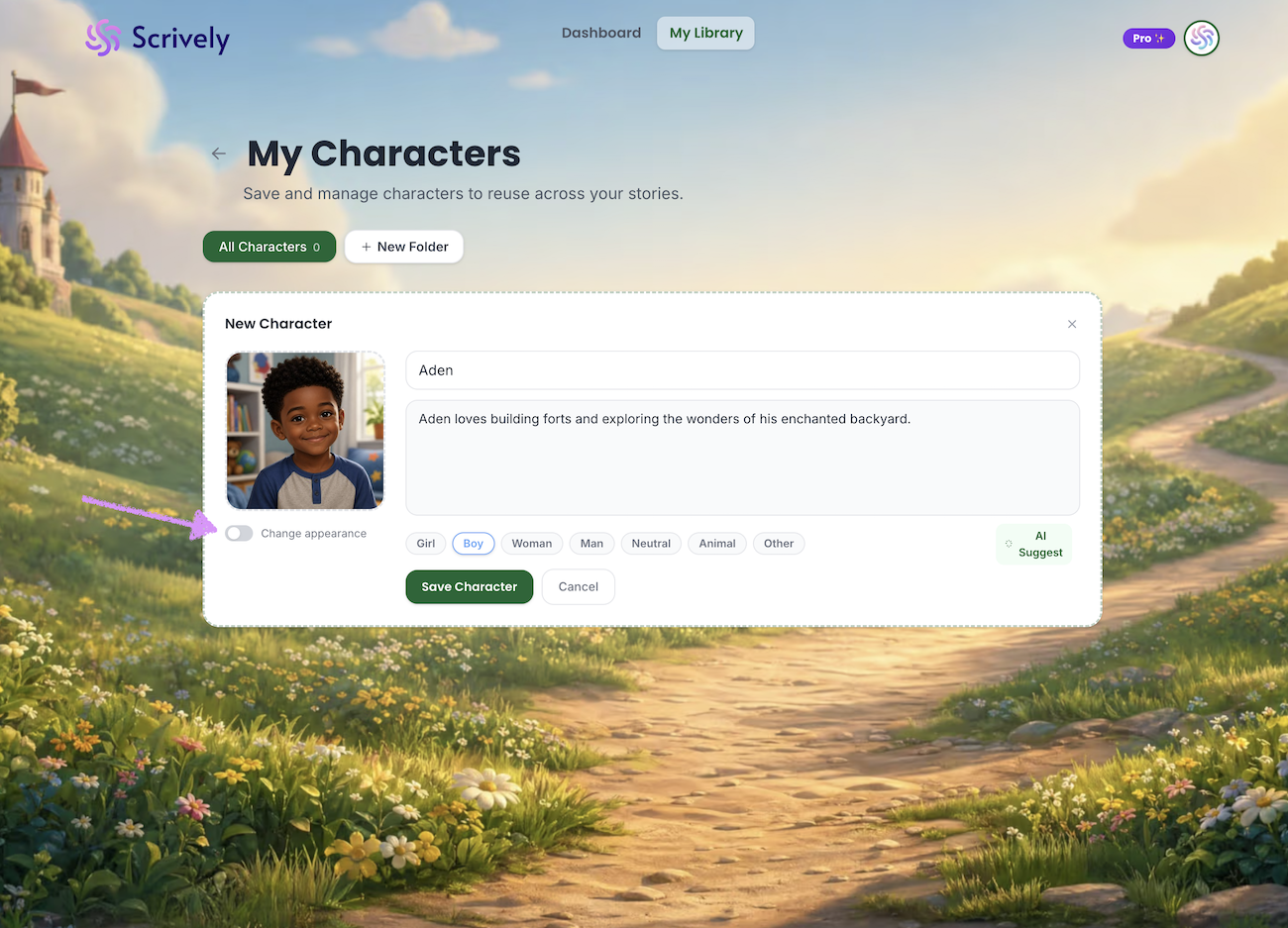
Toggle on the option to change the character's appearance.
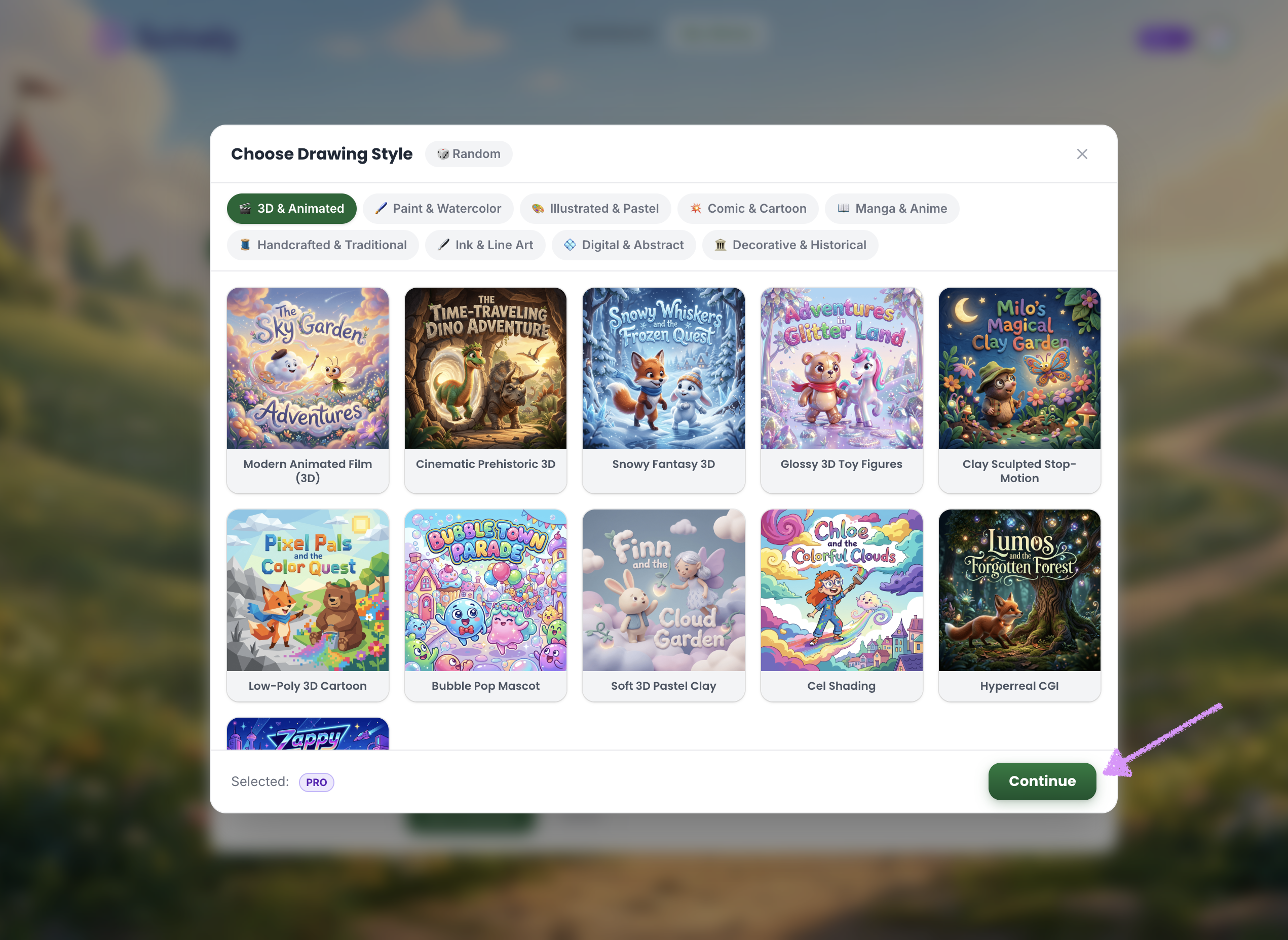
Click on "Drawing Style."
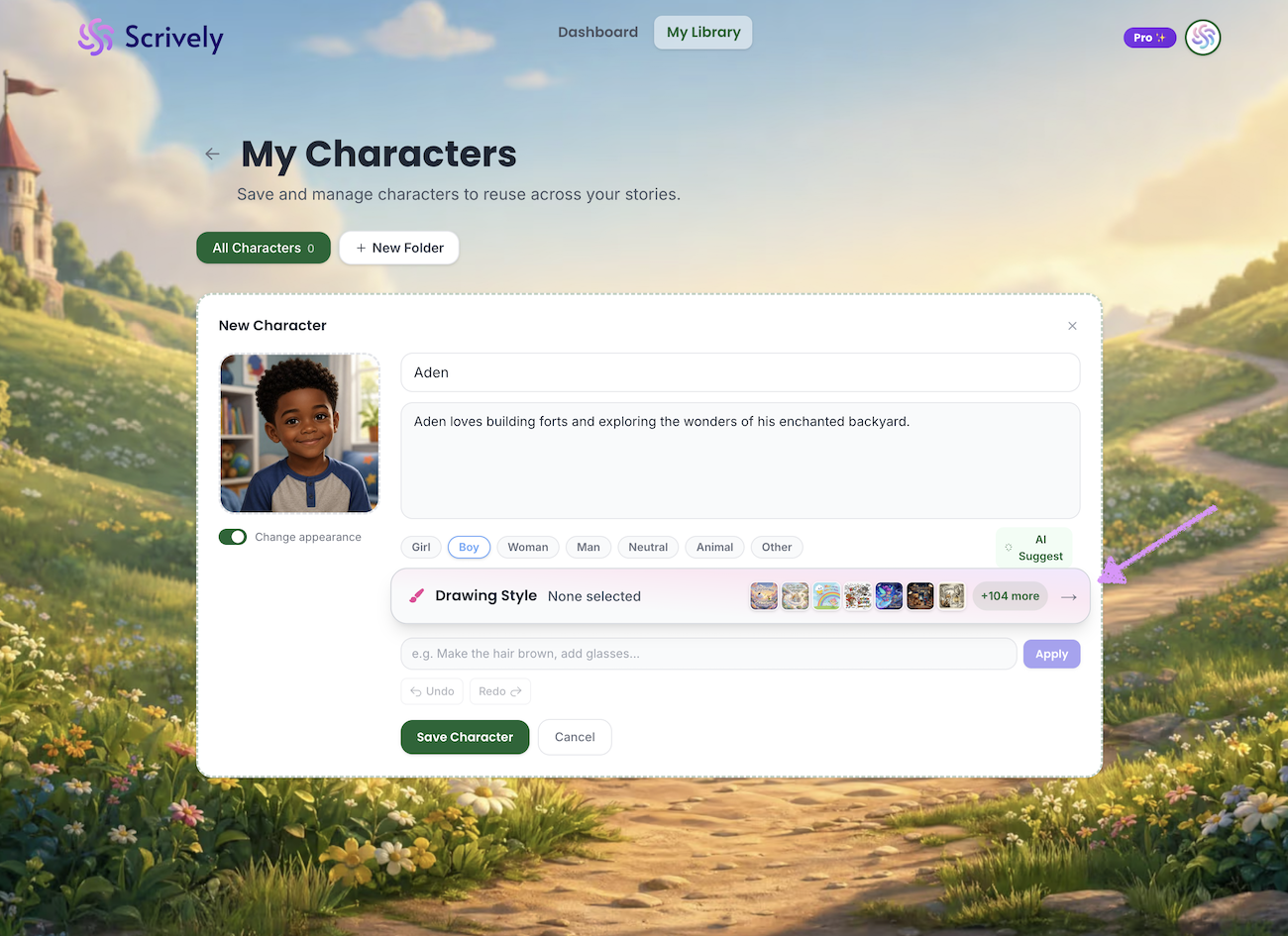
⚠️ When you change an uploaded character's style, that style will be preserved when the character is added to a book, even if the book uses a different style. If you want the character to match the book's style, do not modify the character style here.

The styles available to you will be based on your plan level. The Starter plan includes one style. One-time purchases include one style in each category. The Plus plan includes three styles per category, while the Pro plan unlocks all styles.
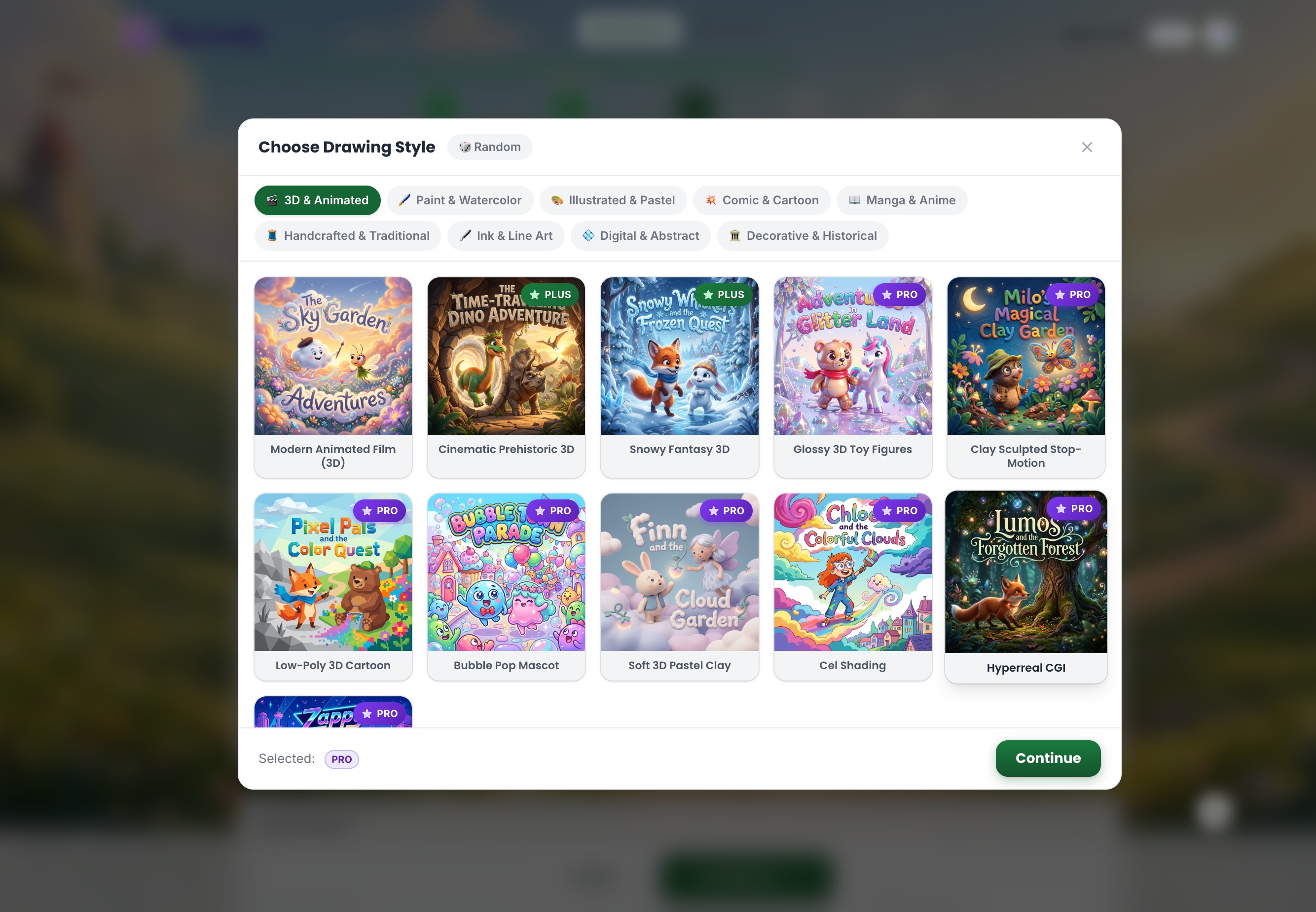
Hover over the drawing style to reveal and click on the enlarge tool.
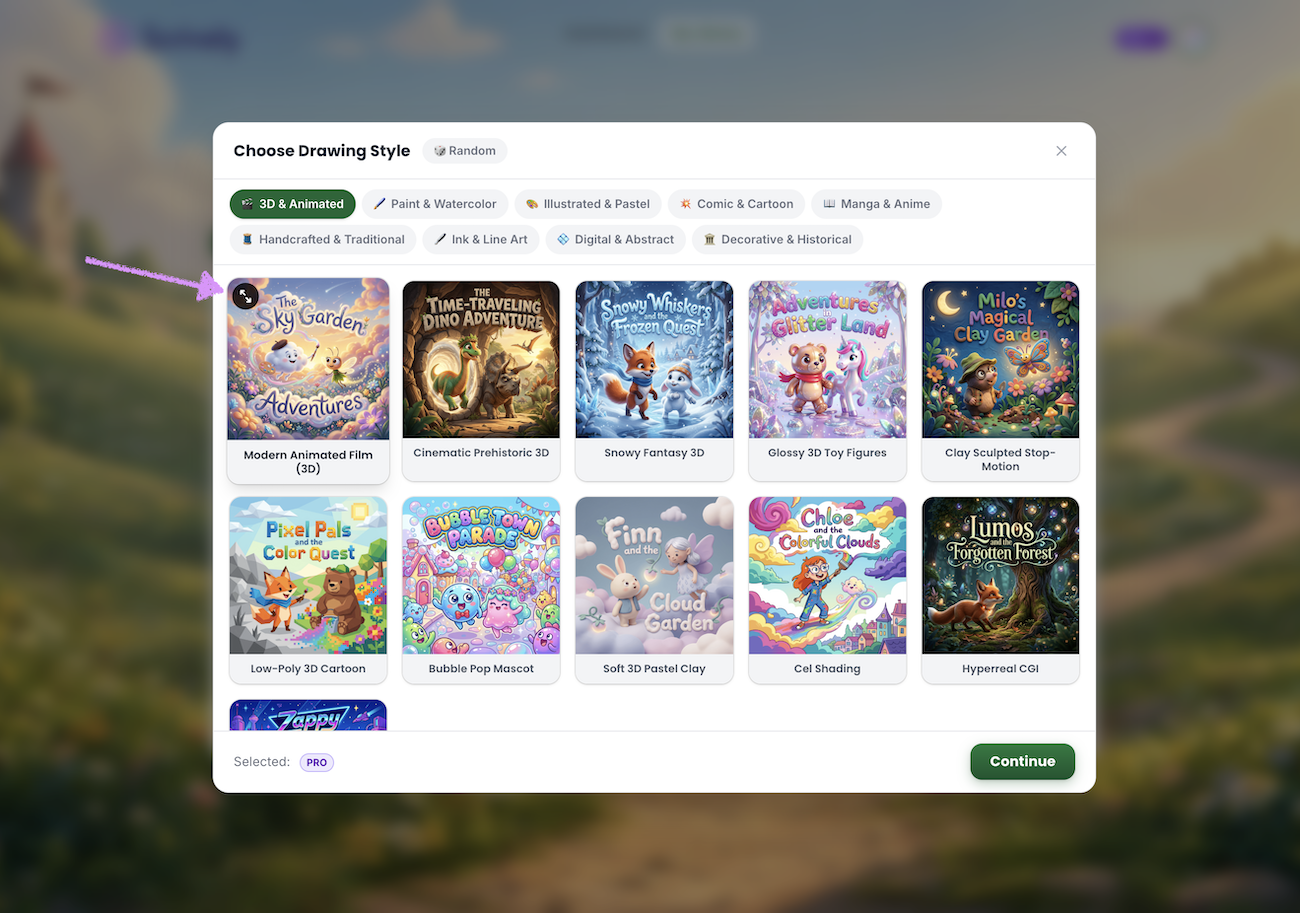
Once selected, you’ll see a full-size preview of the drawing style.
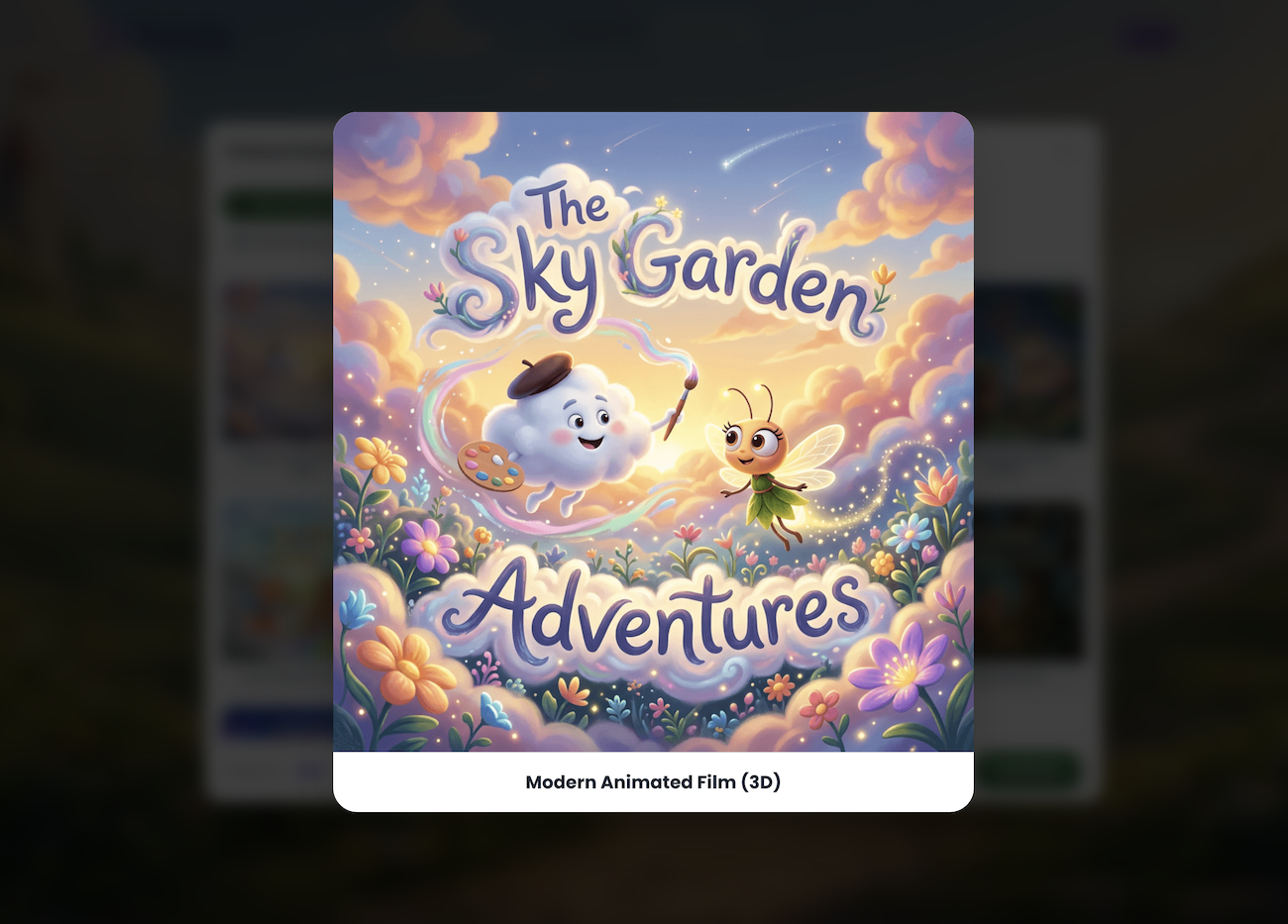
Click on "Continue."
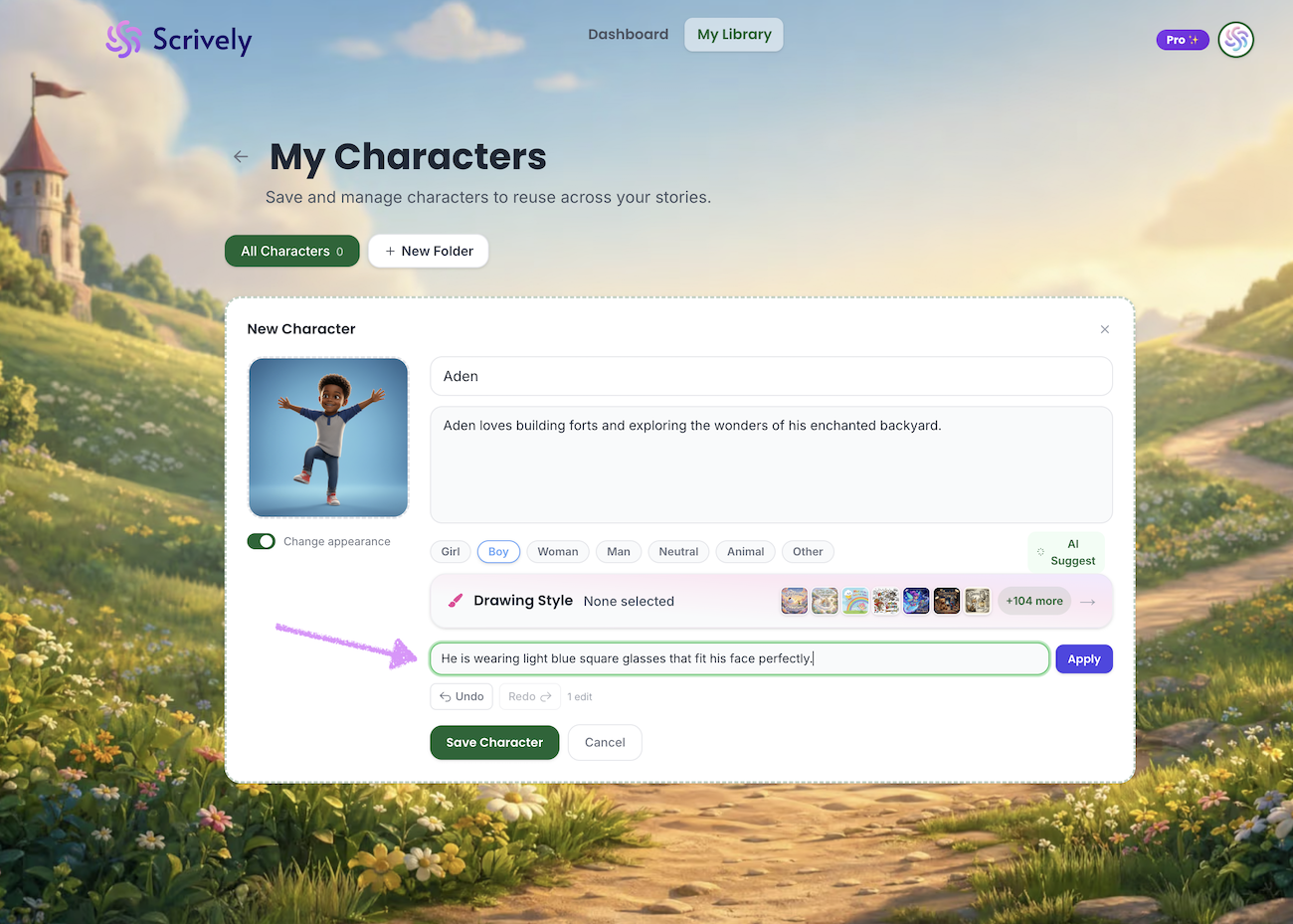
Add or change details about the character as needed.
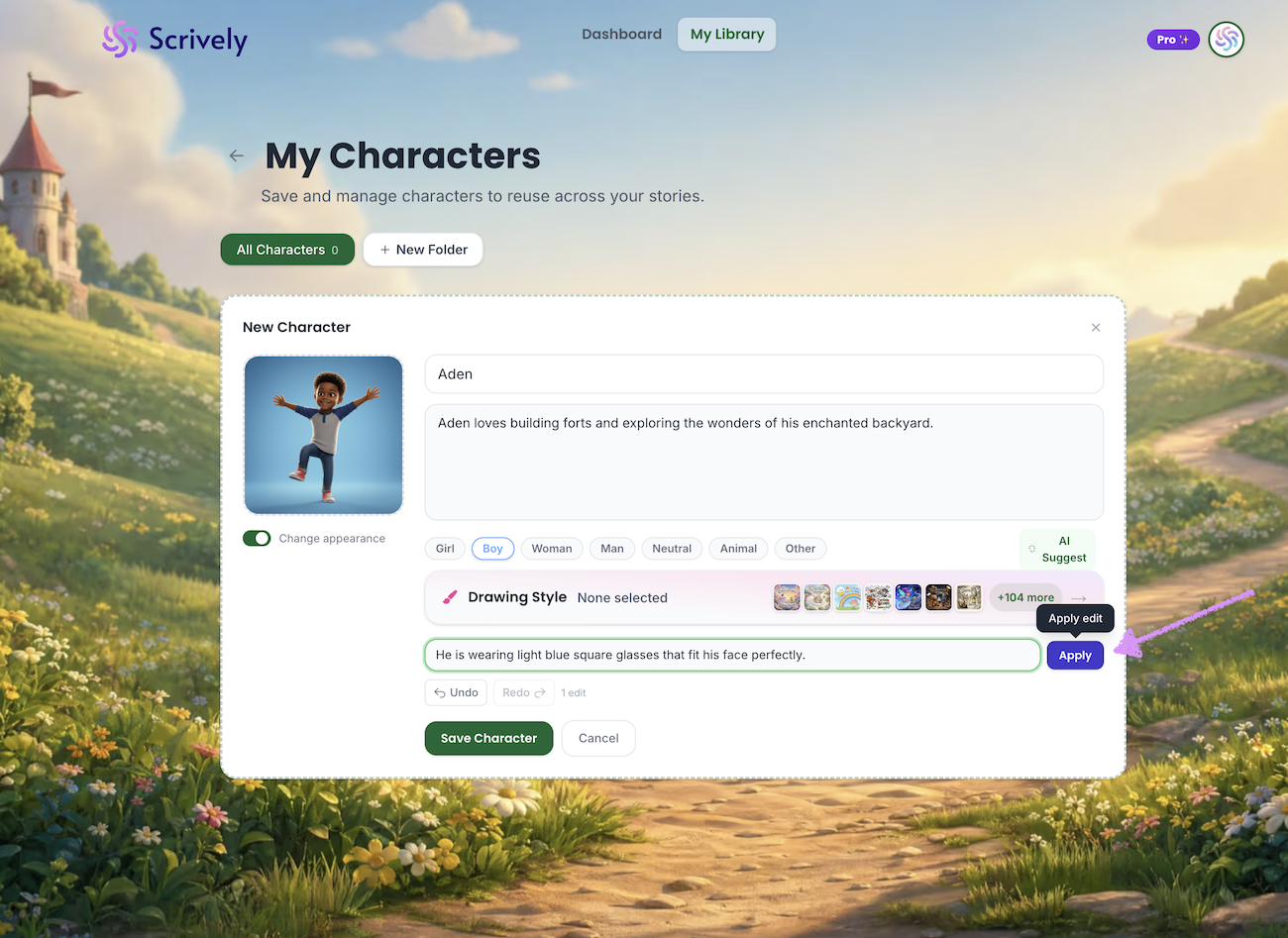
Click on "Apply."
Give Scrively a few moments to process the change.
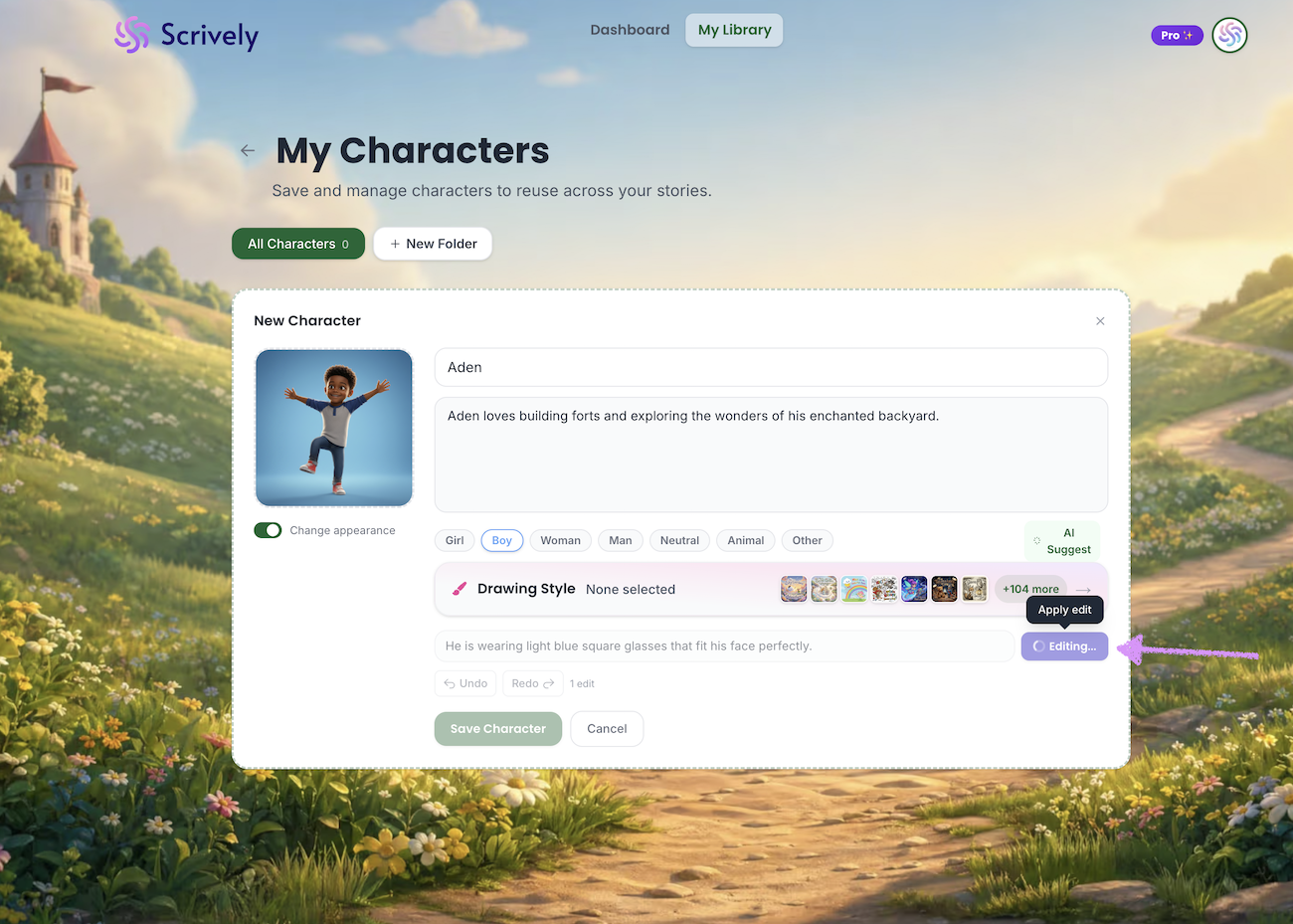
The requested edit will be applied to the character.
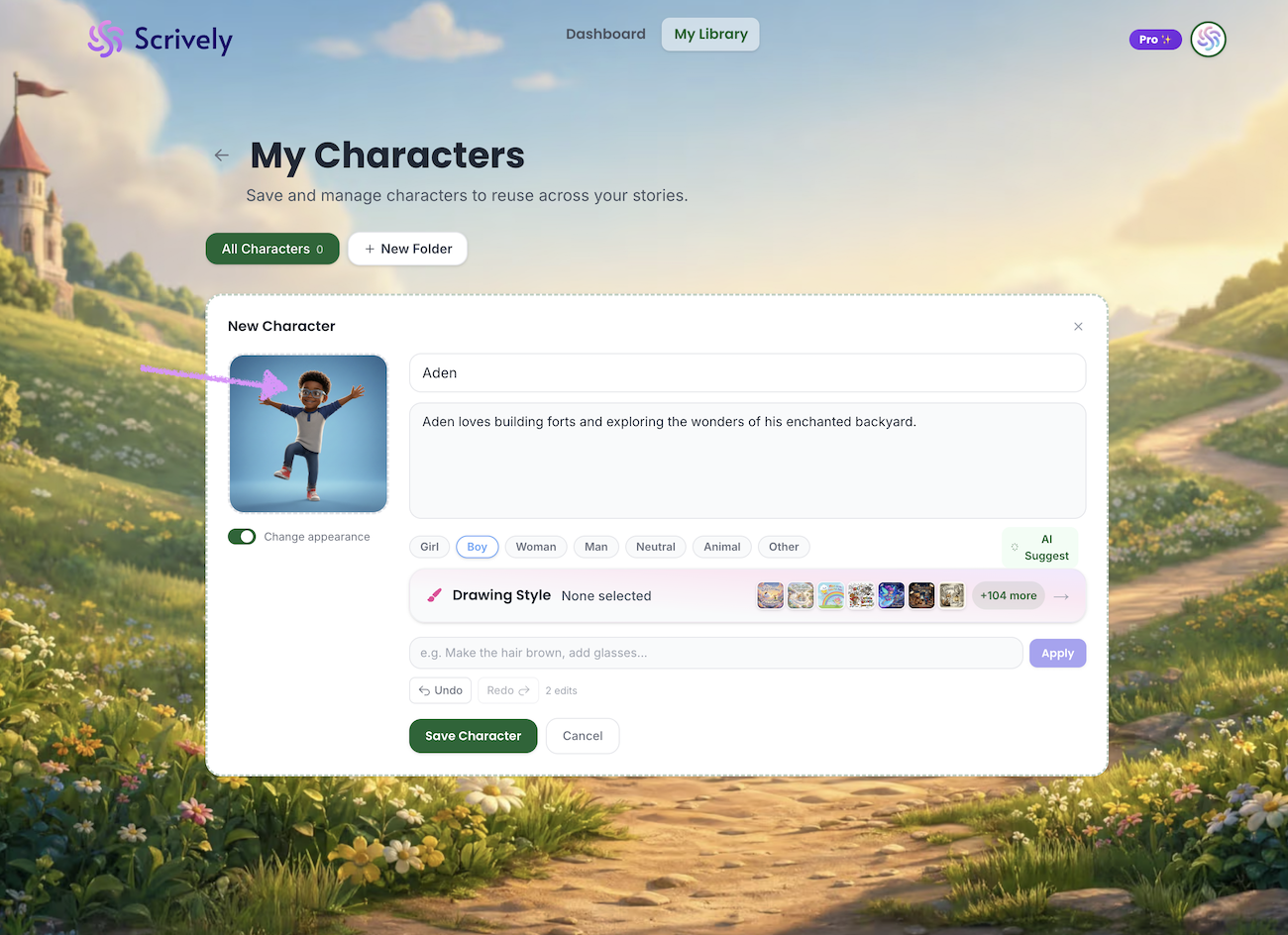
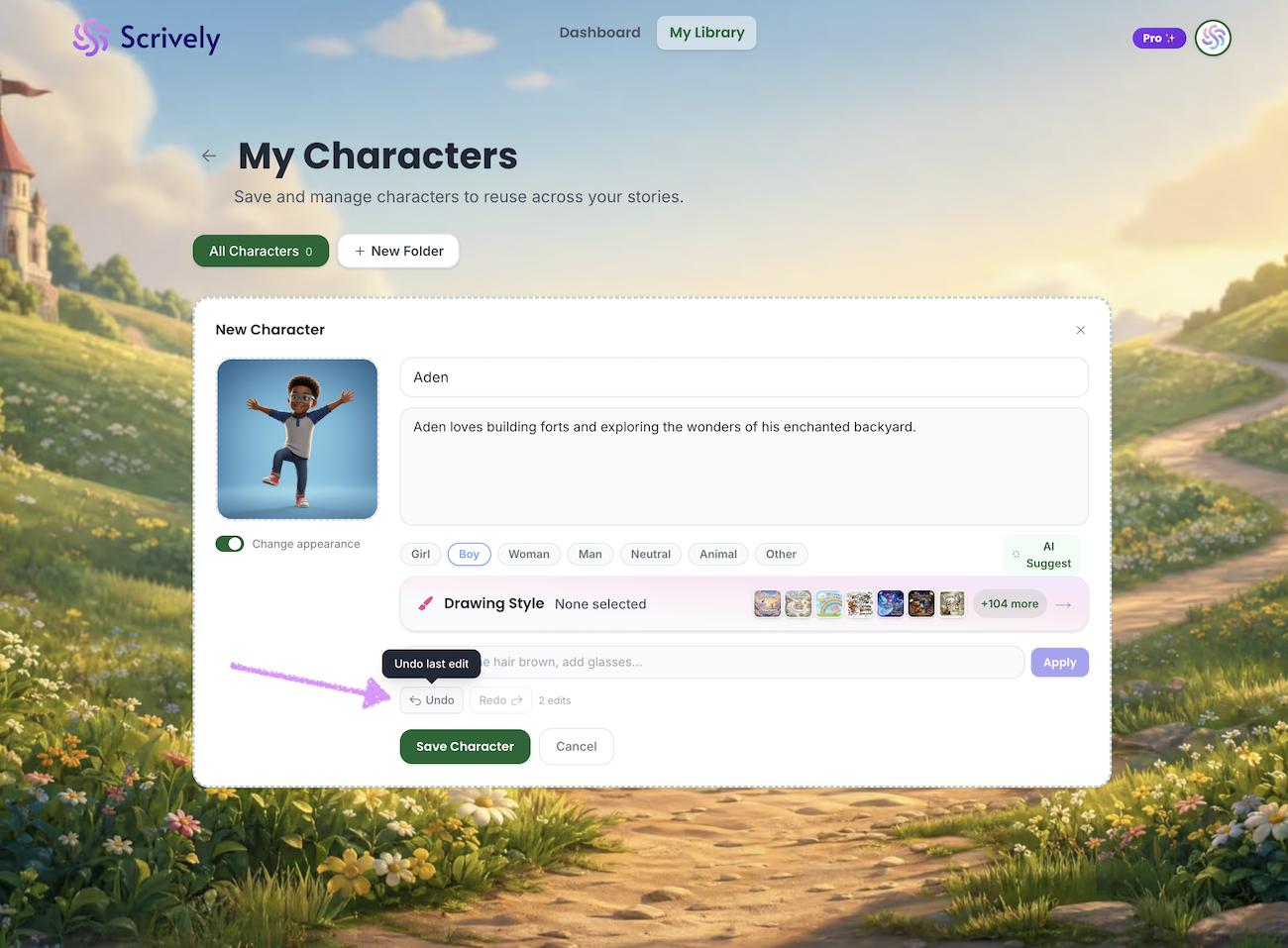
Not happy with the edit? Click on "Undo."
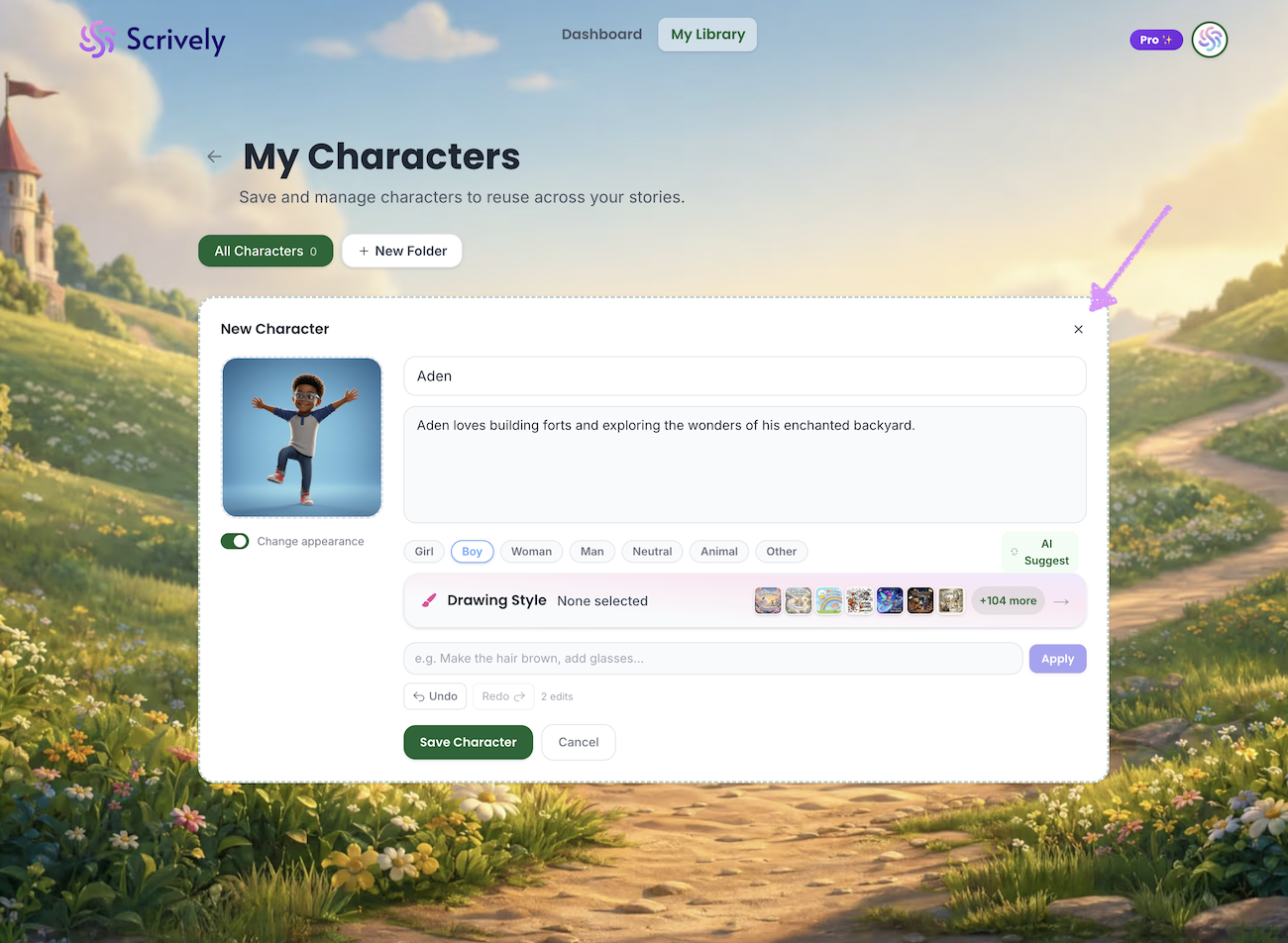
Change your mind? Click on the "X" icon cancel the character creation.
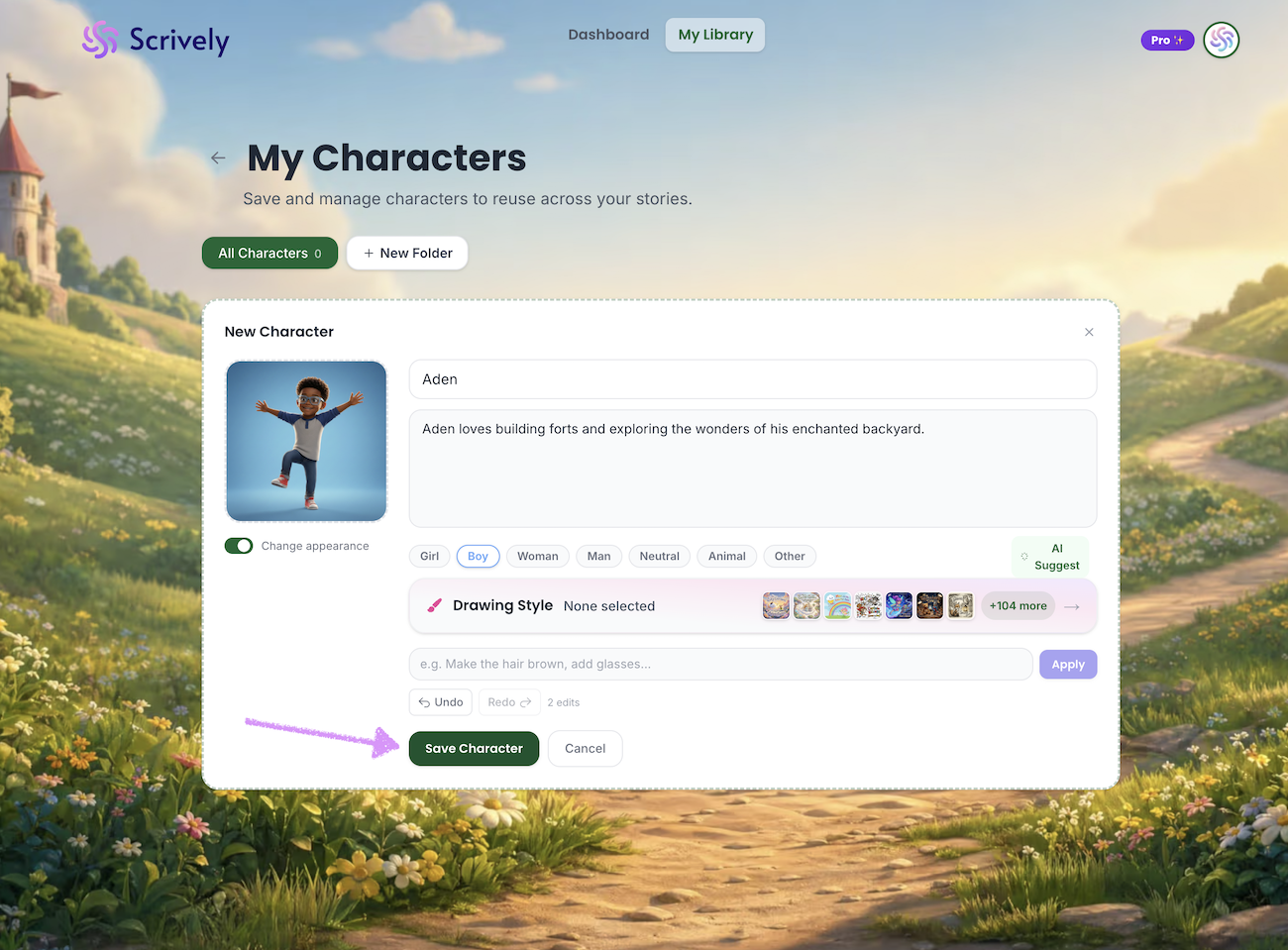
Click on "Save Character" once you're satisfied.
Congratulations! Your character has been created. You'll be able to use the character in any of your books which you can learn more about here.
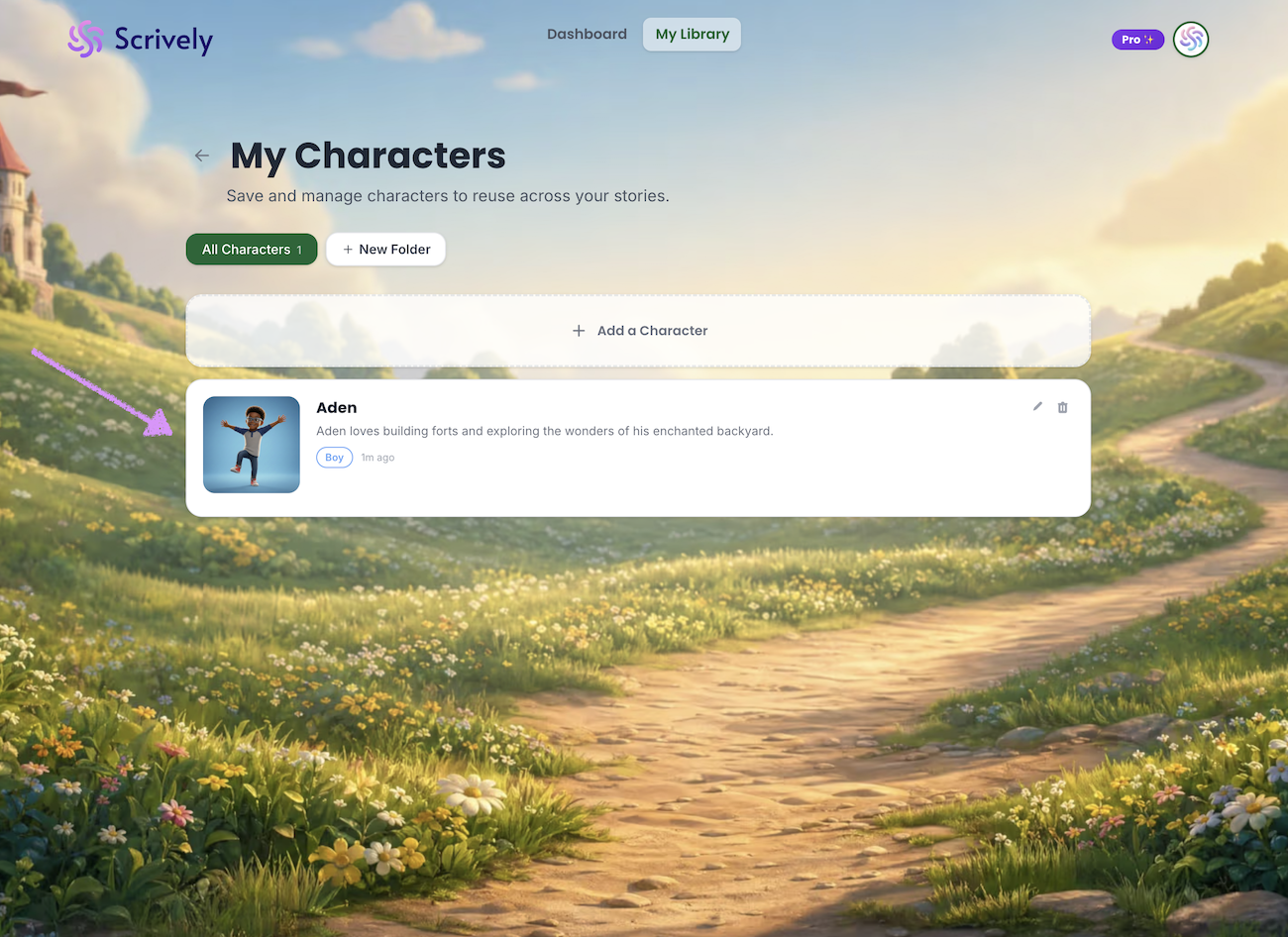
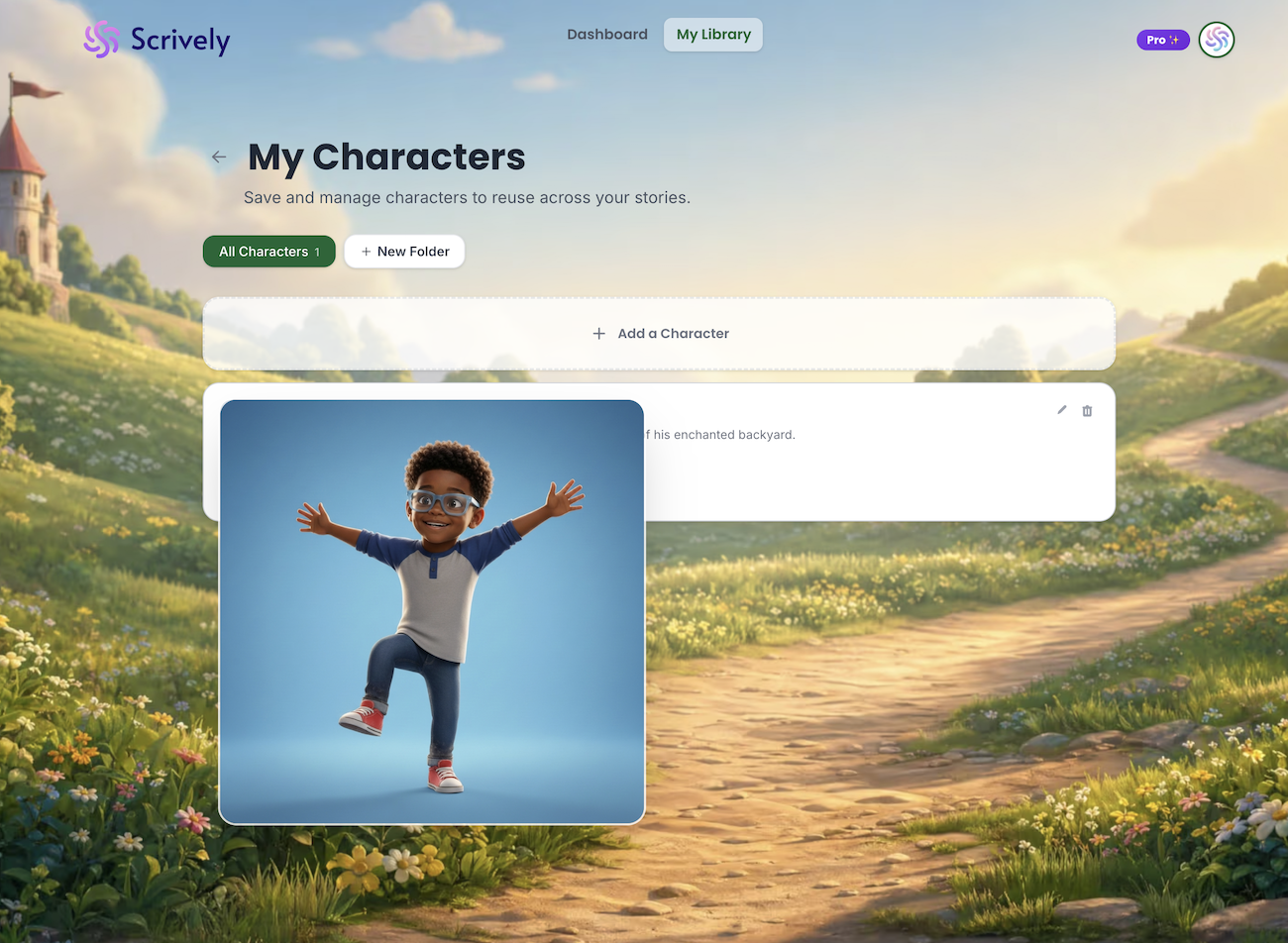
Hover over the character image to preview a larger, full-size view of the character.
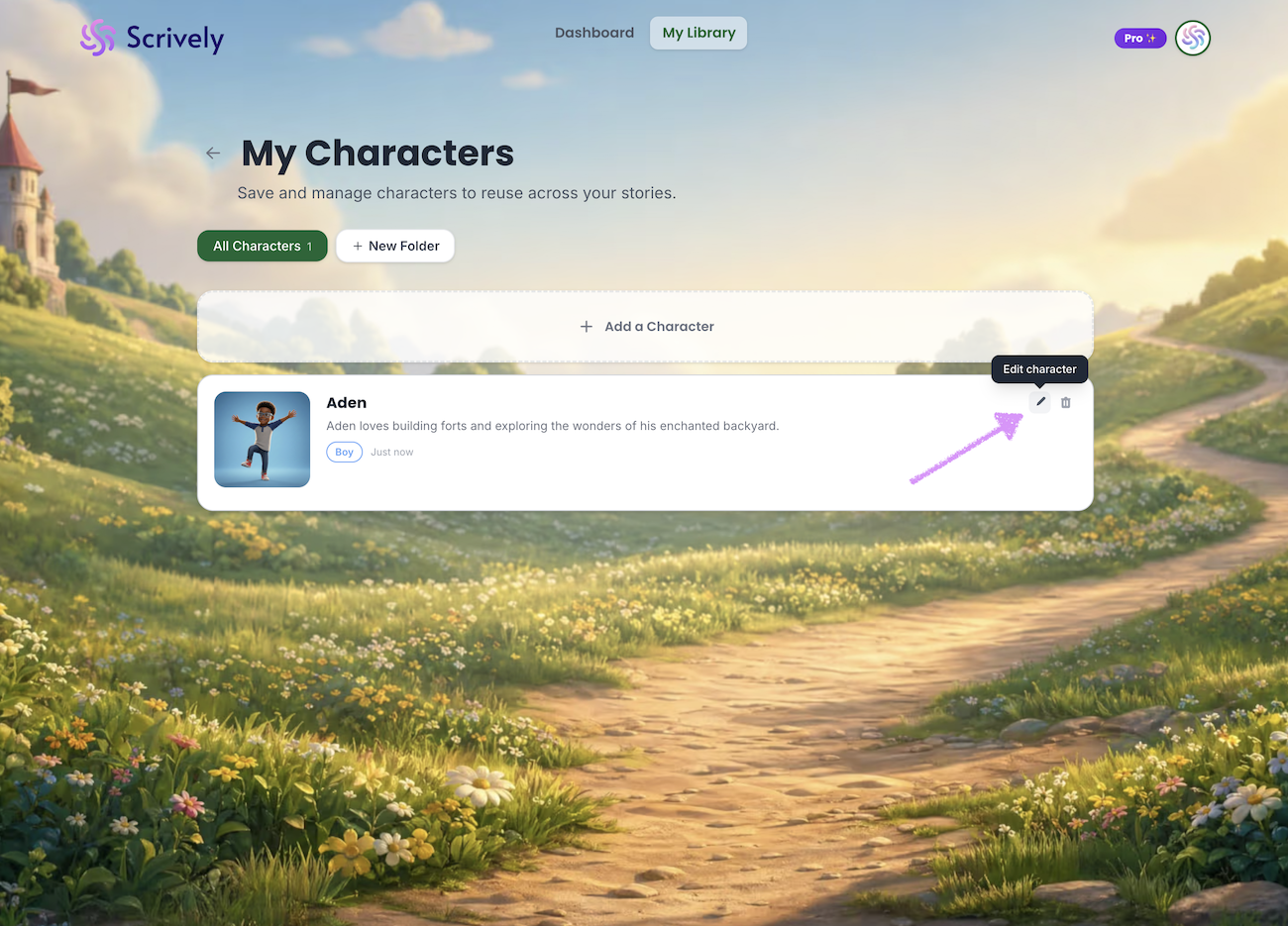
Need to make changes? Click on "Edit character" at the top right of the character card.
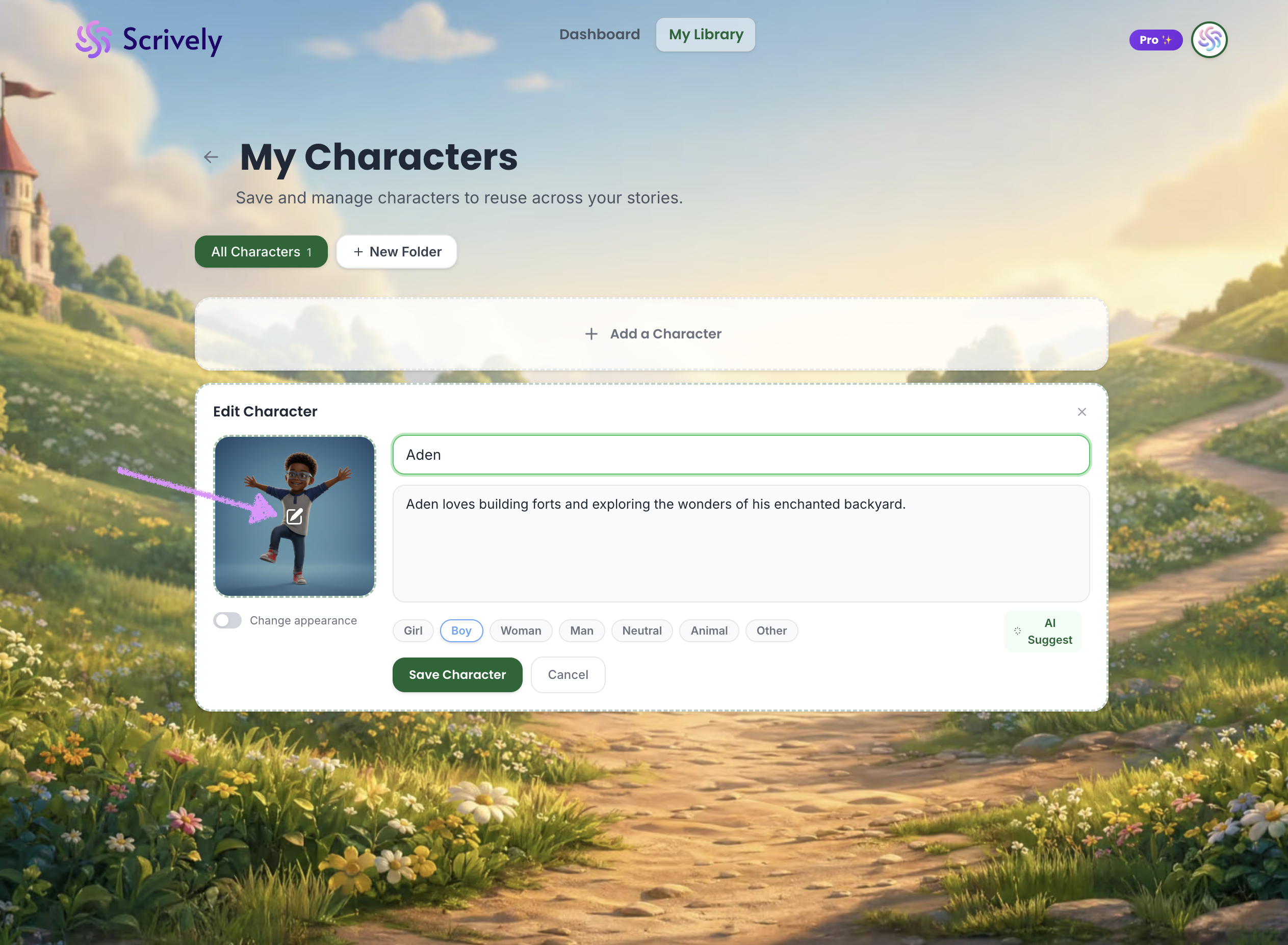
If needed, hover over the character image and click to upload and select a new image for the character.
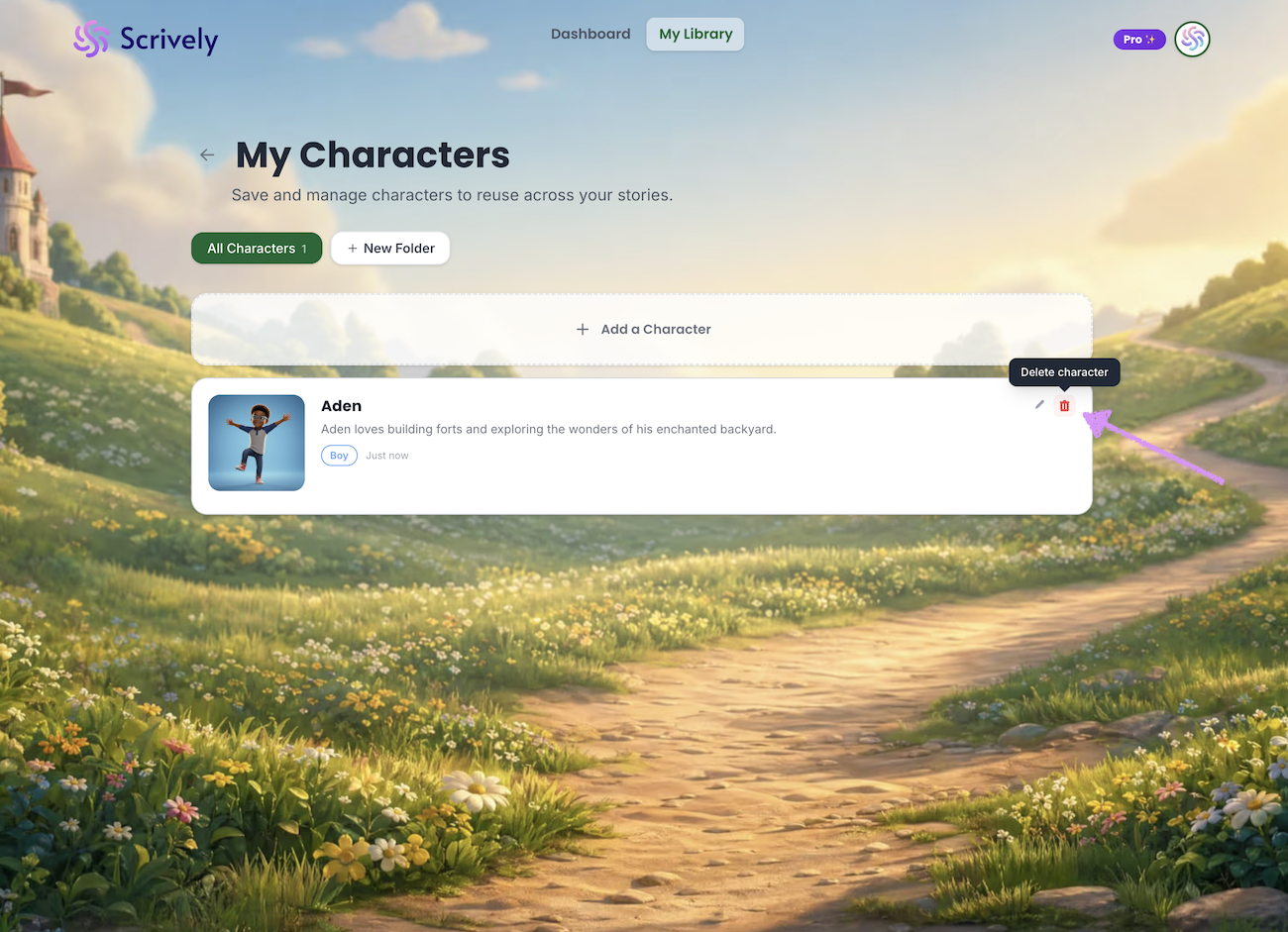
Click on the trash icon to "Delete character."
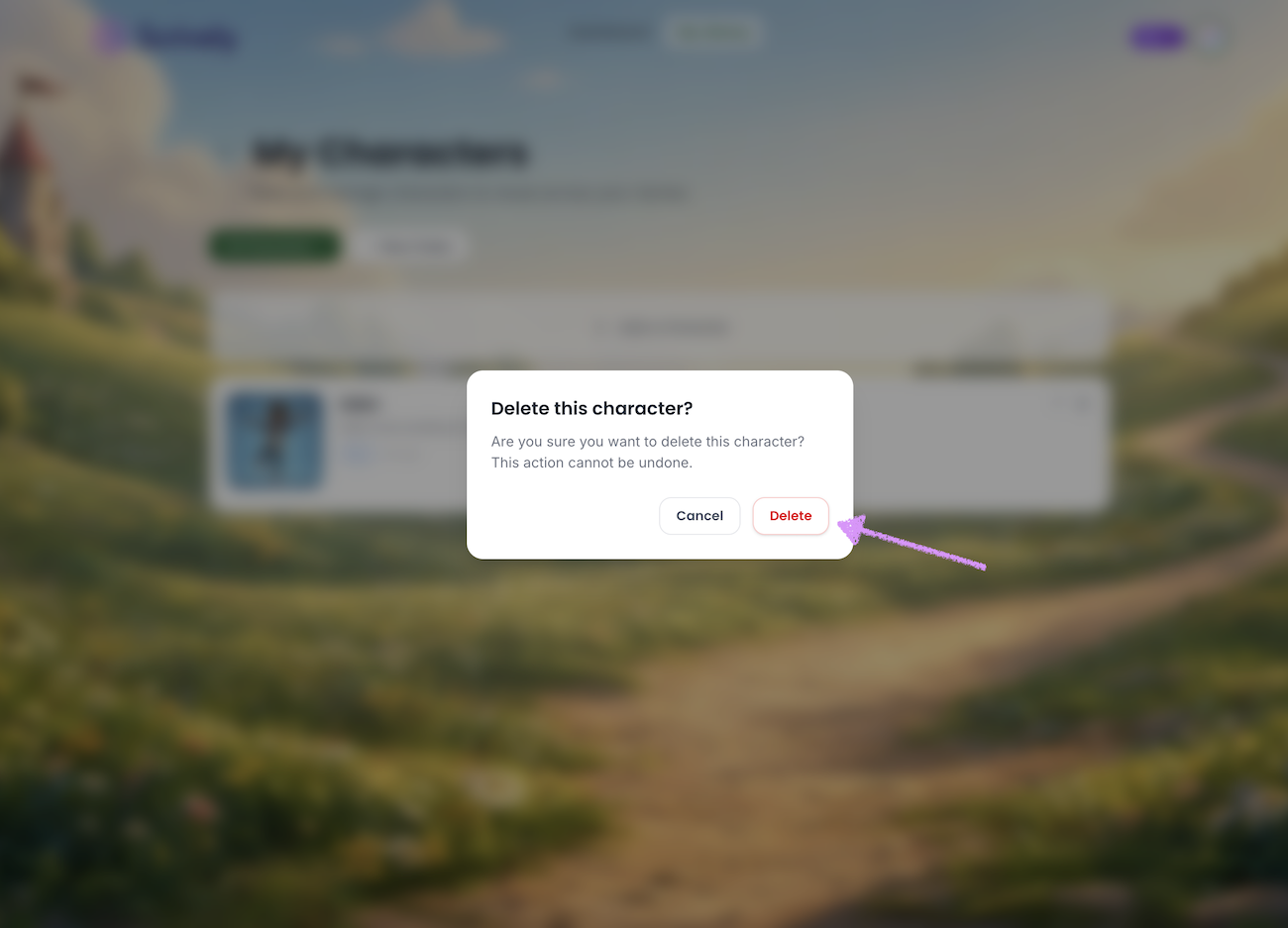
Confirm the deletion.
Was this article helpful?
That’s Great!
Thank you for your feedback
Sorry! We couldn't be helpful
Thank you for your feedback
Feedback sent
We appreciate your effort and will try to fix the article
