Platform: Web App
Works On: Mobile, Tablet, Desktop Browser
Now that you’ve selected your story path, described your story, added your characters, and set your cover details, it’s time to take full control of your story.
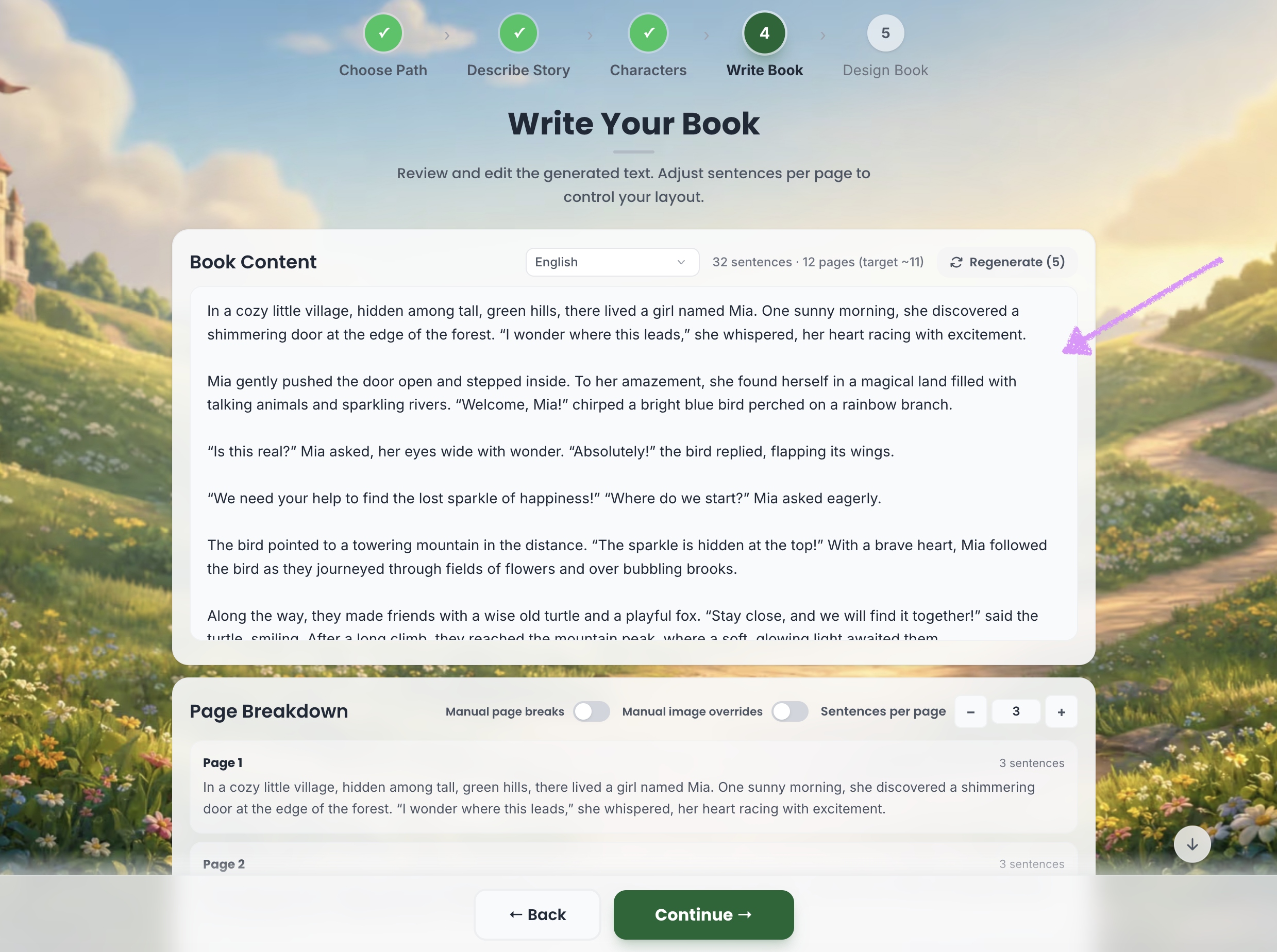
Your complete story will appear in the “Book Content” field.
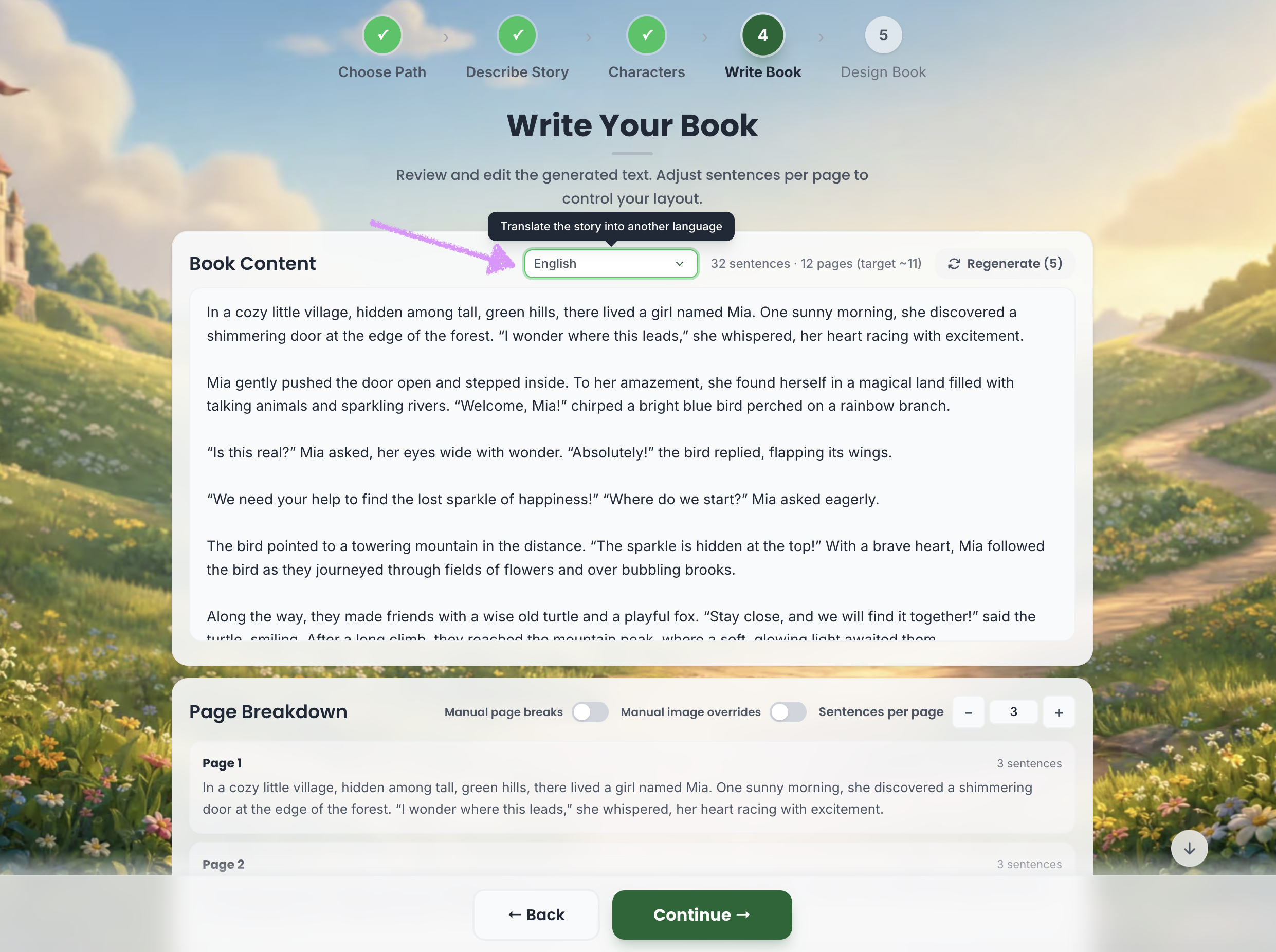
Click the language dropdown to translate your story into a different language.
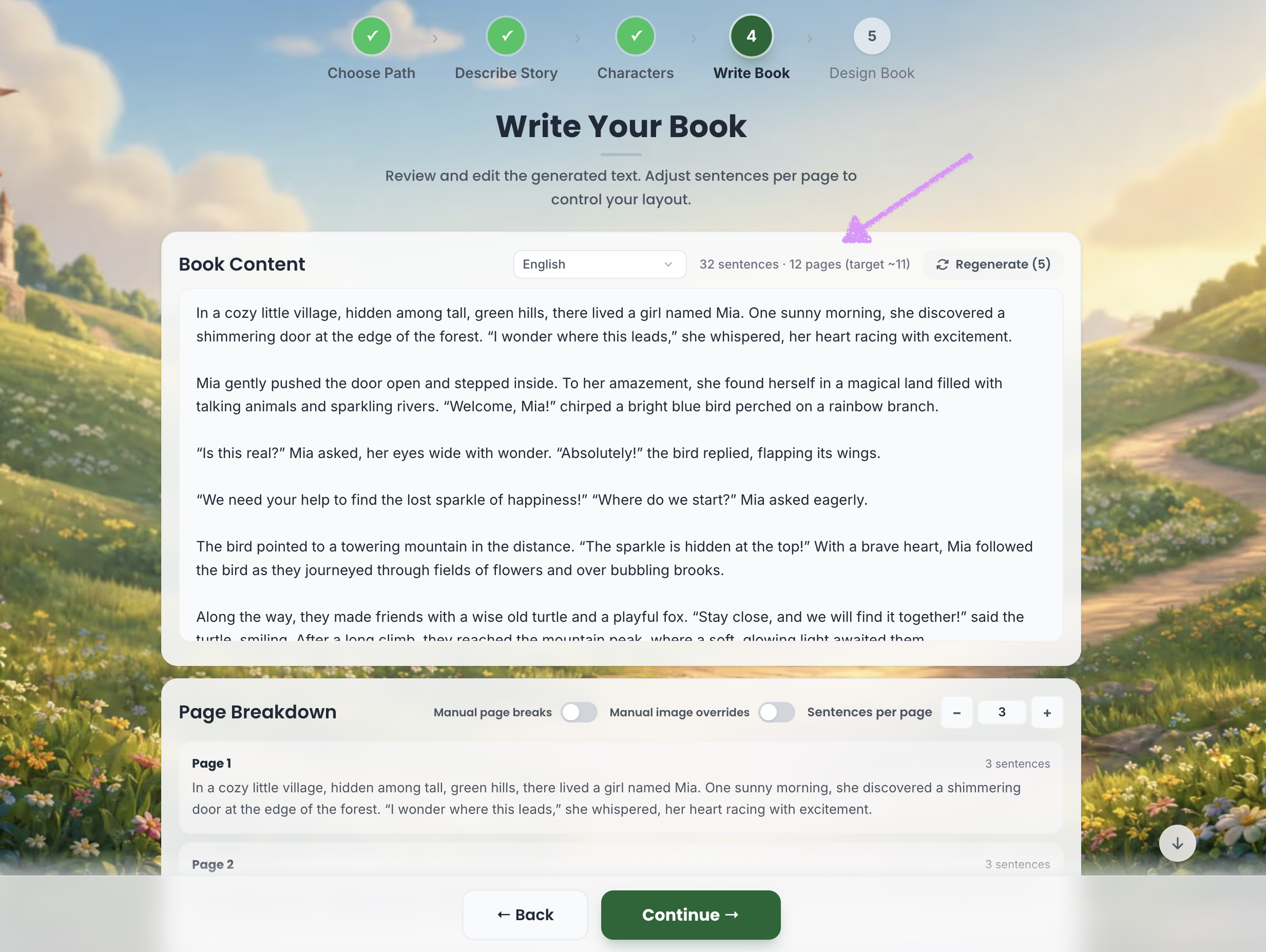
At the top right, you’ll see the total number of sentences and pages in your story.
In the top right, you can click “Regenerate” to refresh your story if needed. You are allotted five story regenerations.
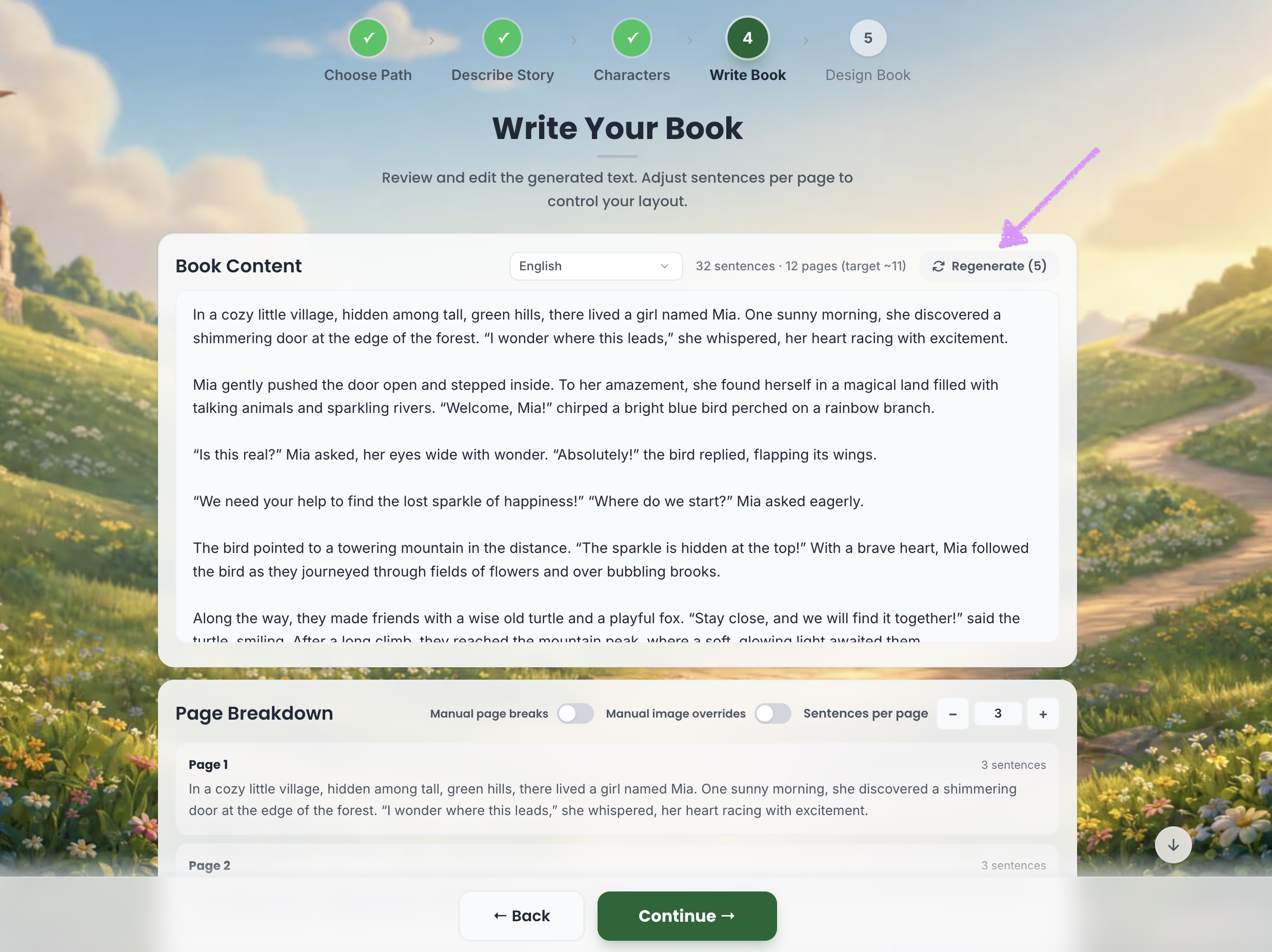
⚠️ Warning: If you regenerate your book after images have already been added, any existing images on your pages will be removed and replaced with new ones.

A confirmation modal will be shown prior to regenerating the story.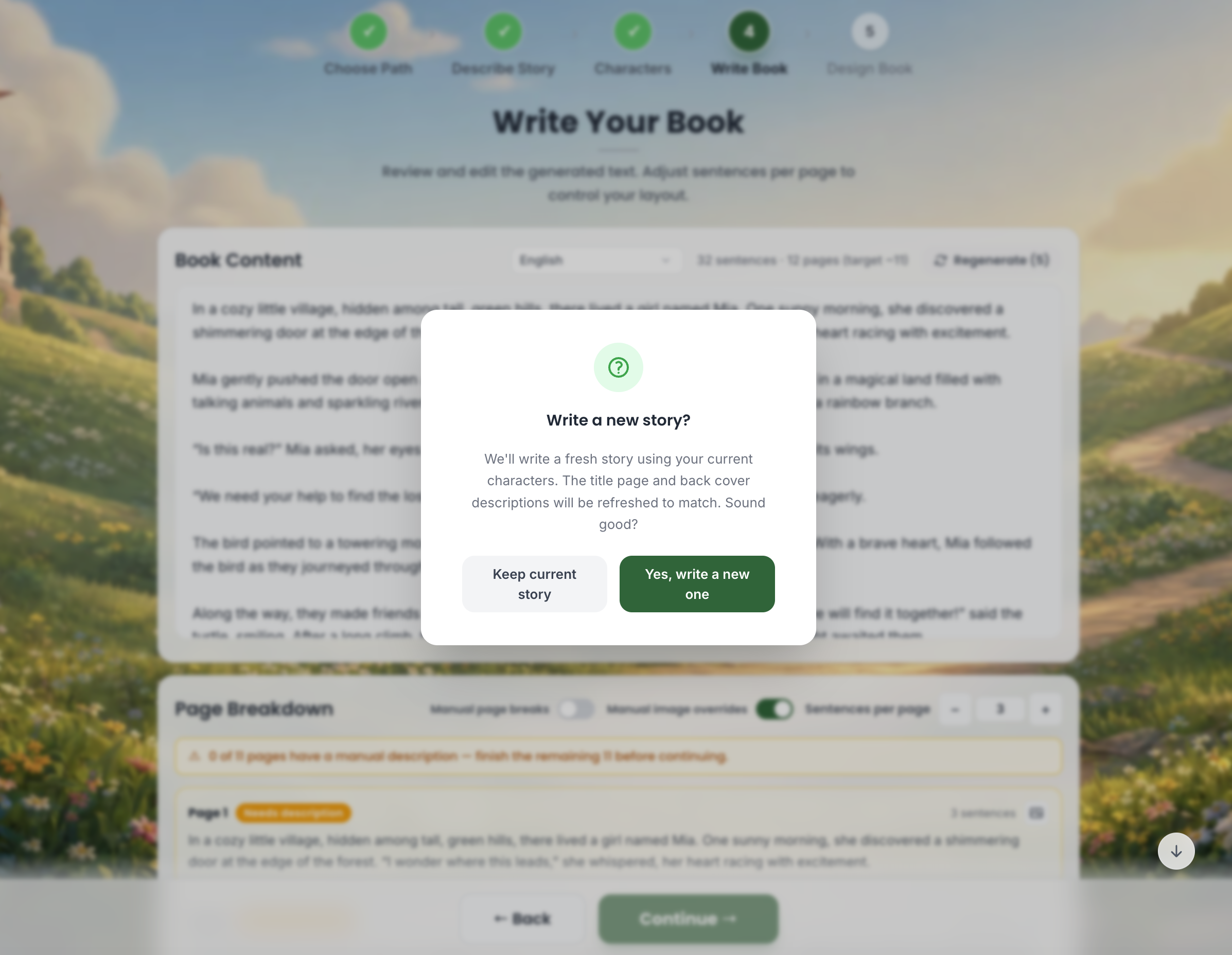
Scroll down beneath the “Book Content” section to view a page-by-page breakdown of your story.
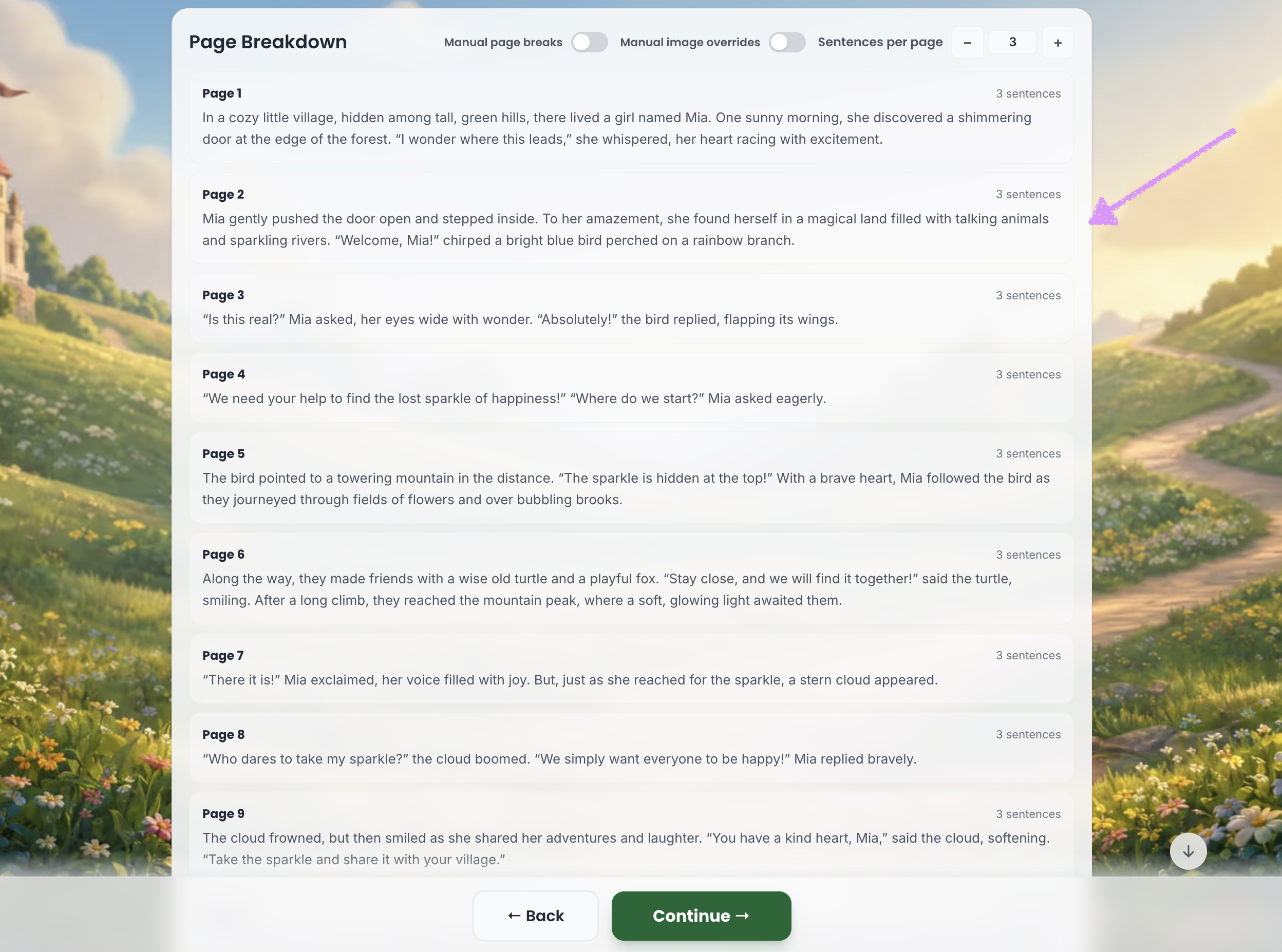
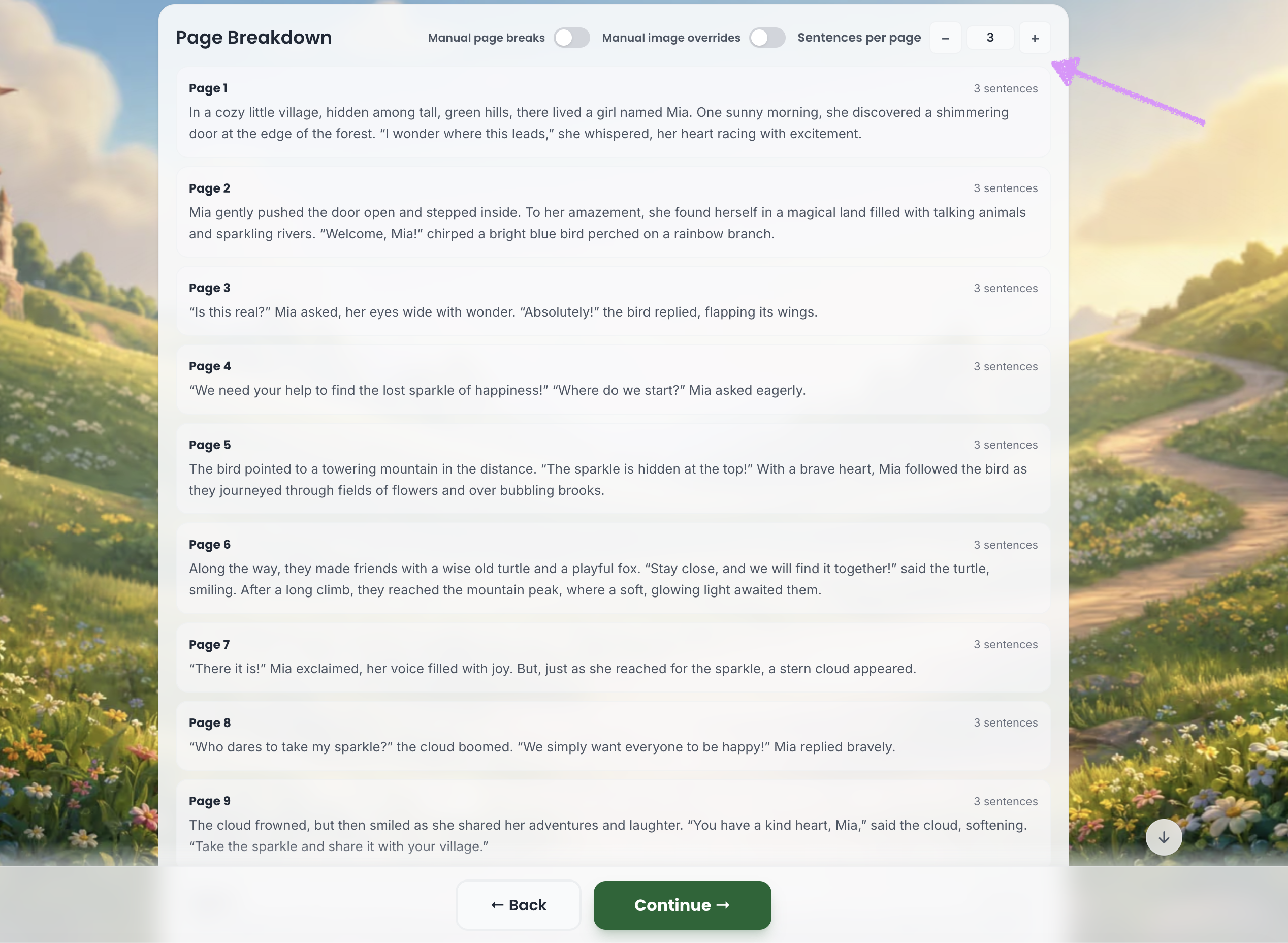
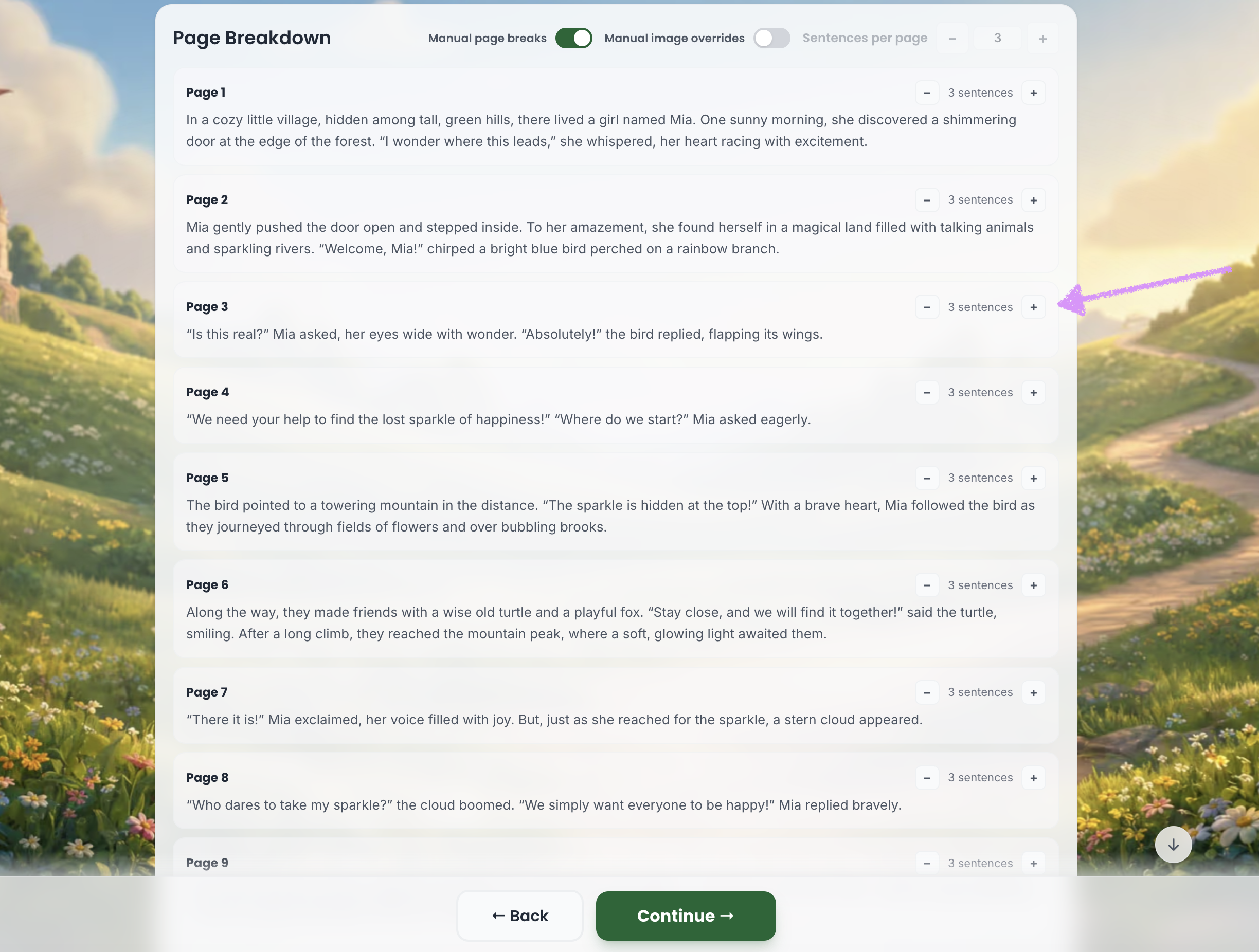
In the top-right corner, use the “– / +” controls to redistribute text across your pages.
Want even more control? Turn on the “Manual Page Breaks” setting.
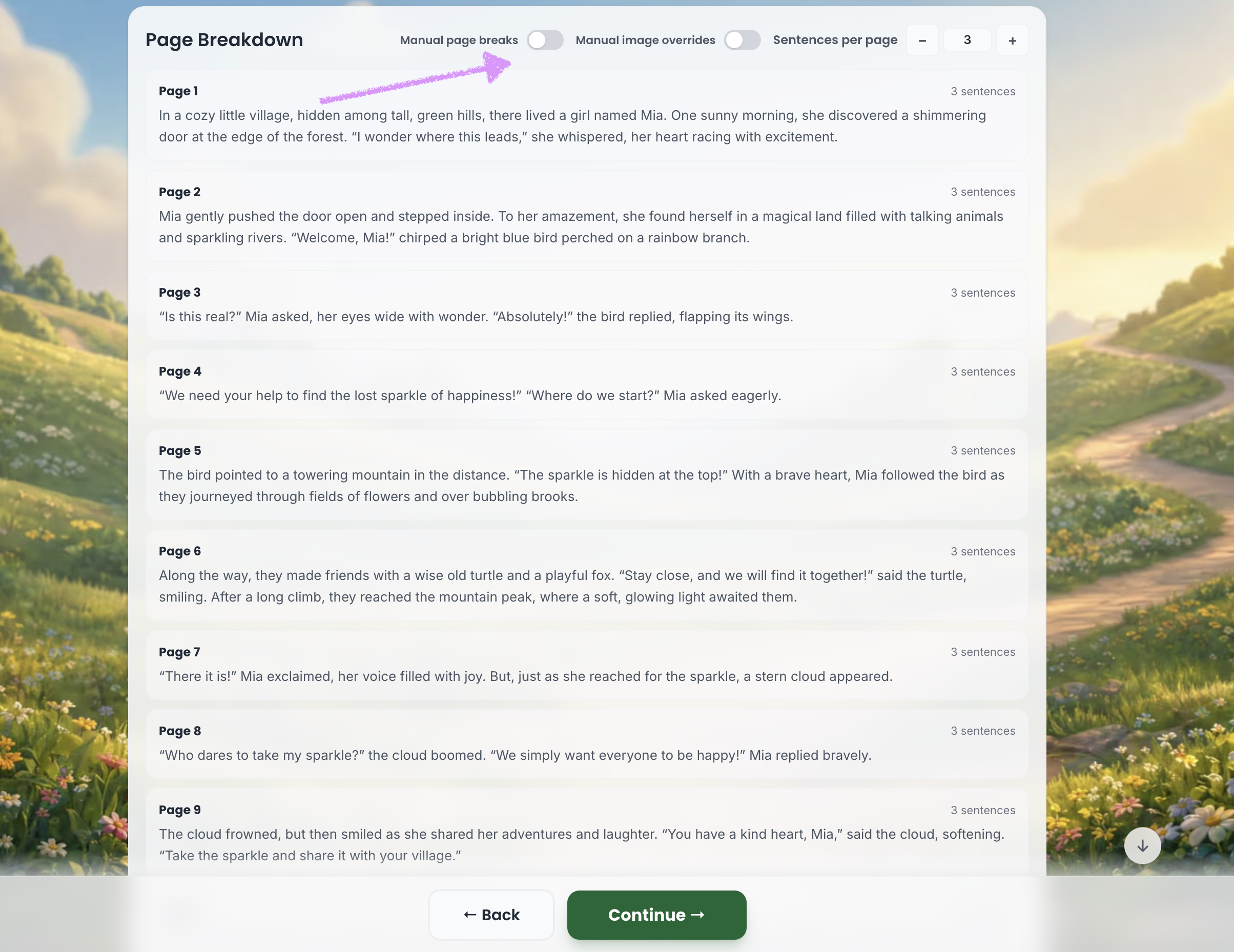
You’ll be able to manually decide how many sentences appear on each page.
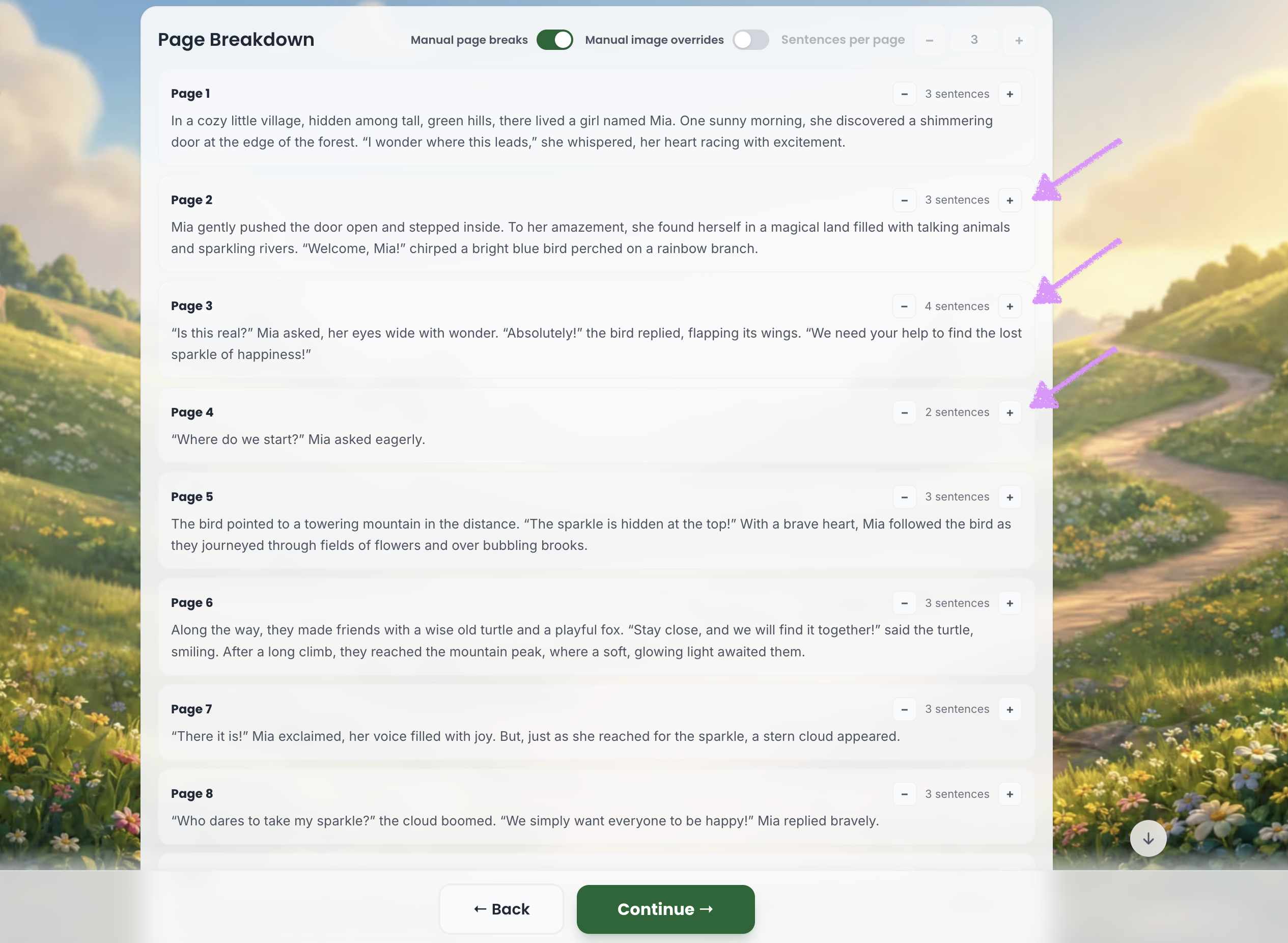
In this example, Page 2 contains 3 sentences, Page 3 contains 4 sentences, and Page 4 contains 2 sentences.
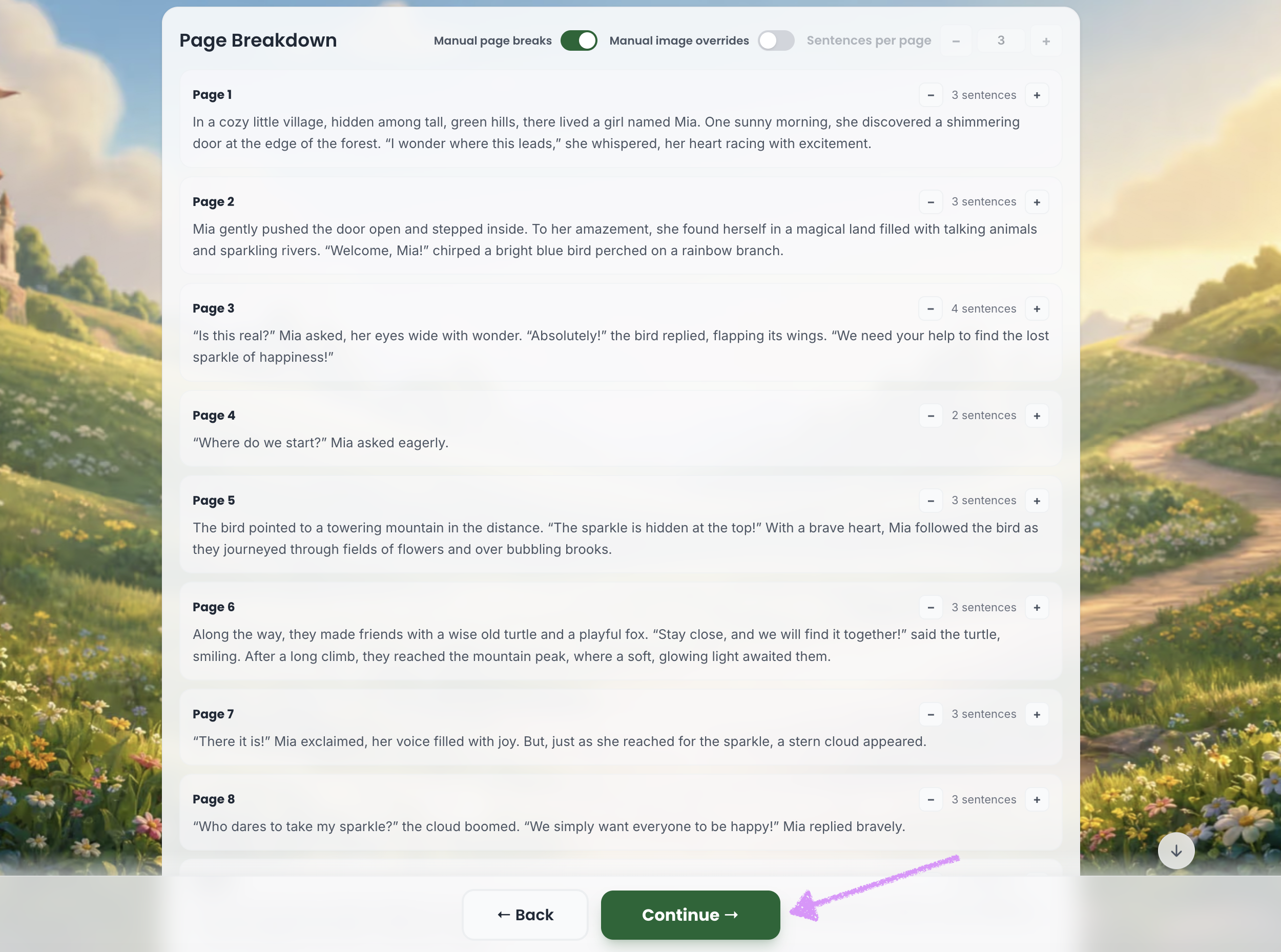
Once you’re all set, click “Continue.” Then head over to our guide here on working with the editor.
Want even more control? Check out our guide here on manually configuring the images for each page of your book.Congratulations! You’ve completed your book! Your book cover will now be displayed. Click “Let’s read and edit your book!” to continue. Starter users, head to our guide here to register and continue editing. One-time purchasers, Plus, and Pro users can go here to get started with the editor.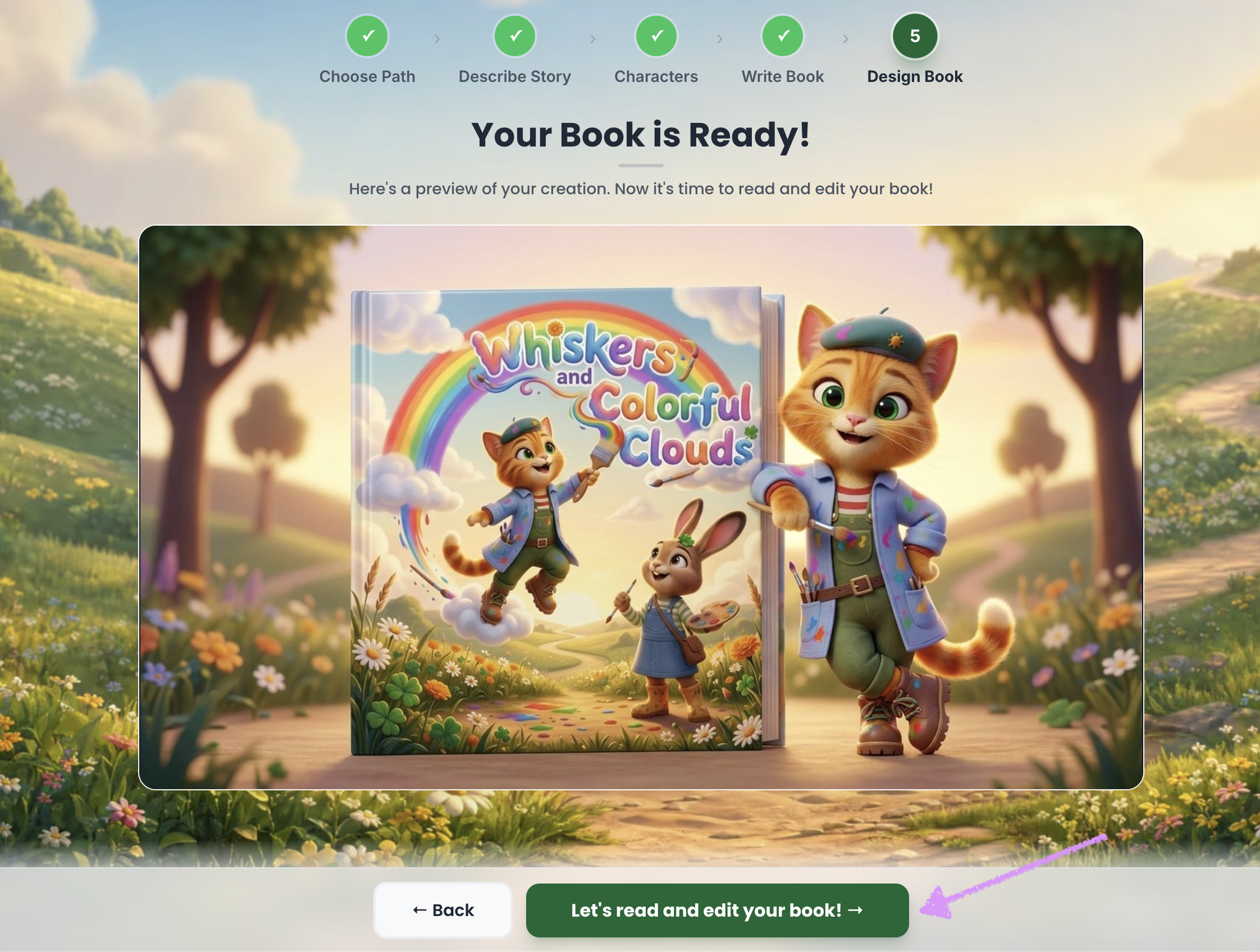
Was this article helpful?
That’s Great!
Thank you for your feedback
Sorry! We couldn't be helpful
Thank you for your feedback
Feedback sent
We appreciate your effort and will try to fix the article
