Platform: Web App
Works On: Mobile, Tablet, Desktop Browser
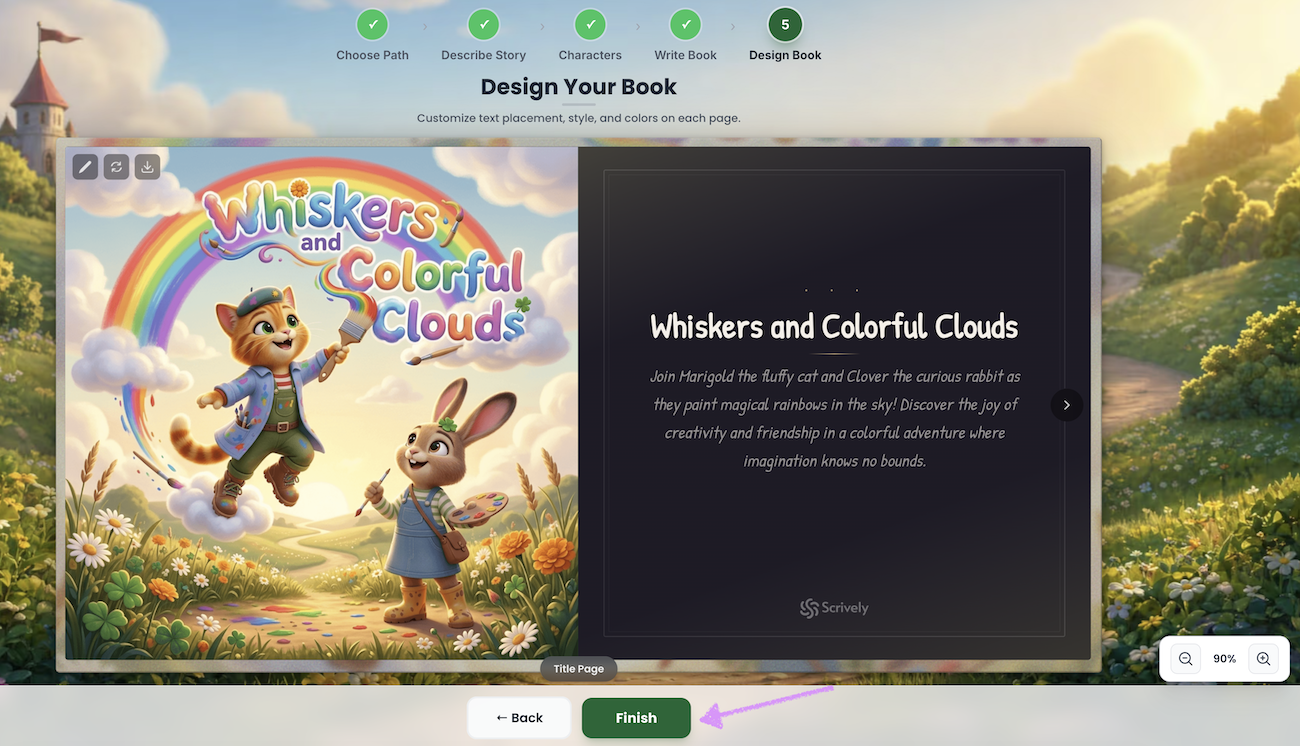
The editor is where you have full control to design your book pages. It will open directly to your book’s cover and title page.
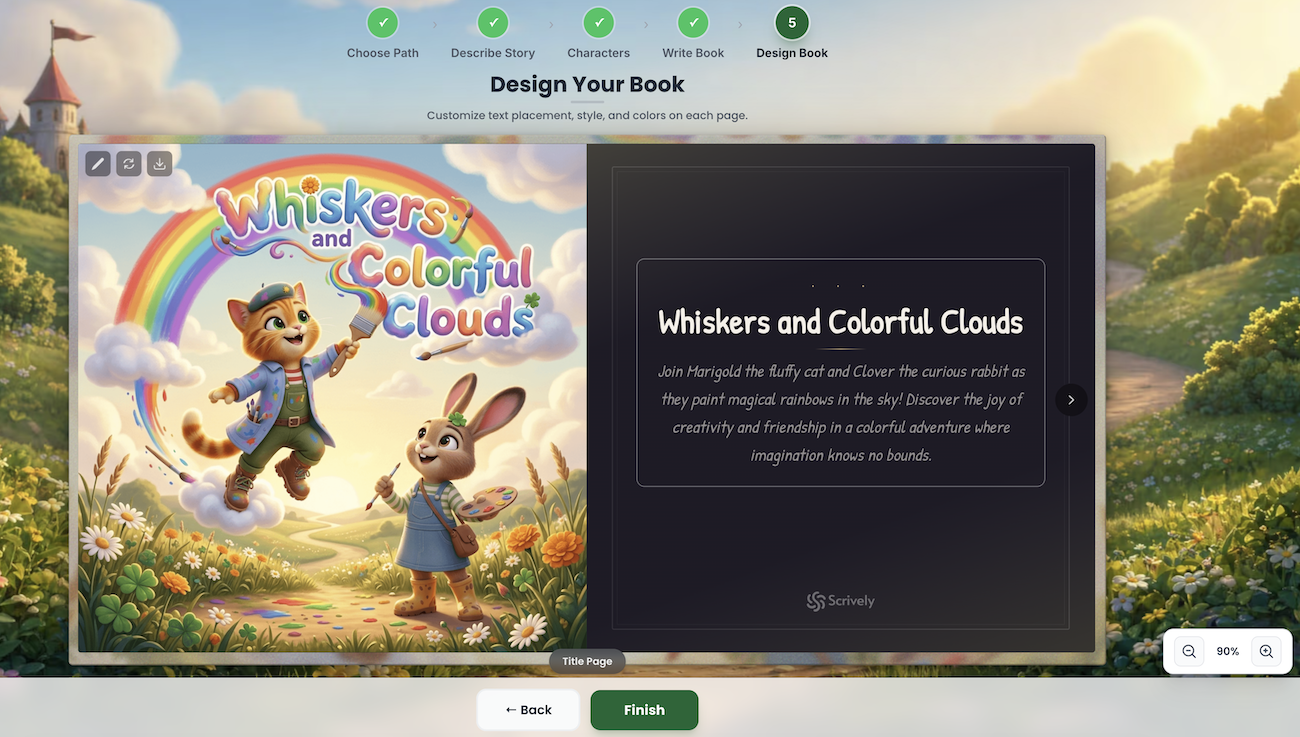
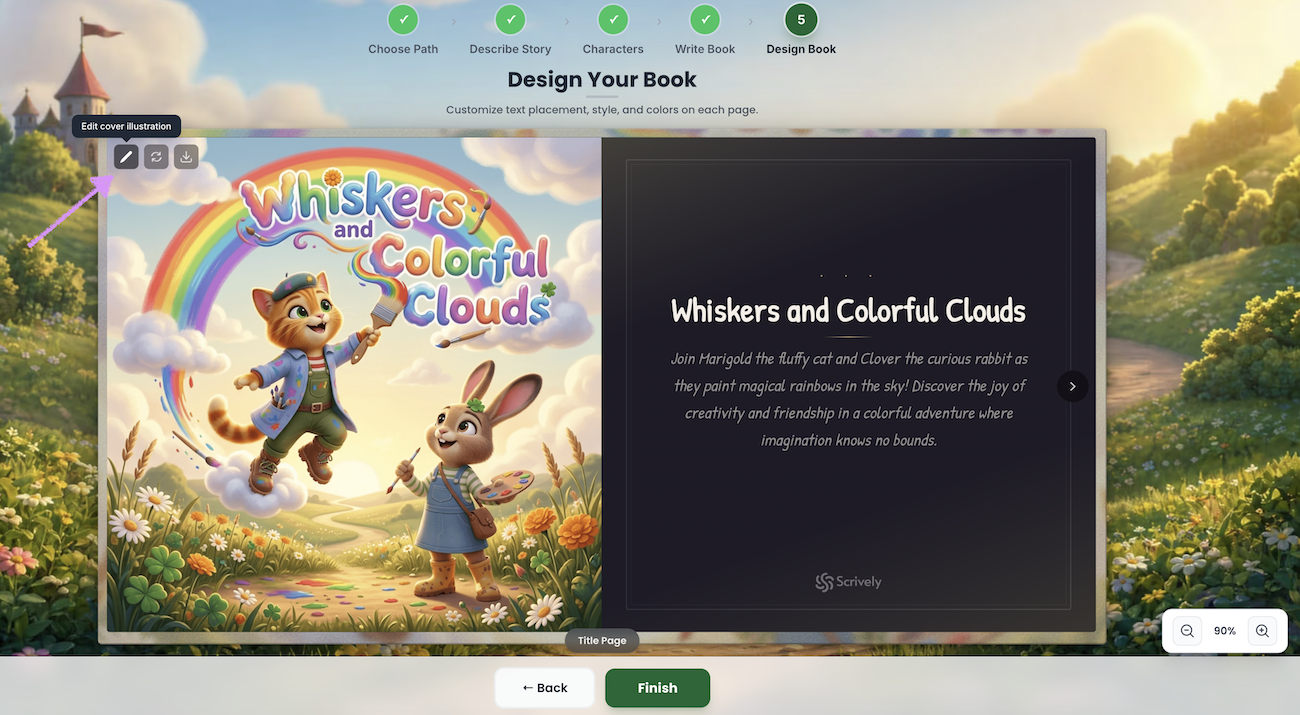
At the top left, you’ll see the option to “Edit cover illustration.” We’ll go into more detail about this in our guide here.
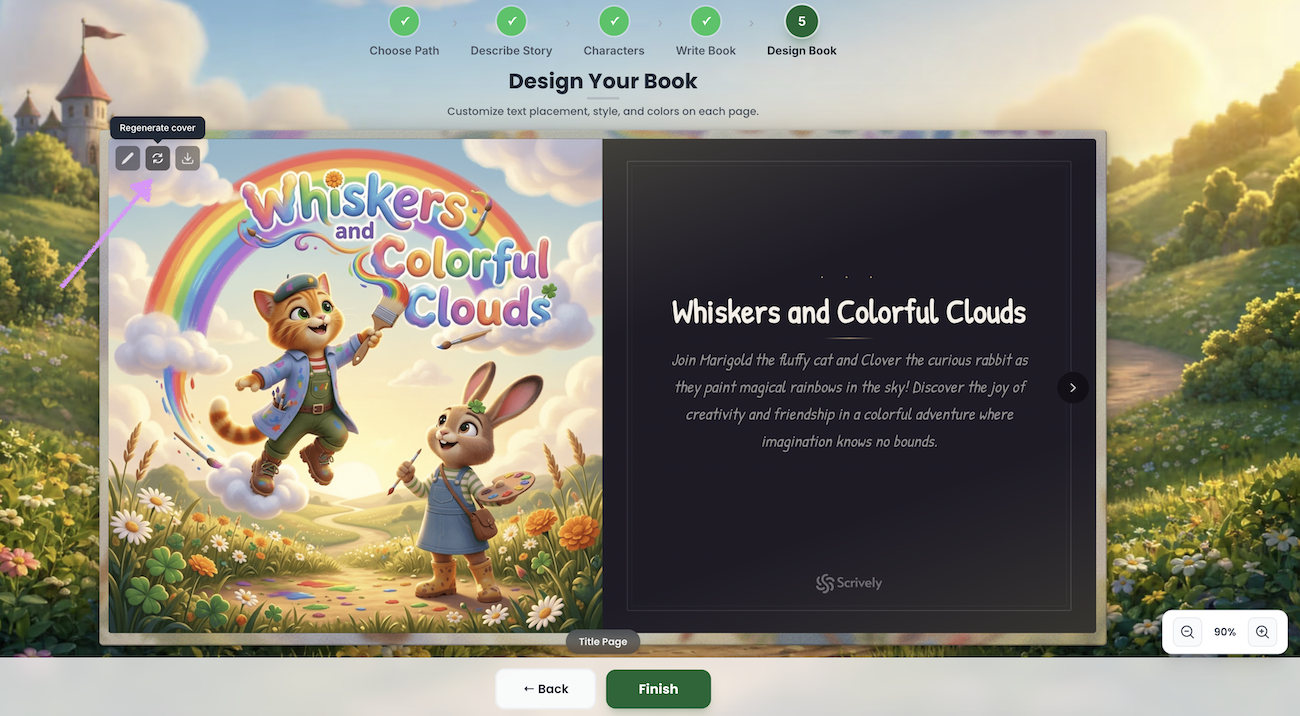
Next, you’ll see the option to “Regenerate cover.” We’ll go into more detail about this in our guide here.
Last, you’ll see the option to “Download cover illustration.”
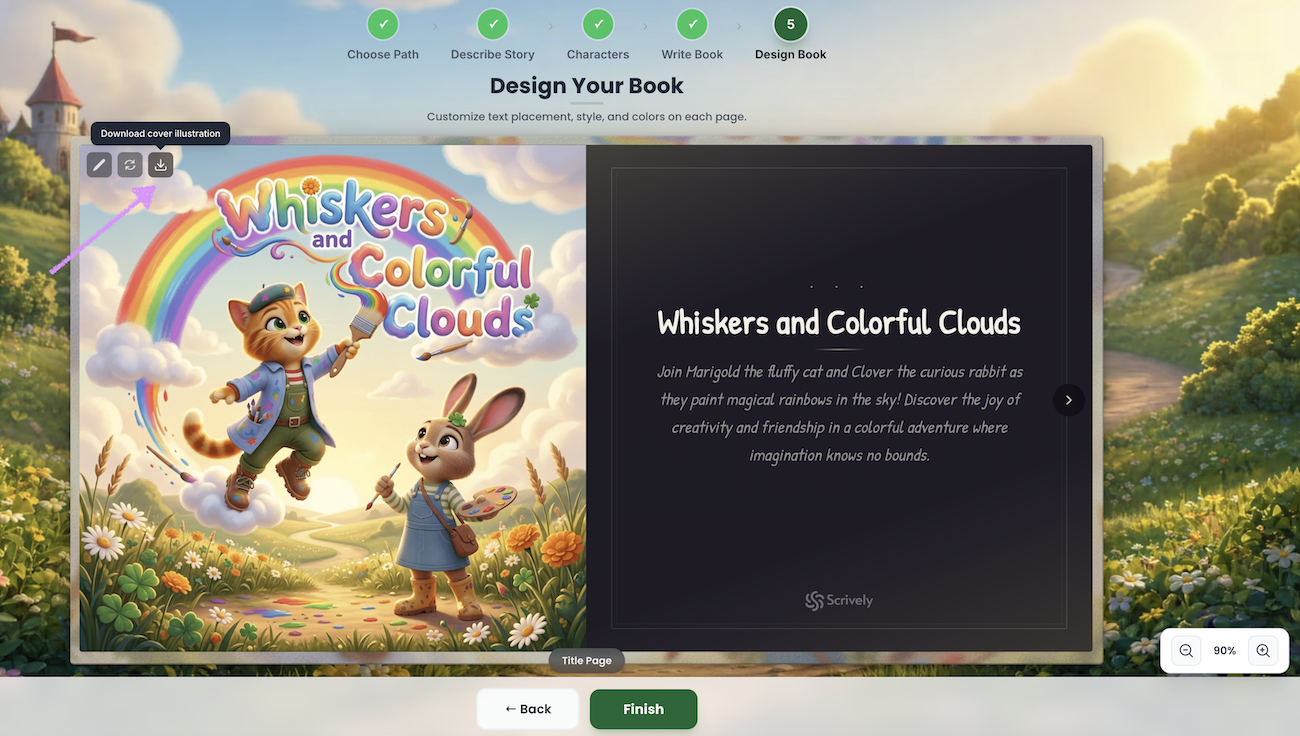
On the right side, you’ll see the title page. Our guide here explains how to remove the Scrively branding, which is available with a Plus or Pro plan.
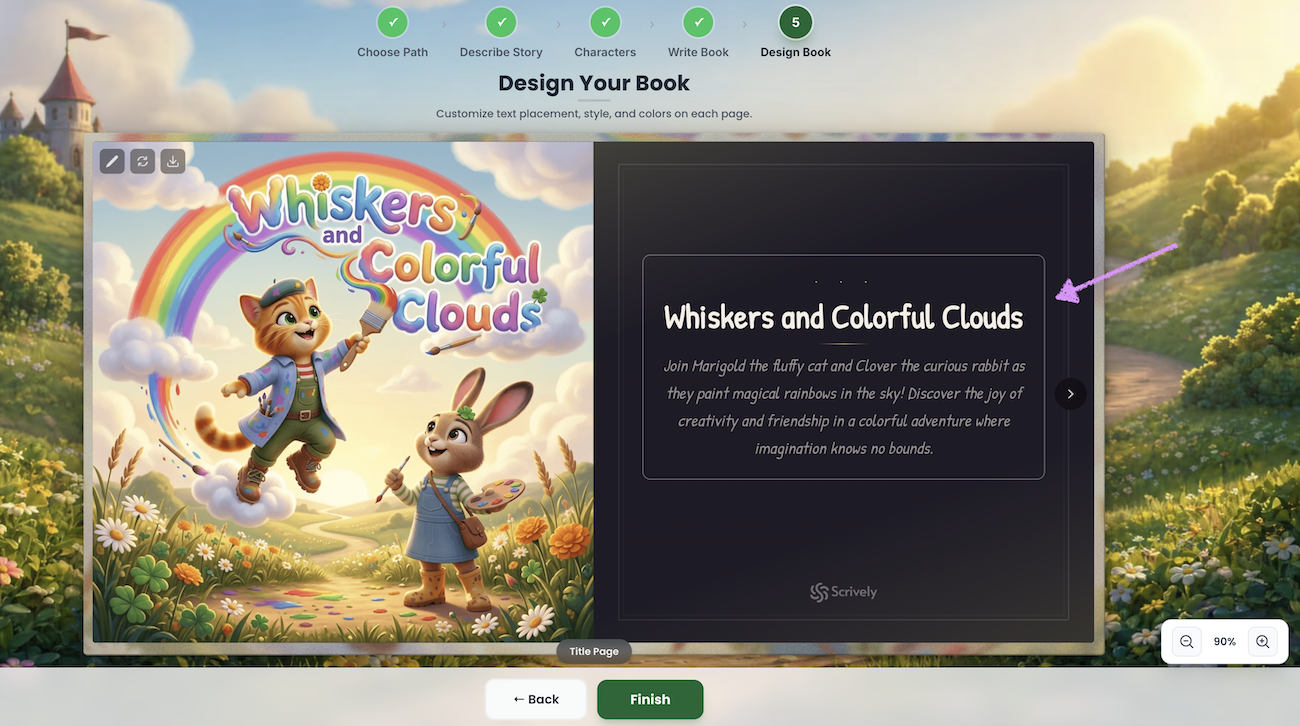
On the right side of the title page, click the arrow to move to the next page.
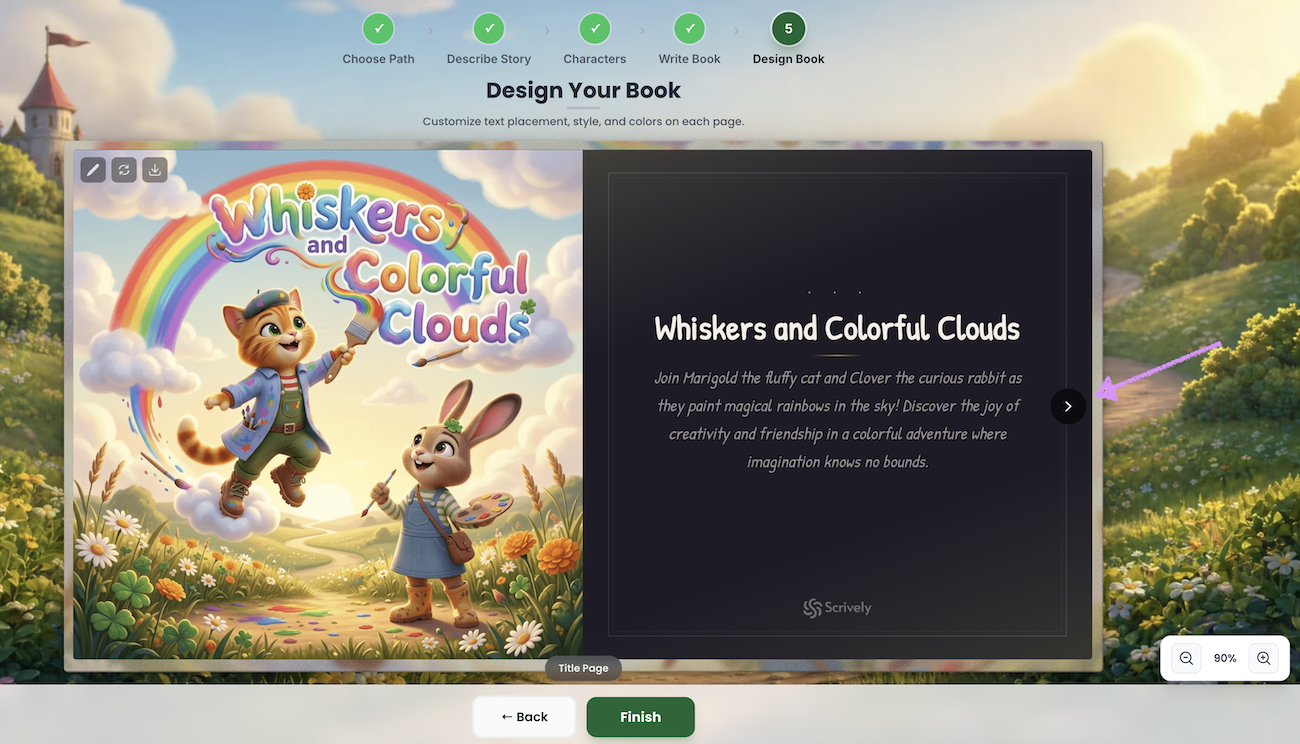
In the middle, you’ll see the page navigation controls.
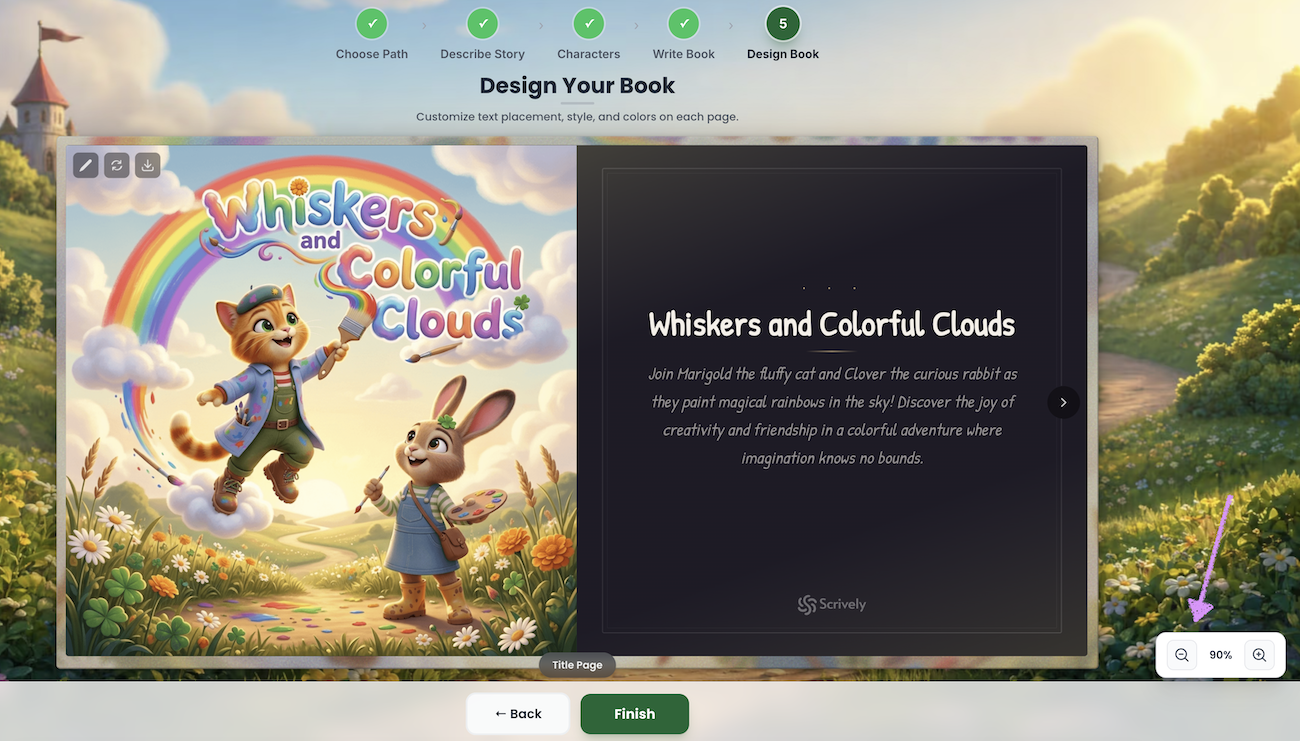
On the bottom right, use the “– / +” controls to zoom in and out of the editor.
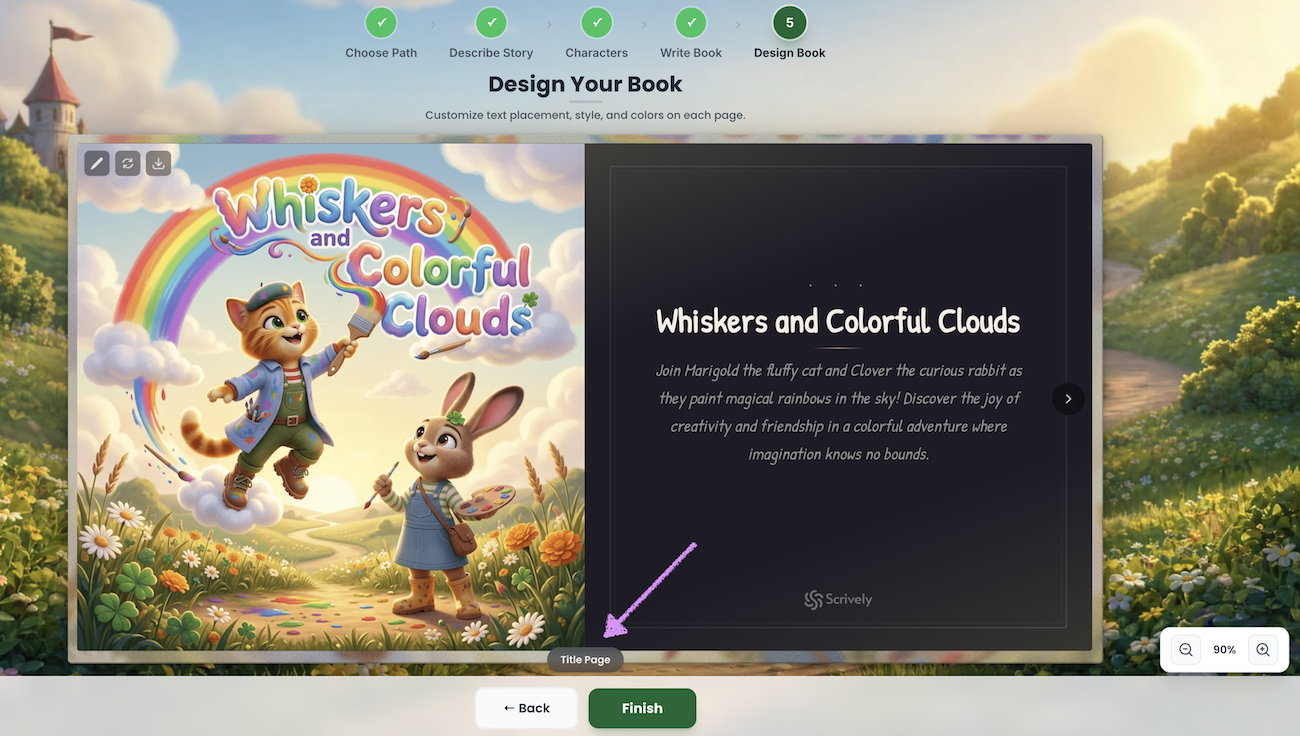
Need to make changes? Click on “Back.”
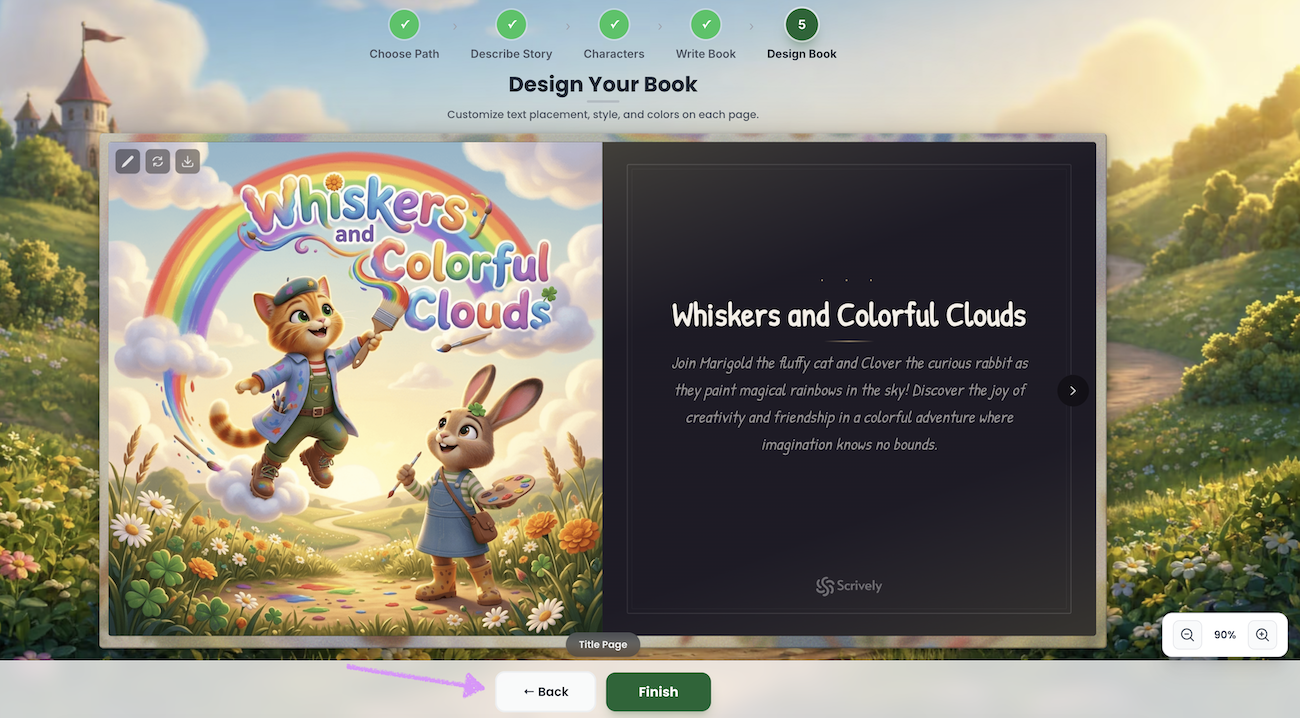
Click “Finish” to save your book when you’re done. Head over to our guide here for more on working with the title page.
Was this article helpful?
That’s Great!
Thank you for your feedback
Sorry! We couldn't be helpful
Thank you for your feedback
Feedback sent
We appreciate your effort and will try to fix the article
