Platform: Web App
Works On: Mobile, Tablet, Desktop Browser
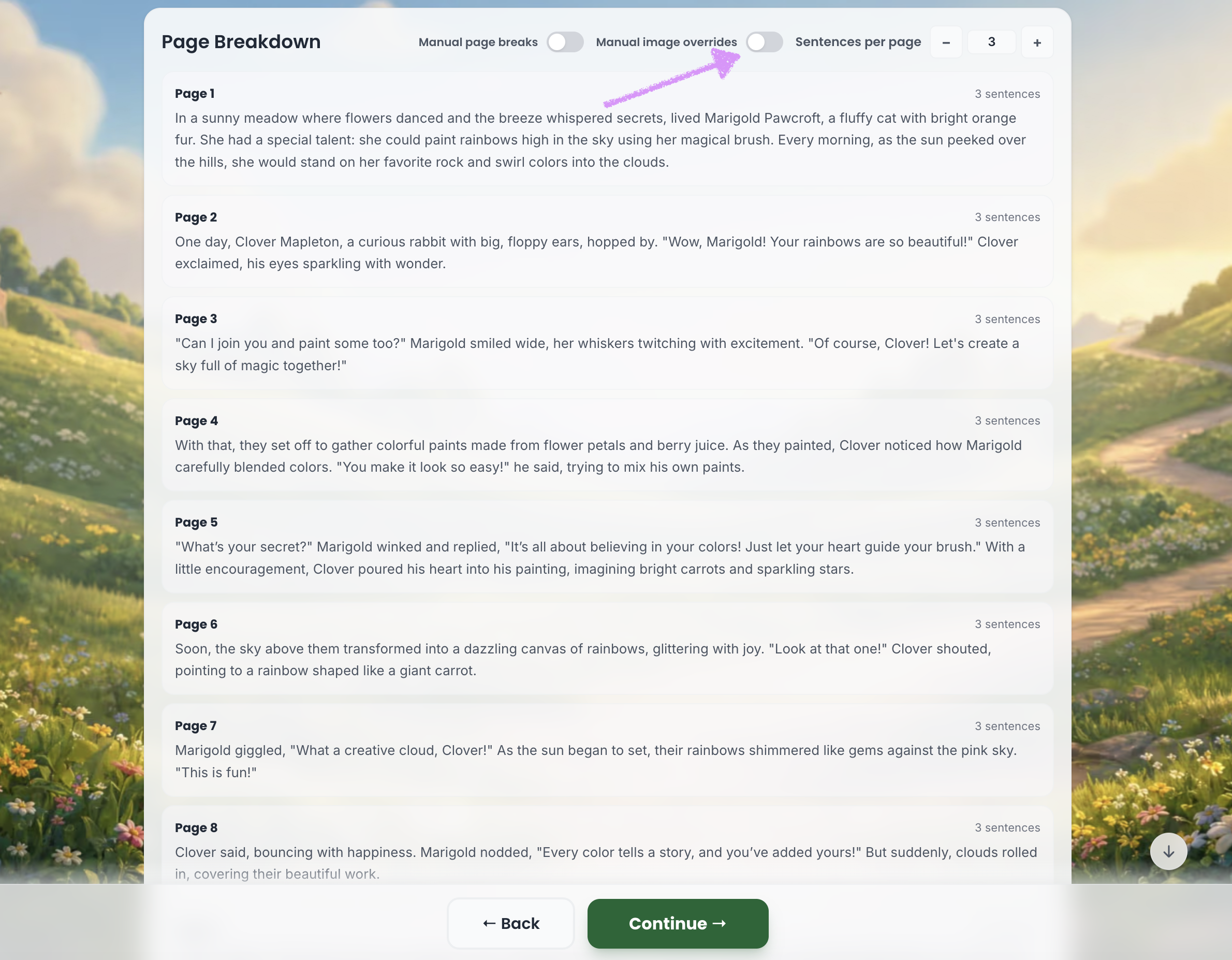
When you scroll down beneath the “Book Content” section to view the page-by-page breakdown of your story you will see the option to "Manage image overrides."
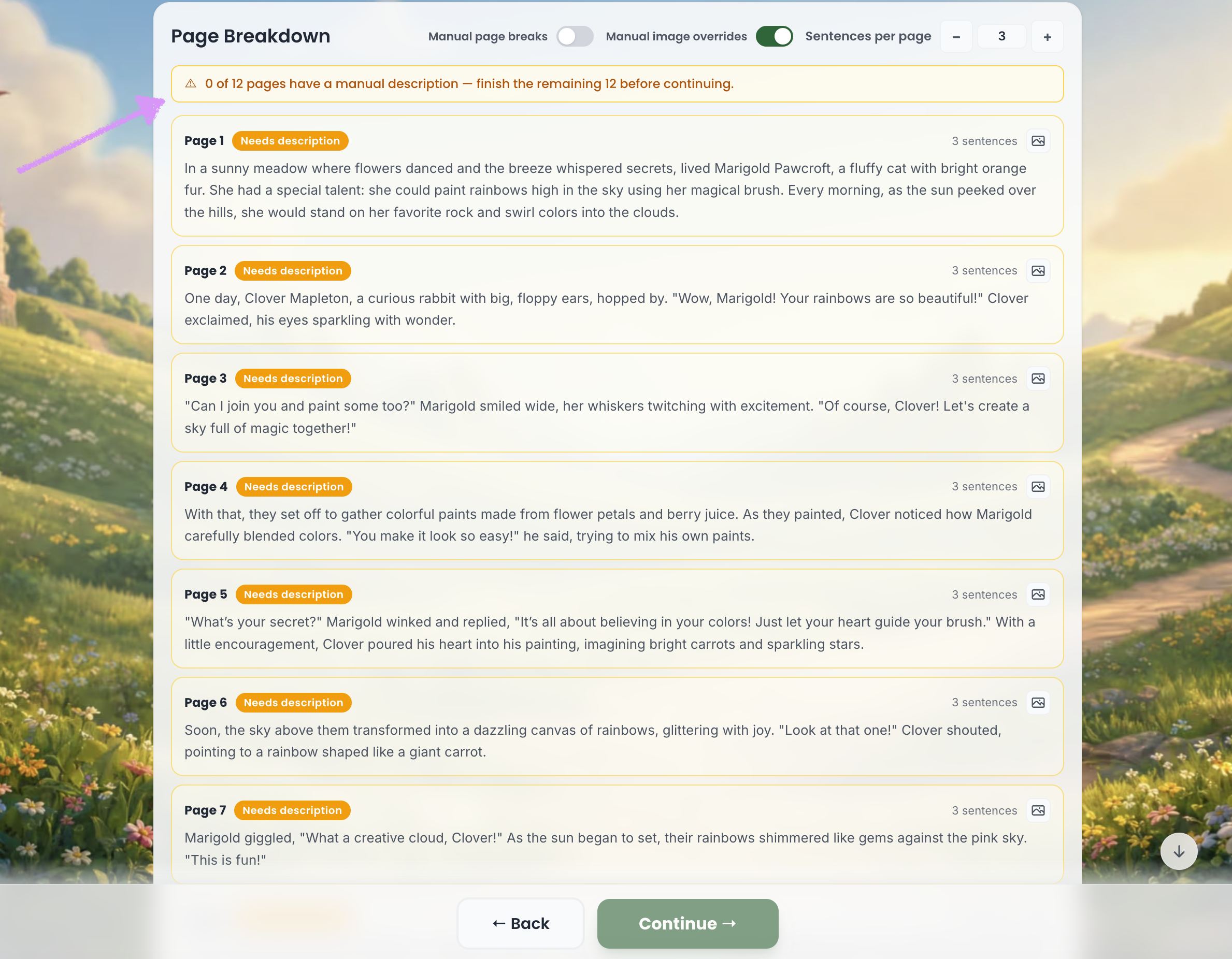
When the manual image override is turned on, a warning will appear indicating that you must add a manual description before you can continue.
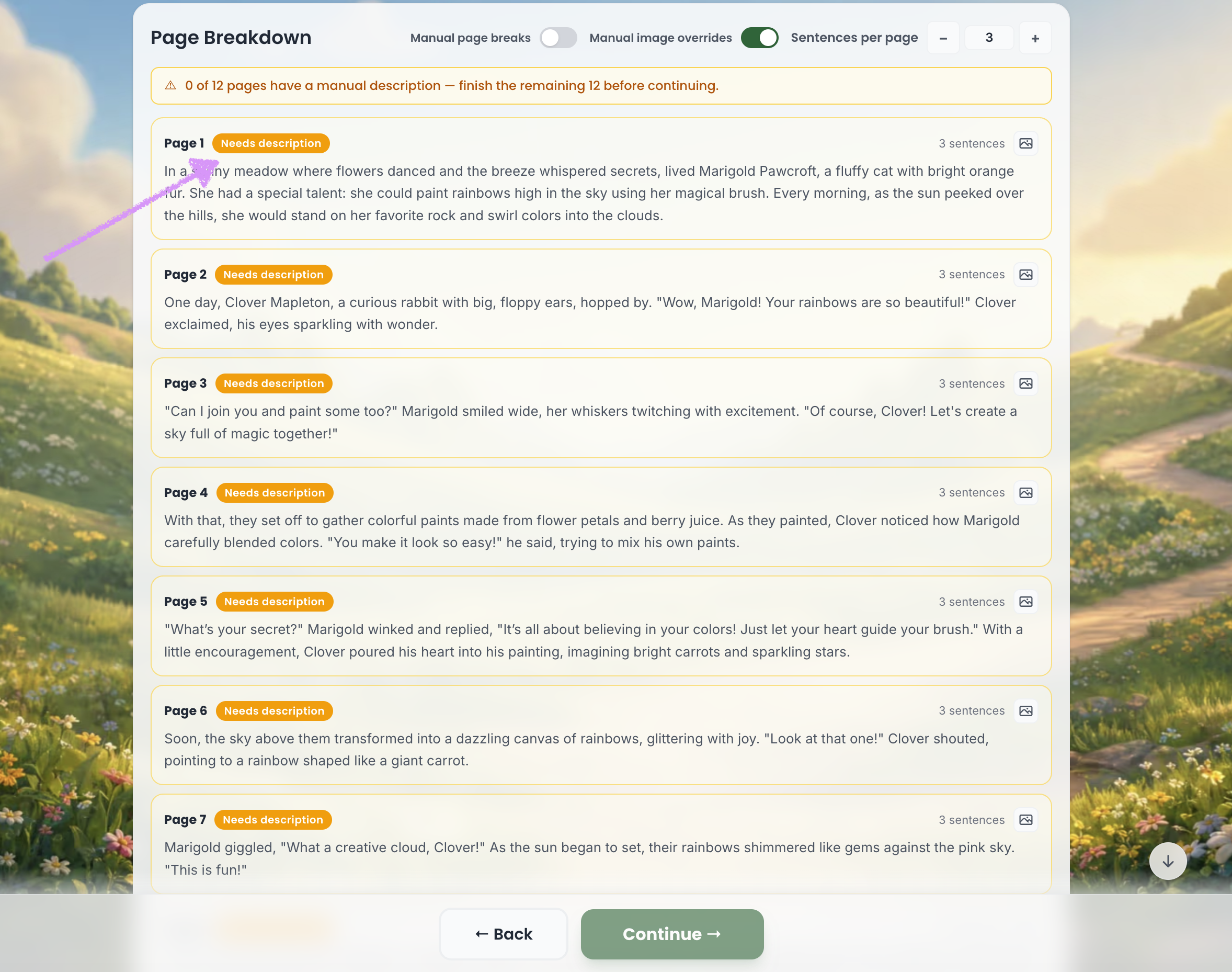
Each page marked as “Needs description” will display a warning indicating that a manual description must be added.
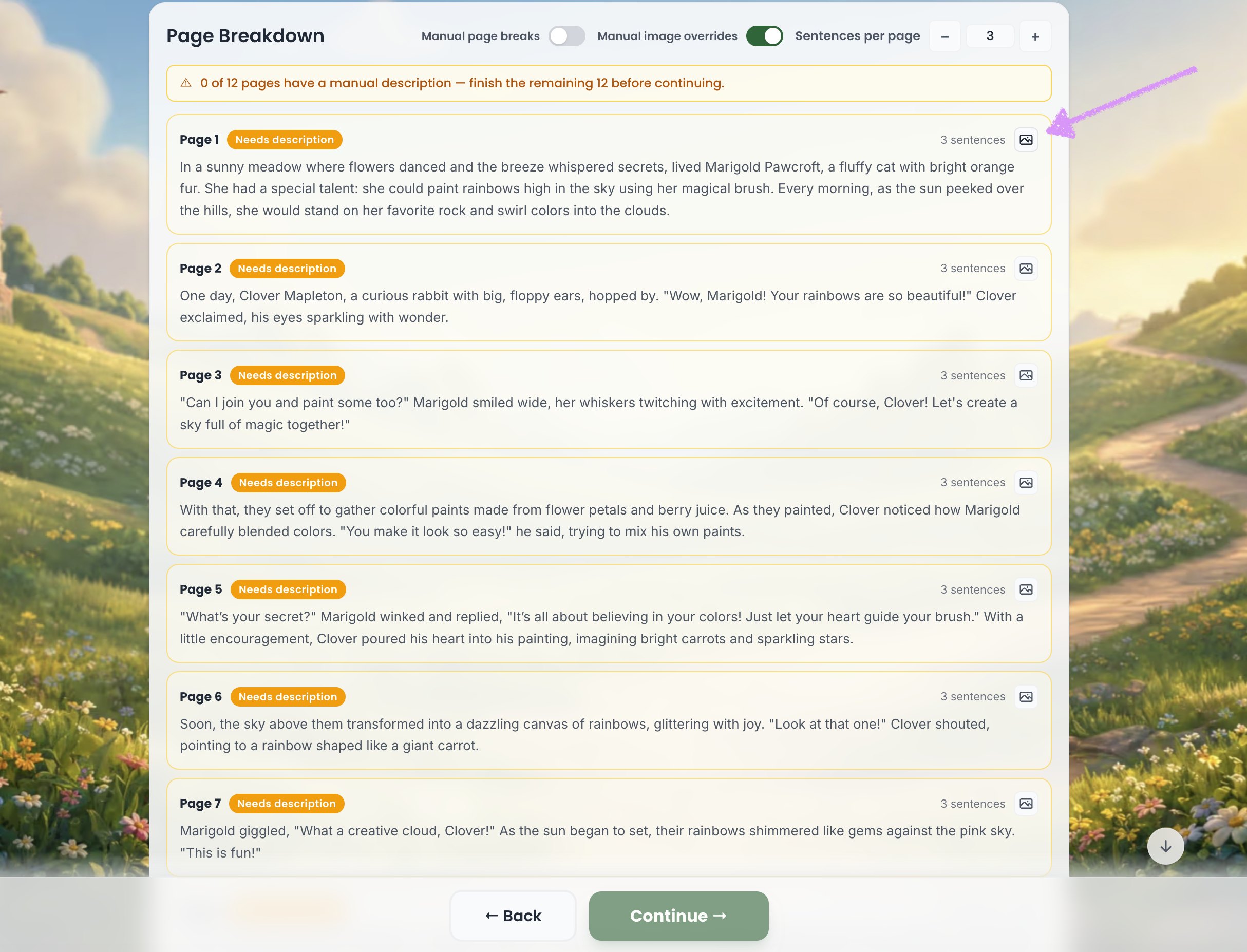
Click the image icon on the right side of the page to add a description.
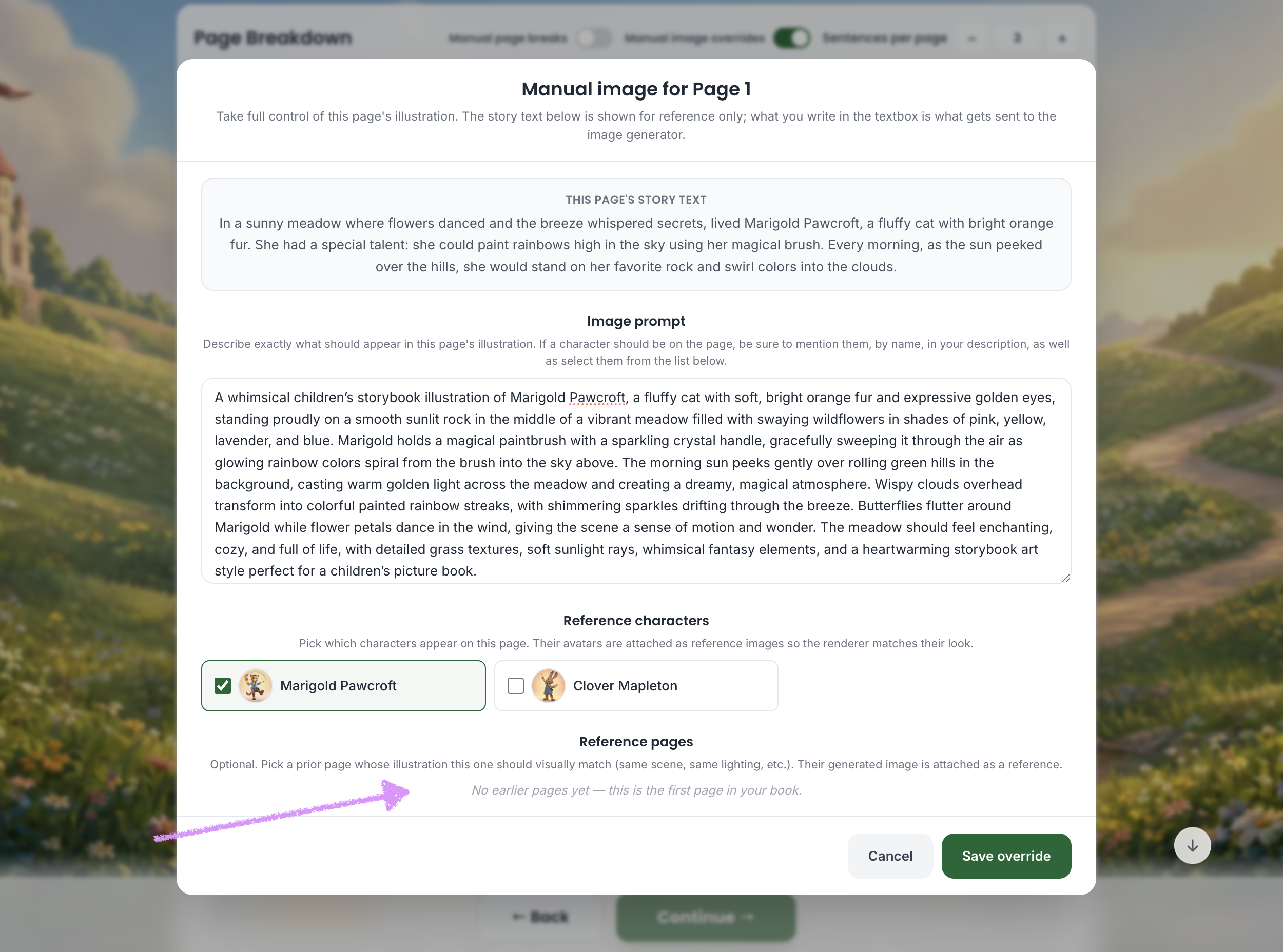
At the top, you will see the text for the current page.
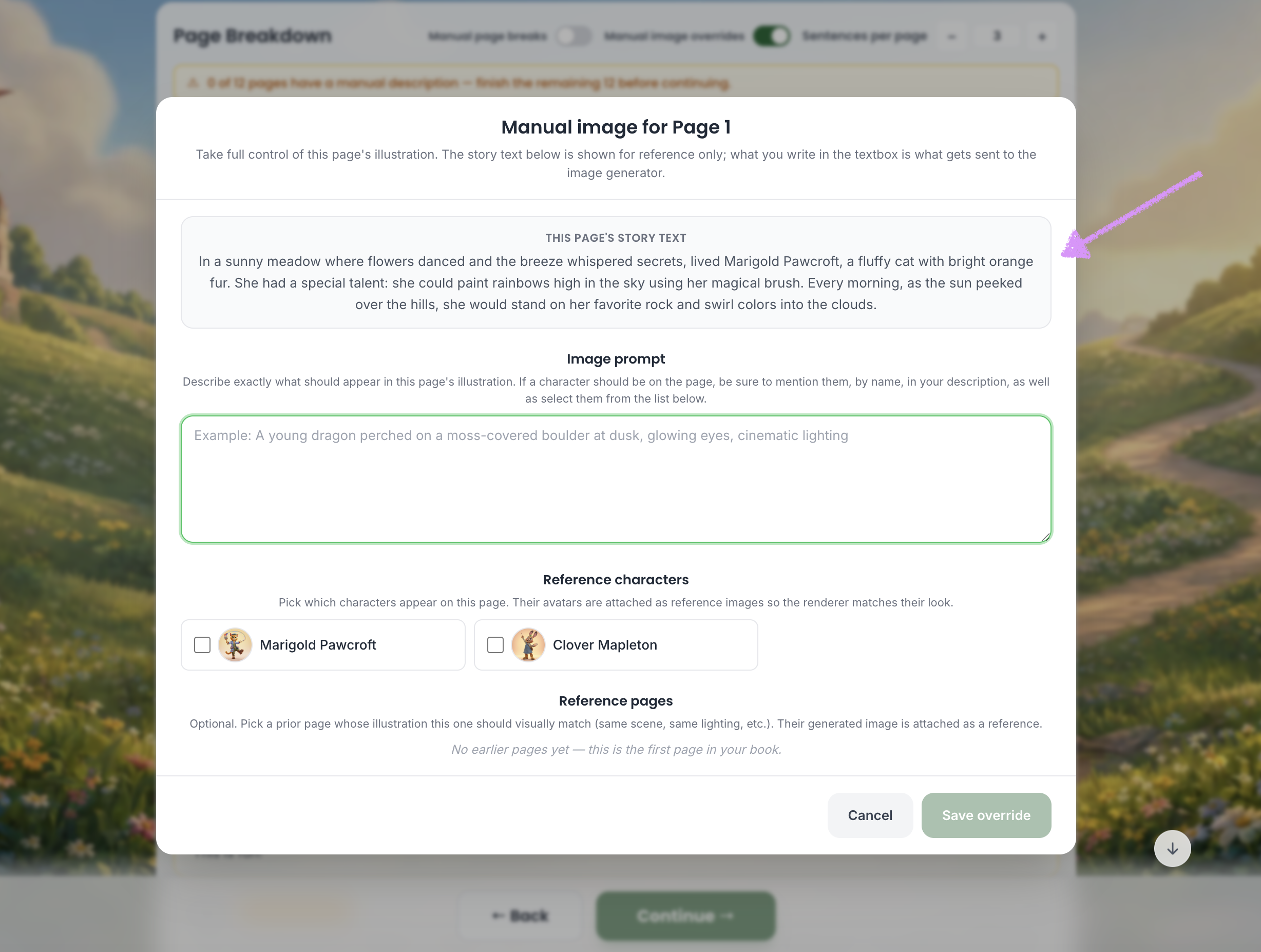
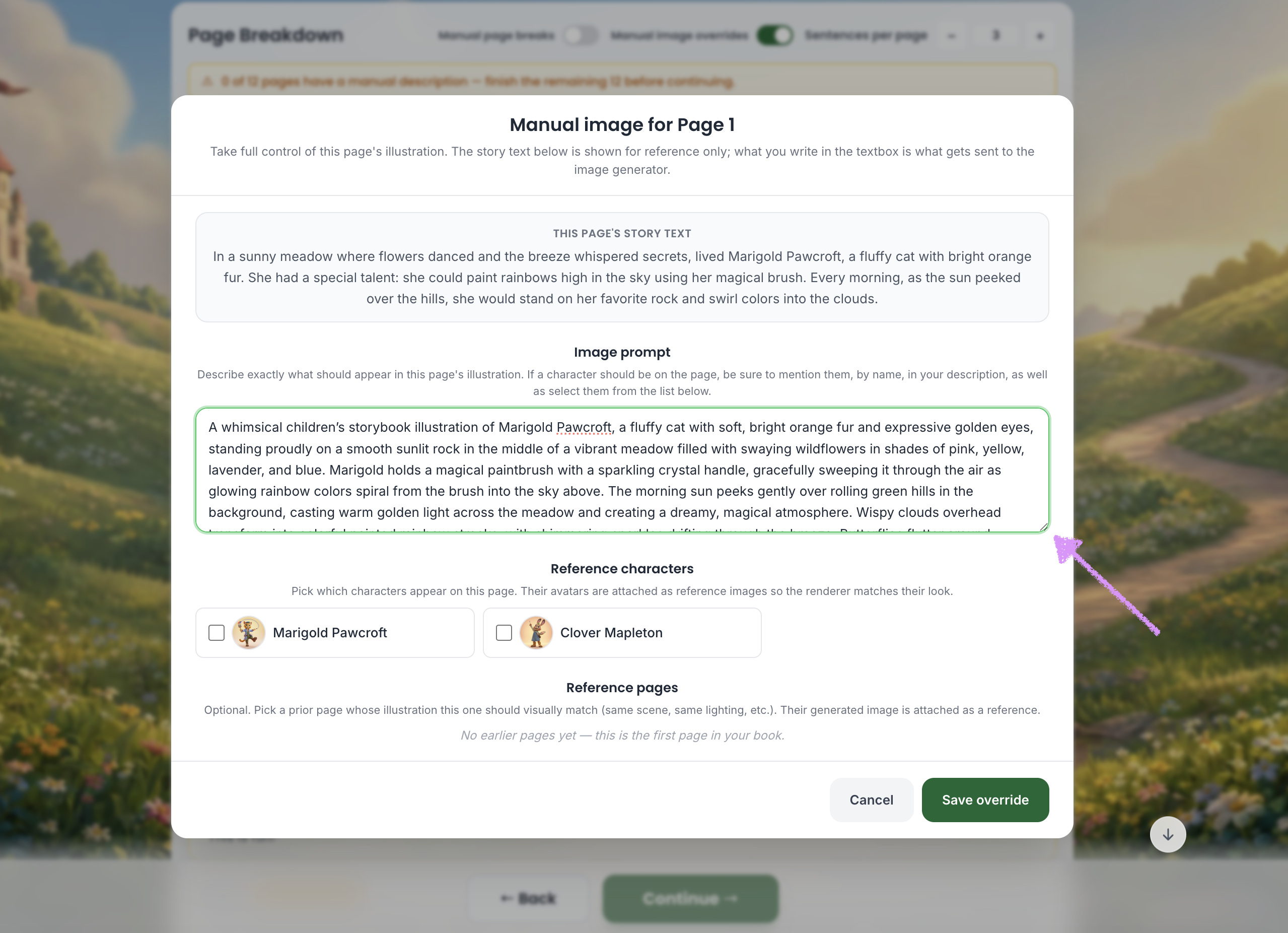
Below the page text is a field where you can add the image prompt. This is where you should describe exactly what the illustration on the page should show. If a character from the story appears in the scene, make sure to mention them by name.
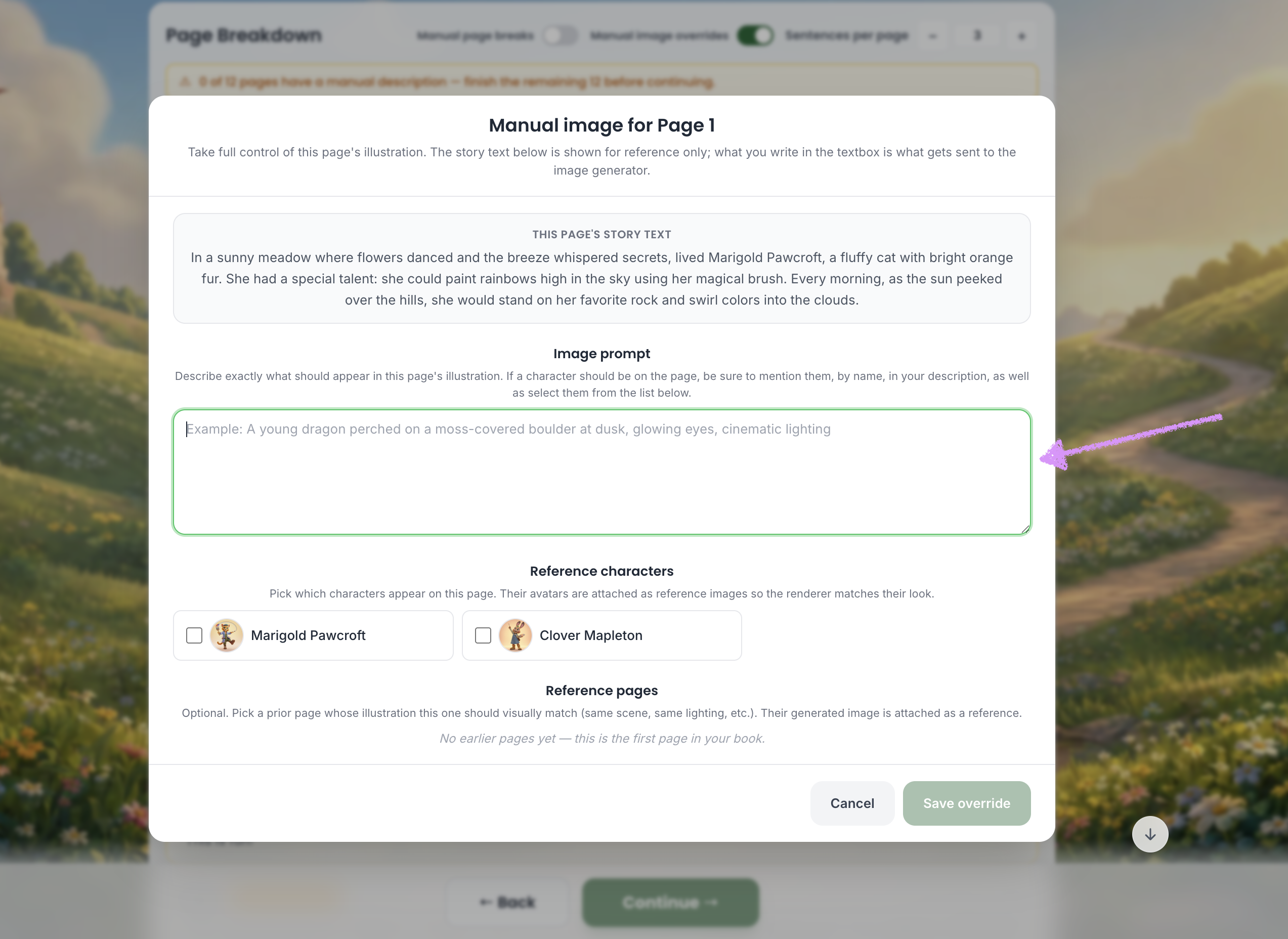
Use the expand and collapse tool in the bottom right corner of the text field to expand or collapse the view as needed.
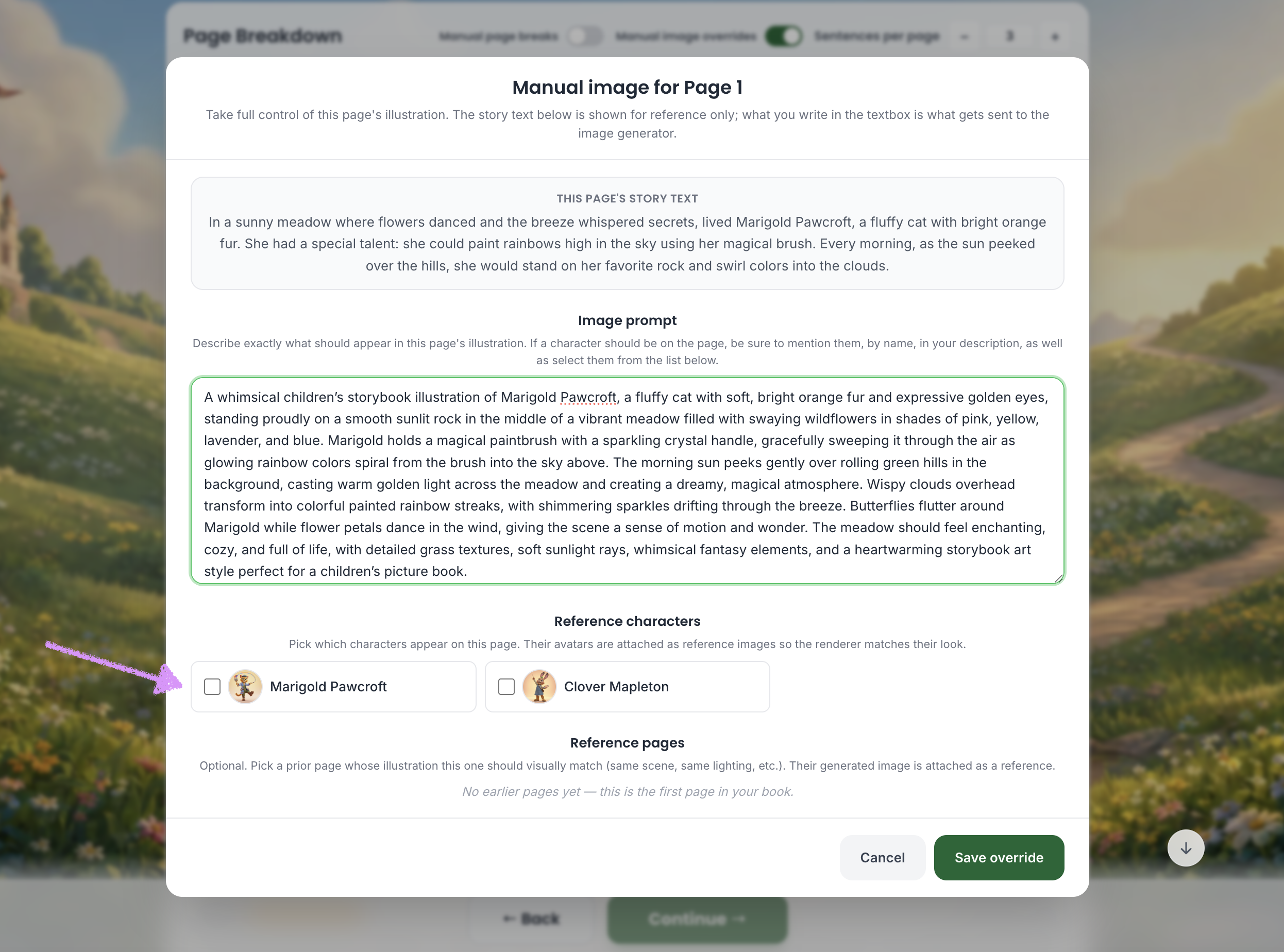
Select all characters mentioned in the image prompt.
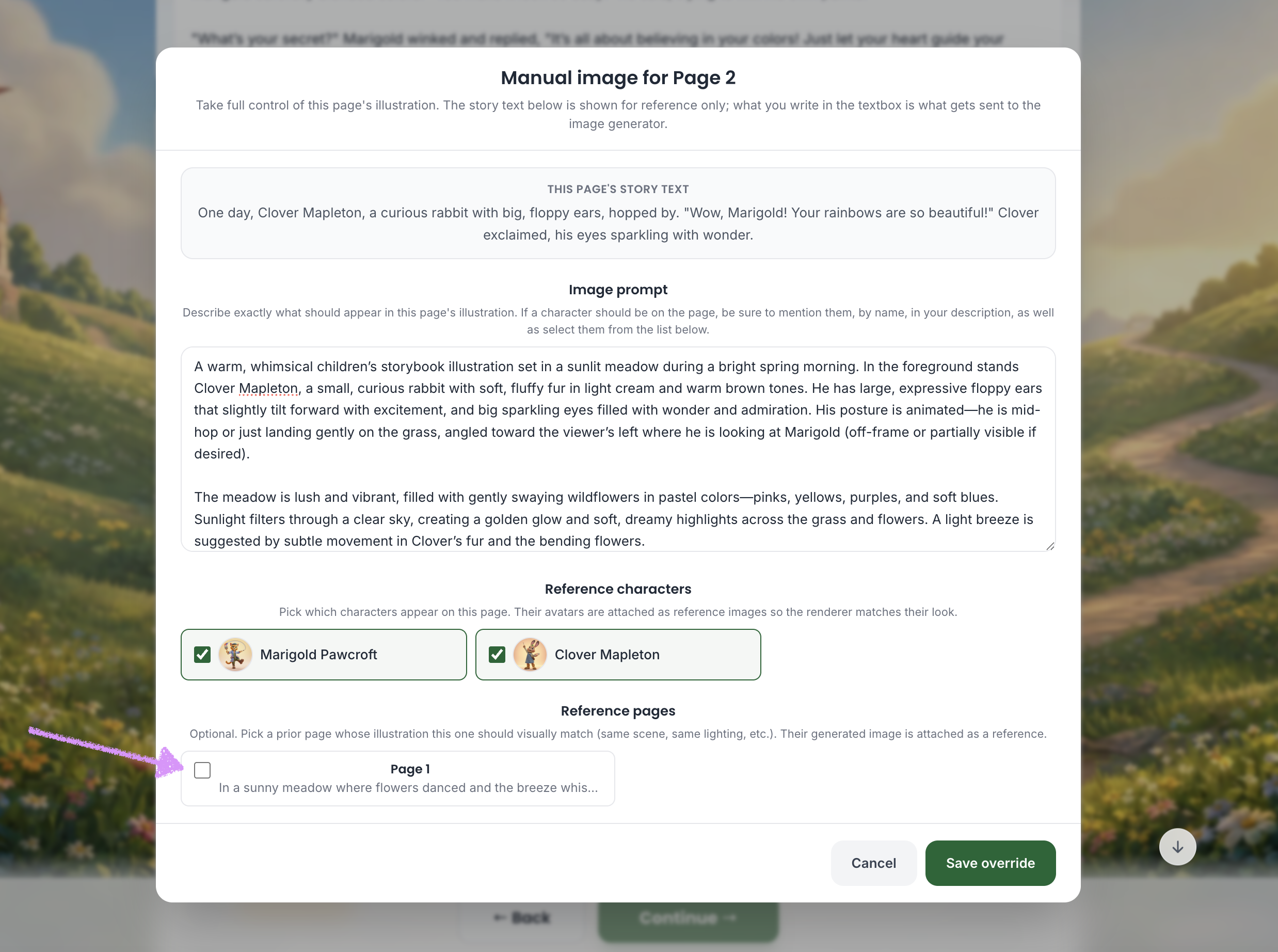
Since this is the first page, there are no earlier pages available, so you will not be able to select a reference image. We’ll show you what this option looks like on page two.
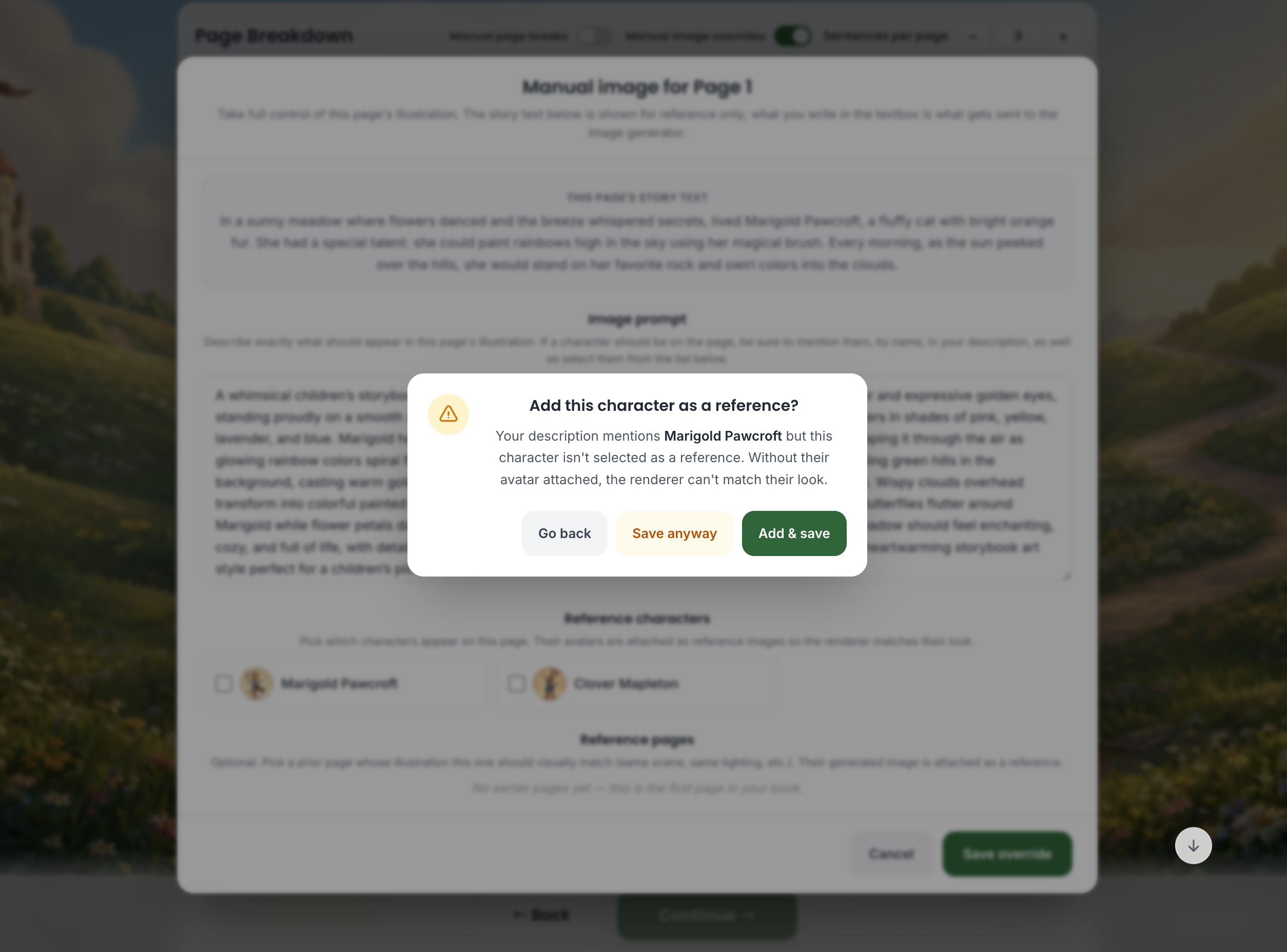
If you click “Save override” and no characters are selected, a warning like the one below will appear. It will let you know that characters mentioned in the image prompt have not been selected. You can go back and update your selection, save anyway, or choose “Add & Save.” We recommend selecting all characters mentioned in the image prompt to ensure the render accurately matches their appearance.
After the first page, you will have the option to select a previous page whose illustration should be used as a visual reference for consistency.
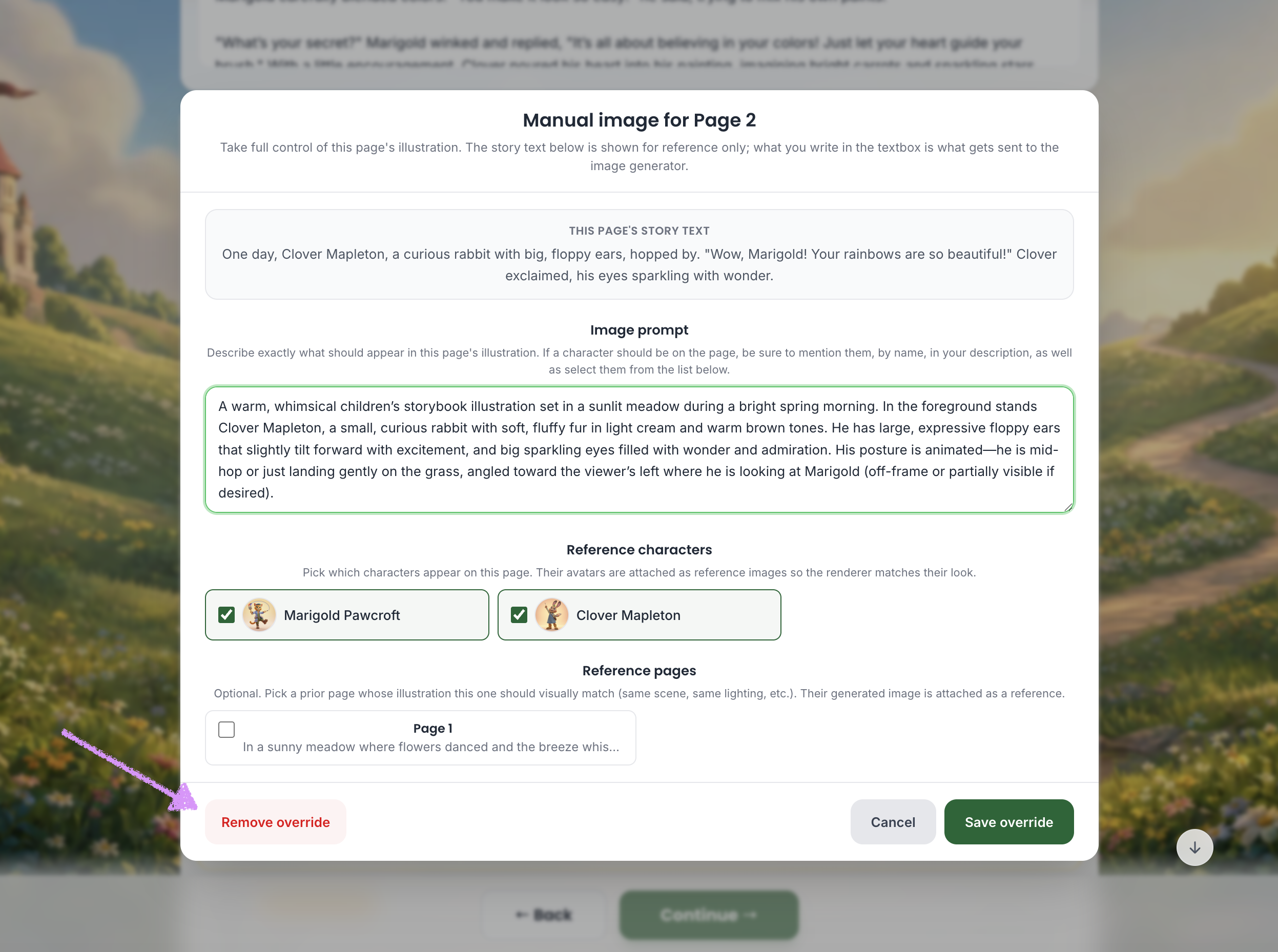
If you go back into the image override prompt, you’ll see an option to “Remove override.”
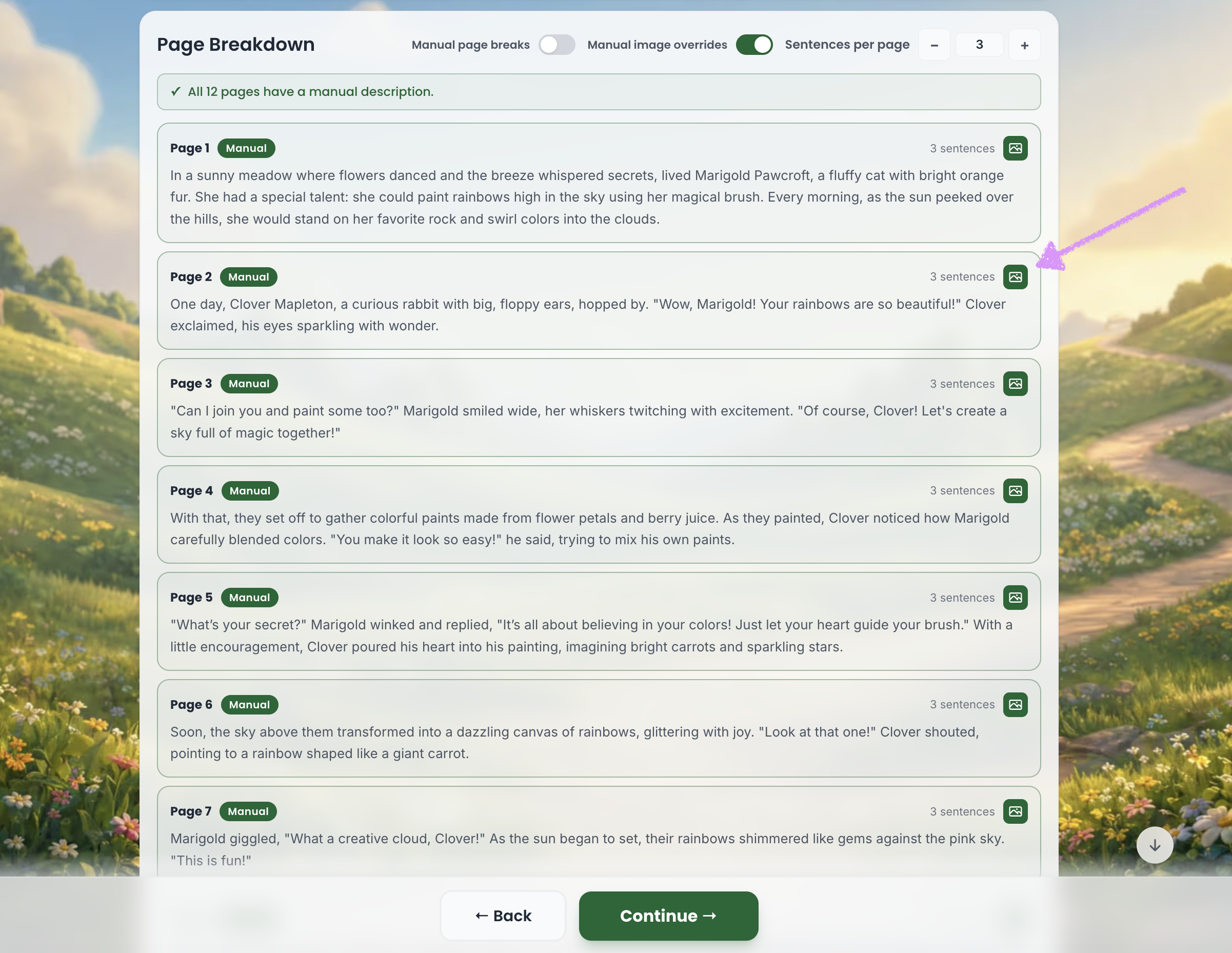
The warning banner will be replaced once all manual descriptions have been added.
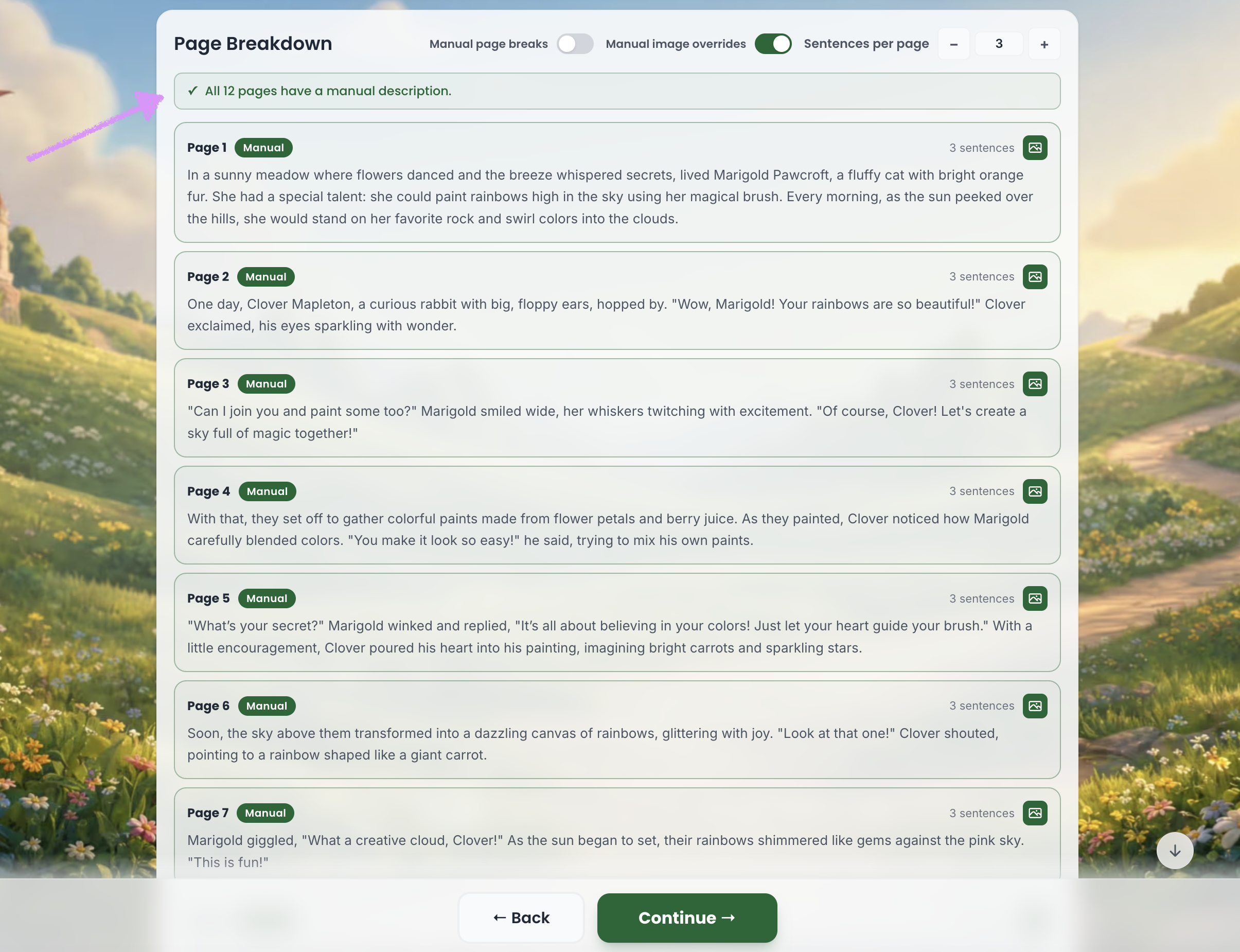
Each page that previously showed “Needs description” will be updated to “Manual.”
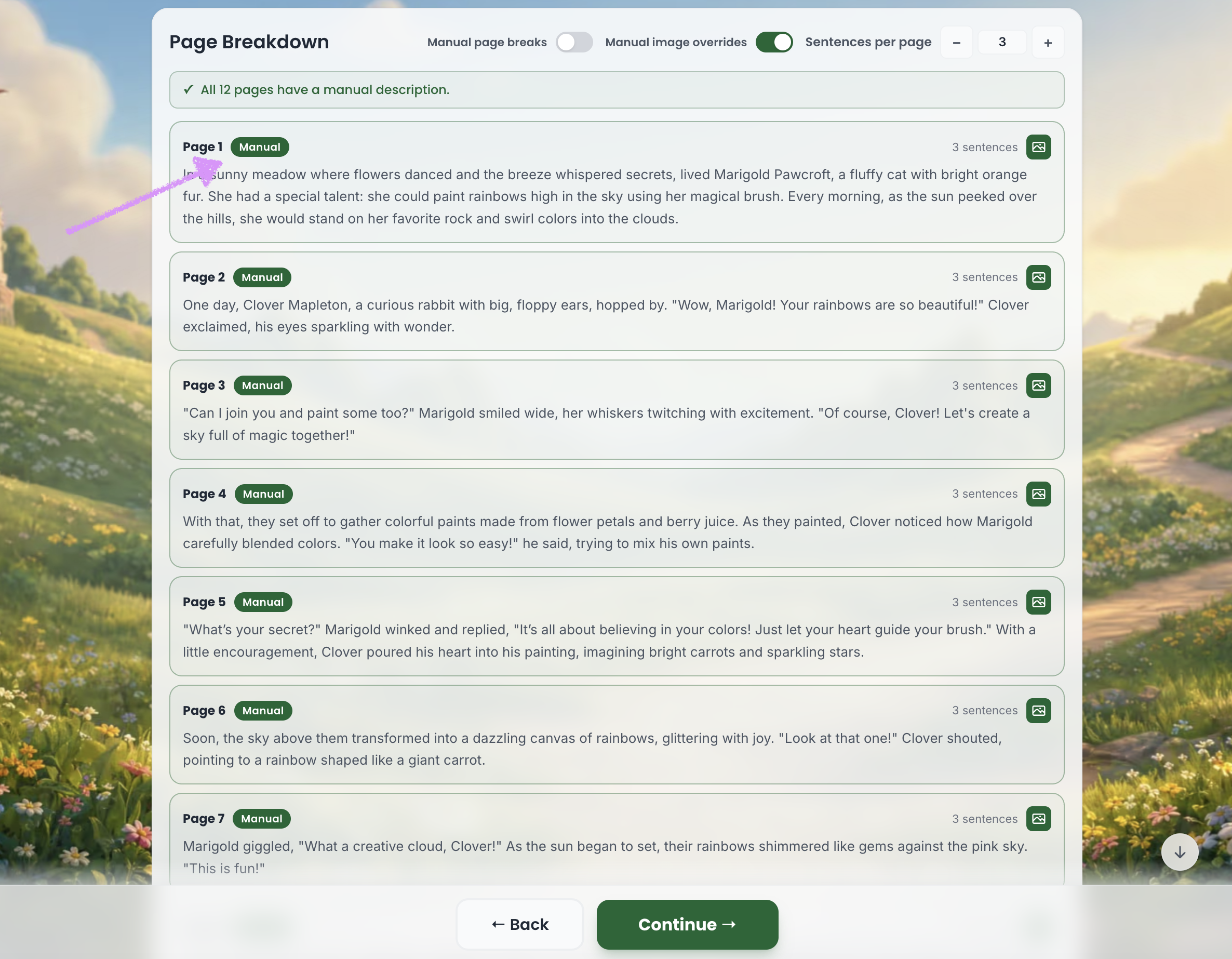
The image icon on the right side of each page will turn green.
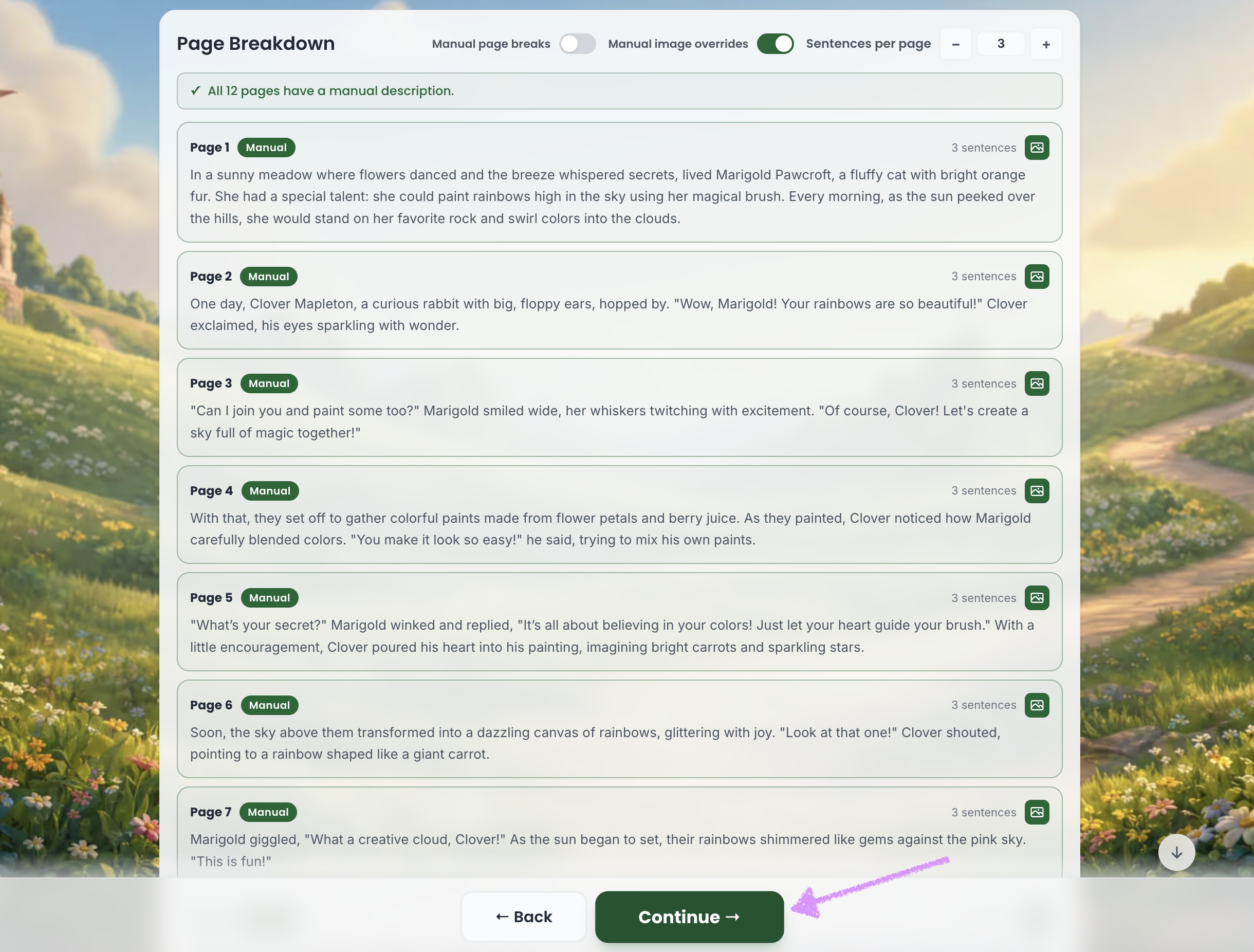
Once you’re all set, click “Continue.”
Congratulations! You’ve completed your book! Your book cover will now be displayed. Click “Let’s read and edit your book!” to continue. Starter users, head to our guide here to register and continue editing. One-time purchasers, Plus, and Pro users can go here to get started with the editor.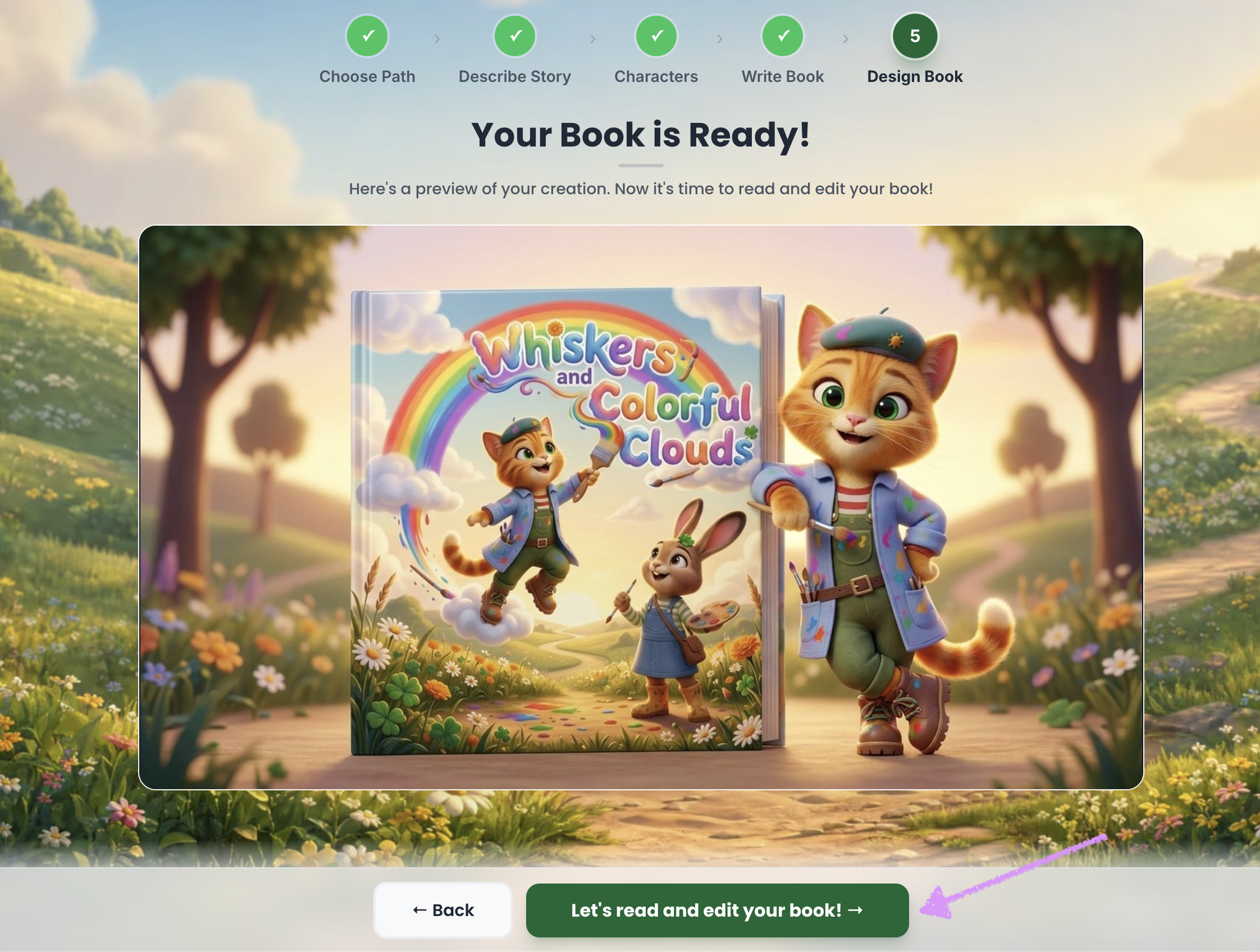
Was this article helpful?
That’s Great!
Thank you for your feedback
Sorry! We couldn't be helpful
Thank you for your feedback
Feedback sent
We appreciate your effort and will try to fix the article
