
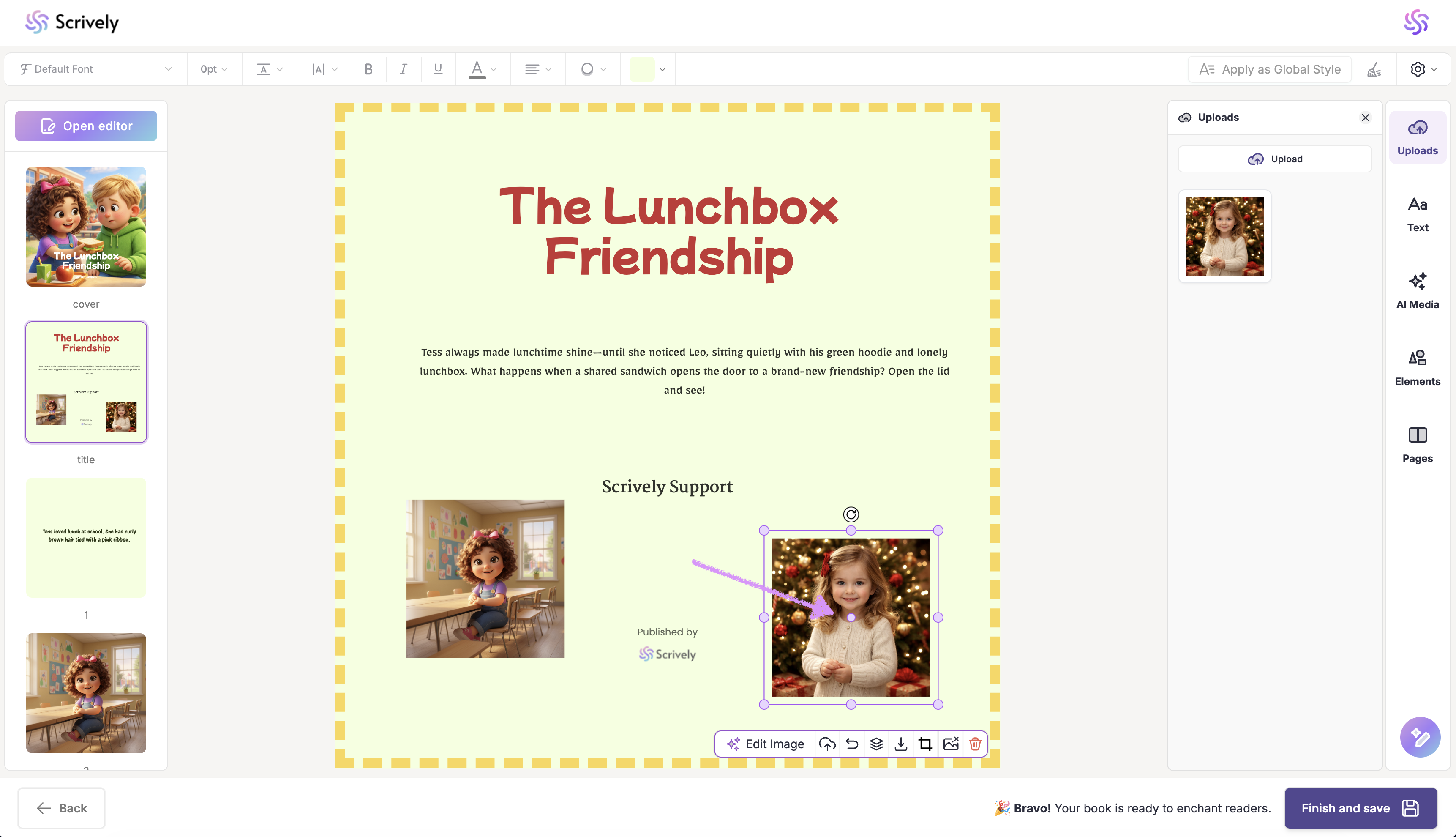
Scrively’s Image Editing Tools give you full control over every illustration in your book. You can rotate, edit, upload, reset, adjust layers, download, crop, clear, or delete images to fine-tune your layout and create beautifully designed pages with ease.
Click on the image to access editing options, including resize handles.
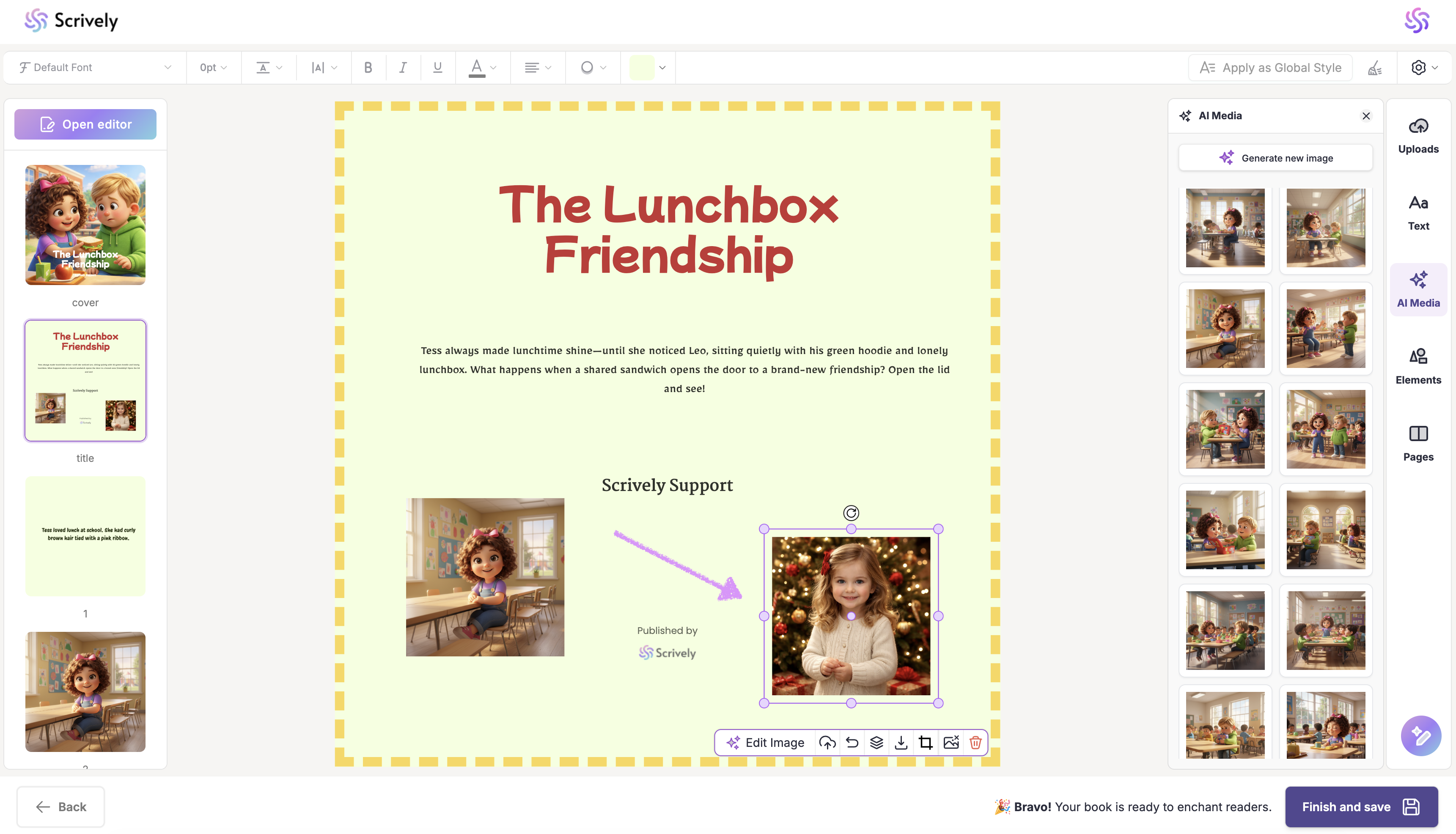
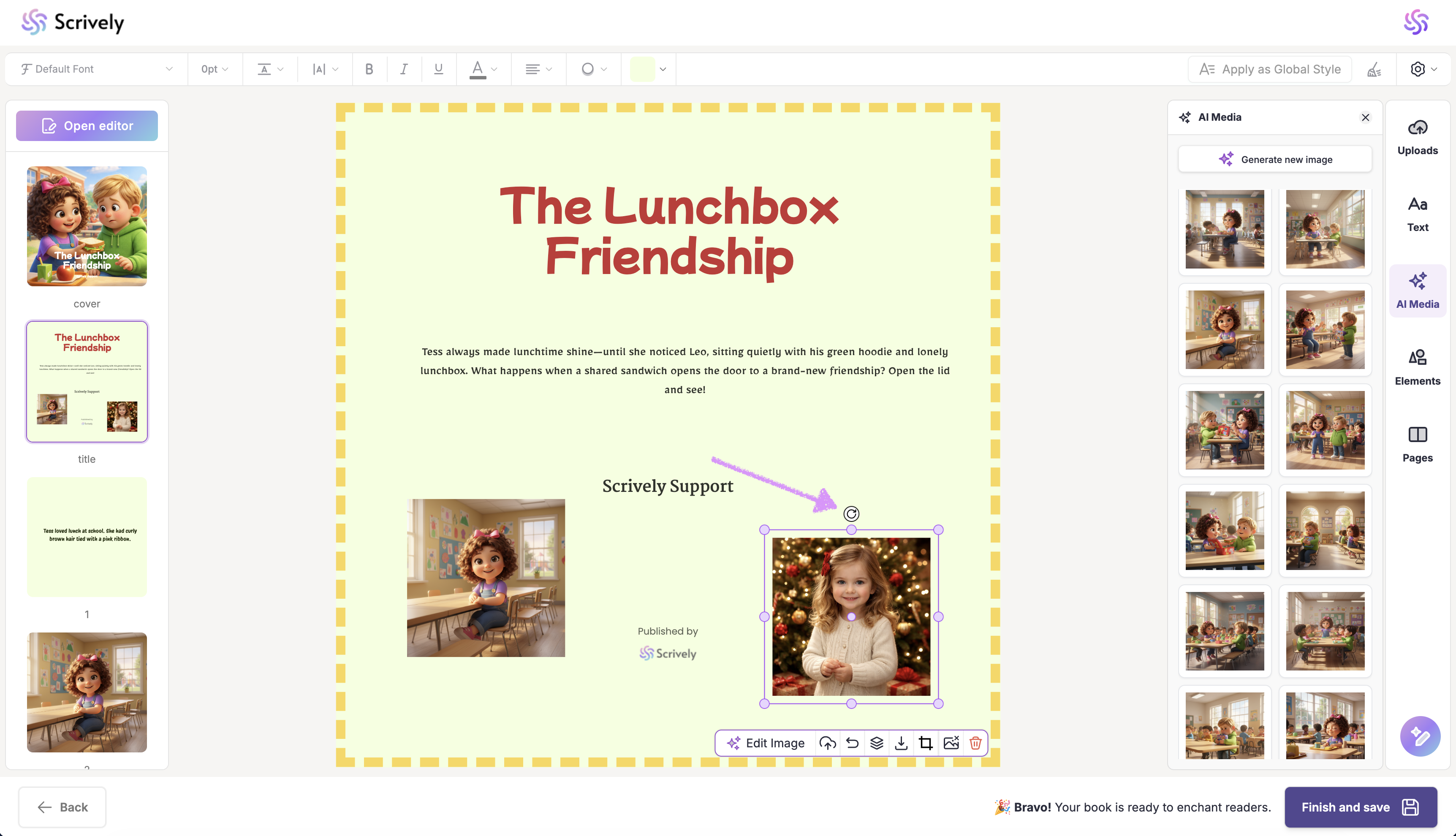
Click on the "Rotate" tool to adjust the image's orientation.
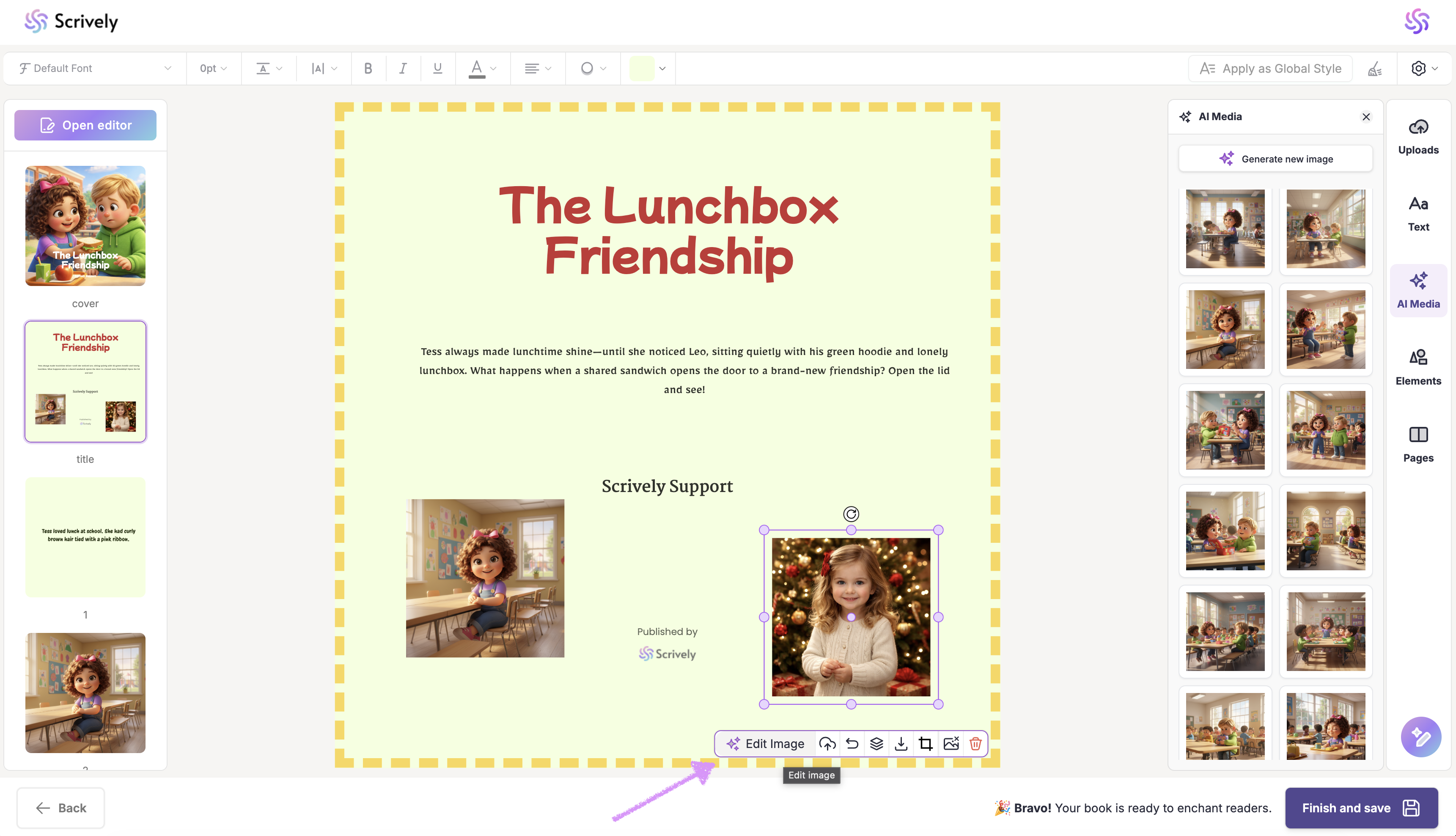
Need to make edits to the existing image? Click on "Edit image." Our guide here shares more on editing existing images.
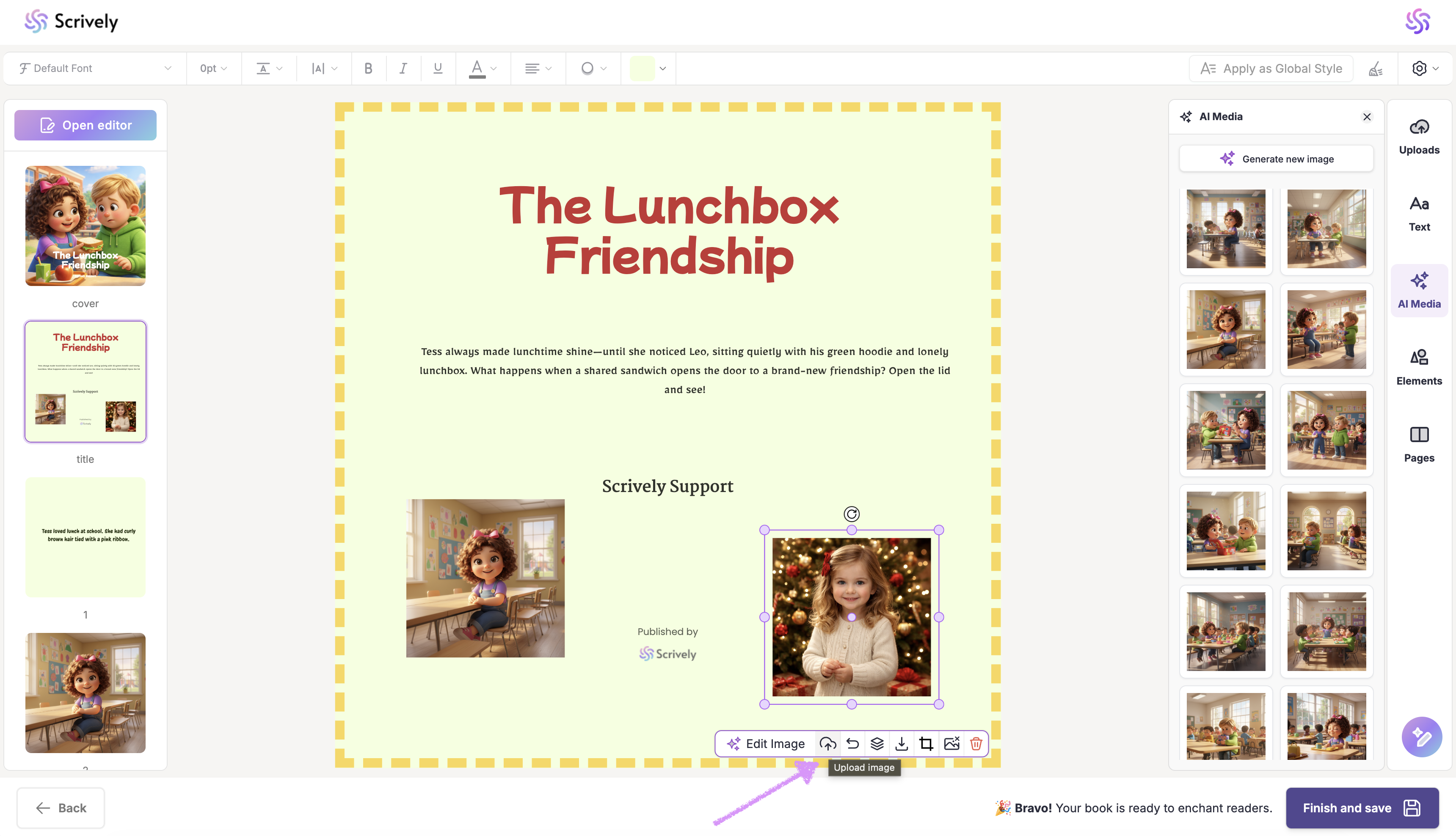
Need to upload a new image into the frame? Click on "Upload Image."
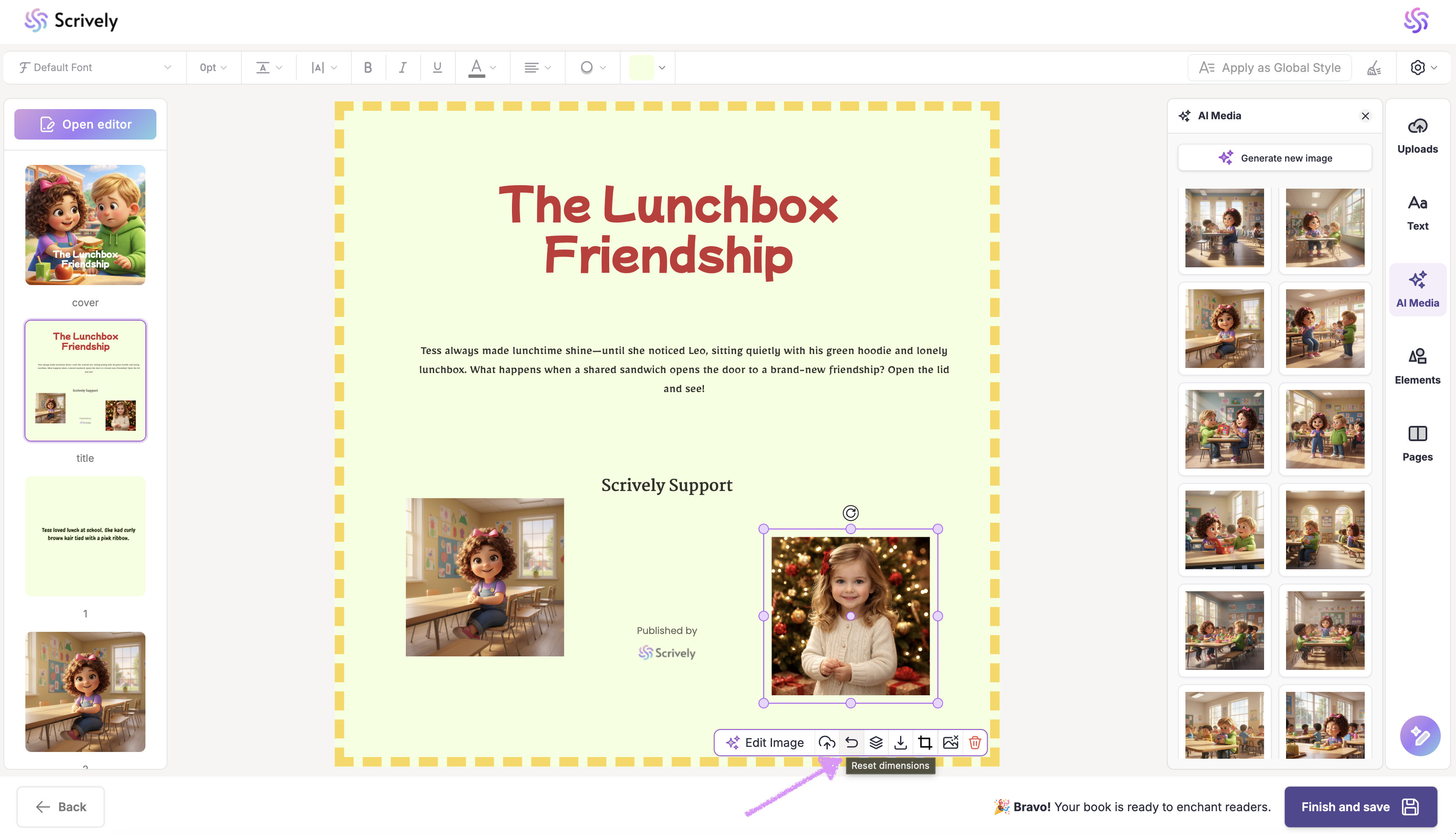
Make changes to the image dimensions that you no longer need? Click on "Reset dimensions."
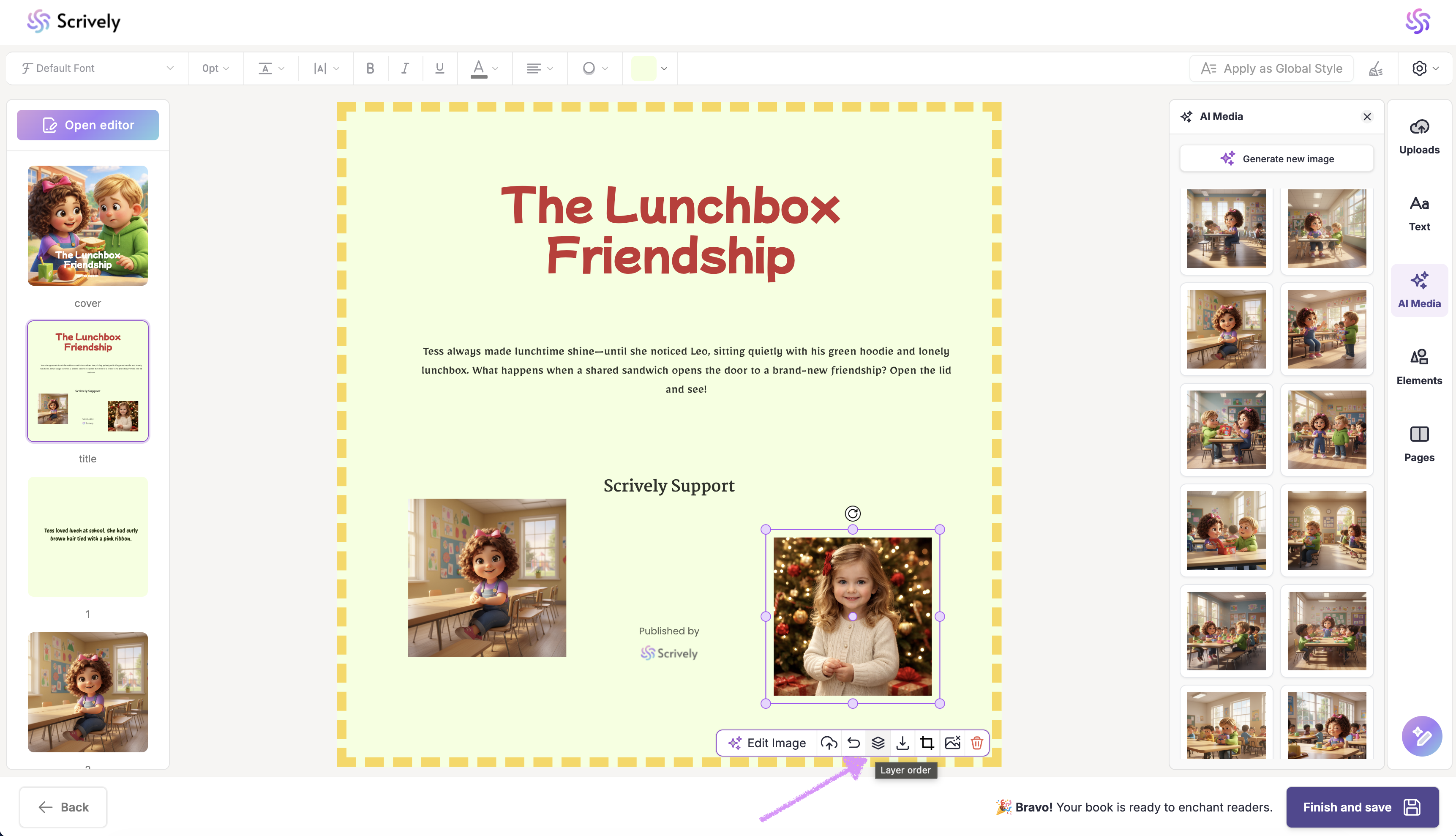
To control how the image layers interact with other elements on the page, click on "Layer order."
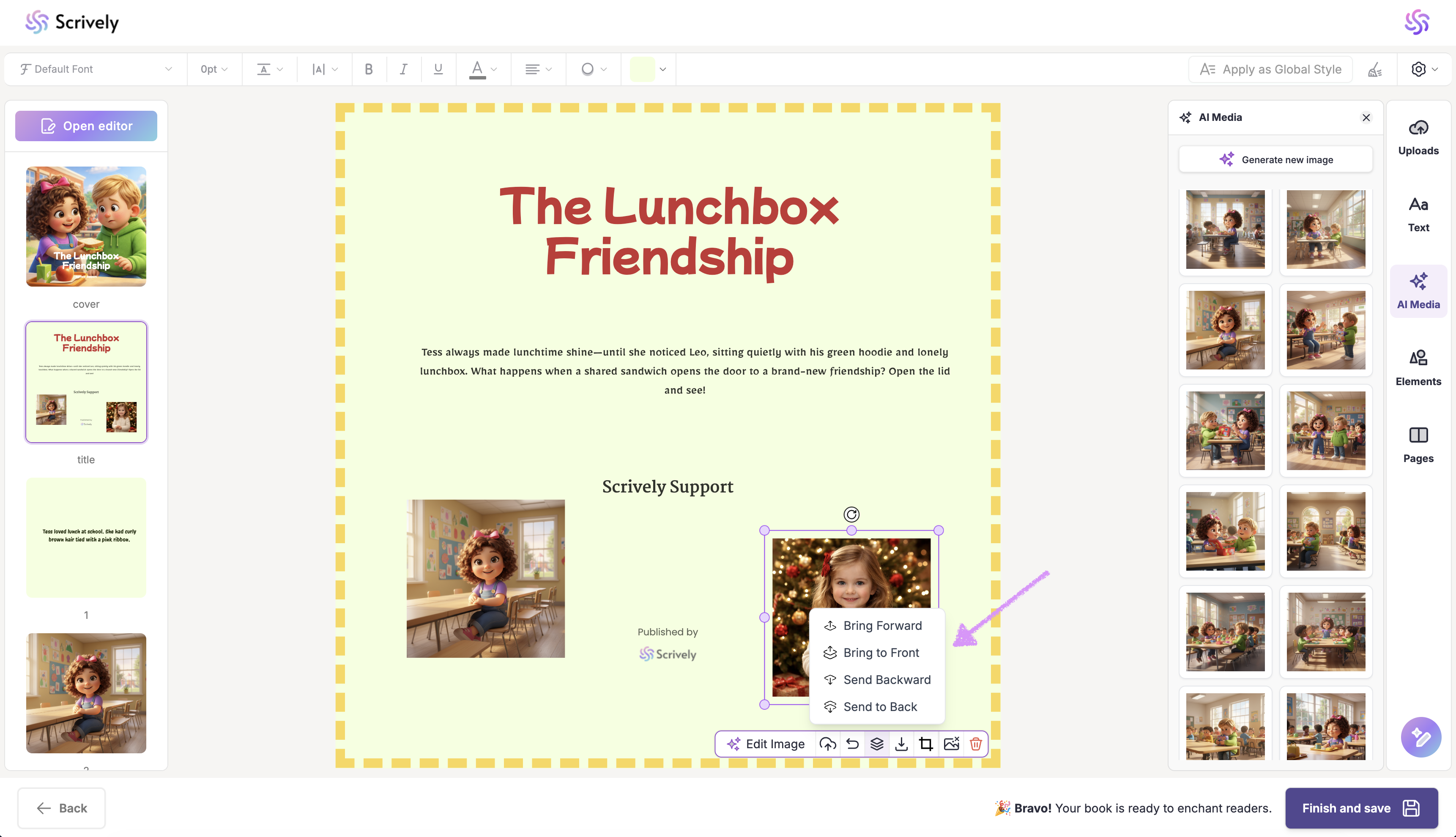
This tool provides four options that let's you move the image forward or backward within the page layout.
- Bring Forward
Moves the selected text block one layer forward, placing it above other elements that overlap it. - Bring to Front
Moves the selected text block to the top layer, placing it above all other elements on the page. - Send Backward
Moves the selected text block one layer backward, placing it behind overlapping elements. - Send to Back
Moves the selected text block to the bottom layer, placing it behind all other elements on the page.
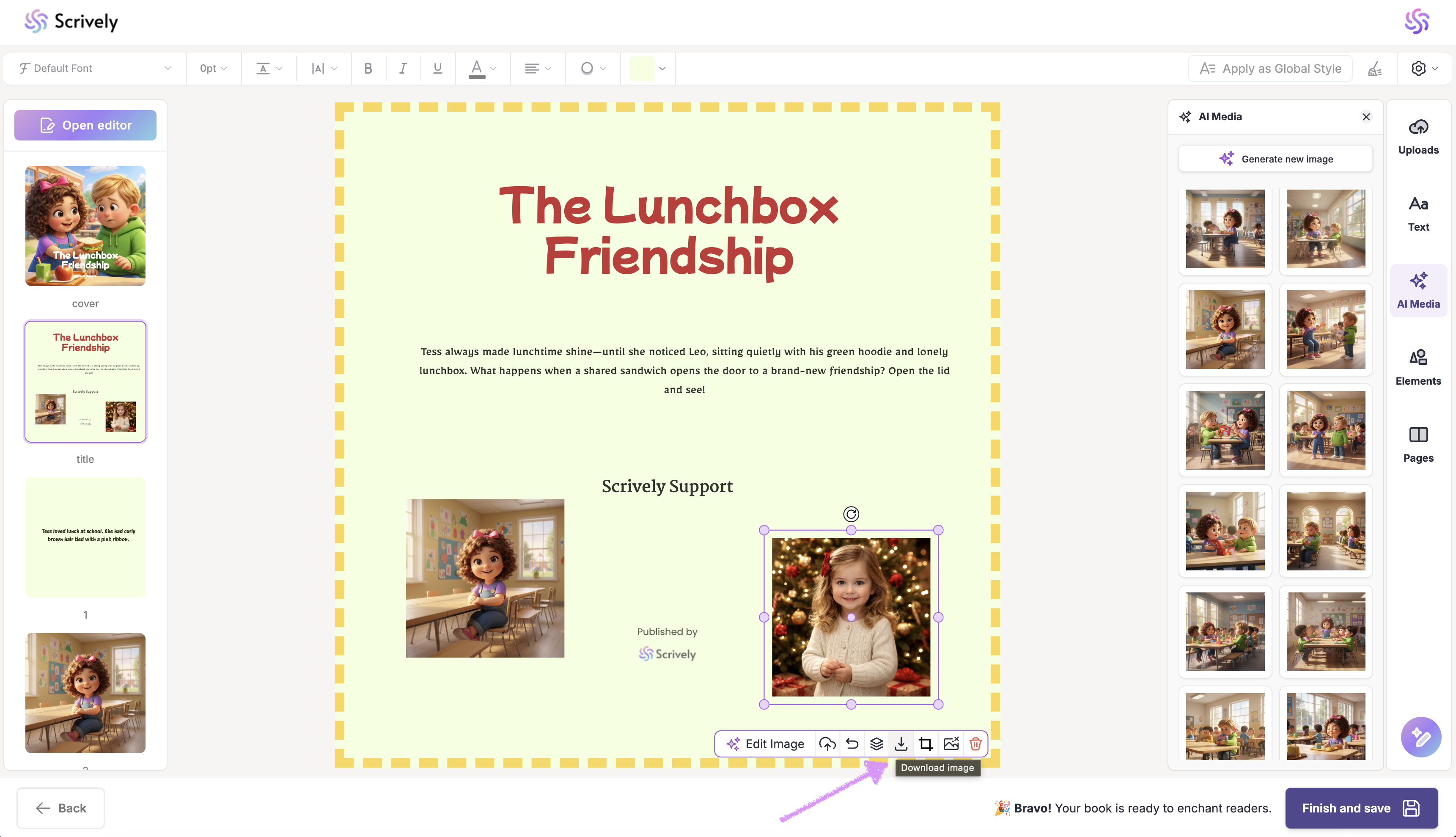
Click on "Download image" to add the image to your device.
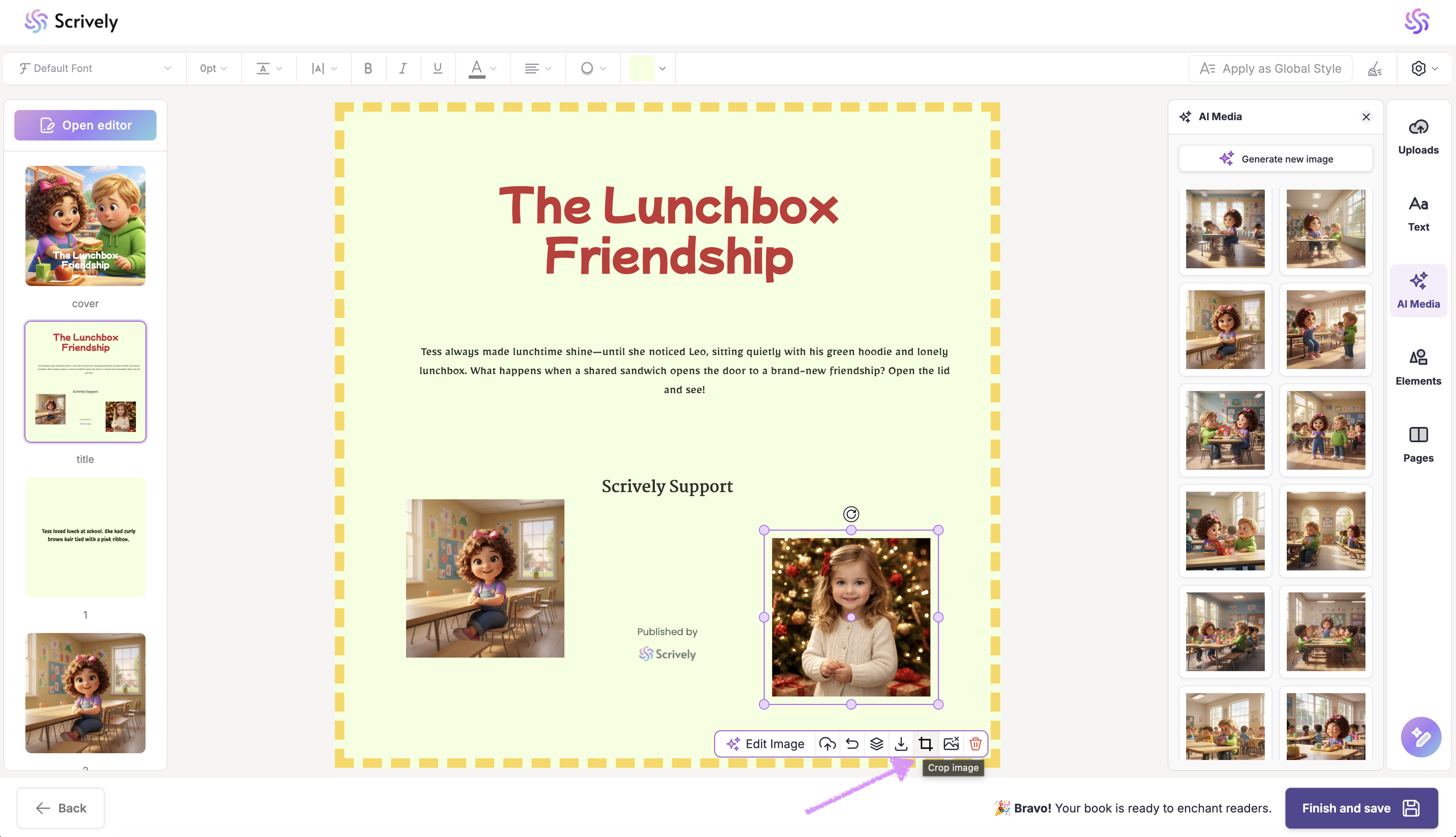
Need to crop the image? Click on "Crop image." Our guide here shares more on working with the crop tool.
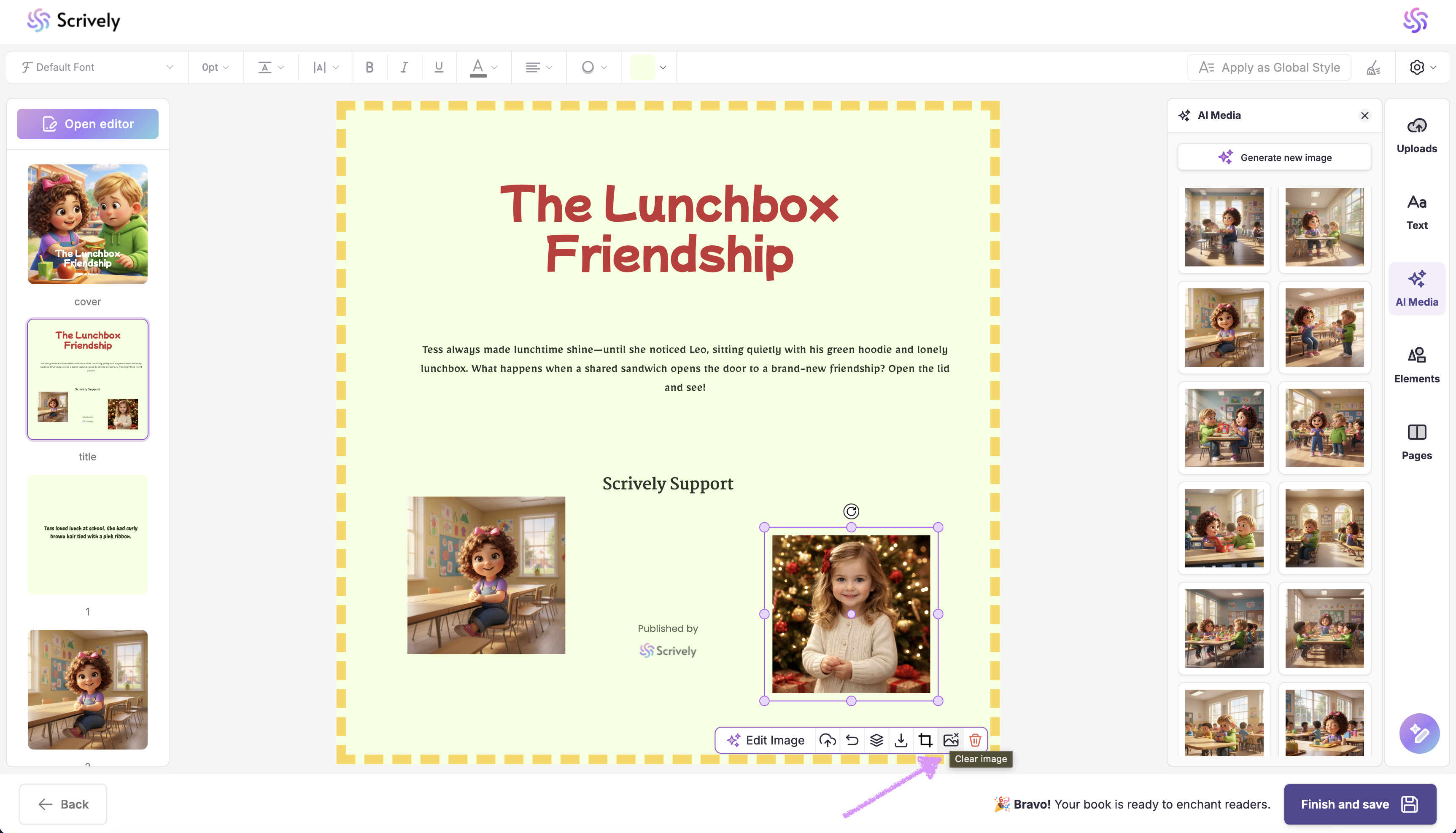
Want to clear the image frame? Click on "Clear image."
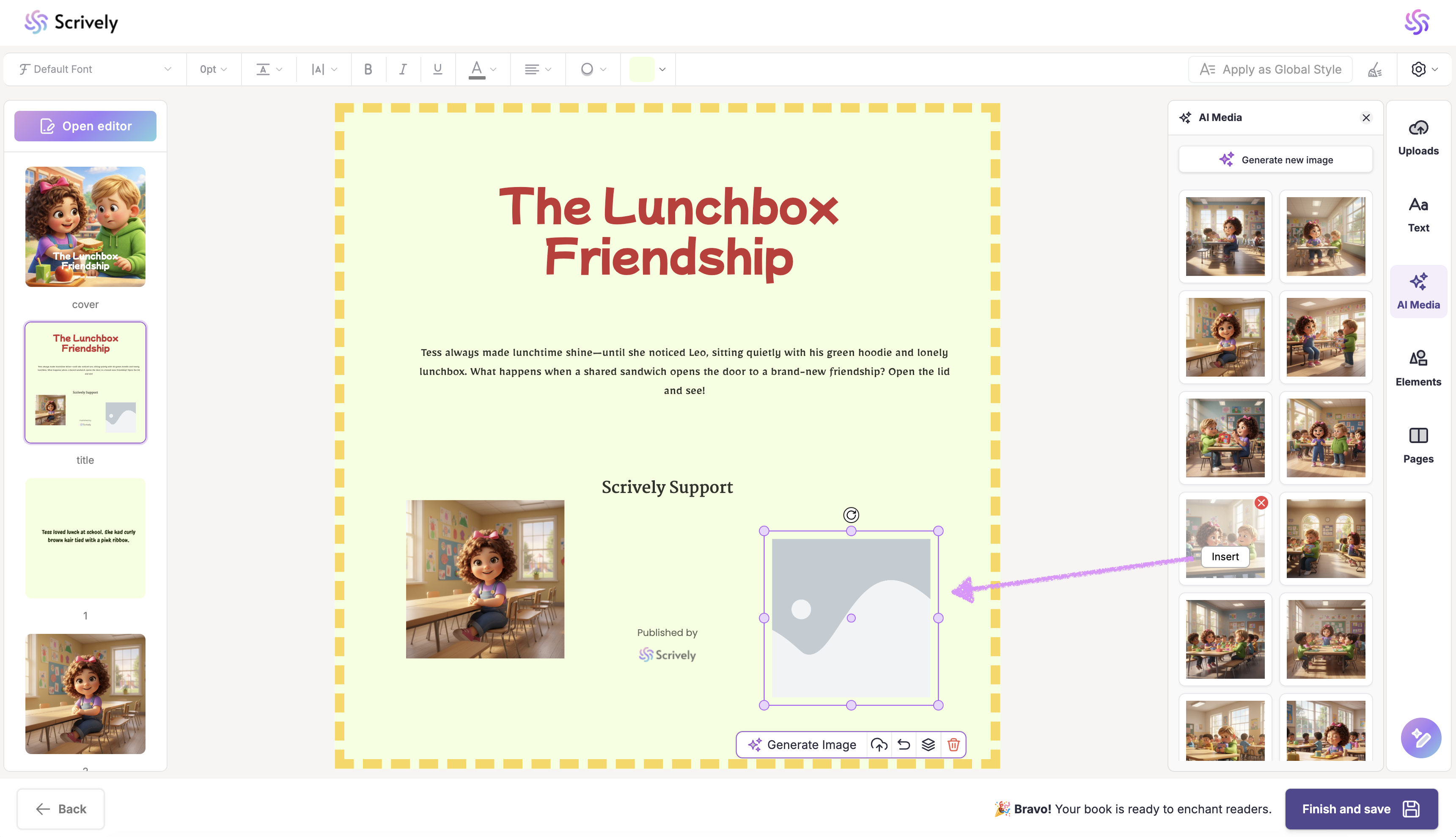
Once the image is cleared from the frame, you can hover over and "Insert" a new image from either the "Uploads" or "AI Media" library.
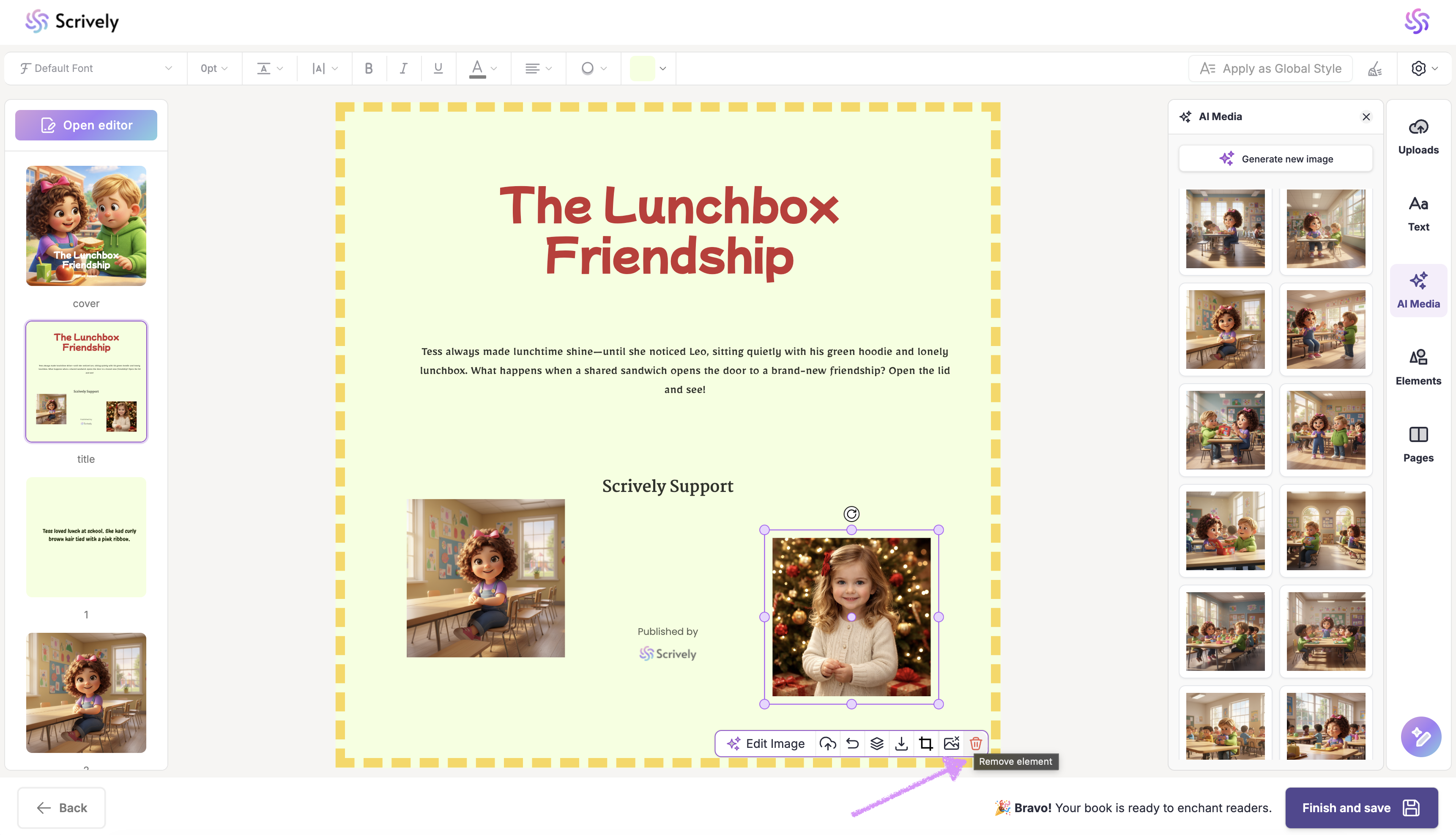
Click on the trash icon to remove the image from the page.
Hover over and click on the image to reposition it anywhere on the page.
Was this article helpful?
That’s Great!
Thank you for your feedback
Sorry! We couldn't be helpful
Thank you for your feedback
Feedback sent
We appreciate your effort and will try to fix the article
