
Once you’ve downloaded Scrively, taking a moment to get familiar with the "Create" tab will help you get started smoothly. In this article, you’ll learn how to:
Begin a story from a single idea
Manage your user account settings
Begin a story from a single idea
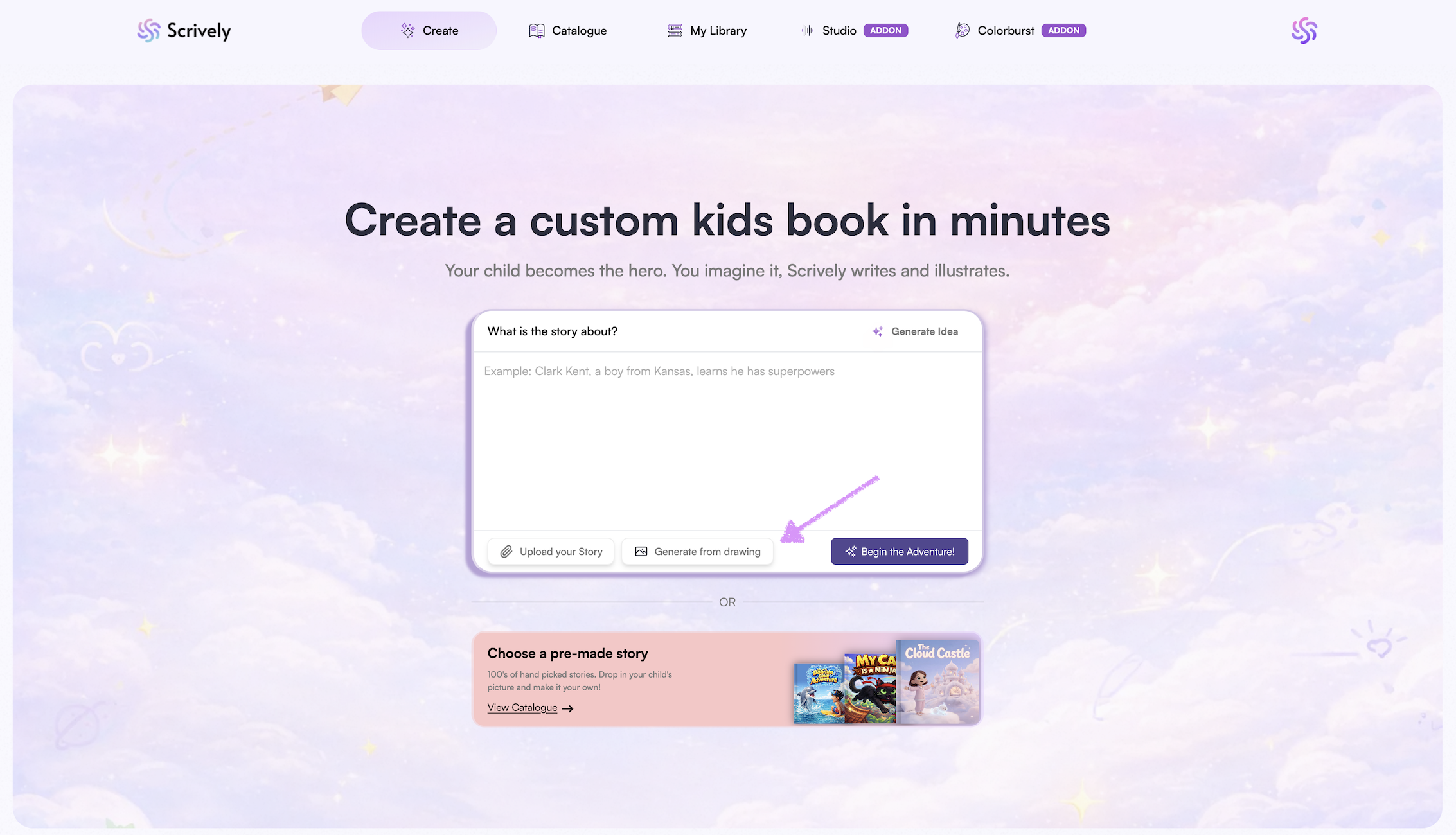
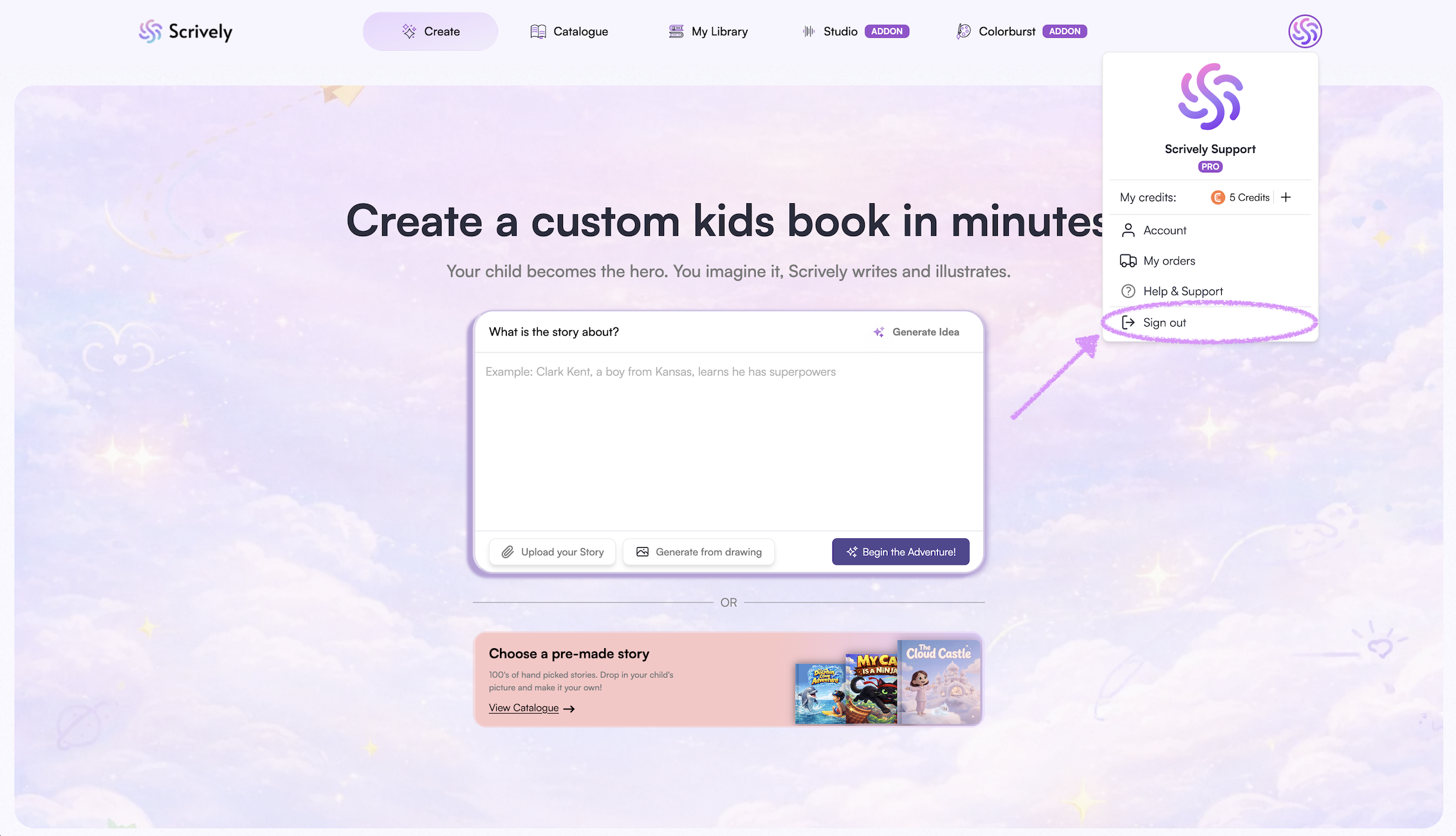
After downloading the app and logging into your Scrively account, you’ll arrive at the Create tab. This is your main hub for creating your books.
From the Create tab, you can start writing a new story or explore our pre-made book catalogue. It’s your creative dashboard, with everything you need in one place to bring your ideas to life and continue refining your books.
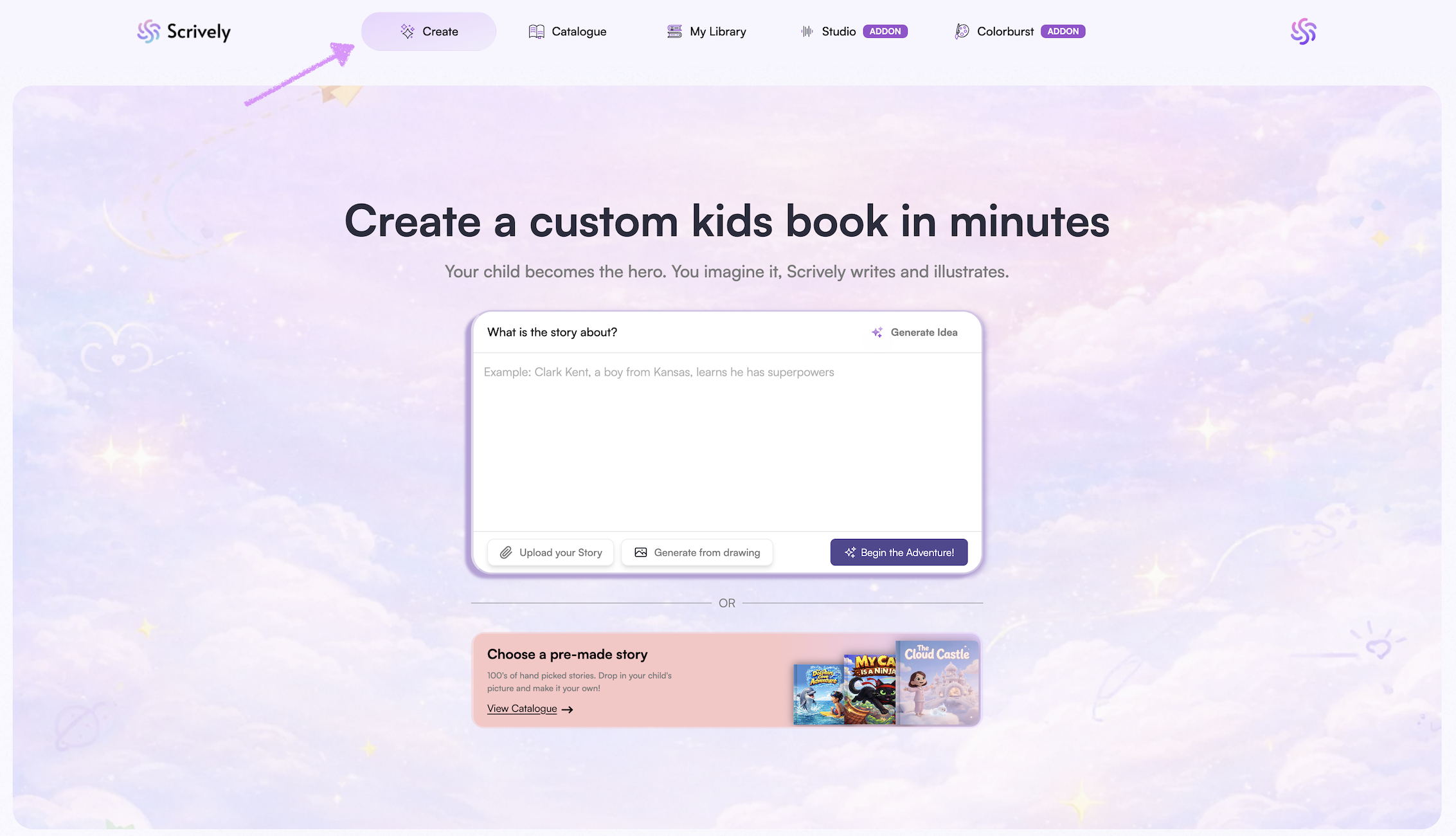
At the top, you’ll see the story box where you can type in or paste the idea for your storybook. The more details you include, the better the story will turn out!
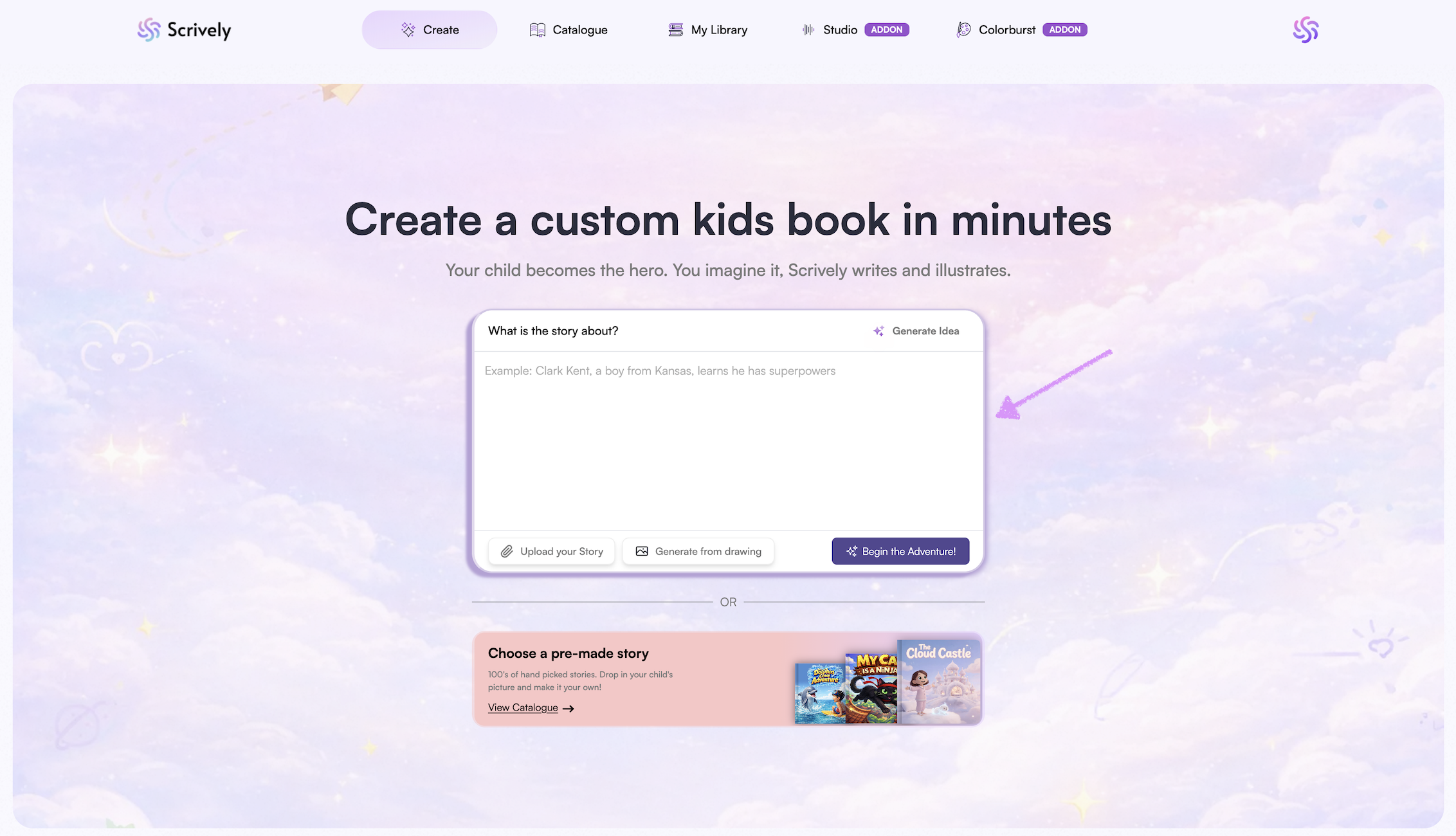
Need an idea for a story? Use the "Generate Idea" option and Scrively will create one for you.
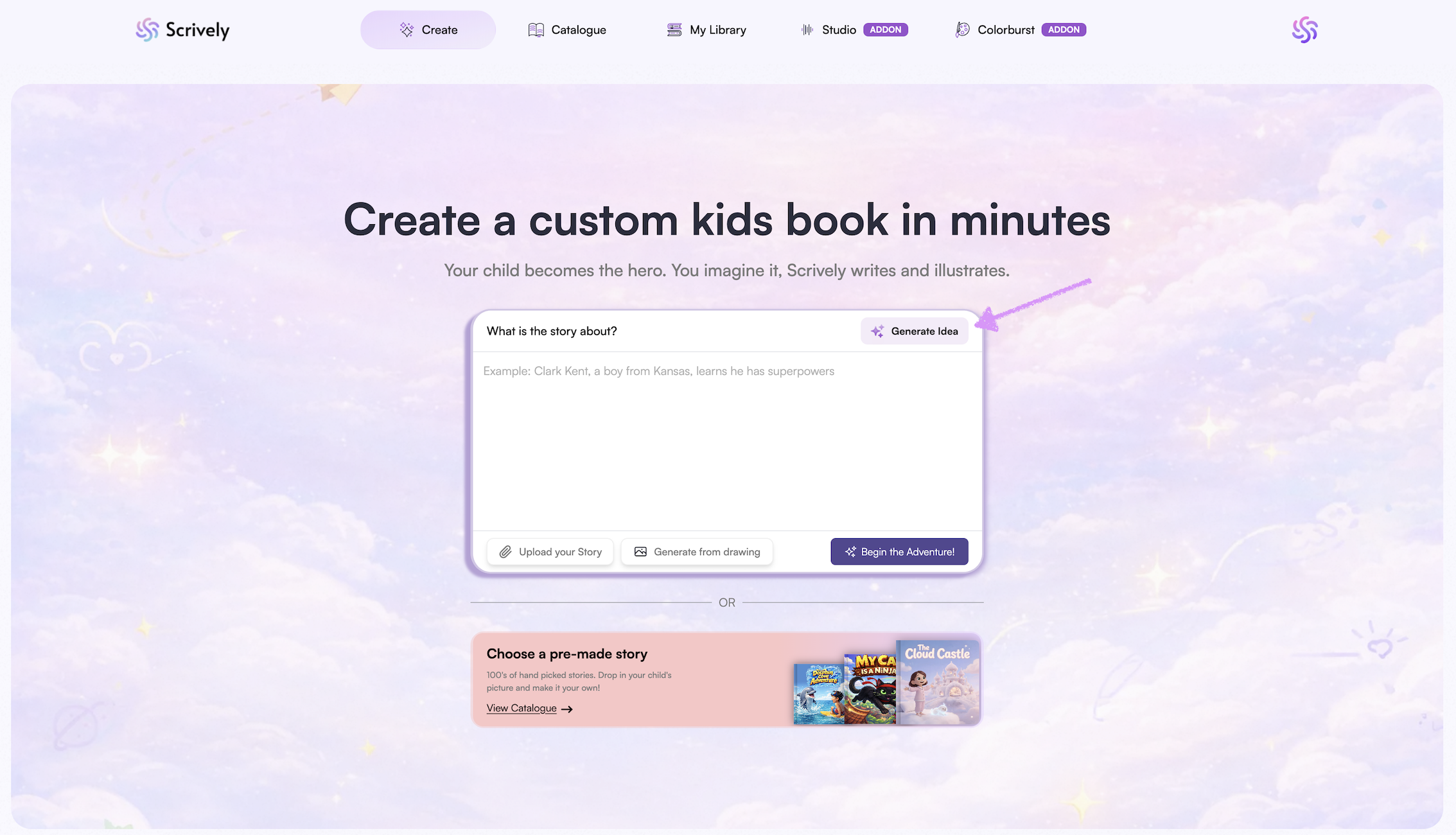
If you prefer to start with your prewritten story use the "Upload your story" option.
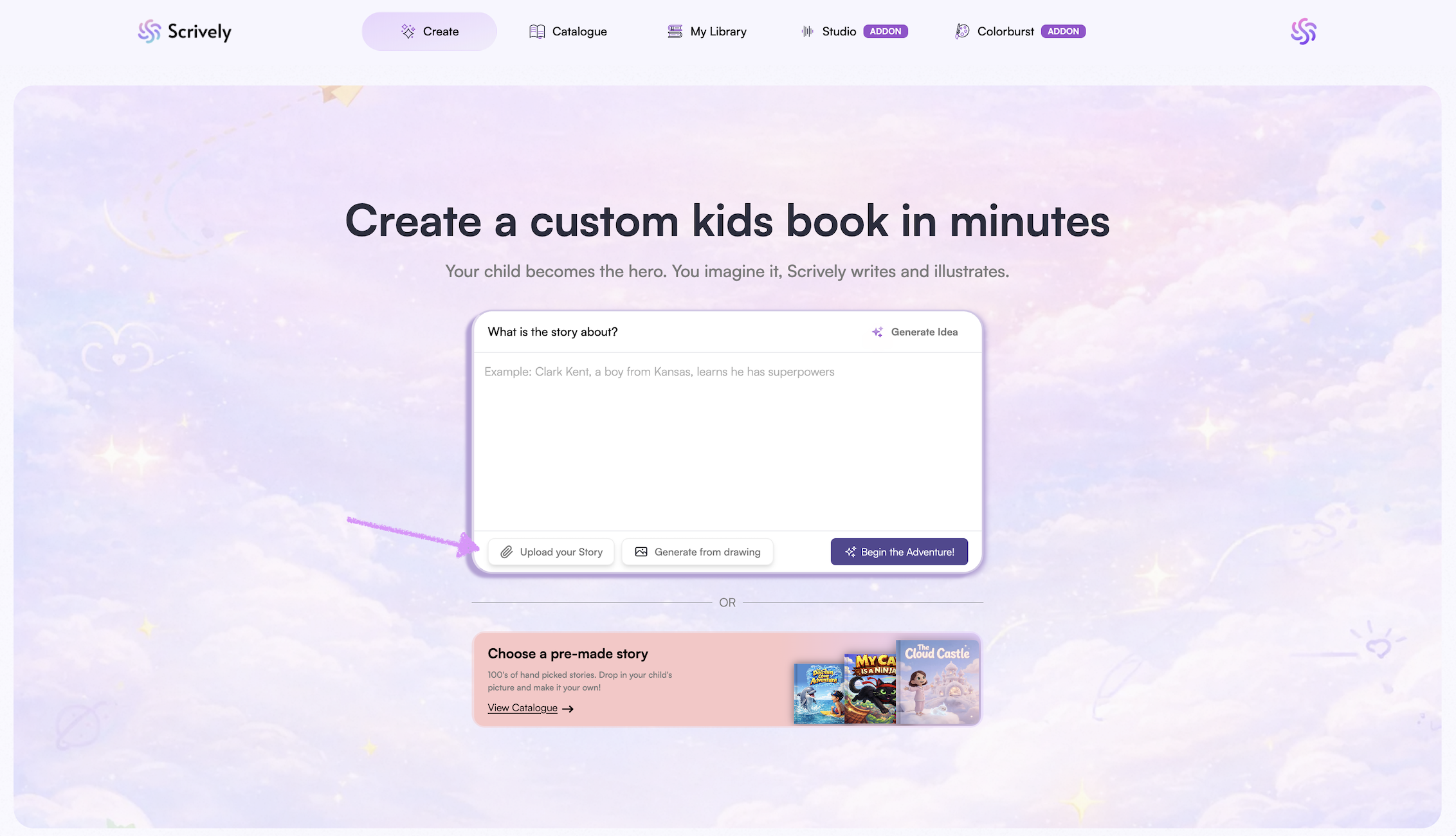
You also have the option to upload a drawing, which Scrively can use to generate a story based on your illustration.
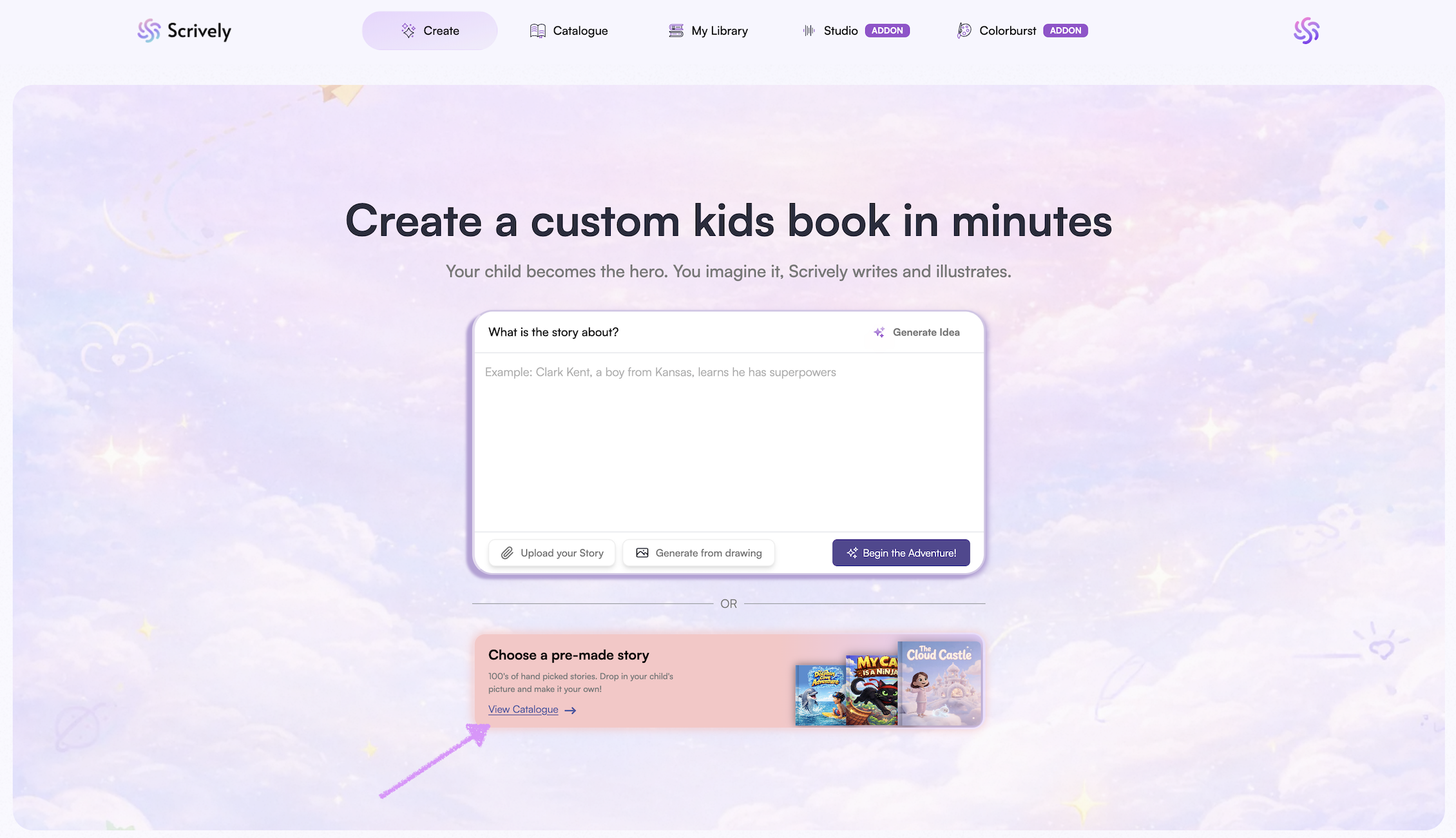
Or you can head over to the pre-made stories catalogue to choose and start with a pre-made book template.
Manage your user account settings
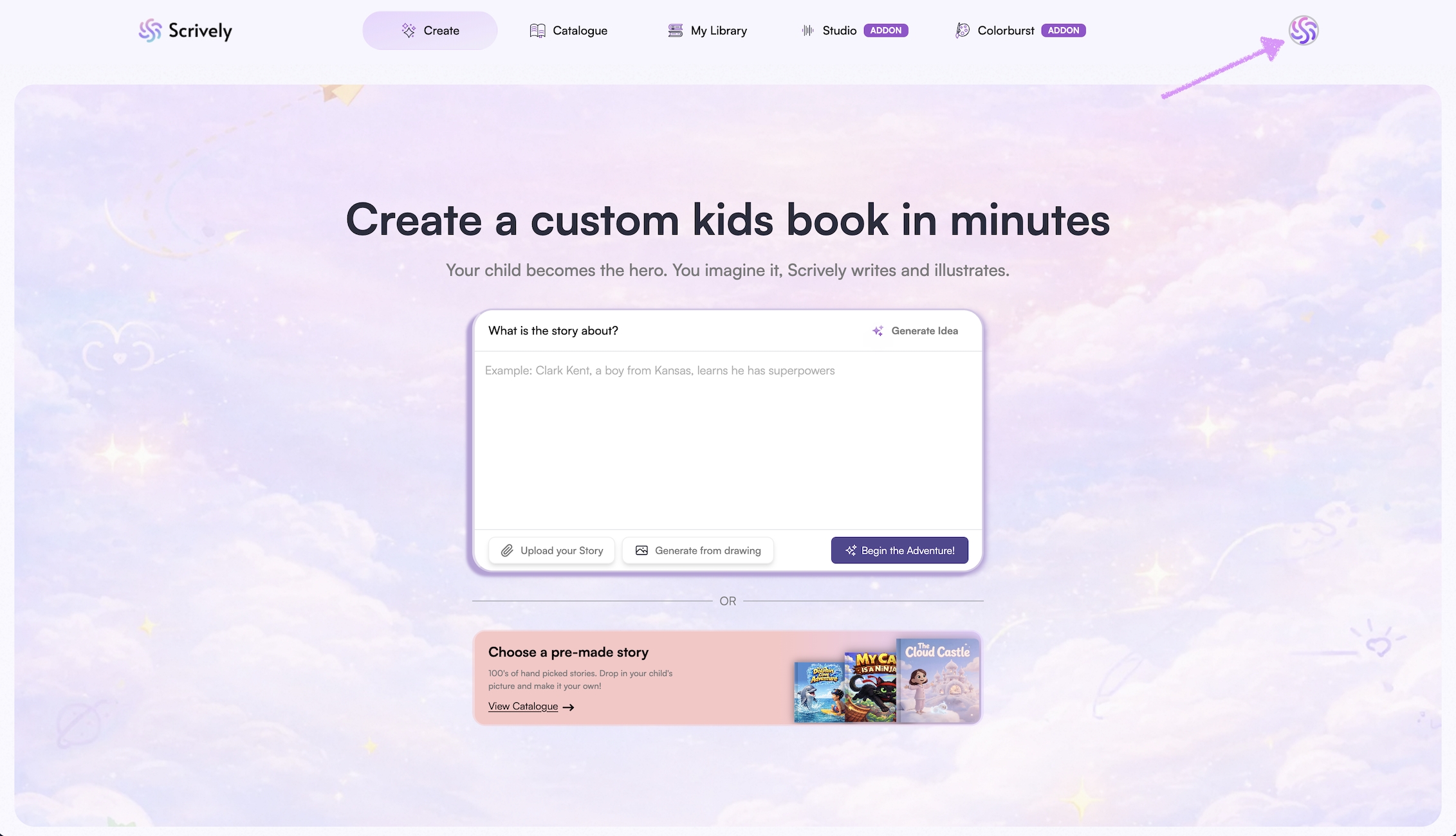
To manage your account, click on your avatar at the top right corner of the app. Here you can review your plan information, credits for purchasing hardcover storybooks or paperback coloring books, account preferences, orders, contact support and sign out.
You’ll be able to view your account's profile image, name and current plan.
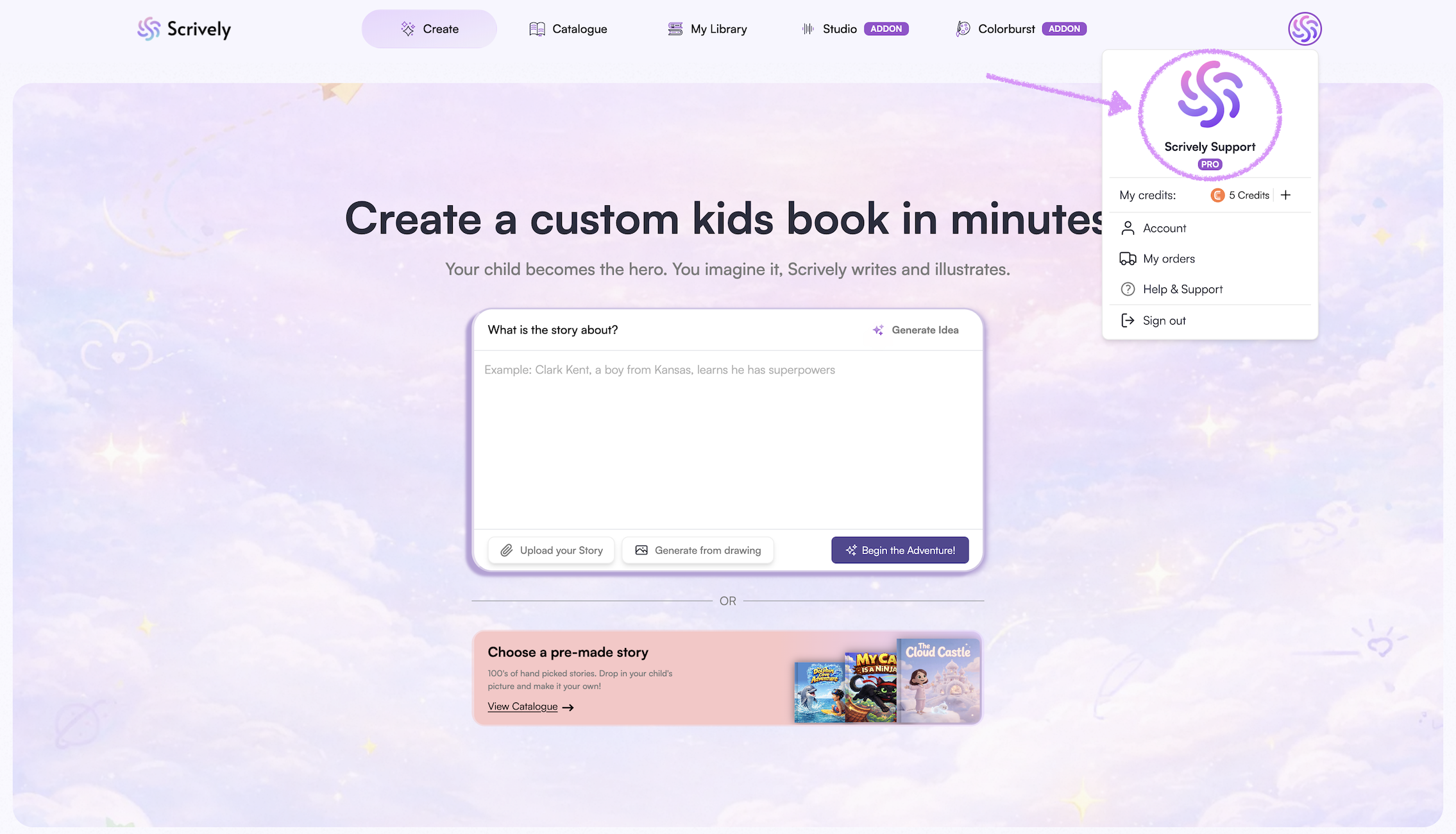
Track your available credits for ordering hardcover copies of your storybooks or paperback copies of your coloring books, all in one place.
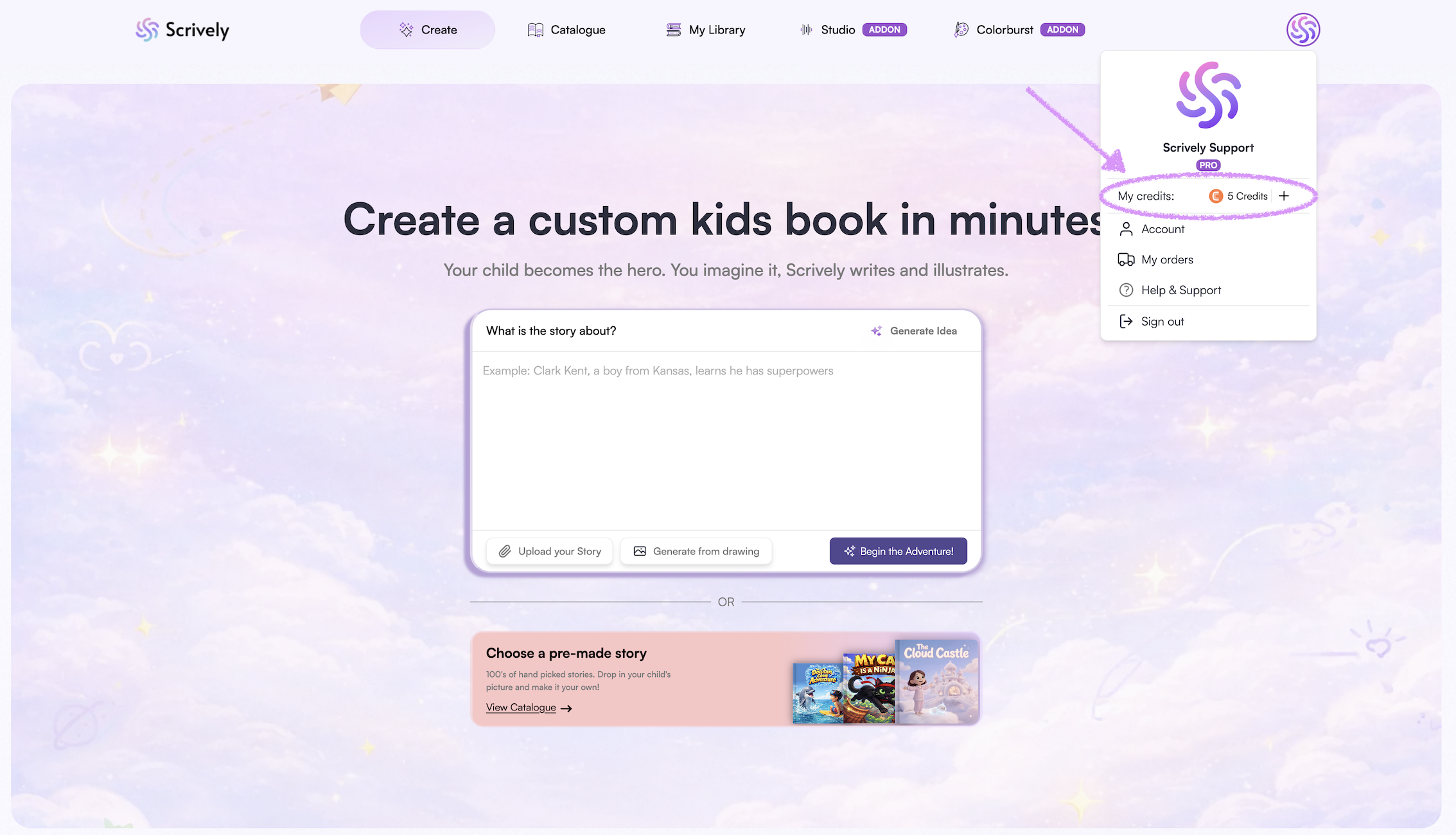
Below the credits details, you'll see the "Account" tab where you can update your account's profile image, name and password.
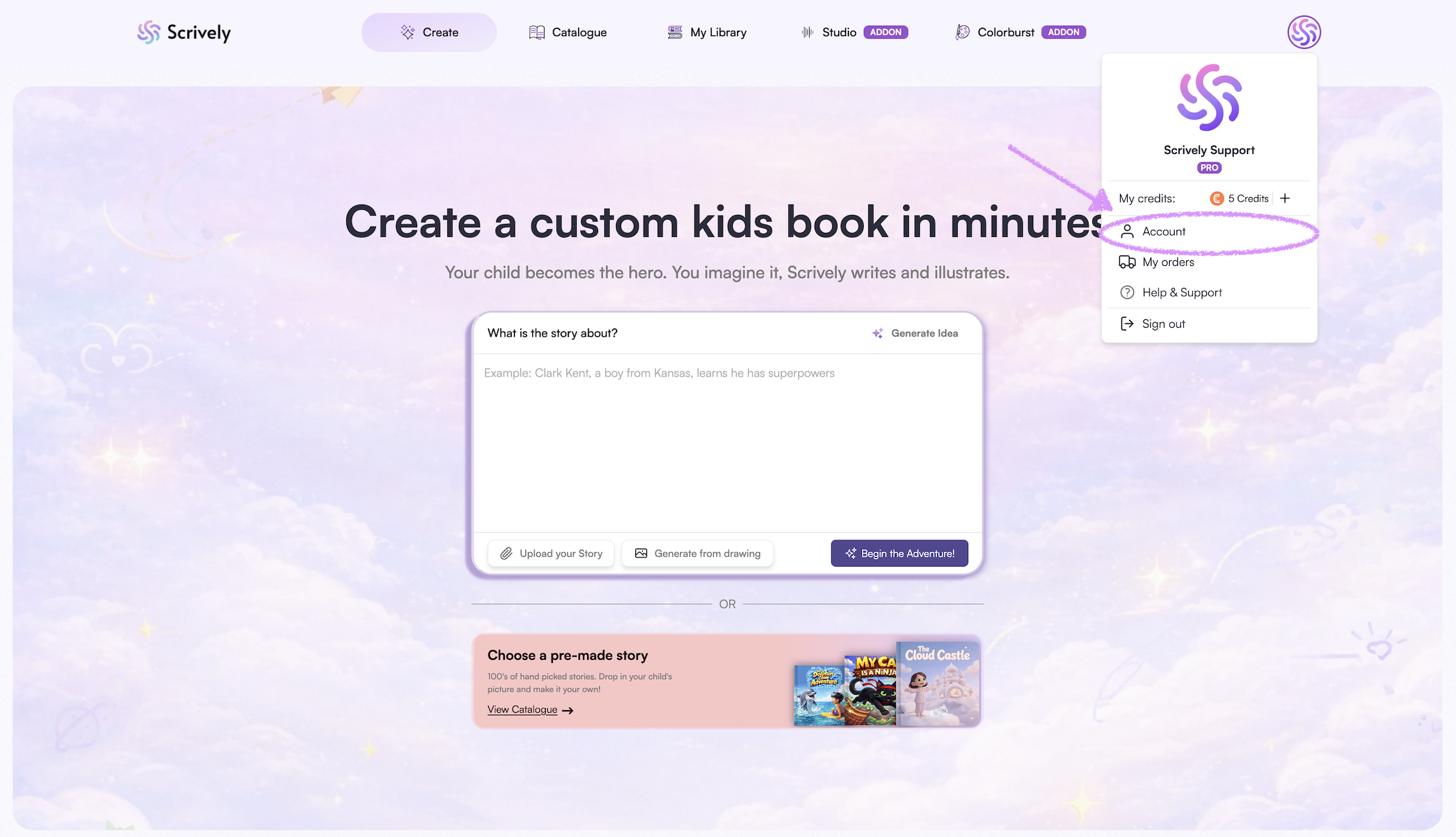
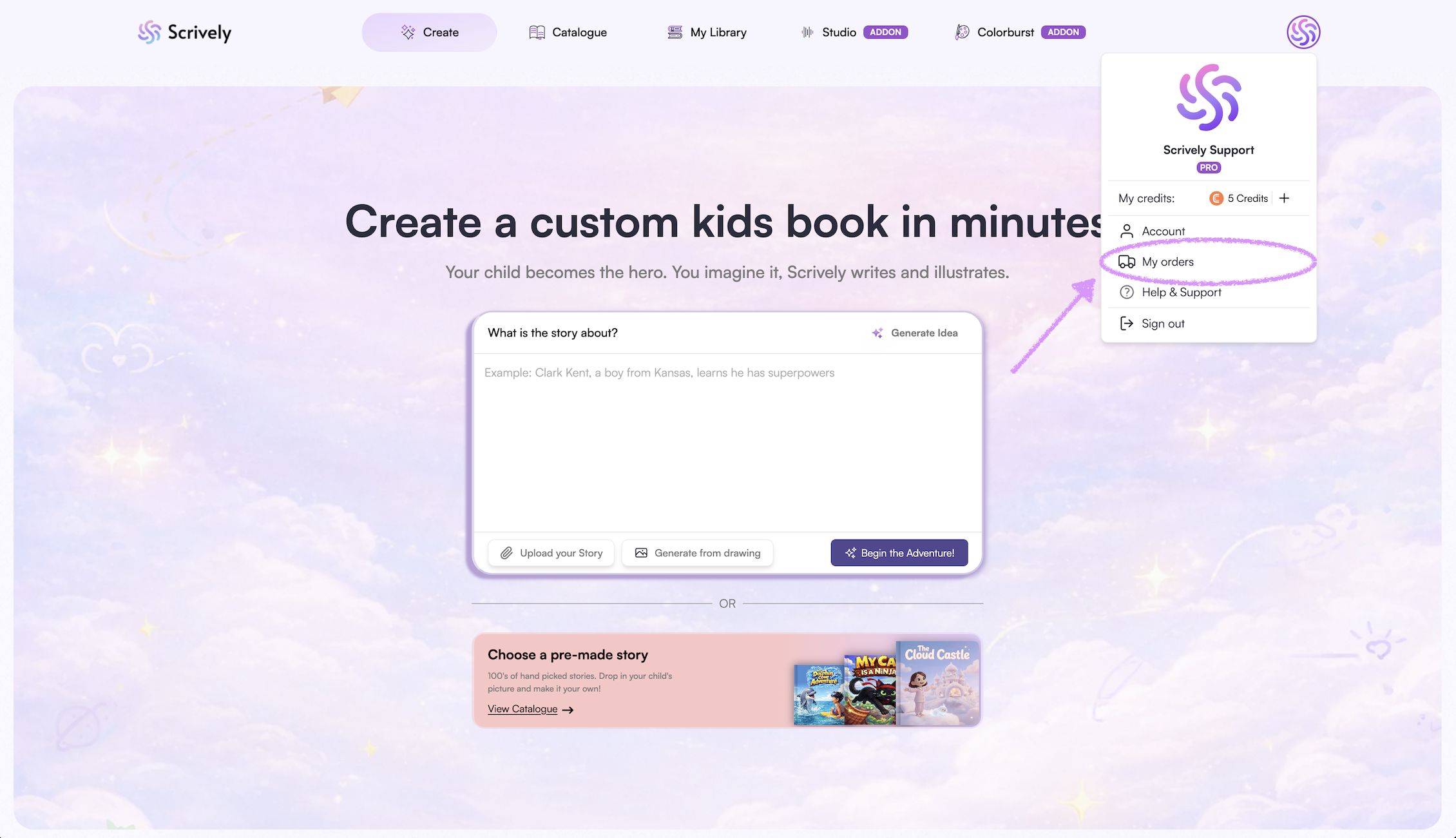
Note: To update your account's email address, please reach out to our customer experience team. To facilitate this change, we will need proof of purchase, which can be provided in the form of the payment confirmation receipt sent to you.Just below the Account tab, you’ll find “My Orders,” where you can view, manage, and see details for all your past and current book orders.
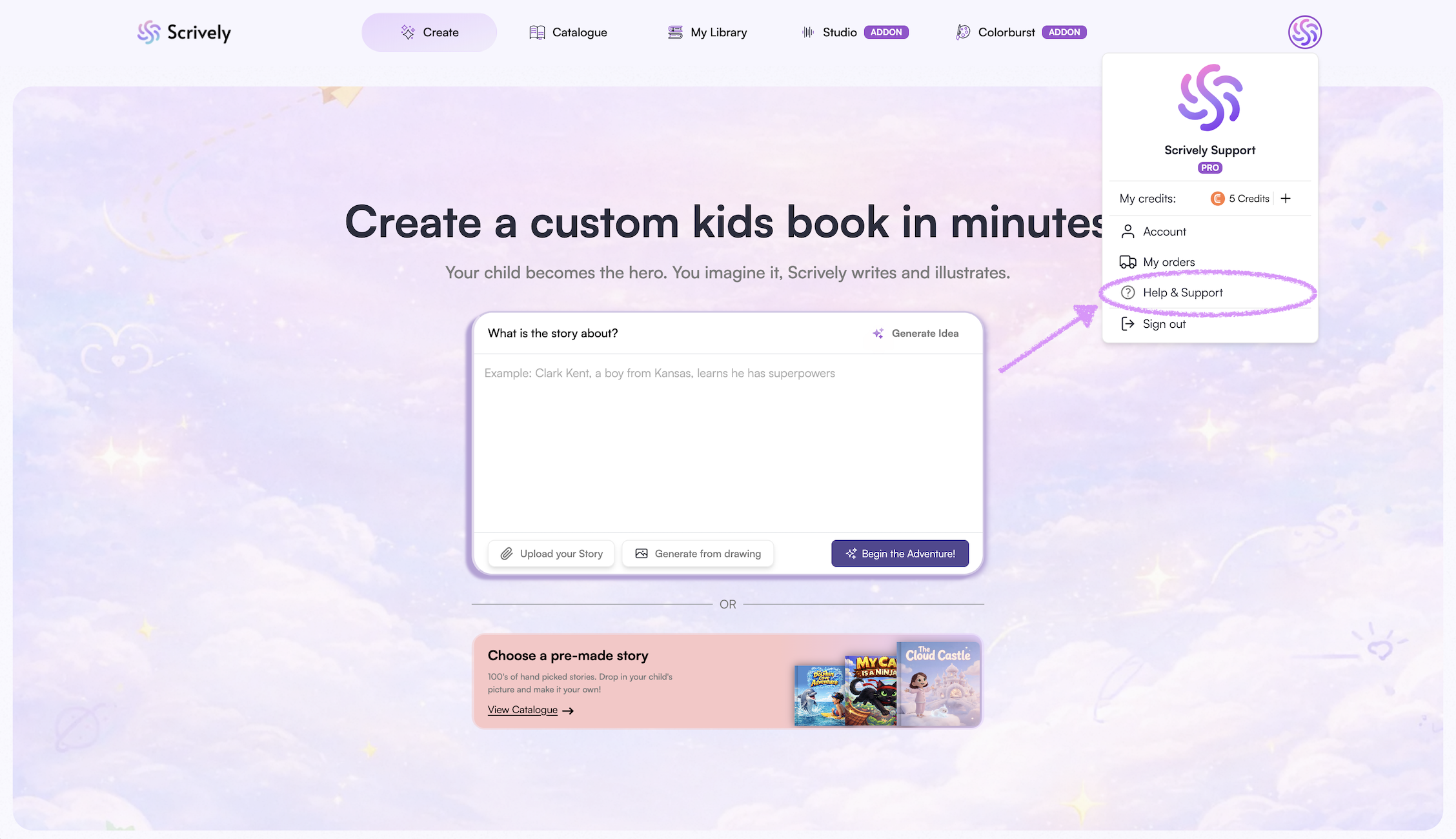
Have questions or need help? Click on “Help & Support” to get in touch with our Customer Experience team.
Done for the day? Click on "Sign out" to log out of your account.
Was this article helpful?
That’s Great!
Thank you for your feedback
Sorry! We couldn't be helpful
Thank you for your feedback
Feedback sent
We appreciate your effort and will try to fix the article
