
Kids love hearing stories, but they love them even more when they’re the star! Scrively makes it easy using professionally designed premade book templates. Whether it’s a children’s book or a short story, these templates give you a beautiful foundation you can easily customize. Create a storybook where your child’s name, personality, and imagination come to life on every page. It’s the perfect gift for birthdays, bedtime, or anytime you want to make them feel special.
Head over to the "Catalogue" tab.
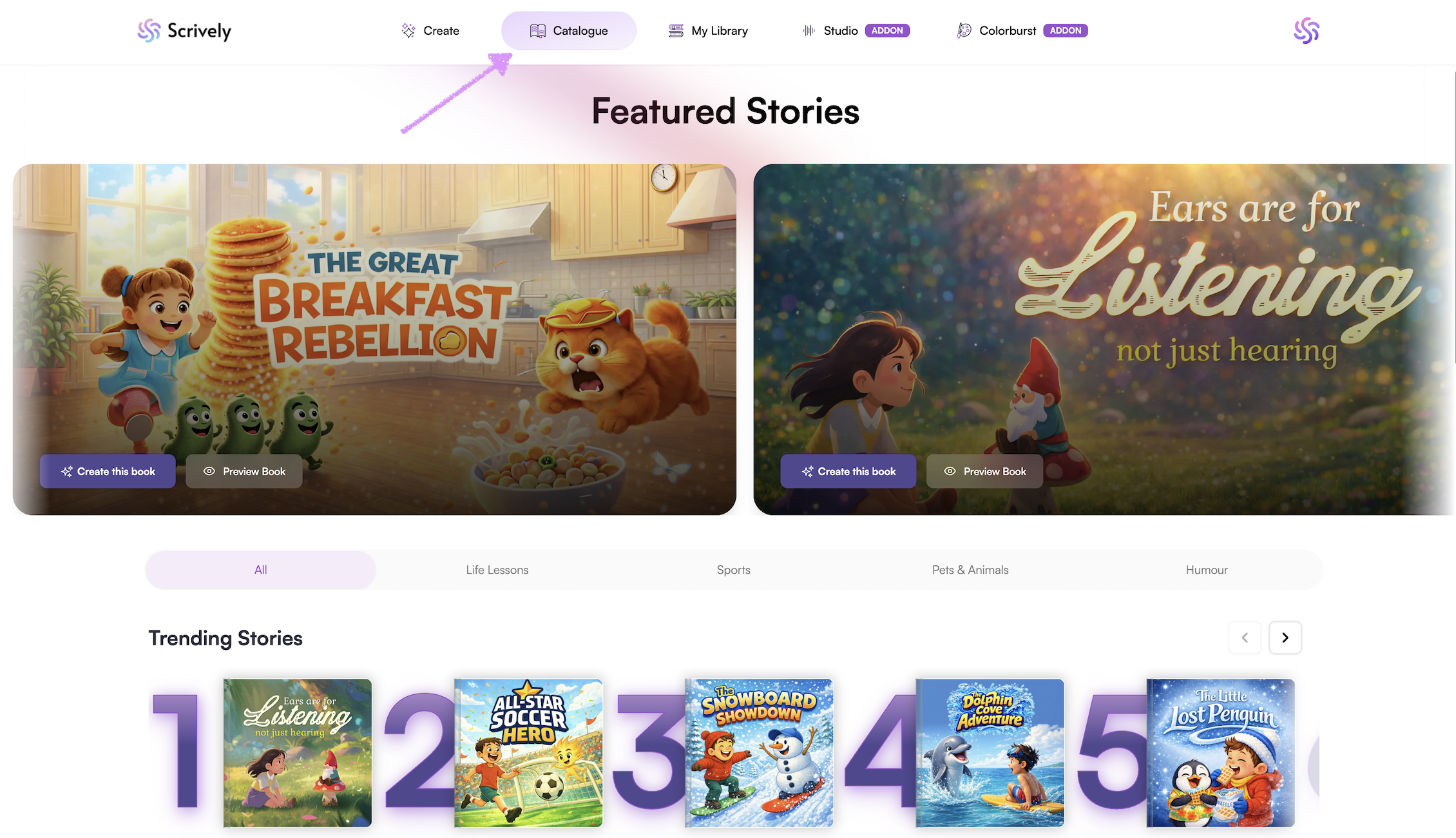
Scroll down to view a list of all available premade stories.
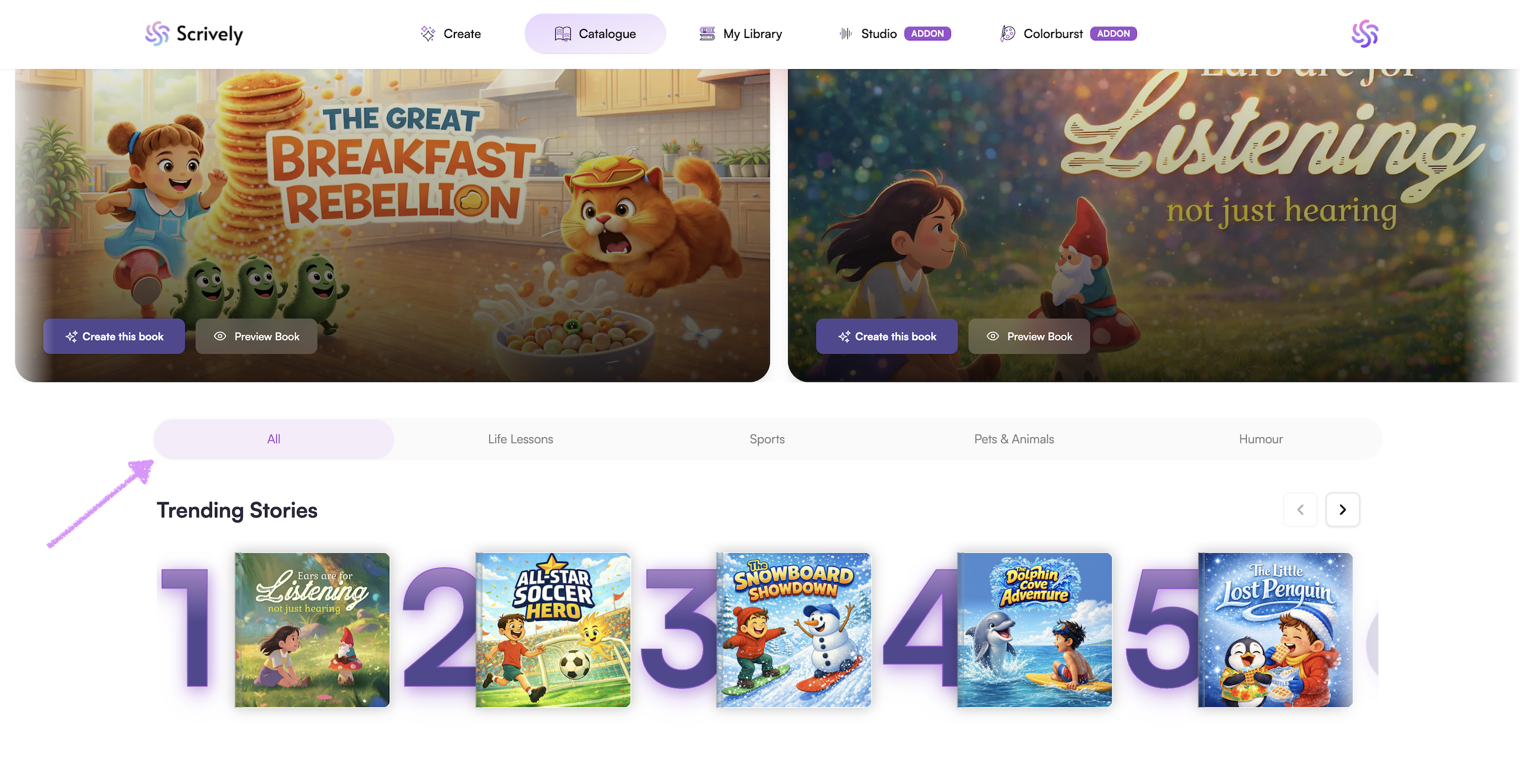
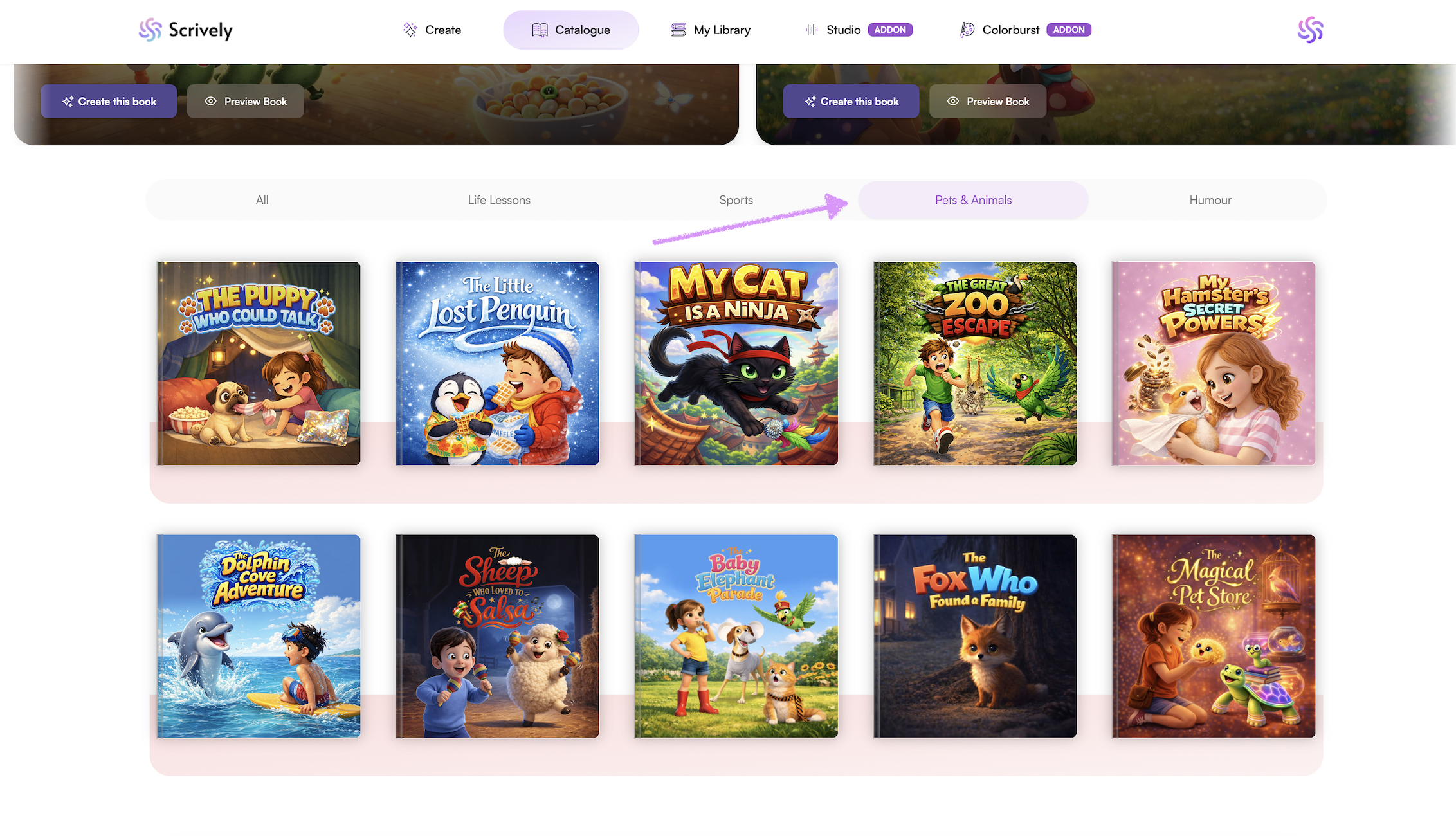
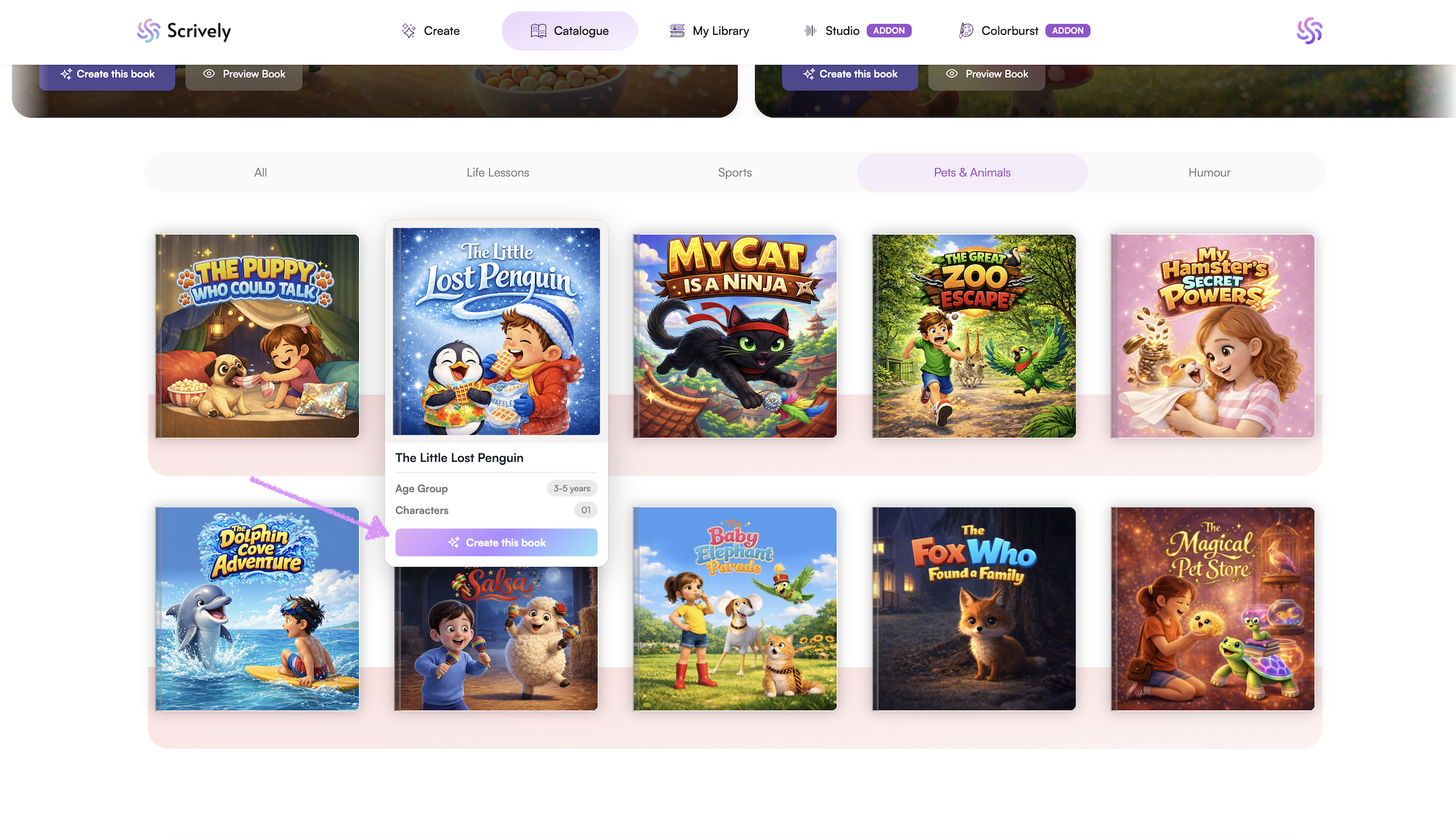
Click on a book pack to view and explore the available book templates.
Hover over the story to see a brief overview.
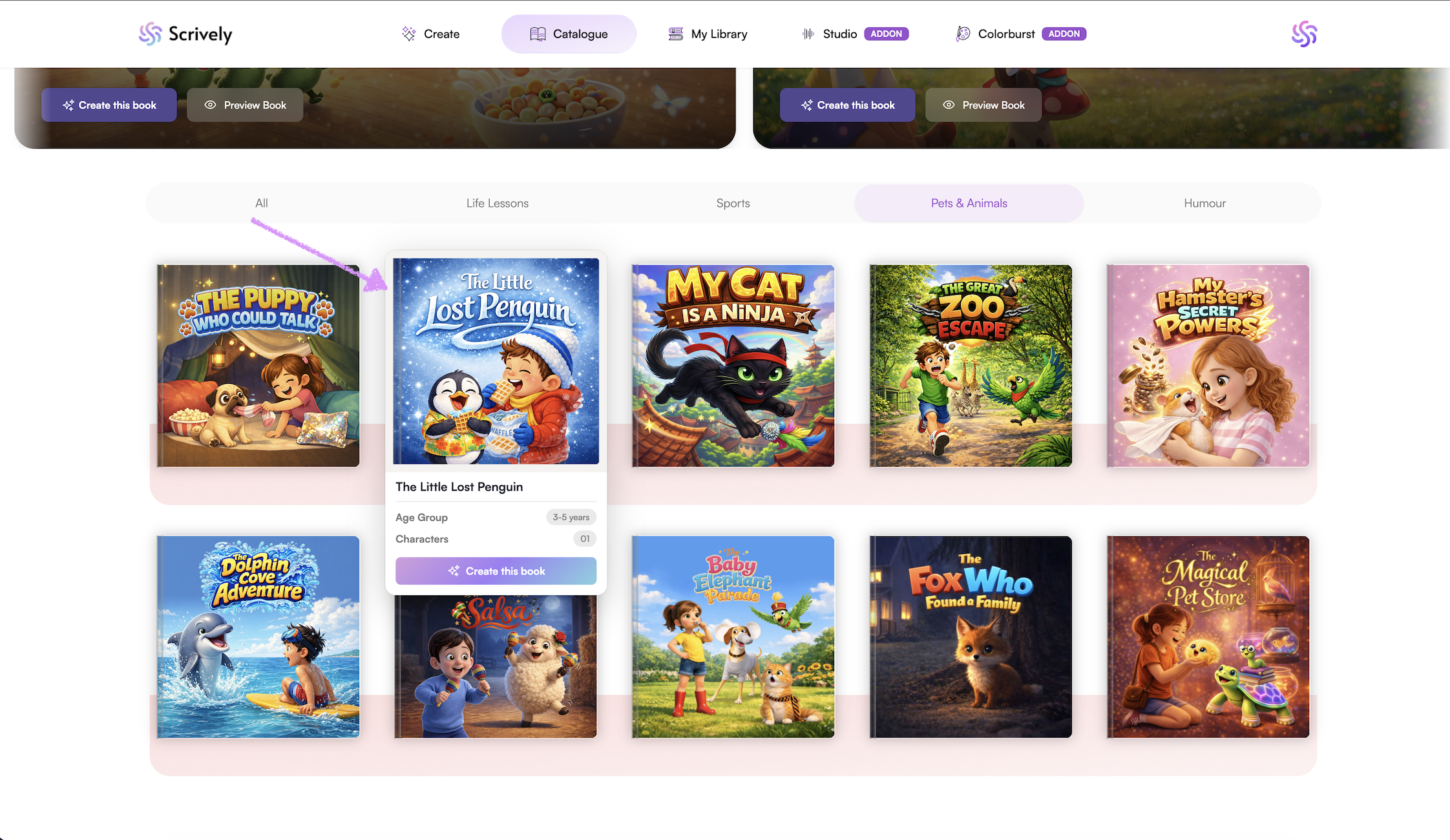
To get a more in depth look, click on "Create this book."
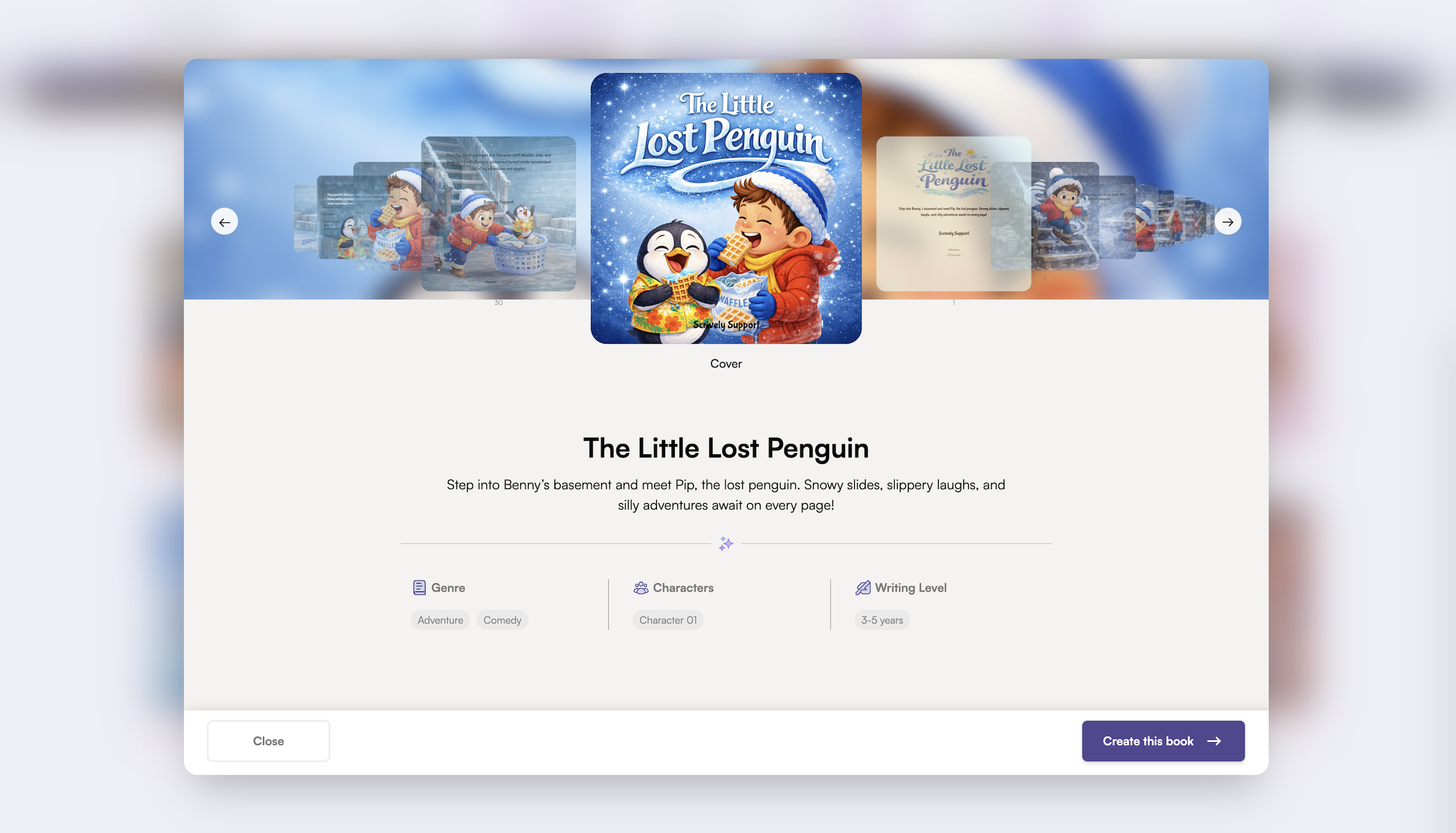
A modal will appear displaying the full story details, including the title, summary, genre, number of characters, and writing level.
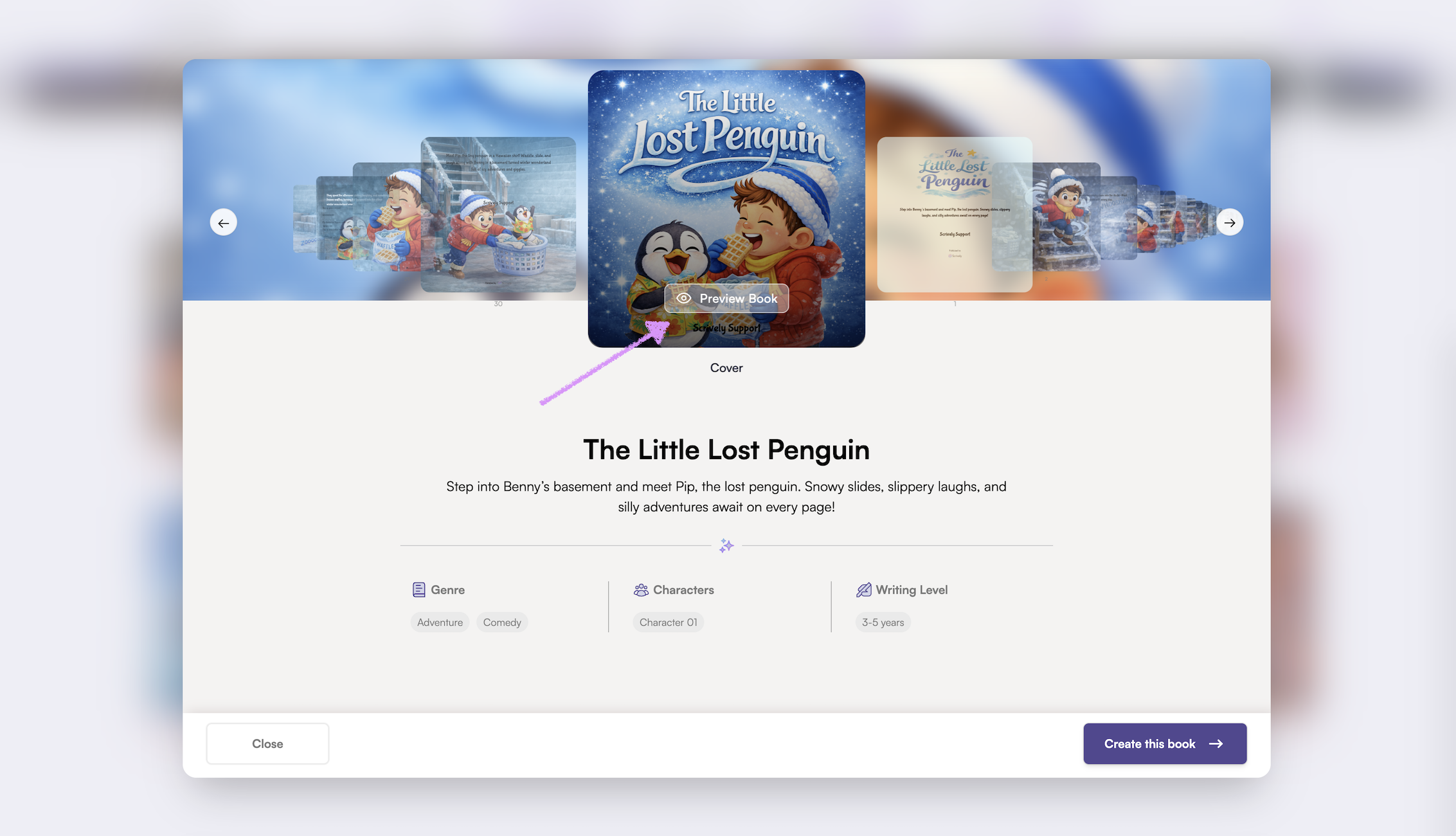
Click on "Preview Book."
Note: You can also click through the book's thumbmail images to preview.
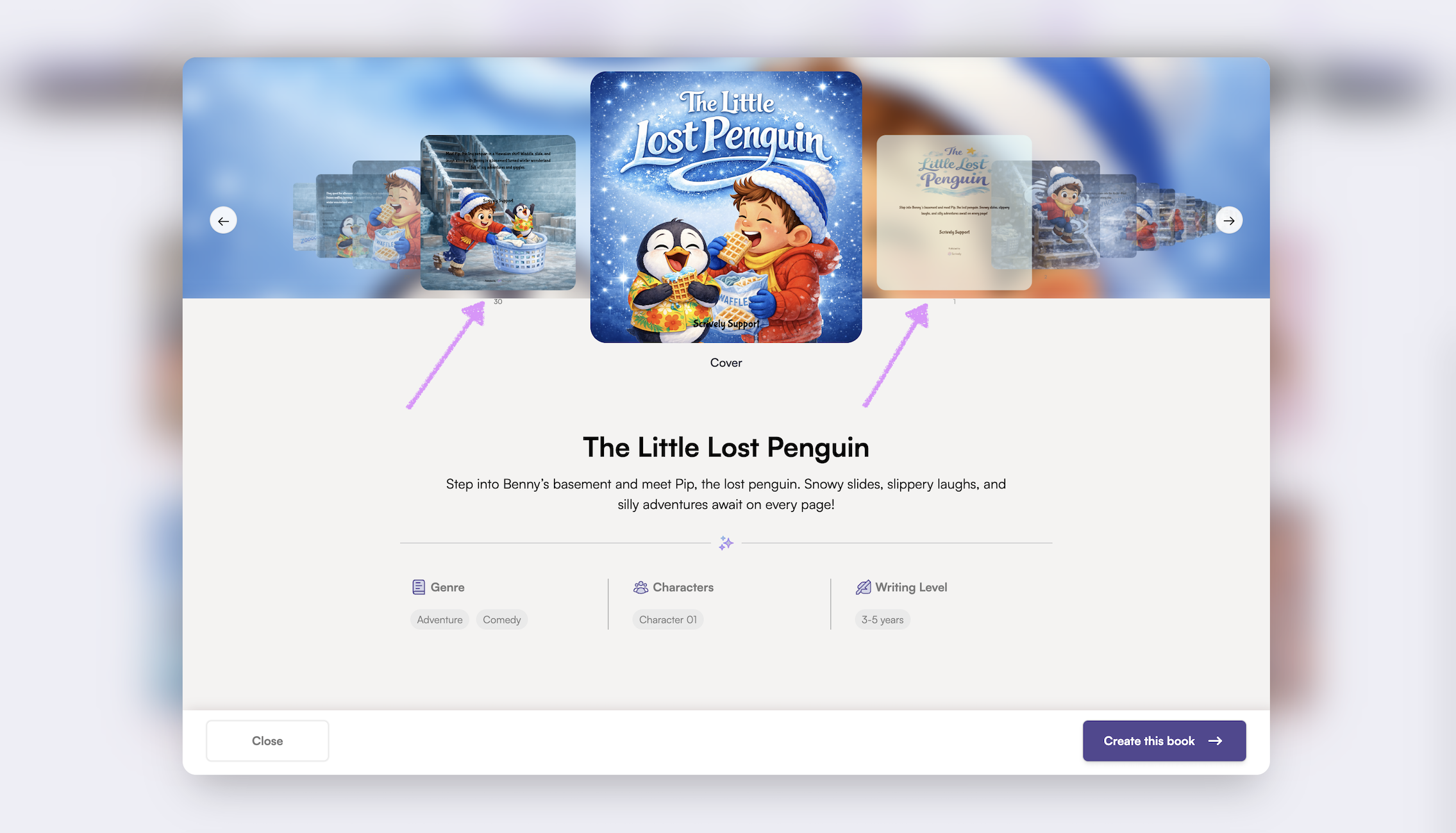
The full pages of the story will be displayed.
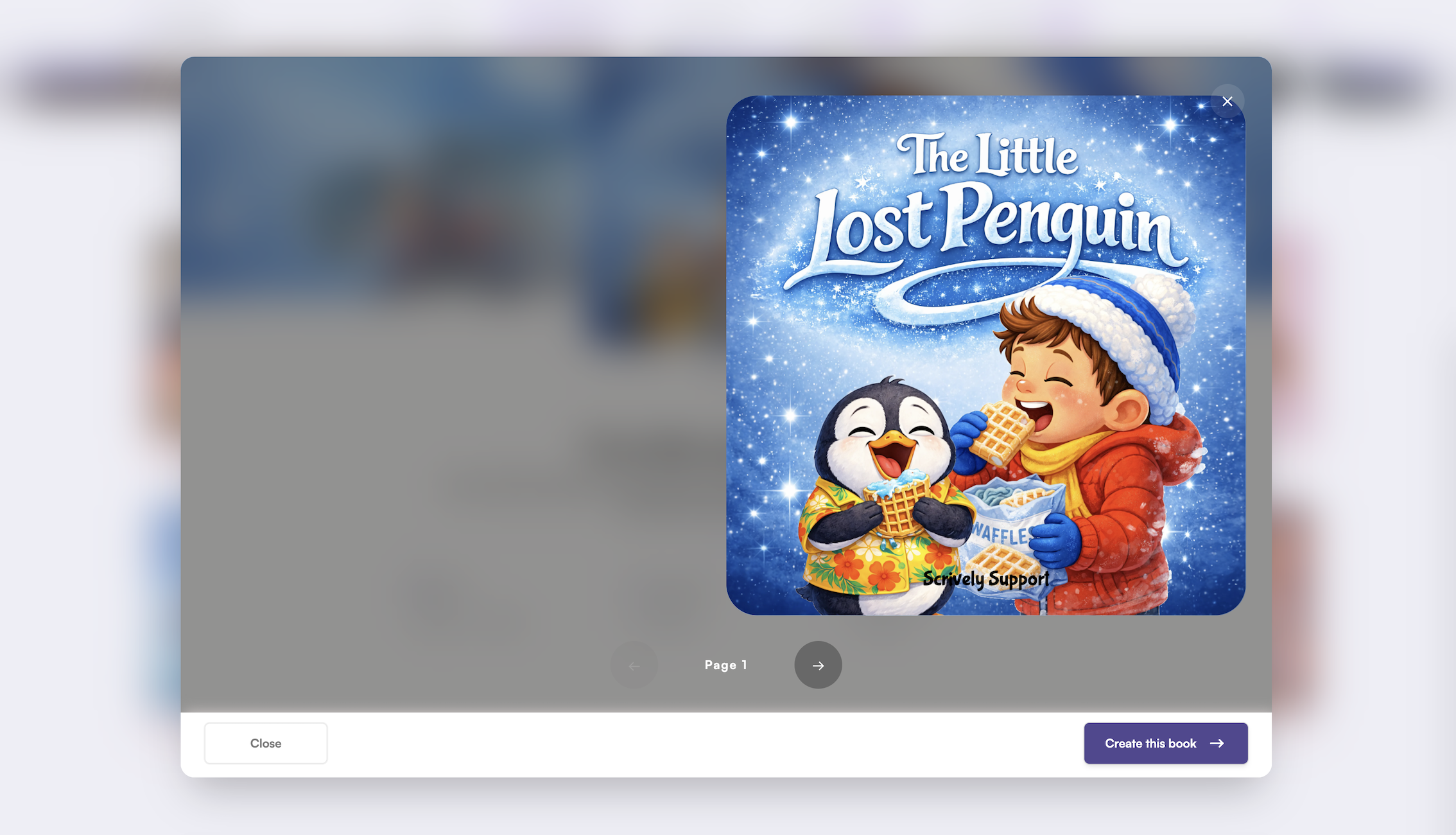
Use the left and right arrows to scroll through the pages.
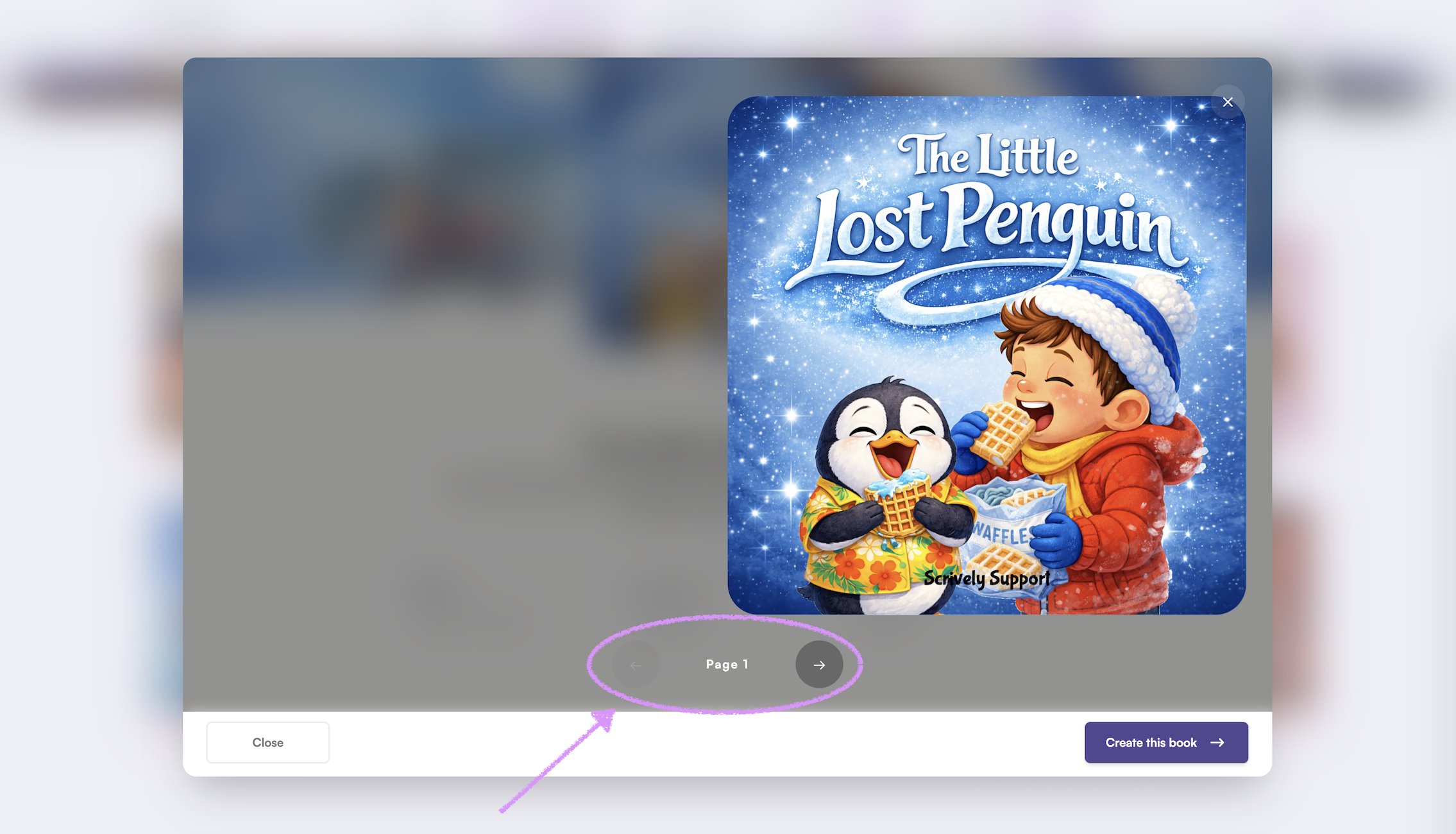
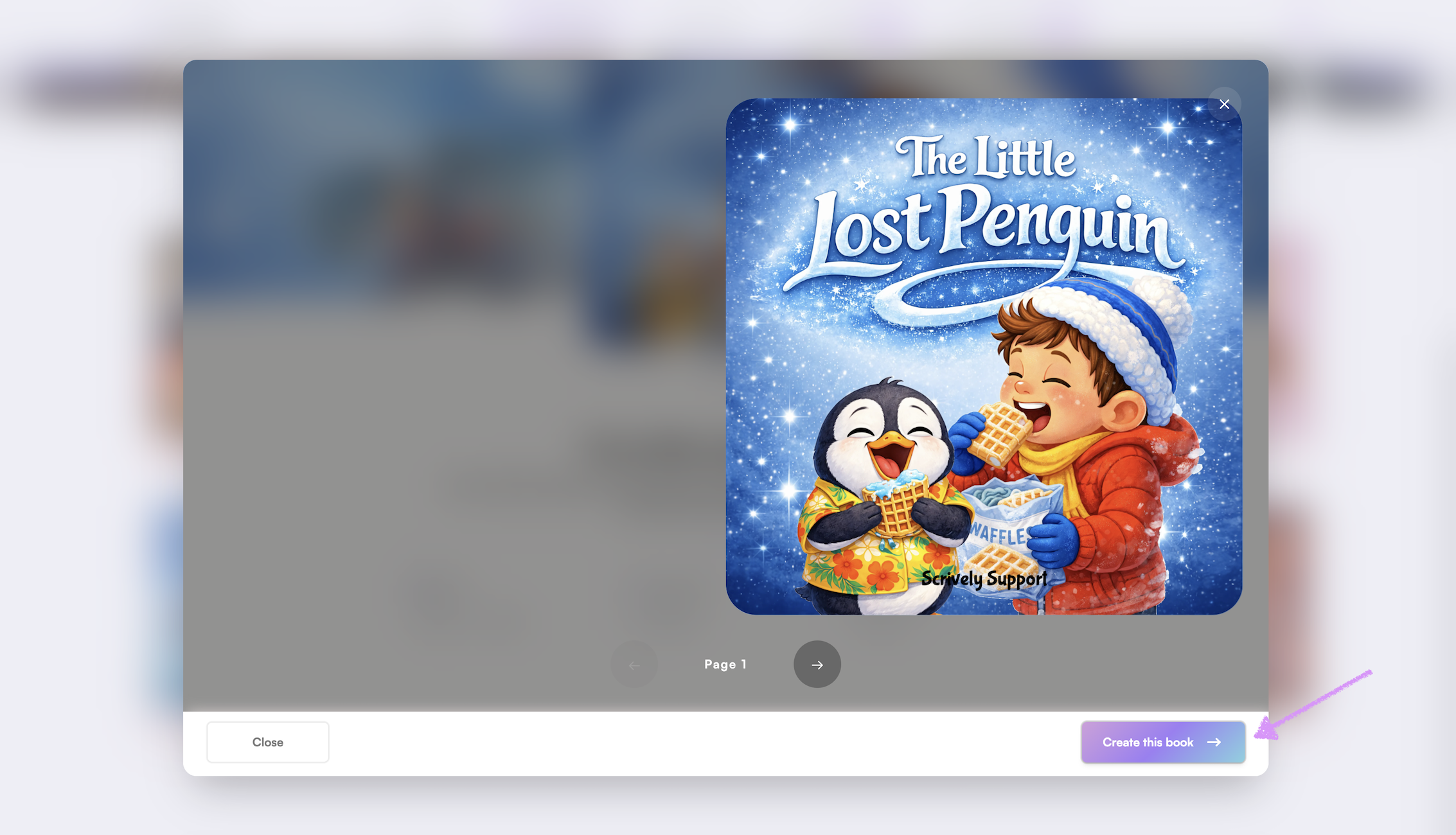
Want to use this template? Click on "Create this book."
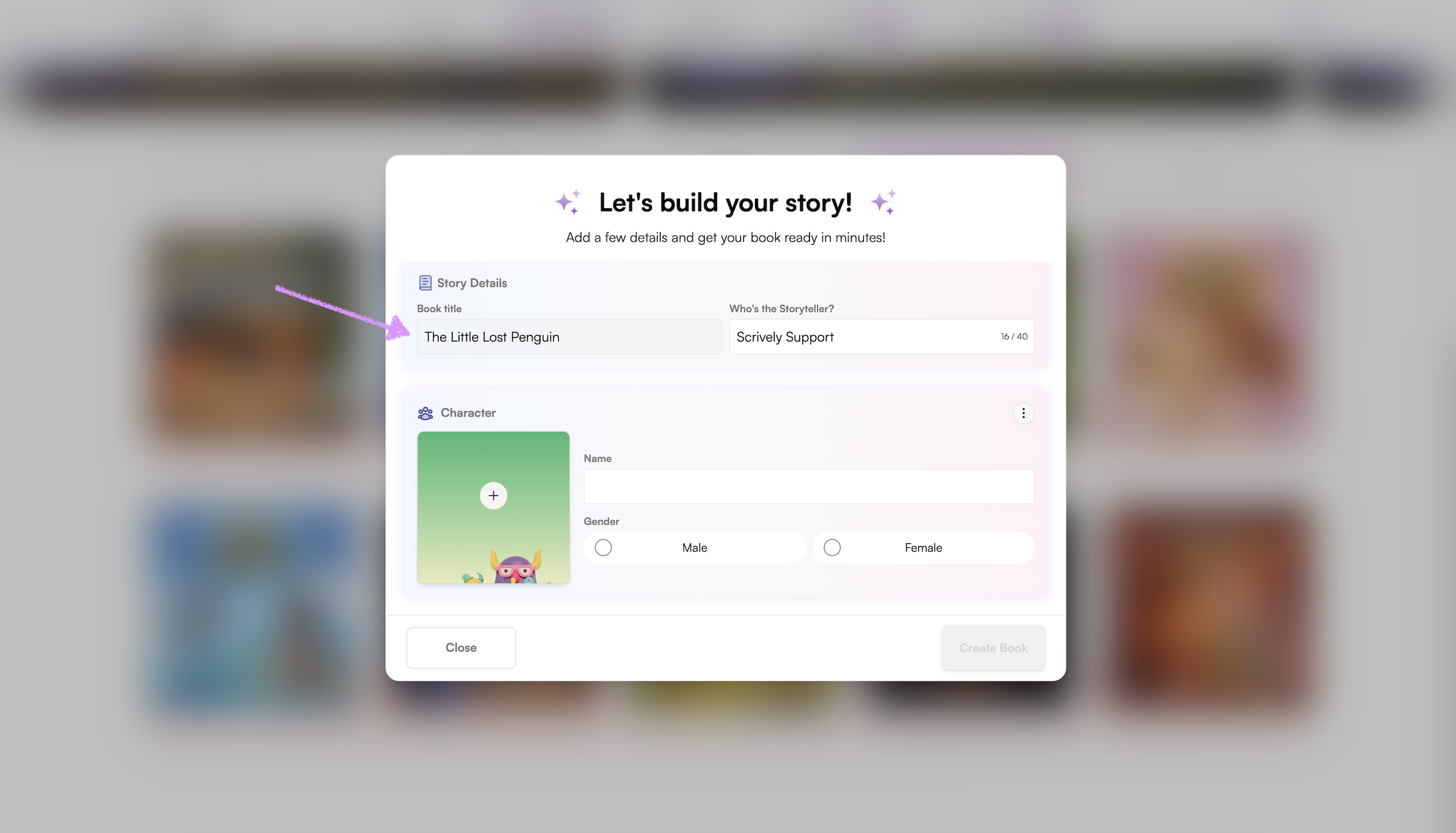
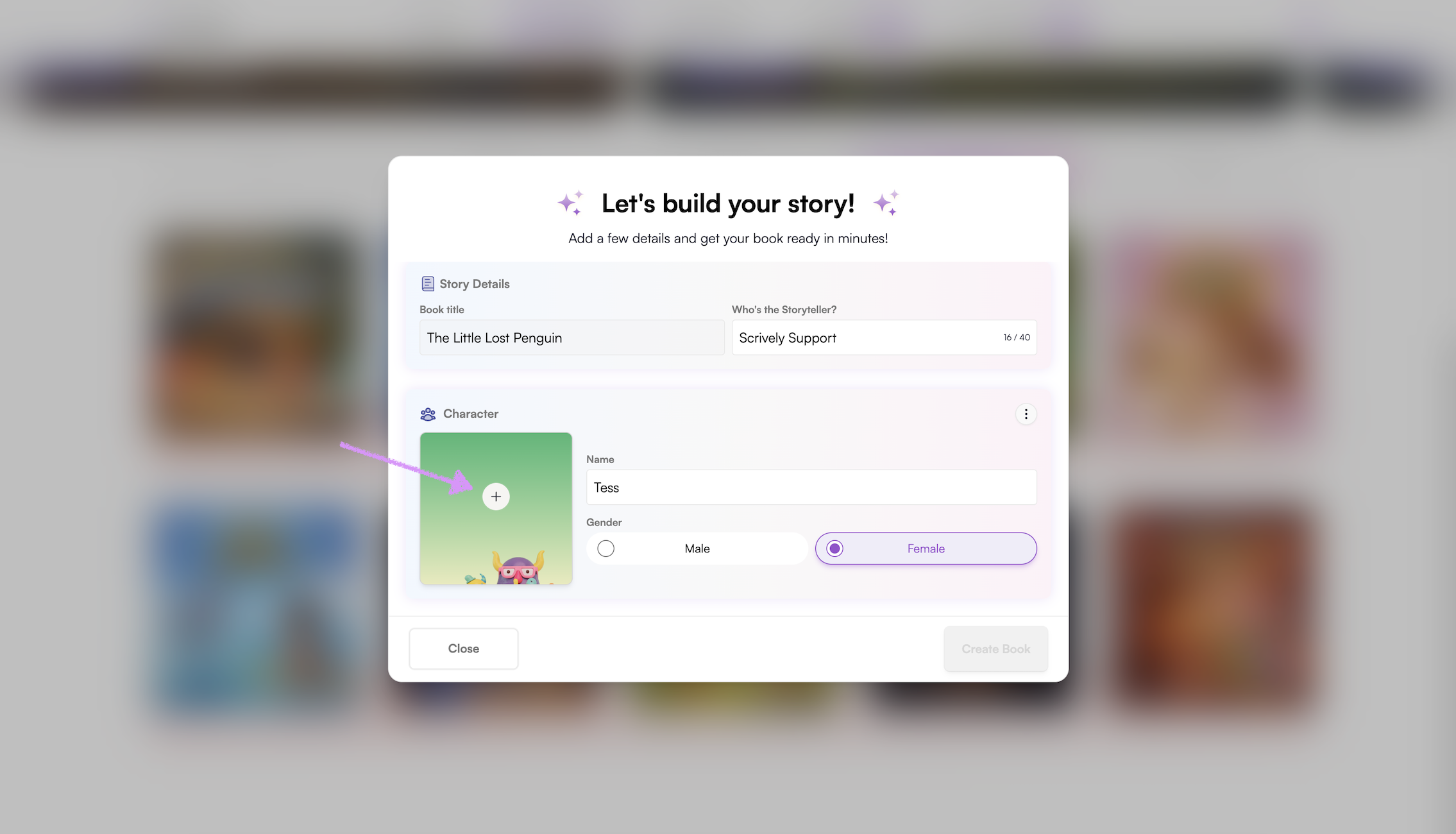
The premade books story builder will open.
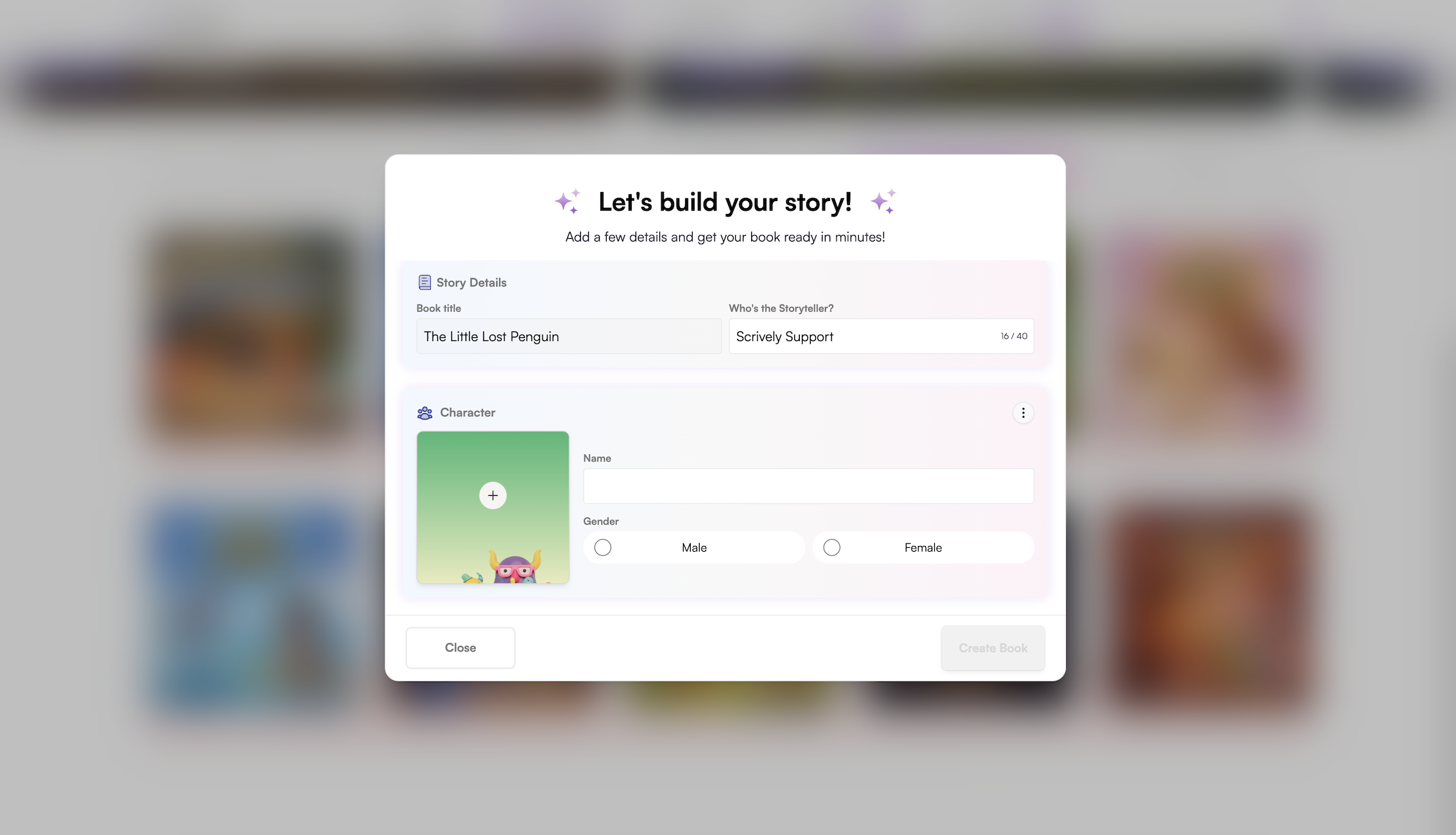
The titles for premade books are fixed to match the template and ensure consistency across all copies.
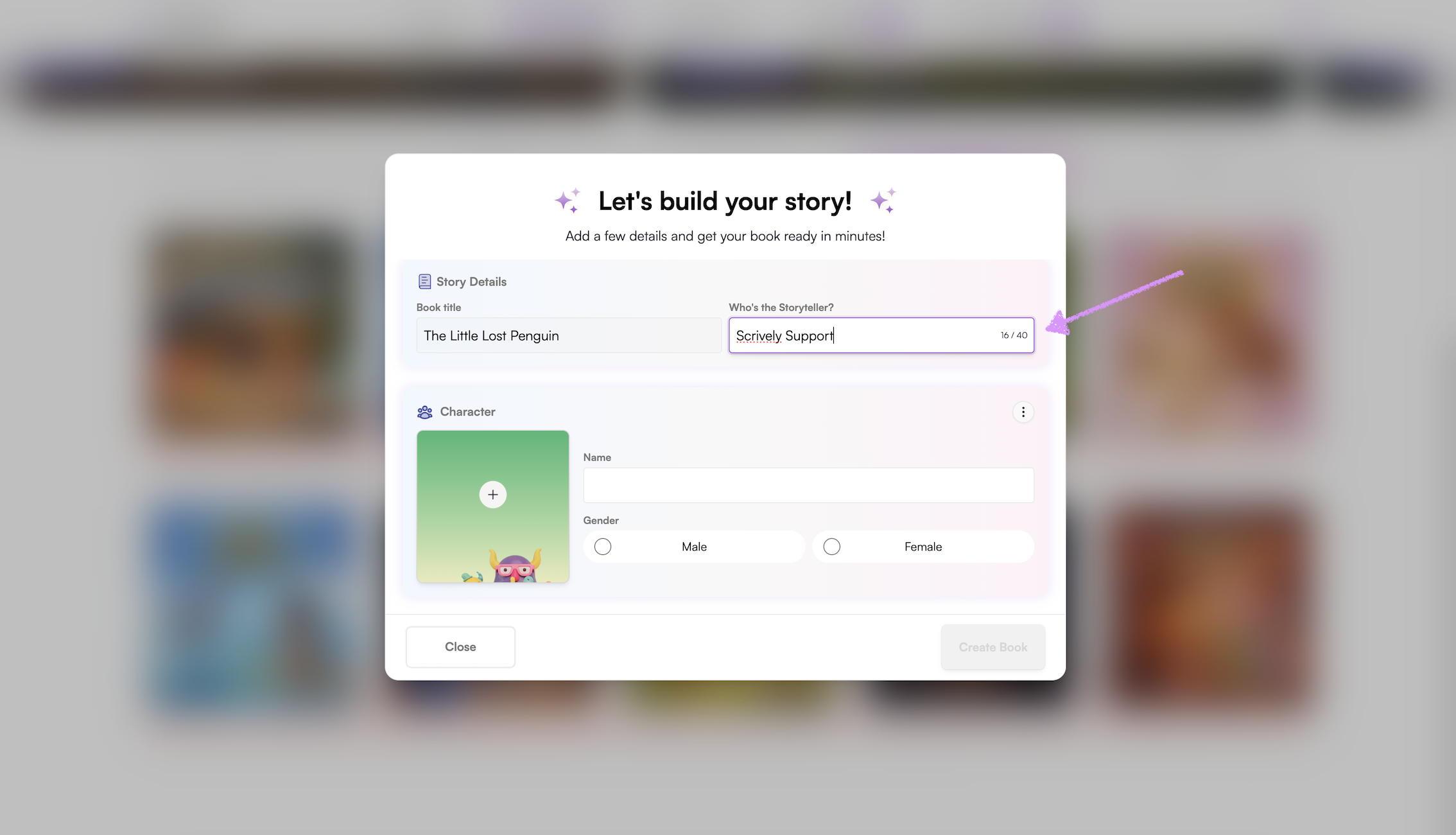
Add or update the author's name for the story.
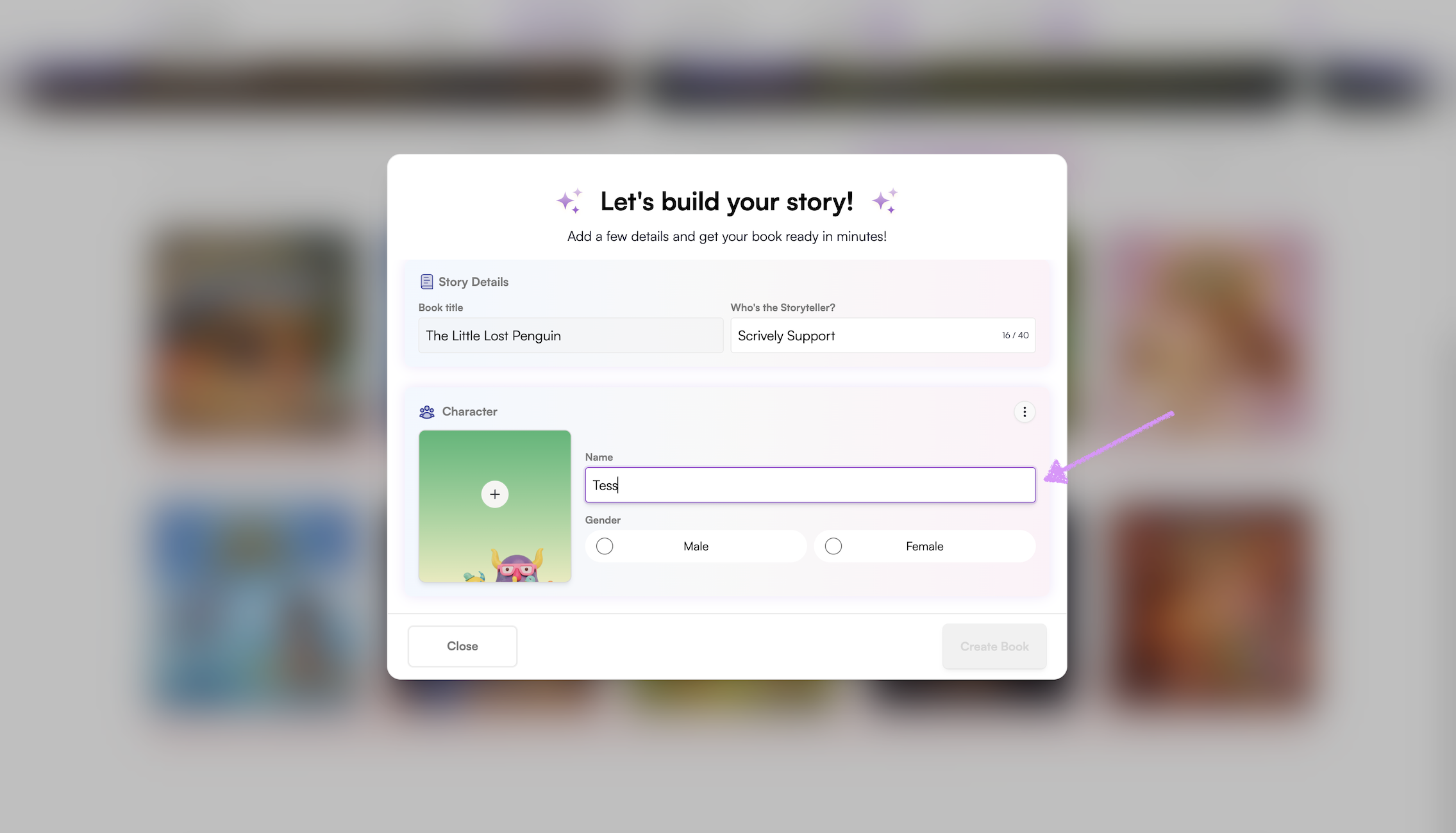
Give the character a name.
Select the character's gender.
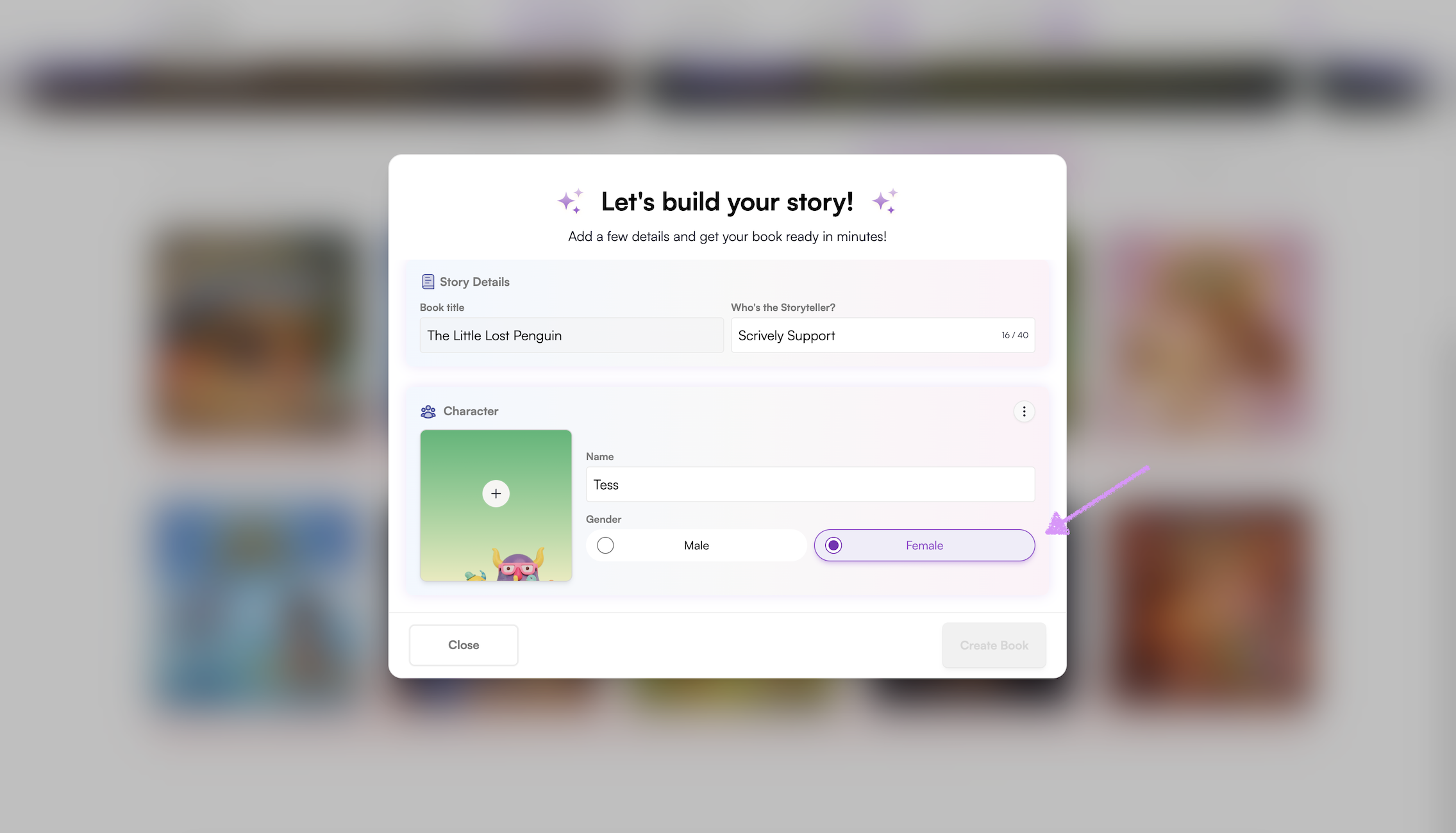
Note: If you upload a character’s image without specifying a name or gender first, these details will automatically be prefilled based on the image.Click on the "+" icon to add the character's image from your device.
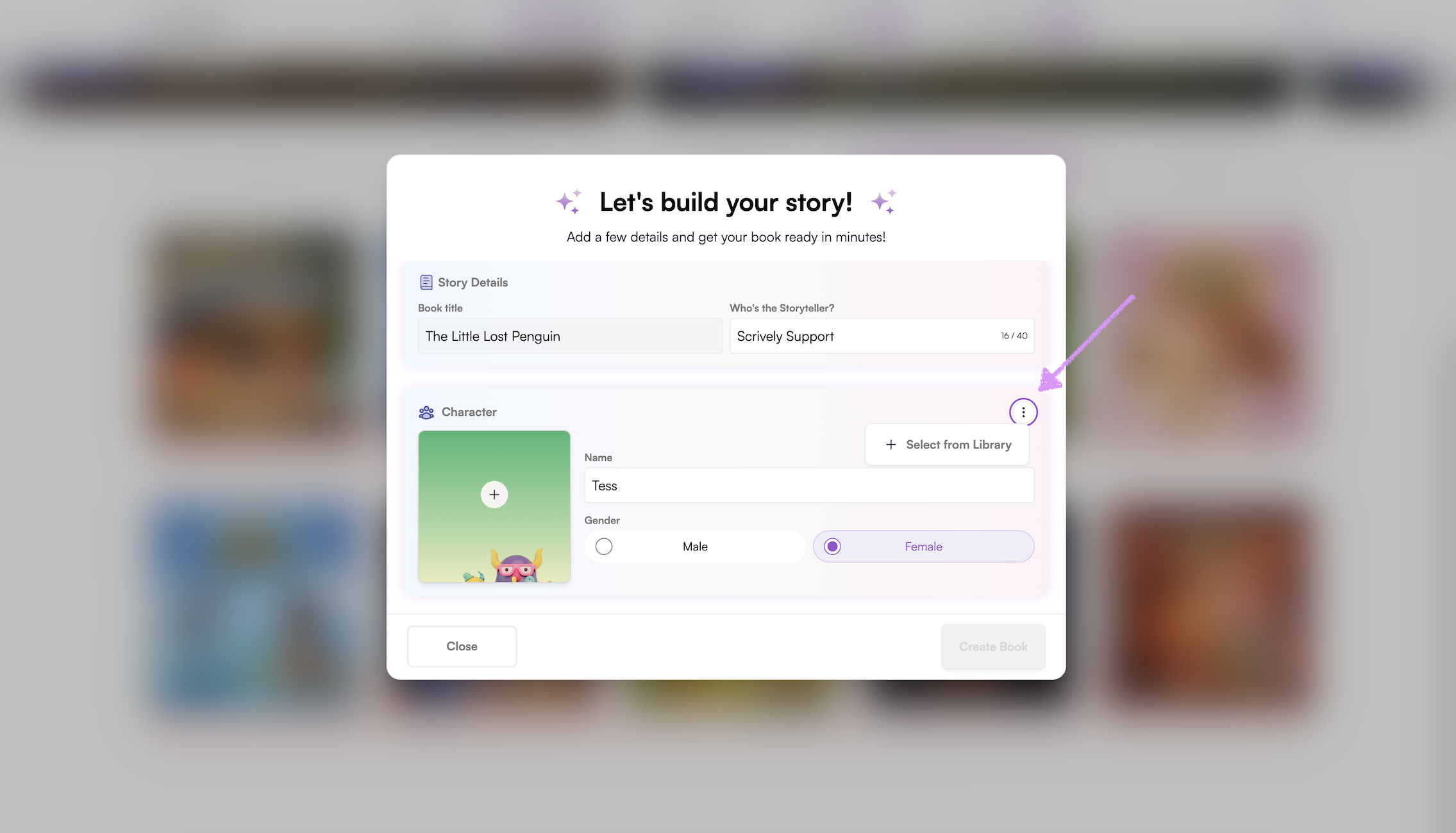
Alternatively, select a character from your library. We share more about managing characters in your library in our guide here.
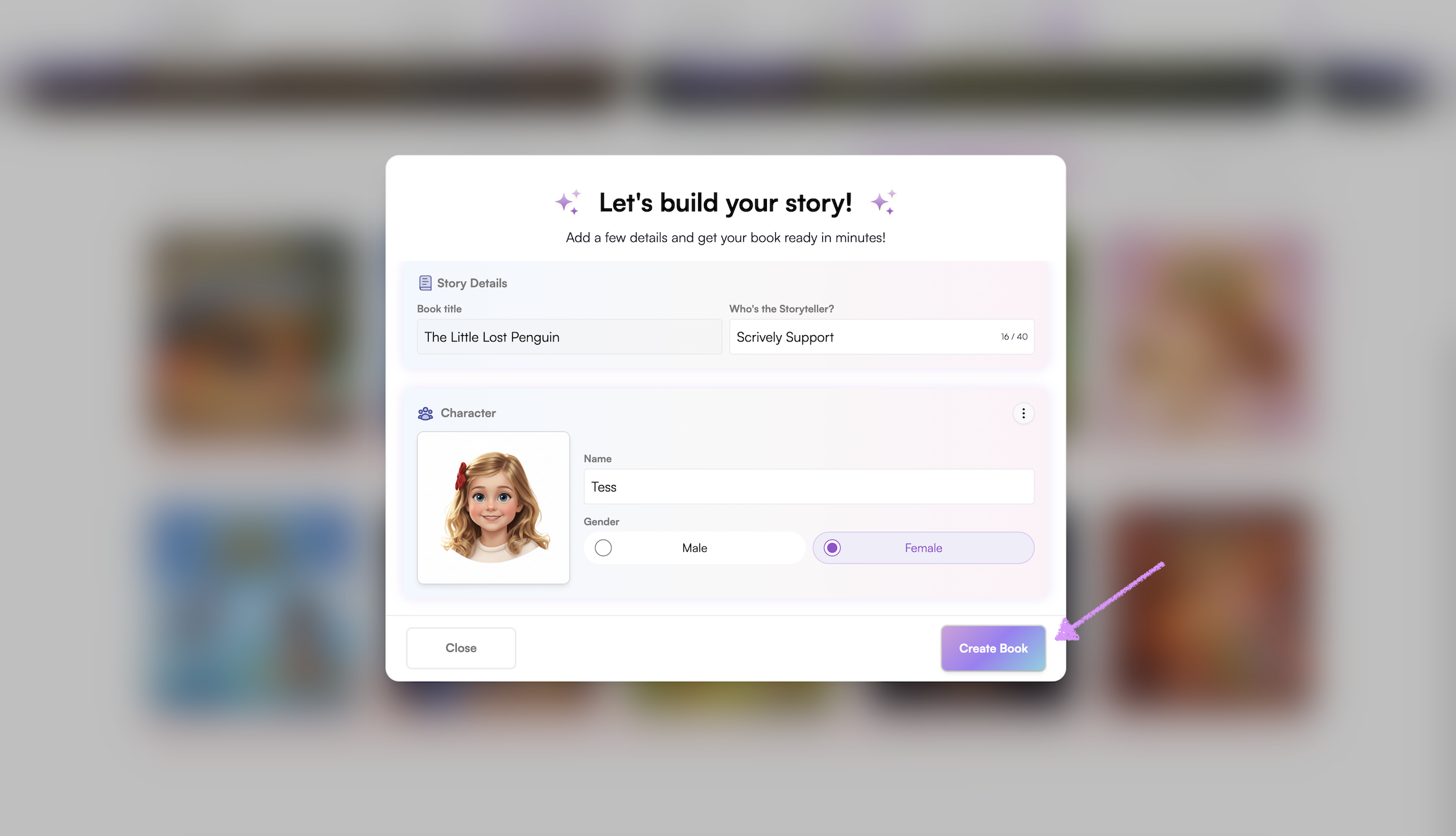
Click on "Create Book."
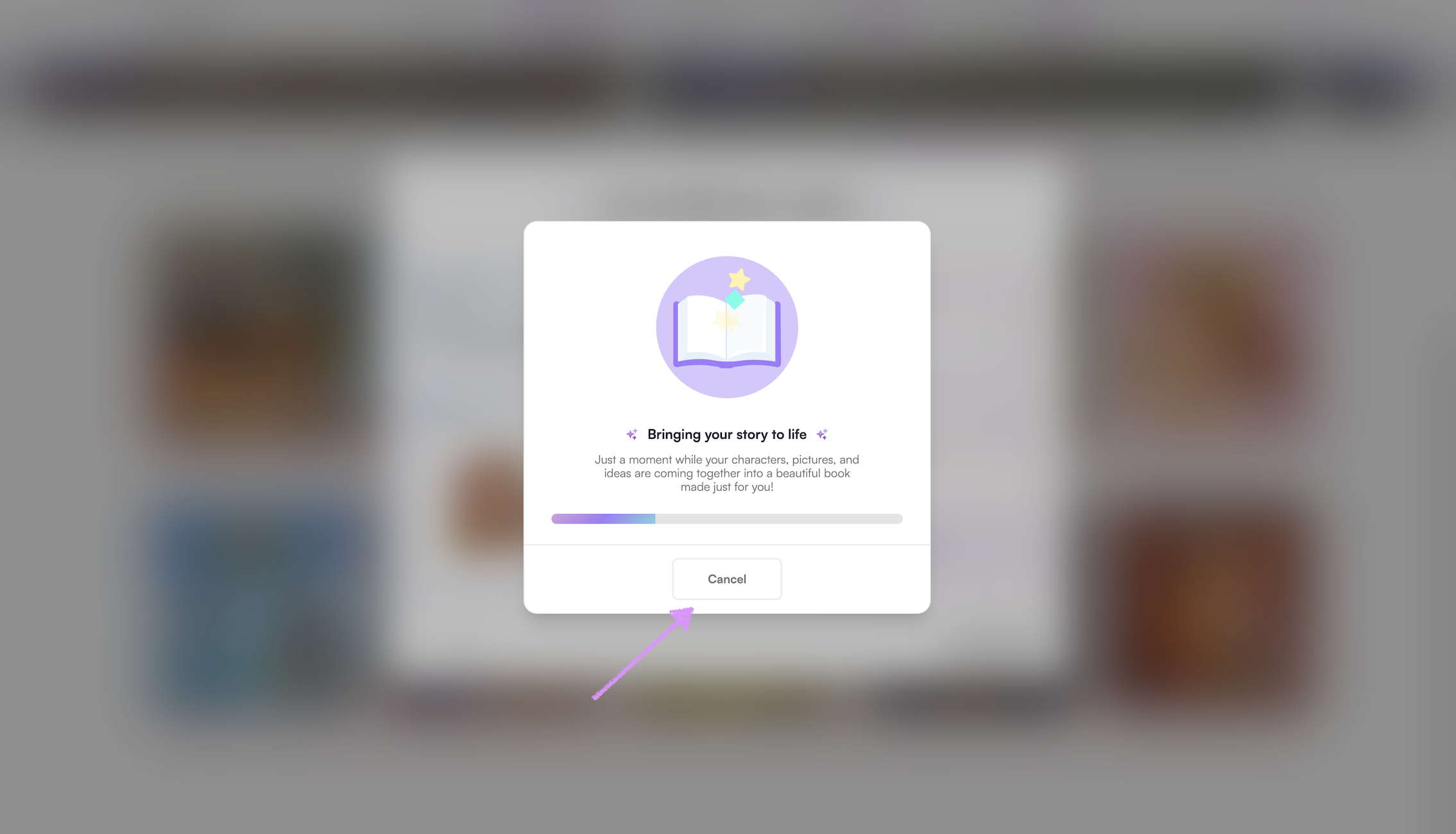
Scrively will take a few moments to think and create the book.
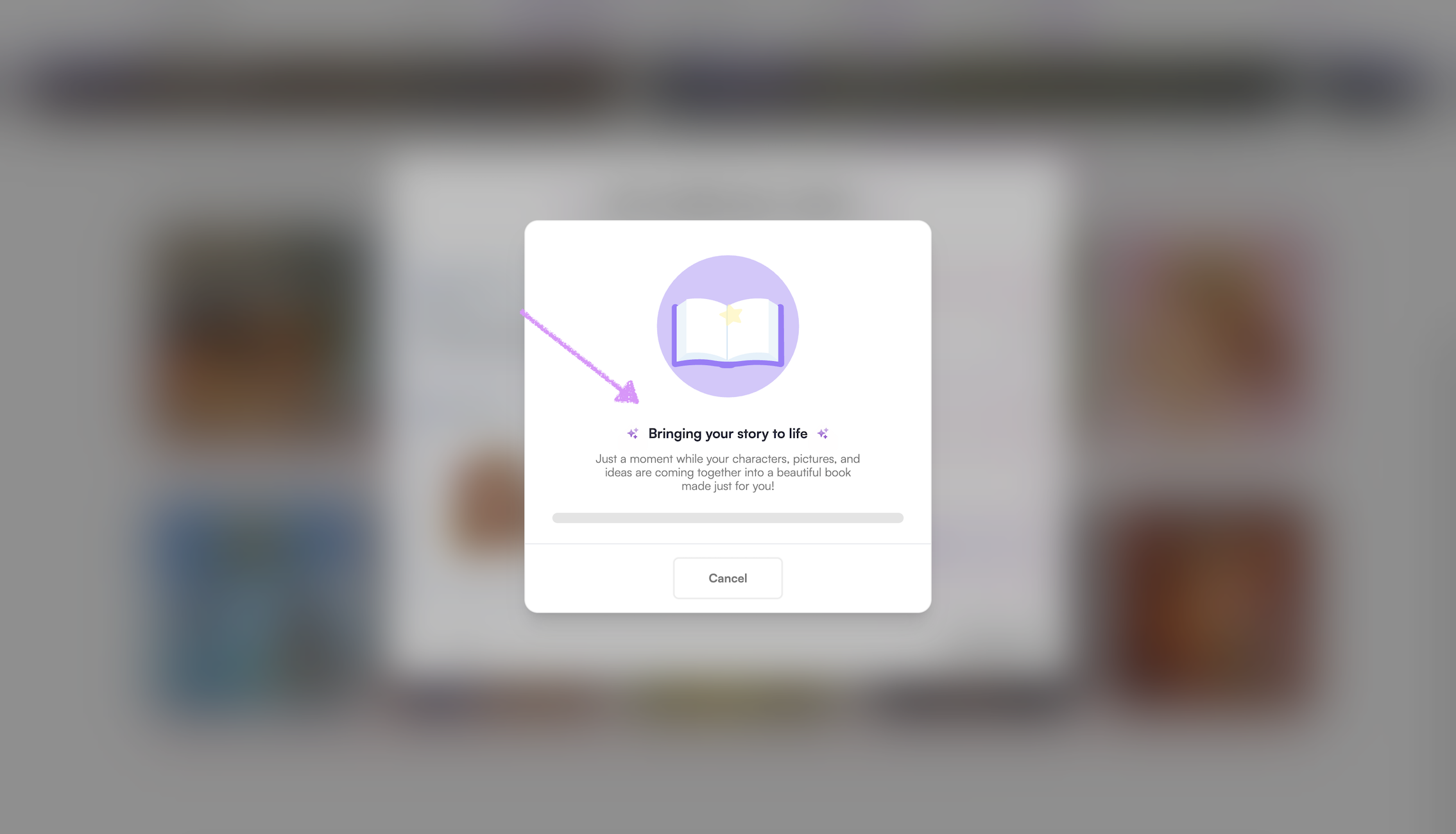
Change your mind? Click on "Cancel."
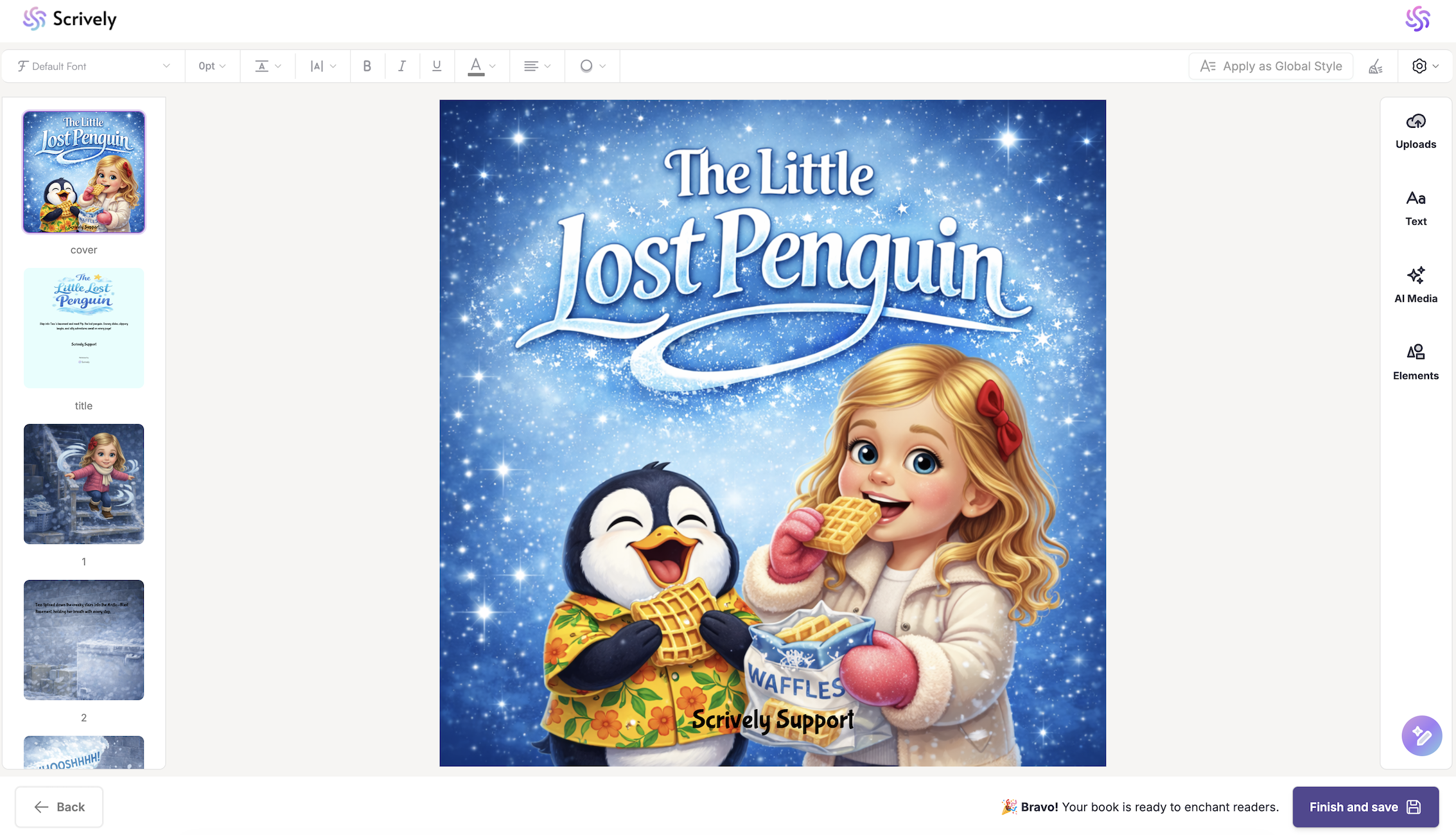
Once the book is completed, you'll be automatically taken to the Designer (book layout view) to make edit which we share more about in our guide here.
Was this article helpful?
That’s Great!
Thank you for your feedback
Sorry! We couldn't be helpful
Thank you for your feedback
Feedback sent
We appreciate your effort and will try to fix the article
