
Cropping allows you to remove unwanted areas of an image so you can focus on the most important visual elements of your book. Whether you’re refining illustrations, adjusting photo layouts, or improving page composition, cropping helps ensure your images fit seamlessly into your design.
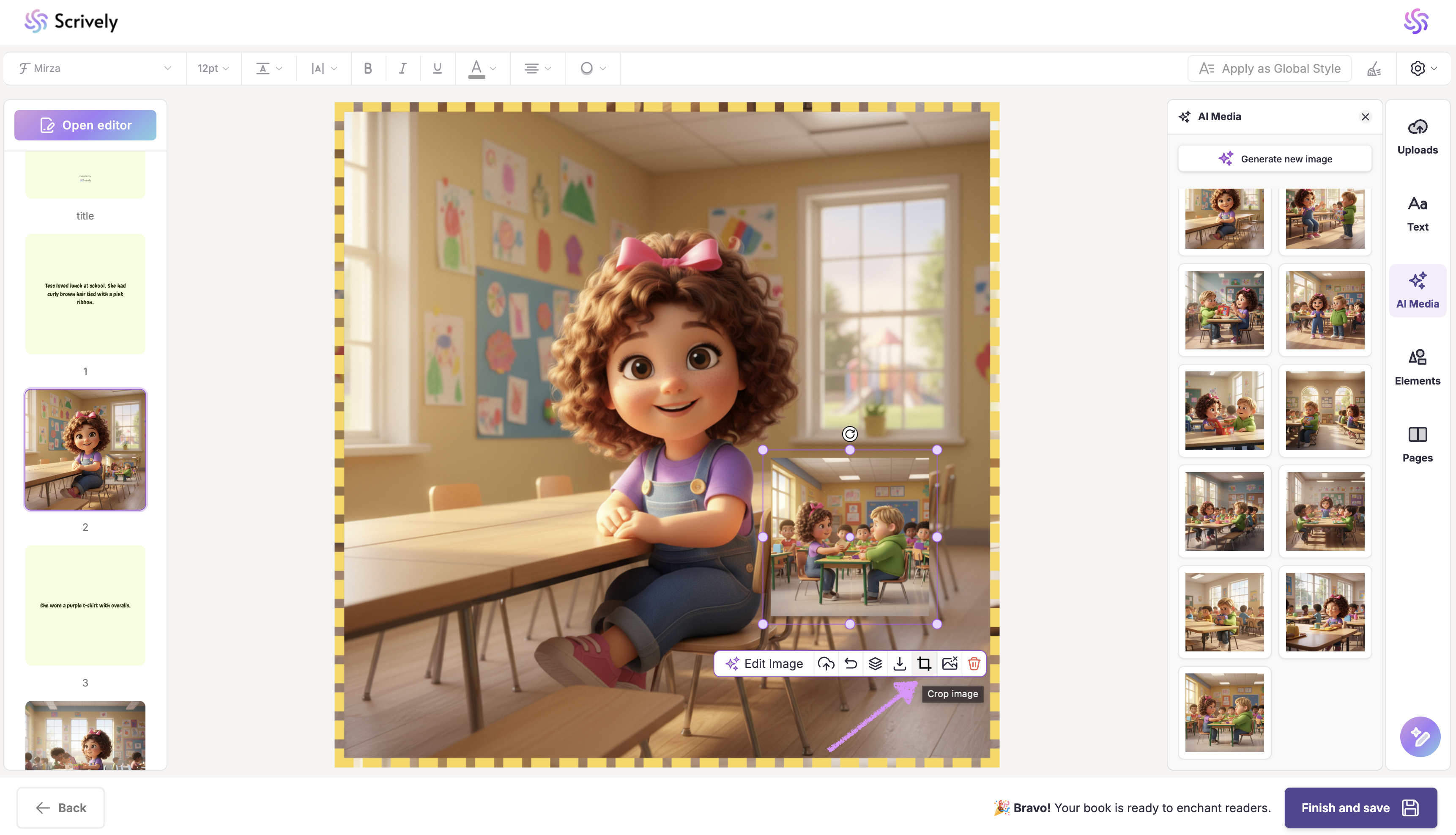
After adding an image to a page, click on it to reveal the “Crop image” option.
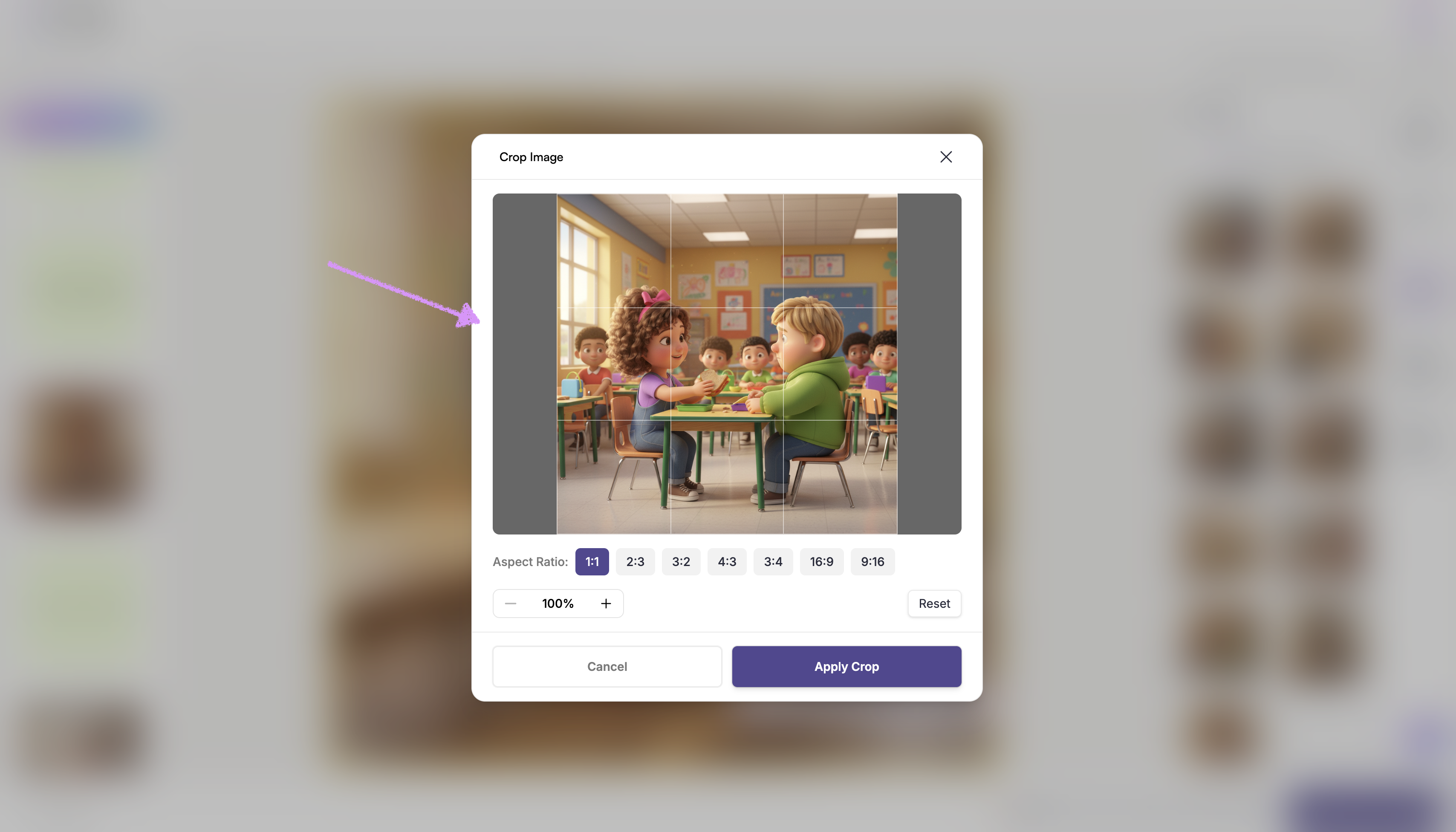
When hovering over an image, the zoom ✥ control will appear. Use it to zoom in/out or click and drag to reposition the image.
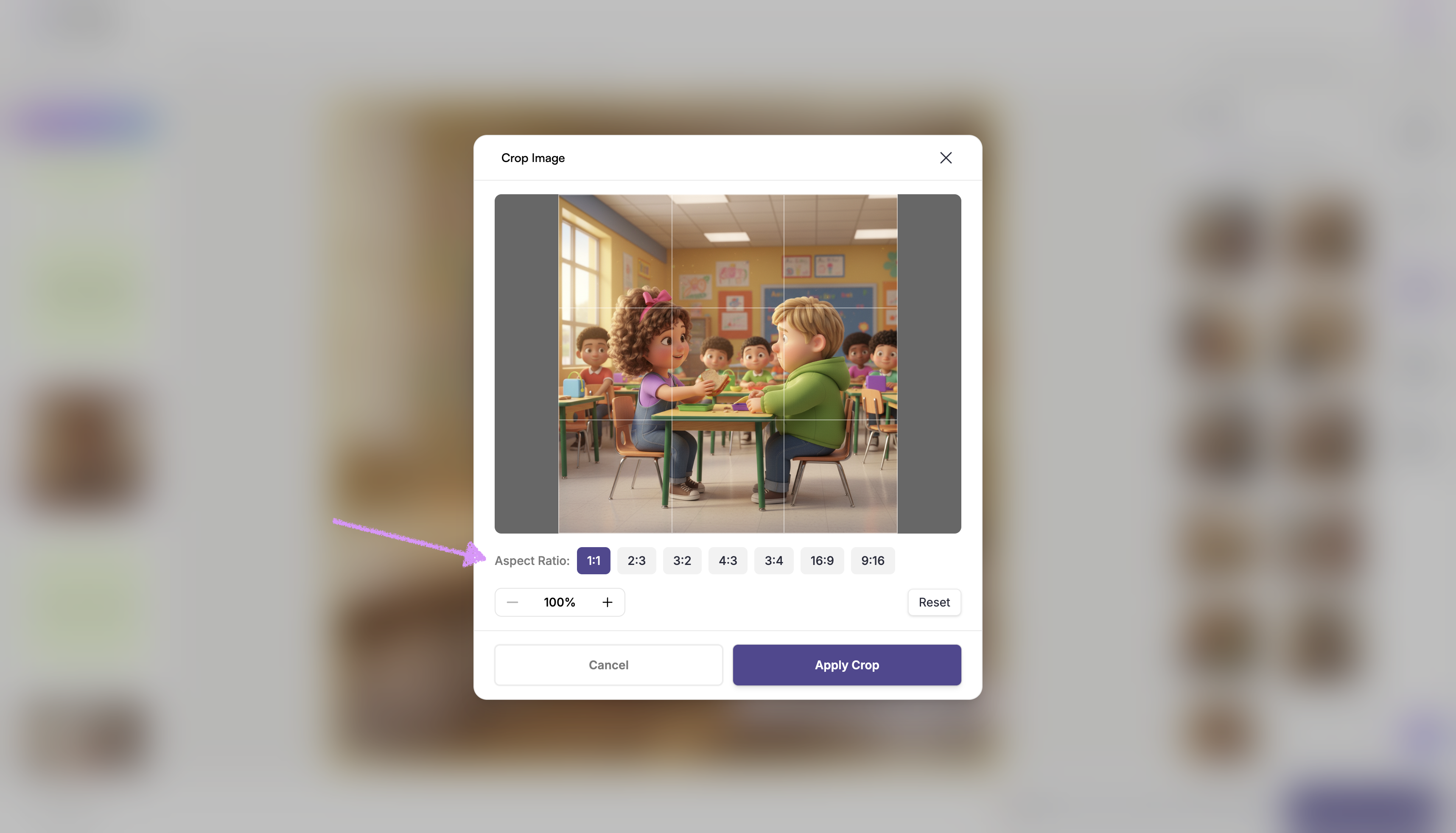
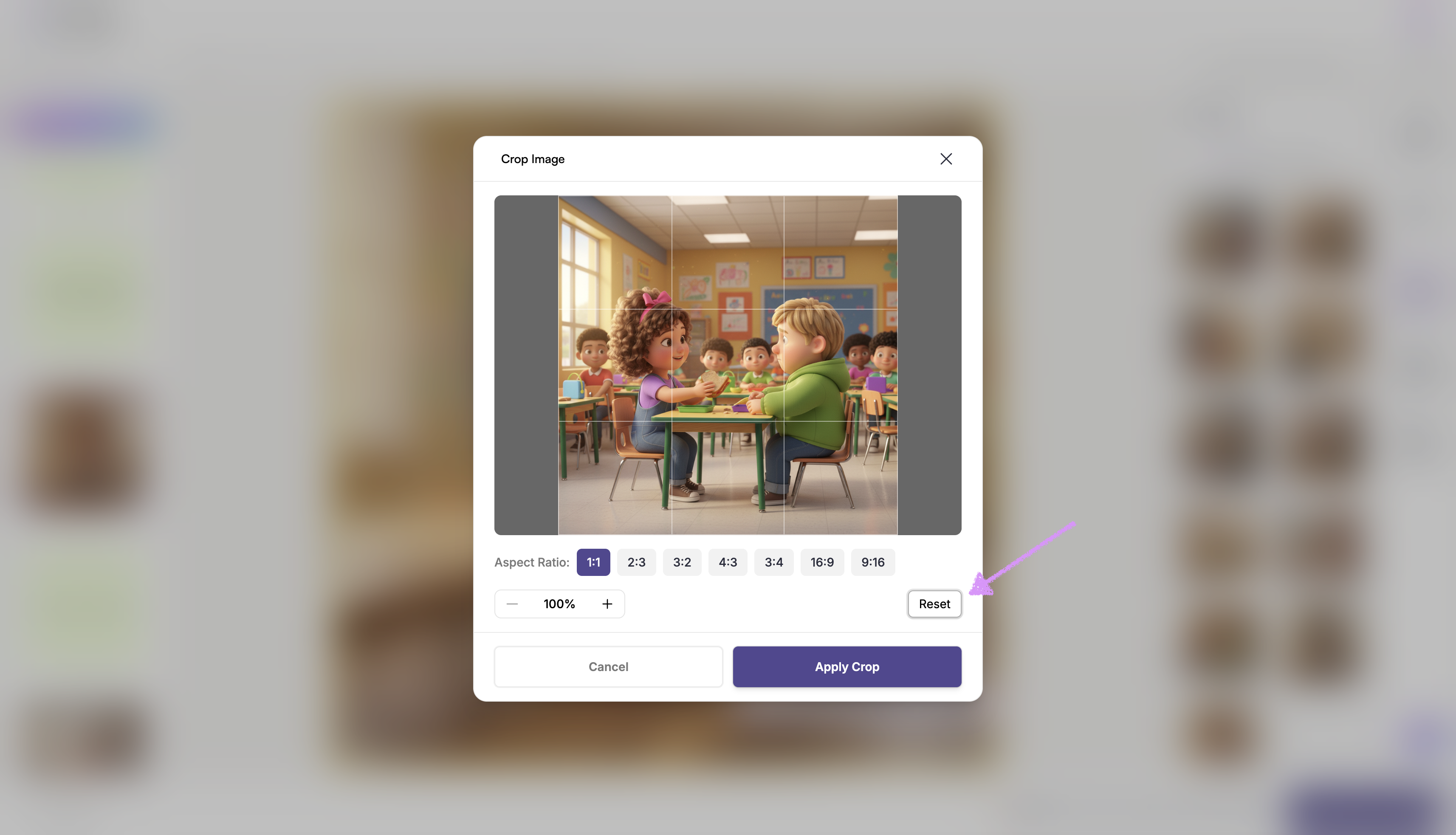
You can also select an "Aspect Ratio" for the image.
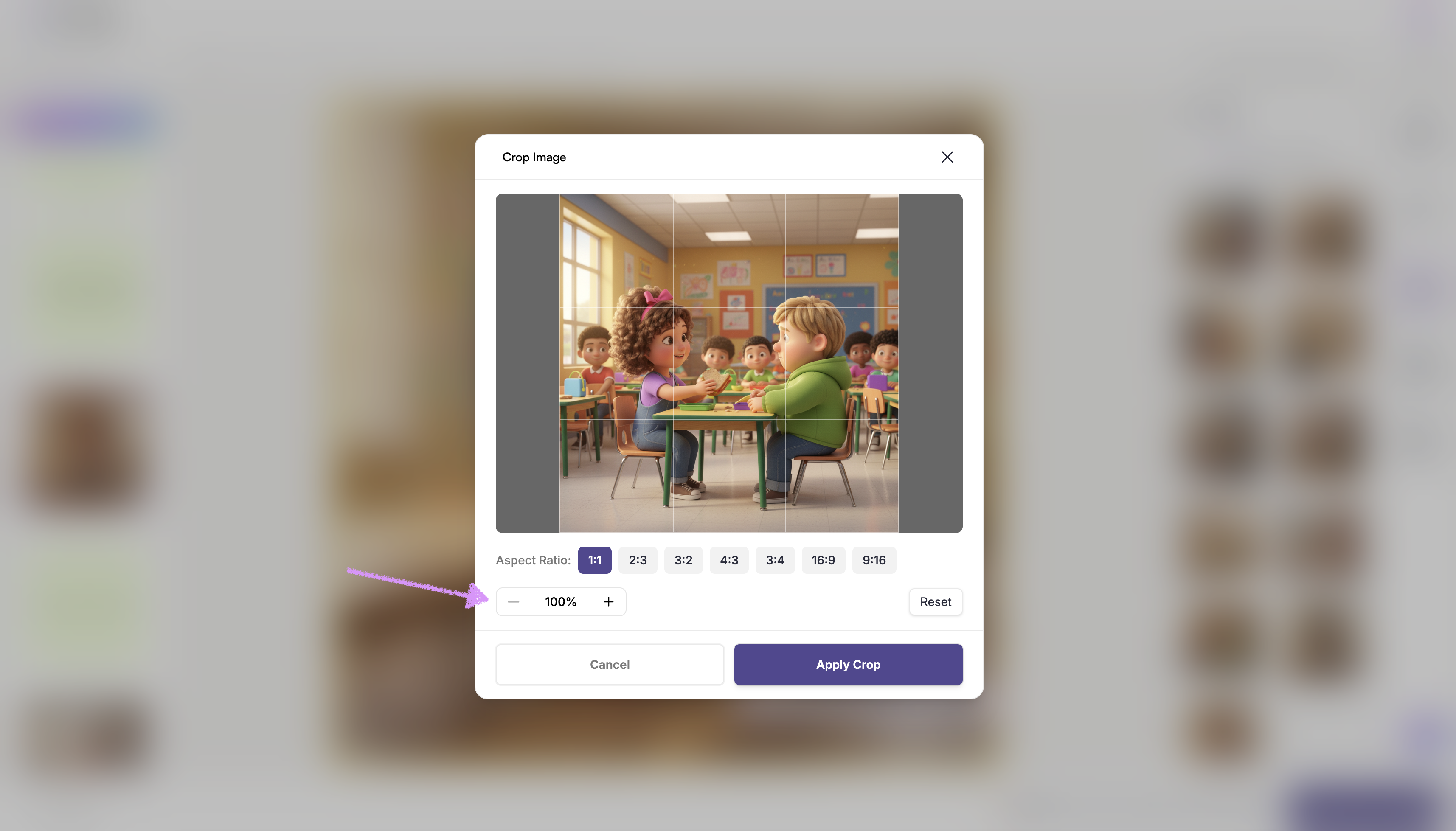
Use the -/+ tool to zoom in/out of the image.
Want to start over? Click on "Reset."
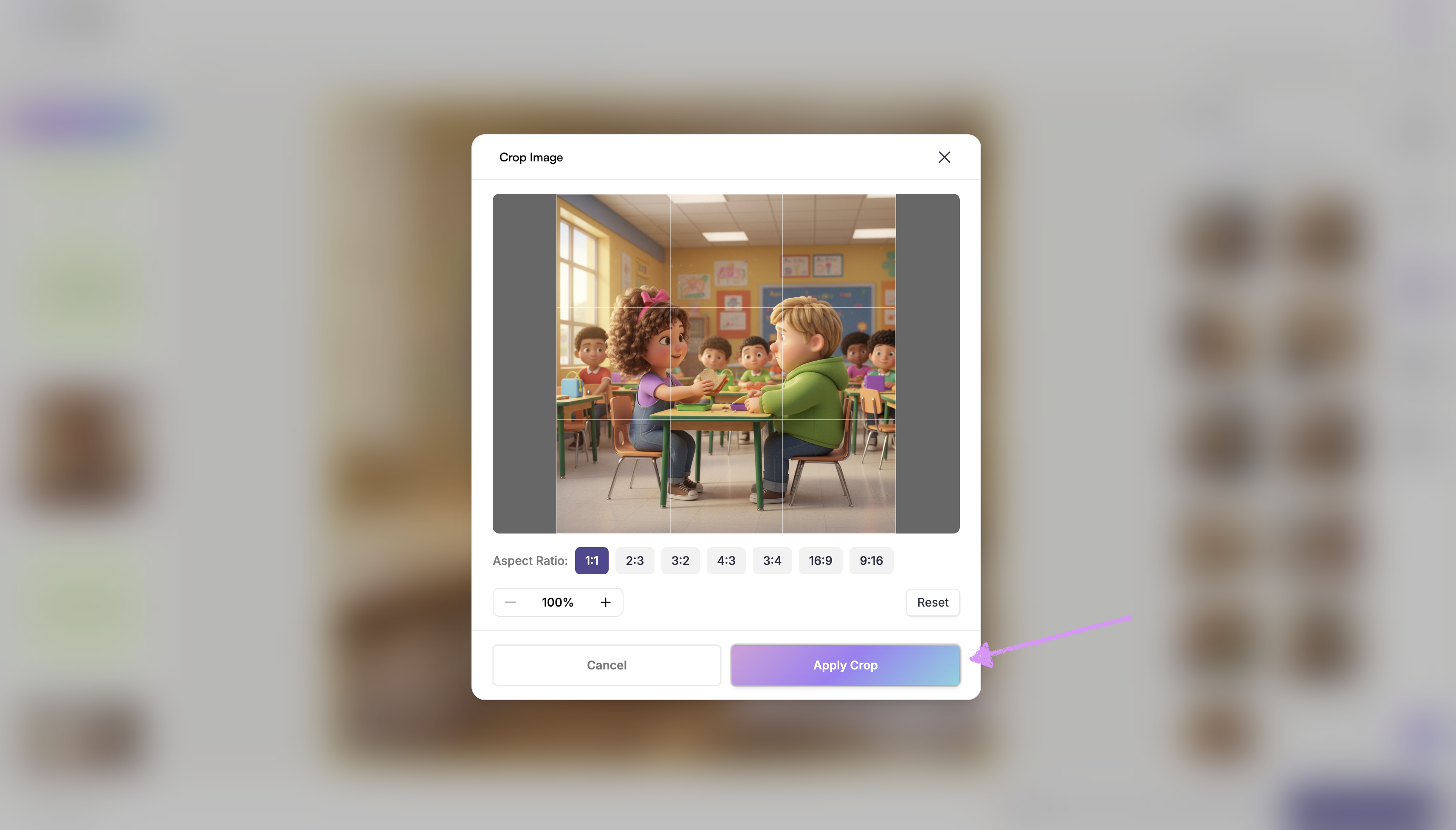
Click on "Apply Crop" when you're satisfied.
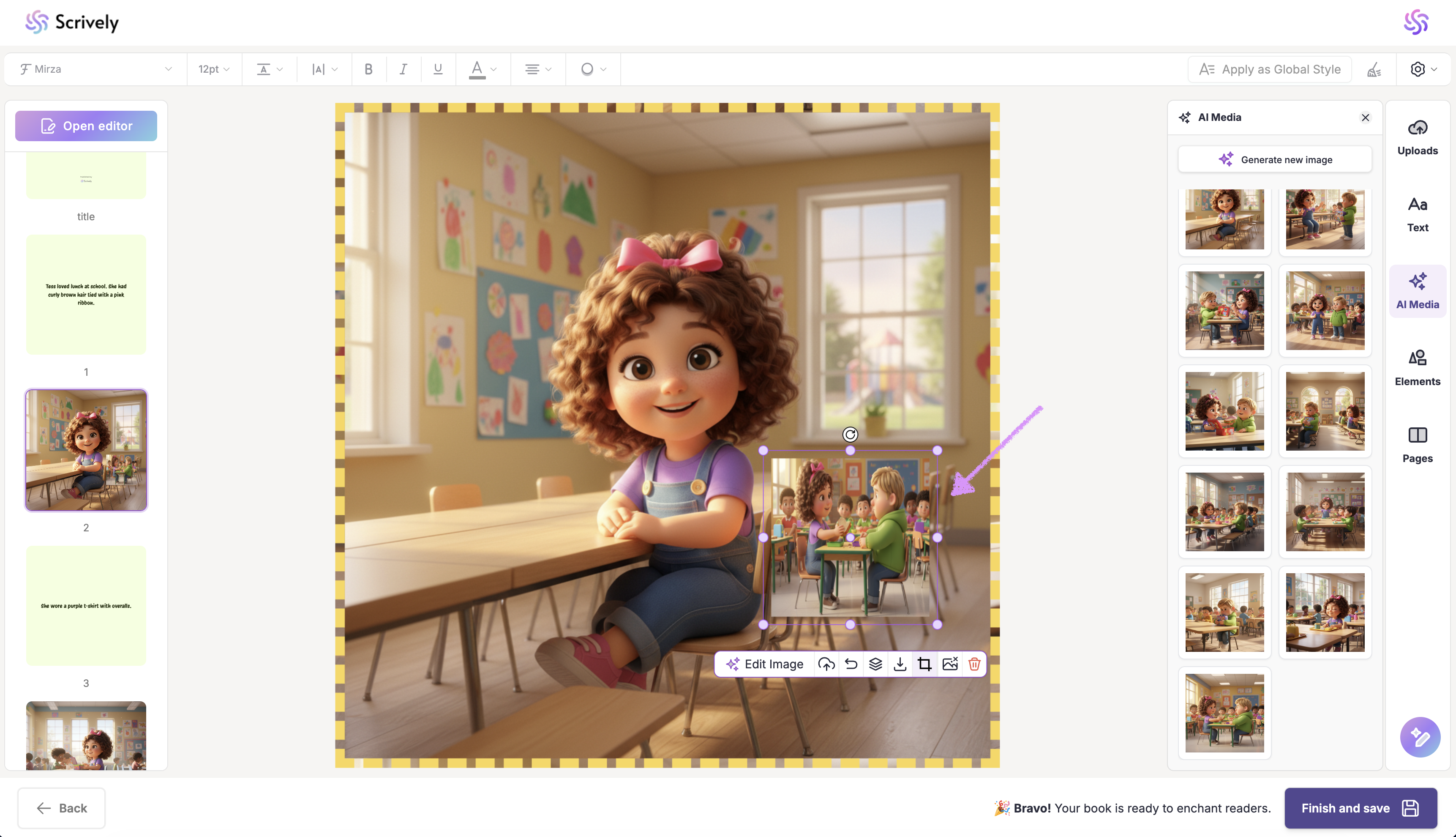
The cropped image will be displayed.
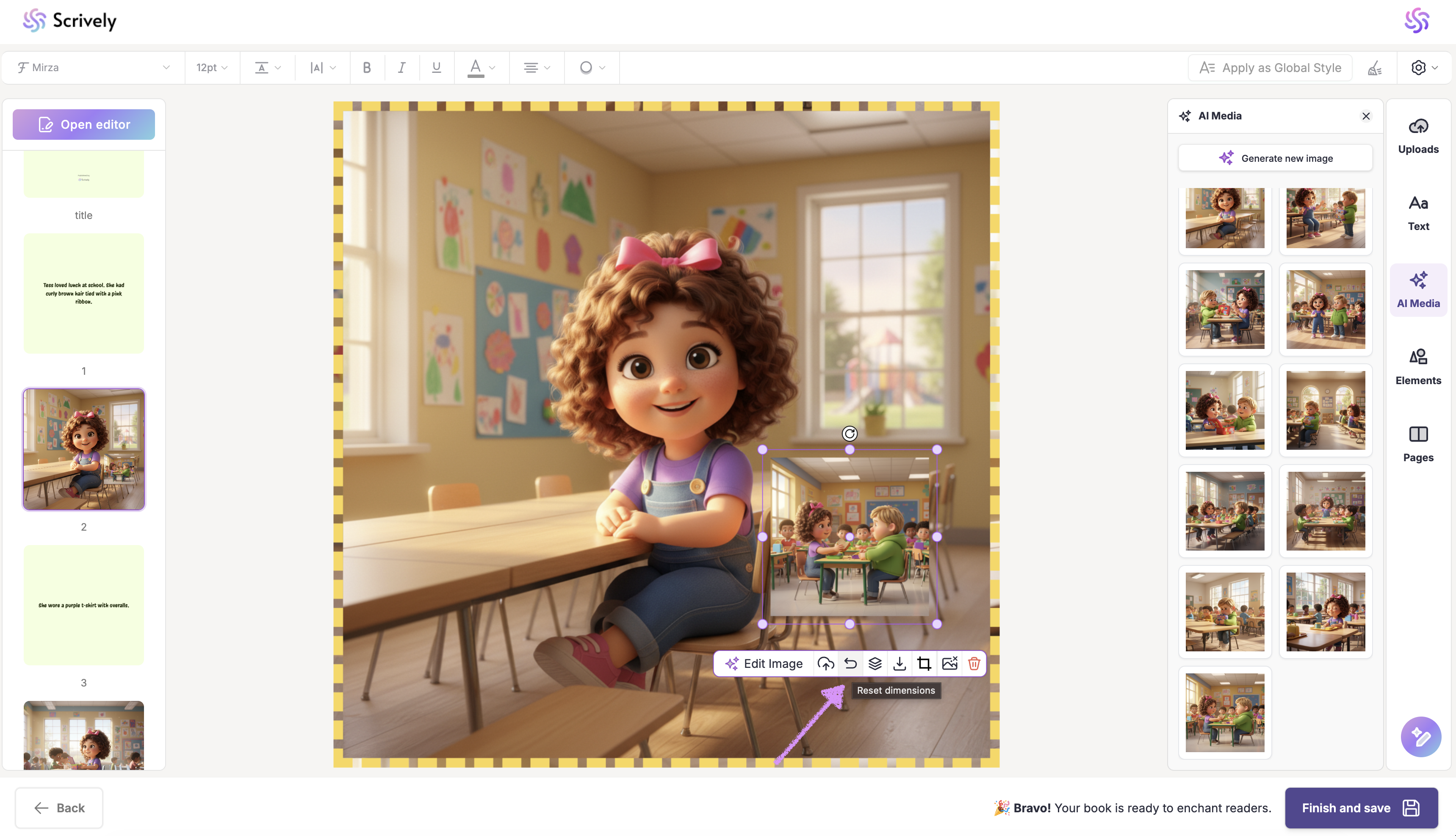
Not satisfied or want to start over? Click on the "Reset dimensions" option.
Was this article helpful?
That’s Great!
Thank you for your feedback
Sorry! We couldn't be helpful
Thank you for your feedback
Feedback sent
We appreciate your effort and will try to fix the article
