
Editing existing images allows you to enhance, correct, or transform your images to match your vision. From adjusting colors to removing unwanted elements, image editing gives you full creative control over your visuals.
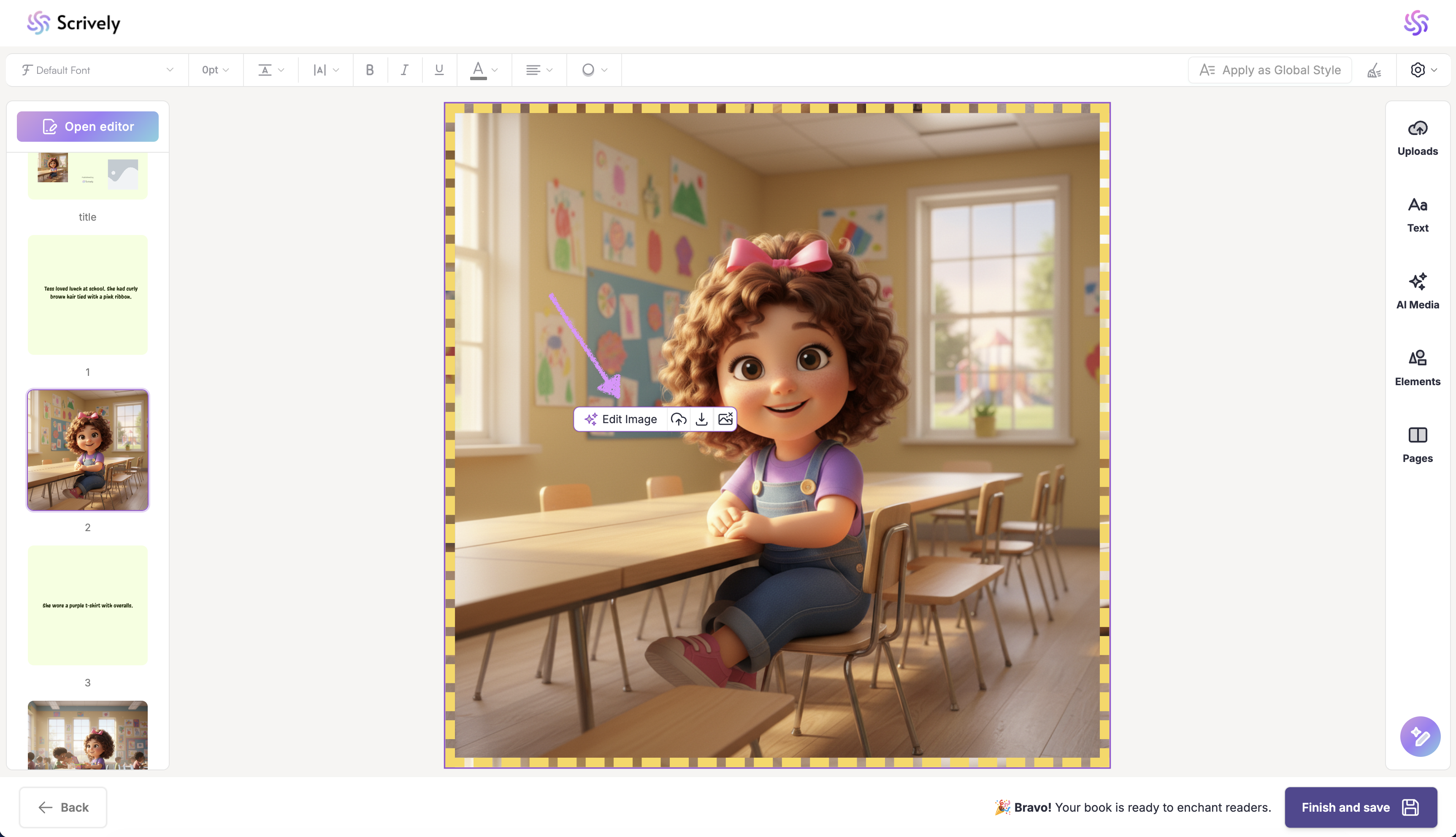
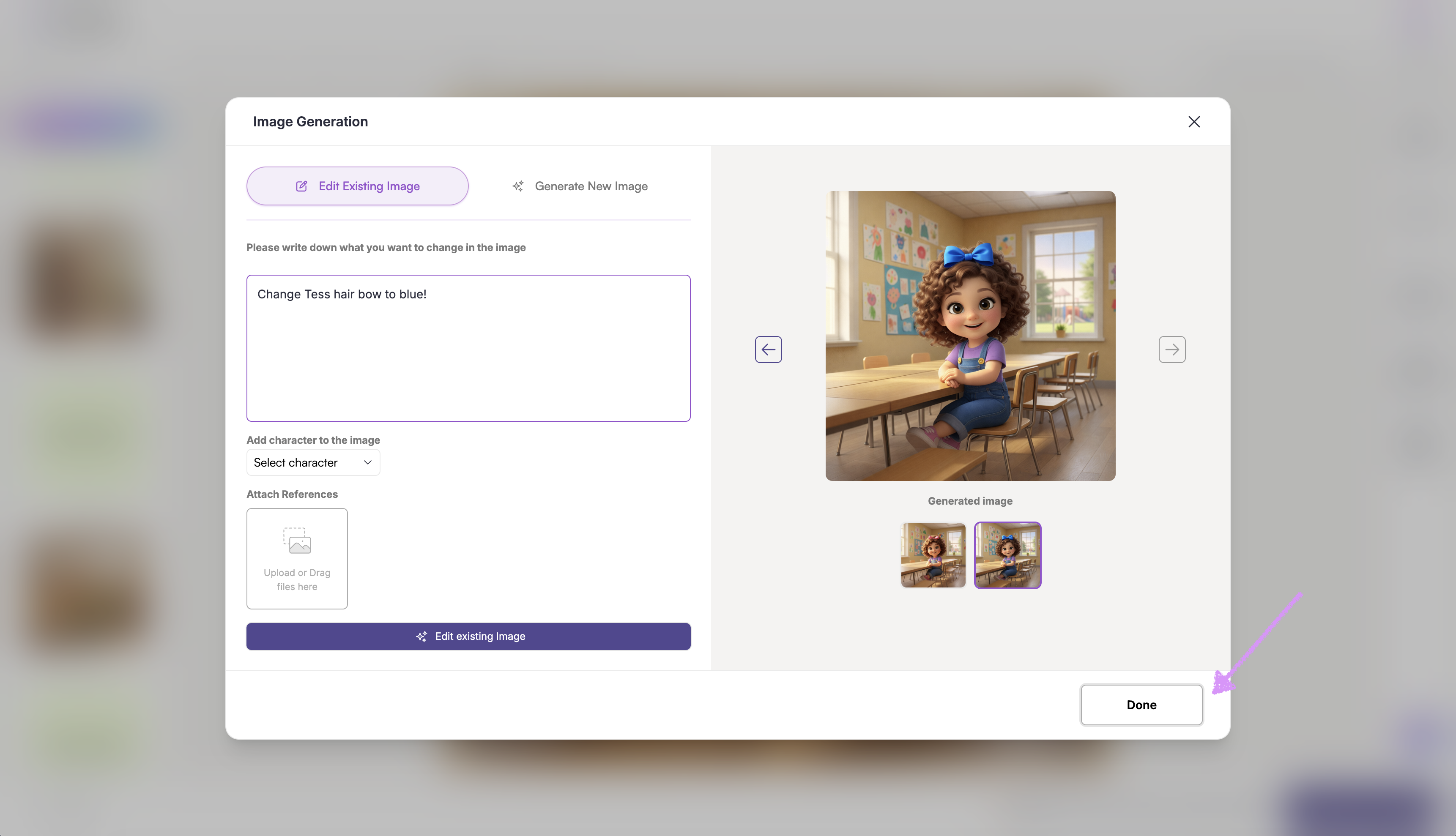
In the Designer (book layout view) click on the image in the frame and select "Edit image."
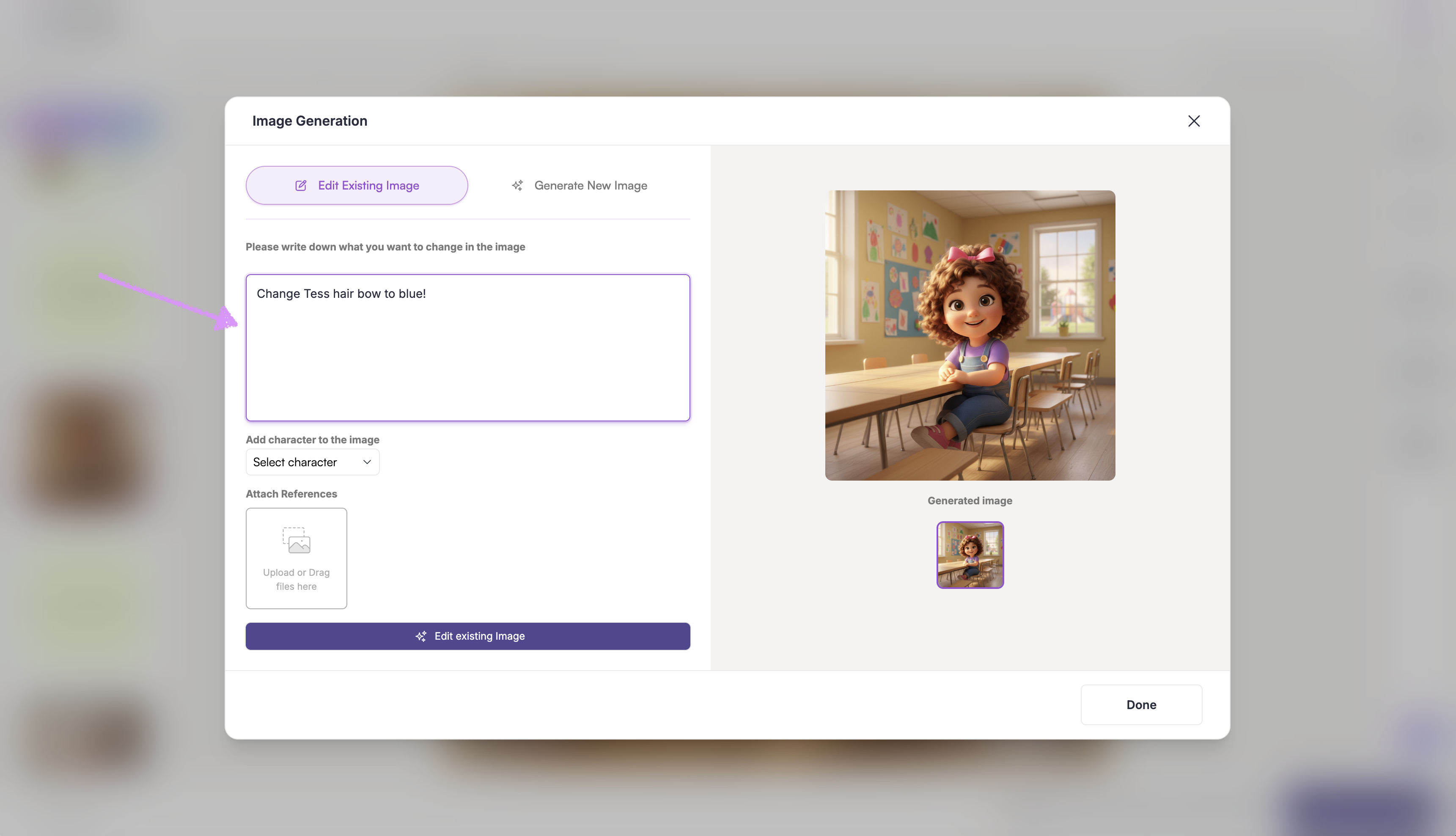
Enter the details of what you want to change in the image.
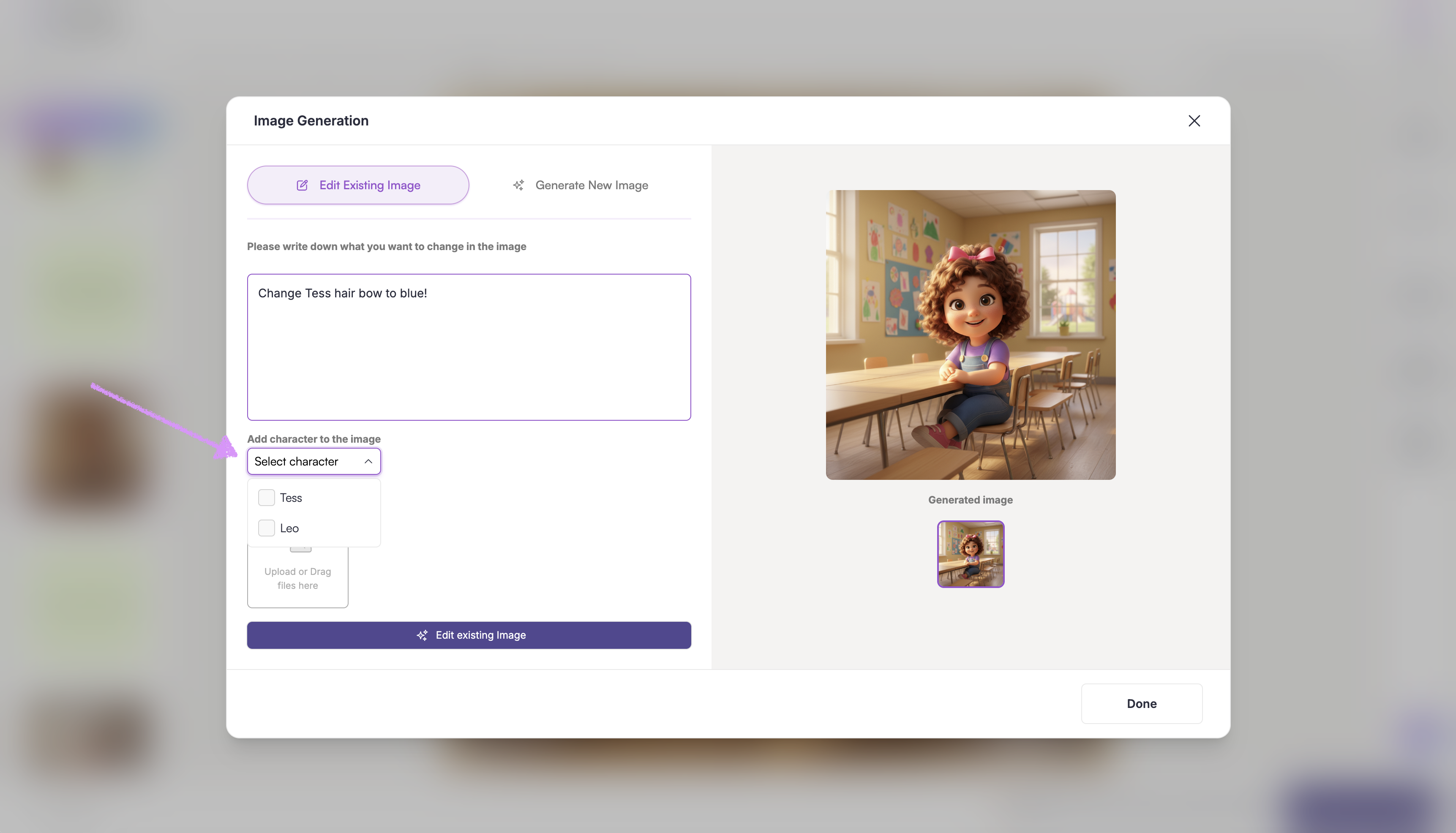
Need to add a character to the image? Select them from the character list.
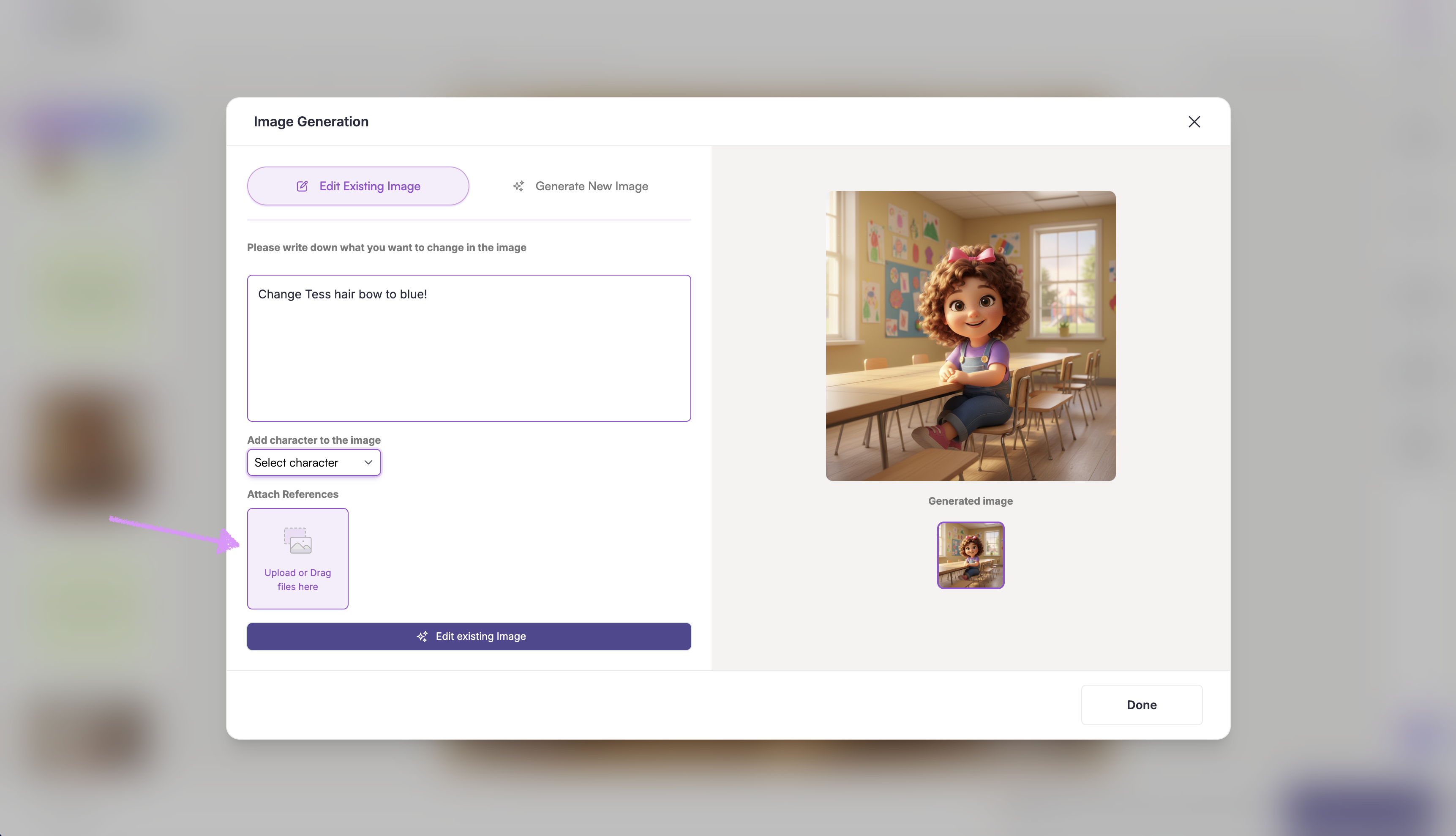
If needed, upload or drag in a reference image.
When you're ready click on "Edit existing image."
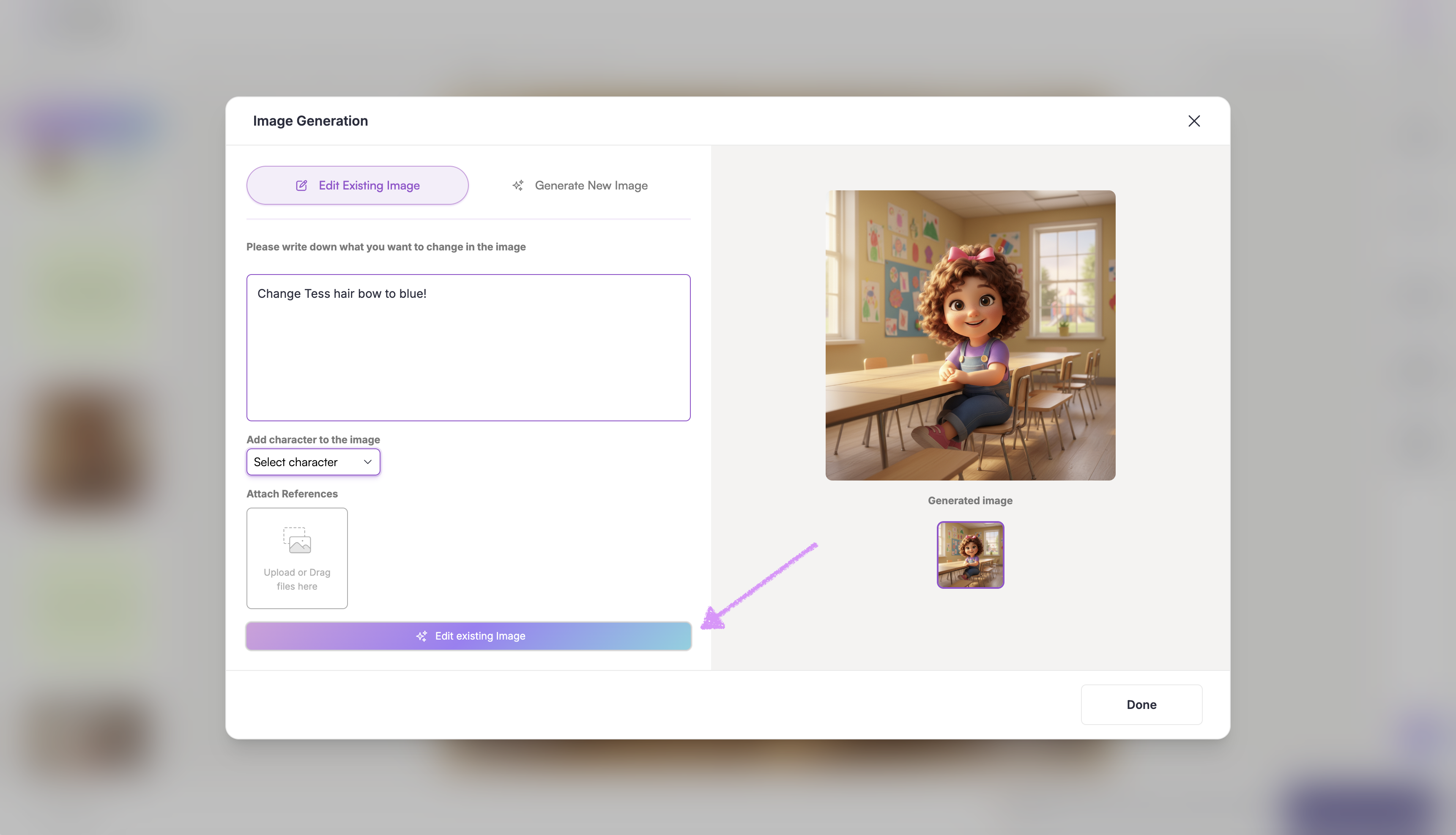
Scrively will take a few moments to think.
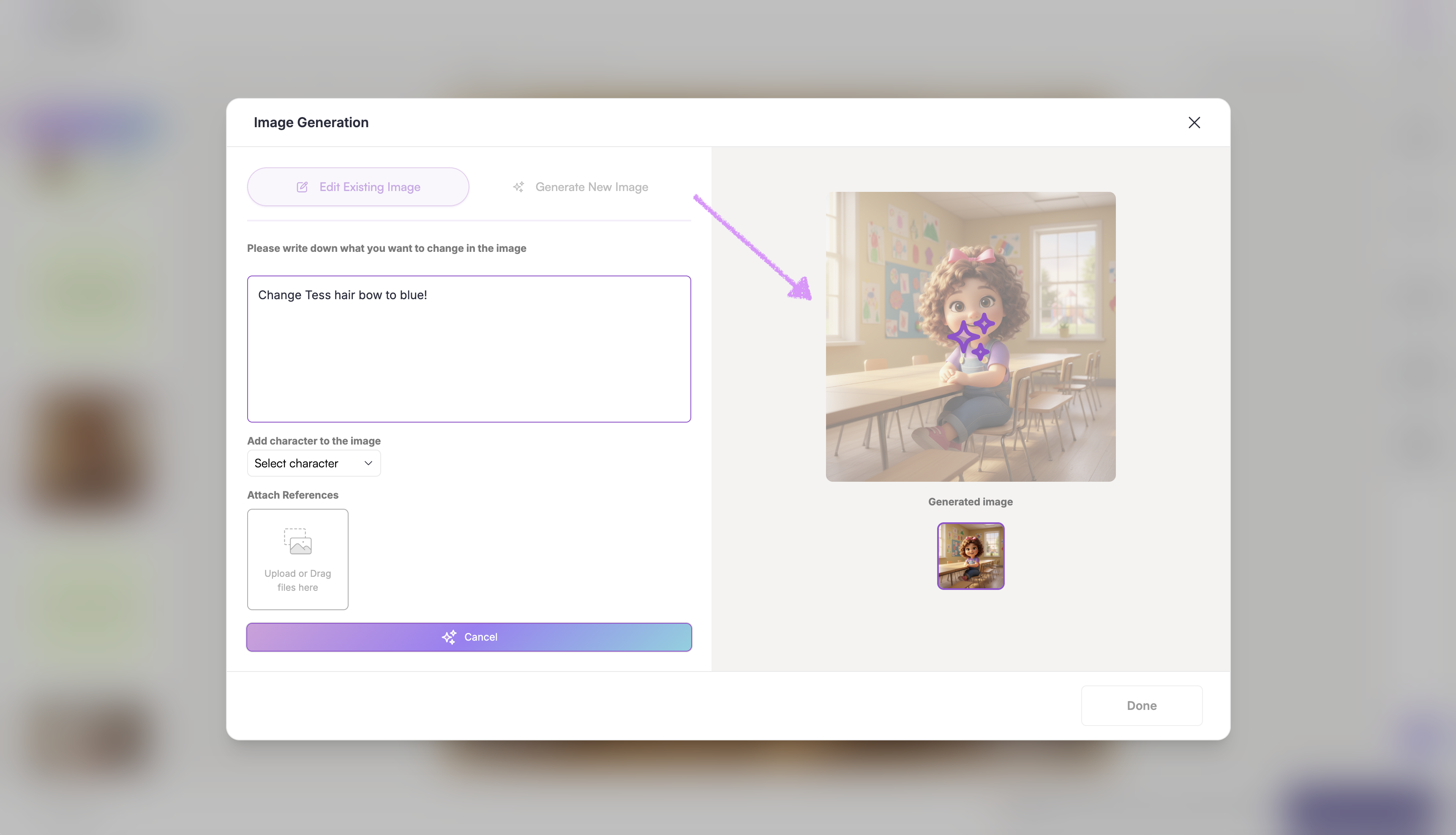
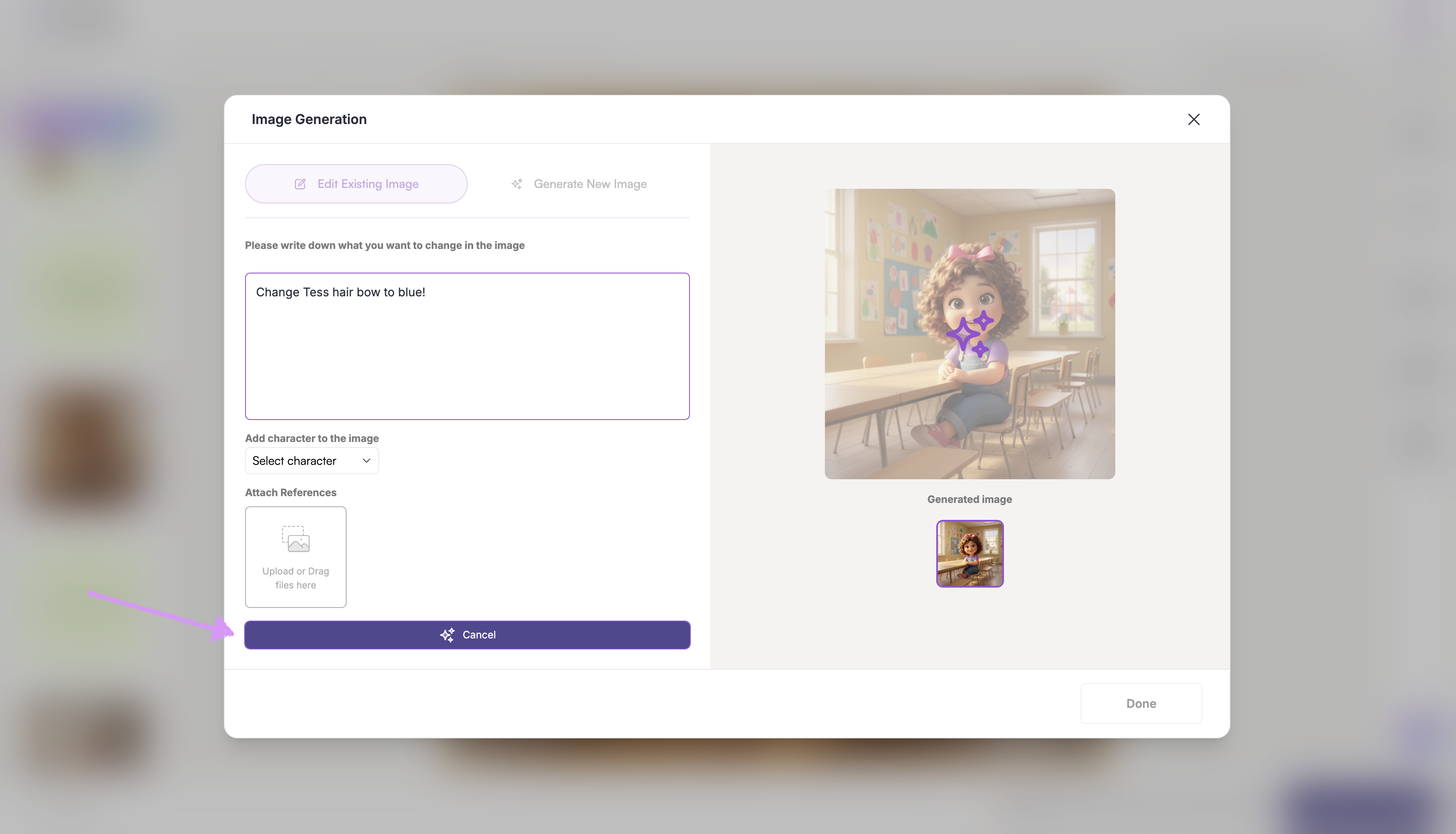
Need to make adjustments? Click on "Cancel."
The edited image will be shown in the frame.
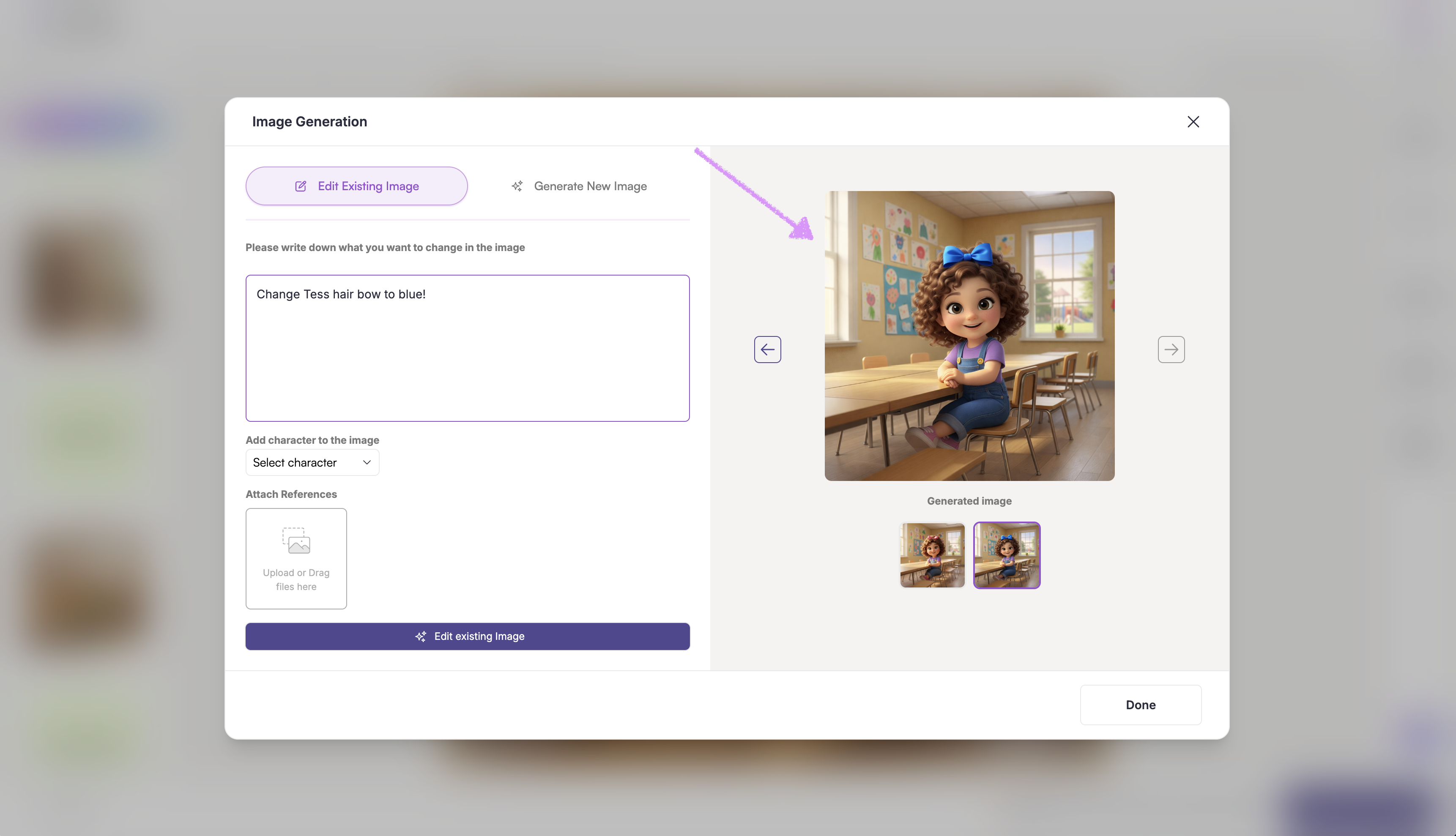
Click on "Done" to add the image to the frame on the page.
Was this article helpful?
That’s Great!
Thank you for your feedback
Sorry! We couldn't be helpful
Thank you for your feedback
Feedback sent
We appreciate your effort and will try to fix the article
