
The Scrively Editor is where your story truly comes to life. Inside the Editor, you’ll find a complete visual overview of your book, making it easy to review, edit, and fine-tune each page. Whether you’re adjusting text or refining the flow of your story, the Editor gives you the tools you need to polish your book with confidence.
In the top-left corner of the Designer (book layout view), click on "Open editor."
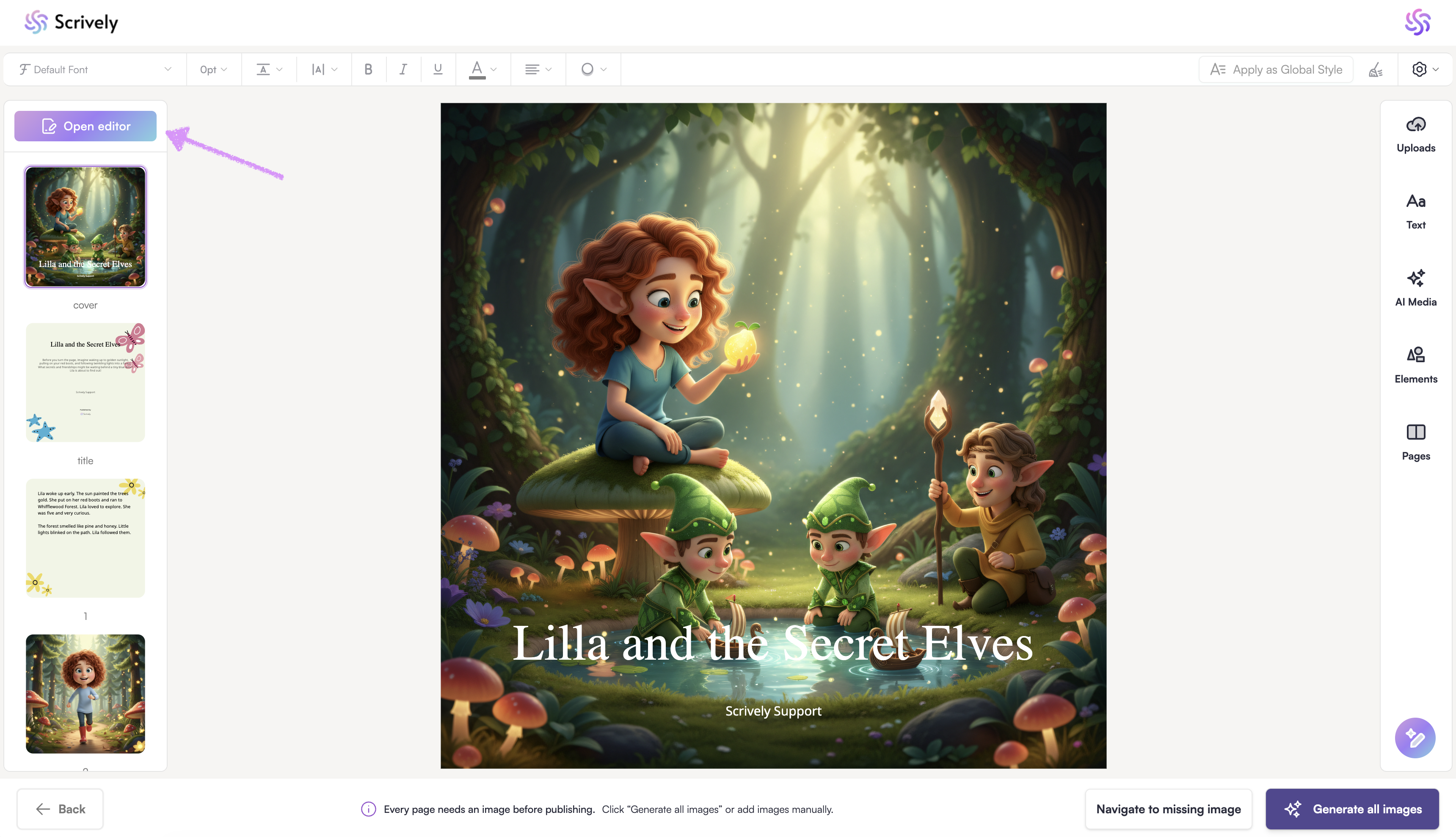
The full story will open in the Editor modal.
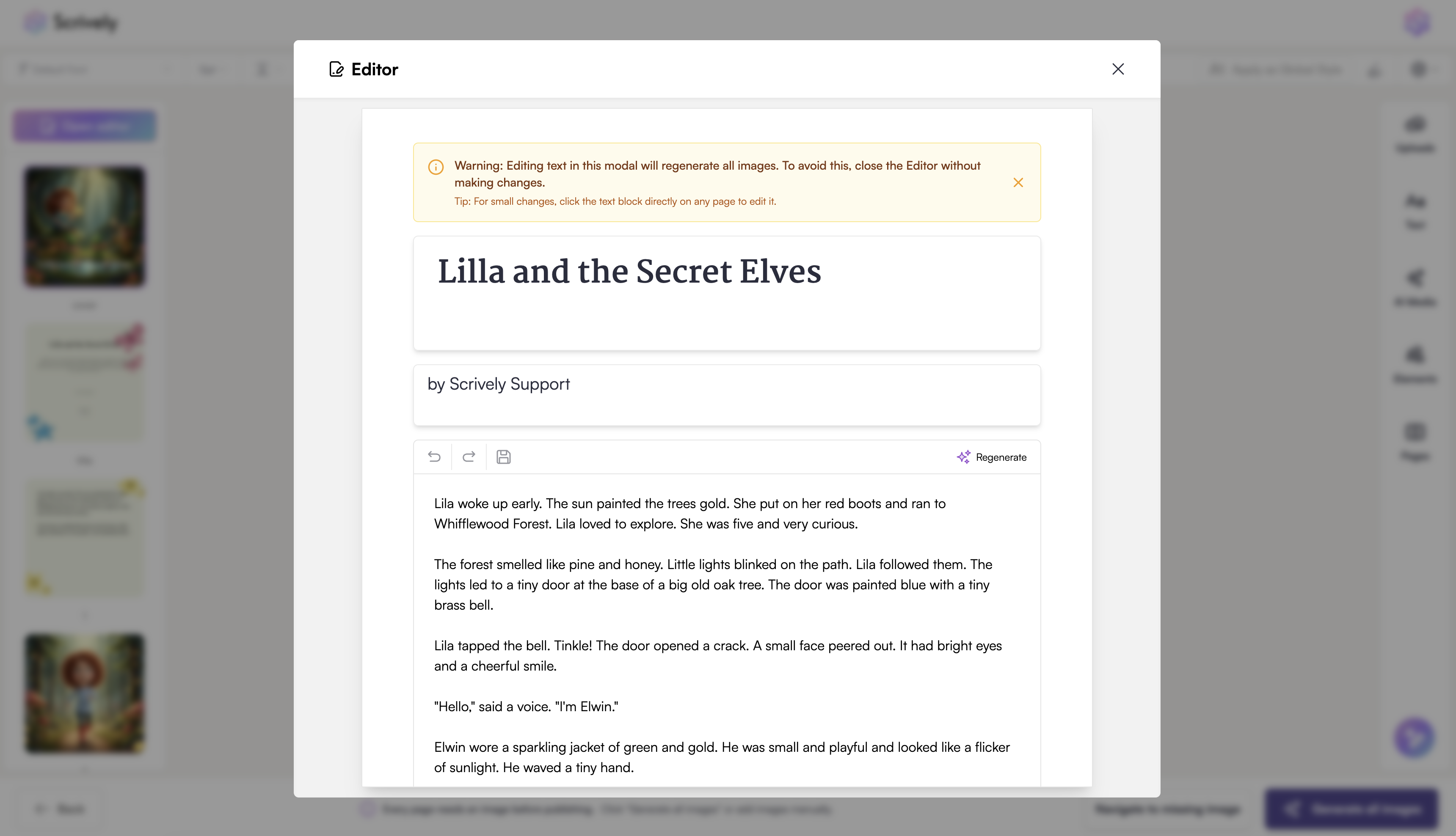
All fields are editable, including the title, author's name, and story content.
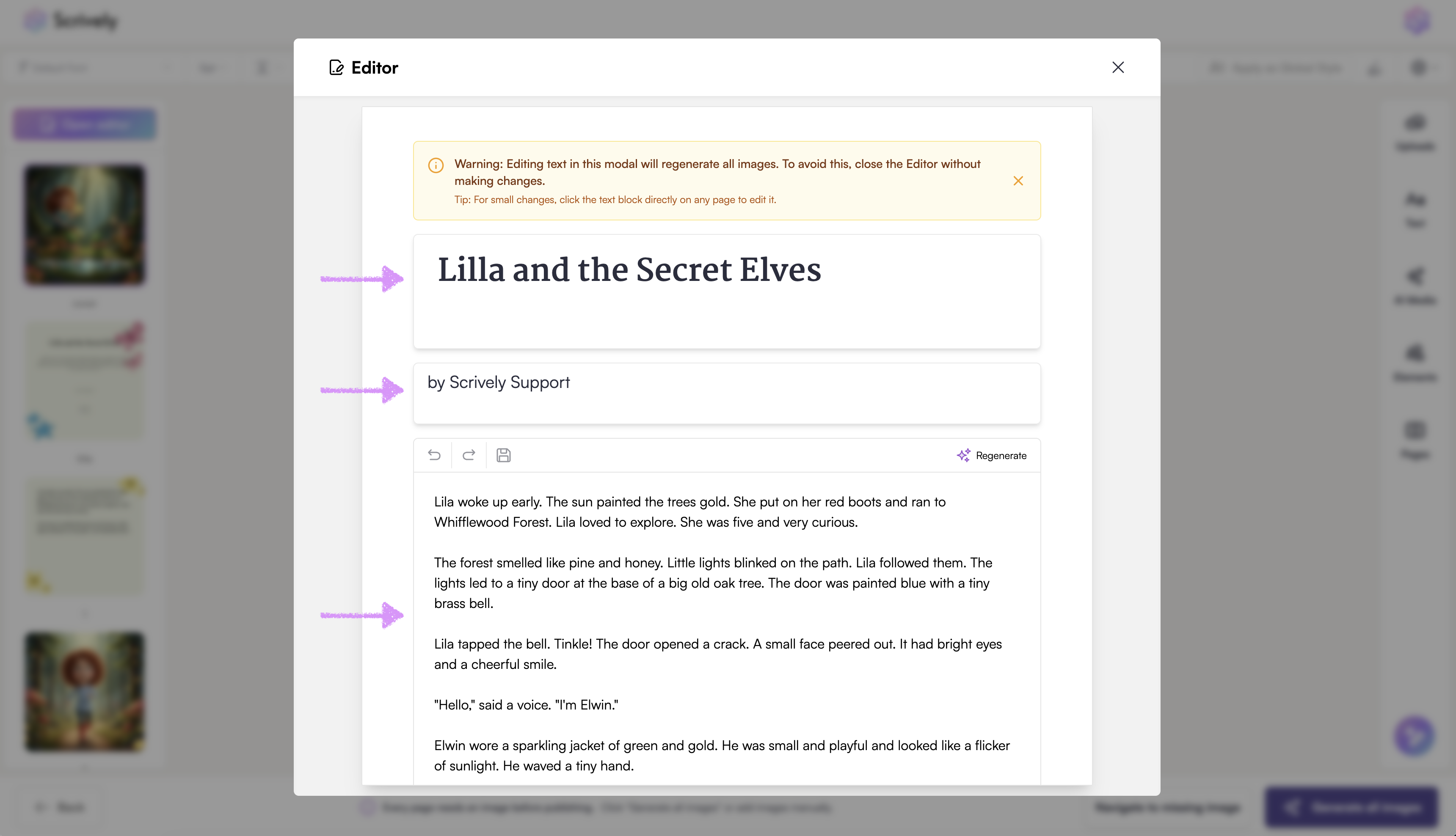
Highlight any text and right-click to access editing options such as rewrite, grammar correction, change point of view, change writing style, simplify, cut, copy, and paste.
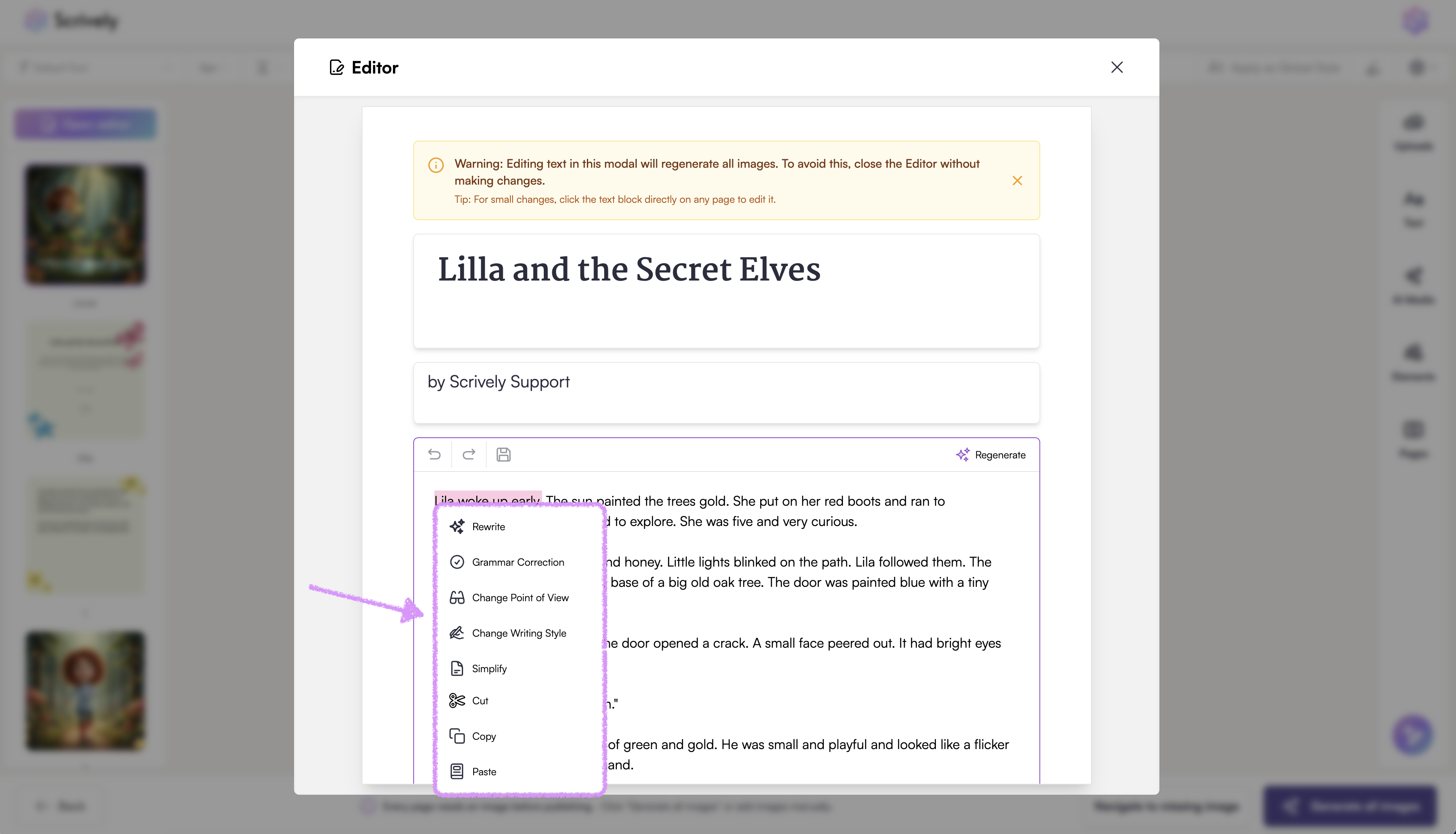
Made changes to the content? Be sure to click the "Save" icon to keep your updates.
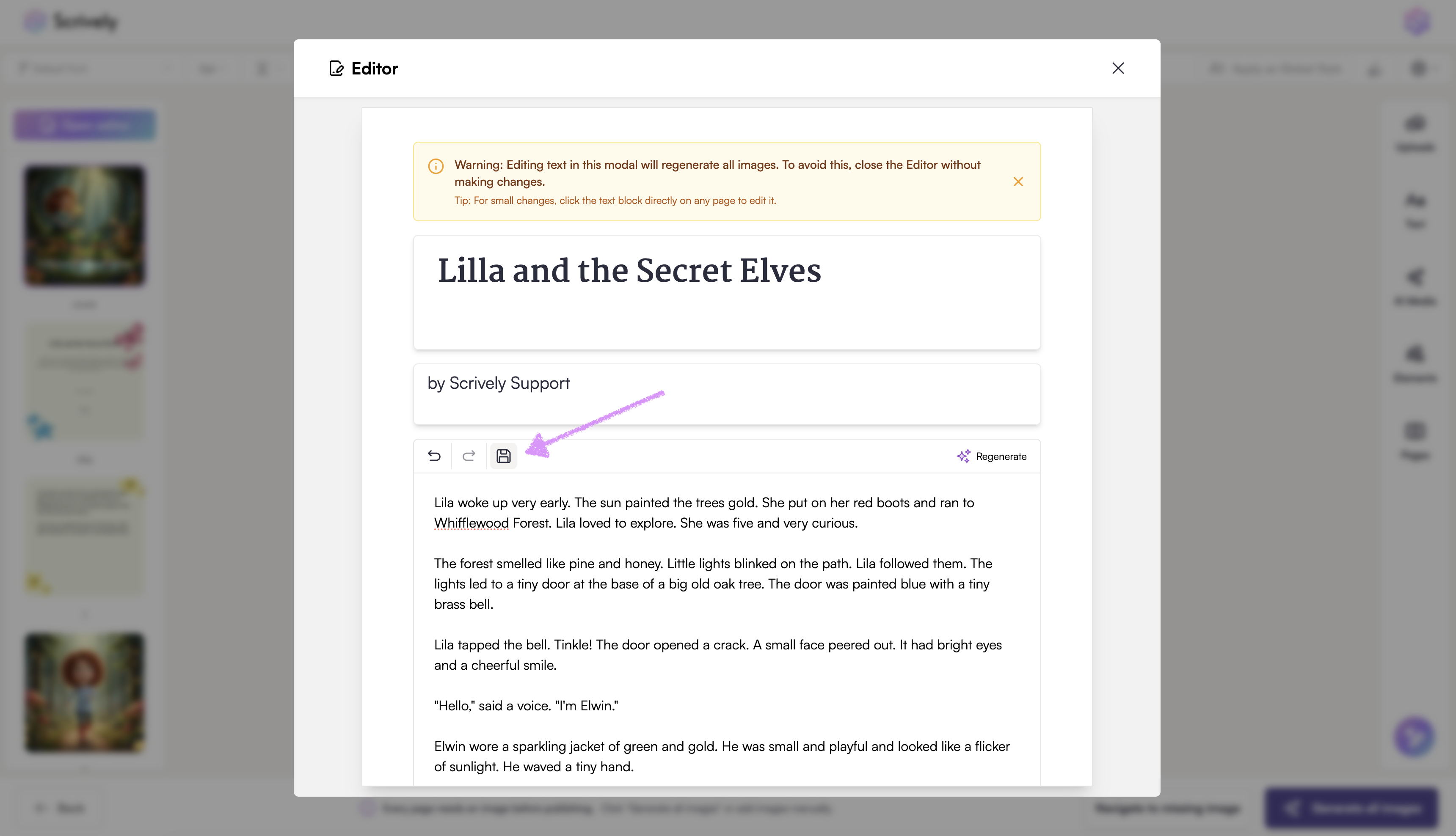
Note: When working in the Editor, any text changes you make are applied to the pages in your book. When the text is updated, any images associated with those pages will be removed. Don’t worry, those images are not lost. They are saved in your AI Media library on the right side of the Designer view.

To reapply an image, click into the image frame on a page, hover over the image in the library, and click on "Insert."

Scrively currently treats any text edits as a new version of the story, which is why this behavior occurs. Our team is exploring future improvements that would allow images to remain in place when text is updated.
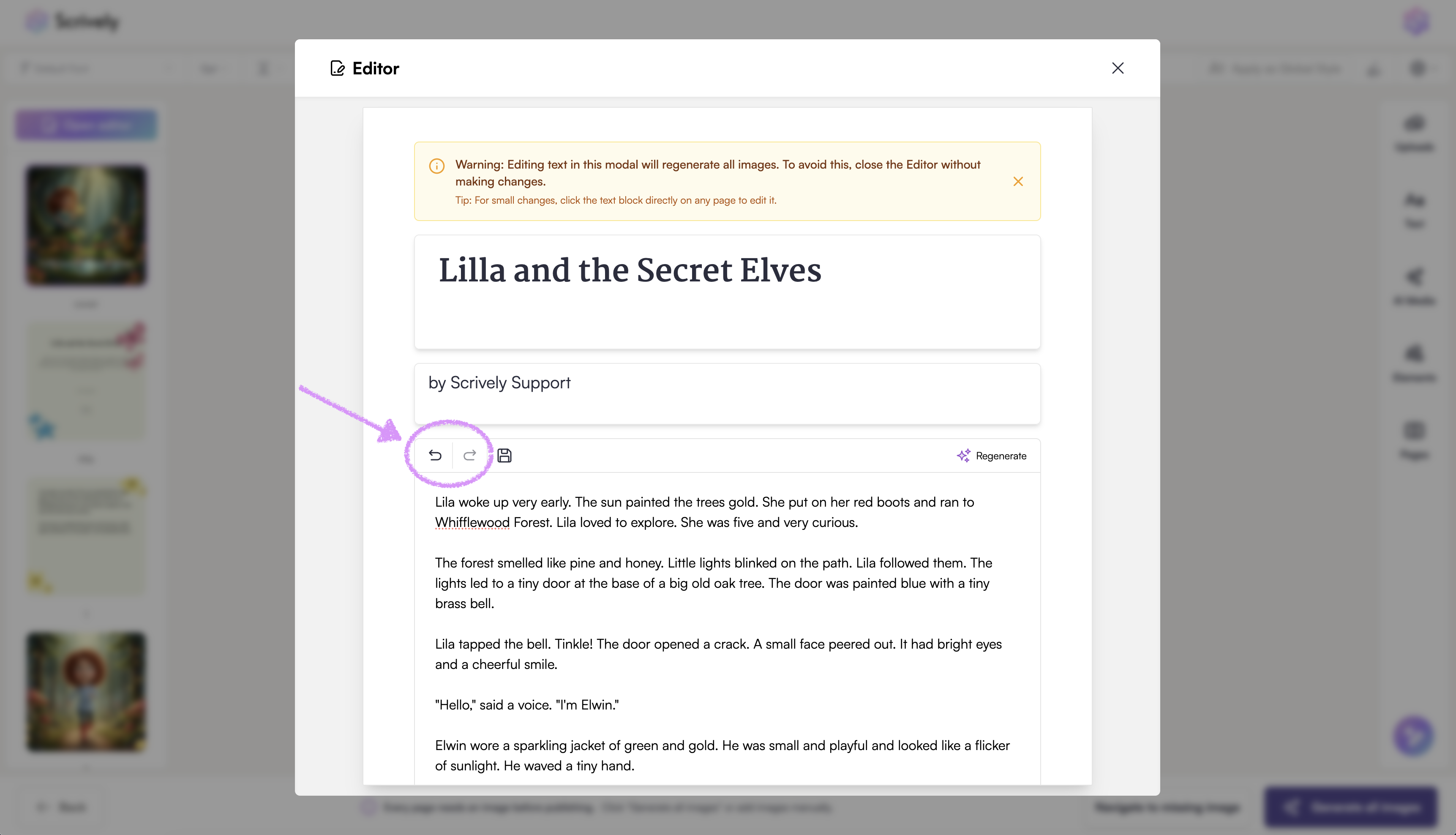
Need to undo or redo a change? Use the undo and redo icons located just below the author details.
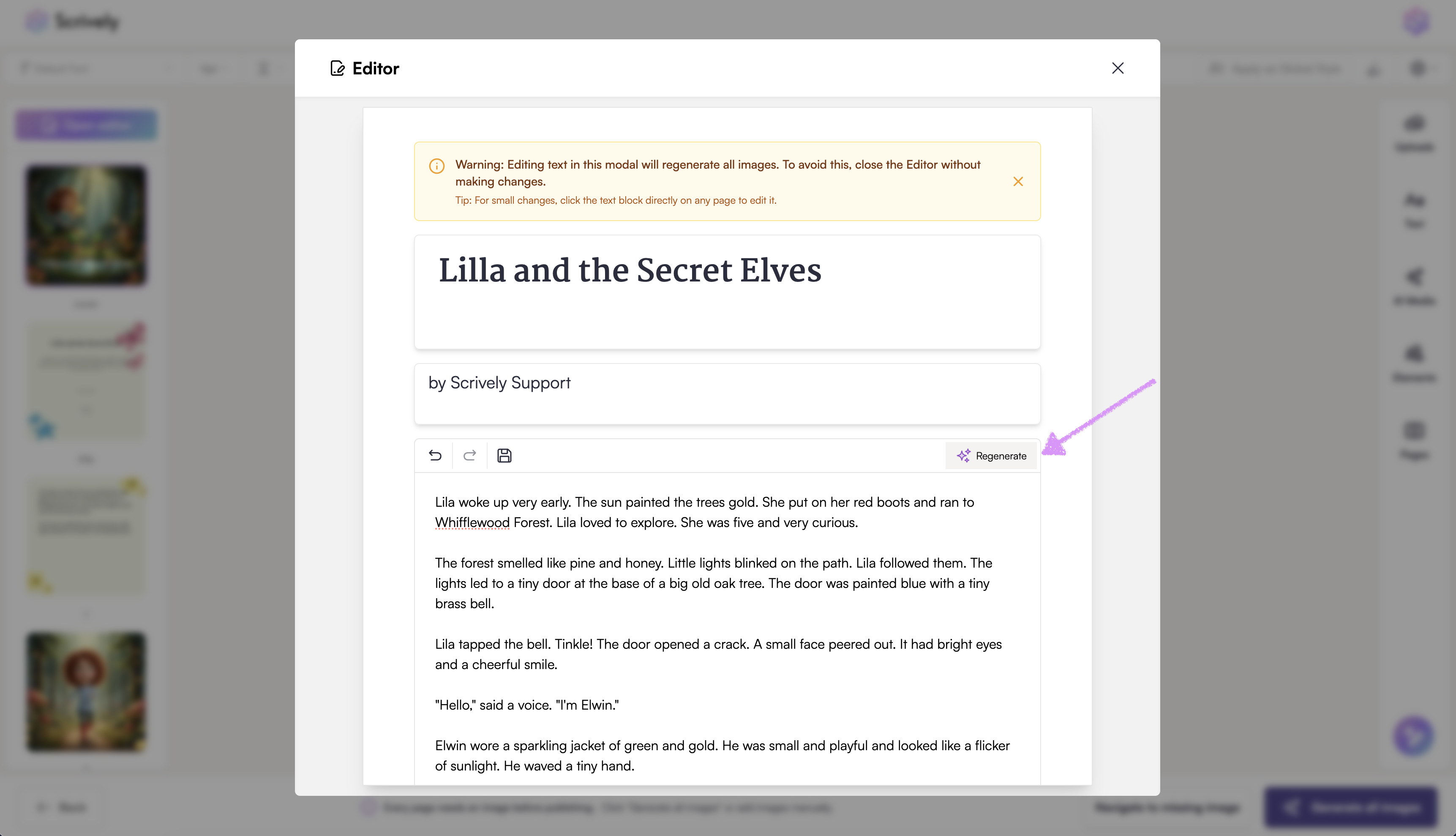
Not satisfied with the story? Select "Regenerate" to have Scrively create a new version for you.
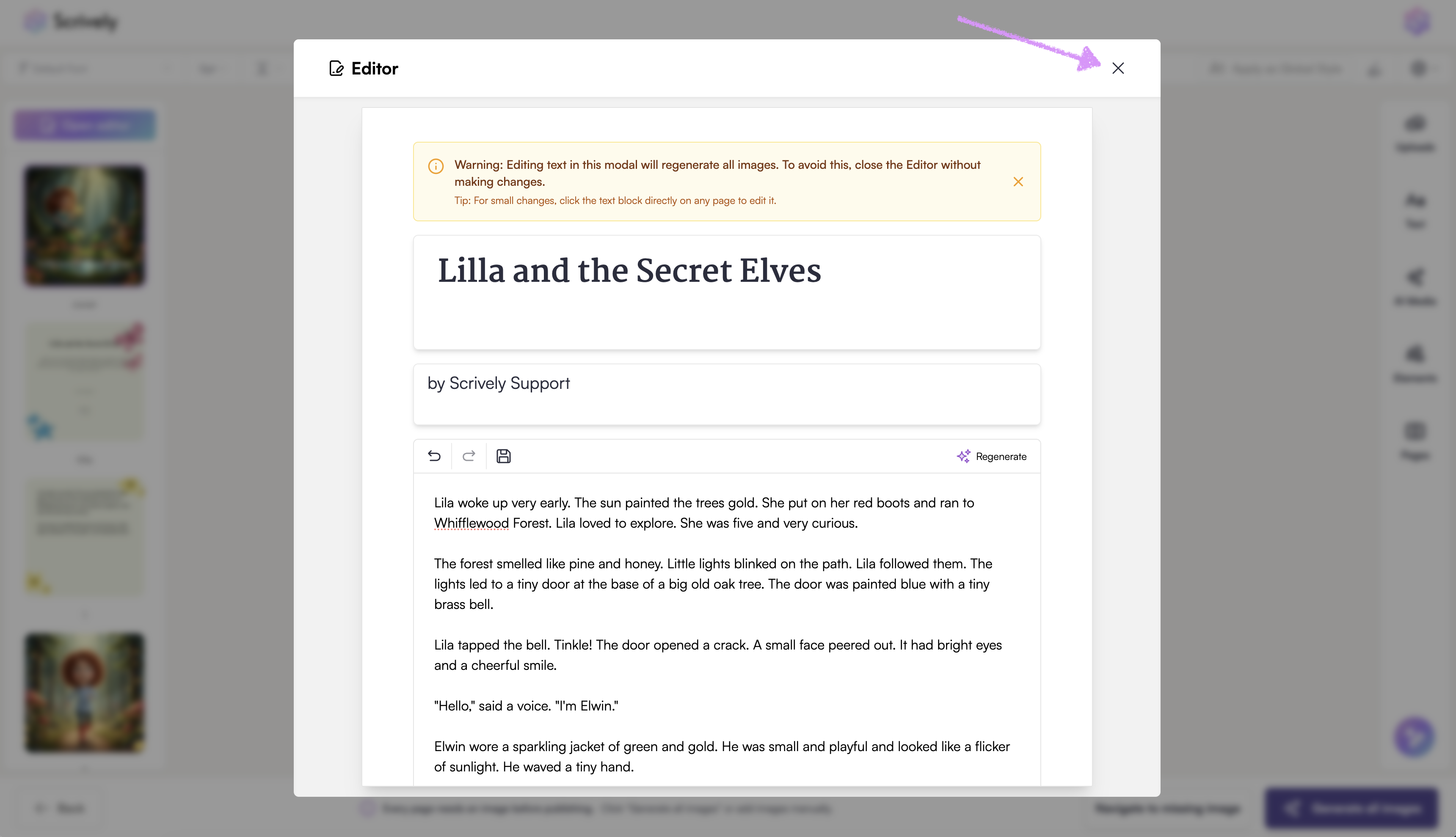
When you’re finished, click the "X" in the top-right corner to exit the Editor.
Note: The Editor is not available for premade books.
Was this article helpful?
That’s Great!
Thank you for your feedback
Sorry! We couldn't be helpful
Thank you for your feedback
Feedback sent
We appreciate your effort and will try to fix the article
