
The AI Media Library makes it easy to create custom illustrations for your book in just a few clicks. From generating brand-new images to refining prompts for more specific results, this space gives you full creative control over the visuals you bring into your project. Once generated, your images are saved and ready to use anywhere in your book.
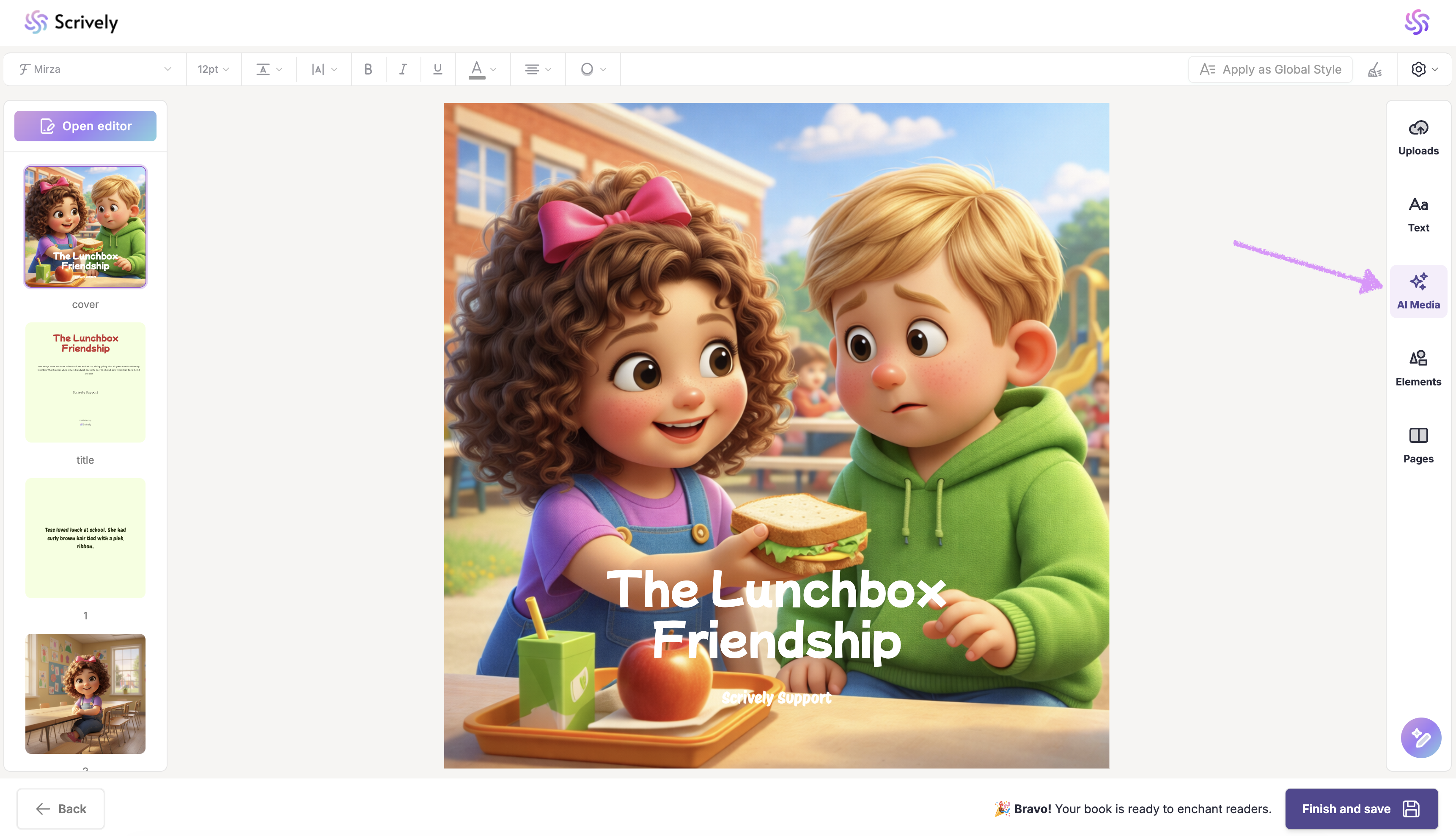
In the Designer (book layout view) on the right side click on "AI Media."
Click on "Generate new image."

Use the "Generate" option to let Scrively help you create the image prompt.
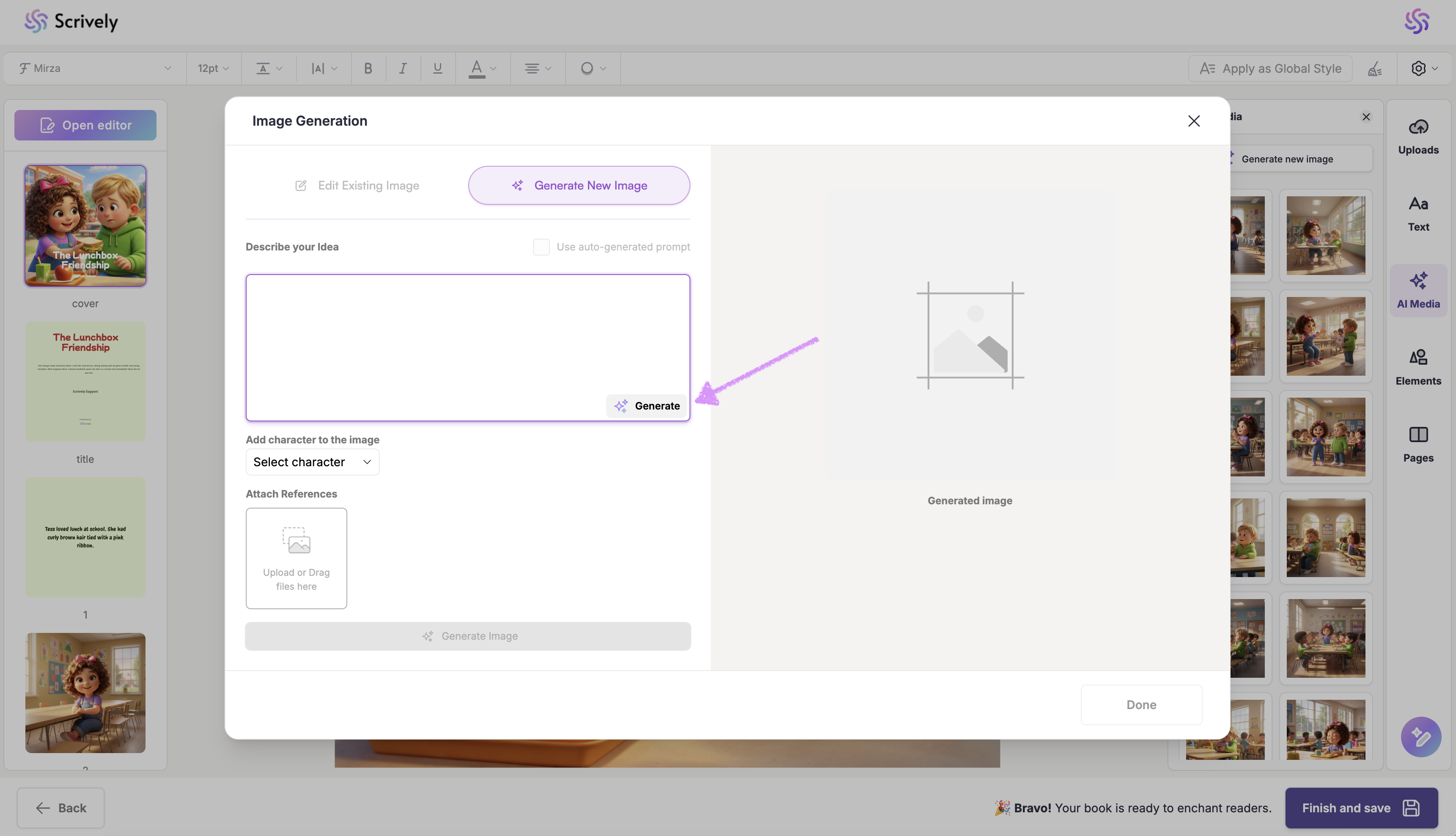
Alternatively, type in your own prompt in the provided field.
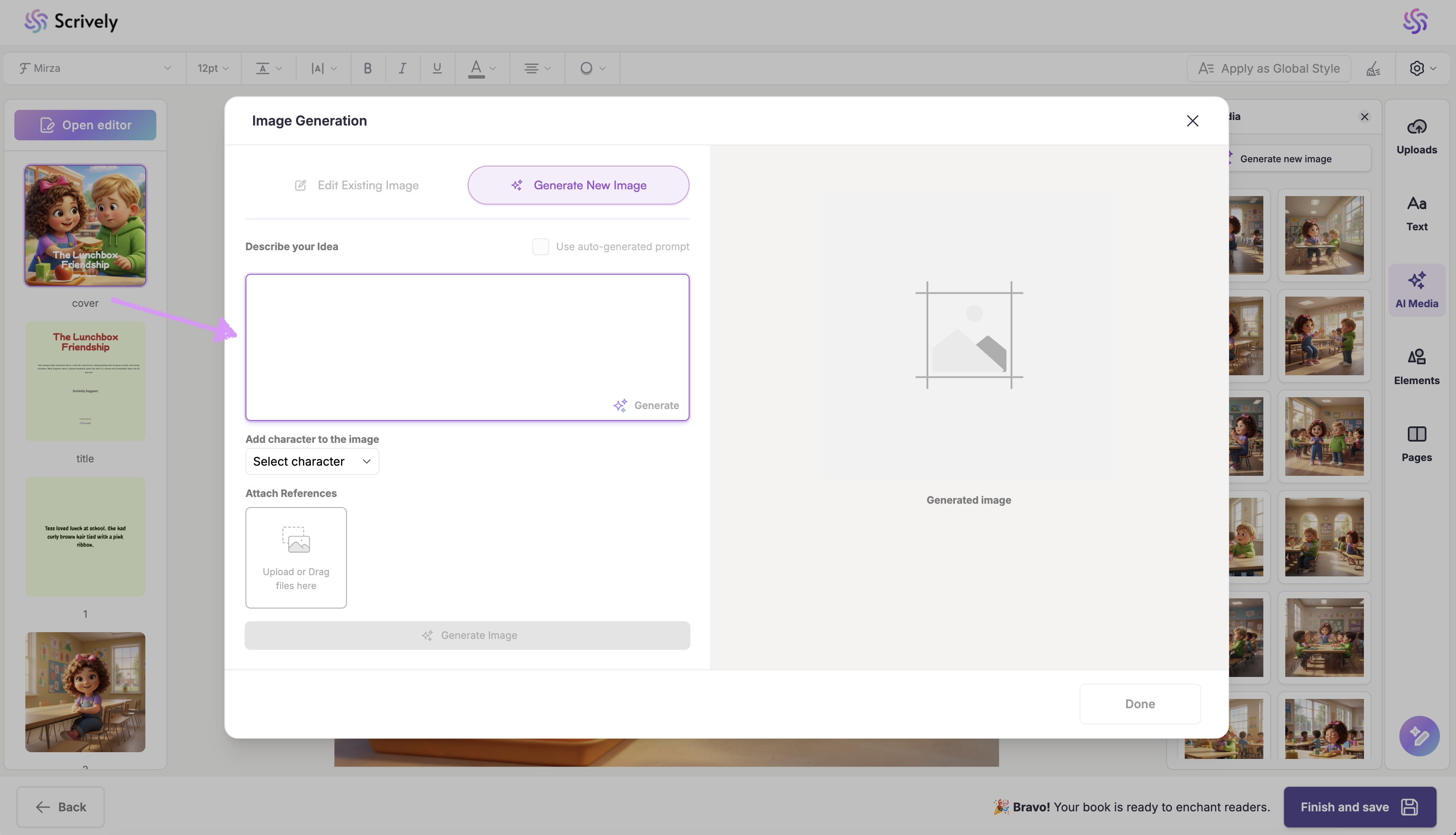
When using the "Generate" option Scrively will automatically associate the characters from your list. You can deselect or select additional characters if needed.
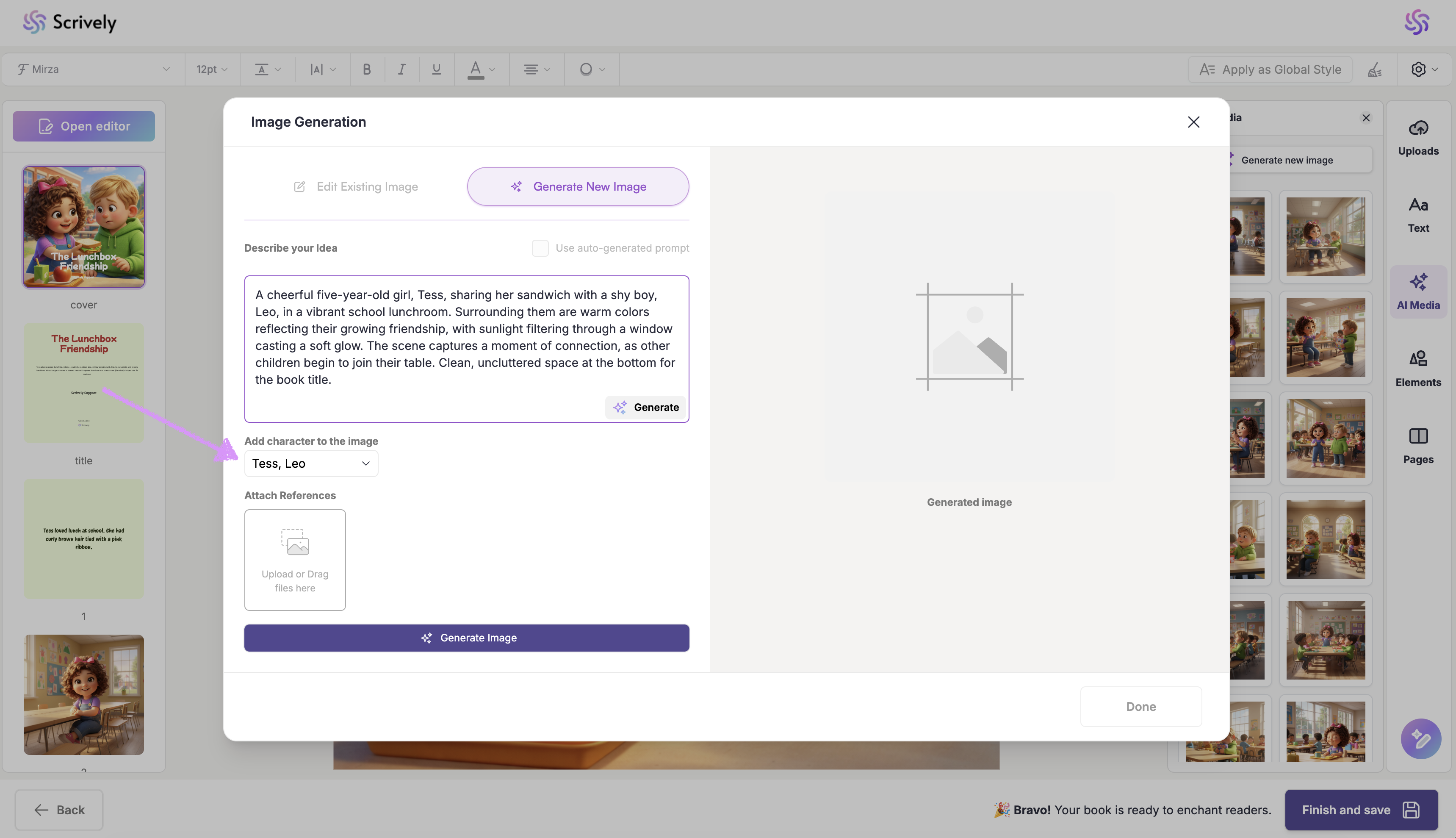
If needed, add a reference image.
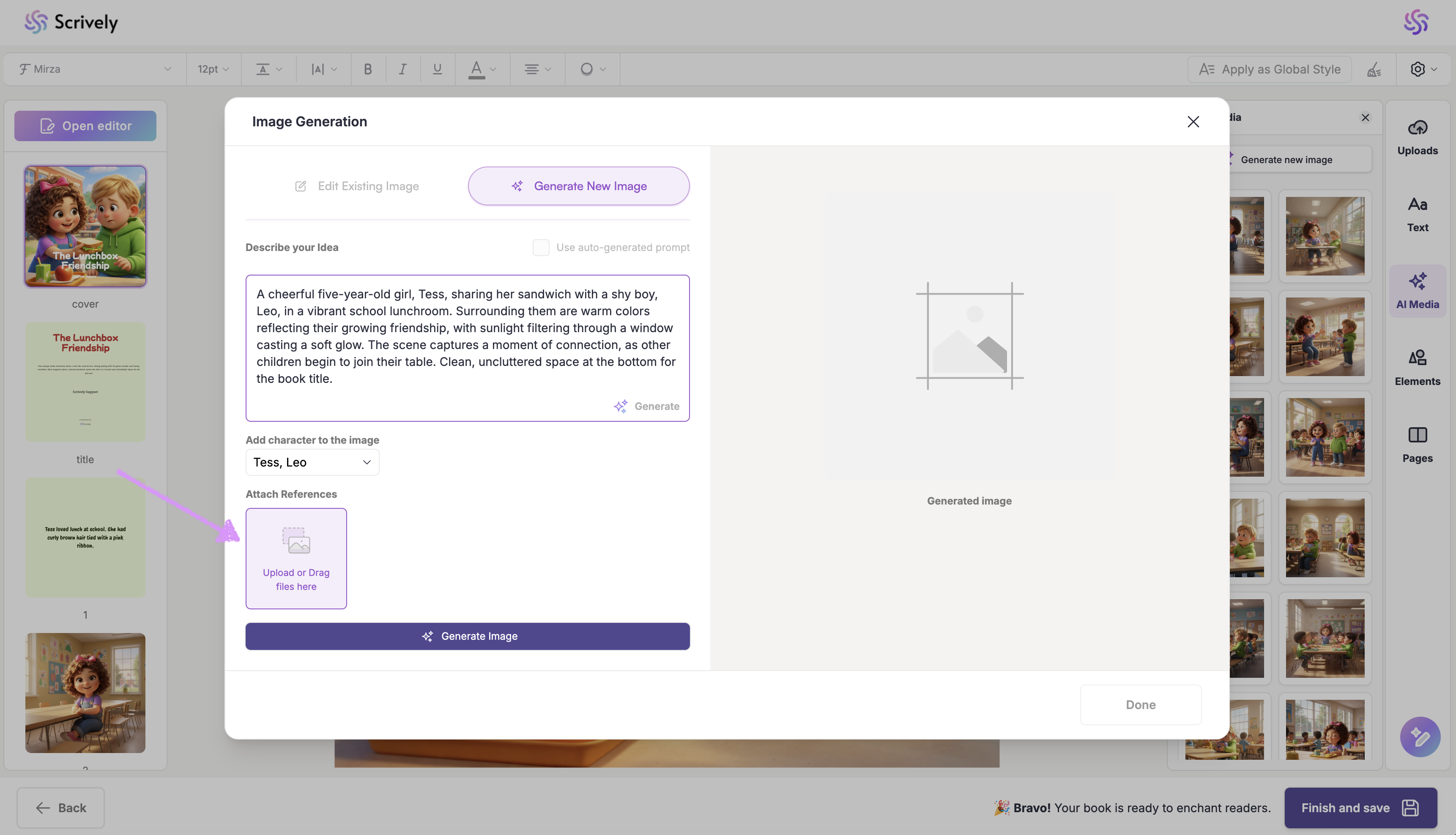
When you're ready, click on "Generate Image."
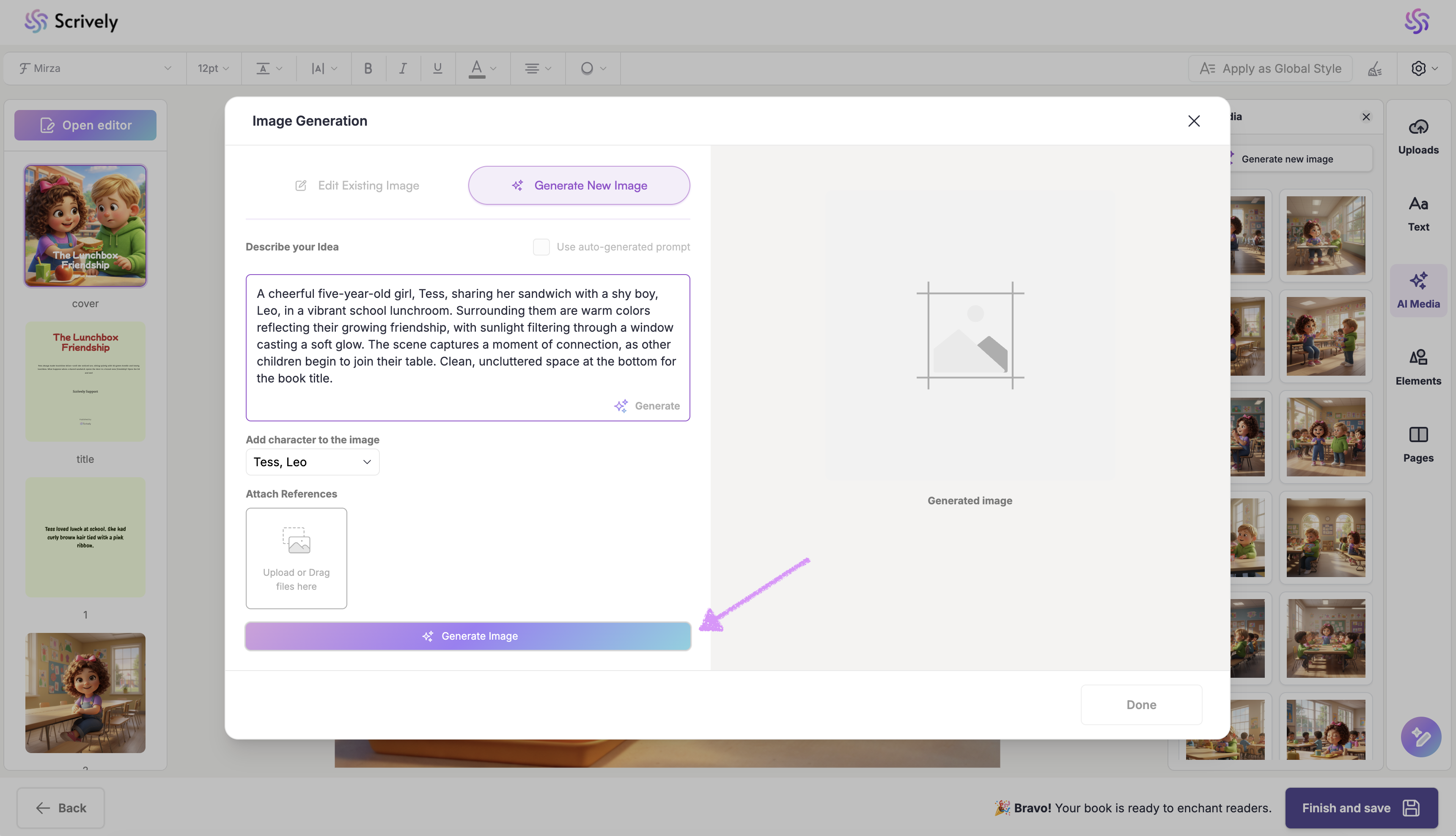
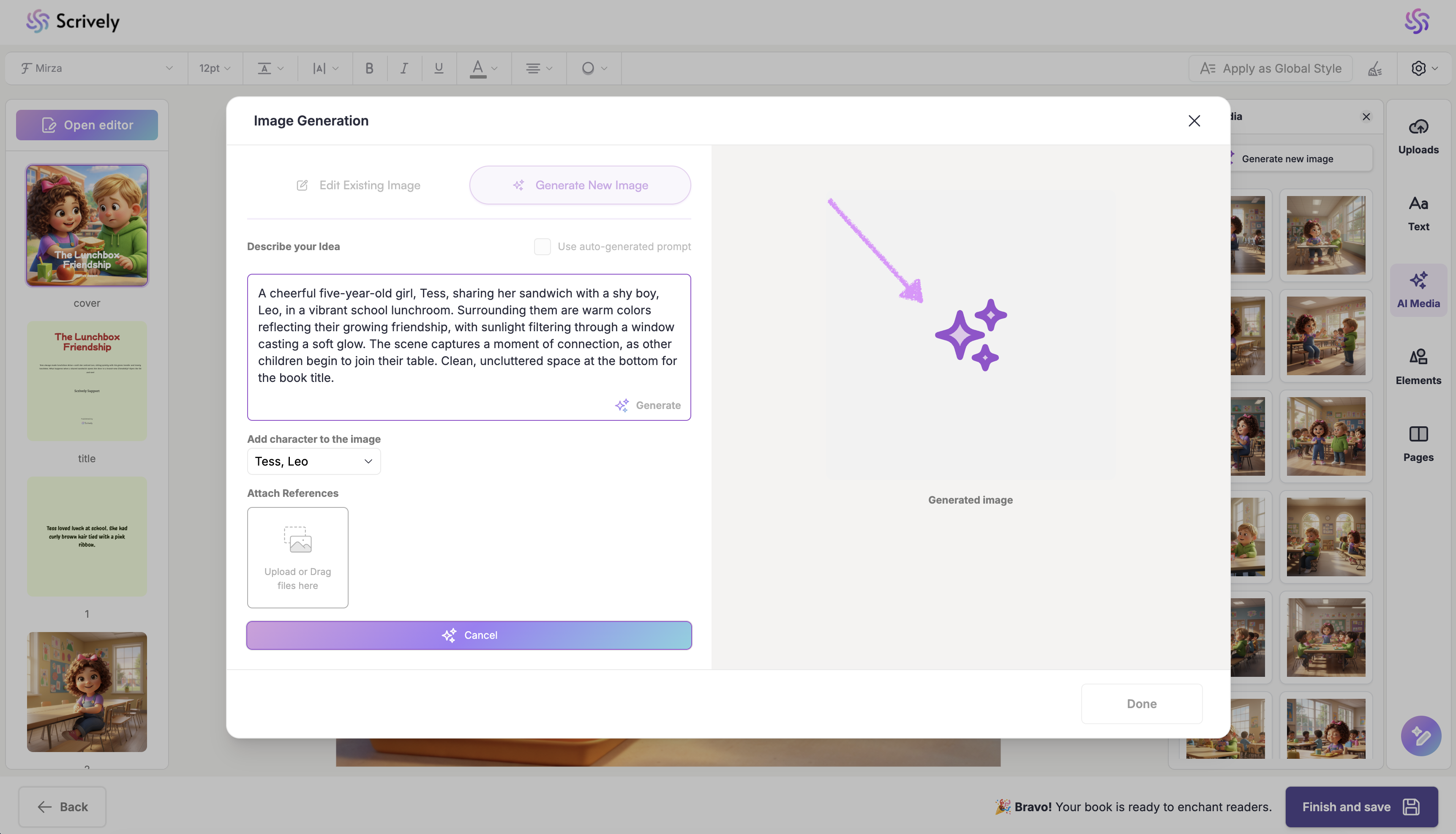
Scrively will take a few moments to think.
The generated image will be displayed. Not satisfied with the generated image? You can edit the image as outlined in our guide here or adjust the description then click on "Generate Image."
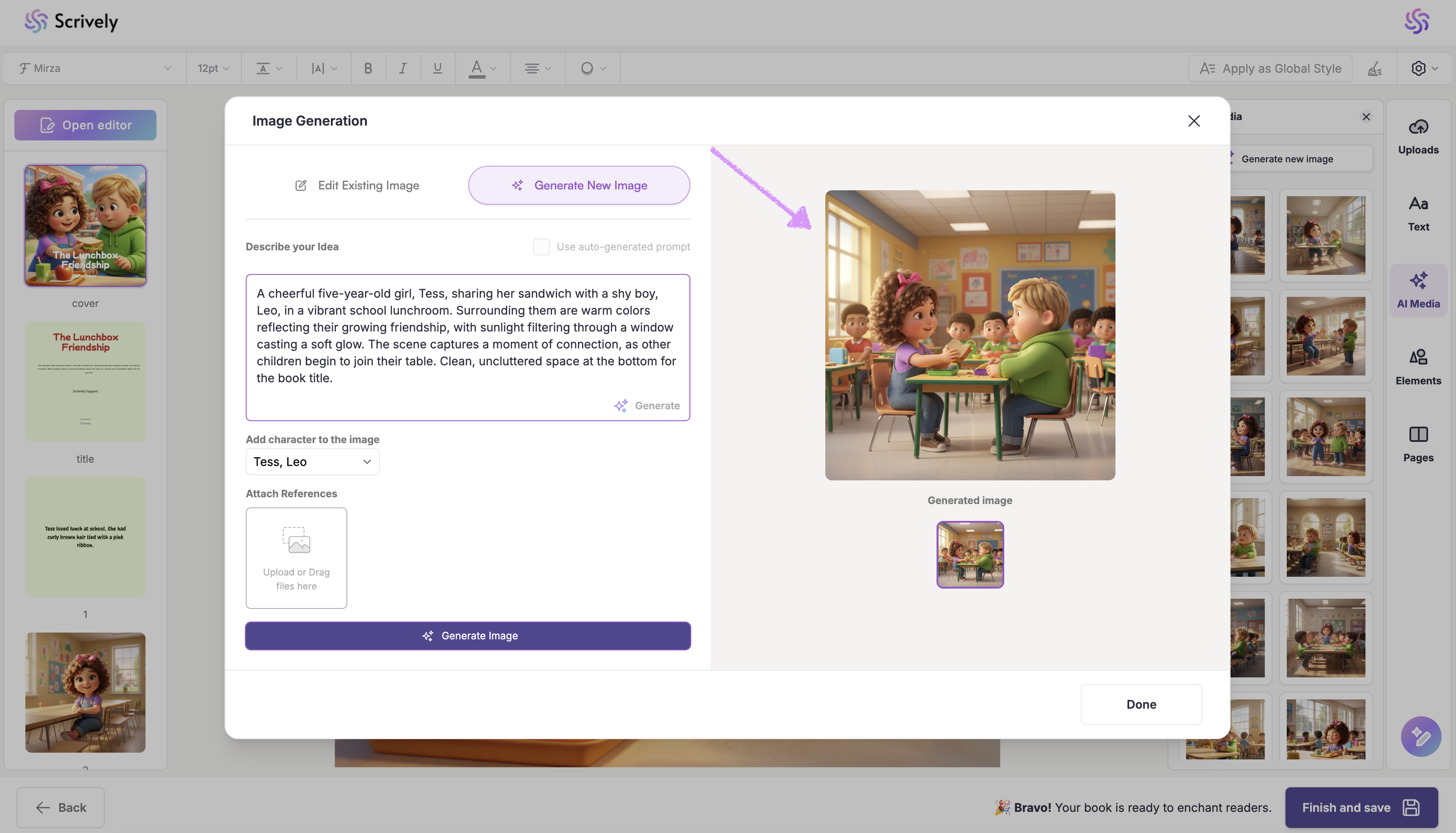
When you're satisfied with the image click on "Done."
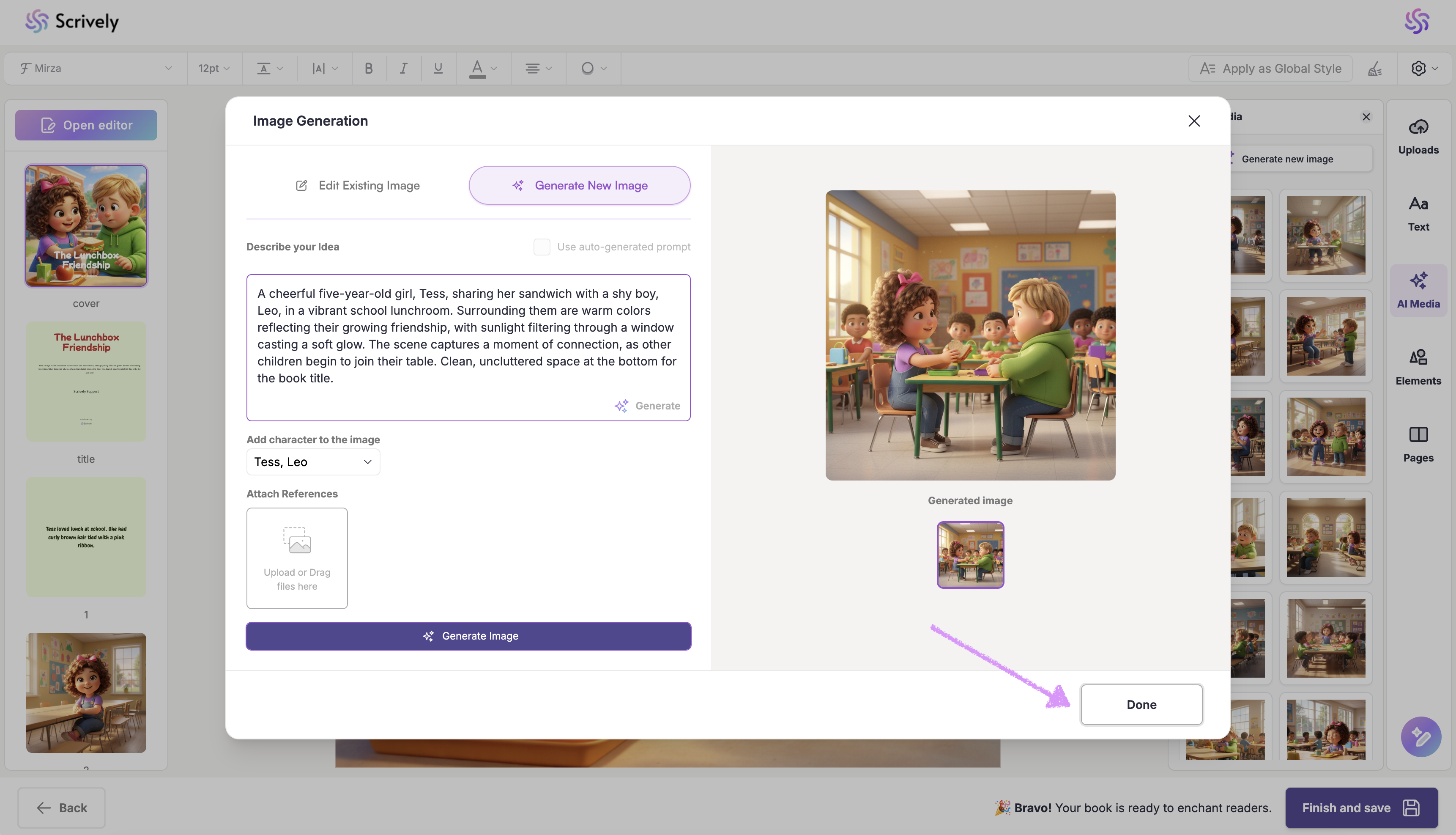
The image will be saved in your AI Media Library.
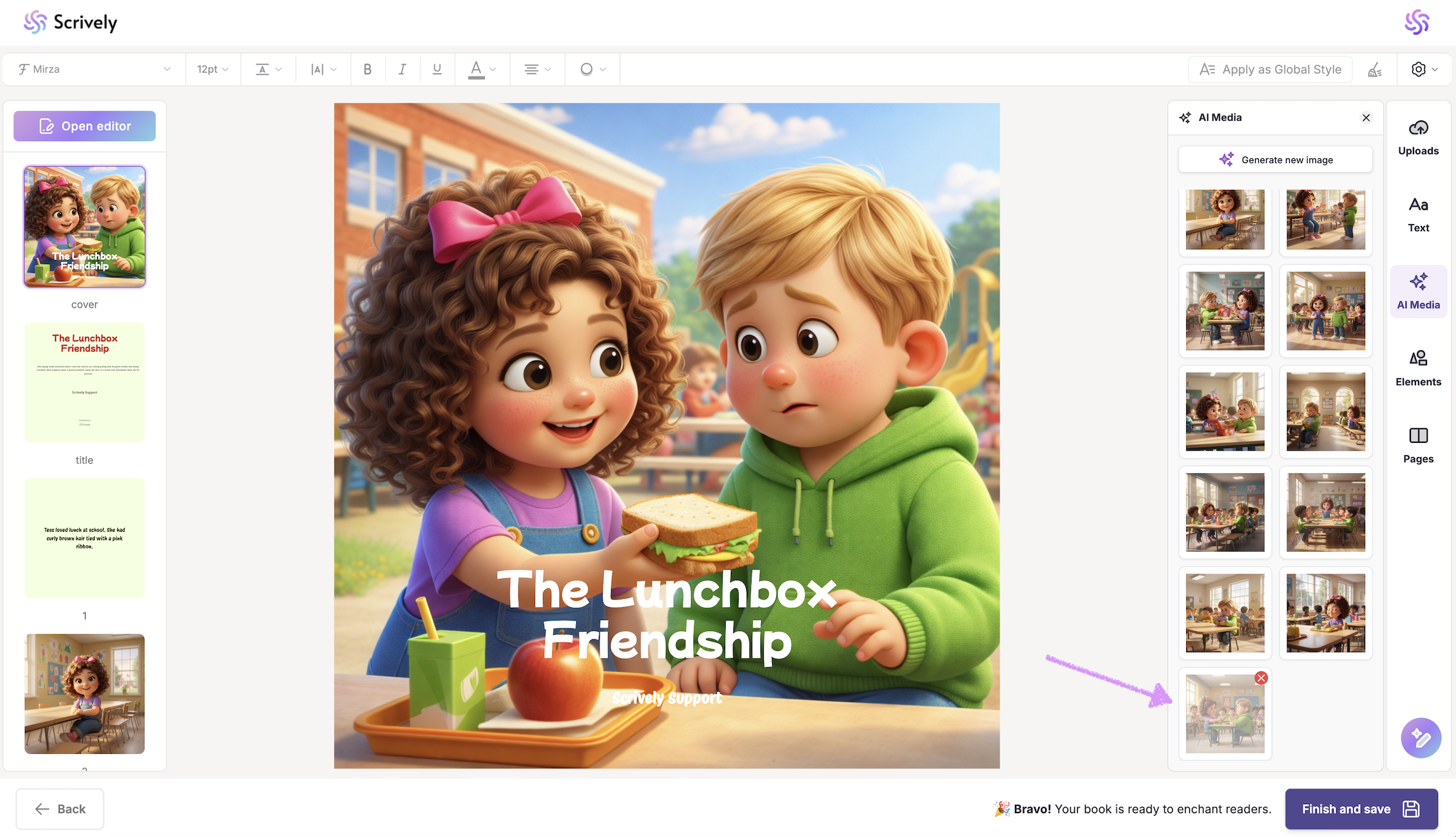
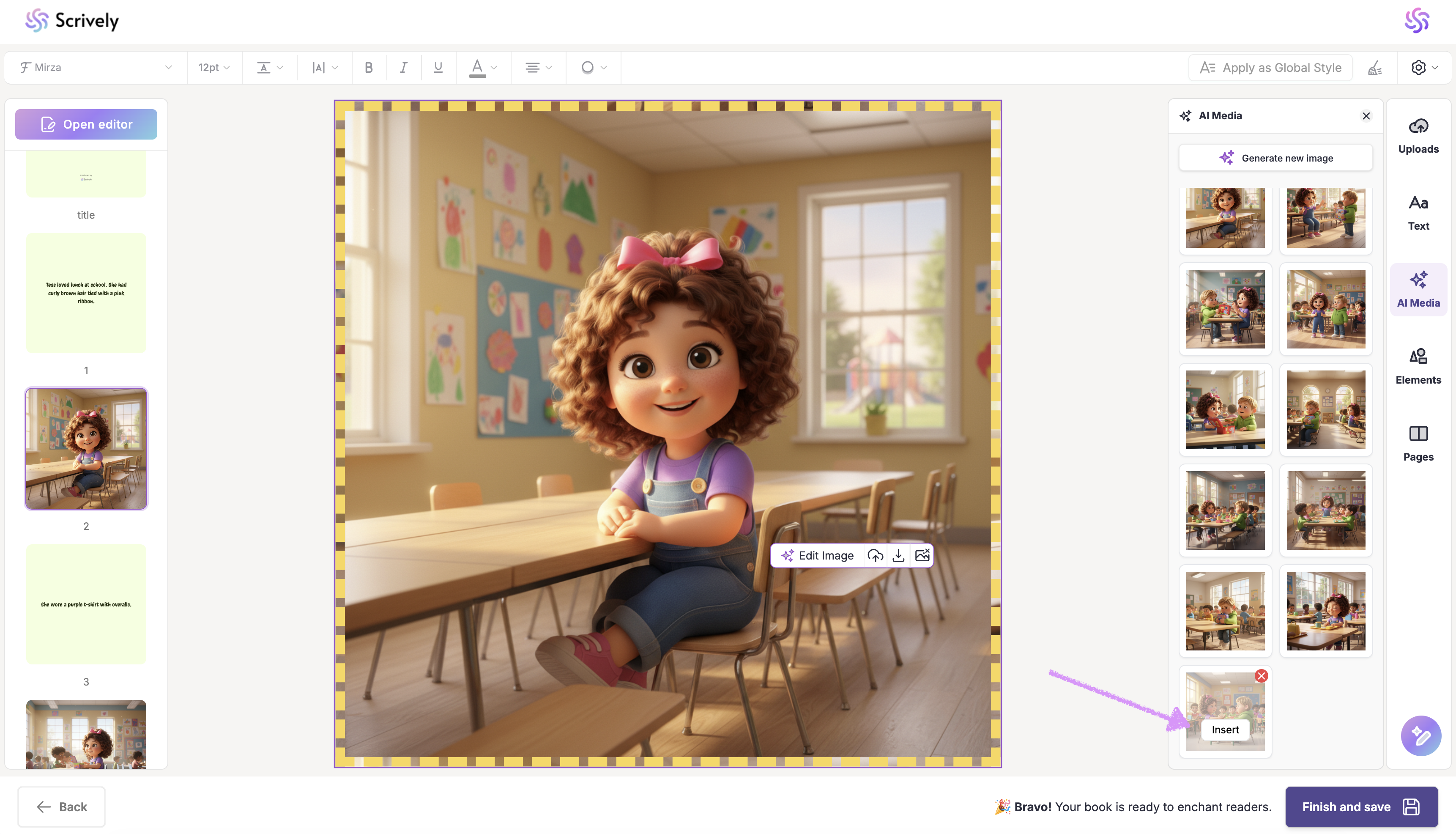
To add an image from your AI Media library, click into the image frame on the page, hover over the image you want, and click “Insert.”
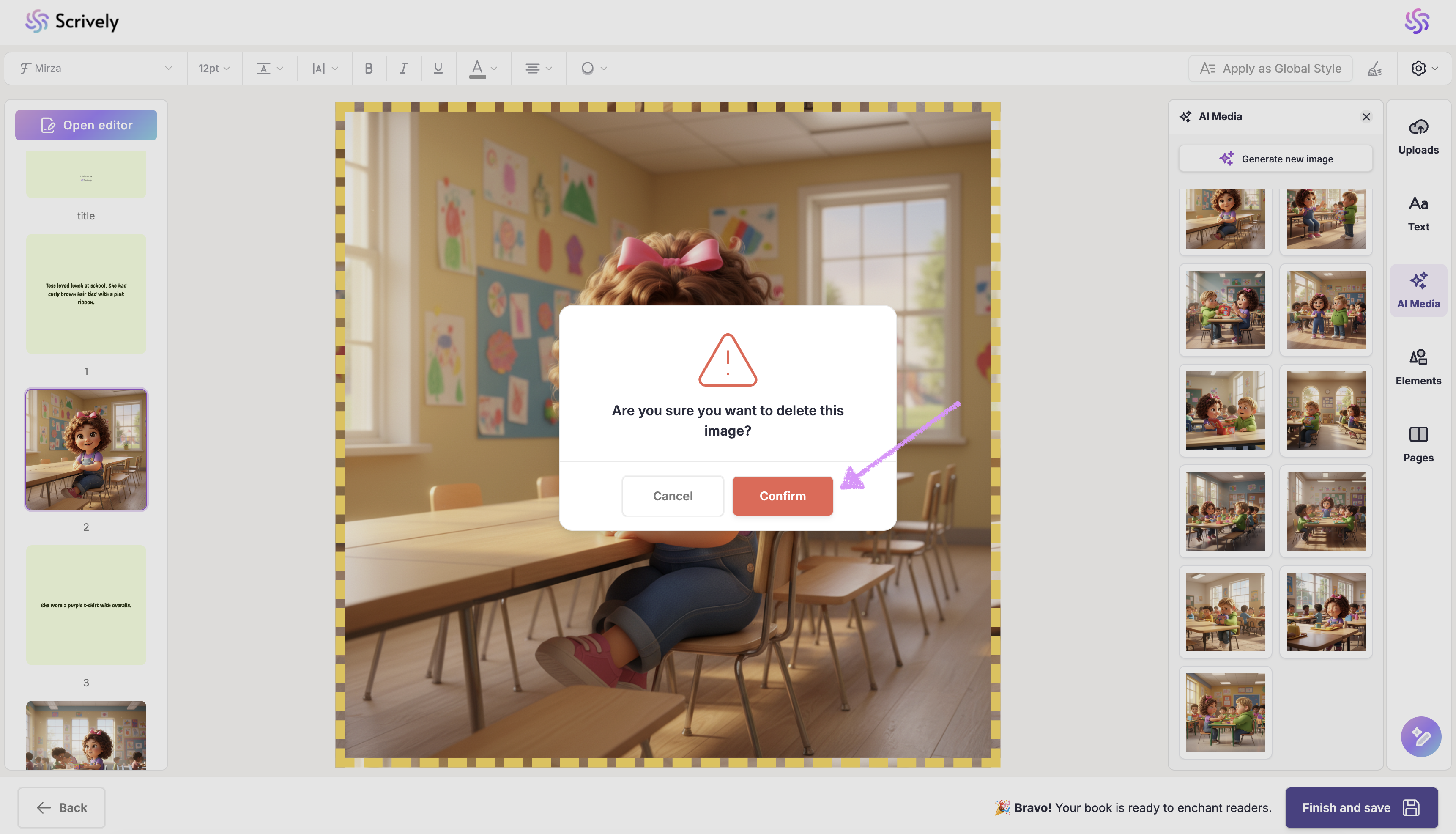
To delete an image from your AI Media Library, hover over it and click on the "X" icon.
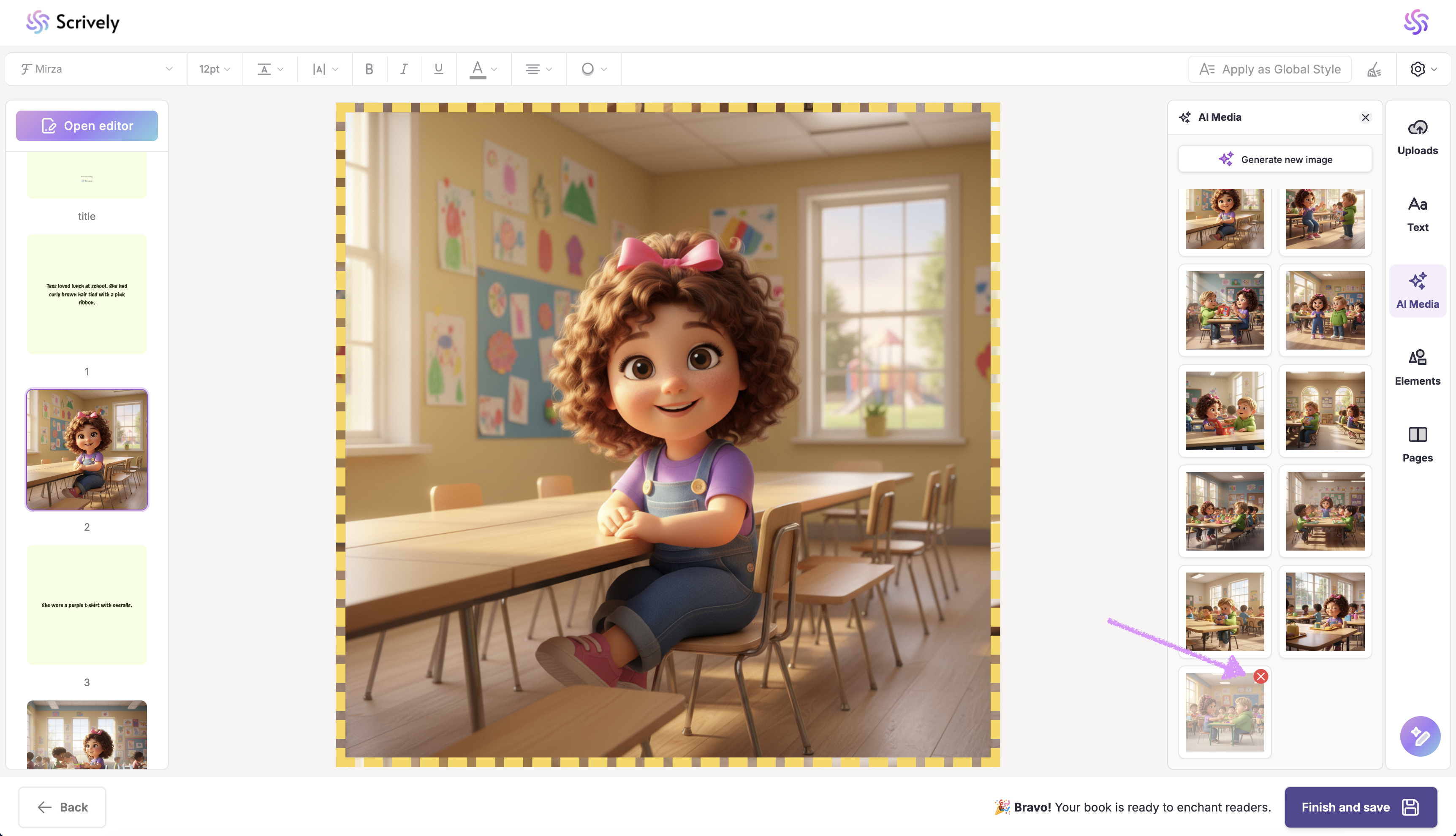
A confirmation modal will be shown to confirm that you would like to delete the image.
Was this article helpful?
That’s Great!
Thank you for your feedback
Sorry! We couldn't be helpful
Thank you for your feedback
Feedback sent
We appreciate your effort and will try to fix the article
