
Adding multiple images to a page lets you experiment with different visuals, compare options, and quickly switch between images as you design your pages. This makes it easy to fine-tune the look of your book without losing or re-uploading your artwork.
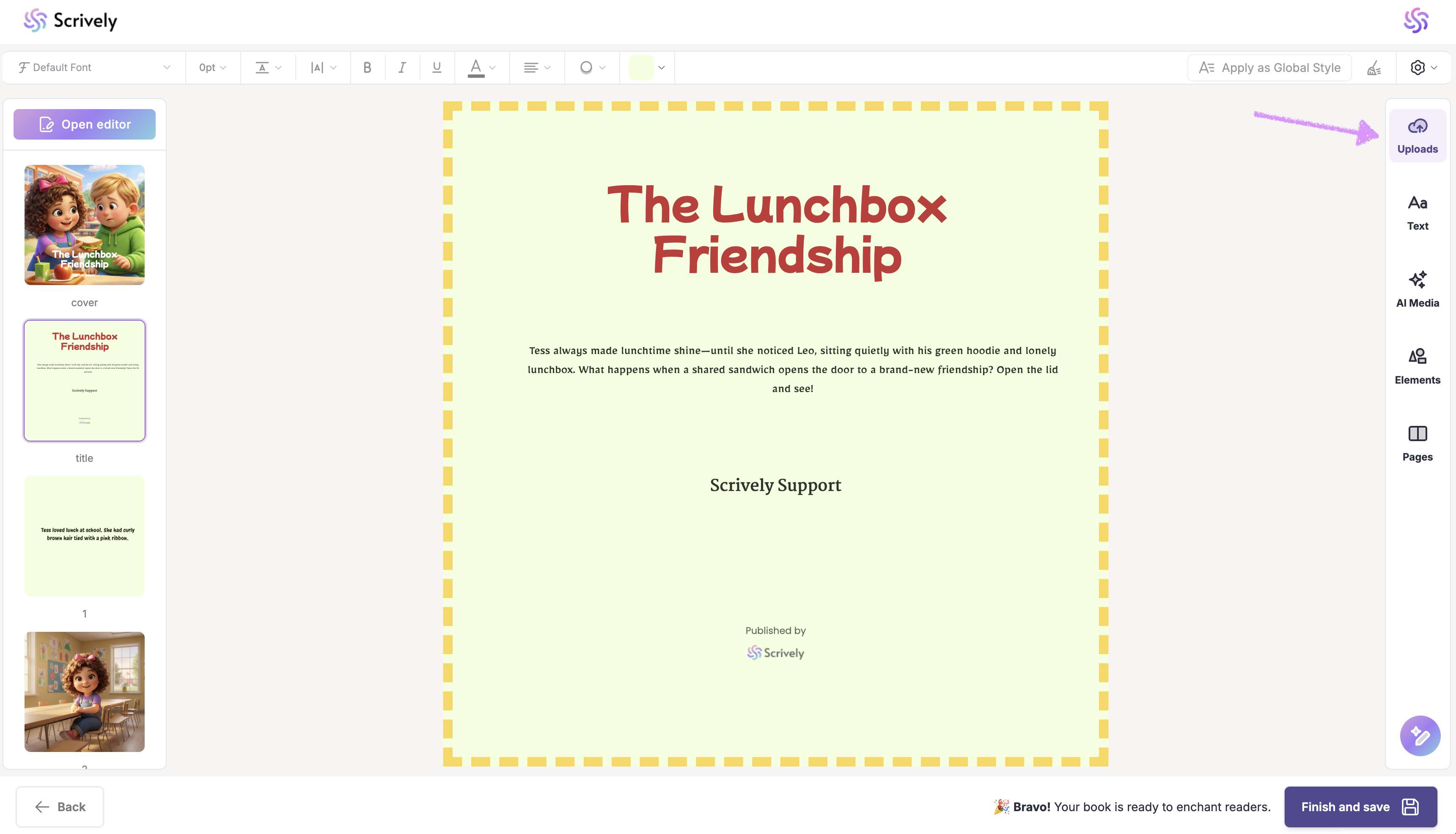
In the Designer (book layout view), you can easily add multiple images to your pages. For example, head over to the "Uploads" tab if you want to use an image that you've uploaded from your device.
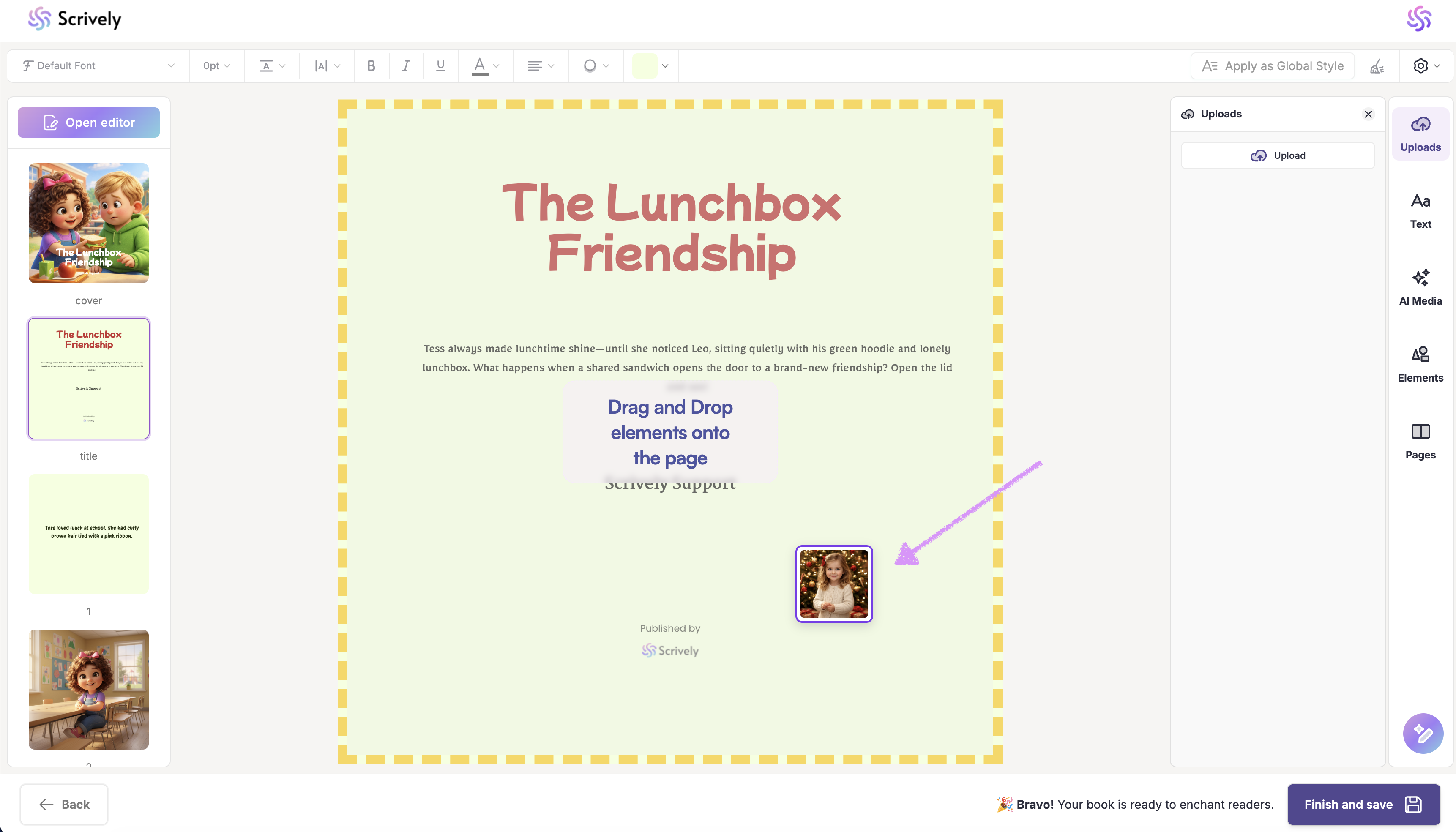
Hover over the image and click to drag it onto the page.
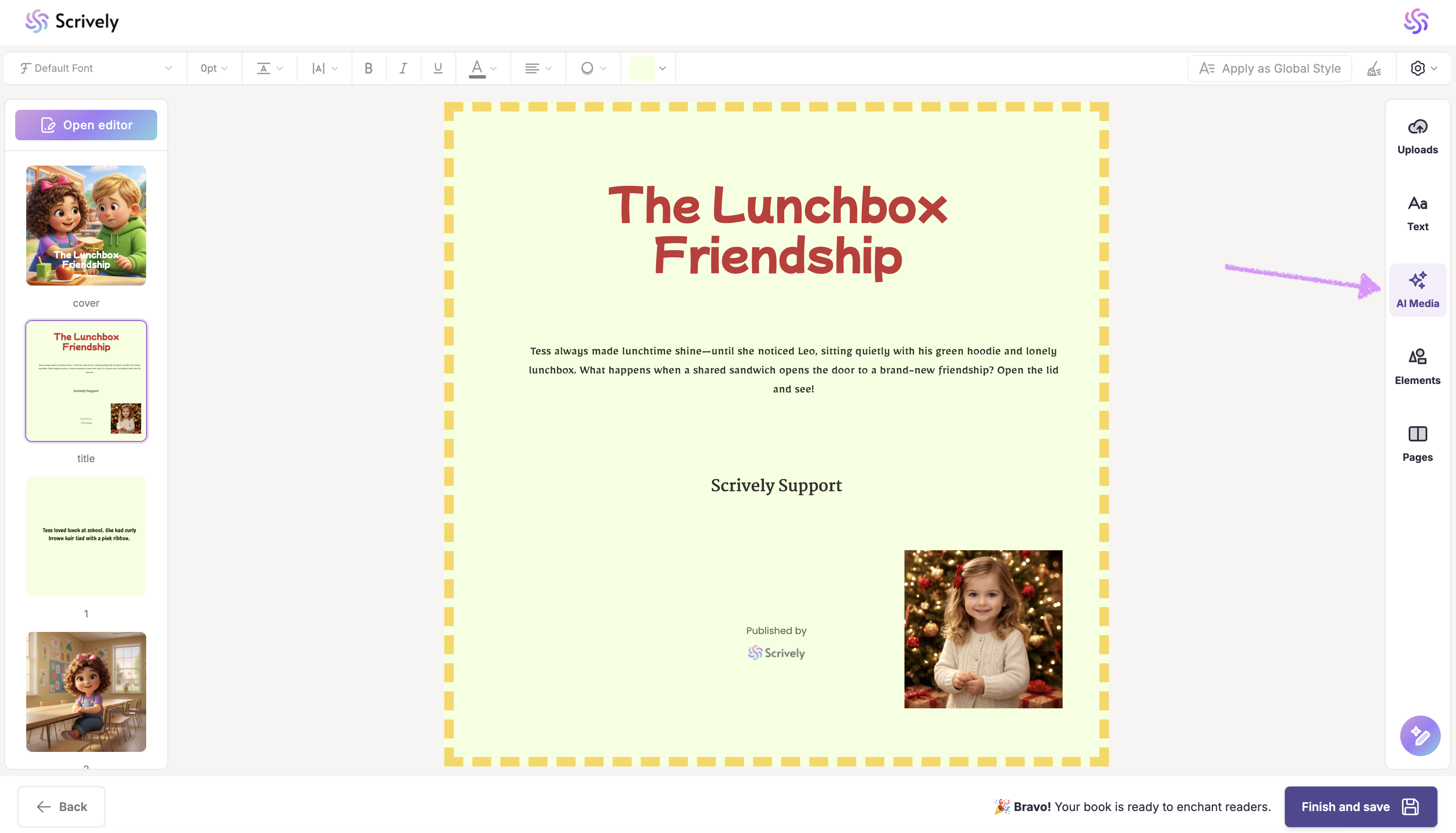
Want to add images from your "AI Media" Library as well? Click on the "AI Media" tab.
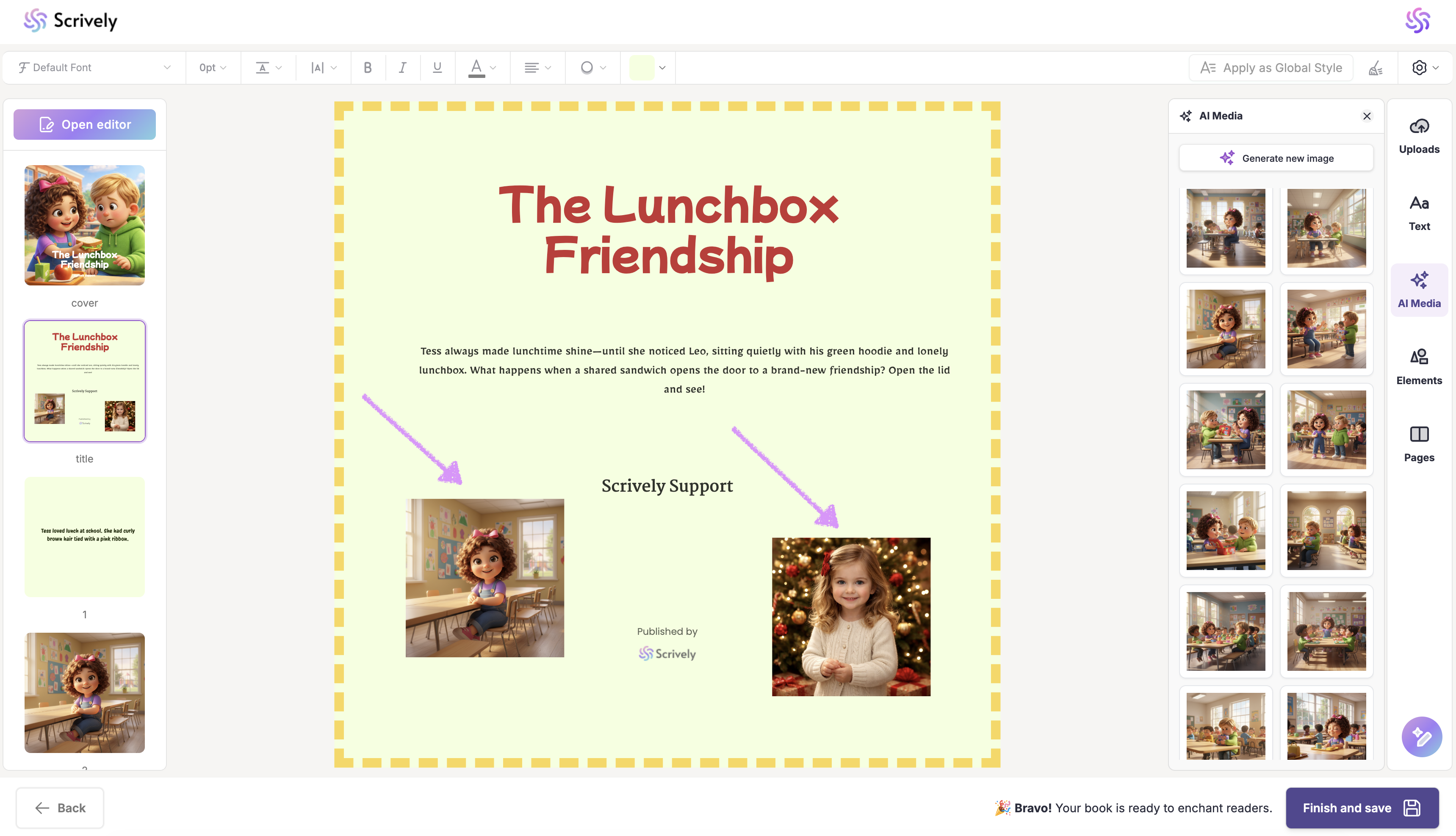
Click and drag the images onto the frame. For more image editing options, see our guide here.
Was this article helpful?
That’s Great!
Thank you for your feedback
Sorry! We couldn't be helpful
Thank you for your feedback
Feedback sent
We appreciate your effort and will try to fix the article
