
Image frames bring your pages to life with the perfect visuals. You can fill each frame with your generated images or upload your own from your device.
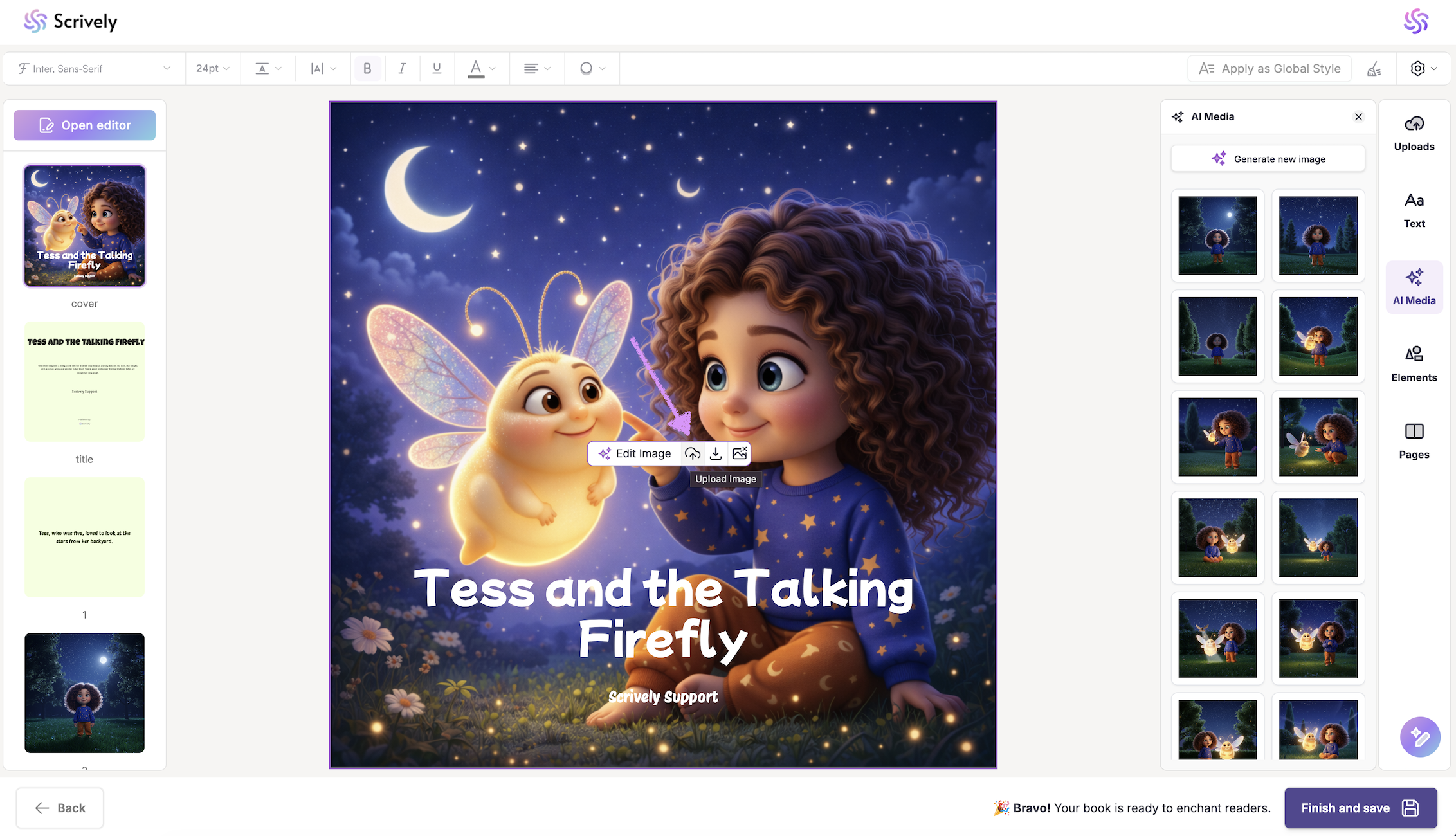
All images you’ve generated will appear in the right-hand side in the book's "AI Media" library.
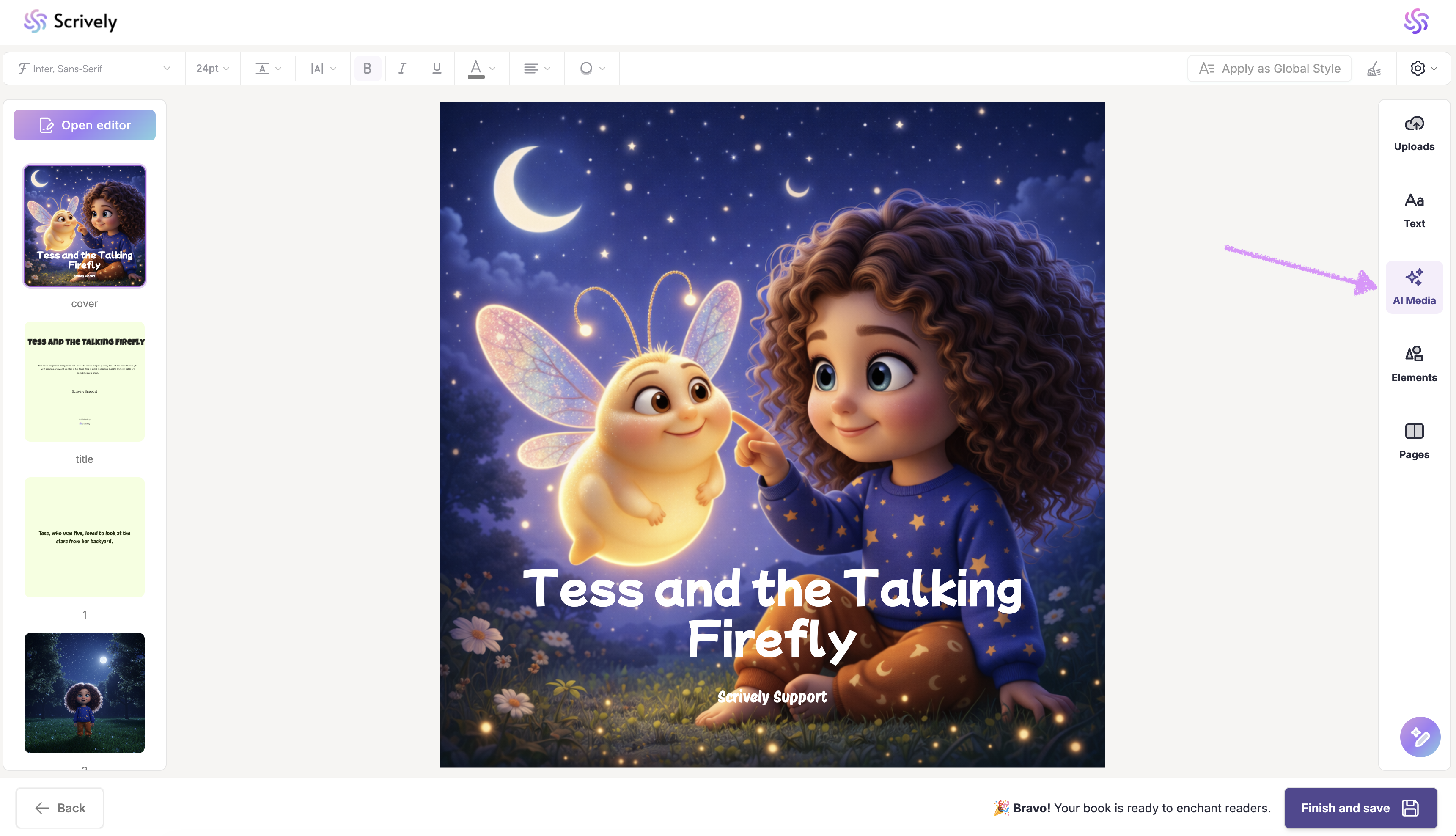
Click on "Generate new image" if you'd like to have Scrively generate new images for you.
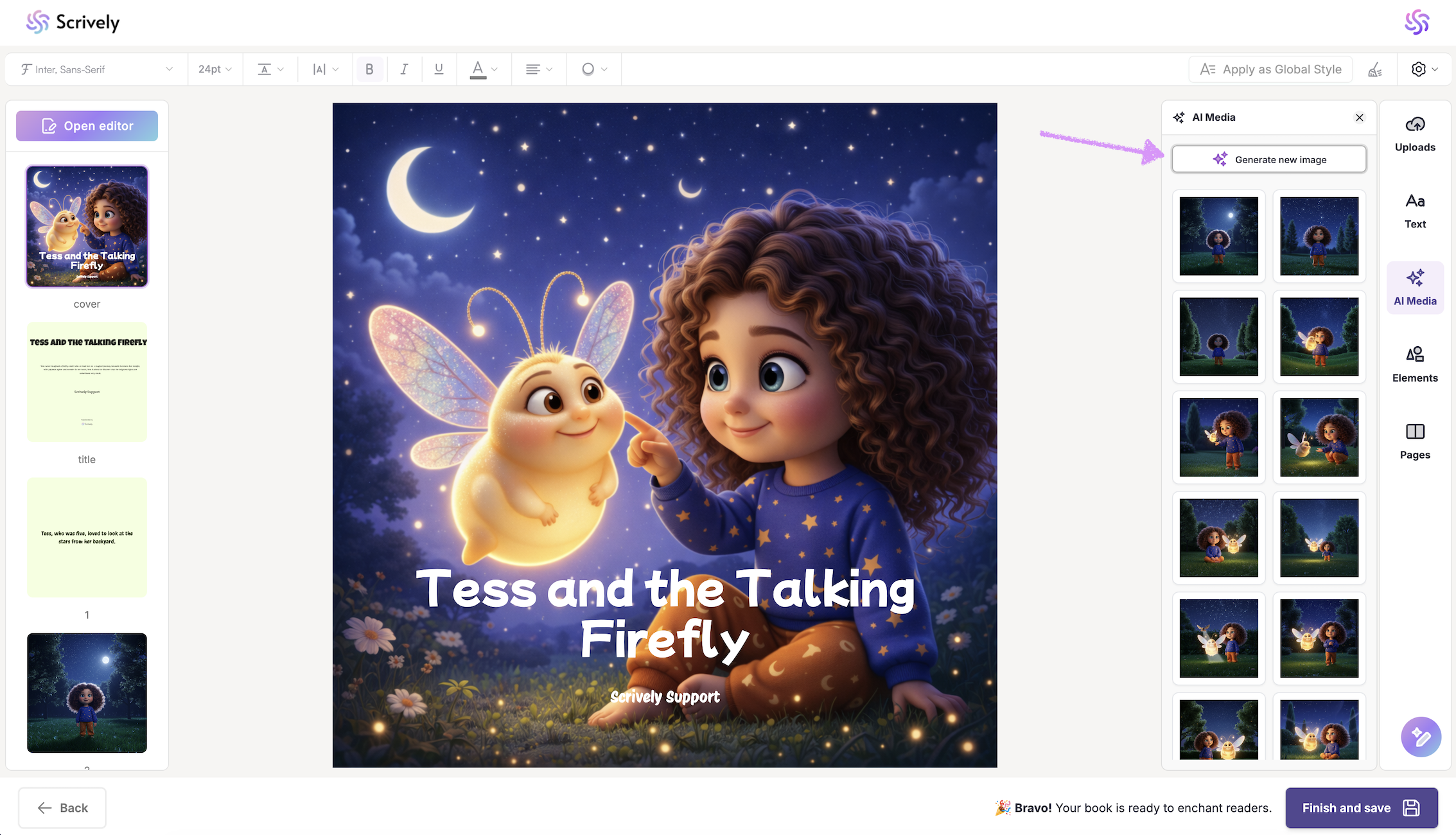
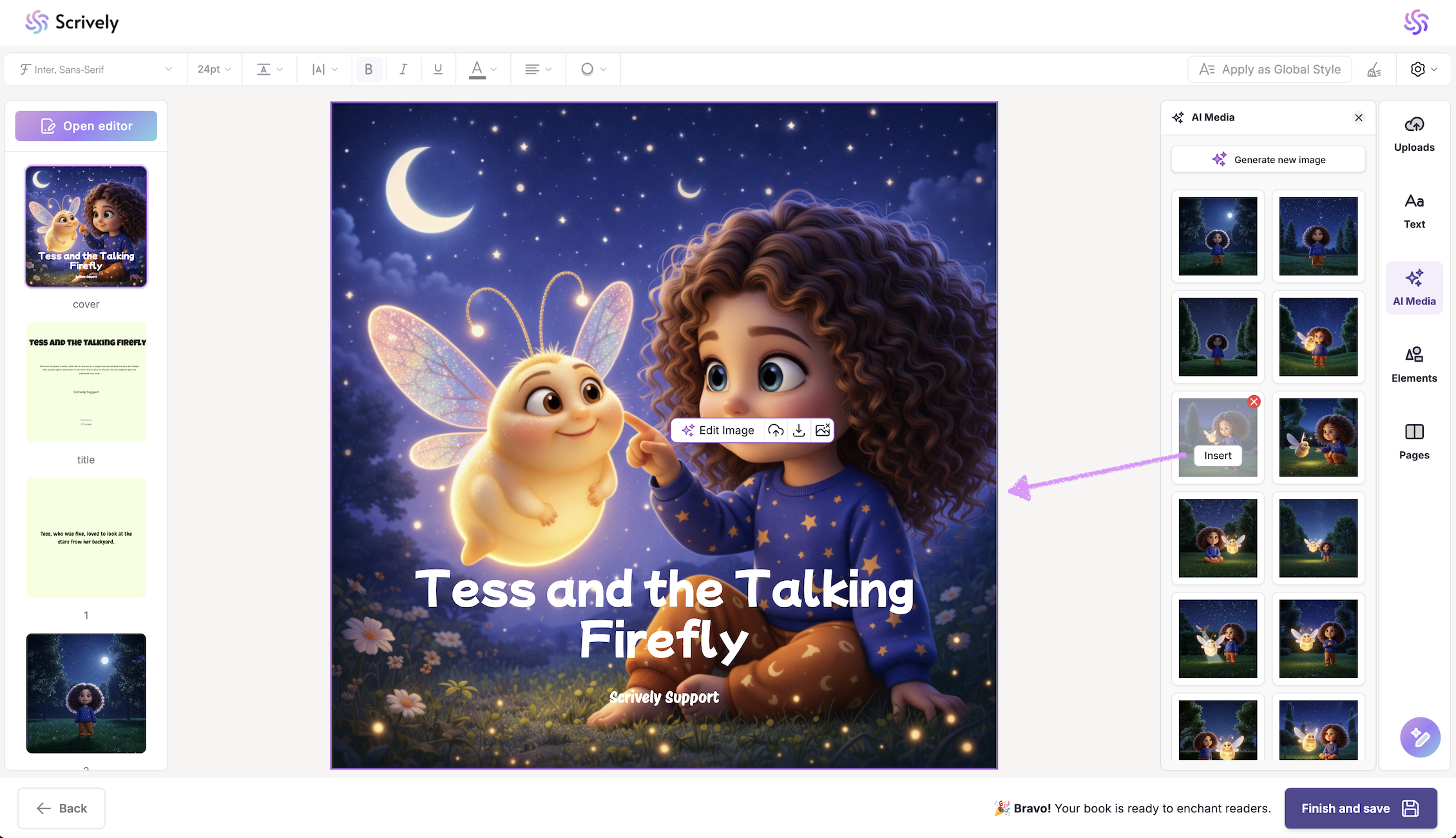
Note: When you use the "Generate new image" option in the AI Media library, the image isn’t placed into the image frame on the page automatically. It’s saved to your AI Media library then, you can follow the steps below to add it to the image frame on the page.Click into the image frame on your page, hover over the image you want to add, and click "Insert" to place it into the frame.
Hover over the image and click on the "X" icon to delete it.
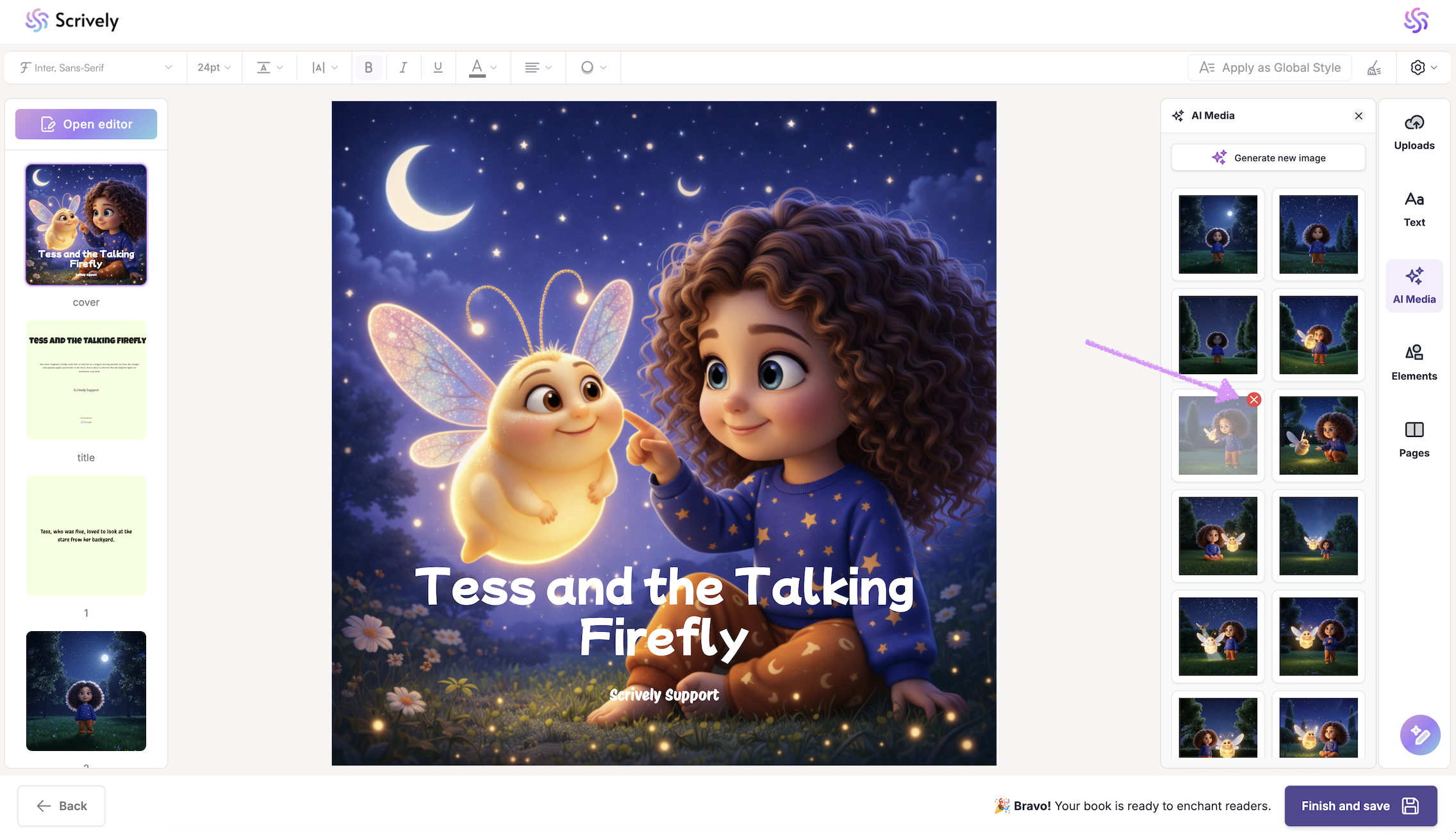
A modal will be shown to confirm the deletion.

To upload an image from your device, click on the image frame, then select the upload icon. This method will apply the image directly into the frame.
Was this article helpful?
That’s Great!
Thank you for your feedback
Sorry! We couldn't be helpful
Thank you for your feedback
Feedback sent
We appreciate your effort and will try to fix the article
