
Enhance your storytelling with Scrively by adding rich, imaginative details to your story’s foundation. Whether you’re building a fantasy world, crafting a gripping mystery, or writing a heartfelt children’s book, Scrively gives you the tools to shape your settings and plots with depth and intention.
In the Personalization options view select the "Story Genre."
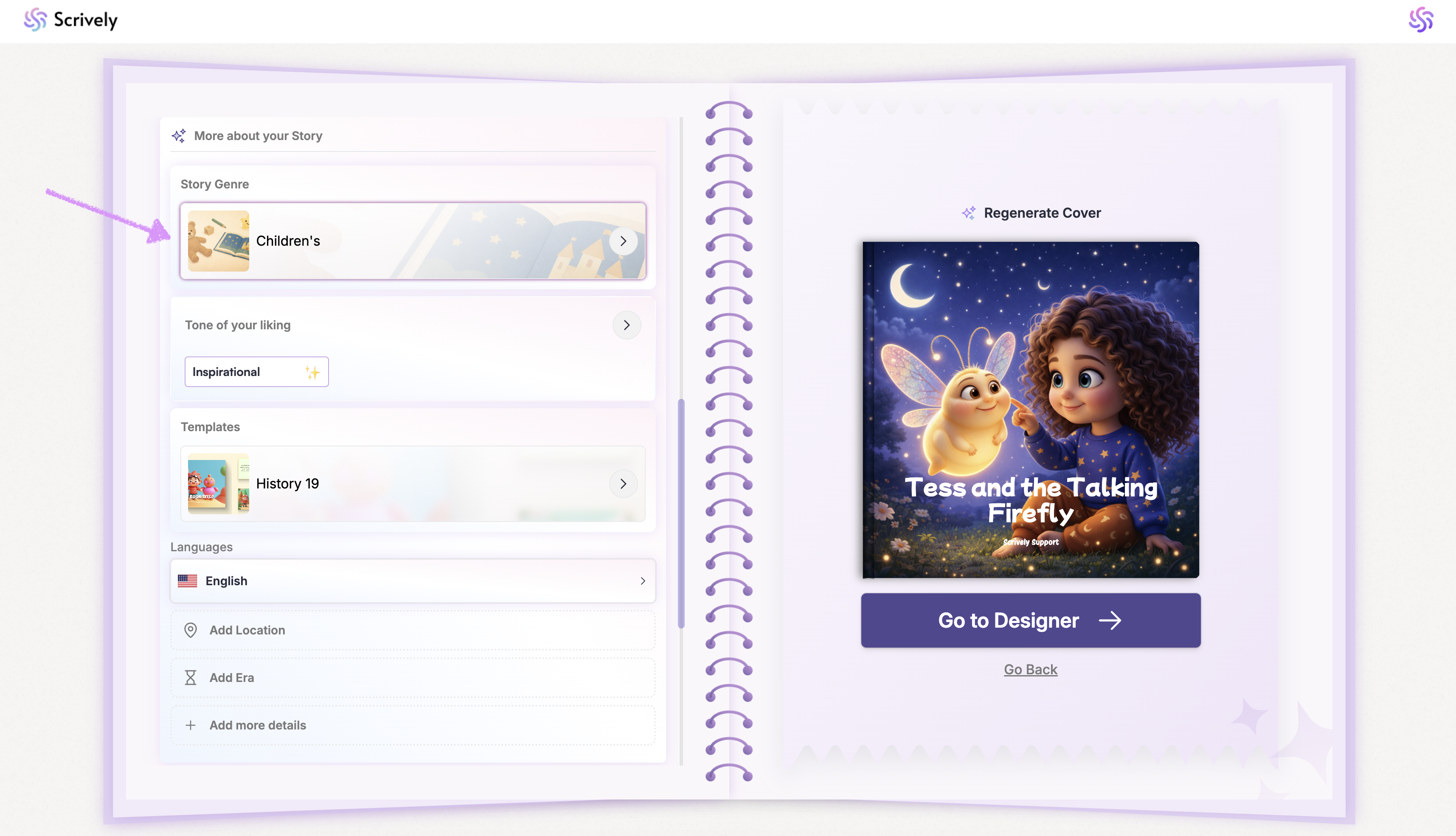
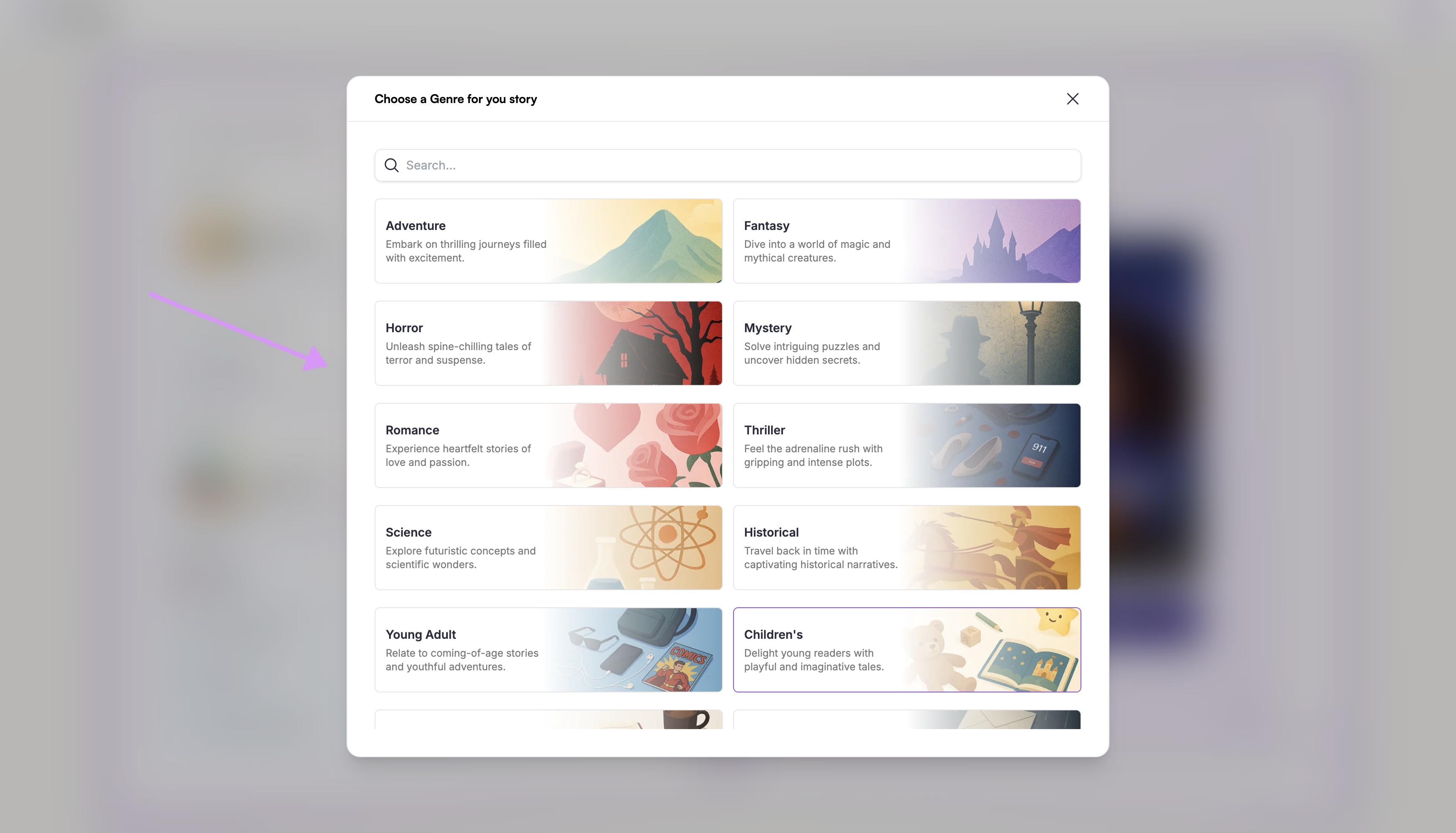
Choose from the provided list of genres. Scroll down to see a full list.
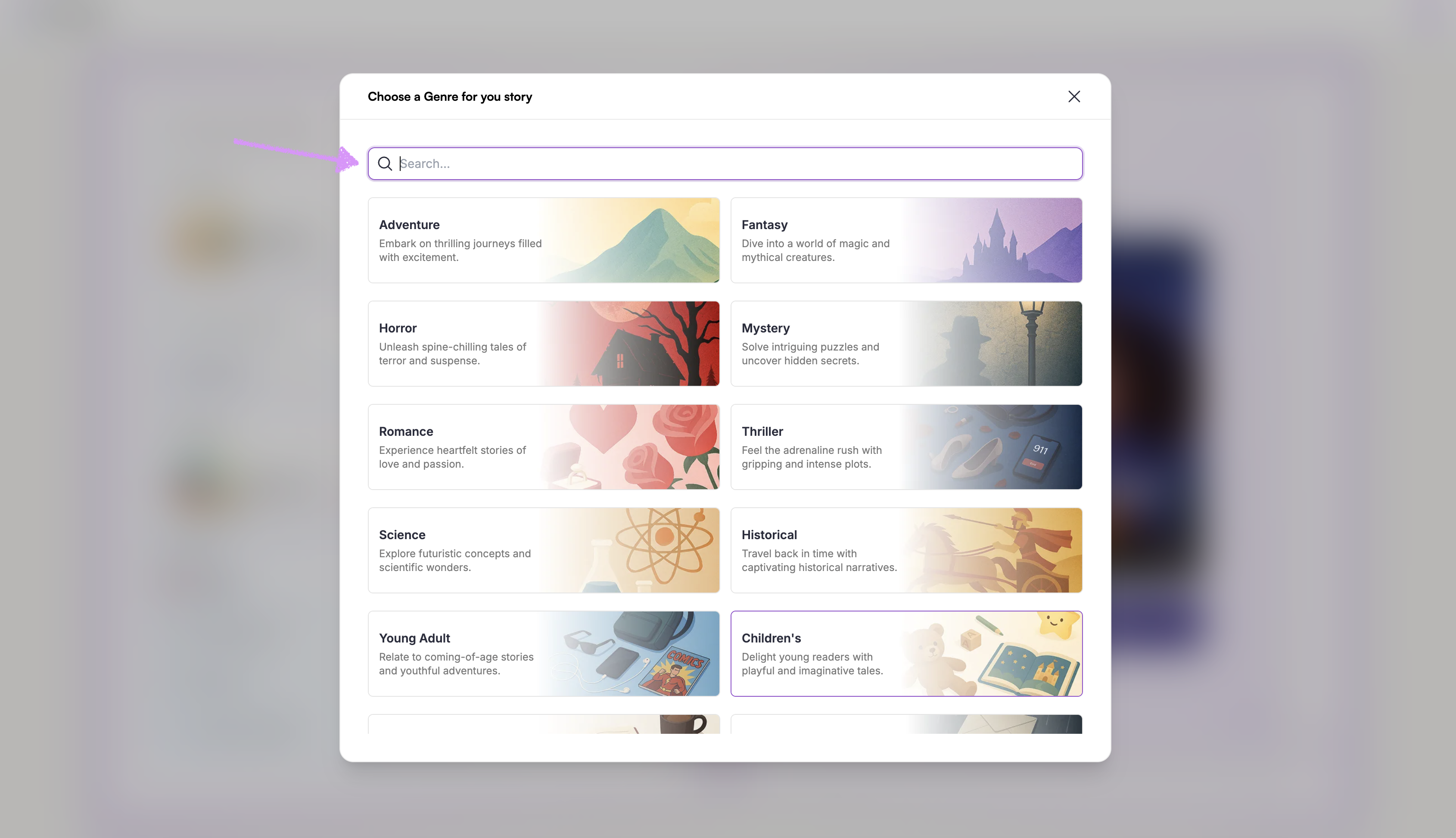
Alternatively, use the "Search" bar to find a preferred genre.
Next, select the tone of the story.
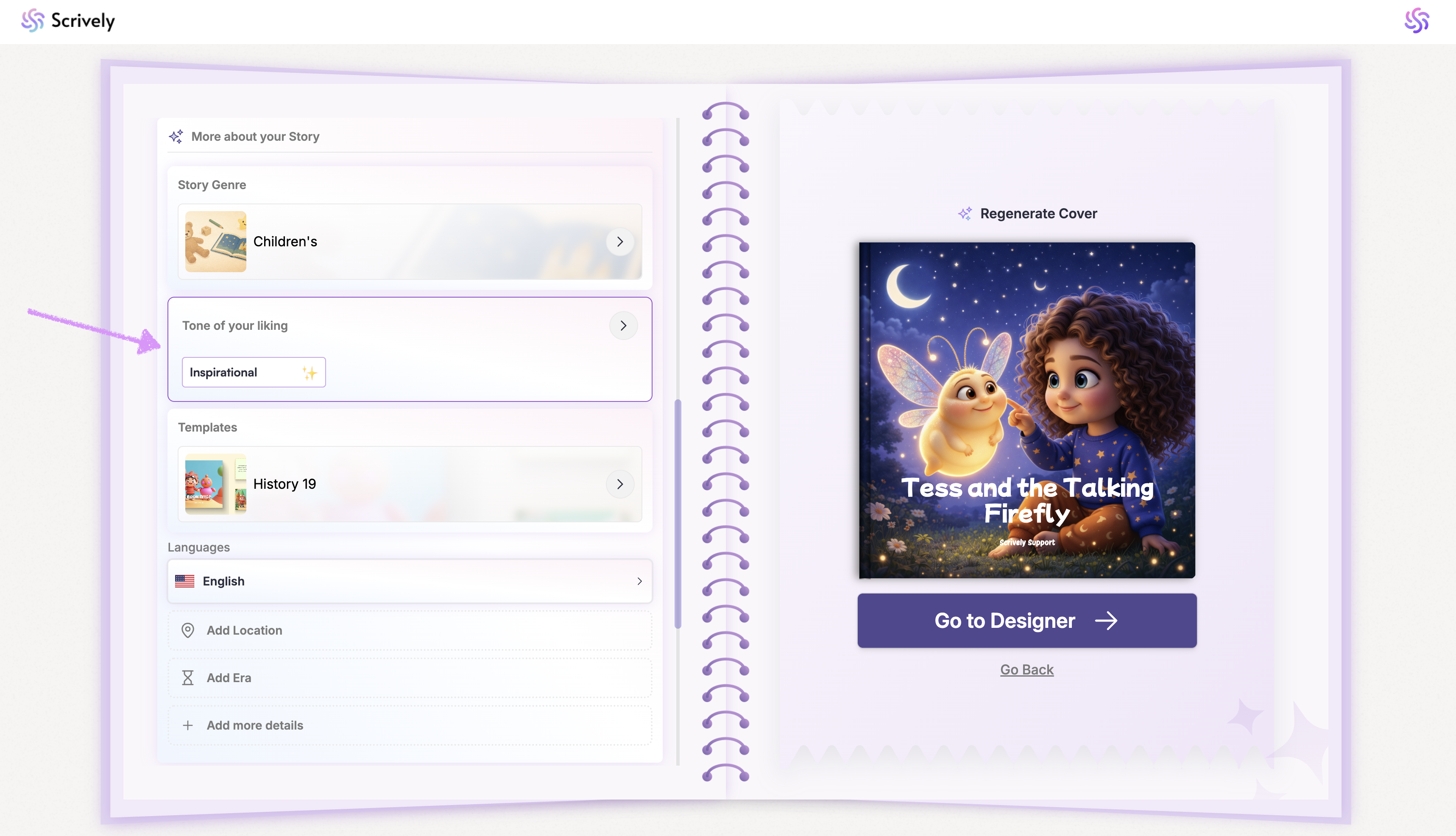
Choose from the provided list.
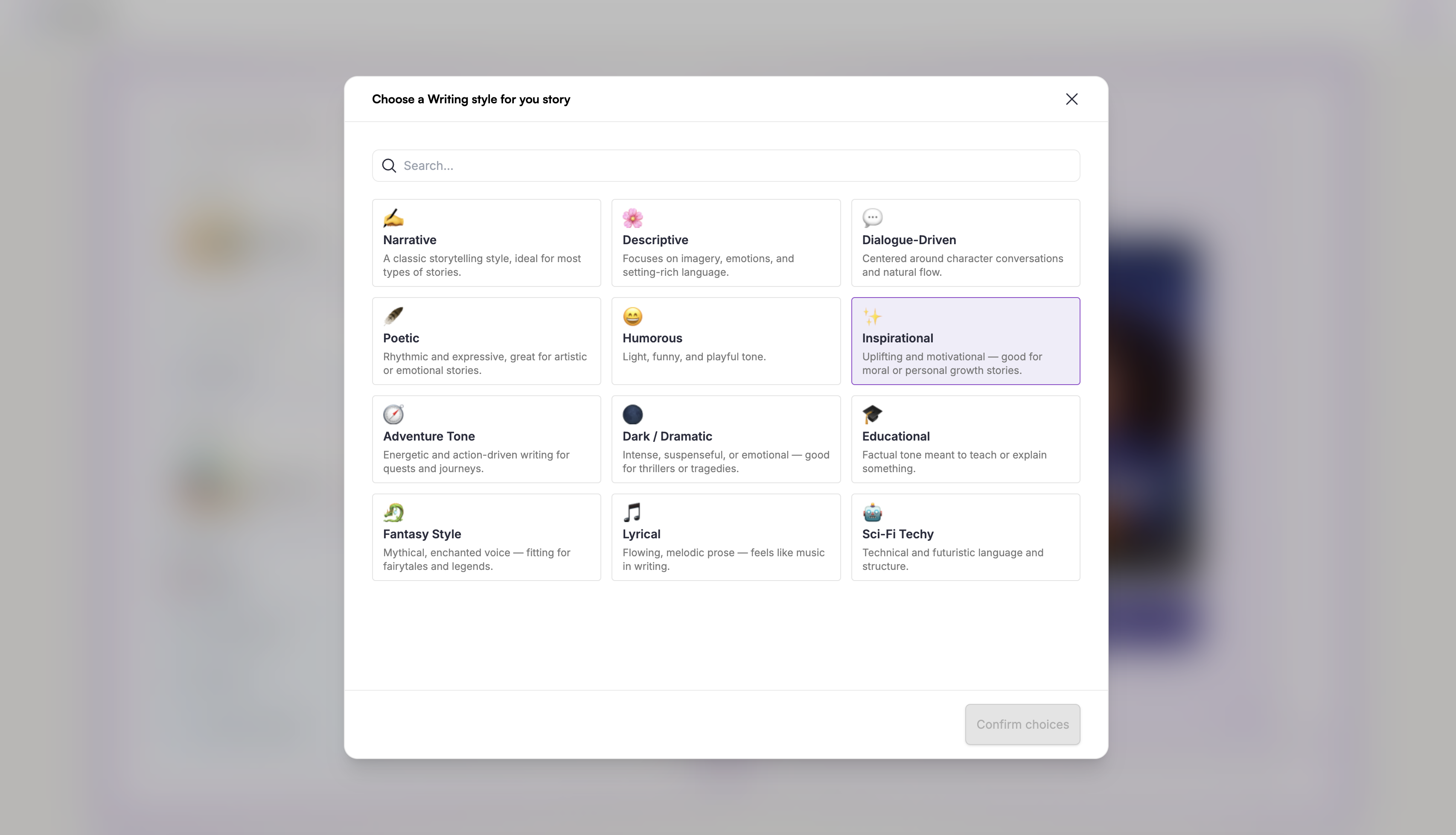
Note: You can select more than one tone if needed.Optional: Add a location or setting.
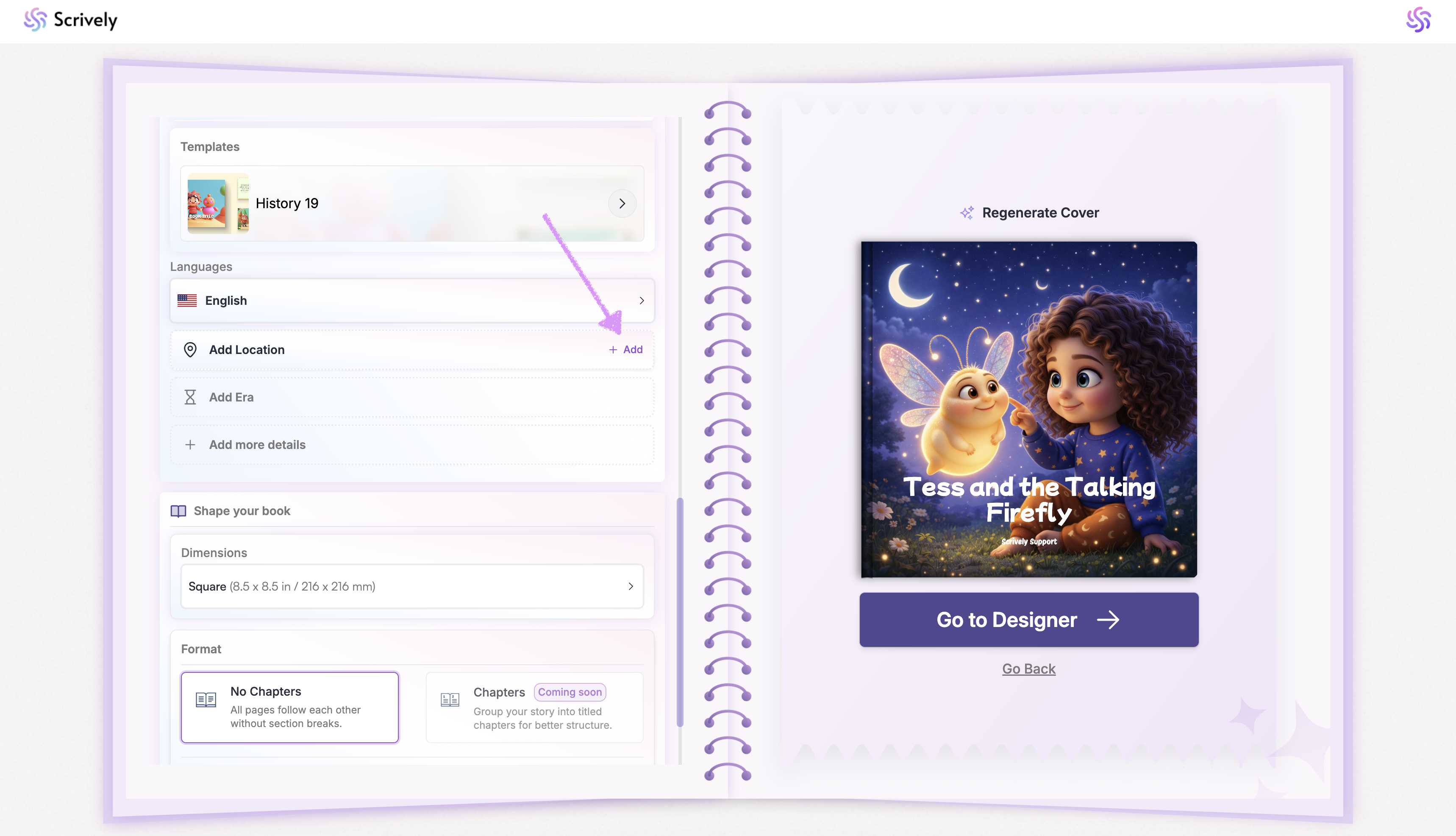
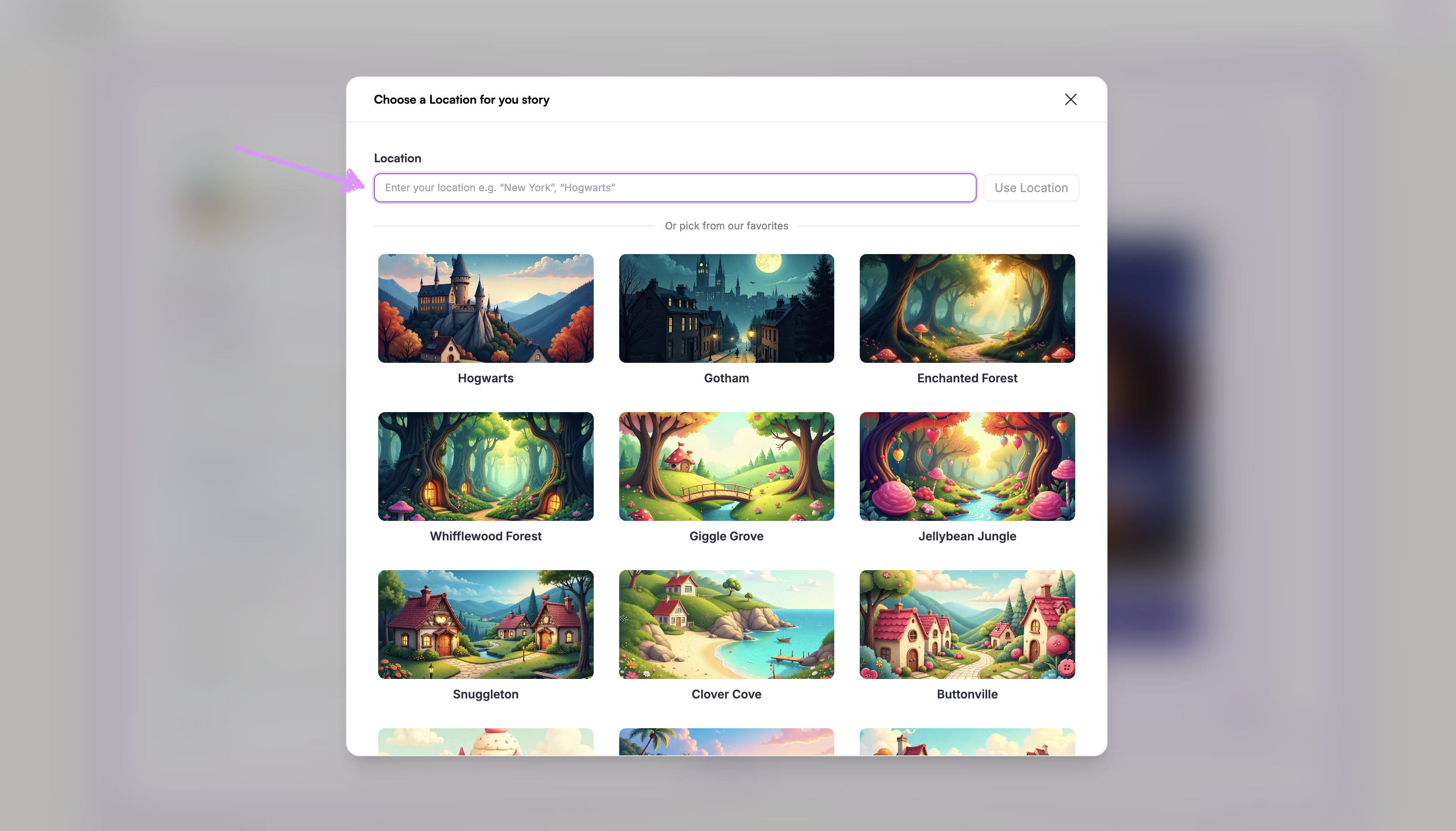
Manually enter a location.
Alternatively, select a location from our provided list of favorites.
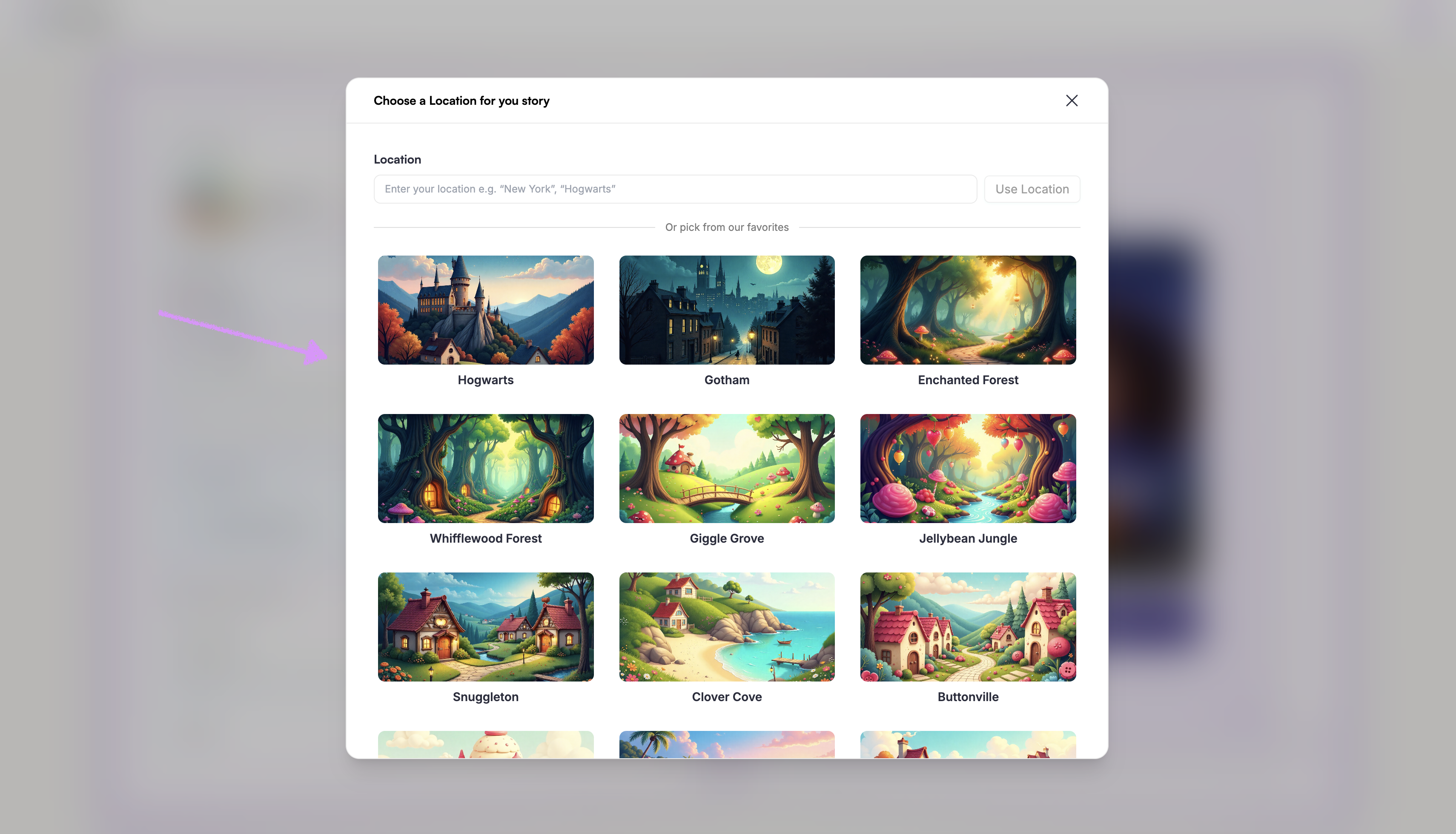
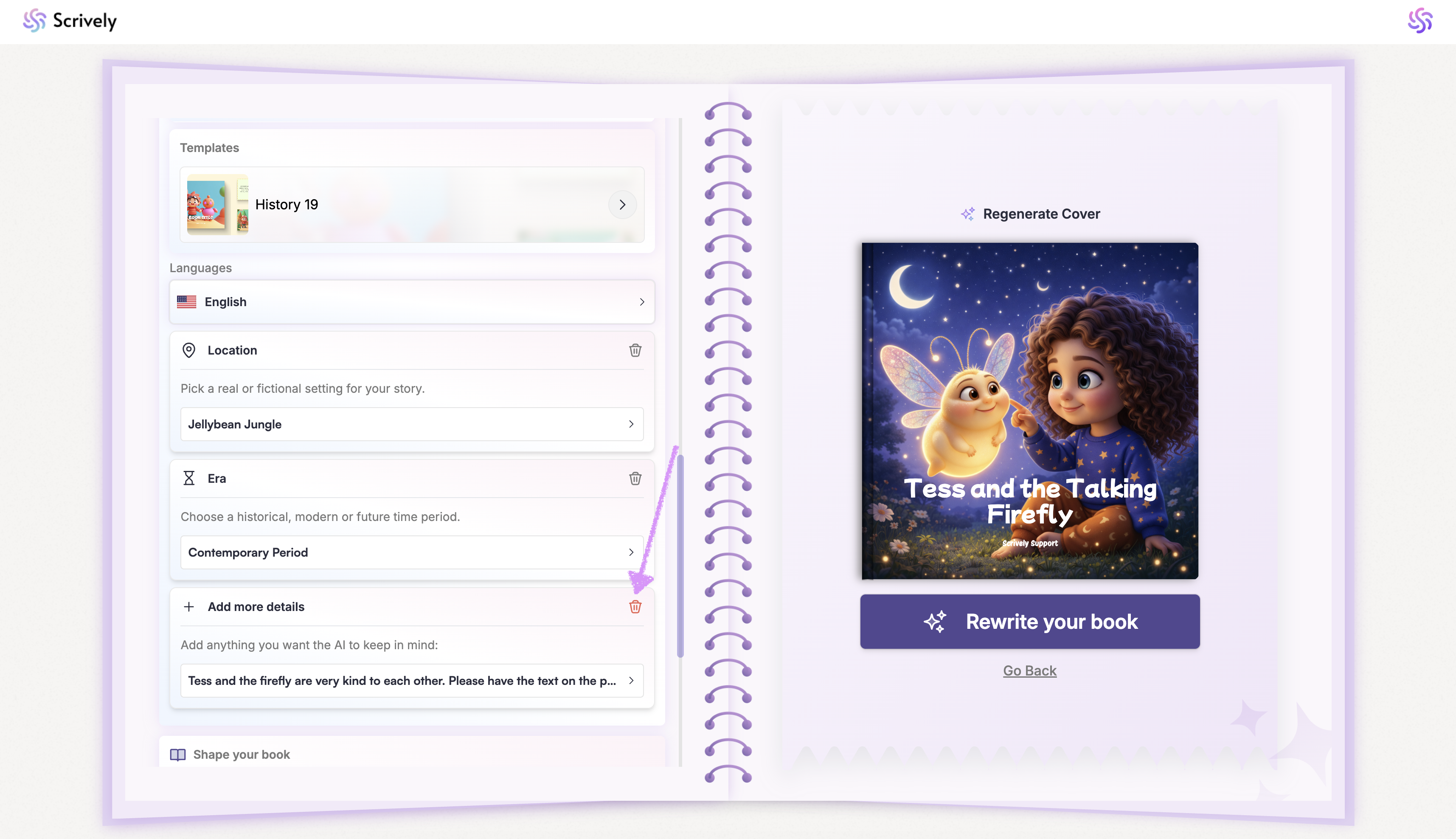
If you decide not to include location or setting details, click on the trash icon to remove it.
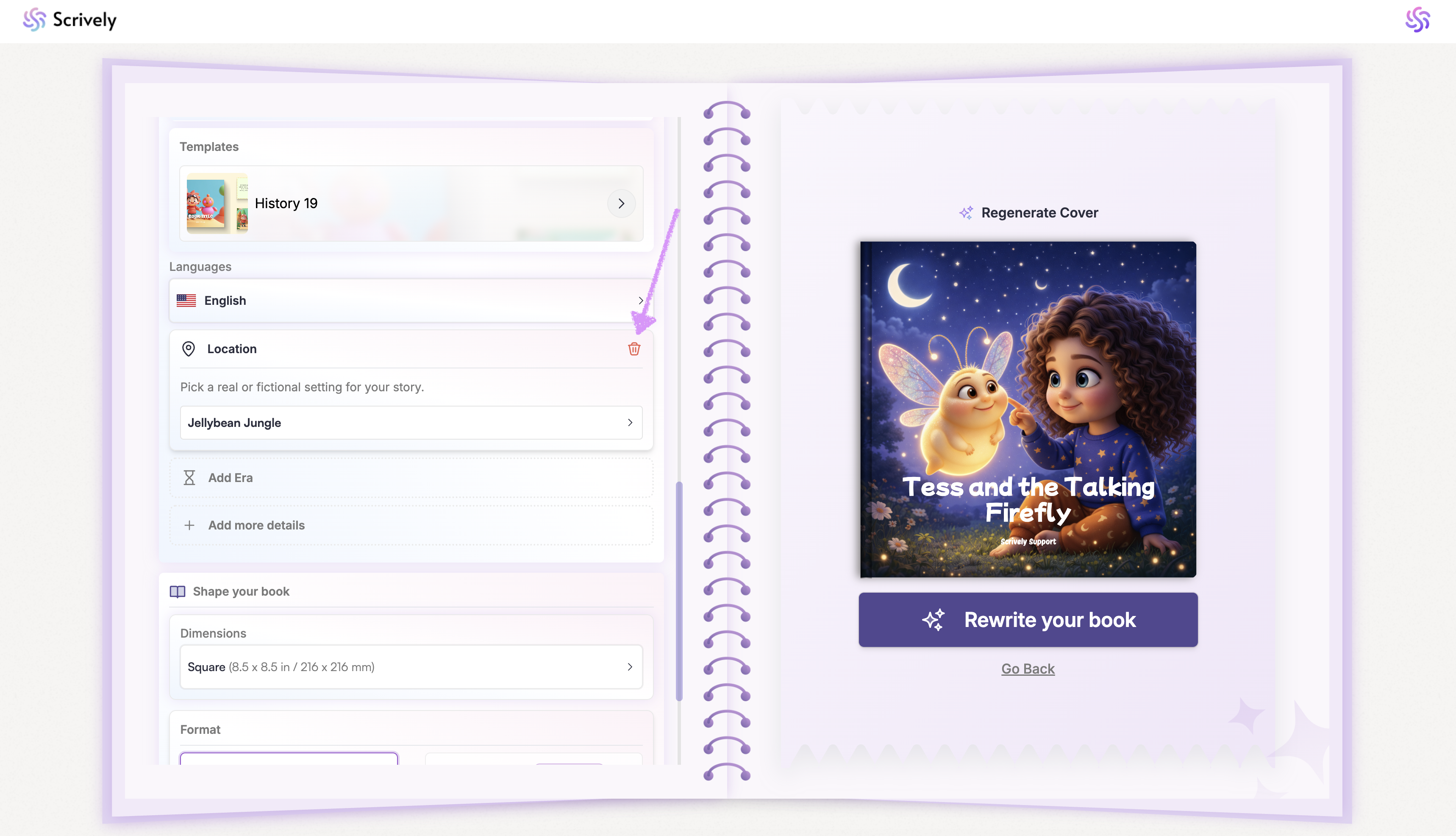
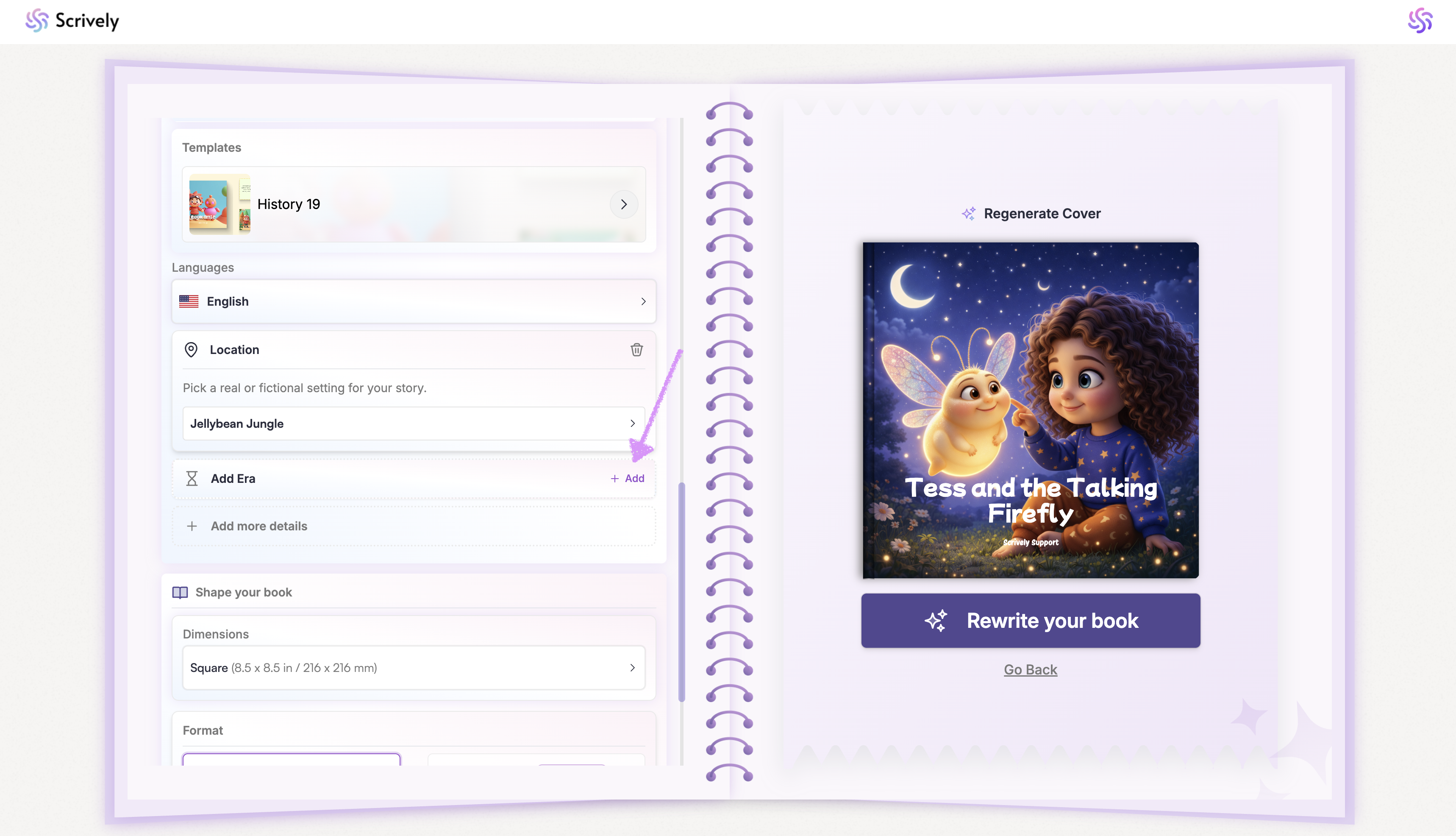
Optional: Choose an "Era" for your story.
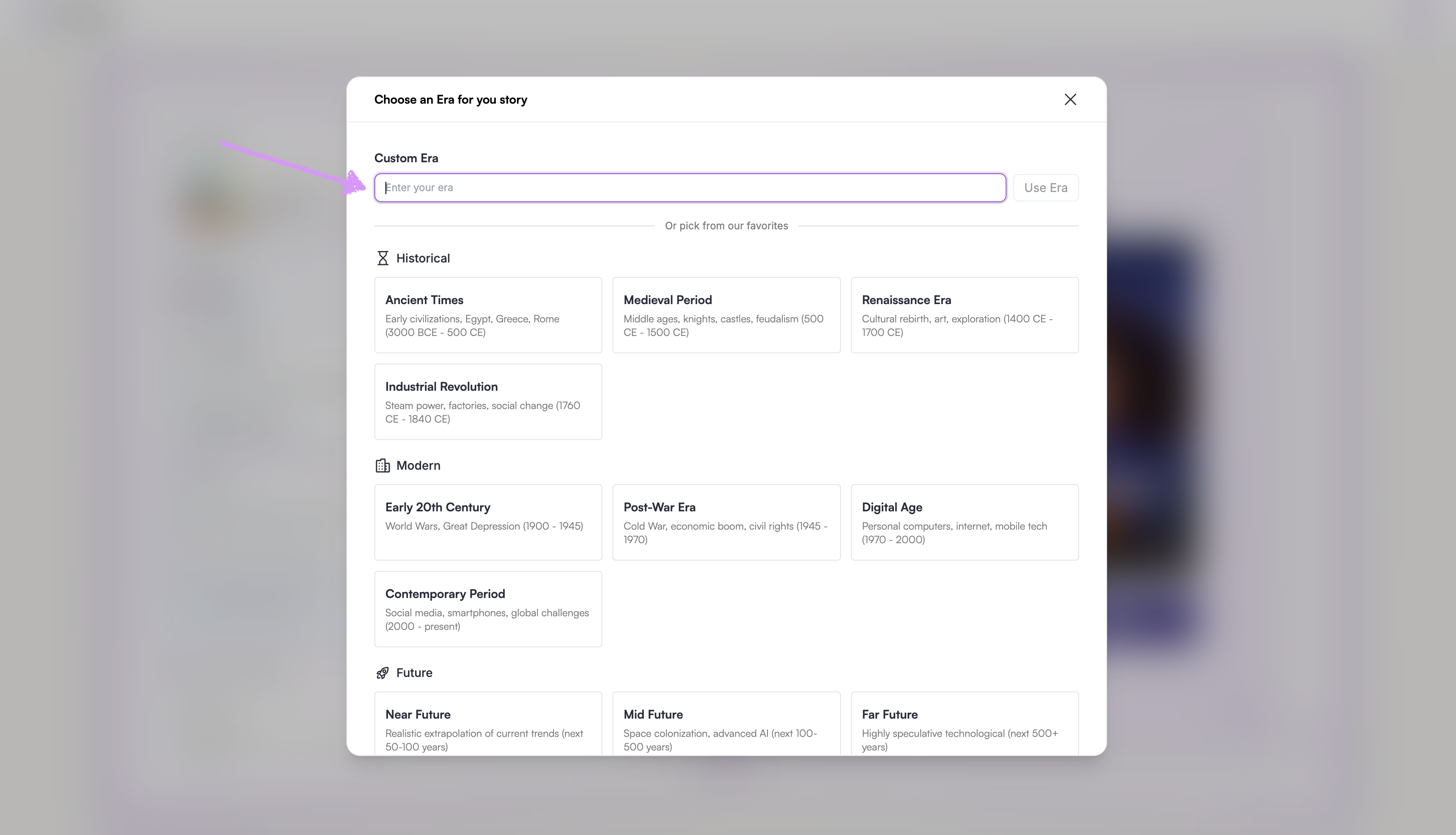
Manually enter an Era.
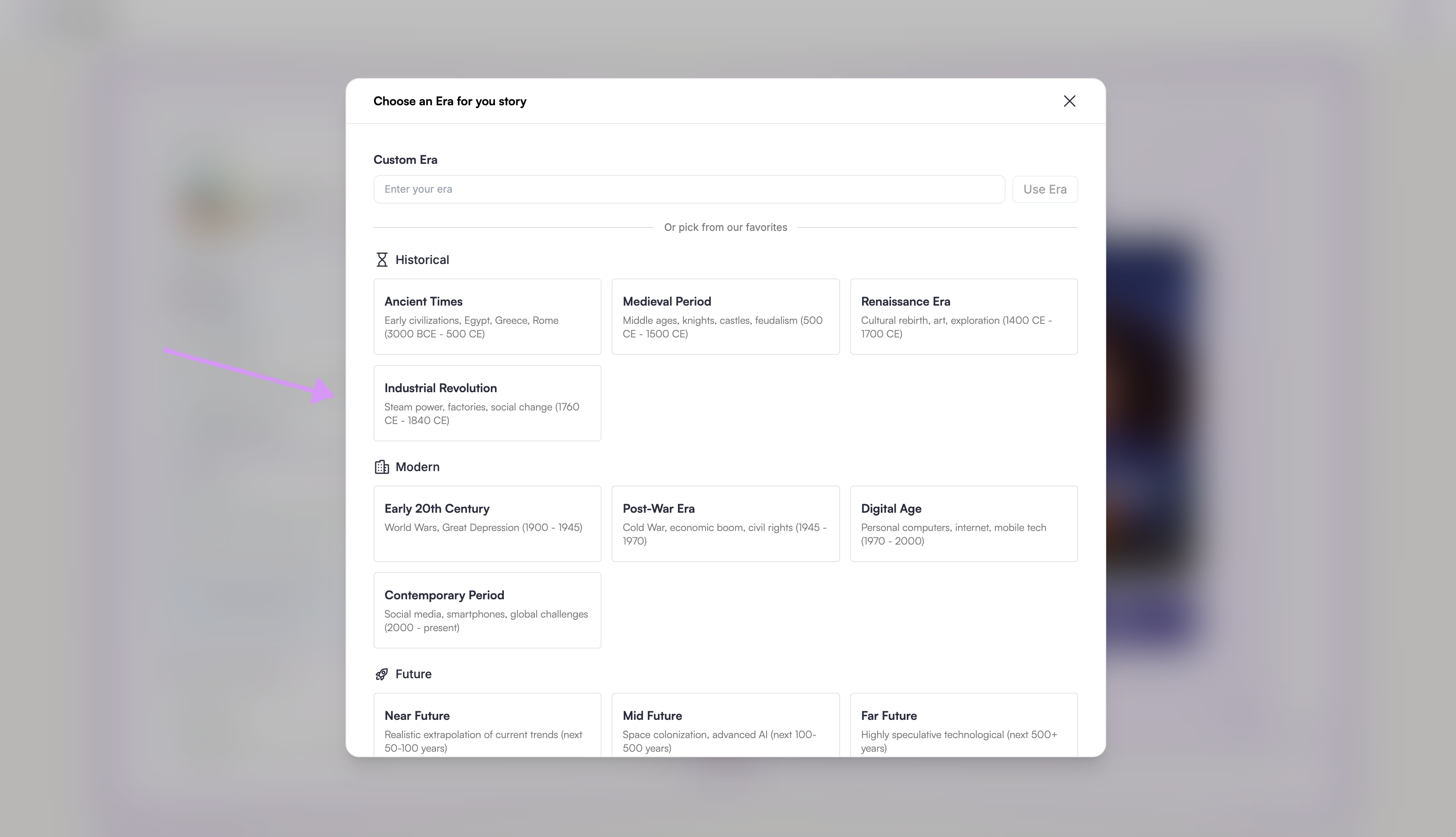
Alternatively, select an Era from our provided list of favorites.
If you decide not to include an "Era", click on the trash icon to remove it.
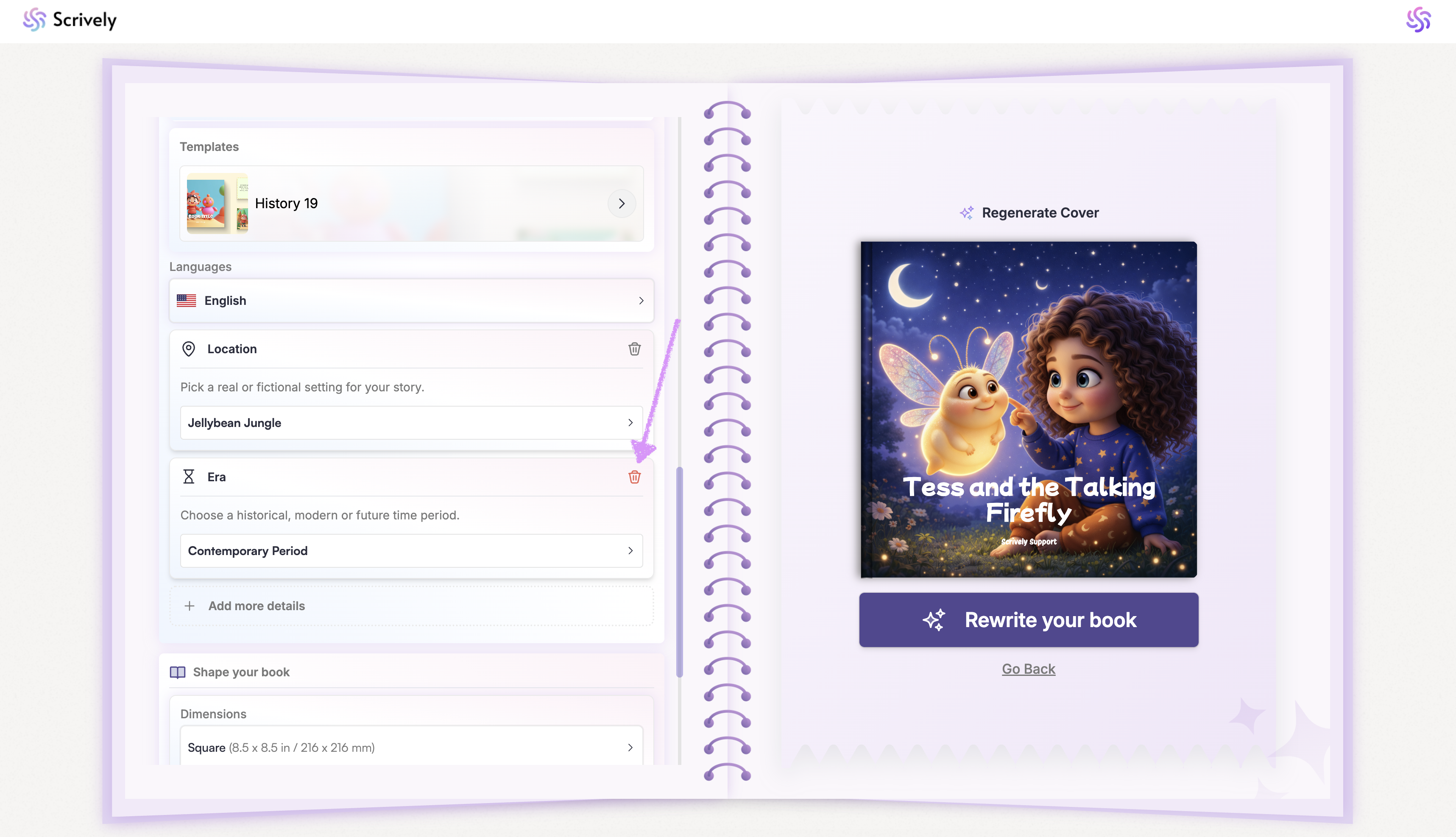
Need to include other details? Click on the "Add more details" tab.
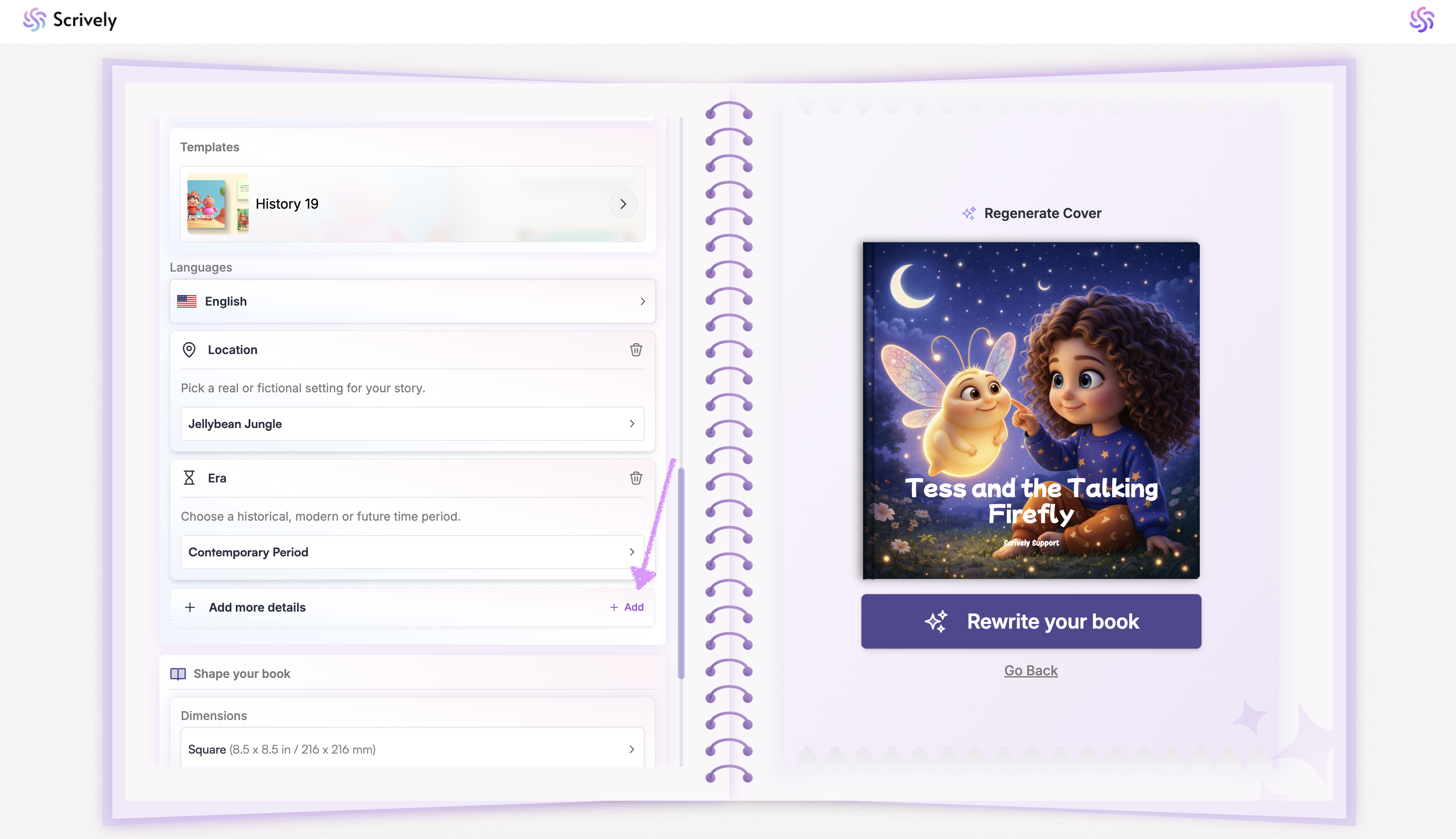
Tell Scrively more about what it should keep in mind.
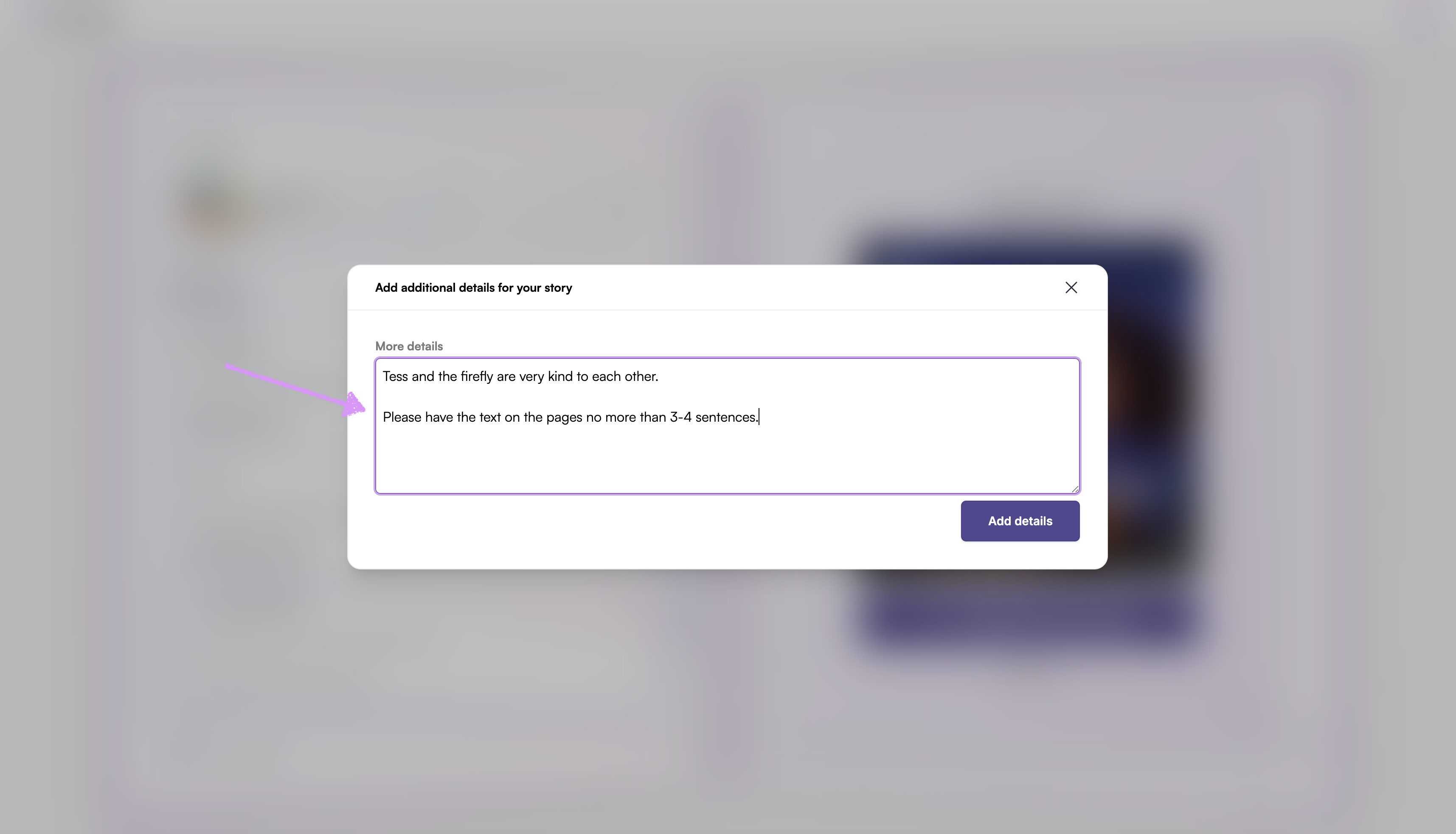
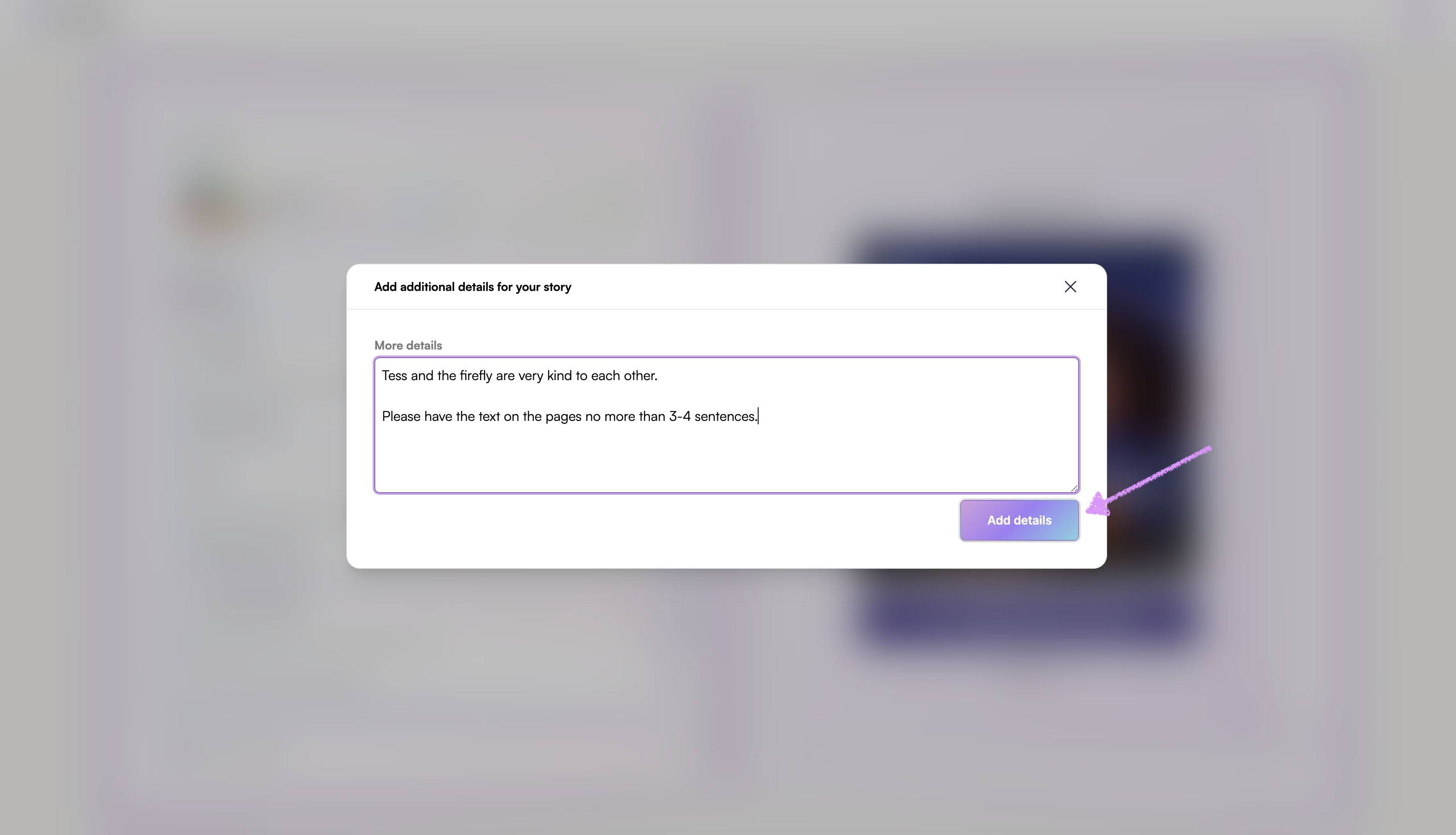
Note: Use this space to give Scrively all the details you’d like in your story from plot ideas and character actions to layout preferences and special touches. The more guidance you provide, the closer the story will match your vision!Click on "Add details."
If you decide not to include any additional details, click on the trash icon to remove it.
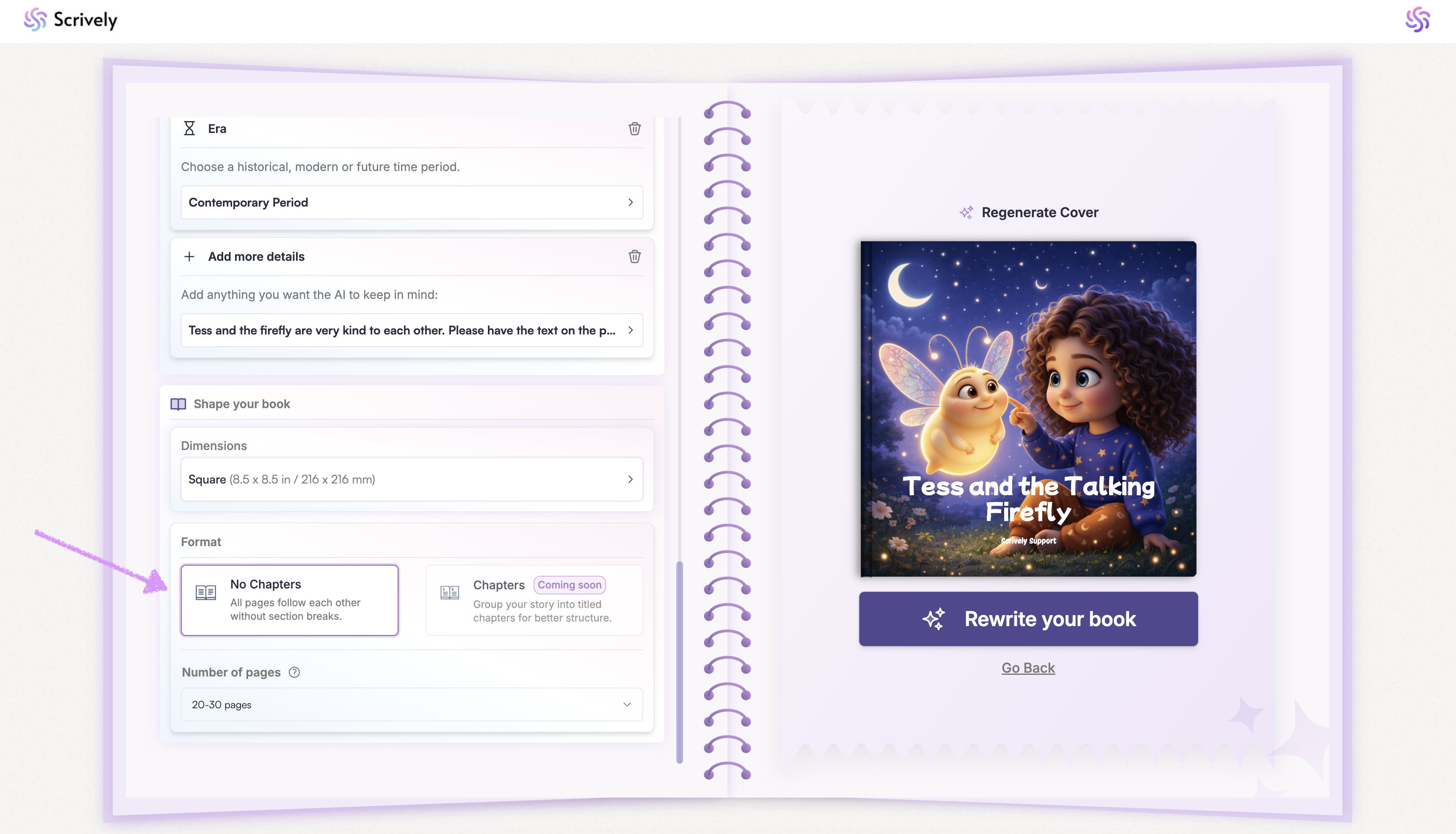
Currently, stories are structured by pages. Soon you’ll have the option to structure them by chapters for even greater flexibility.
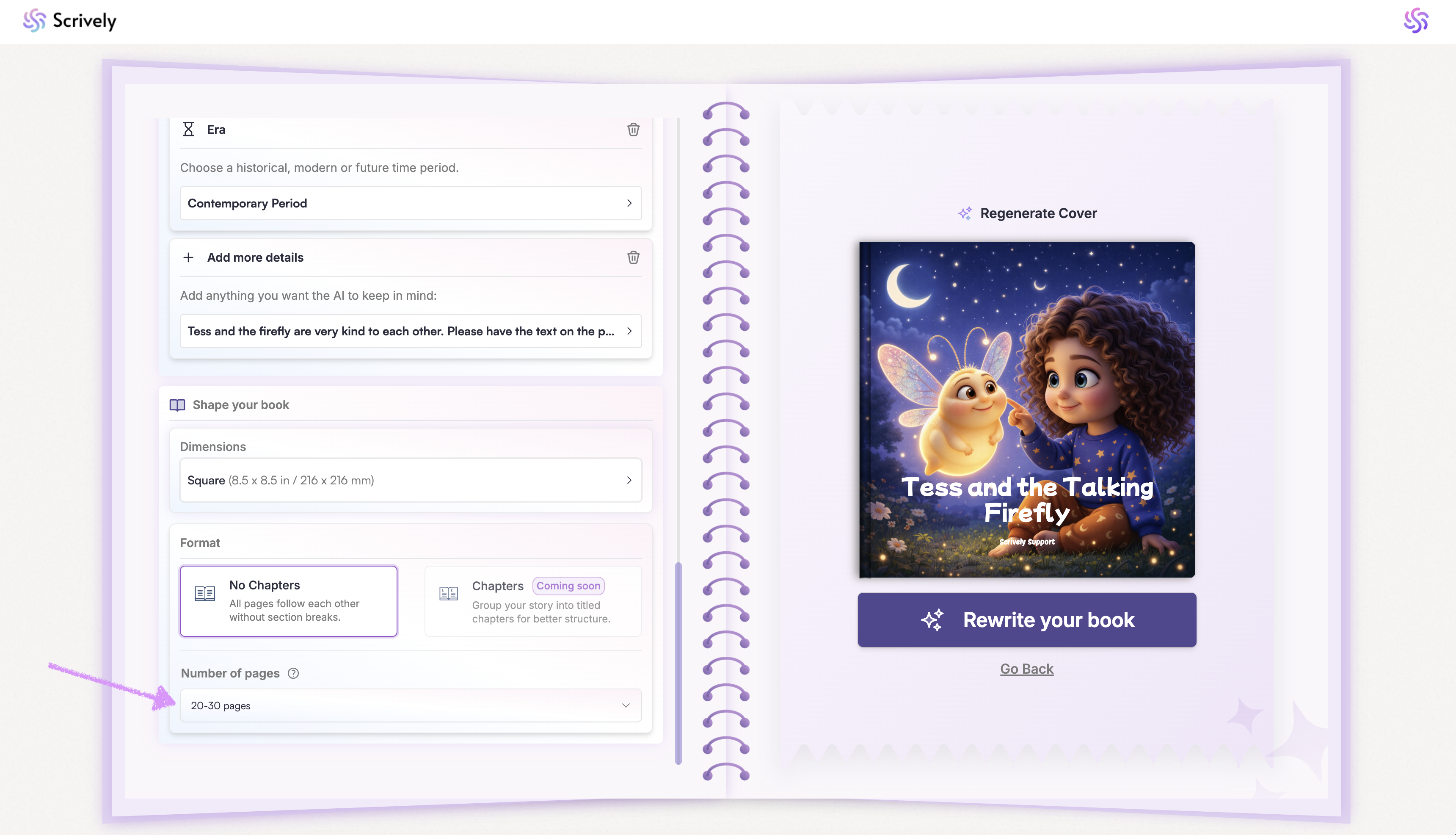
Choose your page count based on your plan. Standard users can create up to 50 pages, while Pro users can create up to 200. See our guide here to learn more about page count accuracy.
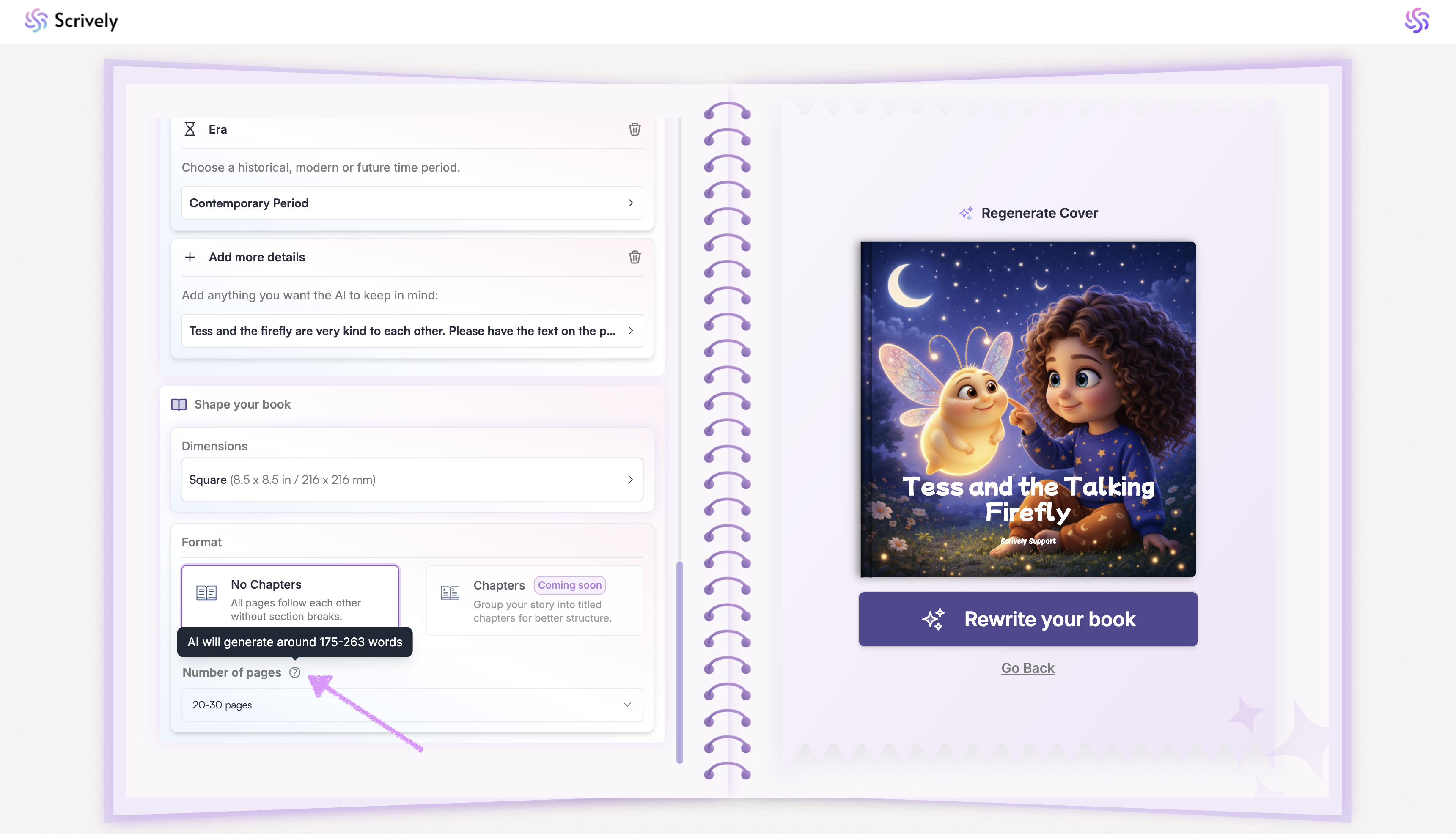
After selecting your page count, hover over the tooltip to see an estimate of how many words the AI will generate. Next, check out our guide here on generating your book's front cover image.
Was this article helpful?
That’s Great!
Thank you for your feedback
Sorry! We couldn't be helpful
Thank you for your feedback
Feedback sent
We appreciate your effort and will try to fix the article
