
You can add narration to your entire book to create a consistent, immersive listening experience from start to finish. This feature applies a selected voice-over across all pages and sentences, allowing readers to enjoy your book as a fully narrated experience without needing to assign narration page by page.
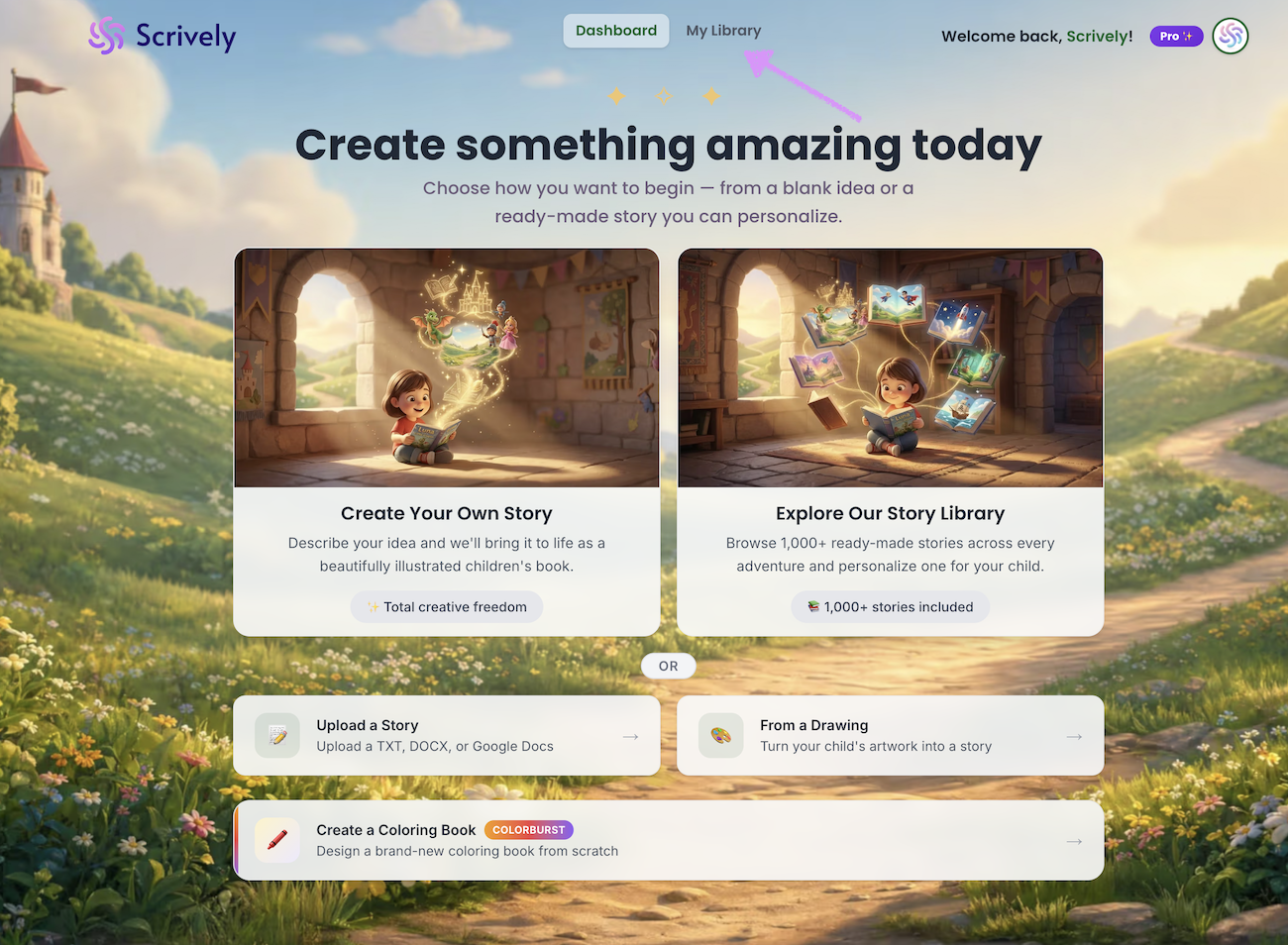
Head over to the "My Library" tab.
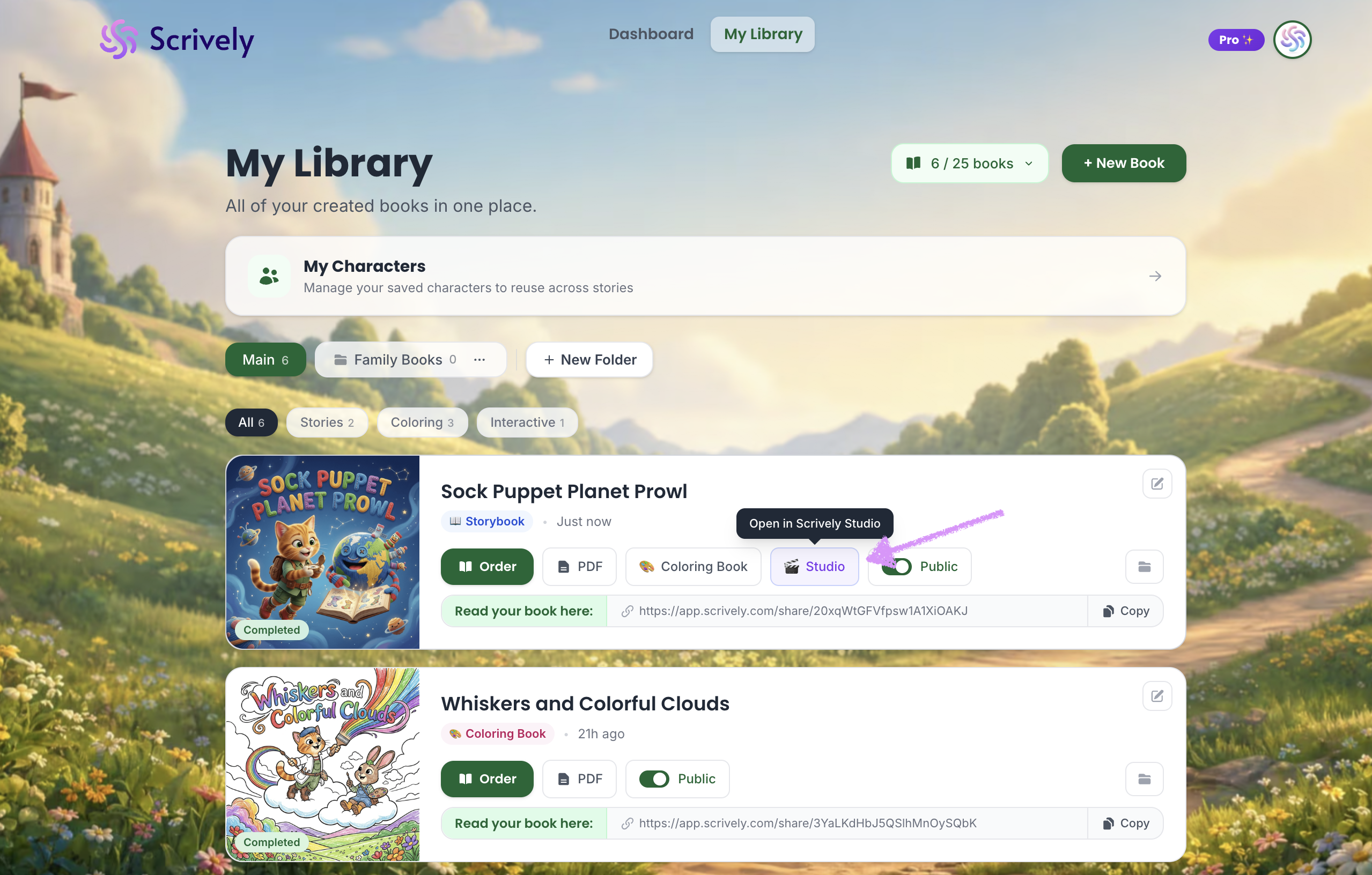
Click “Studio” on the book you want to add narration to.
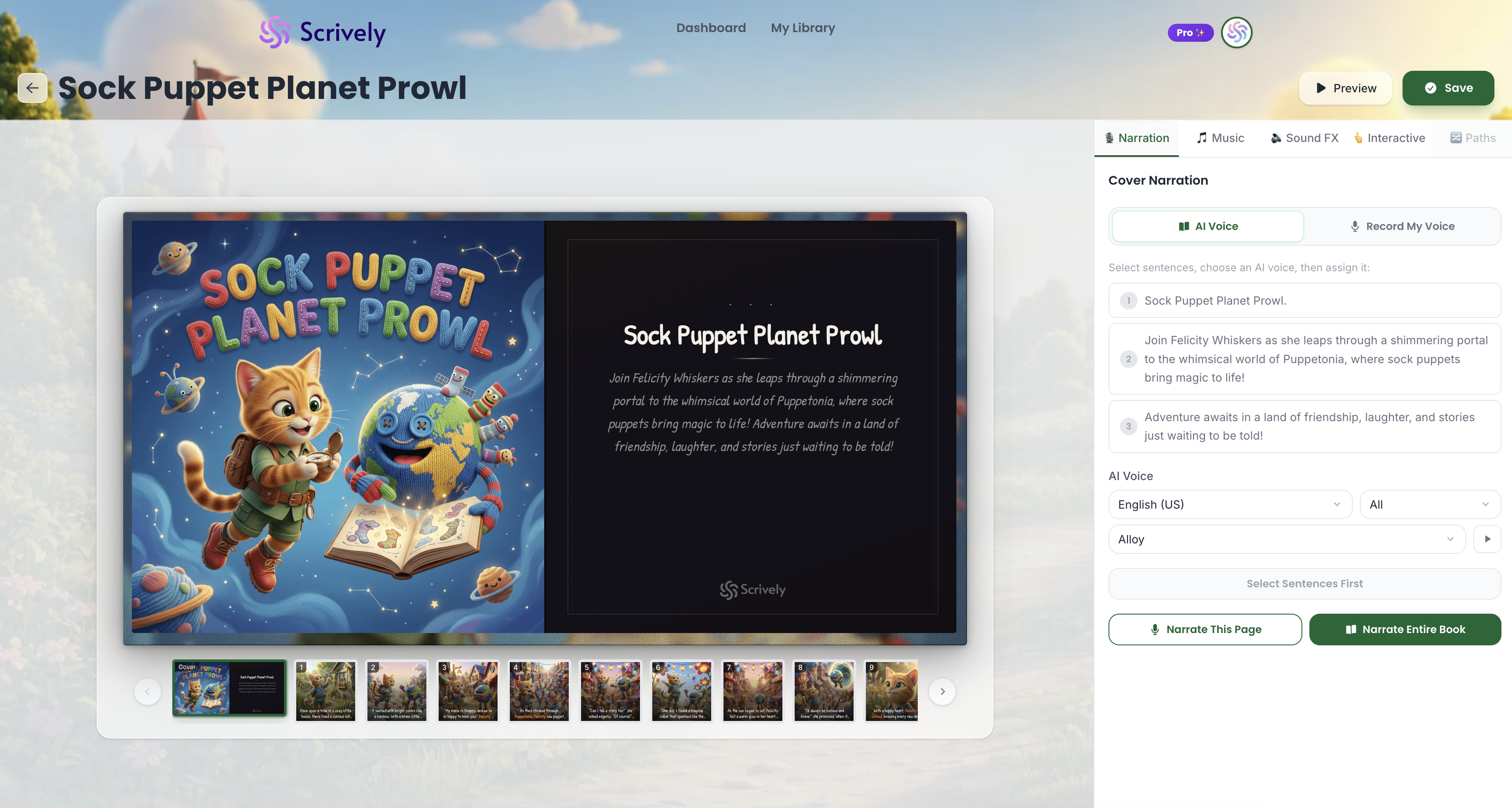
The book will open in Scrively Studio, where you can start adding narration.
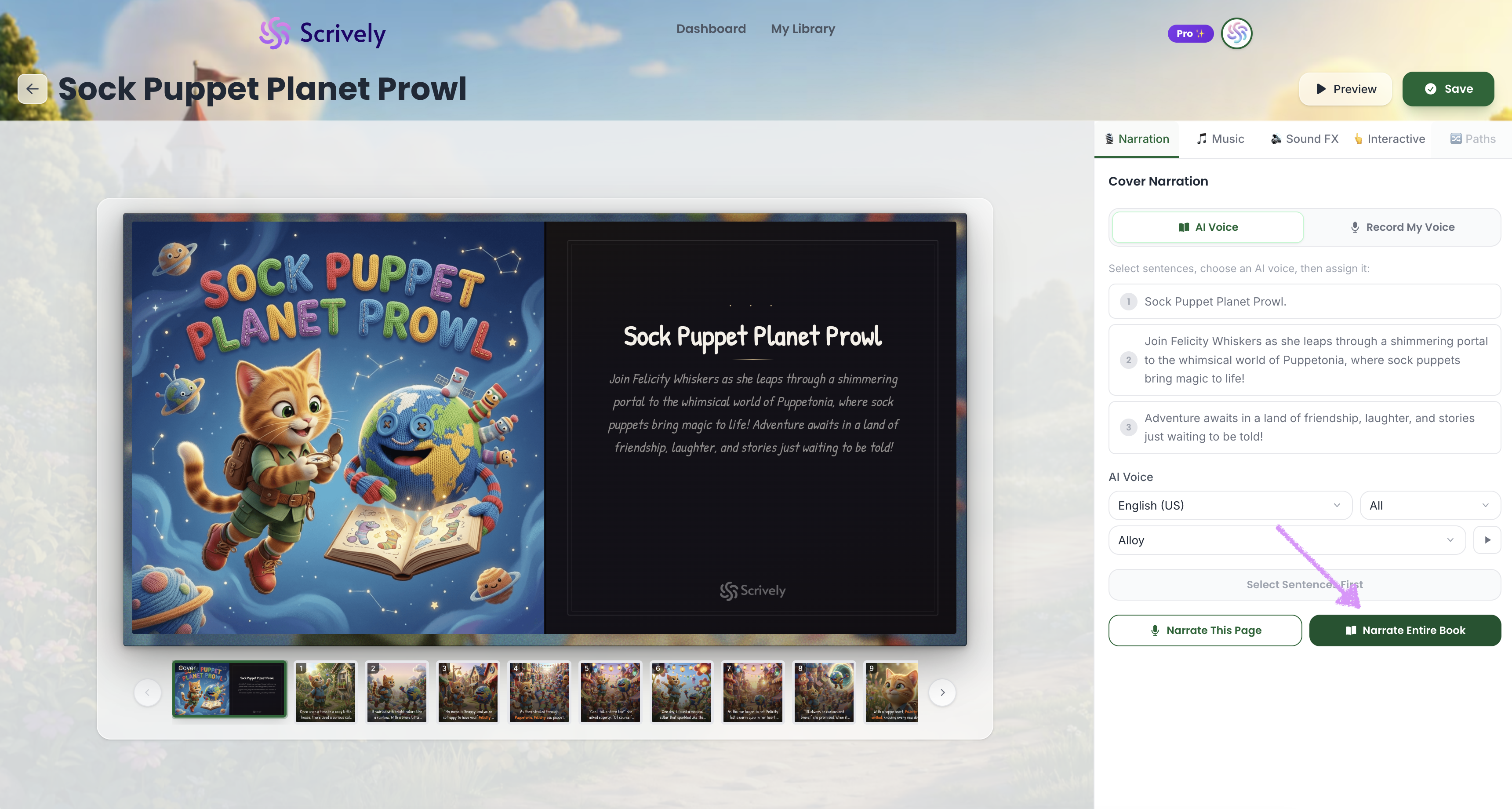
Click “Narrate Entire Book” to use the voice-over you selected per our guide here to narrate the entire book.
The pages of the book will be automatically narrated.
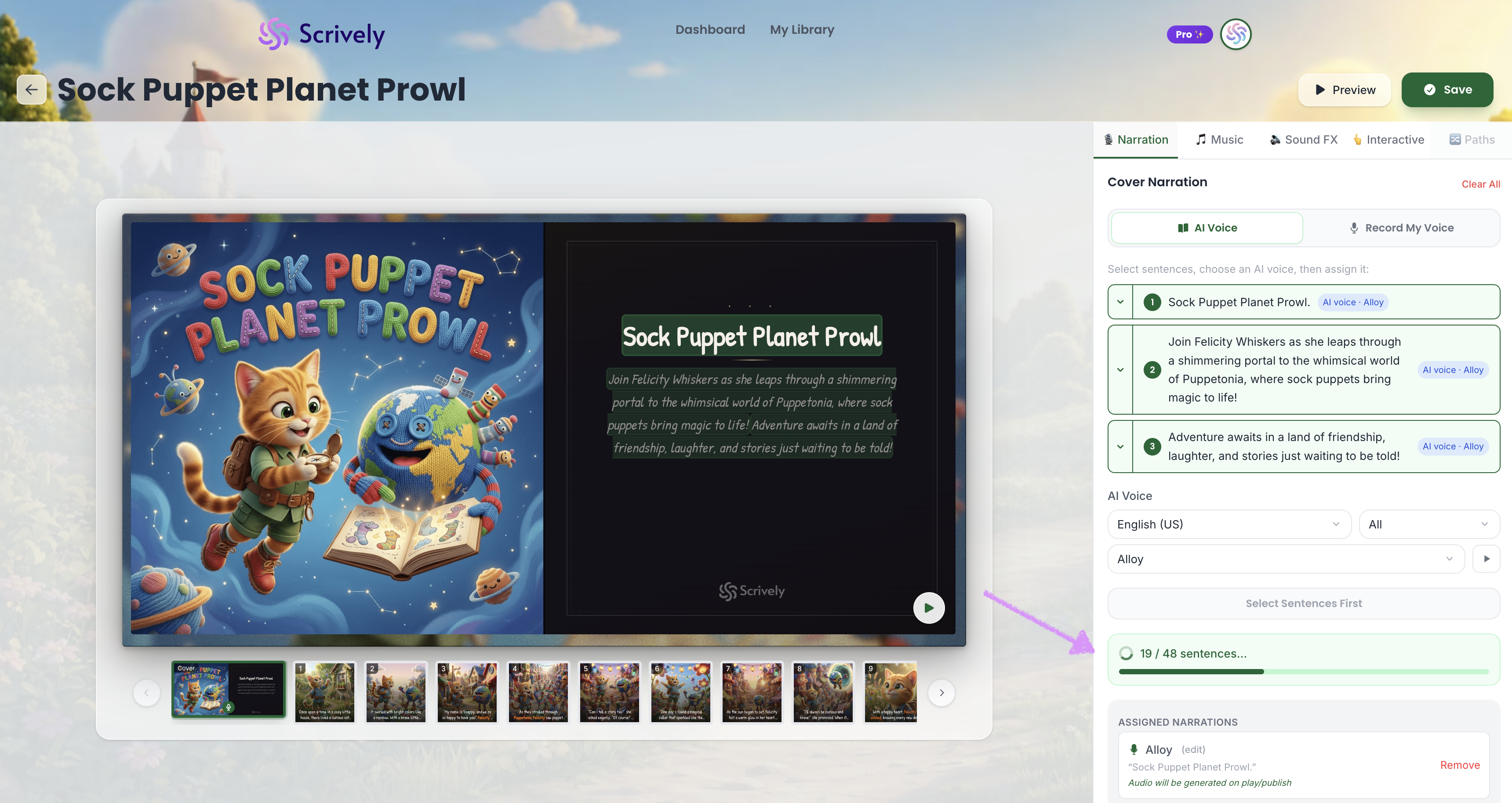
The assigned voice-over will be automatically applied to each sentence.
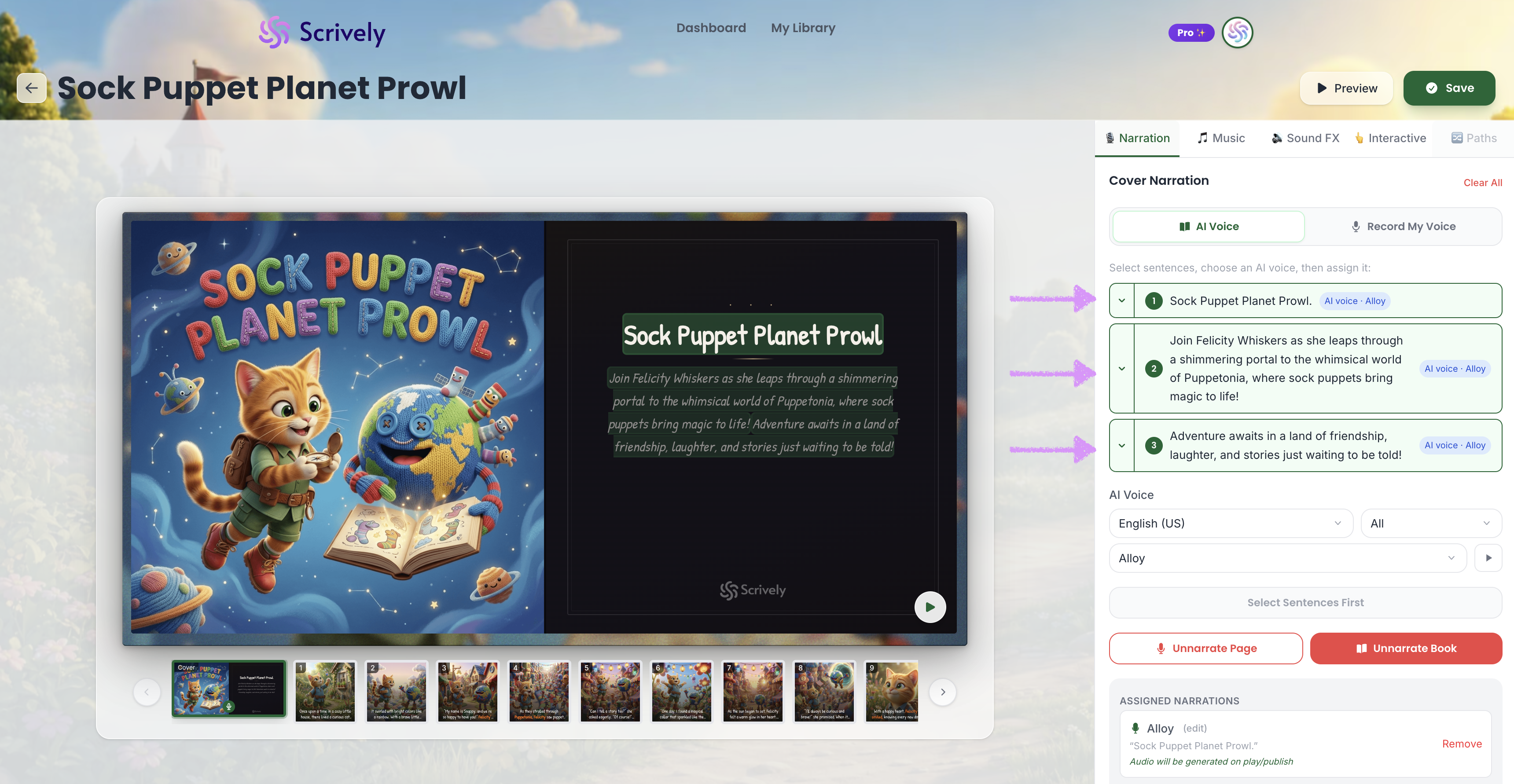
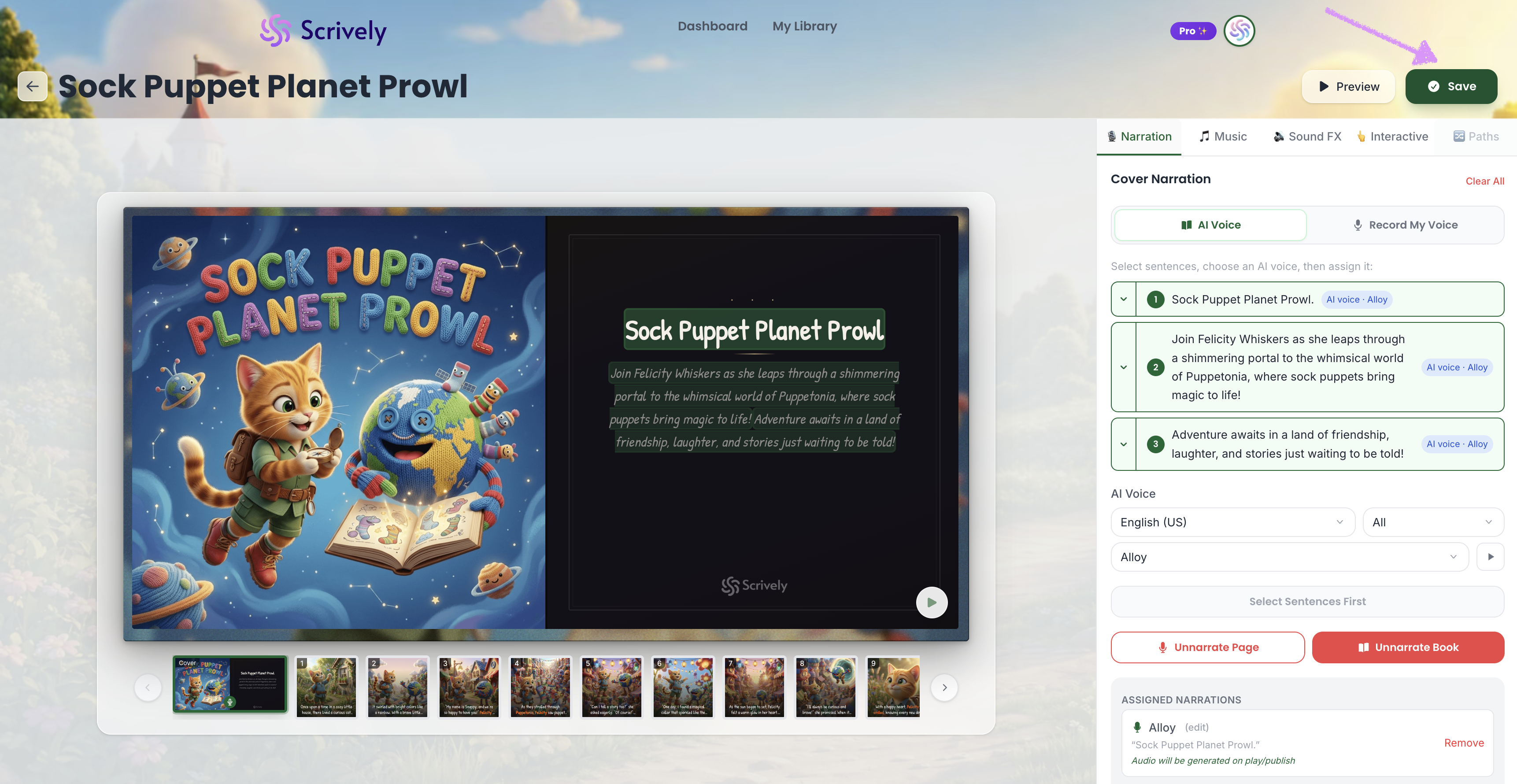
The voice-over per sentence will also be shown at the bottom.
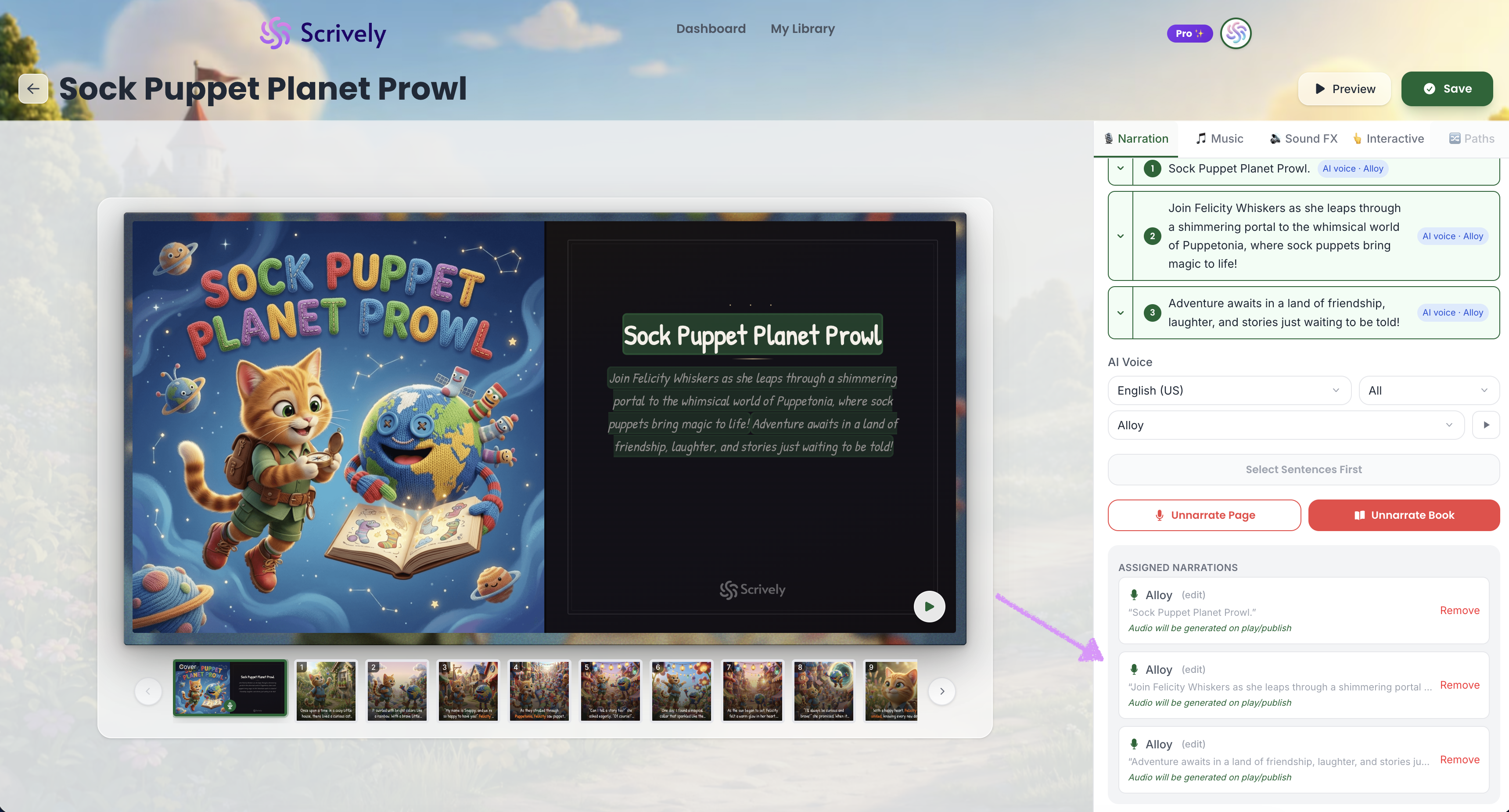
Click on the play icon to generate the audio.
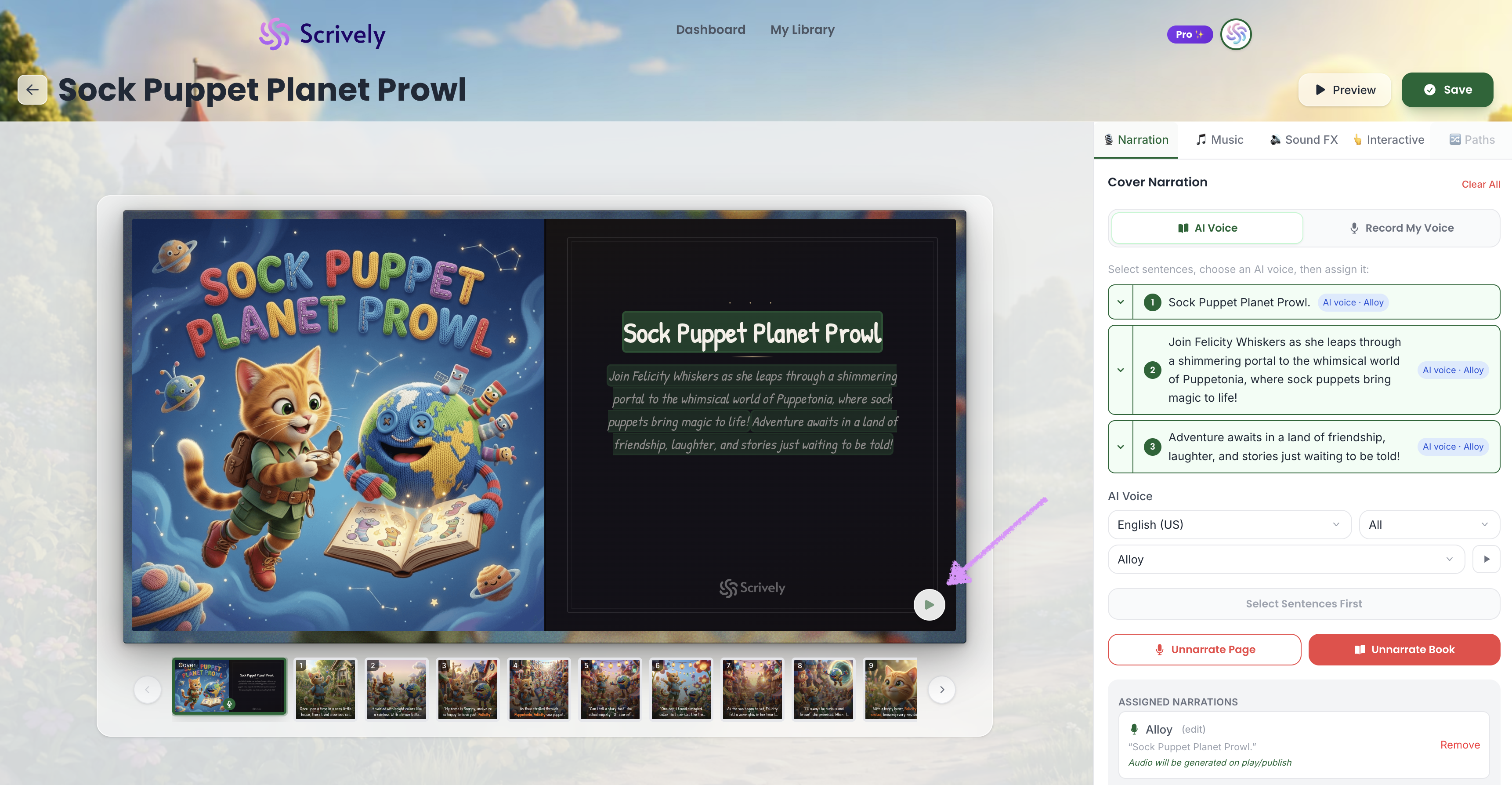
Give Scrively a few moments to generate the voice-over audio.
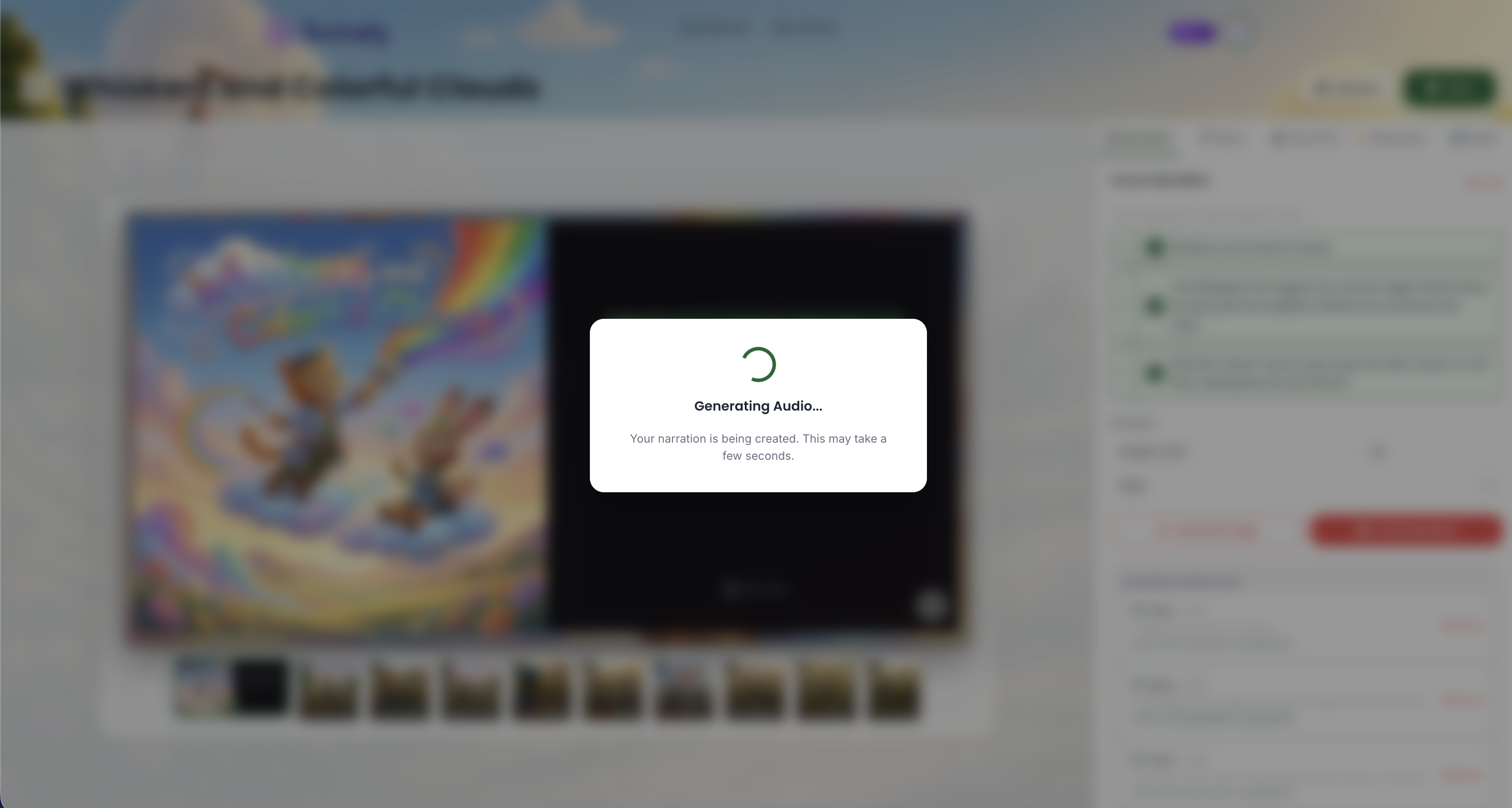
The voice-over audio will be generated and played.
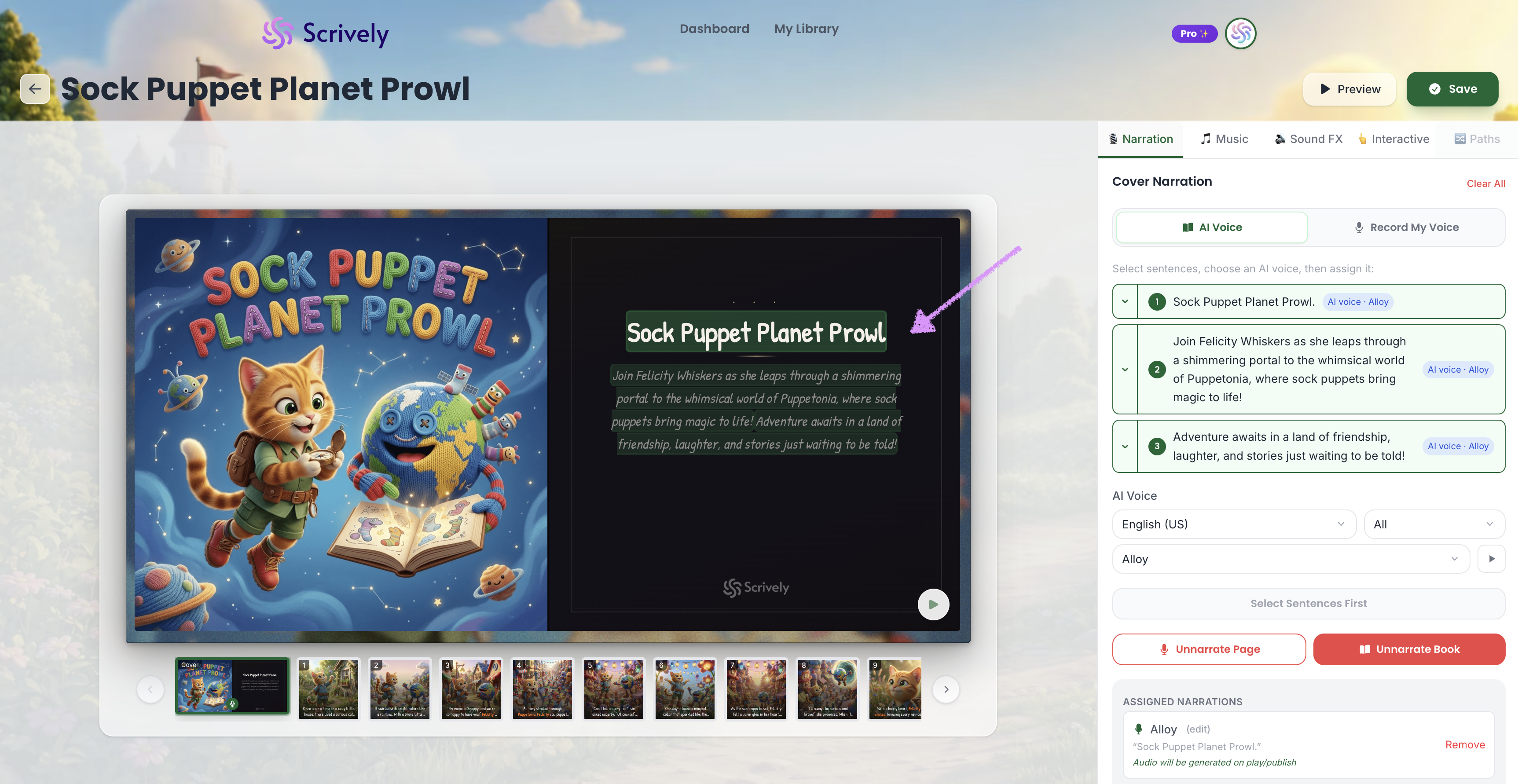
Want to remove the book's voice-over? Click "Unnarrate Book."
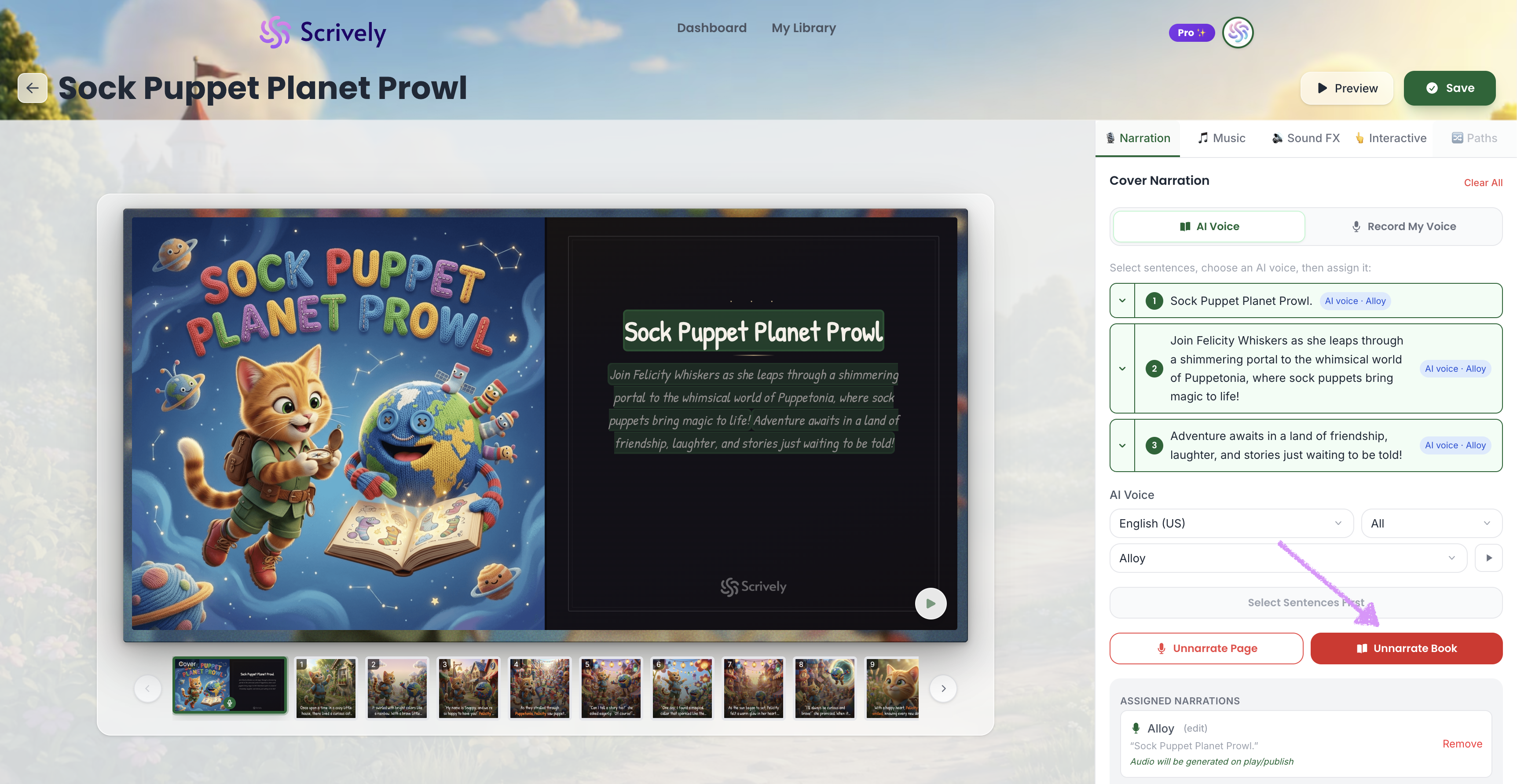
Click on "Remove" to confirm the action.
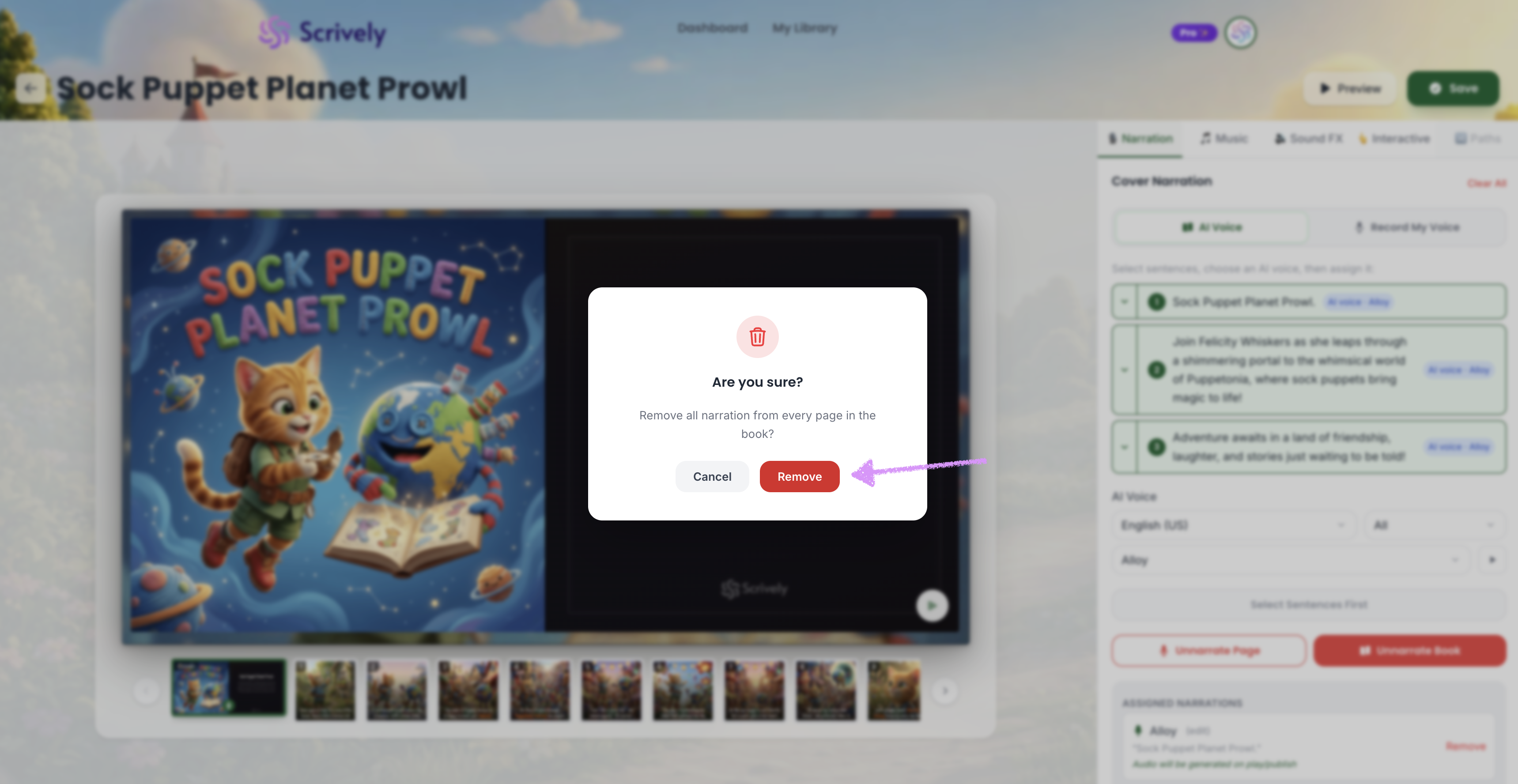
Once you’re satisfied with your changes, click “Save” in the top right corner to save them.
Head over to our guide here to learn more about recording your own voice-over.
Was this article helpful?
That’s Great!
Thank you for your feedback
Sorry! We couldn't be helpful
Thank you for your feedback
Feedback sent
We appreciate your effort and will try to fix the article
