
Narration adds a powerful layer of storytelling to your interactive books, helping bring your content to life for readers. With Scrively Studio, you can easily add narration to guide readers through your story, enhance emotional impact, and create a more immersive reading experience.
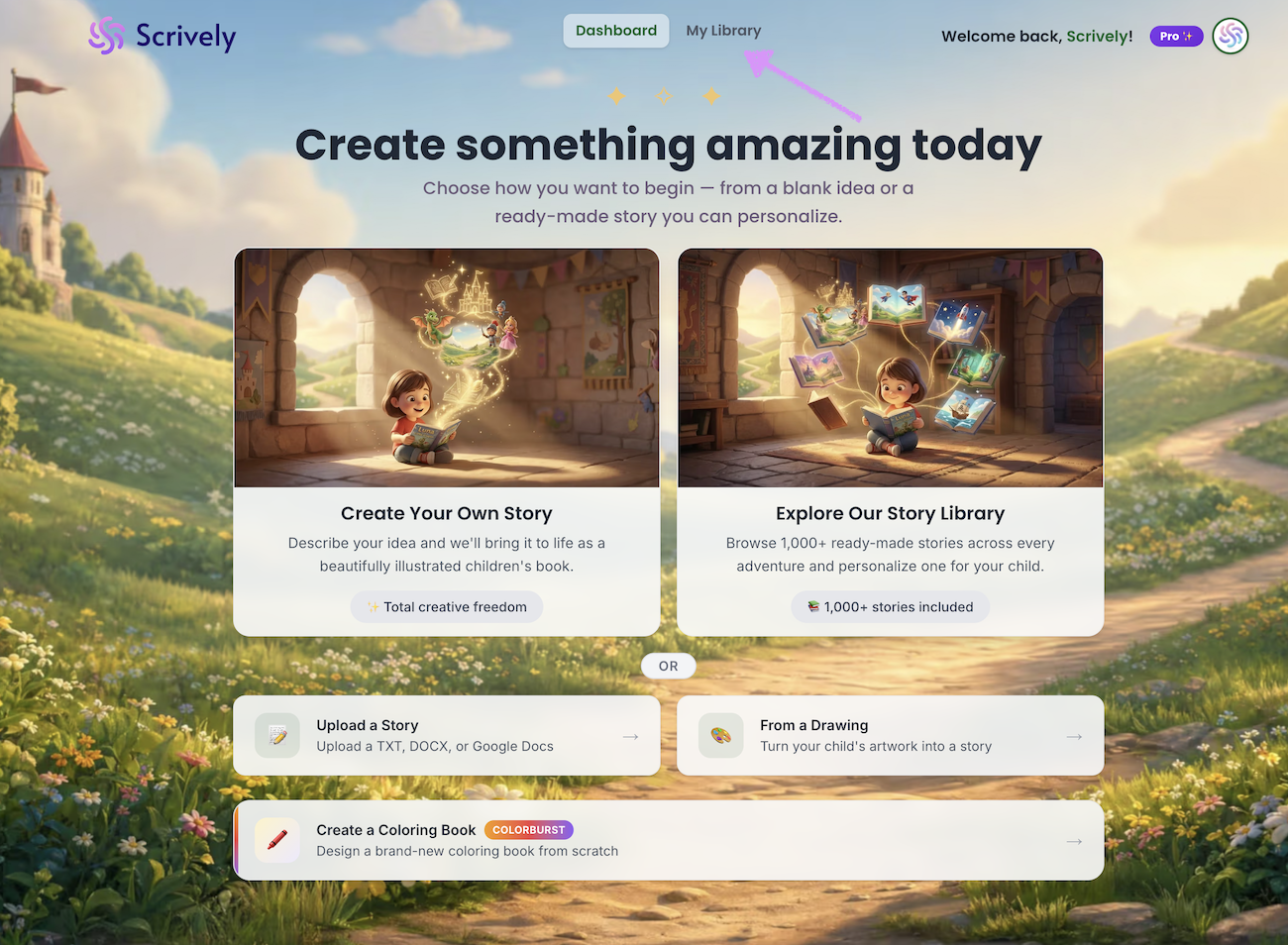
Head over to the "My Library" tab.
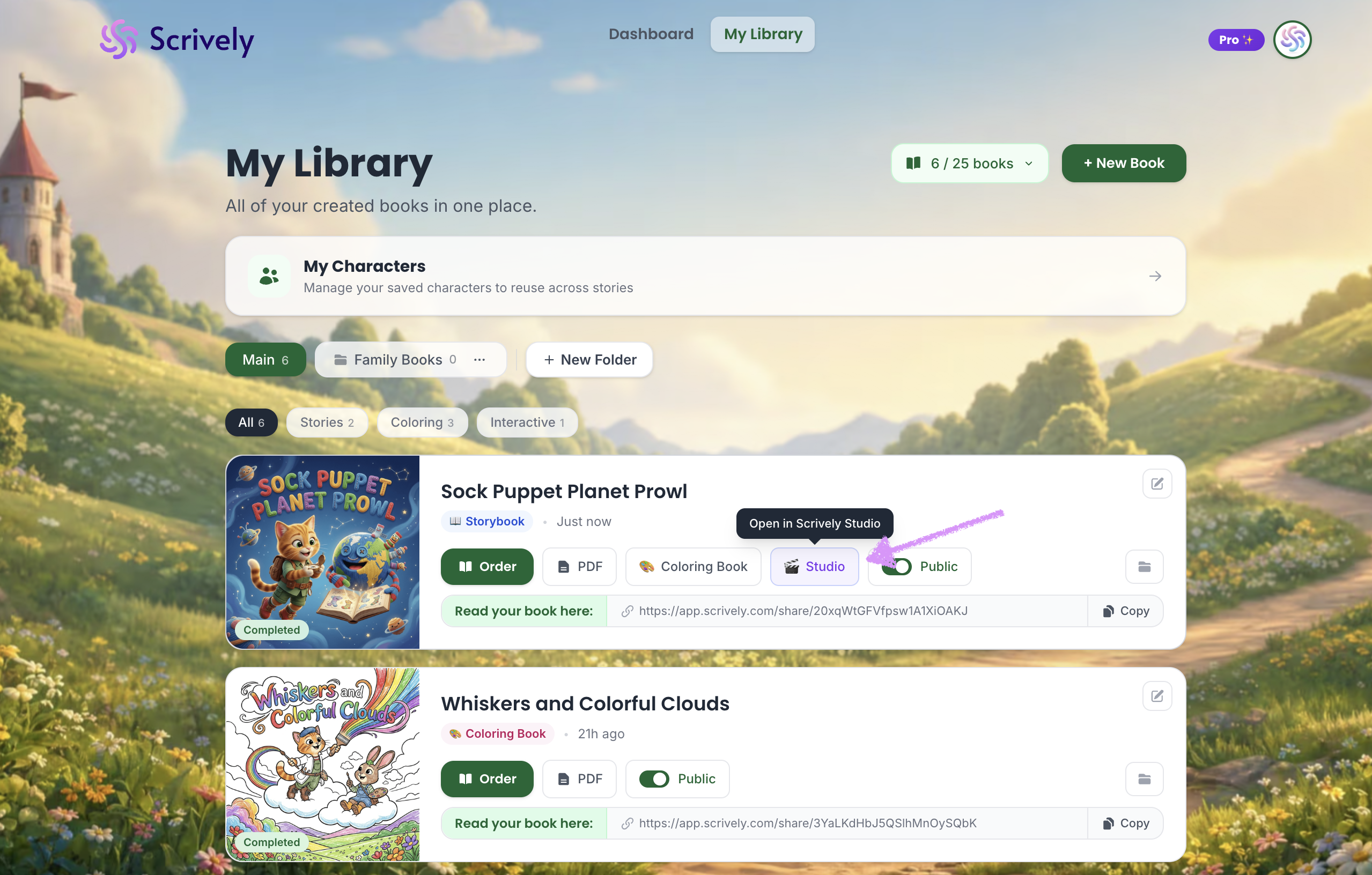
Click “Studio” on the book you want to add narration to.
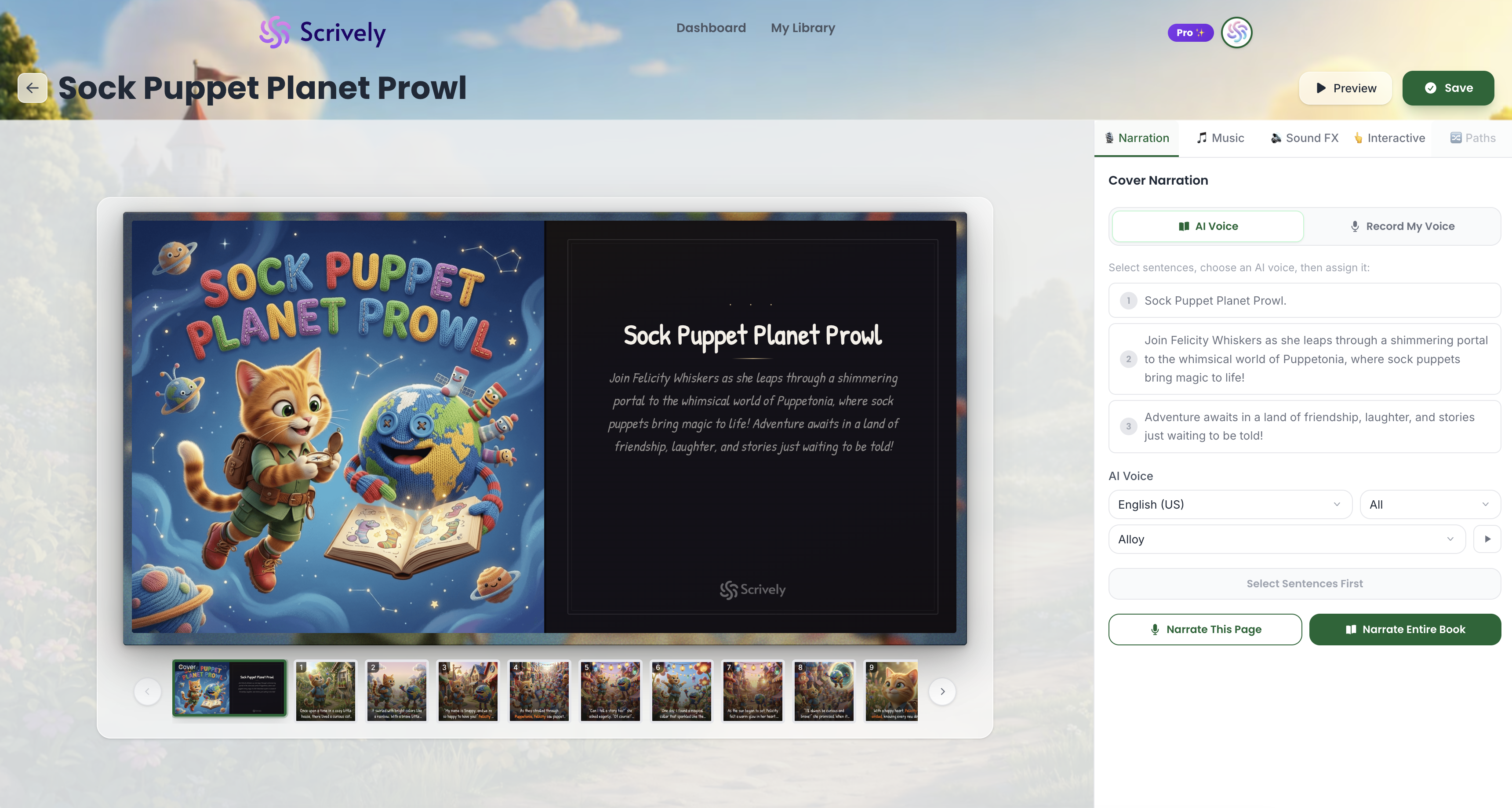
The book will open in Scrively Studio, where you can start adding narration.
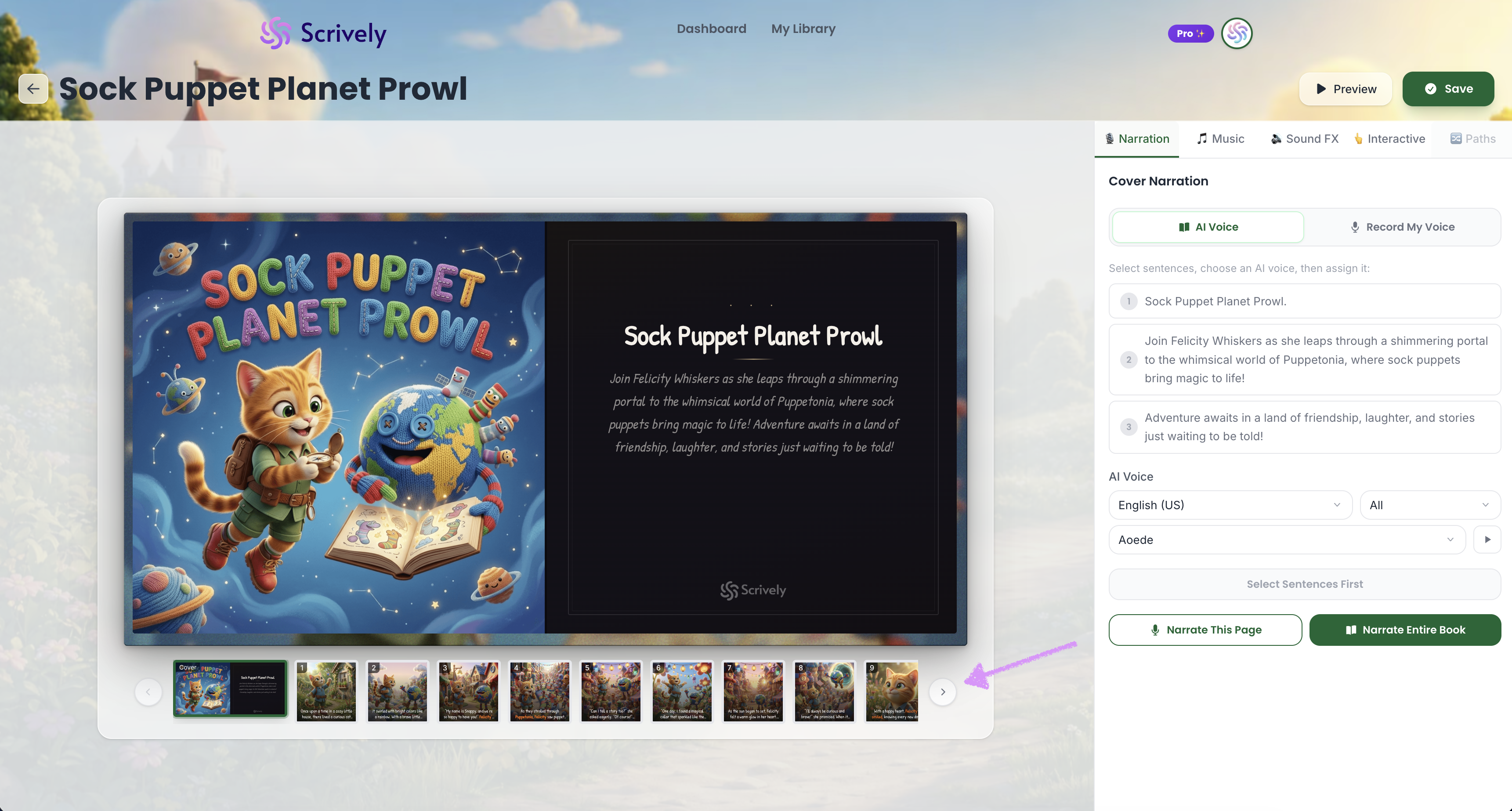
Use the left and right arrows at the bottom of the book to navigate between pages.
At the top right click on the sentence to add narration cards.
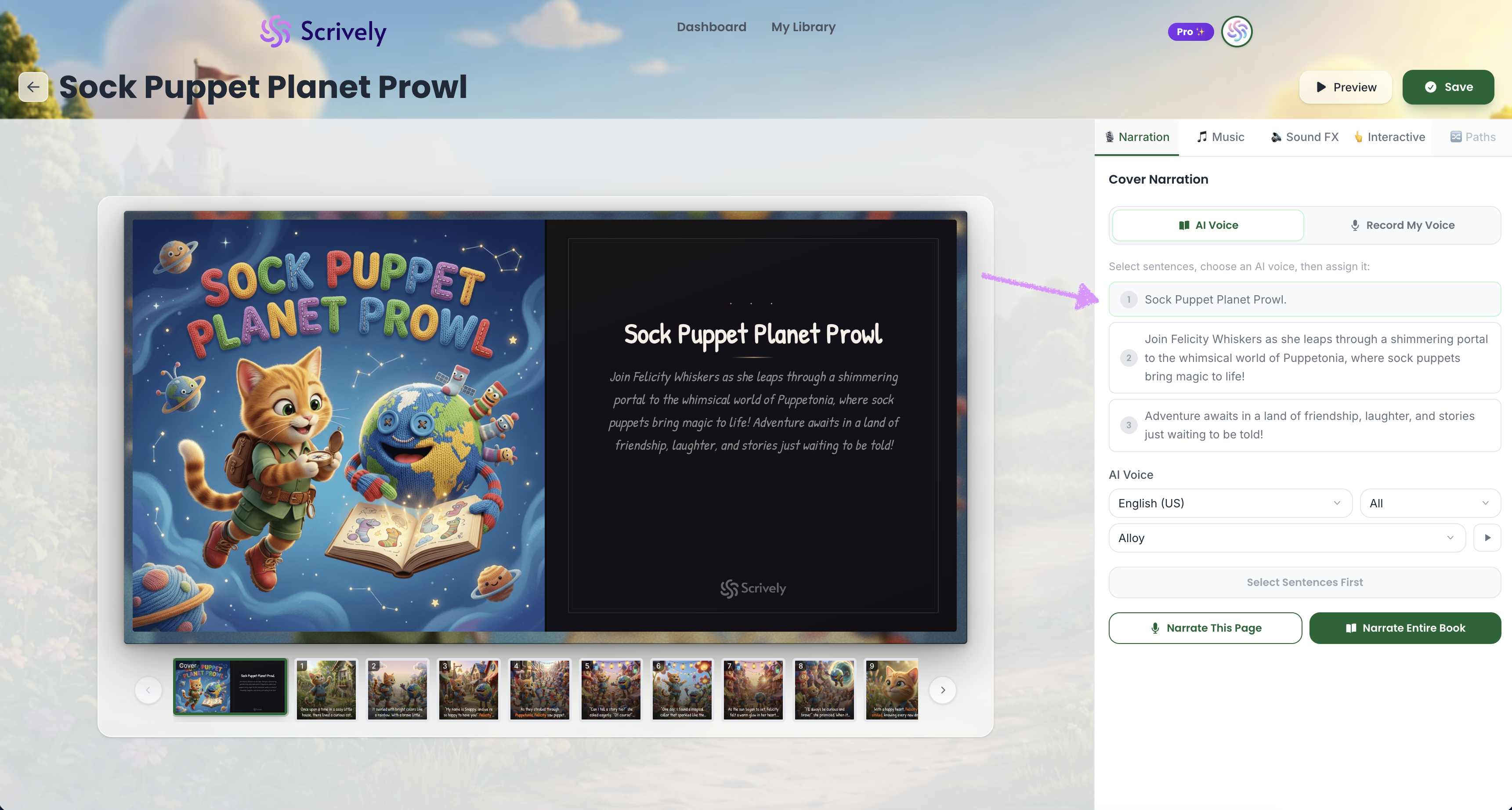
The voice-over you selected following the steps in our guide here will appear at the bottom.
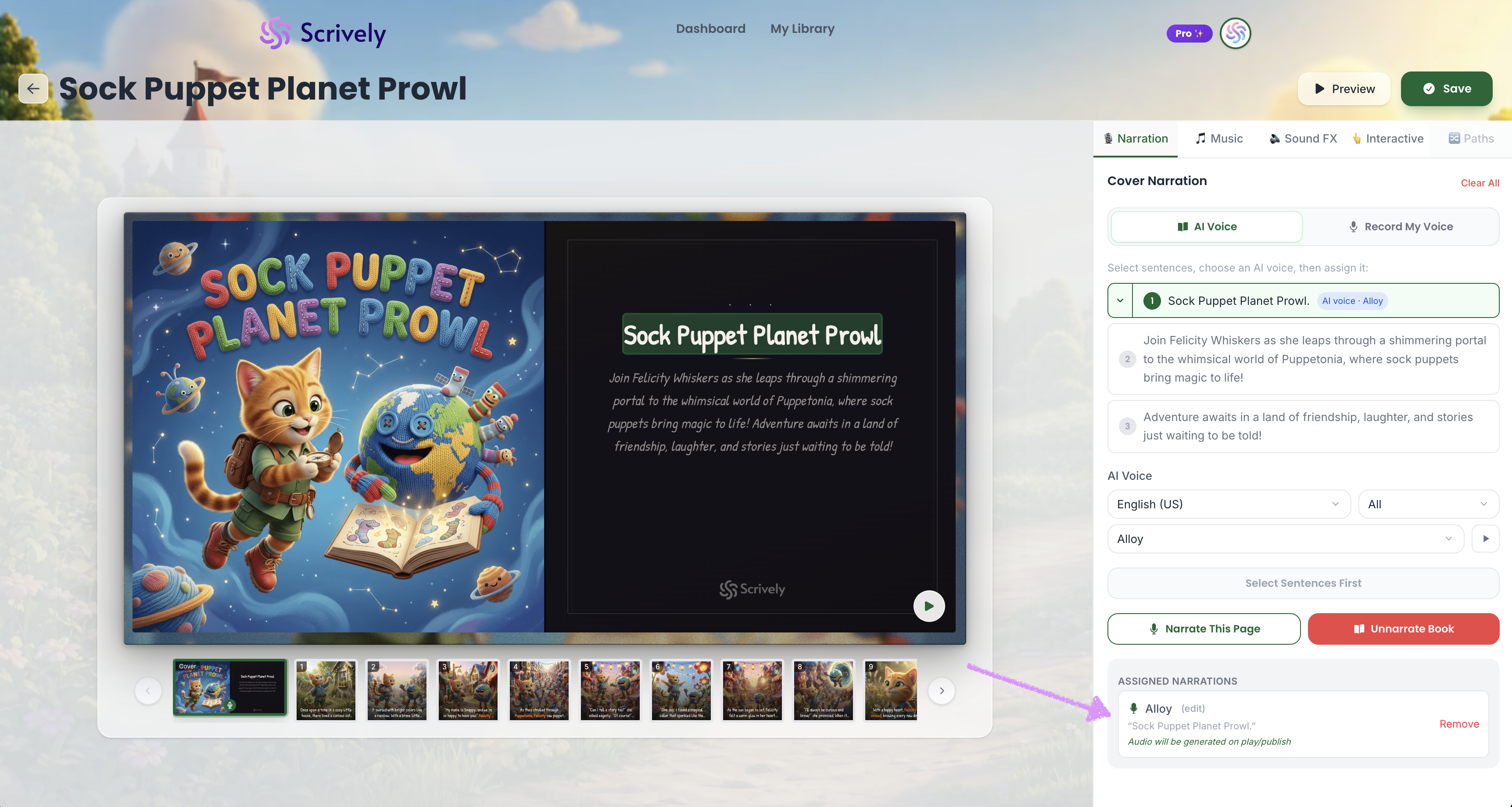
Sentences can be assigned different narrations. In this example, the first sentence is assigned to the “Alloy” voice-over, and the second sentence is assigned to “Aoede.”
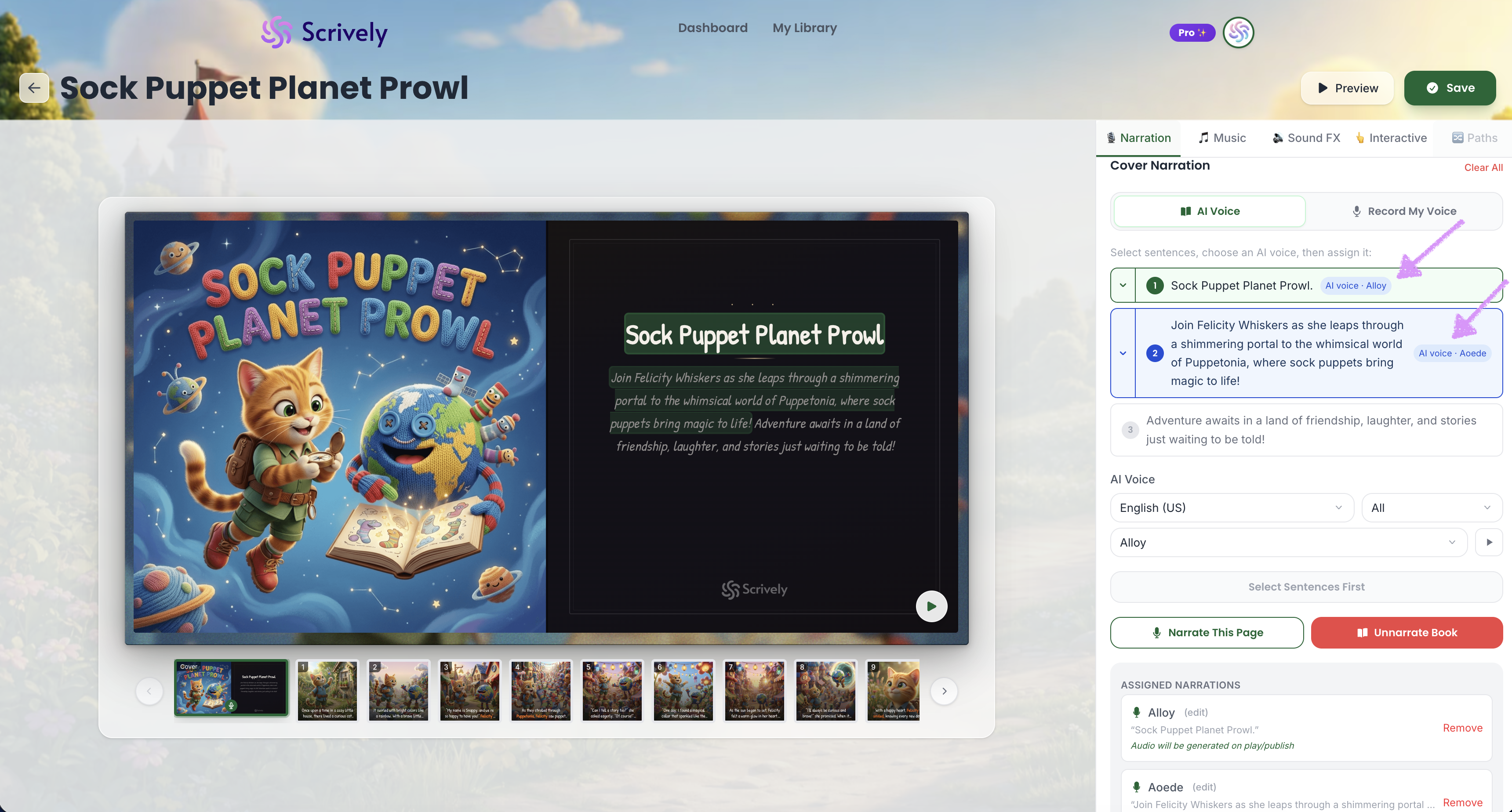
You can assign voices to words by clicking the arrow on the left side of the selected sentence.
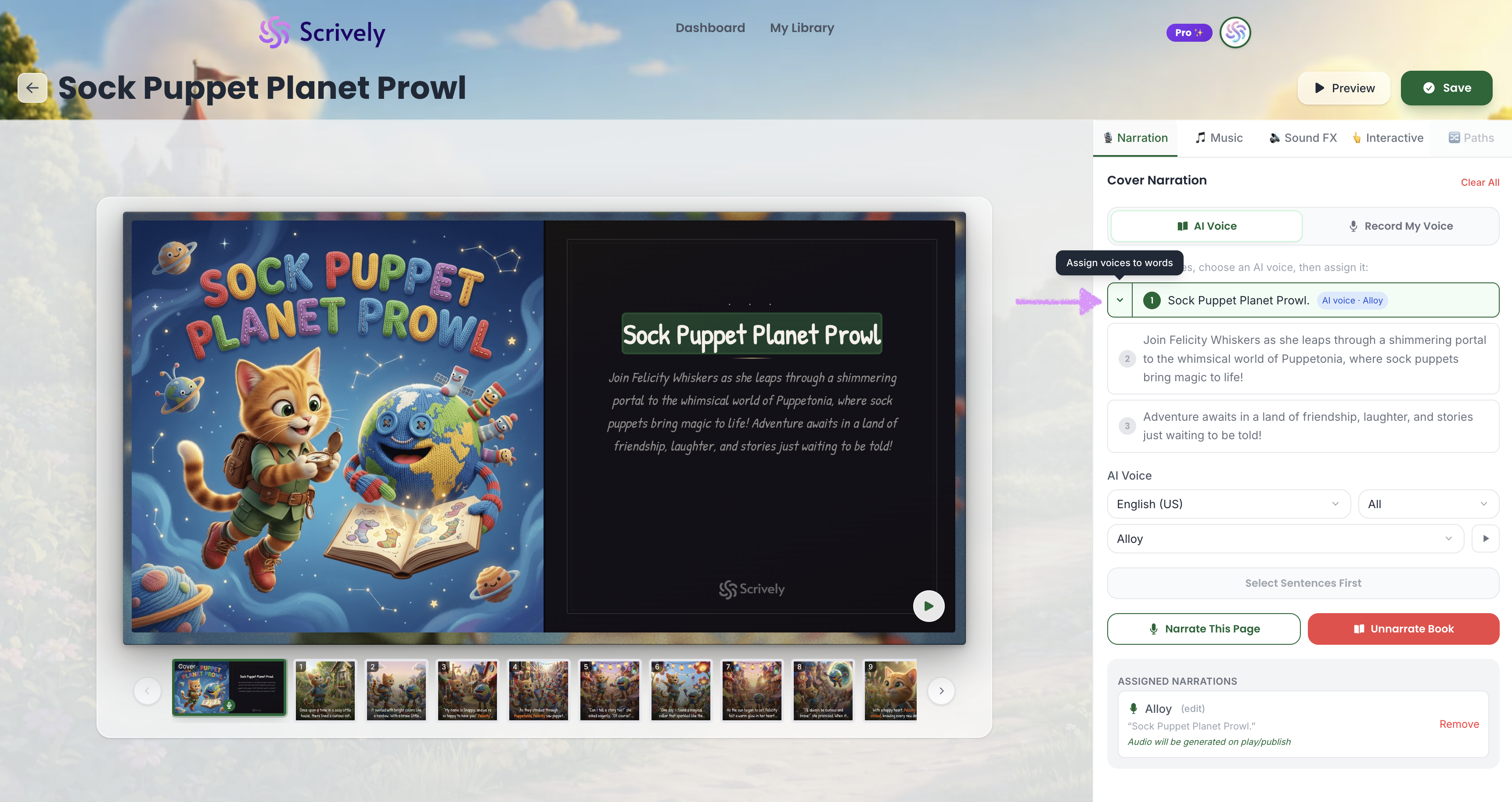
All words in the selected range will use the chosen voice-over.
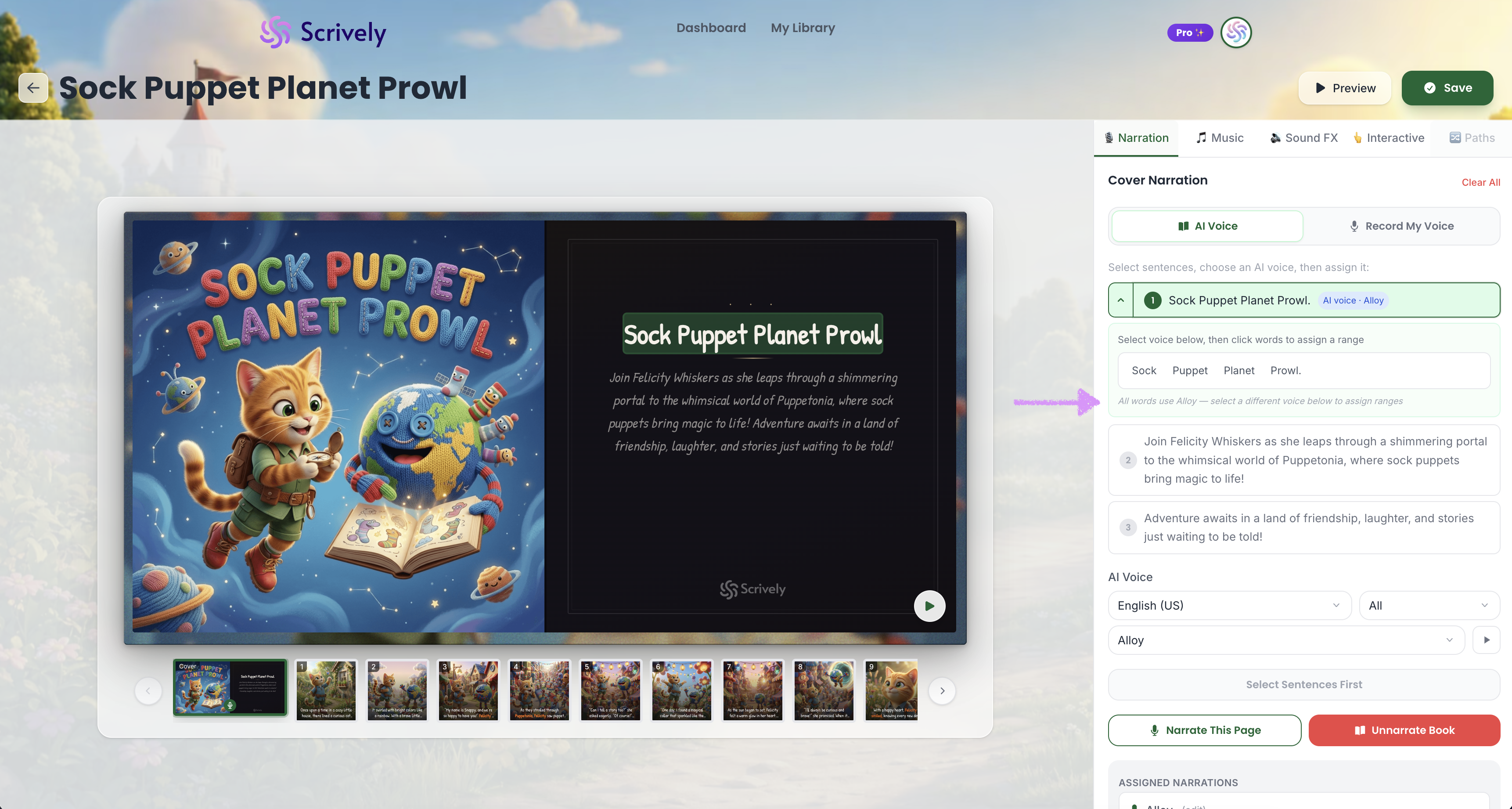
After selecting your voice-over, choose the words to assign a range. Unselected words will remain silent. In this example, we changed to voice-over to "Aoede" and the first three words will be read in that voice-over.
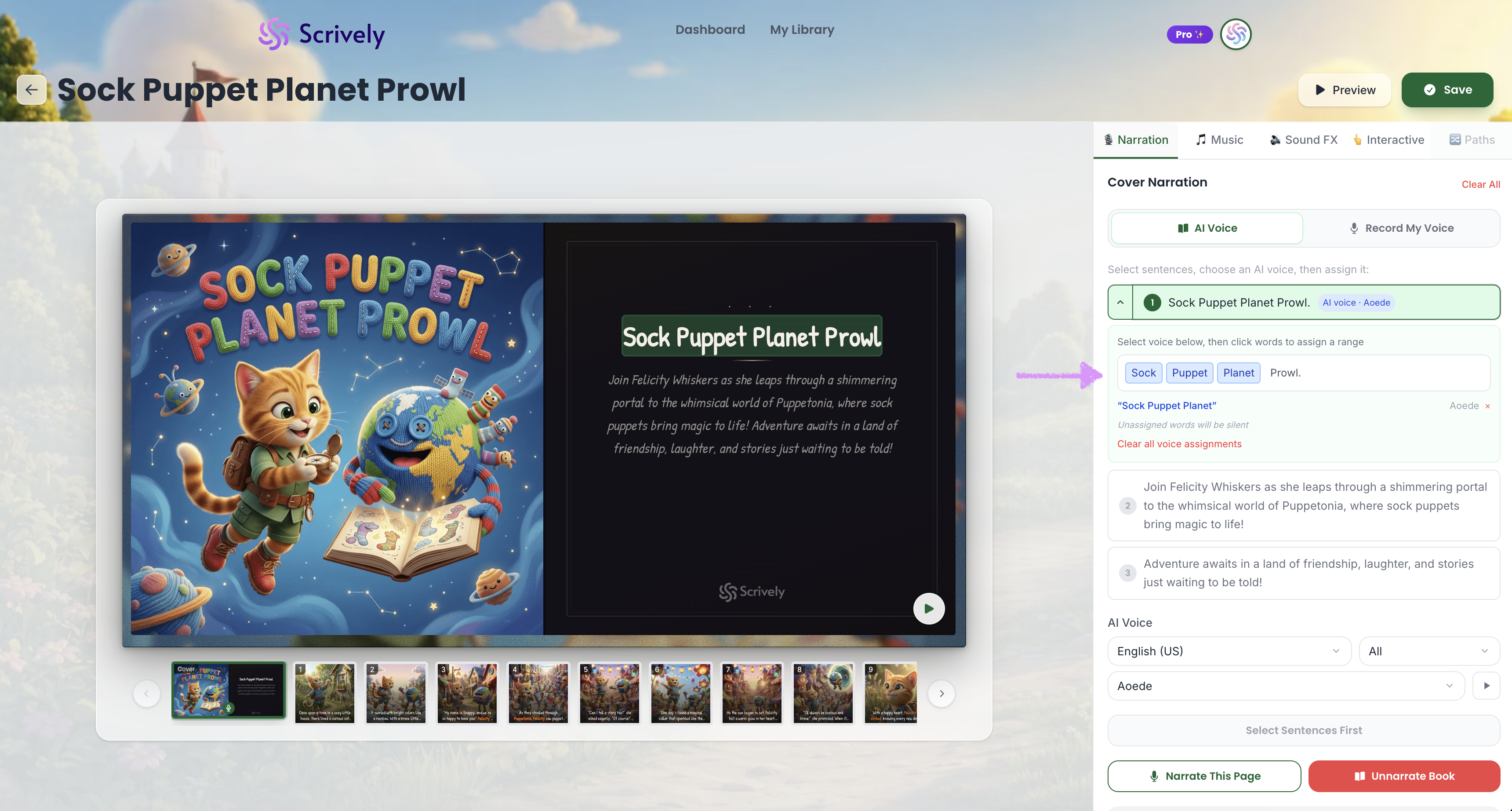
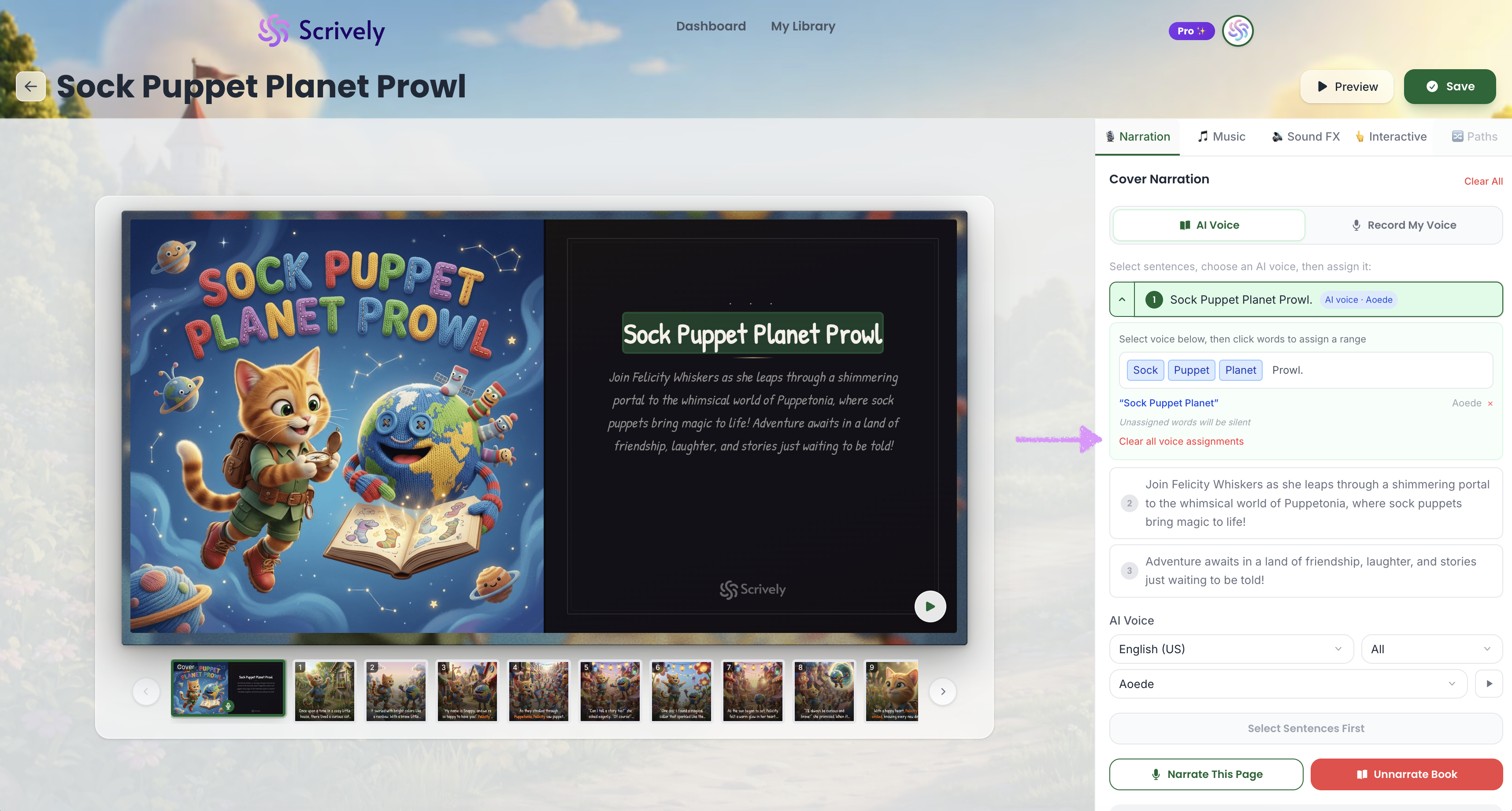
If you no longer want to use an assigned range, click “Clear all voice assignments.”
When you're ready click on the play icon to generate the audio.
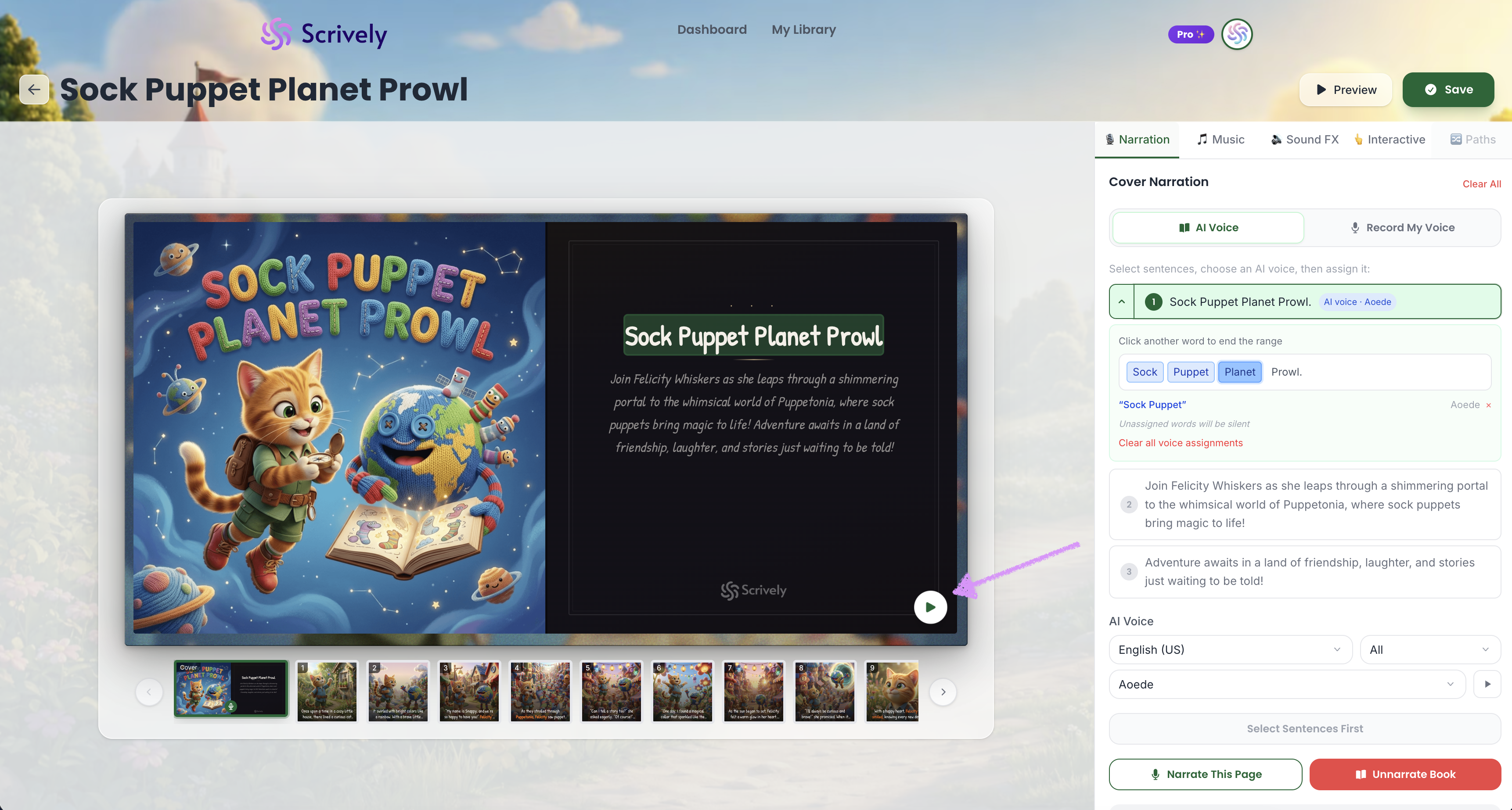
Give Scrively a few moments to generate the voice-over audio.
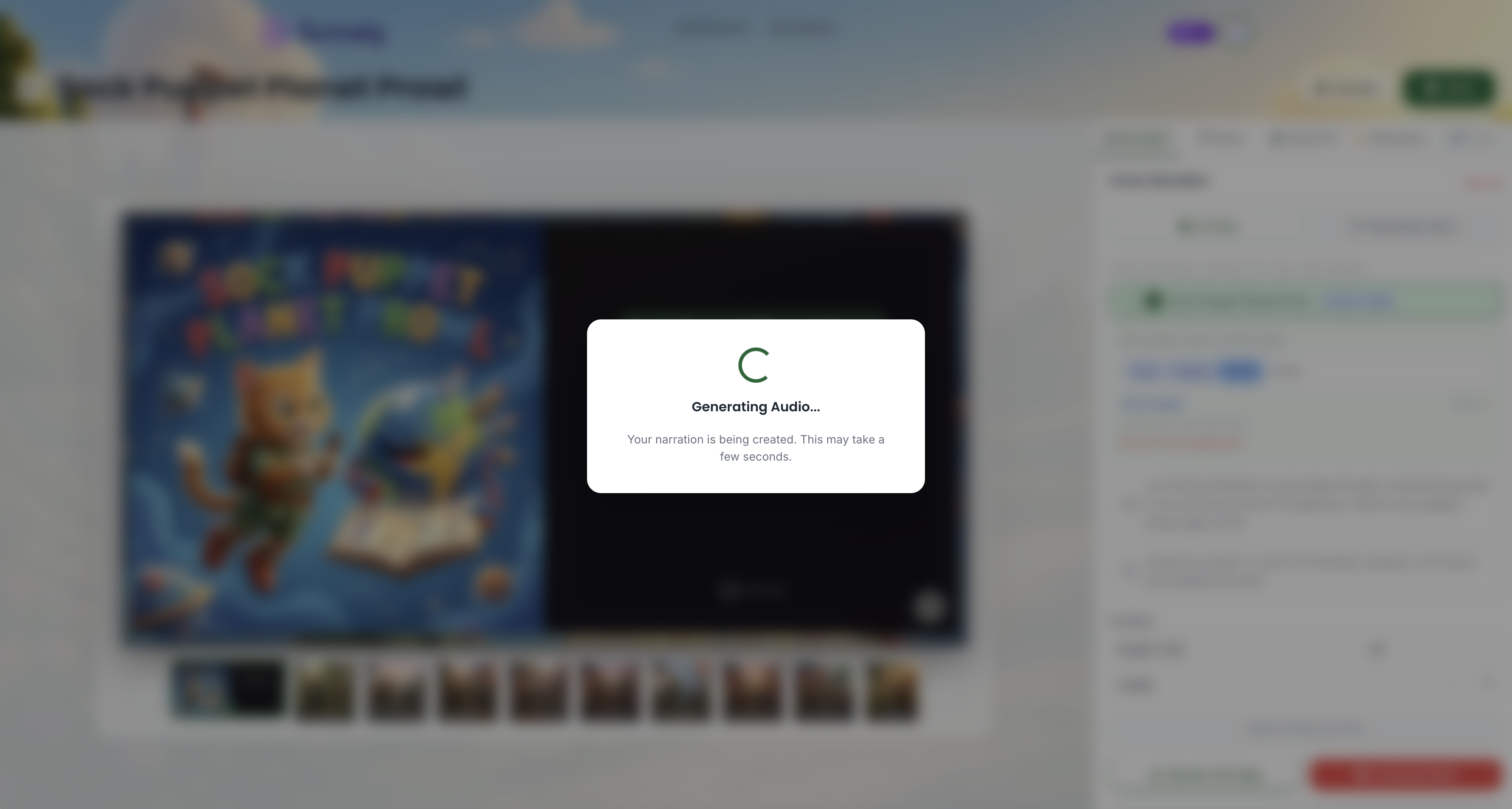
The voice-over audio will be generated and played.
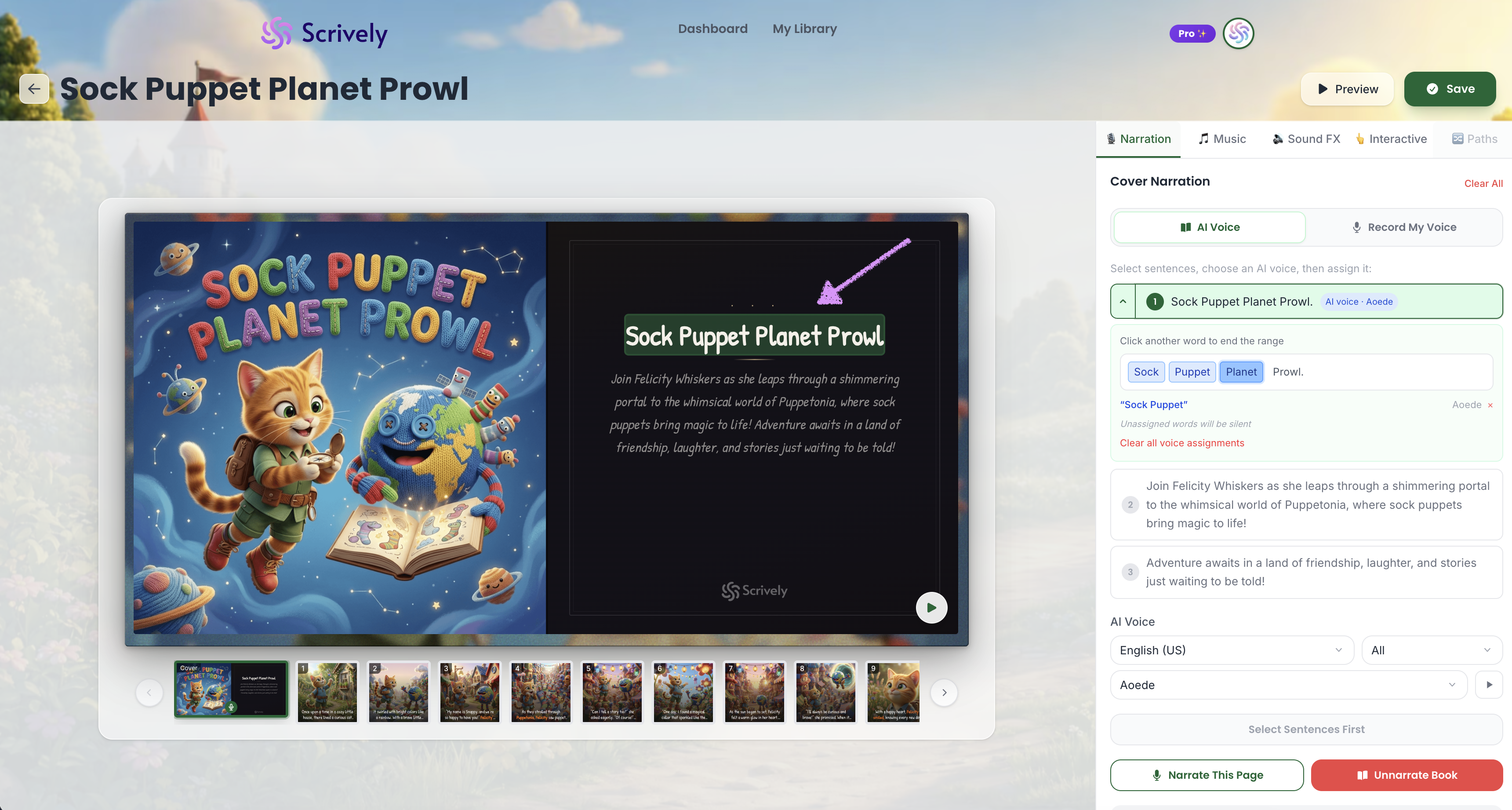
When multiple voice-overs are added to a sentence, they will be noted on the right side.
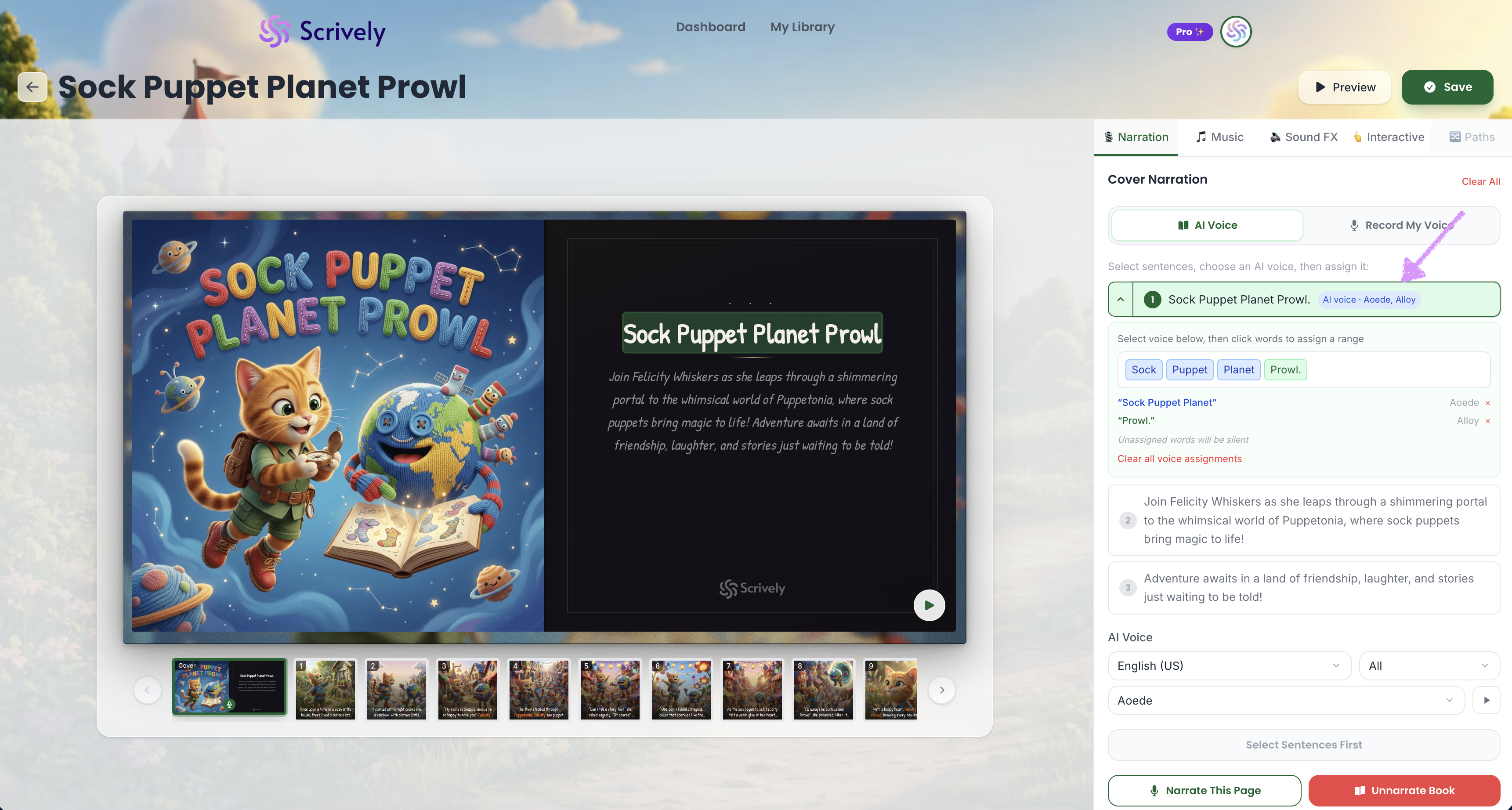
Also, the exact words and associated voice-overs will be displayed blow the sentence.
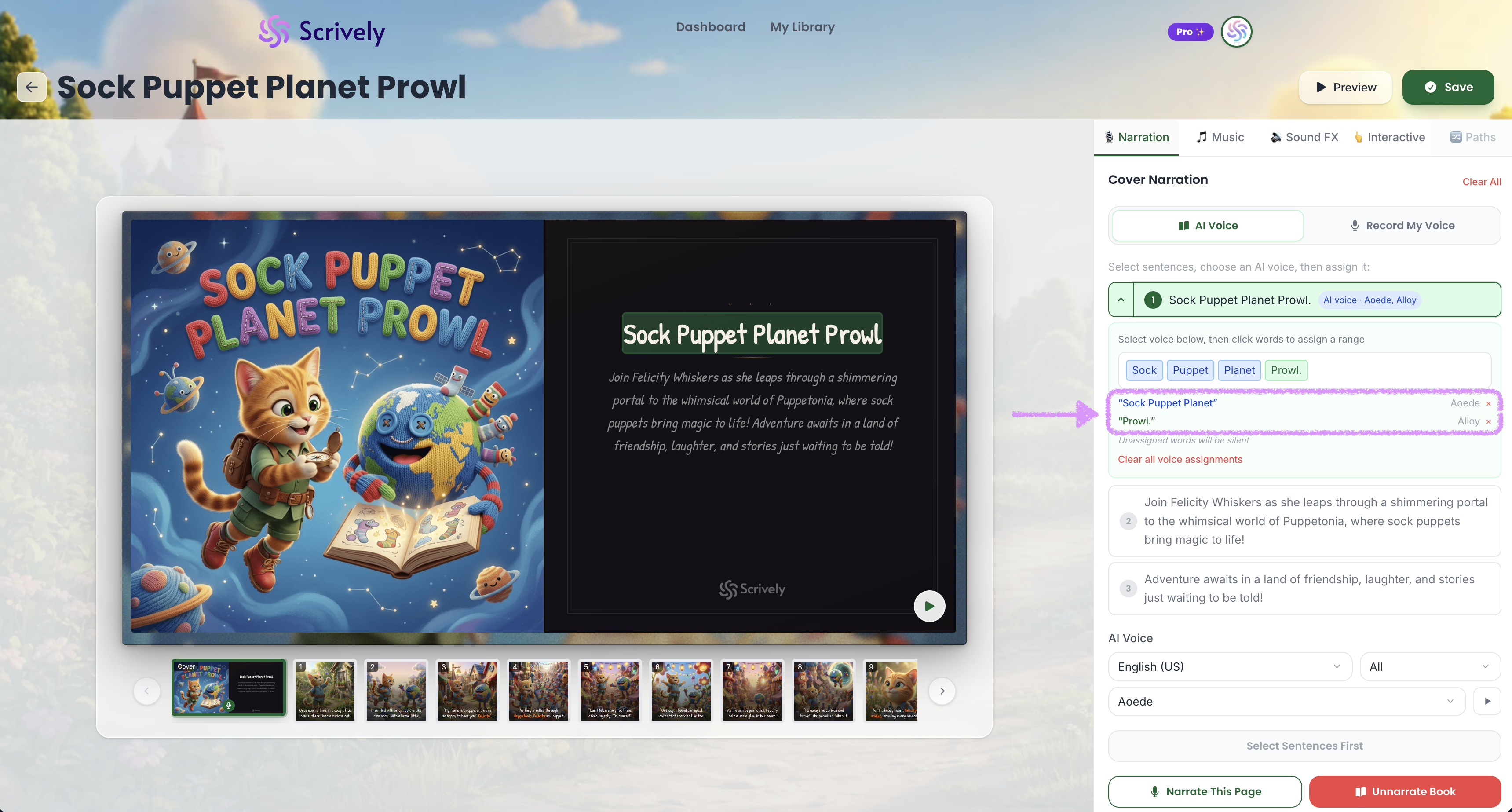
You can also easily edit voice-overs in the assigned narrations card, by clicking on “edit.”
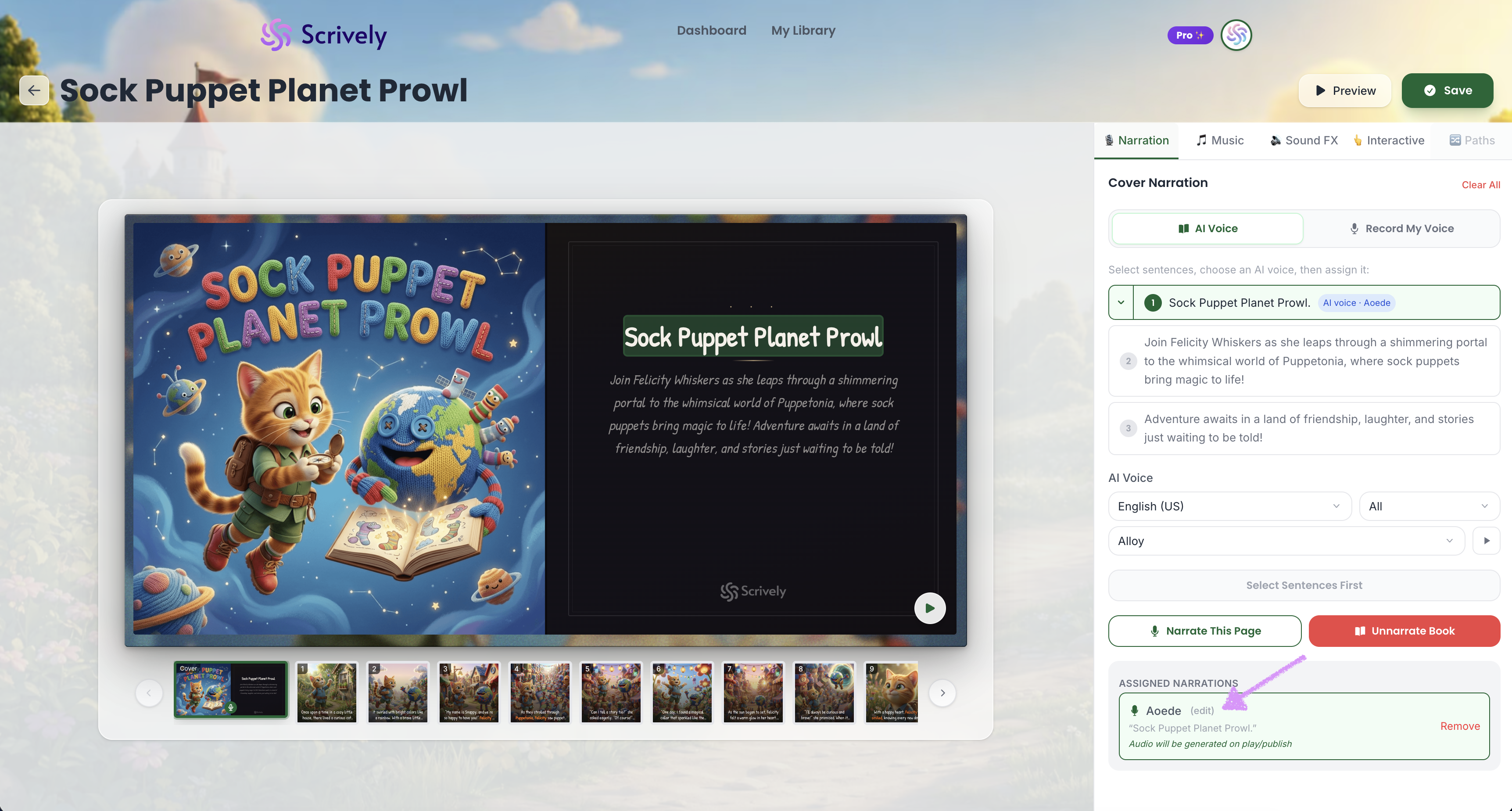
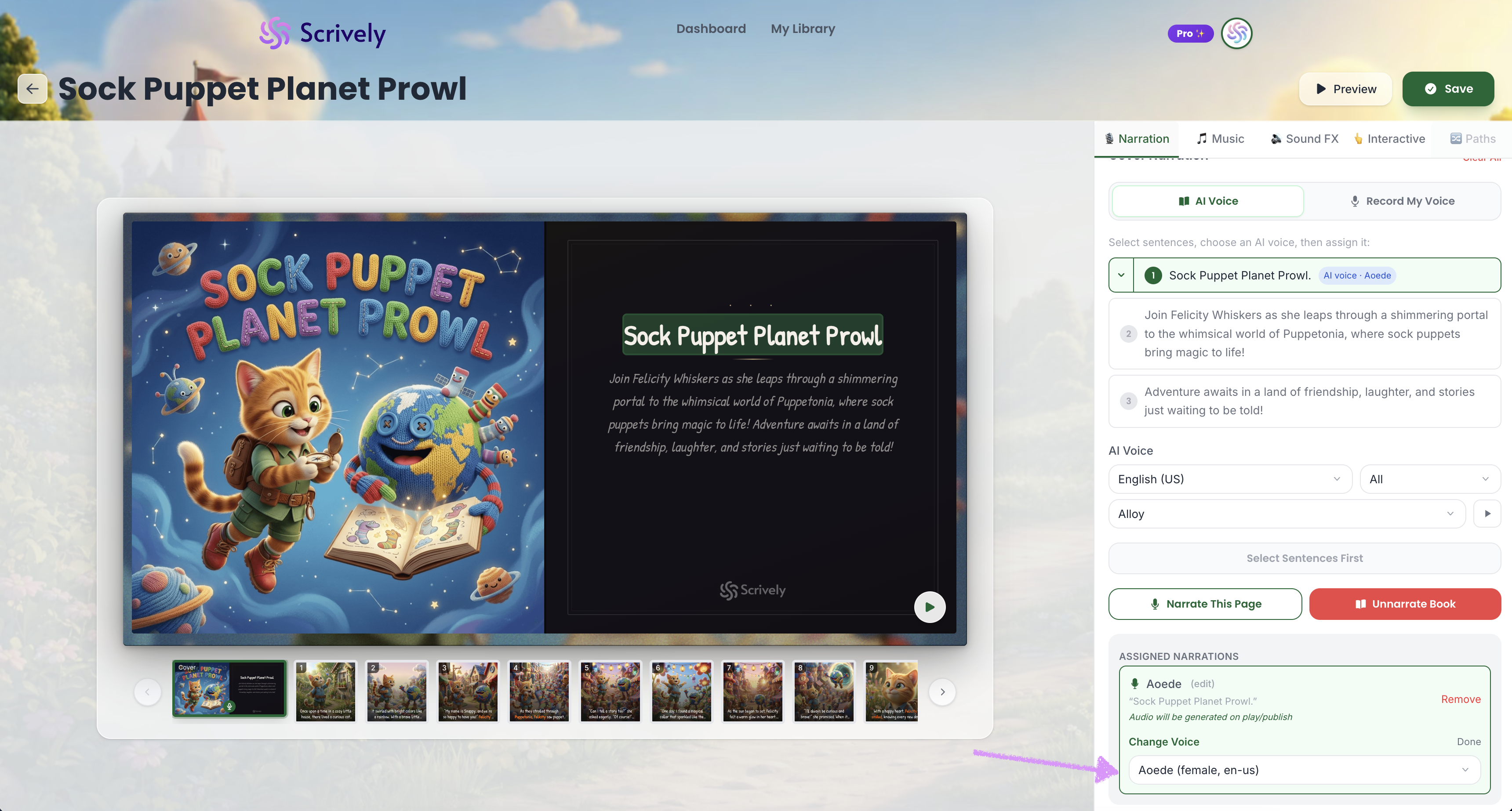
Click into the dropdown menu for the available voice-overs.
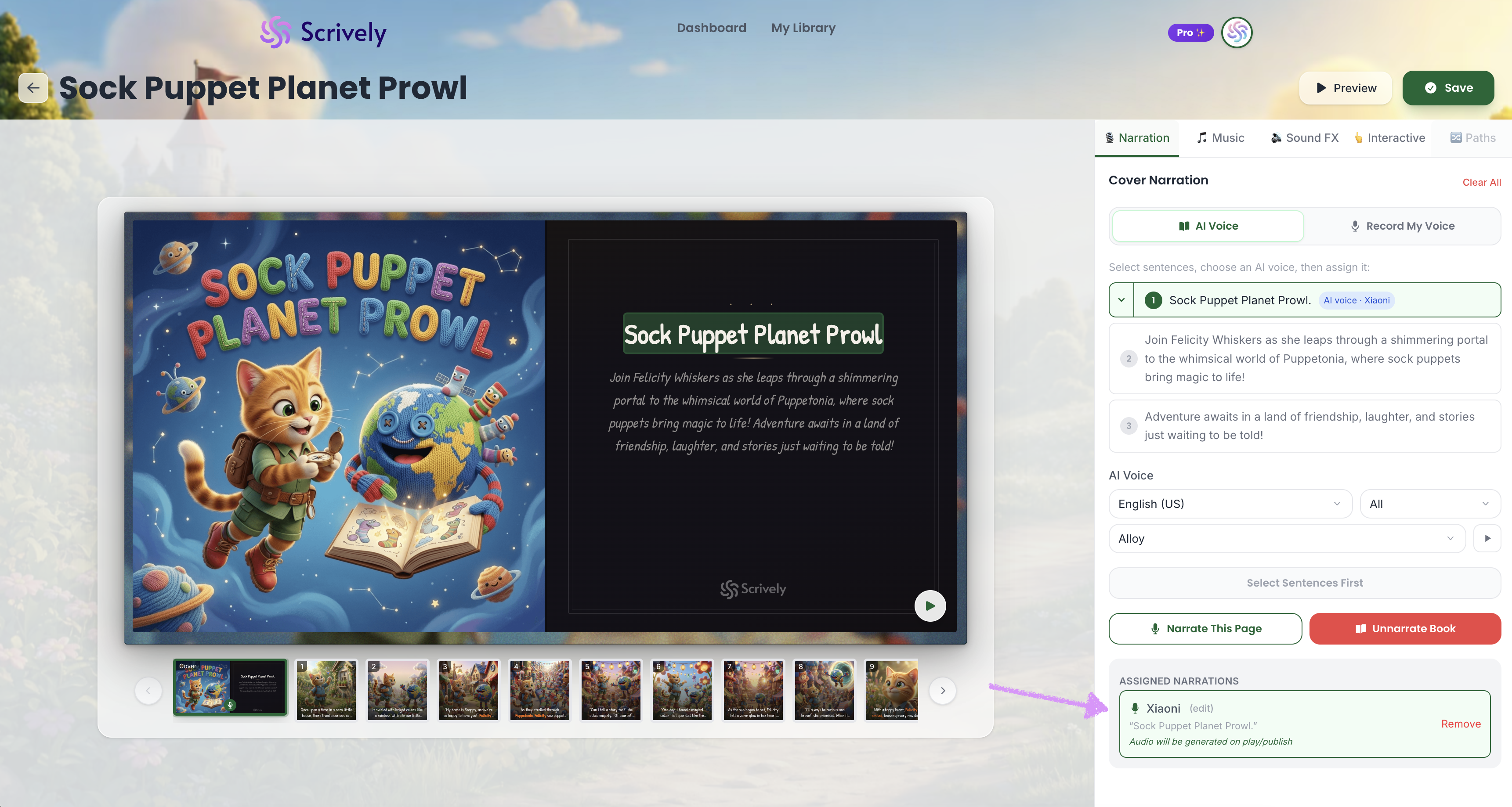
The newly selected voice-over will be assigned.
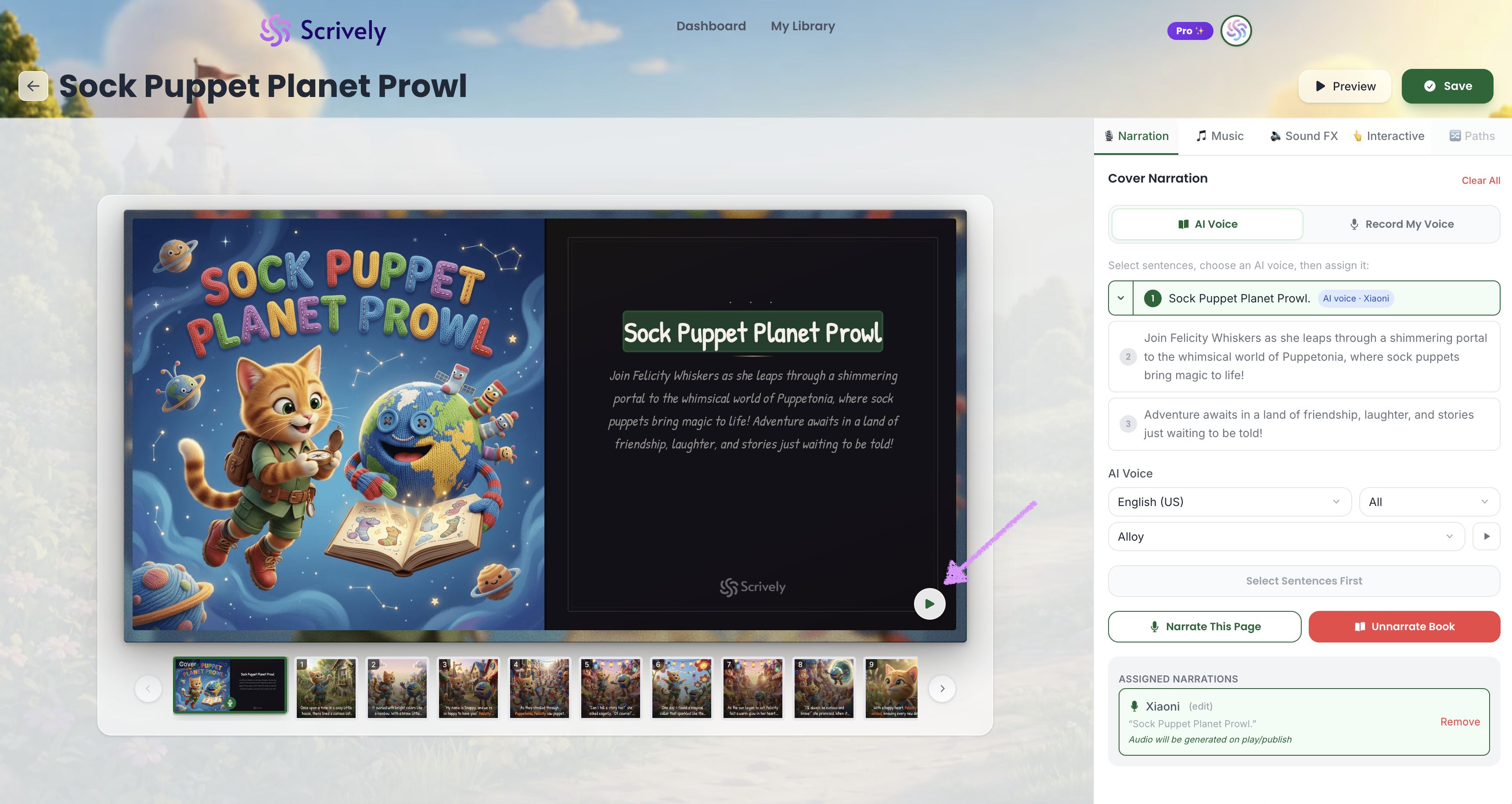
Click the play icon to regenerate the voice-over using the newly selected voice.
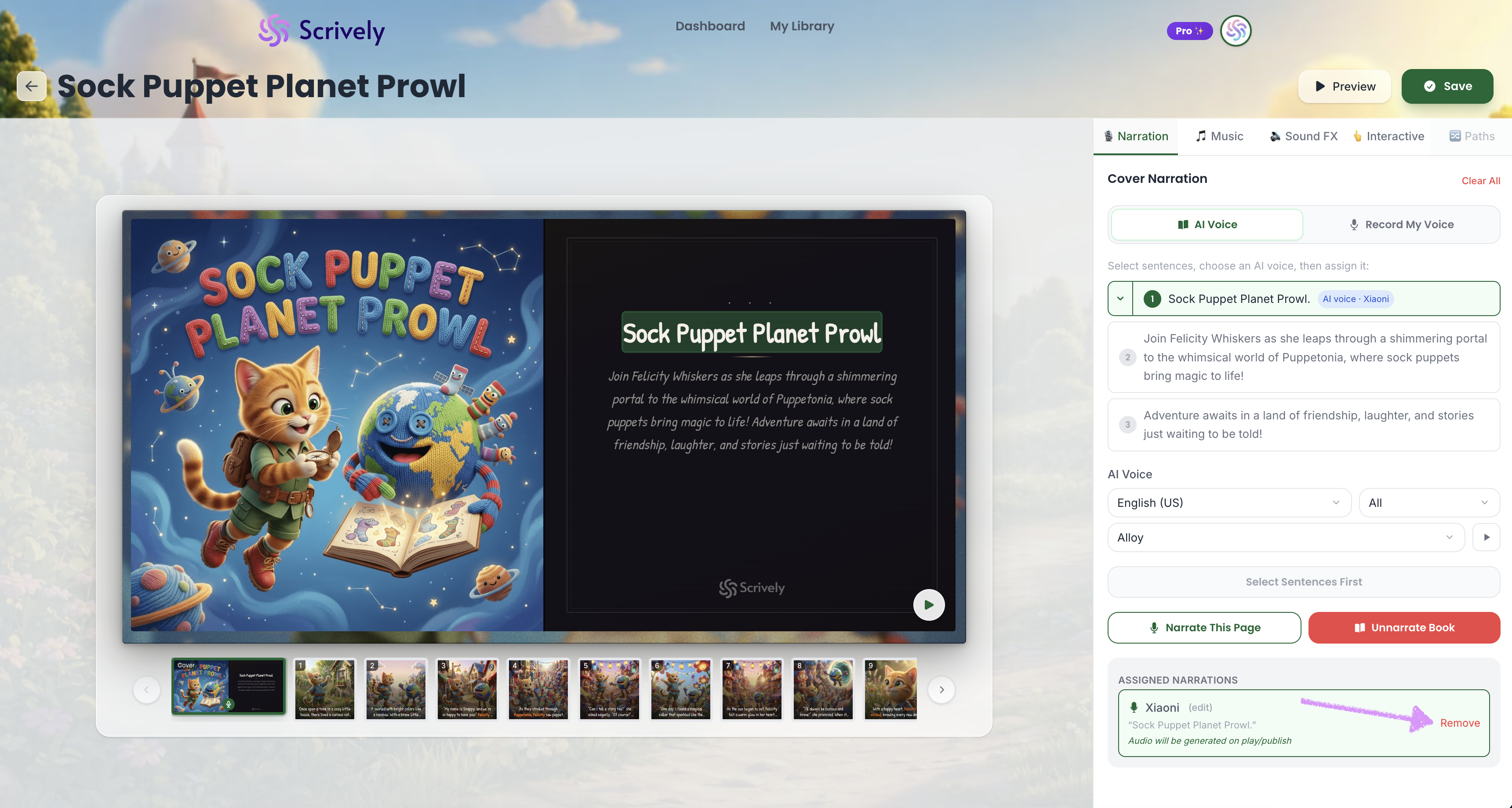
Click “Remove” to remove the assigned voice-over.
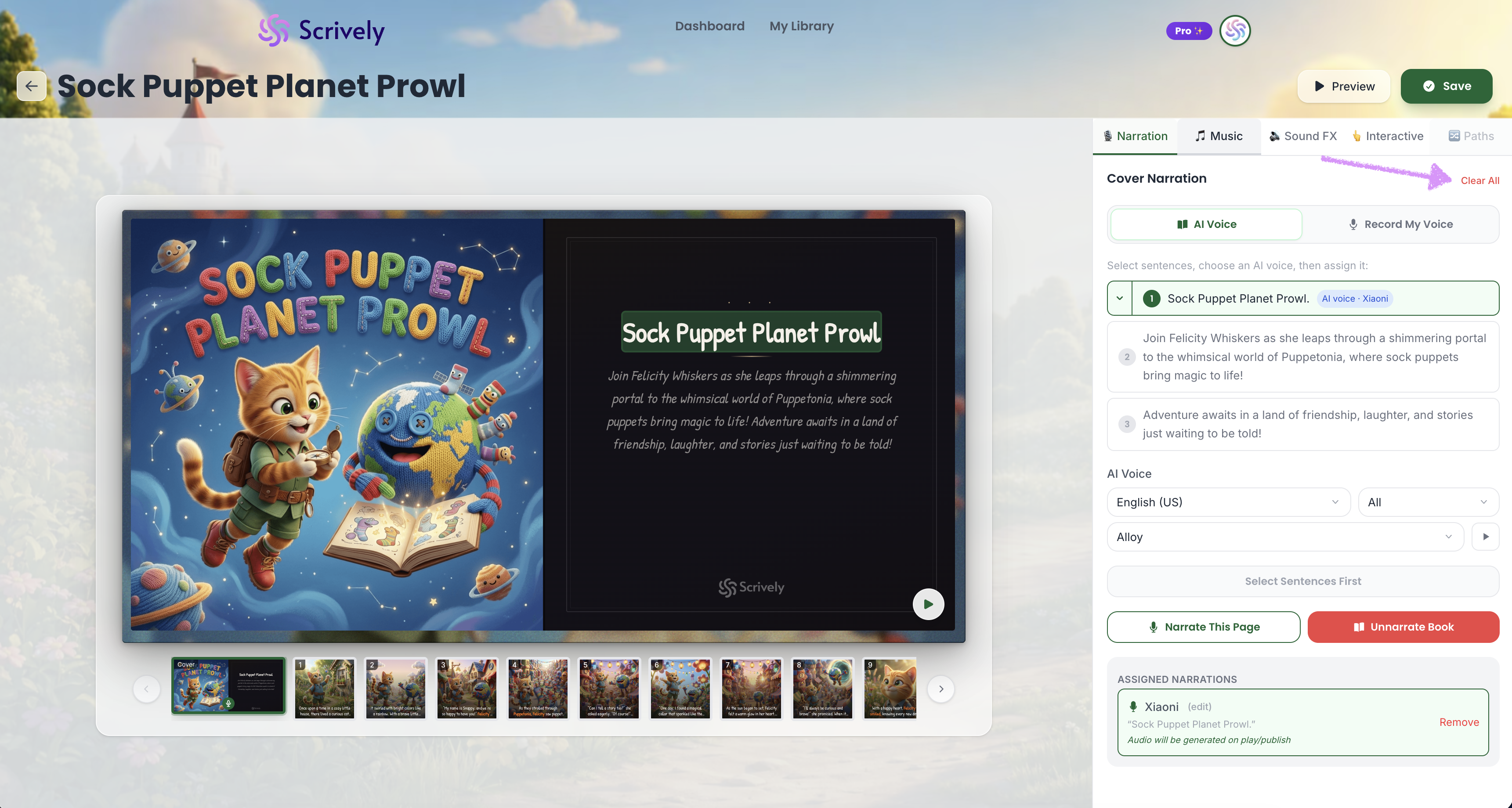
Want to start fresh? Click on "Clear All" at the top right.
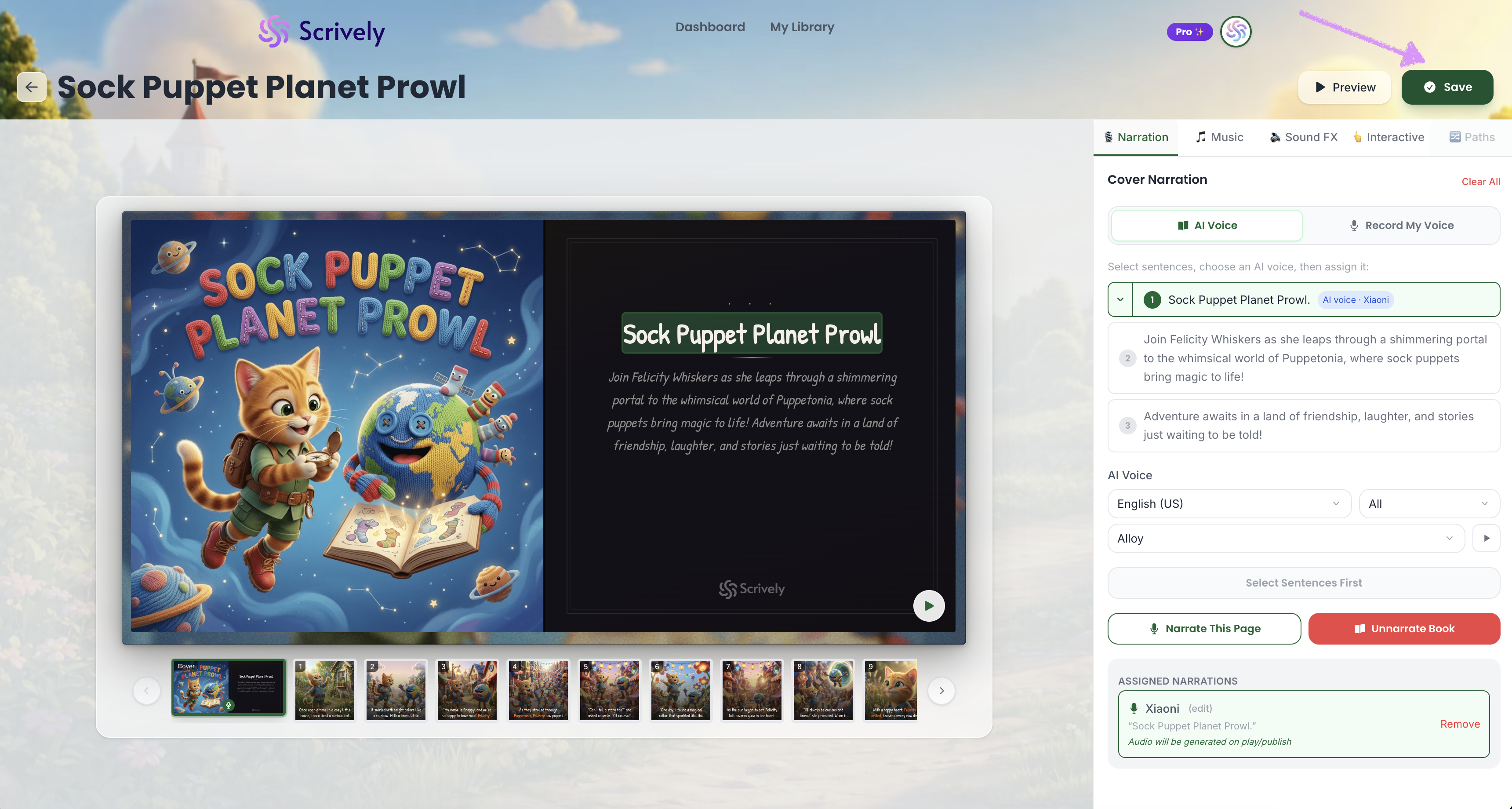
Once you’re satisfied with your changes, click “Save” in the top right corner to save them.
Head over to our guide here to learn more about adding narration to an entire page.
Was this article helpful?
That’s Great!
Thank you for your feedback
Sorry! We couldn't be helpful
Thank you for your feedback
Feedback sent
We appreciate your effort and will try to fix the article
