
Want to review your book orders? Go to the "Orders" tab to track all your book orders and view status updates.
Click on your profile image at the top right of the app.
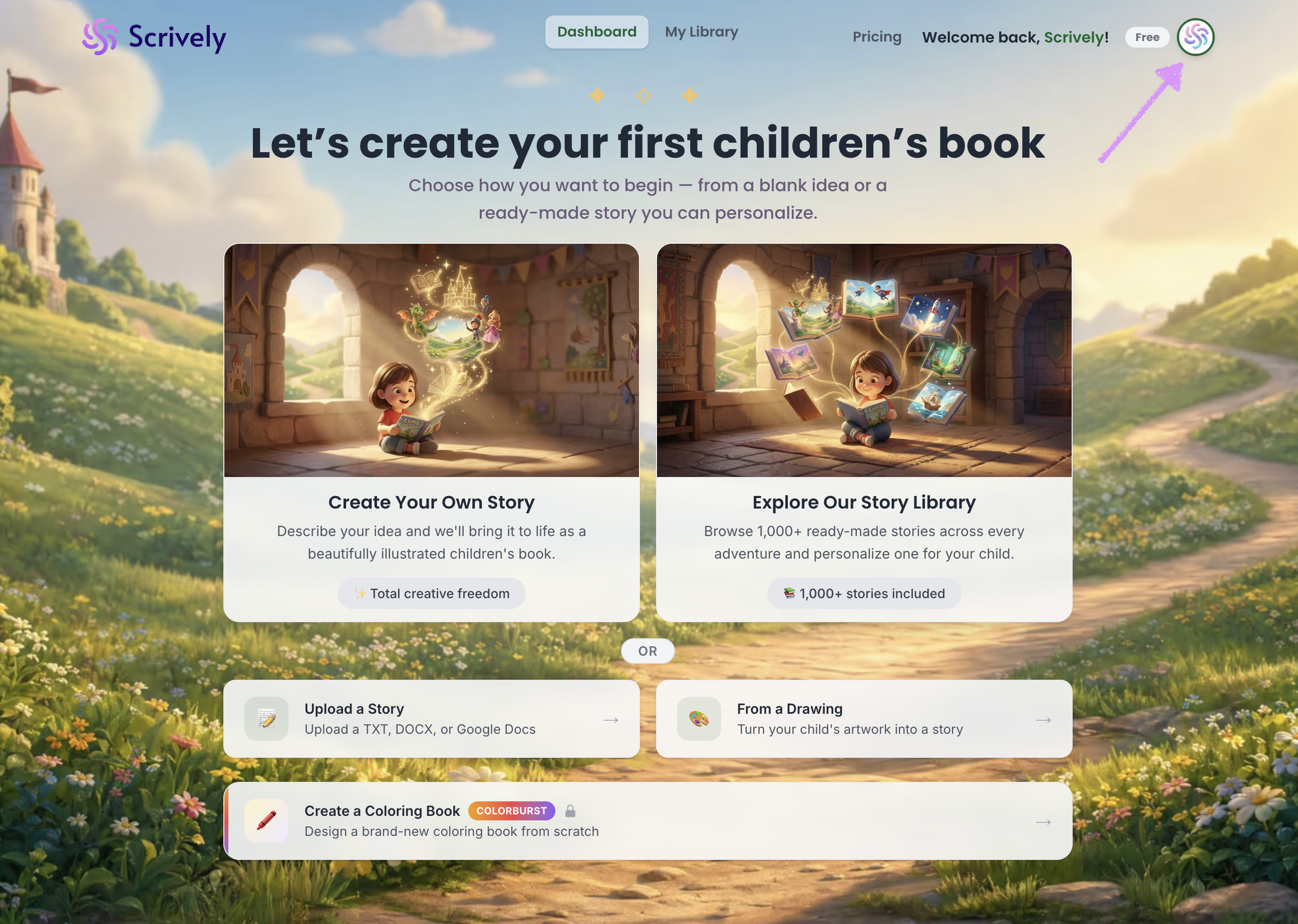
Select "Orders."
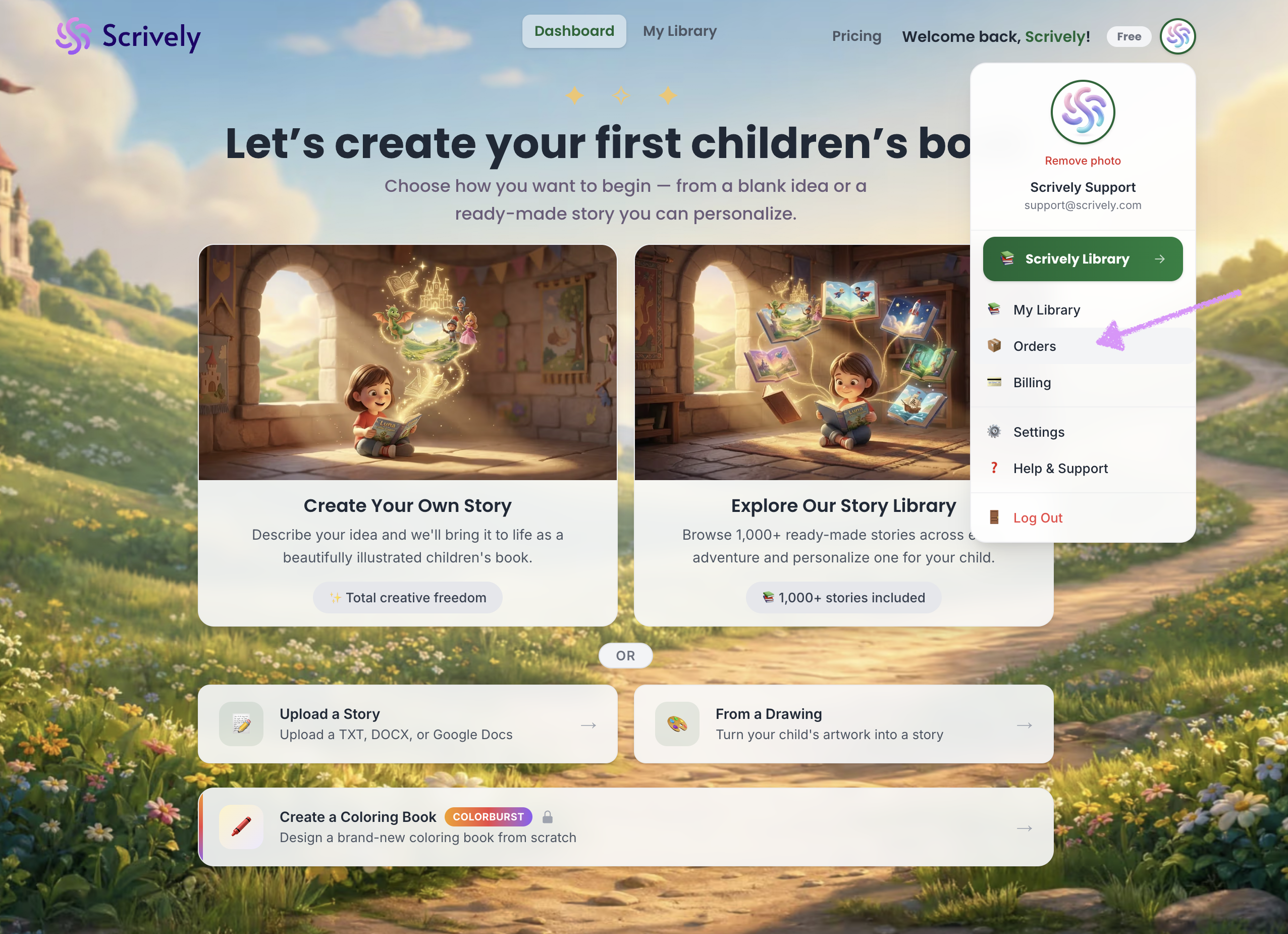
In the "Print Orders" view, you’ll be able to track all of your book orders.
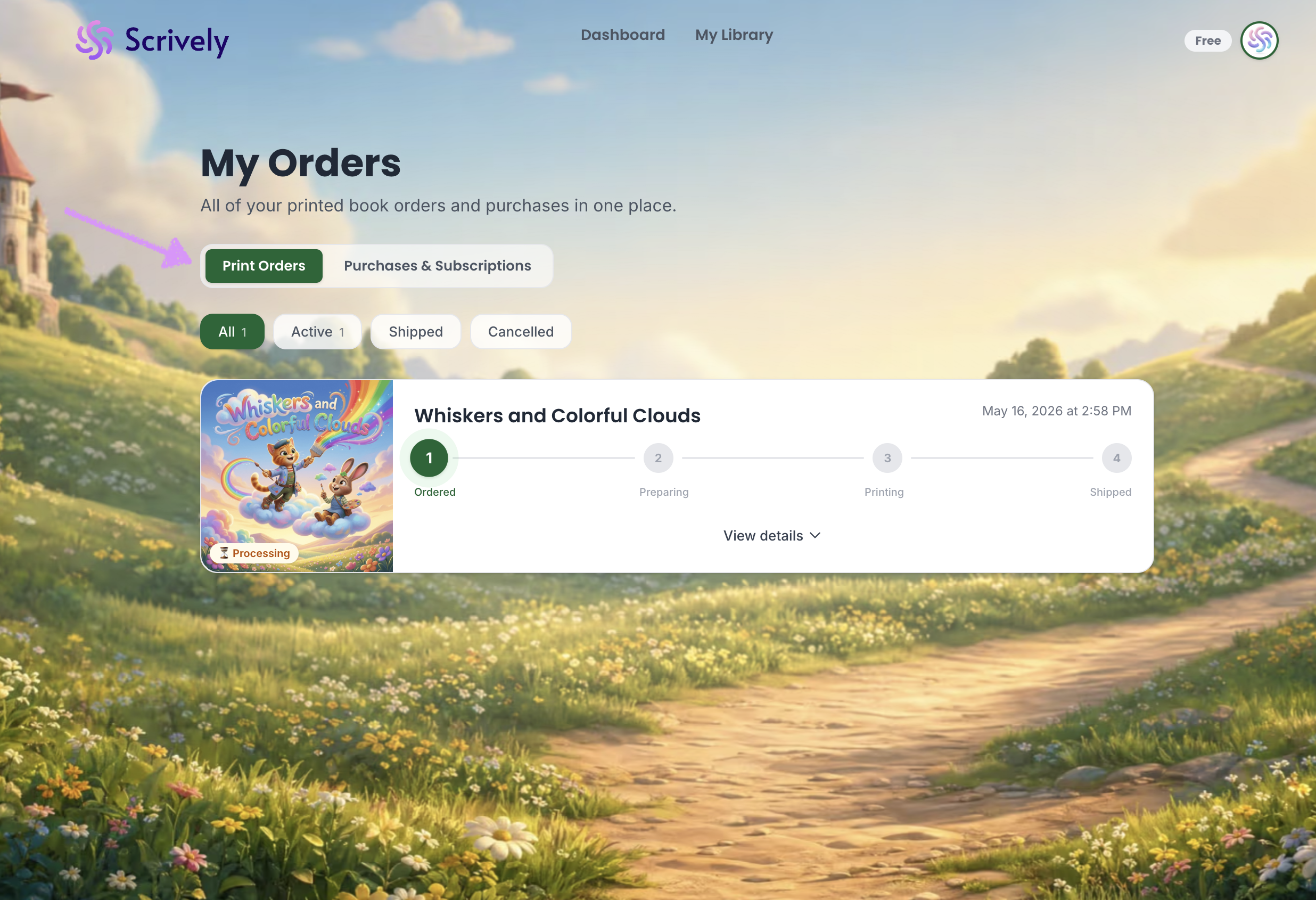
Use filters to view All, Active, Shipped, or Cancelled orders and quickly track what matters most.
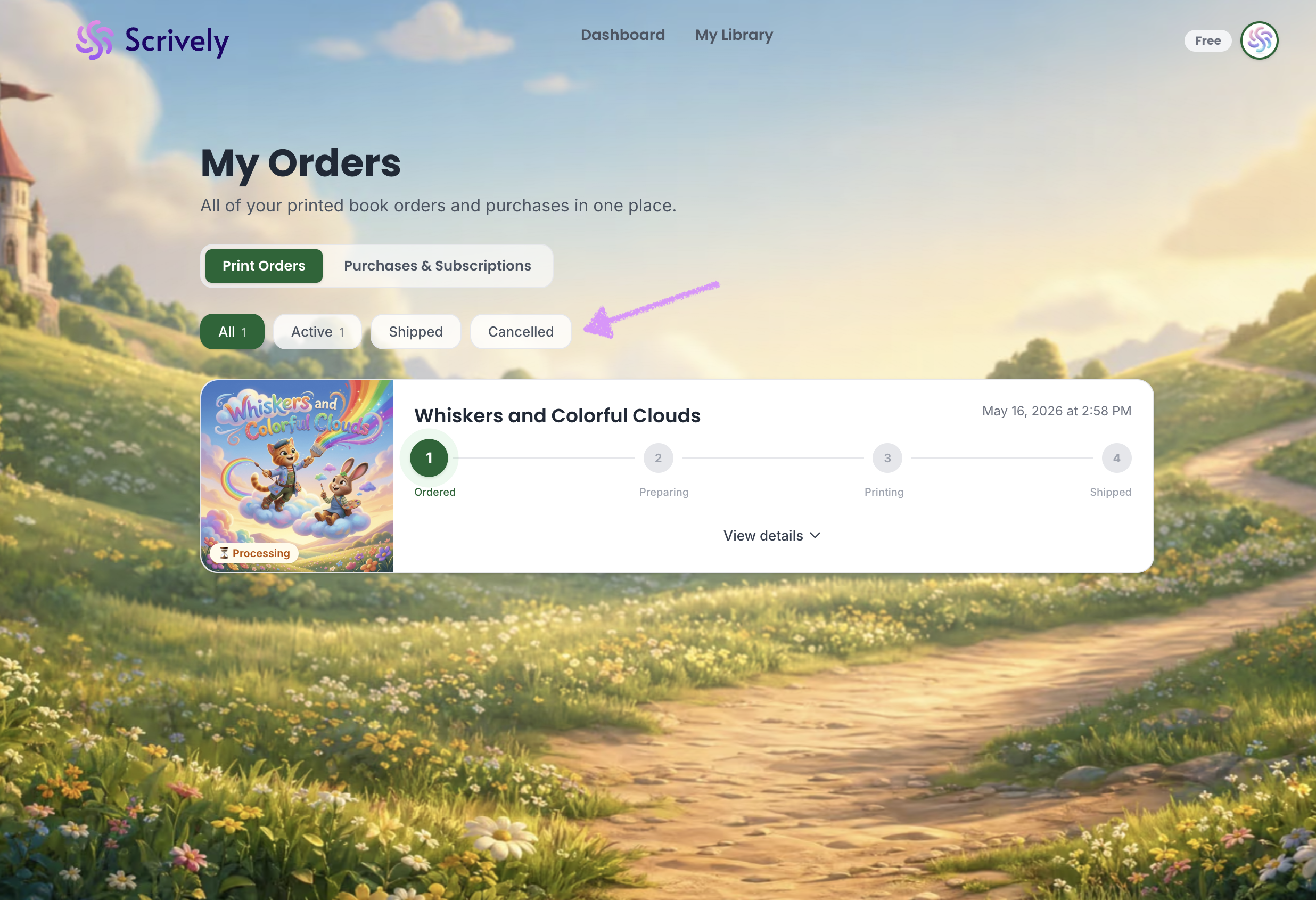
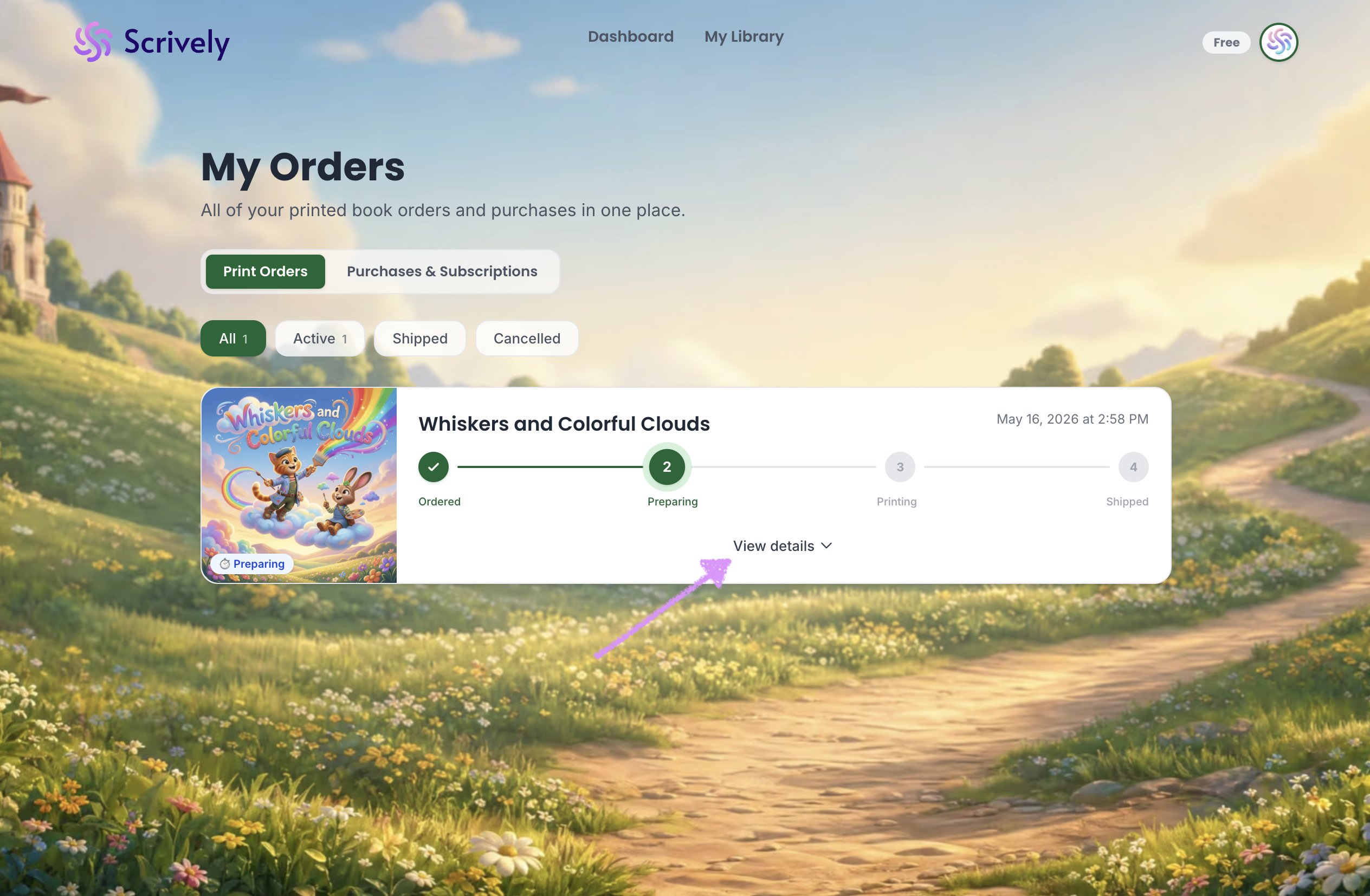
Click on "View details."
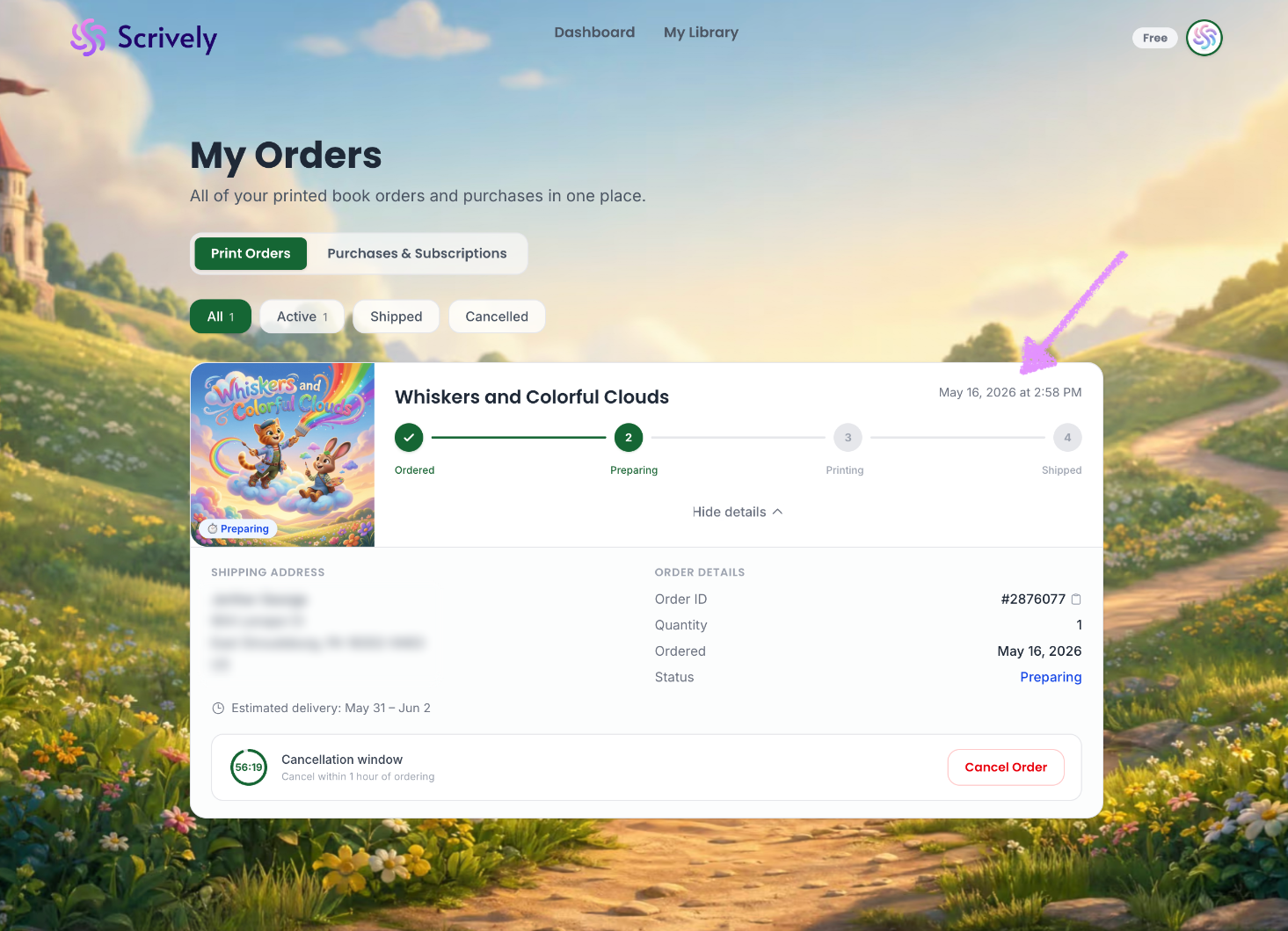
At the top right of each order, you will see the date and timestamp showing when the order was placed.
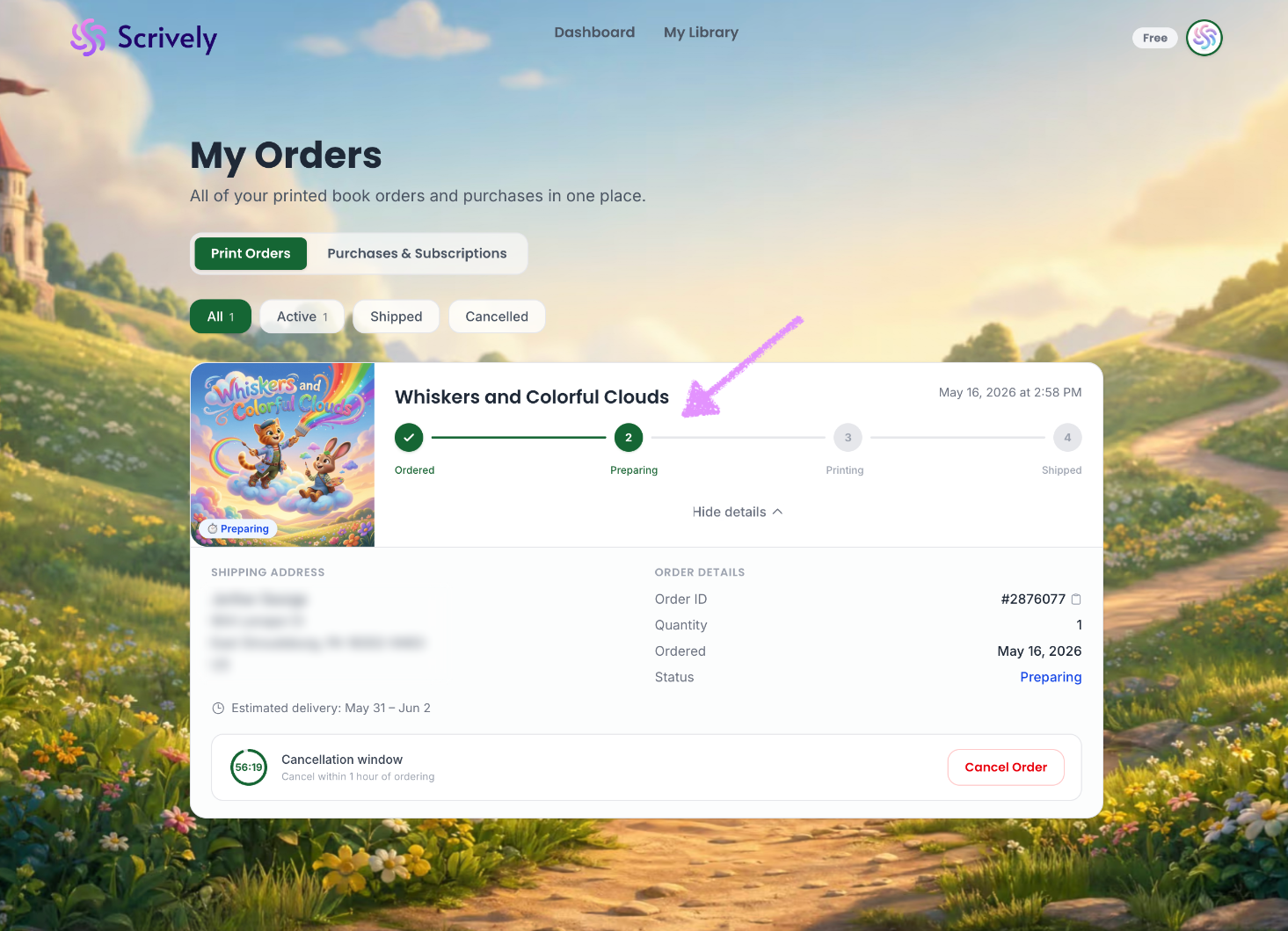
As your book moves through the printing process, your order progress bar will automatically update.
Below the progress bar, you’ll see the full details of your order, including the shipping address, order ID, quantity, order date, and status.
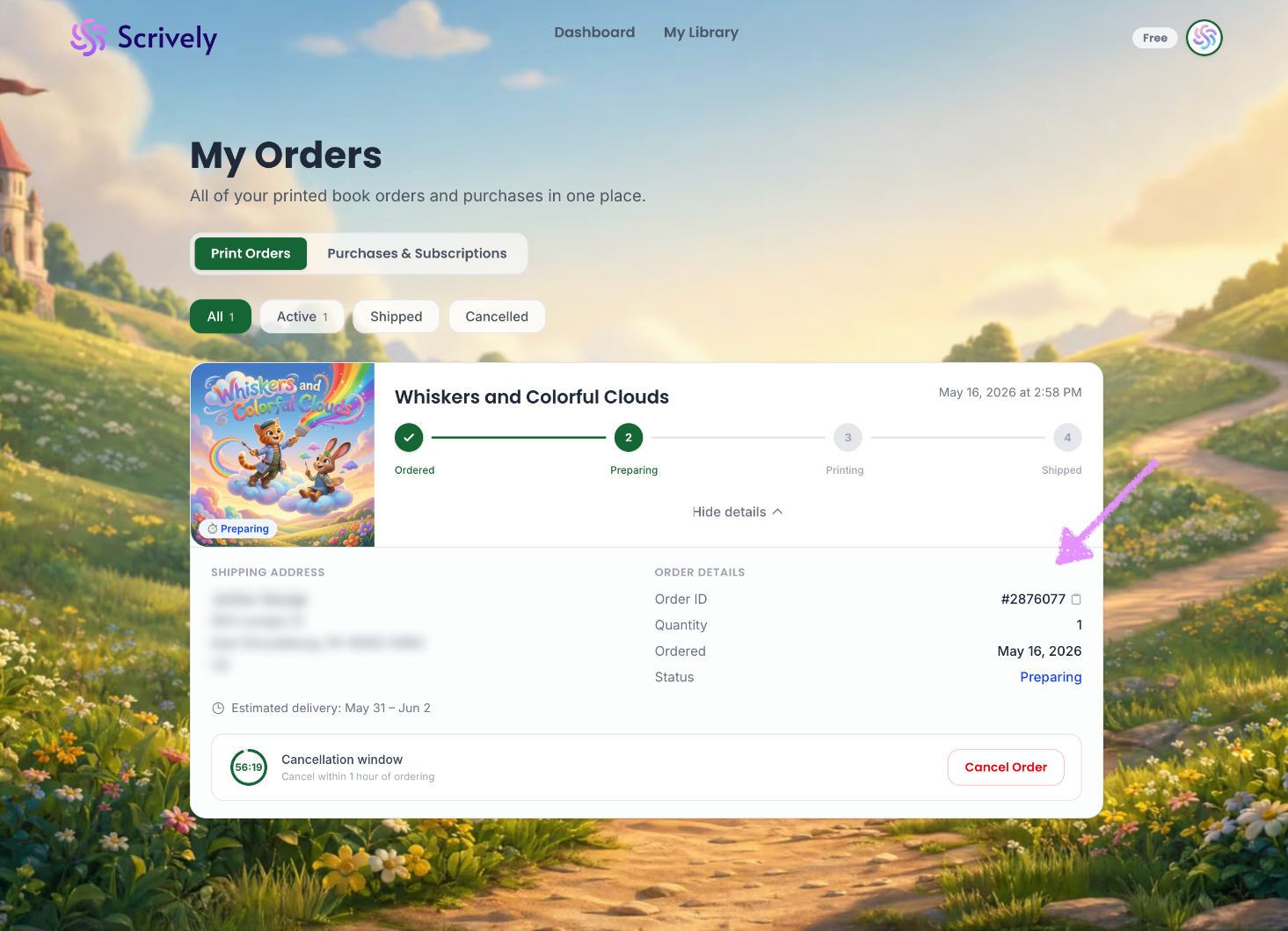
An estimated delivery date will be displayed based on your selected shipping method.
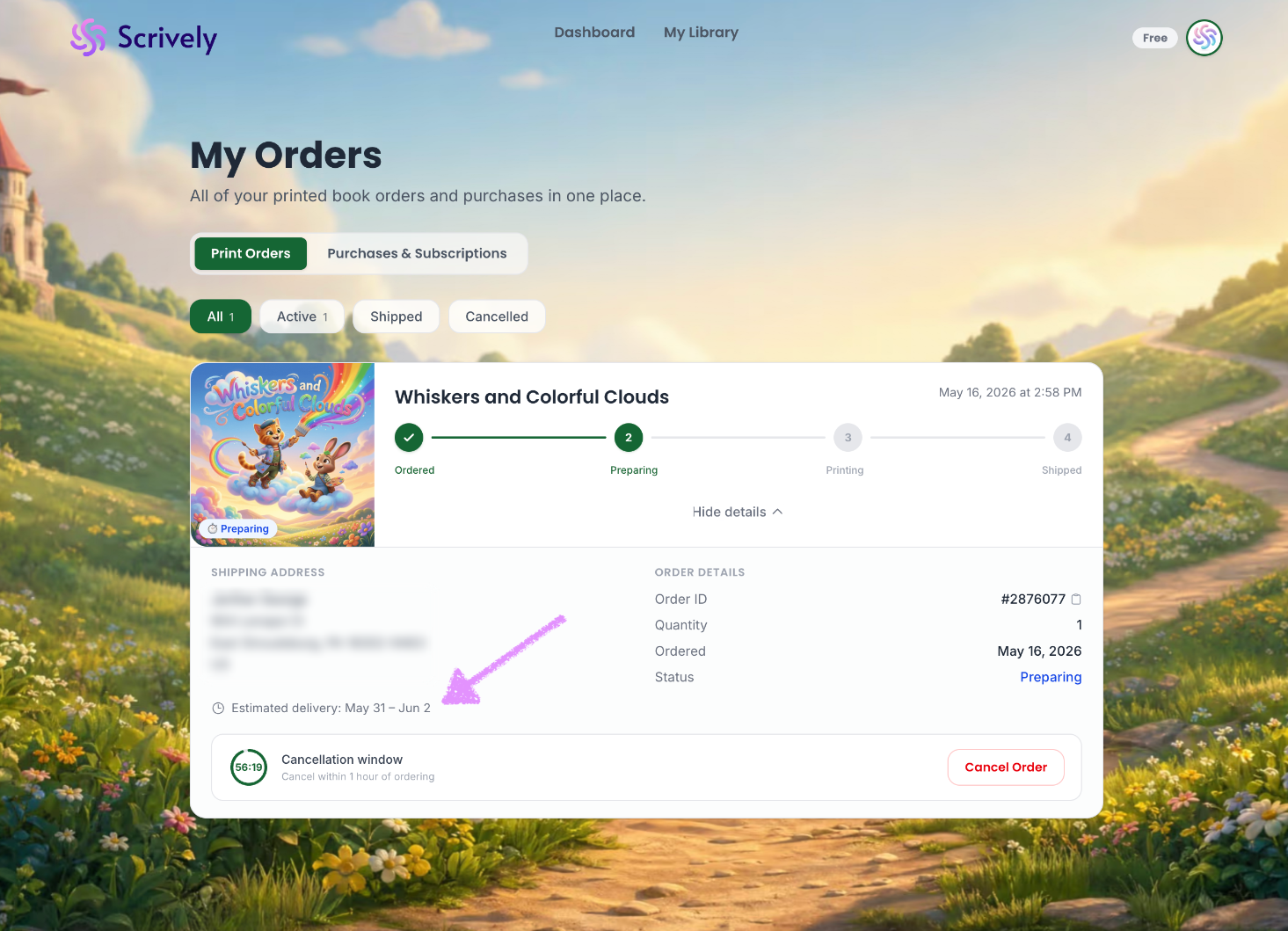
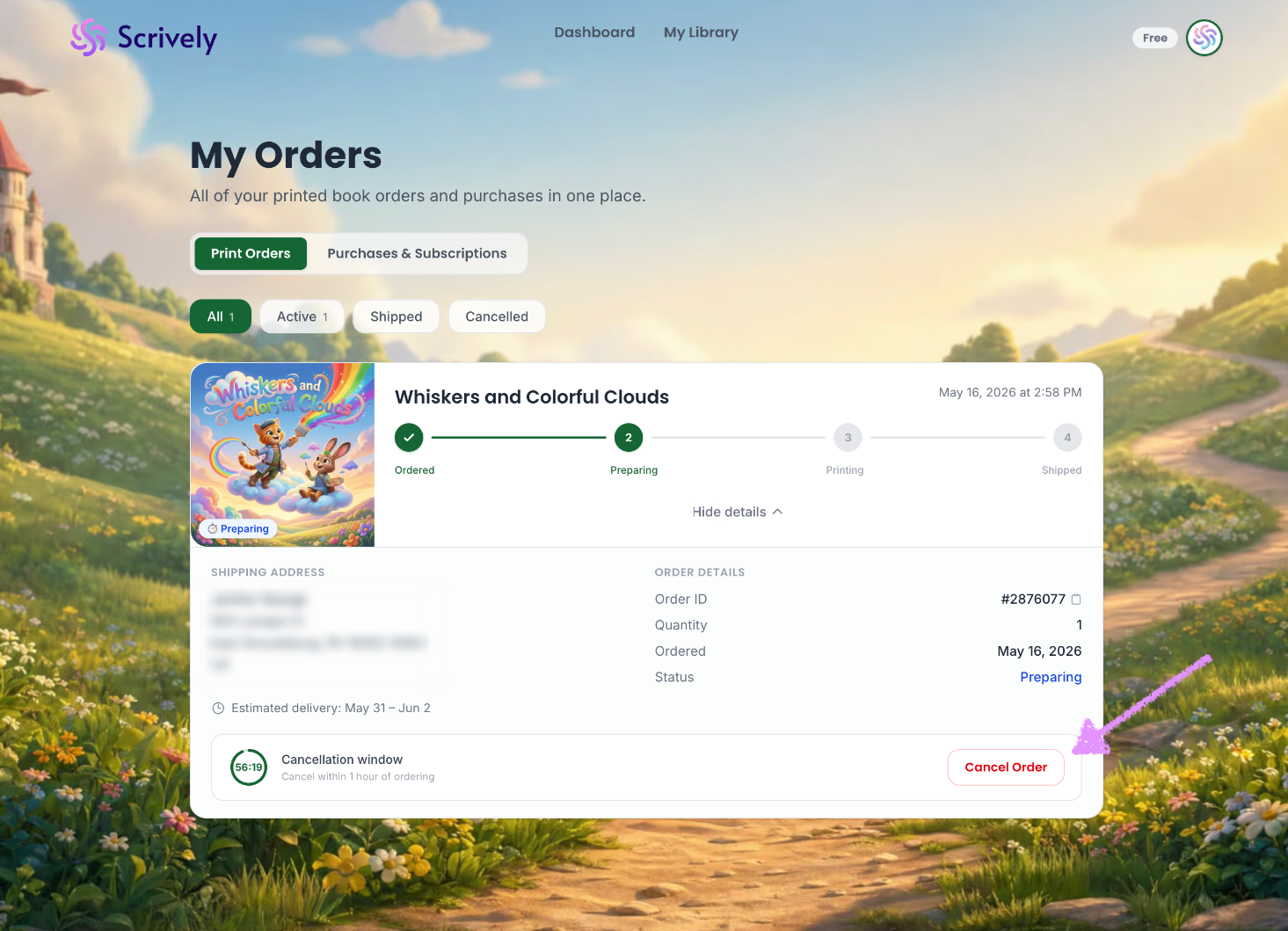
Scrively provides a one-hour window to cancel your order after it’s been placed. Once that time has passed, cancellations are no longer possible.
Was this article helpful?
That’s Great!
Thank you for your feedback
Sorry! We couldn't be helpful
Thank you for your feedback
Feedback sent
We appreciate your effort and will try to fix the article
