
Your back cover is an important part of your book’s presentation. In the editor, you can easily the image, text, and layout to match your vision and keep everything consistent.
Click and drag the text block to reposition it anywhere on the page.
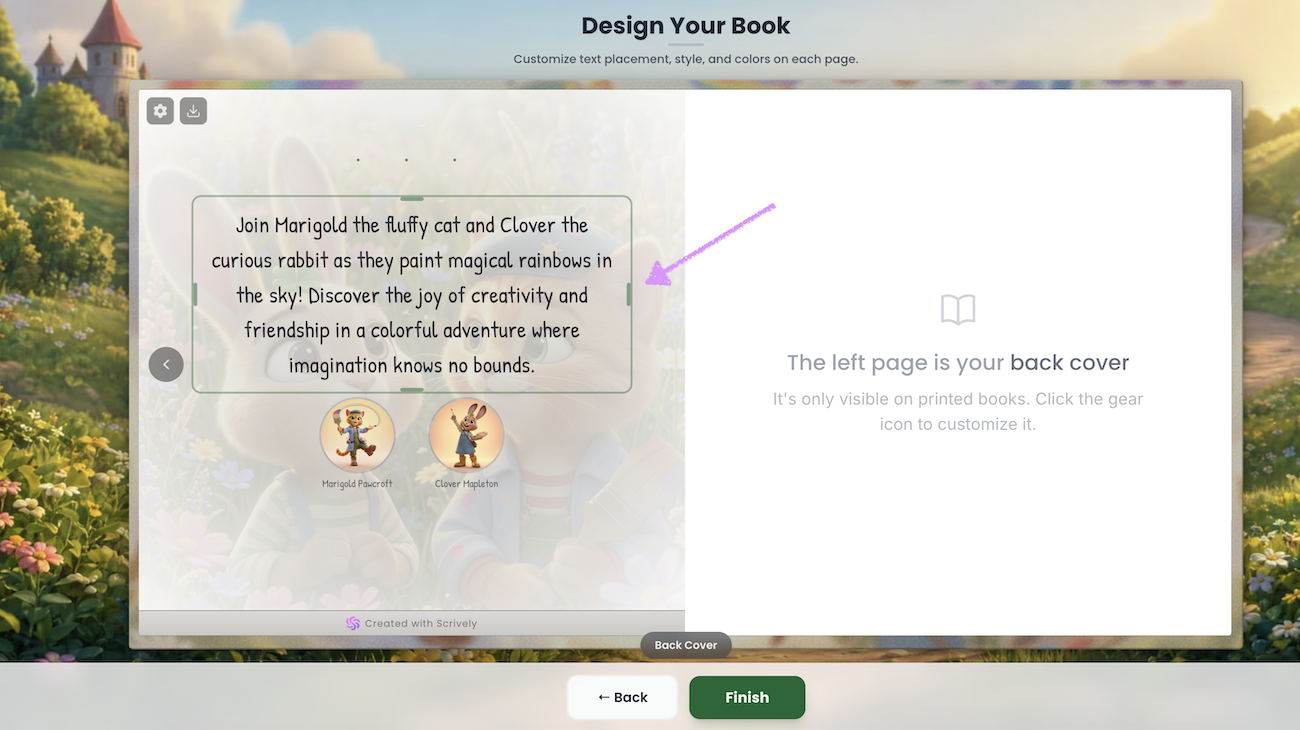
Click on a character avatar to position it anywhere on the page.
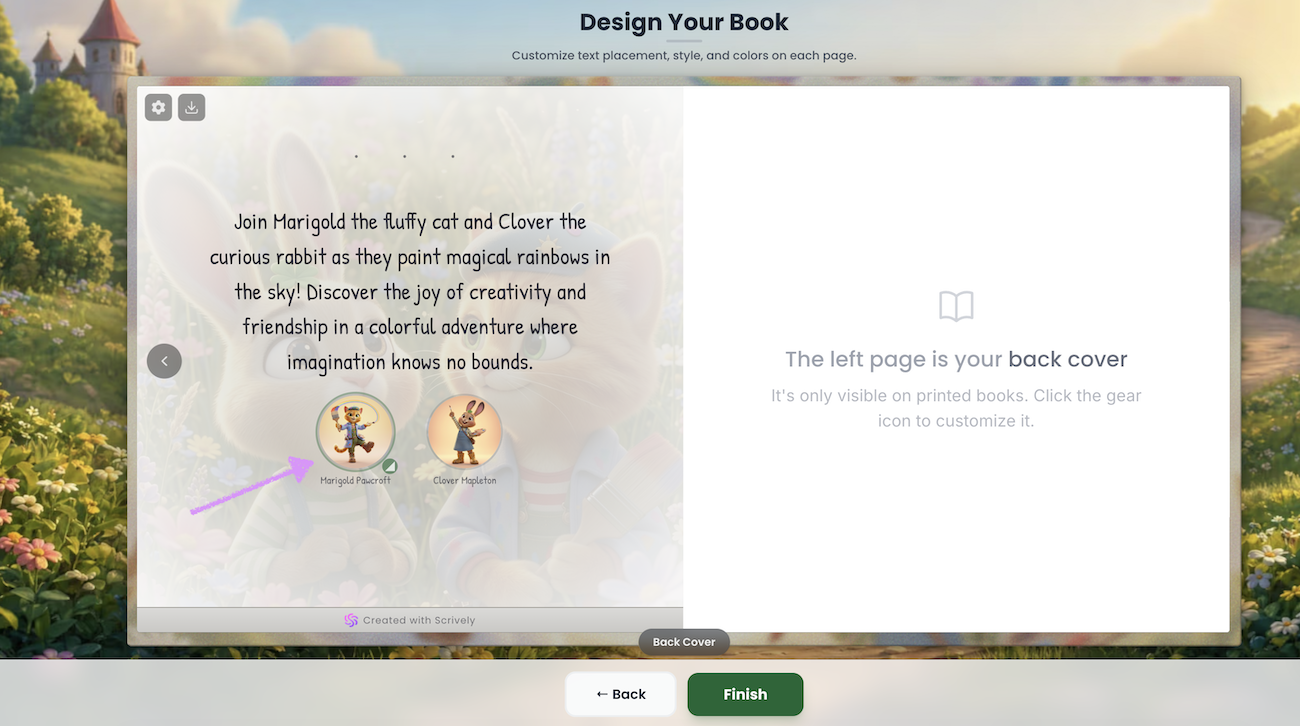
Use the resize tool to adjust the avatar size, making it larger or smaller as needed.
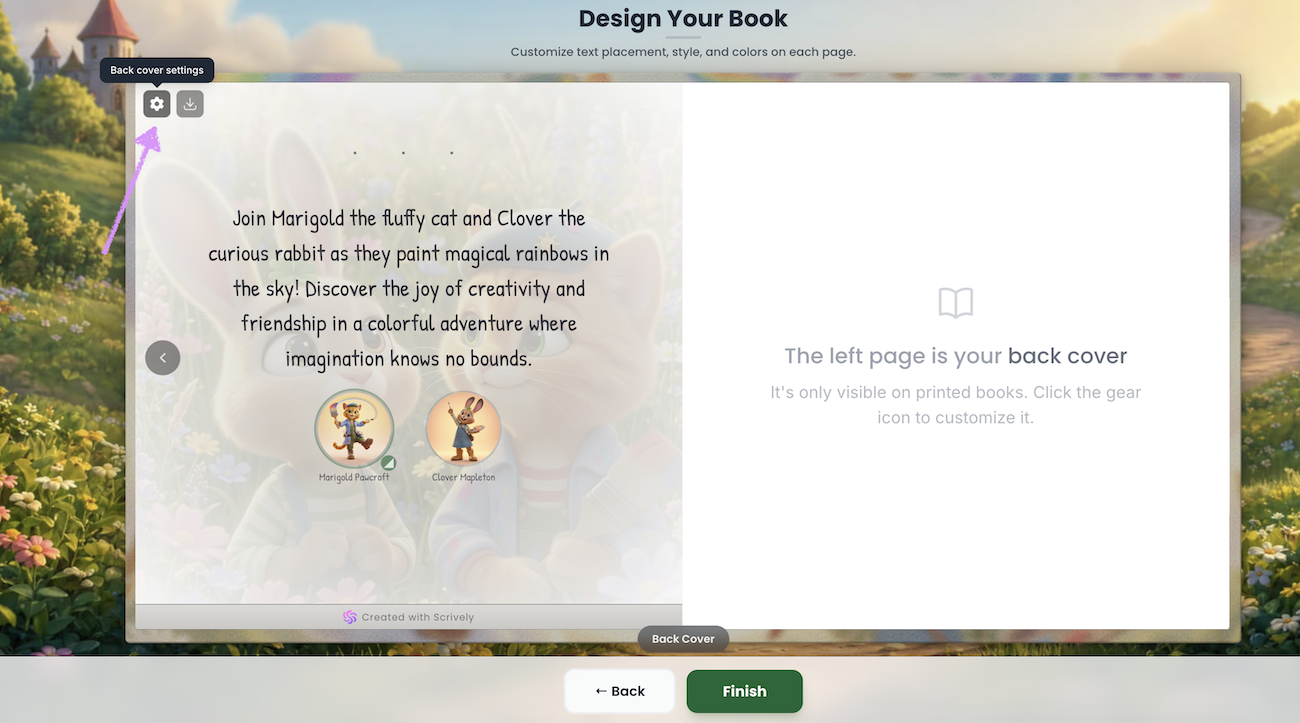
Click on the "Back cover settings" to make additional adjustments.
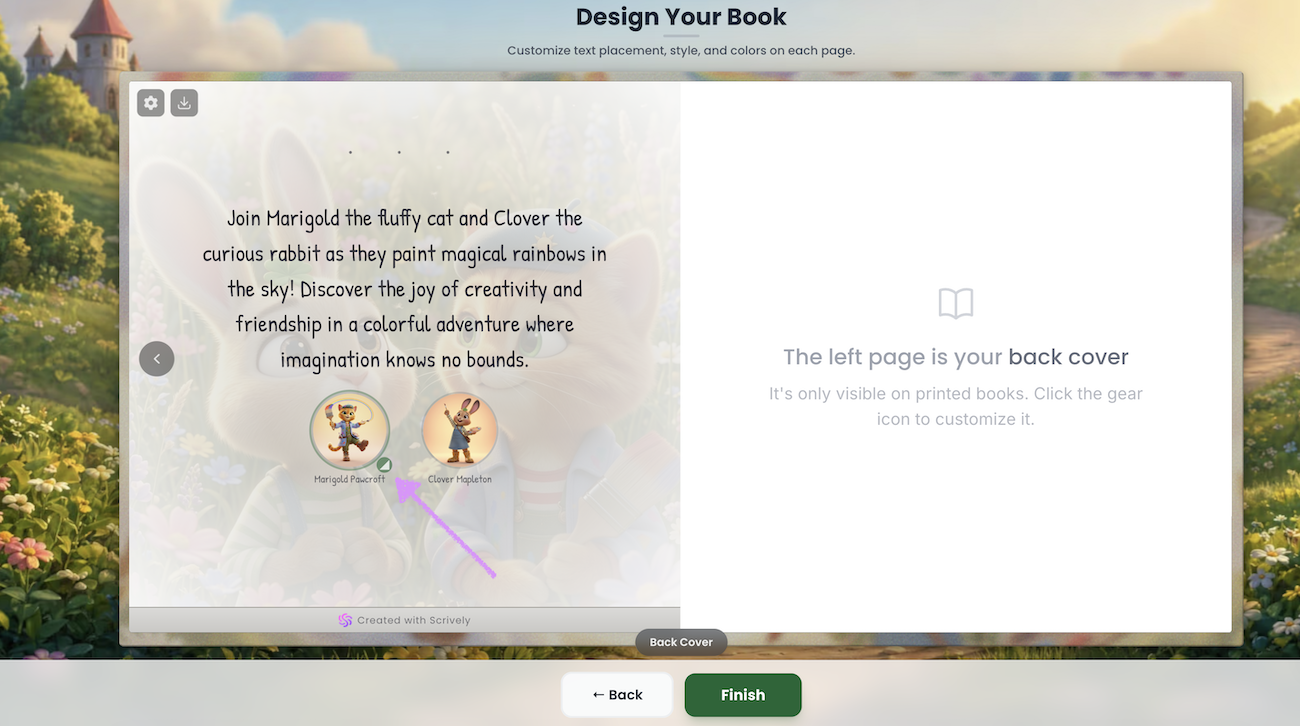
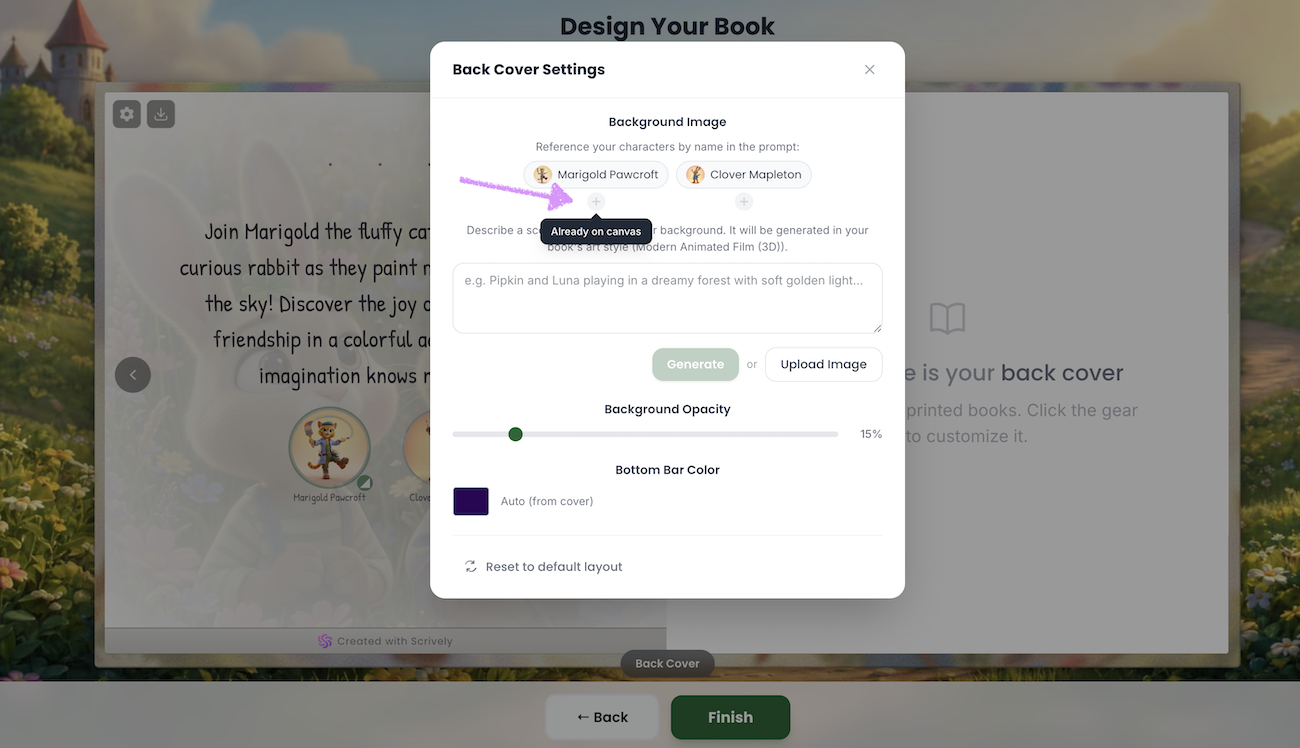
When a character is already on the back cover hovering over the + icon will reveal an "Already on canvas" message.
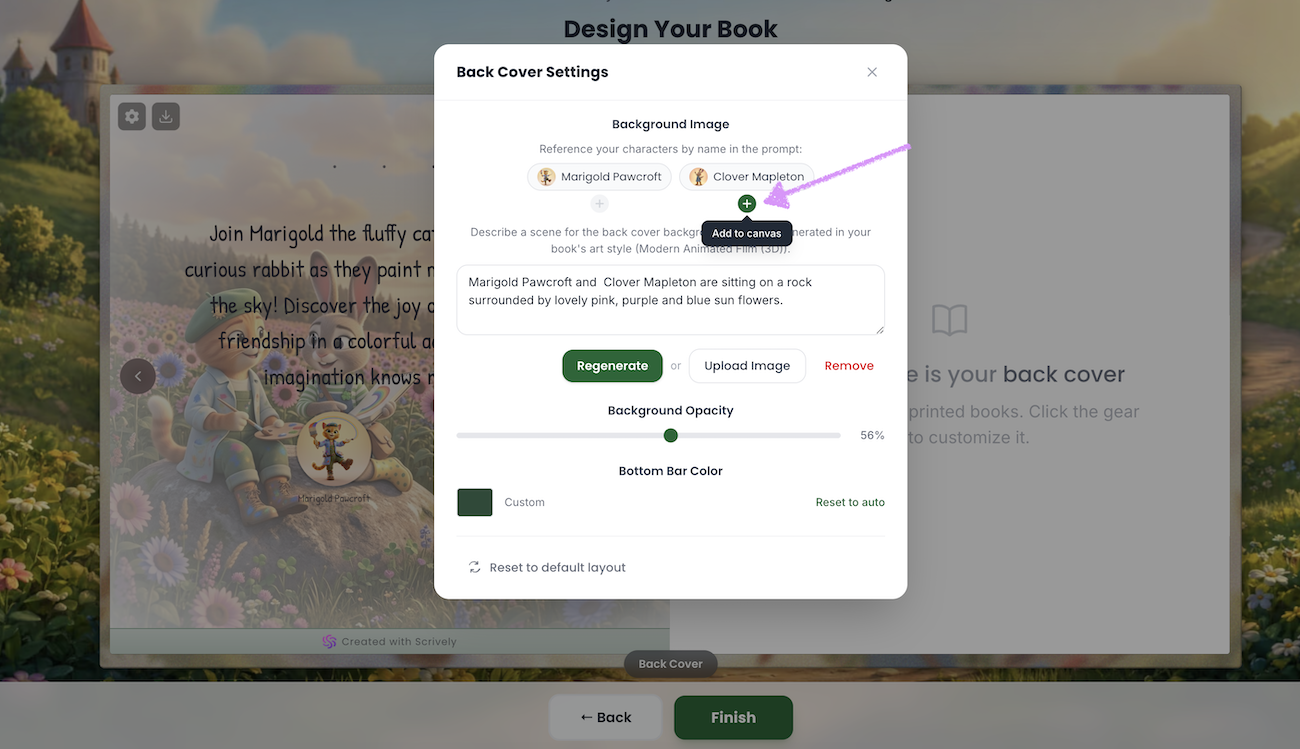
If the character is not on the canvas the + icon will be active and show "Add to canvas."
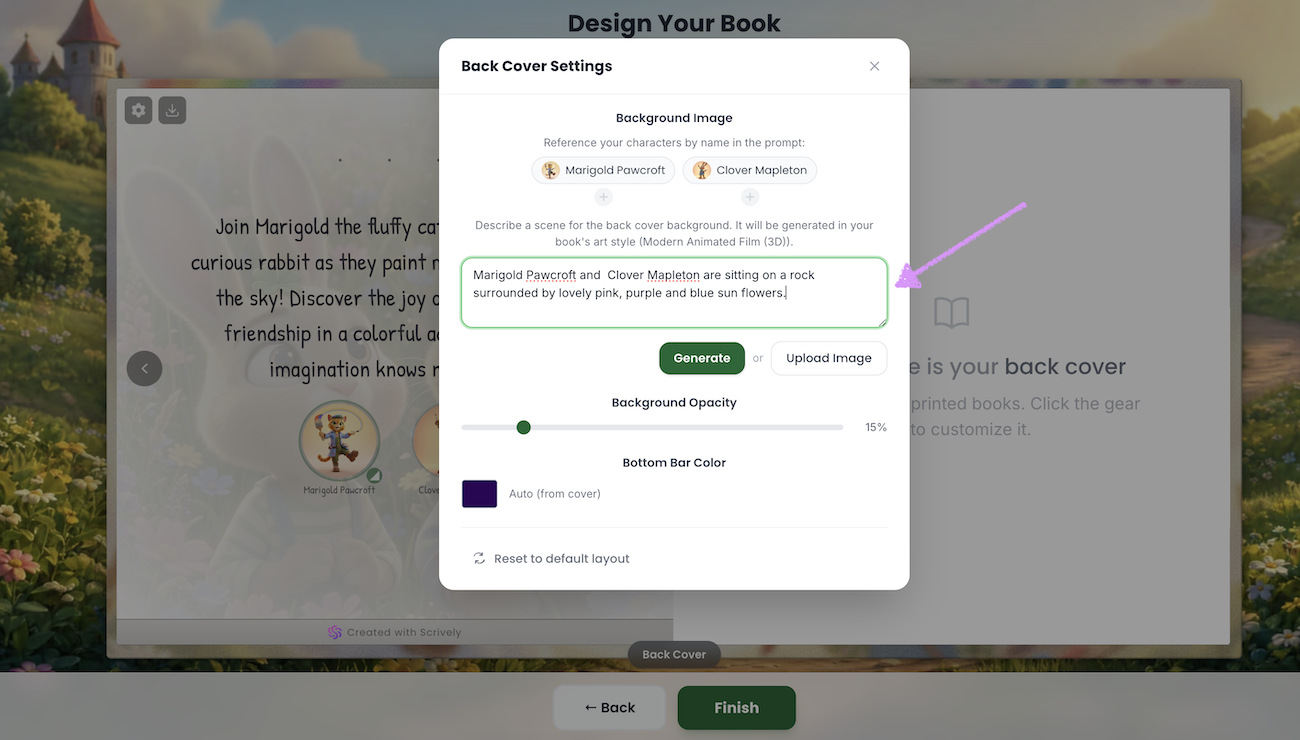
Want to generate an image for your back cover? Enter your image prompt in the provided field, and it will be generated in your book’s art style.
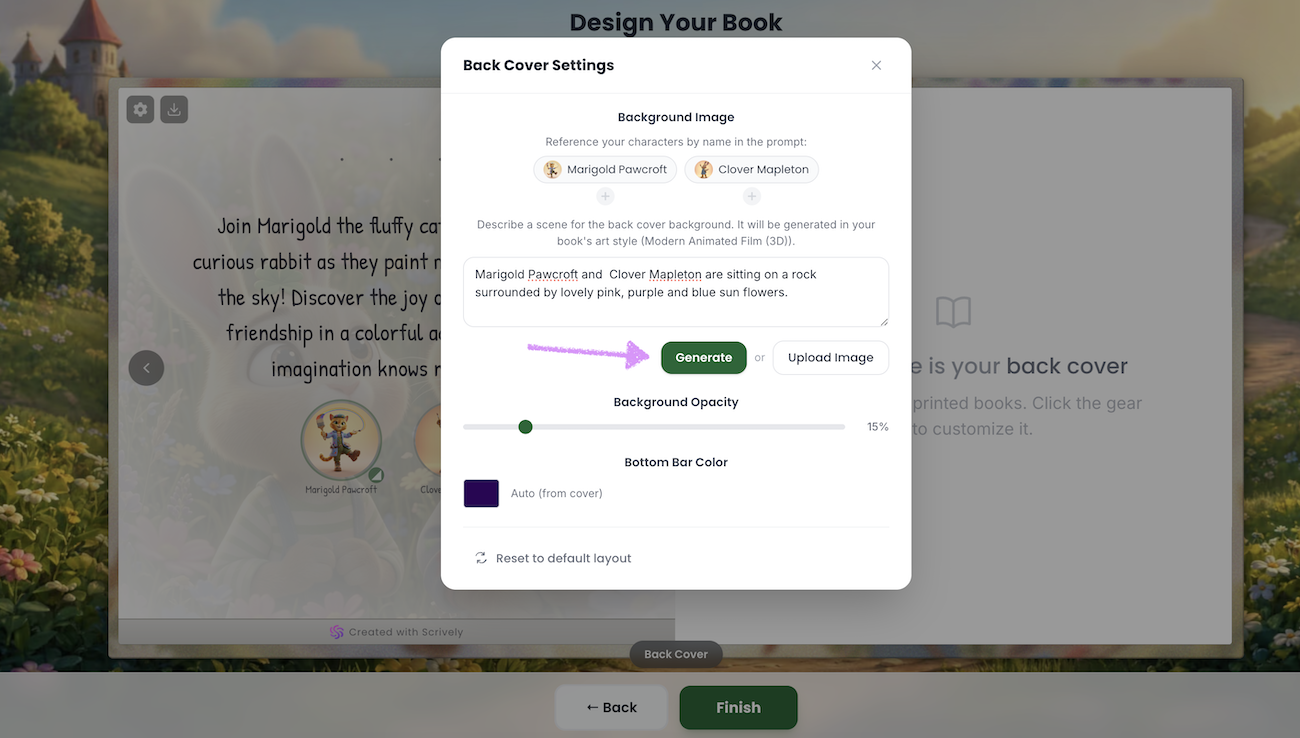
Click on "Generate."
Give Scrively a few moments to think.
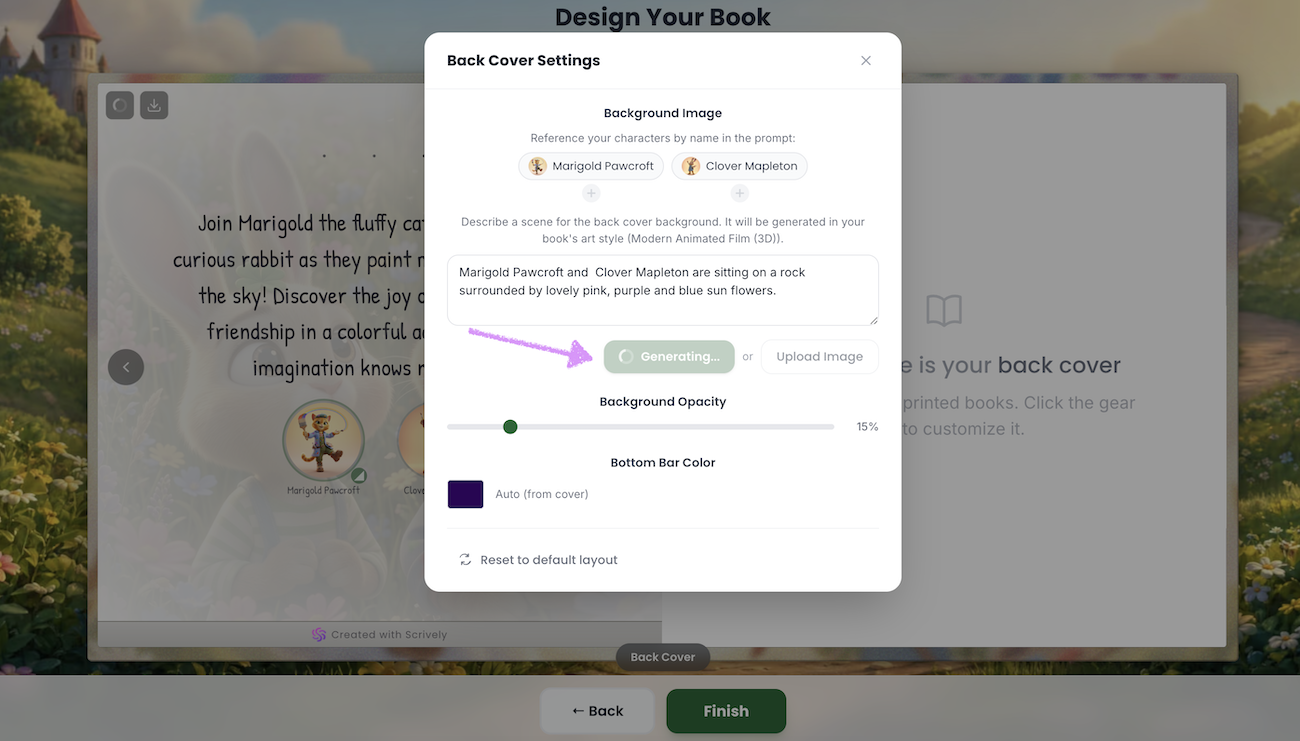
The book's back cover image will be generated.
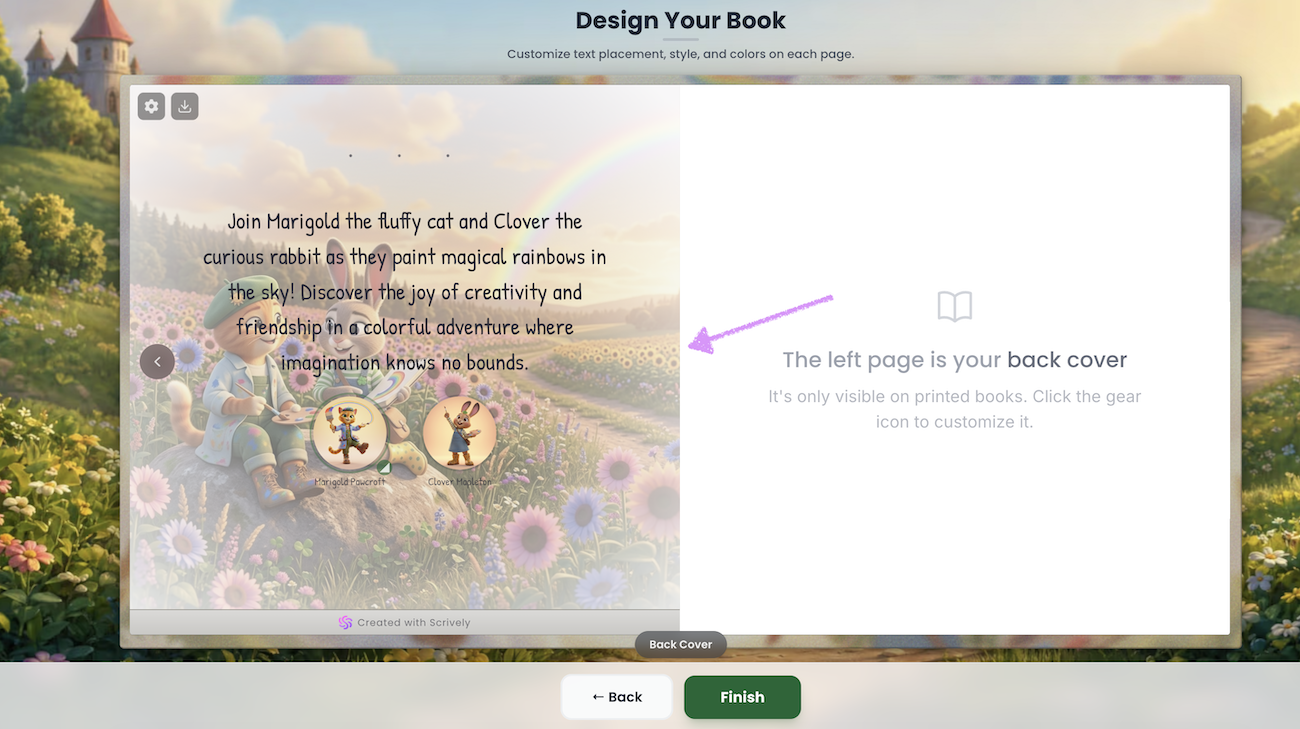
You also have the option to upload your own image for the back cover.
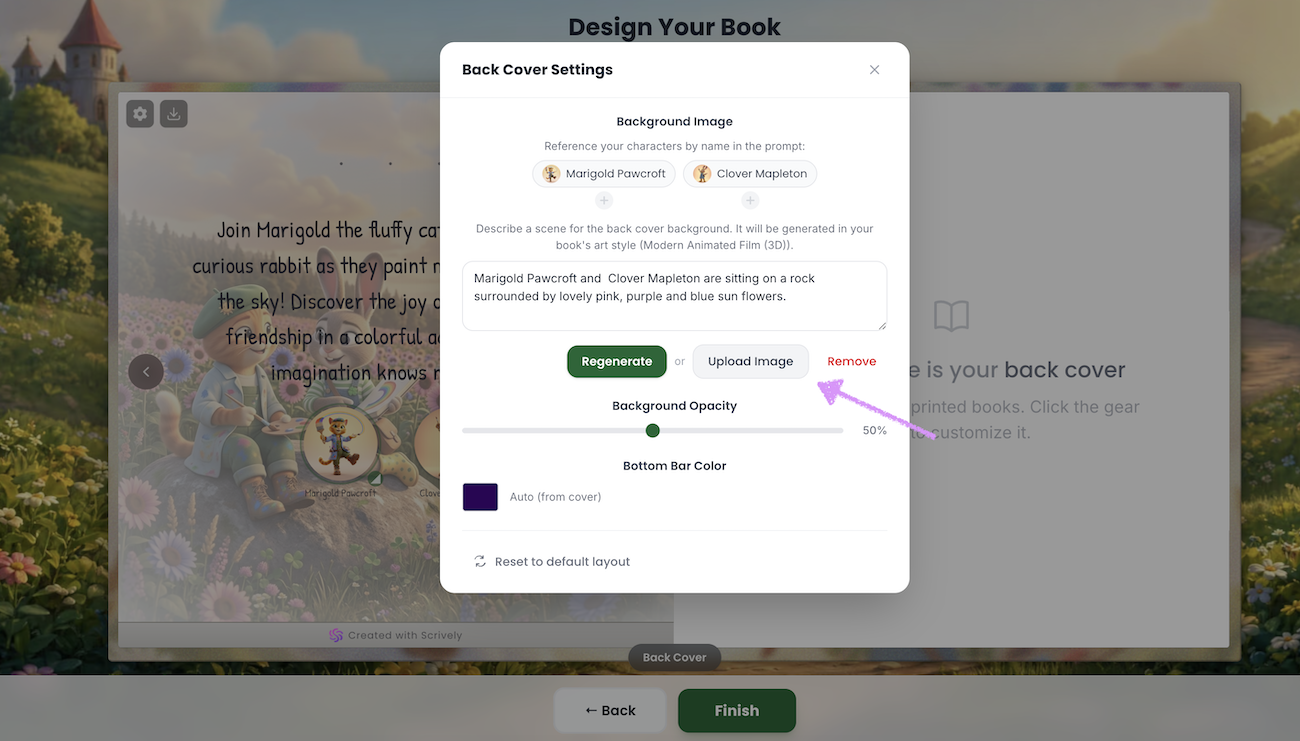
If you no longer want to use the generated or uploaded image click on "Remove."
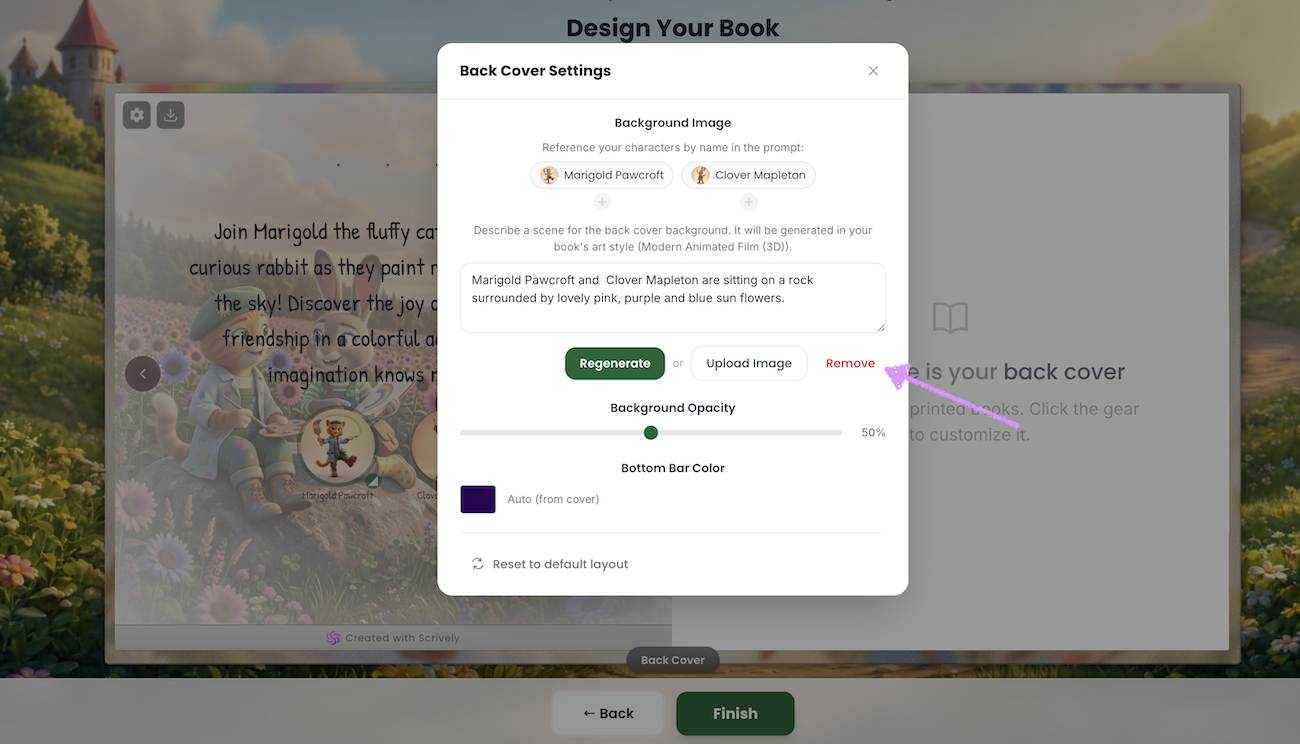
Slide the “Background Opacity” control left or right to adjust the opacity of the back cover image.
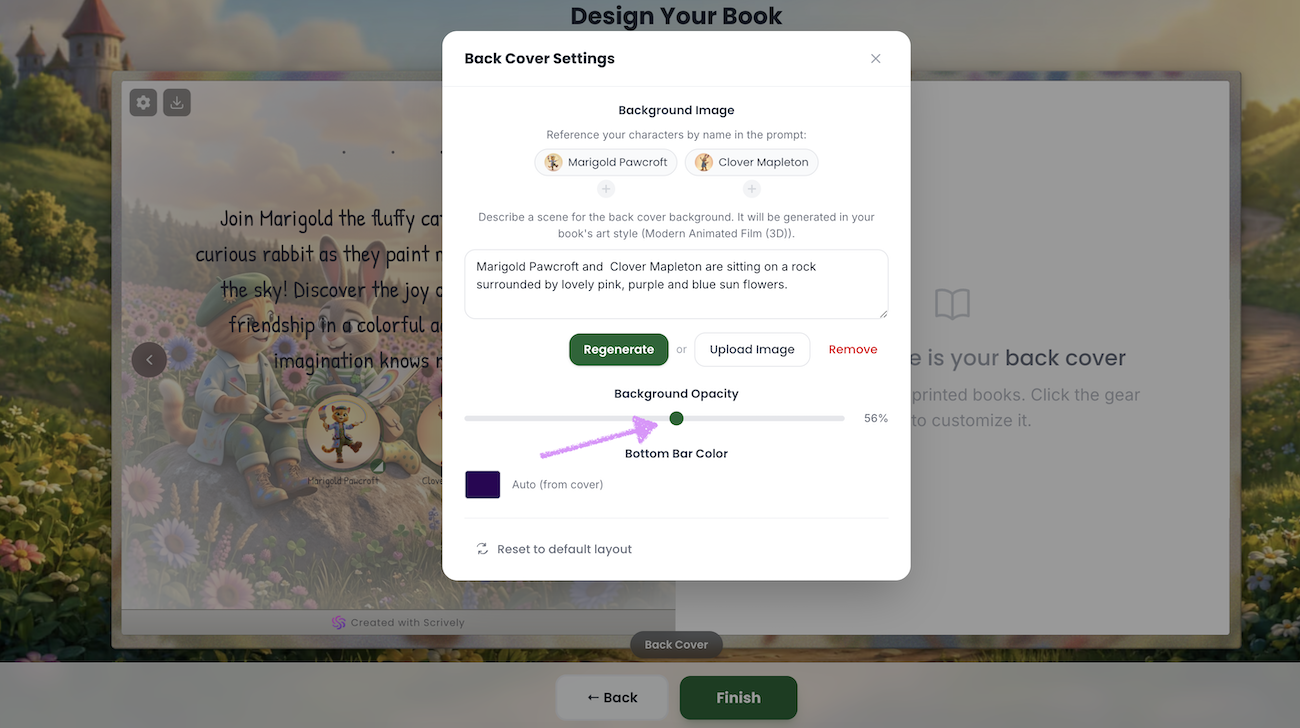
The bottom bar color of your book is automatically set based on the cover.
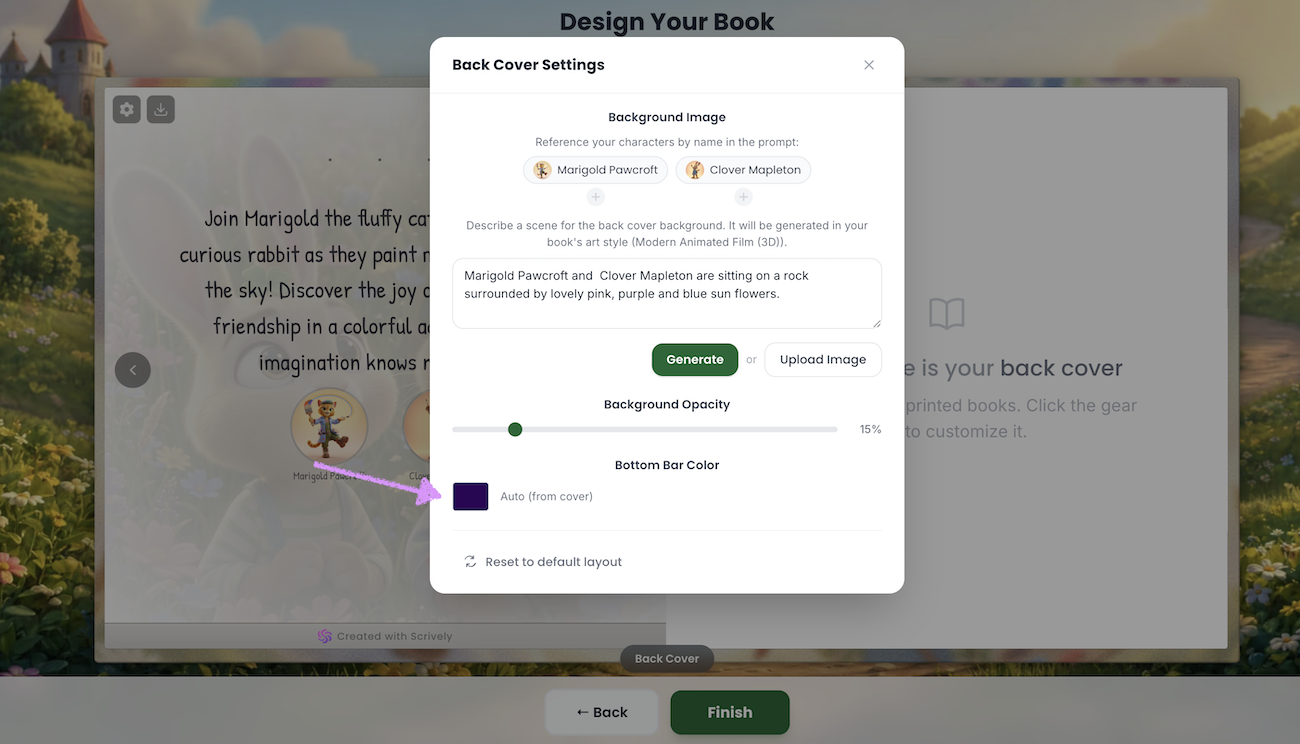
Click the color palette icon to choose a color for the bottom bar of your book’s back cover.
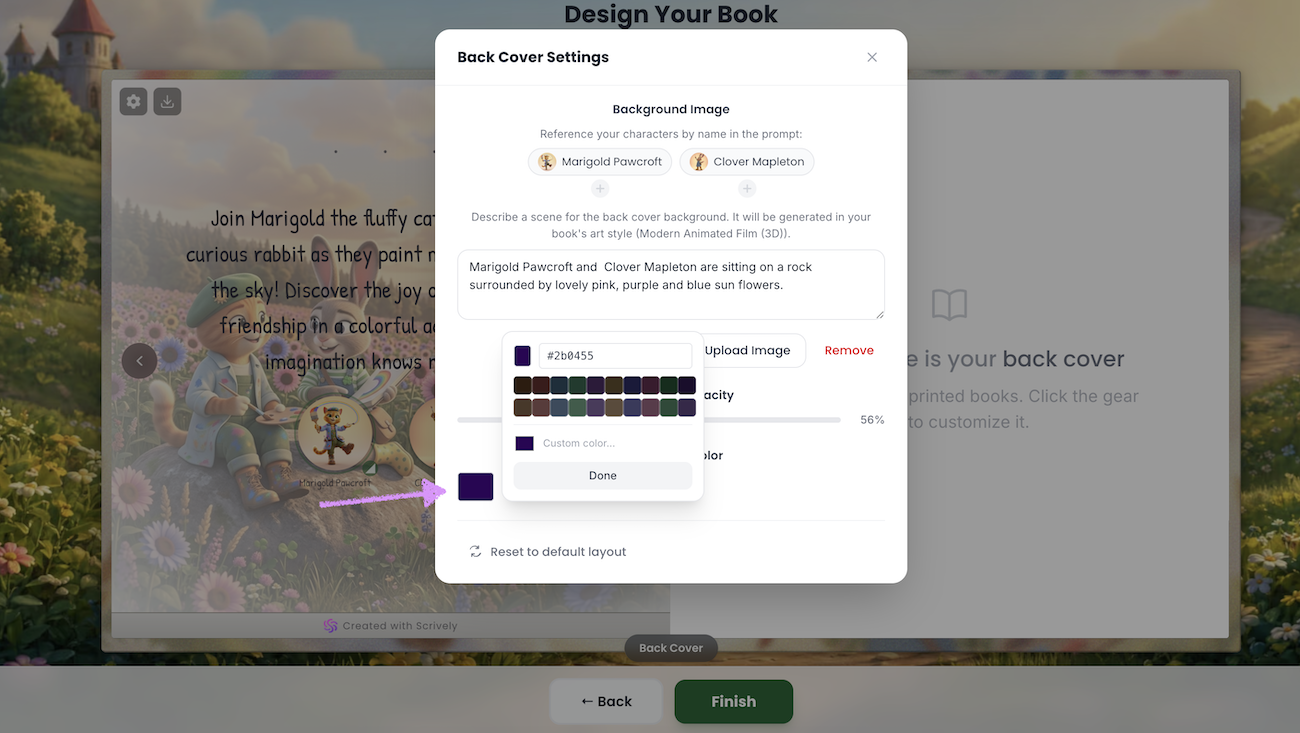
The new color will be applied to the bottom bar on the back of your book.
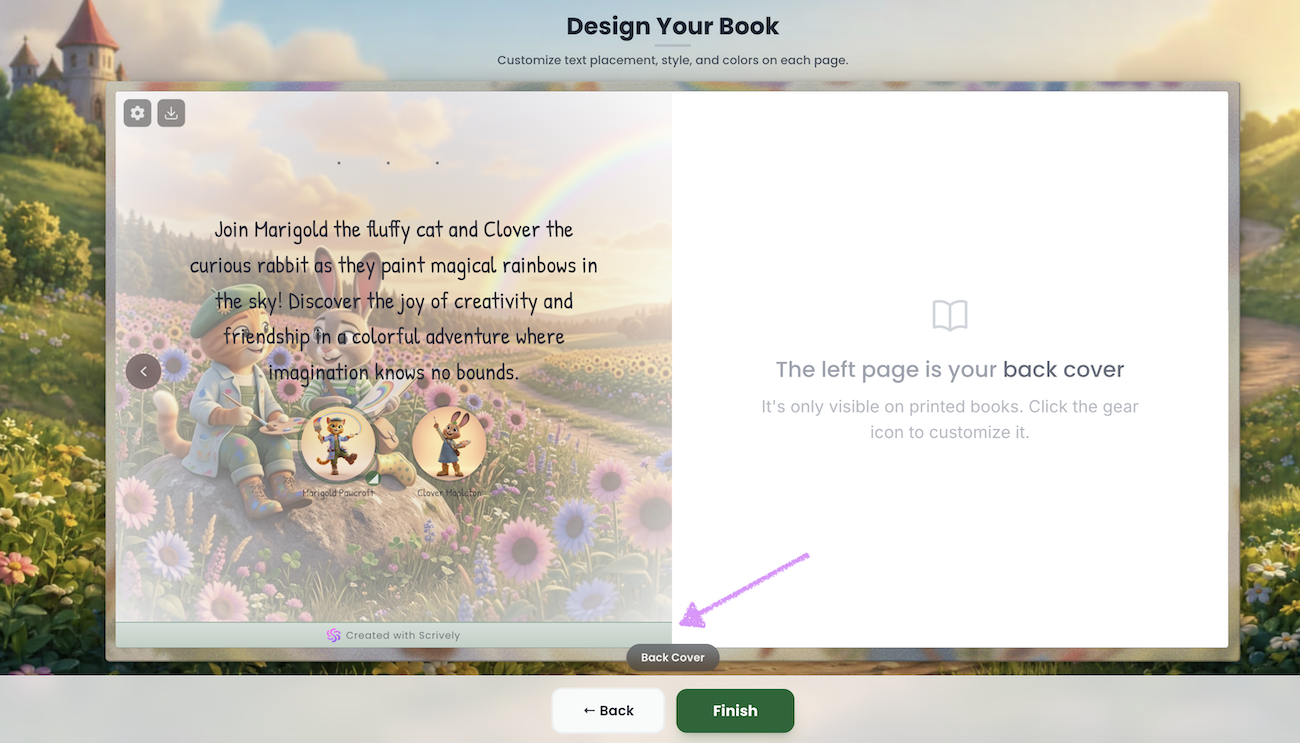
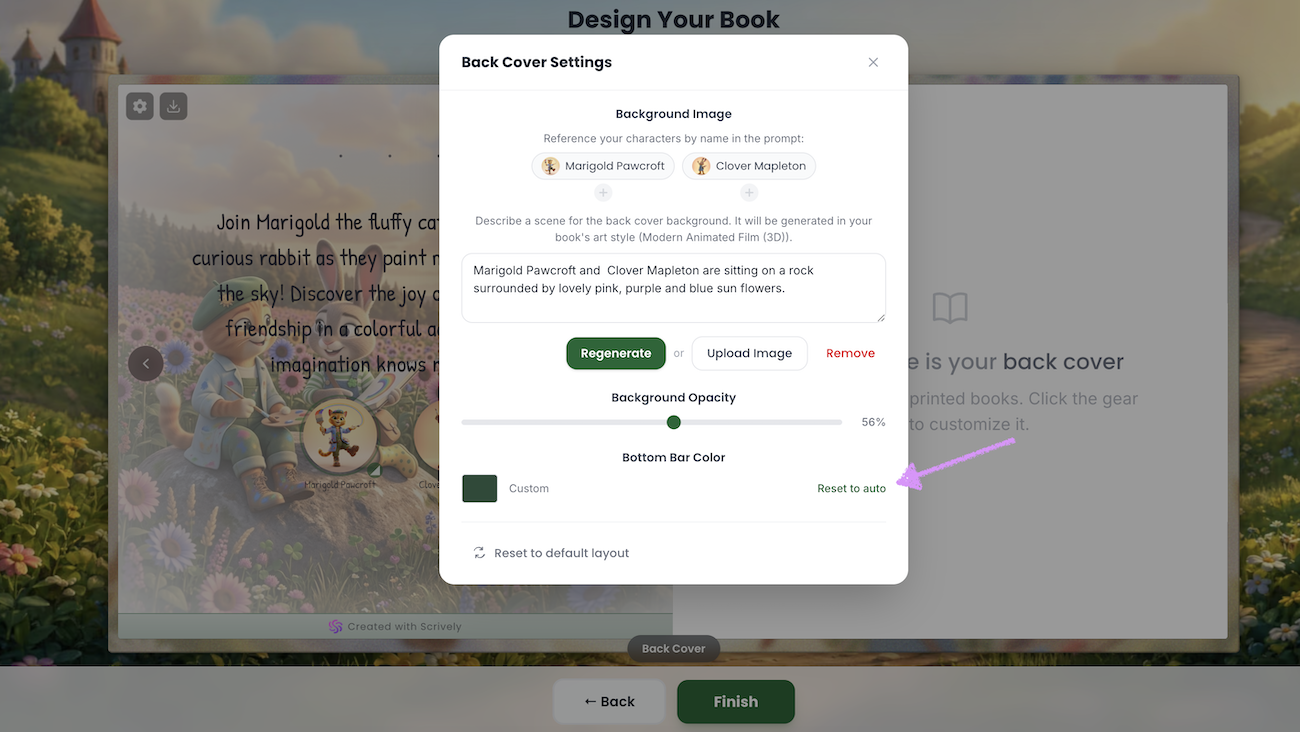
If you no longer want to use the selected color click on "Reset to auto."
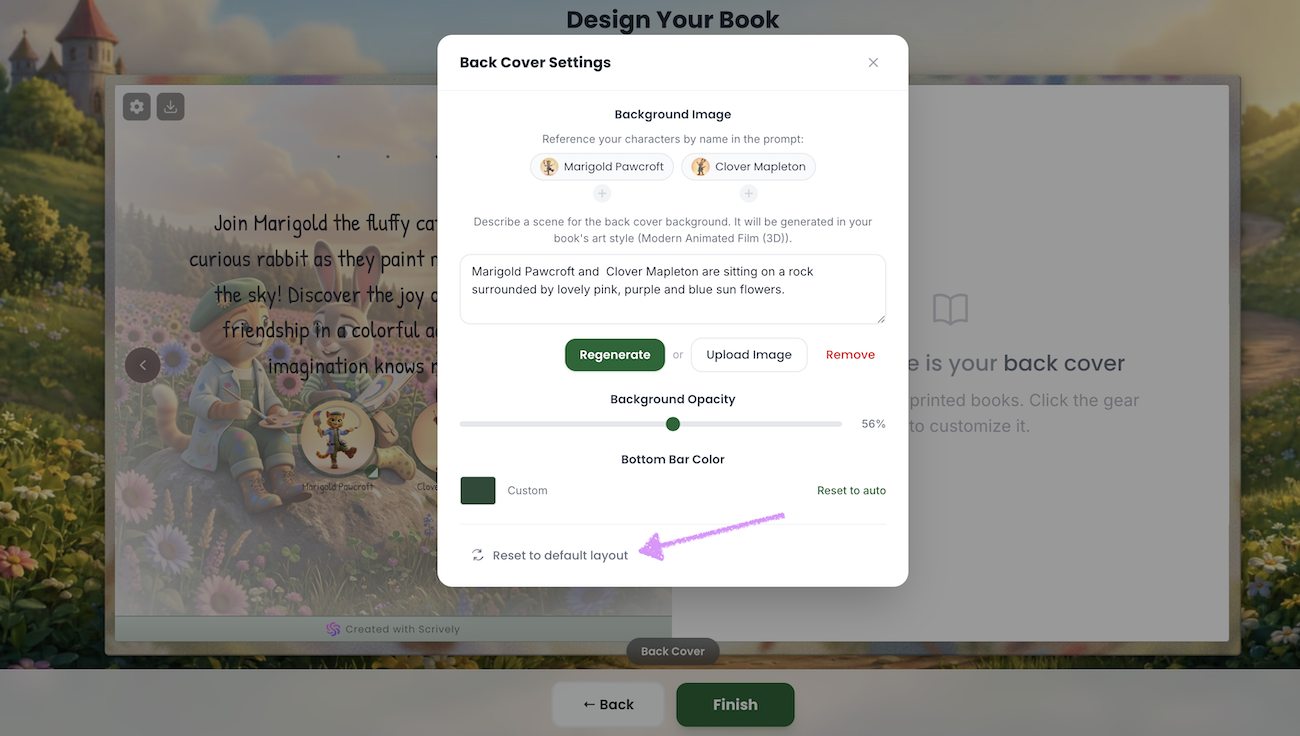
Want to reset to the back cover settings to the default? Click on "Reset to default layout."
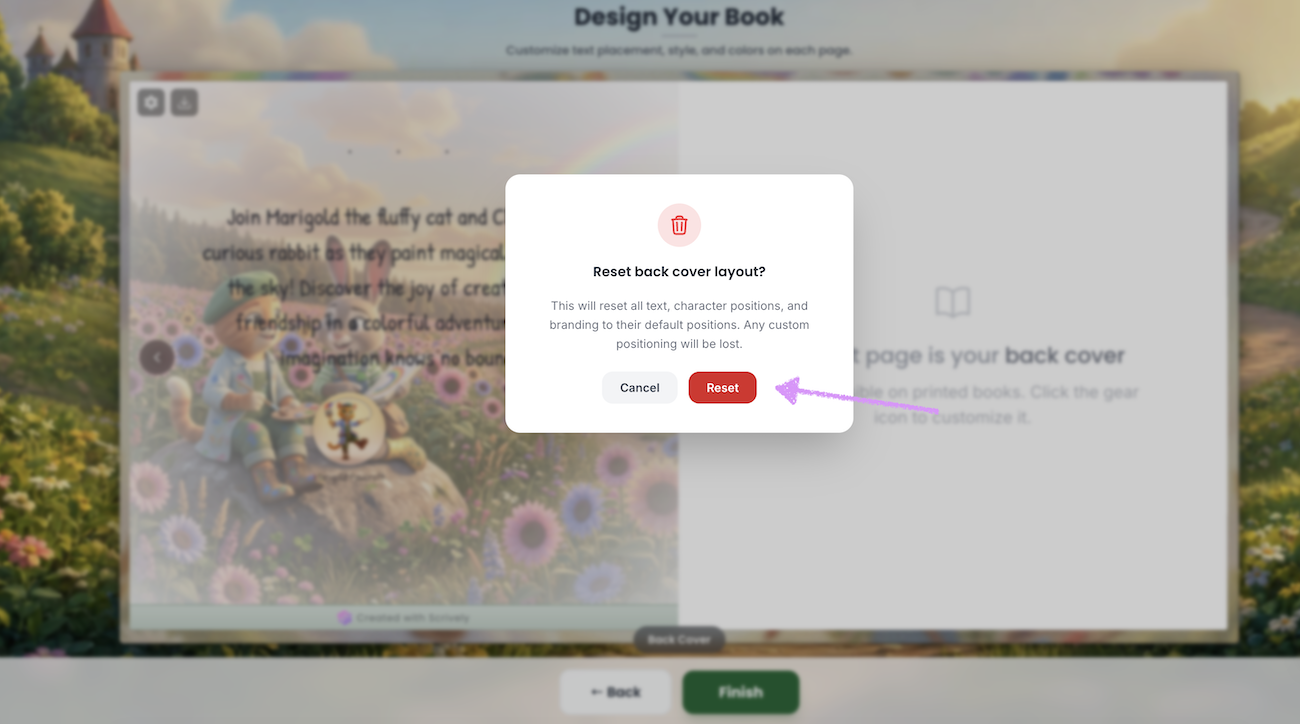
A confirmation modal will be shown to confirm the back cover reset.
Head over to our guide here to learn more about saving your completed book.
Was this article helpful?
That’s Great!
Thank you for your feedback
Sorry! We couldn't be helpful
Thank you for your feedback
Feedback sent
We appreciate your effort and will try to fix the article
