Platform: Web App
Works On: Mobile, Tablet, Desktop Browser
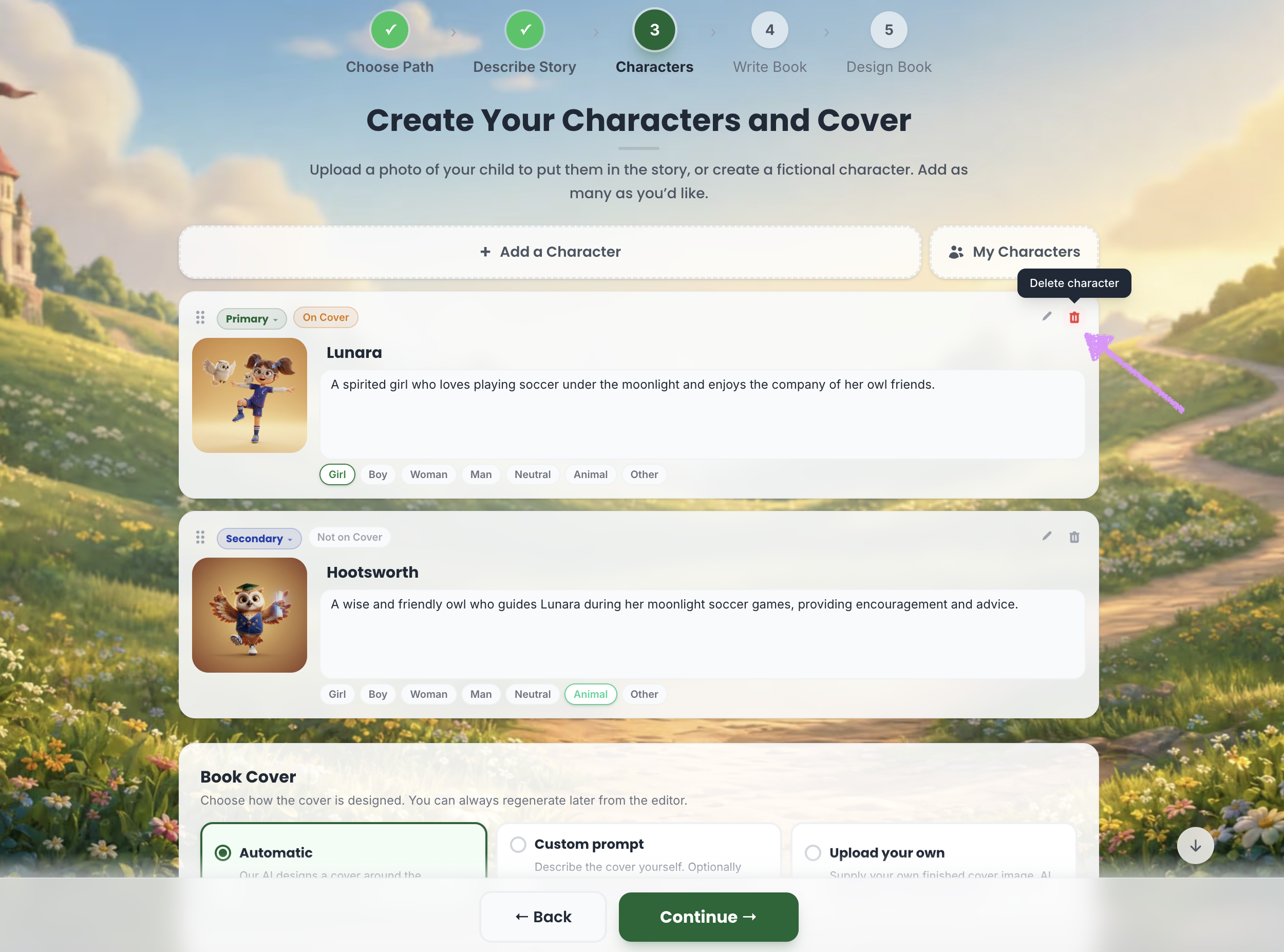
Once you’ve described your story, Scrively will automatically generate characters based on the details you’ve provided. Each character includes an image, description, and type, all of which can be edited and customized as needed.
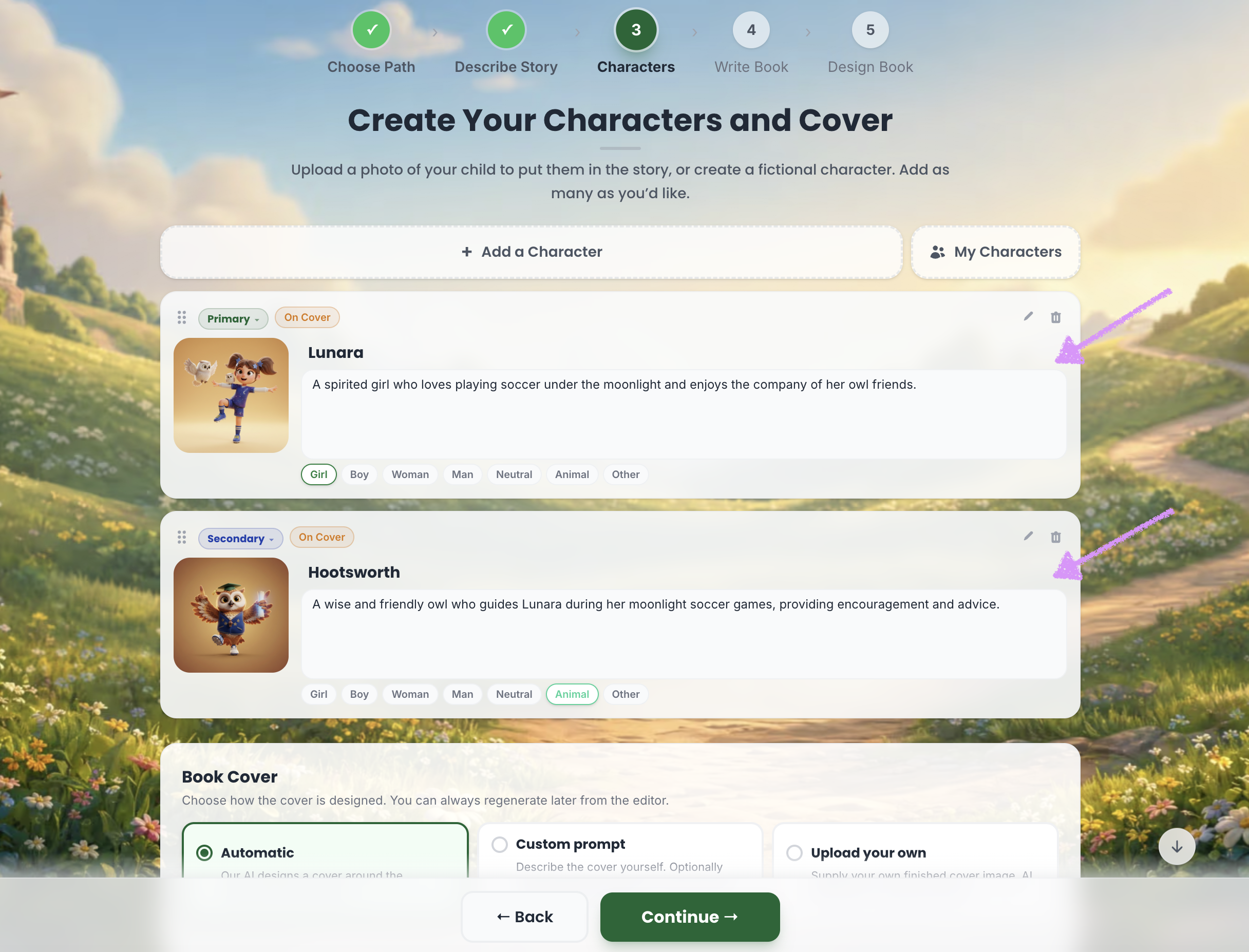
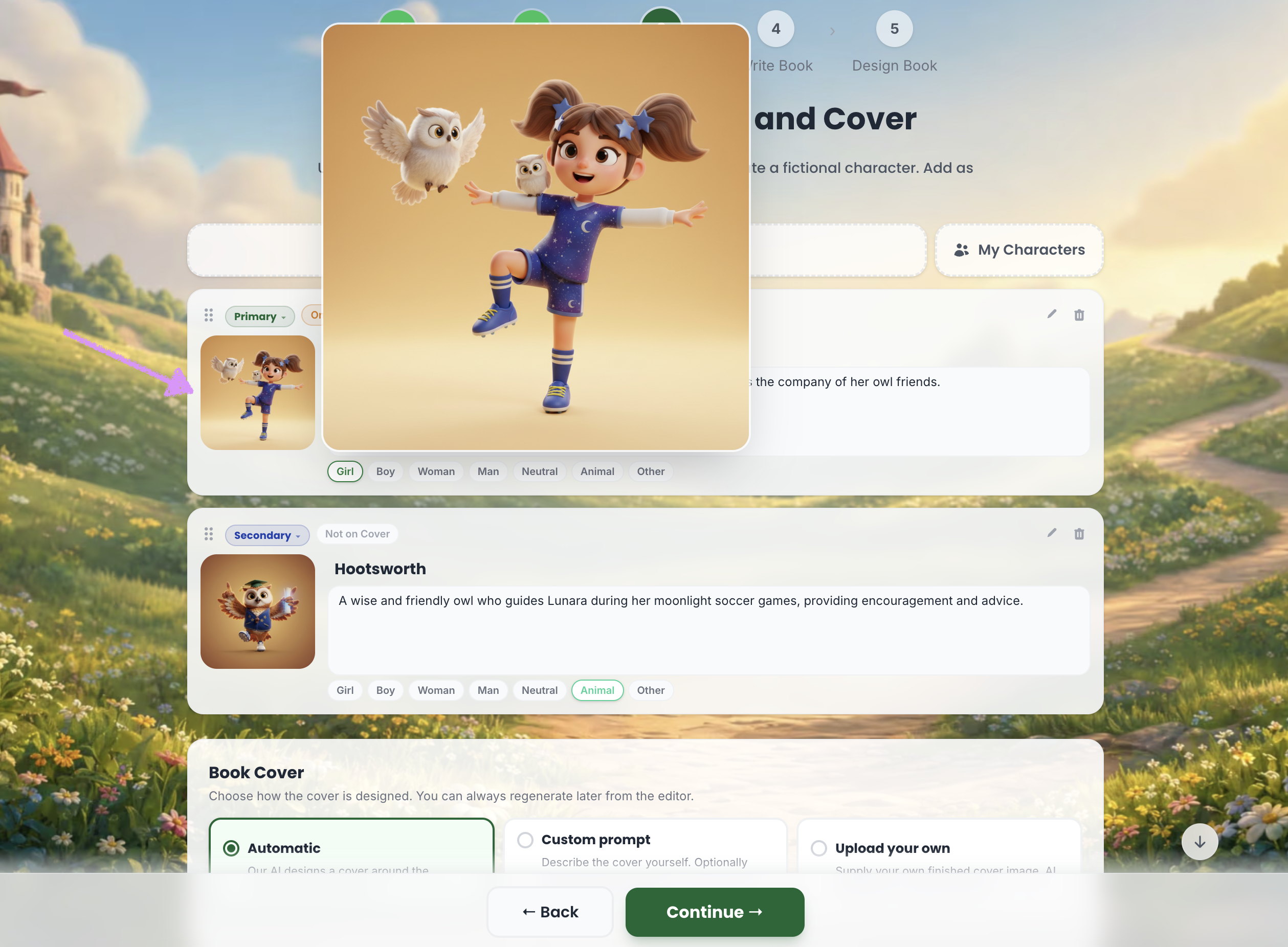
You can hover over a character’s image to view a larger, full-size preview of their appearance.
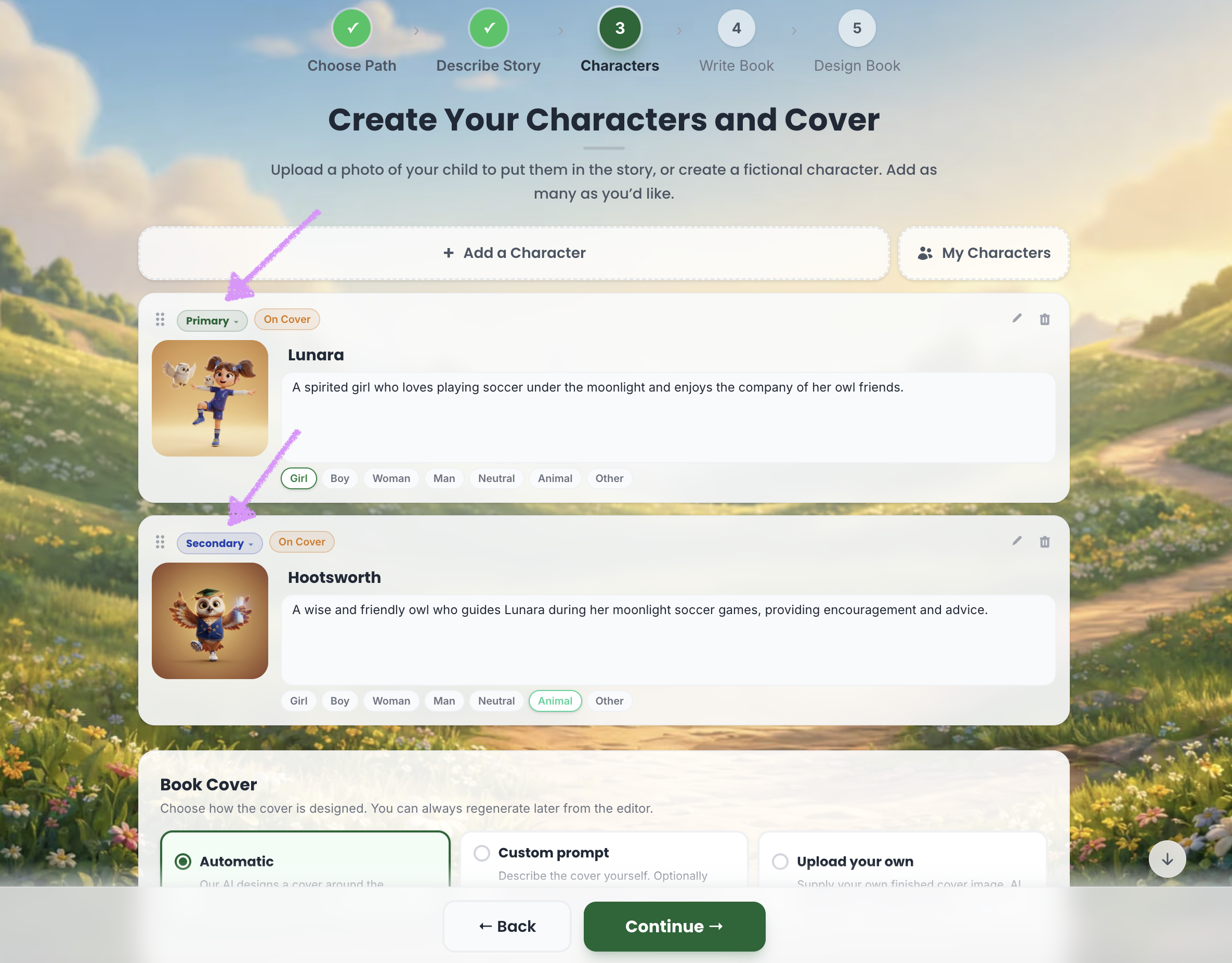
Each character will be assigned a role.
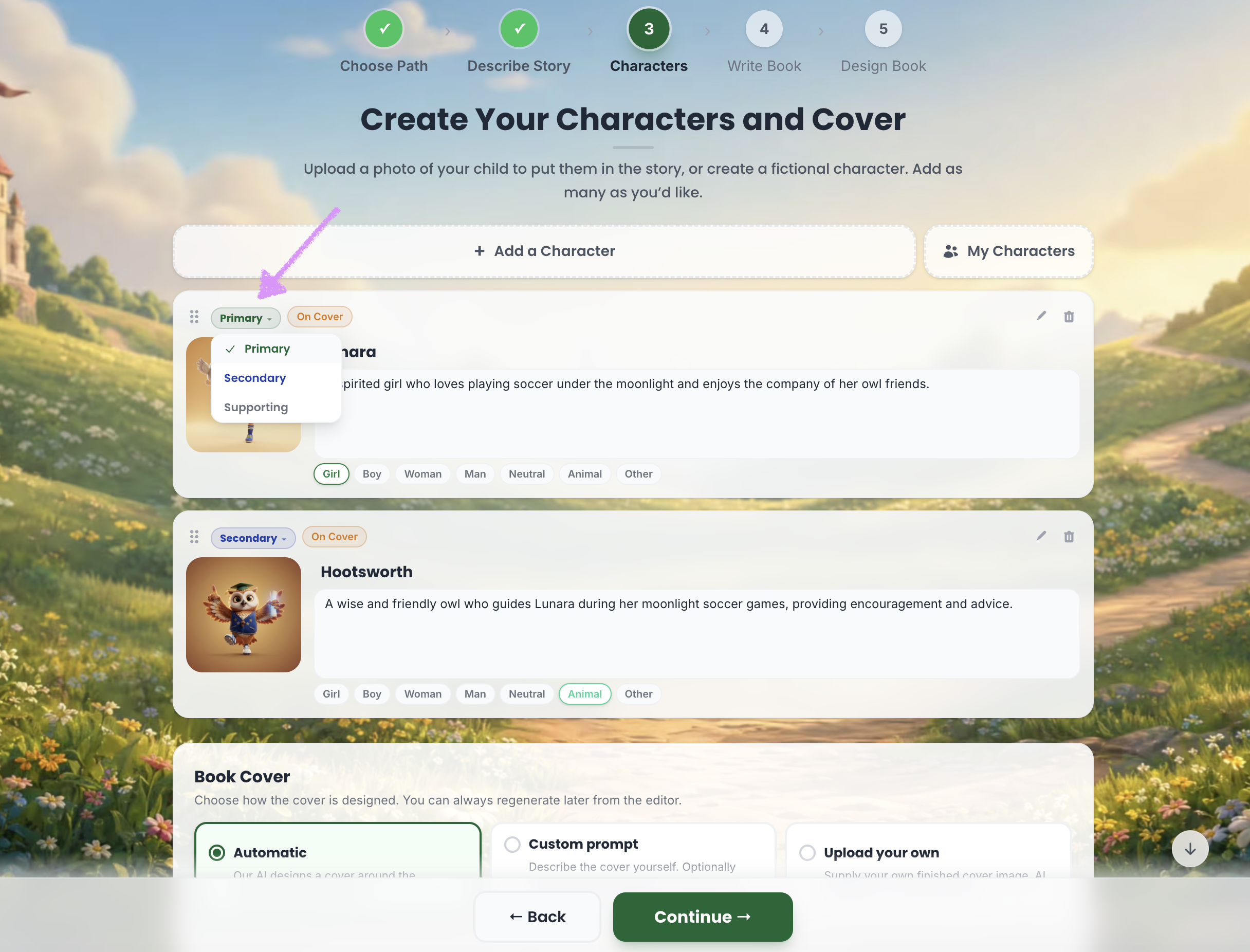
Click on the role to make adjustments if needed.
Primary Characters
The main characters in your story who drive the plot and appear most frequently throughout the book.
Secondary Characters
Important supporting characters who appear regularly and help develop the story and main characters.
Supporting Characters
Minor characters who appear briefly to add context, depth, or help move the story forward.
The “On Cover” option determines whether a character will be included on the book cover design.
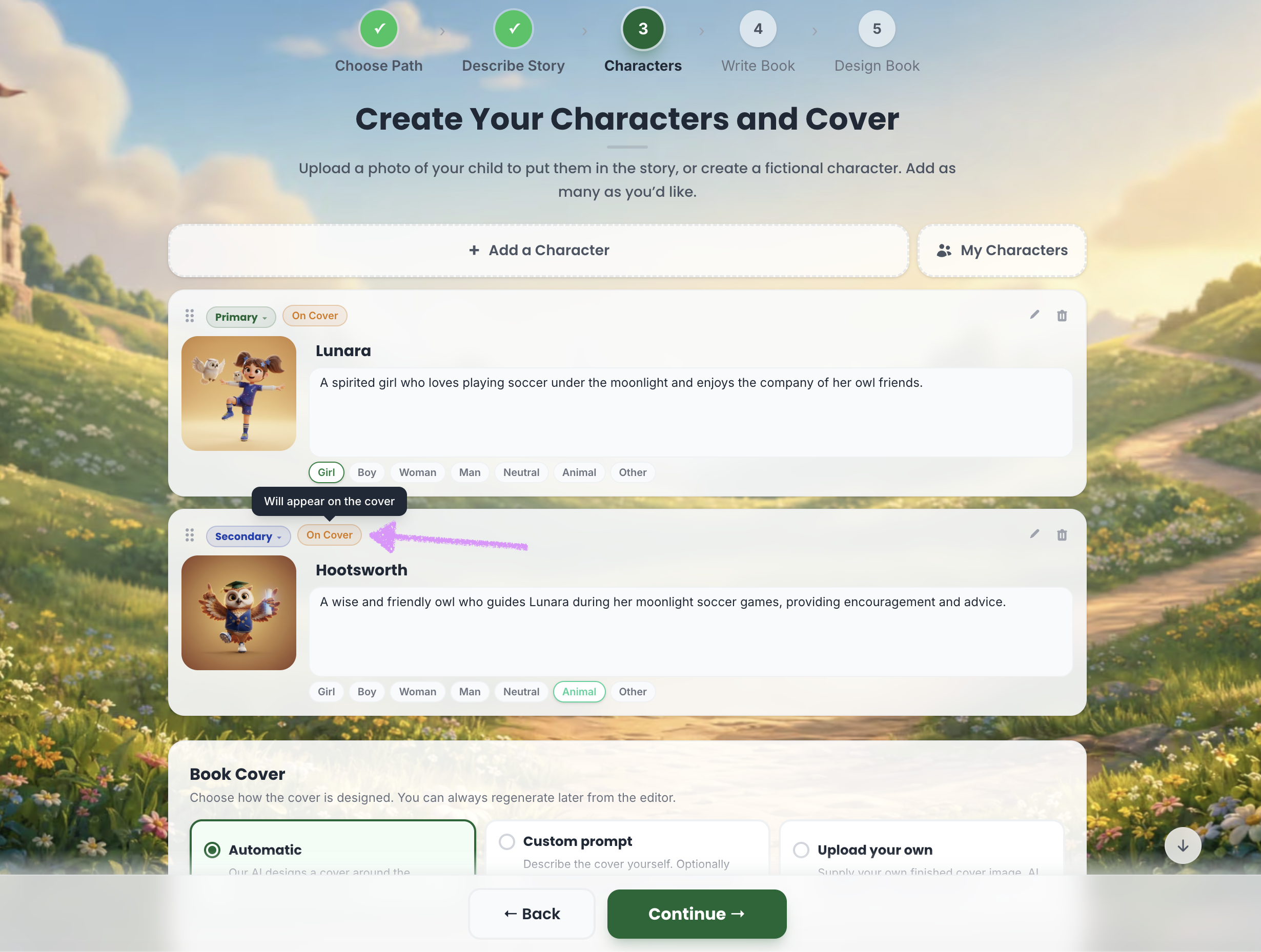
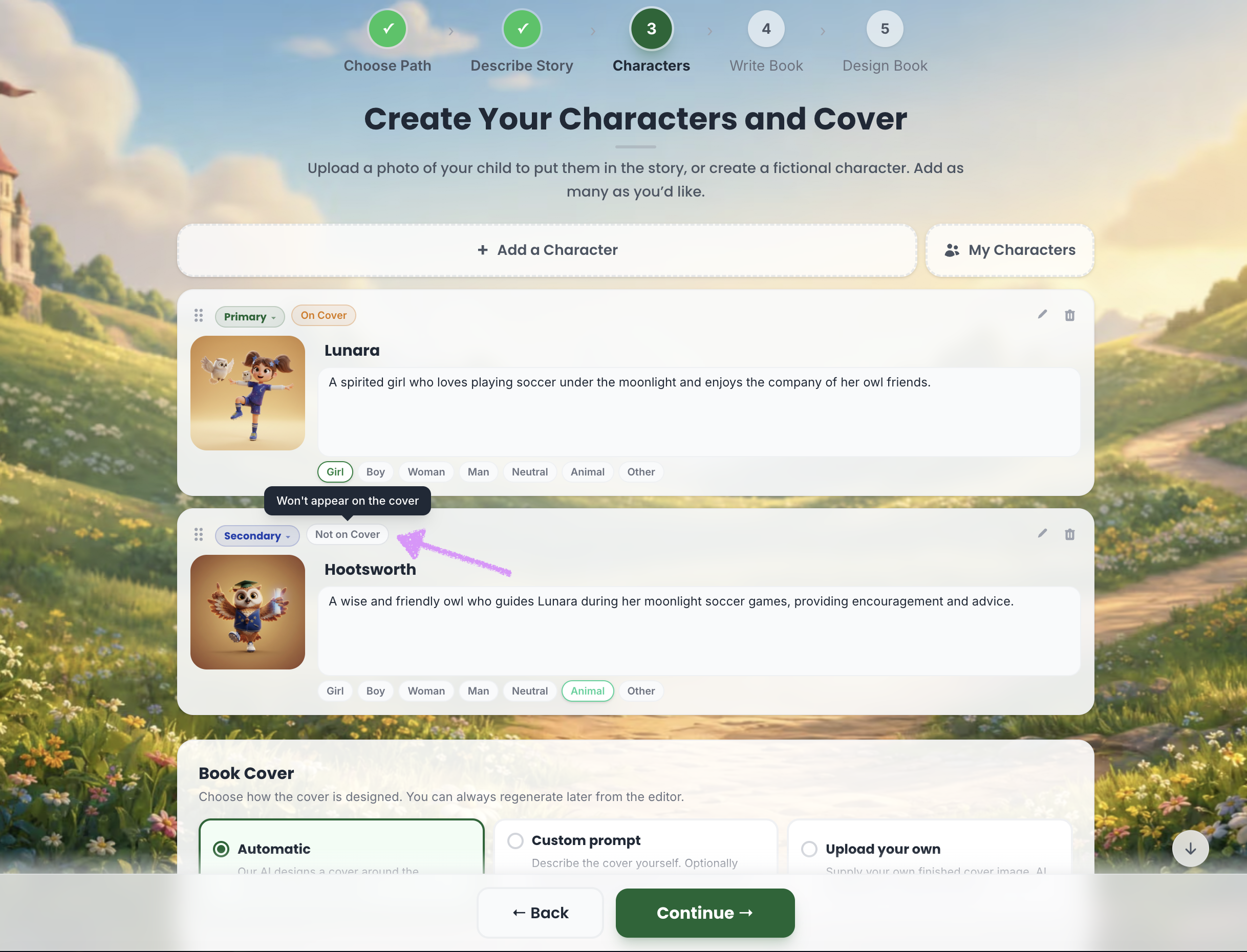
If you do not want the character to appear on the cover clicking on "On Cover" will then change to "Not on Cover."
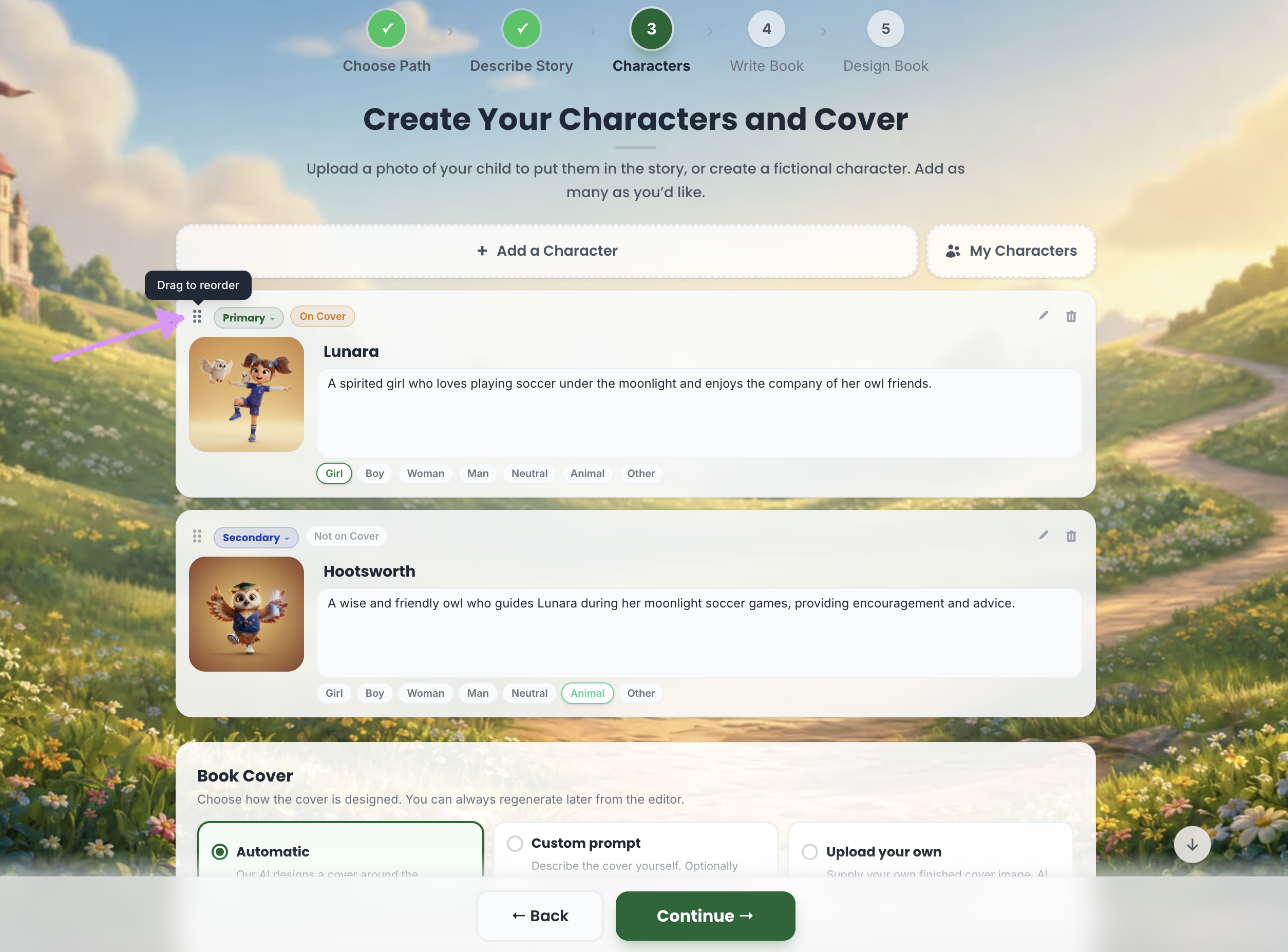
Need to reorder the characters? Click and drag to reorder.
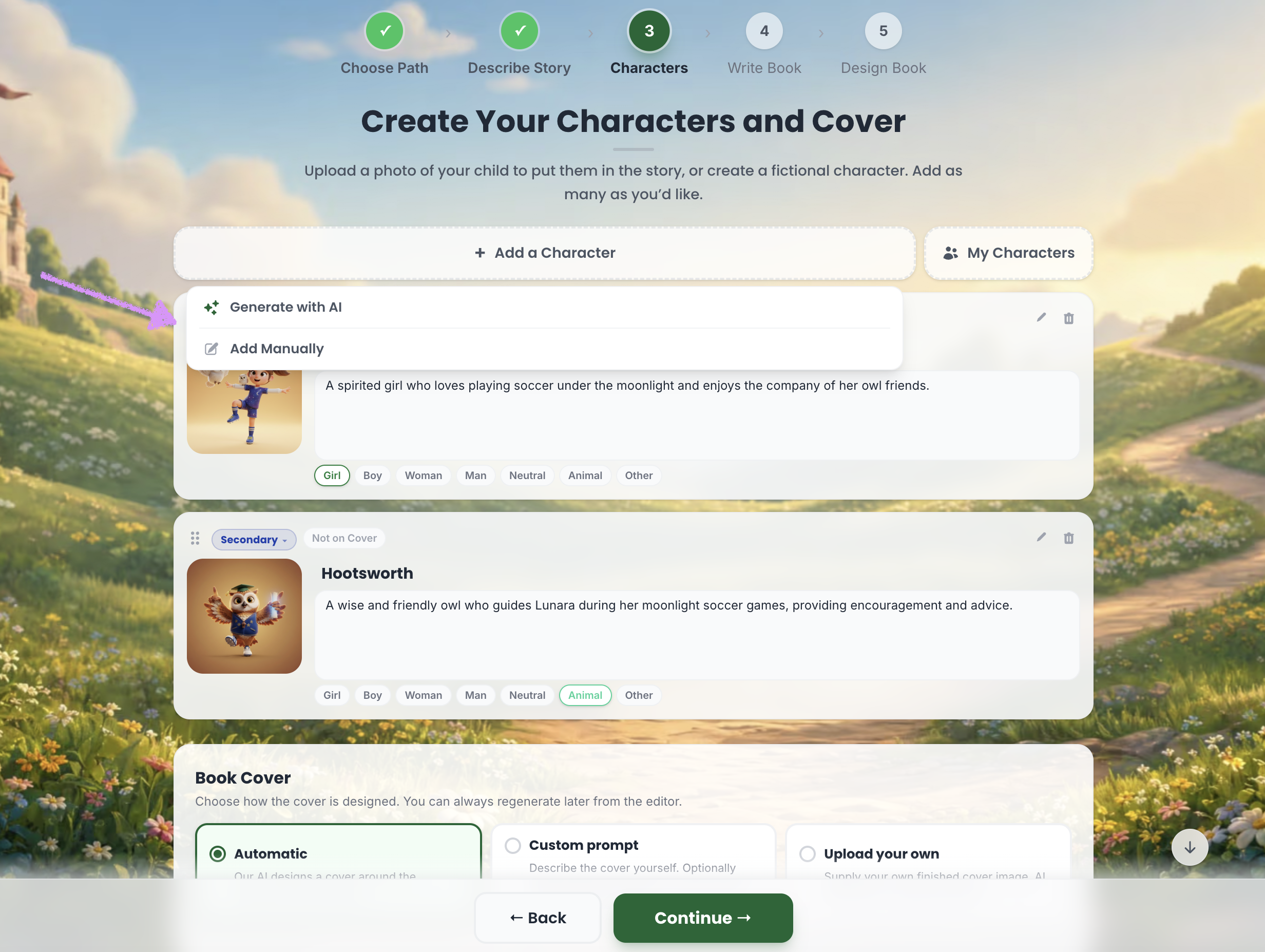
Need to add more characters? Click on "Add a Character."
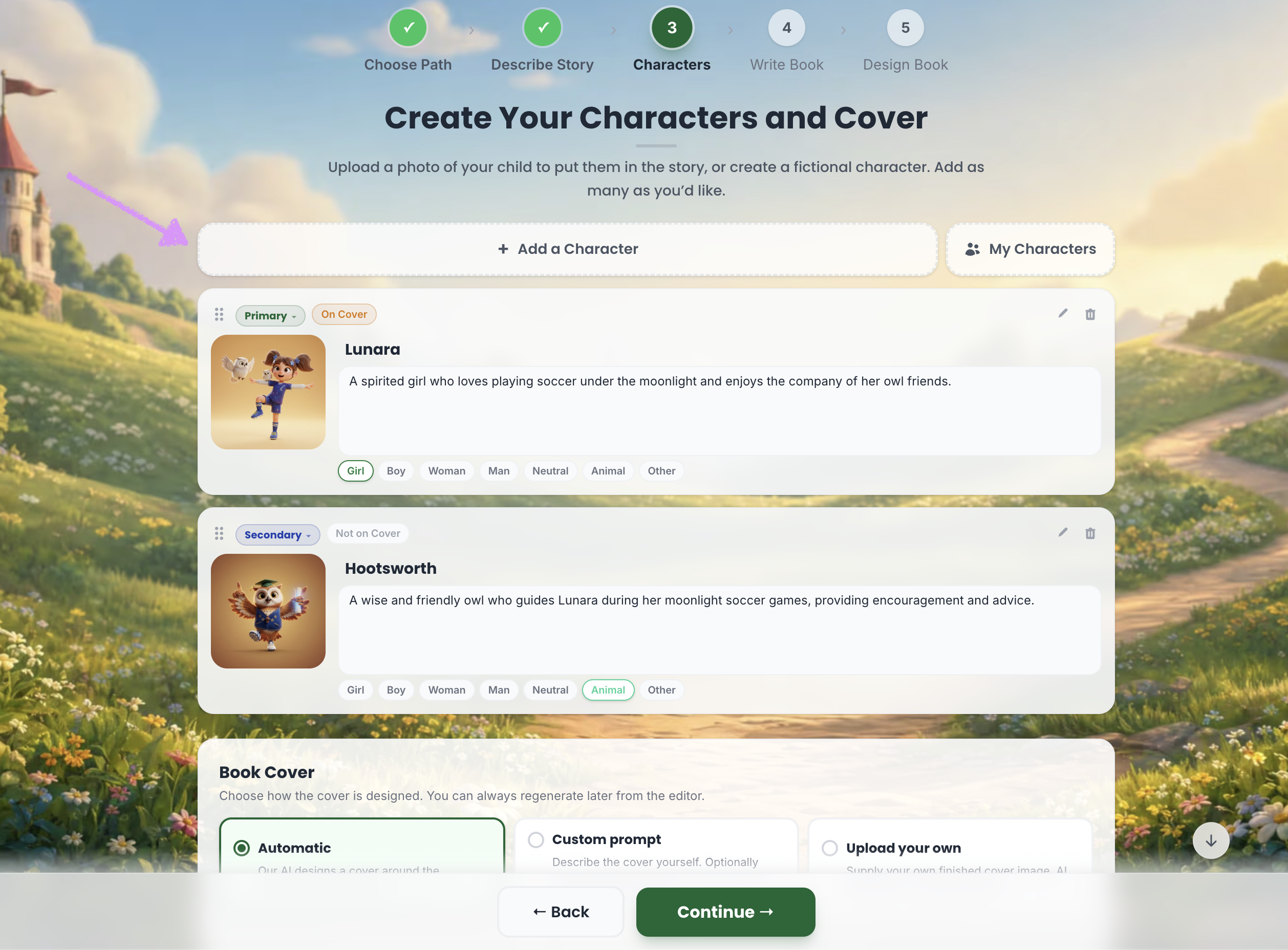
You'll have the option to "Generate with AI" or "Add Manually." Our guide here shares more on adding characters manually.
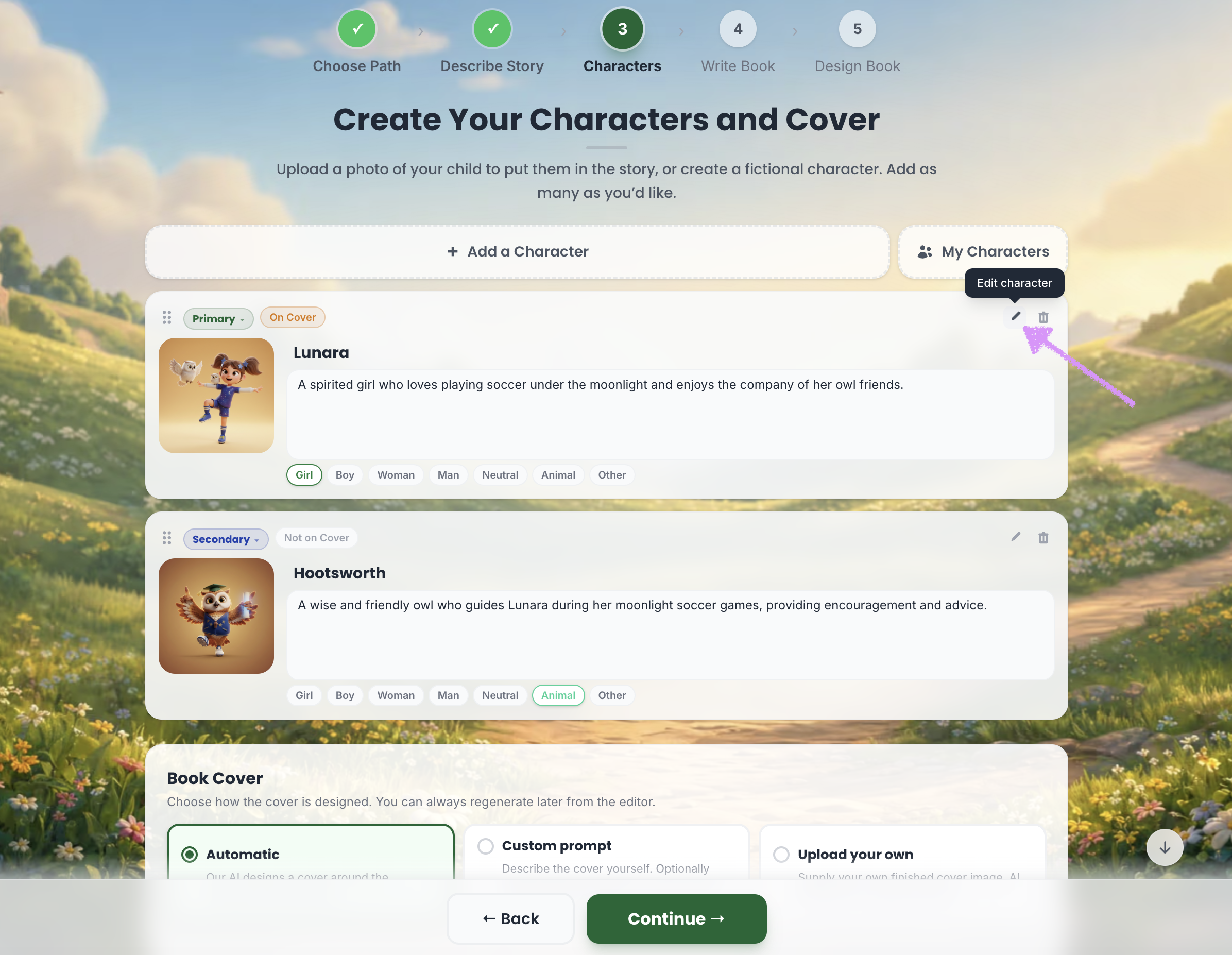
Click on the "Edit character" icon to make changes to your characters.
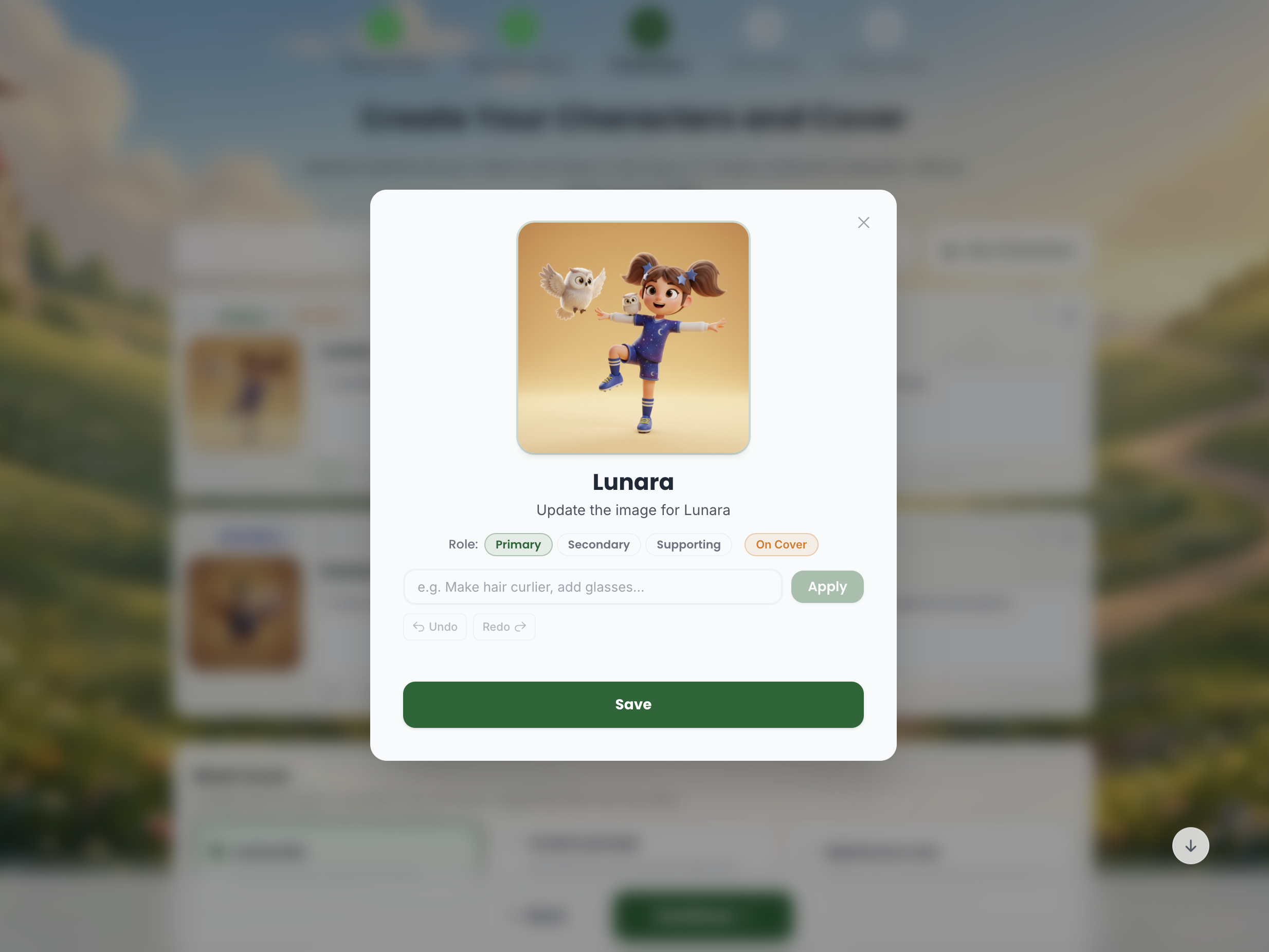
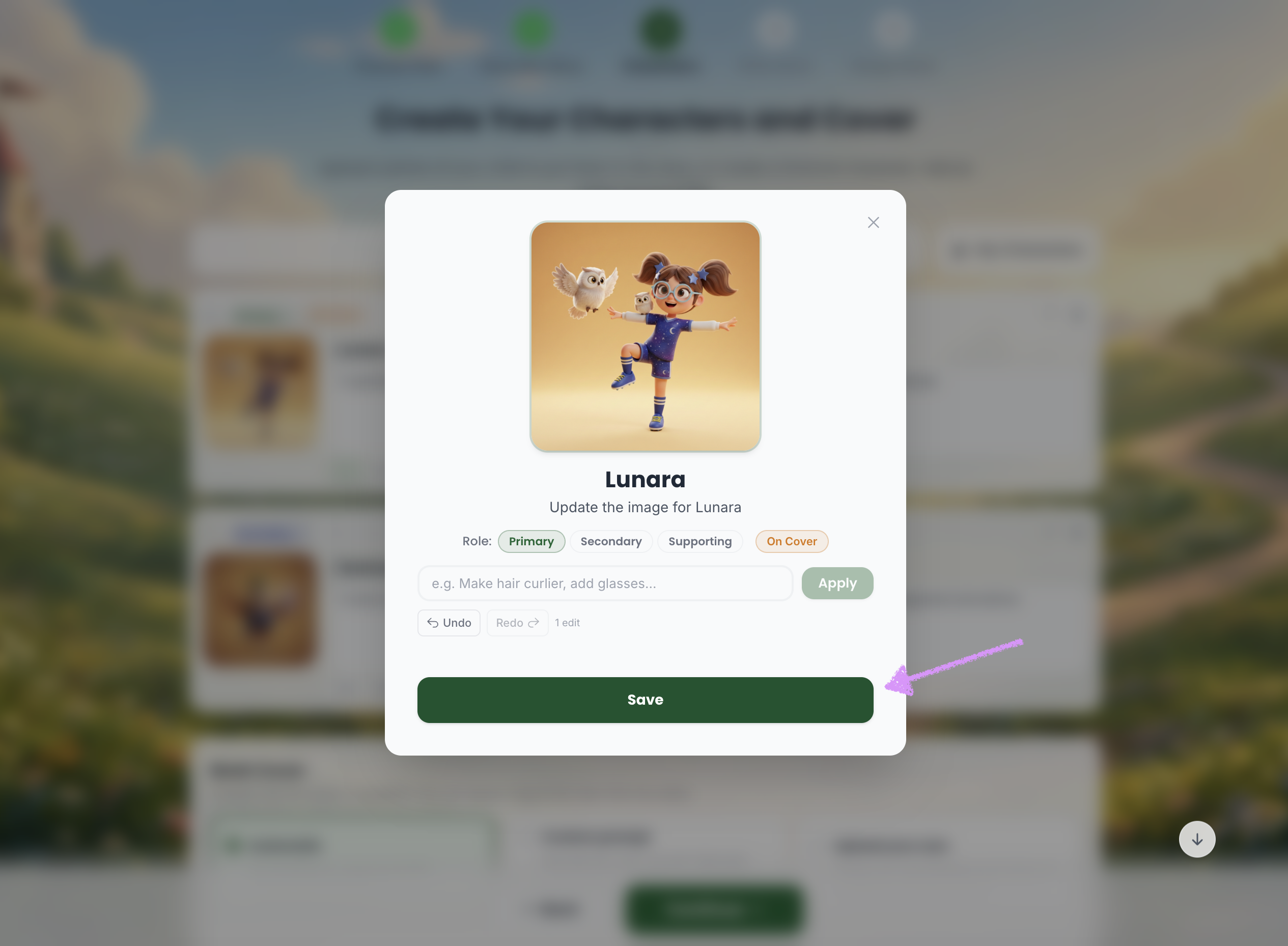
The character edit modal will open.
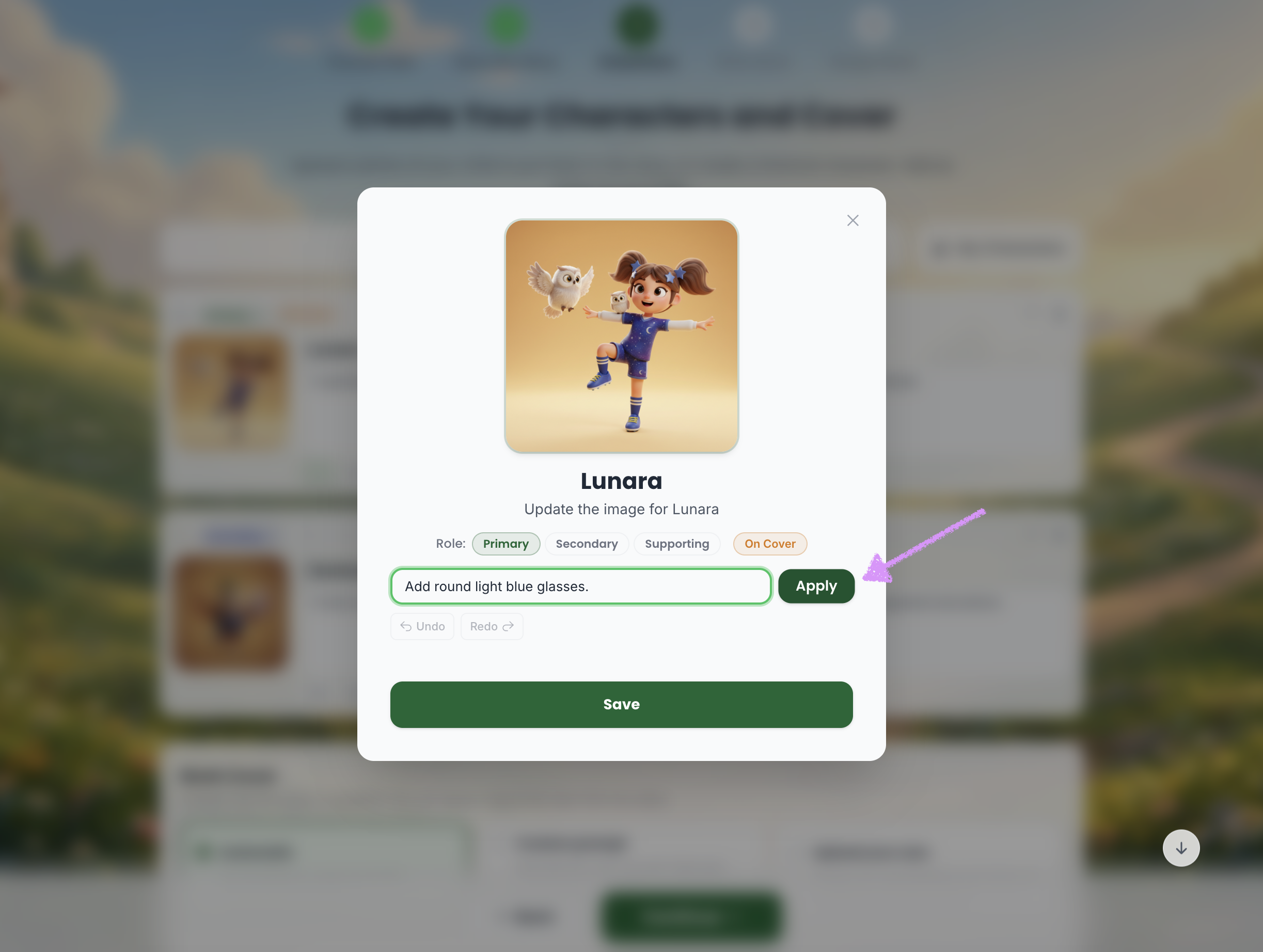
Tell Scrively exactly what you want to edit, including details like poses, styles, colors, and more. The more specific you are, the better the results will be.
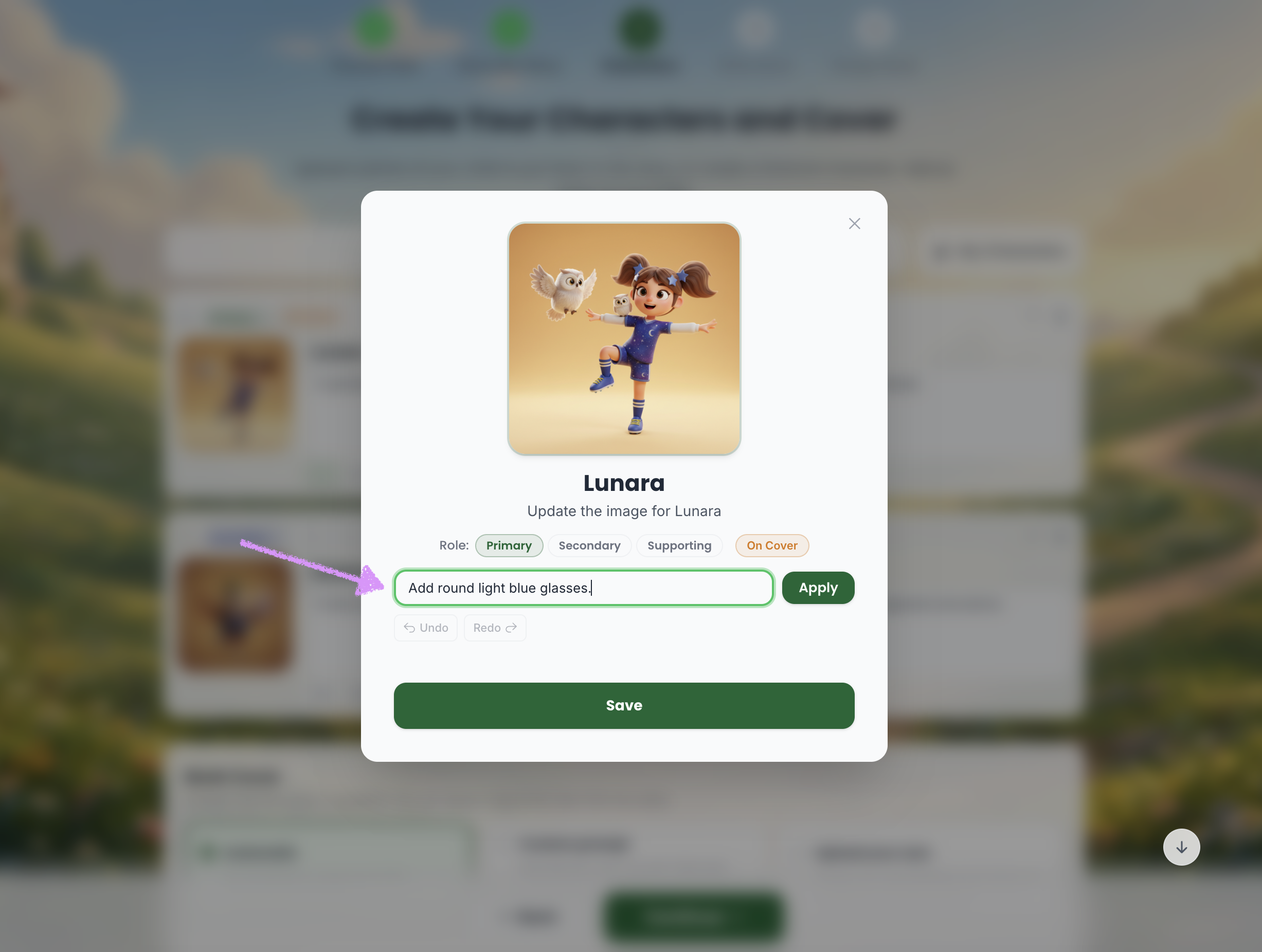
When you're ready click on "Apply."
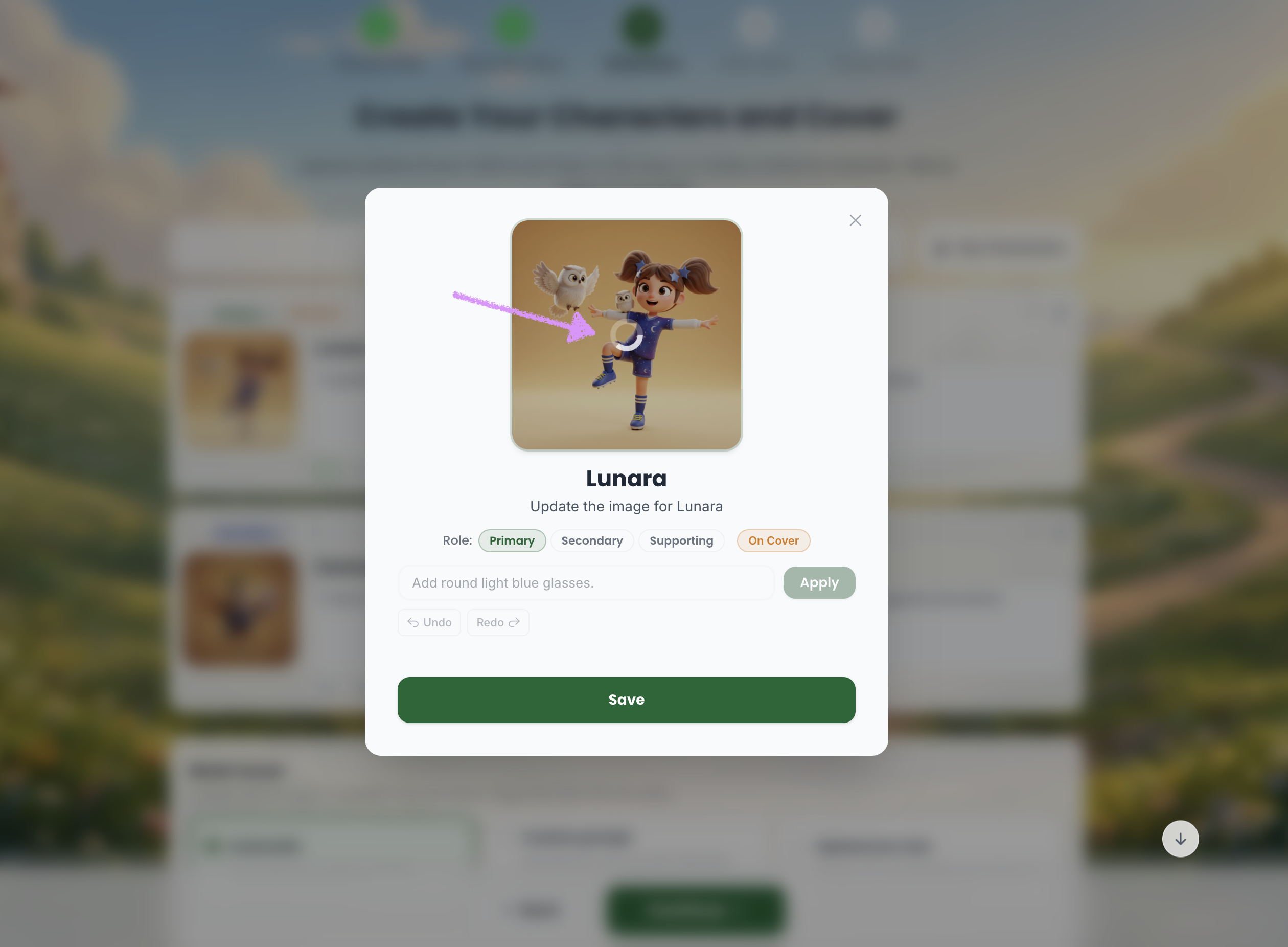
Scrively will take a few moments to think and process the request.
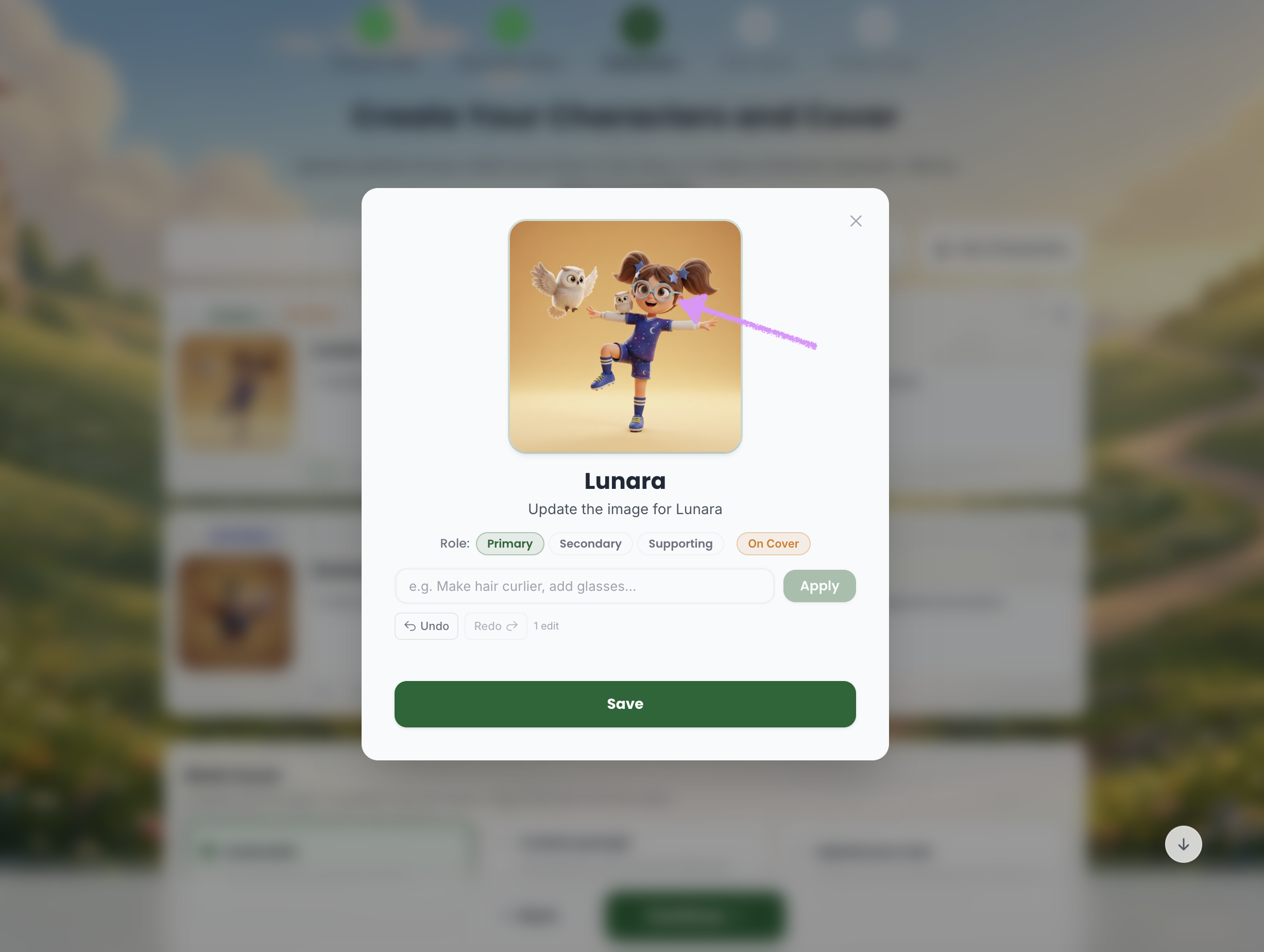
The requested edit will be applied.
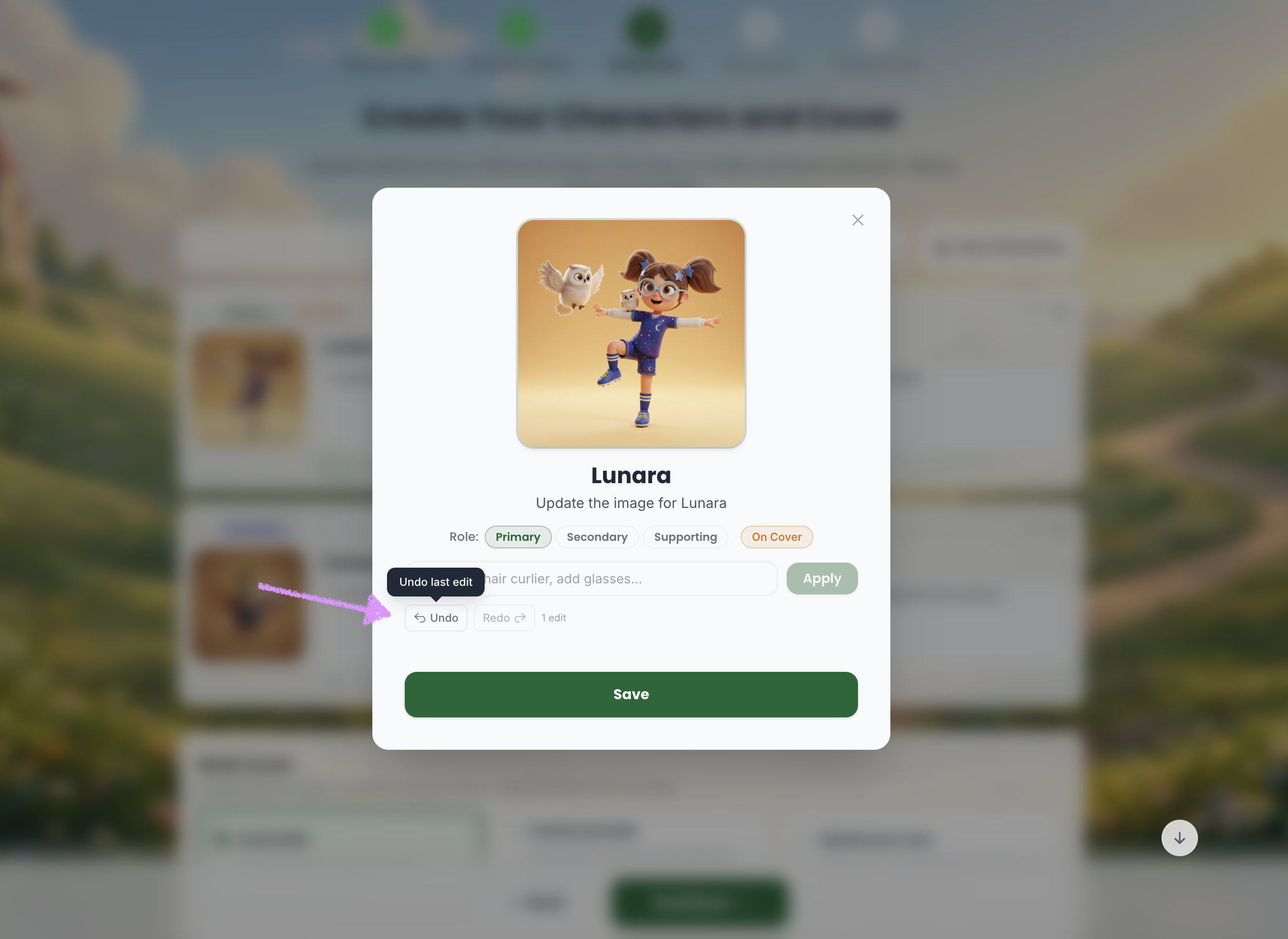
If needed you can undo and redo the changes.
Click “Save” to apply and save your changes to the character.
If you don't want to use a character click on the trash icon to "Delete character." Head over to our guide here to learn more on creating your book cover.
Was this article helpful?
That’s Great!
Thank you for your feedback
Sorry! We couldn't be helpful
Thank you for your feedback
Feedback sent
We appreciate your effort and will try to fix the article
