
Settings Guide
Want full creative control over your completed books? Scrively Plus and Pro users can remove Scrively branding for a cleaner, more professional reading experience that keeps the focus on your work.
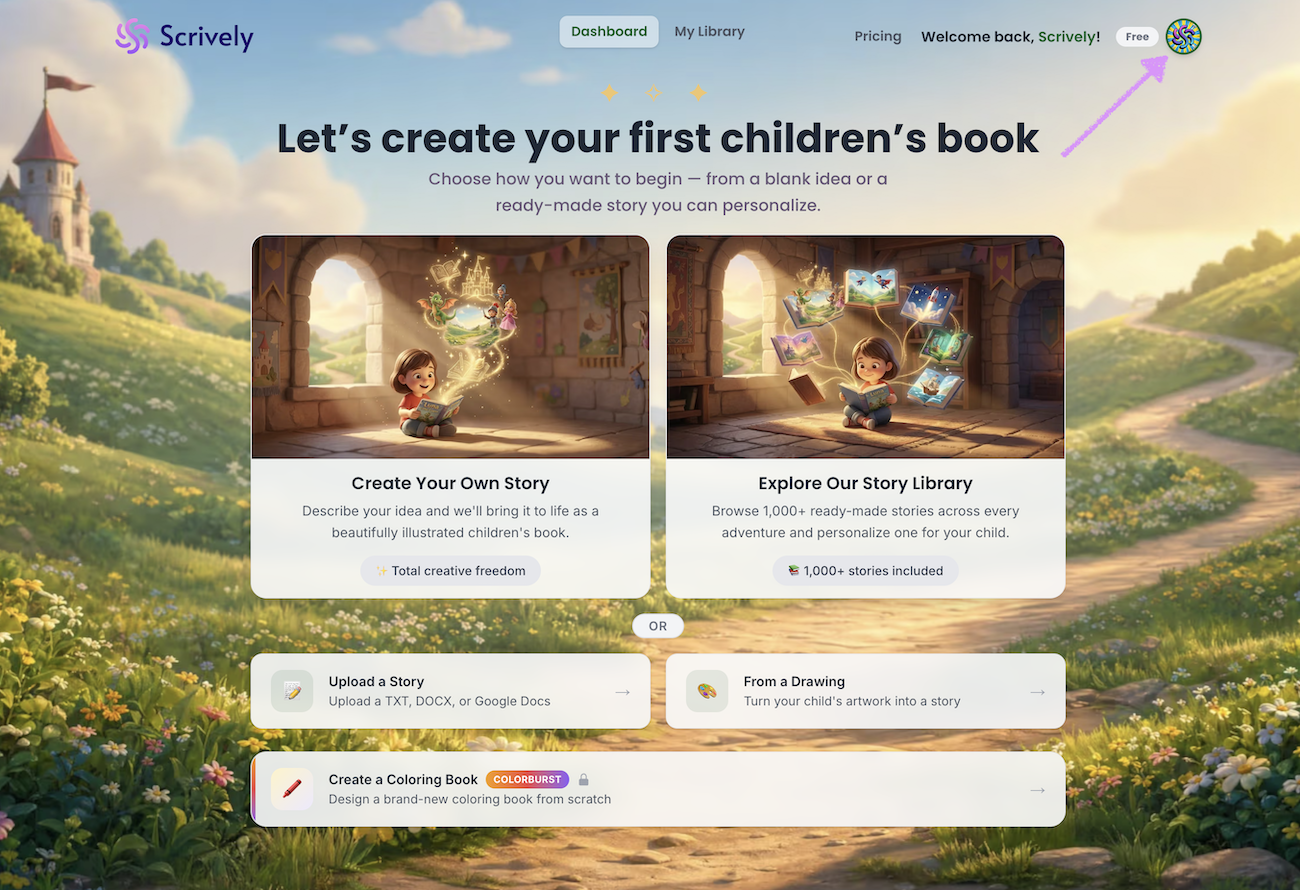
Click on your photo at the top right side of the dashboard.
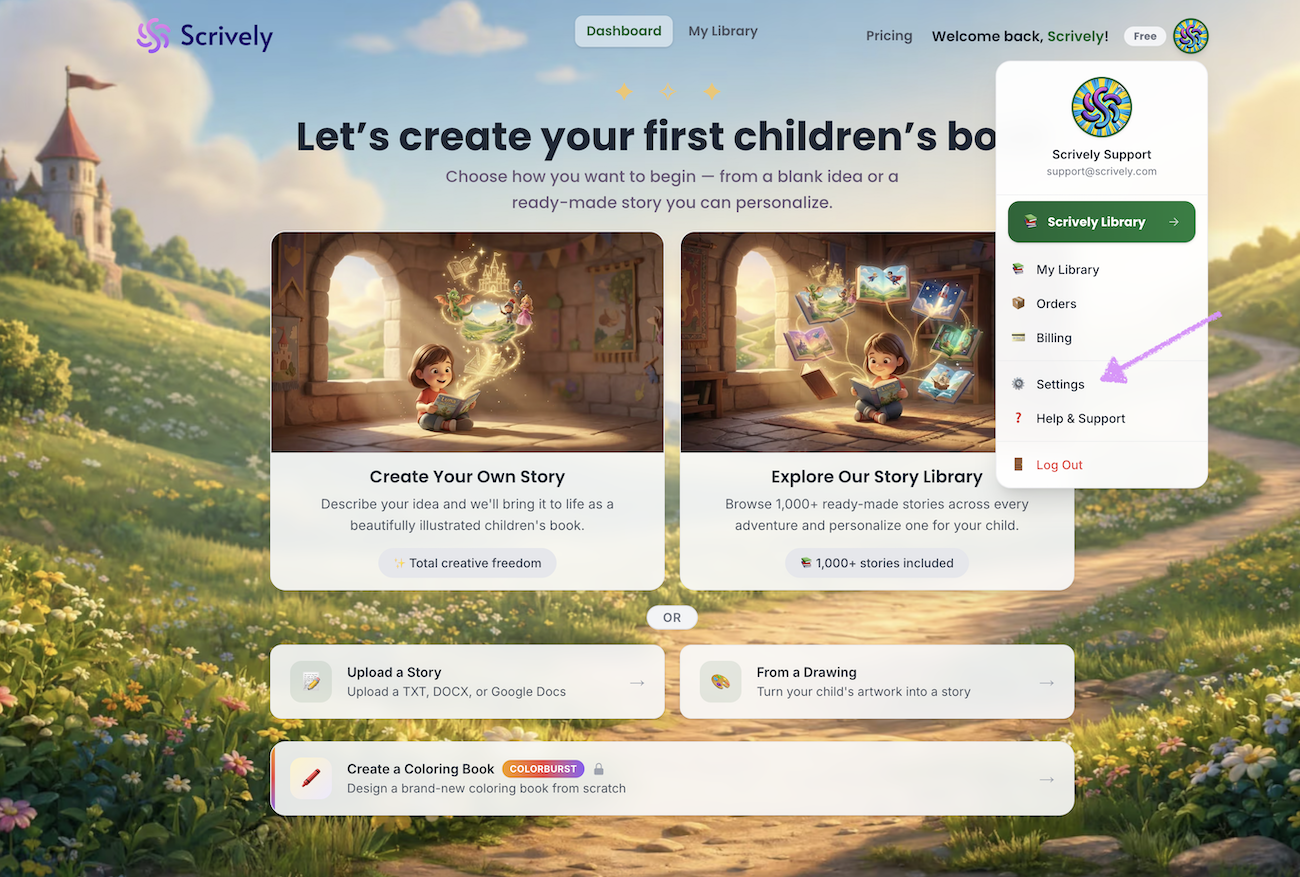
Click on "Settings."
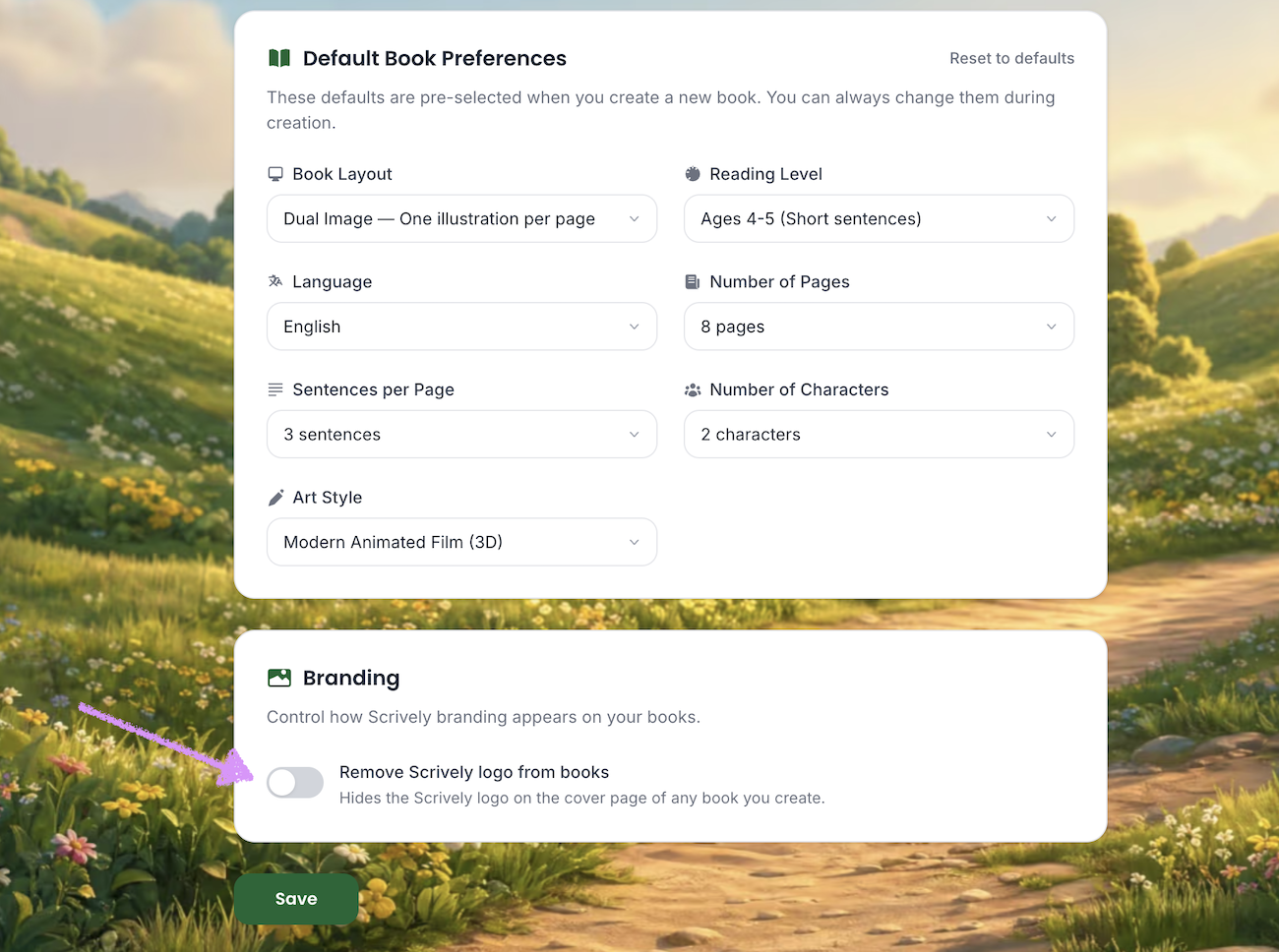
Toggle "Remove Scrively logo from books" on. This feature is available for Plus and Pro users.
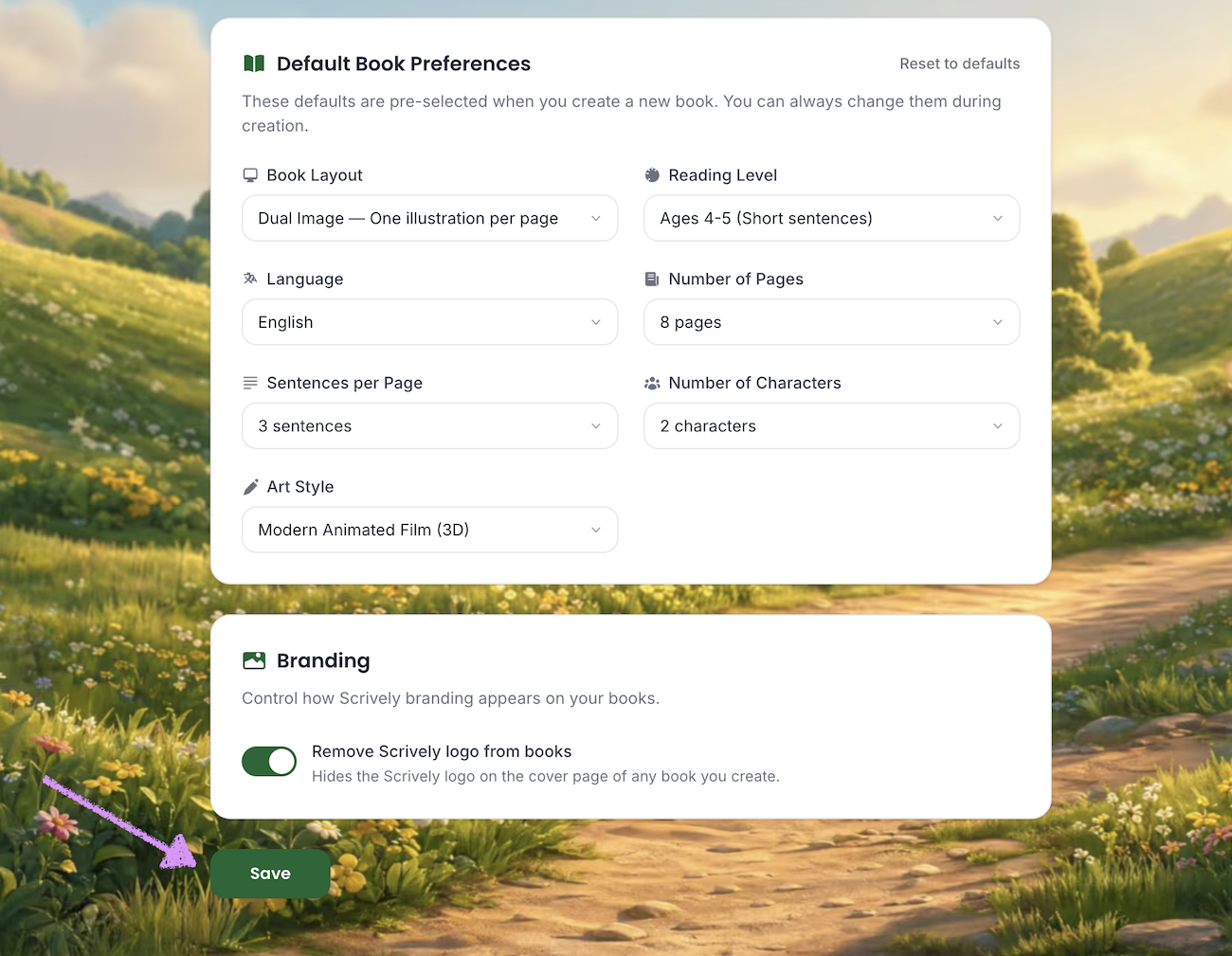
Click on "Save." The Scrively branding will be removed from the title page, spine and back cover.
Was this article helpful?
That’s Great!
Thank you for your feedback
Sorry! We couldn't be helpful
Thank you for your feedback
Feedback sent
We appreciate your effort and will try to fix the article
