Platform: Web App
Works On: Mobile, Tablet, Desktop Browser
Your title page helps set the tone for your book and gives readers their first impression. In the editor, you can easily customize the title page by updating the book title, subtitle, author name, and other details to match your vision.
Click the title page text once and hold to drag it to a new position on the page. Release to place it where you want.
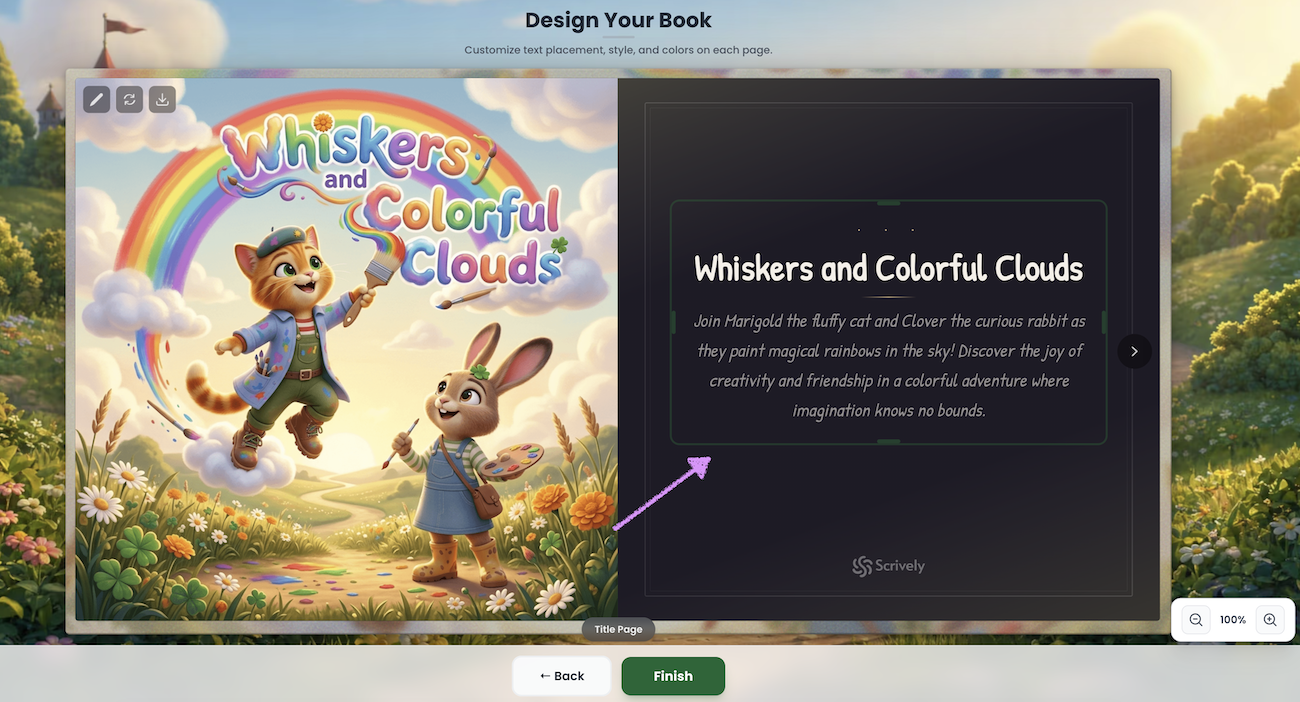
Use the alignment tool to position text blocks evenly on the page.
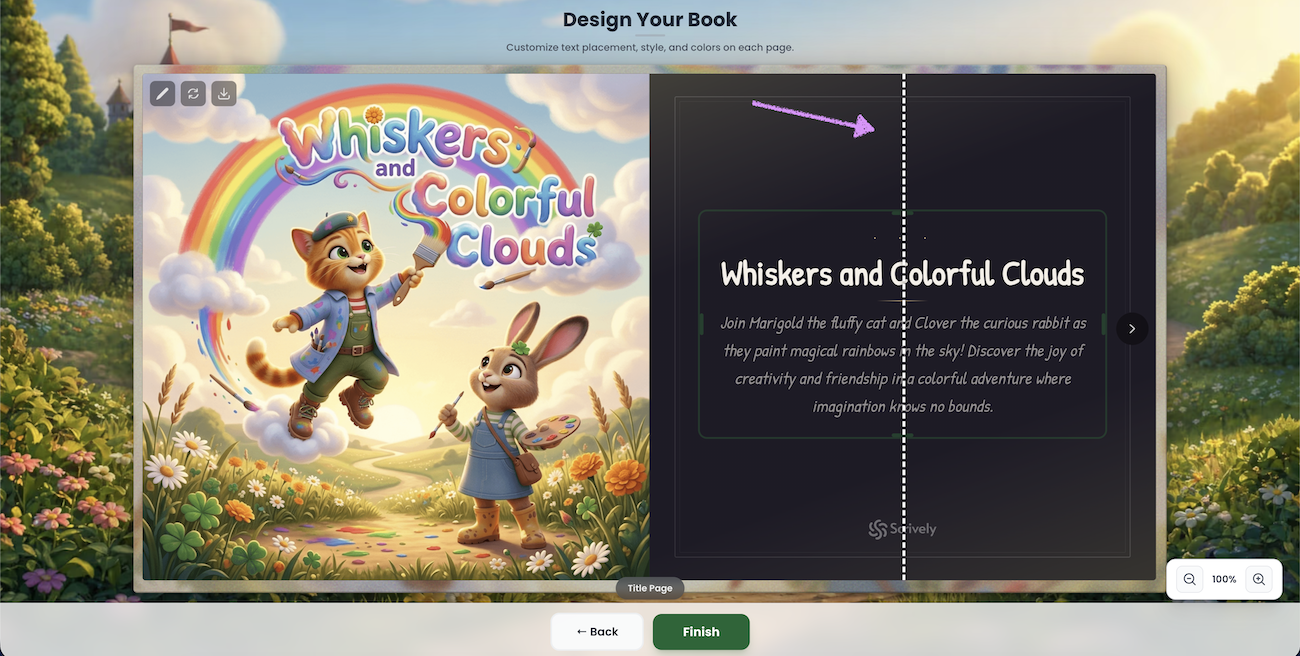
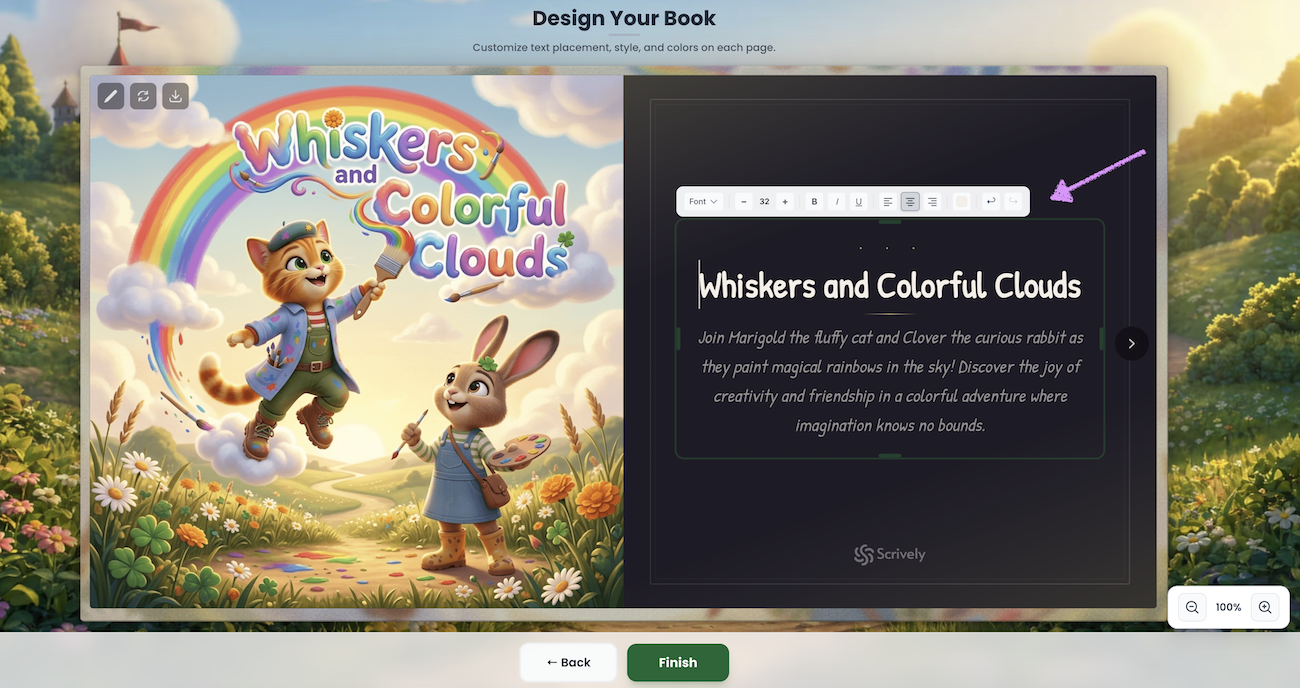
Double-click the text block to reveal formatting options. If you change the title on the title page, make sure to update it on the cover page as well, since it does not update automatically. You can use a simple edit prompt like “Update the title to say…” followed by the new title, and include any additional details as needed.
Head over to our guide here to learn more about text formatting on pages.
Was this article helpful?
That’s Great!
Thank you for your feedback
Sorry! We couldn't be helpful
Thank you for your feedback
Feedback sent
We appreciate your effort and will try to fix the article
