Platform: Web App
Works On: Mobile, Tablet, Desktop Browser
Text formatting helps bring clarity and structure to your pages. In the editor, you can easily adjust and refine text blocks to match your book’s style, ensuring everything looks clean, consistent, and easy for readers to follow.
Each page in your book contains a movable text block. To reposition it, click and hold the text block, then drag it to your desired location on the page. Release to place it in position.

Double-click on the text block to reveal the formatting options.

The first option is the font selector, which lets you choose from a wide variety of available fonts.

Highlight the text and select the font it should be changed to.
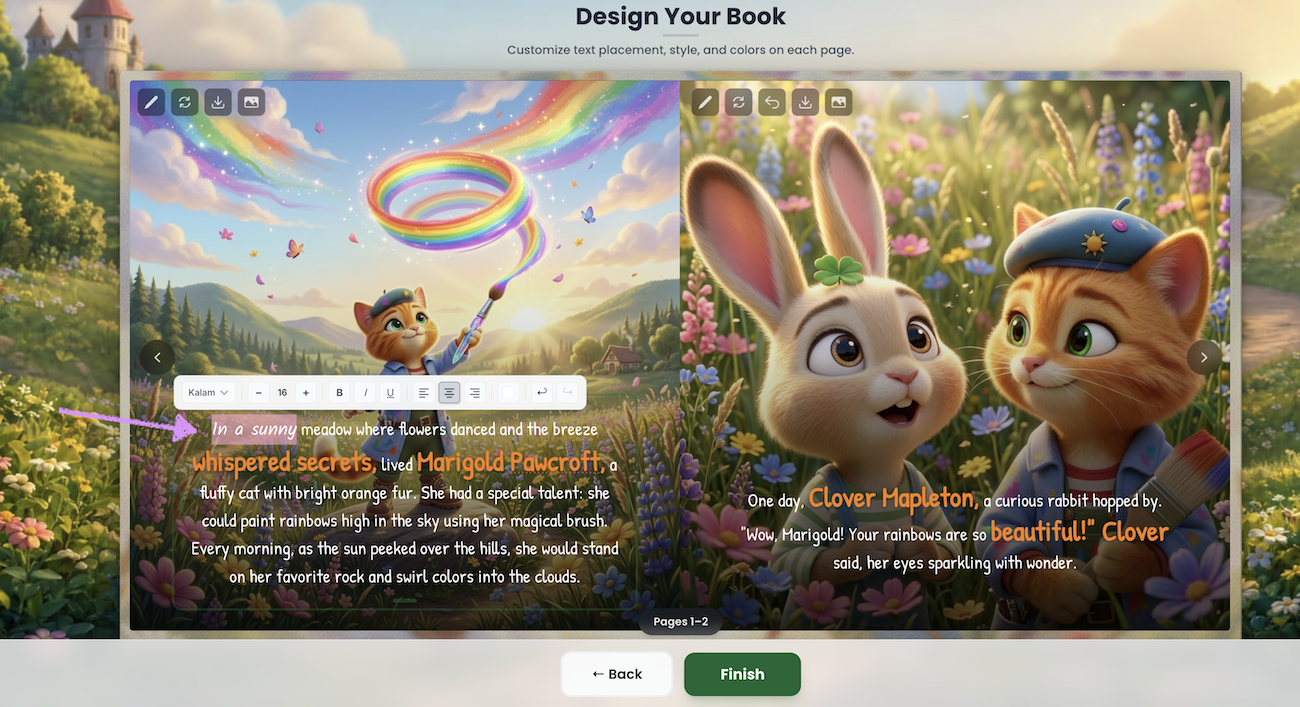
To change the text size, highlight the text and use the – / + icons to decrease or increase the font size.

You can also bold, italicize, or underline the text.

You can set the alignment of your page text using the left, center, or right alignment options.

To change the text color, click the color palette icon and select your preferred color.

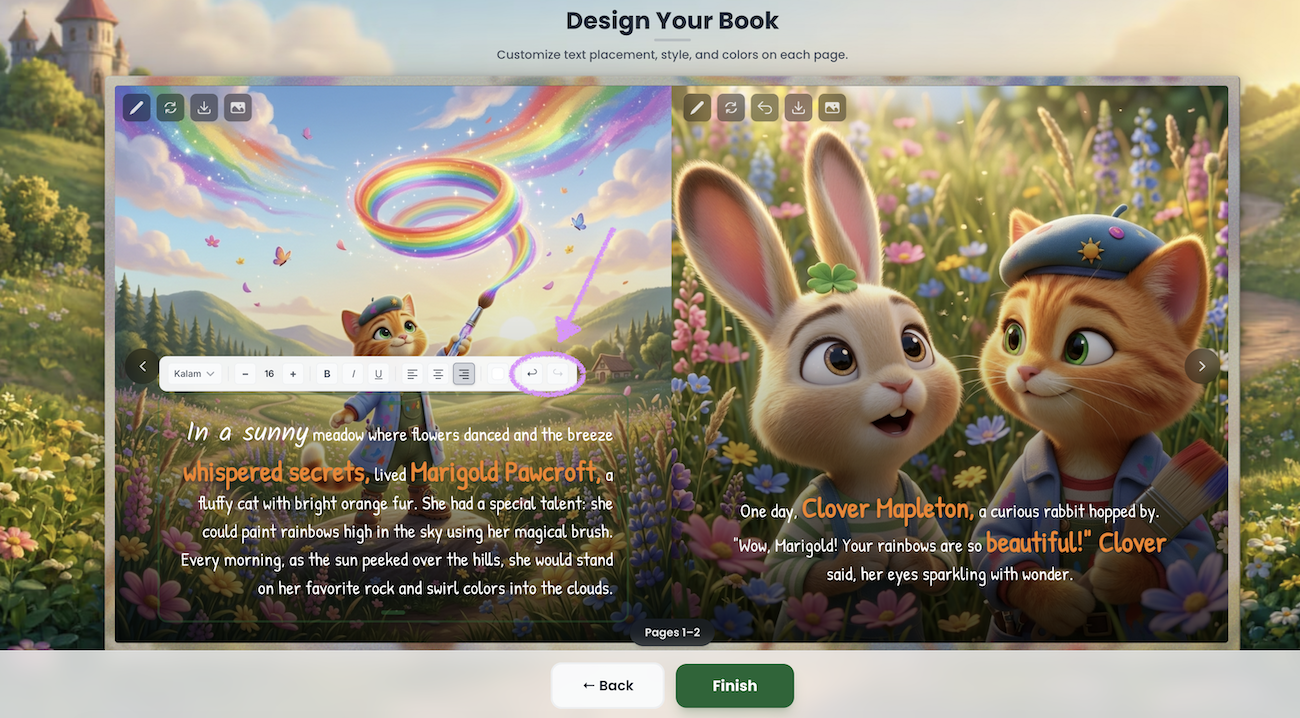
If you’re not happy with your changes, use the undo and redo options to revert or reapply edits.
Use the alignment tool to position text blocks evenly across pages.
Head over to our guide here to learn more about working with page images in the editor.

Was this article helpful?
That’s Great!
Thank you for your feedback
Sorry! We couldn't be helpful
Thank you for your feedback
Feedback sent
We appreciate your effort and will try to fix the article
