
Characters are at the heart of every great coloring book, and with Scrively, bringing them to life has never been easier. Whether you’re designing cute animals, playful kids, fantasy creatures, or themed characters, Scrively lets you create unique personalities, styles, and visual details to make your coloring pages fun and engaging.
Scrively generates character suggestions tailored to your coloring book details, including character images, helping you bring your coloring book to life with relevant and engaging personalities.
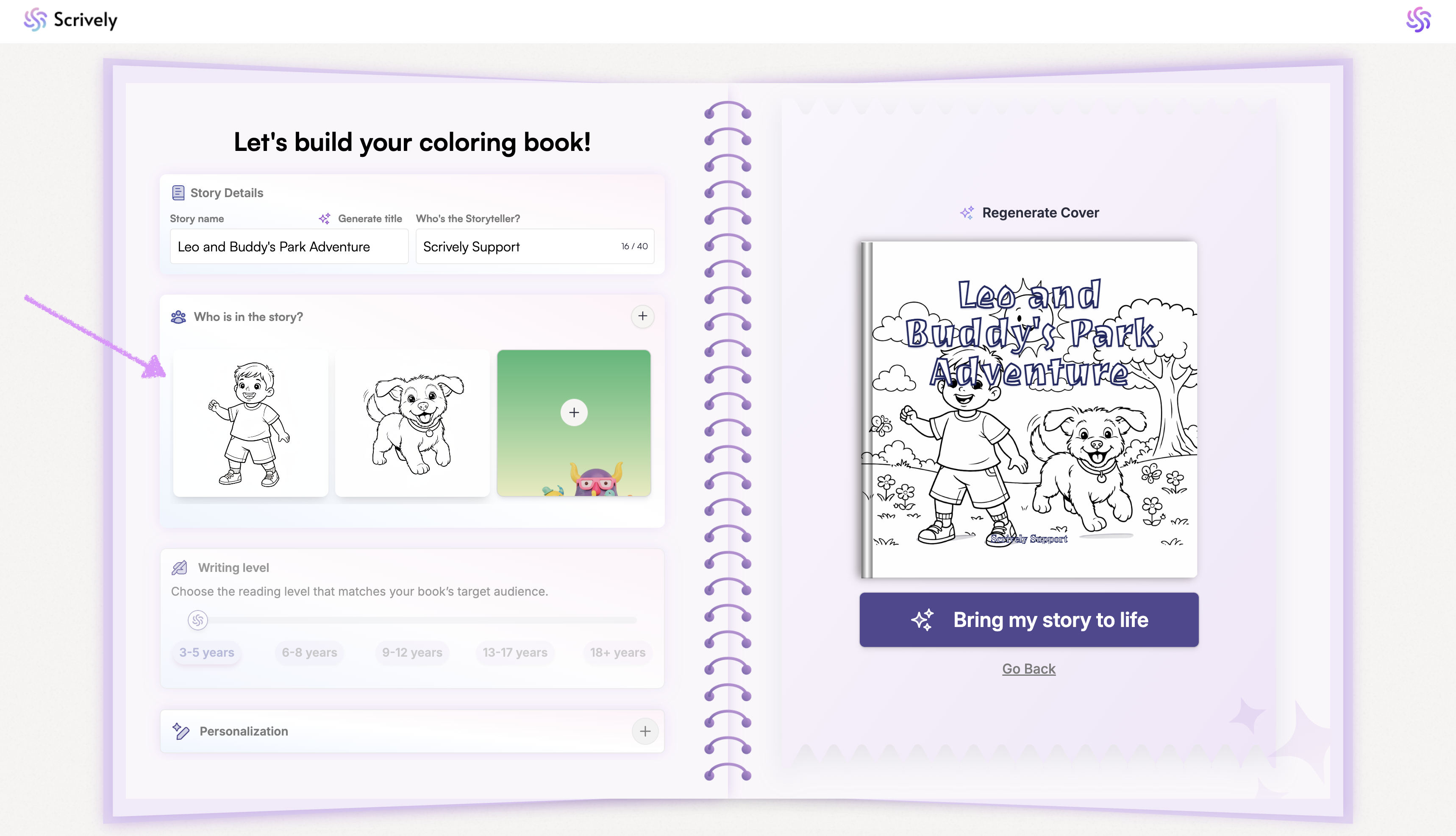
Hover over a character to get a quick preview of details like their name, role, and age.
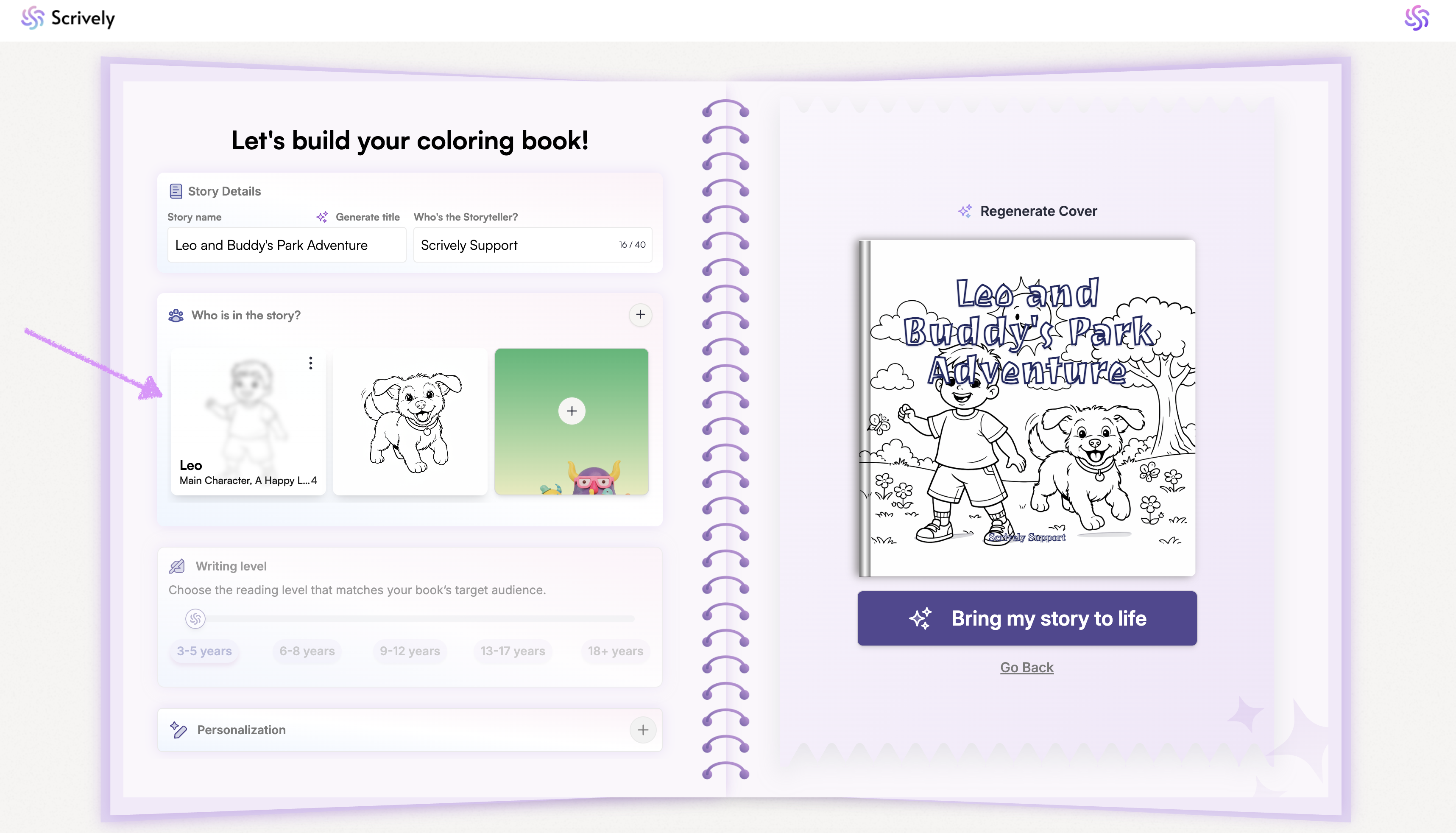
Click on the ellipsis menu on the right hand side of each character to "Edit details", "Add to library" or "Remove character."
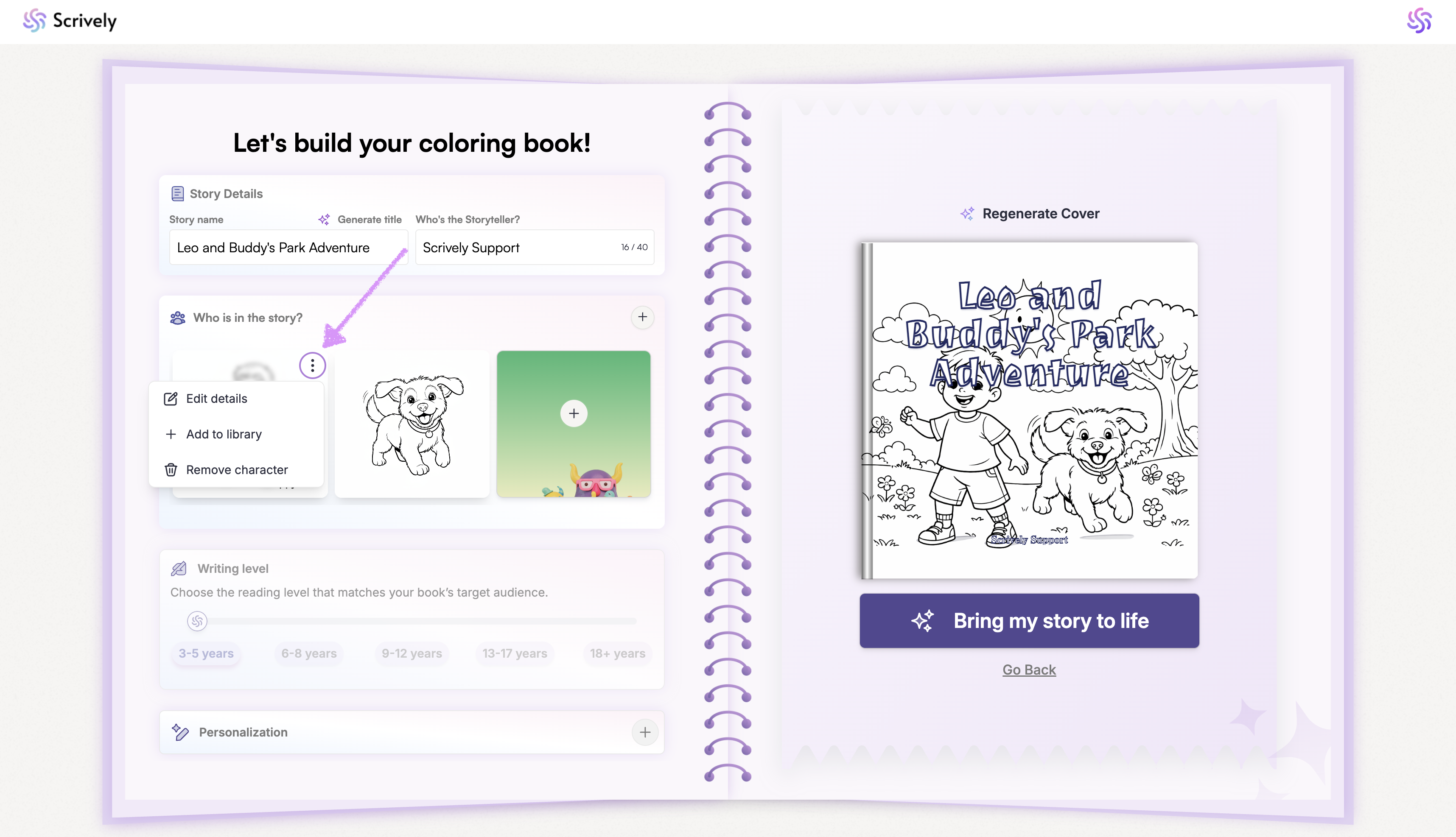
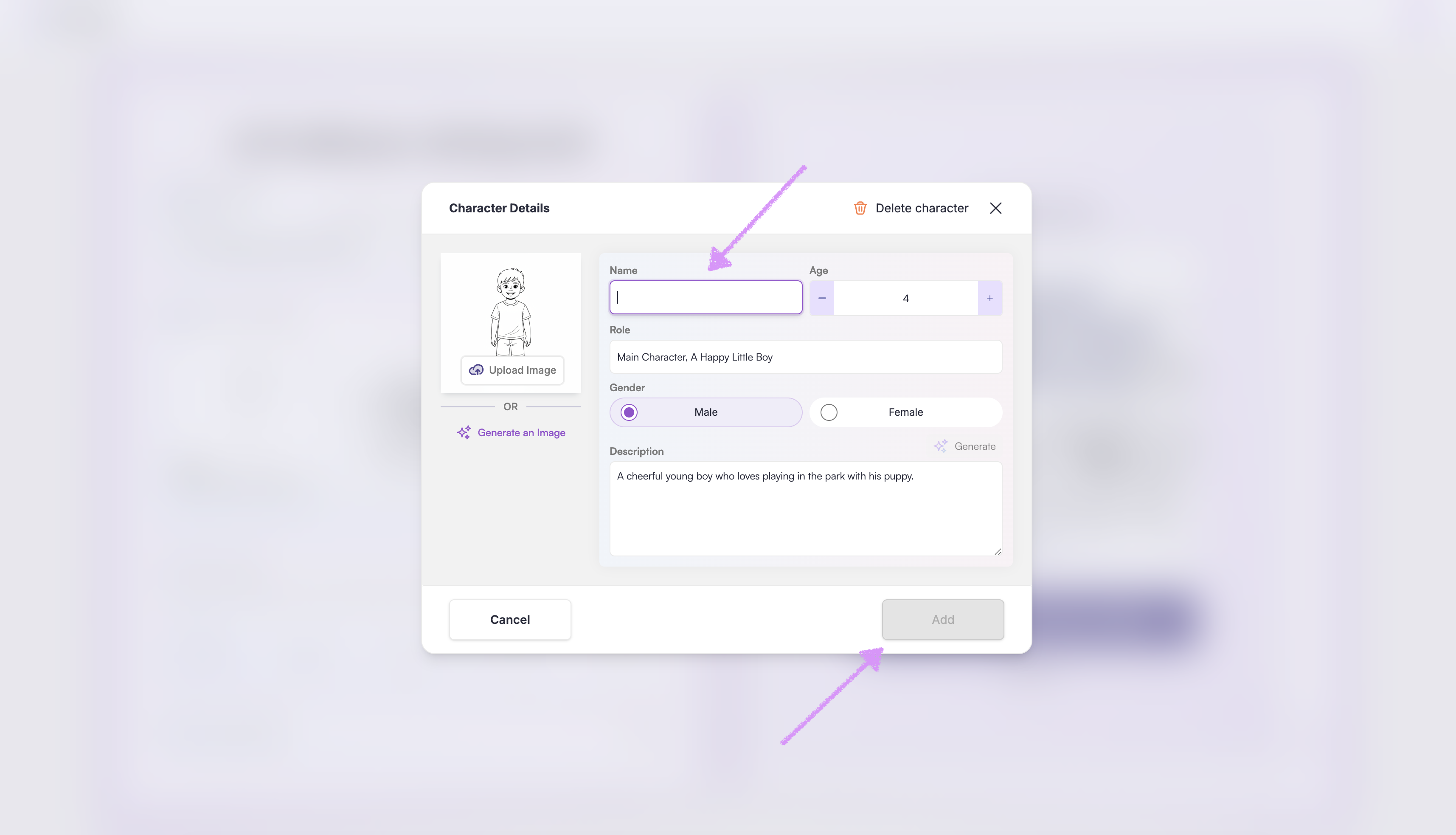
At the top of the character card in the "Edit details" view is the option to "Delete character."
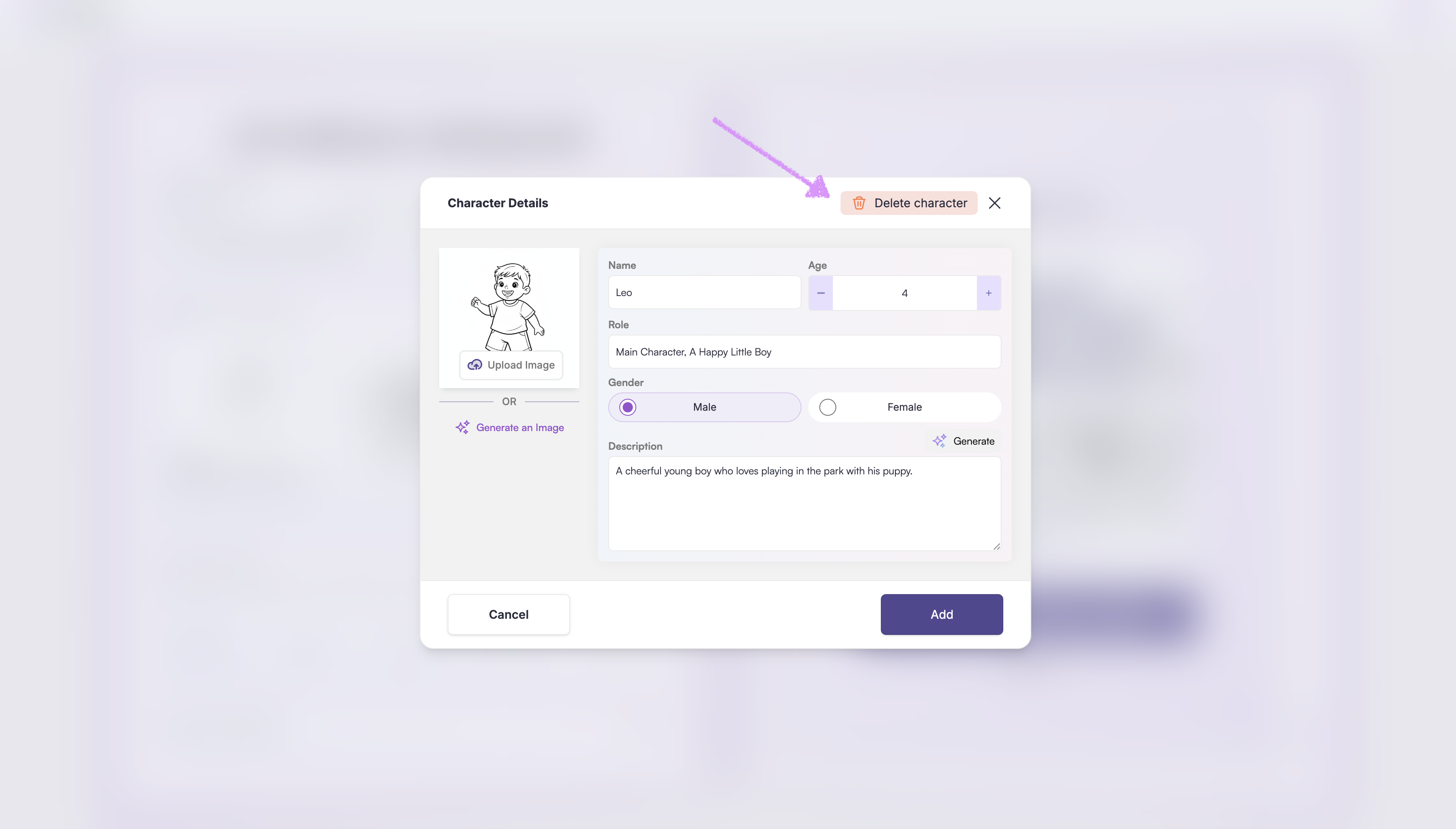
A confirmation modal will be shown.

Have an existing character image? Use the "Upload Image" option.
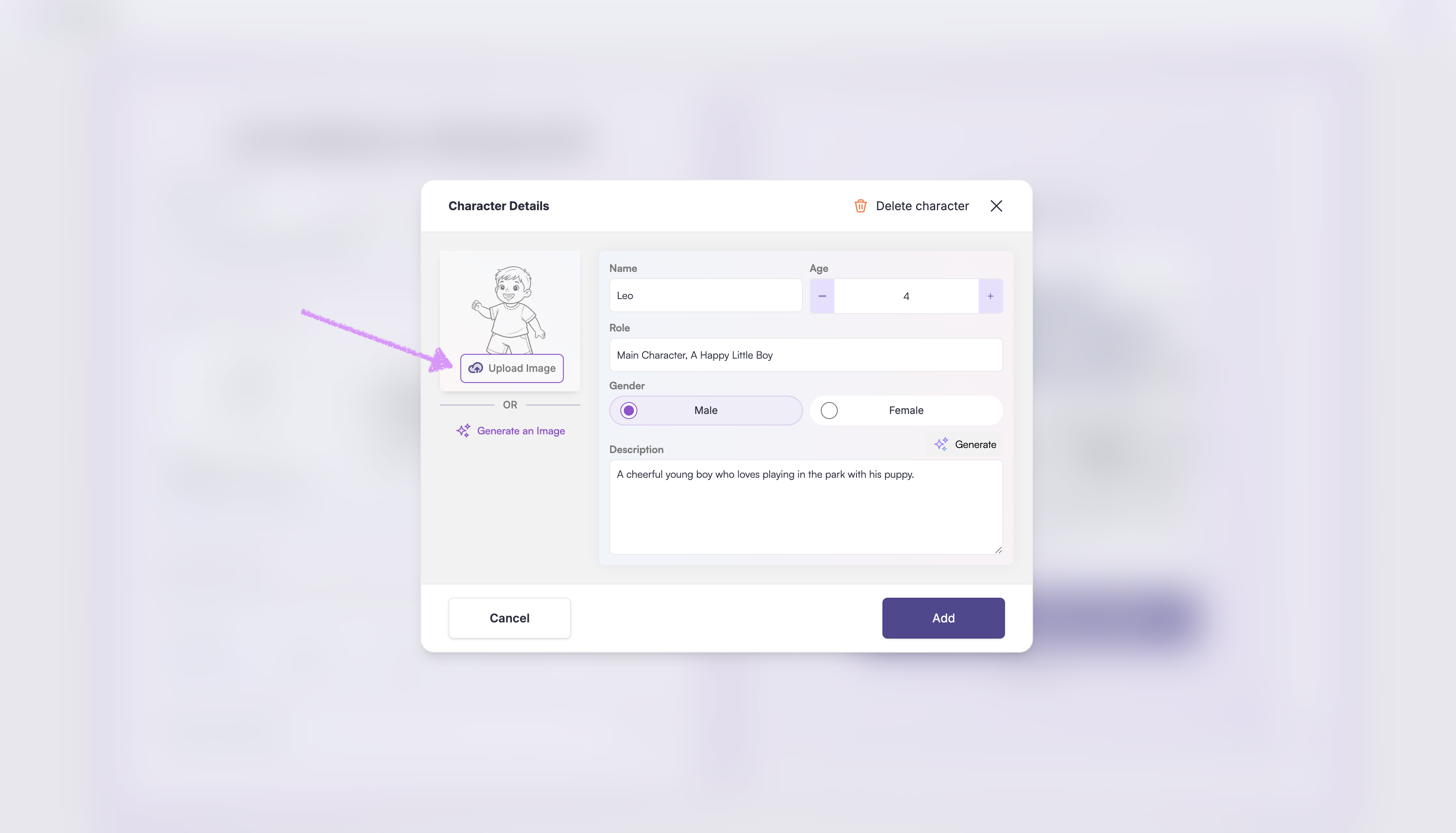
Alternatively, click on "Generate an Image" to have Scrively create a character image for you.
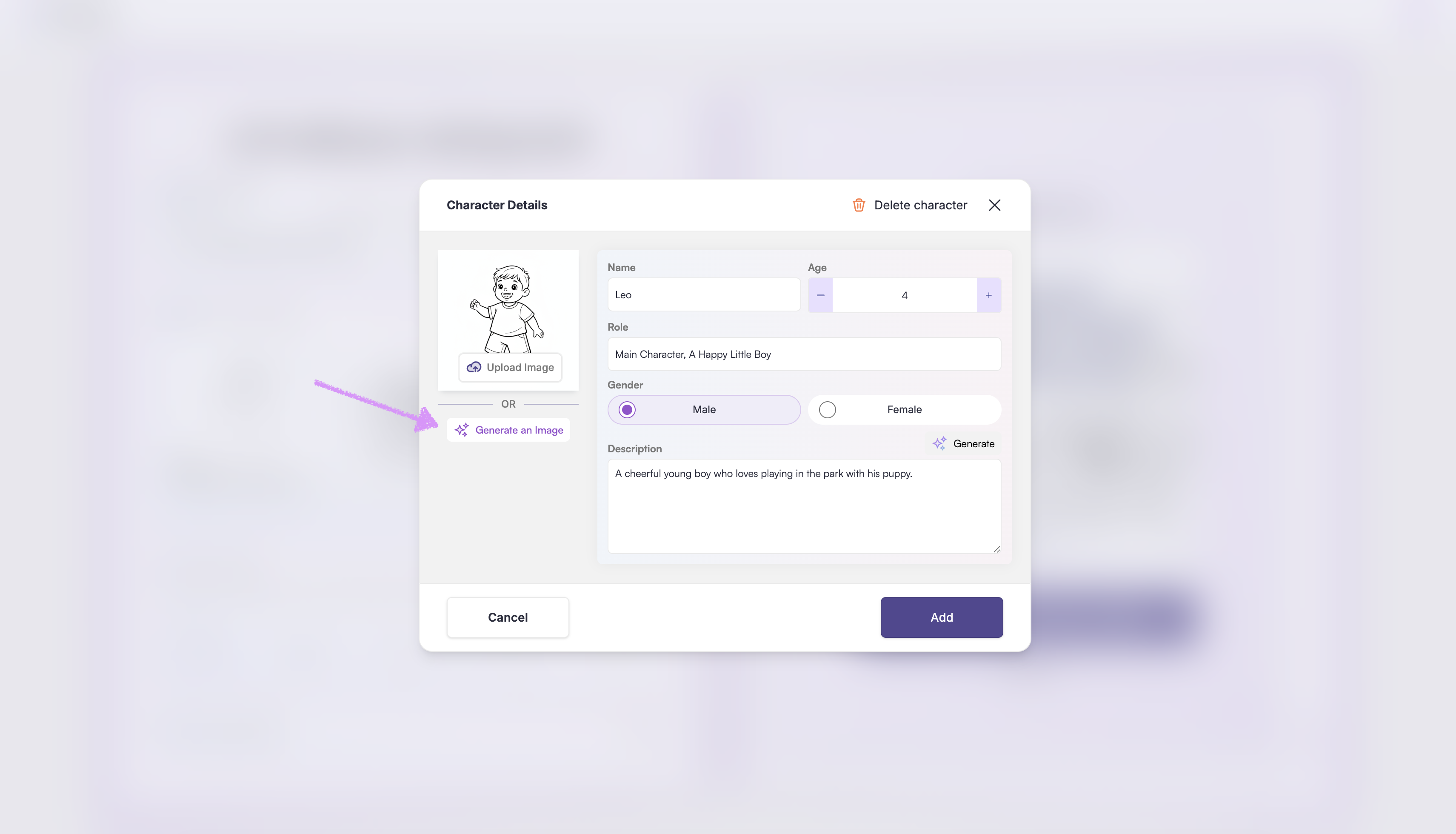
In the “Edit Details" view, the character’s information will be prefilled based on your storybook details. You can customize your character by editing details such as their name, age, role, gender, and description to shape their personality and relevance to your story.
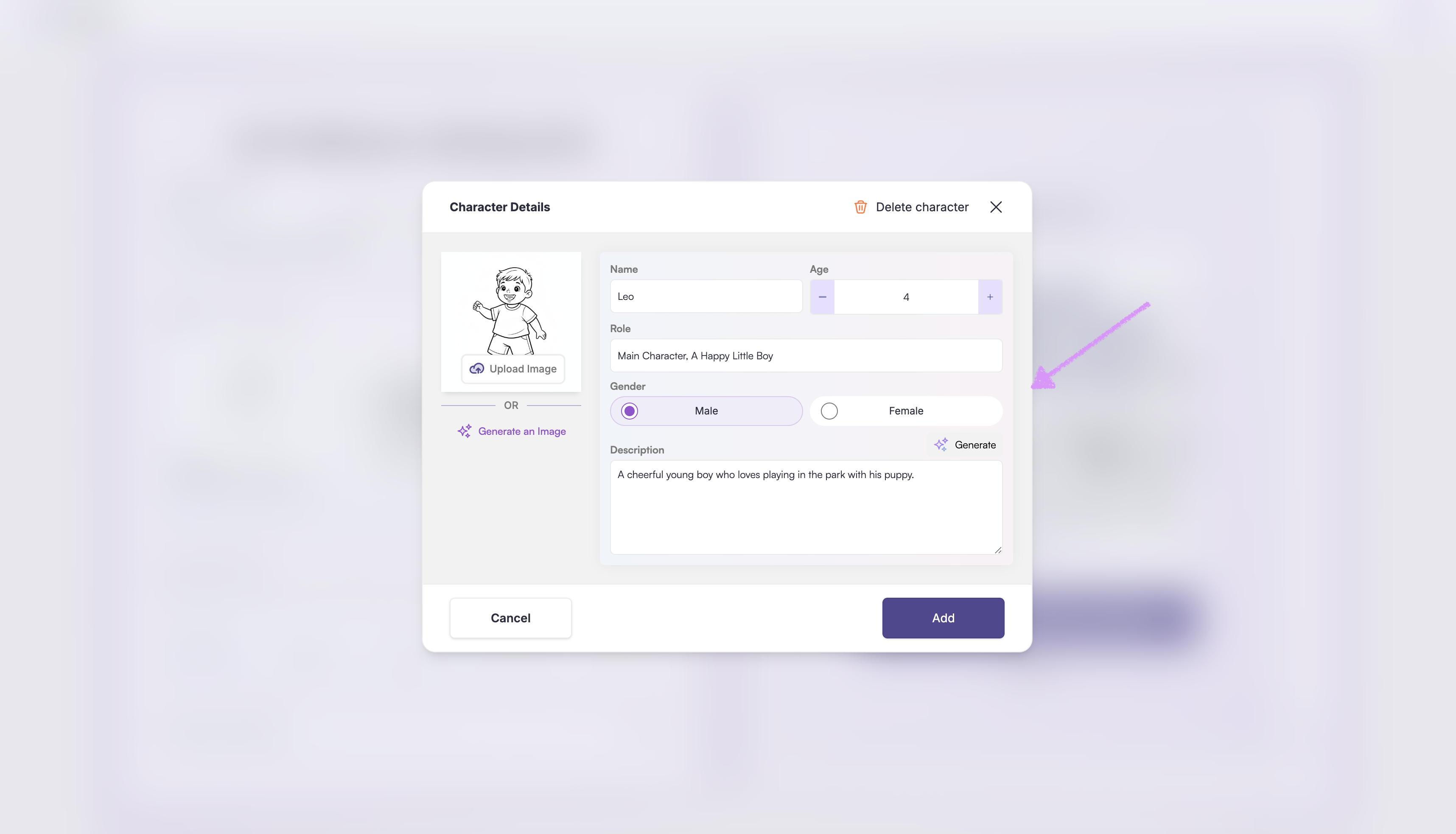
Need help with your character’s description? Use the “Generate” option, and Scrively will create a character description for you!
Note: When filling out the character(s) description don’t hold back on the details! The more information you provide such as their appearance, clothing, setting, and mood, the more accurate and creative your generated images will be. Think of it as painting a picture with words. 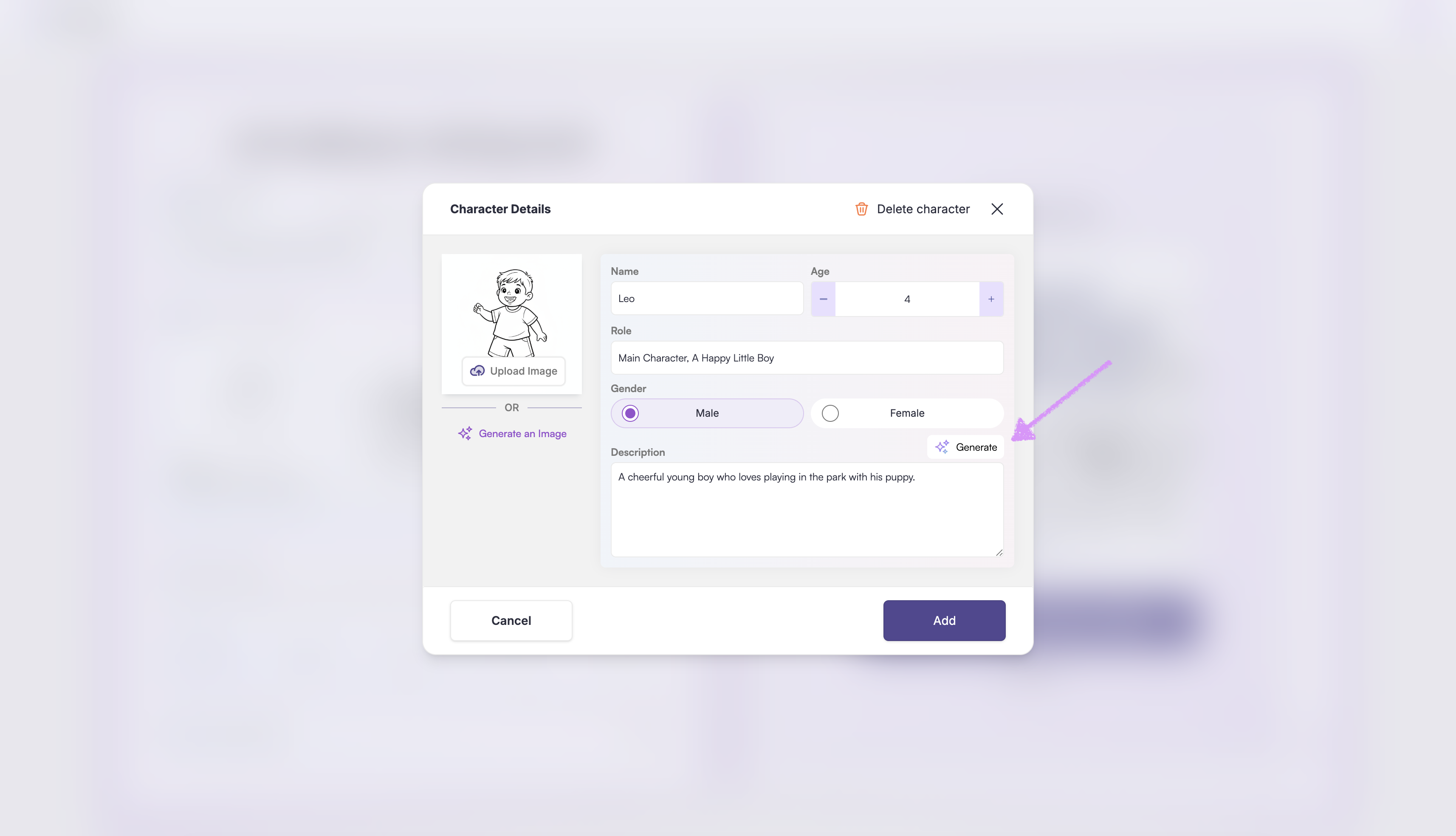
When using the option to "Generate an Image" the visual traits of the character will be populated which you can make adjustments to if needed.
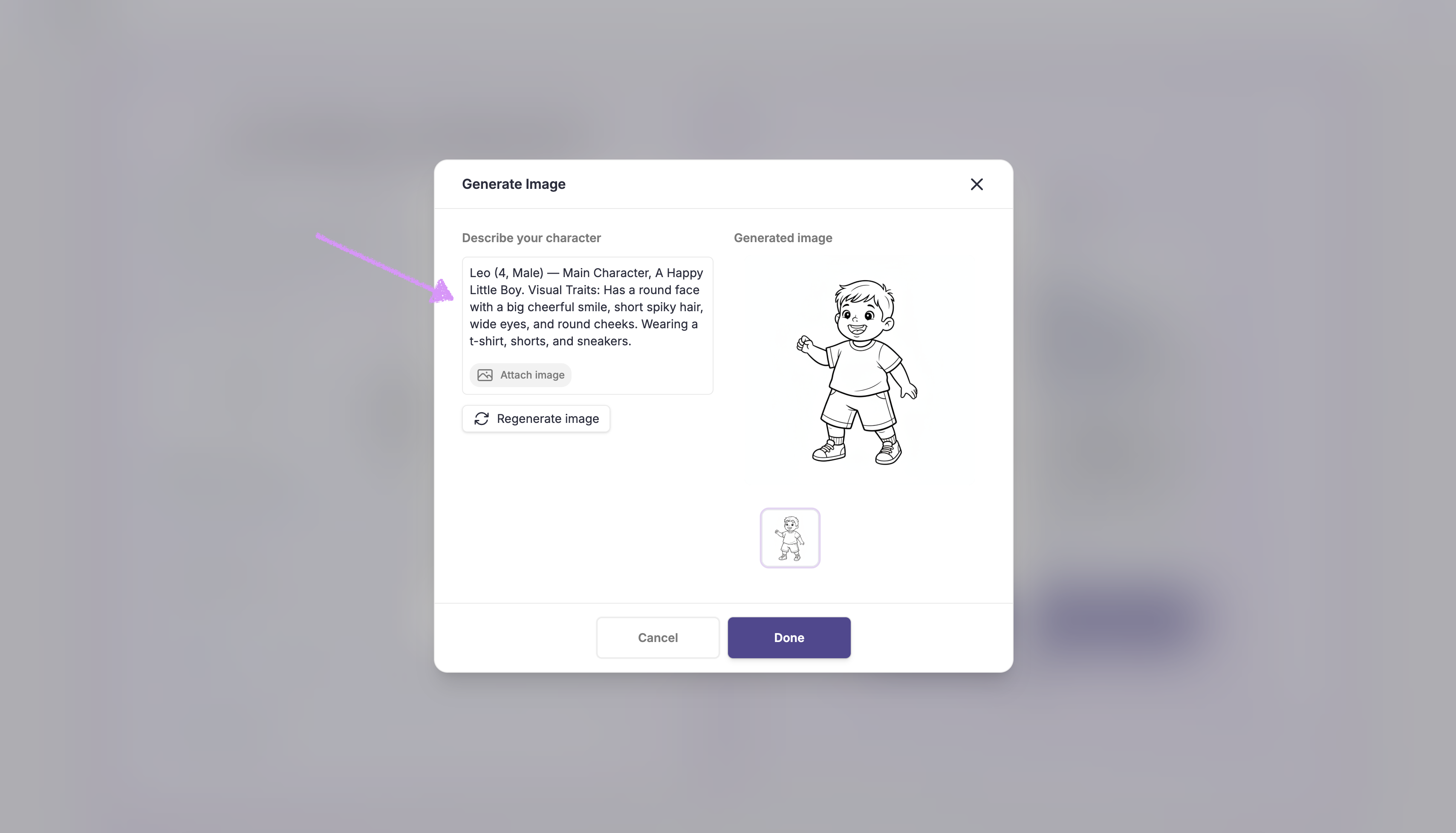
If you have a character image you'd like to use as a reference, click on "Attach image."
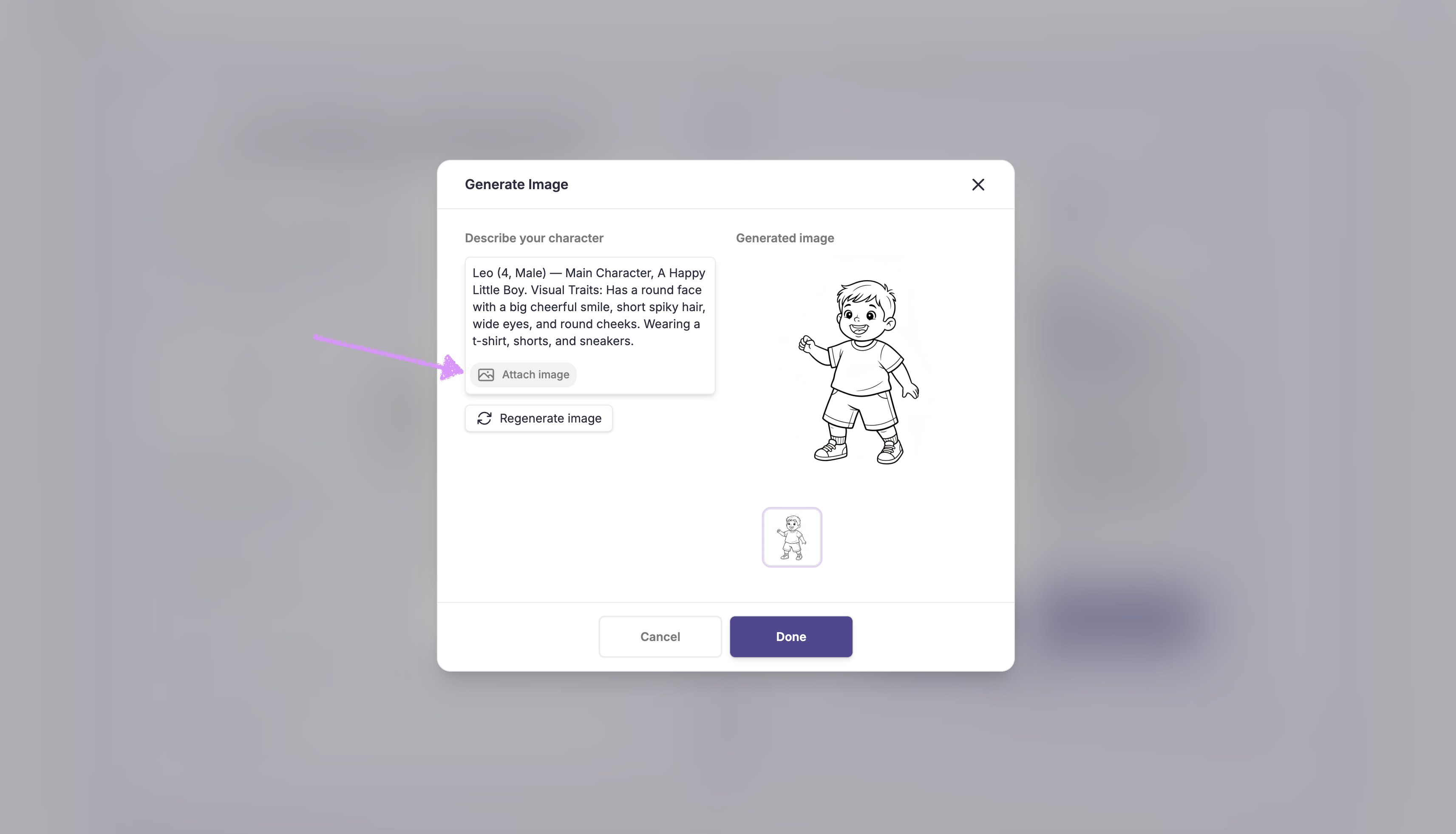
Note: The maximum image file size is 5MB.Use a reference image with a character's visual traits. If you haven’t added rich details for the character, now’s the perfect time. The more specific and vivid your input, the better the results. Try including unique features, settings, moods, or visual elements to guide the image generation.
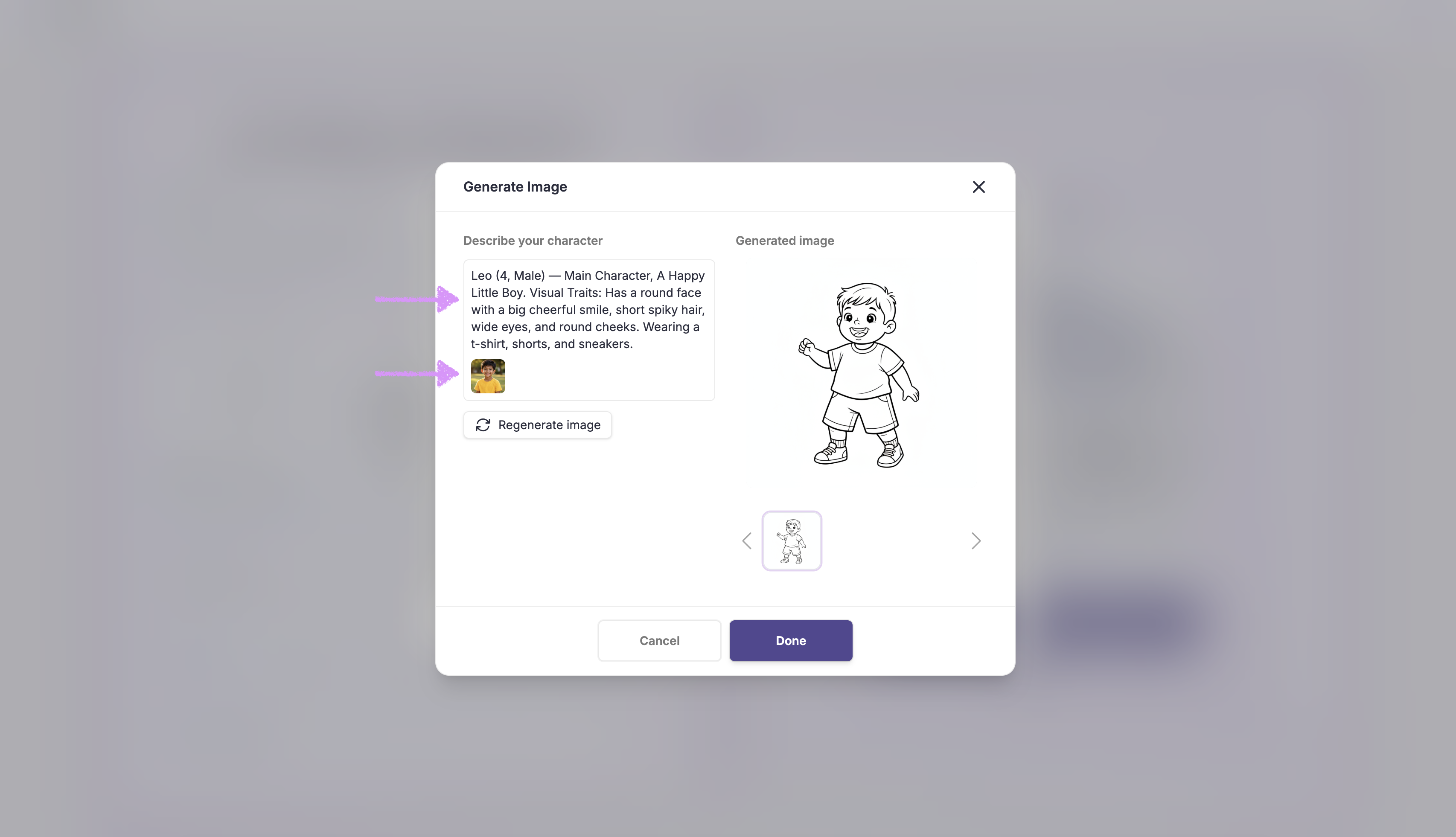
Click on "Regenerate image" based on where you are in the character image creation step.
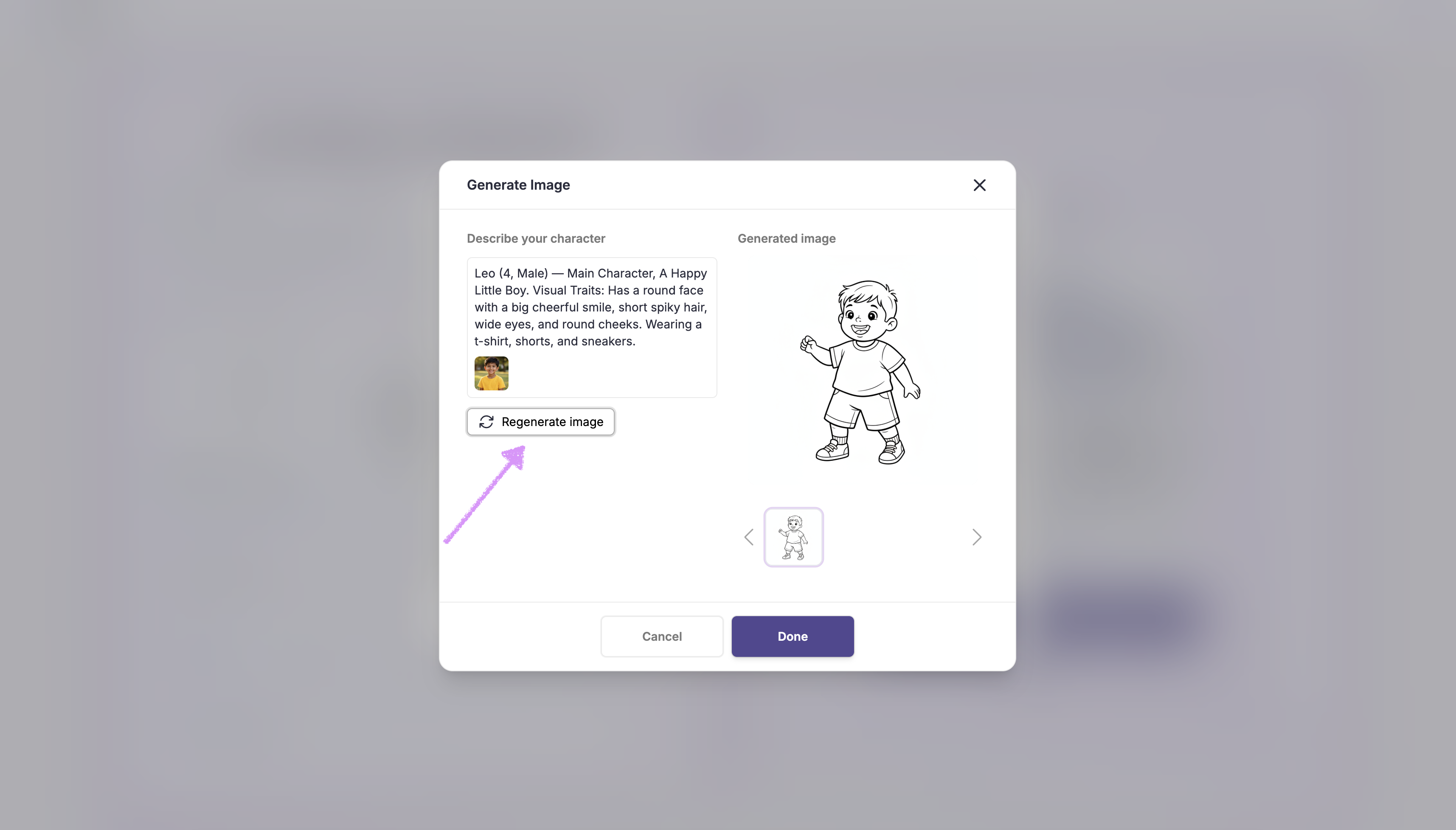
Scrively will take a few moments to think.
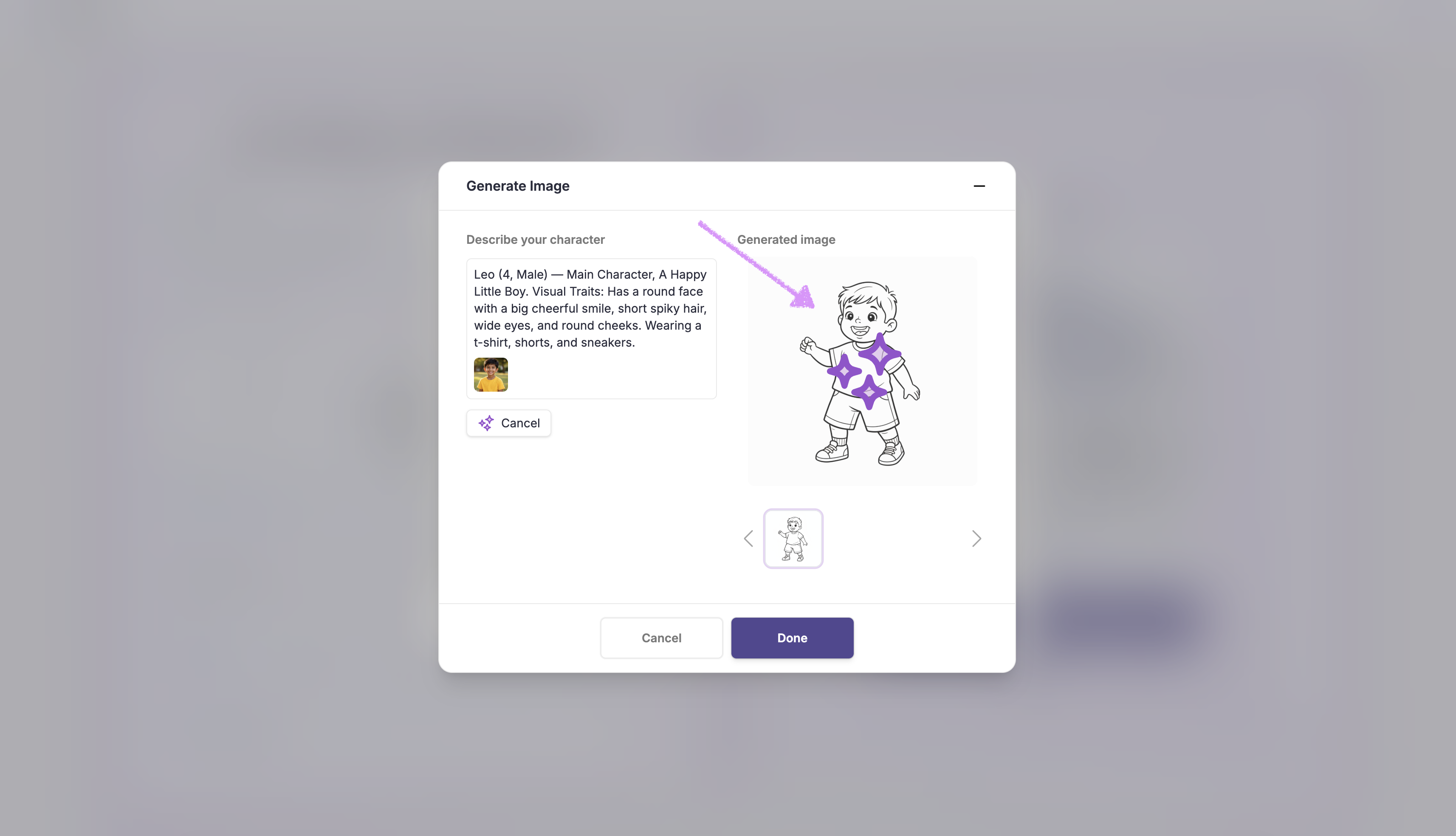
Just below the generated image, you’ll find all the character variations created from your prompt.
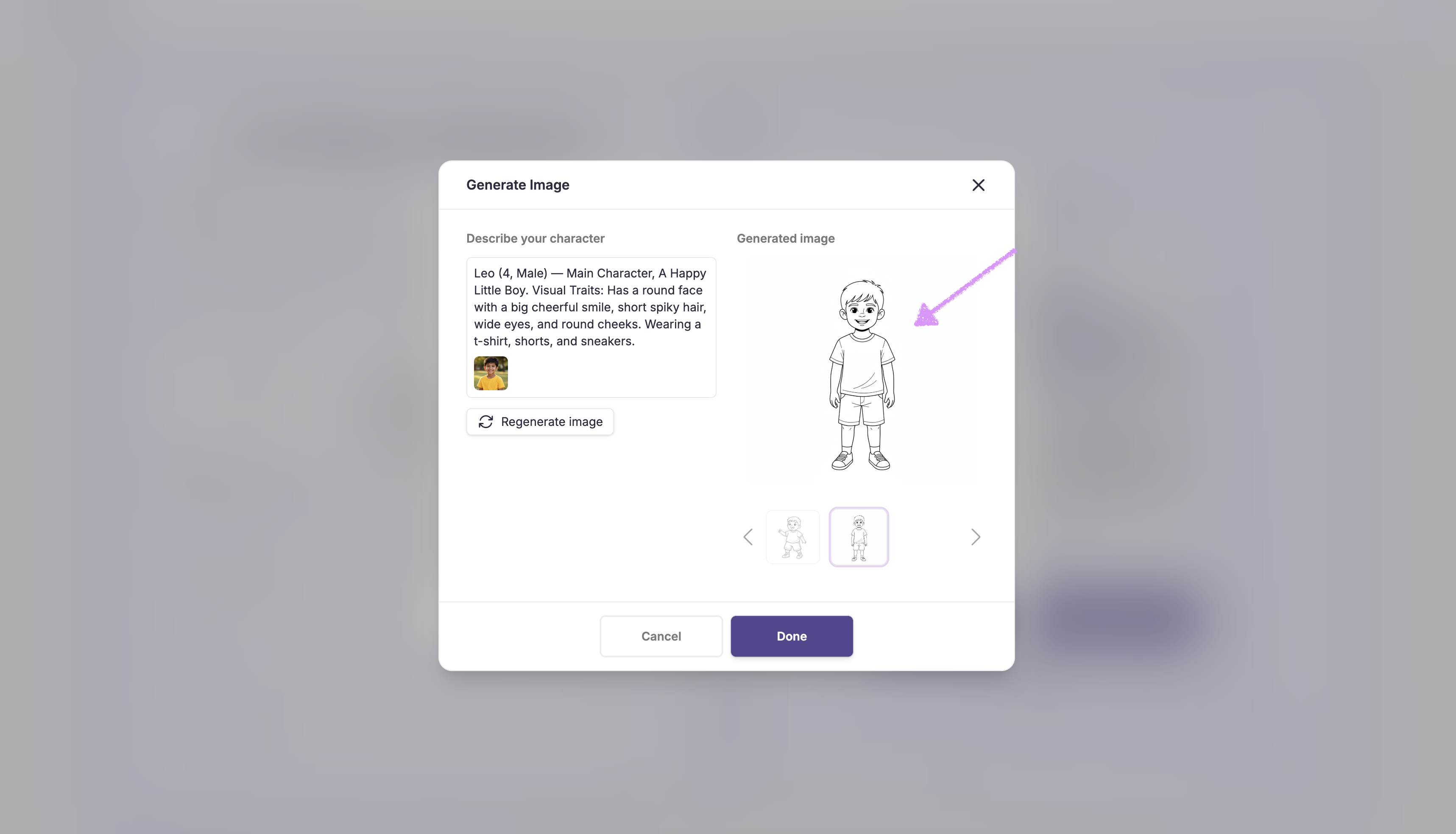
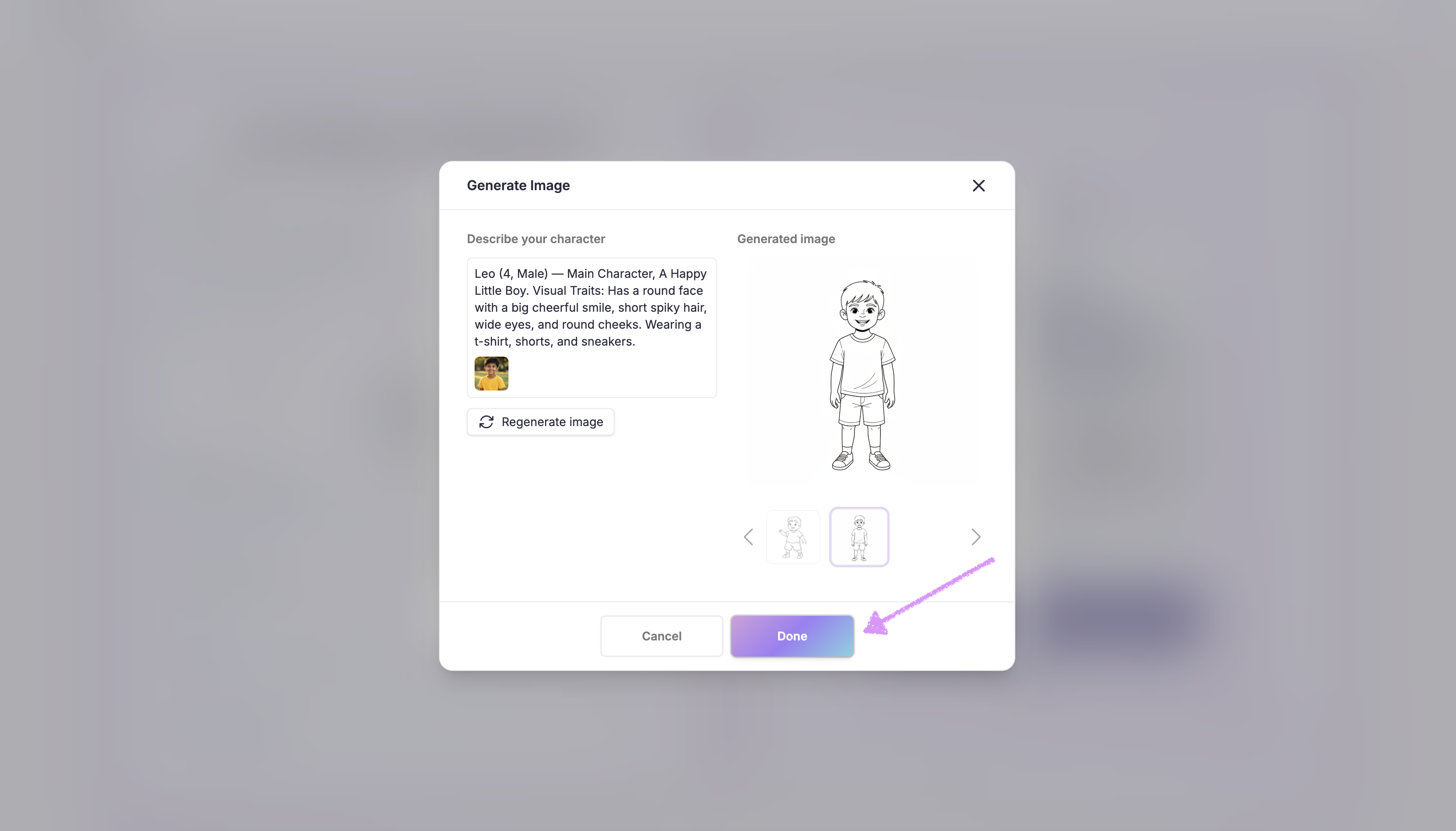
When you're satisfied click on "Done" and the image will be automatically saved for the character.
Click on "Add" to ensure that your updates are saved.
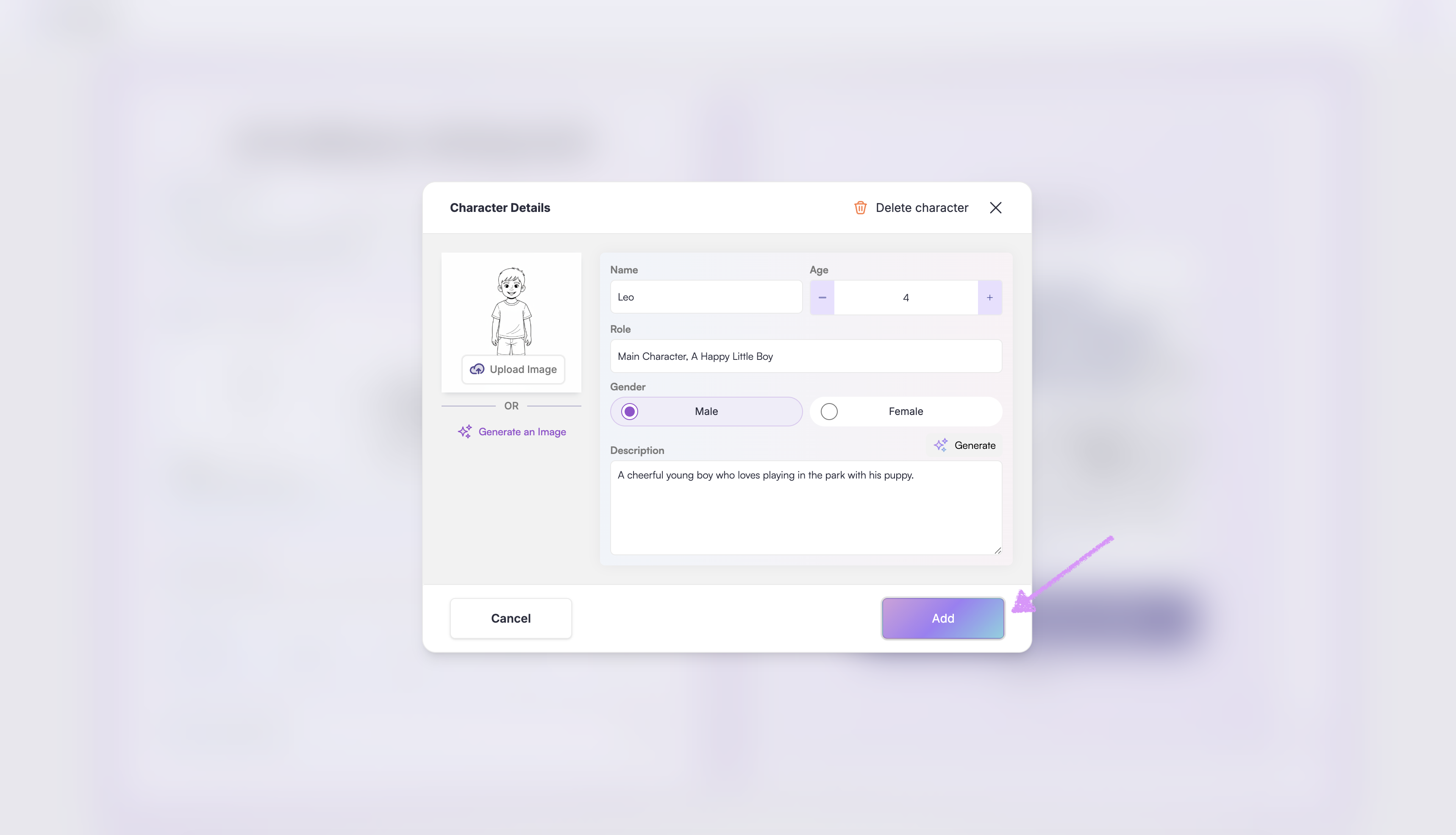
If any required character details are missing, you won’t be able to proceed with saving the character.
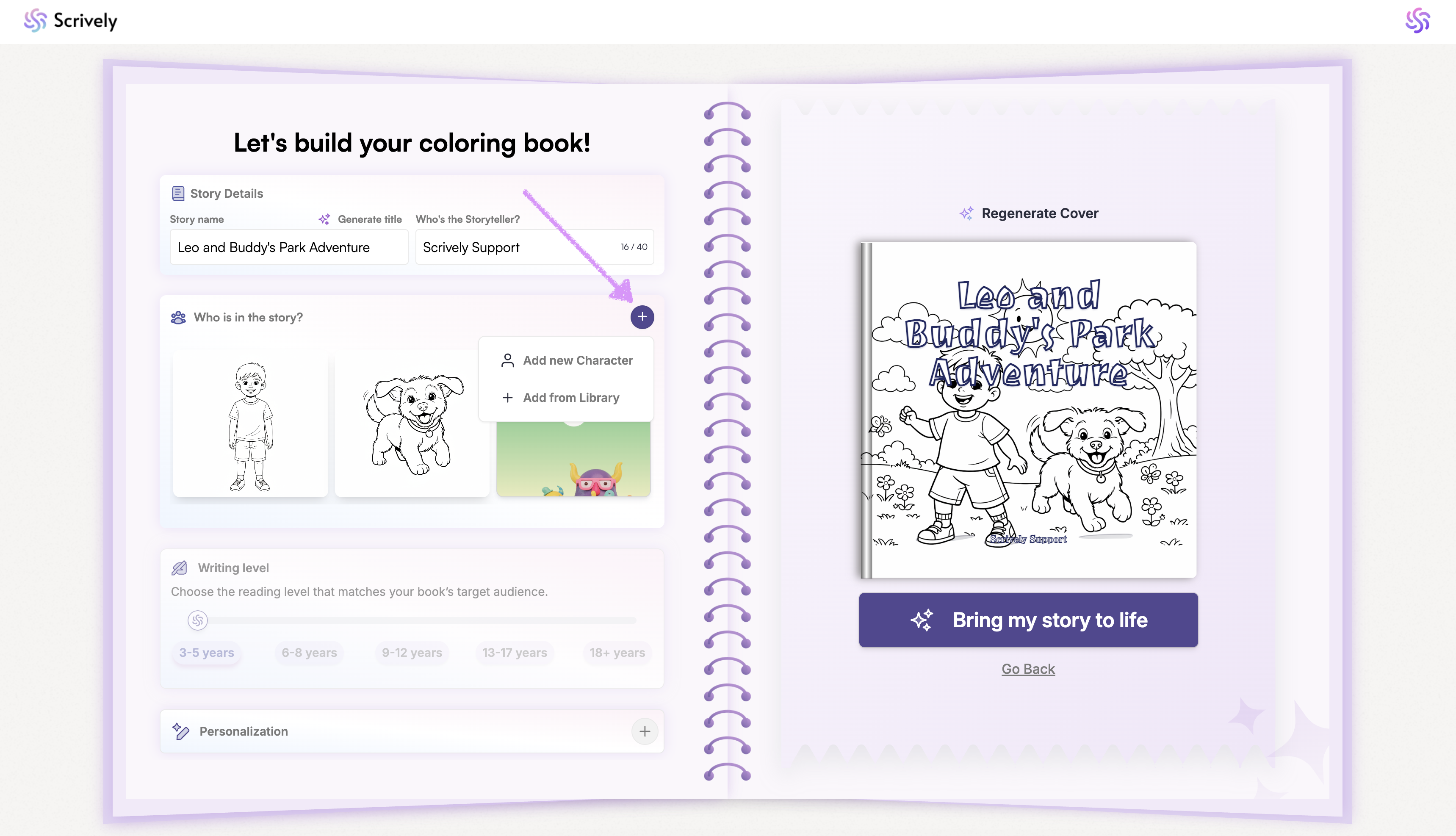
To add more characters to your story, click the "+" icon above the characters list, then select "Add new Character."
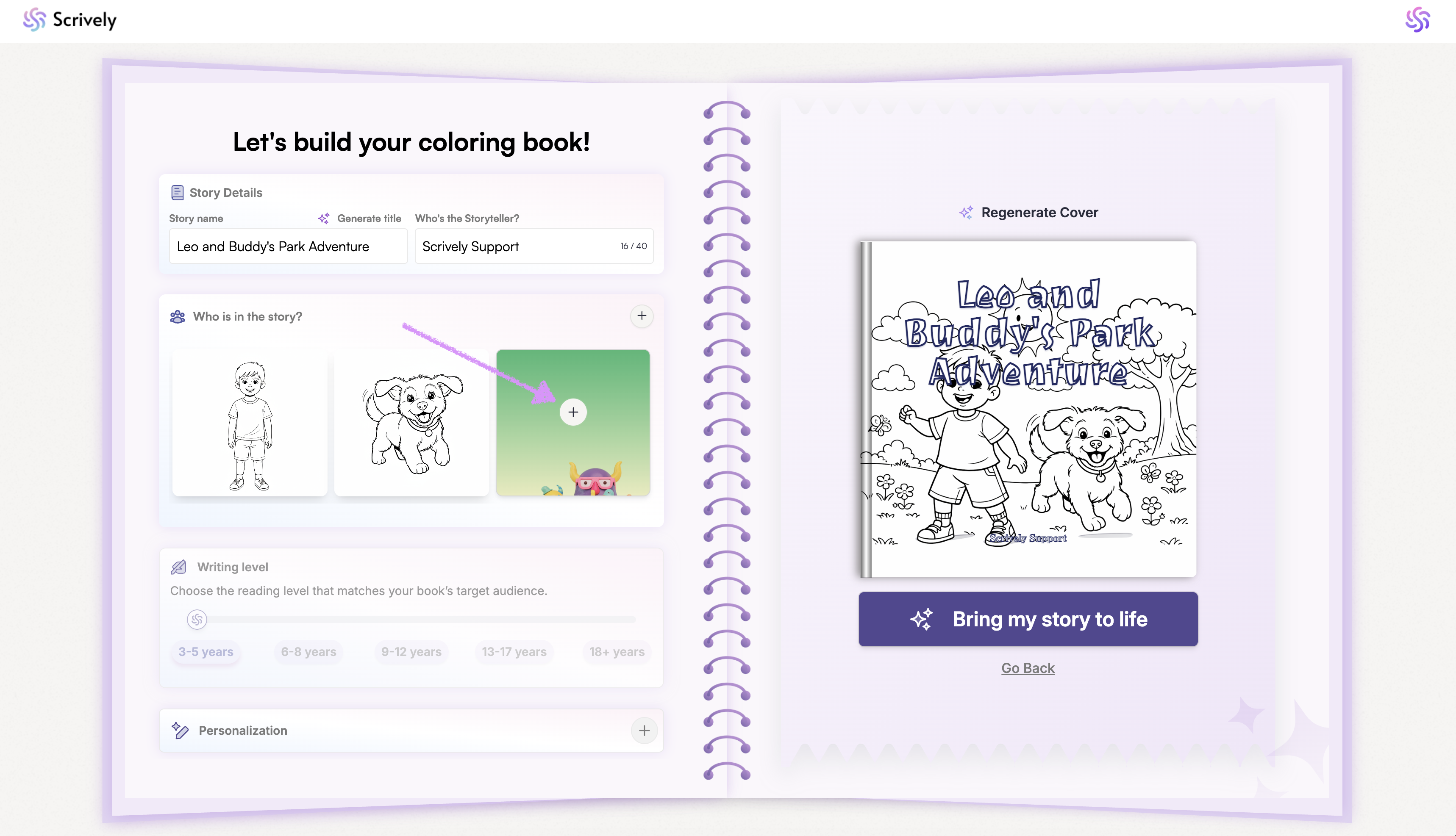
Or use the "+" icon above the empty character card.
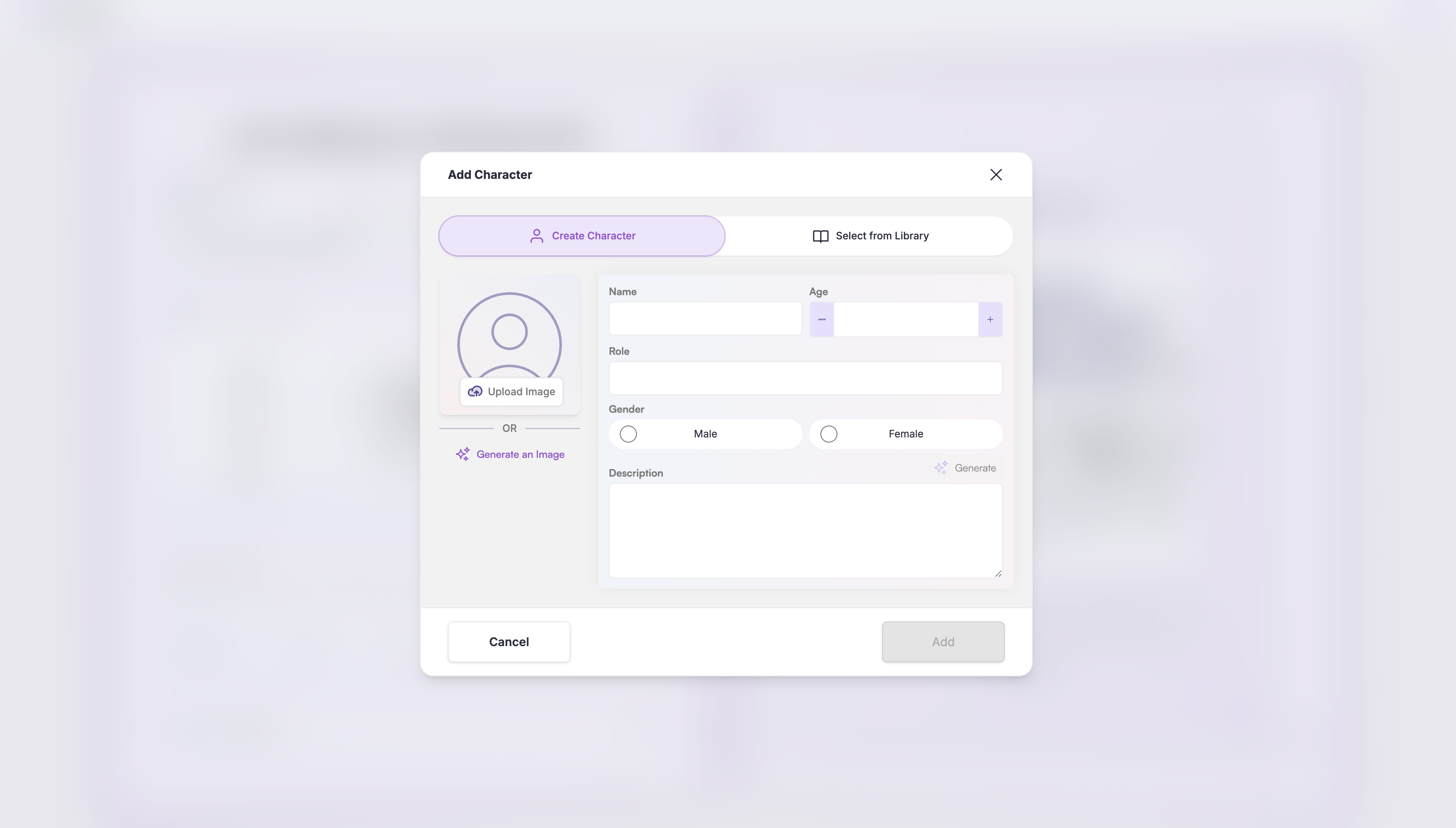
Similar to automatically generated characters, you can add an image along with details such as name, role, gender, age, and a description.
Want to add a character from your library? Check out our guide here to learn how.
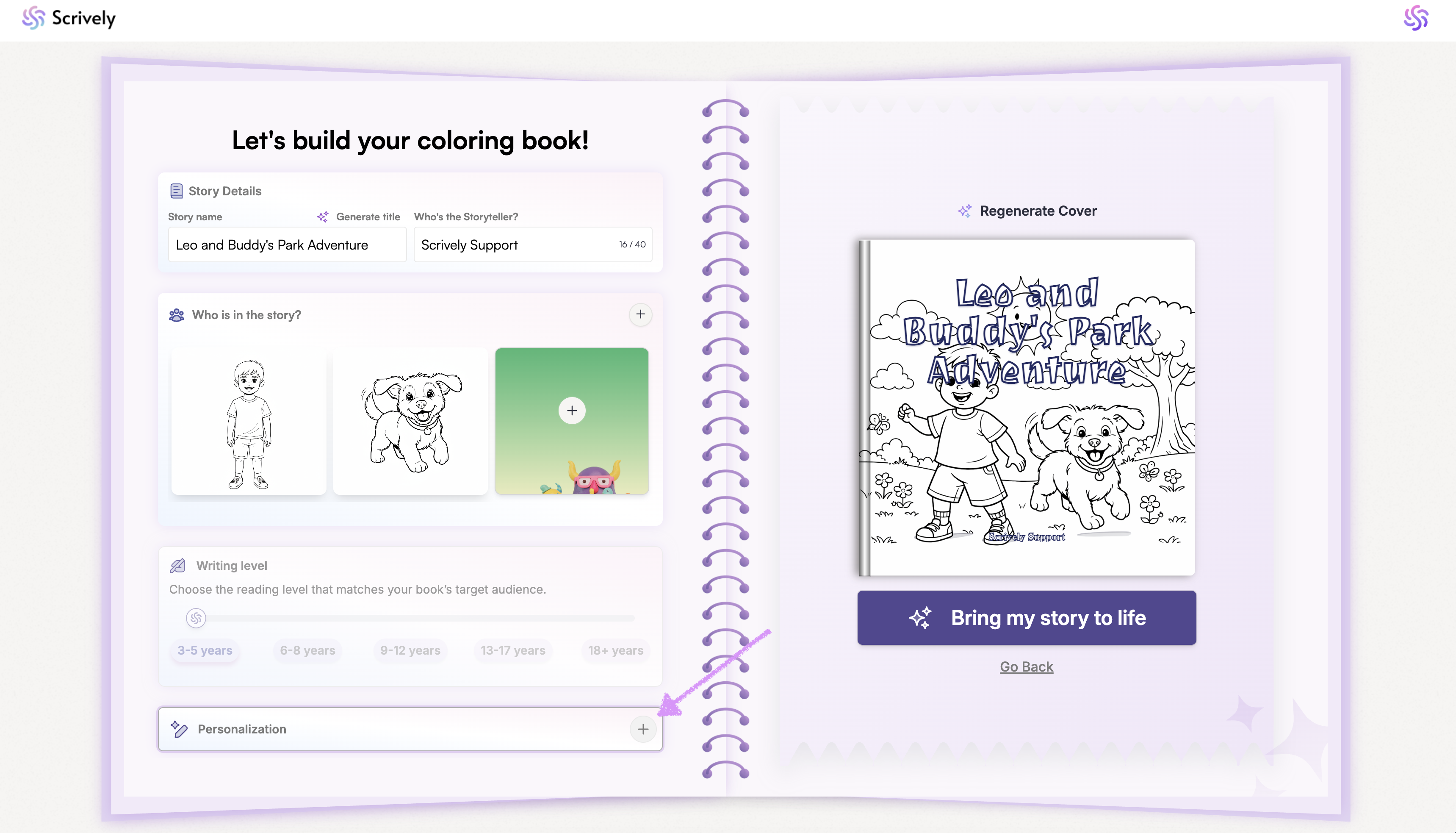
Next, scroll down to "Personalization."
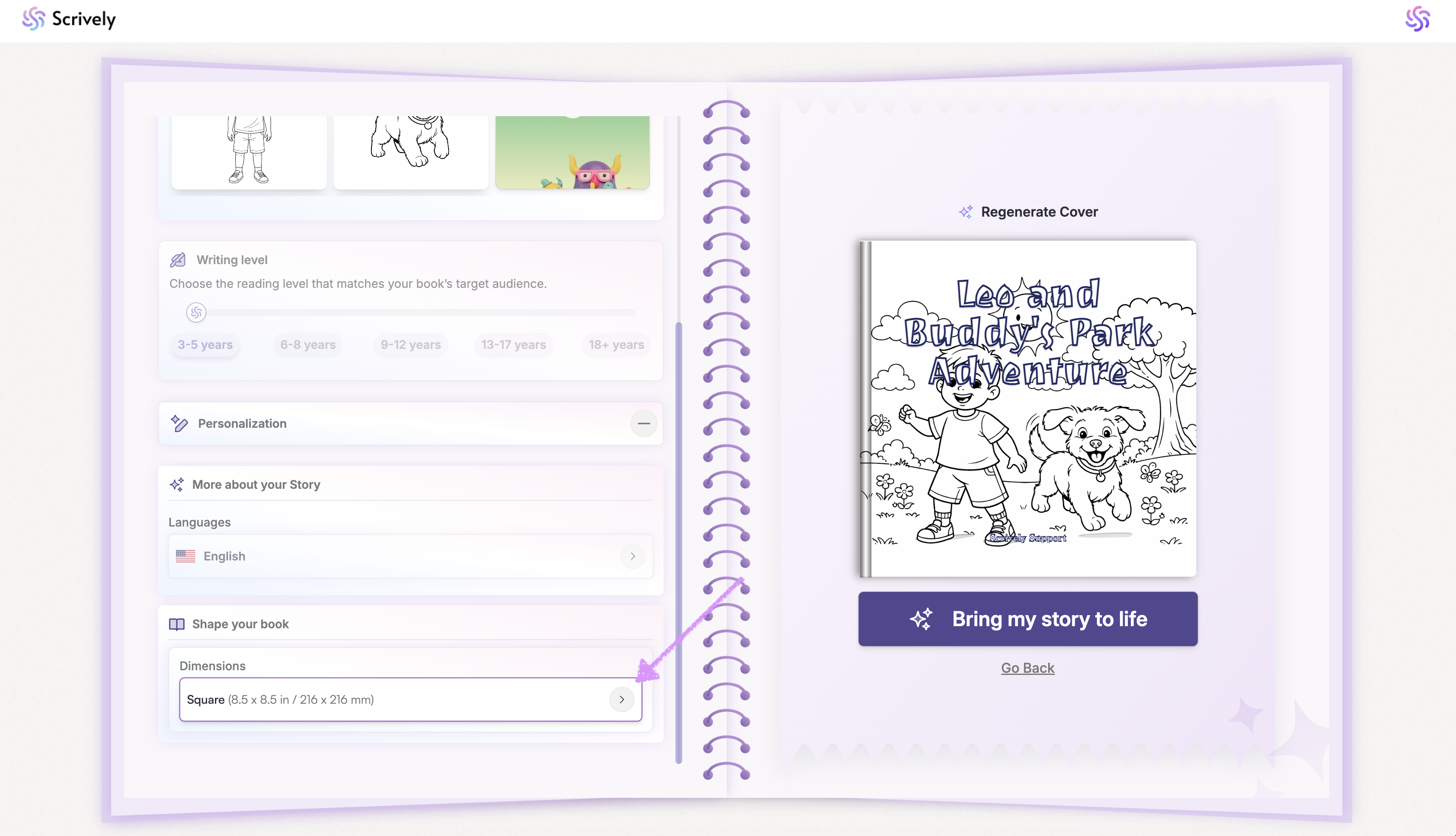
Click on the dimensions dropdown.
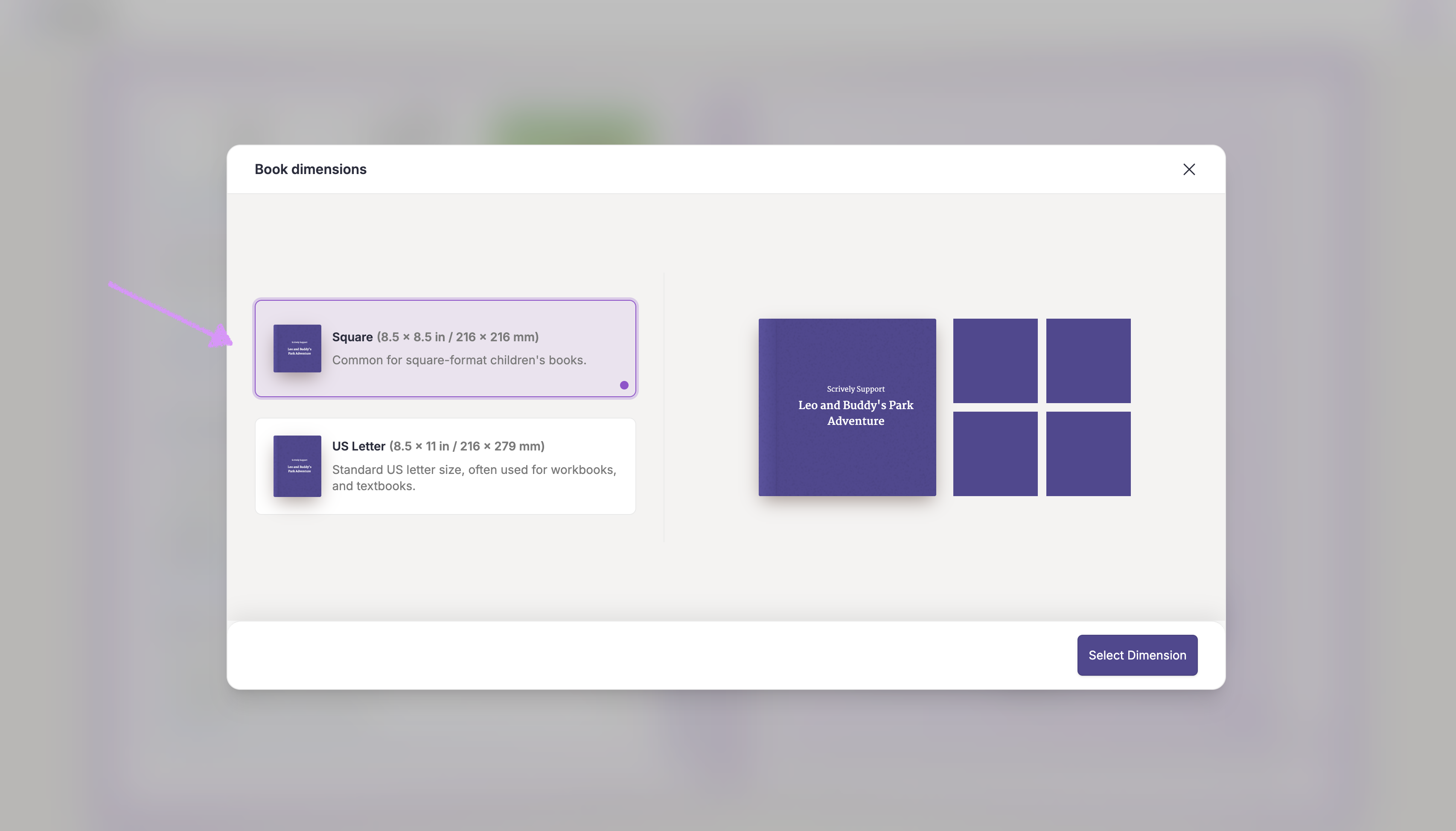
Choose the dimension for your coloring book.
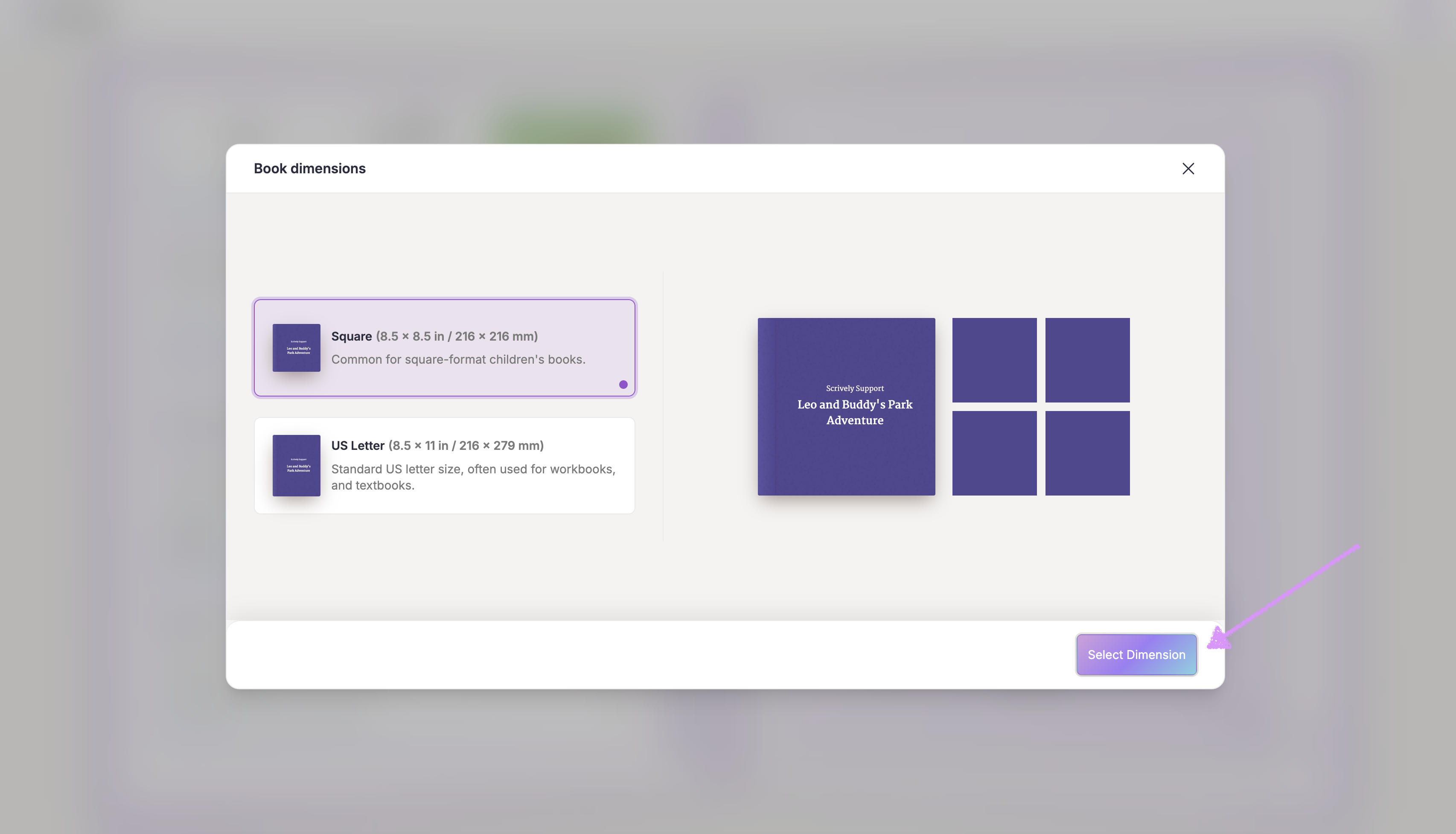
Click on "Select Dimensions."
Was this article helpful?
That’s Great!
Thank you for your feedback
Sorry! We couldn't be helpful
Thank you for your feedback
Feedback sent
We appreciate your effort and will try to fix the article
