
Occasionally, we release updates to Scrively templates to include the latest features, improvements, and fixes. These updates help ensure your templates stay fresh, functional, and aligned with our goal of making Scrively even better.
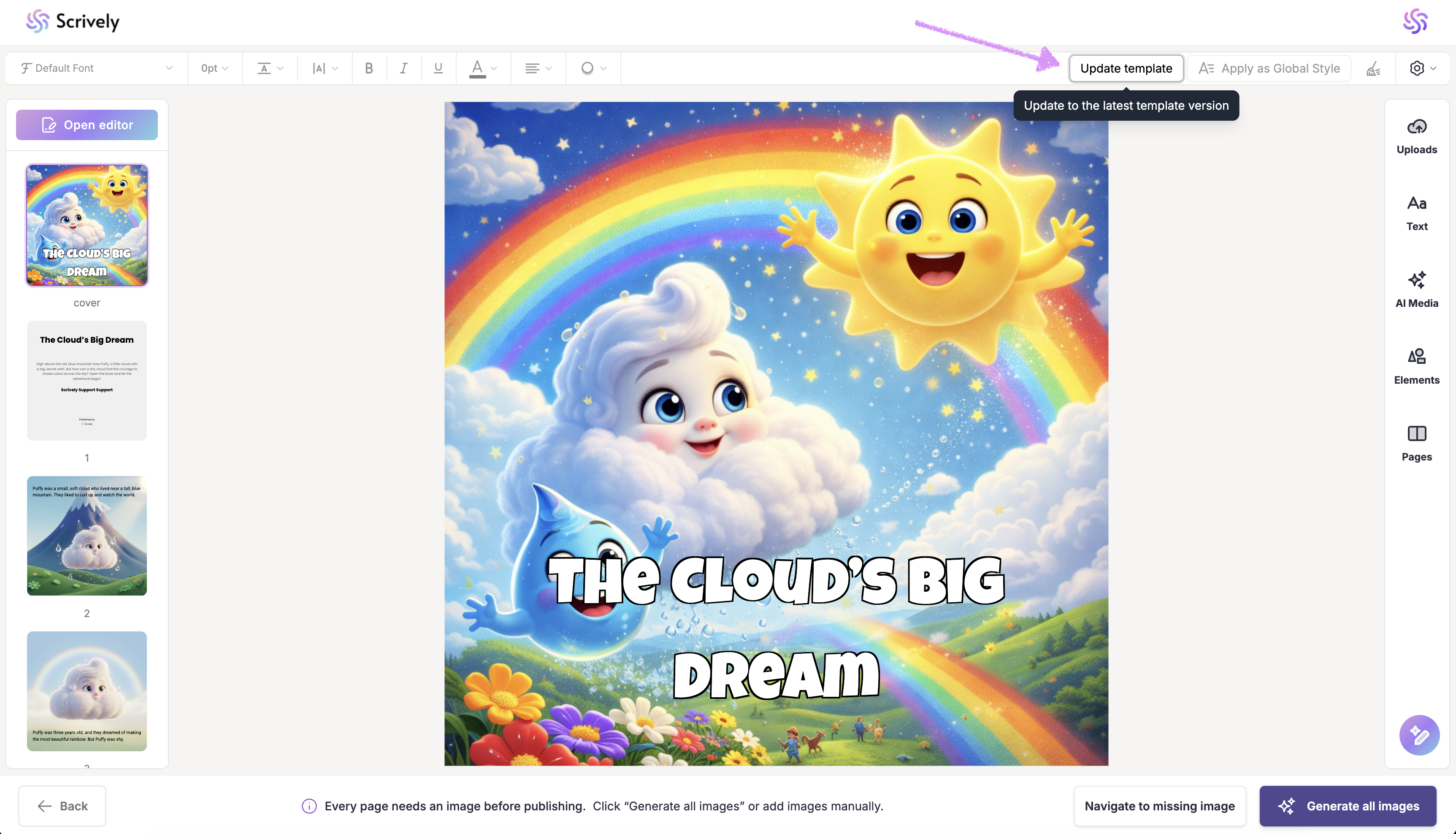
When a template update is available, the "Update template" button will appear in the top-right of the actions menu.
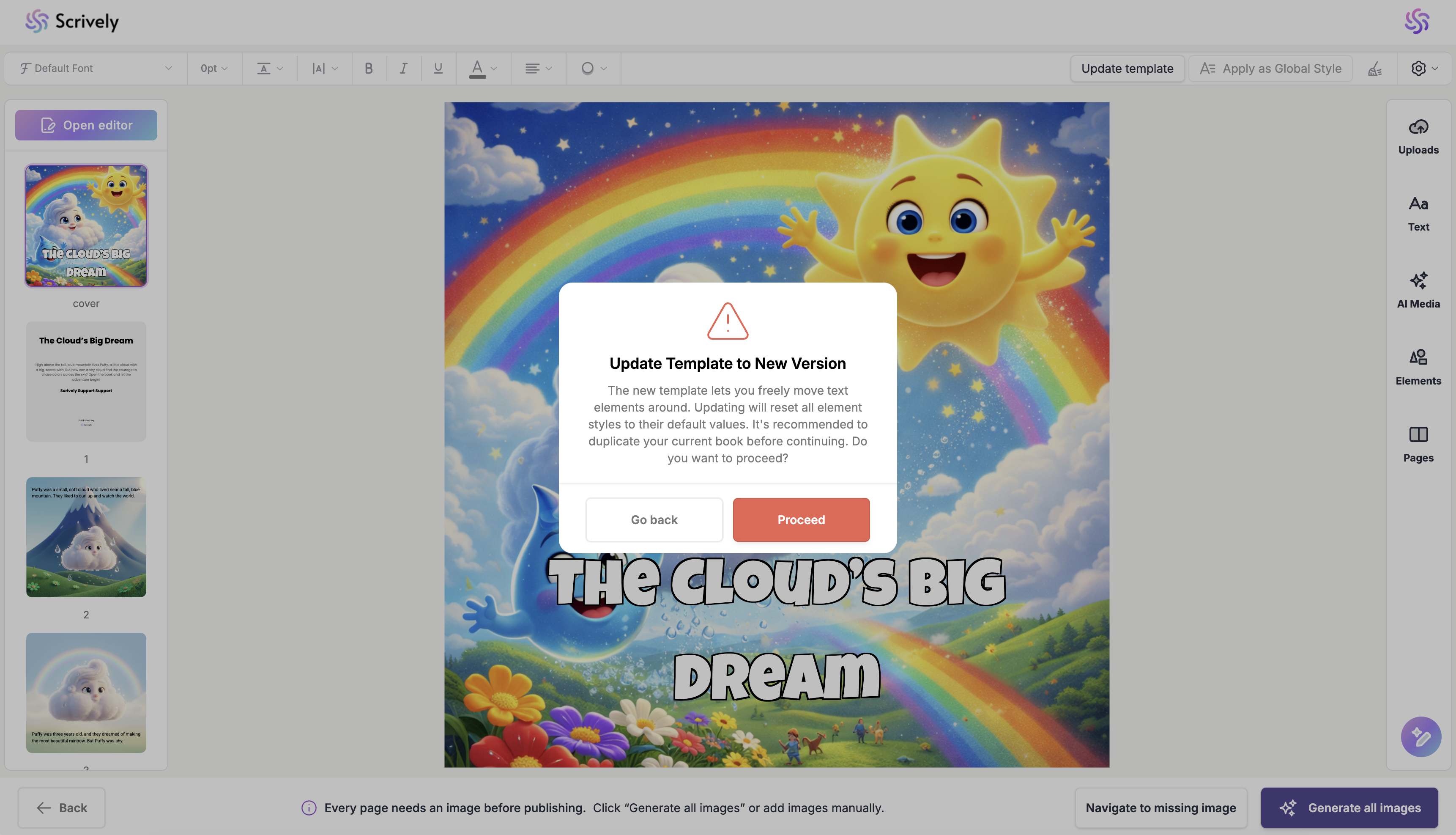
Clicking "Update template" opens a modal showing the details of the update and any expected changes. Click "Proceed" to apply the update, or "Go back" to continue working with the template in its current state.
Was this article helpful?
That’s Great!
Thank you for your feedback
Sorry! We couldn't be helpful
Thank you for your feedback
Feedback sent
We appreciate your effort and will try to fix the article
