Your "Library" is the central hub for all your published stories, making it easy to find, read, and share your creations. Once you’ve finished working on your book in the Designer (book layout view) and publish it (steps outlined in our guide here), it will automatically appear in your library. By default, the book is set to private until you choose to change it.
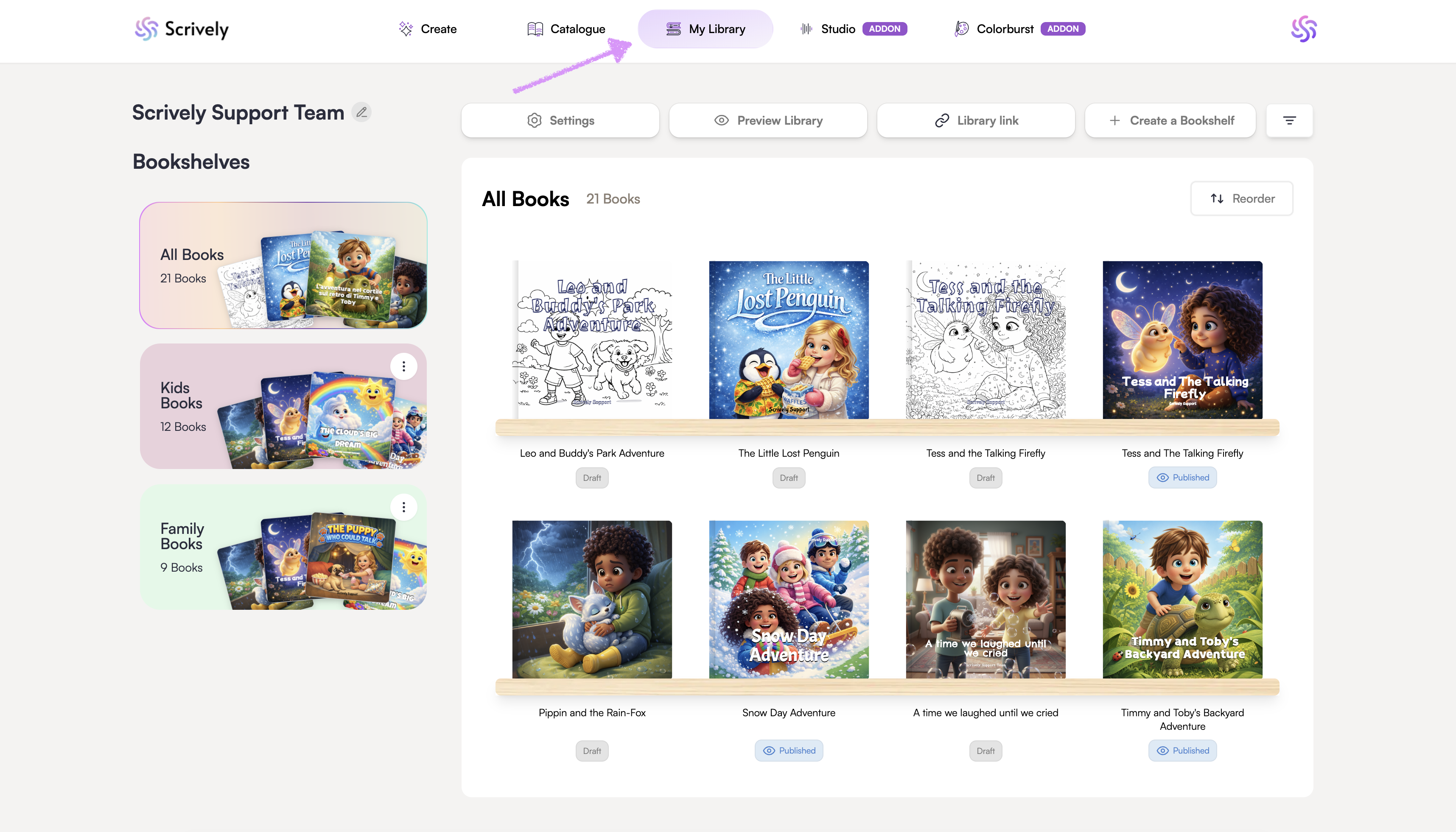
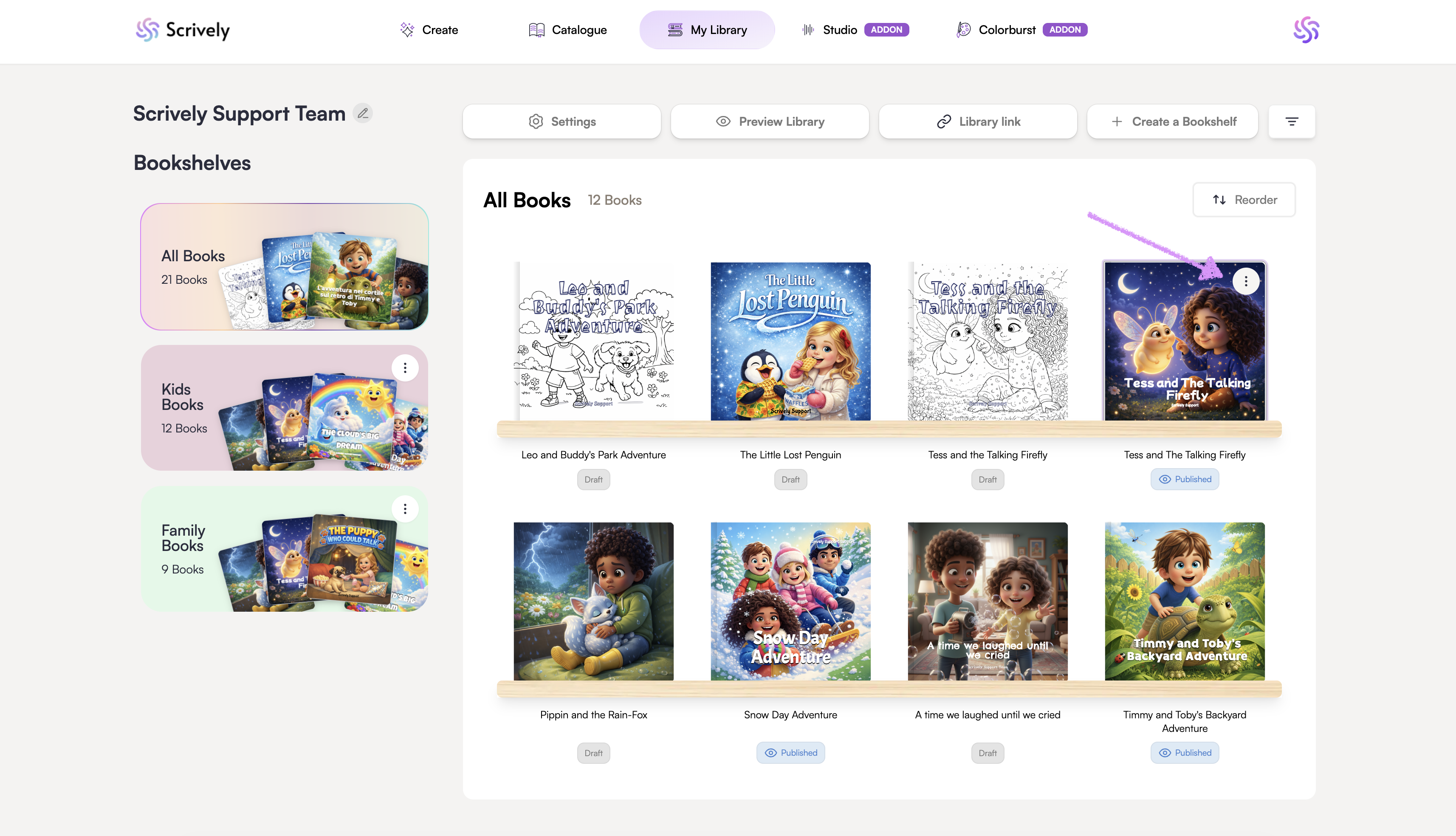
Head over to the "My Library" tab. A complete view of all books you’ve published will be displayed allowing you to browse and manage them with ease.
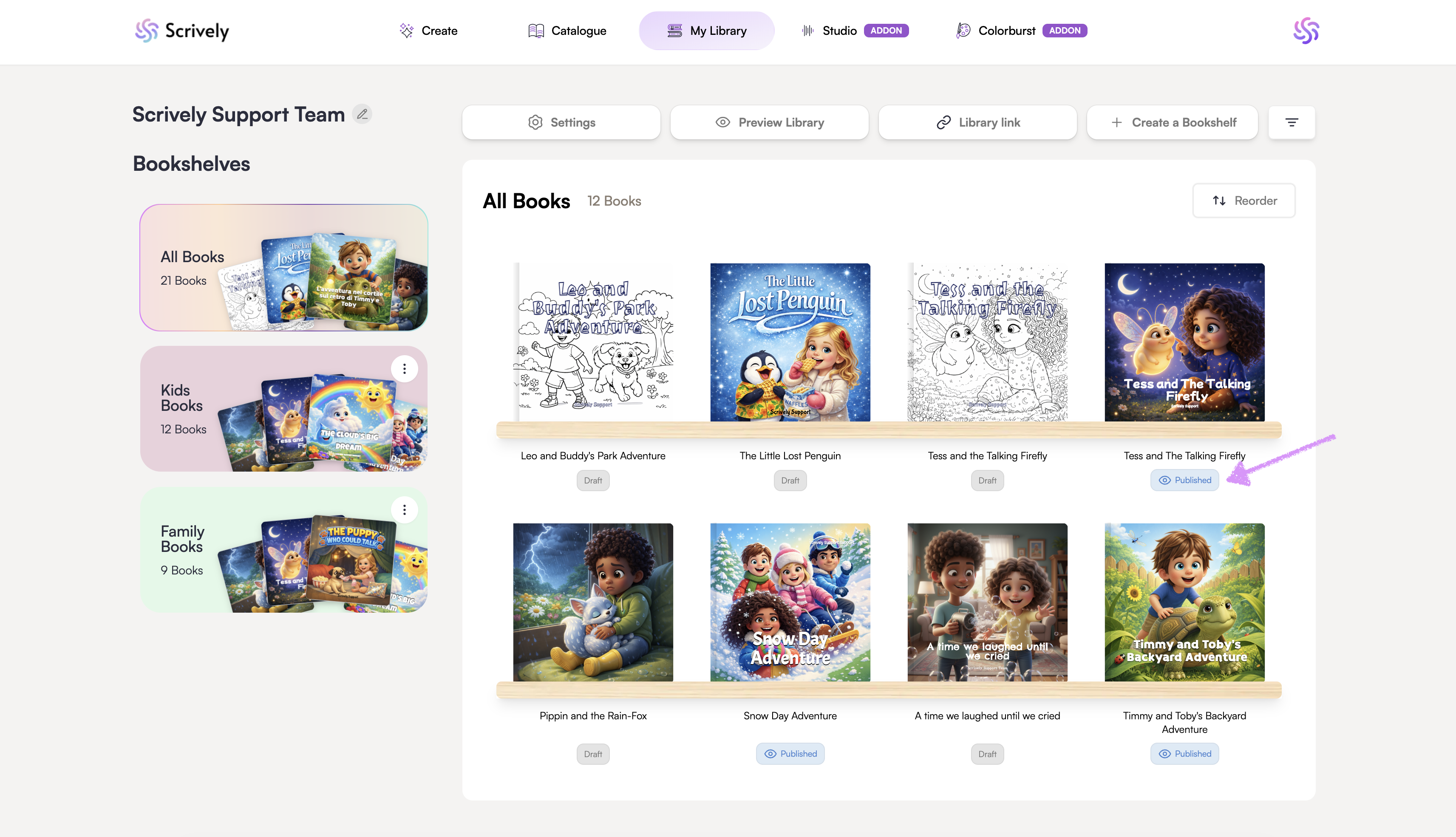
Books that have been set to public will display with a view icon and a "Public" status.
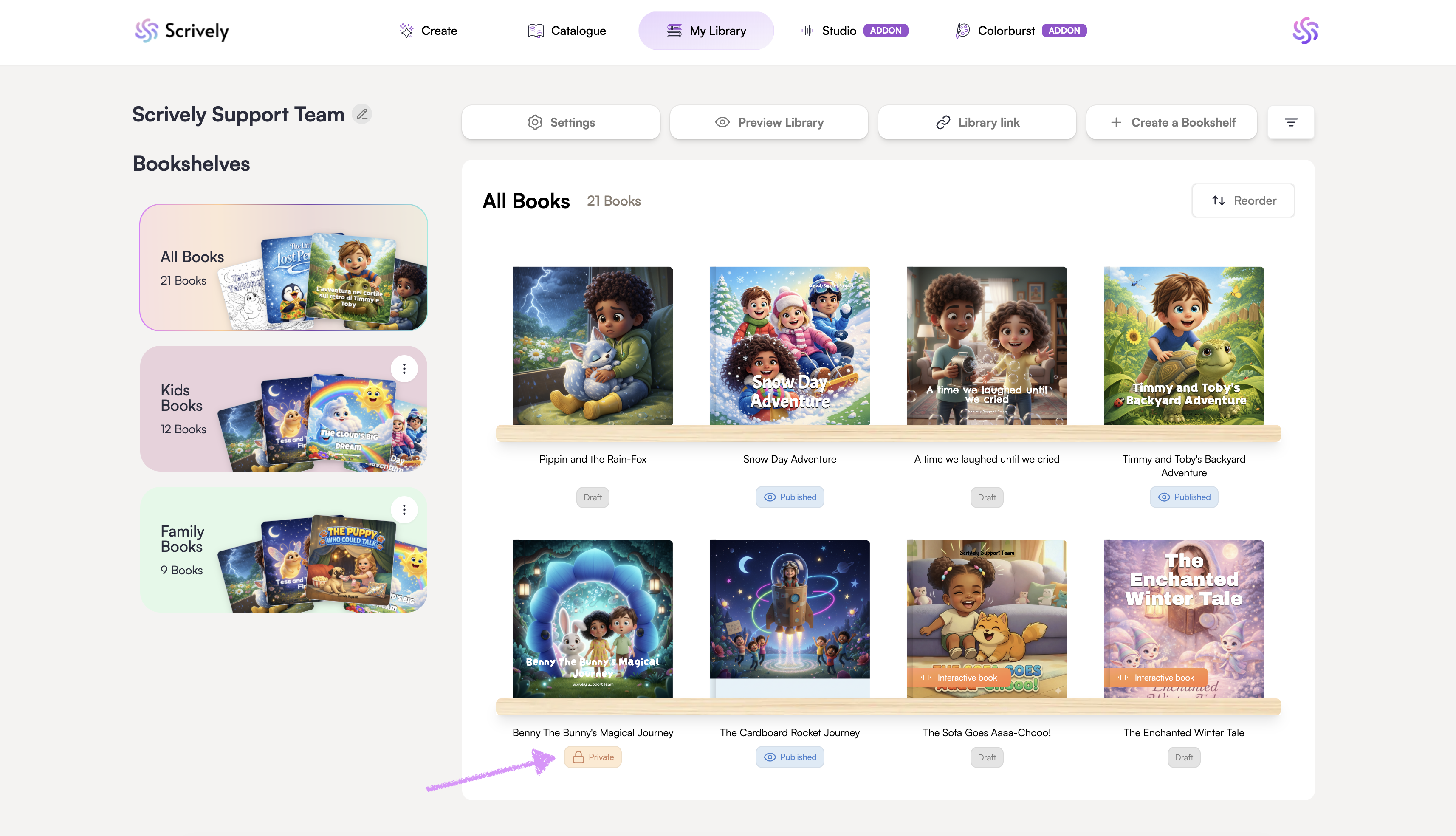
Books that have been set to private will be displayed with a lock icon and a "Private" status.
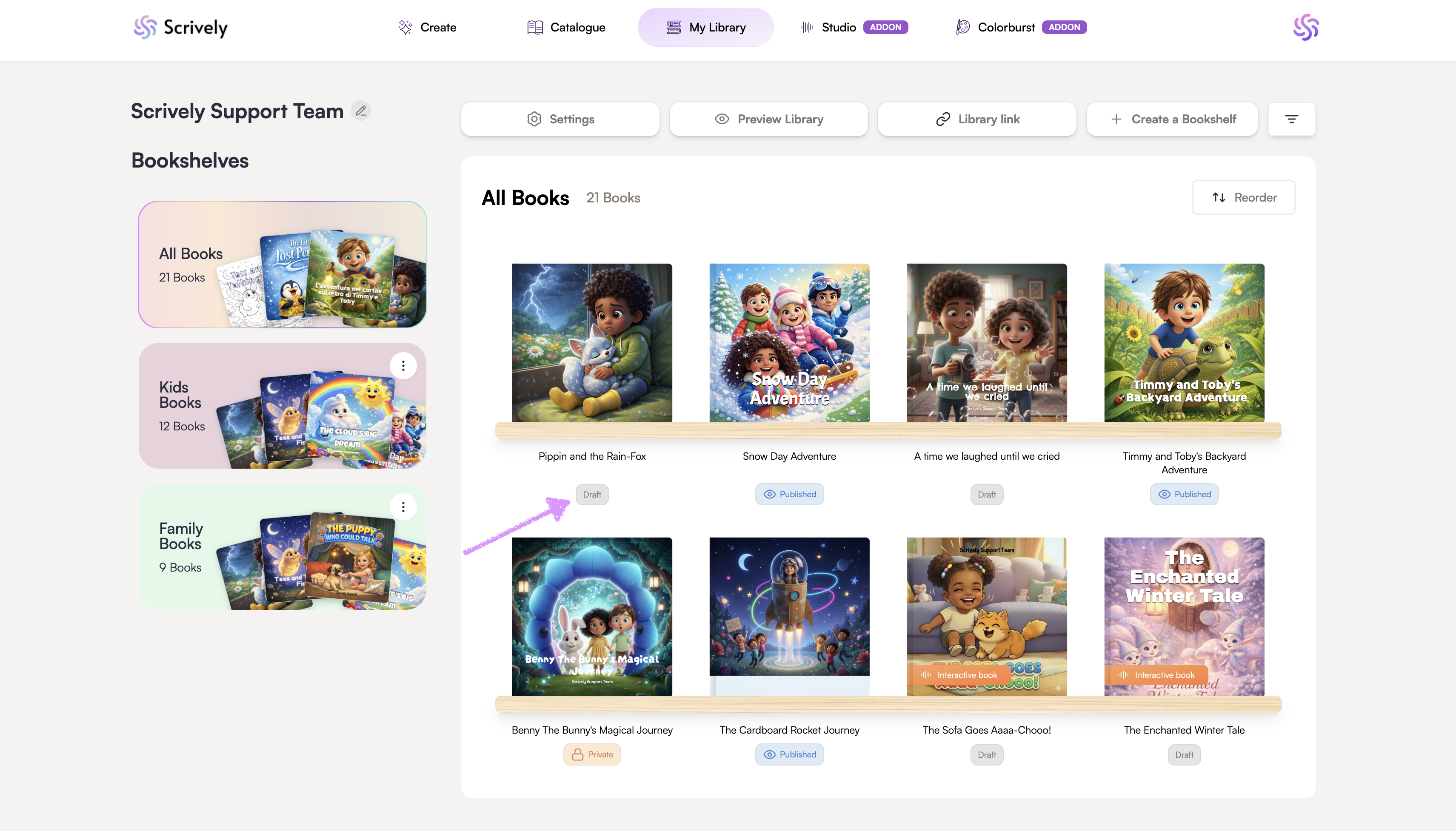
Books that have not yet been published will have a "Draft" status.
Hover over the book to reveal the ellipsis menu.
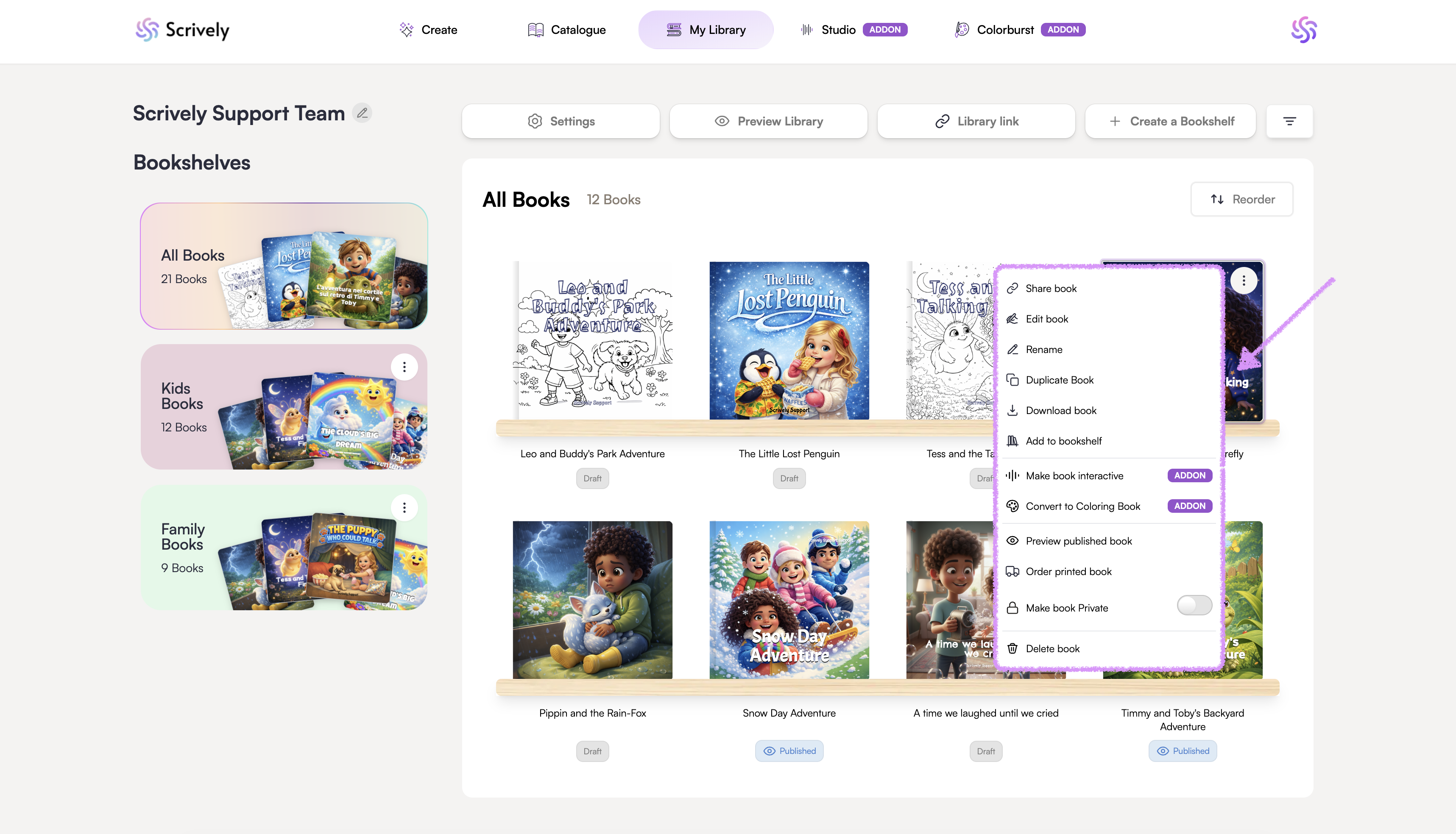
The book's menu option lets you share, edit, rename or duplicate your book, download as a PDF or EPUB, download the book's cover pages and audio, add to bookshelf, open in Studio (add-on), convert to a coloring book in ColorBurst (add-on), preview the published book on your shareable bookshelf, order printed copies, set your book to private, or delete it.
Was this article helpful?
That’s Great!
Thank you for your feedback
Sorry! We couldn't be helpful
Thank you for your feedback
Feedback sent
We appreciate your effort and will try to fix the article
