The back cover of your book is more than just a finishing touch, it’s your final pitch to the reader. With Scrively, you can craft a compelling story summary, add an engaging author bio, and customize the visual design to match your book’s overall aesthetic. Whether you’re aiming for something mysterious, heartfelt, or informative, Scrively’s easy-to-use tools help you create a back cover that leaves a lasting impression.
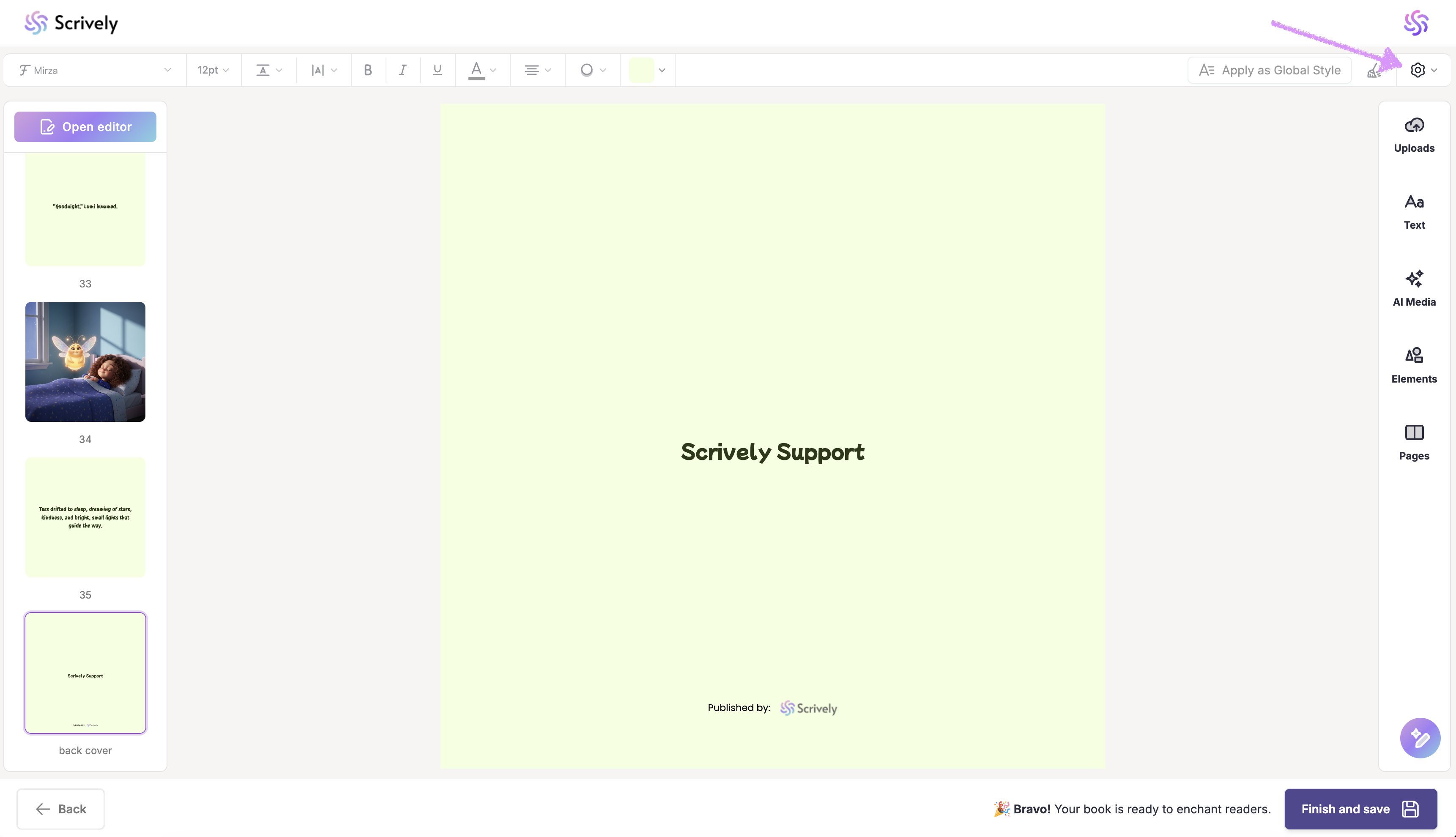
In the Designer (book layout view) navigate to your book's back cover page then, click on the settings gear in the top right side of the quick actions menu.
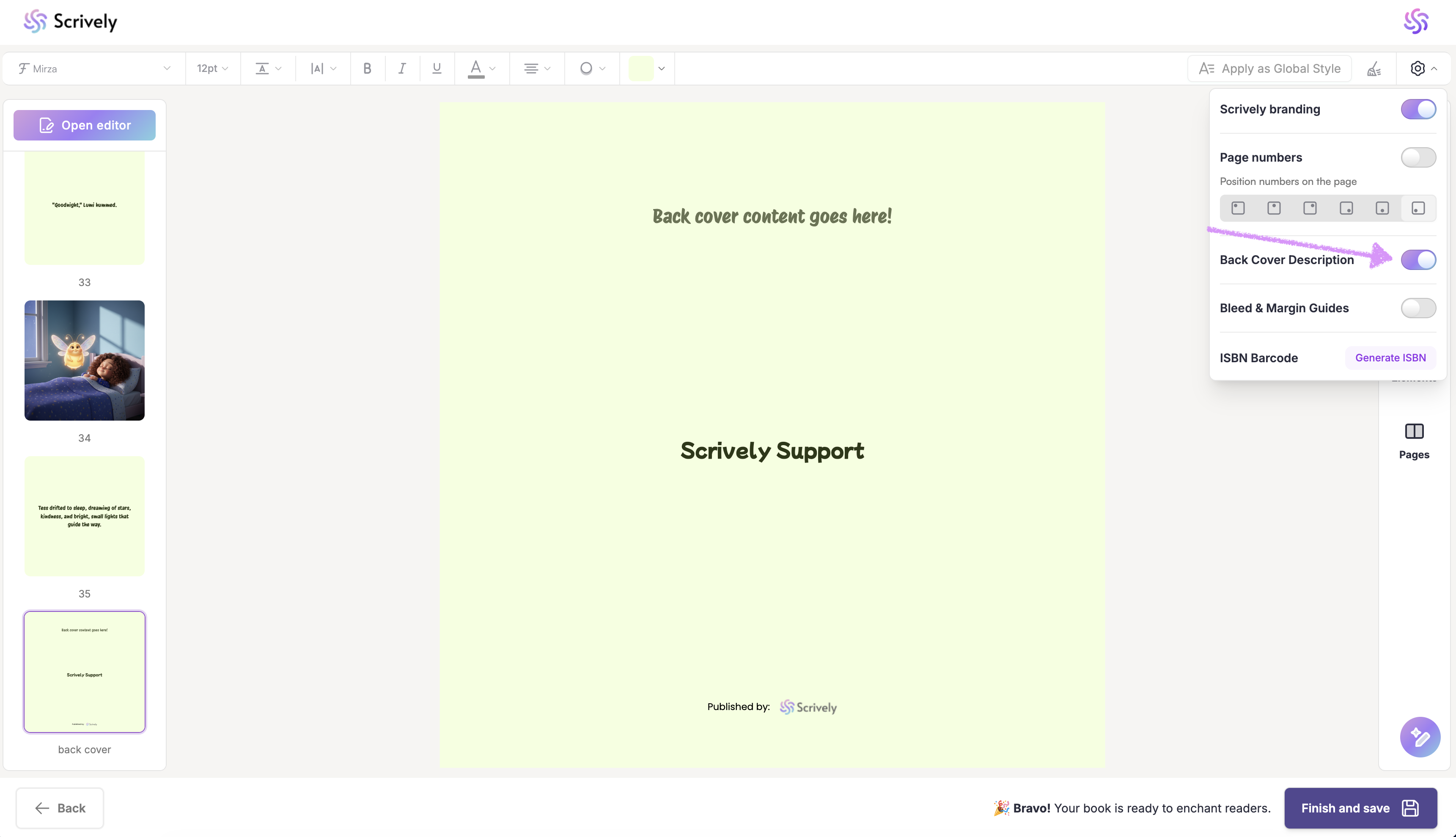
Toggle the "Back Cover Description" setting on.
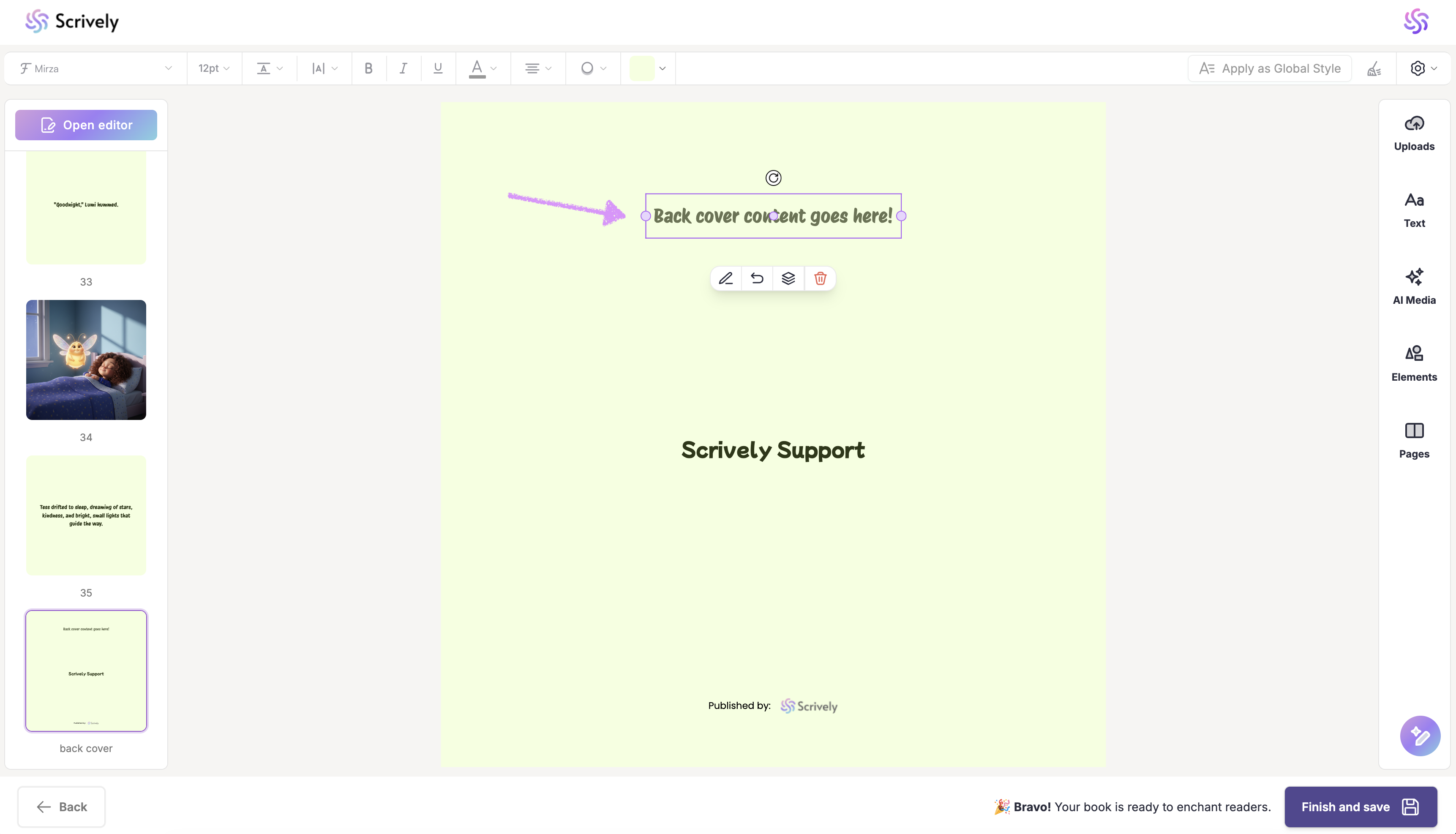
Click on the text block.
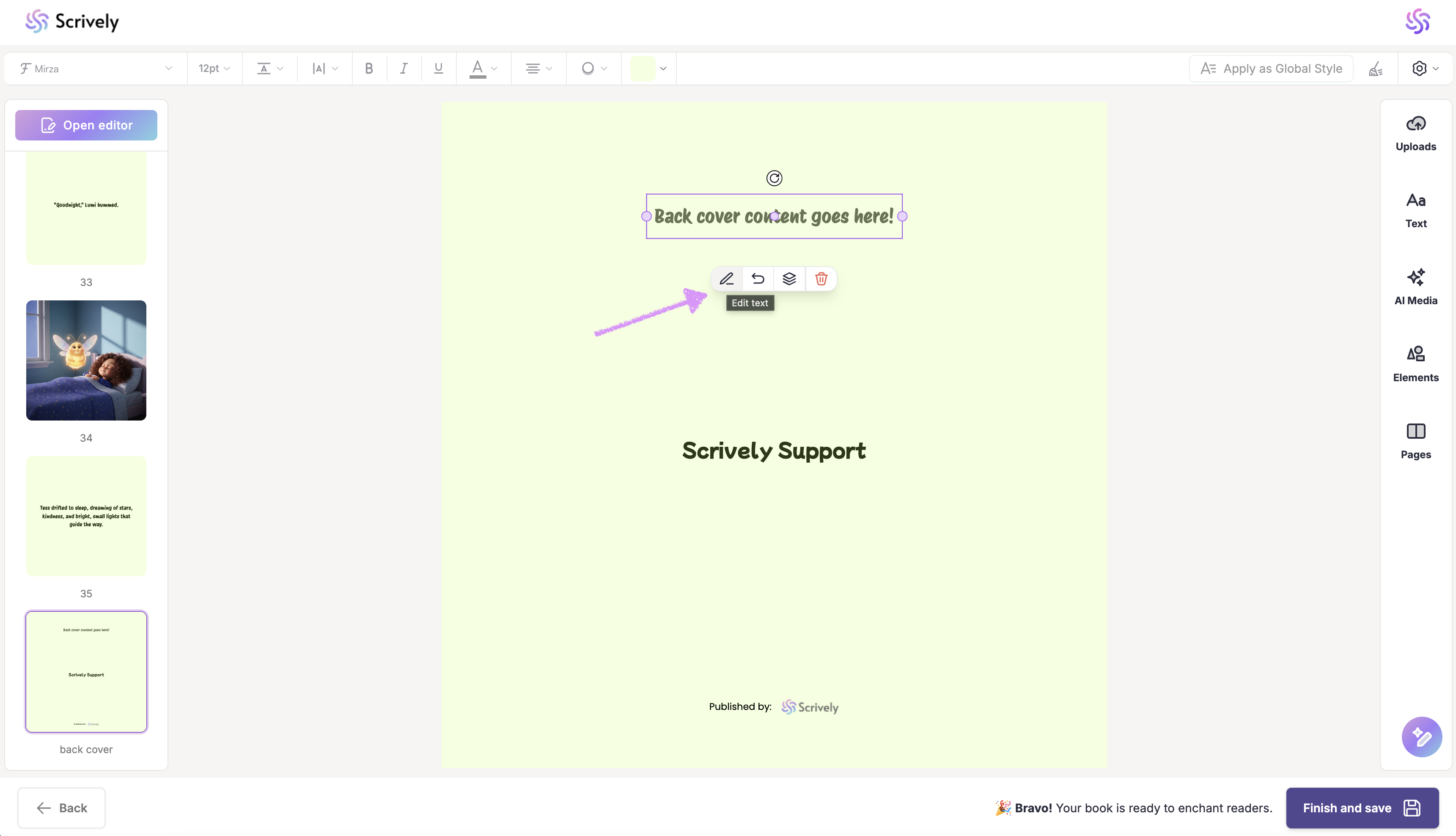
Select the pencil icon to manually enter your back cover blurb.
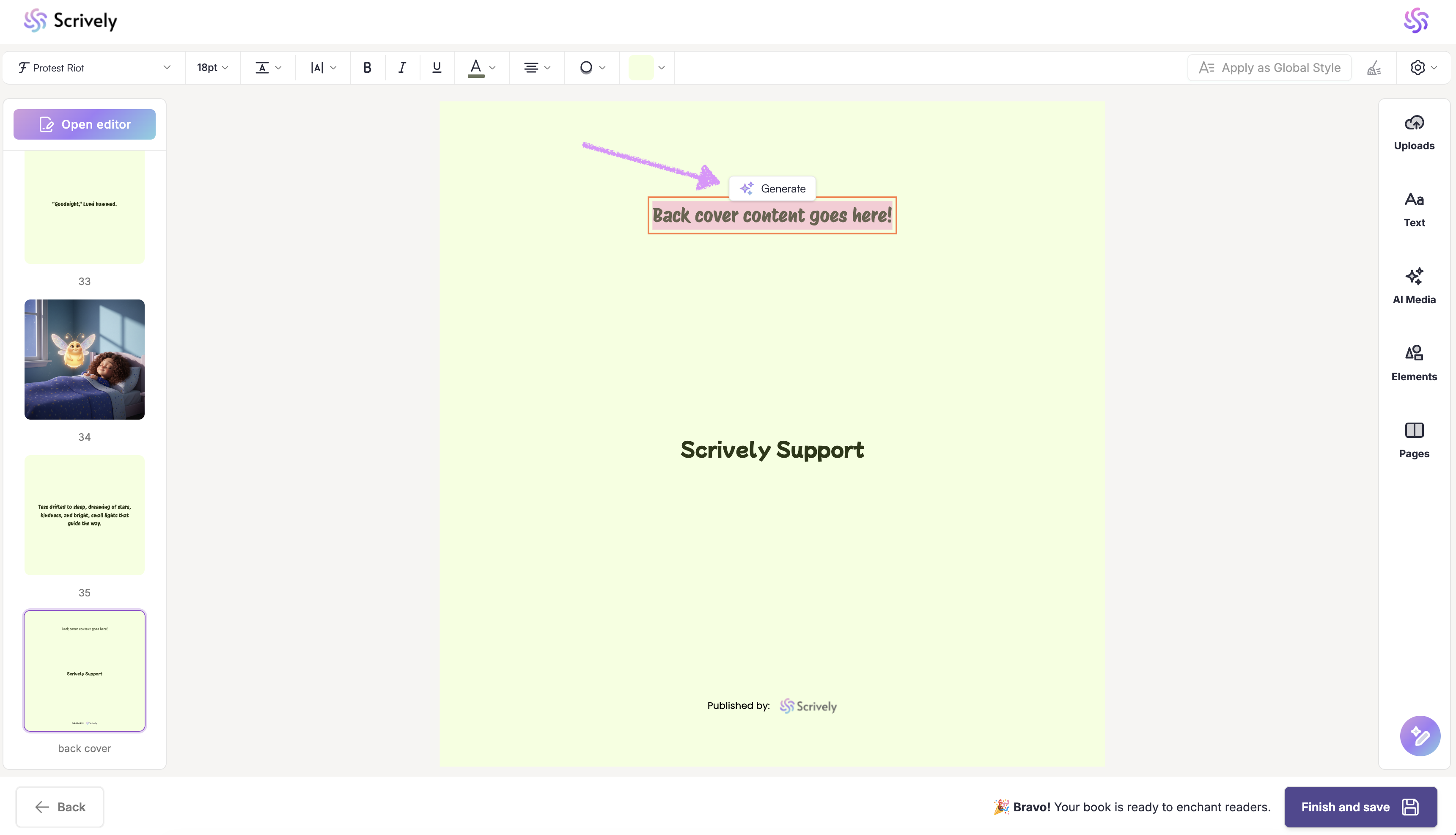
Alternatively, let Scrively do the writing for you. Click on “Generate” to have a compelling back cover blurb created based on your story.
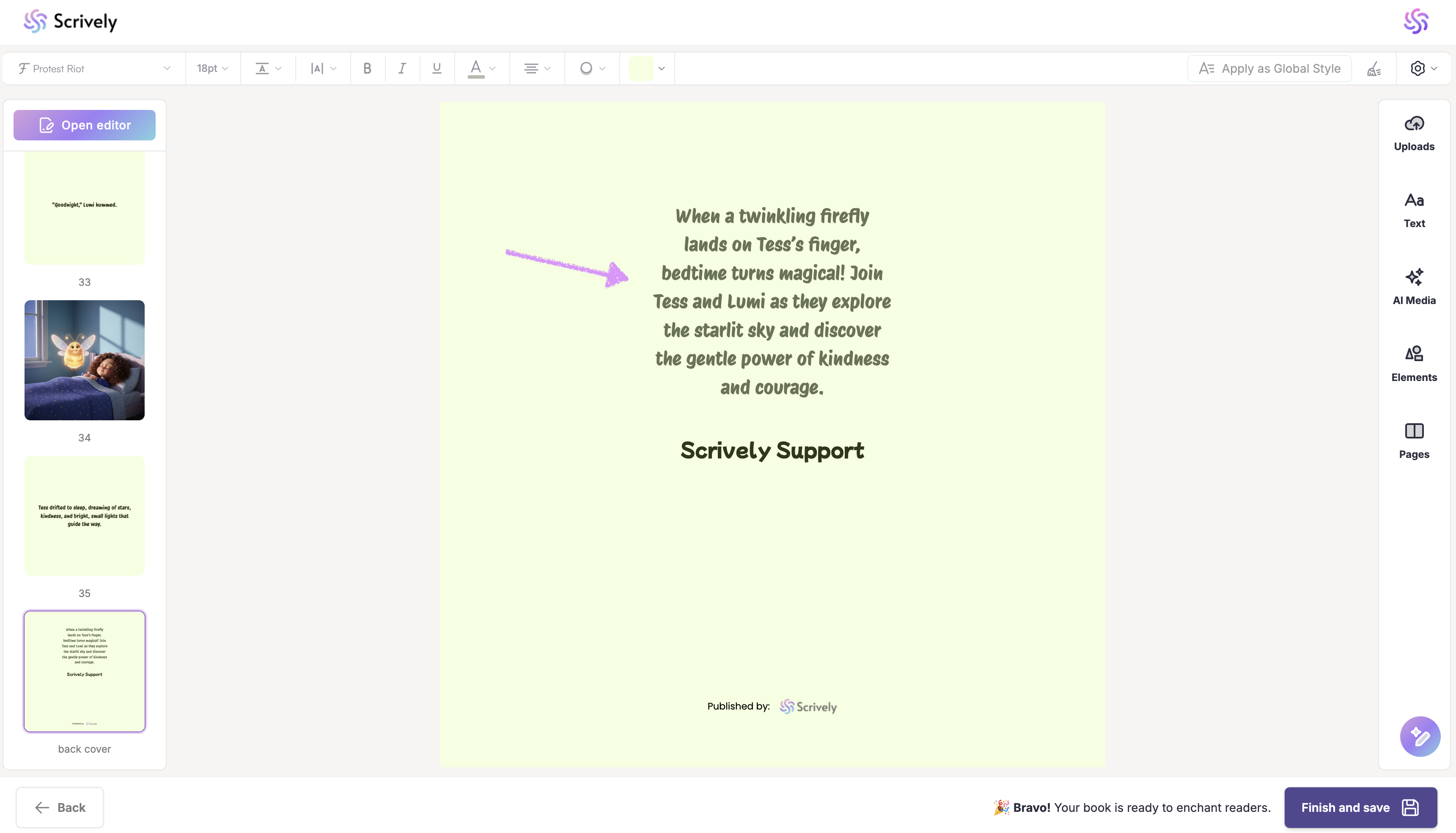
The blurb will be displayed on the back cover.
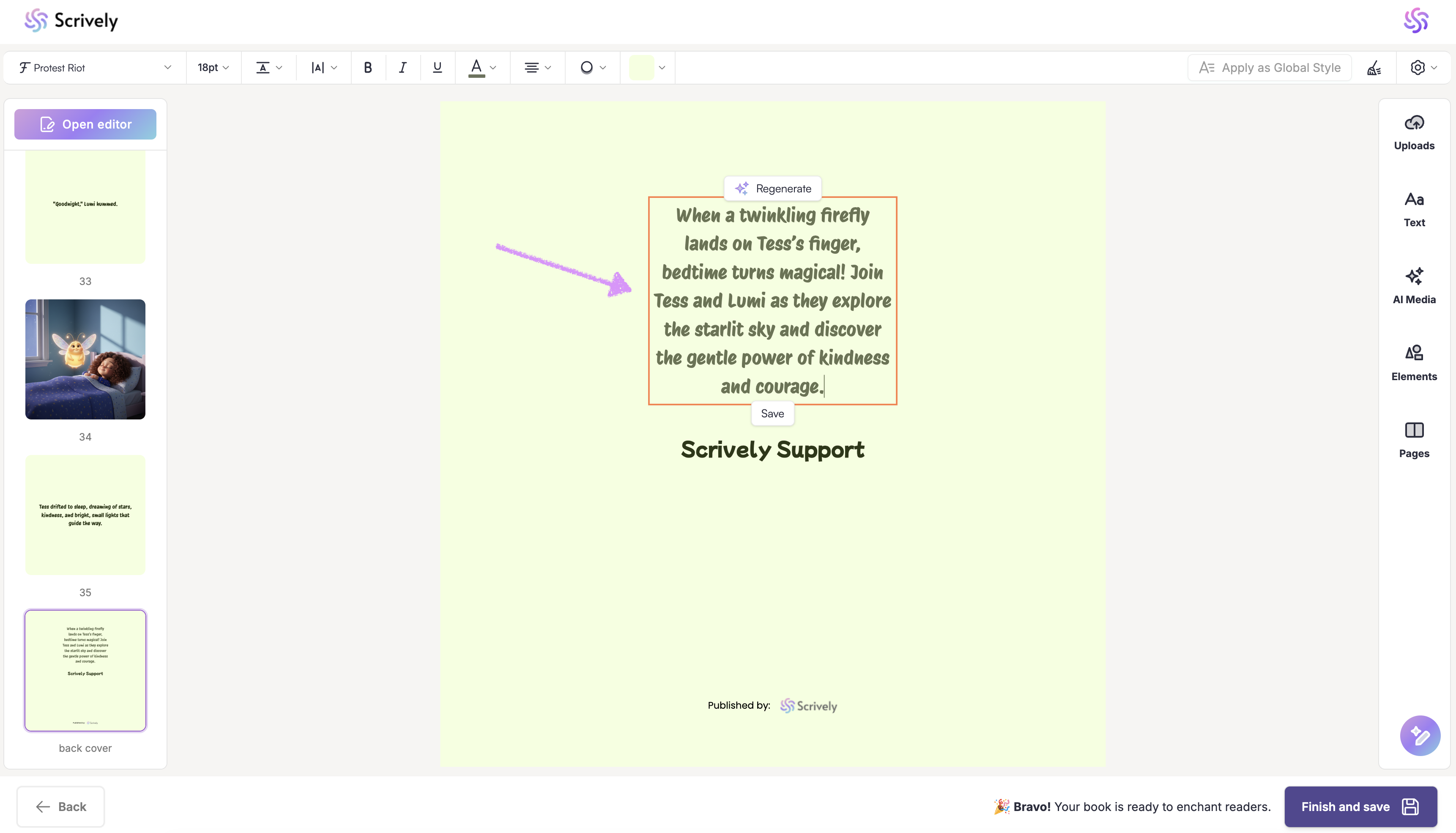
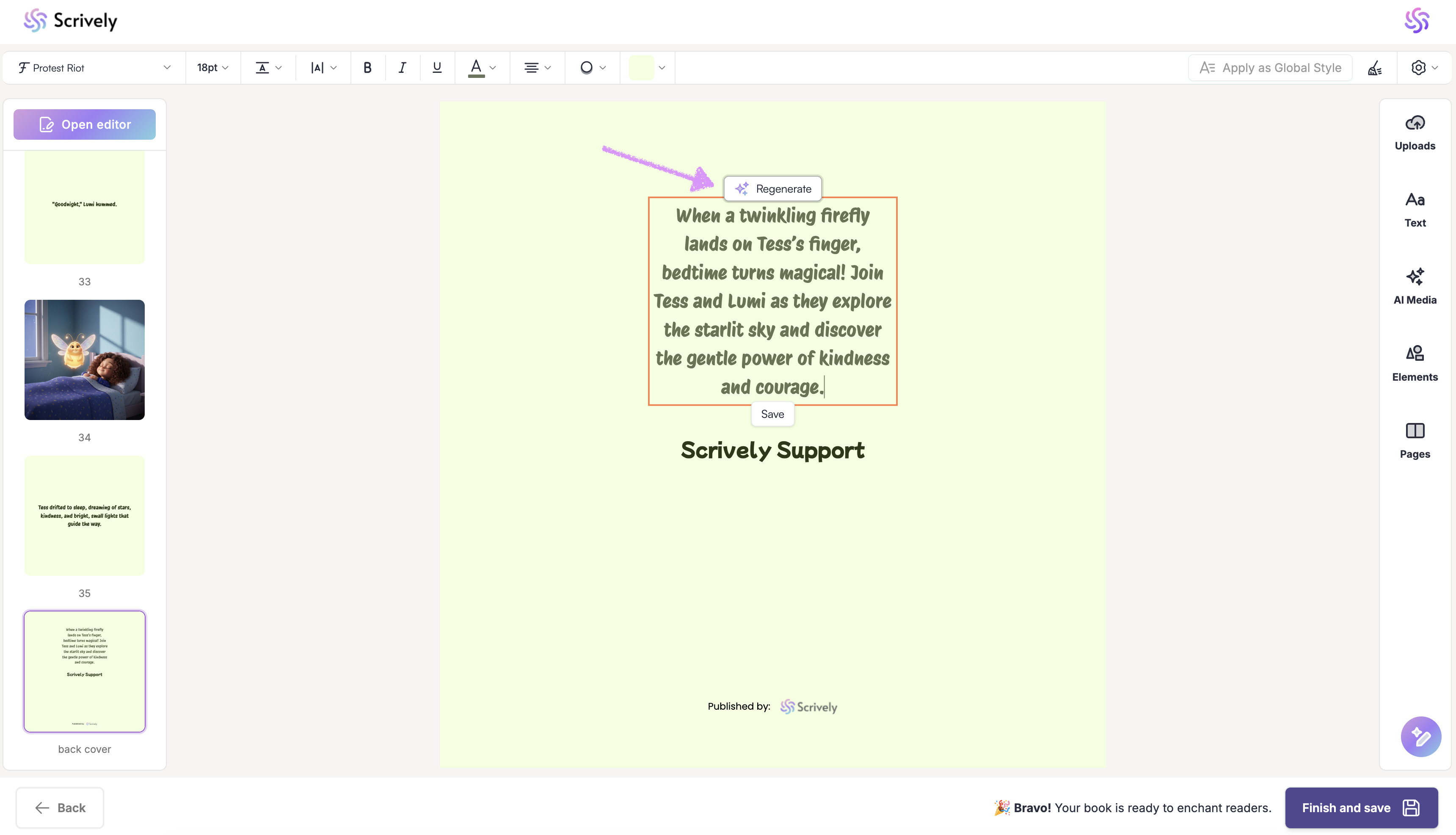
If you’re not satisfied with the generated blurb, click on “Regenerate” to create a new one until you’re happy with the result.
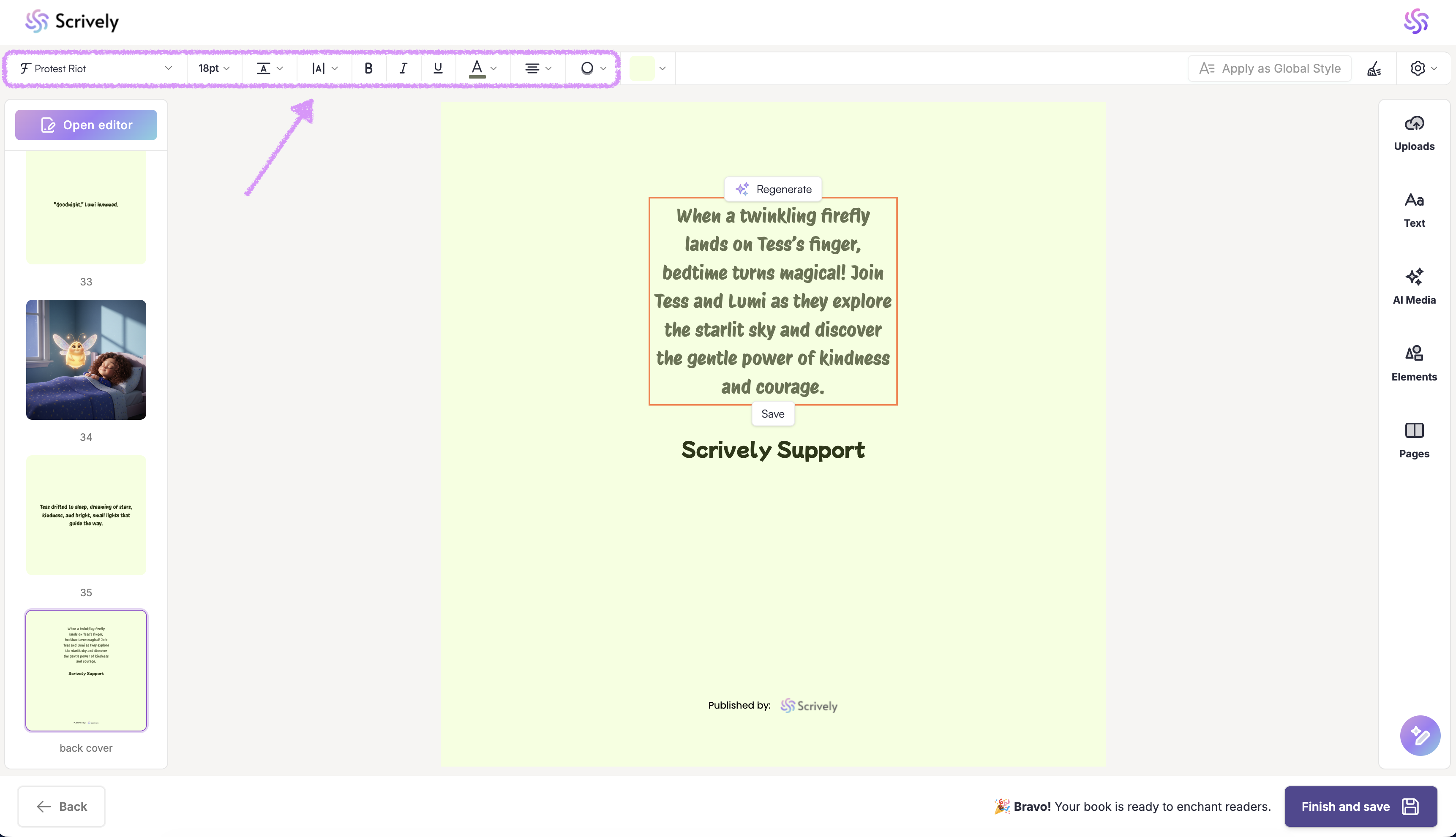
Style the back cover's blurb font, adjust the size, line height, and letter spacing, apply bold, italic, or underline styles, update the text color, change the alignment, and add an outline.
When you're ready click on "Save."
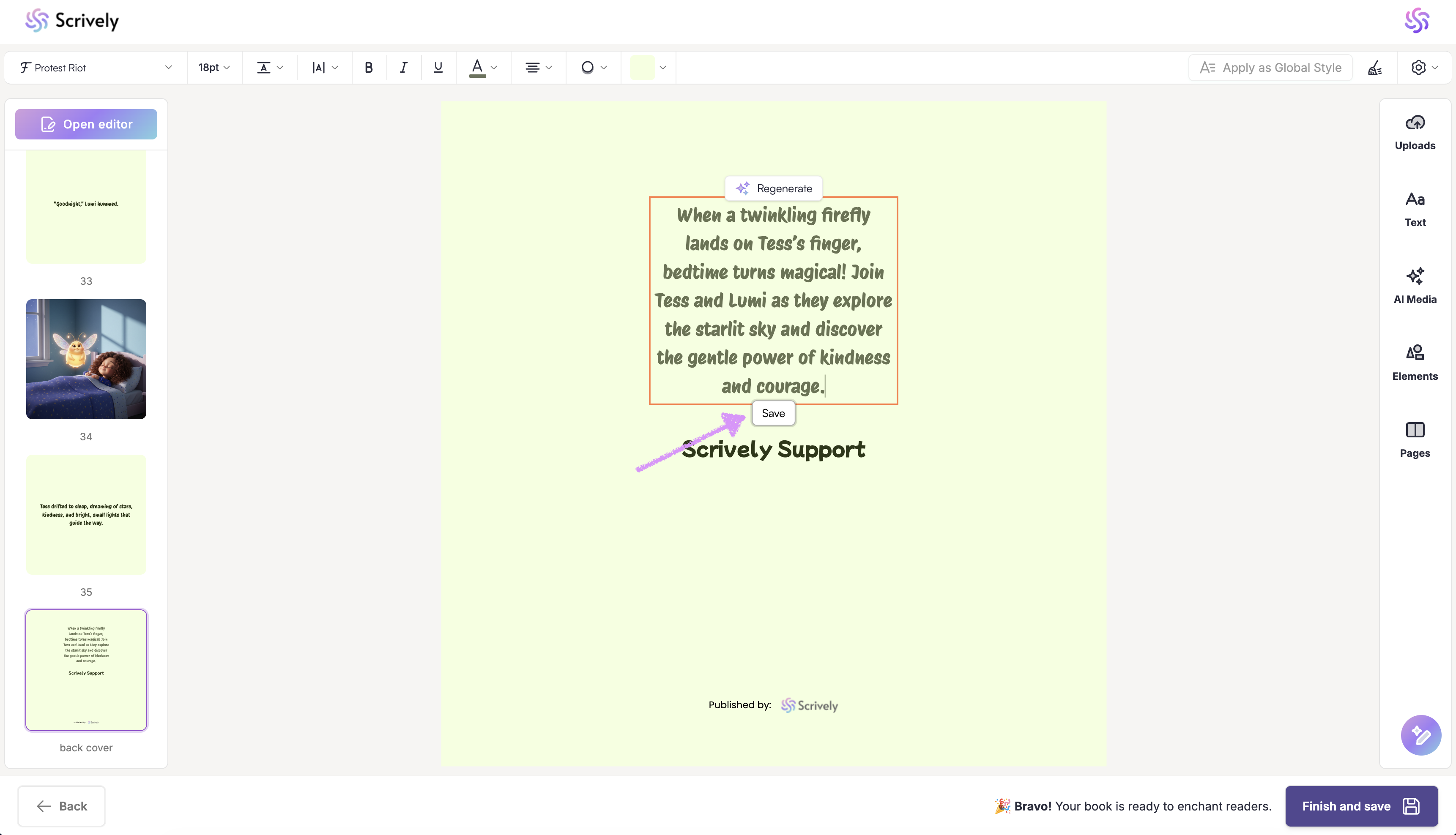
The blurb will be displayed on the back cover.
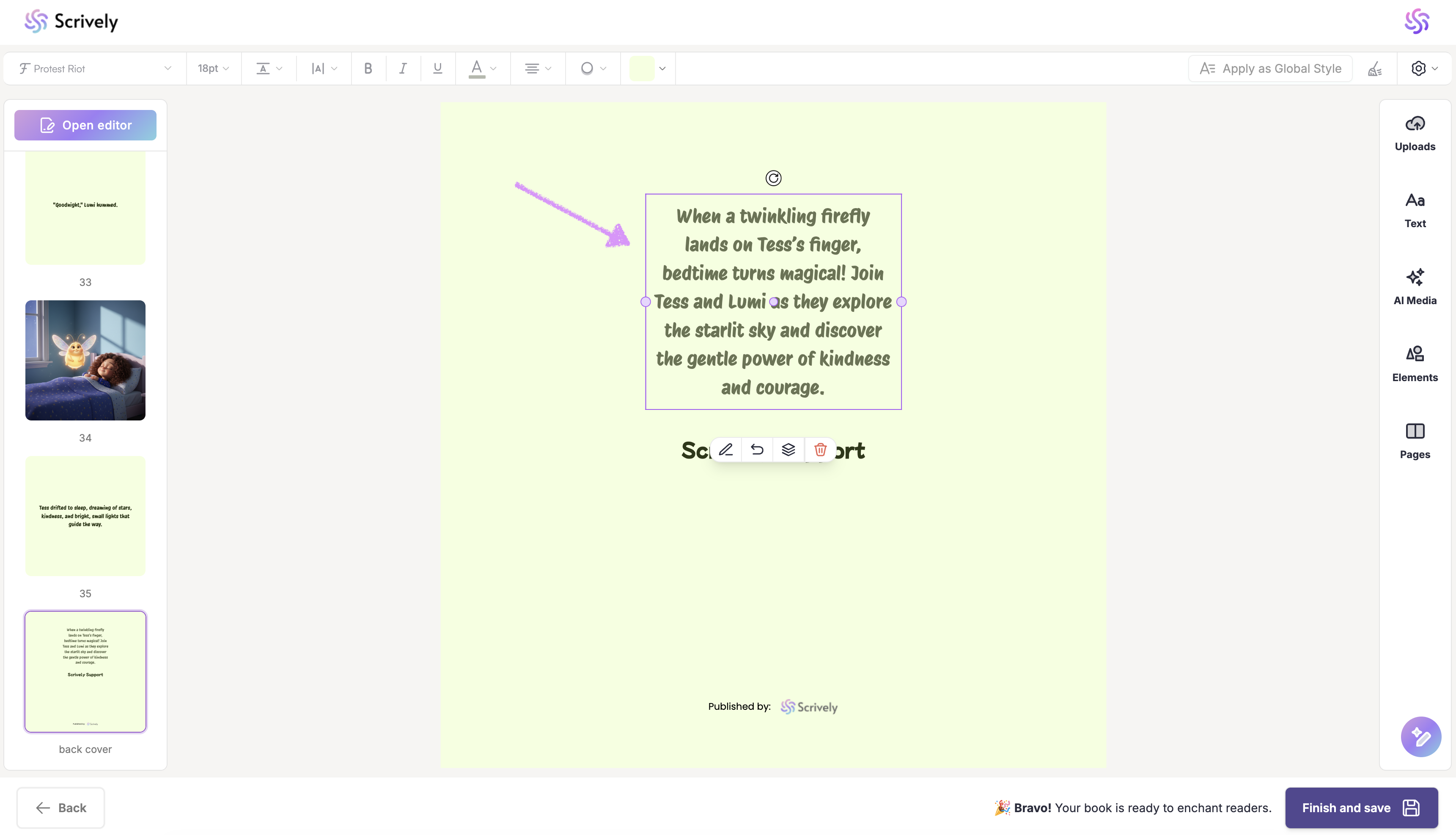
Note: You can click the text block once to enable repositioning and move it on the page.
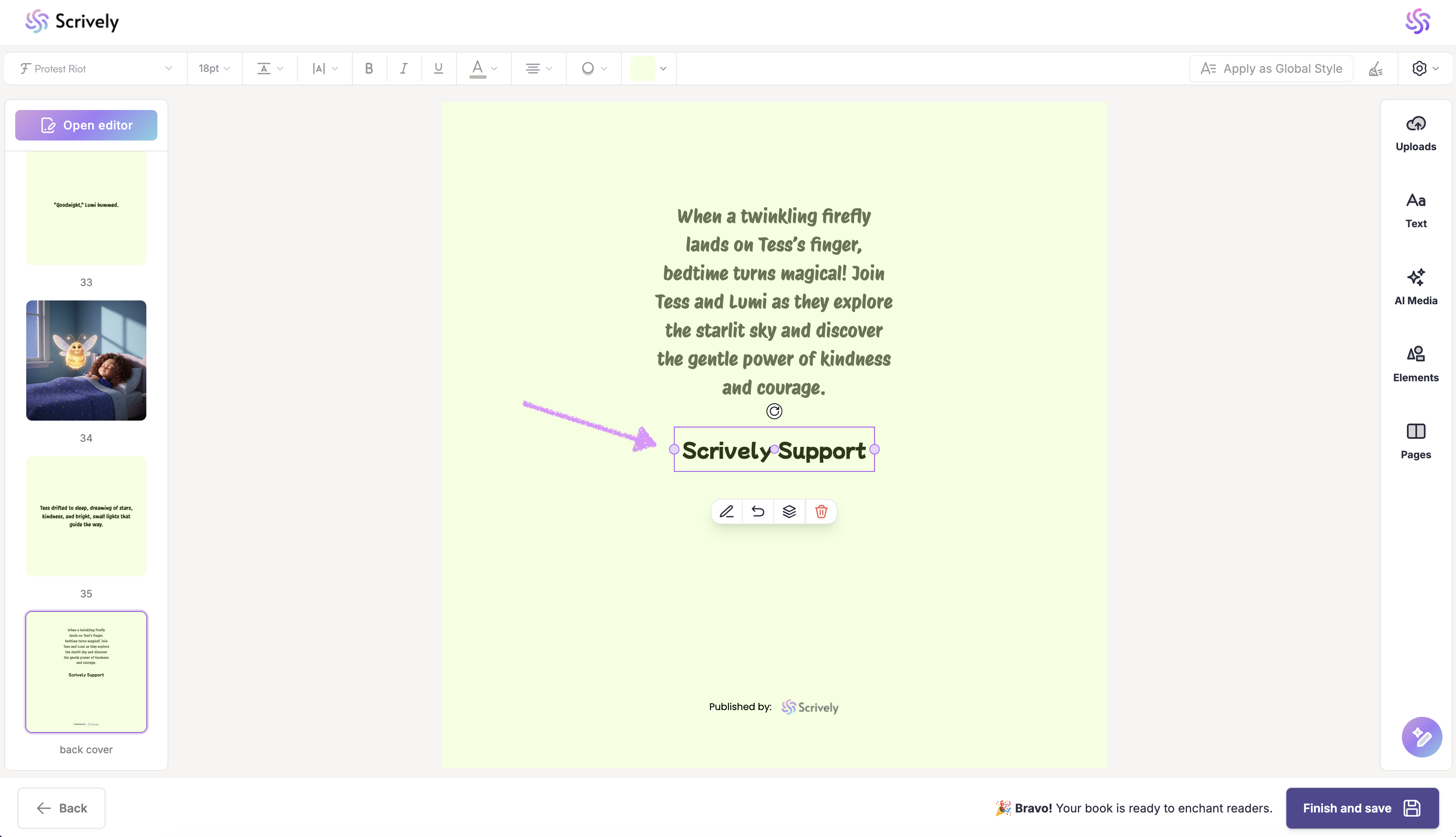
If needed, you can also click on the author’s name text block to adjust the formatting or delete it. Next, check out our guide on formatting your book's page numbers.
Was this article helpful?
That’s Great!
Thank you for your feedback
Sorry! We couldn't be helpful
Thank you for your feedback
Feedback sent
We appreciate your effort and will try to fix the article
