
You can add music to your interactive books to enhance mood, set the tone, and create a more immersive reading experience. Scrively Studio allows you to layer background music throughout your book so readers can feel more engaged as they move through your story.
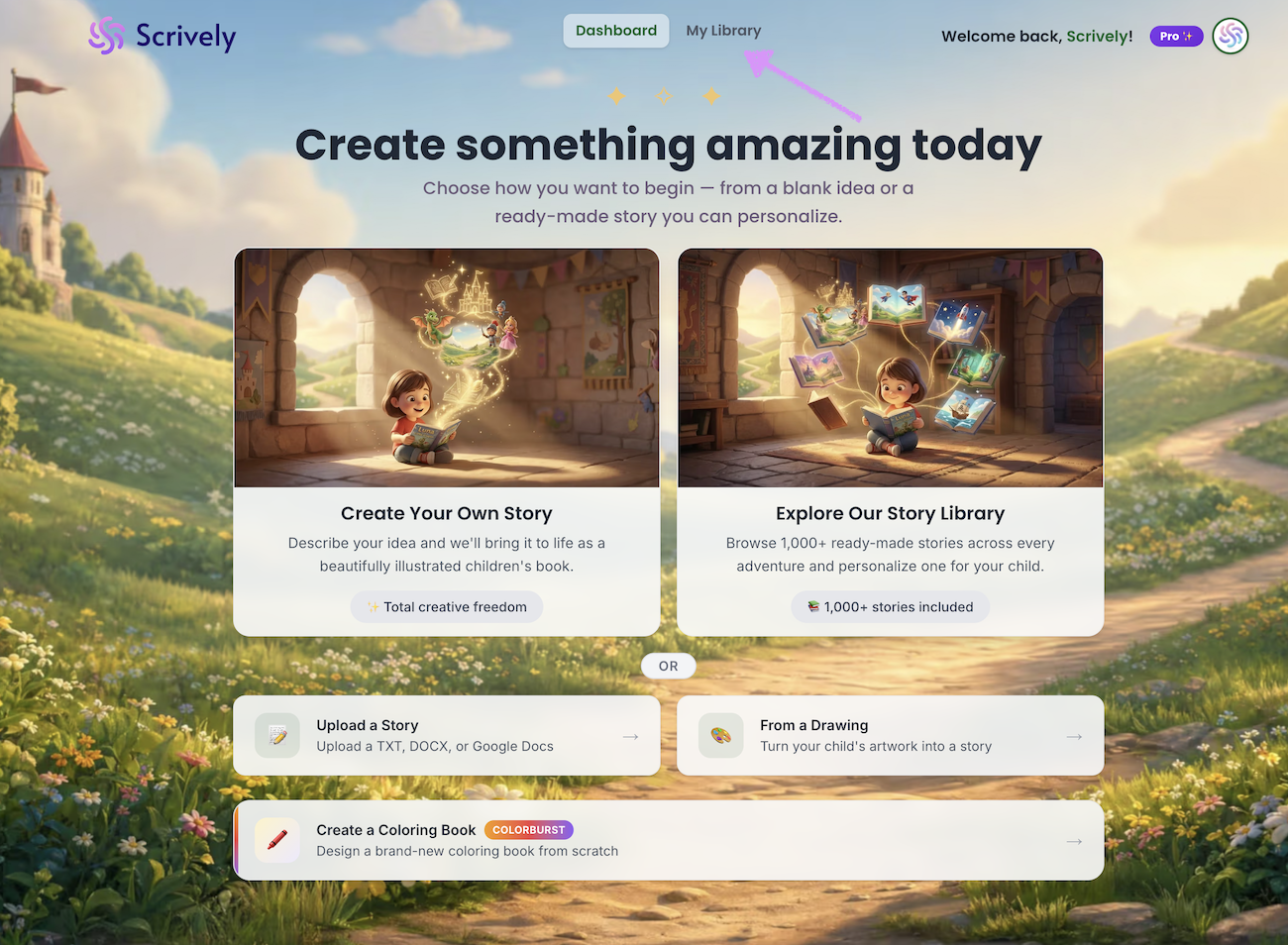
Head over to the "My Library" tab.
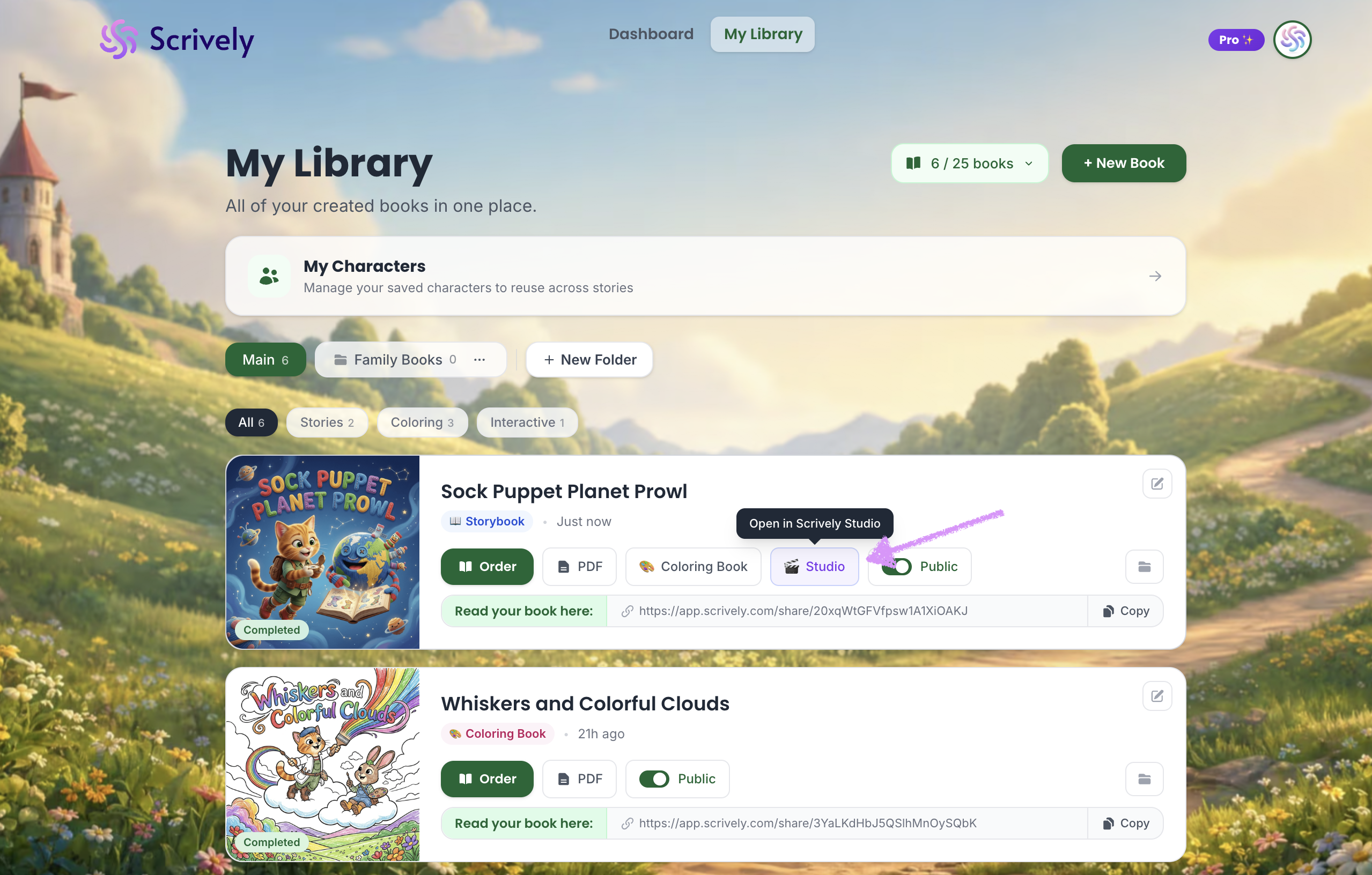
Click “Studio” on the book you want to add music to.
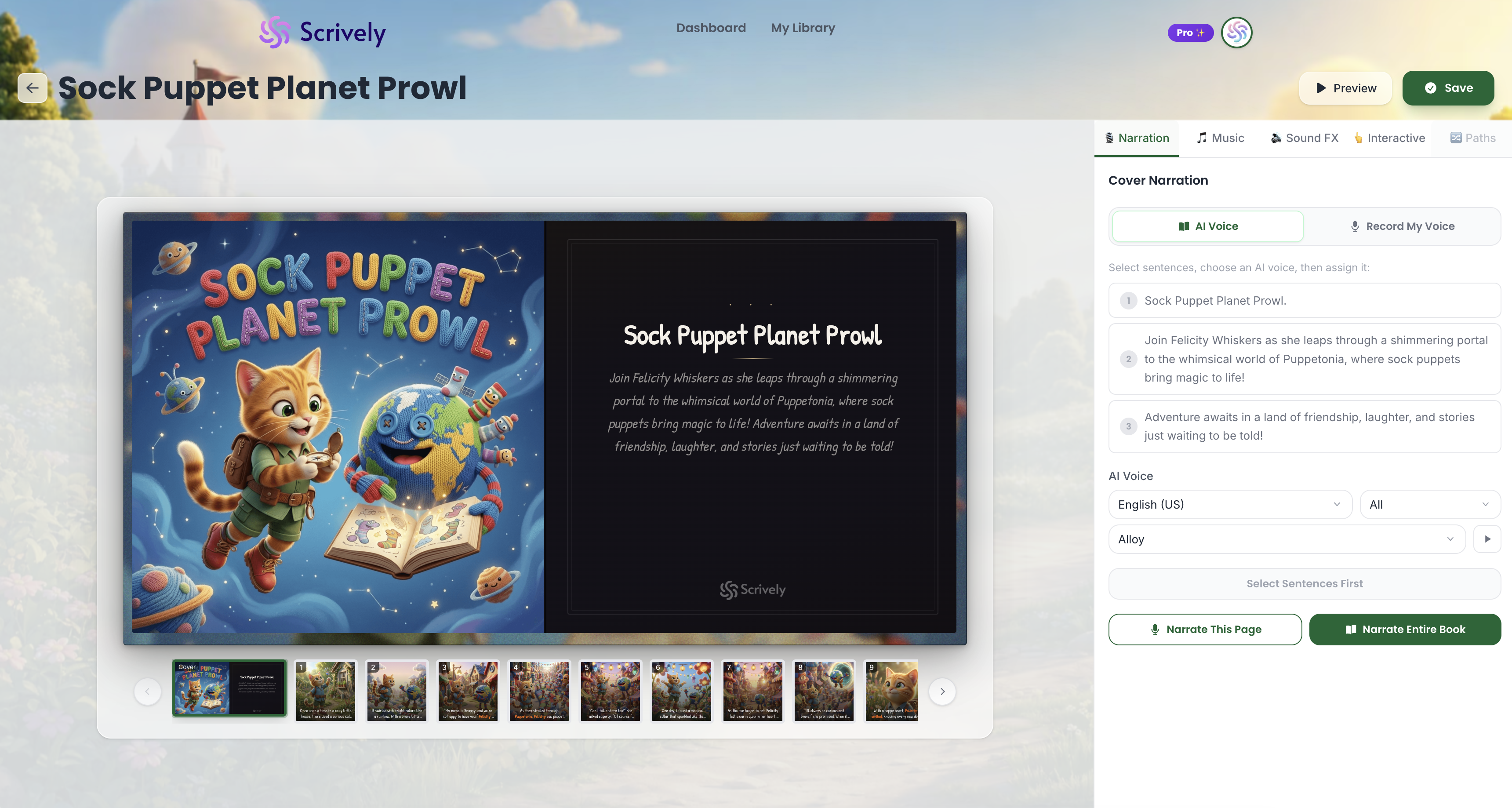
The book will open in Scrively Studio, where you can start adding music.
Click on the "Music" tab.
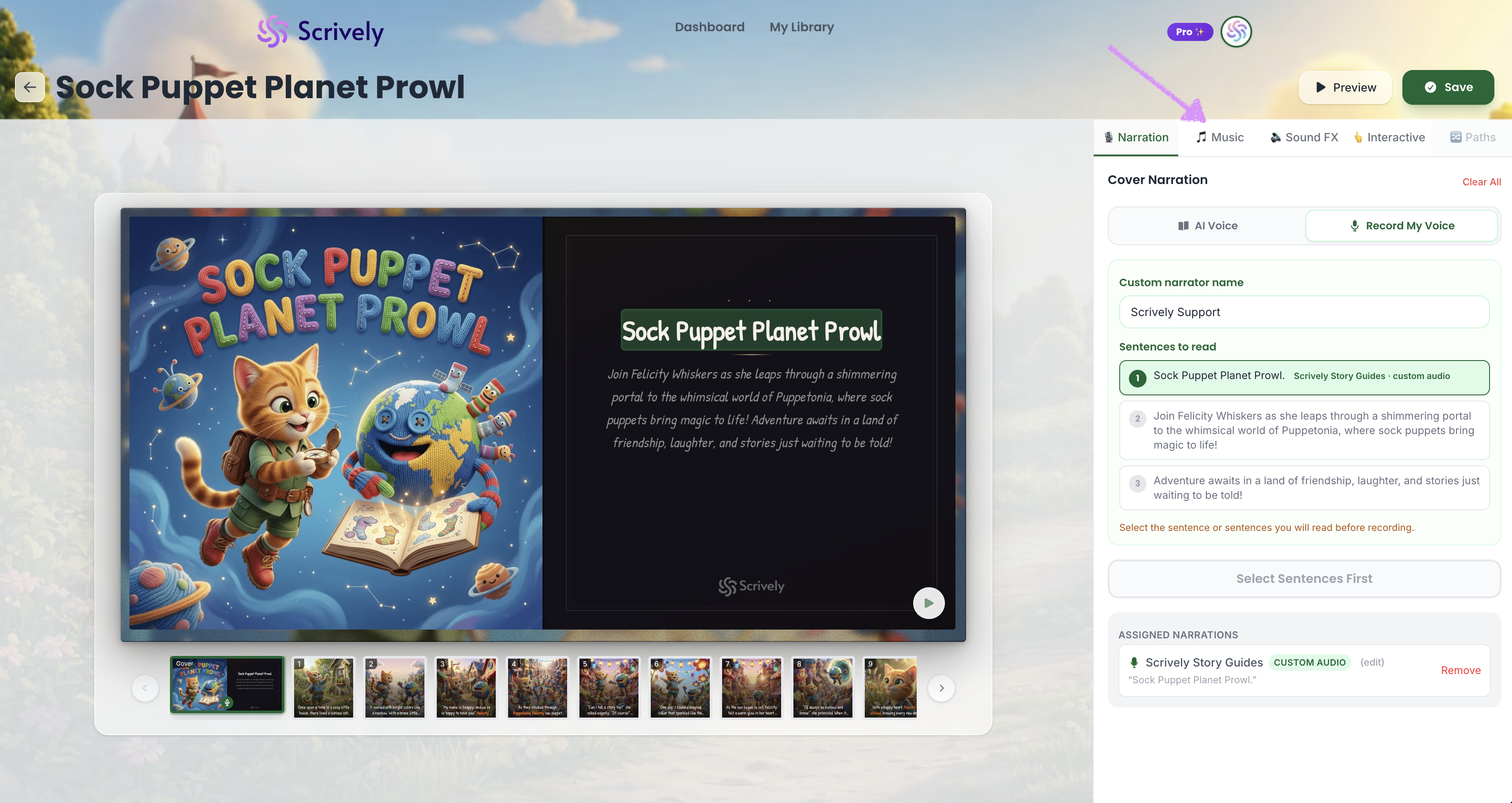
Before adding music, make sure your sentences have narration assigned. You can learn more about that here.
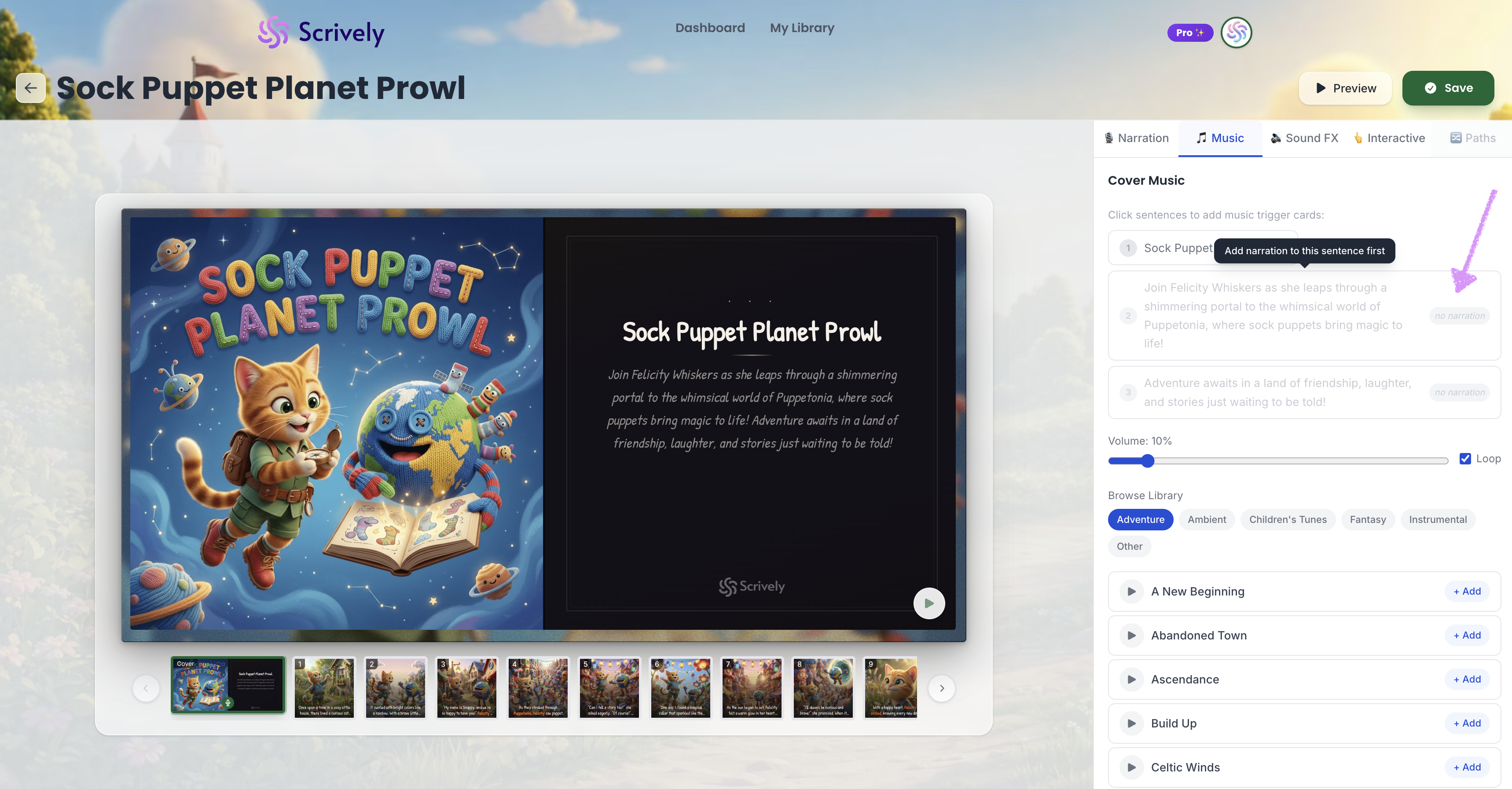
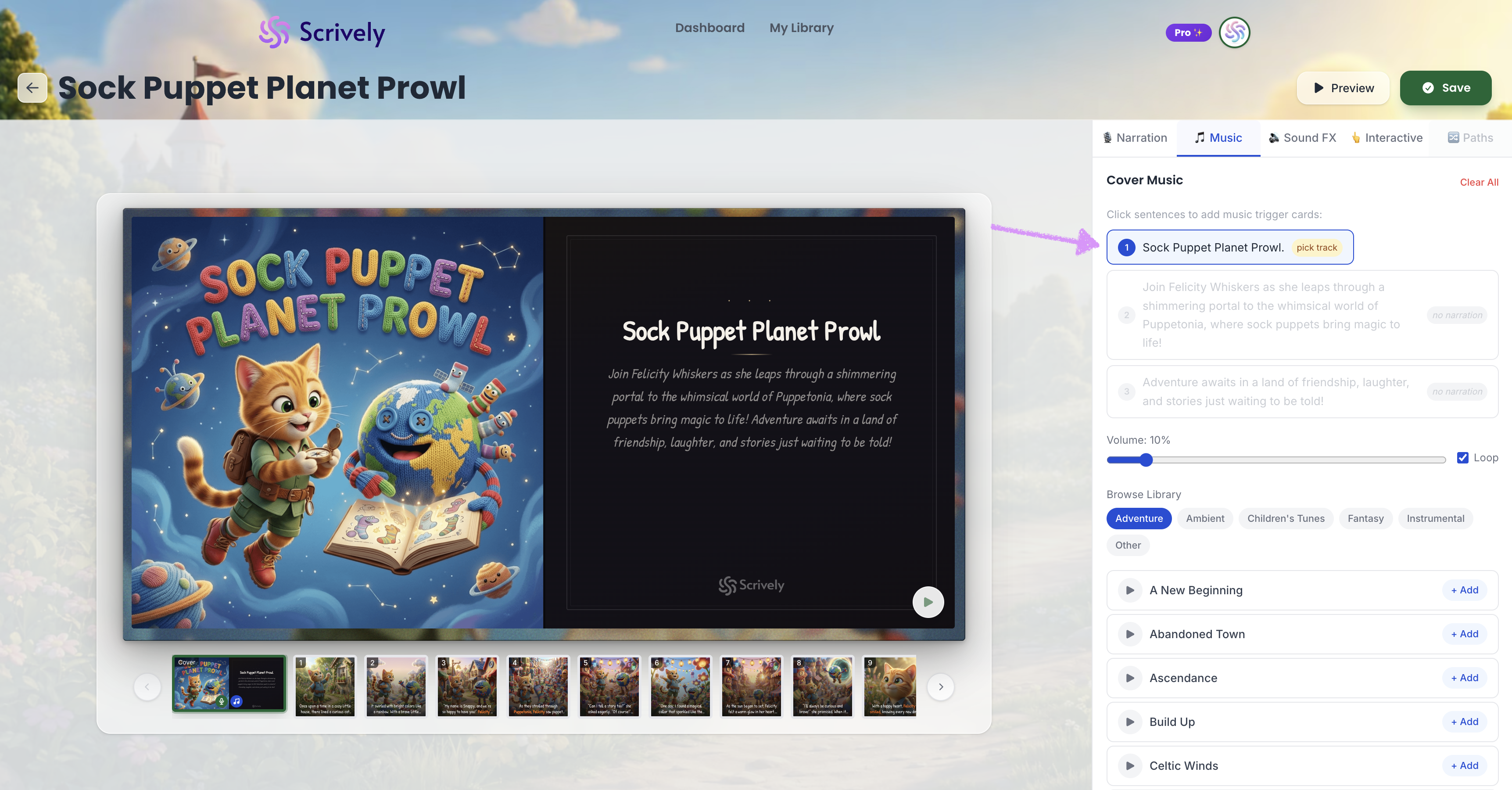
Click into the sentence you would like to add music to.
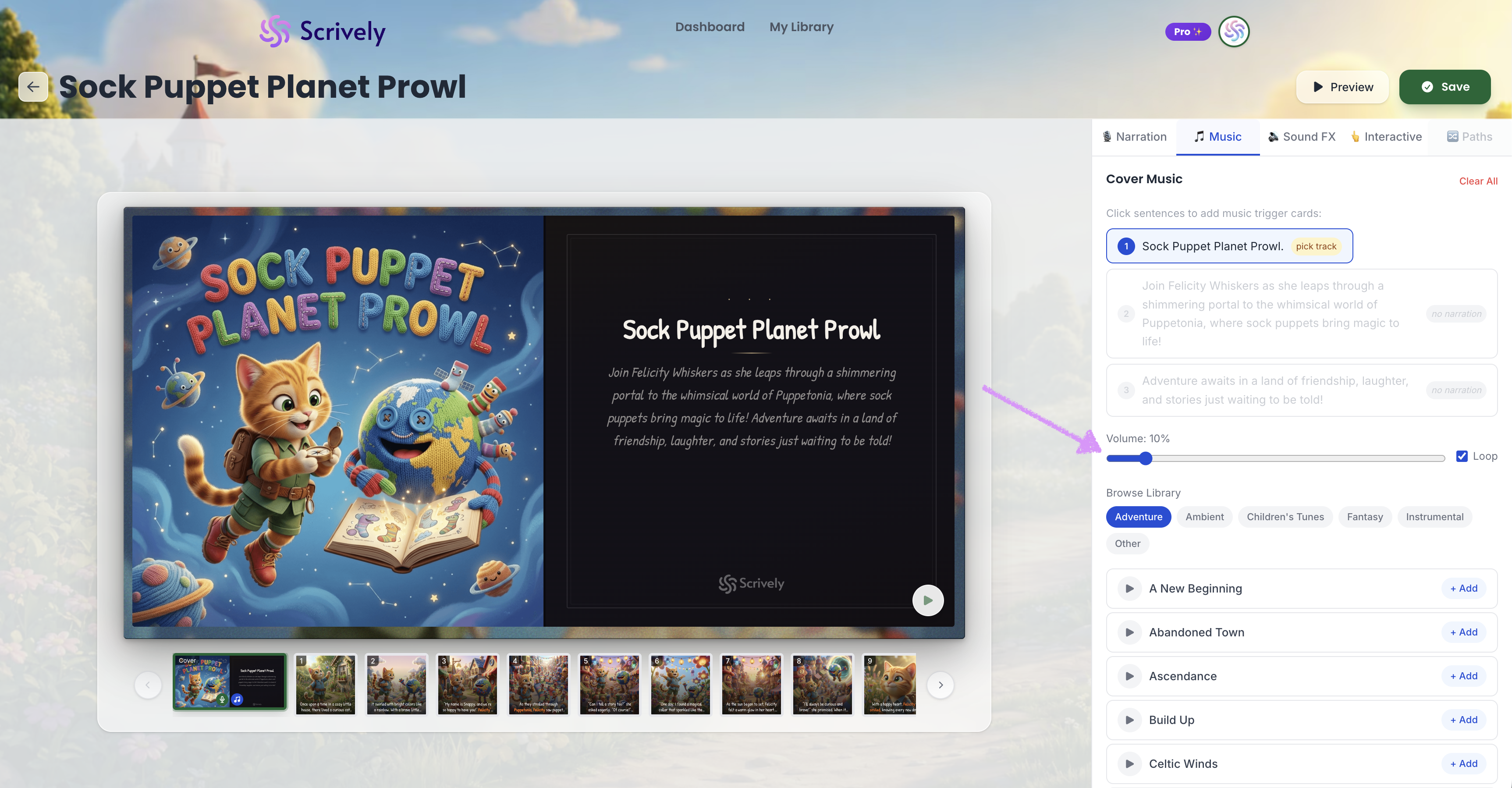
Drag the volume slider to adjust the music volume percentage.
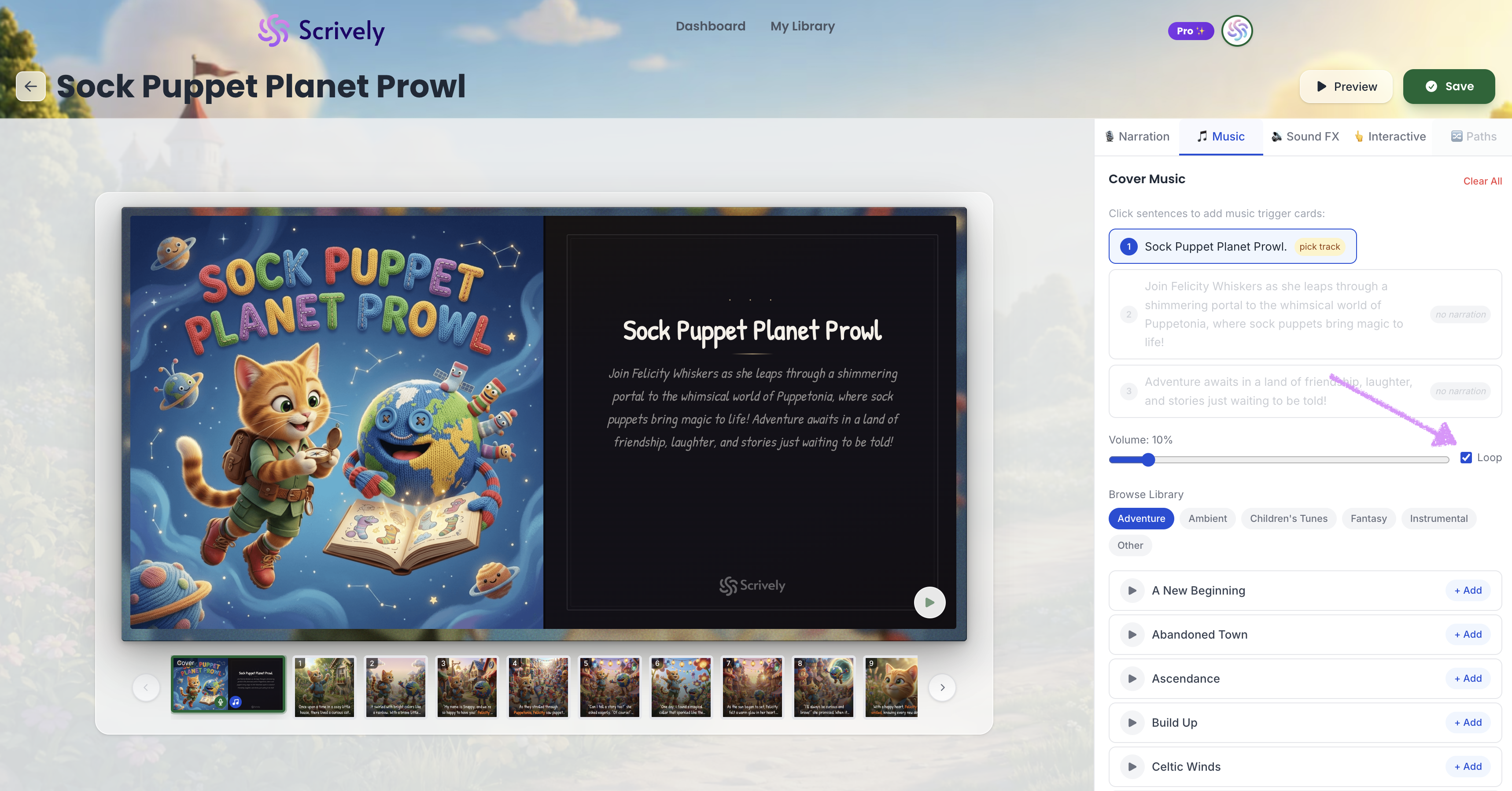
Toggle the loop setting on or off.
Click to browse the music library by category.
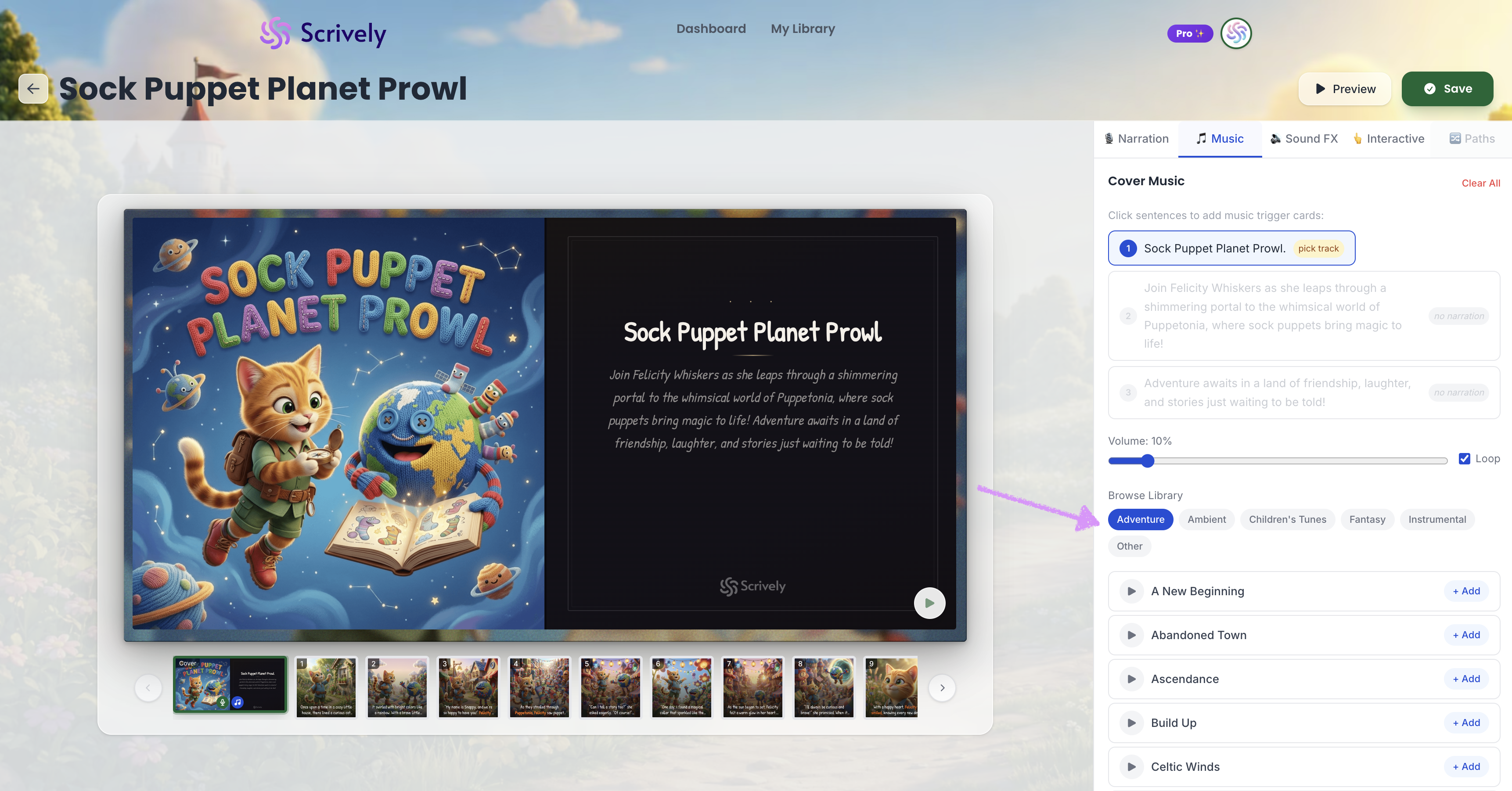
Click on the play icon to preview the music.
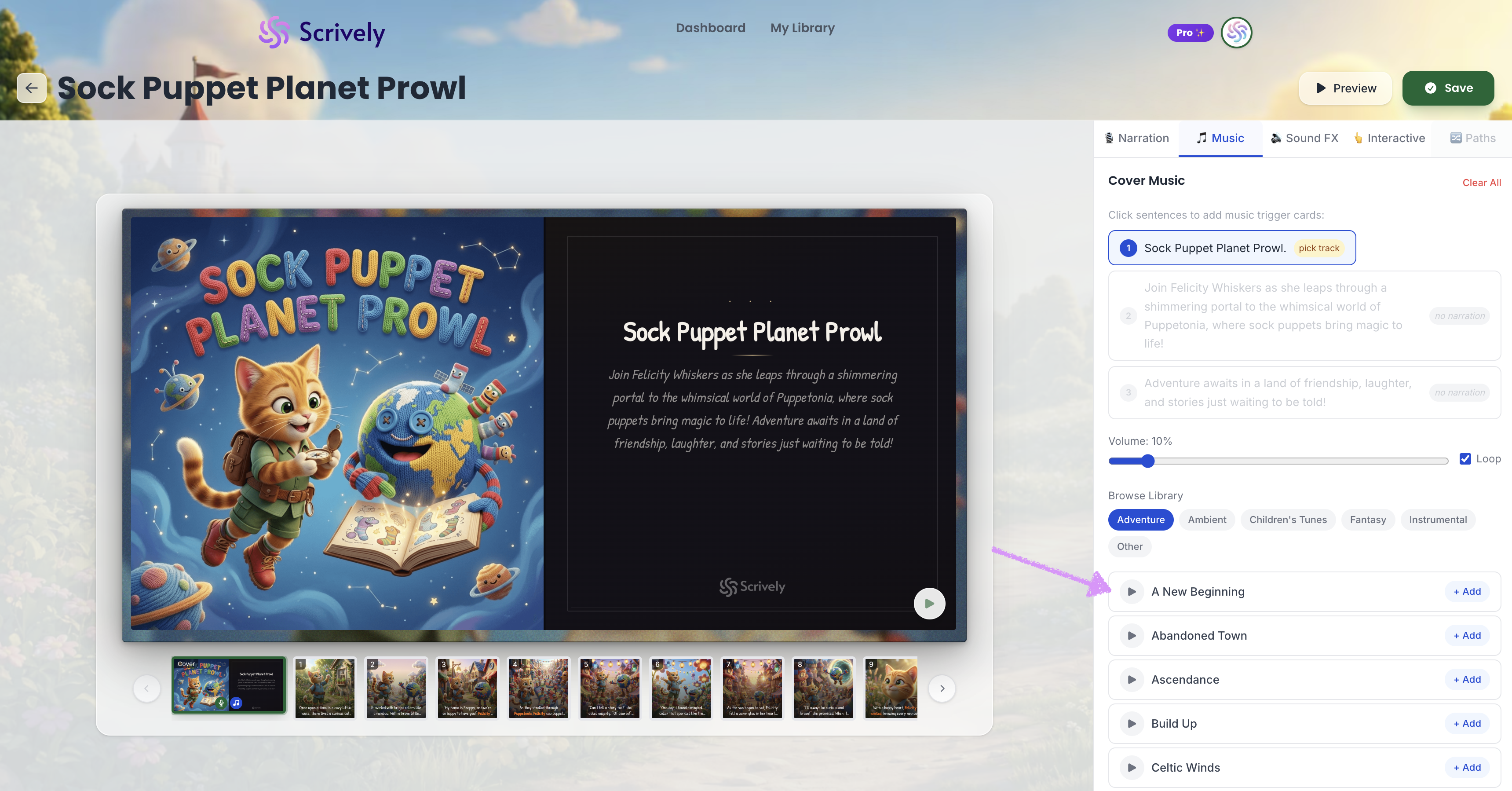
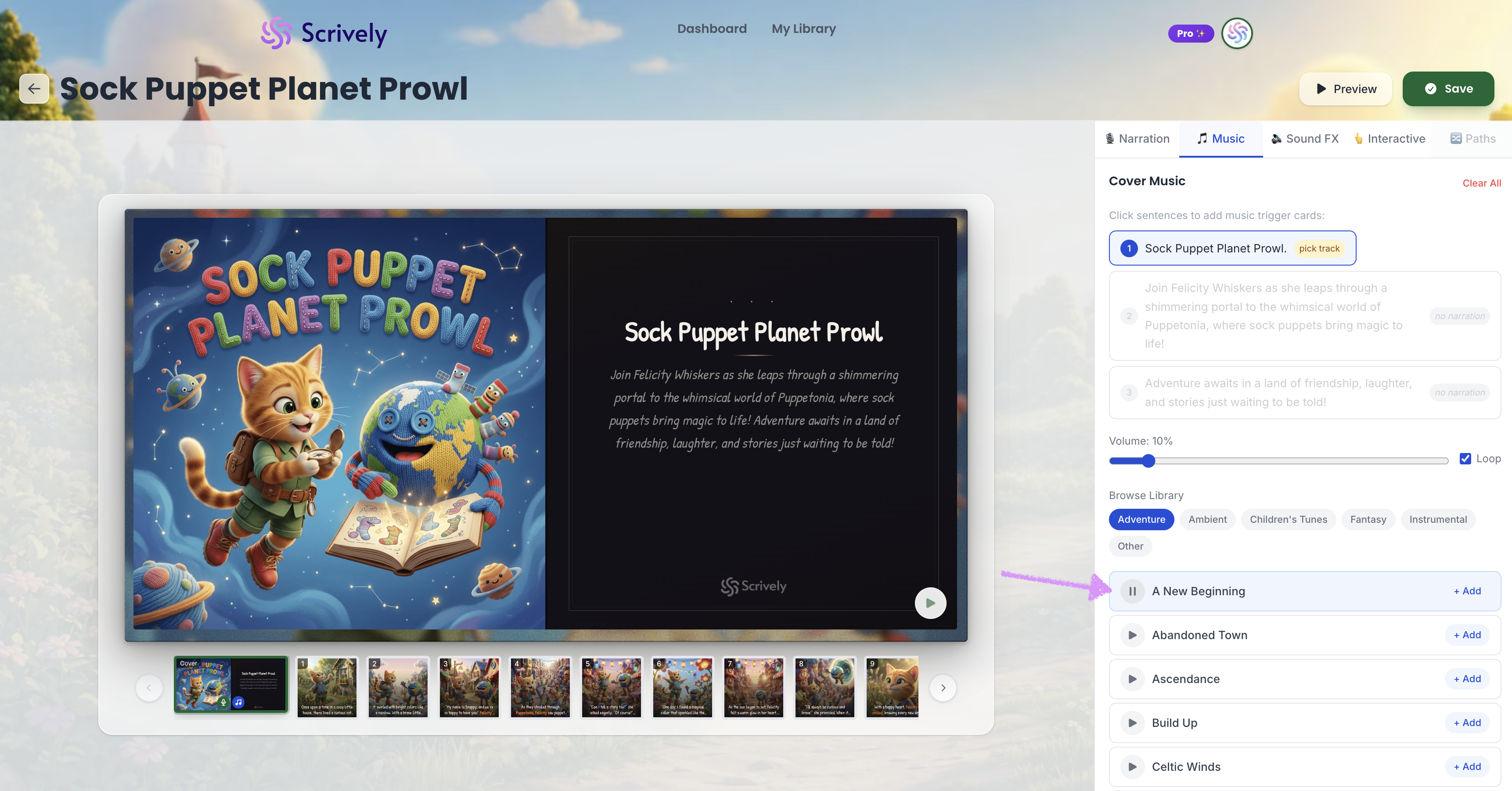
Click on the pause icon to stop the preview.
Click on "Add" to apply the music to the sentence.
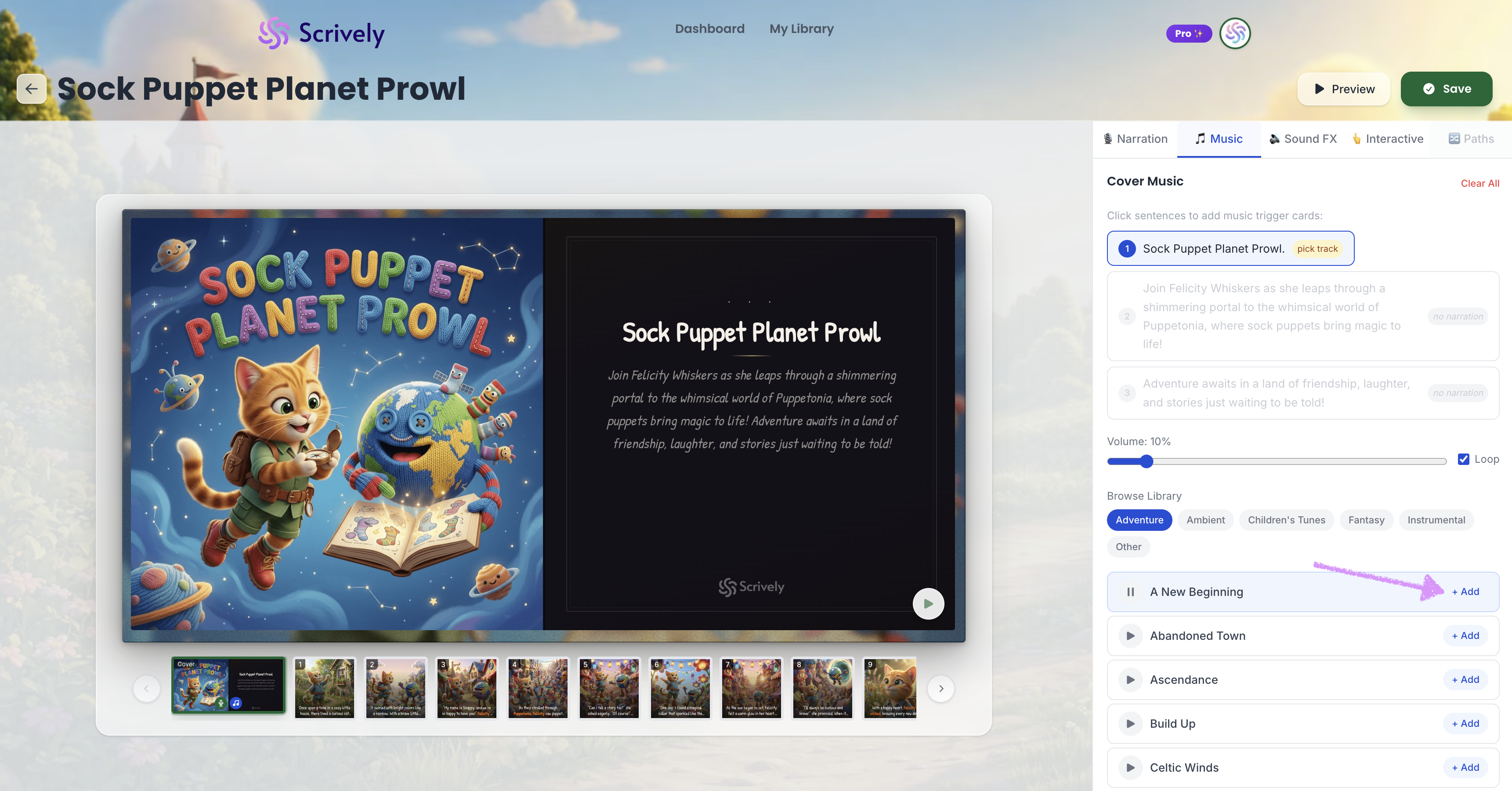
The selected music will be highlighted and you have the option to "Remove" if needed.
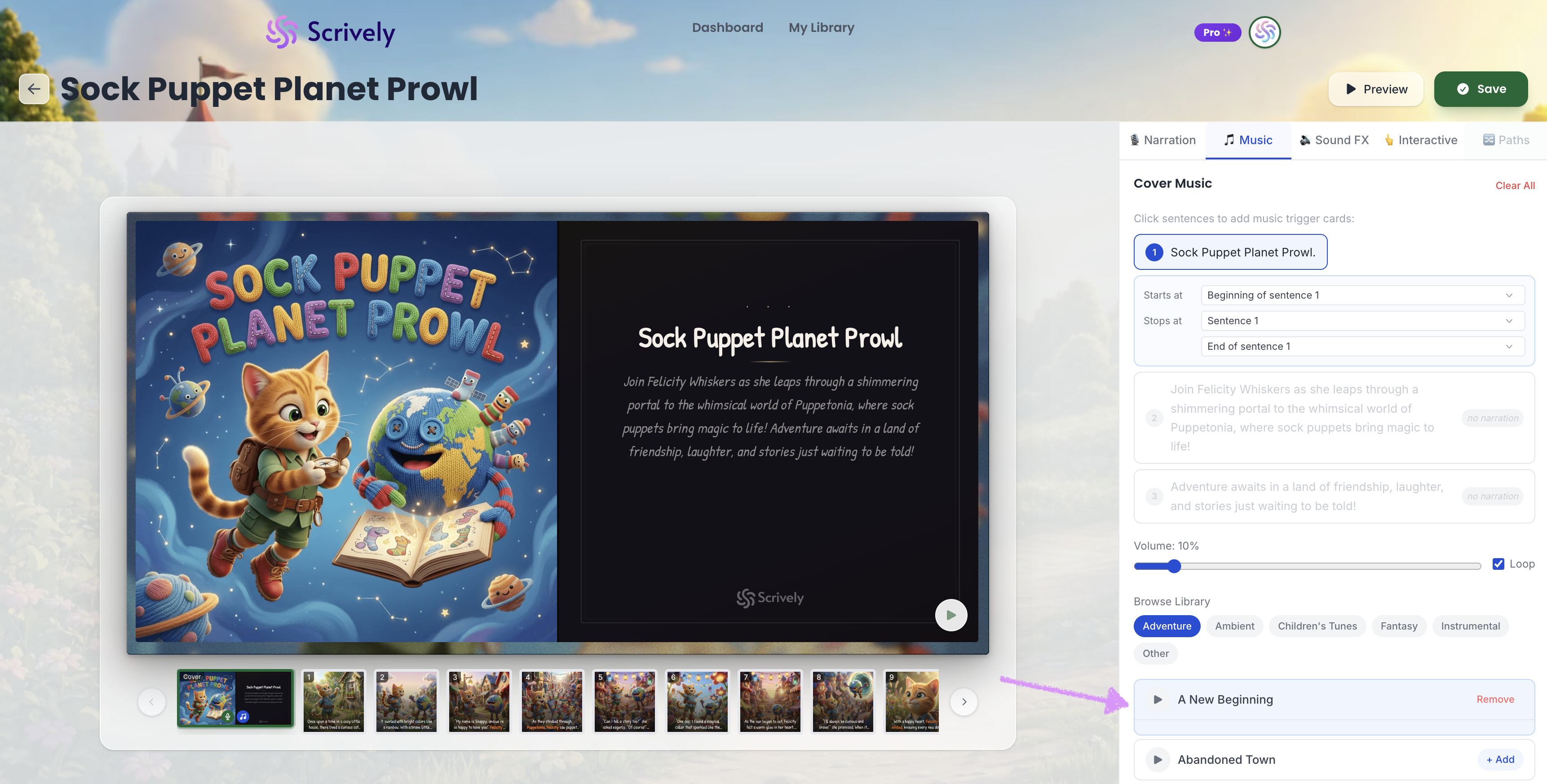
Once music is added to a sentence, you can choose when it starts.
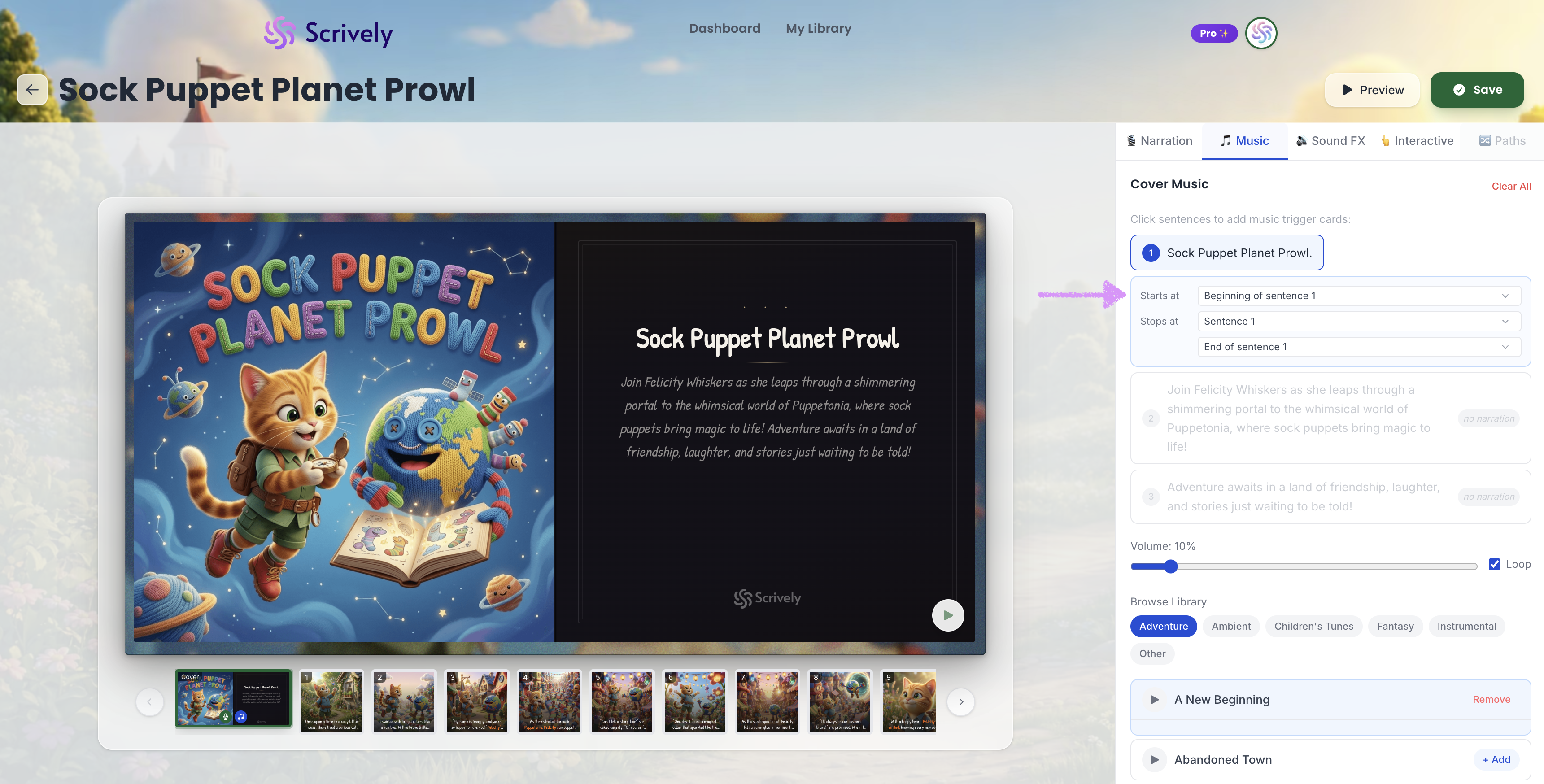
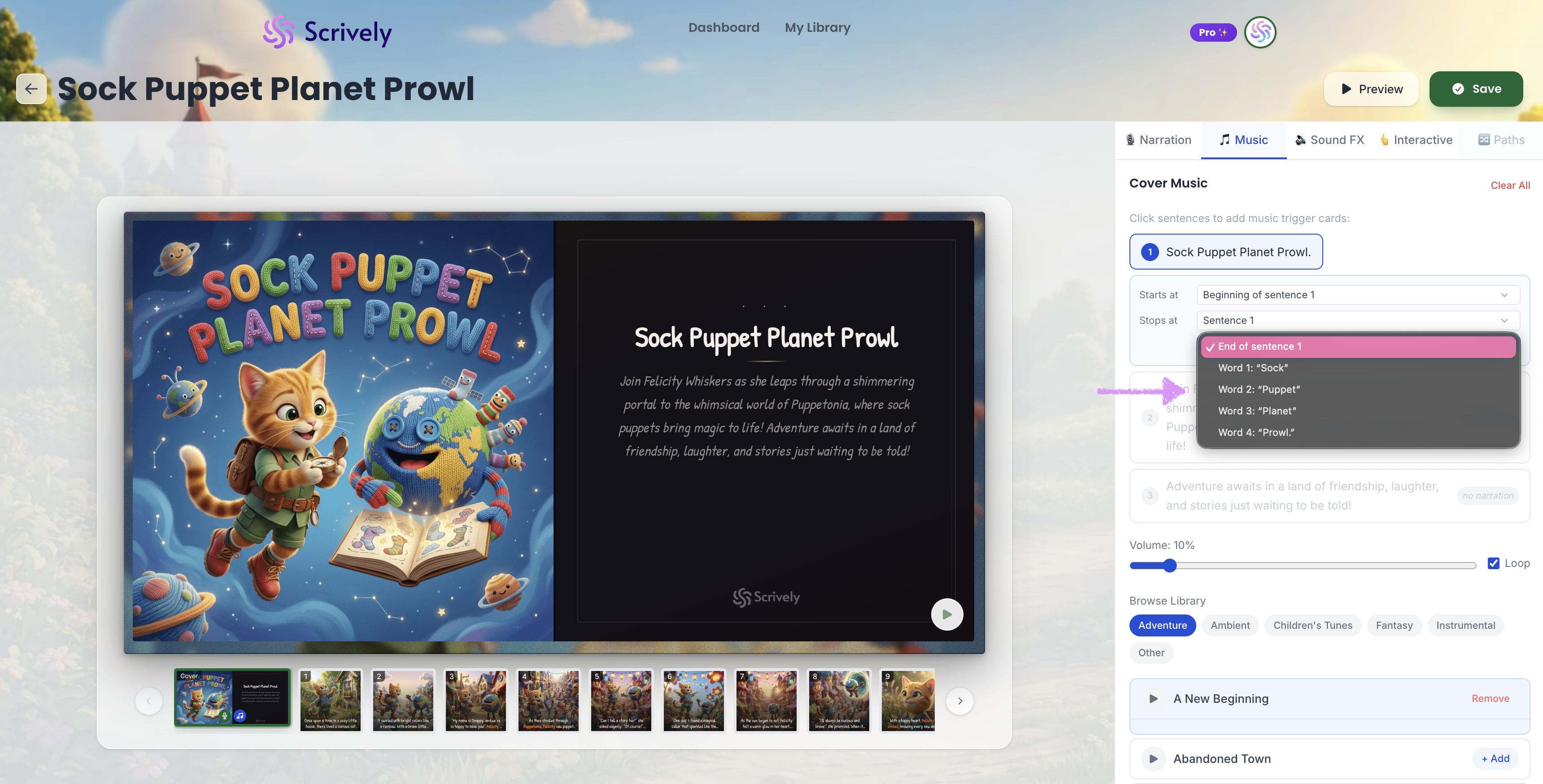
You can start the music at either the beginning of the sentence or the beginning of a word within the sentence.
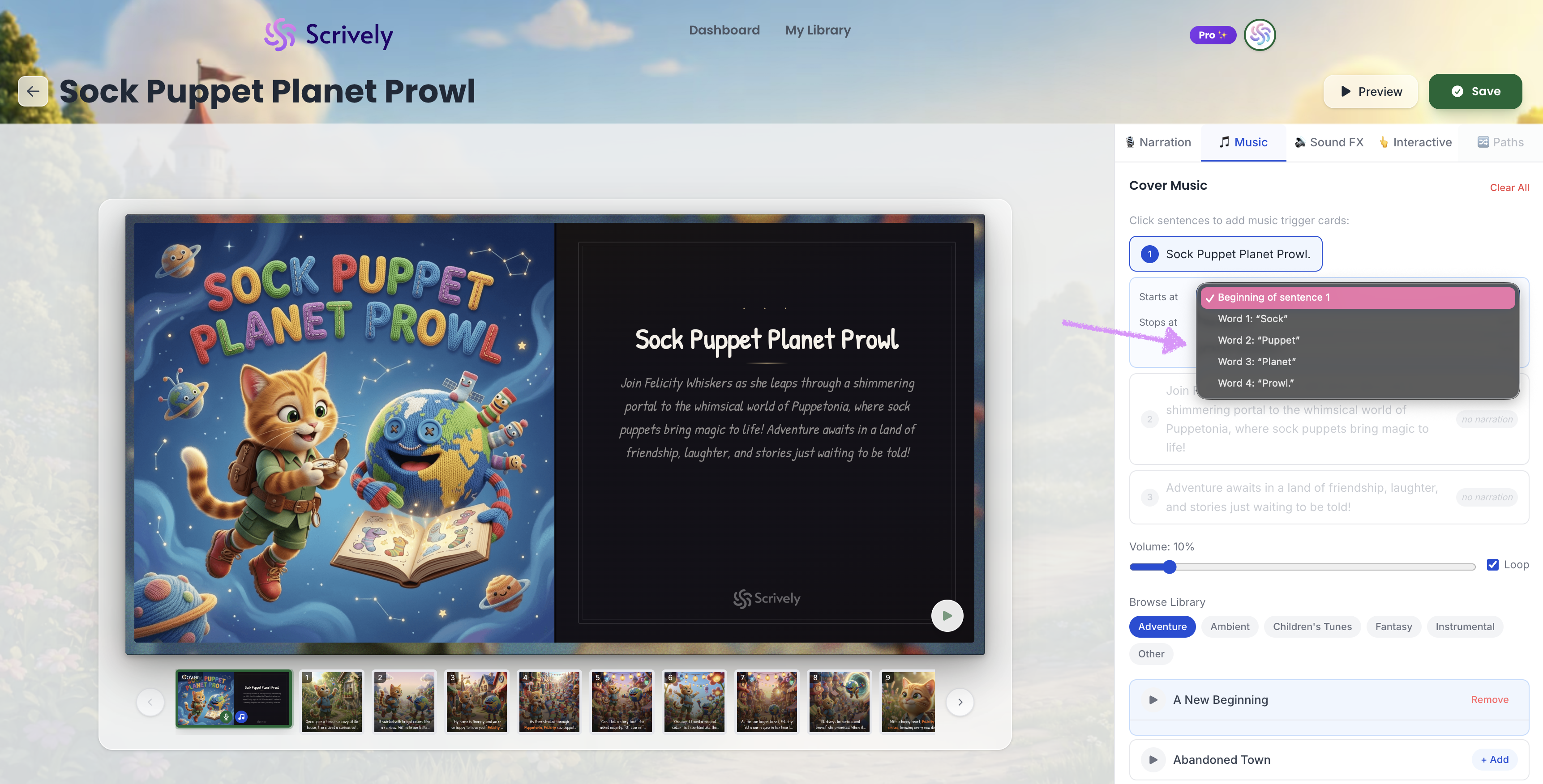
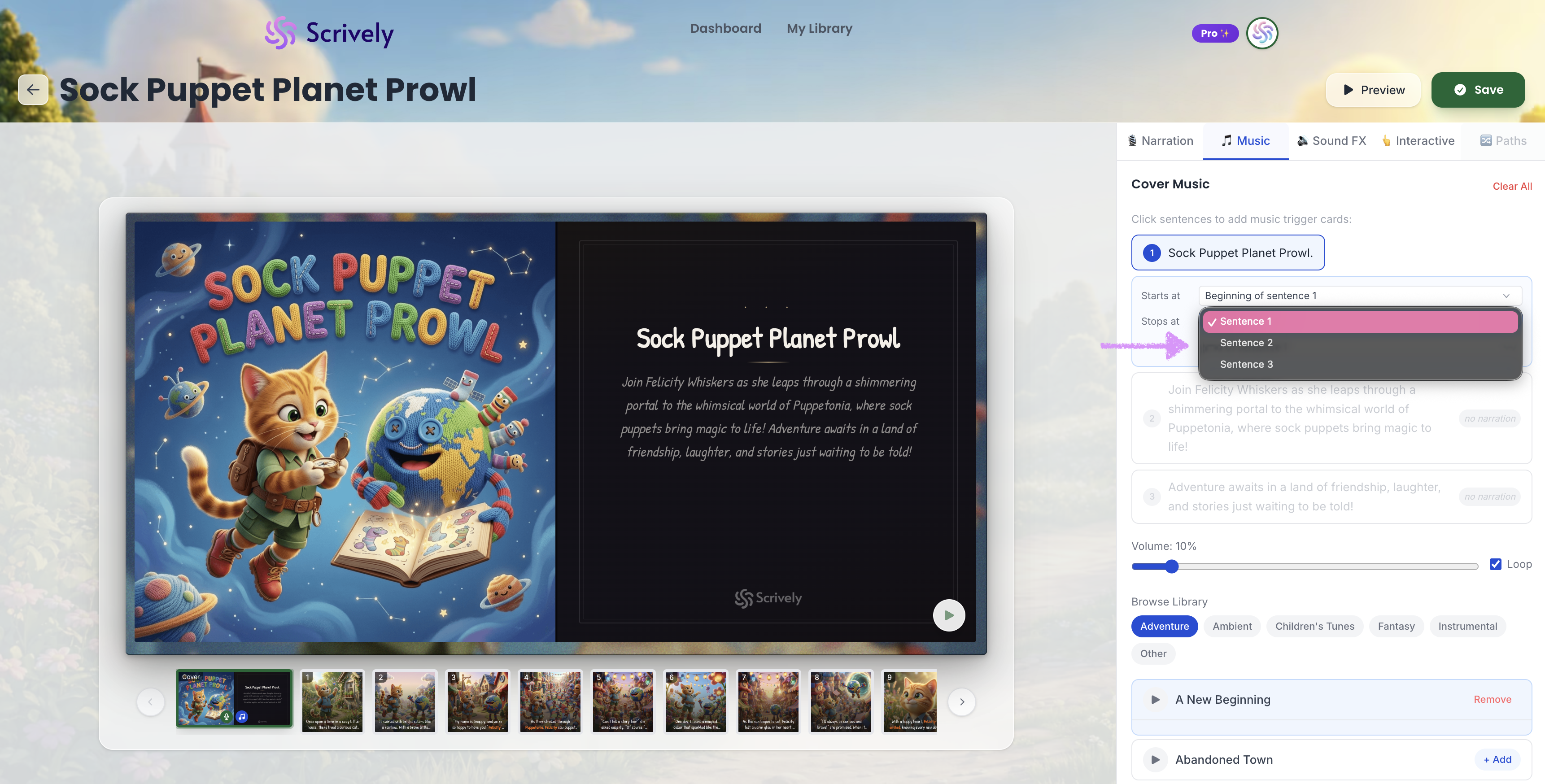
Select where to stop the music.
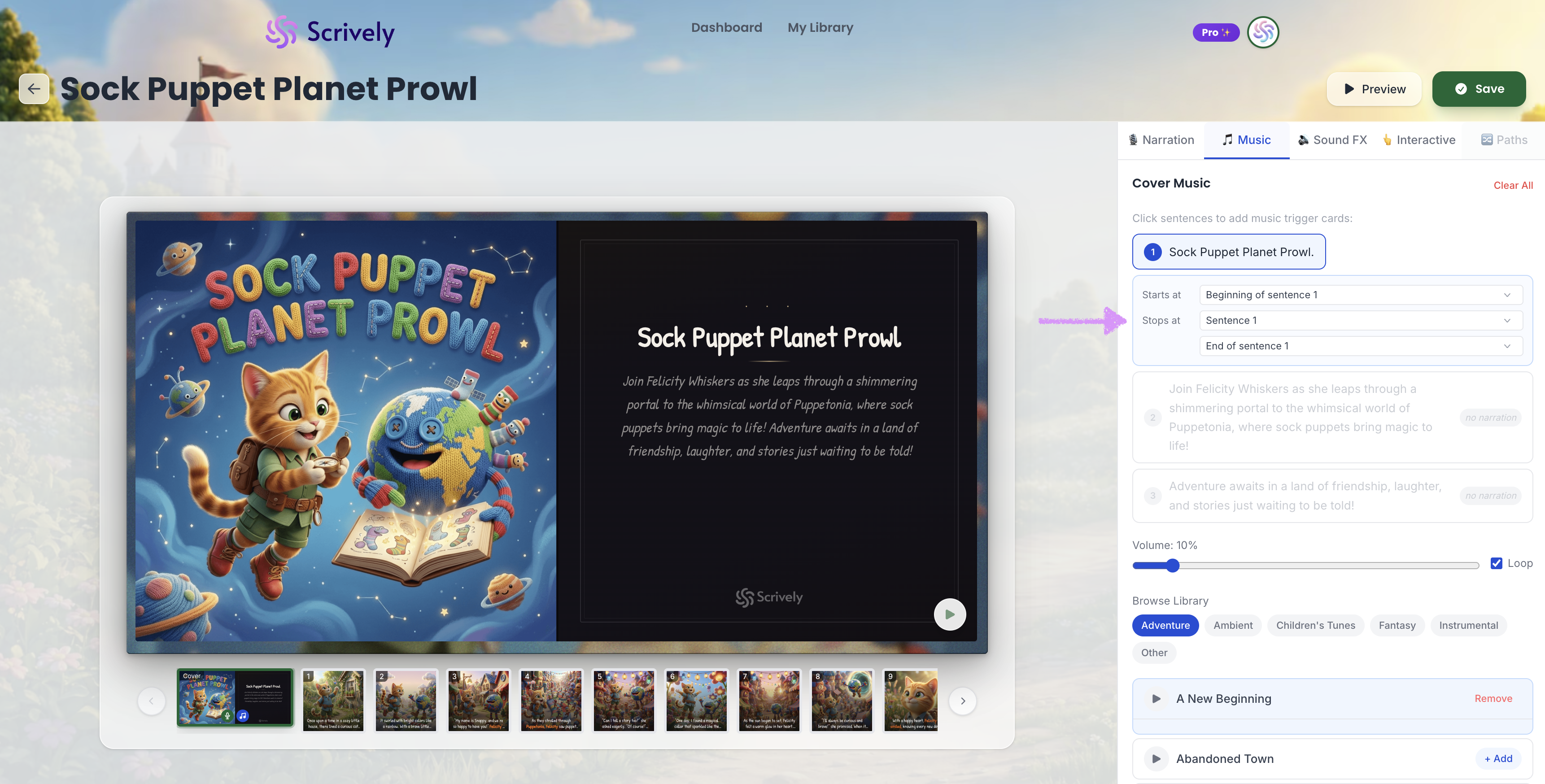
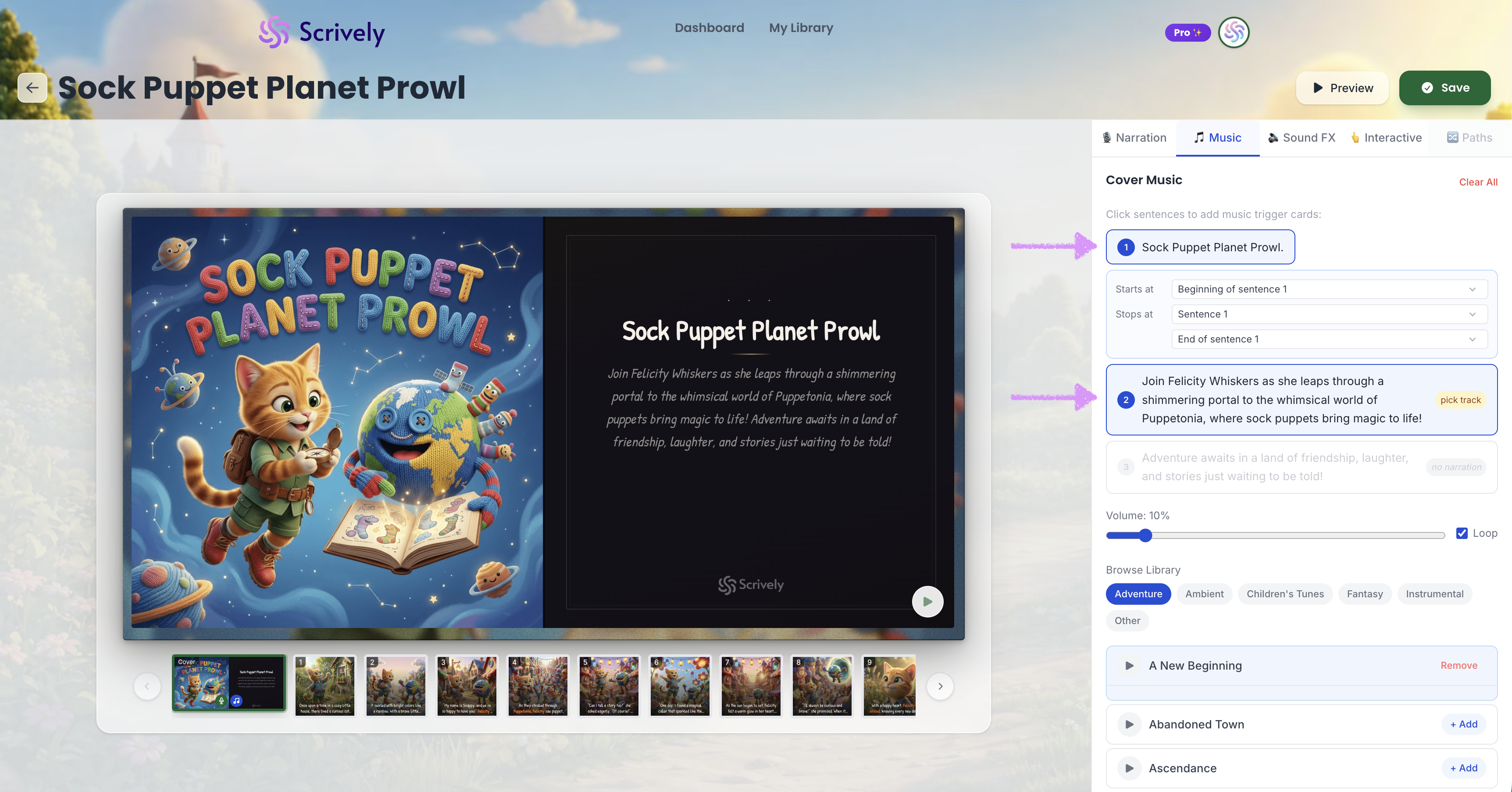
Select any sentence on the page.
You can stop the music at either the end of the sentence or the end of a word within the sentence.
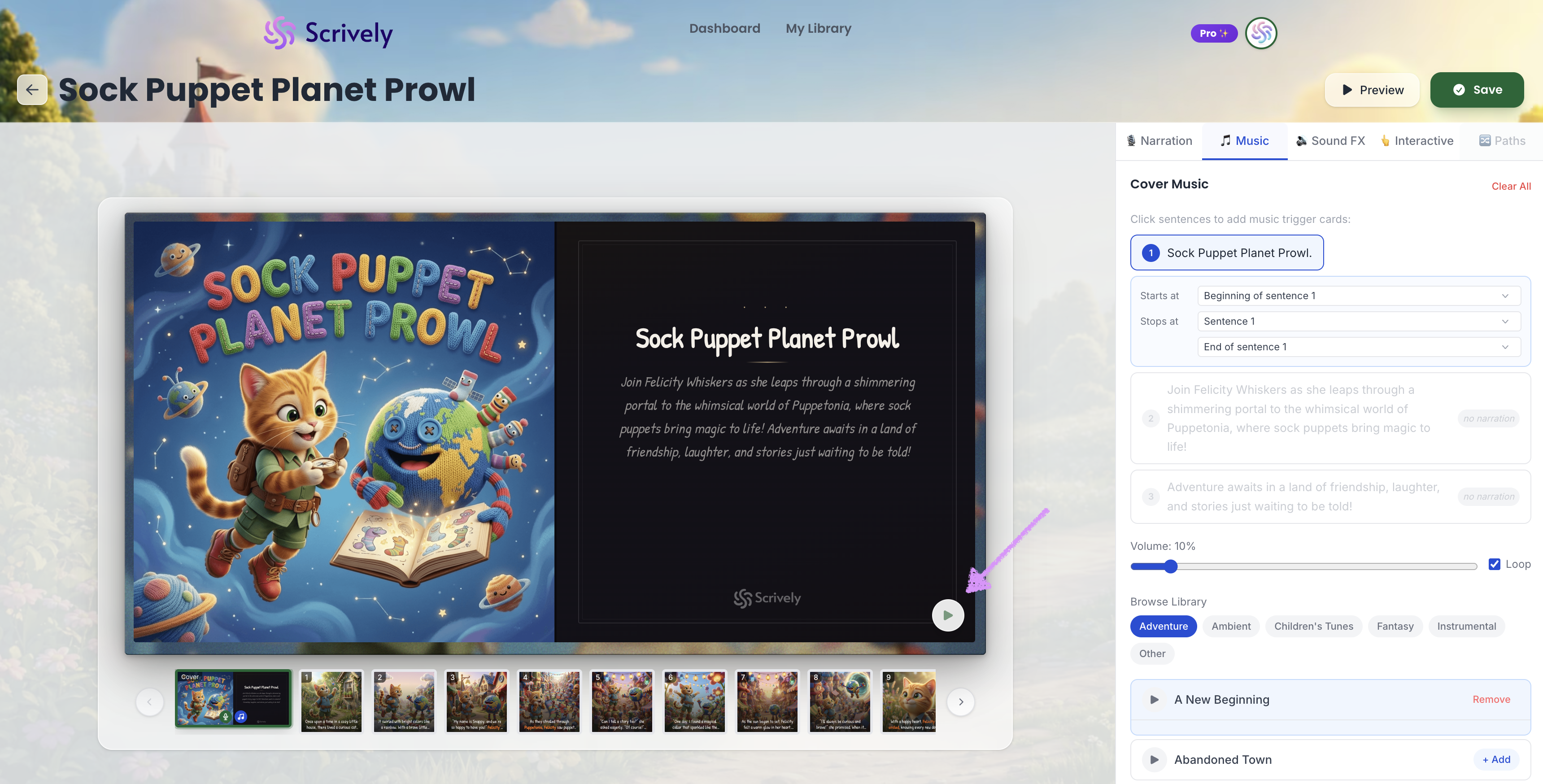
Click on the play icon to add the music to the page.
⚠️ If you’re using an AI voice-over, Scrively will take a few moments to generate the audio. Once ready, it will play the sentence along with the selected background music.Each sentence can have its own music track.
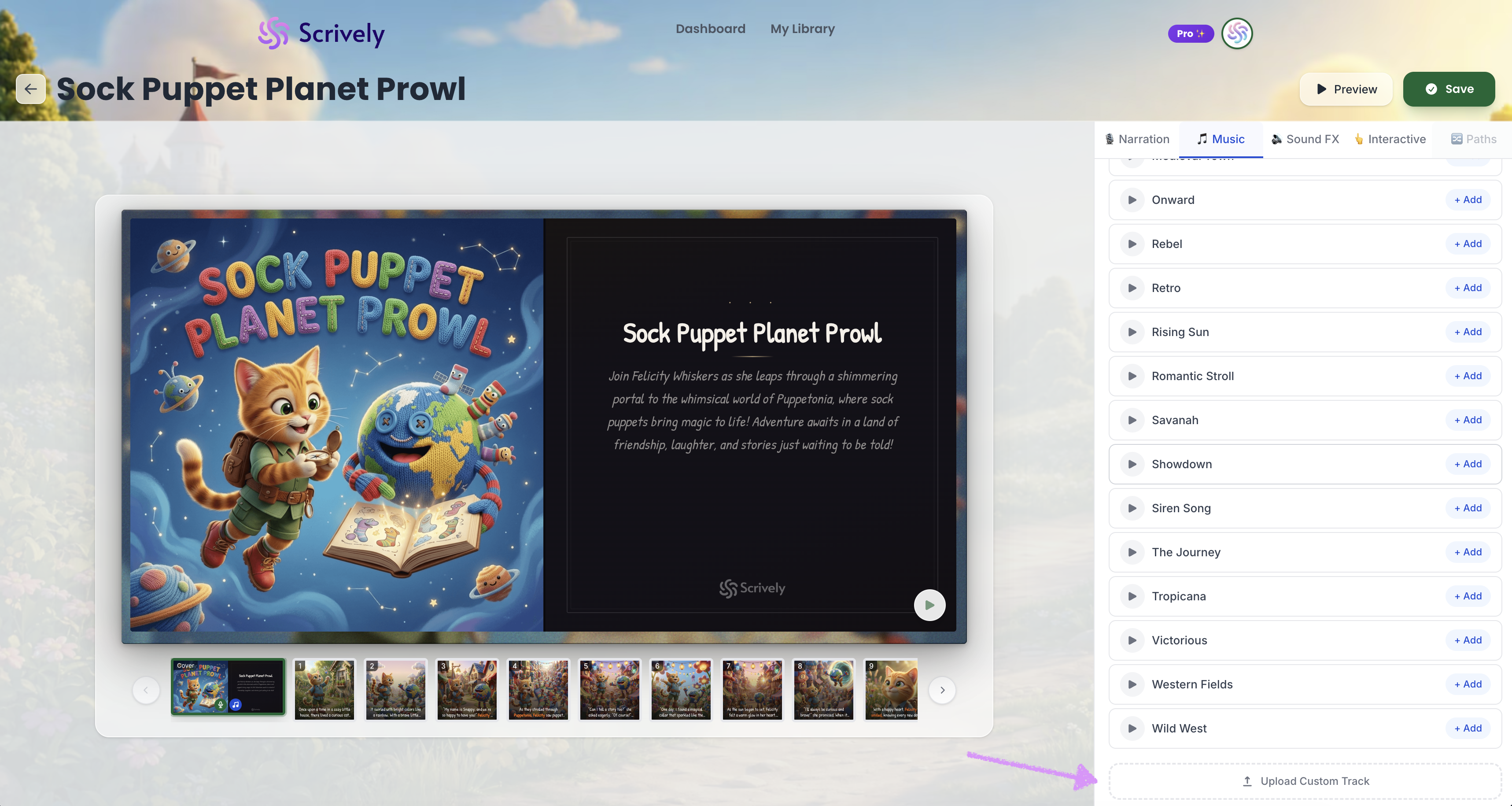
Want to add your own music? Scroll to the bottom of the available music tracks and click on "Upload Custom Track."
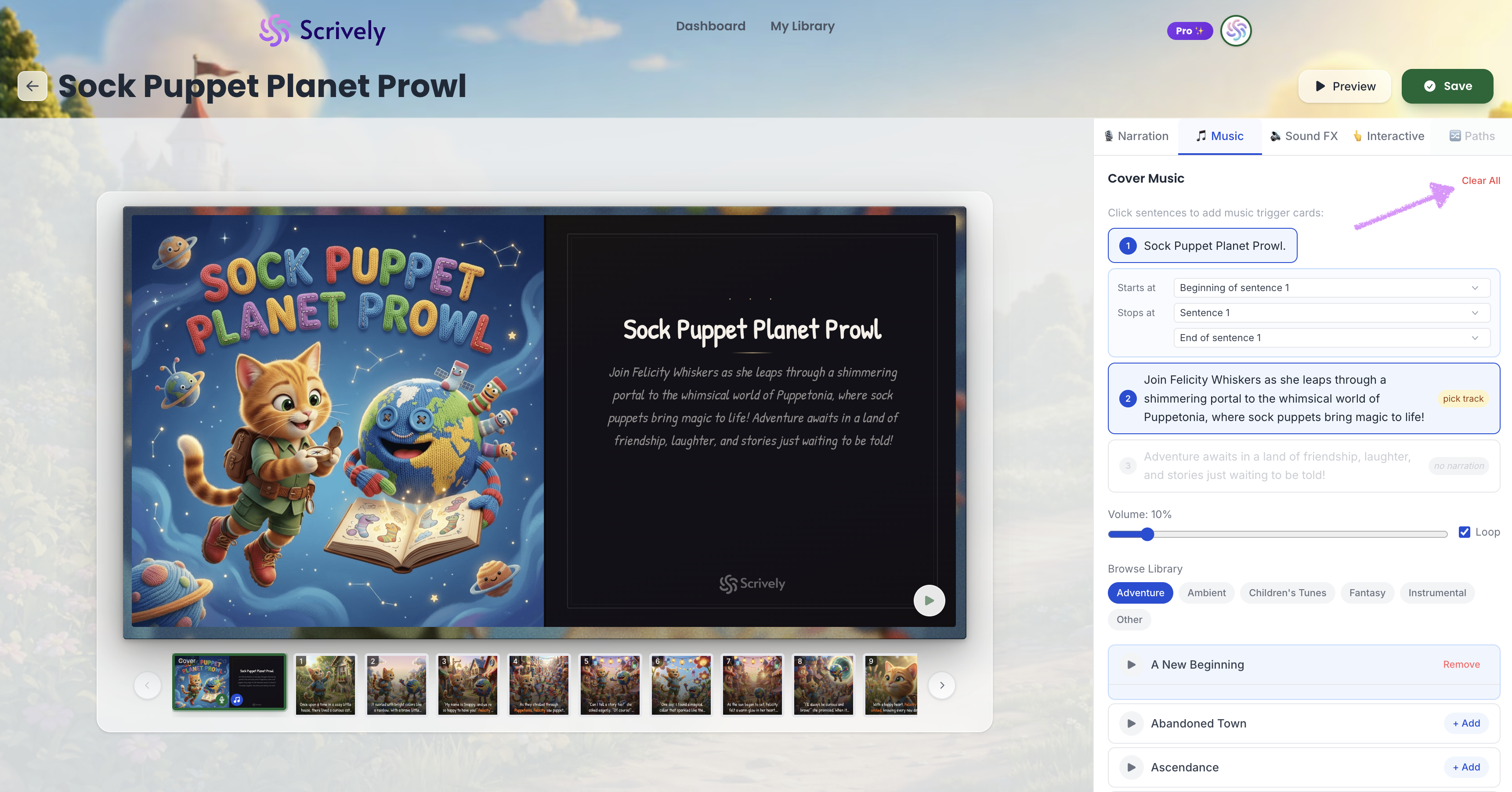
Want to start over? Click on "Clear All.
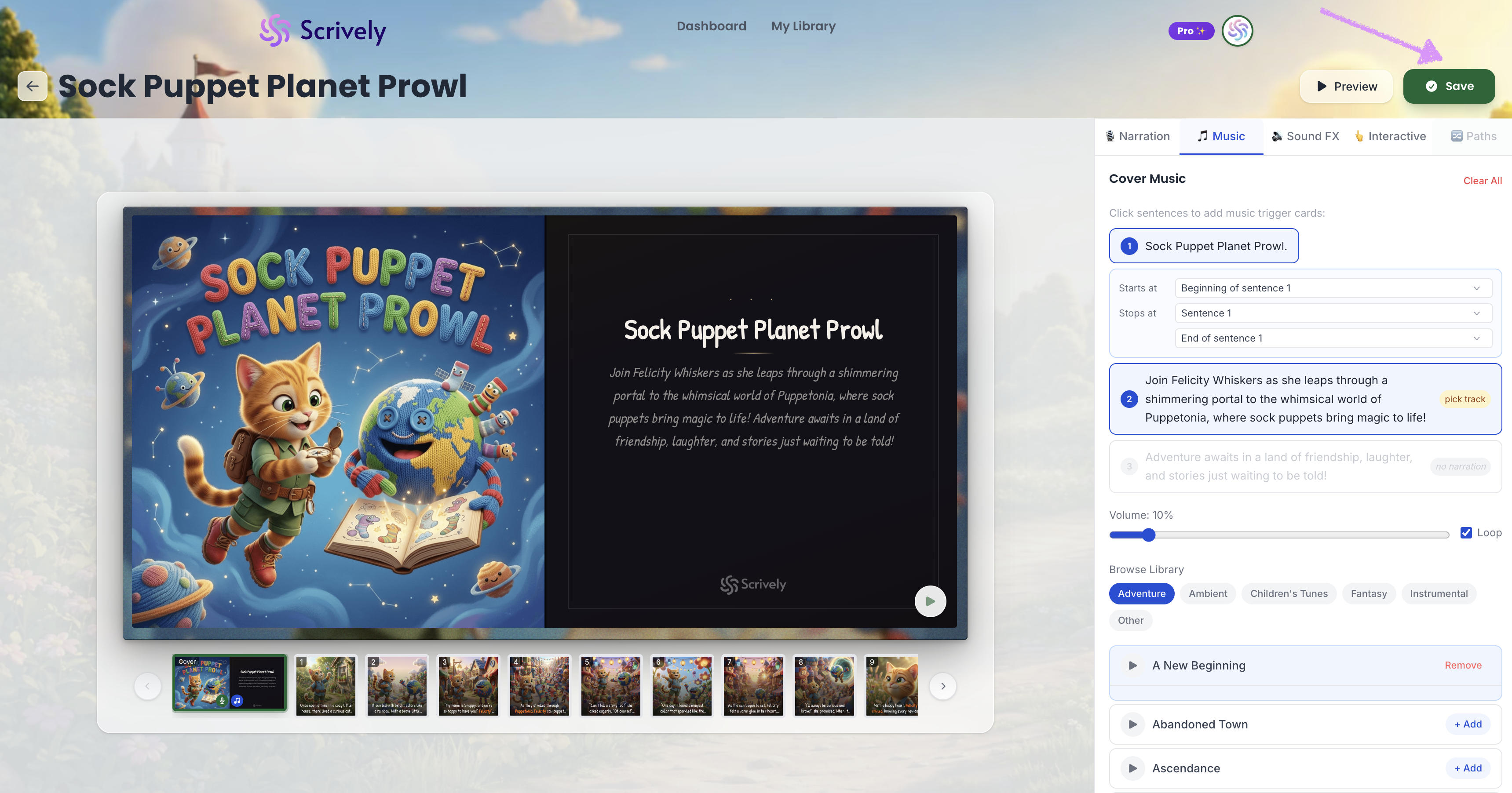
Once you’re satisfied with your changes, click “Save” in the top right corner to save them.
Head over to our guide here to learn more about adding sound effects to your books.
Was this article helpful?
That’s Great!
Thank you for your feedback
Sorry! We couldn't be helpful
Thank you for your feedback
Feedback sent
We appreciate your effort and will try to fix the article
