
Getting Started Guide
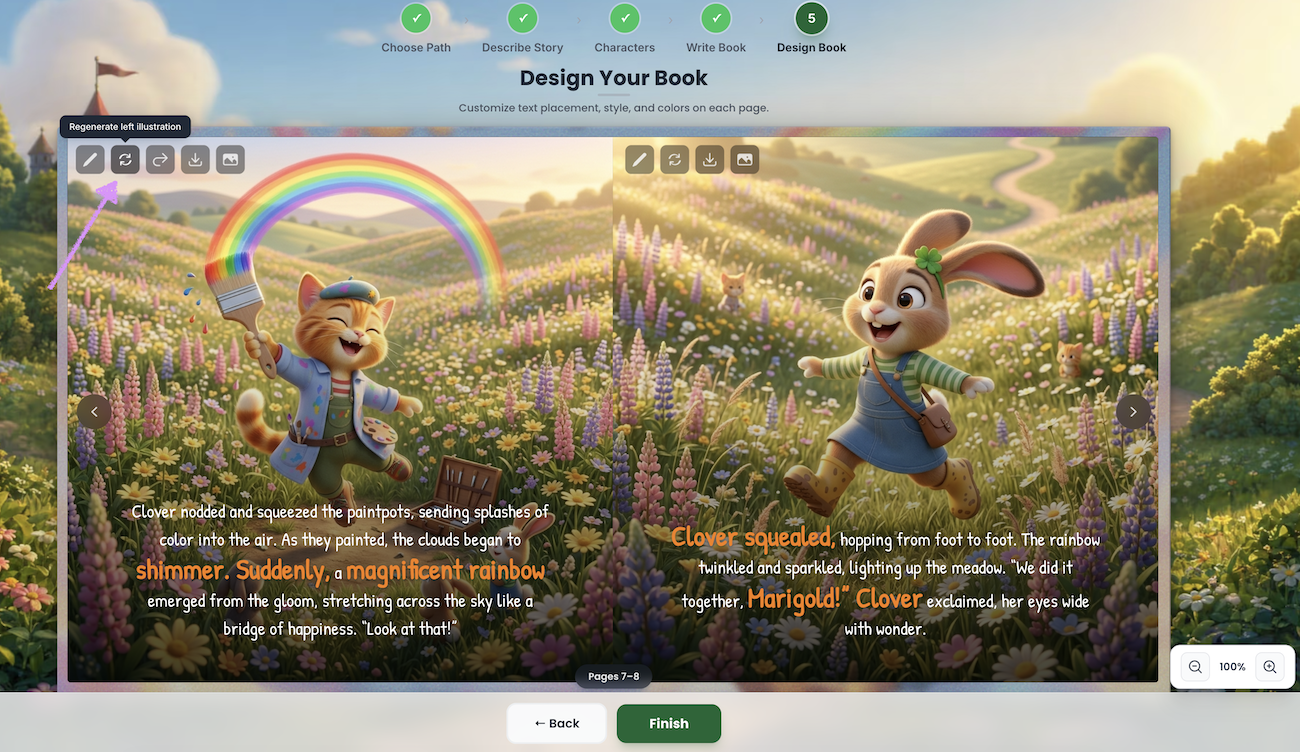
Page images help bring your book to life. If an image isn’t quite right, you can quickly regenerate it in the editor to get a new version that better fits your page.
To regenerate the page image click on "Regenerate left/right illustration" option.
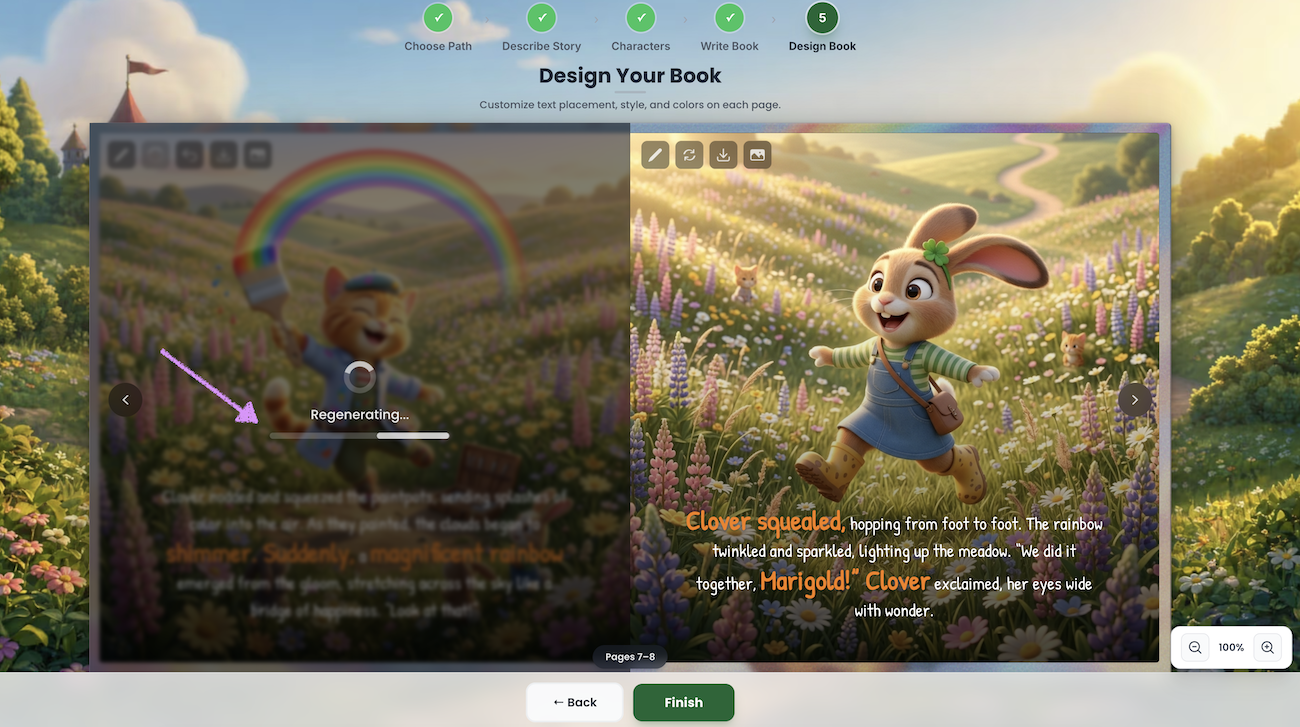
Scrively will take a few moments to think.
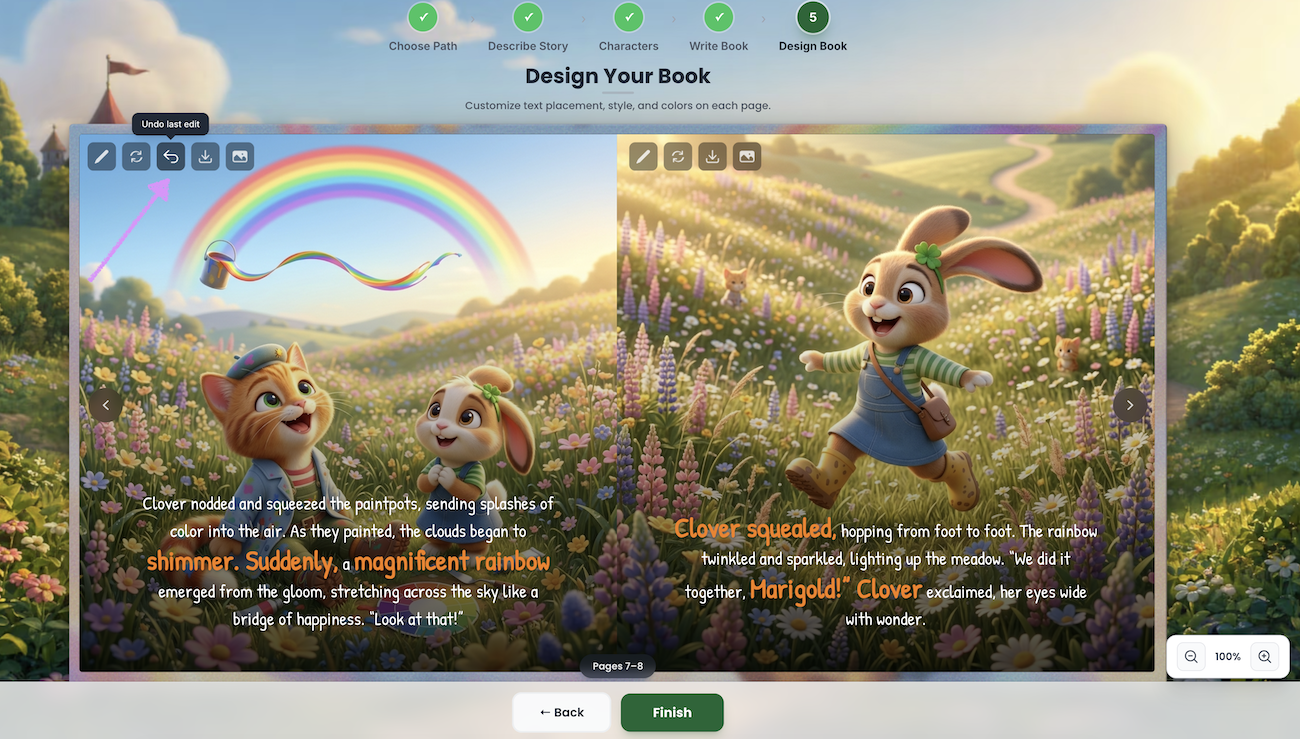
The new image will be displayed and if you're not happy just click on "Undo last edit" to try again.
Head over to our guide here to learn more about downloading page images and adding your own custom images to a page.
Was this article helpful?
That’s Great!
Thank you for your feedback
Sorry! We couldn't be helpful
Thank you for your feedback
Feedback sent
We appreciate your effort and will try to fix the article
