
Text blocks give you the flexibility to add, move, and refine written content throughout your book. They make it easy to adjust your story’s layout, reposition text exactly where you want it on the page, and edit wording as your story evolves. Whether you’re making small tweaks or shaping the overall flow of your book, text blocks help you fine-tune both the look and feel of your content with ease.
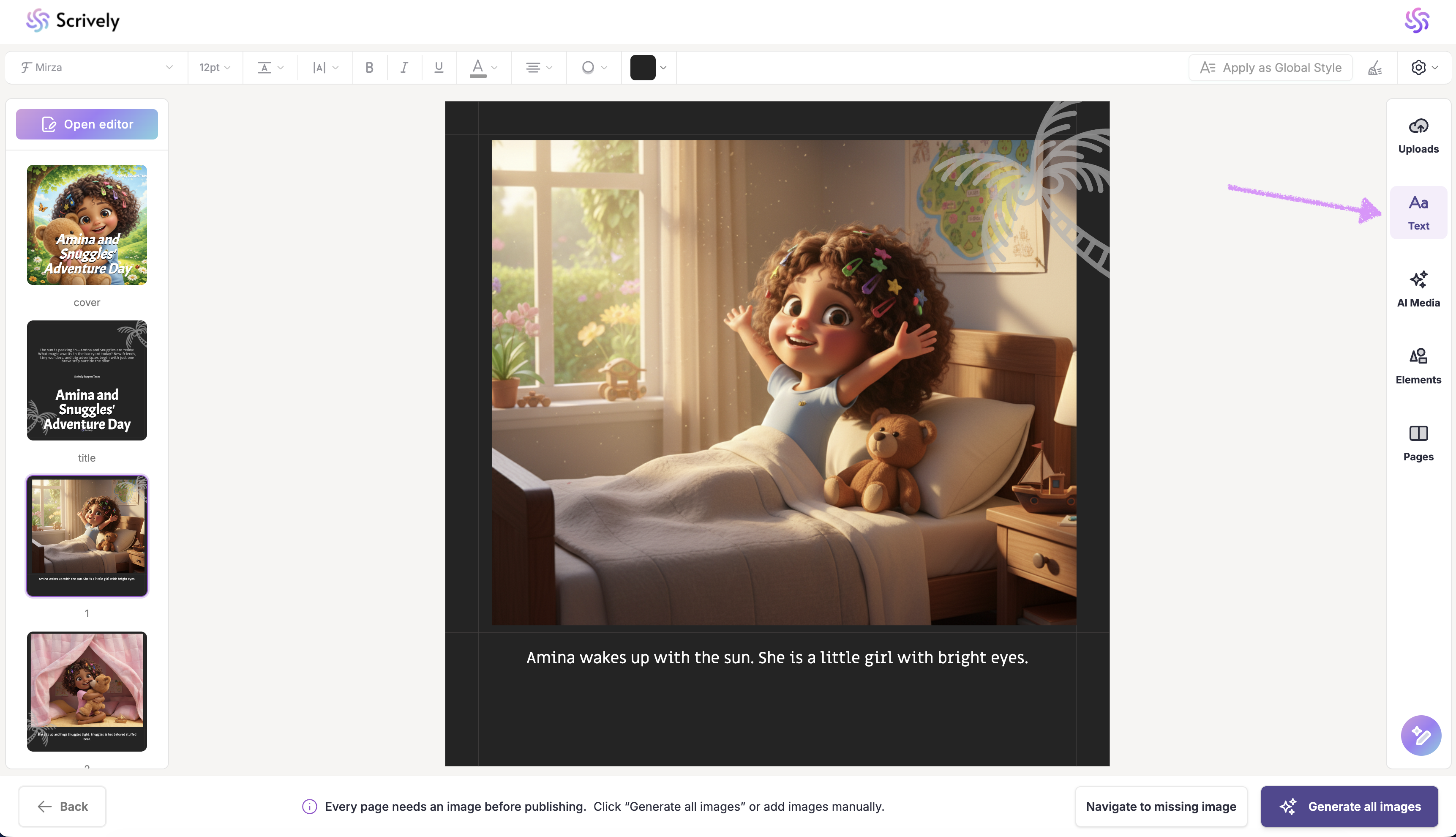
In the Designer (book layout view), open the "Text" tool from the panel on the right side.
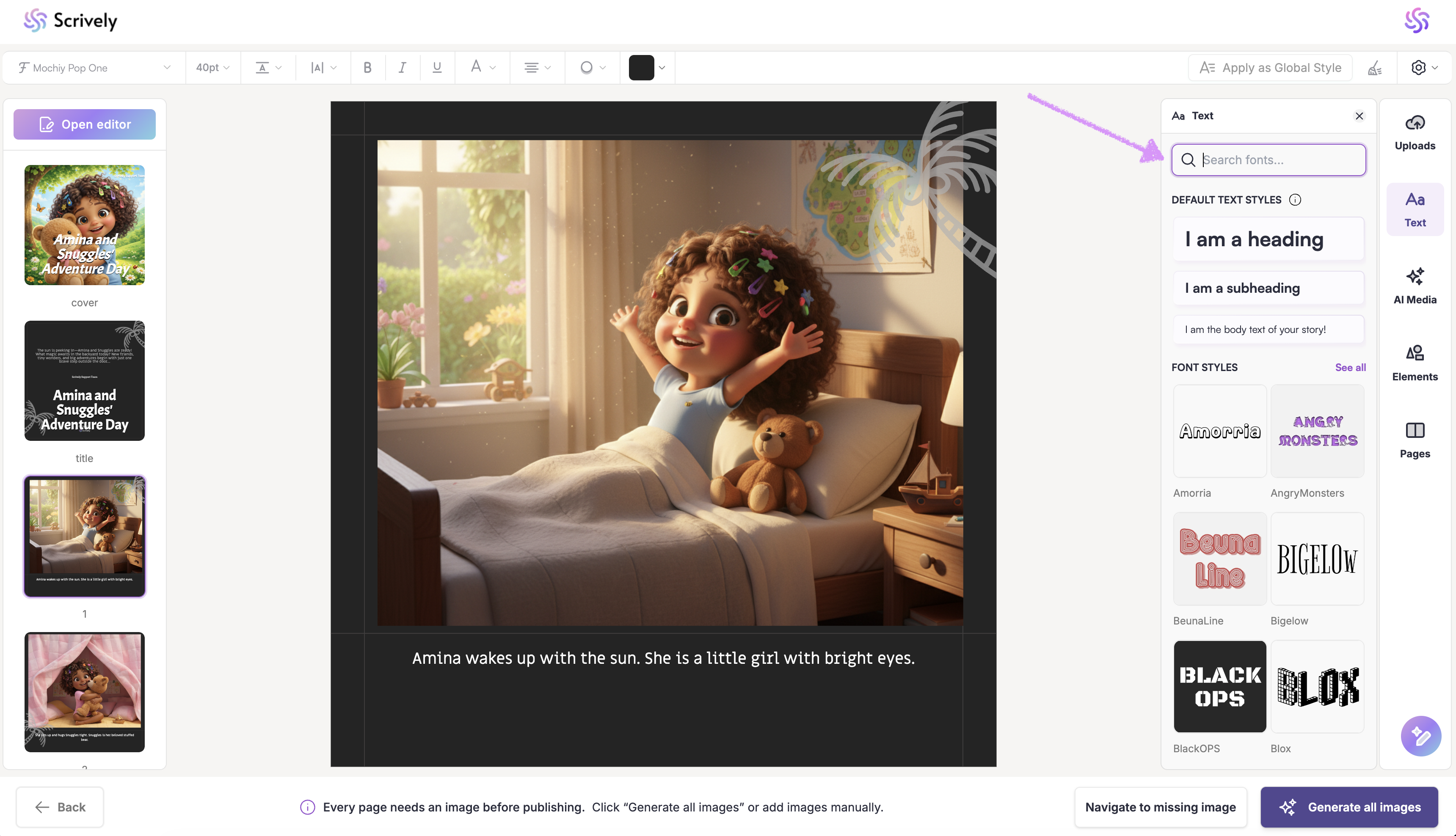
Use the search field to find specific fonts.
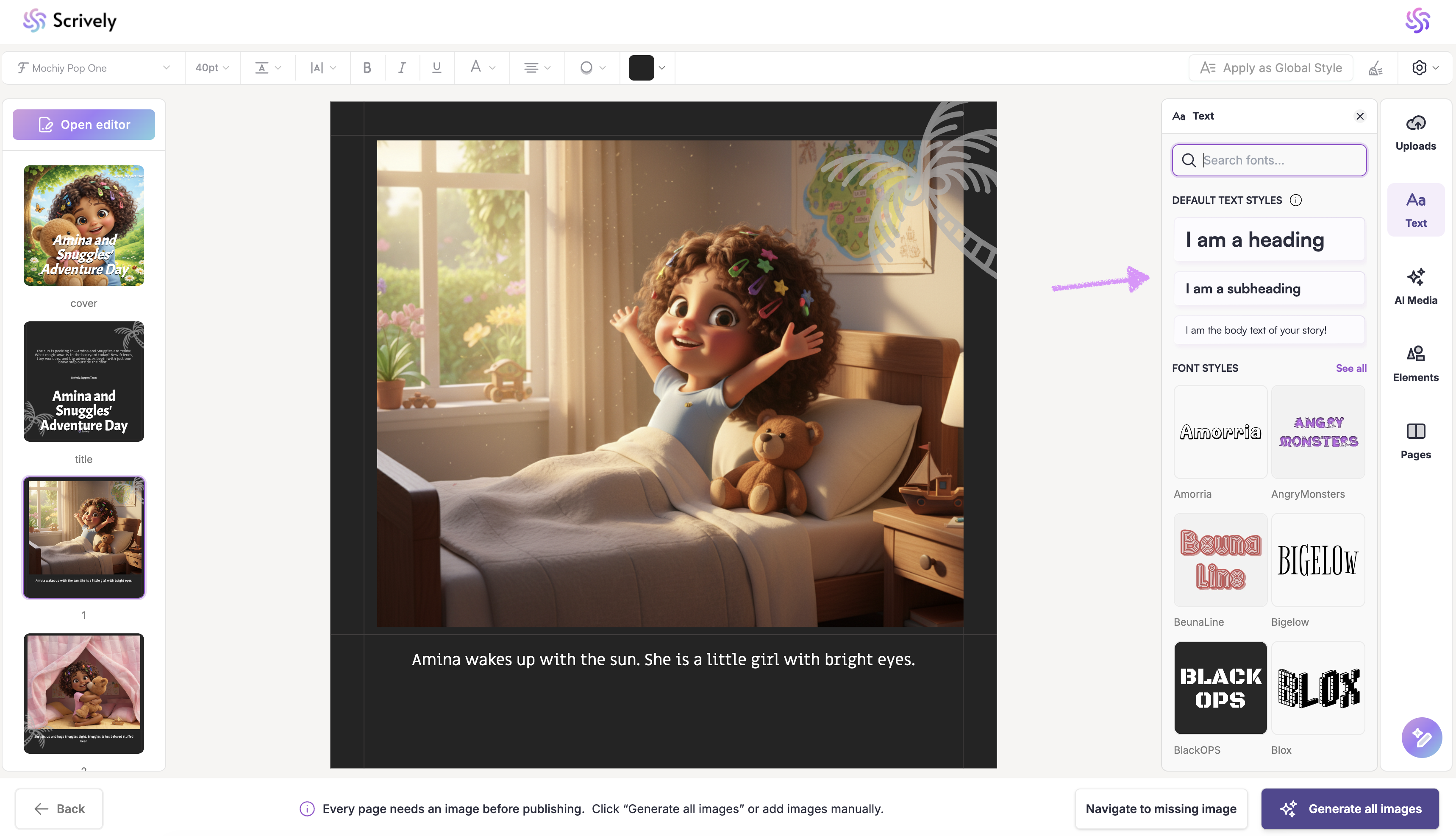
Or choose from the "Default Text Styles" listed below the search bar.
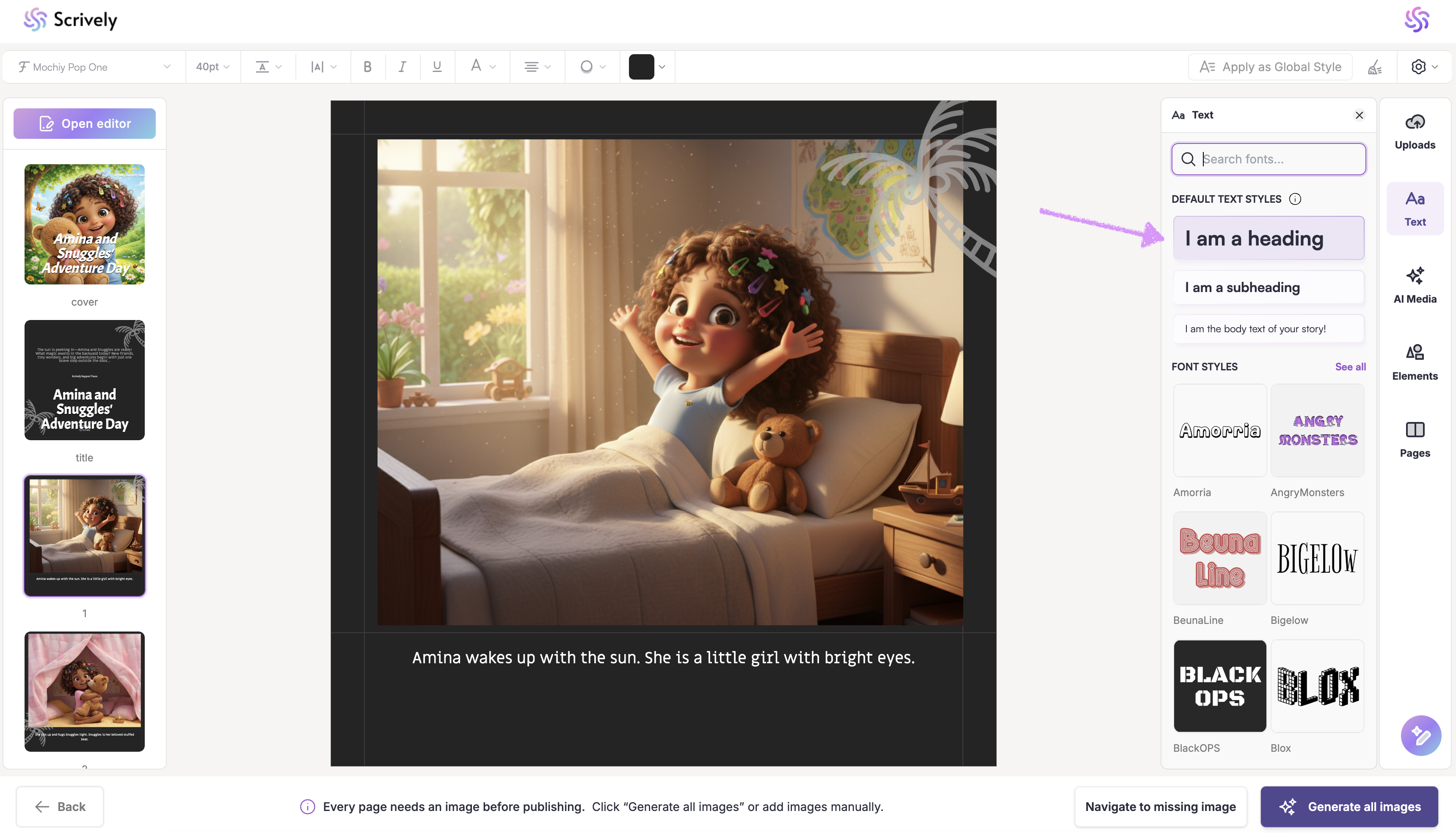
Select a text style.
Drag it onto the canvas to add a text block to your page.
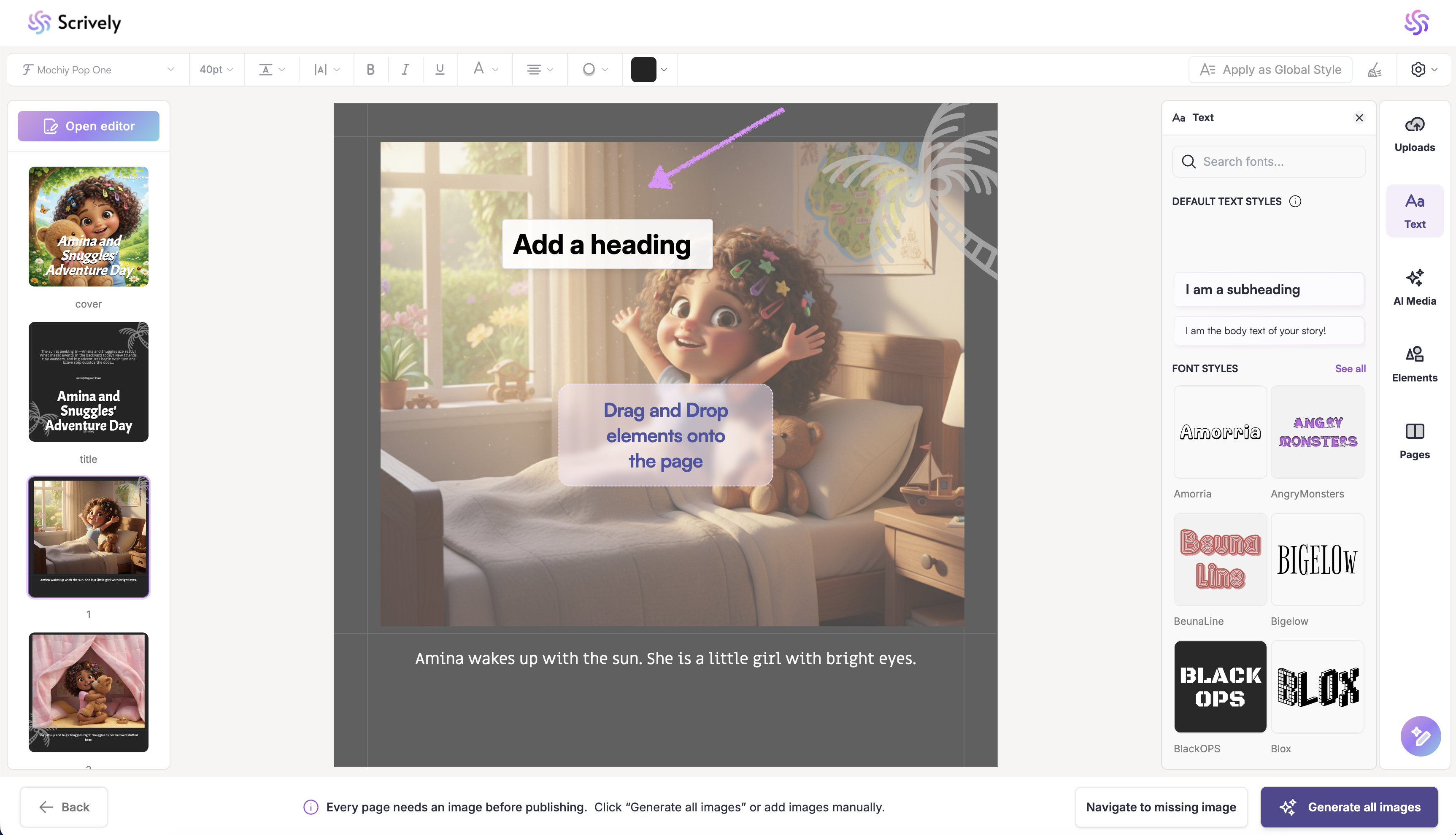
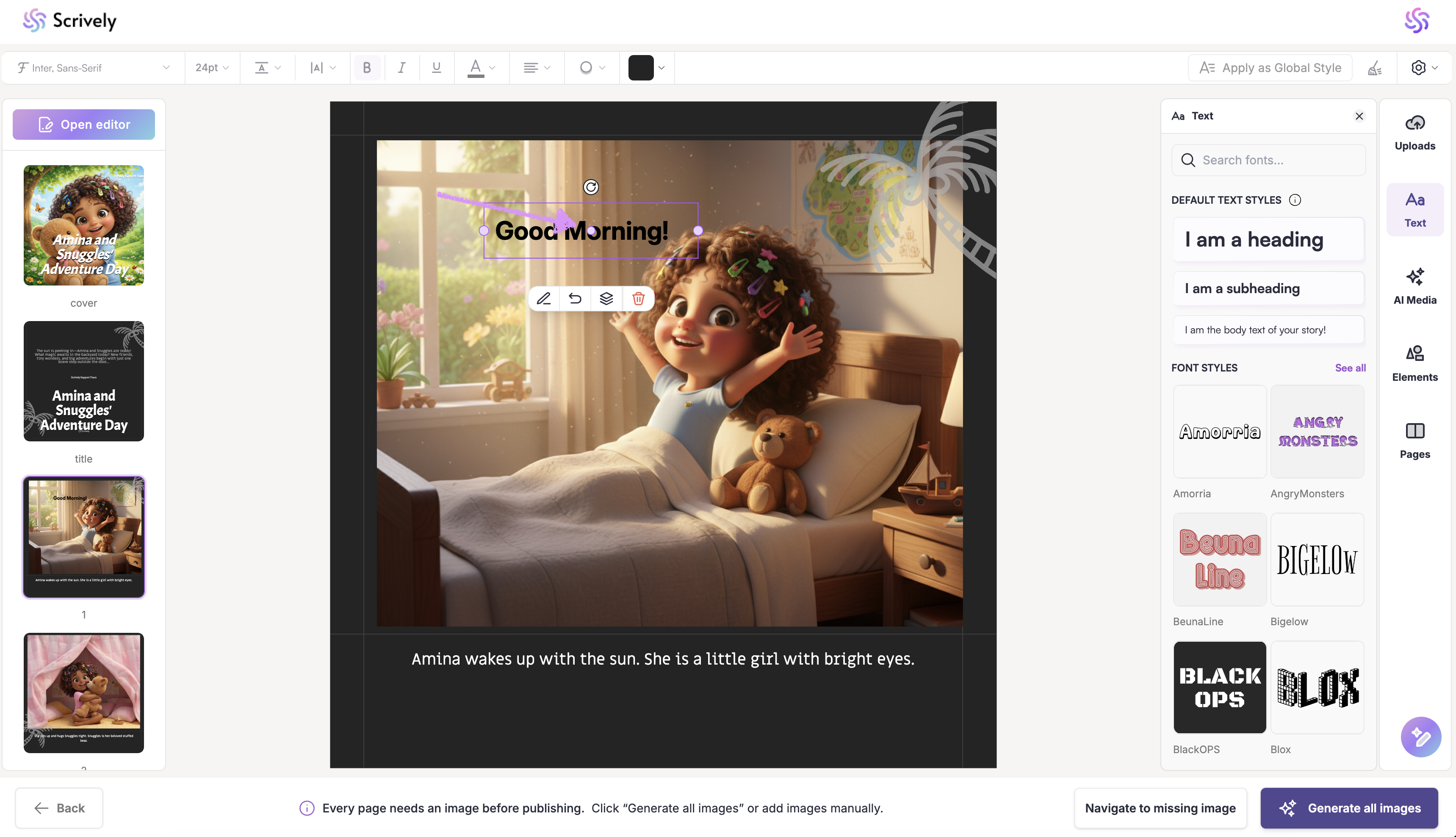
Once placed, click on the text block to reveal editing options including the resize handles.
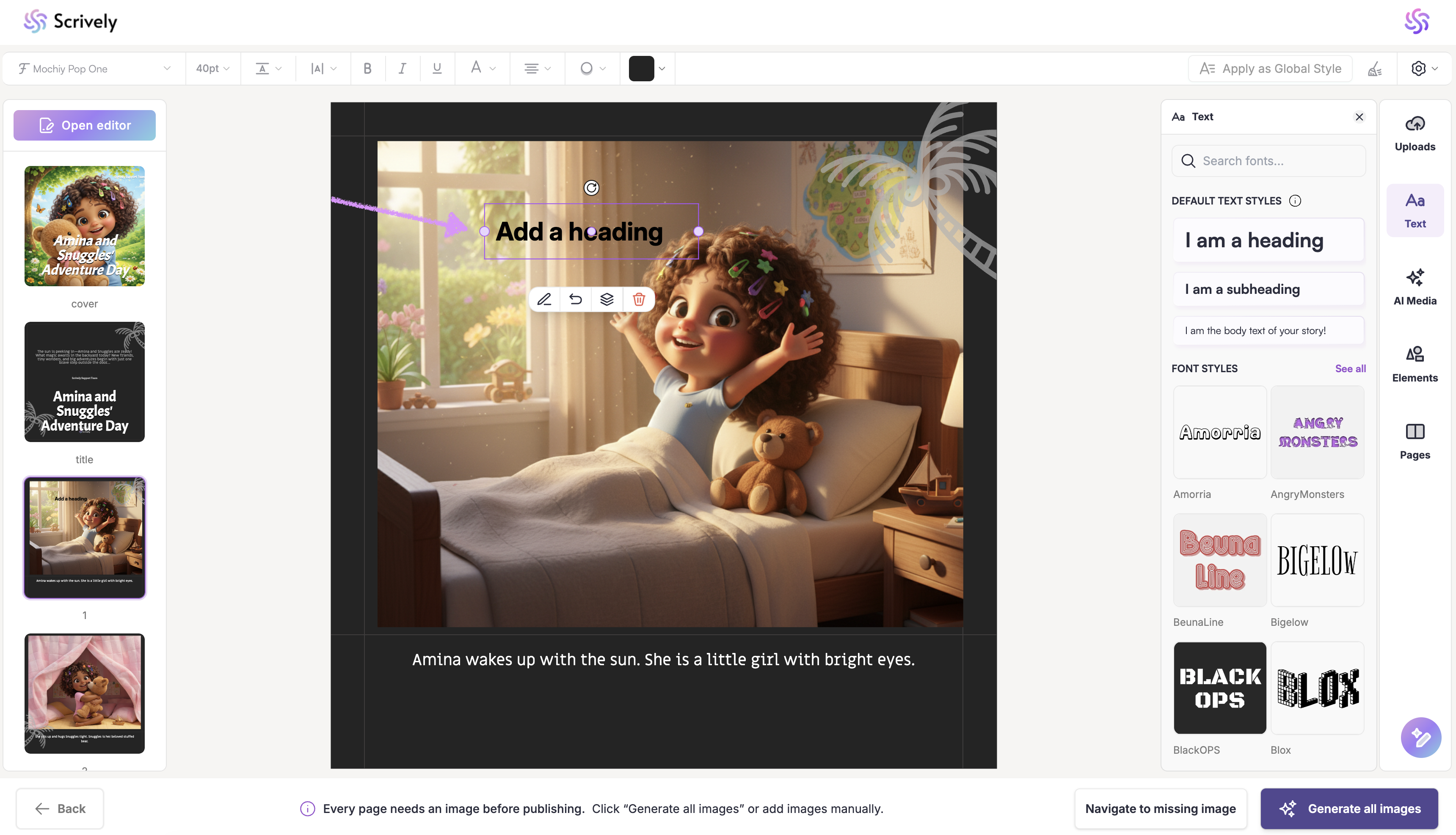
At the top is the option to "Rotate" the text’s orientation.
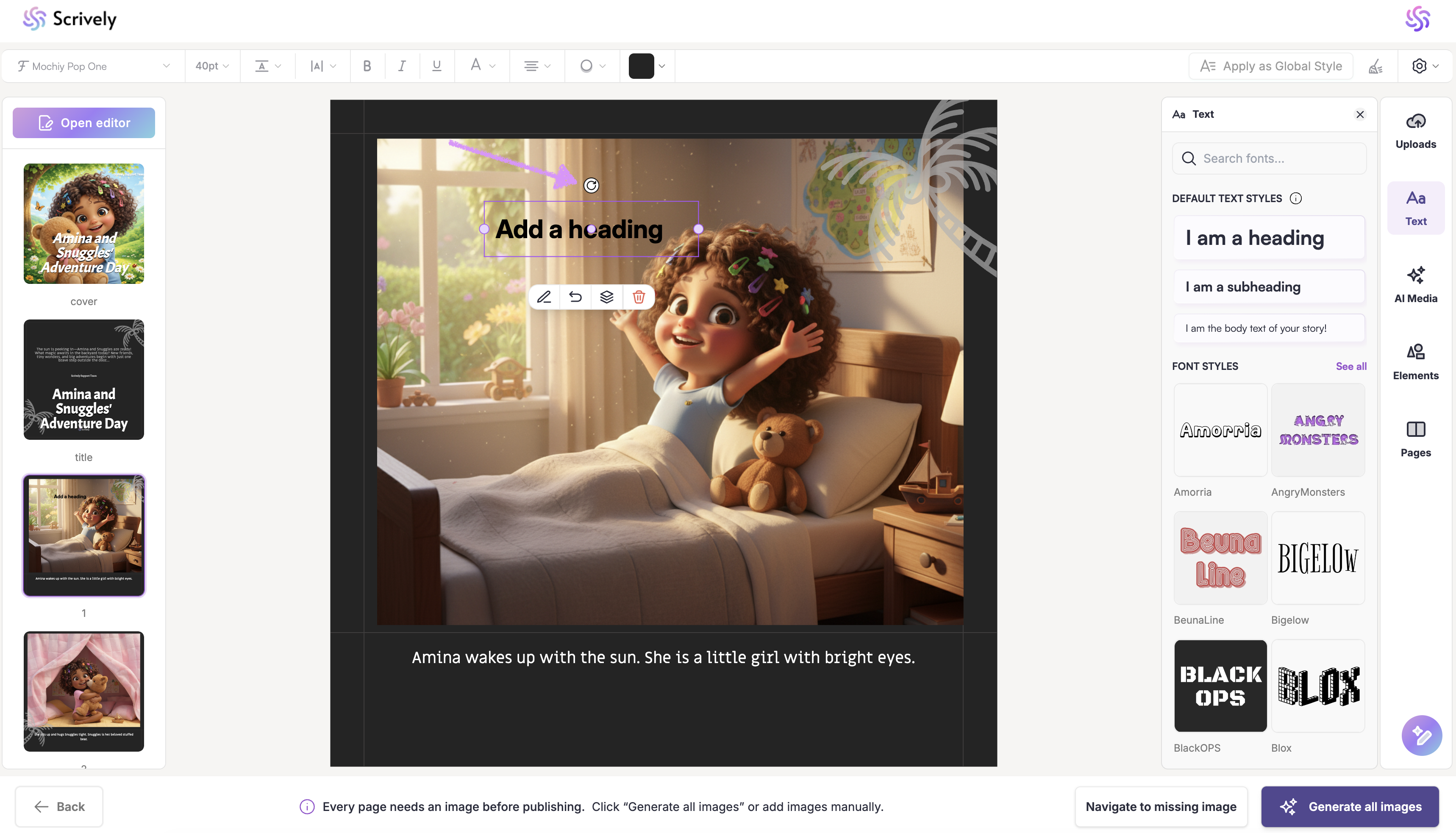
Click on the pencil icon to "Edit text."
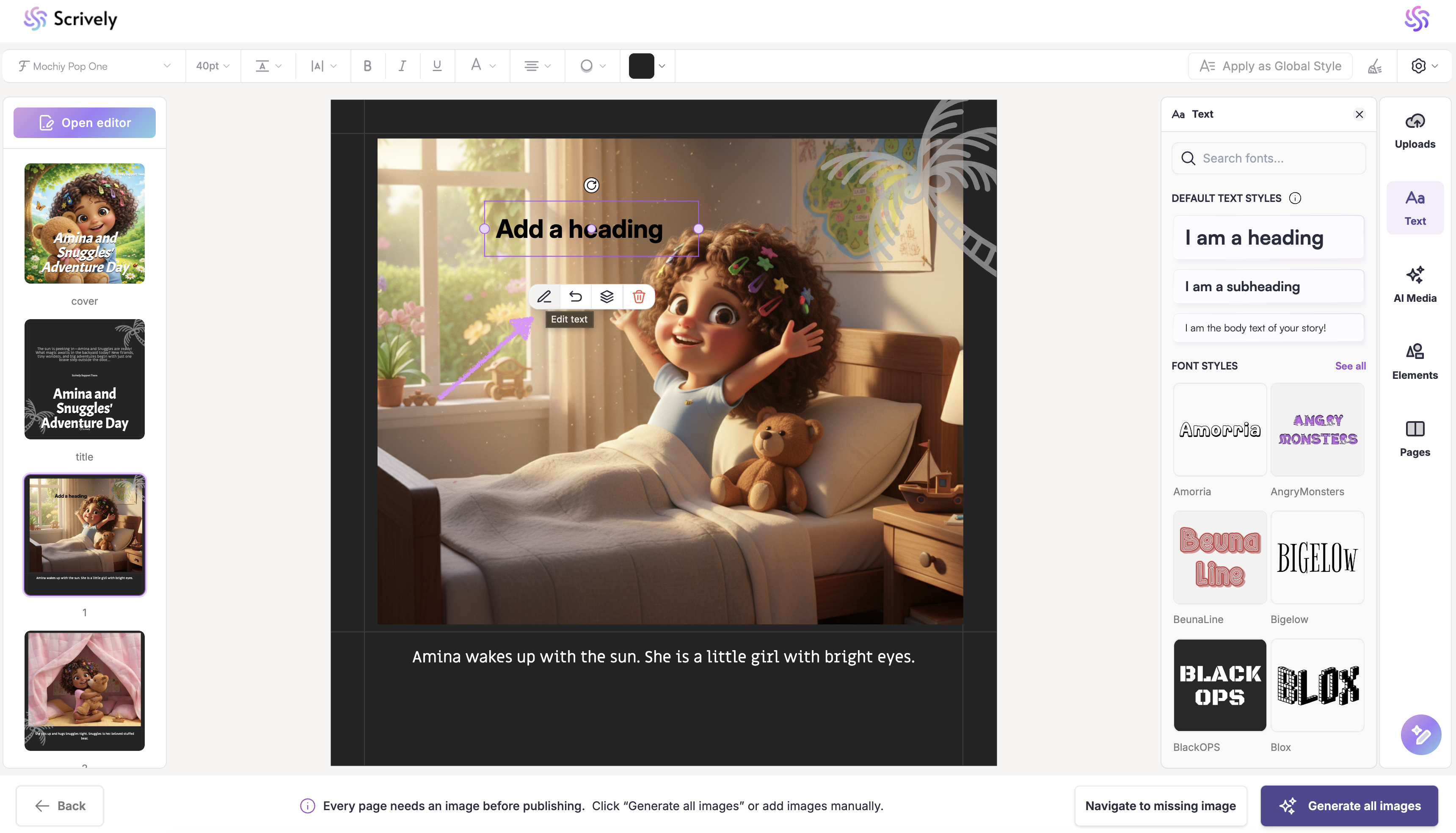
Need to start over? Click on "Reset element."
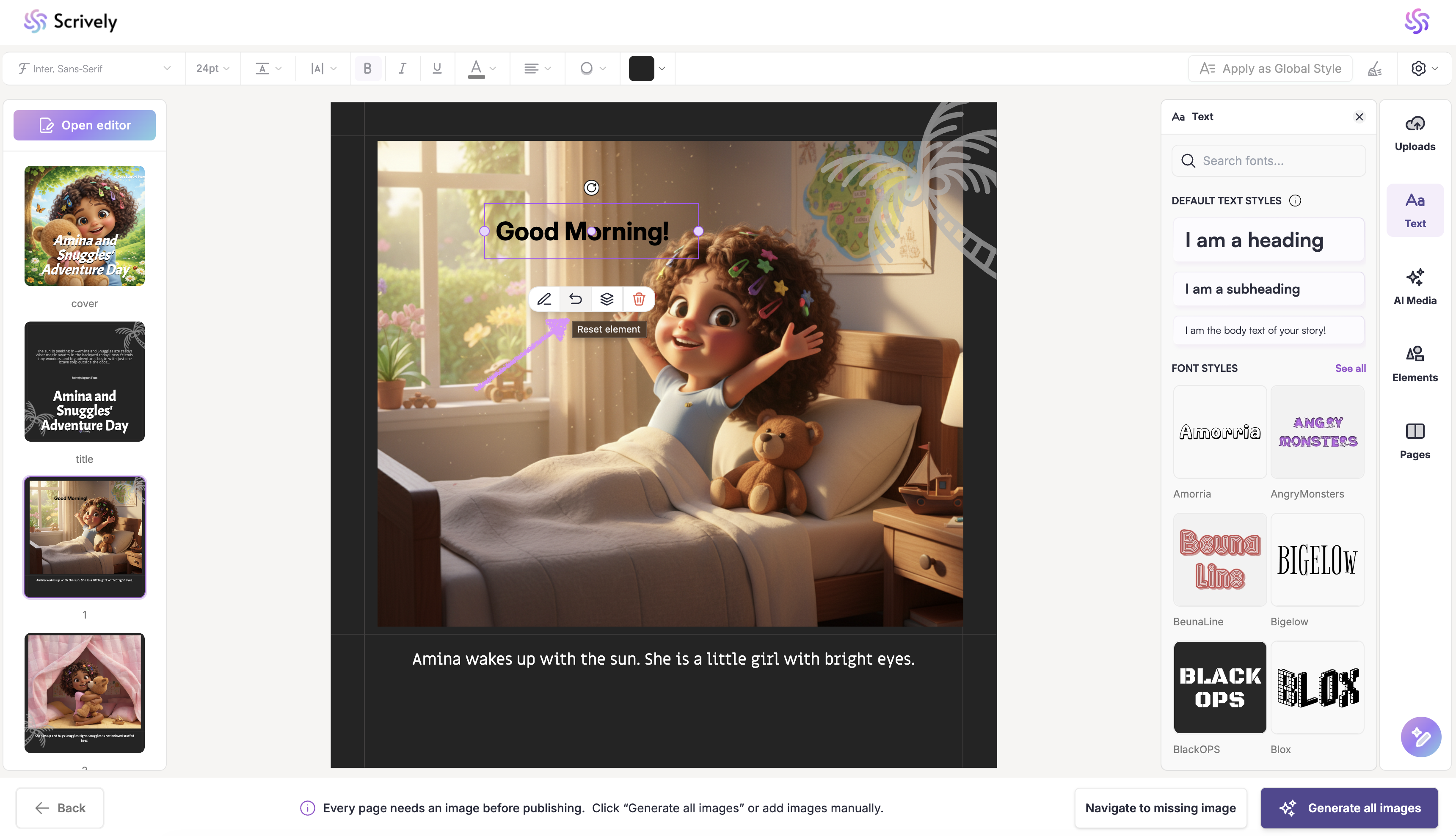
To control how text layers interact with other elements on the page, open the "Layer order" menu.
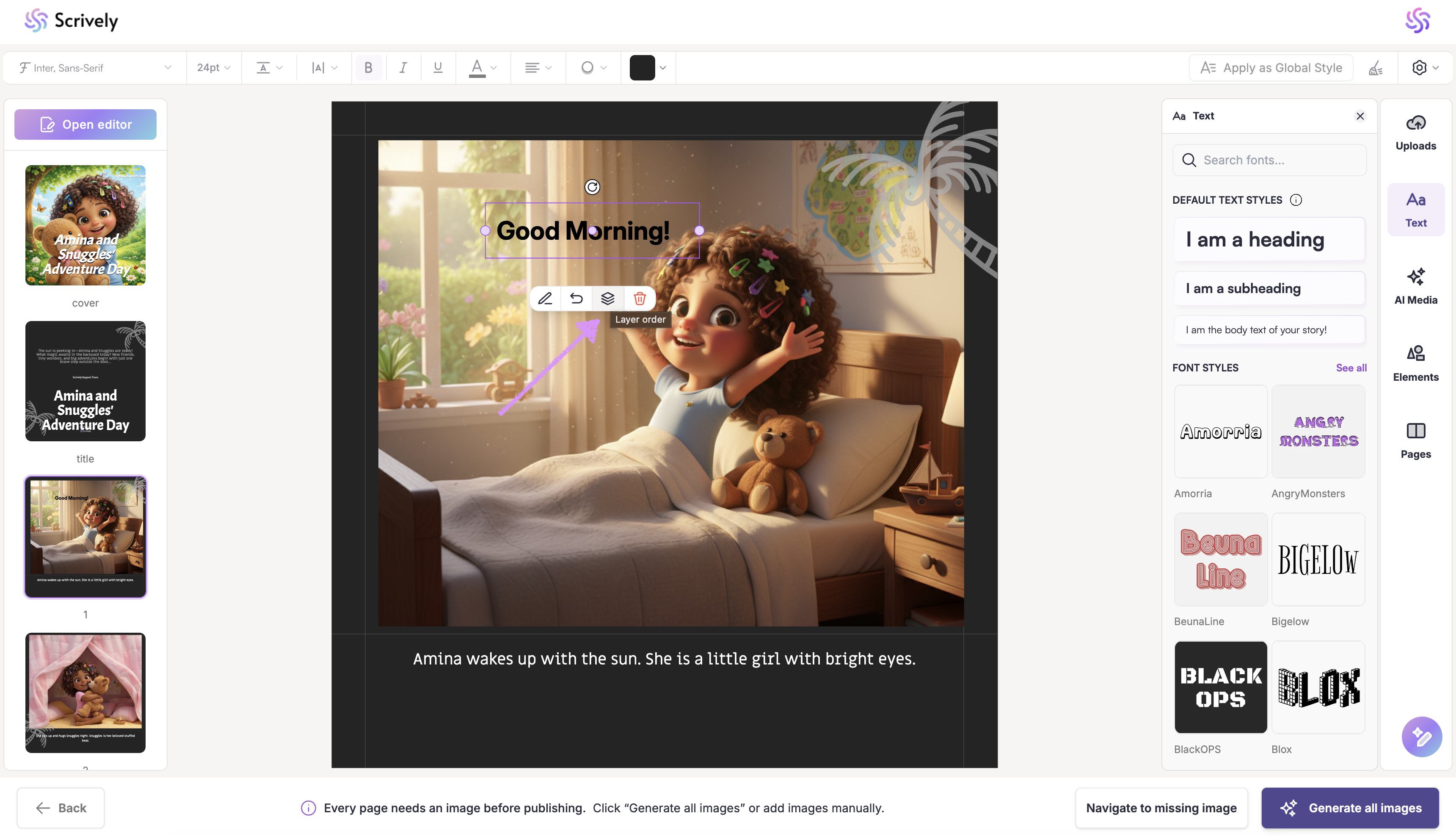
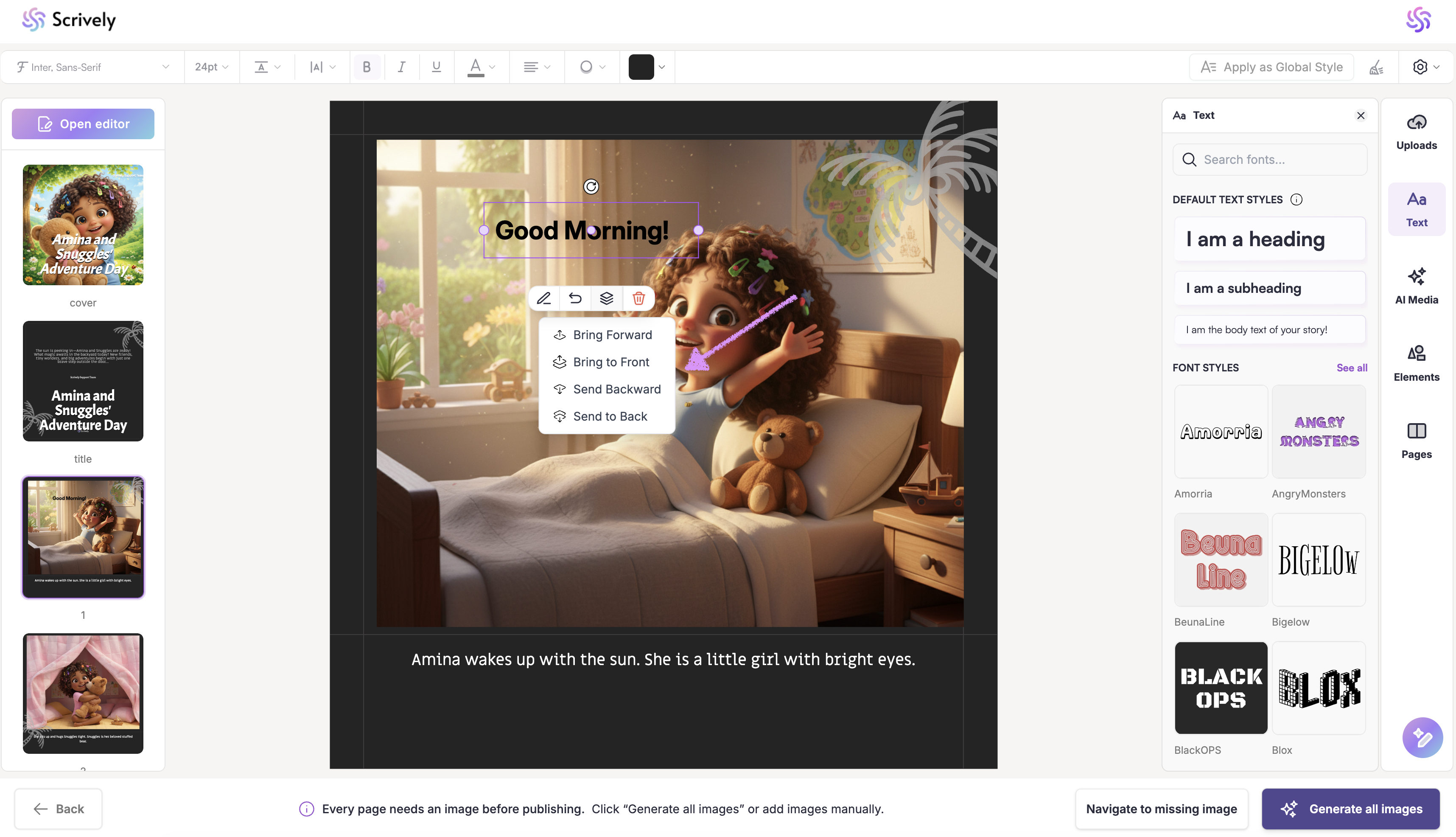
This tool provides four options that let you move text forward or backward within the page layout.
- Bring Forward
Moves the selected text block one layer forward, placing it above other elements that overlap it. - Bring to Front
Moves the selected text block to the top layer, placing it above all other elements on the page. - Send Backward
Moves the selected text block one layer backward, placing it behind overlapping elements. - Send to Back
Moves the selected text block to the bottom layer, placing it behind all other elements on the page.
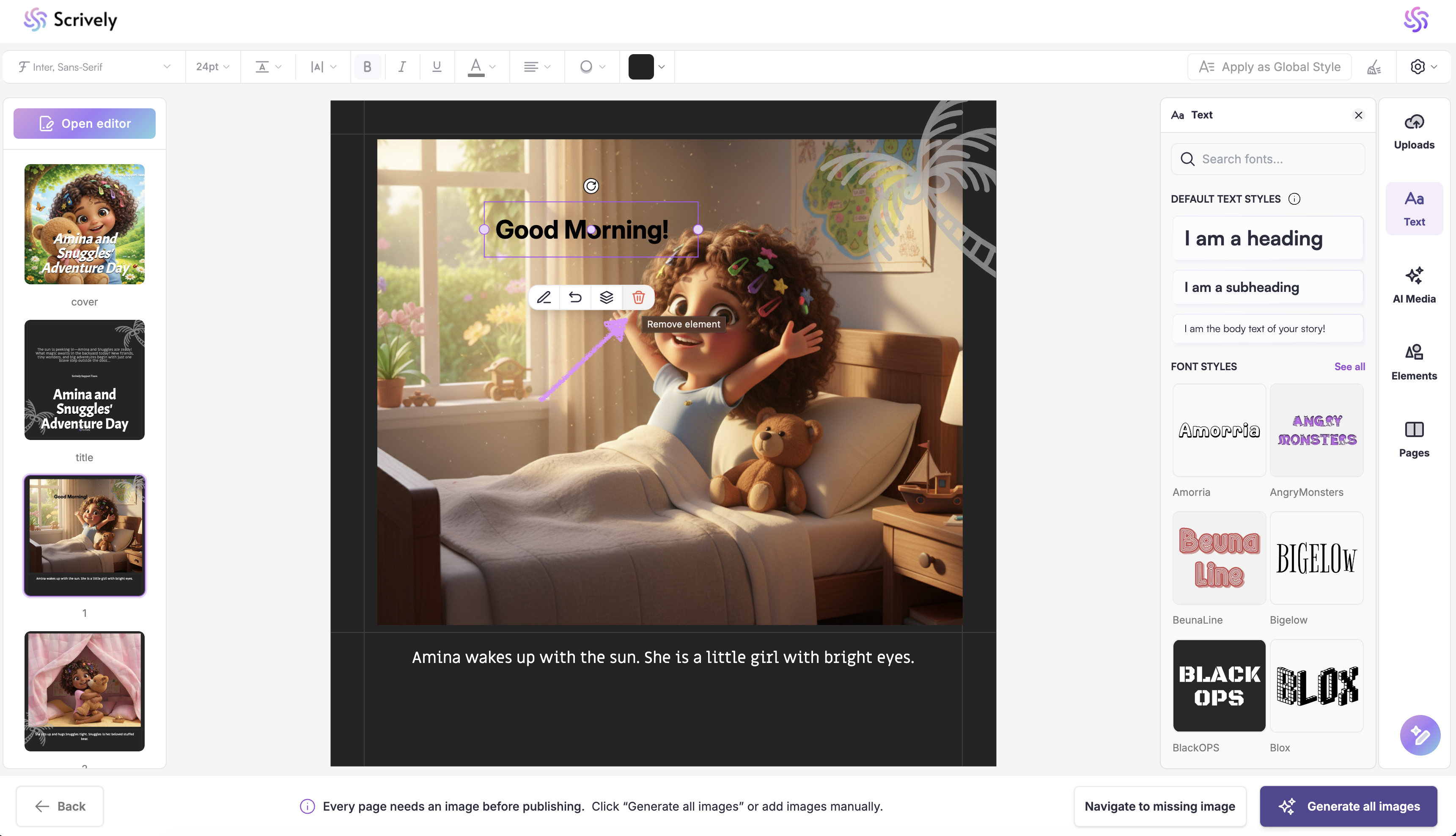
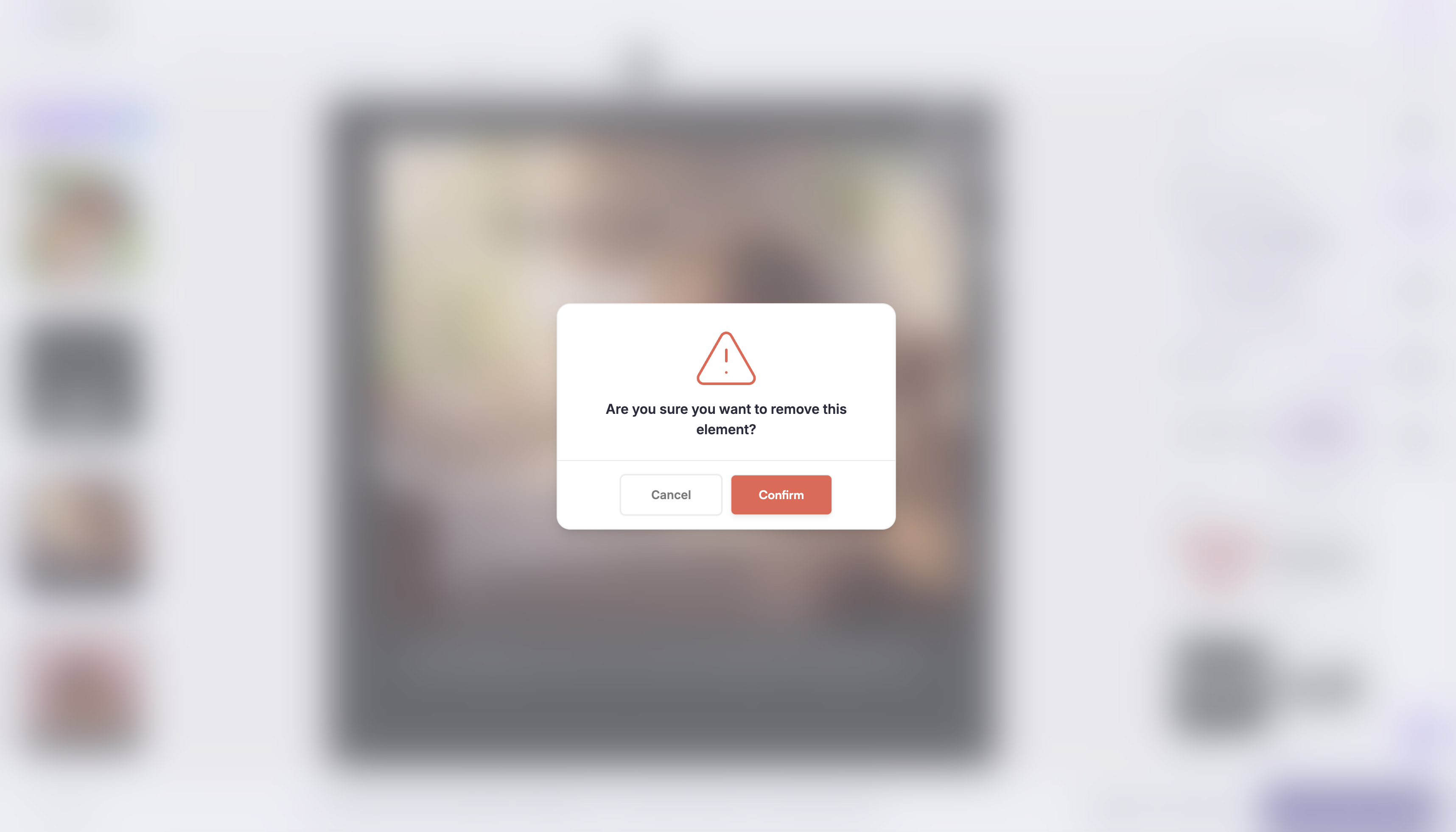
If you no longer need the text block, click on "Remove element" to remove it.
A confirmation modal will be shown.
Click and drag to reposition the text anywhere on the canvas.
On the right, select "See all" to view the full list of available font styles.
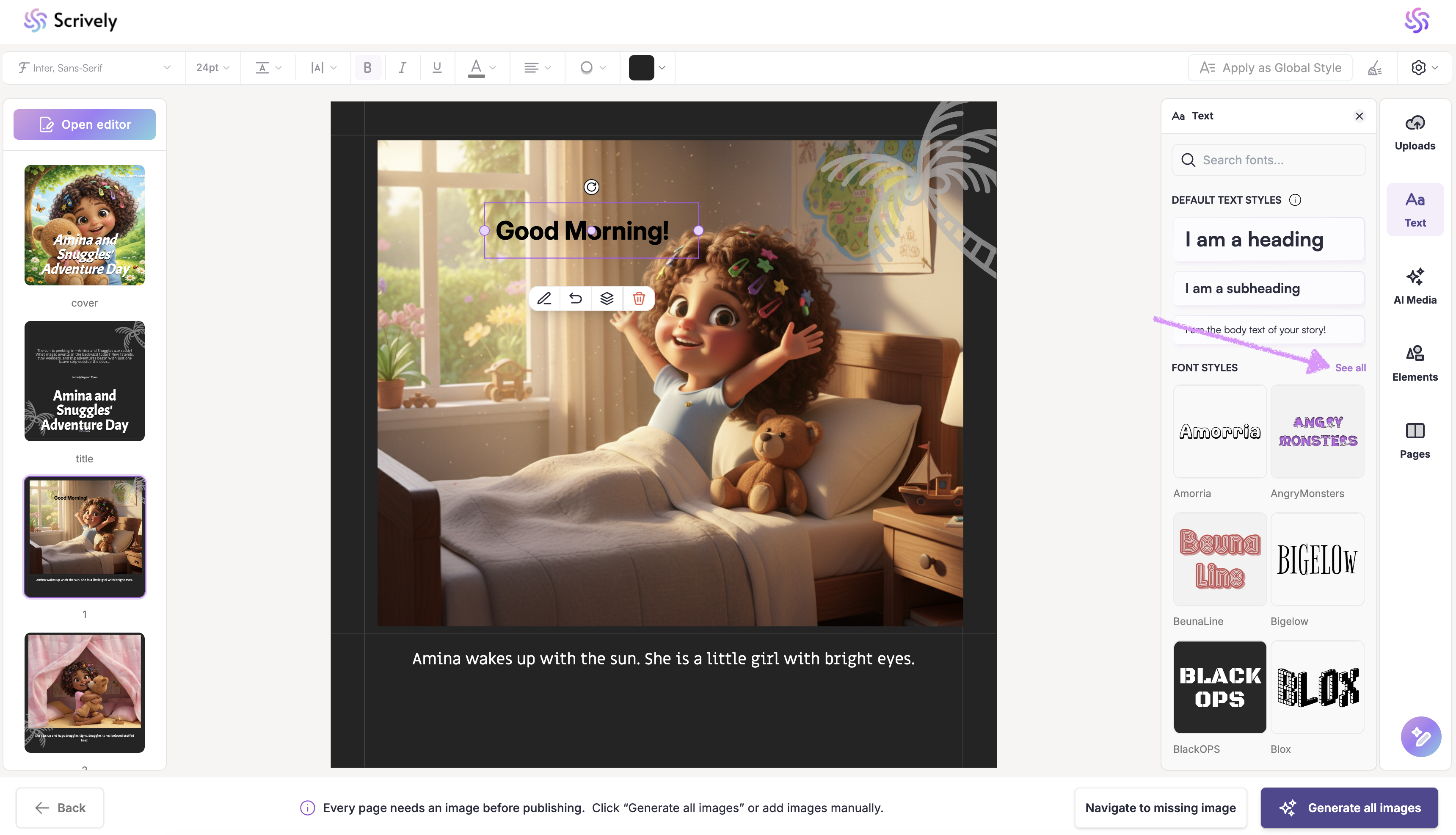
Note: The font styles available to you will be based on your plan level. Upgrade to Pro to get all styles.
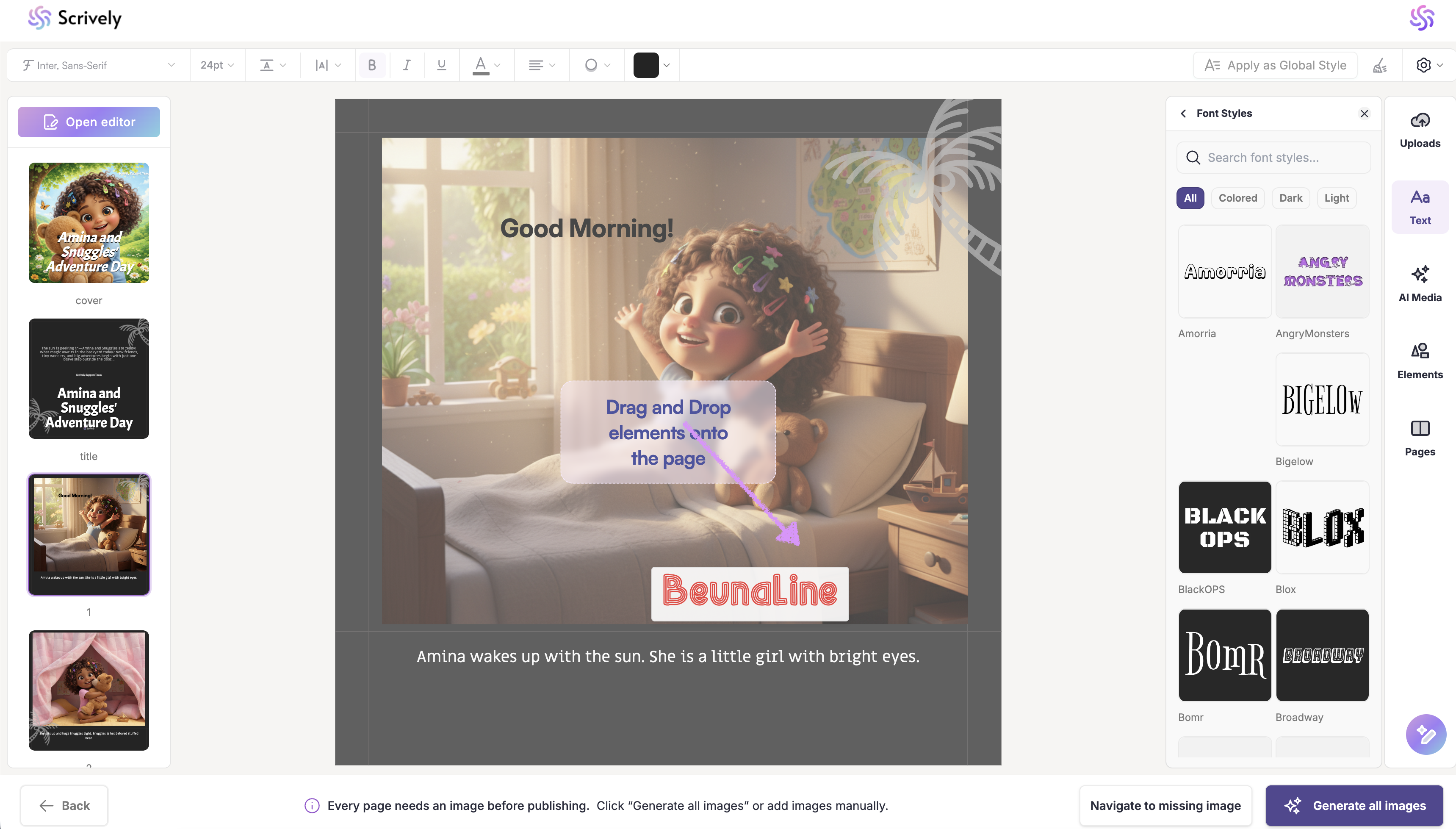
You can create text blocks by dragging "Font Styles" directly onto the canvas.
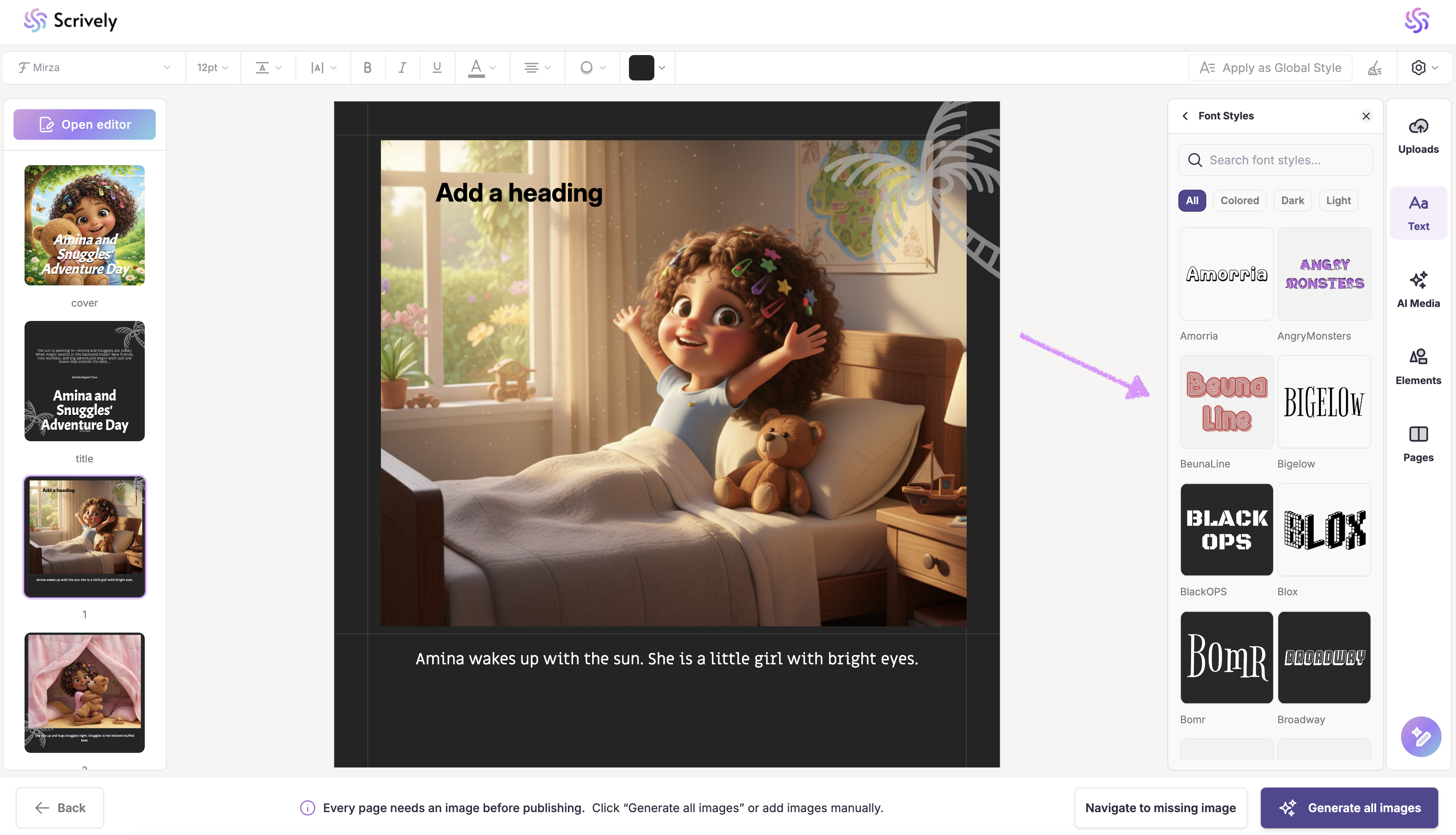
Filter styles by All, Colored, Dark, or Light.
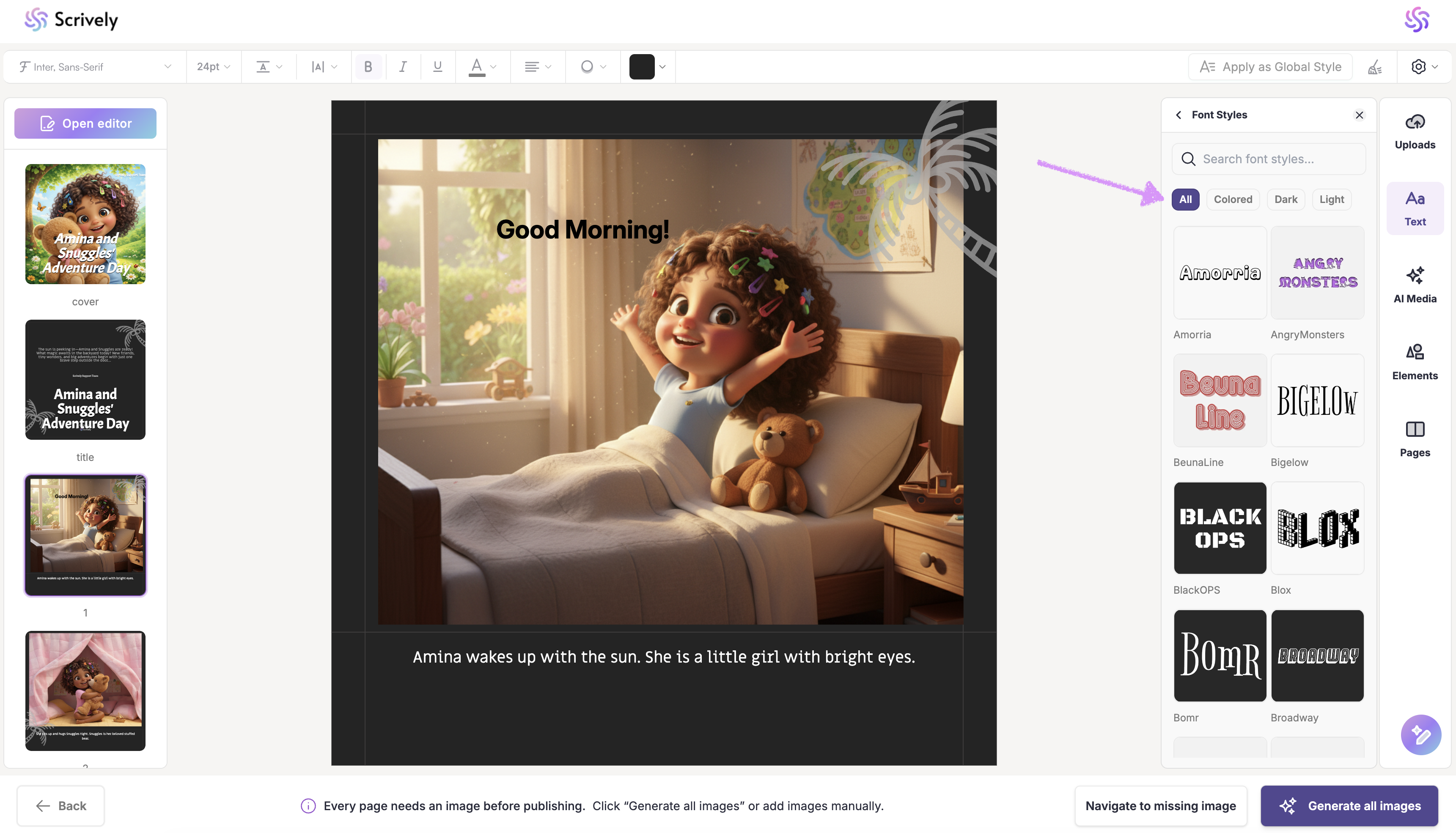
Drag and drop your preferred style onto the canvas.
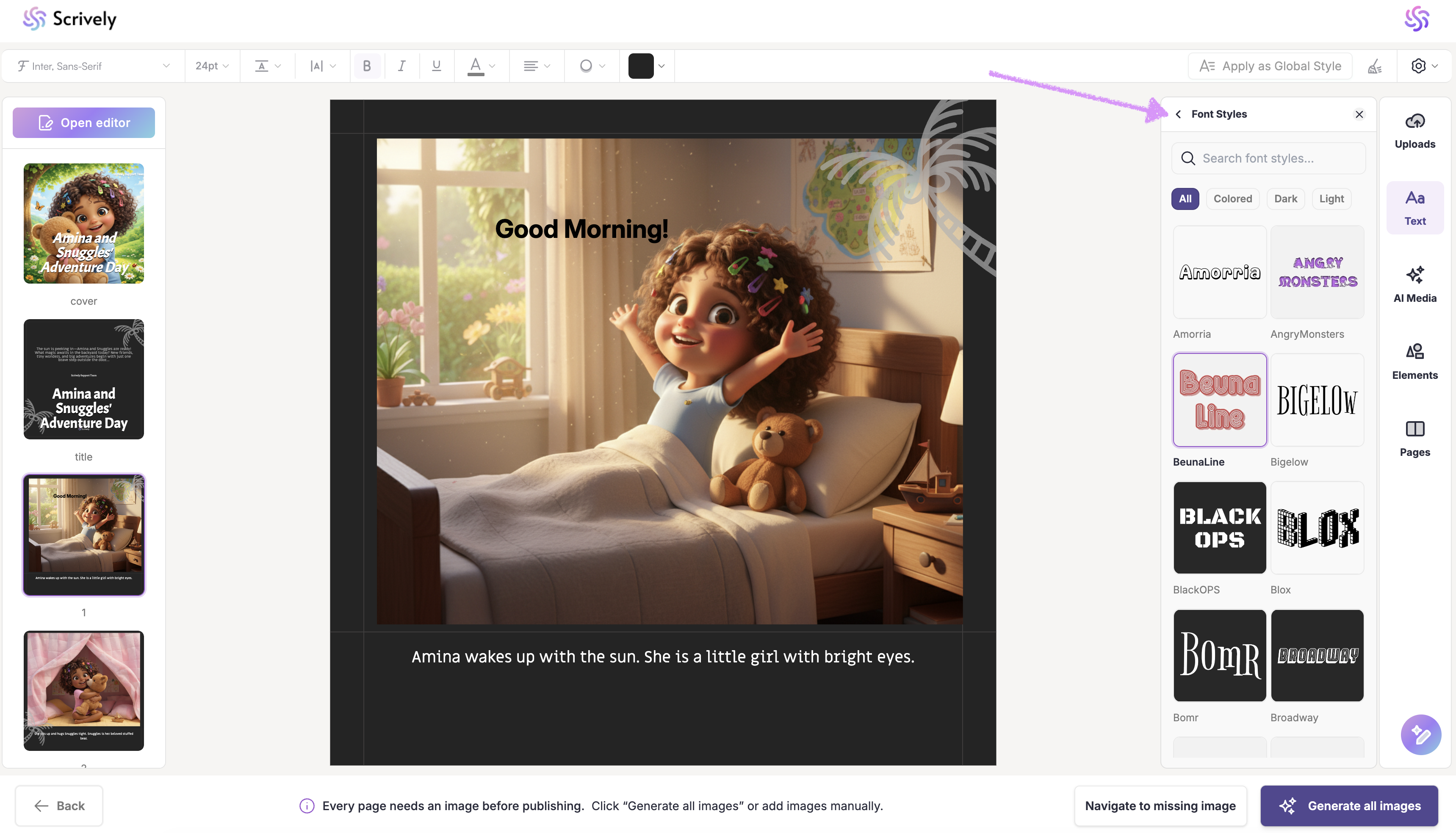
When you’re finished browsing font styles, click the arrow to return to the previous view.
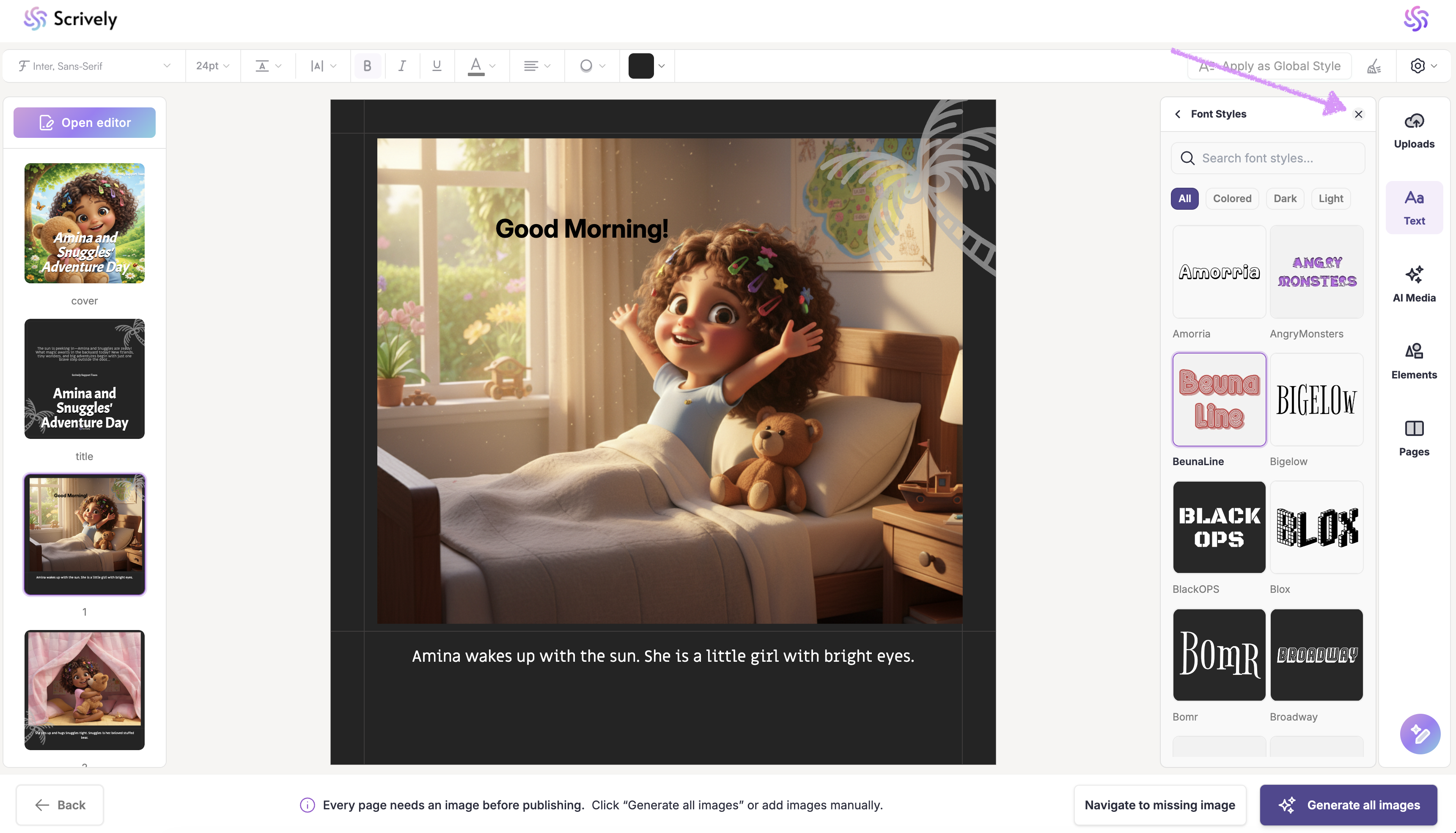
Once you’re done using the Text tool, click the "X" icon to close it.
Was this article helpful?
That’s Great!
Thank you for your feedback
Sorry! We couldn't be helpful
Thank you for your feedback
Feedback sent
We appreciate your effort and will try to fix the article
