
Have a story of your own? Bring it to life with Scrively! Upload your text in just a few steps, create beautiful illustrations for your existing story, customize every page to match your vision, and get your storybook ready to share, whether in print or digital form.
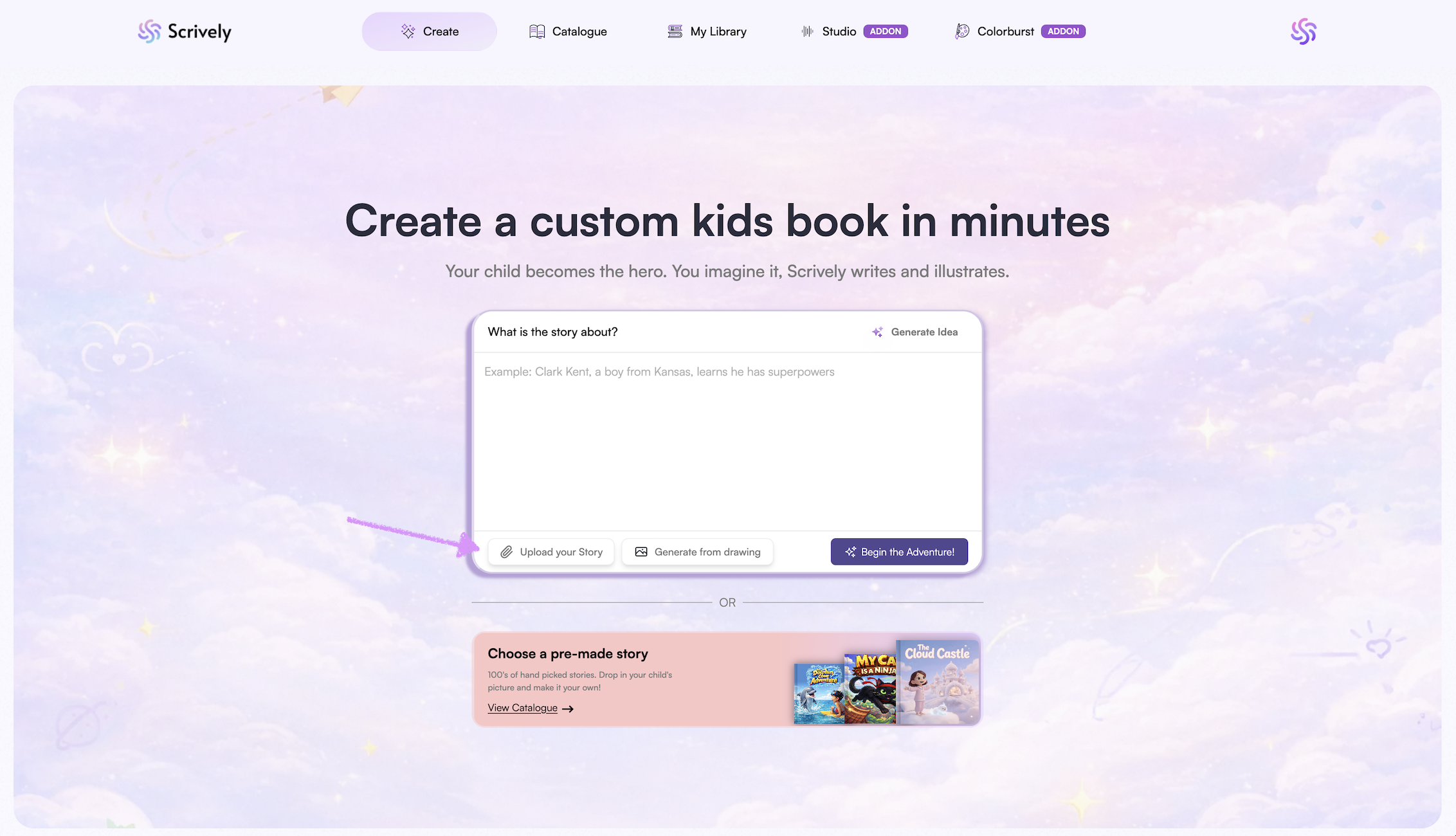
From the Homepage, click on "Upload your story."
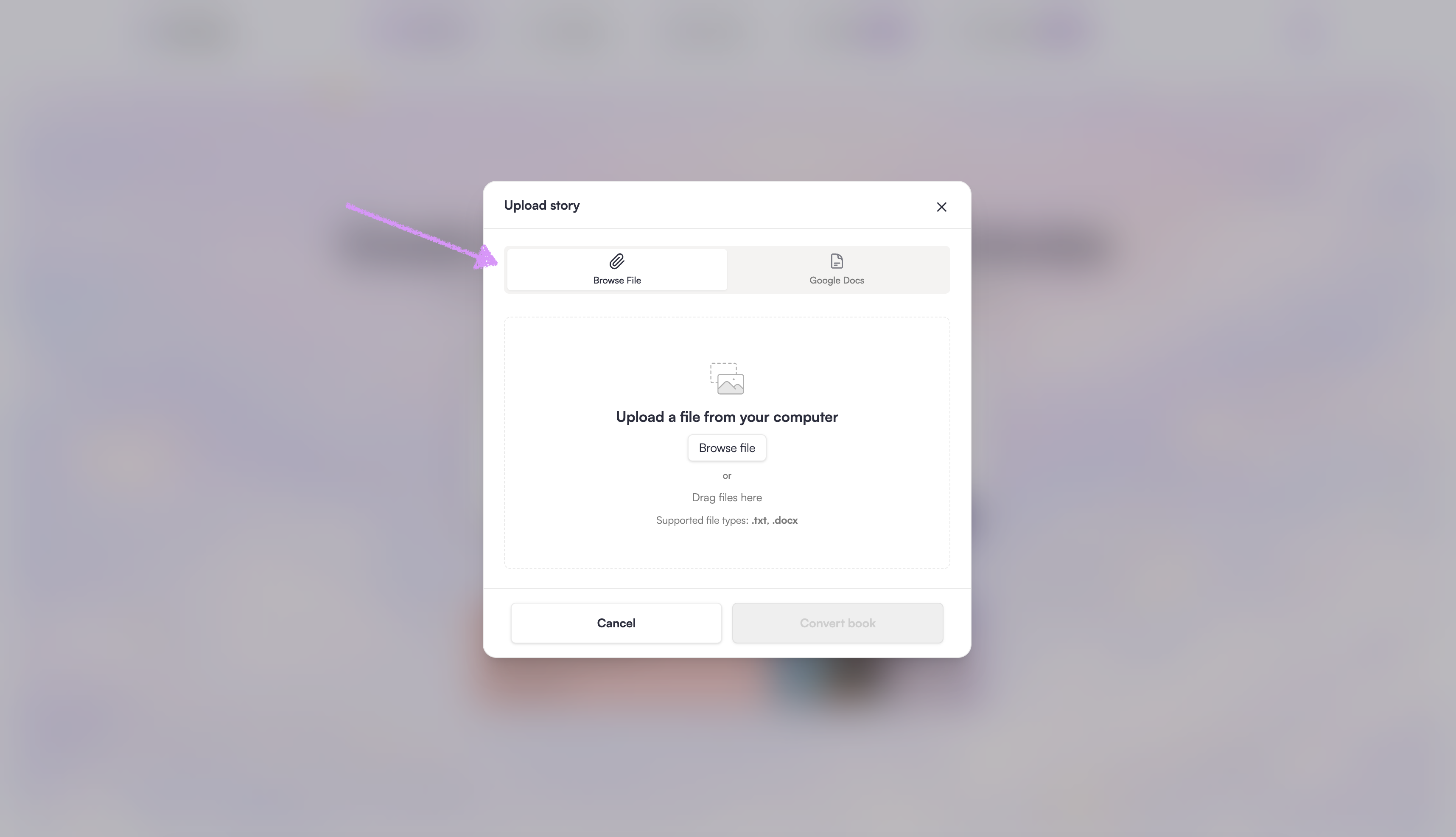
This will bring up two options "Browse File" or "Google Docs."
Click on "Browse File" or drag the file from your device into the modal to import your story.
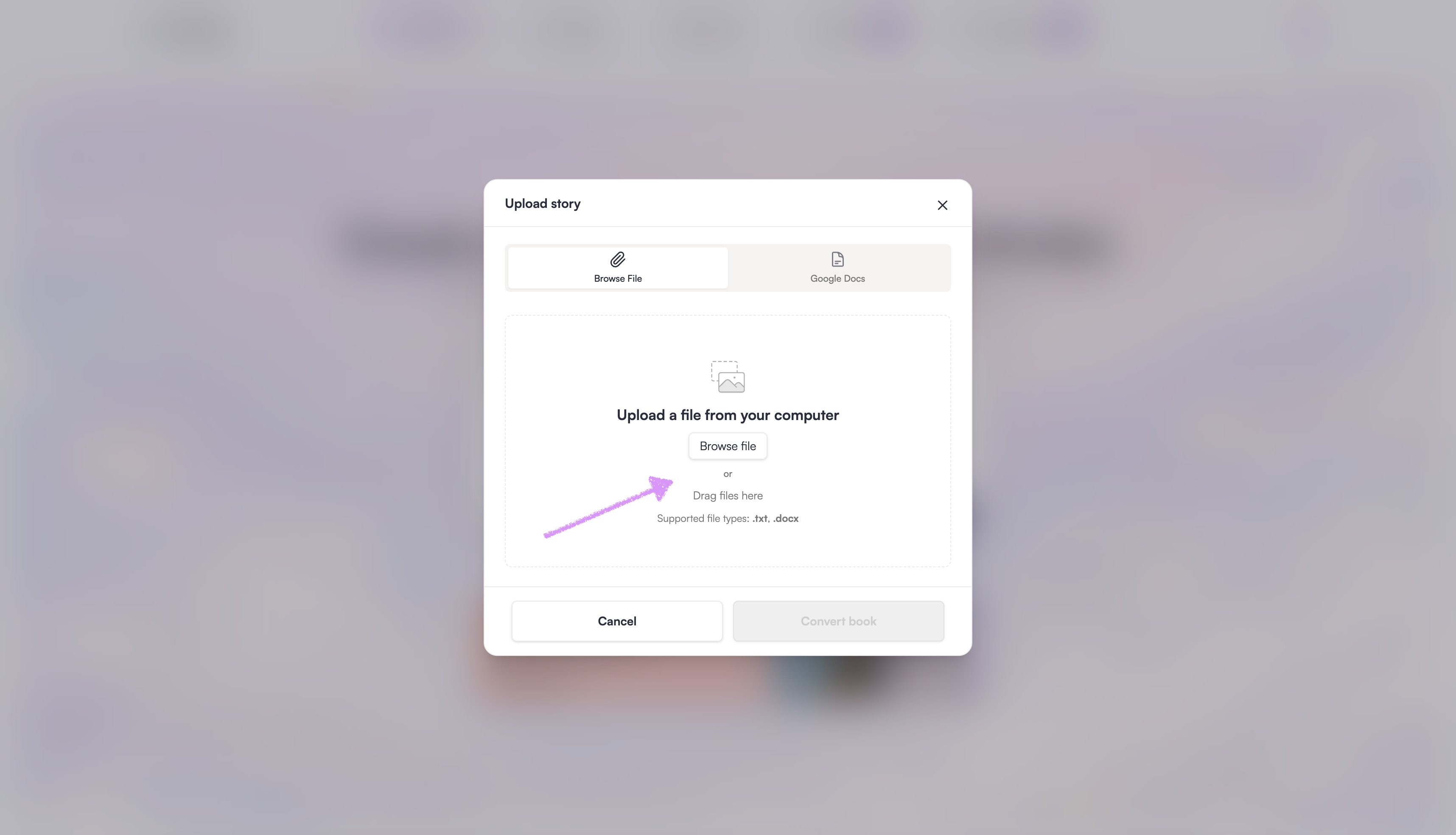
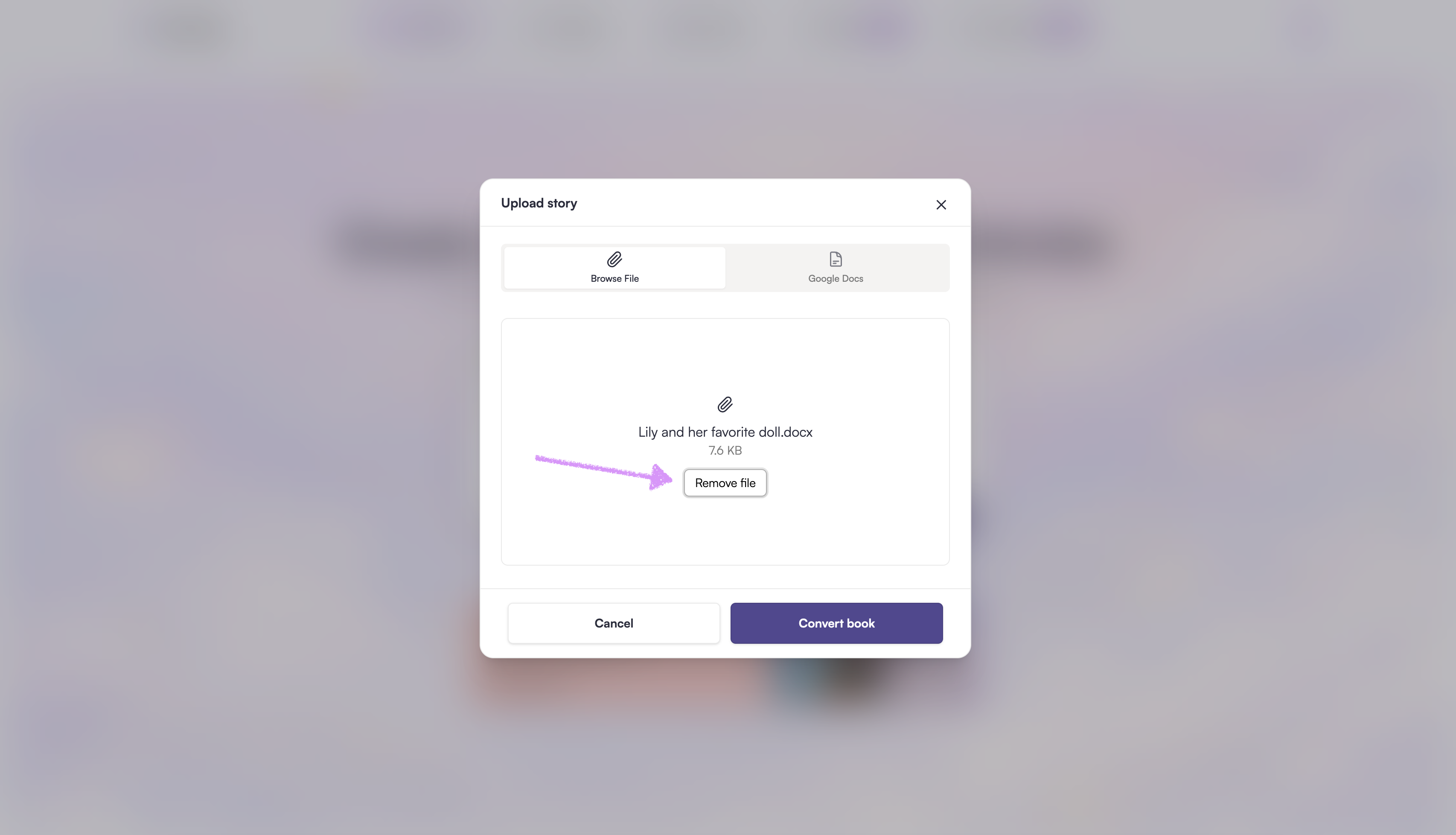
Note: Currently, we support Word document (.docx) or a plain text file (.txt) files. The file size limit is 1MB.The imported file will be displayed.
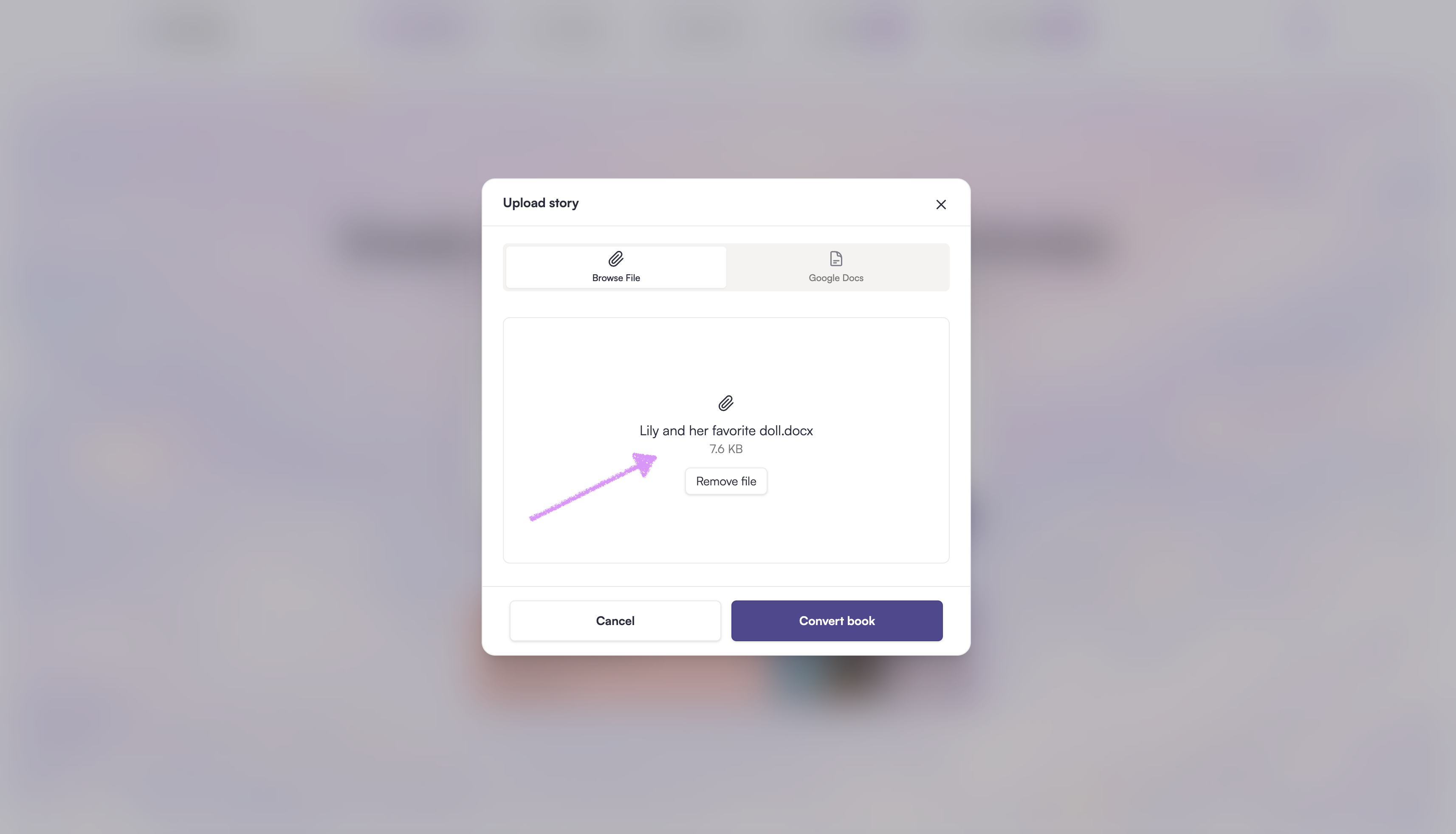
If you no longer want to import a story, use the “Remove File” option to remove it.
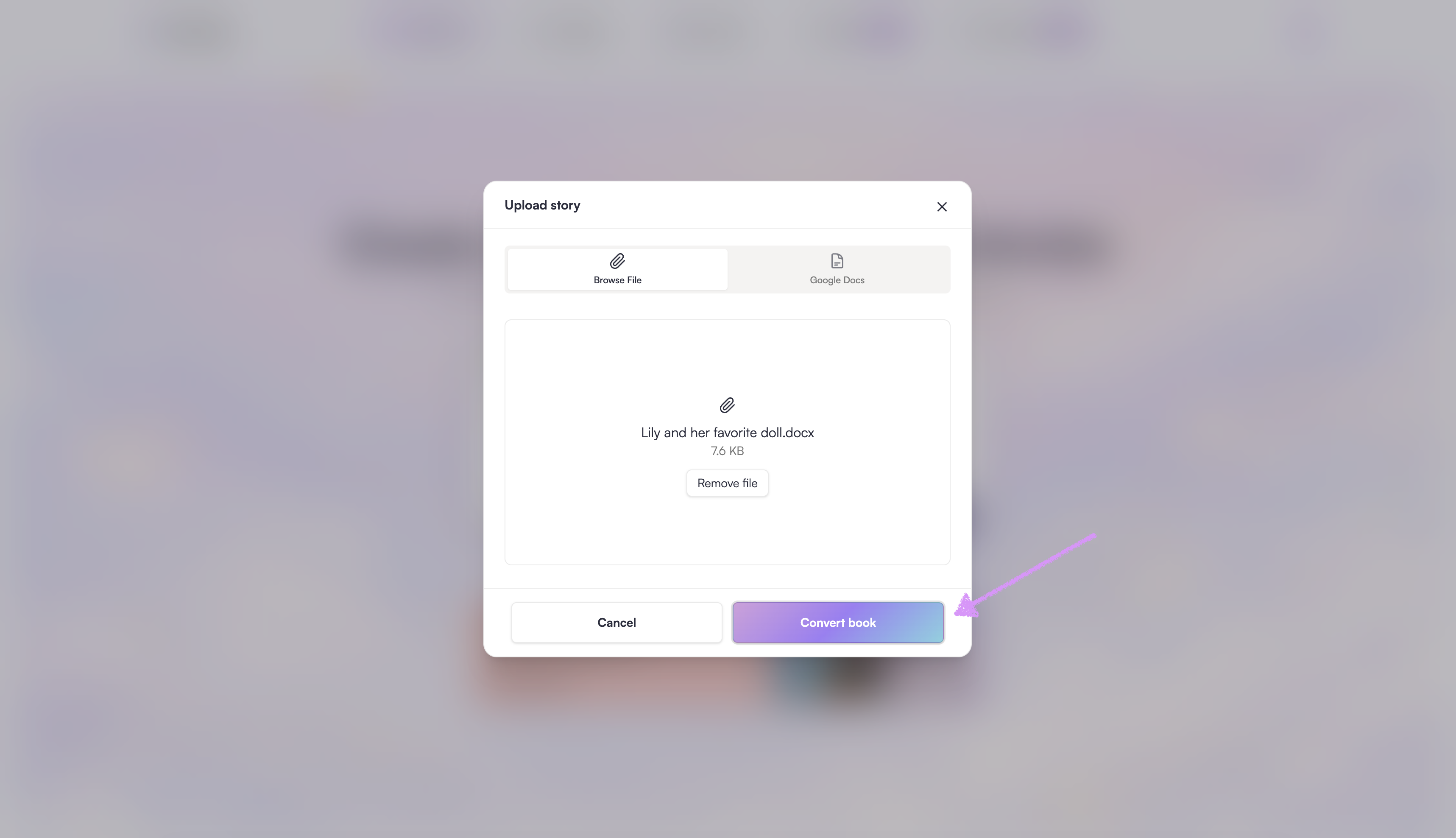
Click on "Convert book."
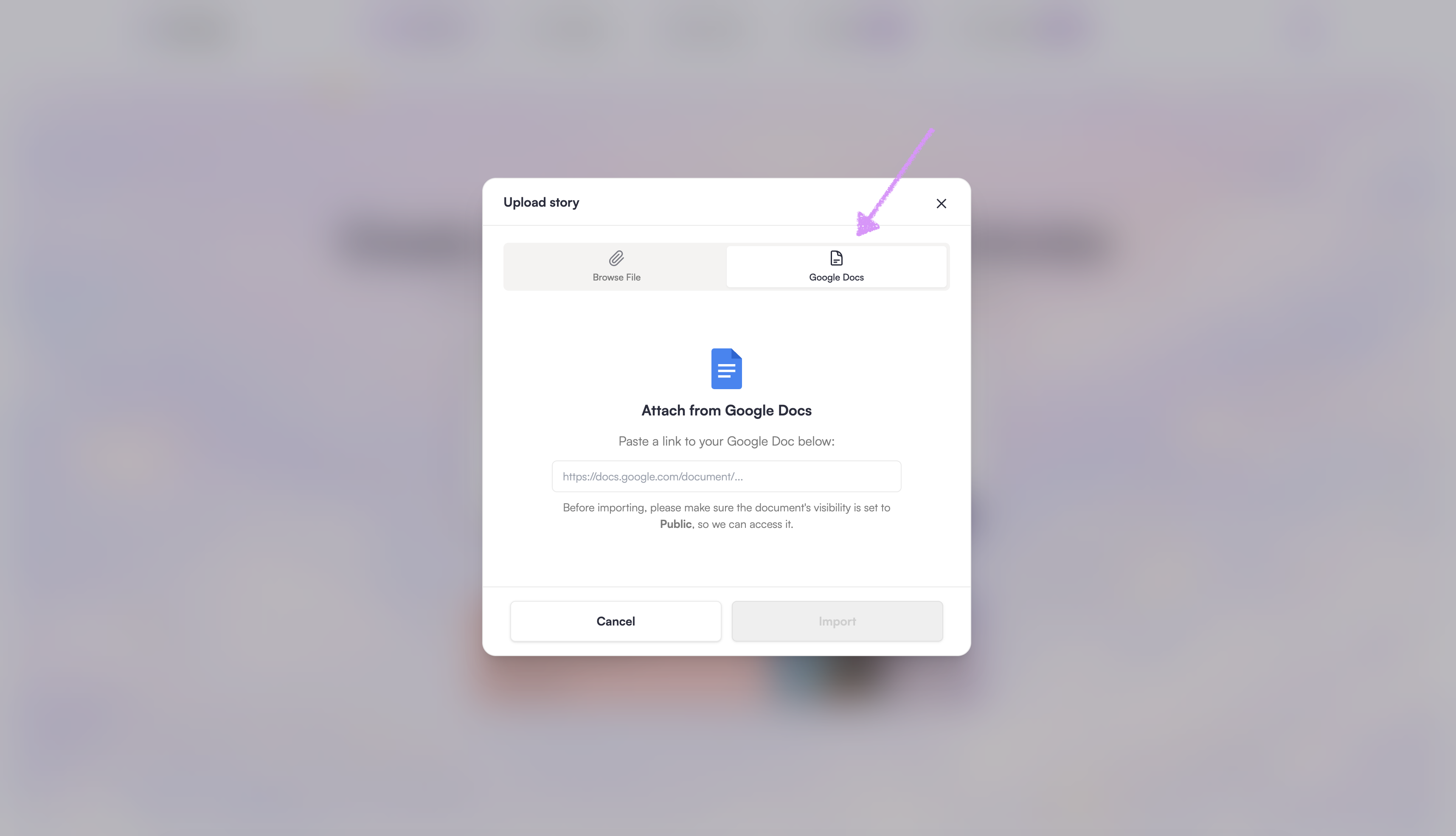
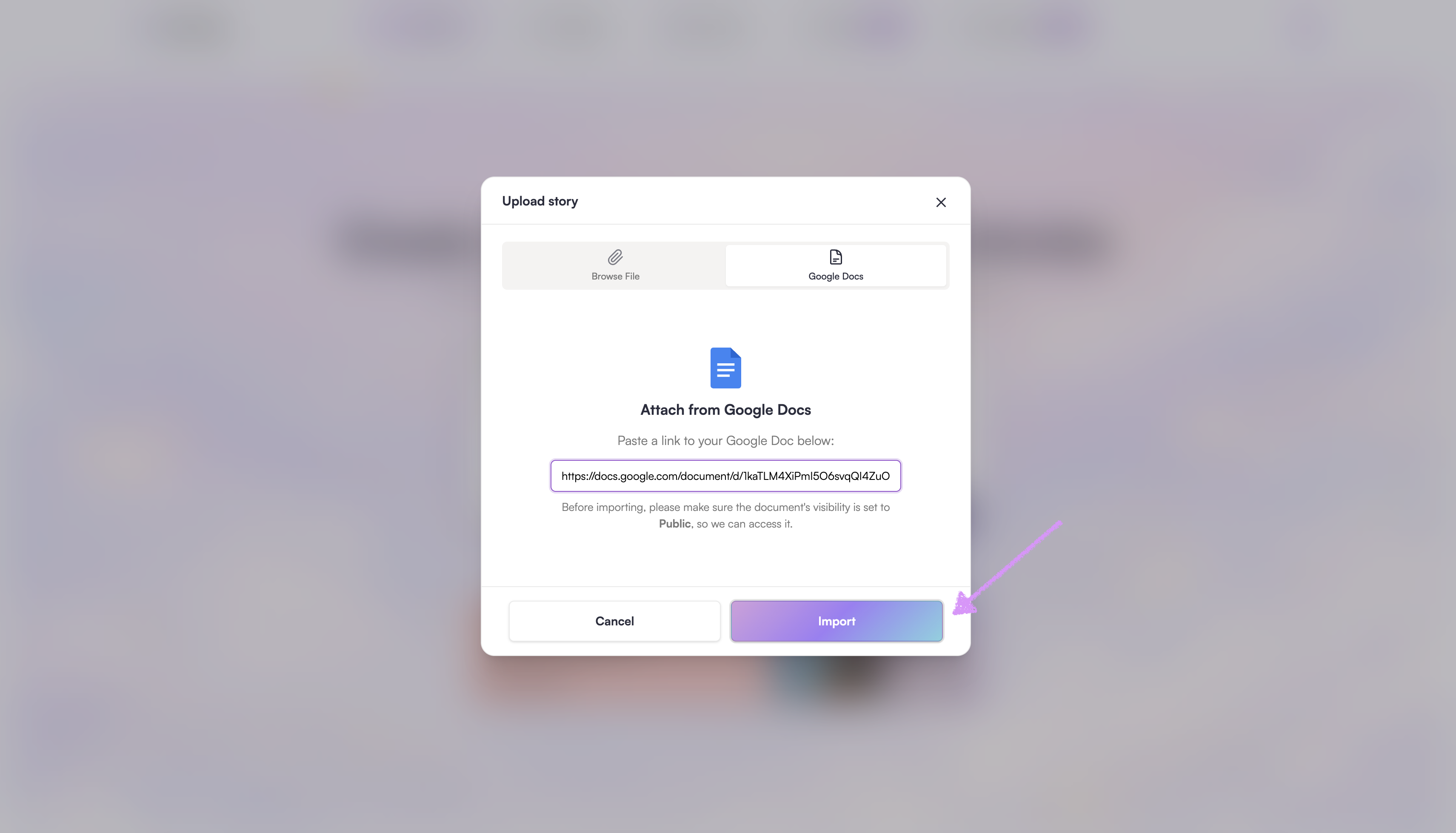
Want to import via a Google Docs link instead? Click on the "Google Docs" tab.
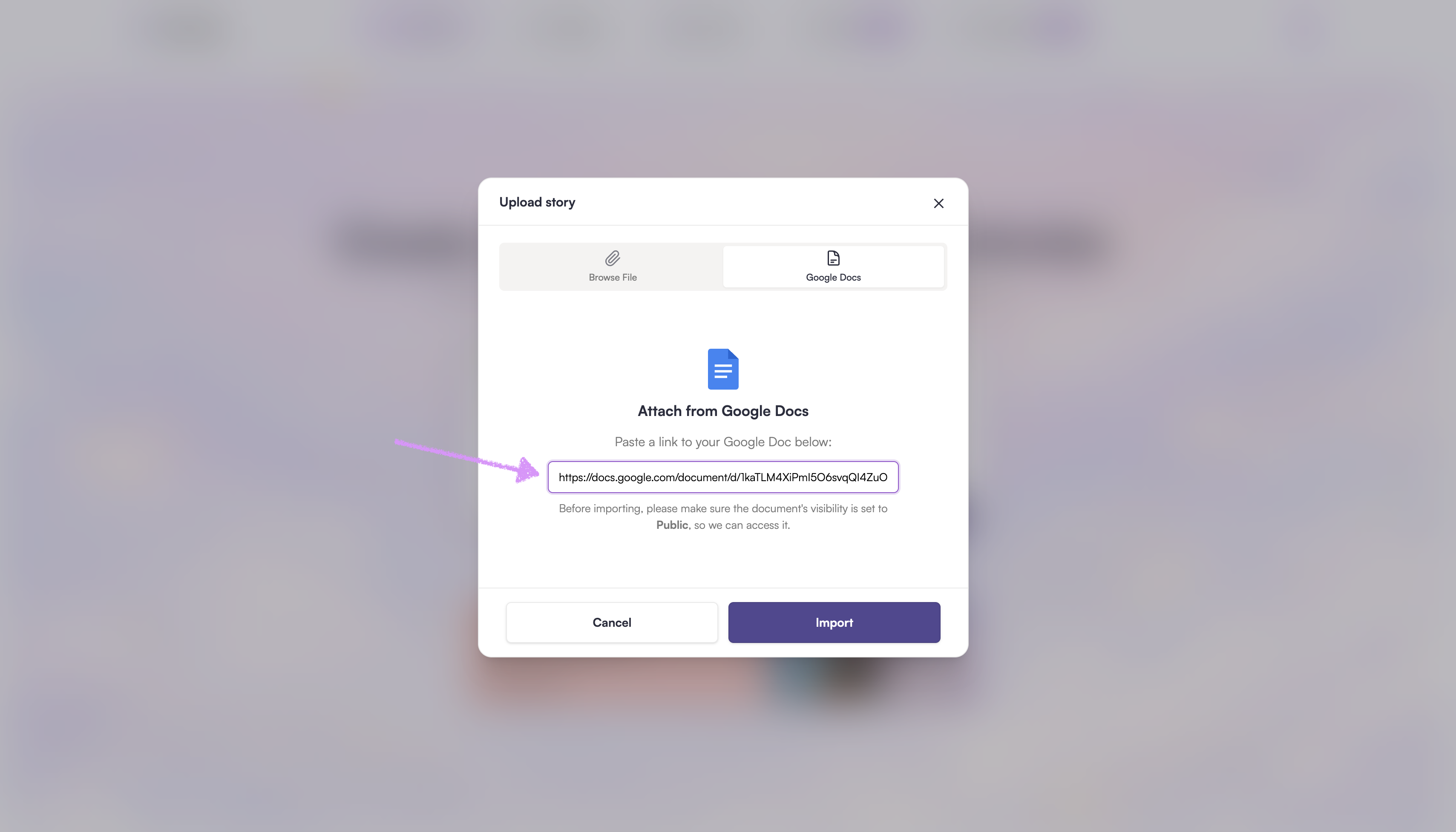
Paste your Google Doc link into the provided field. Make sure your sharing settings are set to “Anyone with the link → Editor” so Scrively can access your document.
Click on "Import." The storybook will be imported into Scrively. Once the import is complete, head over to our guide here to begin building your story.
Note: You won’t be able to make manual edits to the plot and settings at this time. Scrively will automatically use the information from your story to populate those details for you.
Was this article helpful?
That’s Great!
Thank you for your feedback
Sorry! We couldn't be helpful
Thank you for your feedback
Feedback sent
We appreciate your effort and will try to fix the article
