Managing individual storybook settings on your Scrively library gives you full control over each project. These settings are especially handy when working on adventure books or other interactive stories letting you seamlessly combine features like buttons, page jumps, and more (learn about those here).
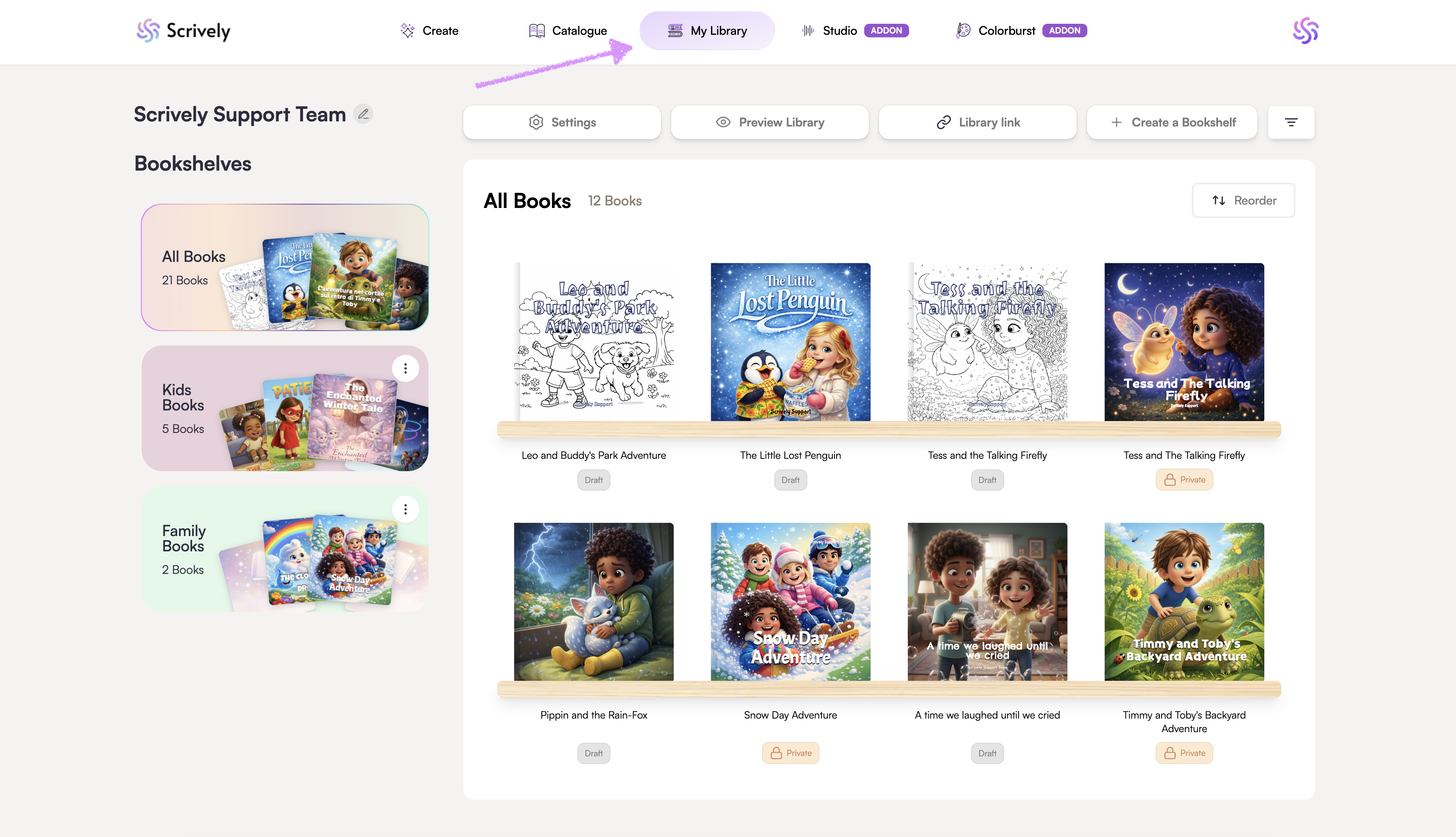
Head over to the "My Library" tab.
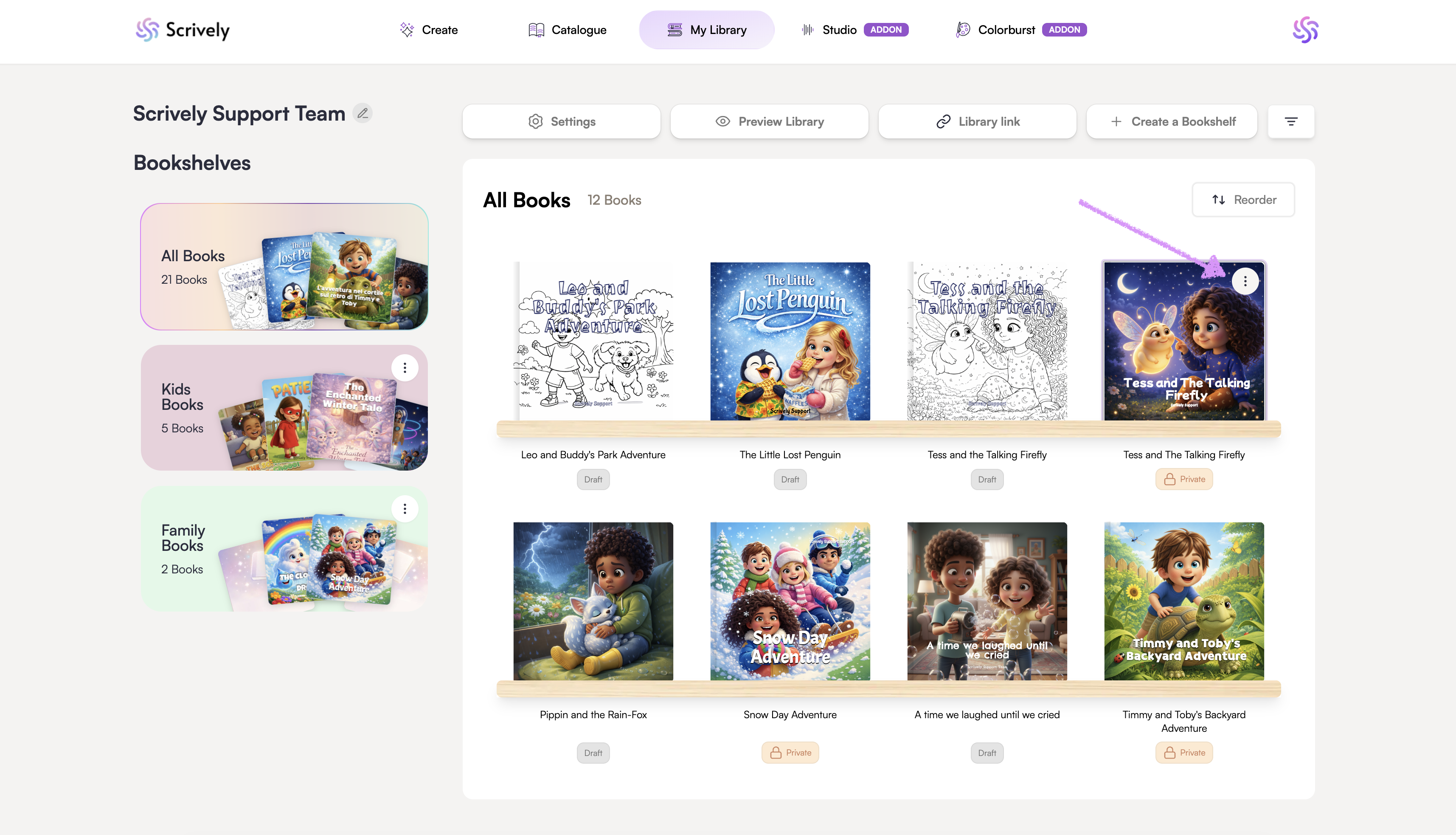
Hover over the book to reveal the ellipsis (:) menu.
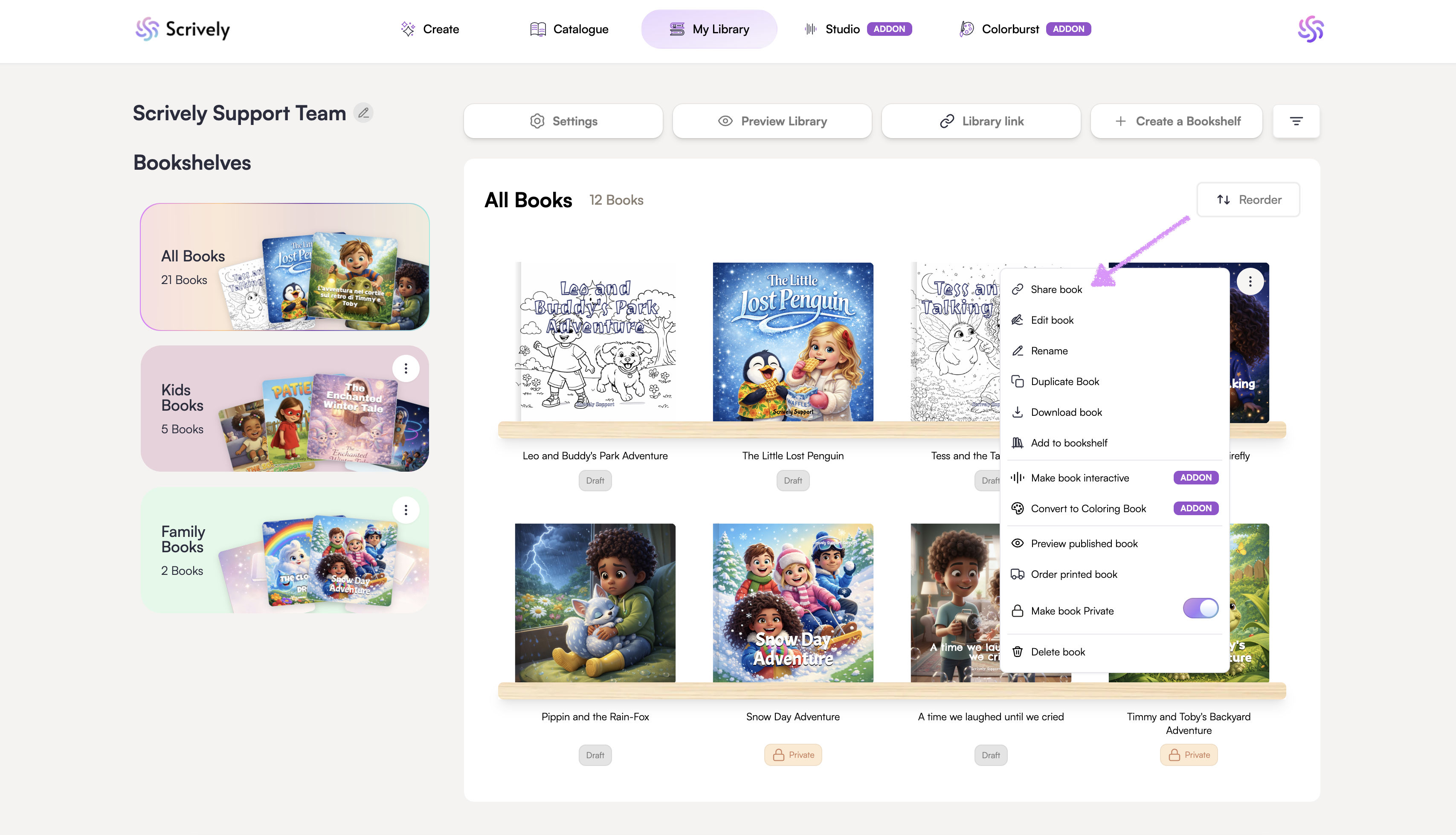
Click on "Share book."
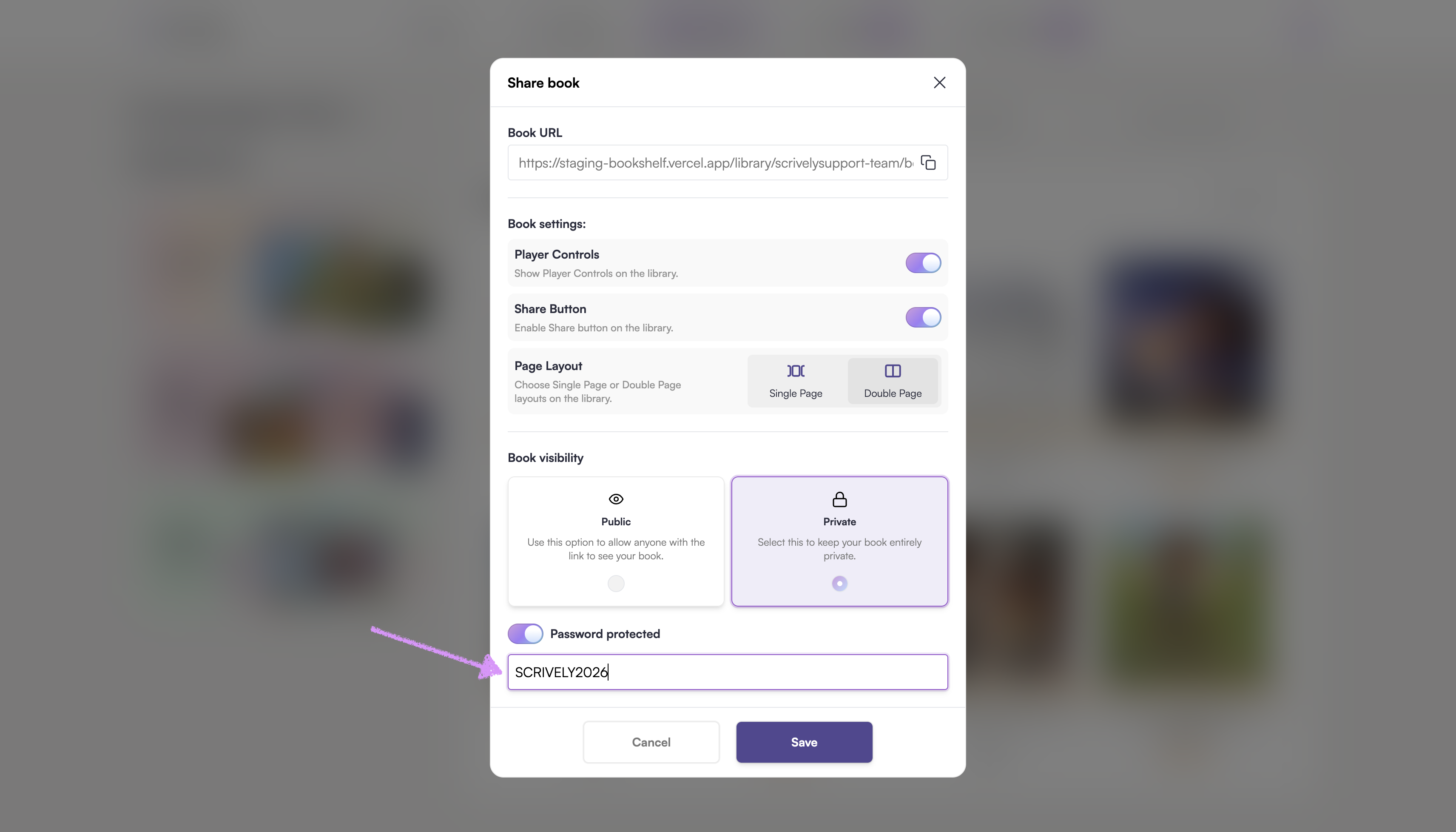
A modal will appear displaying your book’s settings, starting with the book’s URL.
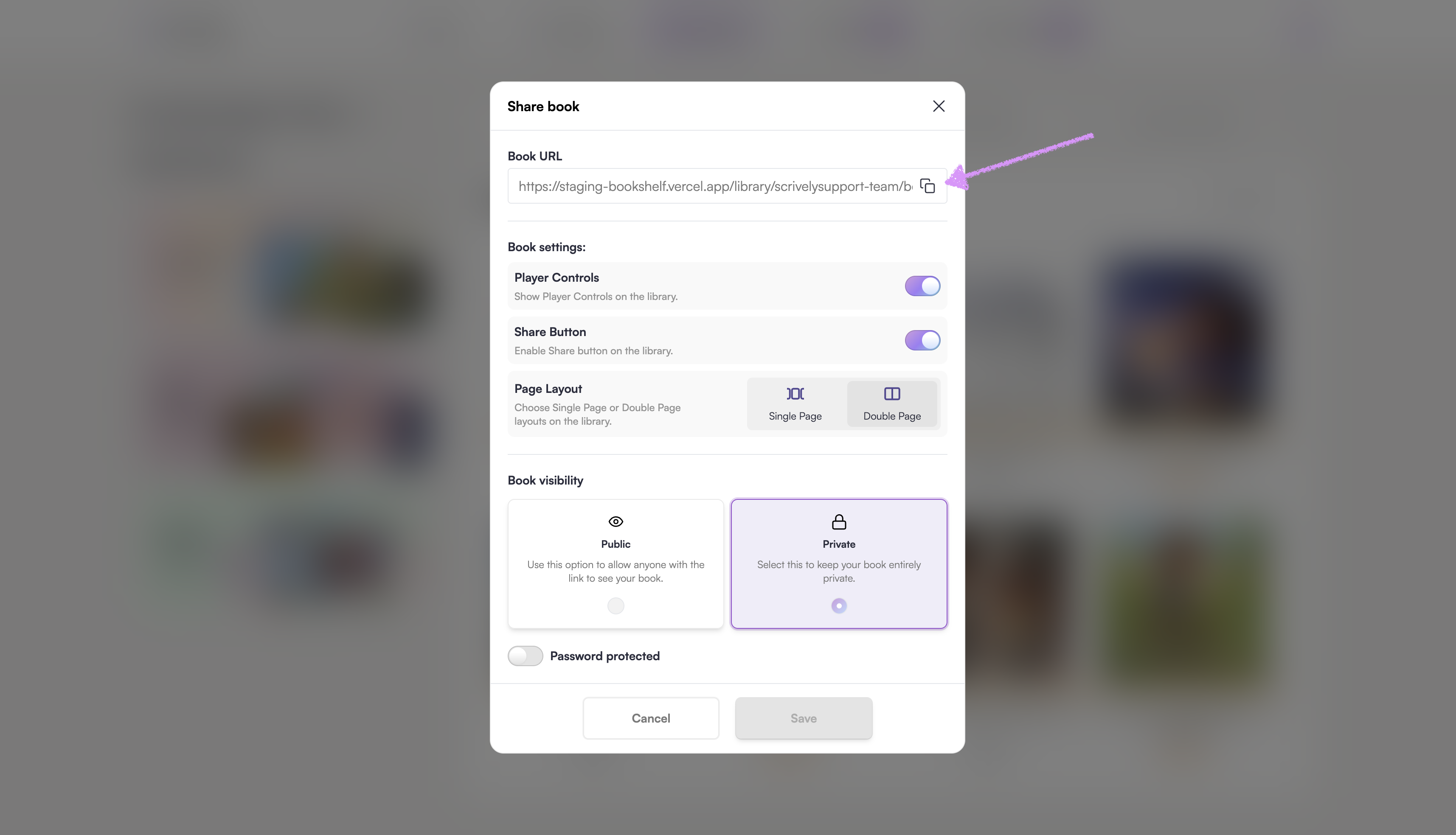
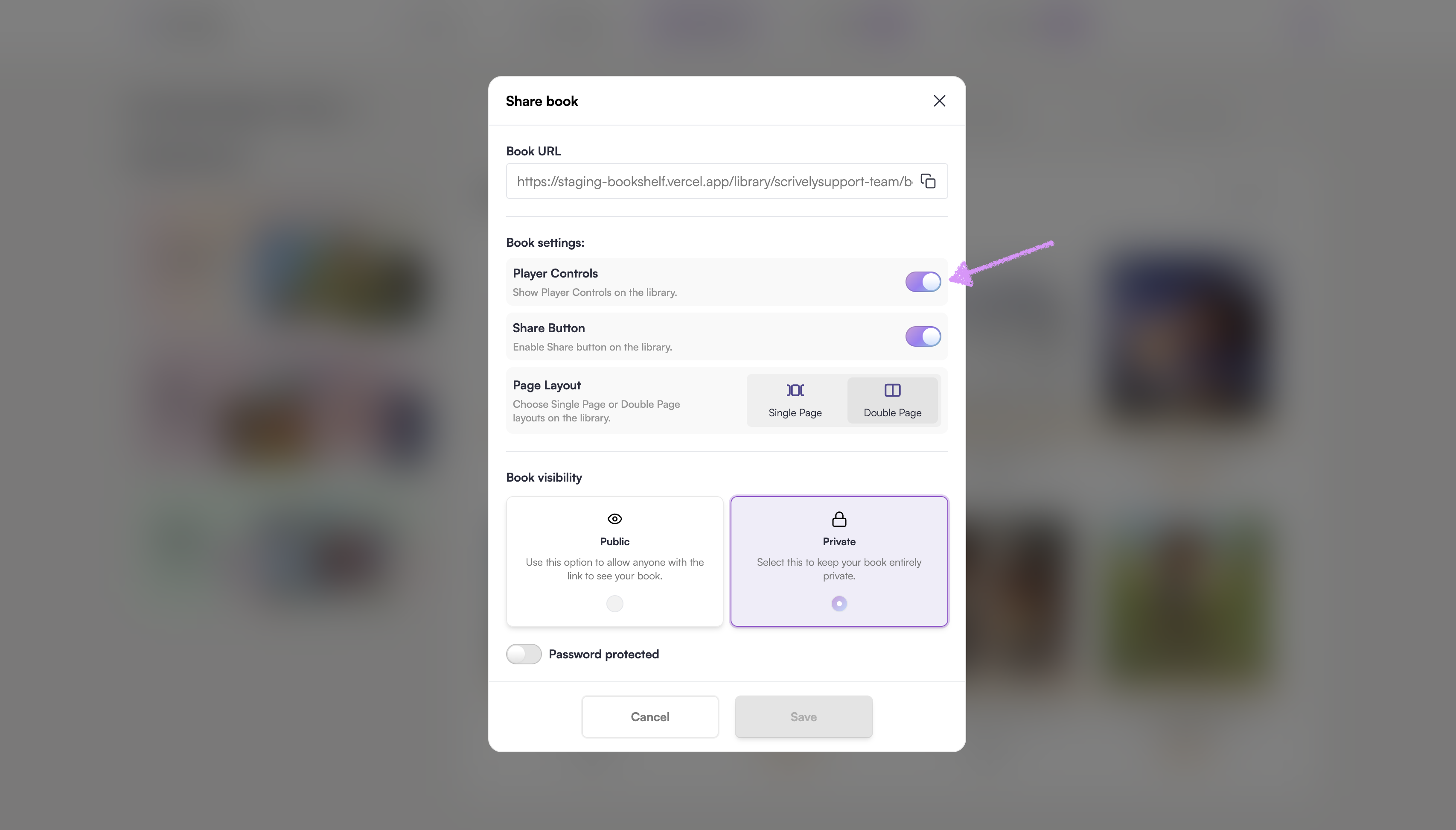
Toggle “Player Controls” on or off to show or hide the play button, music, and audio options. Turning this off removes all player controls for the individual book.
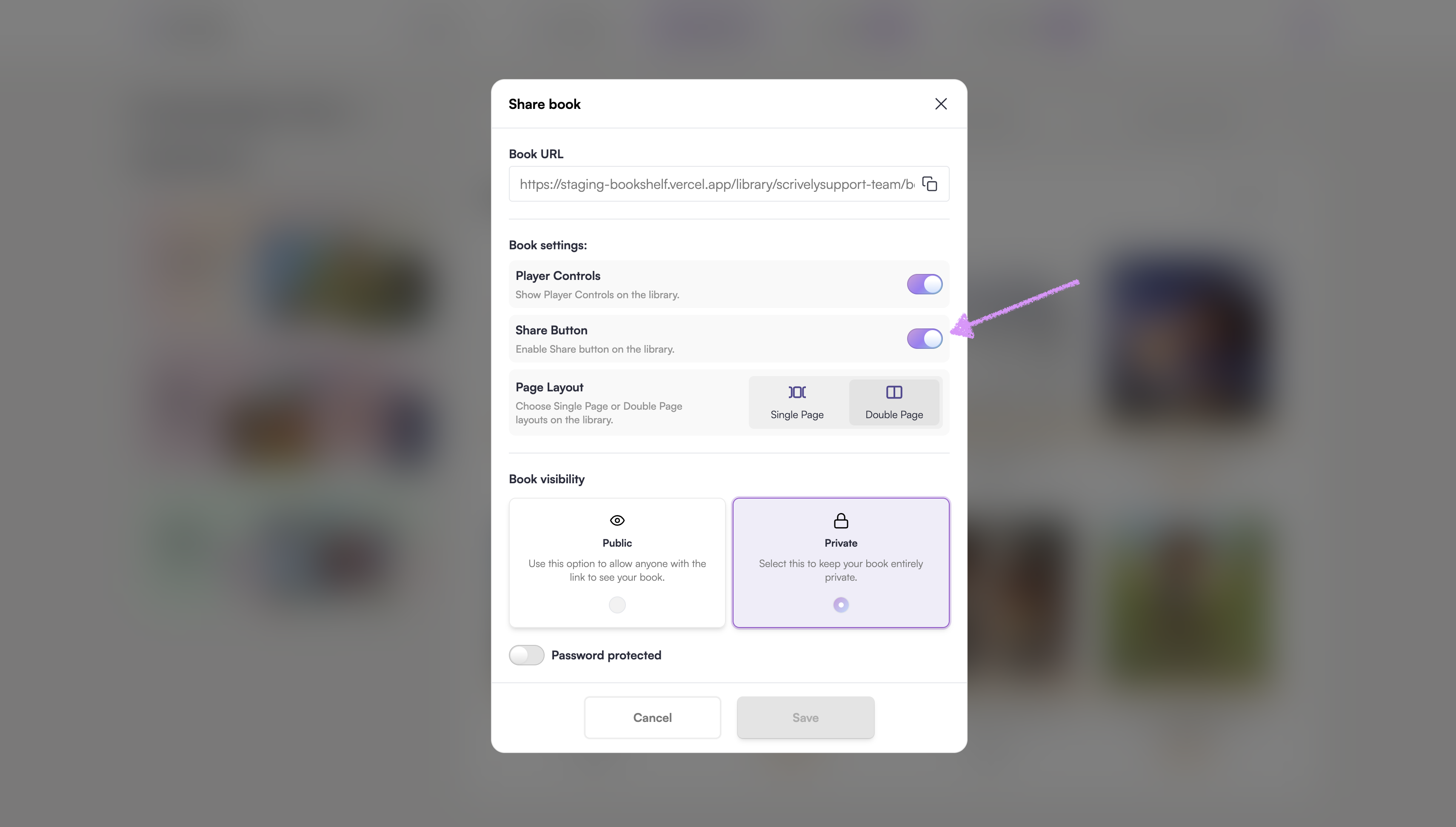
Toggle “Share Button” on or off. Turning this off prevents readers from sharing the book in your library.
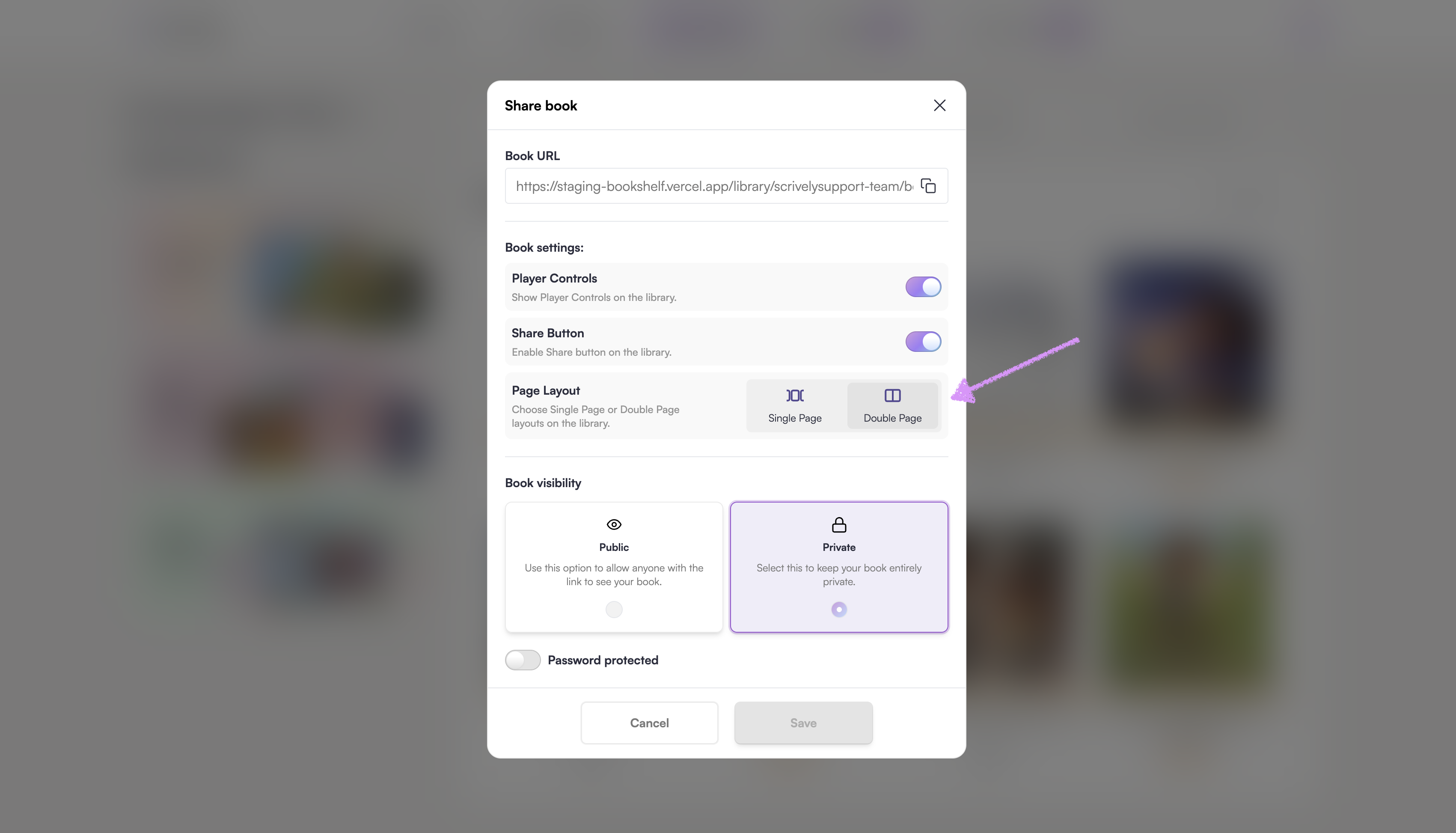
Click on either “Single Page” or “Double Page” to set how your book appears in your library.
- Single Page: Ideal for adventure books or interactive stories, this displays one page at a time. You can add buttons or other interactive elements that link to specific pages, giving readers a guided, interactive experience.
- Double Page: Displays like a traditional book with two pages side by side, perfect for a classic reading layout.
When you set the book visibility to "Private" a "Password protected" toggle will be displayed.
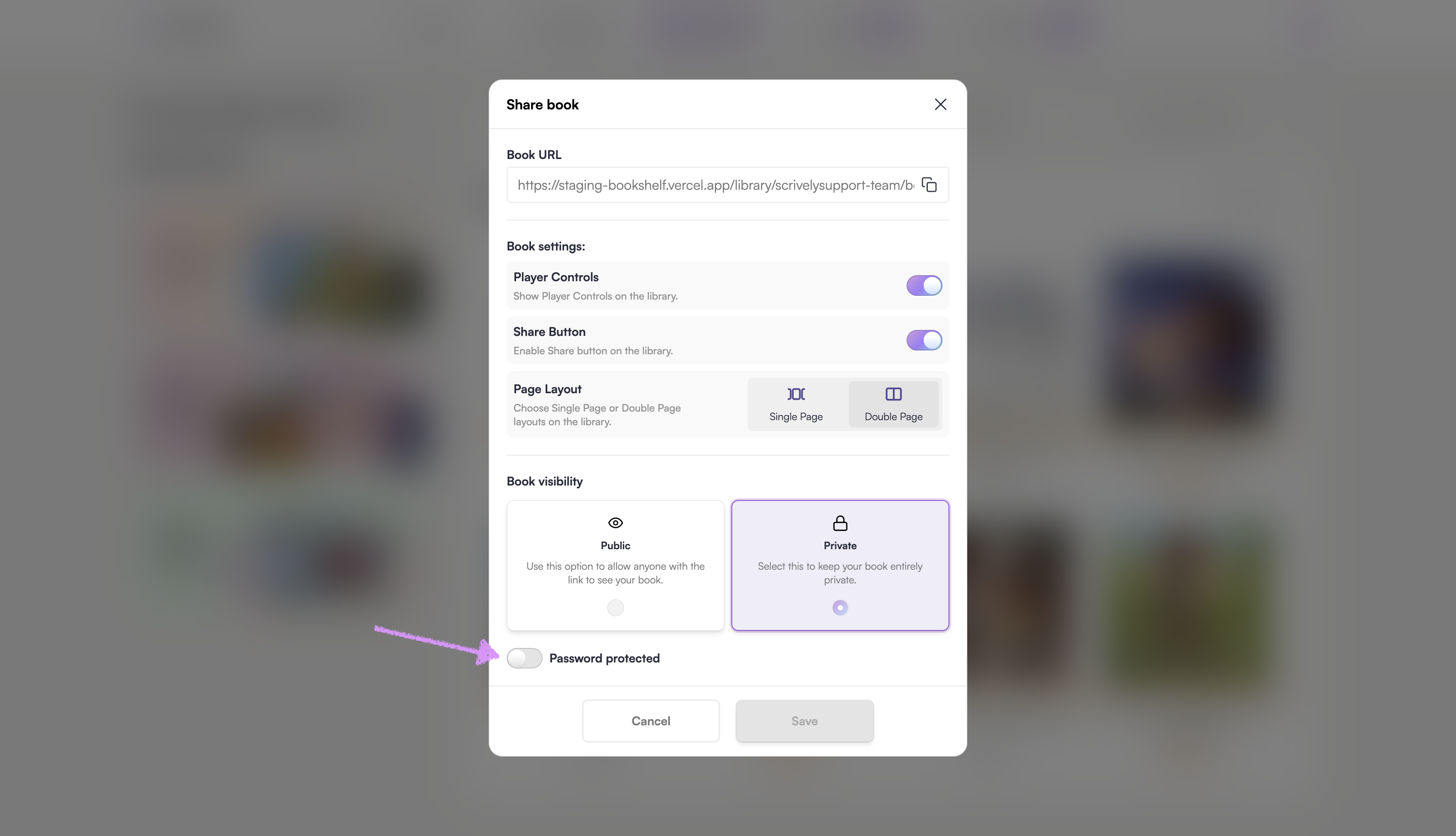
Toggling it on will display the "Enter password" field to add a password.
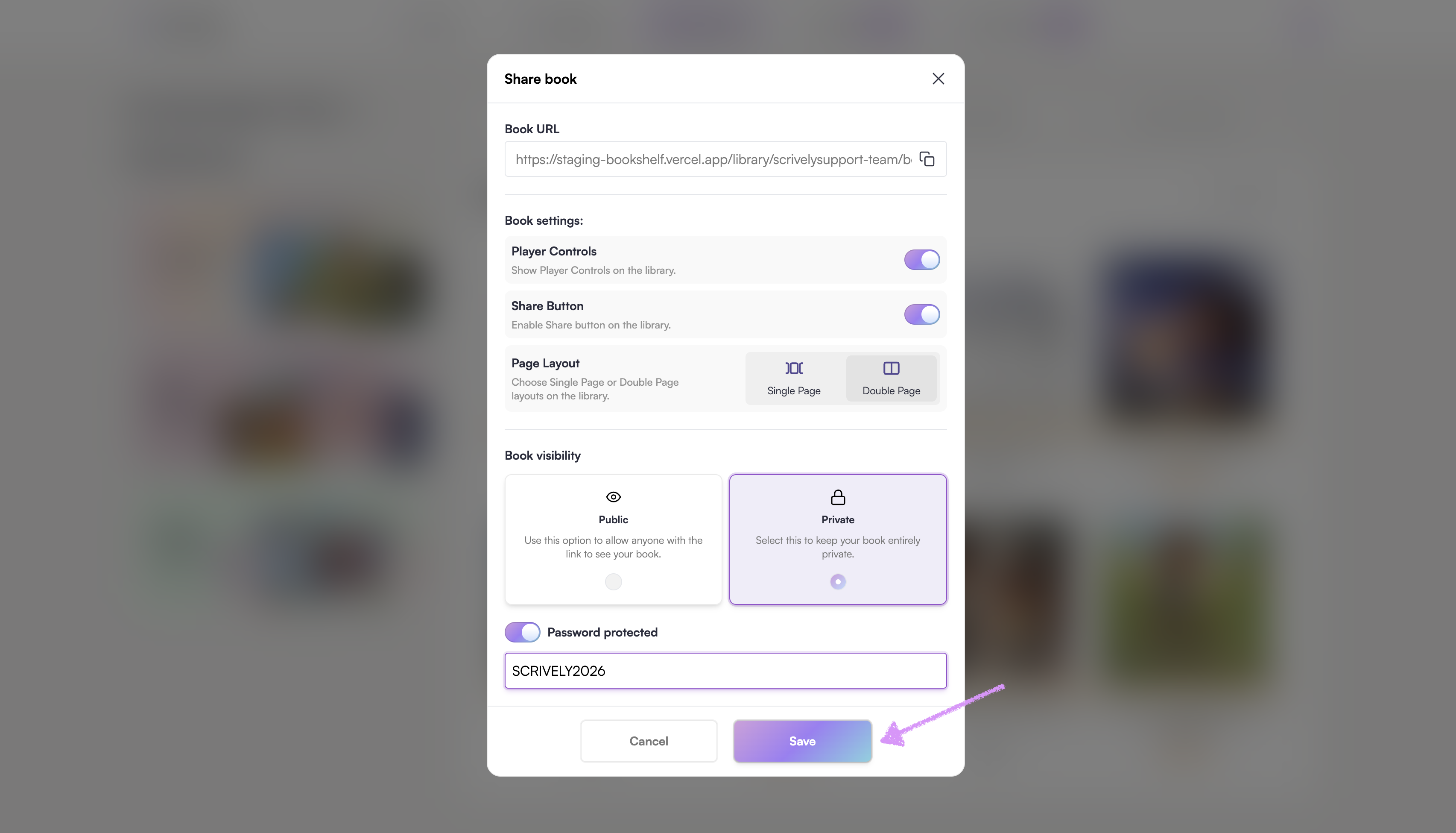
When you're all set click on "Done."
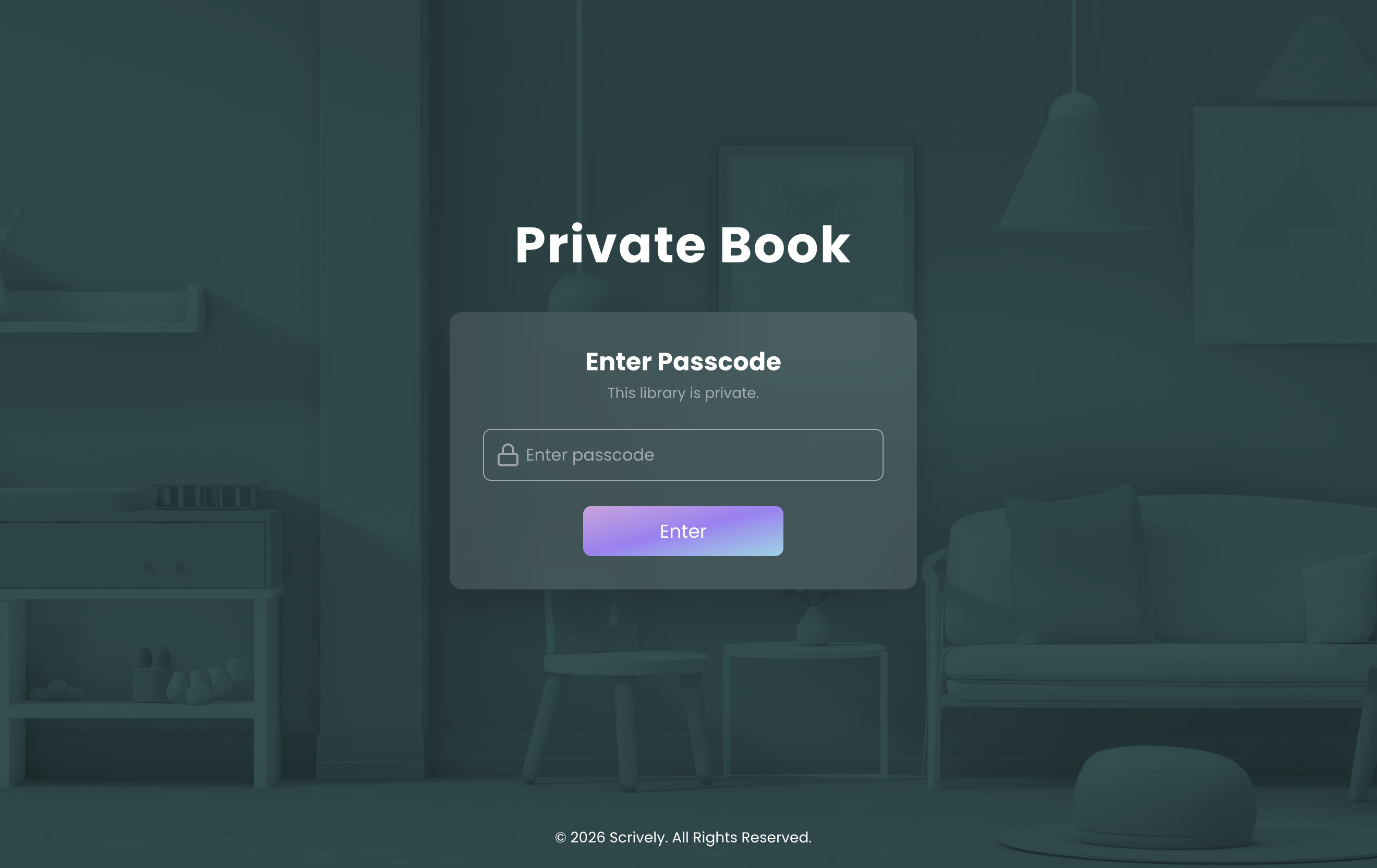
Readers will need to enter the password to view the shared book.
Was this article helpful?
That’s Great!
Thank you for your feedback
Sorry! We couldn't be helpful
Thank you for your feedback
Feedback sent
We appreciate your effort and will try to fix the article
