
Desktop App Library
By default, your book is set to private after it’s published to your library. Scrively makes it easy to change it to public whenever you’re ready.
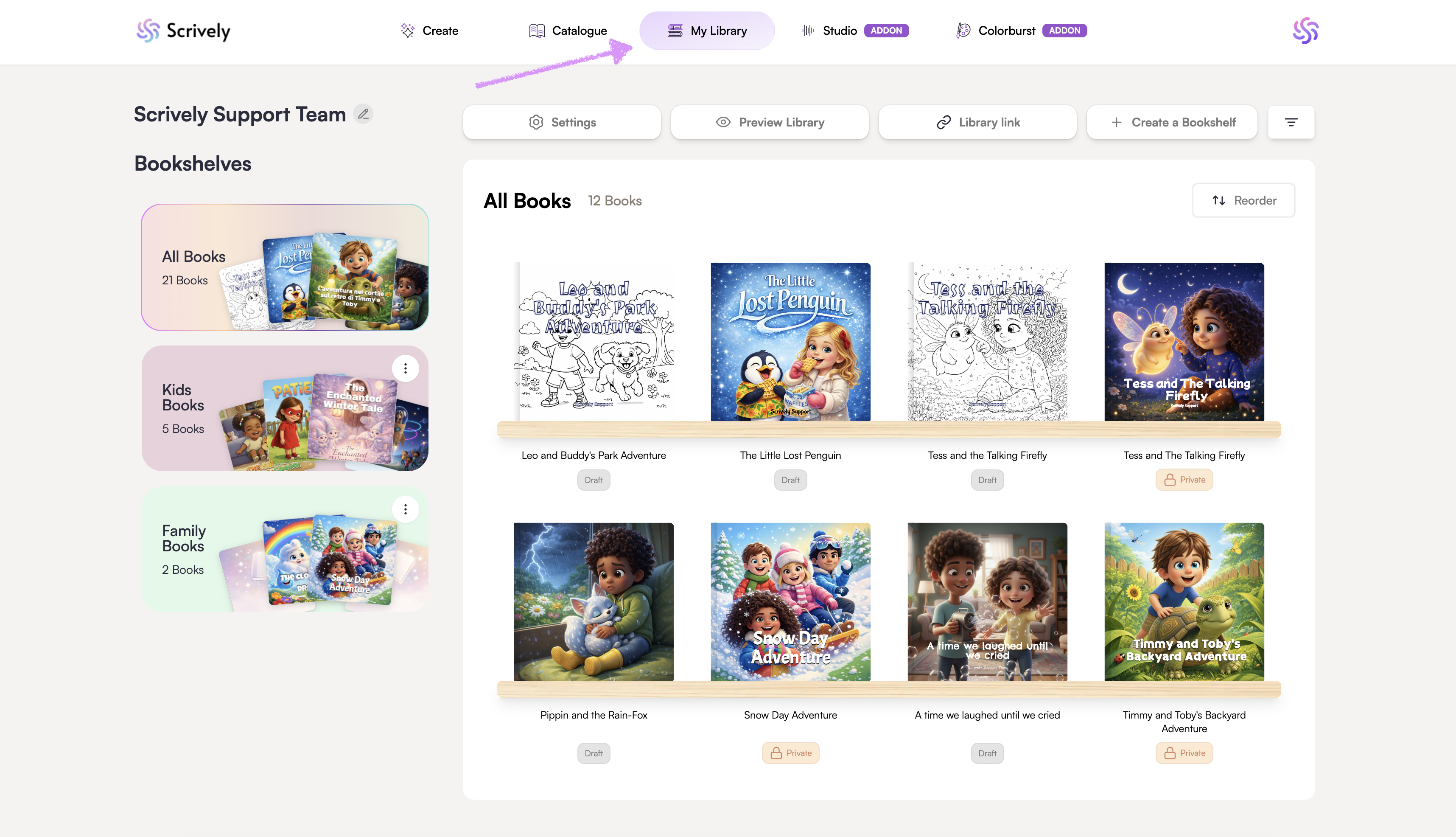
Head over to the "My Library" tab.
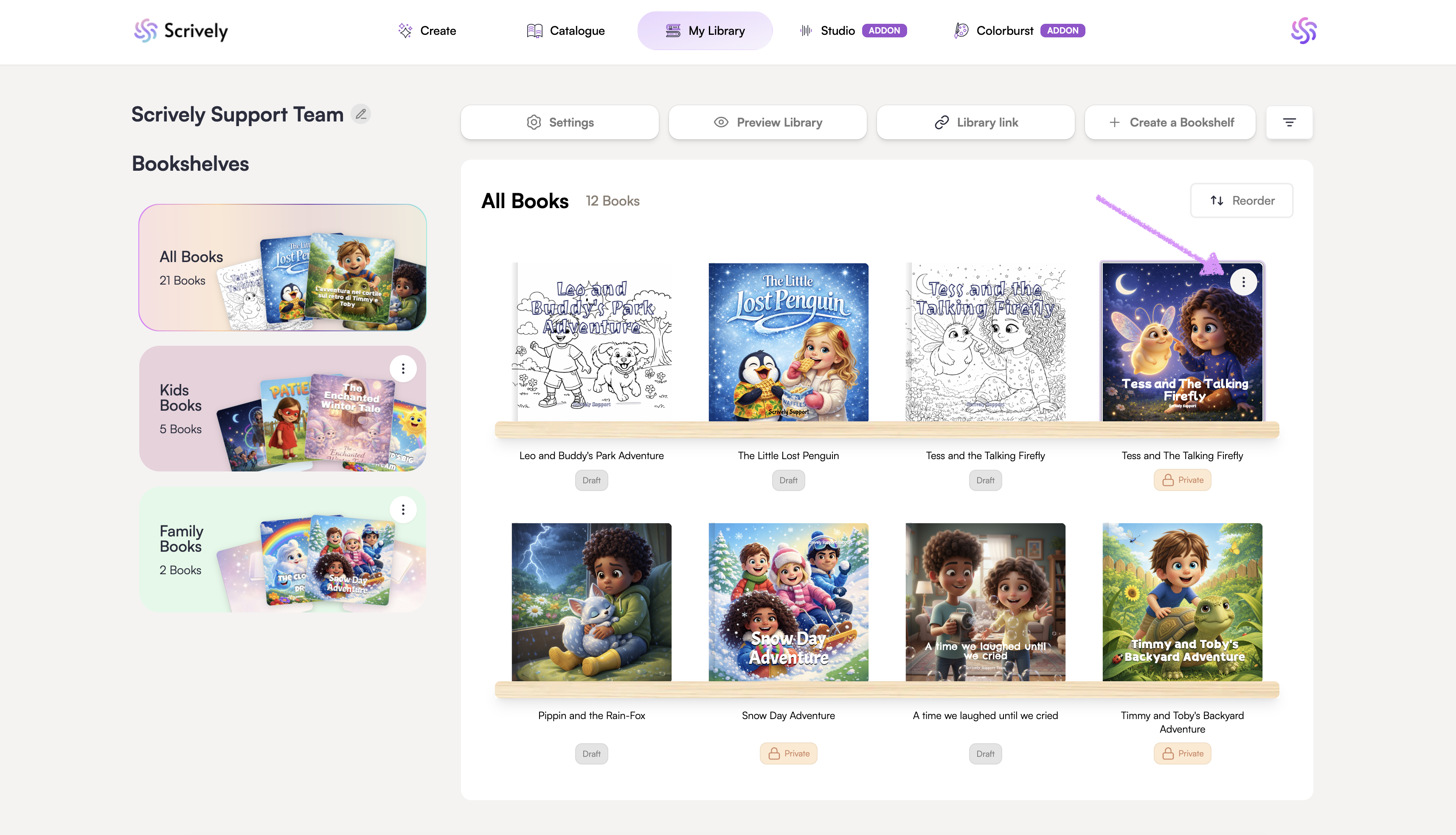
Hover over the book you want to set to public, and click the ellipsis (⋮) menu.
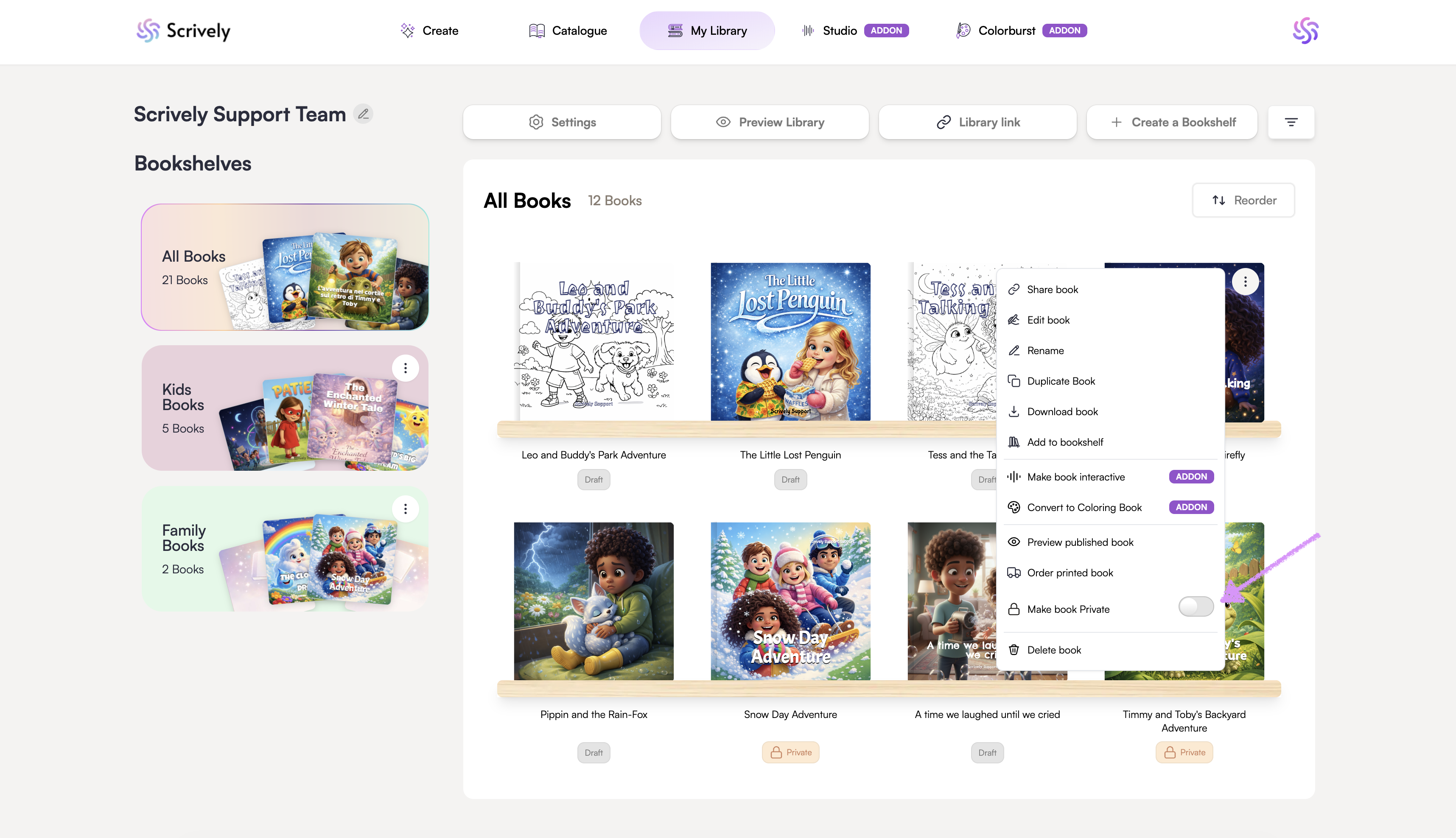
Toggle "Make book Private" off.
The book's status will go from "Private" to "Published."
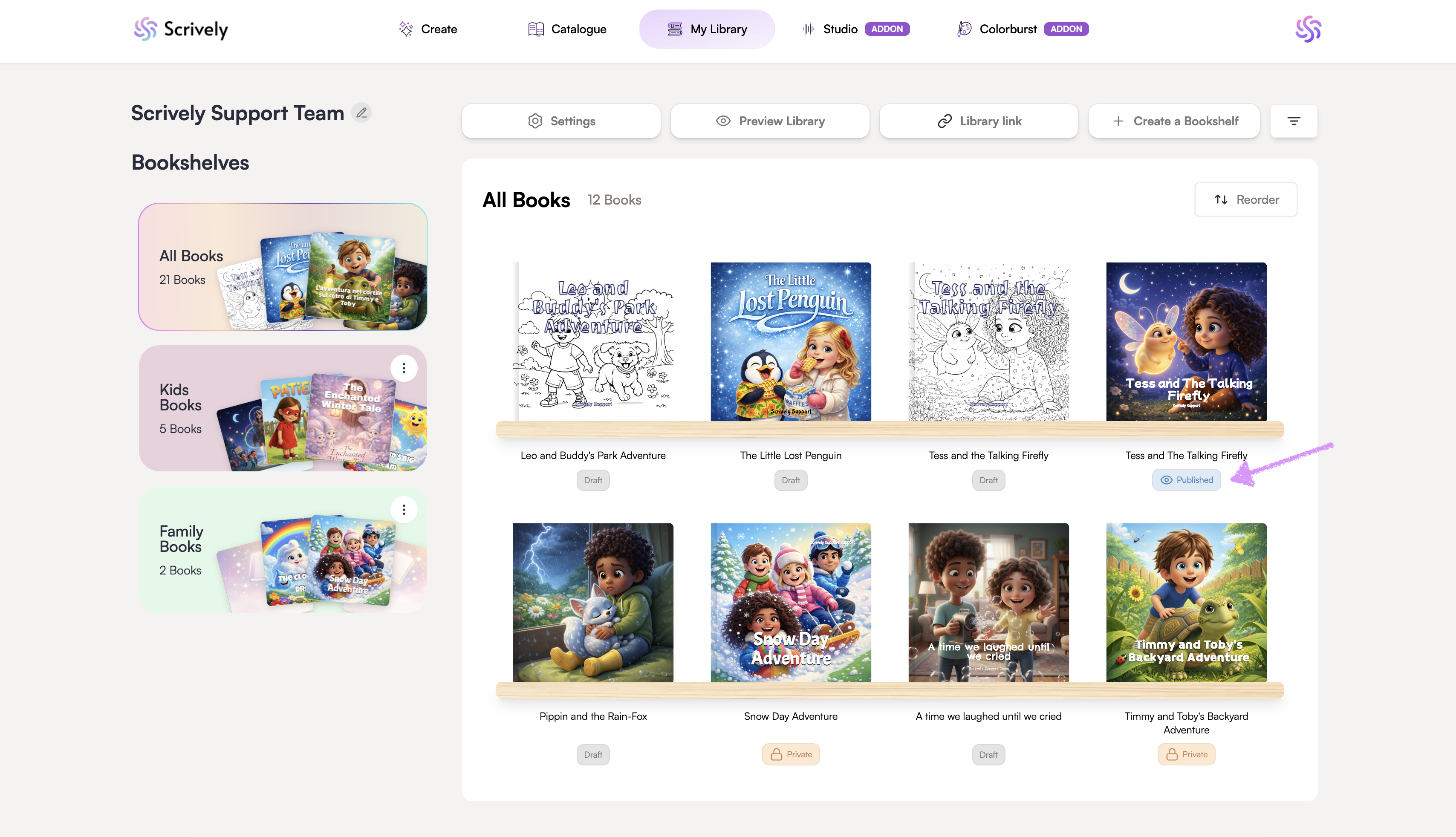
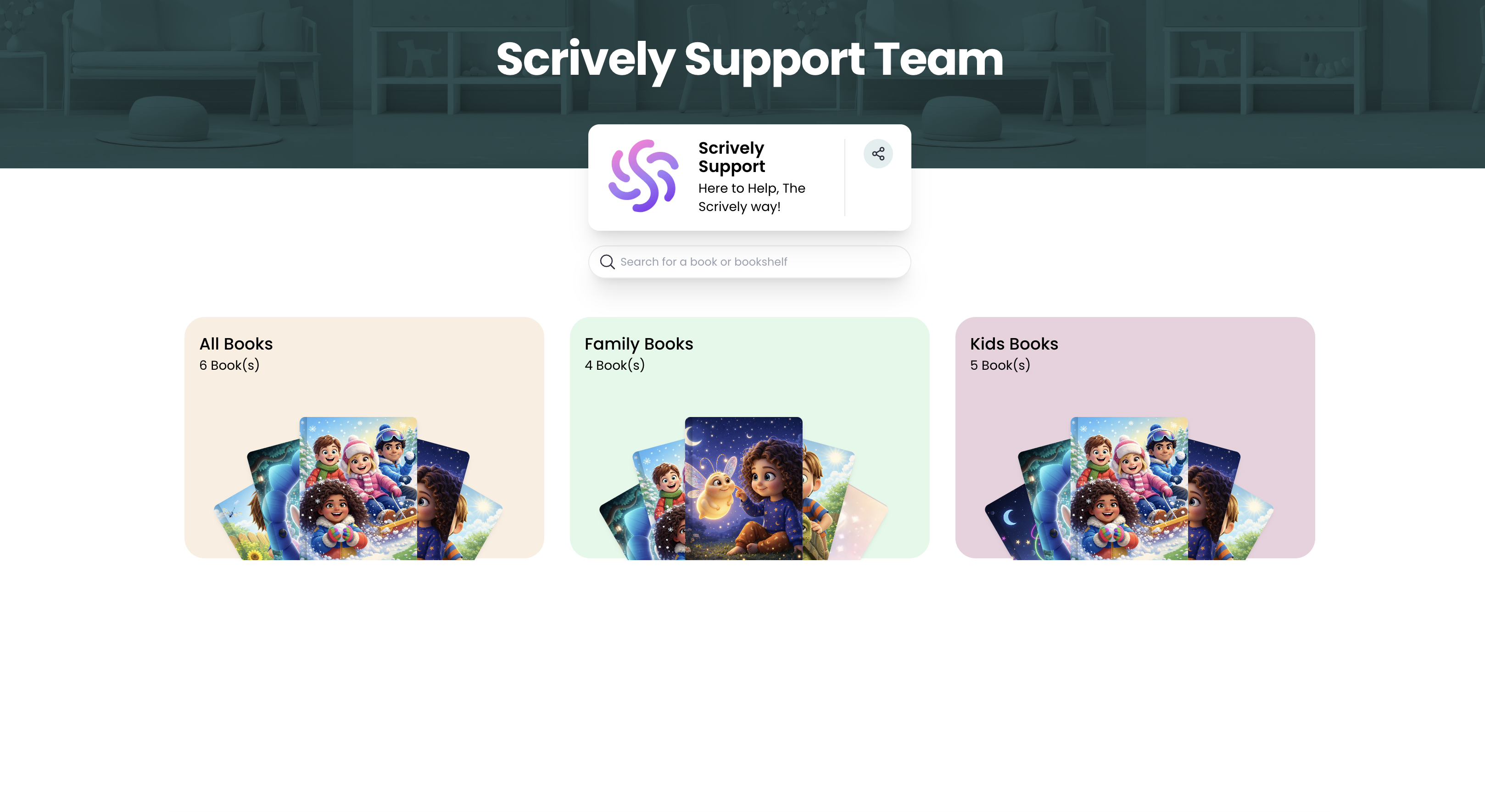
Readers who have access to your shareable library link will now be able to see the book on your bookshelves.
Was this article helpful?
That’s Great!
Thank you for your feedback
Sorry! We couldn't be helpful
Thank you for your feedback
Feedback sent
We appreciate your effort and will try to fix the article
