When designing your book, making sure images align neatly within the template frames is key to a polished, professional layout. Properly fitting your visuals ensures consistency across pages and a seamless reader experience.
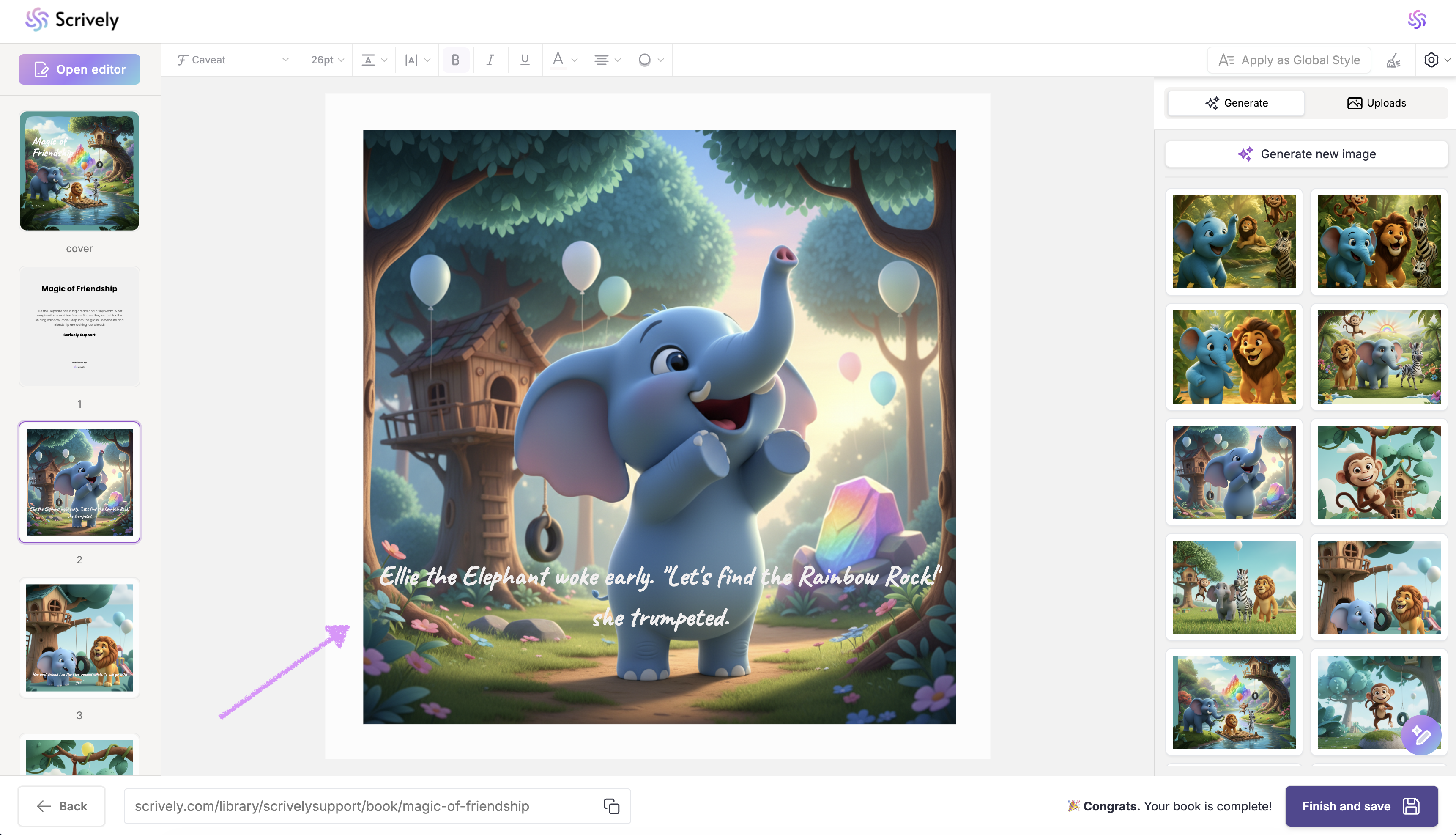
In Designer (book layout view), locate and double-click into the image you want to fit within the frame.
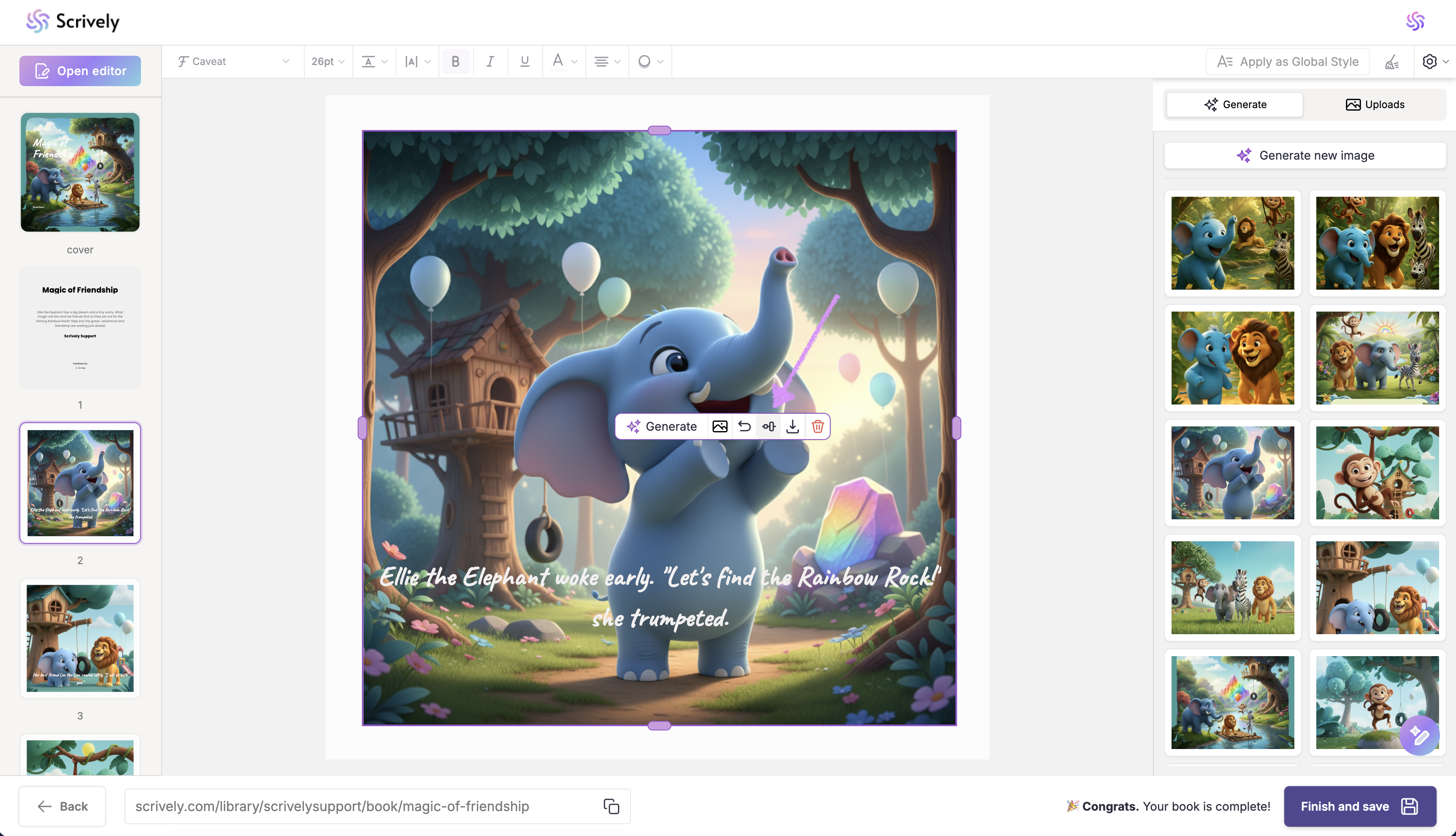
Click the “Fit and Fill” icon to adjust the image within the frame.
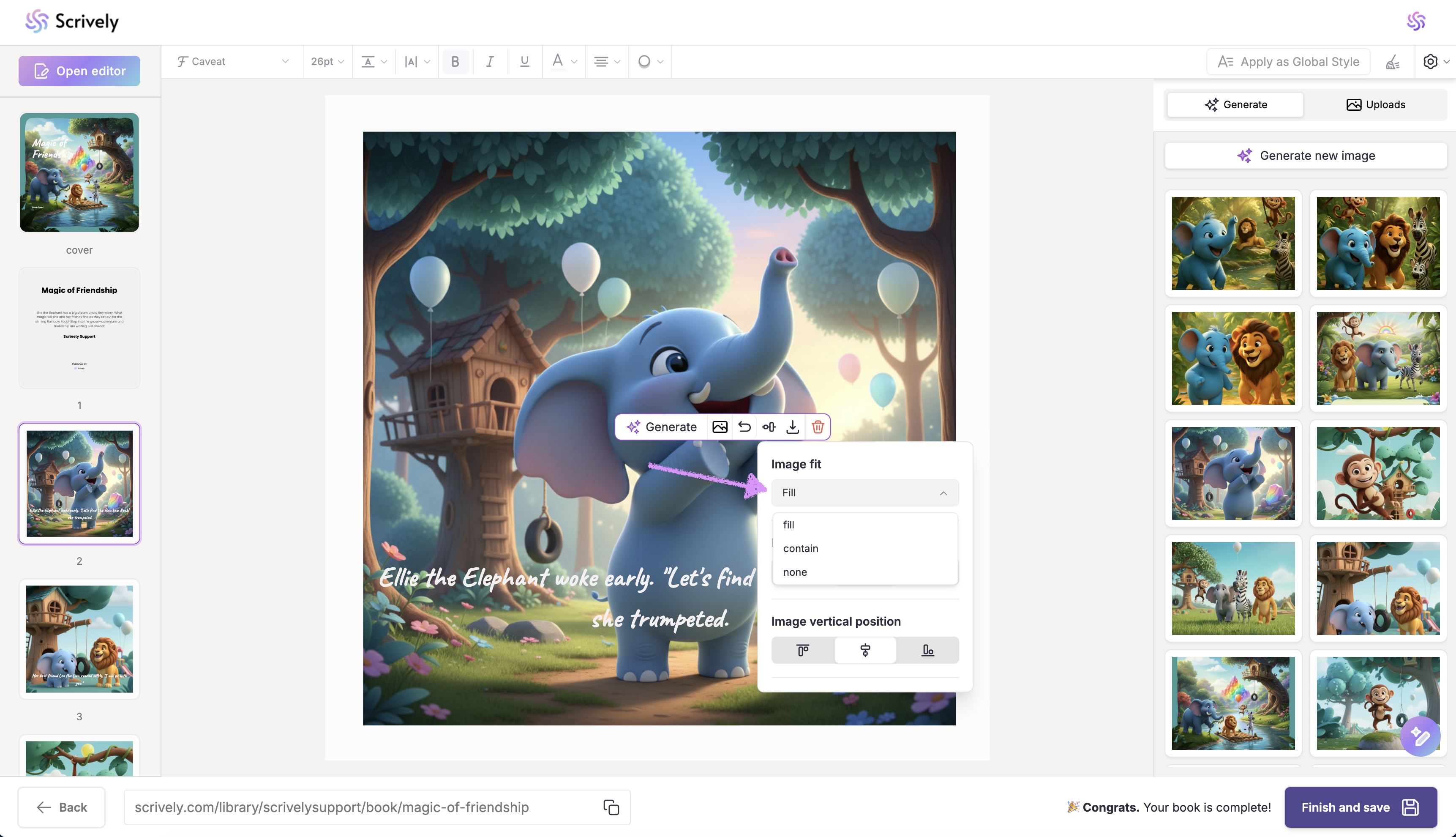
Choose your preferred image fit style.
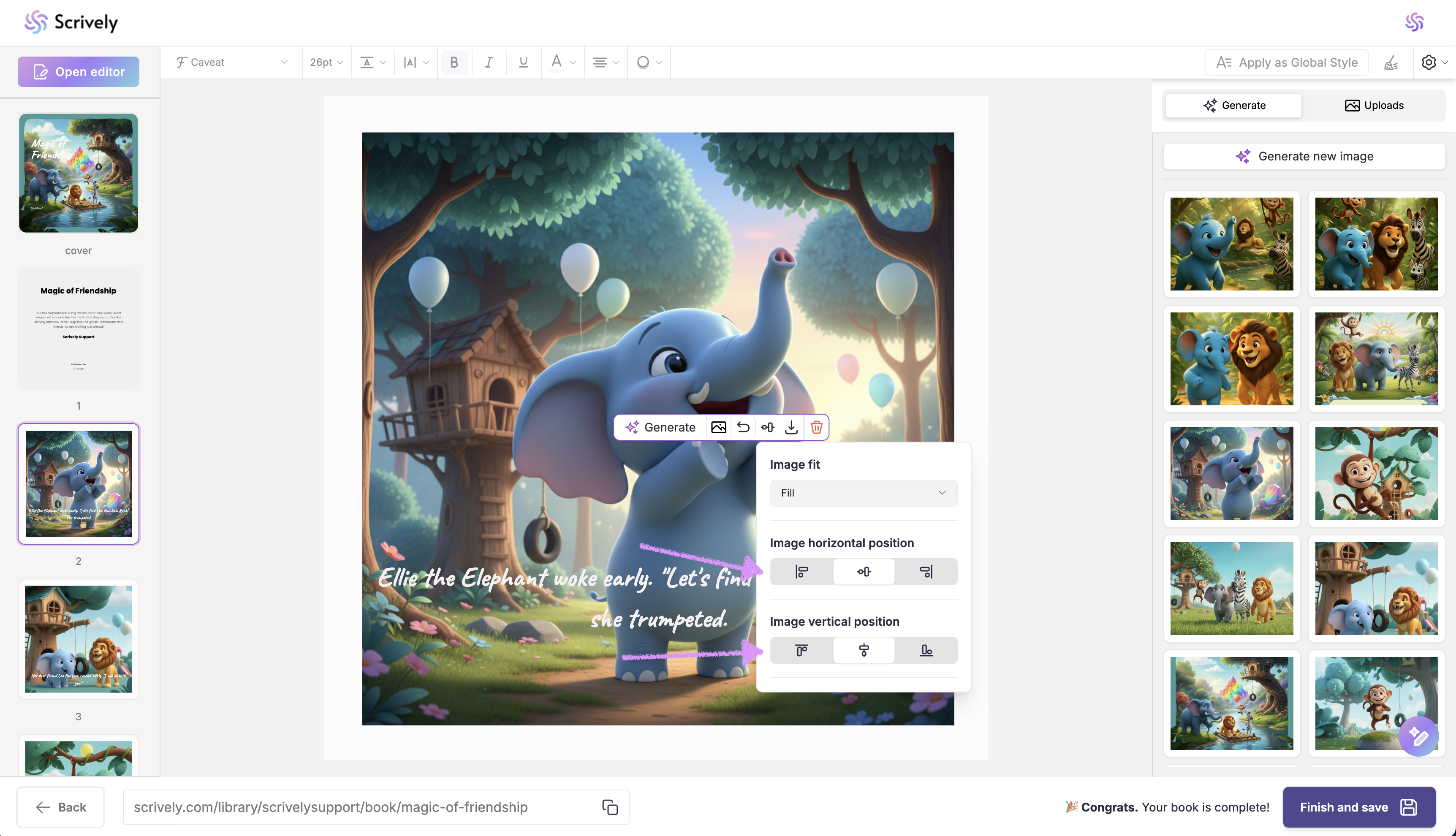
Adjust the horizontal and/or vertical alignment to position the image within the frame. The image will automatically adjust based on the alignment settings you choose.
Note: The Fit & Fill option only appears for image frames that are not full-page. If your image frame takes up the entire page, the image automatically fills the space, so the Fit & Fill controls won’t be shown.Was this article helpful?
That’s Great!
Thank you for your feedback
Sorry! We couldn't be helpful
Thank you for your feedback
Feedback sent
We appreciate your effort and will try to fix the article
