
Bleed and margin guides are designed to help your book print and publish correctly by keeping essential text and images within safe boundaries, reducing the risk of content being trimmed during production.
In the Designer (book layout view) at the top right side click on the settings gear in the actions menu.
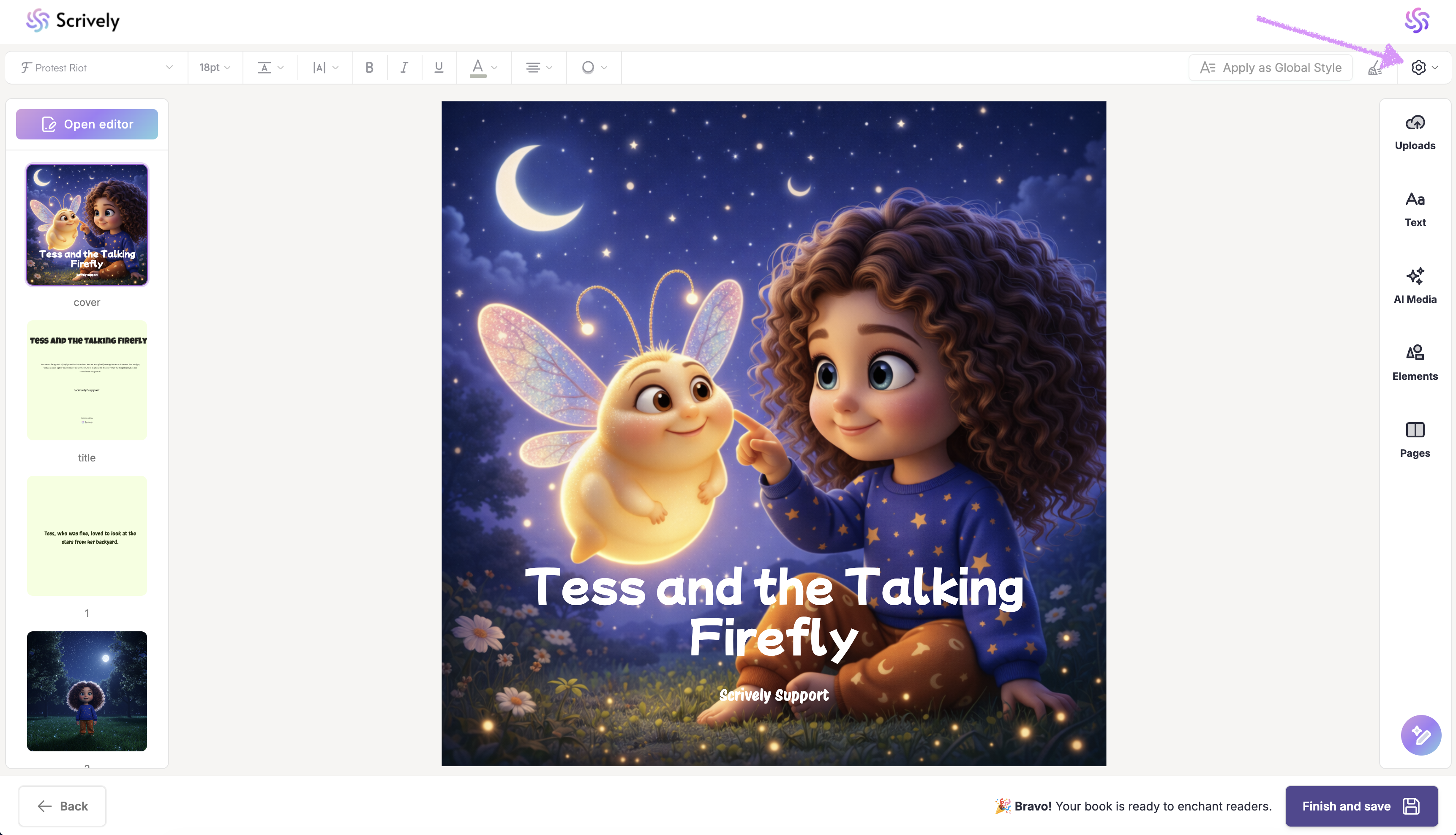
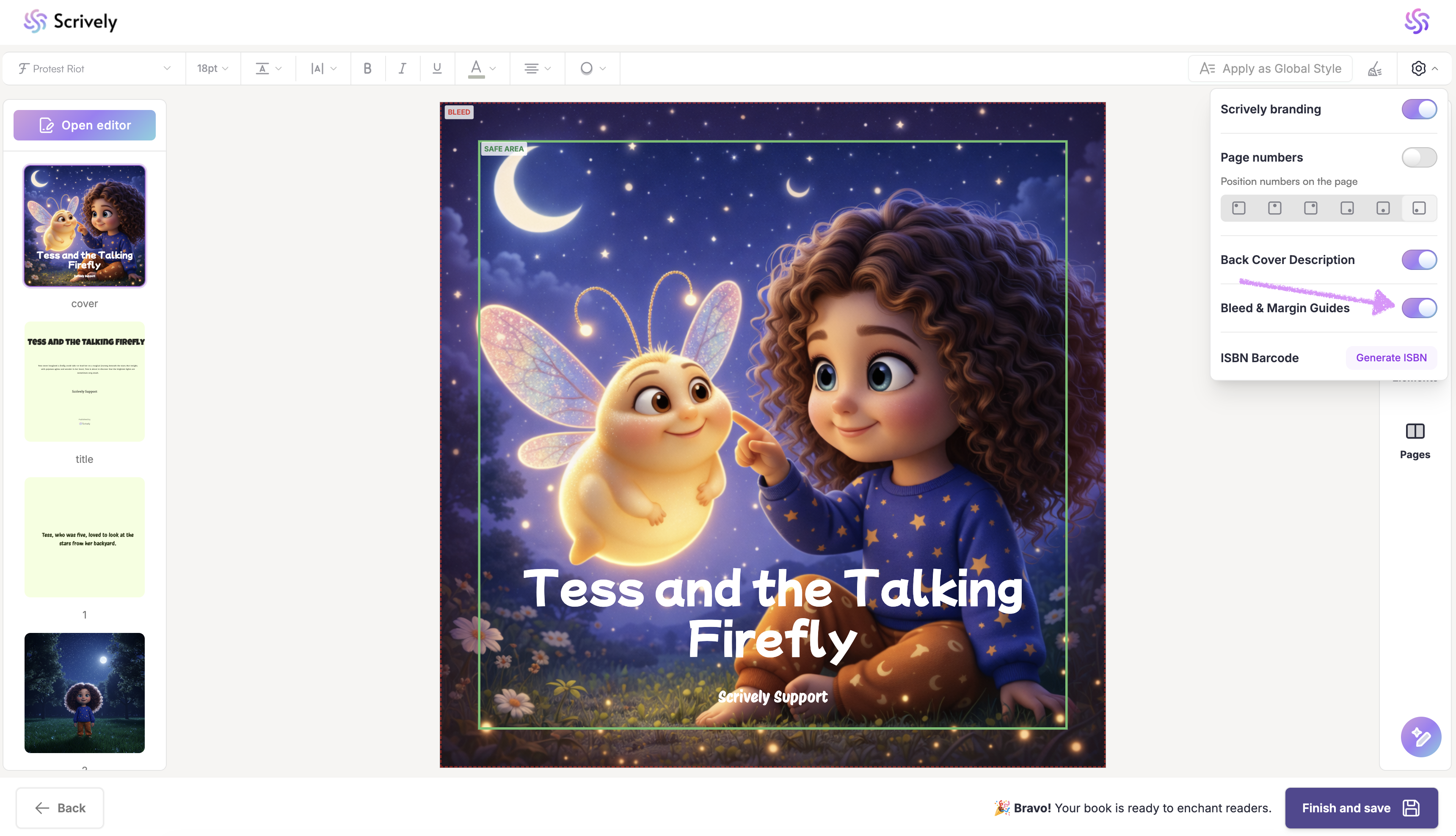
Toggle the "Bleed & Margin Guides" setting on.
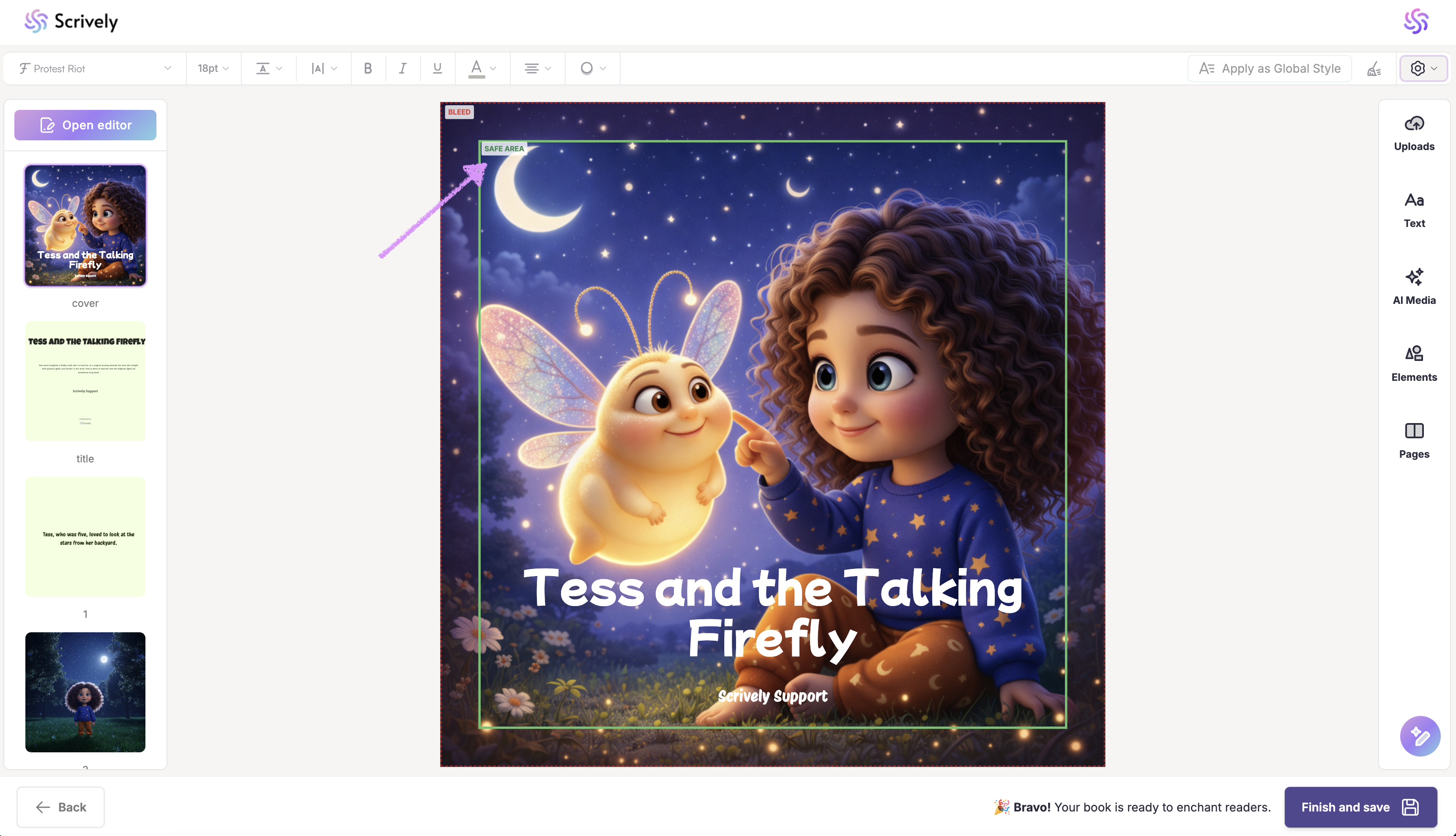
The “Safe Area” is marked with a green outline and represents the space where all your important content like text should be placed. Keeping your content within this area ensures nothing gets cropped or hidden.
The "Bleed" area is marked in red and extends beyond the edges of your book’s page. Any background colors, images, or design elements that you want to reach the edge of the page should extend into this area. This ensures that when your book is trimmed during printing, there are no unwanted white borders, giving your pages a clean, professional look.
Note: Anything outside the safe area but within the red "Bleed" outline allows backgrounds or full-page images to extend to the edge of the page without getting cut off.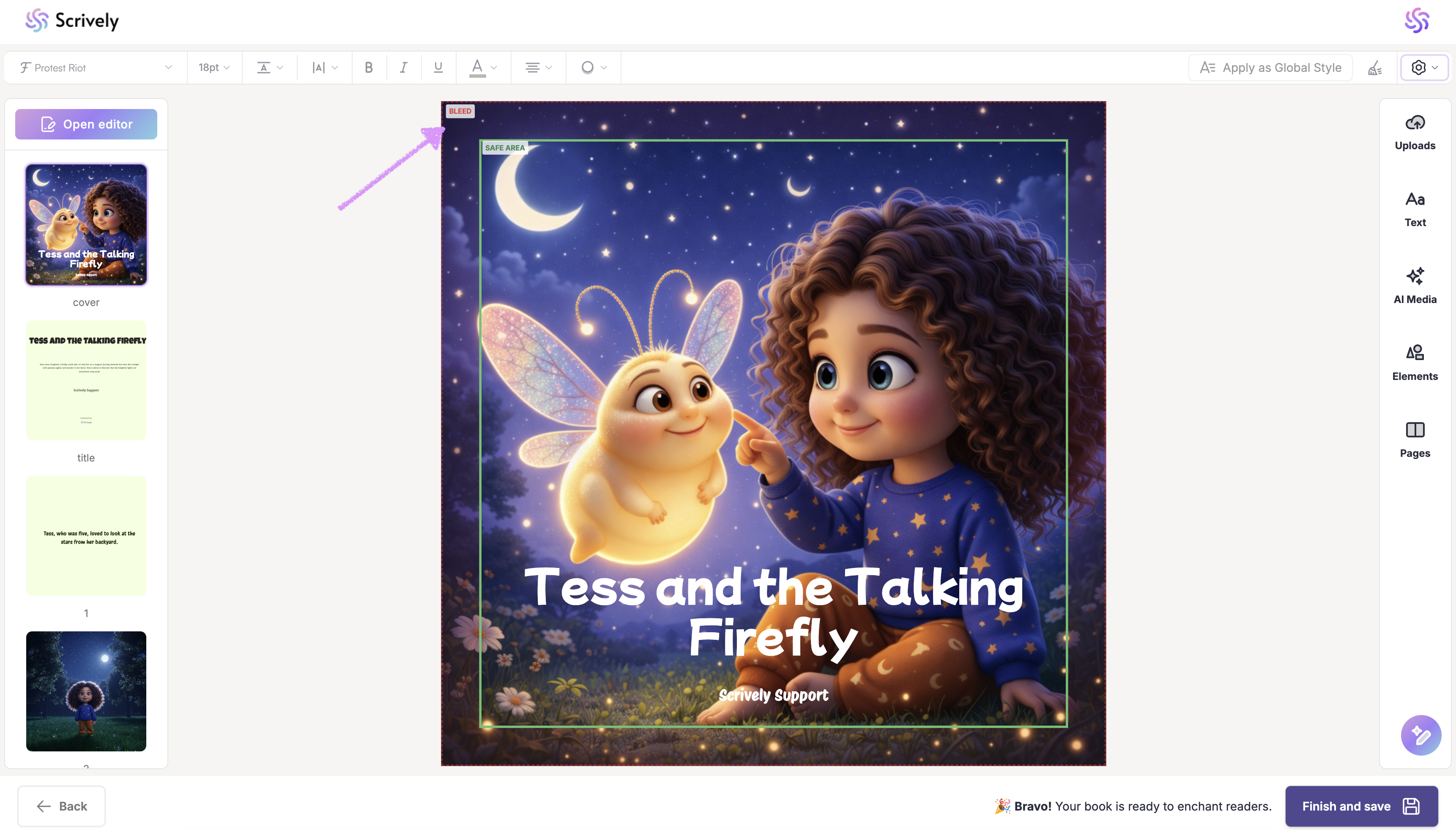
Note: Once you turn on the “Bleed and Margin Guides,” they will appear on every page of your book. You can then adjust each page individually as needed to ensure your content stays within the safe area and extends properly to the bleed edges.
Was this article helpful?
That’s Great!
Thank you for your feedback
Sorry! We couldn't be helpful
Thank you for your feedback
Feedback sent
We appreciate your effort and will try to fix the article
