
Page numbers might seem like a small detail, but they play a big role in making your book feel polished and professional. Whether you’re preparing a children’s book or novel, properly formatted page numbers help guide your reader and add structure to your layout.
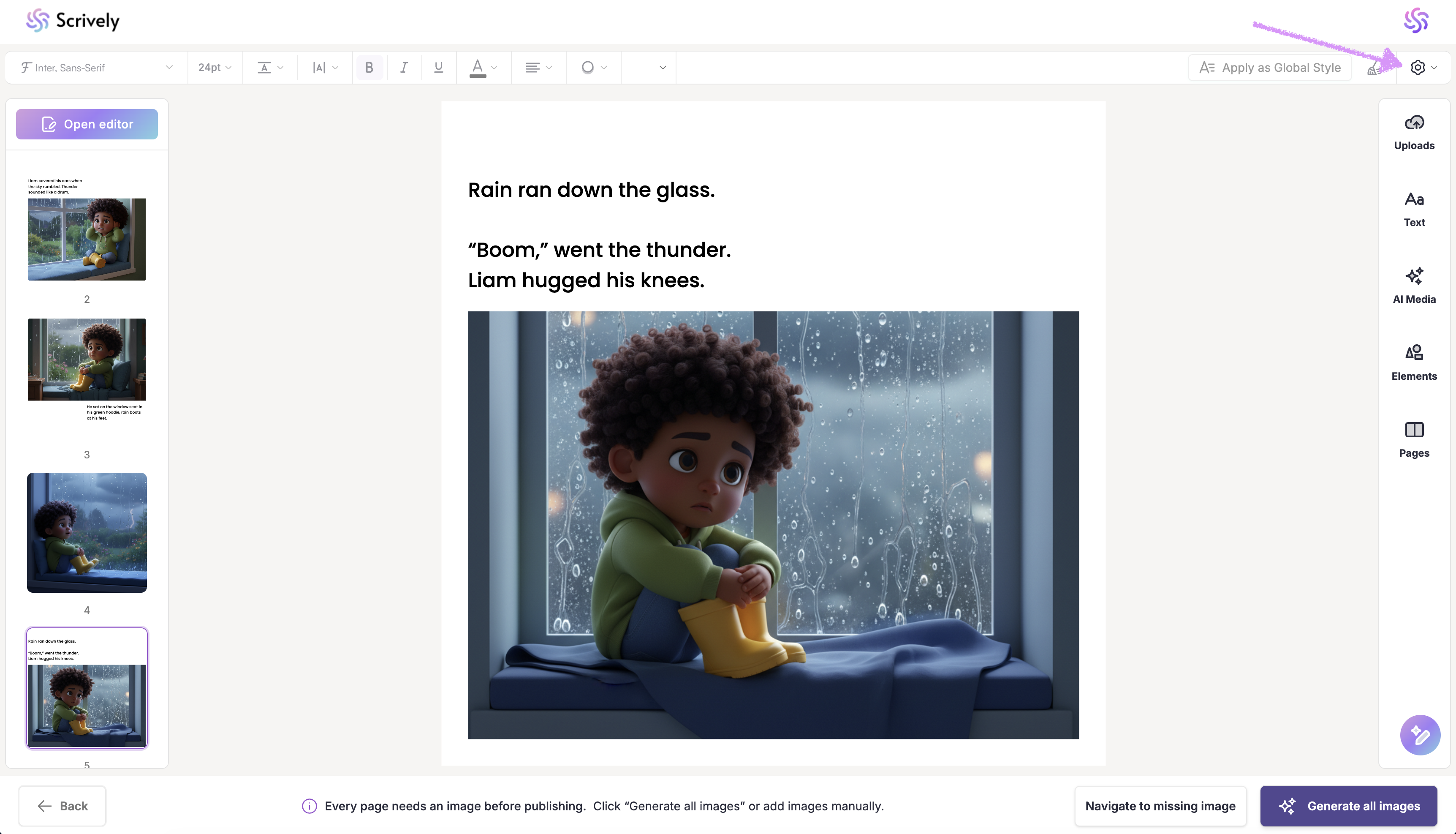
Click the settings toggle located at the top-right corner of the quick action menu.
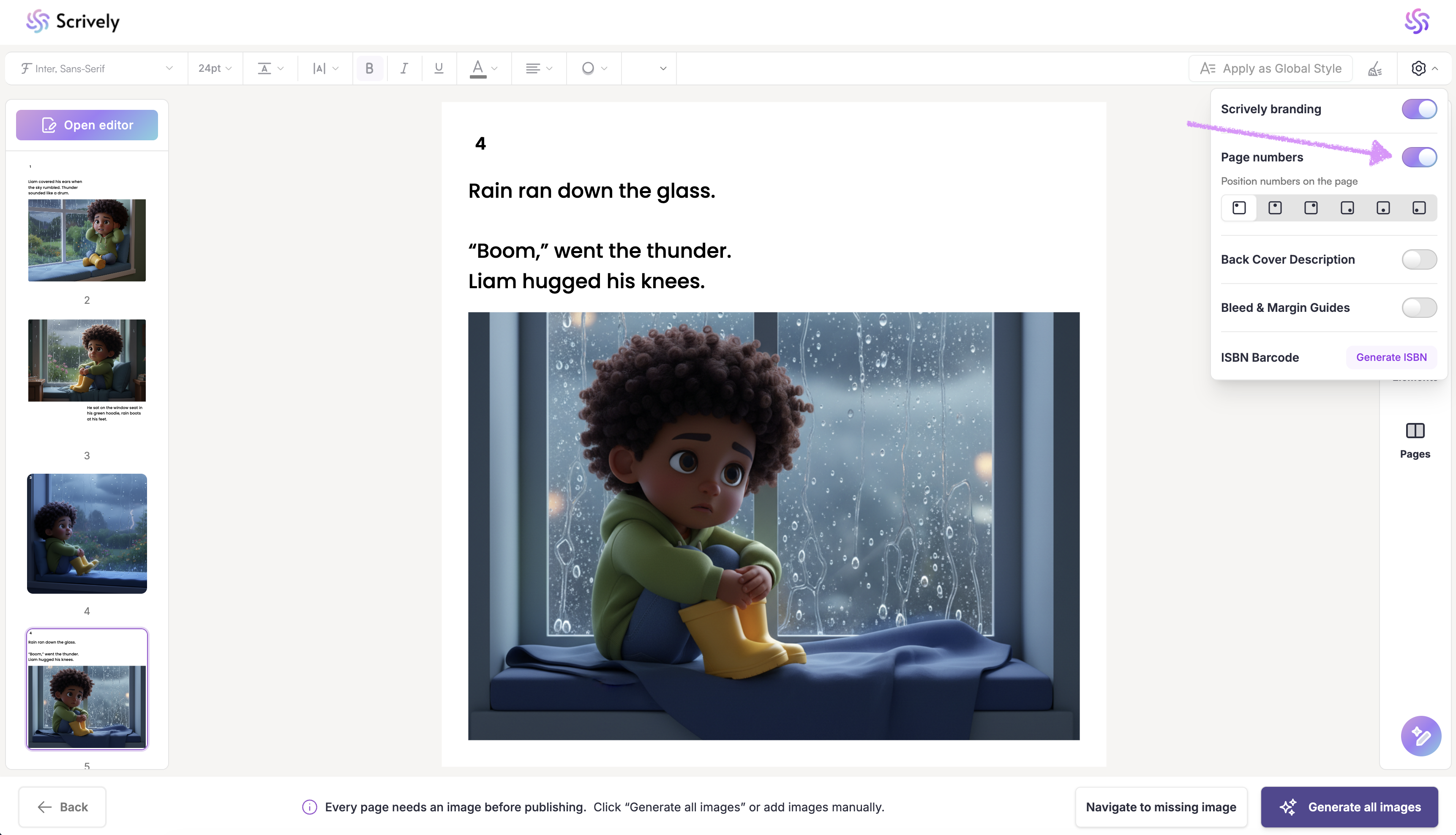
Toggle page numbers on/off.
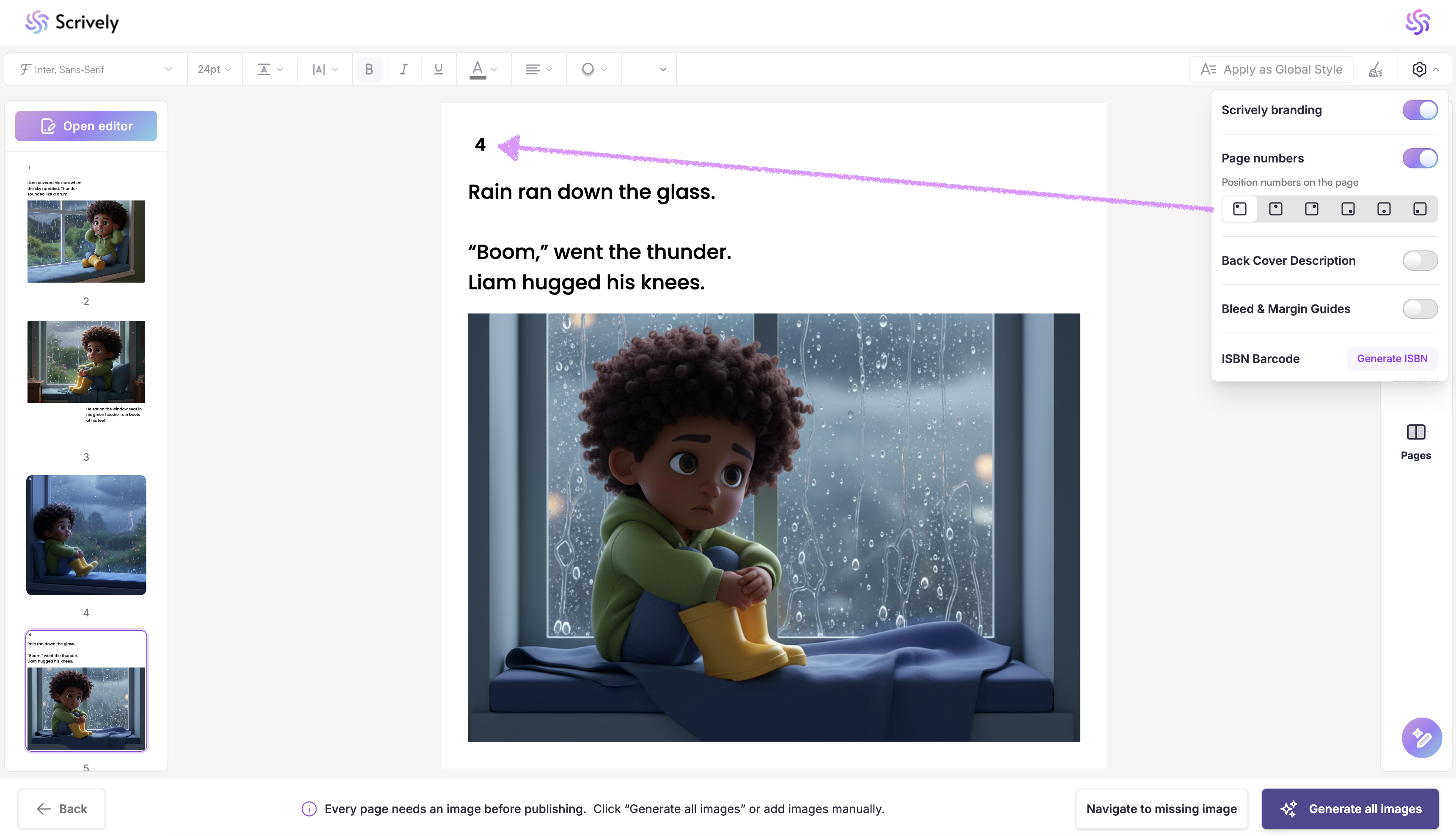
Select the page number position.
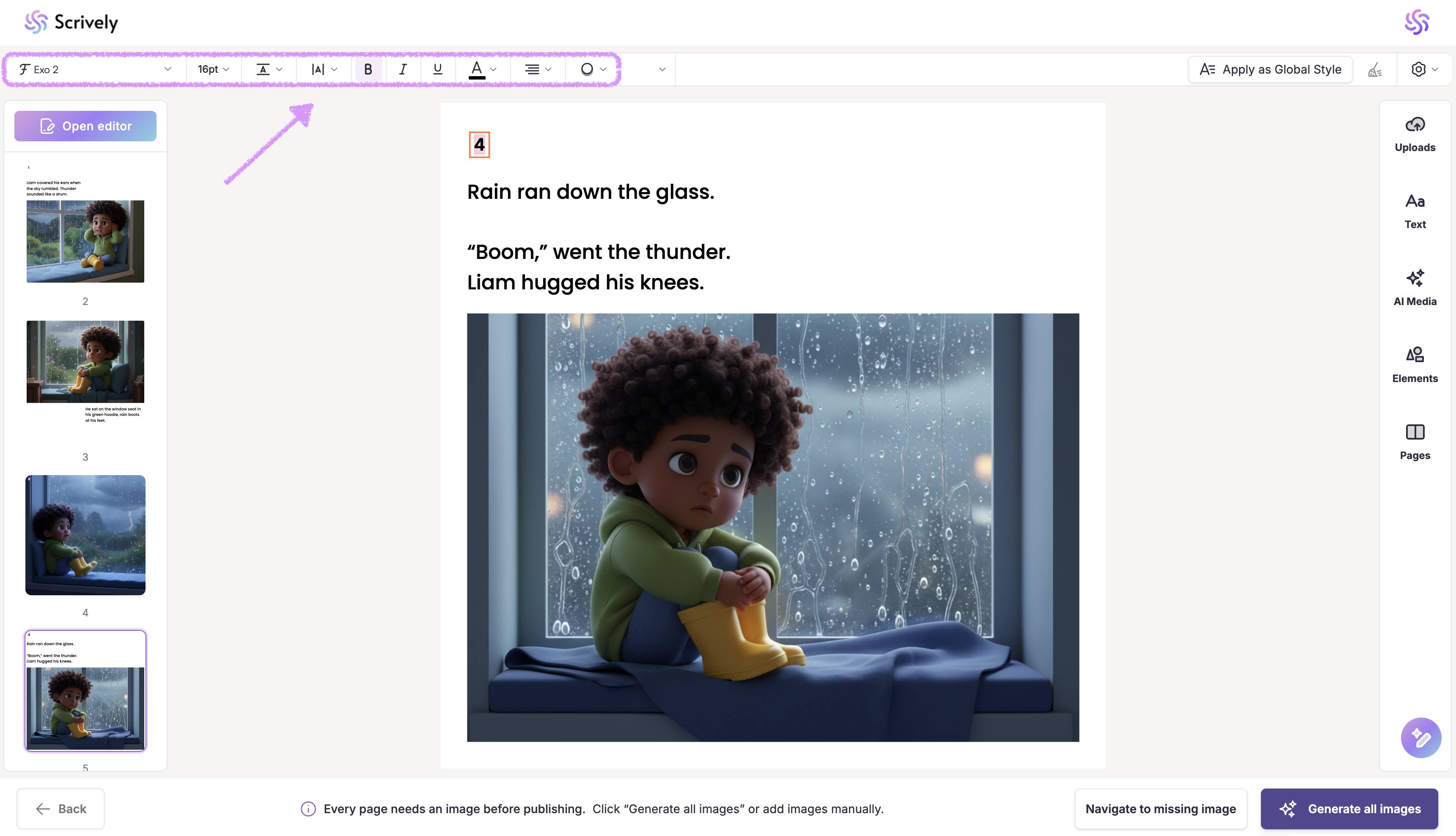
Double-click on the page number text block.
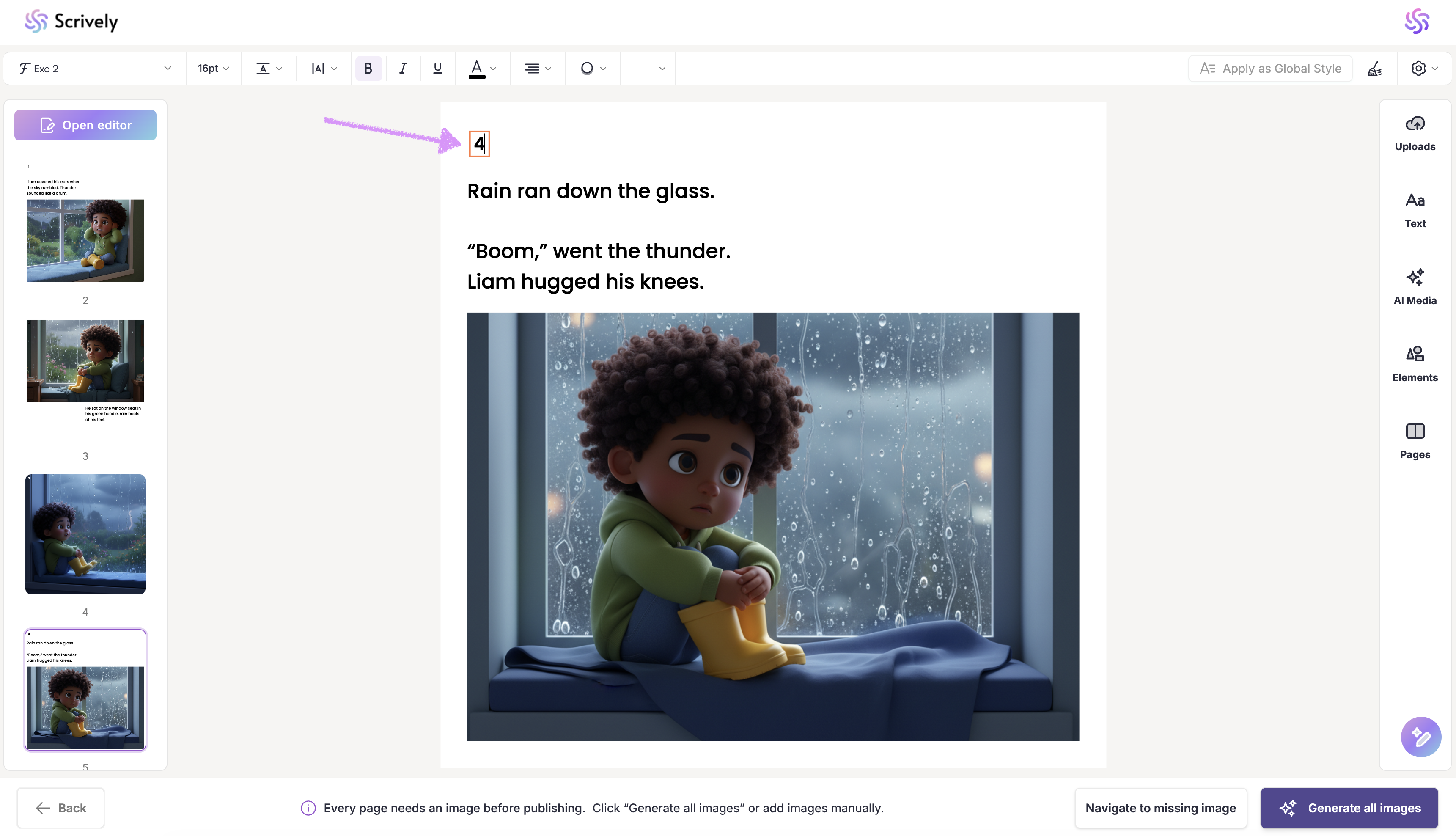
This will engage the options to style the font, adjust the size, line height, and letter spacing, apply bold, italic, or underline styles, update the text color, change the alignment, and add an outline.
Was this article helpful?
That’s Great!
Thank you for your feedback
Sorry! We couldn't be helpful
Thank you for your feedback
Feedback sent
We appreciate your effort and will try to fix the article
