
After you provide Scrively with your story details, you’ll be taken to the Story Builder, where you can expand your narrative, add more details, and shape your storybook exactly how you envision it.
Scrively will begin by generating the characters for your storybook.
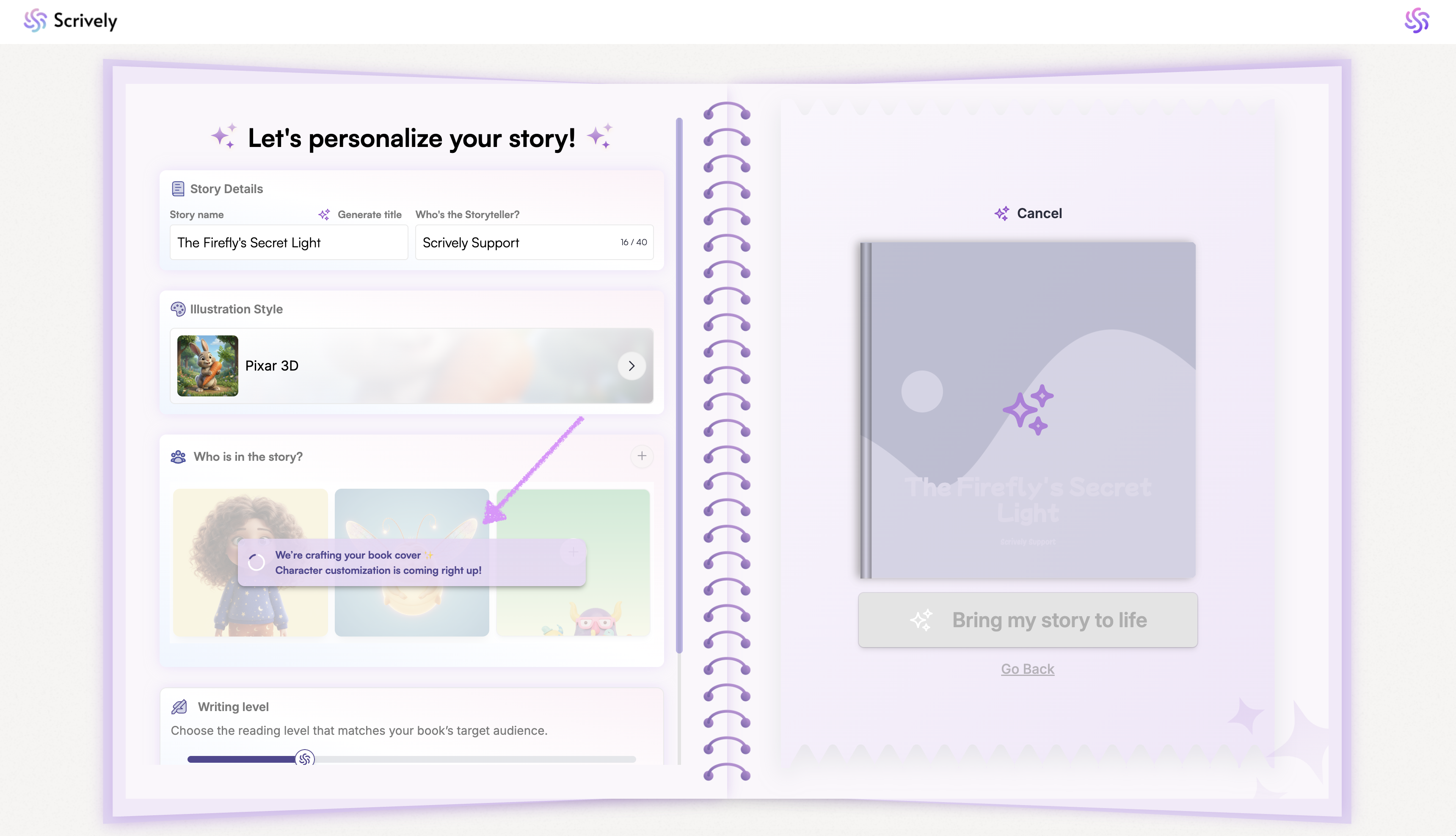
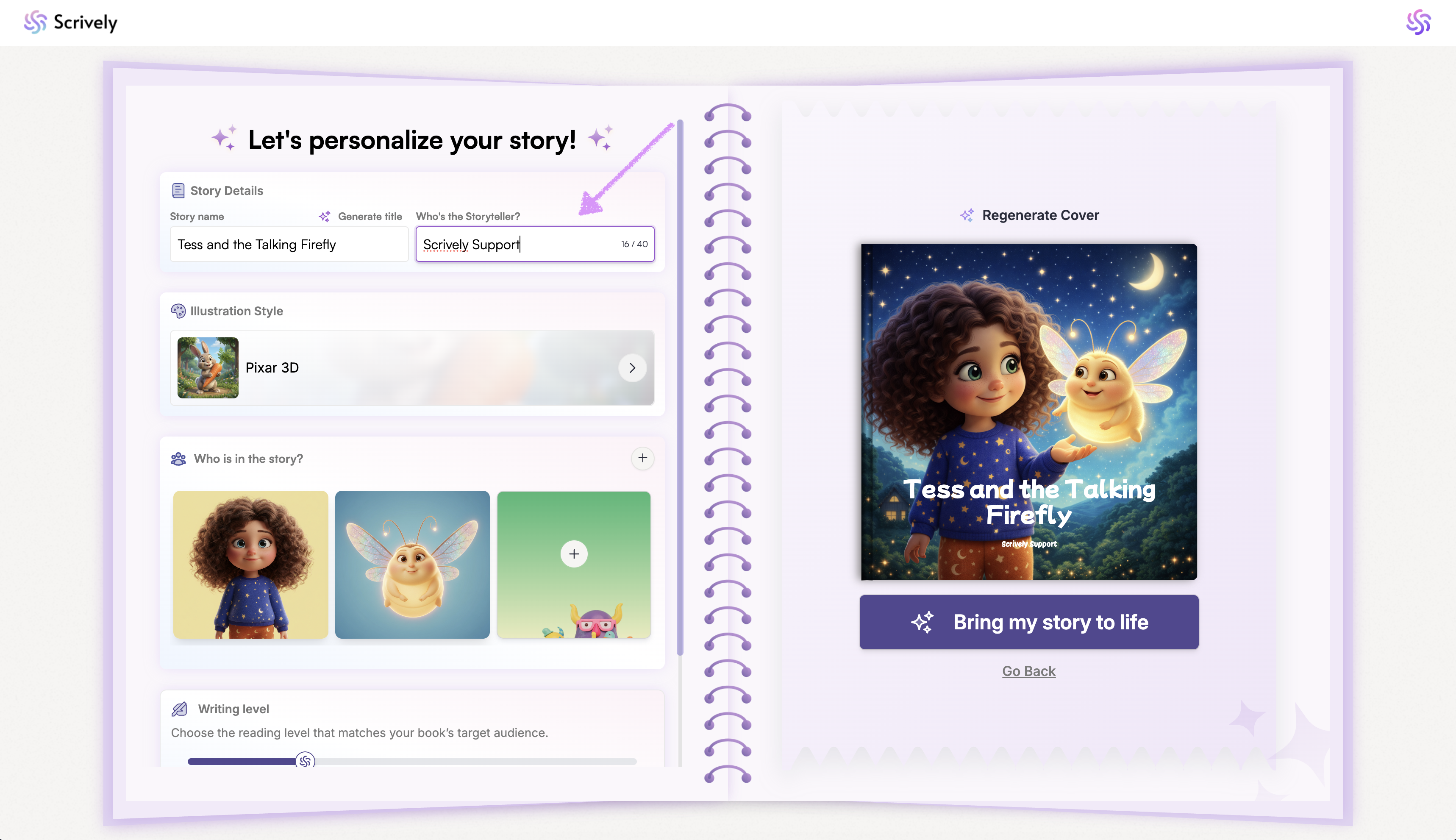
The cover page illustration will also generate on the right side.
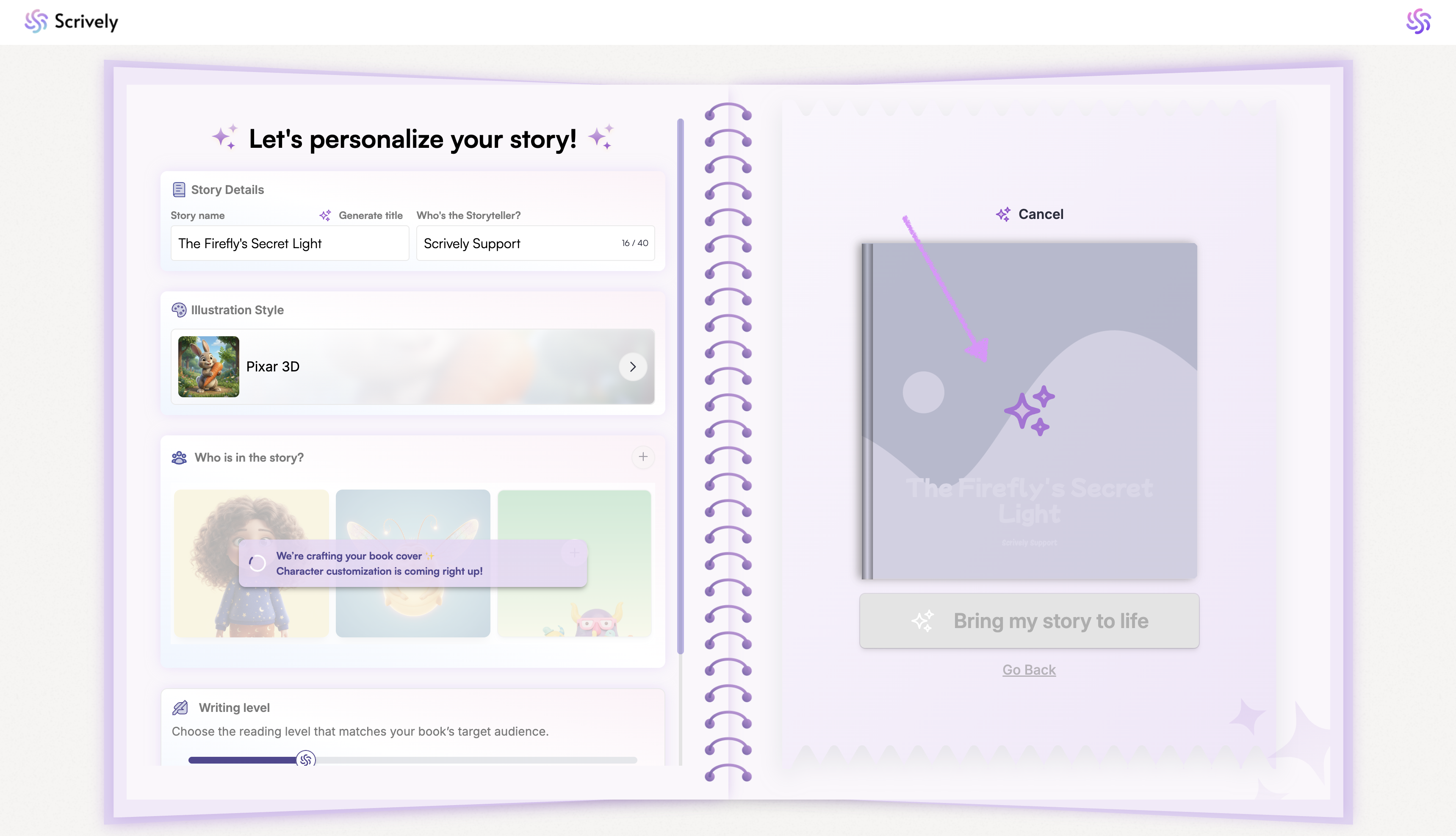
If you're not ready to have the cover image generated click on "Cancel."
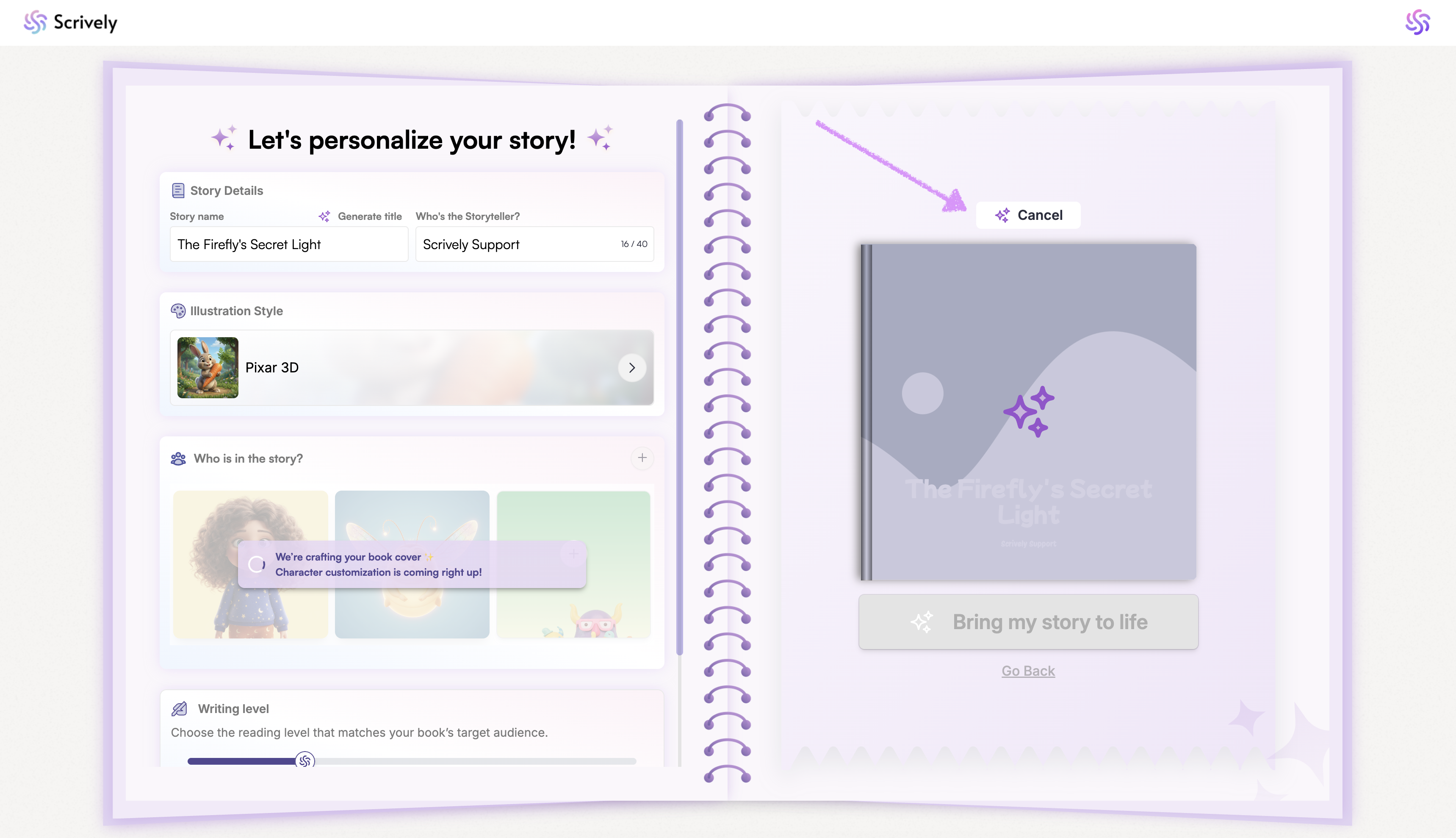
After the characters and cover page illustration are generated, if you’d like to stop creating your story, click “Go Back” below the book cover.
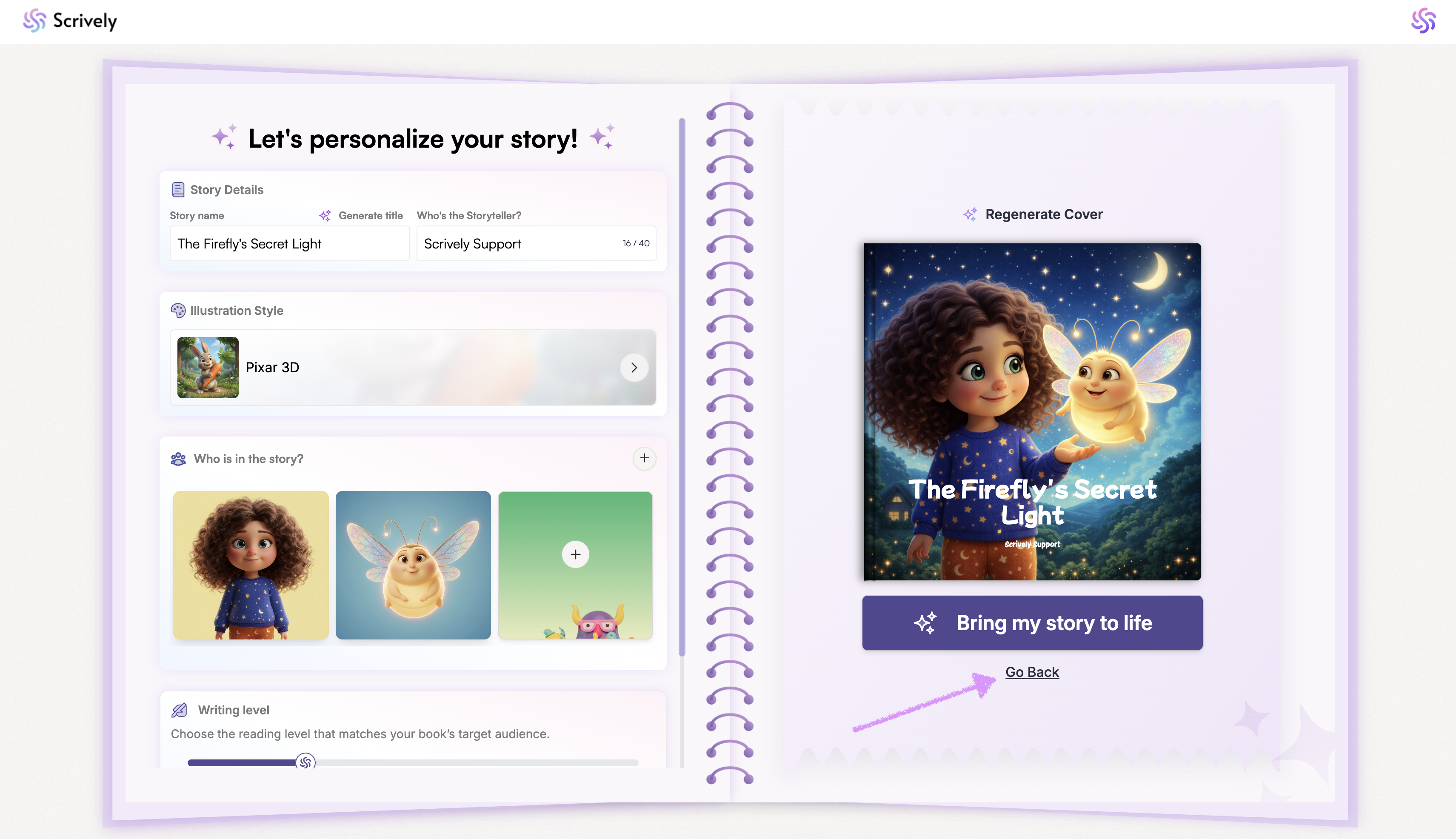
A warning will be displayed to confirm that you would like to exit the story builder.
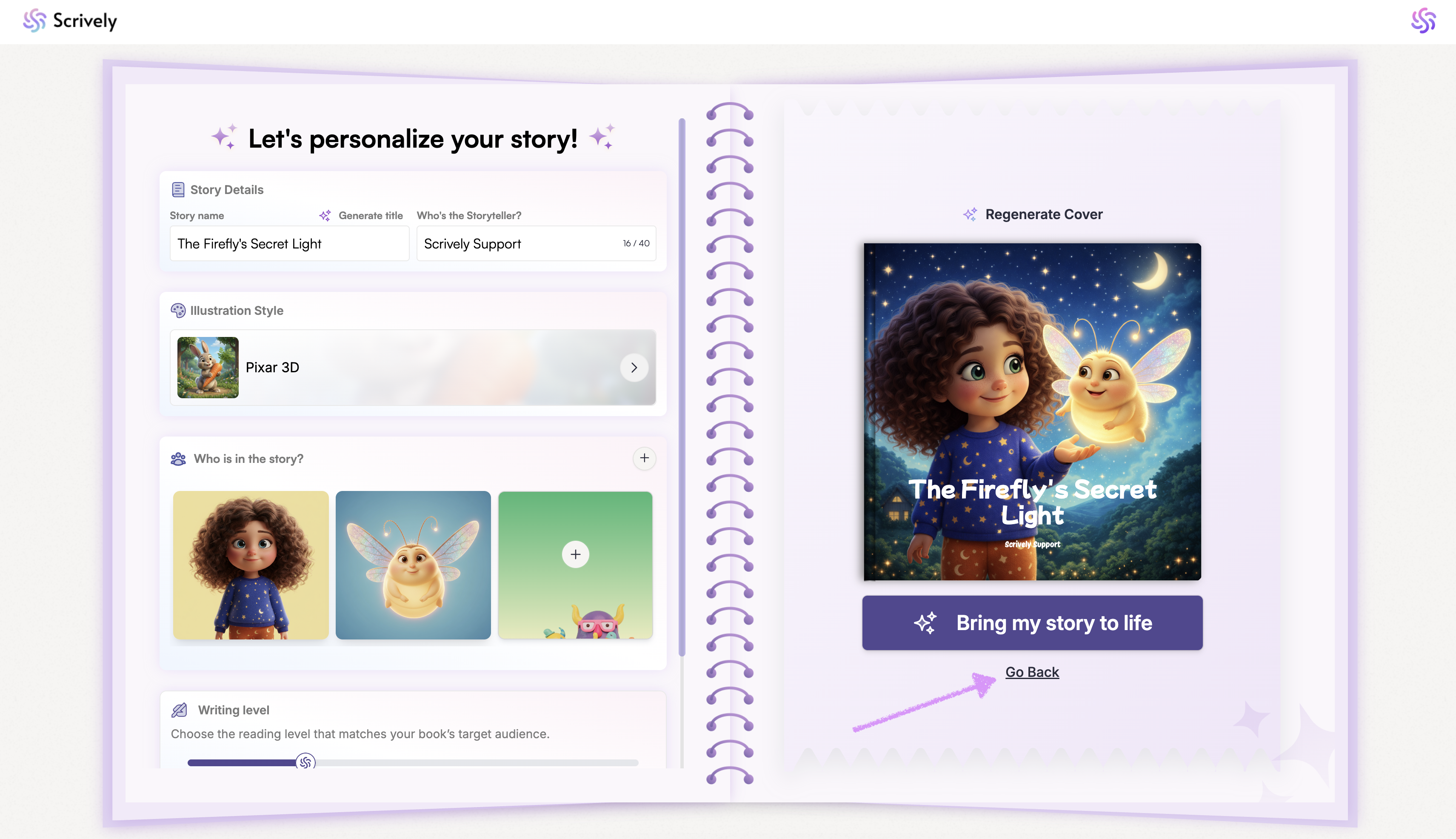
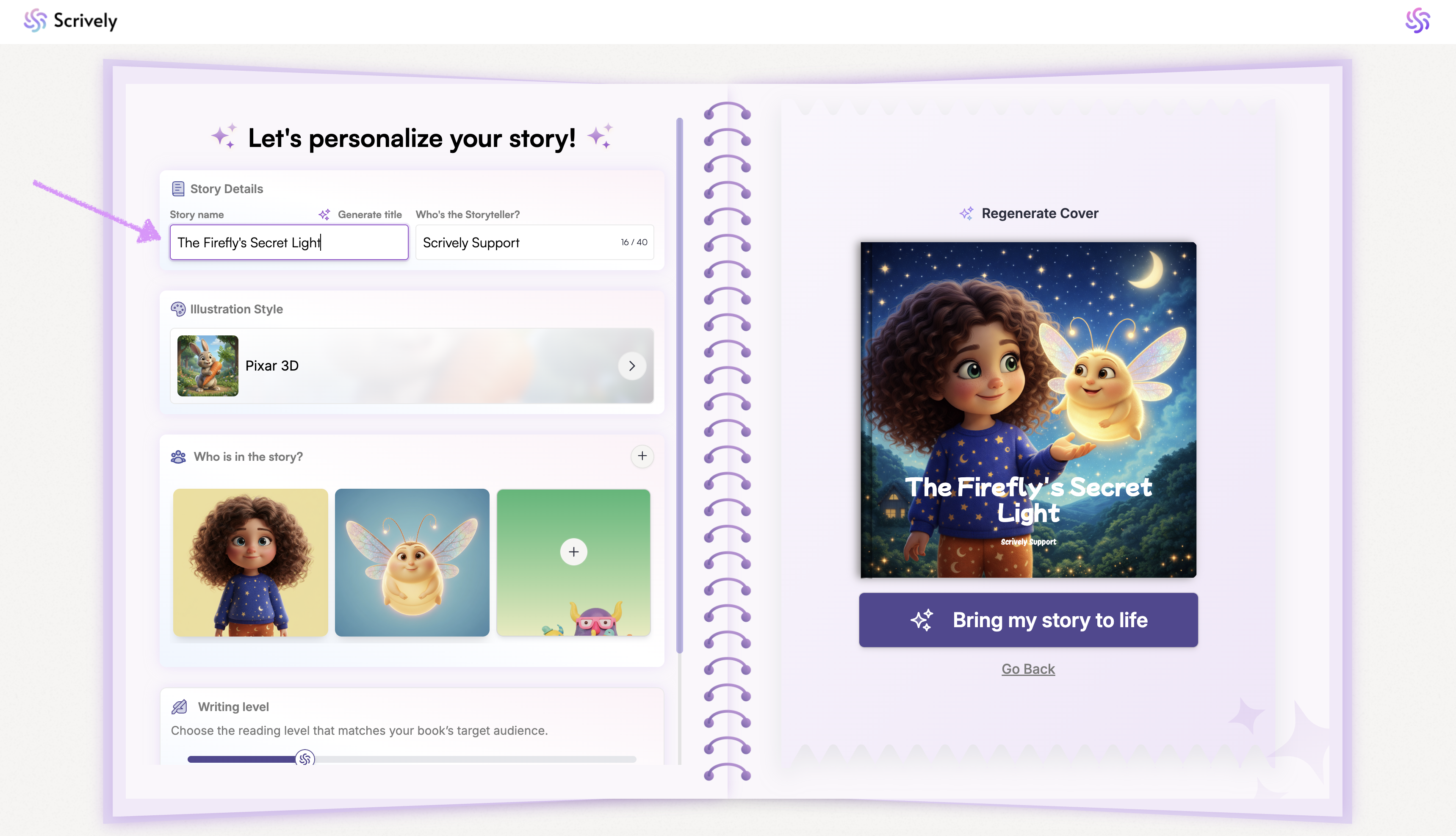
The first step in the story builder is to enter or modify the title for the story.
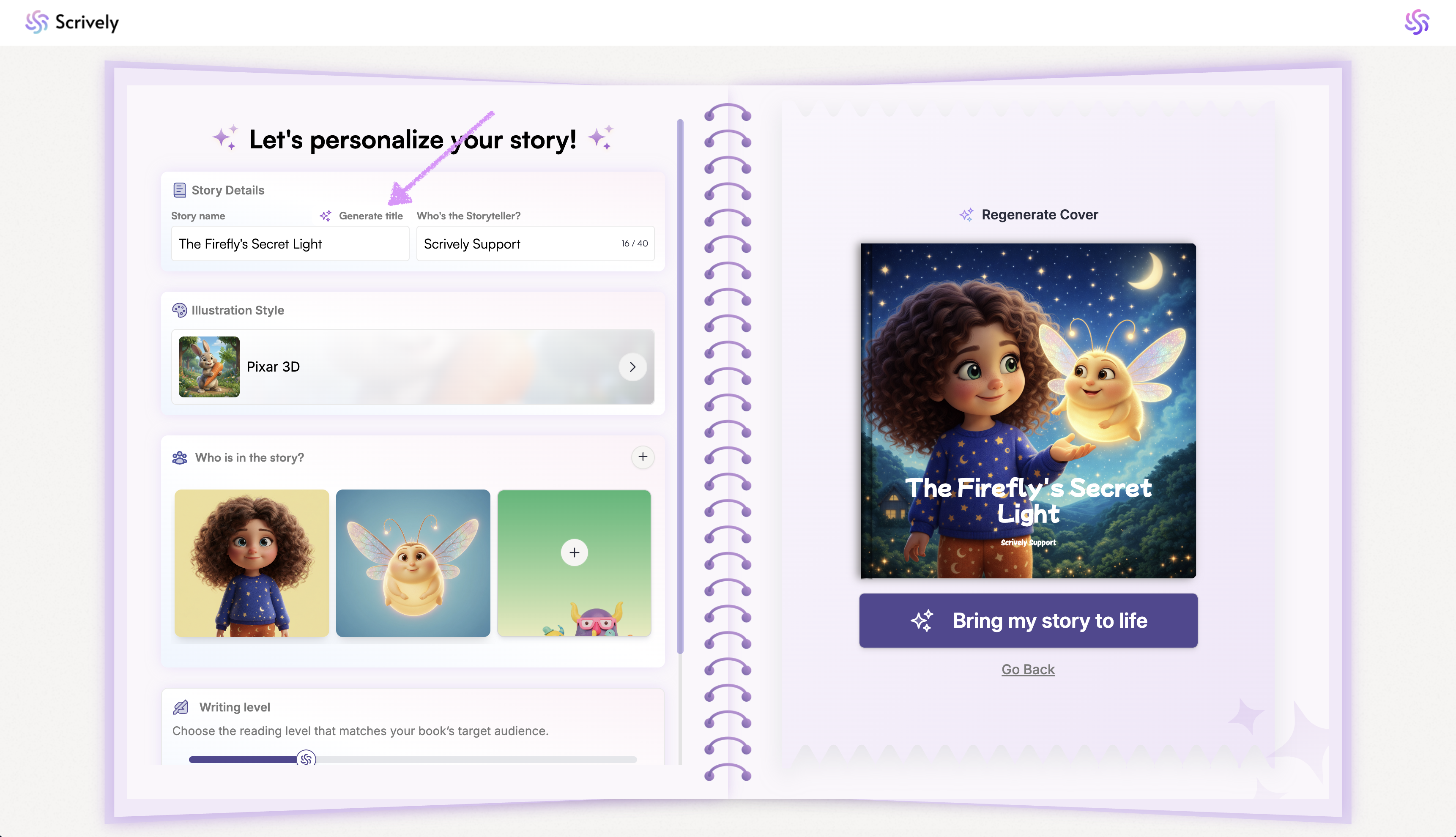
Want to automatically generate a new title? Click on "Generate title."
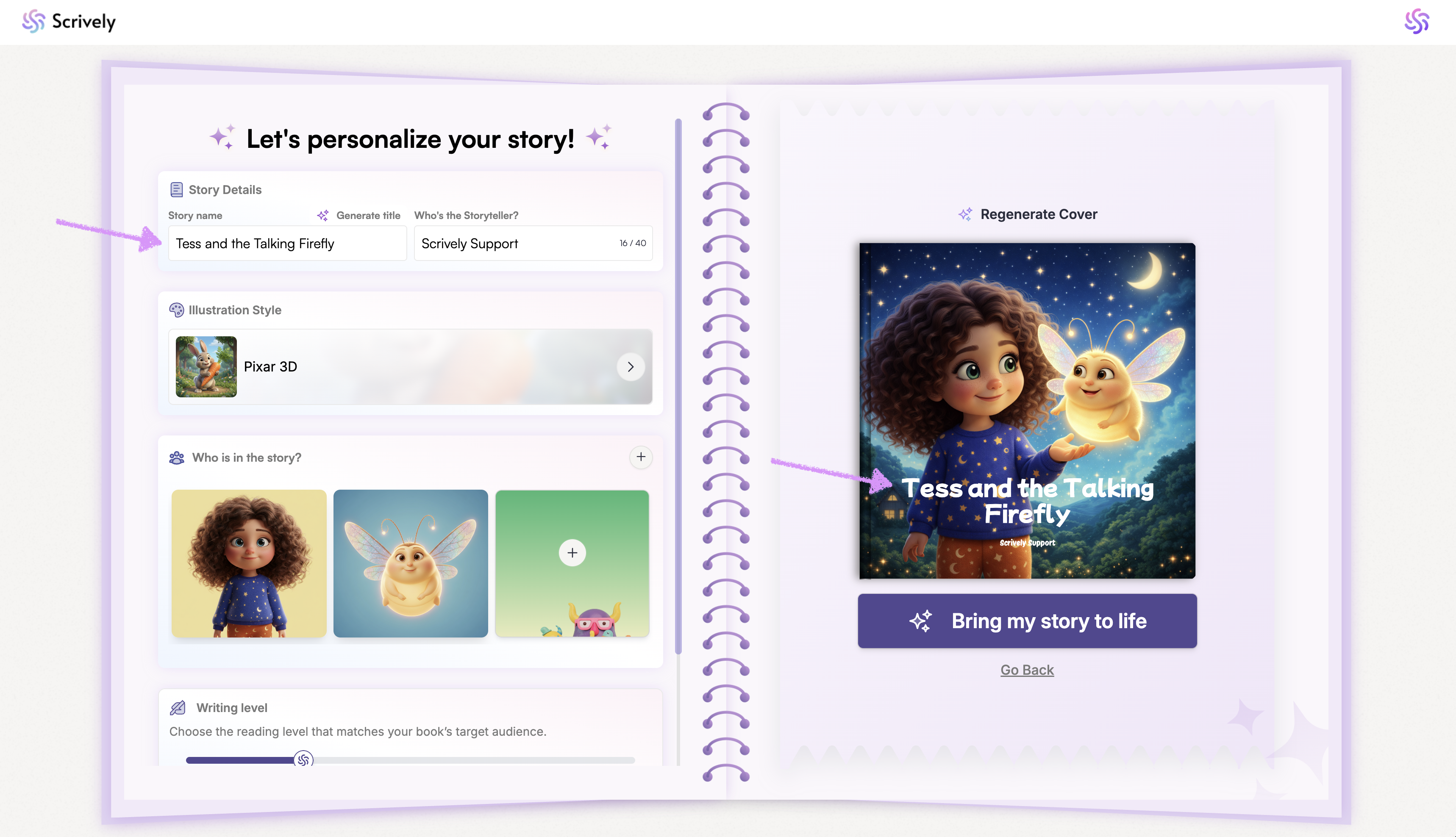
Scrively will add the new title to the provided field and automatically update the title on the book cover illustration.
Next, enter or modify the storyteller's name. Head over to your guide here to learn more about working with characters.
Was this article helpful?
That’s Great!
Thank you for your feedback
Sorry! We couldn't be helpful
Thank you for your feedback
Feedback sent
We appreciate your effort and will try to fix the article
