Scrively automatically generates a secure password for users when their account is created. However, you can easily update your password at any time by following the steps below.
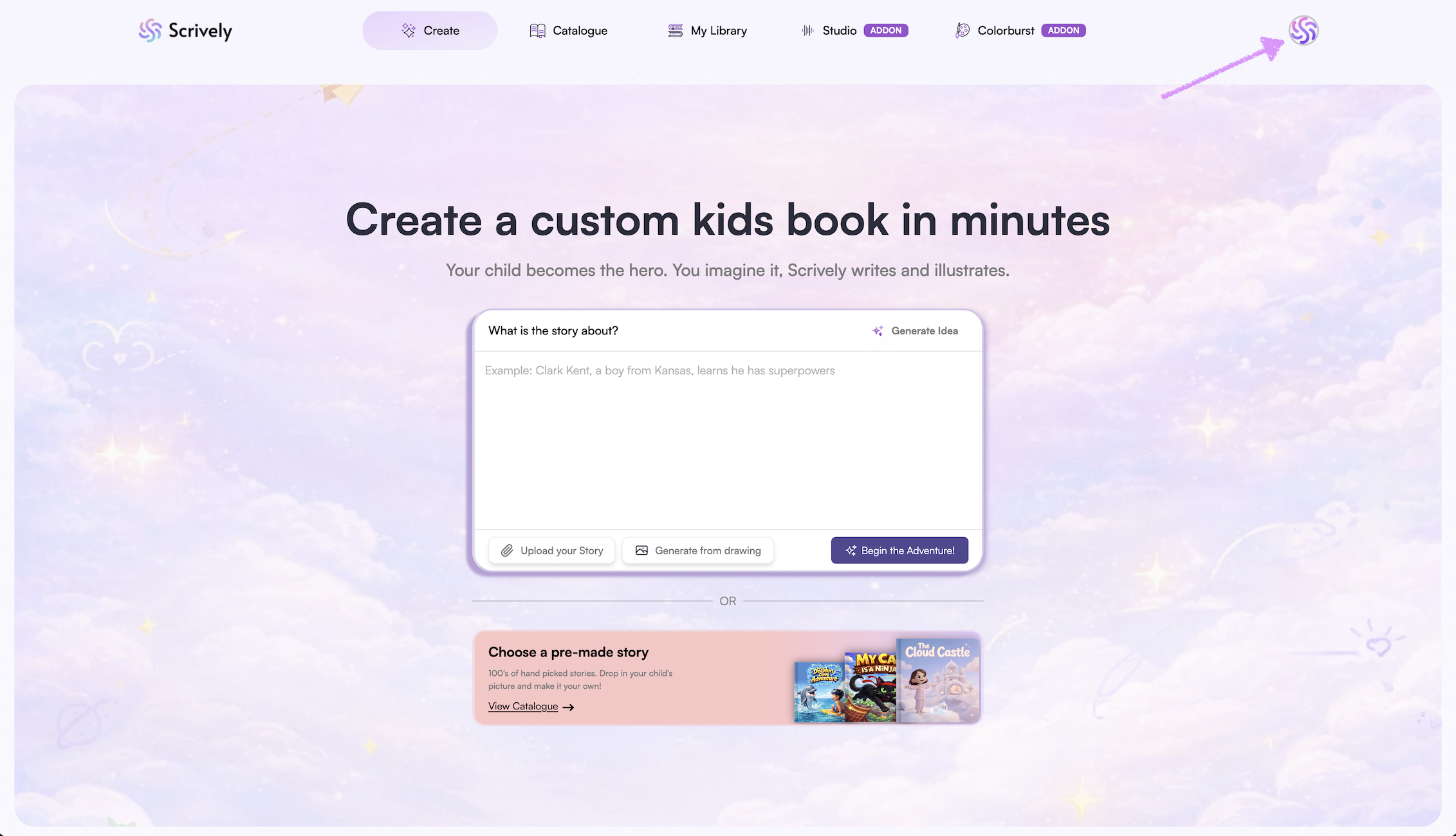
Click on your avatar at the top right side of the app.
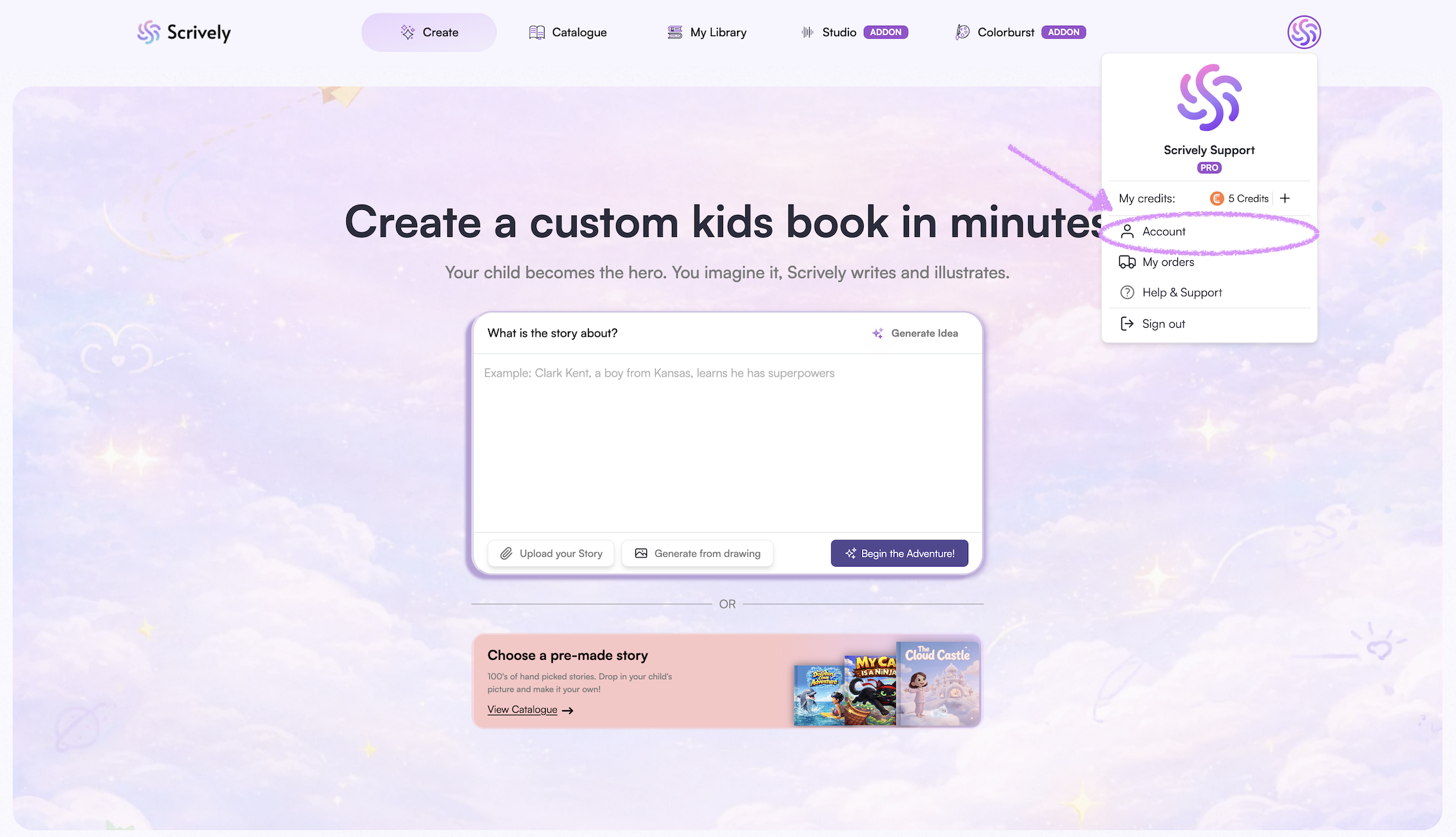
Navigate to "Account."
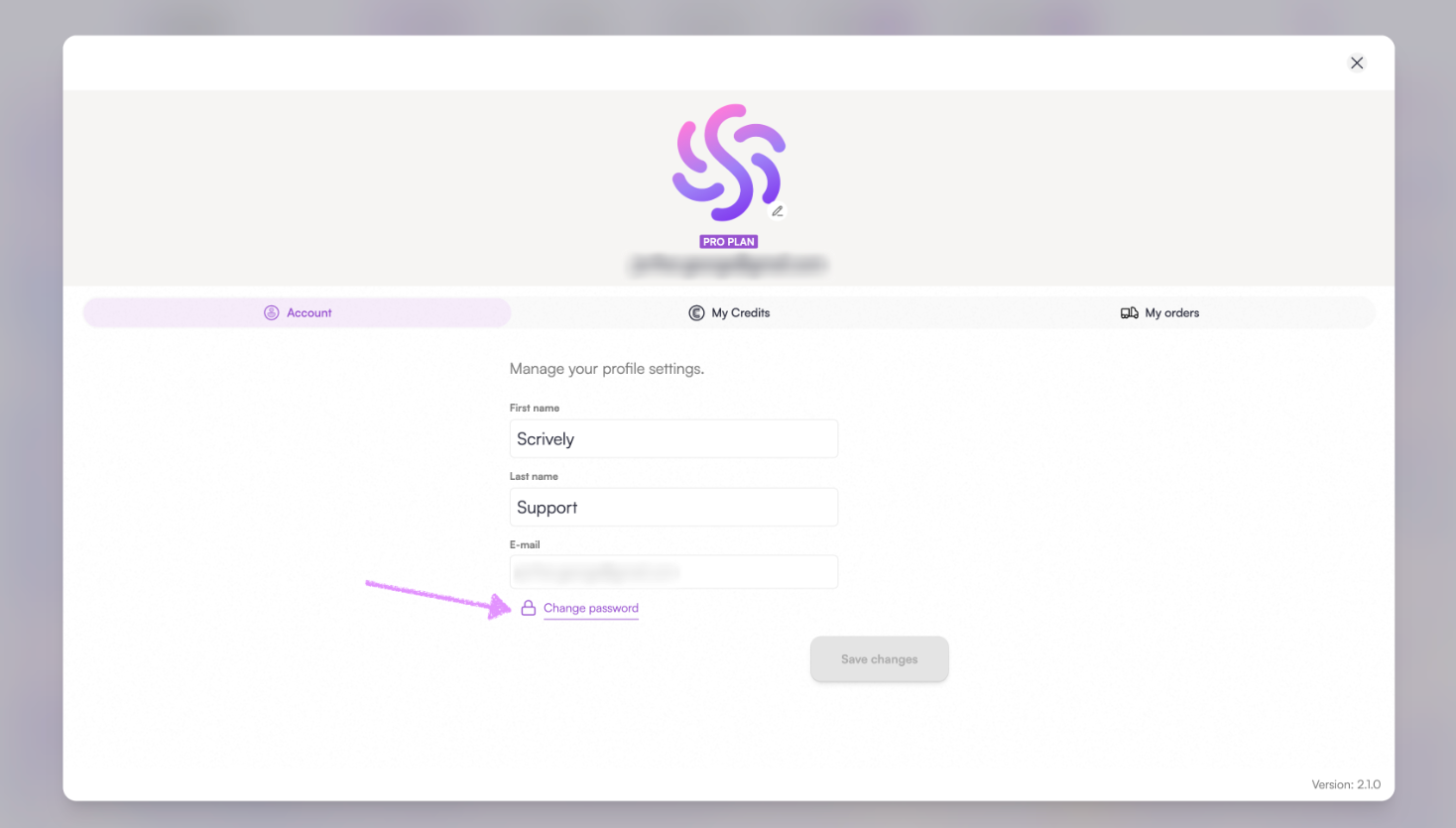
Click on "Change password."
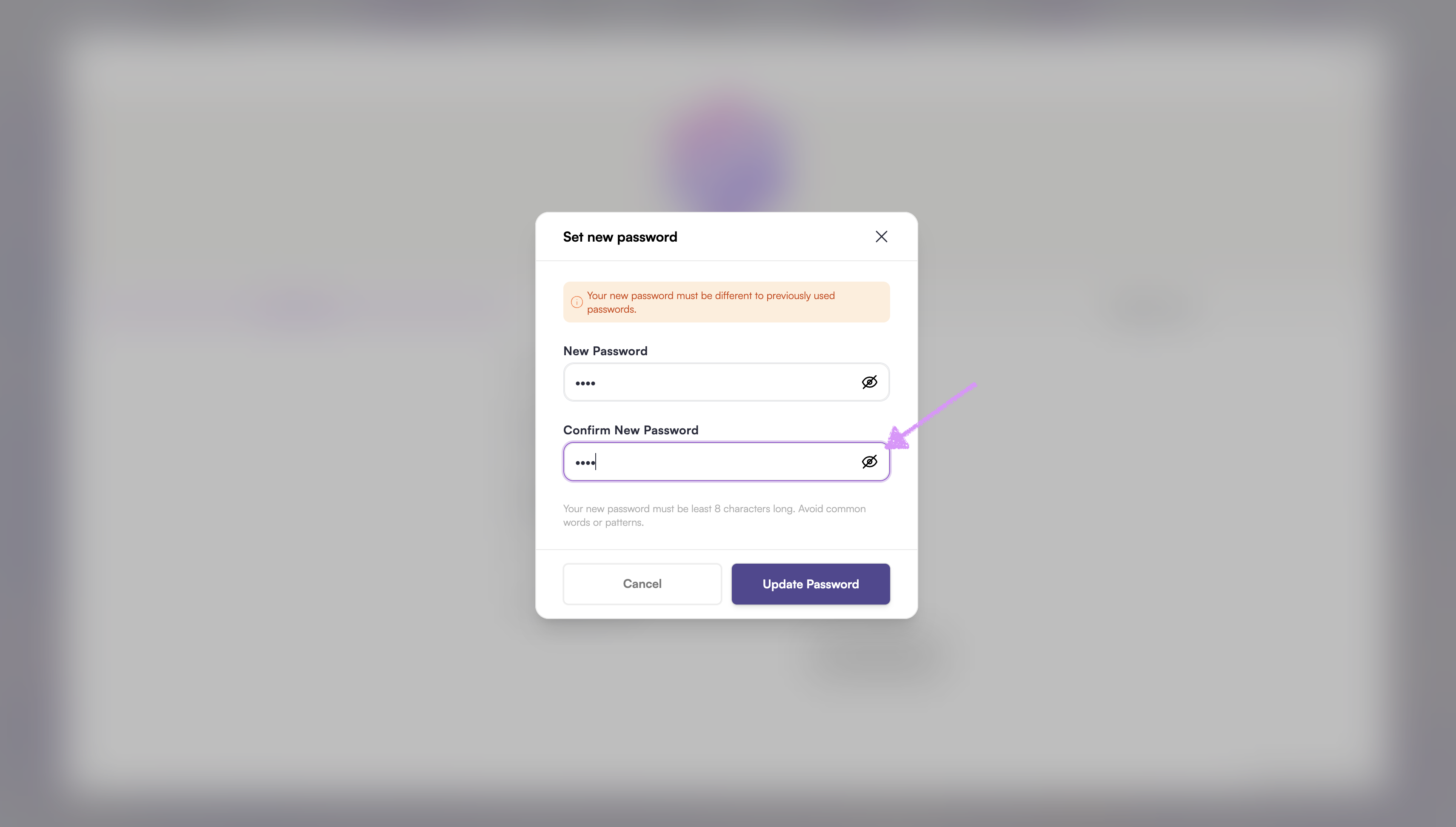
Enter the new password.
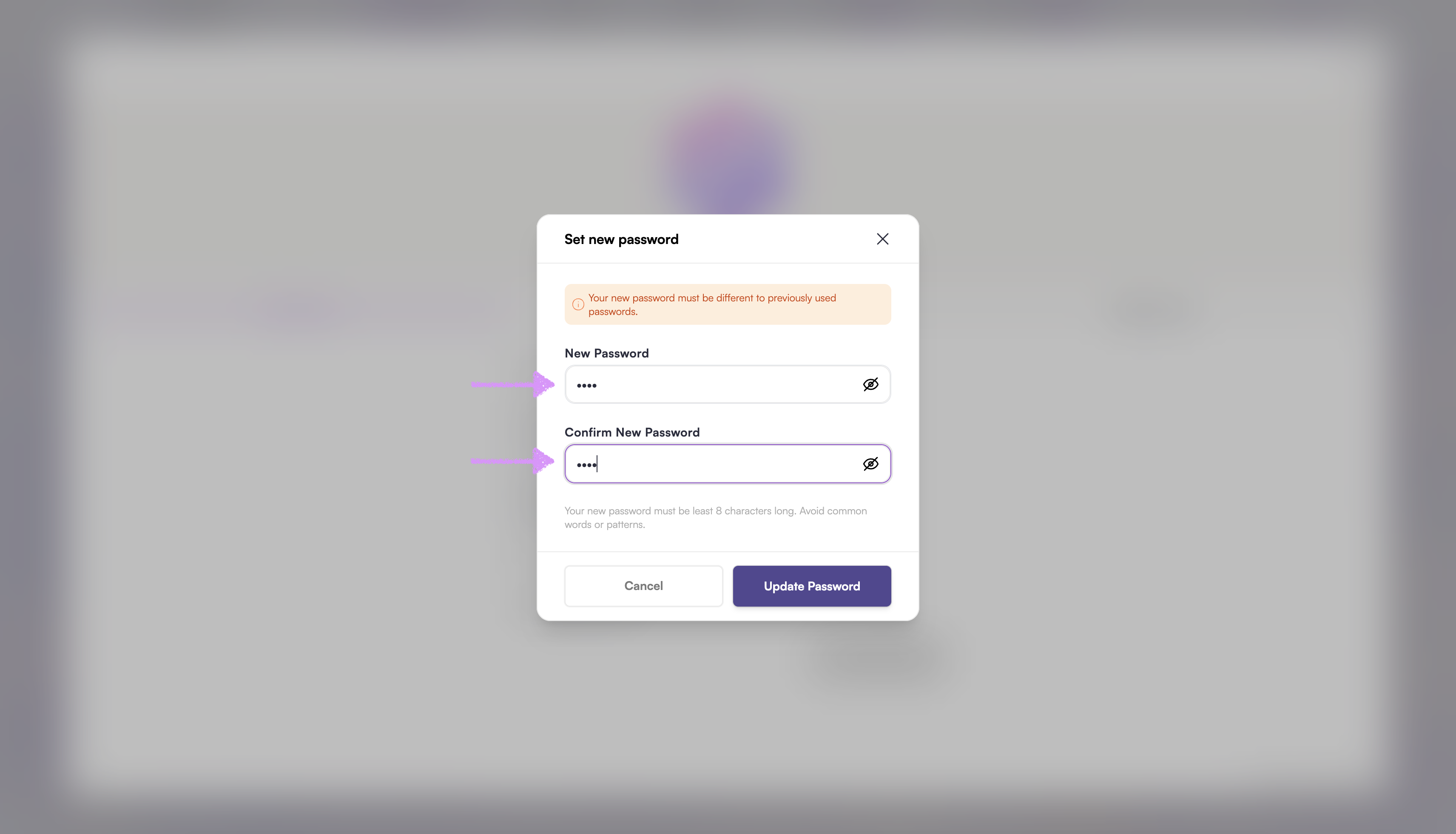
Click the view icon to confirm your passwords match or to review what you’ve entered.
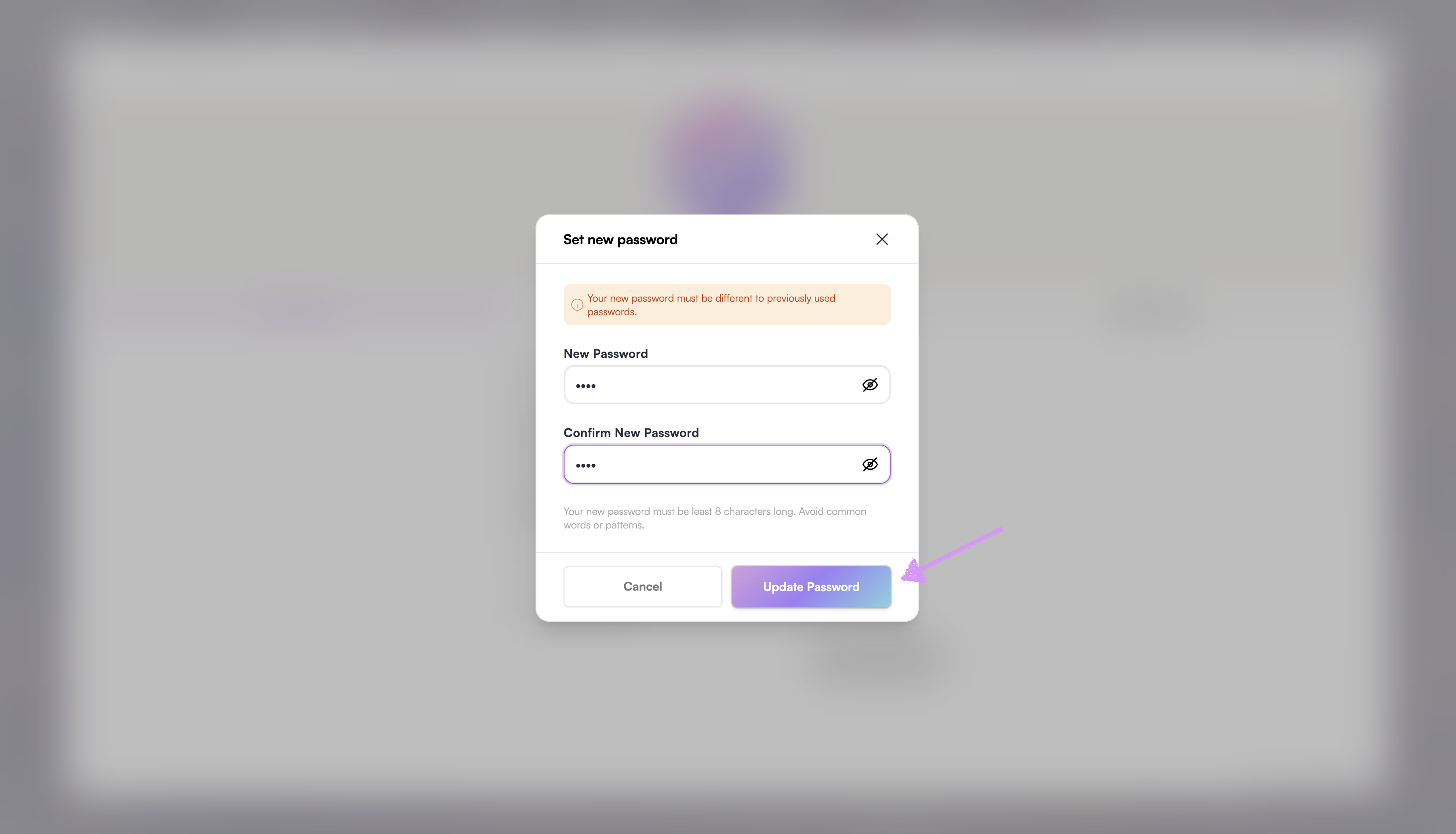
Click “Update Password” to save your changes and your new password will be applied immediately.
Was this article helpful?
That’s Great!
Thank you for your feedback
Sorry! We couldn't be helpful
Thank you for your feedback
Feedback sent
We appreciate your effort and will try to fix the article
