Platform: Web App
Works On: Mobile, Tablet, Desktop Browser
Default book preferences help streamline your creation process by setting your preferred styles, formats, and settings ahead of time.
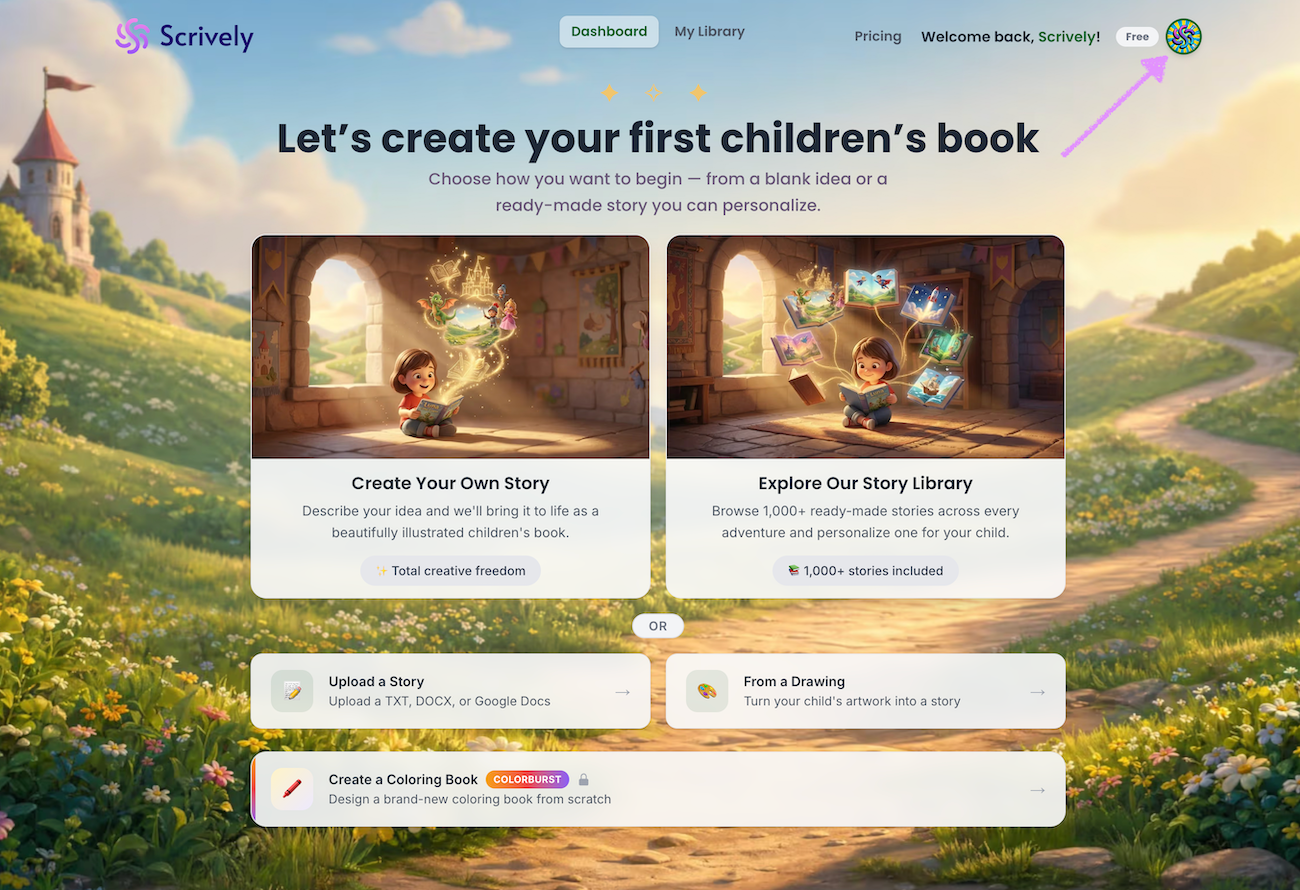
Click on your photo at the top right side of the dashboard.
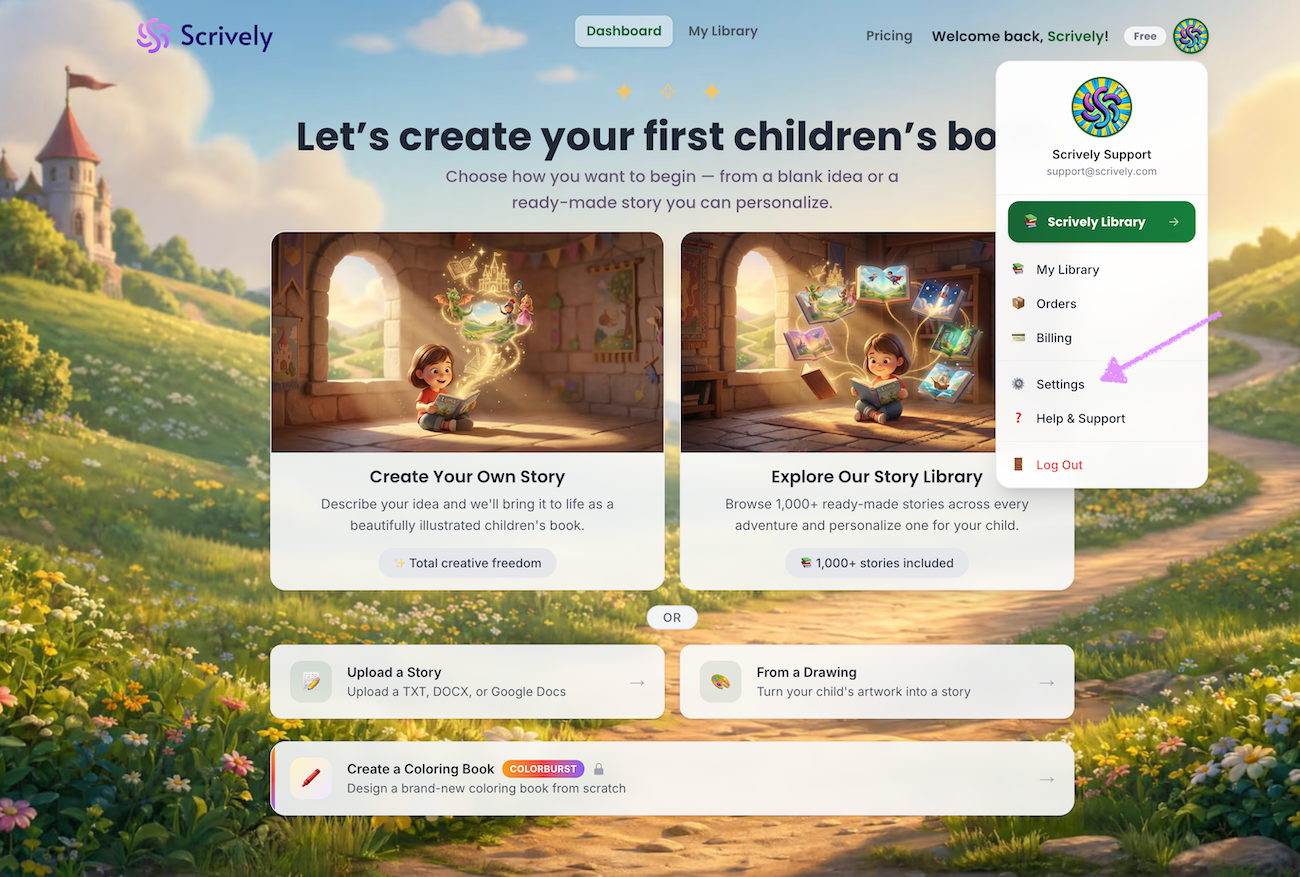
Click on "Settings."
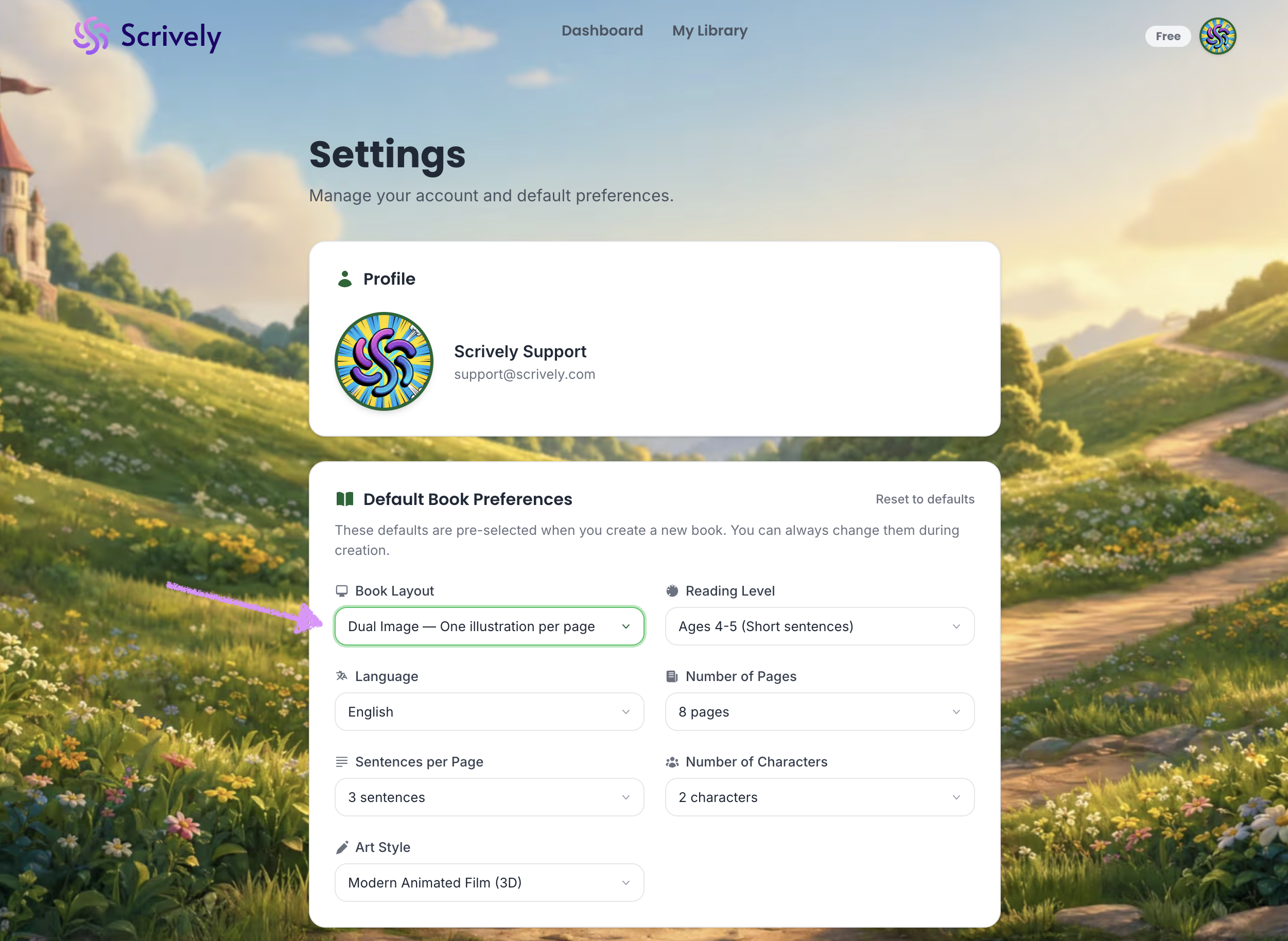
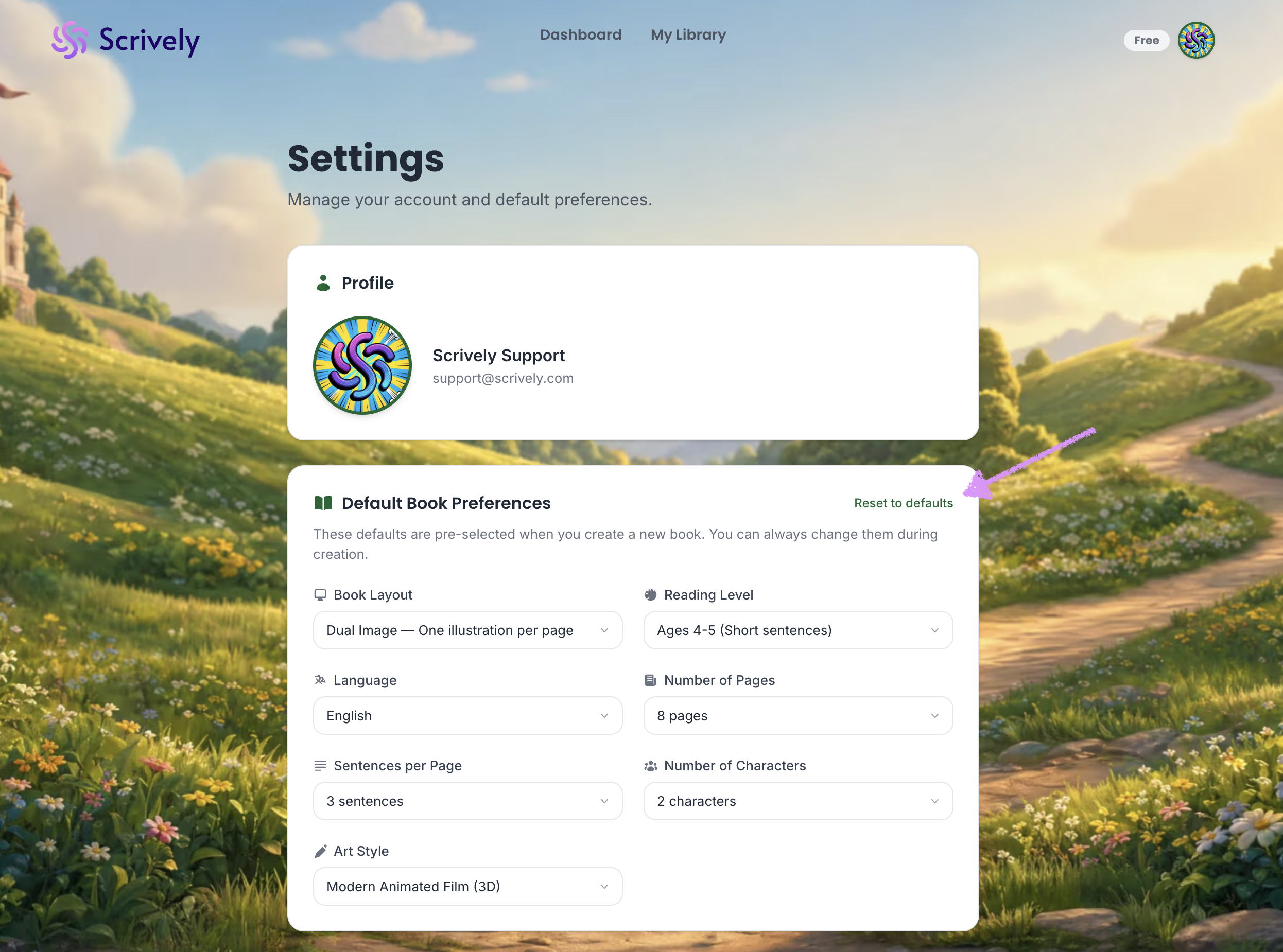
Scroll down to the Default Book Preferences table. The first setting lets you choose your spread layout.
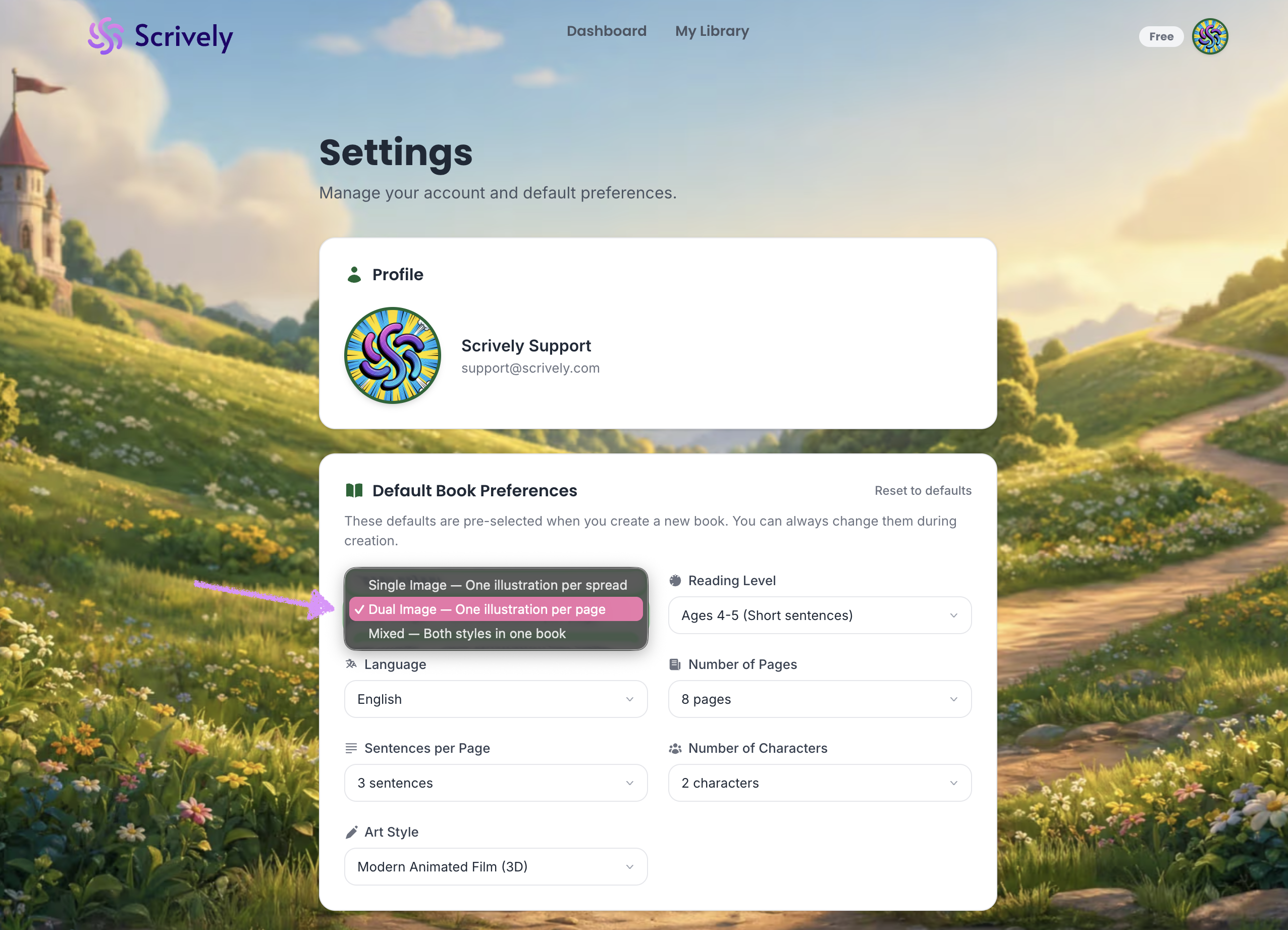
There are three options available: Single Image, Dual Image, and Mixed.
Single Image:
Displays one image per spread, ideal for full-focus illustrations or scenes where a single visual tells the story clearly.
Dual Image:
Splits the spread into two images, allowing you to show contrasting scenes, before-and-after moments, or two related perspectives side by side.
Mixed:
A flexible layout that combines both single and dual image spreads throughout your book for variety and dynamic storytelling.
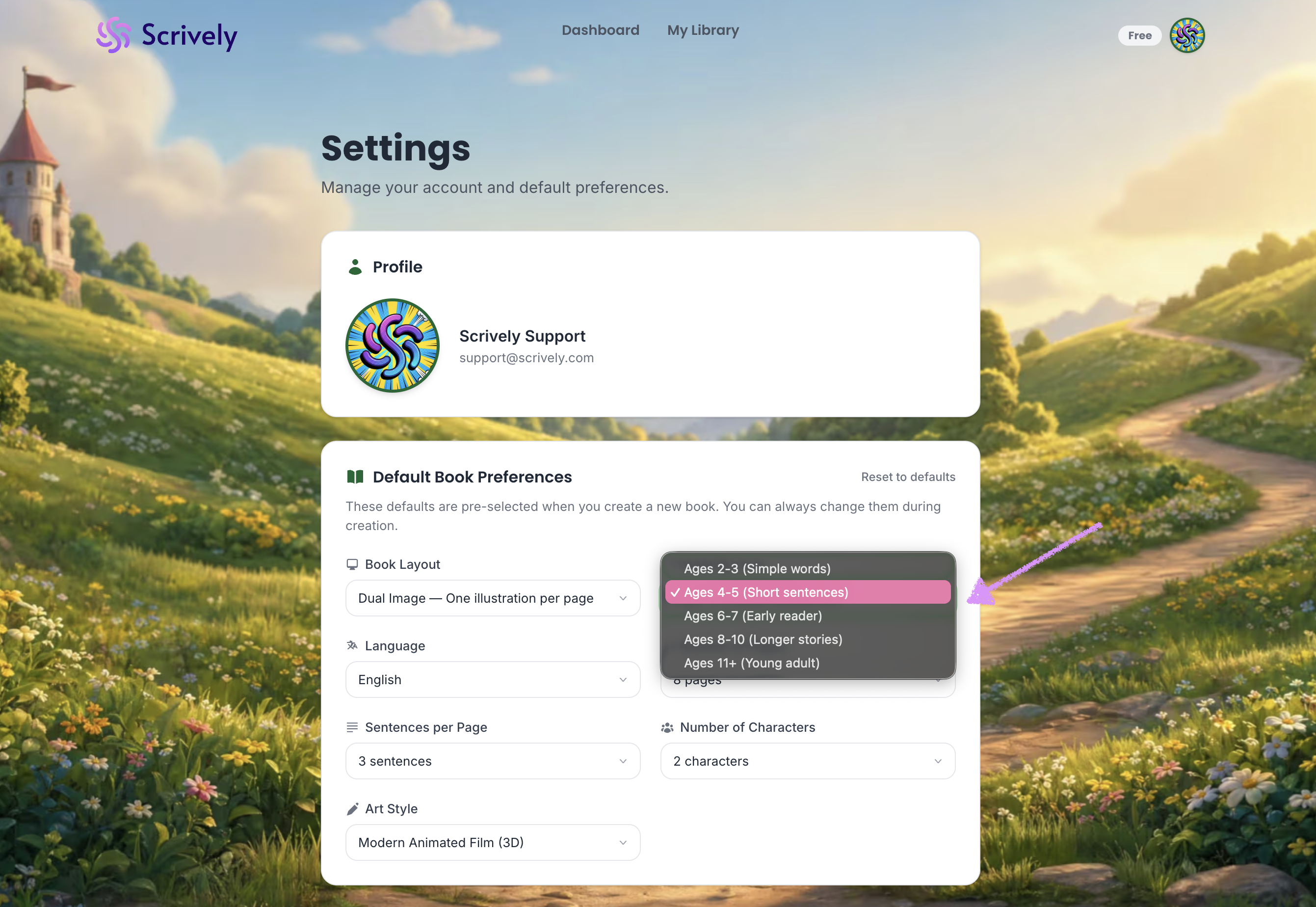
The next option is the "Reading Level."
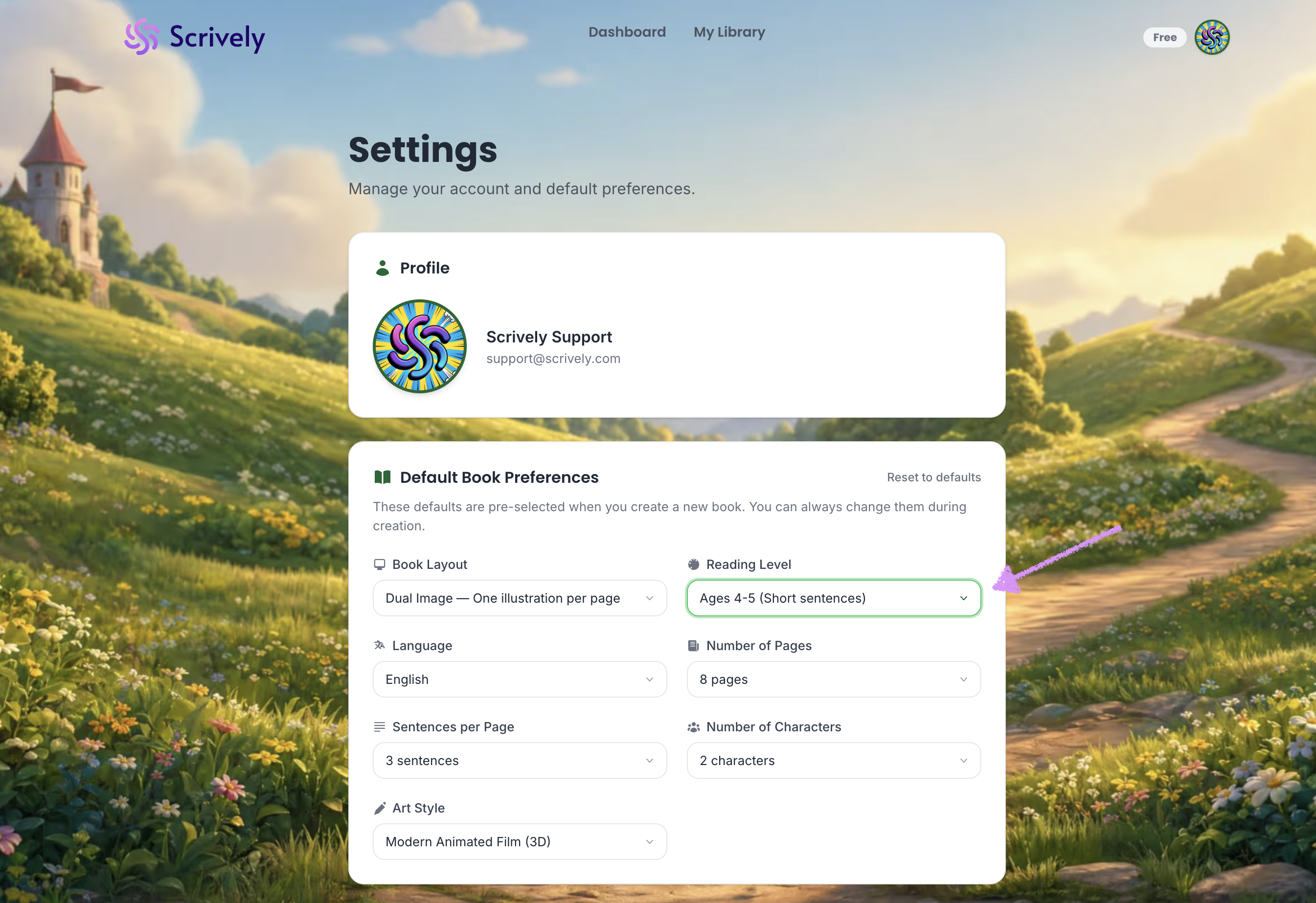
Choose from reading levels ages 2–3, 4–5, 6–7, 8–10, or 11+ to match your book’s audience.
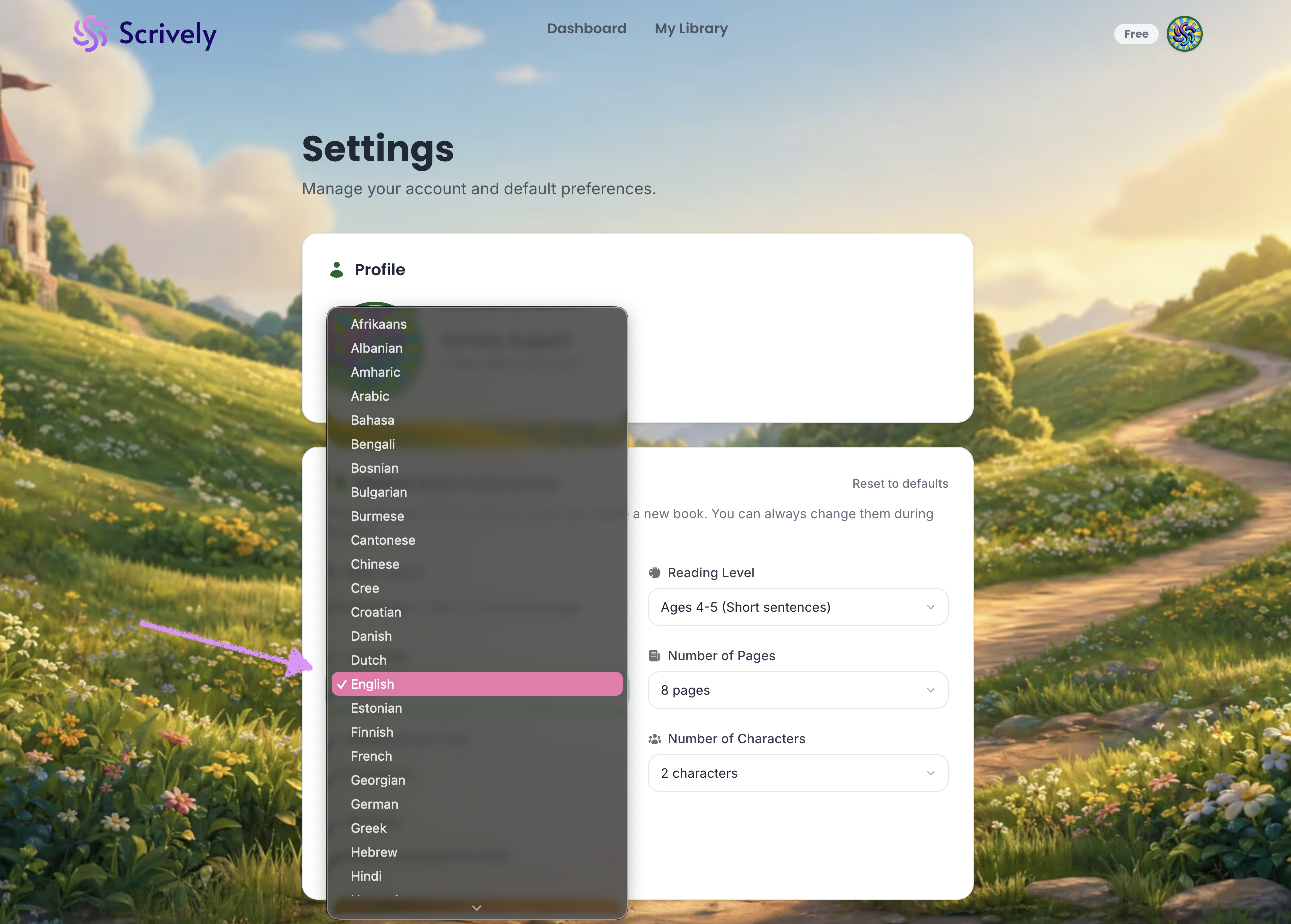
Next, is the "Language" option.
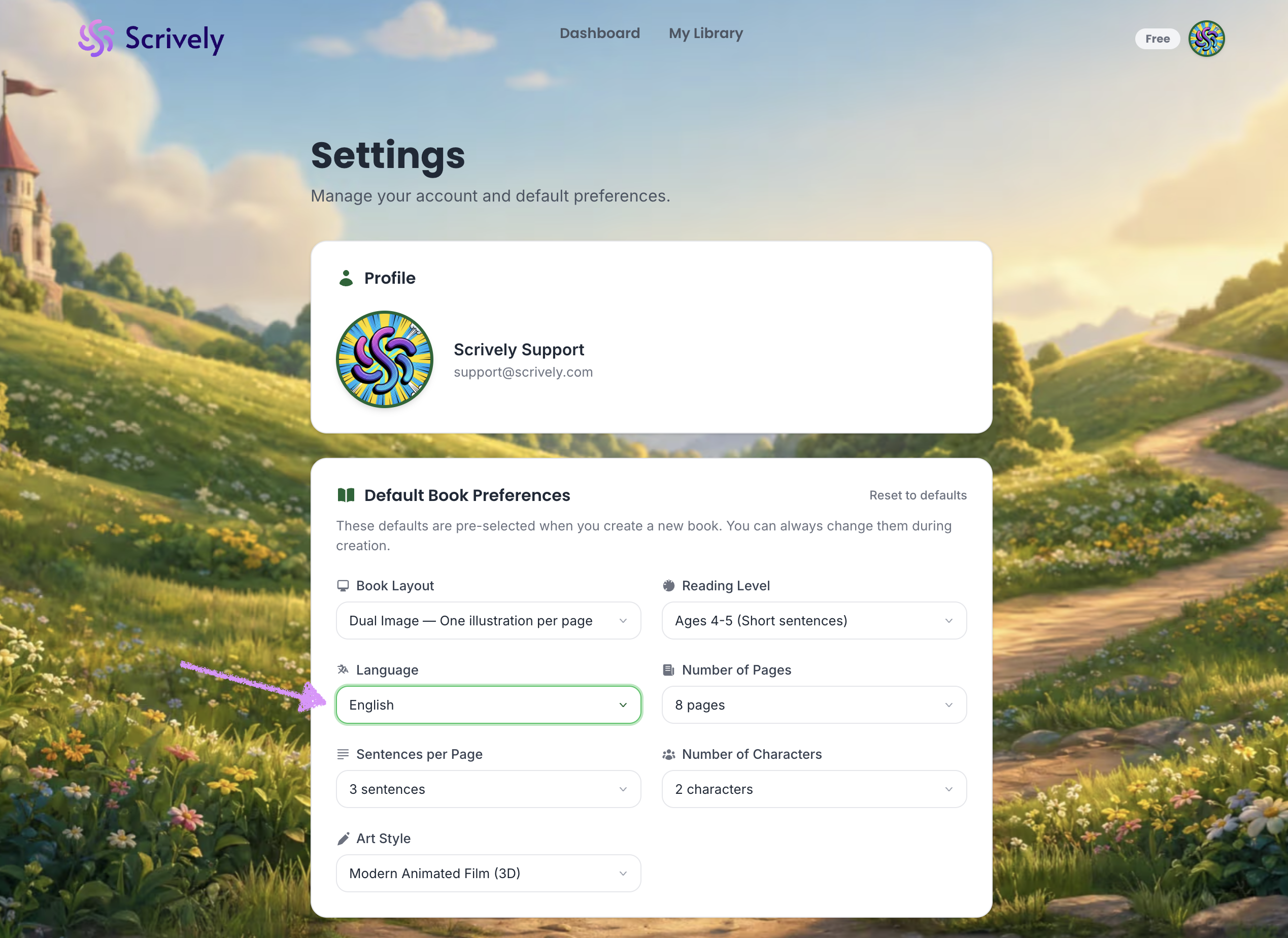
Scrively offers a wide range of languages to choose from, which you can view in the list here.
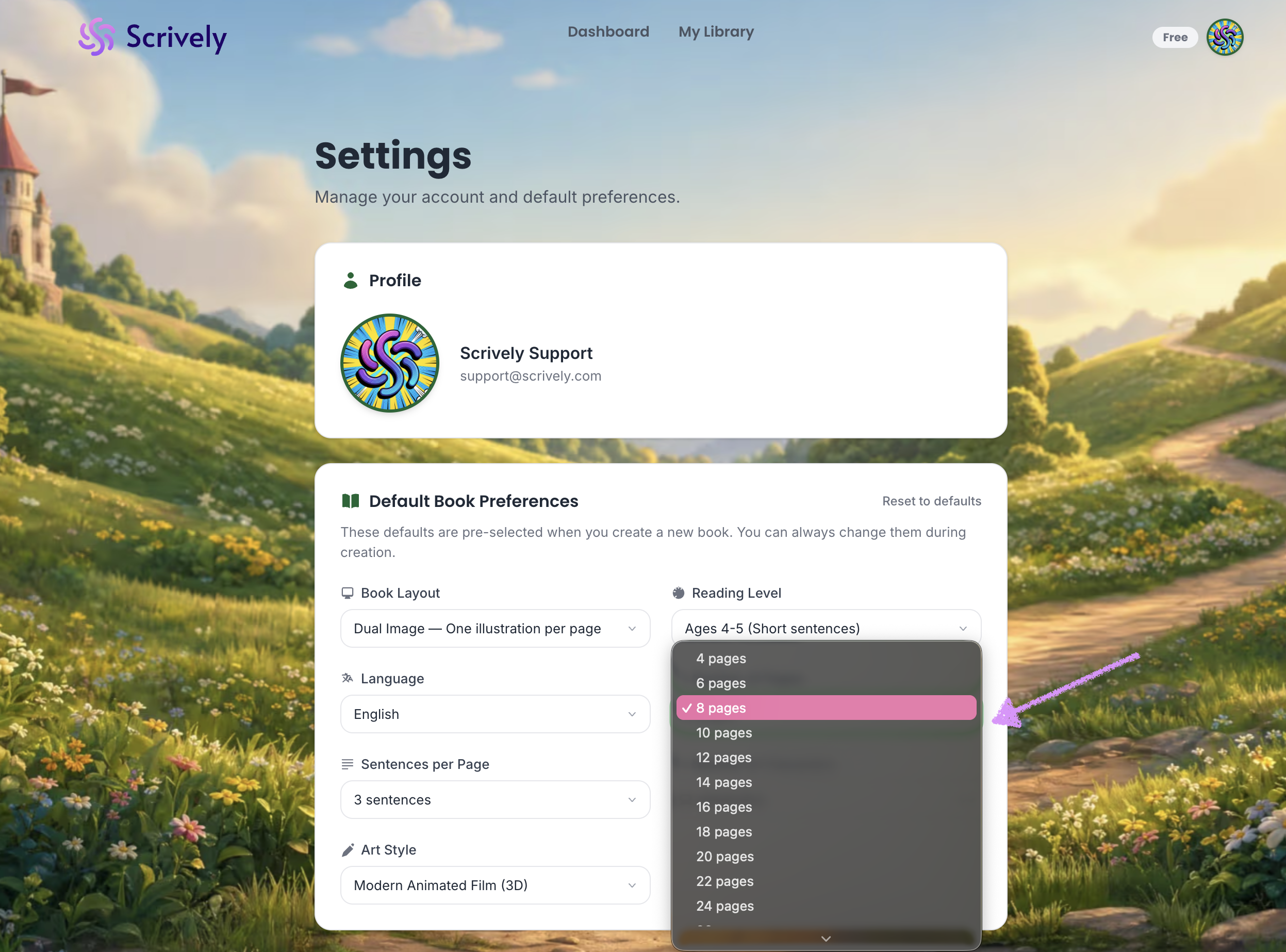
You can also set the numbers of pages per book.
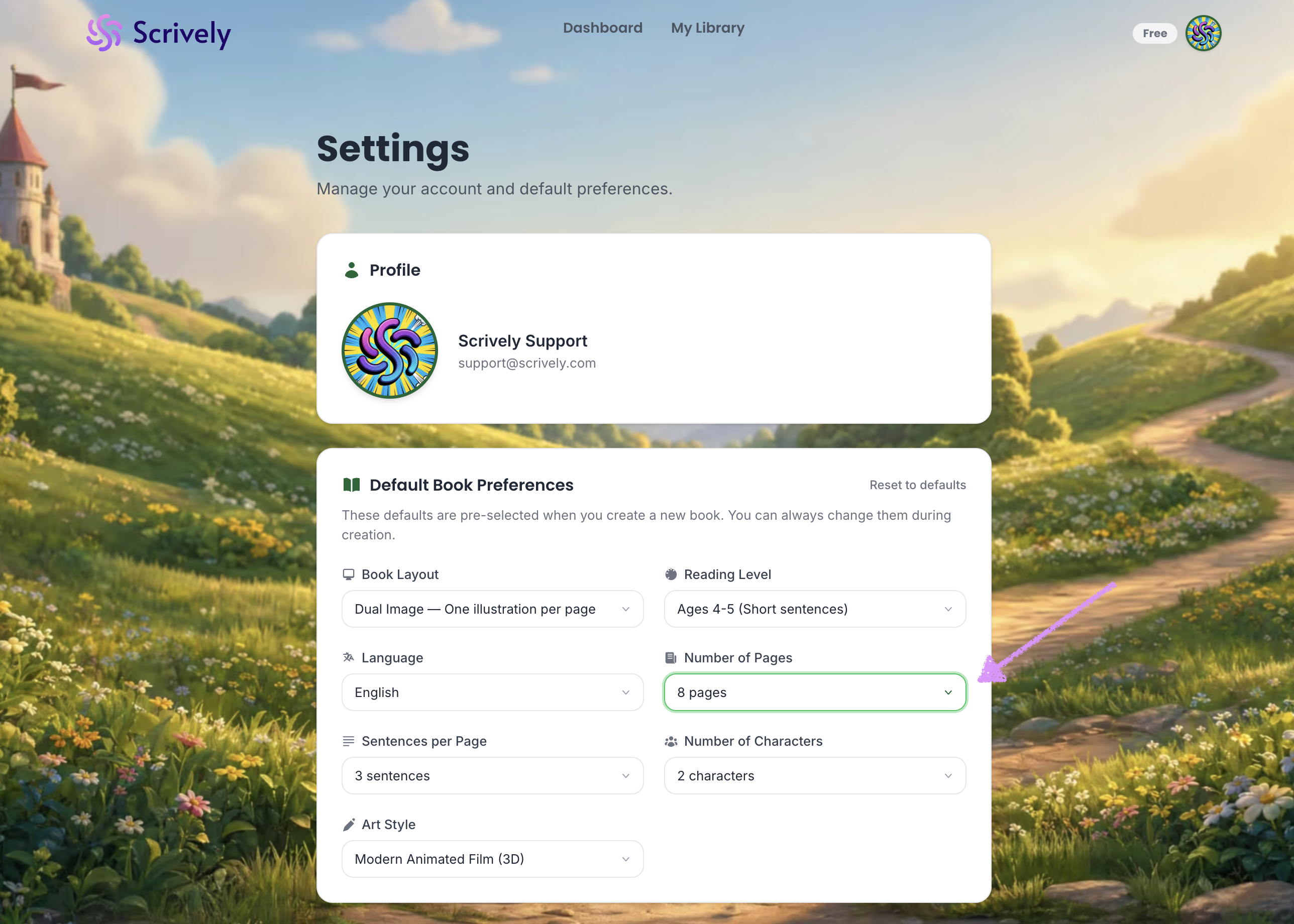
Choose between 4–50 pages. Starter plans include up to 15 pages, One-time and Plus plans up to 30, and Pro up to 50 pages.
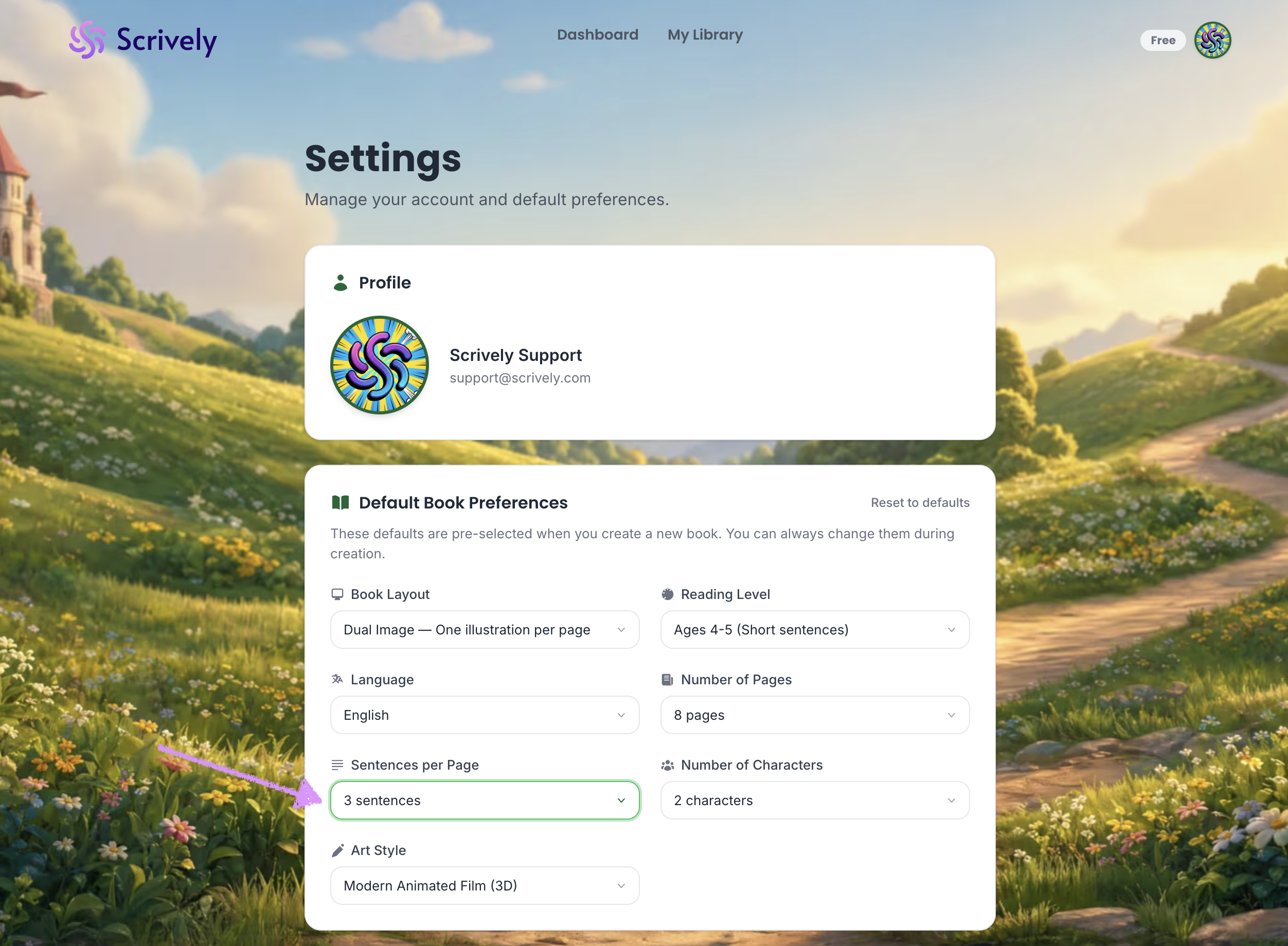
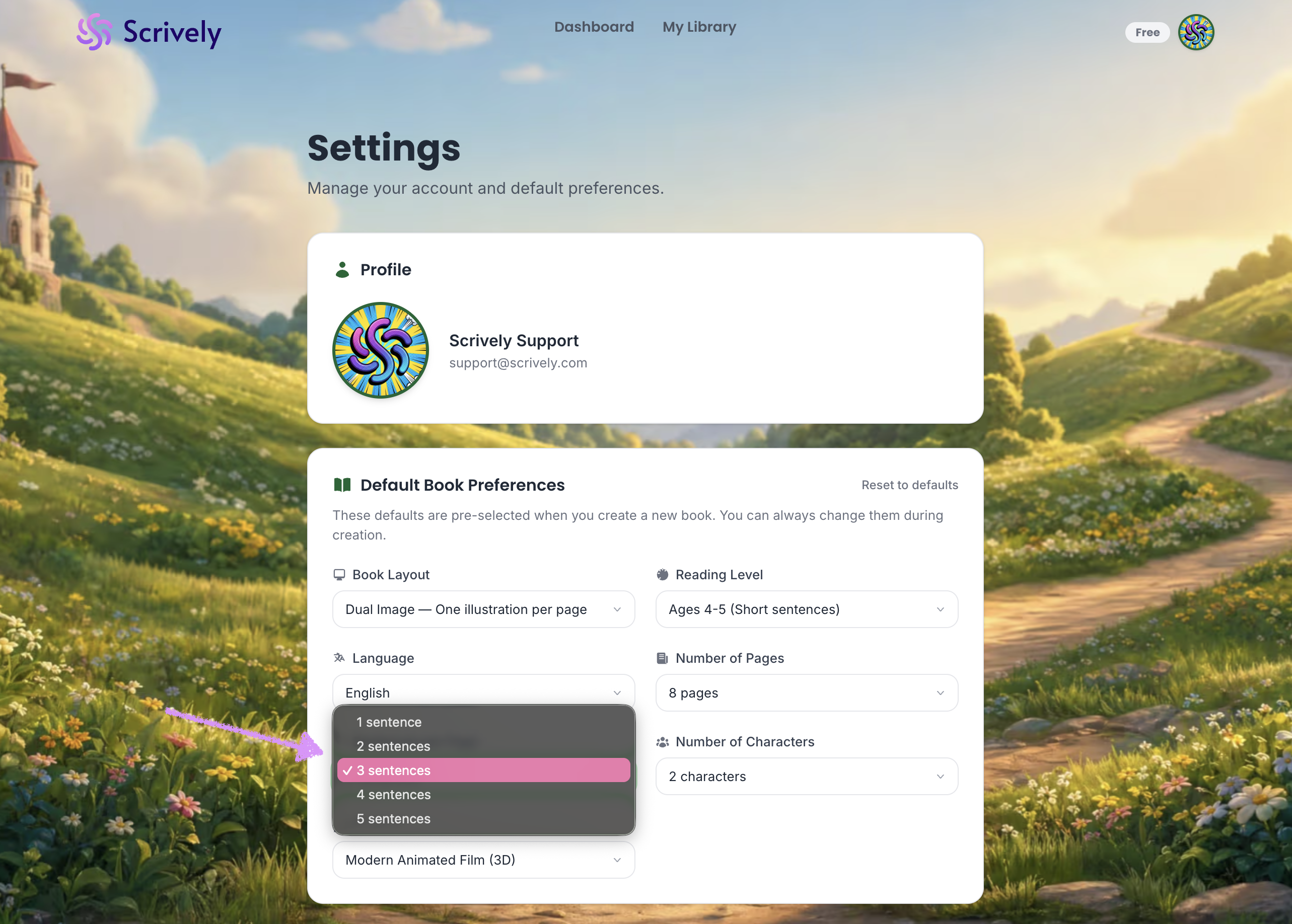
Select the number of sentences per page.
Choose between 1-5 sentences.
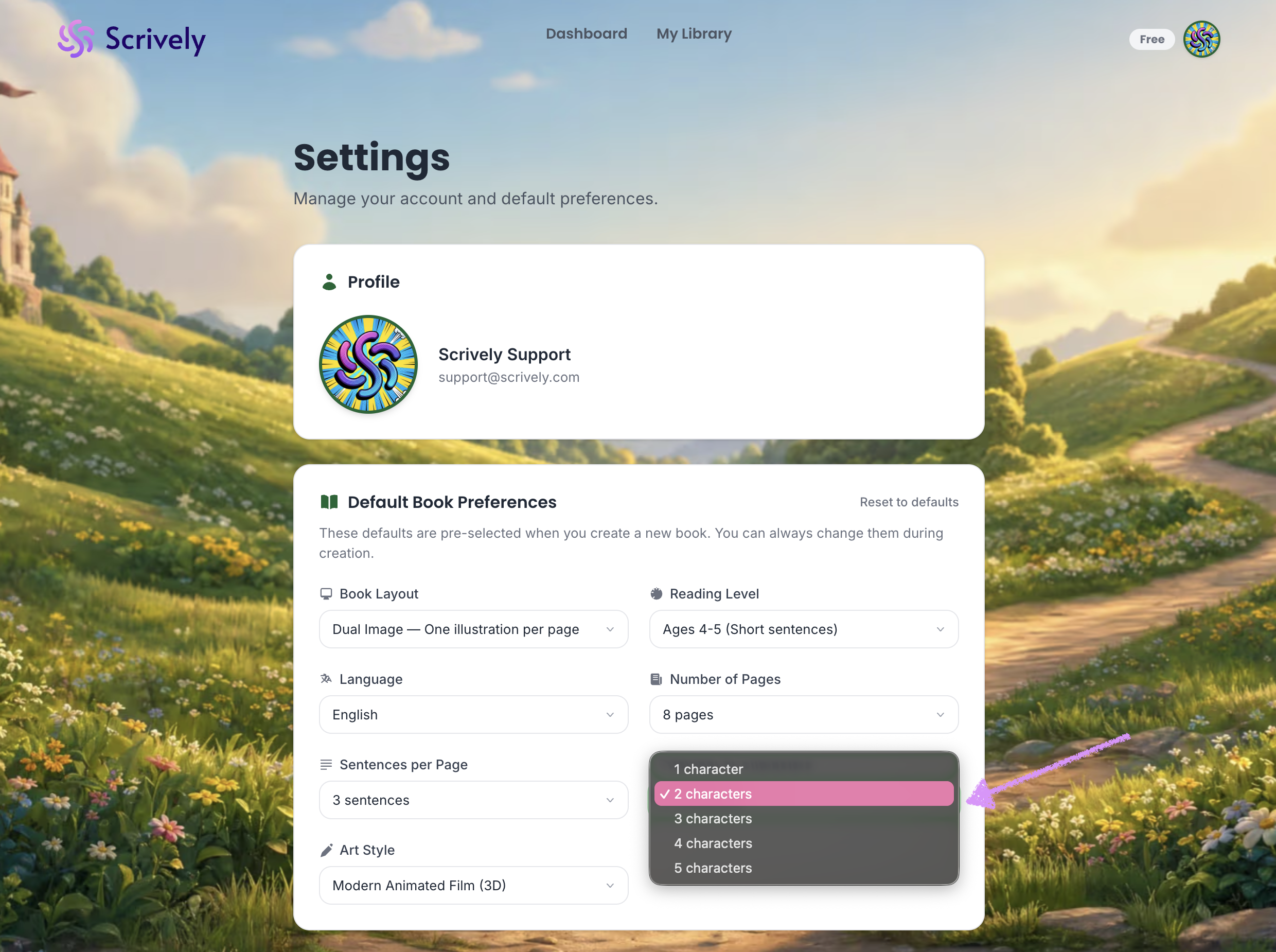
Set the "Number of Characters."
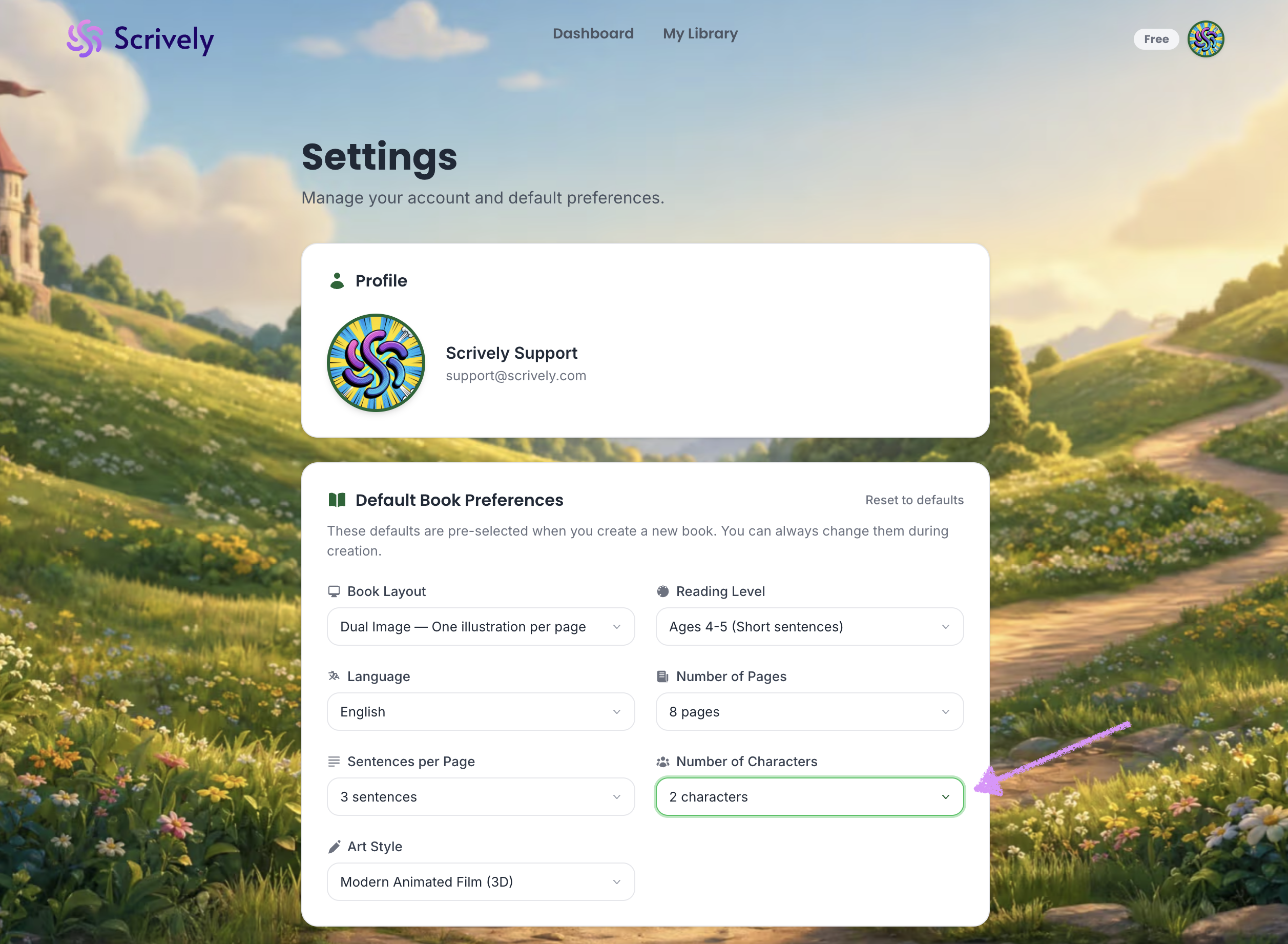
Choose between 1-5 characters.
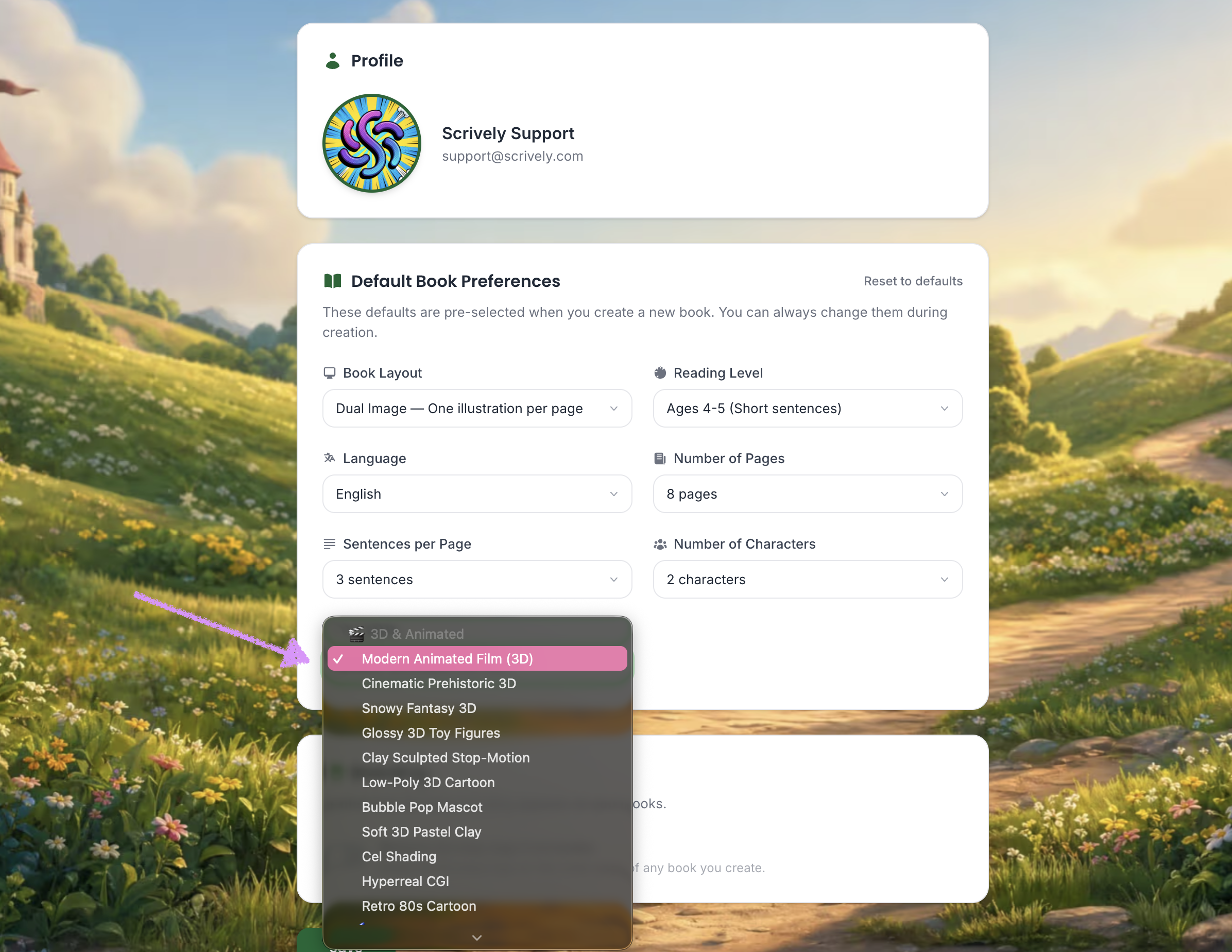
Last, select the "Art Style."
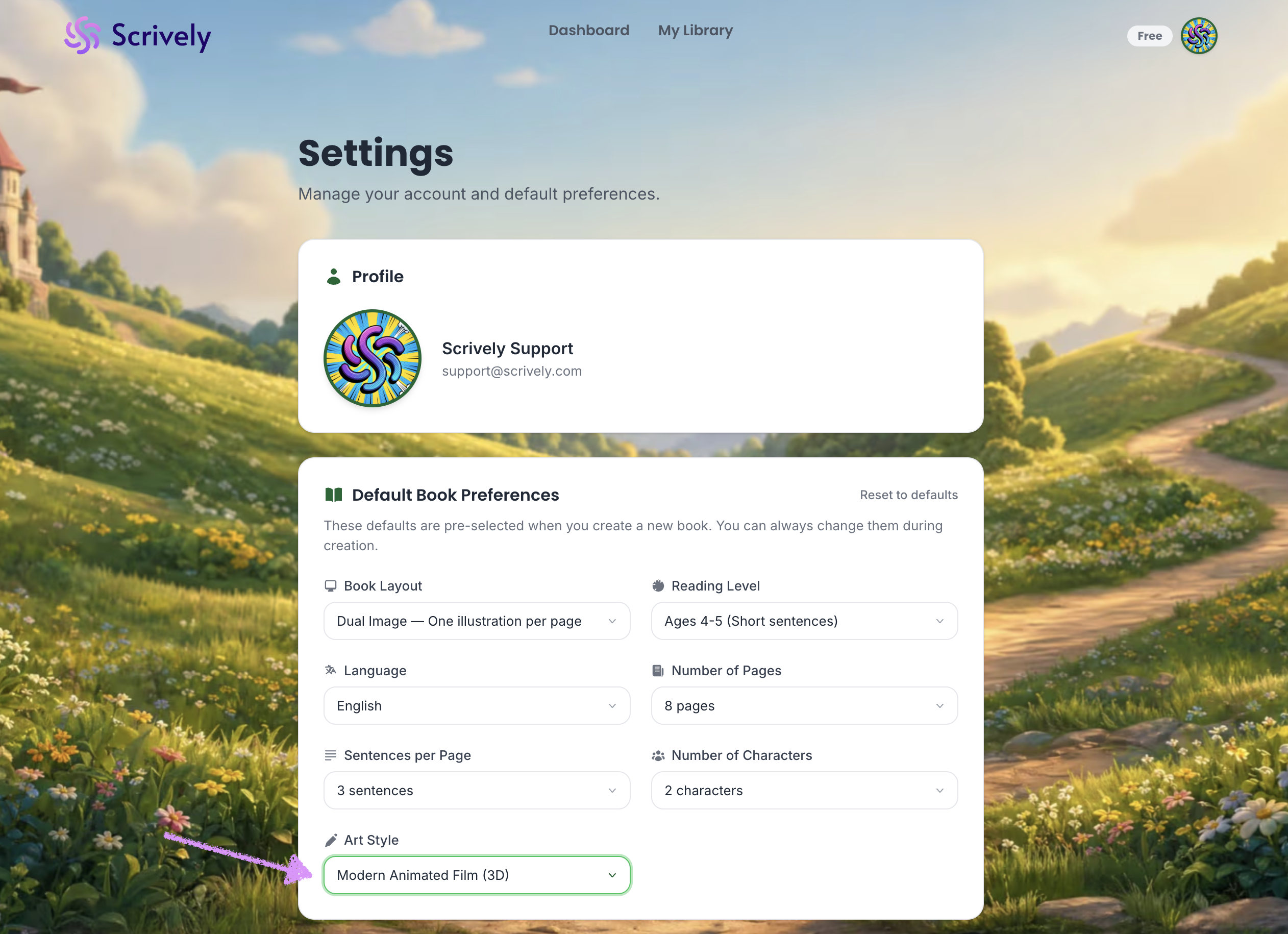
Choose from a wide range of art styles. The Starter plan includes one style. One-time purchases include one style in each category. The Plus plan includes three styles per category, while the Pro plan unlocks all styles.
Want to go back to the default settings? Click on "Reset to defaults."
Was this article helpful?
That’s Great!
Thank you for your feedback
Sorry! We couldn't be helpful
Thank you for your feedback
Feedback sent
We appreciate your effort and will try to fix the article
