
Interactive paths let you guide readers through different parts of your book based on their choices or interactions. In Scrively Studio, you can create branching experiences that change how the story unfolds, making your books more dynamic, personalized, and engaging for every reader.
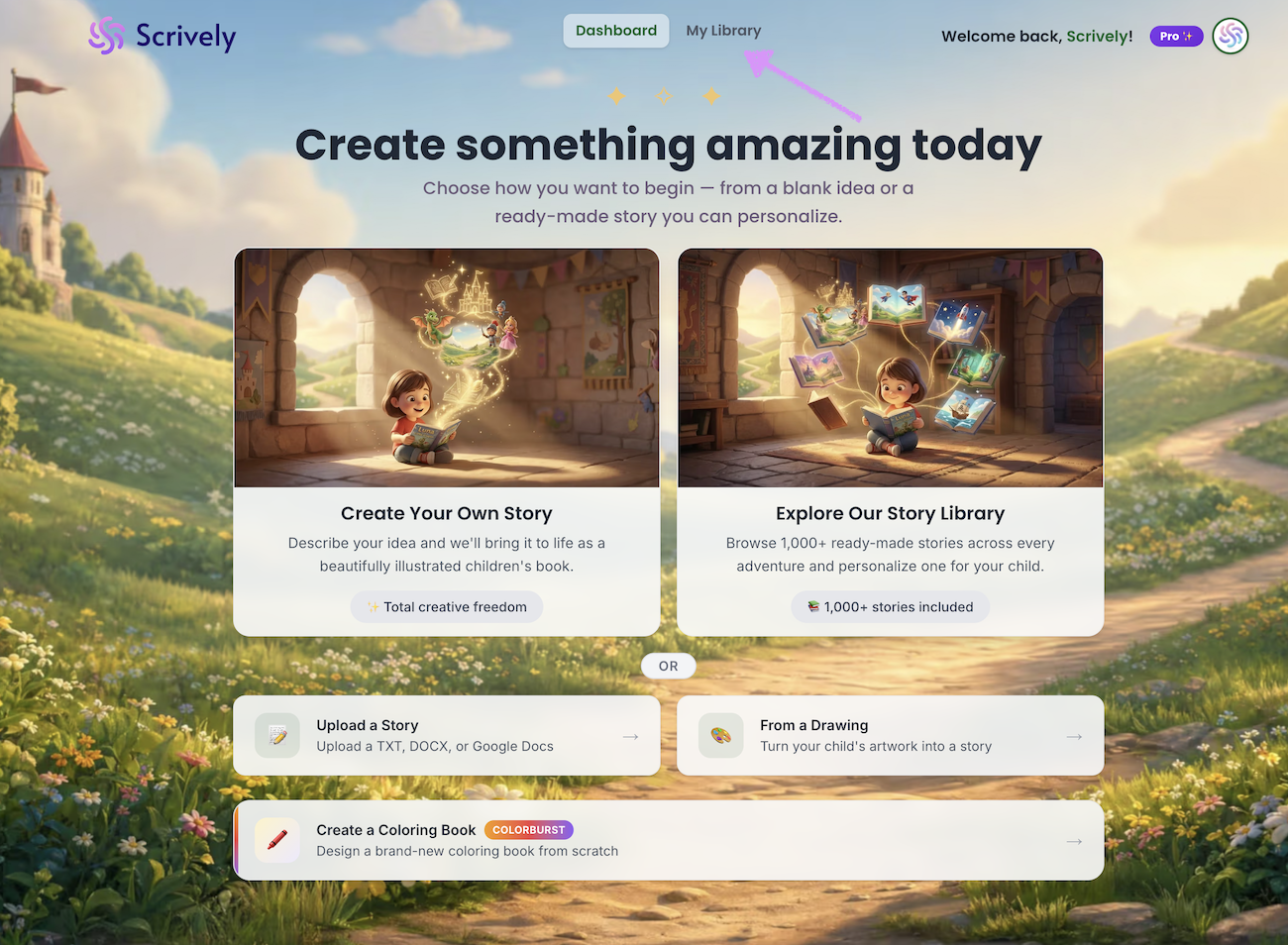
Head over to the "My Library" tab.
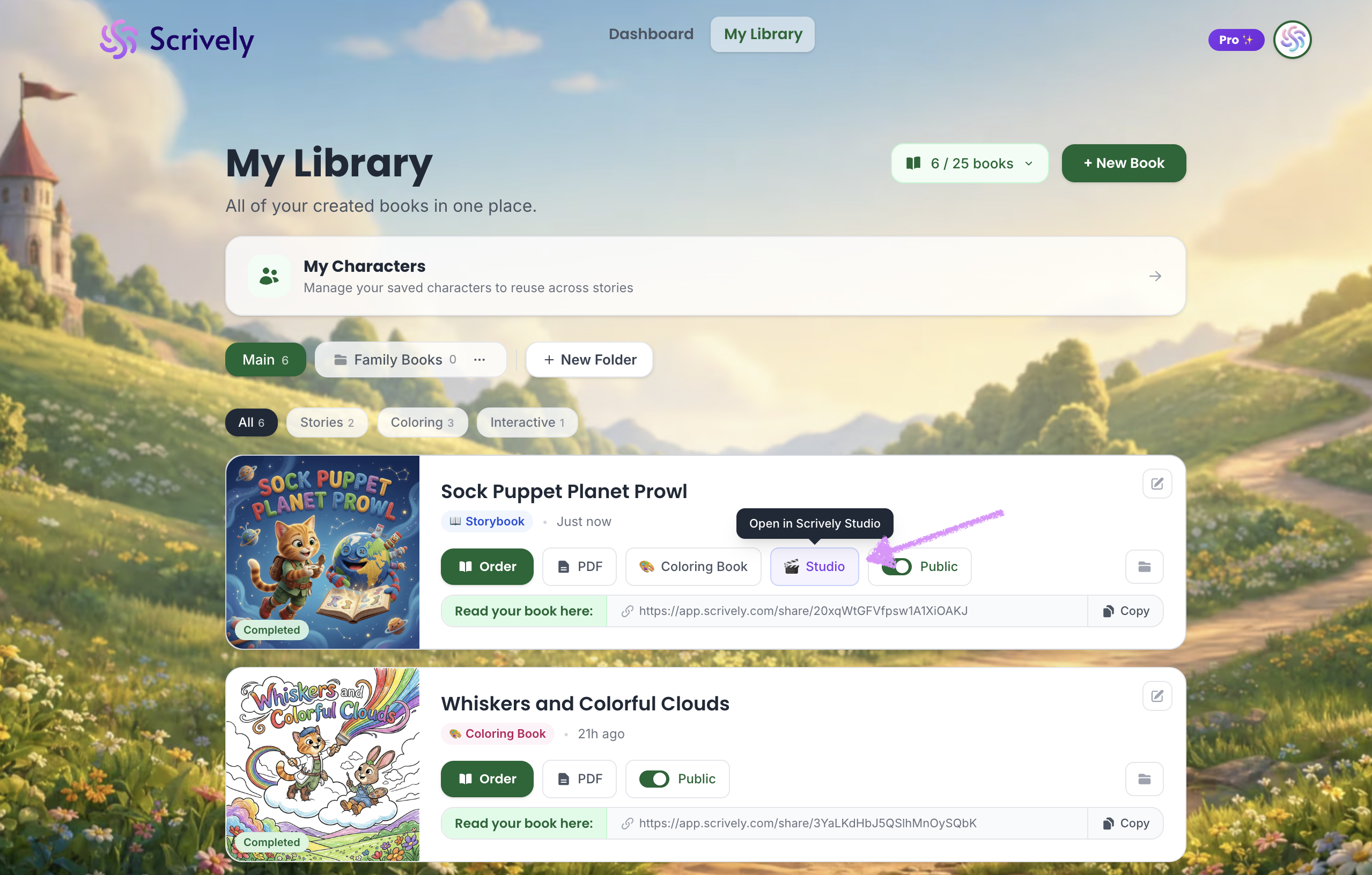
Click “Studio” on the book you want to add paths to.
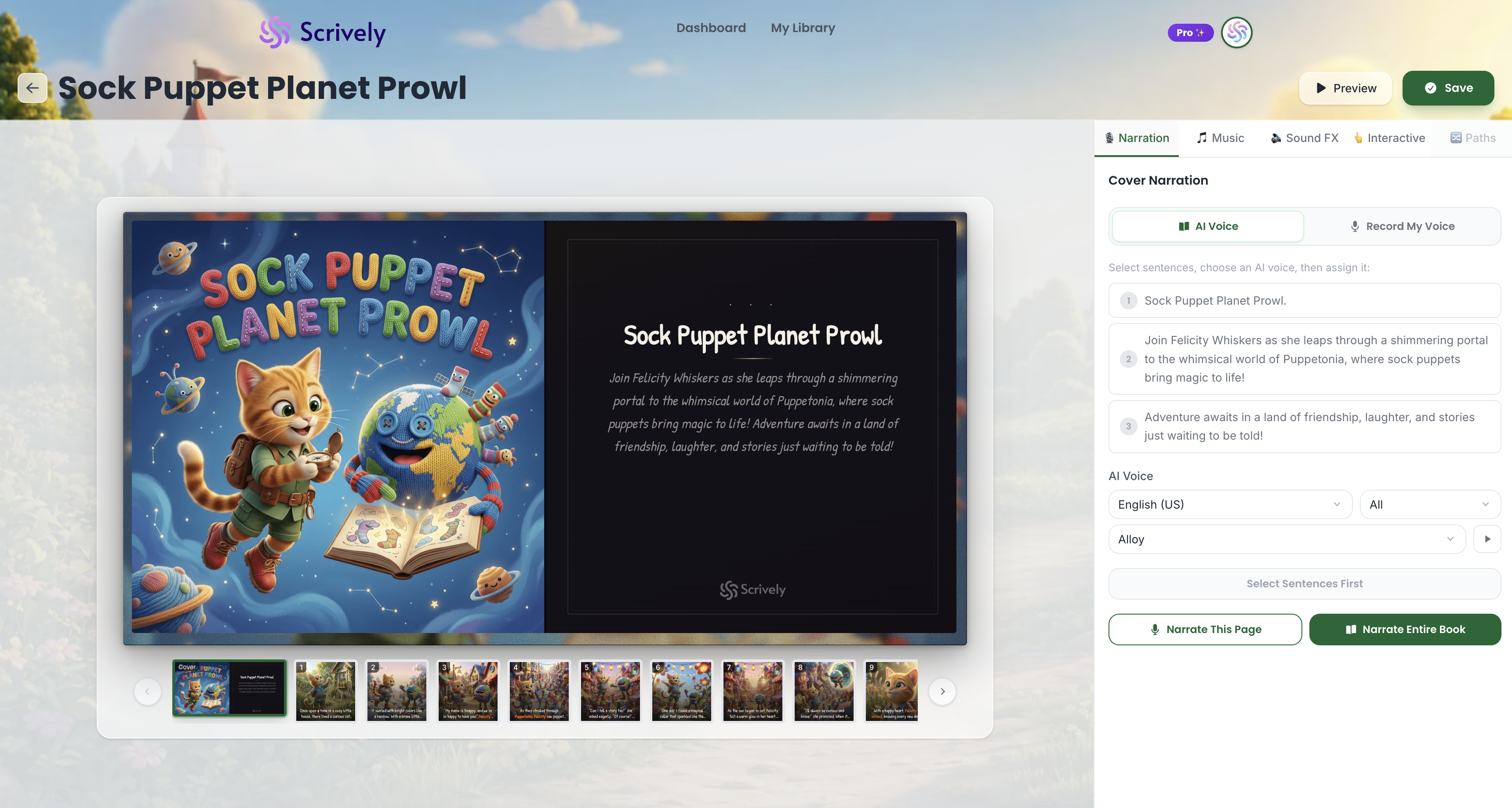
The book will open in Scrively Studio, where you can start adding interactive buttons.
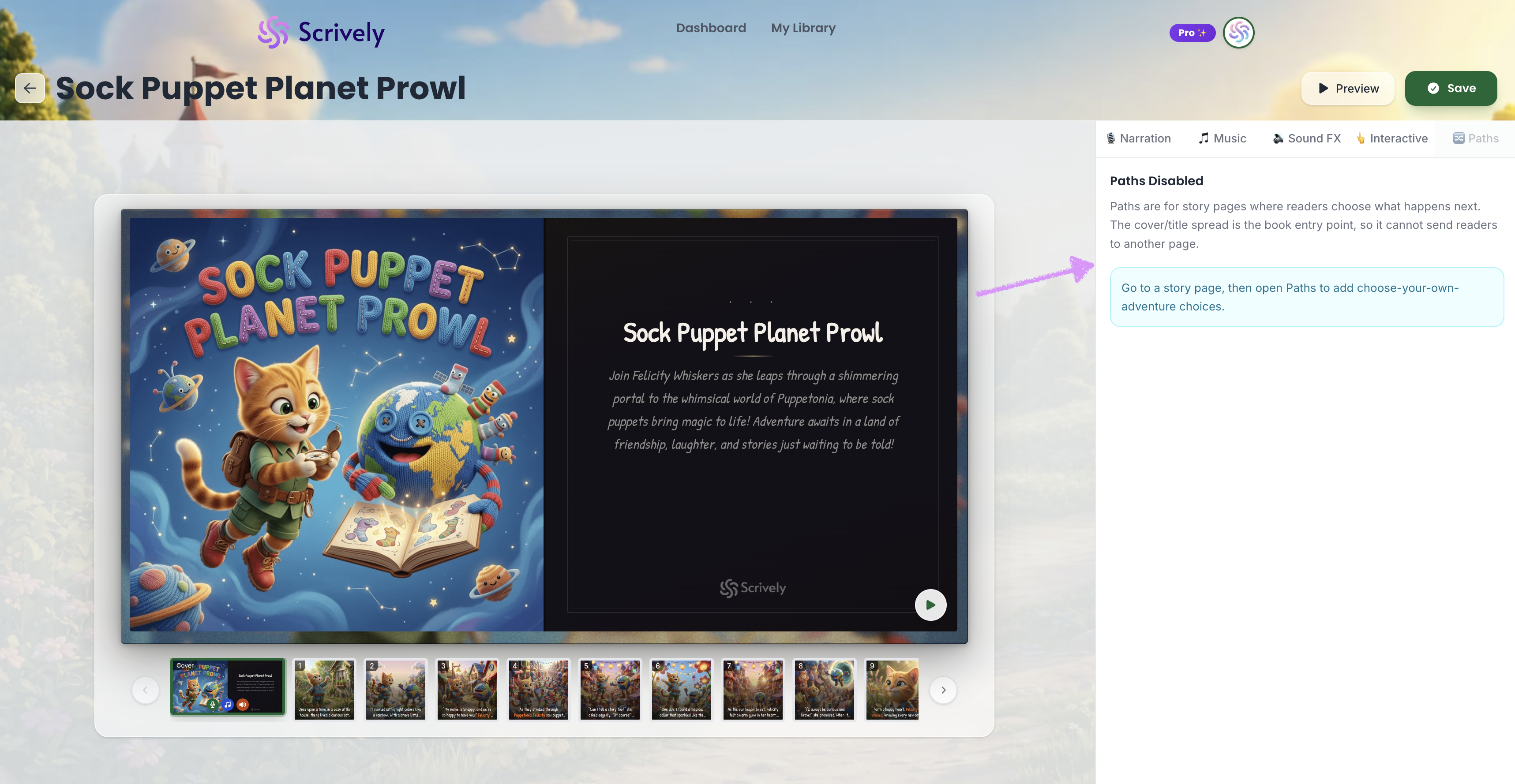
Paths are disabled for the book covers.
Click on a story page in the bottom navigation.
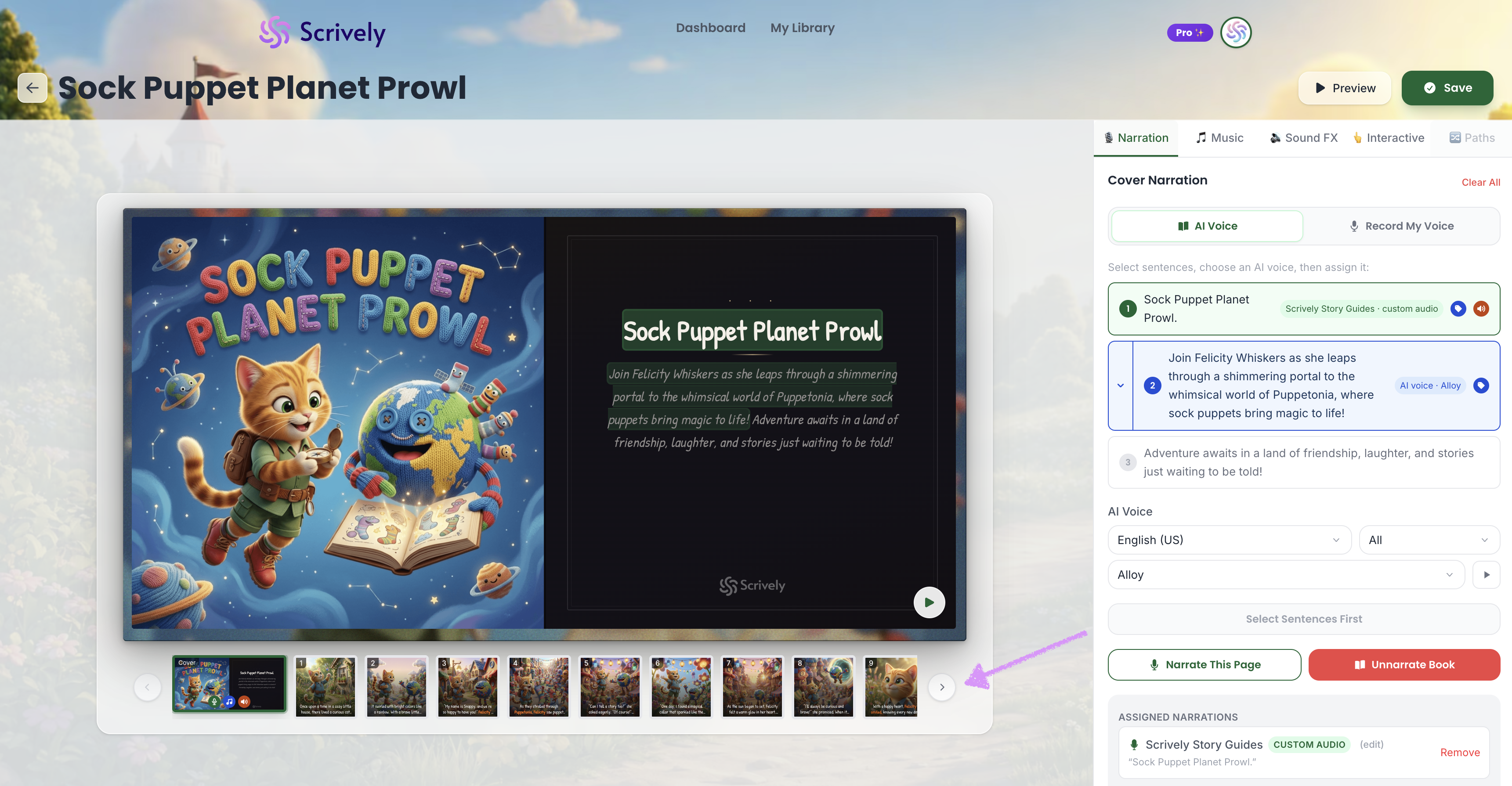
Click on the "Paths" tab.
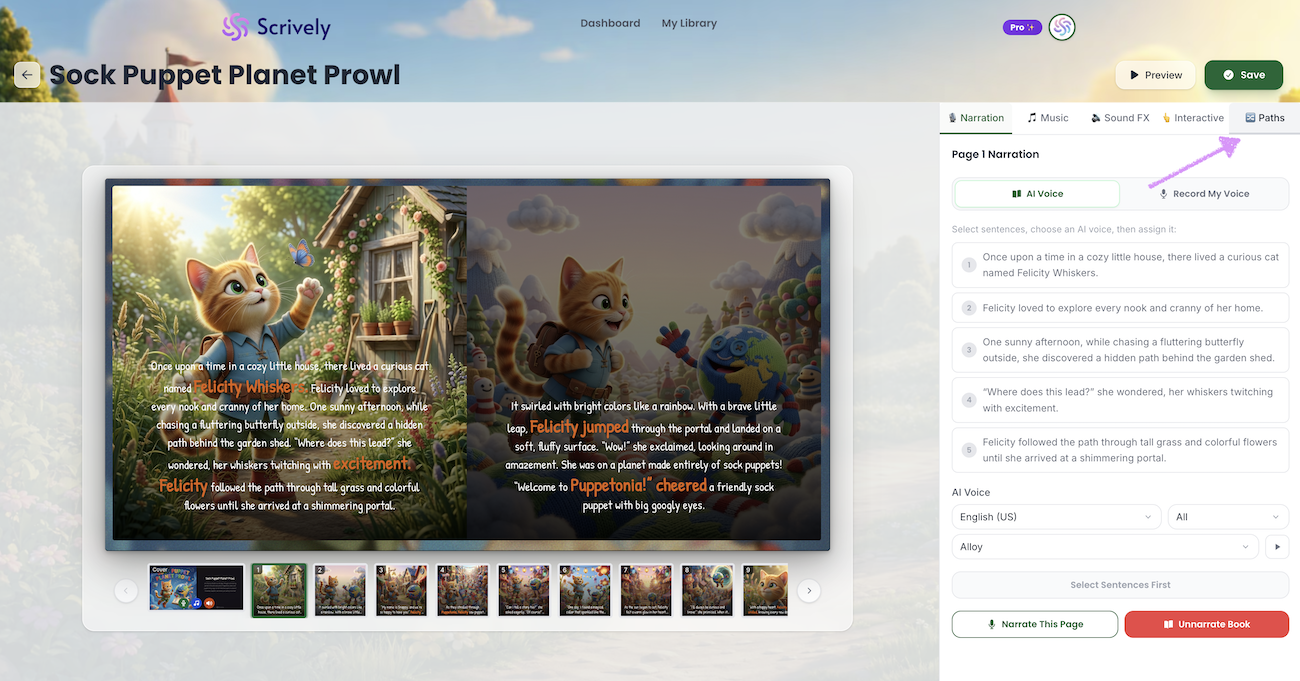
Add the desired text for the path.
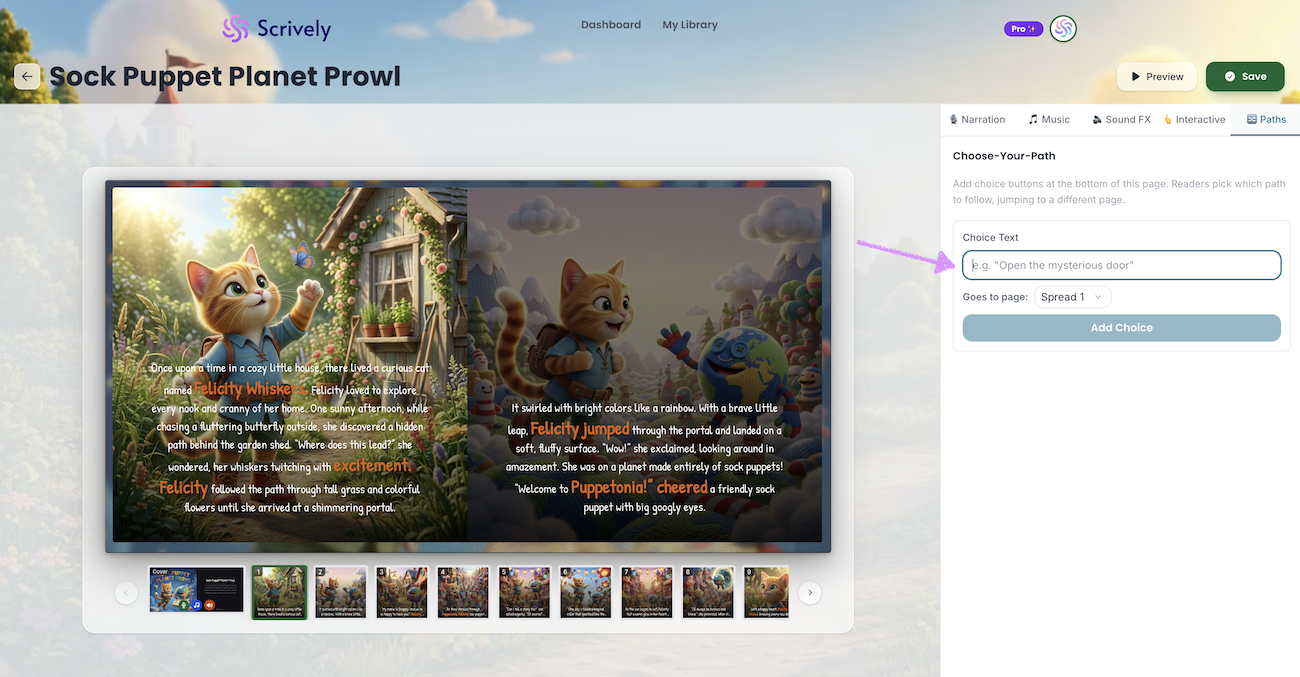
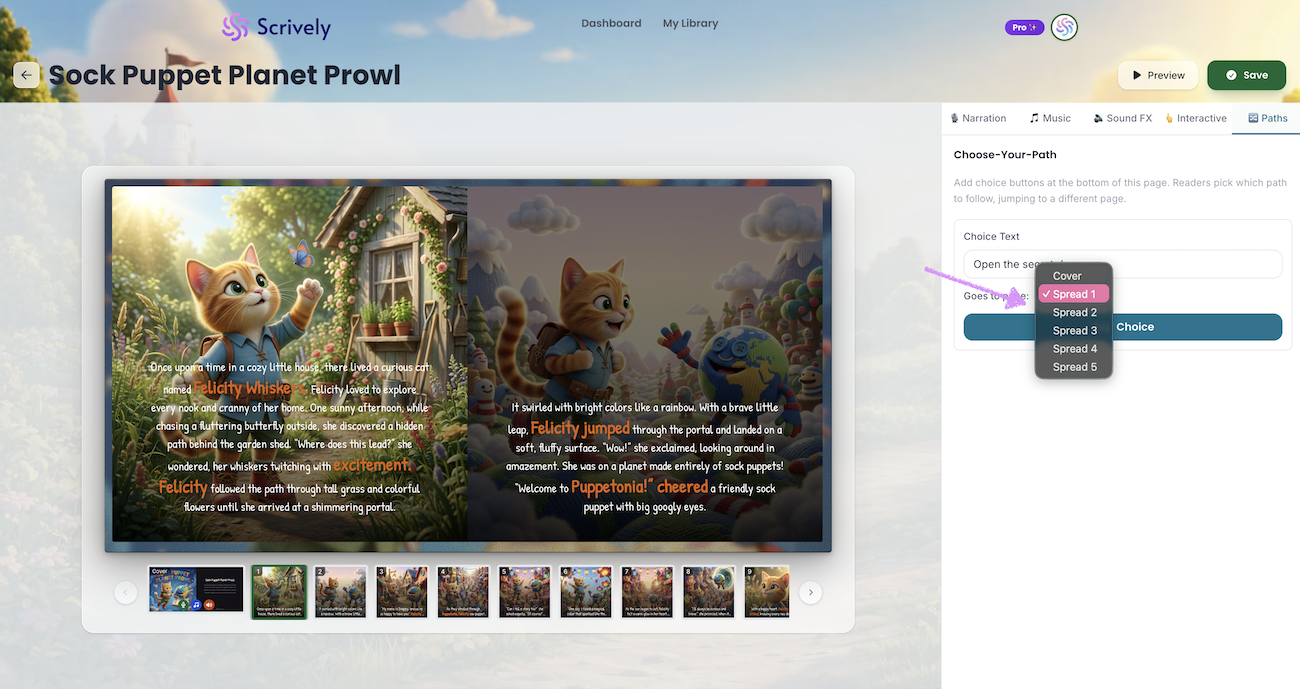
Click on the "Goes to page" dropdown.
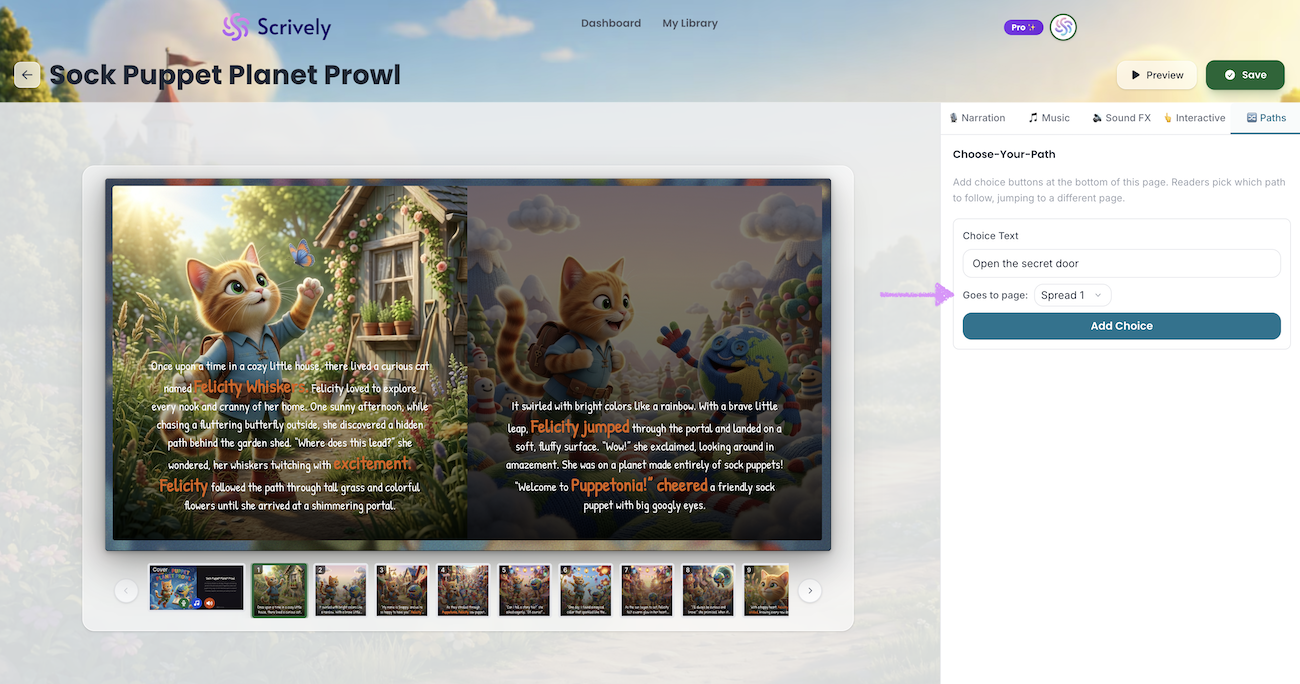
Select which page the path leads to.
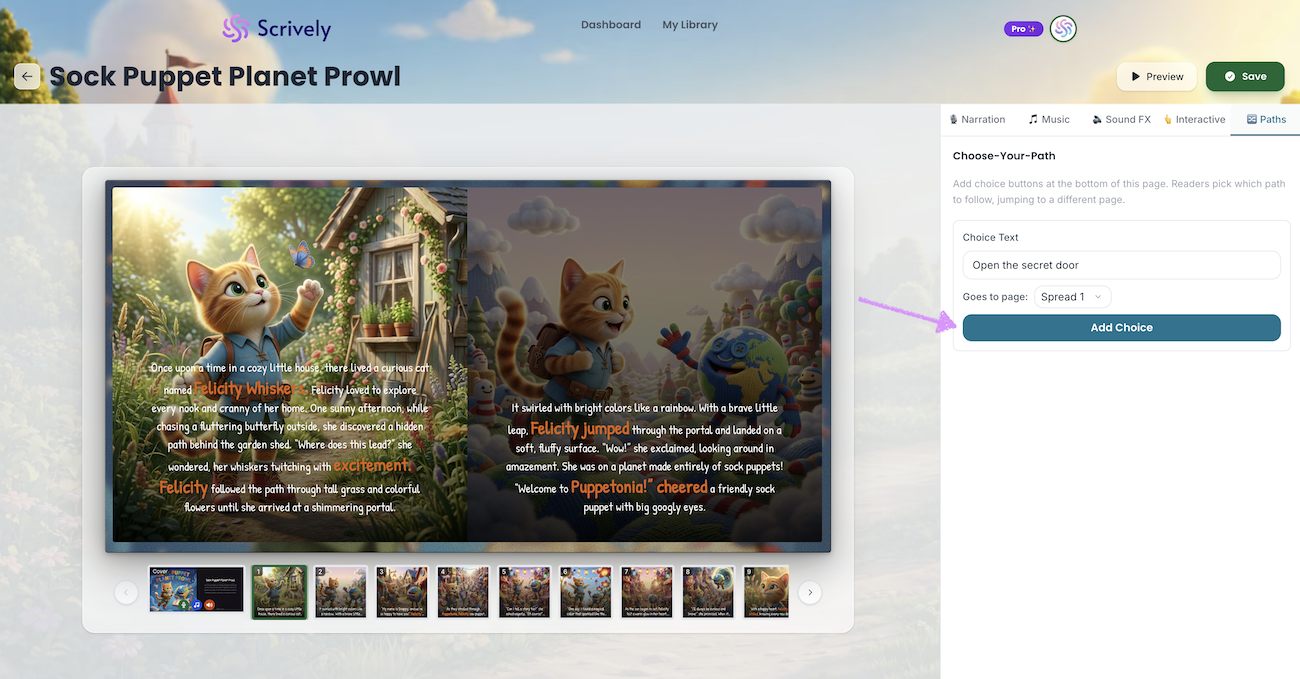
Click on "Add Choice."
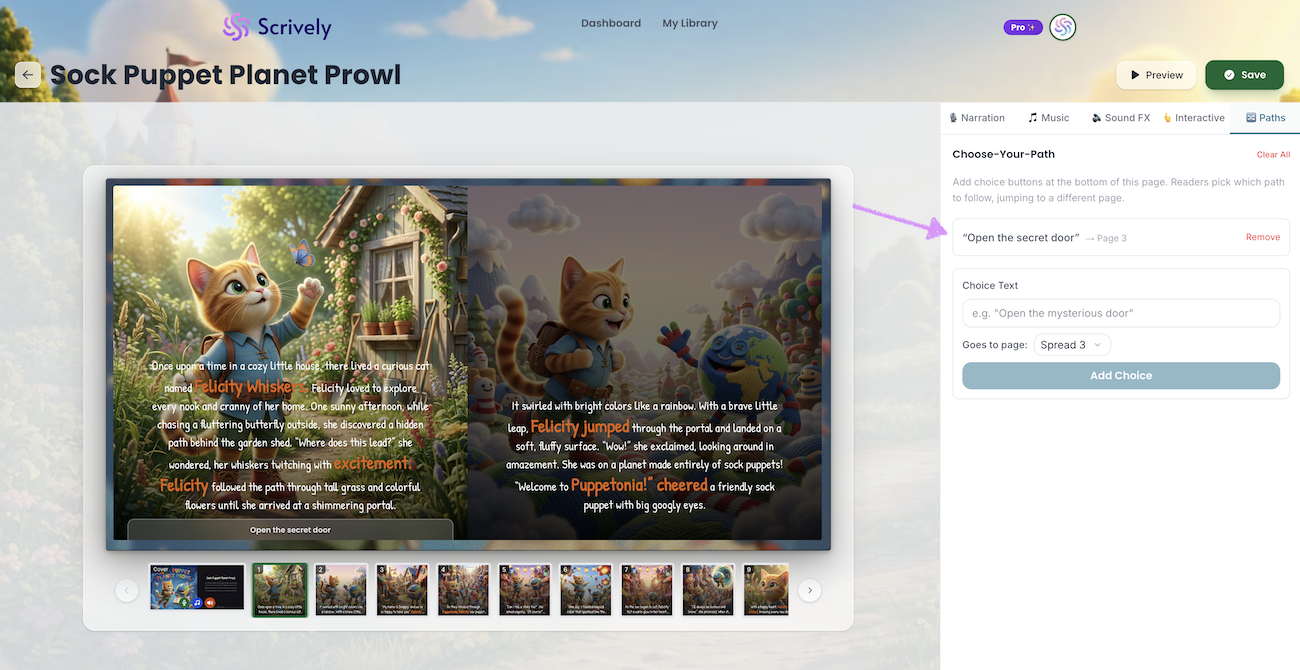
The path will be added with the configured details.
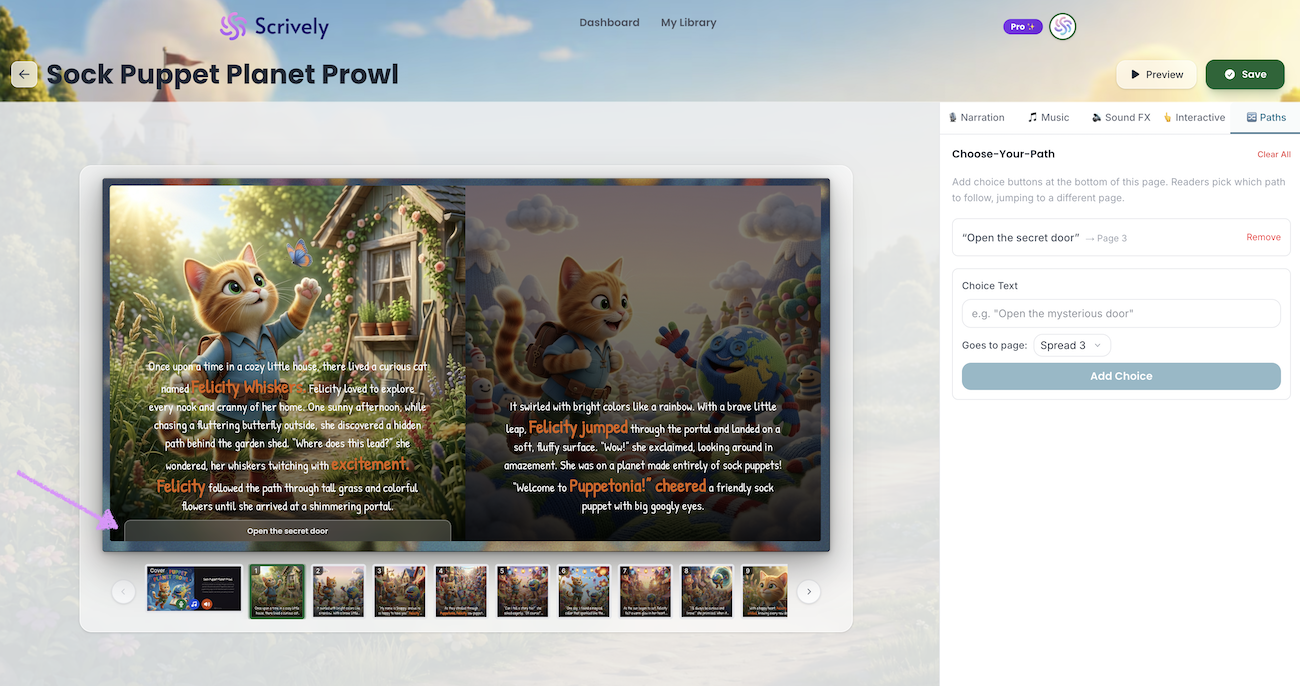
It will also be displayed at the bottom of the page.
Each page can have multiple paths.
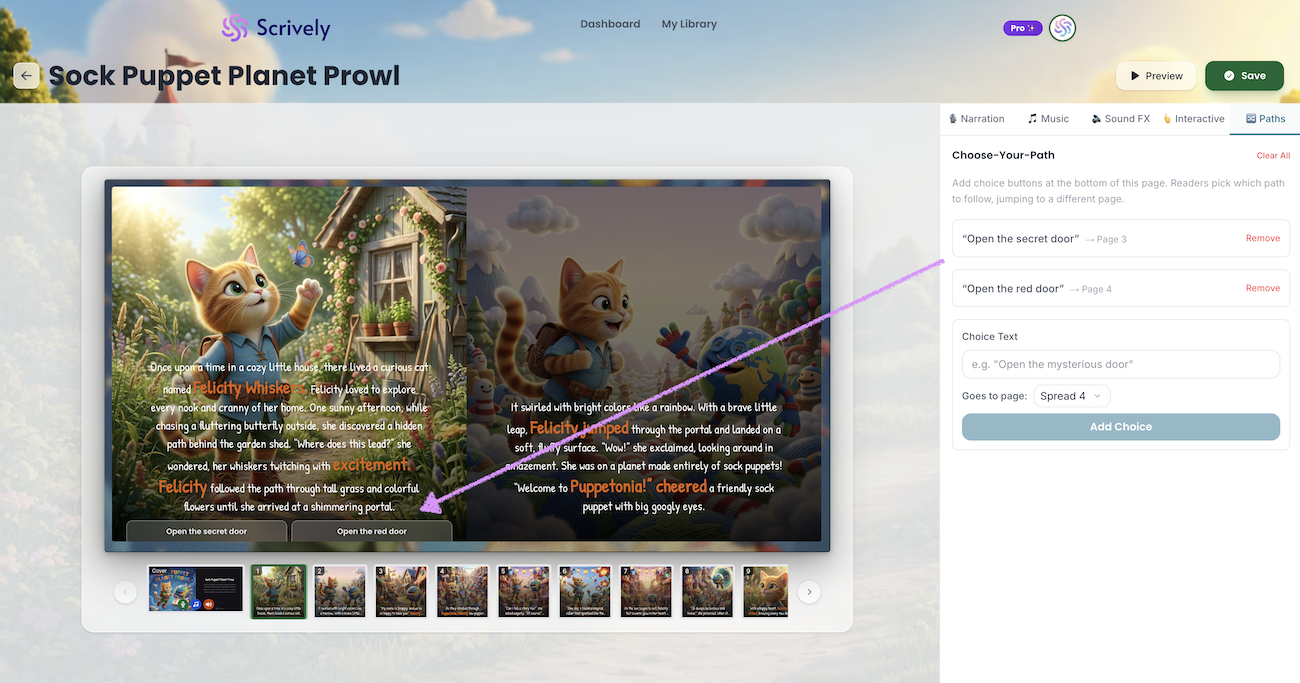
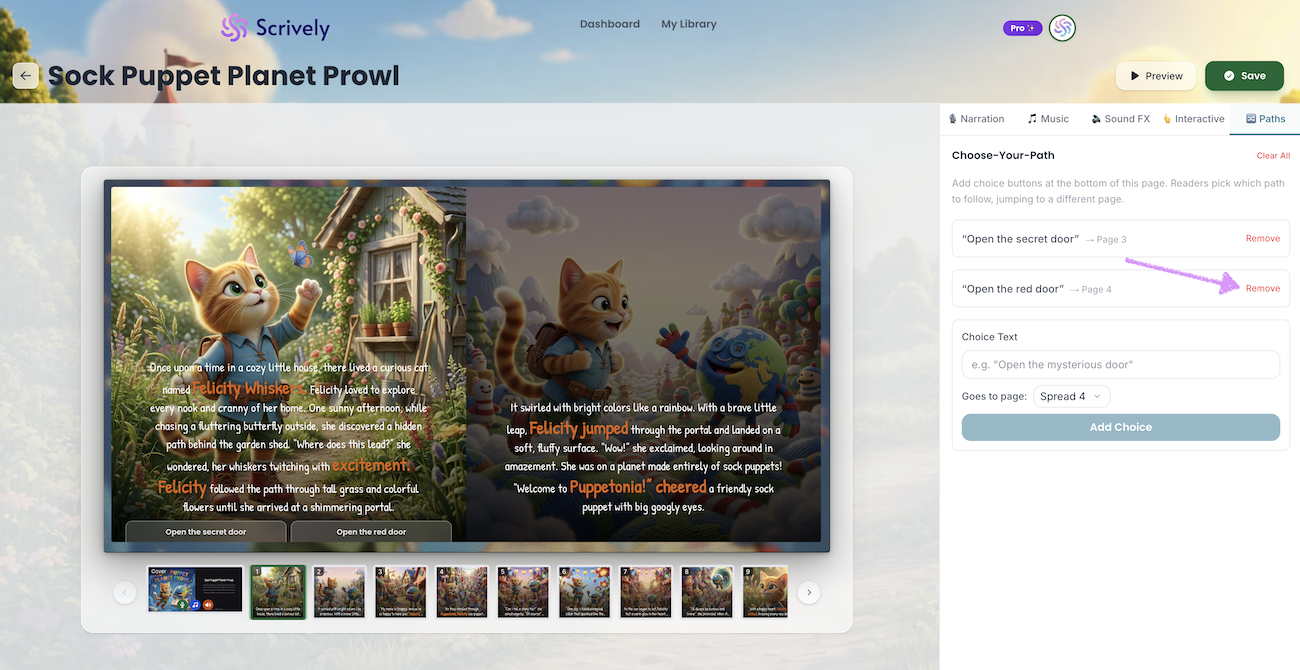
To remove the path, click "Remove."
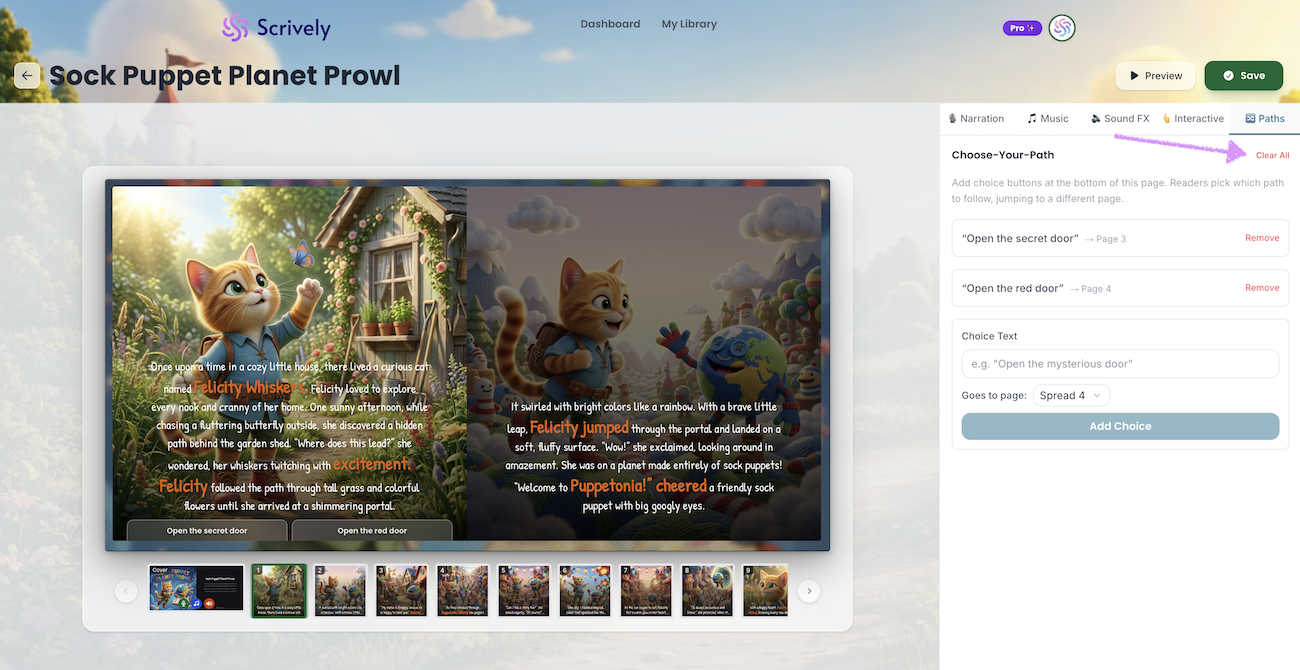
Want to start over? Click on "Clear All."
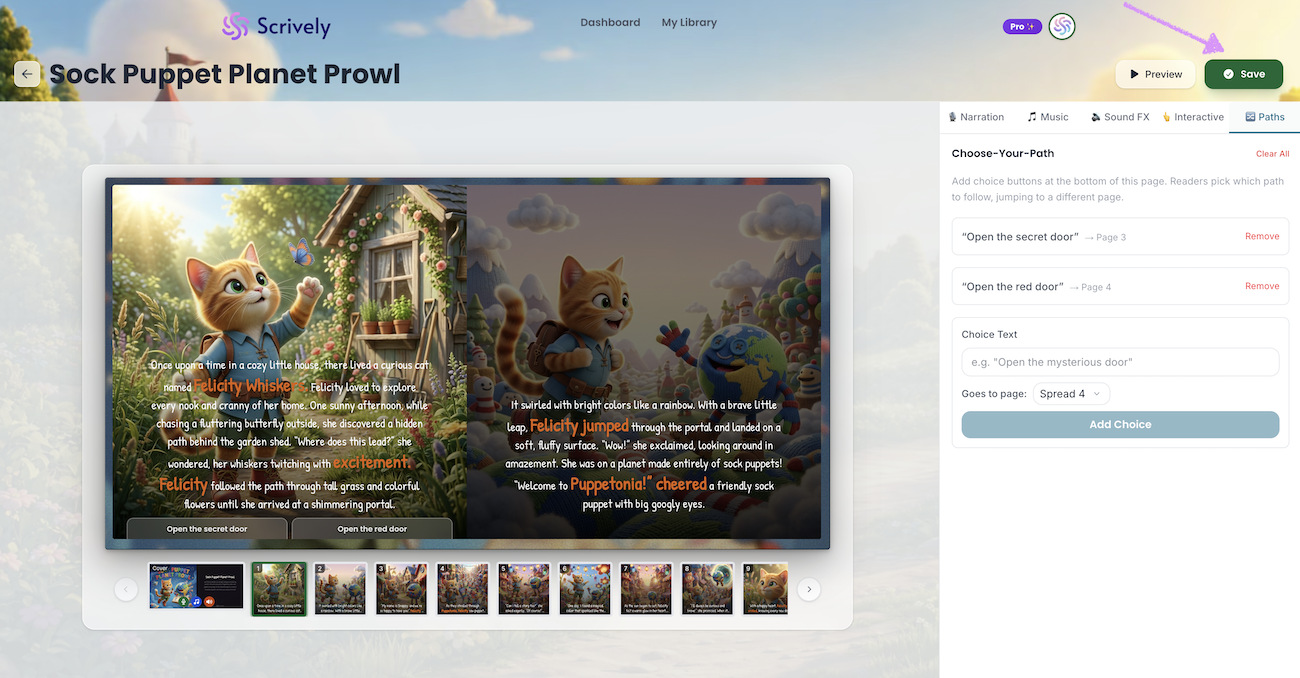
Once you’re satisfied with your changes, click “Save” in the top right corner to save them.
Was this article helpful?
That’s Great!
Thank you for your feedback
Sorry! We couldn't be helpful
Thank you for your feedback
Feedback sent
We appreciate your effort and will try to fix the article
