
Have a story of your own? Bring it to life in the Scrively. You can easily upload your text in just a few steps, generate beautiful illustrations for your existing story, and customize every page to match your vision. When you’re finished, your storybook will be ready to share in both print and digital formats.
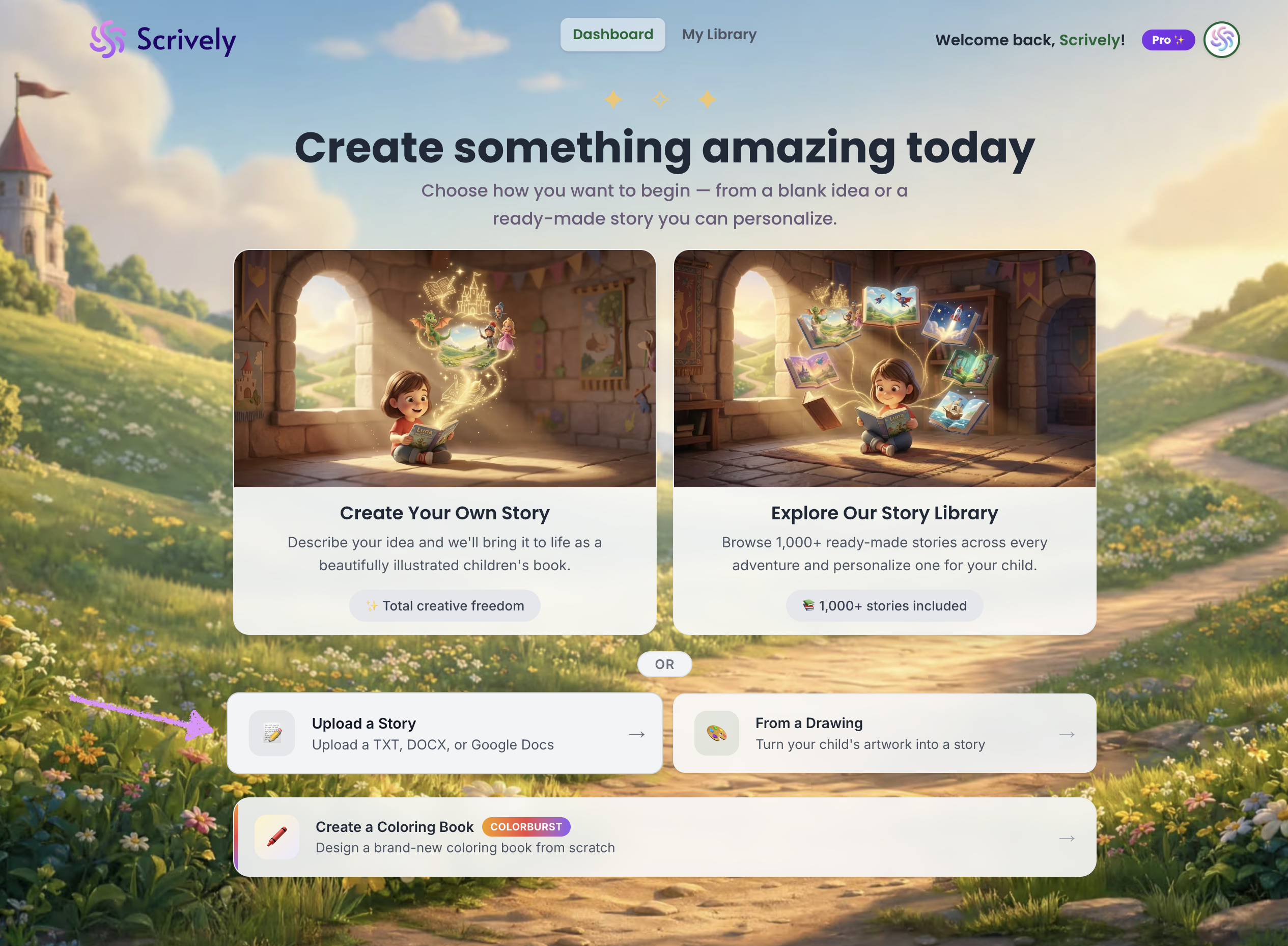
From the Dashboard, click on "Upload a Story."
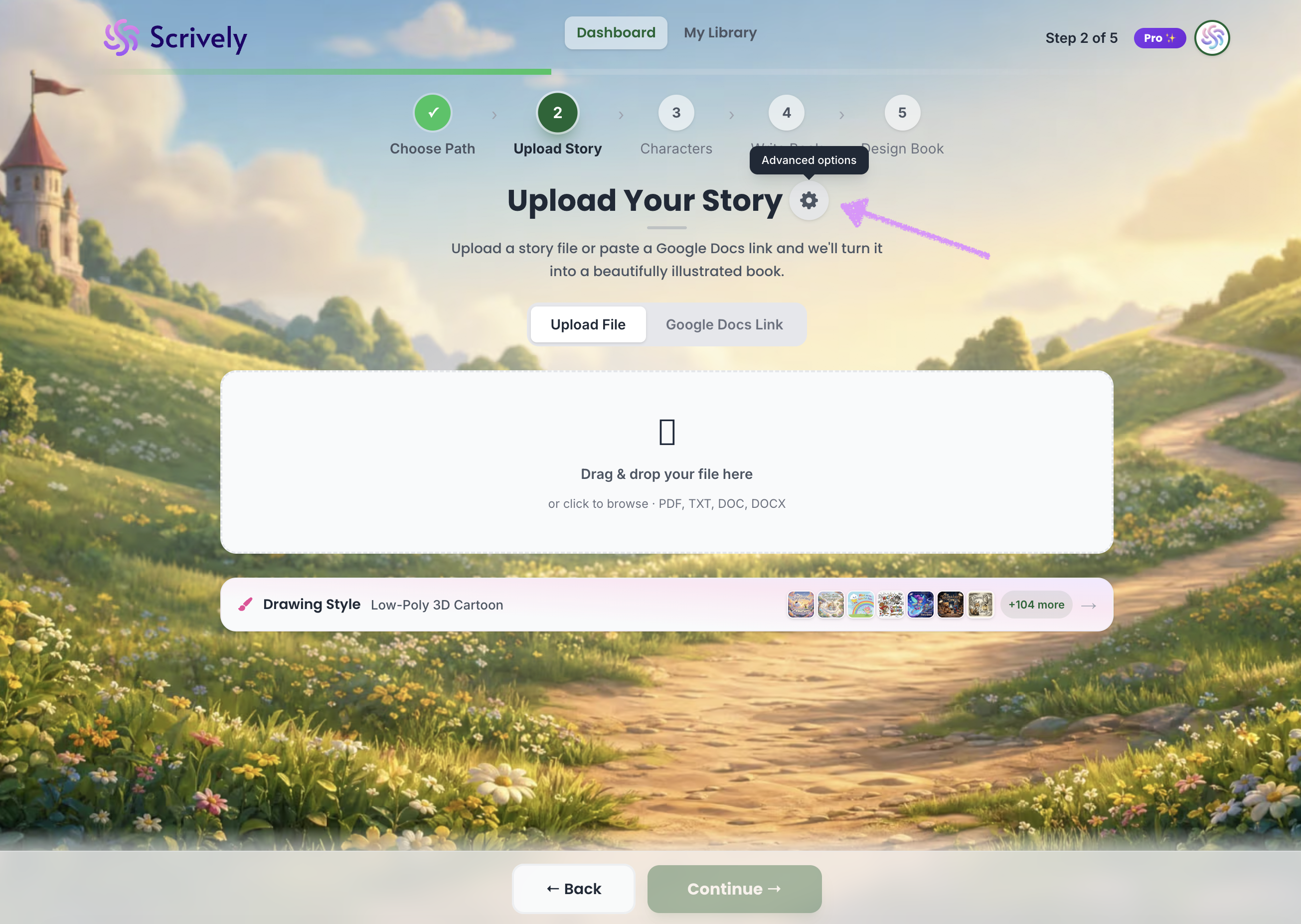
At the top, you’ll have the option to configure your “Advanced Options,” which we explain in more detail in our guide here.
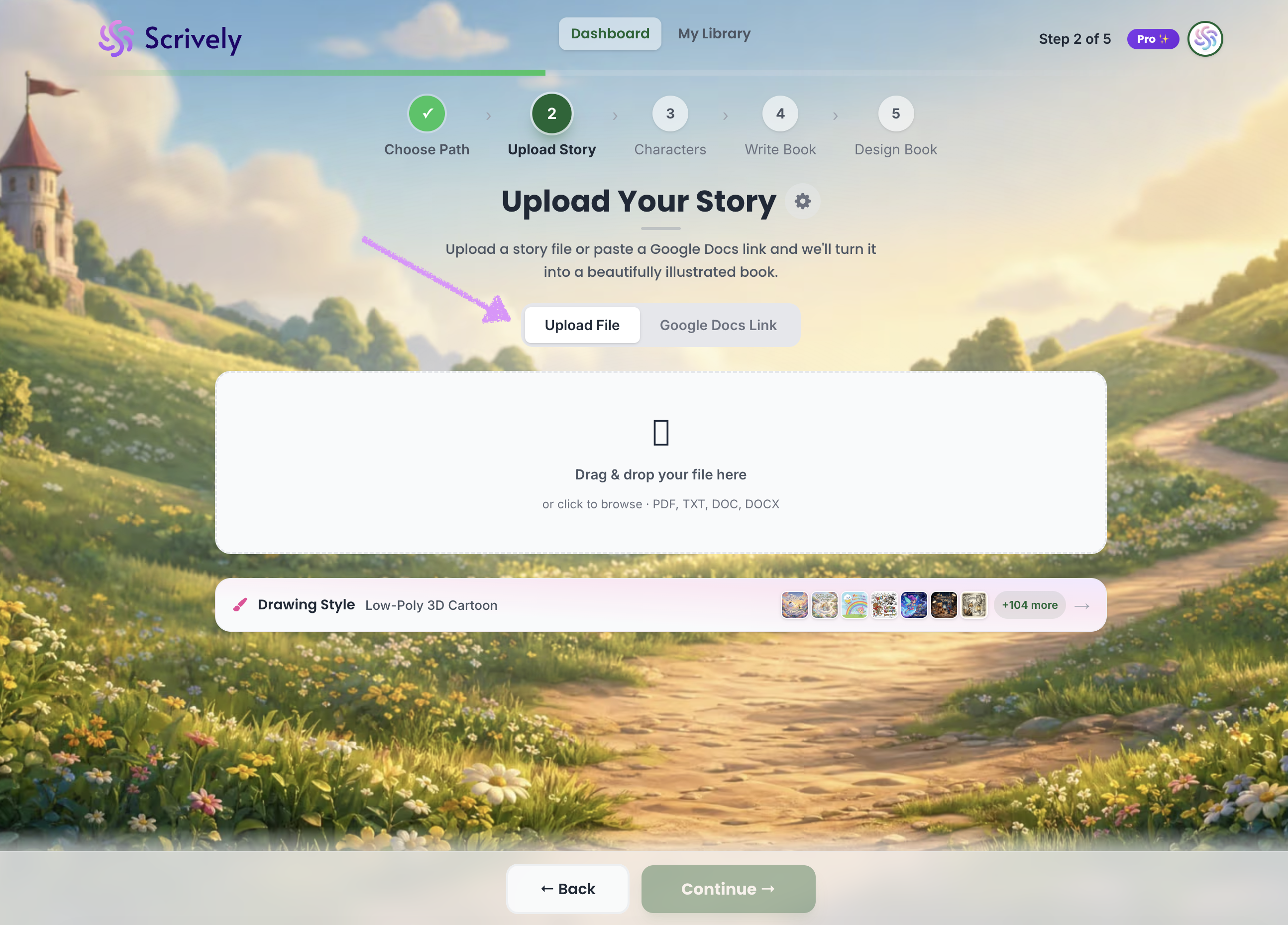
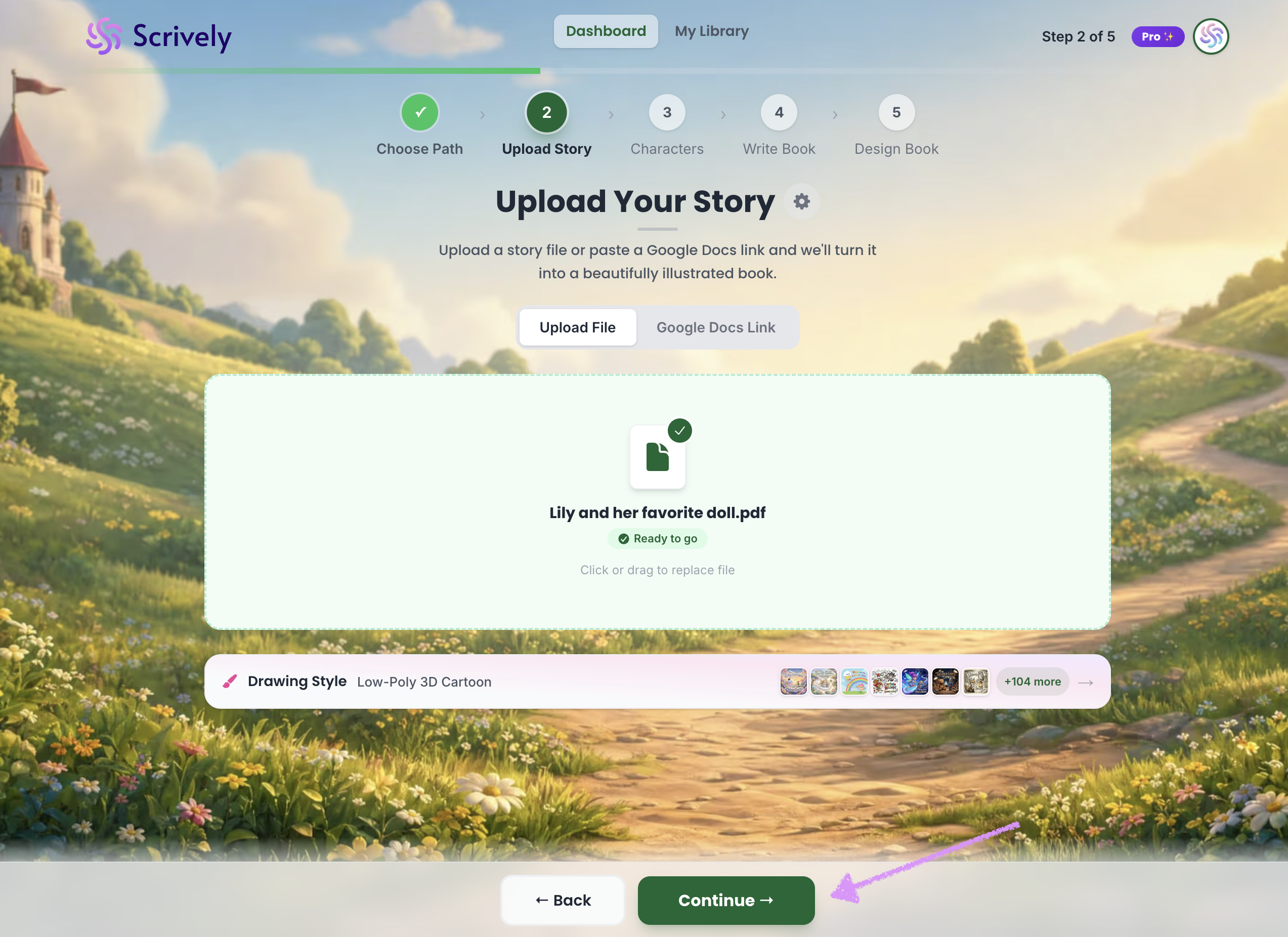
You have two upload options: “Upload File” or “Google Docs Link.”
Under the “Upload File” option, drag and drop your file or click to browse your device.
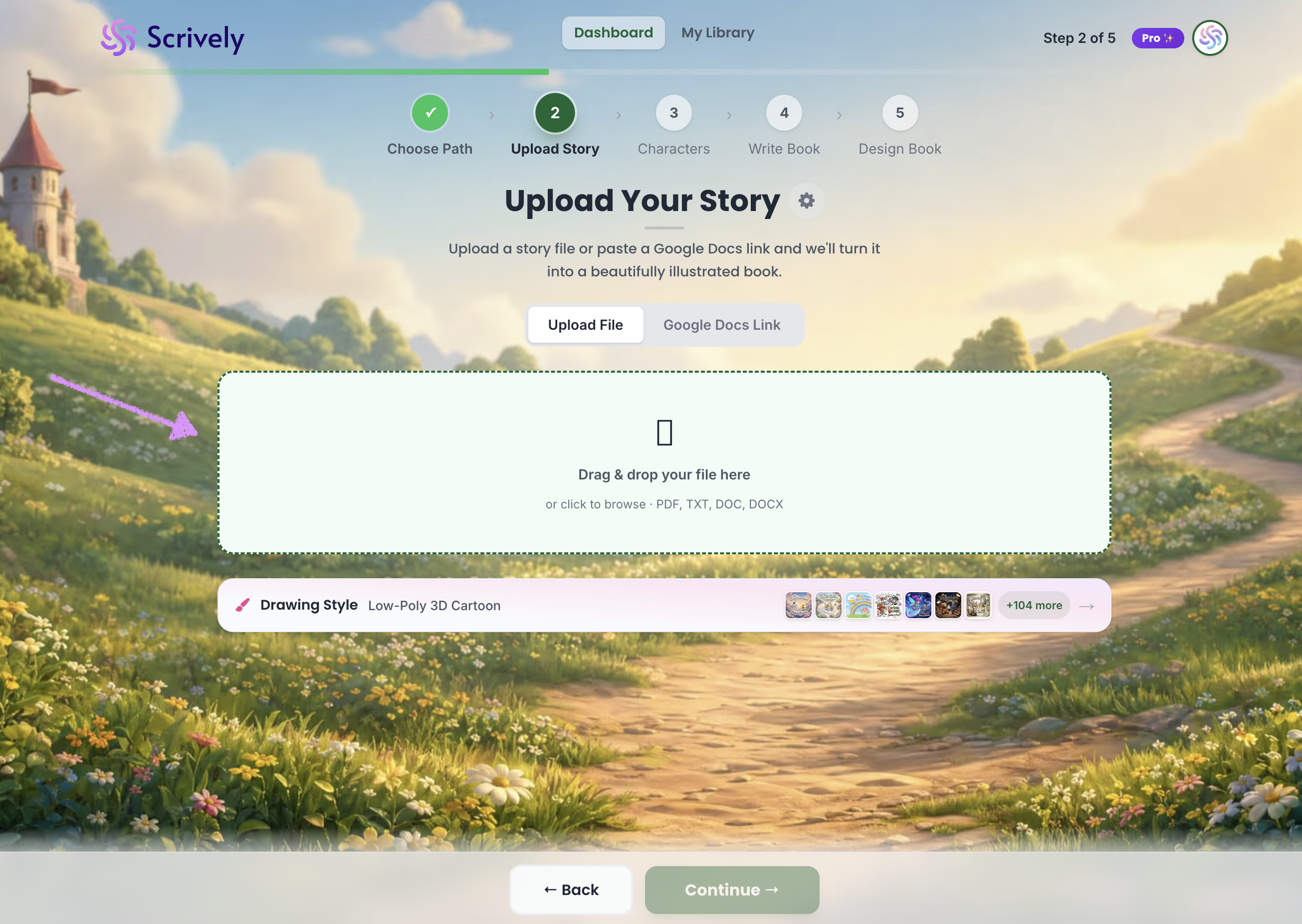
Once selected, your story will be imported into the modal and ready for you to continue working on it.
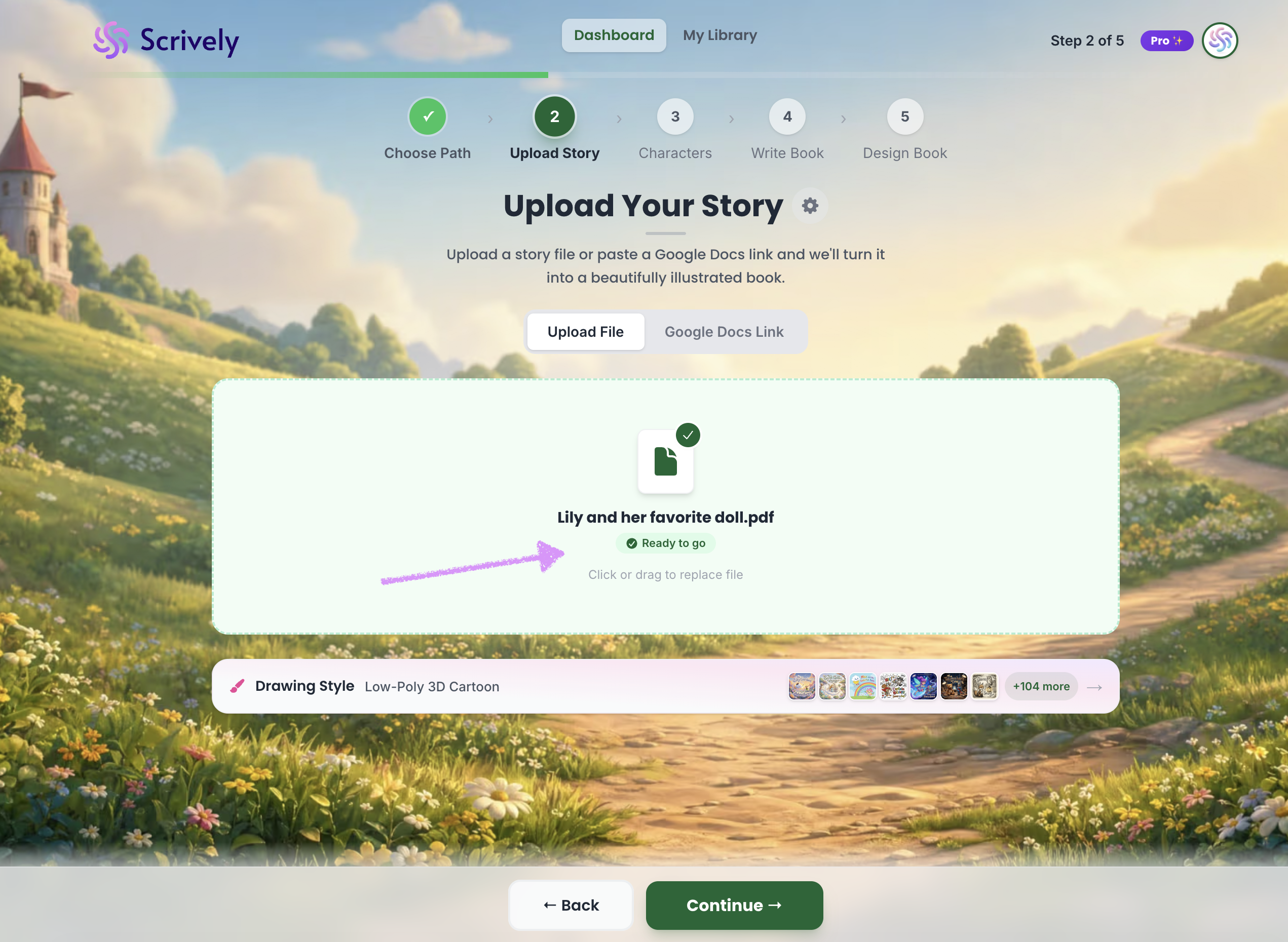
If you prefer to upload using a Google link click on the "Google Docs Link" tab.
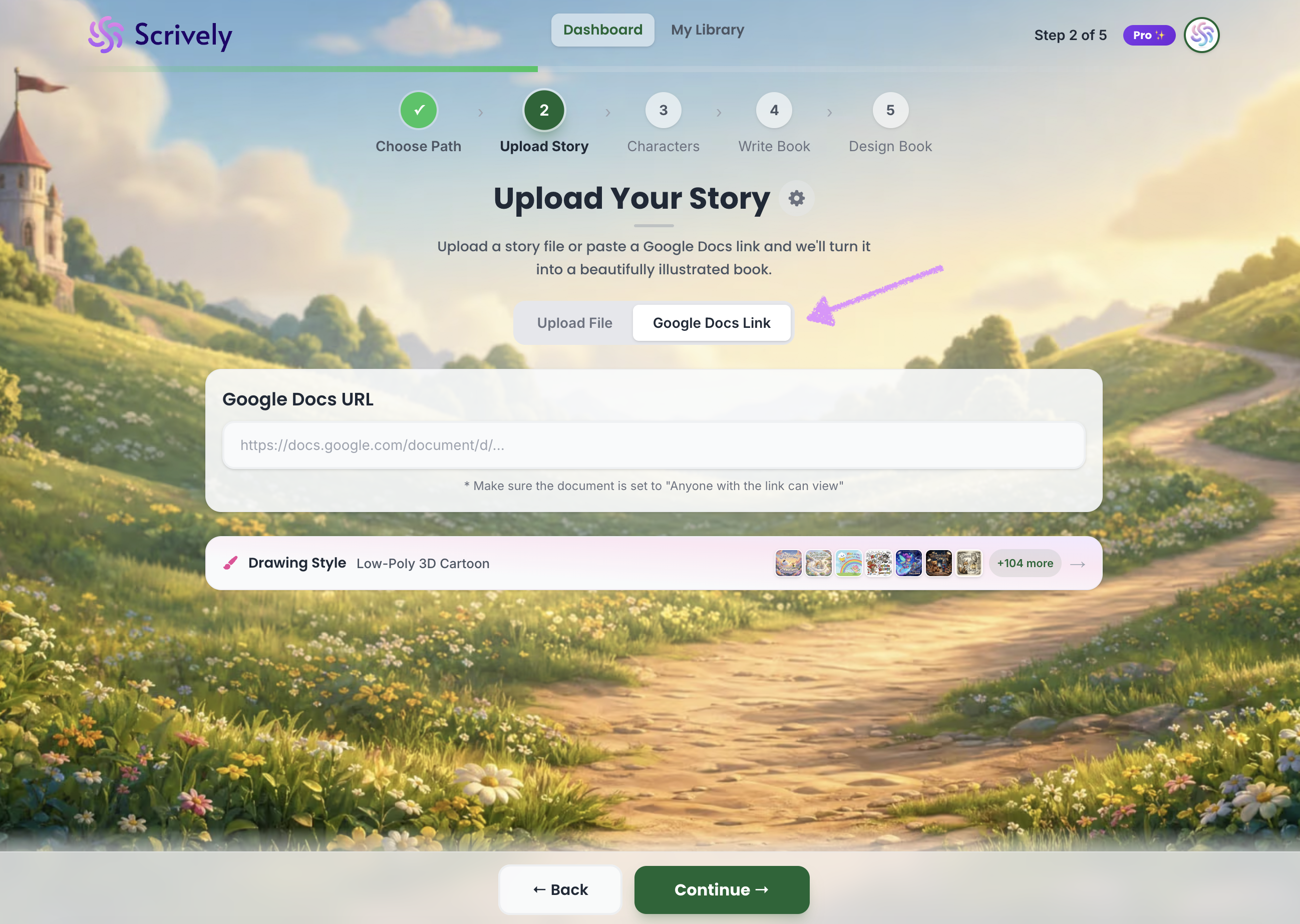
Paste your Google Doc link into the provided field. Make sure your sharing settings are set to “Anyone with the link → View” so Scrively can access your document.
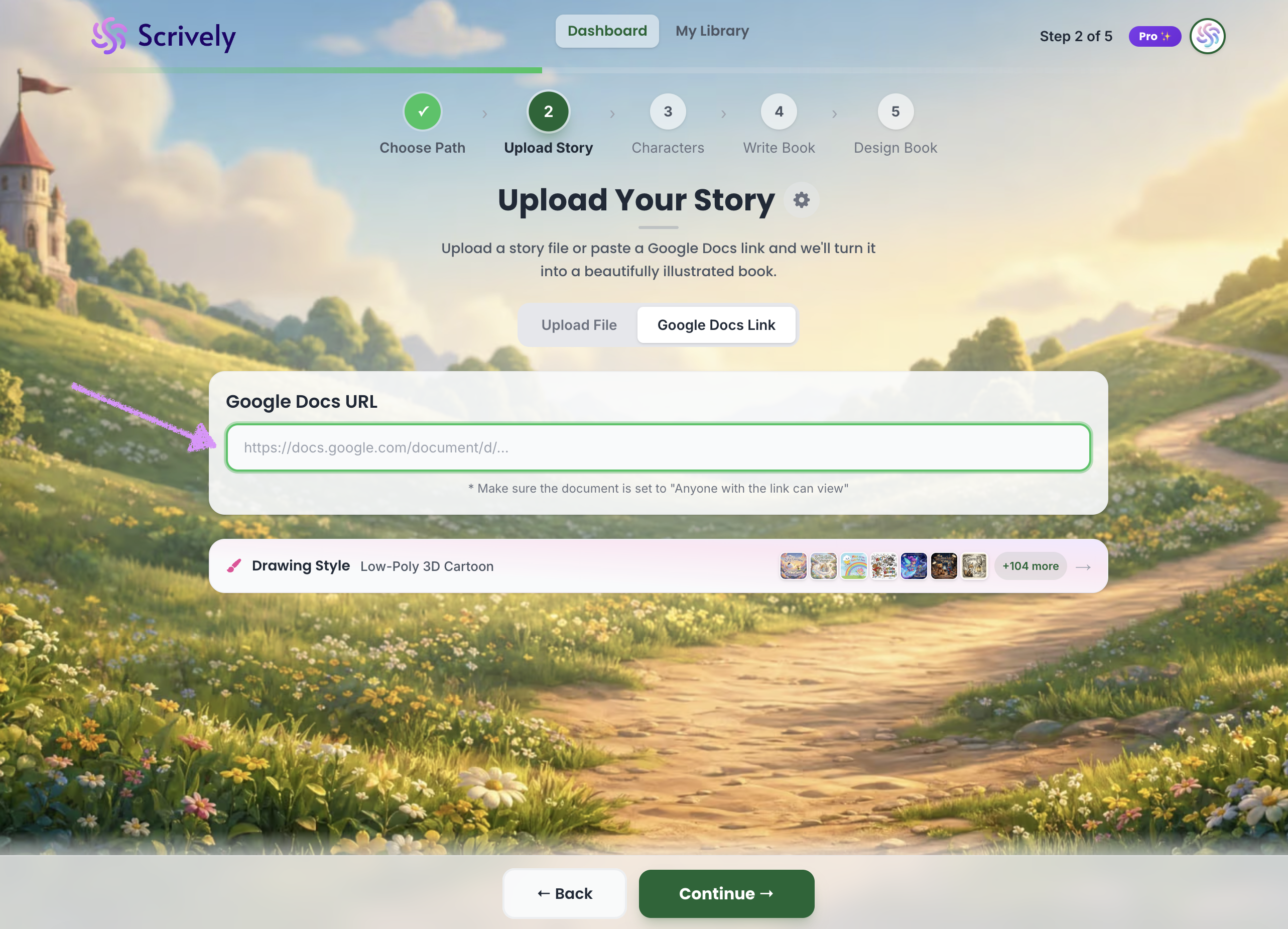
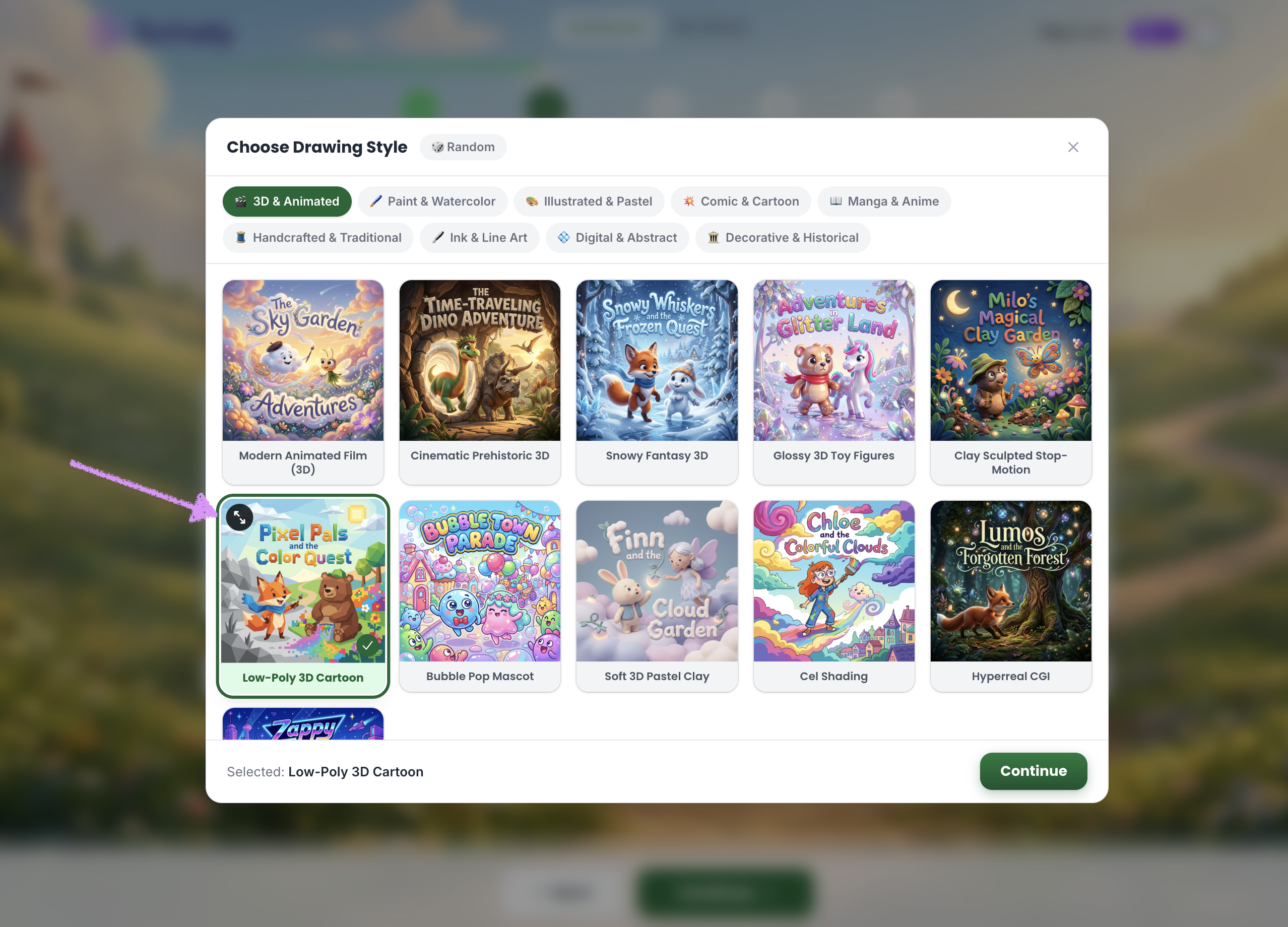
Select your "Drawing Style."
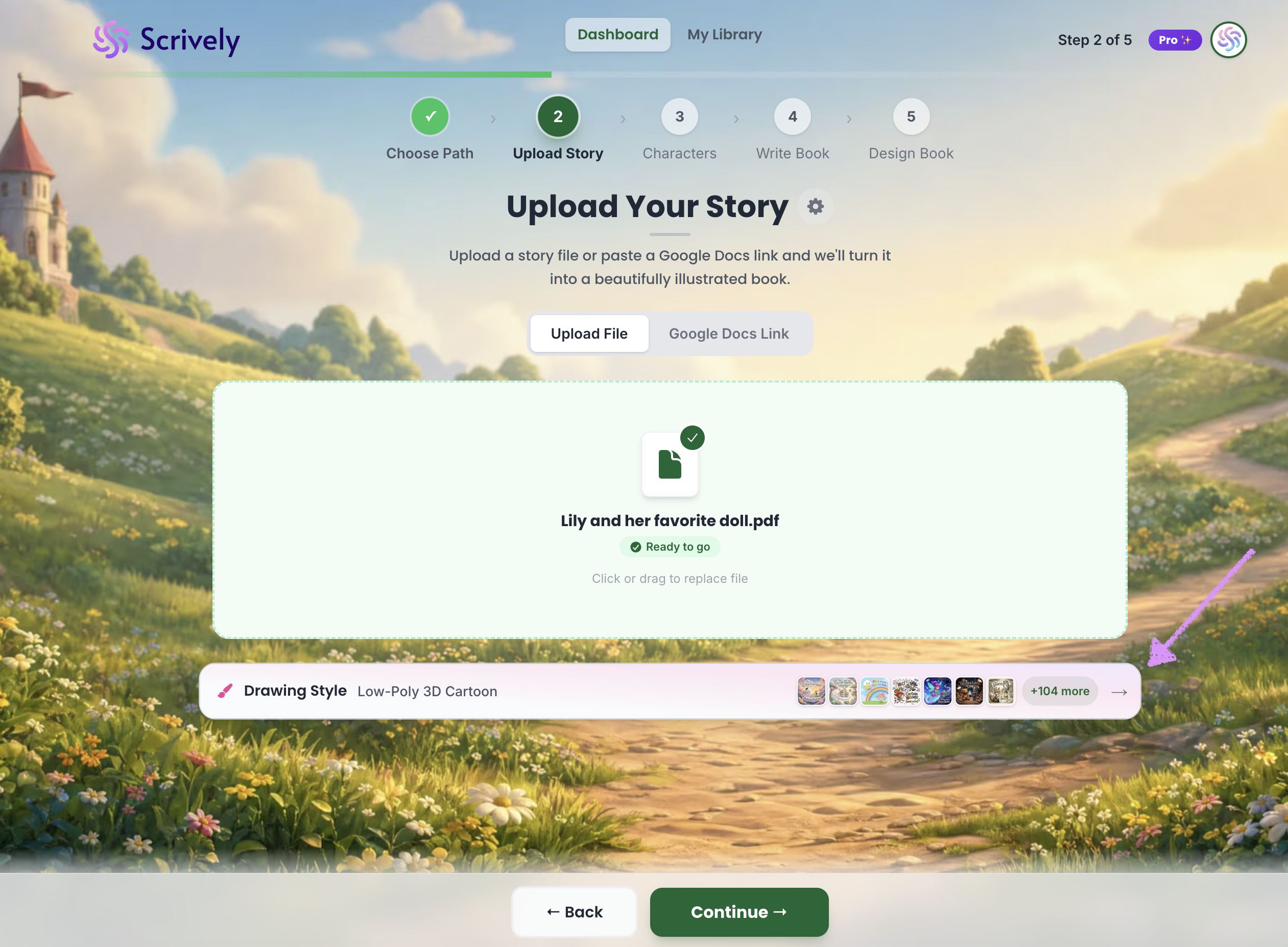
Hover over the drawing style to reveal and click on the enlarge tool.
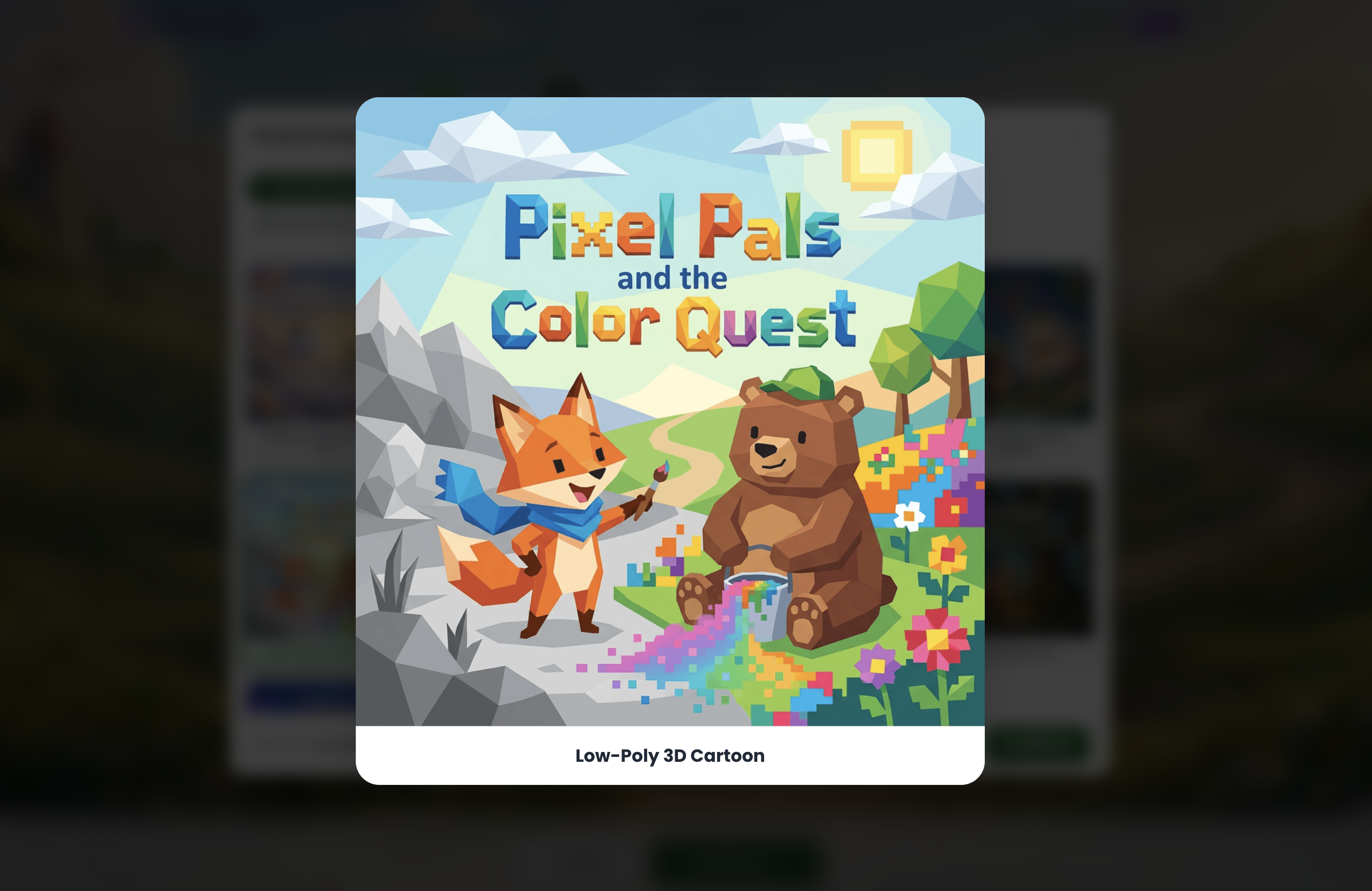
Once selected, you’ll see a full-size preview of the drawing style.
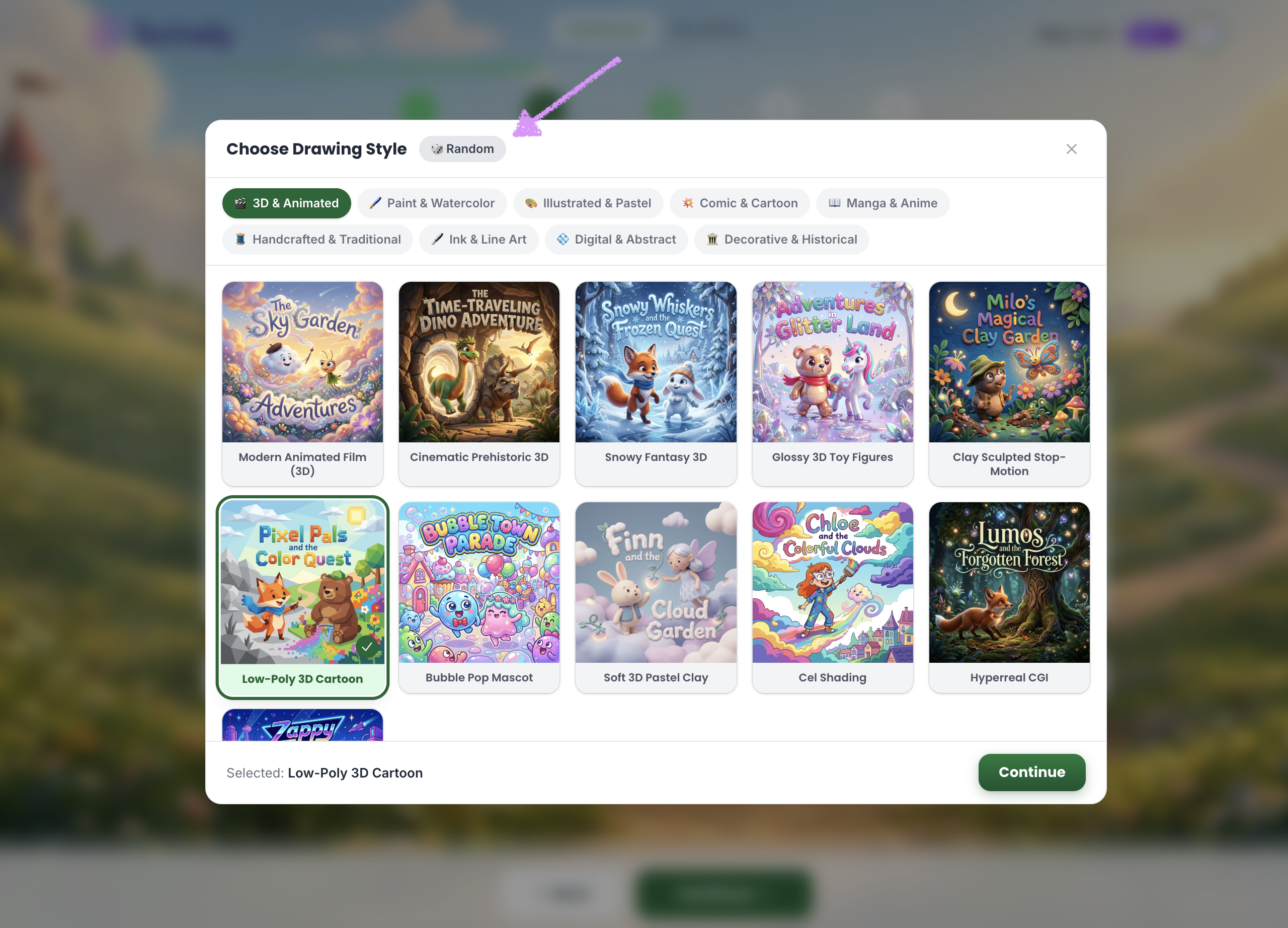
Want to let Scrively to select a style for you? Click on "Random."
Click on "Continue."
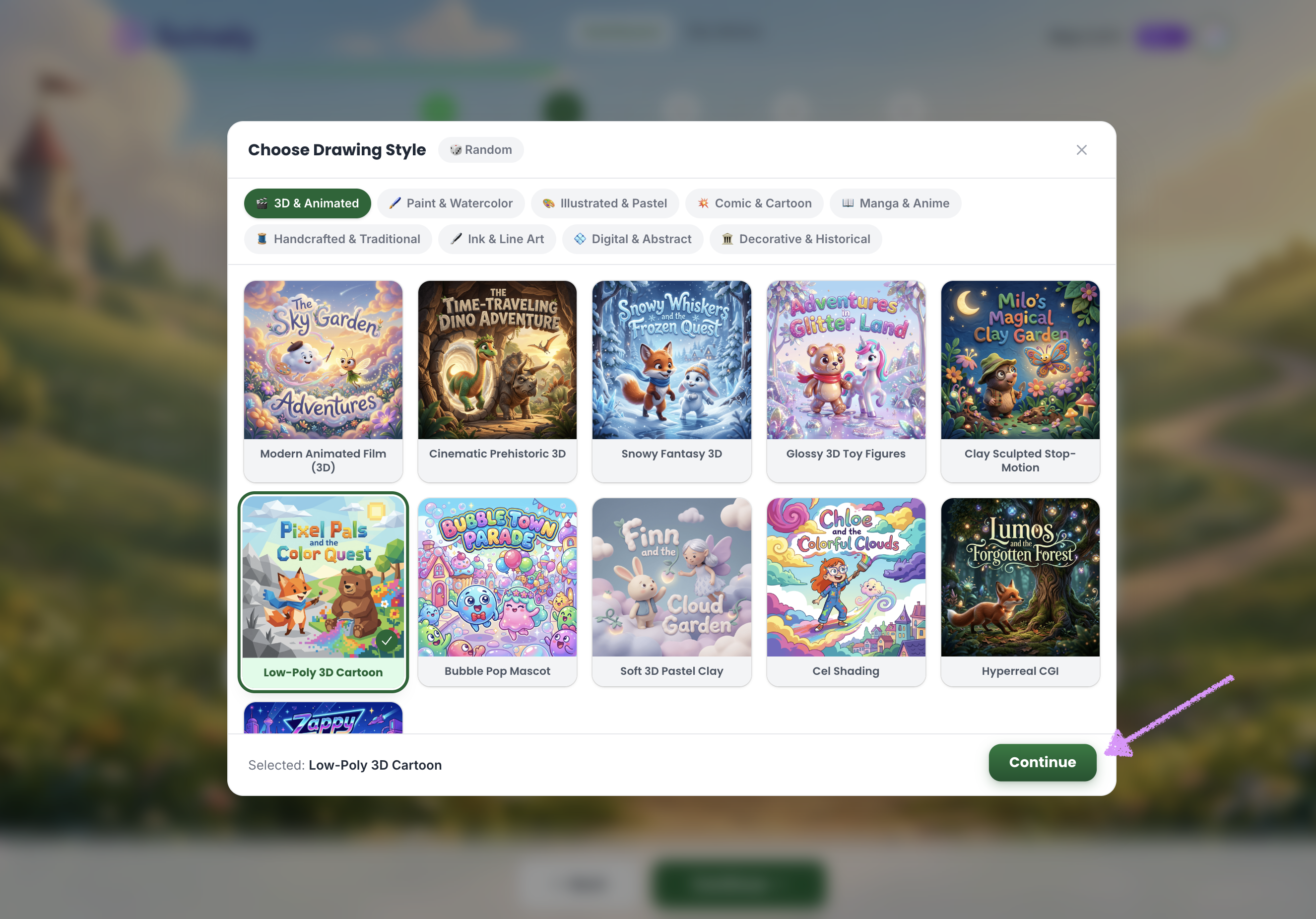
Click “Continue” at the bottom to proceed to the next step, where you can create your characters. You can learn more about this process in our guide here.
Was this article helpful?
That’s Great!
Thank you for your feedback
Sorry! We couldn't be helpful
Thank you for your feedback
Feedback sent
We appreciate your effort and will try to fix the article
